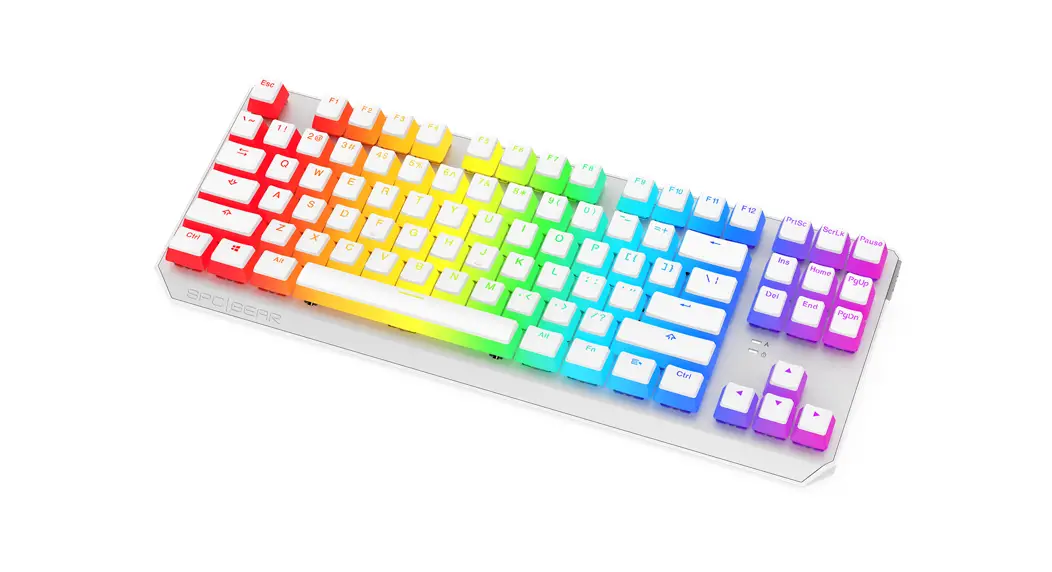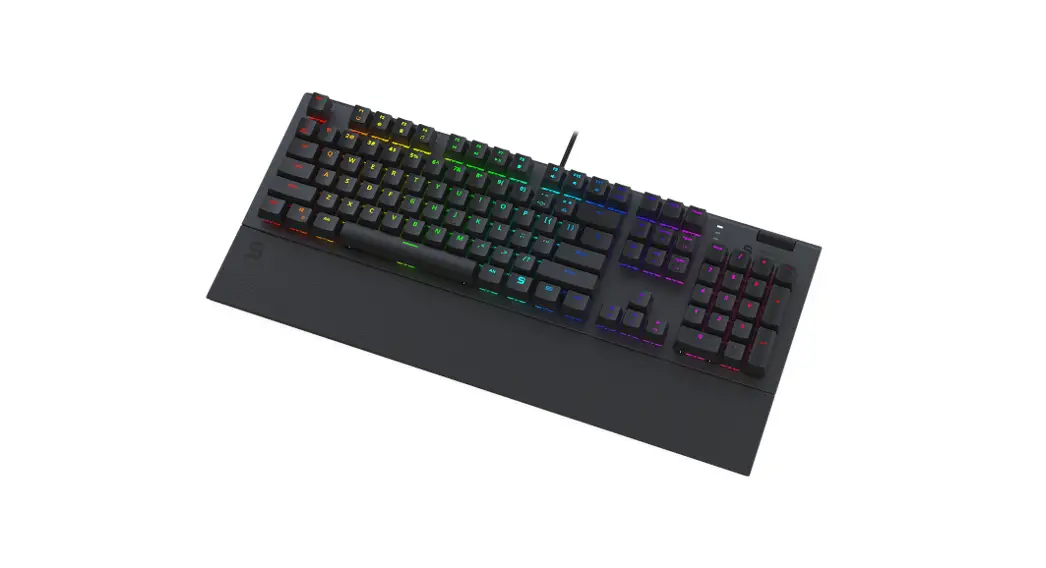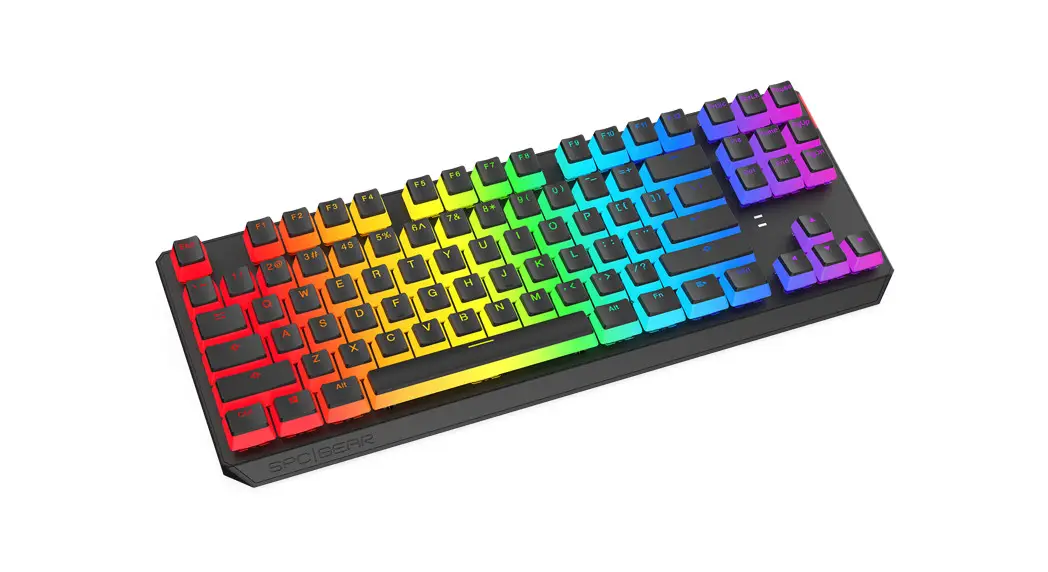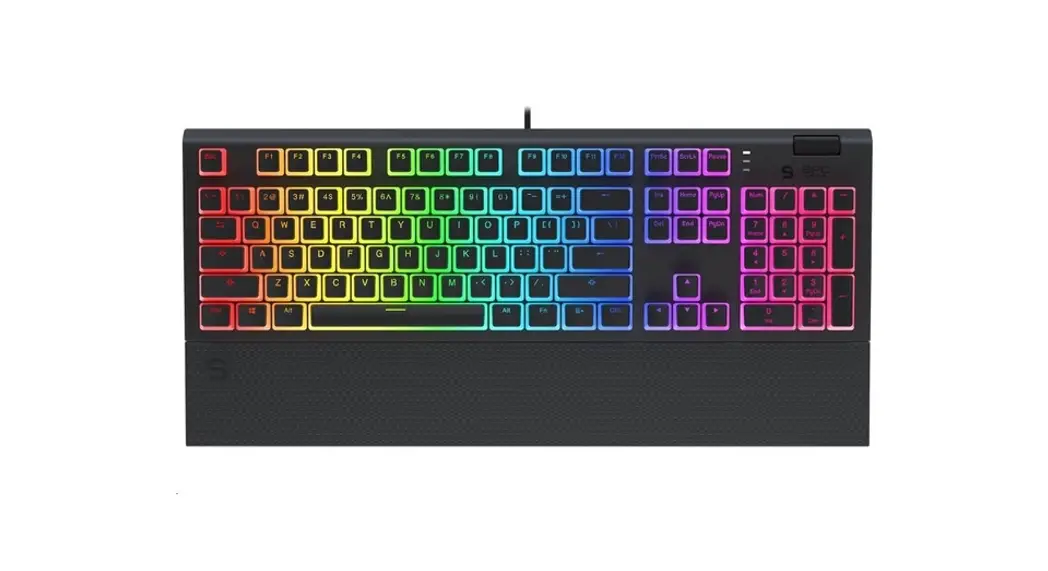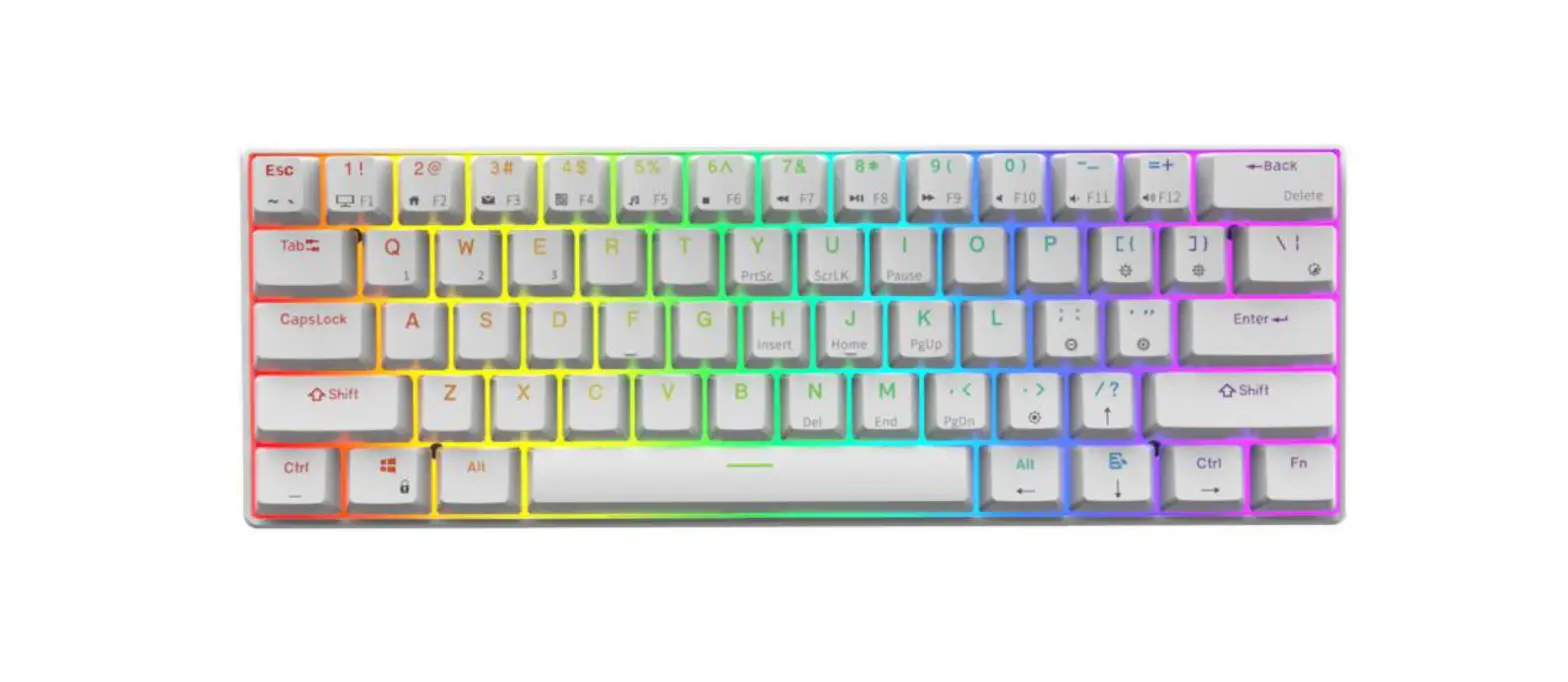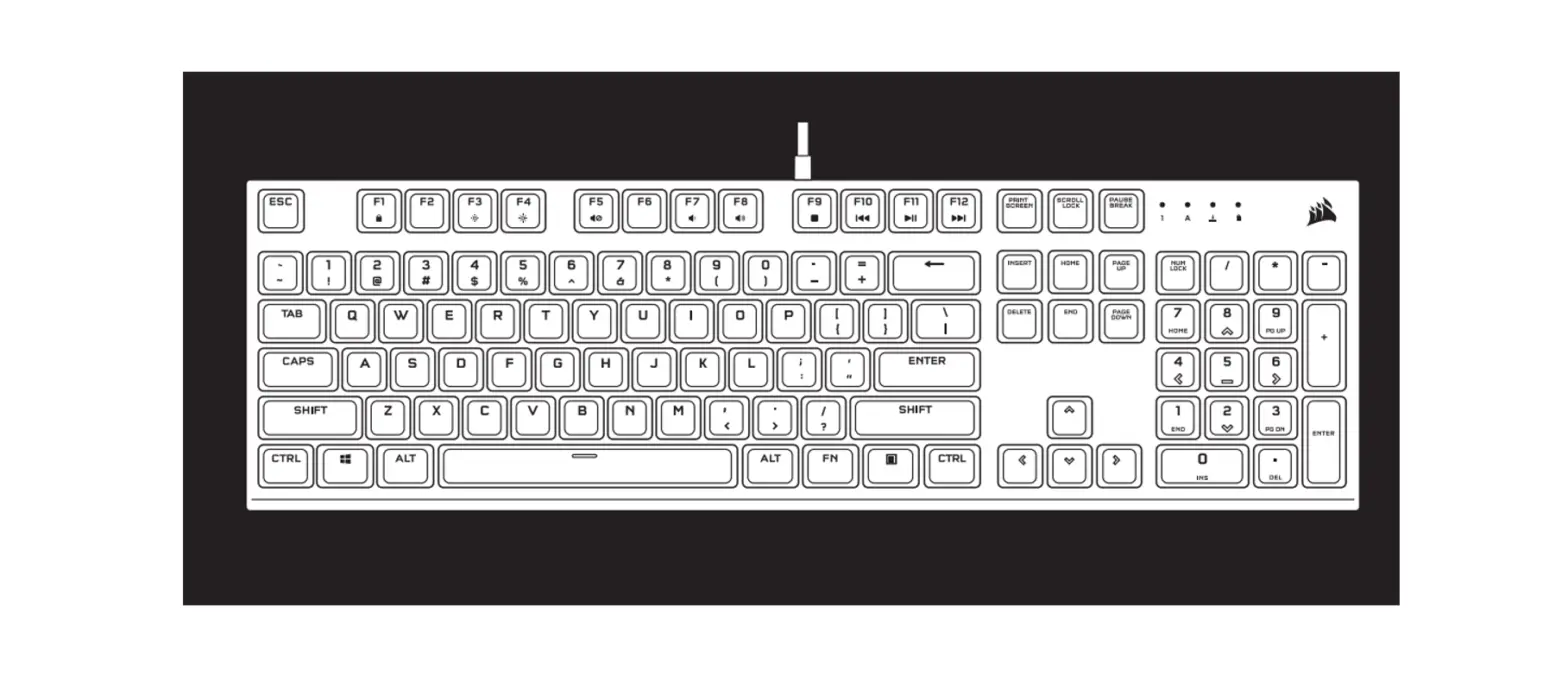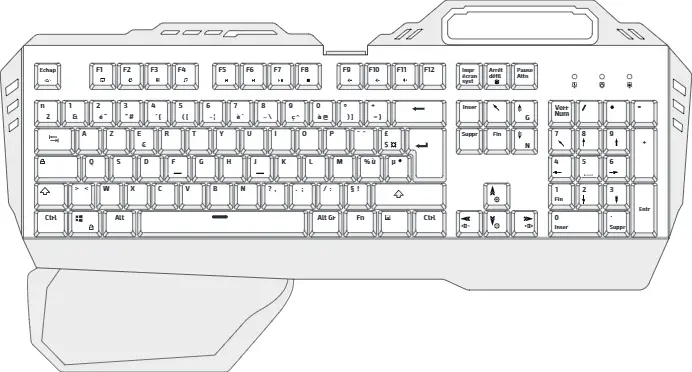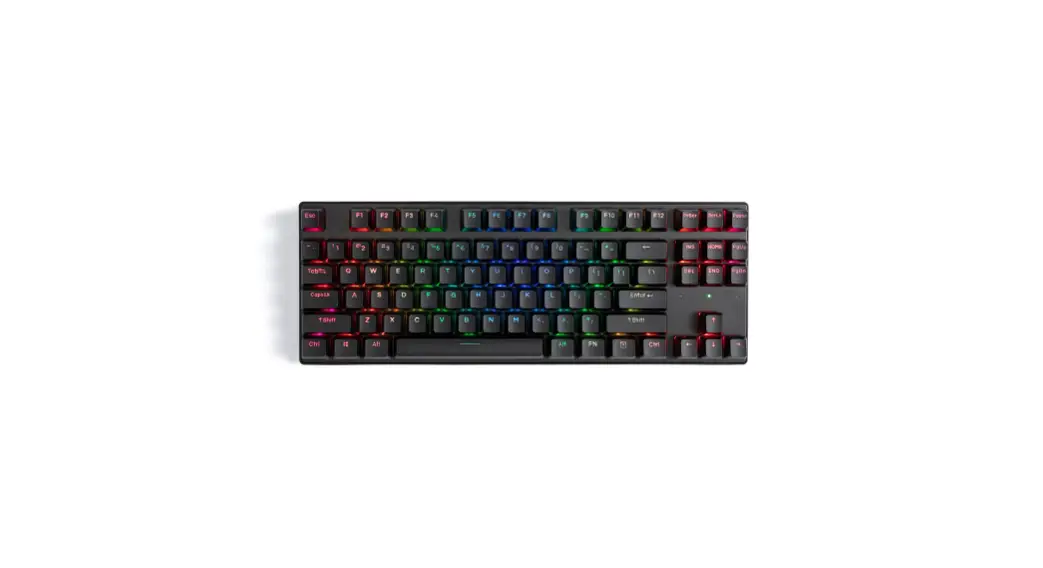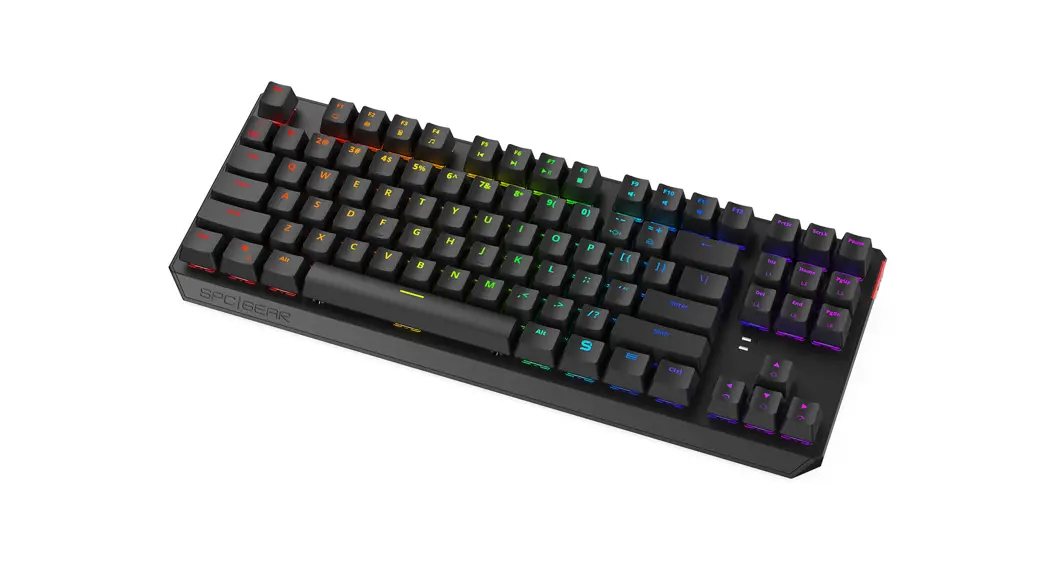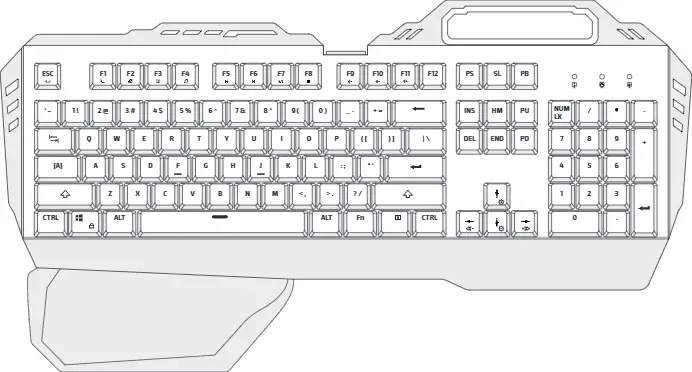
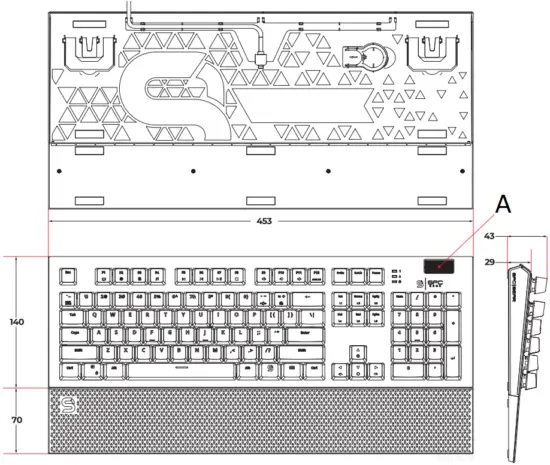
A Volume +/-

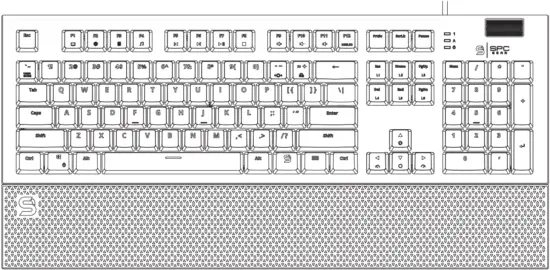
SOFTWARE/MULTIMEDIA KEYS
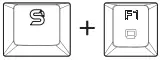 = Computer
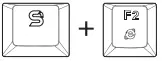 = Web browser
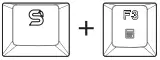 = Calculator
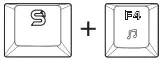 = Music player
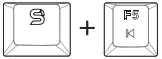 = Previous track
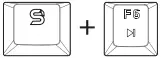 = Next track
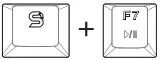 = Play/Pause
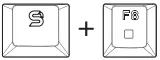 = Stop
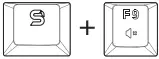 = Mute
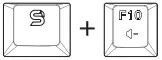 = Volume Down
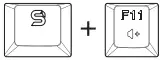 = Volume Up
HOTKEYS
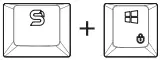 = Gaming mode (WIN Lock)
 = 6/N-key rollover
 = WASD and arrow keys swap
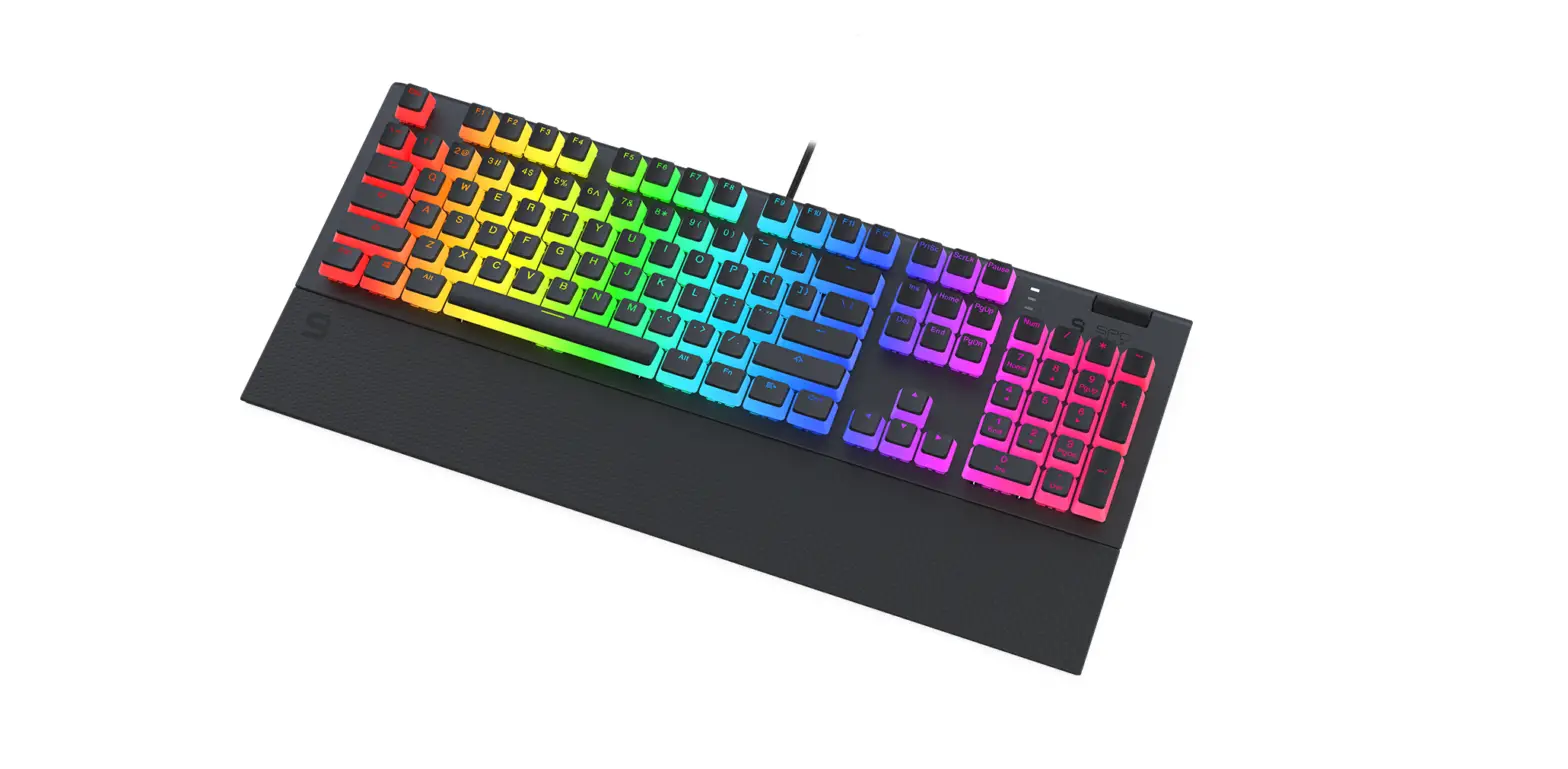
BACKLIGHT EFFECTS
BACKLIGHT CONTROL
 = Lighting brightness up/down
 = Backlight effect speed
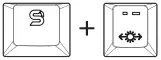 = Effect direction
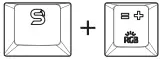 = Backlight colour change
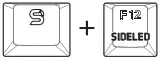 = Side LED mode change
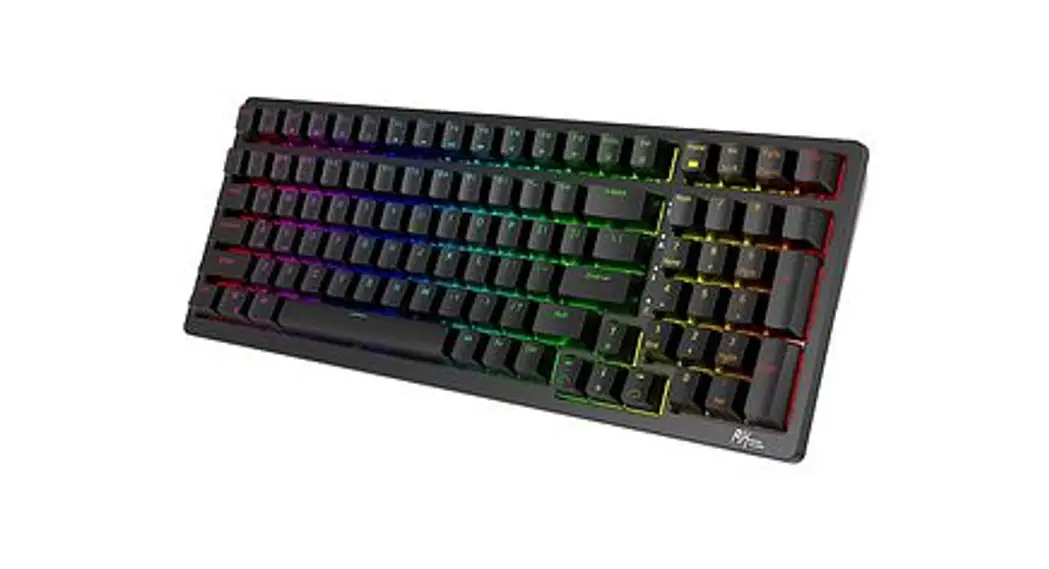
BACKLIGHT EFFECTS
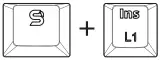 = Modes 1-3
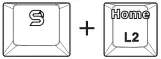 = Modes 4-6
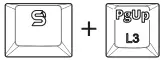 = Modes 7-9
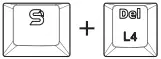 = Modes 10-12
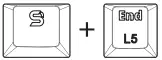 = Modes 13-15
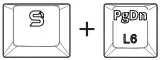 = Modes 16-18
10 CUSTOM BACKLIGHT MODES FOR DIFFERENT GAMES
 = 5 preset modes, may be redefined
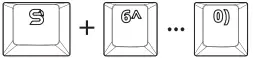 = 5 user defined modes
CREATING A CUSTOM BACKLIT MODE
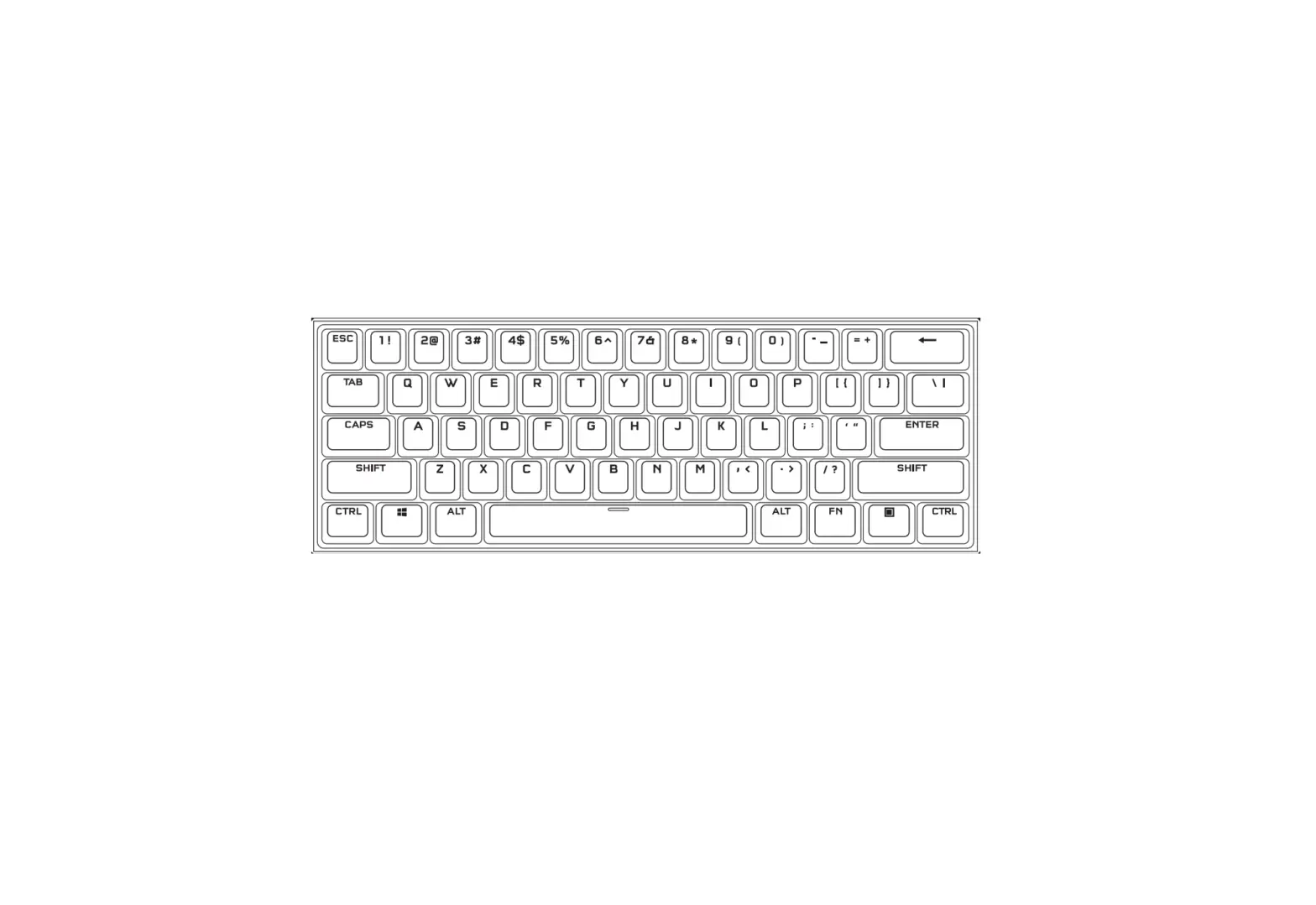
- Press FN (SPC Gear logo key) +1-0 to choose 1 of 10 custom modes.
- Press FN + ‘ ∼ to start defining custom backlit – PrtSc will start blinking indicating backlit colour. Switch between colours using FN + =+ (RGB) and select the keys for each colour. You can switch off key LED completely while PrtSc is not blinking.
- Press FN + ‘ ∼ to save custom mode.
MACRO KEYS
- Under gaming mode (FN + Win) press FN + Esc. Win and Esc keys led will be backlit.
- Select any key for defining macro by pressing FN + chosen key. When led starts to blink, choose the required key sequence.
- Press FN + chosen key to save macro.
Press FN + Esc to exit macro.
FACTORY RESET
Press FN + Esc.
Immediately after that, press Fl + F3 + F5.
Use and warranty limitations
– The product should be used according to its intended purpose. Incorrect use can damage the product and endanger the life of the user;
– Excessive humidity, dust and other contaminations can result in product damage which is not covered by the warranty;
– The warranty does not cover mechanical damage to the product;
– Avoid exposure to rapid changes in ambient temperature. Should they occur, wait approx. 30 minutes before using the product until the temperature is leveled;
– You can find the Warranty Terms and Conditions in “Support” at https://spcgear.com/
2-year manufacturer warranty

Changing certain functions and settings requires the use of dedicated SPC Gear GK650K software. You can download the latest software enabling you to use all device capabilities as well as its installation and user manual from https://spcgear.com/

User Manual
ENTITY RESPONSIBLE:
COOLING.PL ZDZIECH SP.J.
UL. SOKOLOWSKA 24
05-806 SOKOLOW, POLAND
TEL. +48222920130
BDO: 000020025

MADE IN CHINA