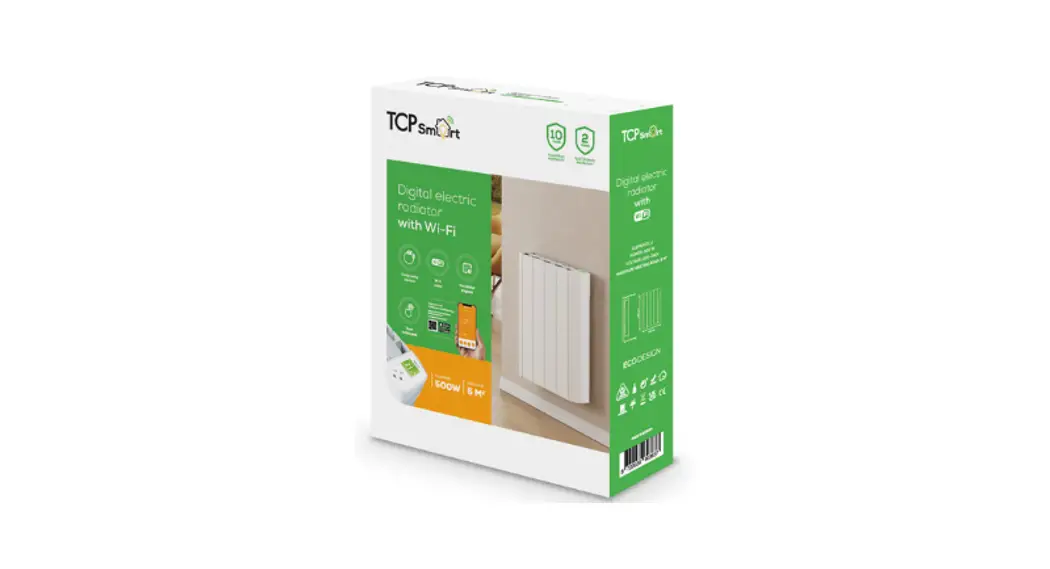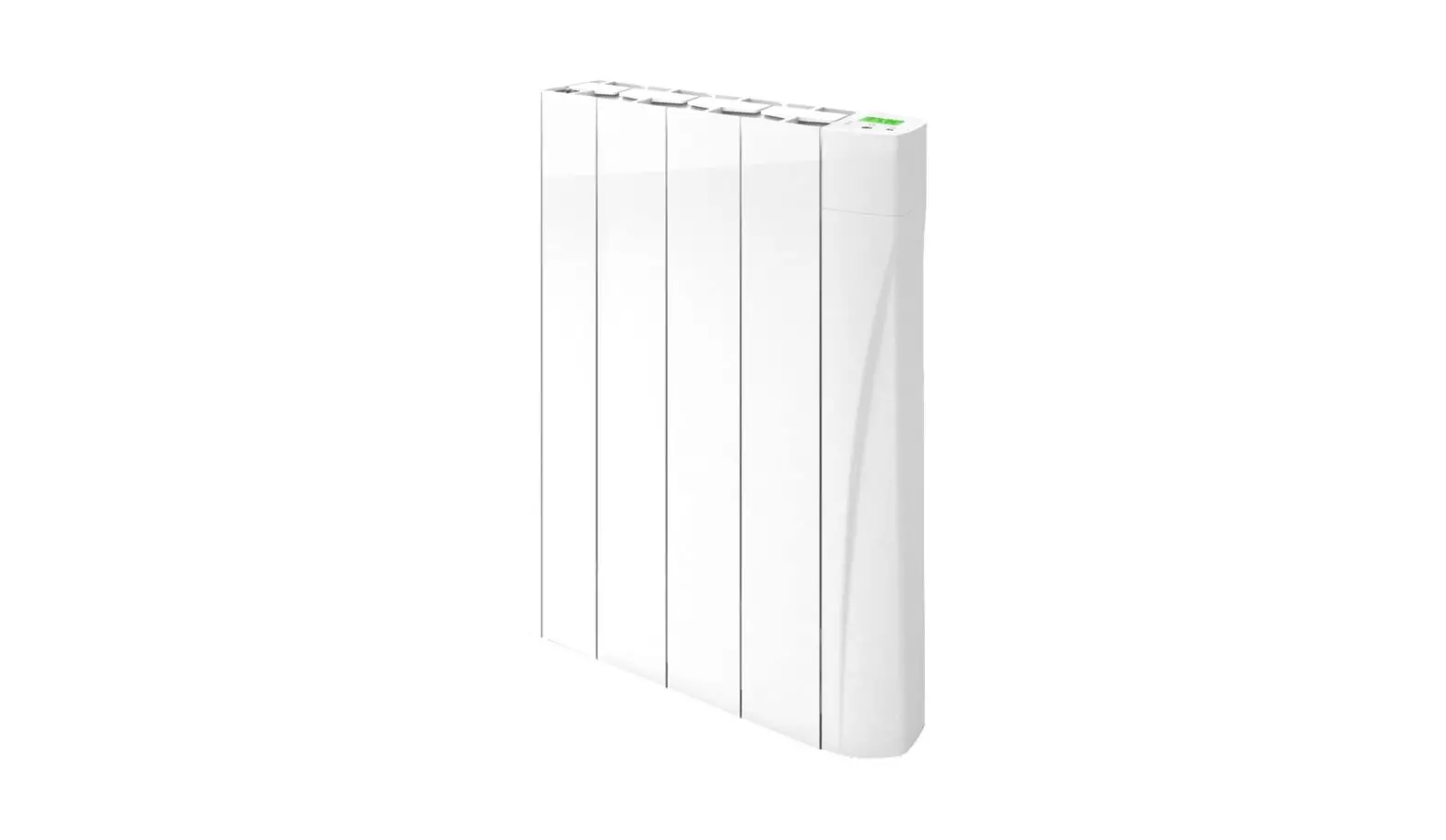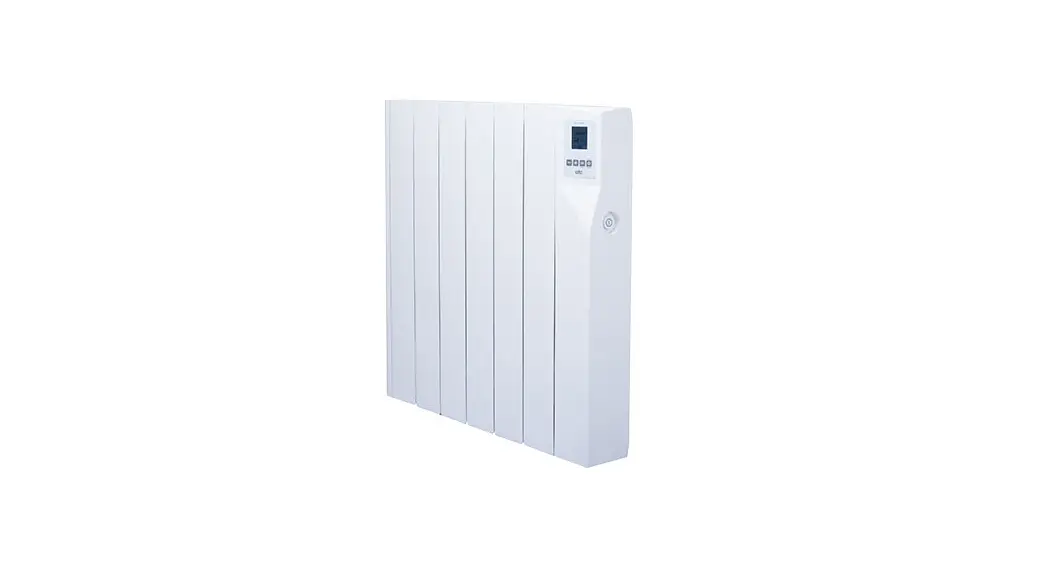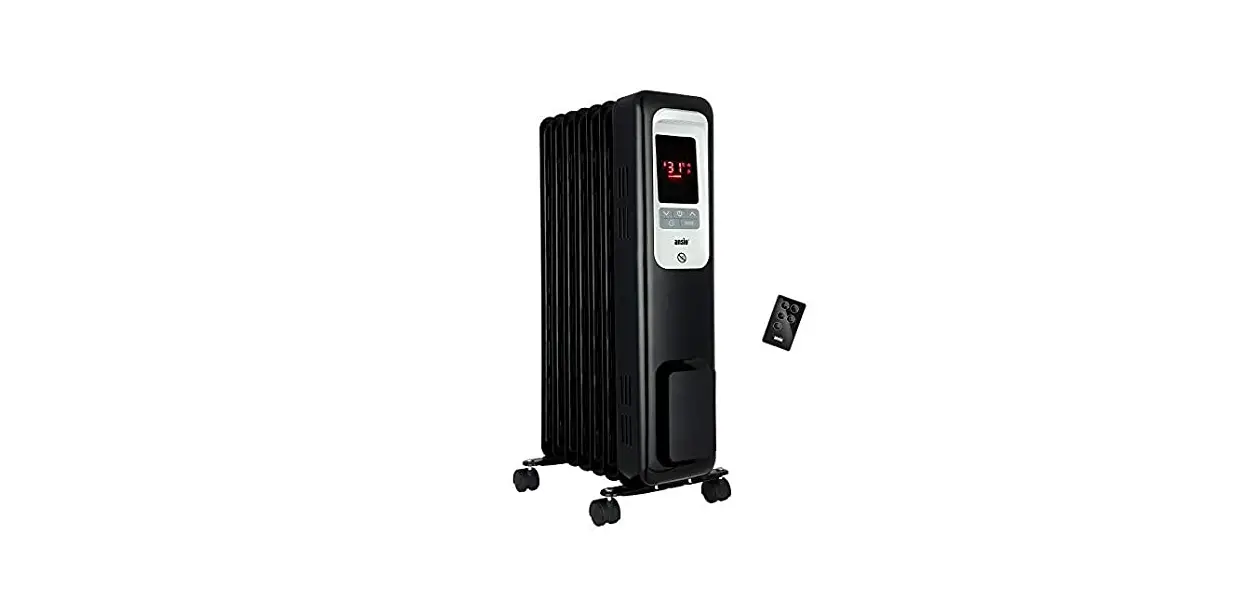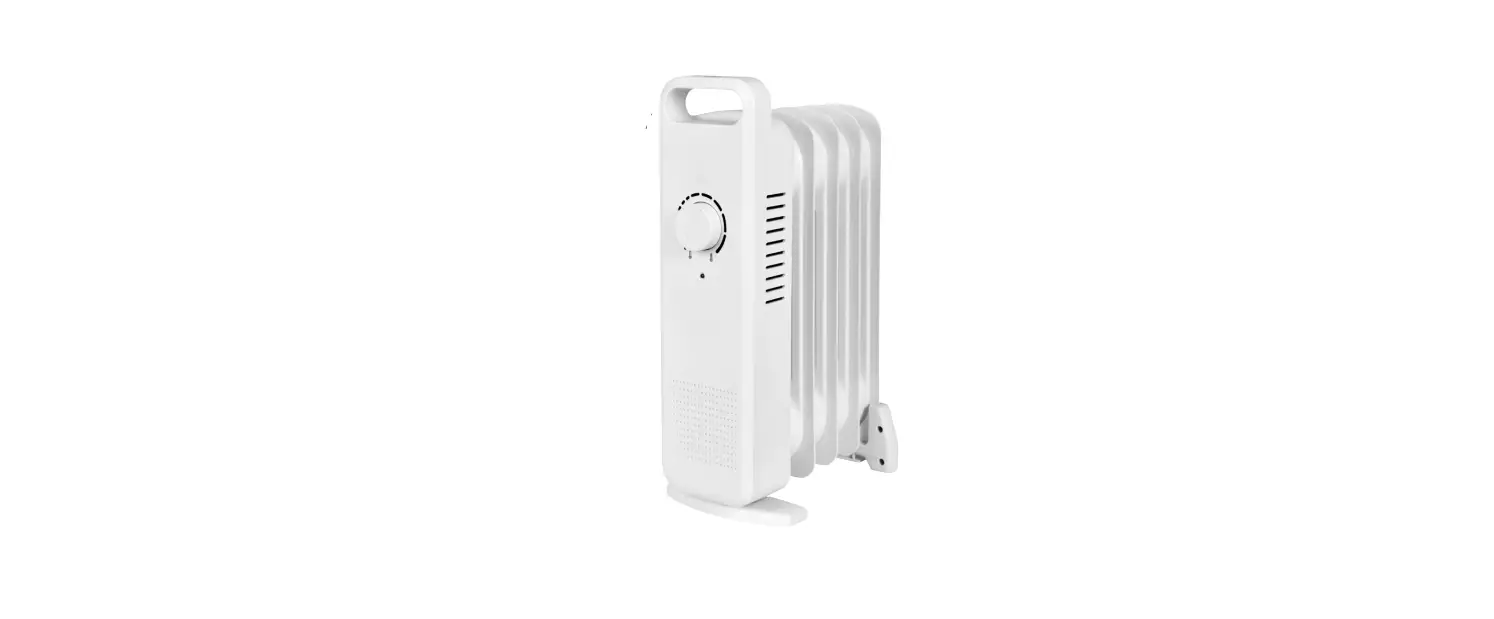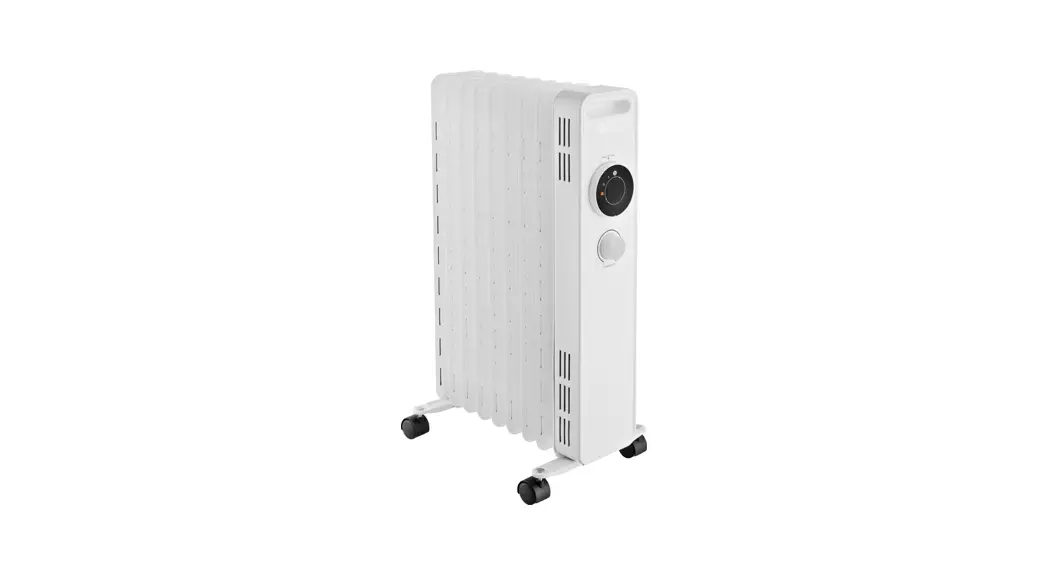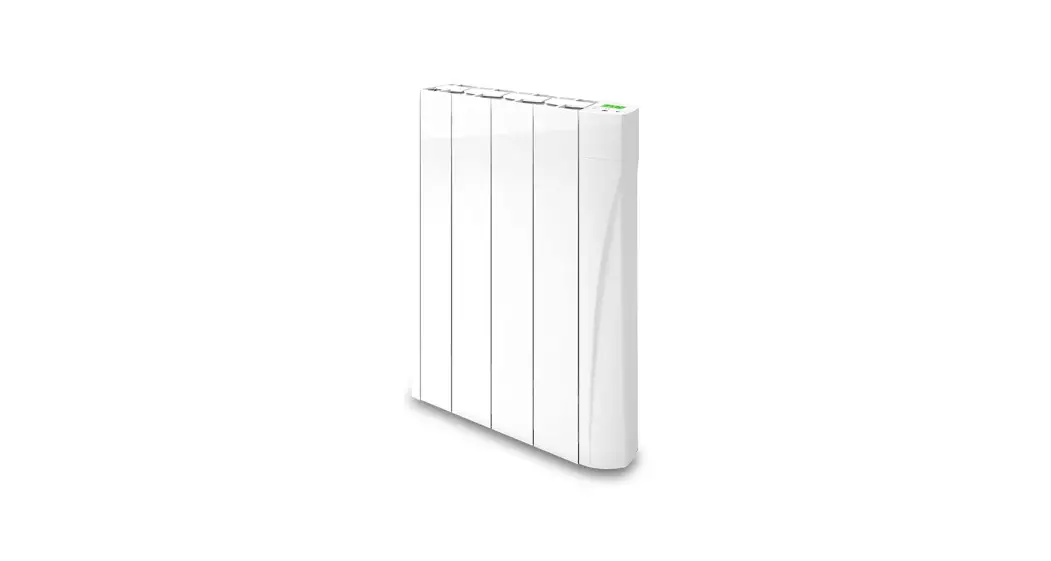
 Wi-Fi radiator
Digital electric radiator with thermal fluid
and Wi-Fi inside module
INSTRUCTION & INSTALLATION GUIDE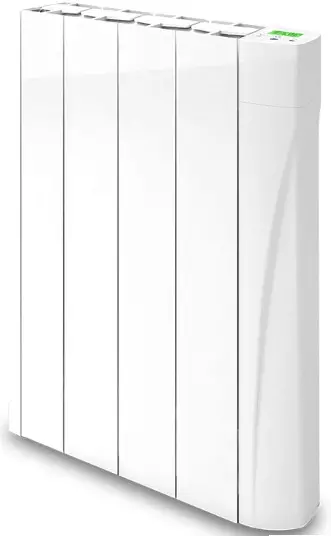
Safety precautions
Children under 3 years of age should be kept out of reach of the appliance unless continuously supervised. Children from the age of 3 years to 8 years should only switch the appliance on/off when it has been placed or installed in its normal intended use position and when they have been given supervision or instruction concerning use of the appliance in a safe way and understand the hazards involved. Children from 3 years of age to 8 years of age should not plug in, adjust or clean the appliance or carry out maintenance operations.
This appliance can be used by children aged from 8 years and above and persons with reduced physical sensory or mental capabilities or lack of experience and knowledge if they are supervised or have been given instruction concerning use of the appliance in a safe way and understand the hazards involved. Children should not play with the appliance. Cleaning and user maintenance should not be carried out by children without supervision. Children must be supervised at all times to ensure that they do not interfere with the product.
This product is filled with a precise amount of special oil that does not need any maintenance. Any repairs requiring the opening of the oil tank must only be done by an competent professional or TCP Smart after- sales service personnel, who should also be notified should an oil leak be noticed.
The regulations on discarding oil when the heater is disposed of must be observed. If the power cable is damaged, it must be replaced by the manufacturer, its after-sales service or authorized personnel in order to avoid any damage. The heating appliance must not be placed immediately below a socket outlet. CAUTION – Some parts of this product may become very hot and cause burns. Particular care should be taken when children and vulnerable persons are present.
 DO NOT COVER – To avoid overheating, do not cover the heating appliance. Do not dry clothes or towels on the heater nor leave fabrics, magazines, spray cans, volatile substances or similar objects within 250mm of the heater.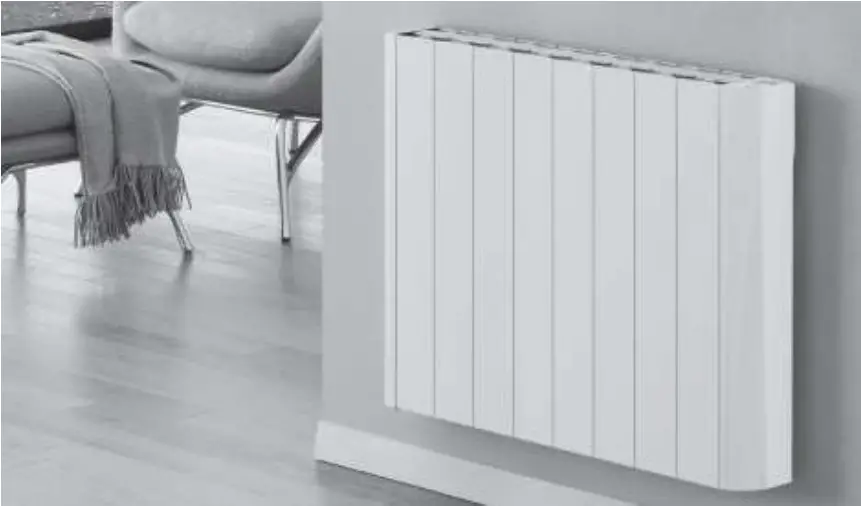
TCP Smart Technical Specifications
| MODEL | CRI0500RAD | CRI0750RAD | CRI1000RAD | CRI1500RAD |
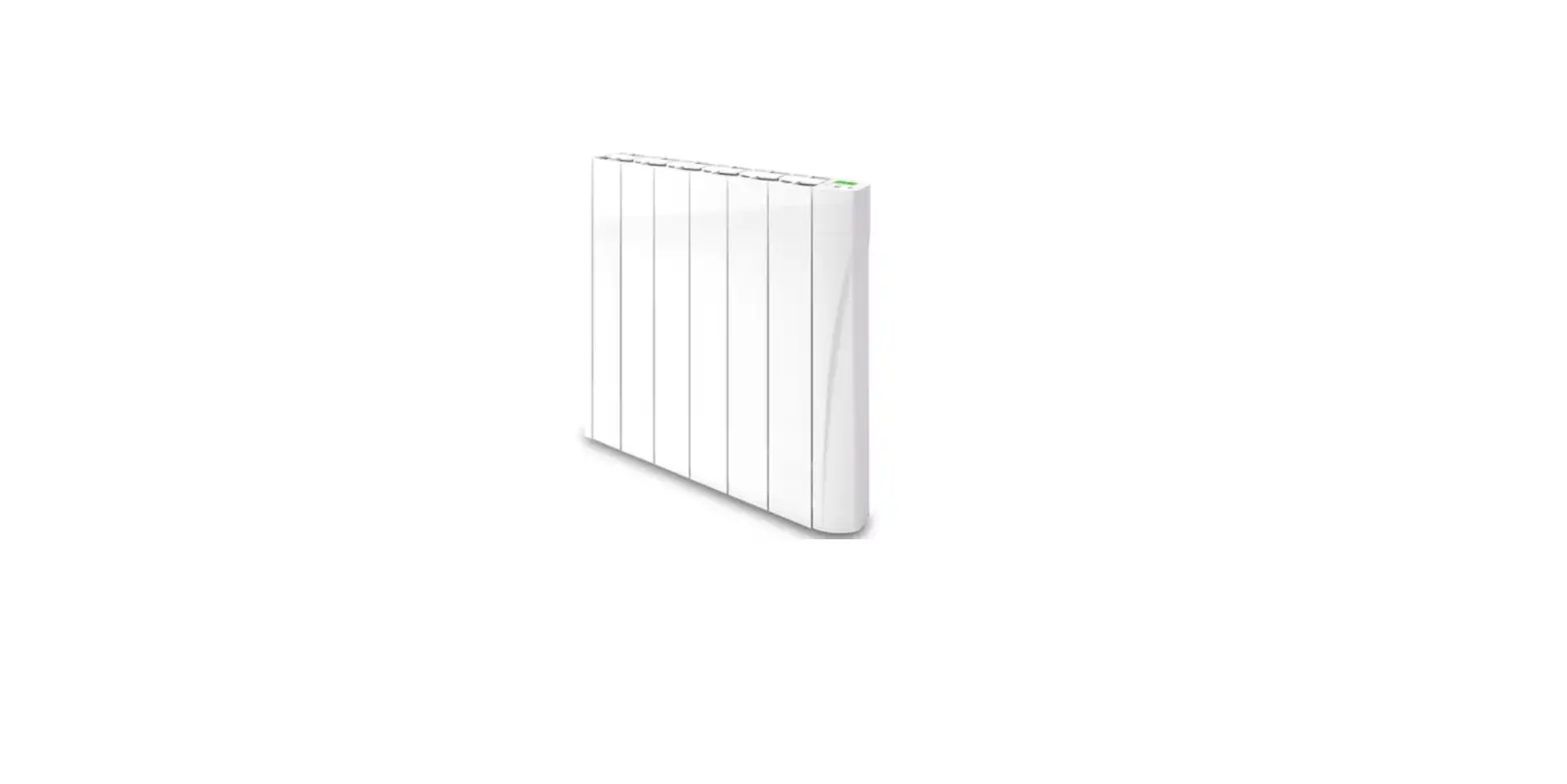
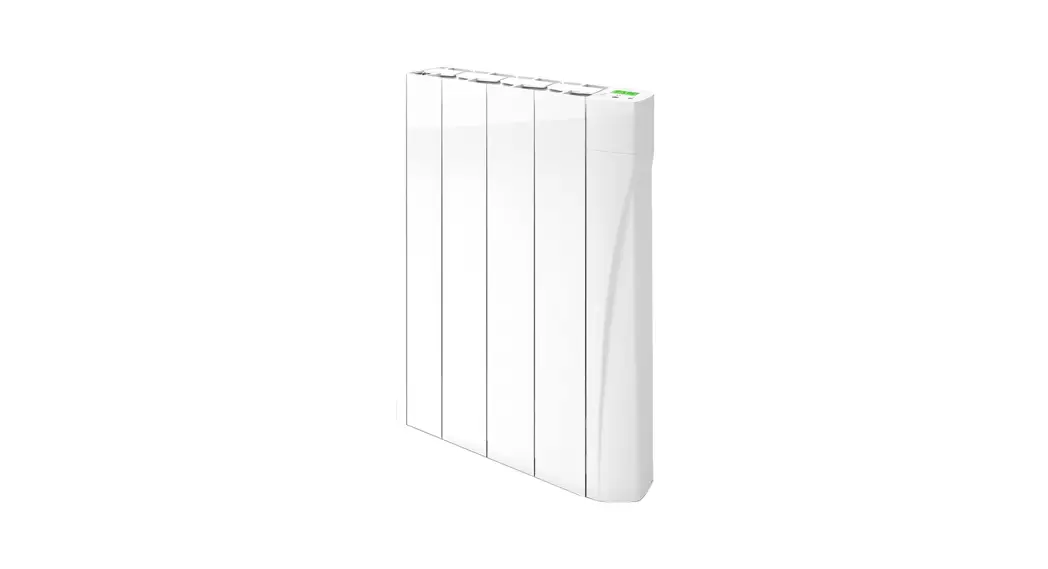
| No. Elements | 4 | 6 | 8 | 12 |
| DIMENSIONS | ||||
| Width (mm) | 425 | 585 | 747 | 1,069 |
| Height (mm) | 575 | 575 | 575 | 575 |
| Depth (mm) | 98 | 98 | 98 | 98 |
| Installed Depth (mm) | 120 | 120 | 120 | 120 |
| MECHANICAL CHARACTERISTICS | ||||
| Armoured steel heating element |  | | | |
| High purity aluminium | | | | |
| Thermal fluid | | | | |
| Fireproof PC/ABS panel with keypad | | | | |
| Fireproof left side cover PC/ABS | | | | |
| Weight (kg) | 8 | 12 | 16 | 24 |
| Finish | White RAL 9010 | |||
| ELECTRICAL CHARACTERISTICS | ||||
| Nominal Power (W) | 500 | 750 | 1,000 | 1,500 |
| Voltage (V) | 230 V ~ | 230 V ~ | 230 V ~ | 230 V ~ |
| Current (A) | 2.2 | 3.3 | 4.3 | 6.5 |
| INSTALLATION & PROTECTION | ||||
| Template & Installation Kit | | | | |
| Safety thermostat | | | | |
Installation precautions
Before switching on the product, please read the “Installation & Safety Precautions” in detail first to ensure the correct operation of the product. The product is designed for household or residential use. You are advised to have the product installed by an authorized professional installer. Make sure the product is properly connected to 230V and is earthed.
TCP Smart radiator Installation
3.1. Mounting
The product works by means of natural air convection (Figure 1). In order to achieve optimal functioning and an even distribution of heat, the lower part of the product, once mounted on the wall, must be at least 10-12cm from the floor, and 30cm at the most. As for the sides and above, a minimum distance of between 10-12cm must be left from any wall or brickwork in order for it to function correctly (Figure 2). 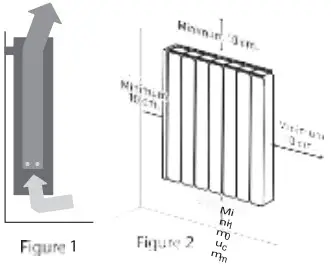 3.2. Fixing the supports
Inside the packaging you will find a fixing kit. Please find the instructions below:
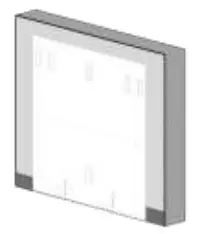 | 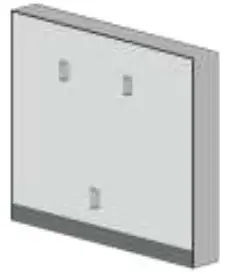 | 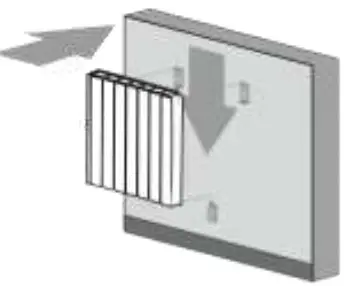 |
| 1. Choose the right part of the wall. 2. Place the mounting stencil on the wall, marking the places for the holes. | 3. Remove the stencil and make the holes in the wall. 4. Fix the supports using the plugs and screws provided, or others suitable for the wall type. | 5. Check the correct positioning of the lower support. 6. Align the product with the top supports. 7. Place the product in the supports. |
TCP Smart radiator Information & Instructions
4.1. Touchpad 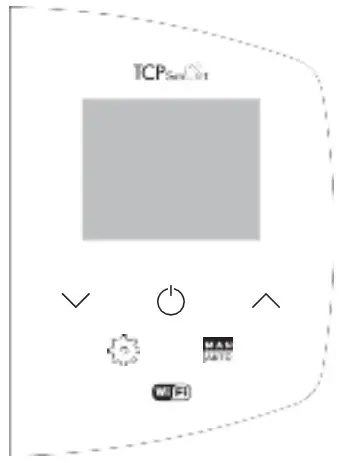
 |  |  |  |  |
| Settings/ Back | Decrease Temperature / Move down | ON/OFF /Confirm | Increase Temperature / Move up | Manual mode/ Automatic mode |
4.2. Screen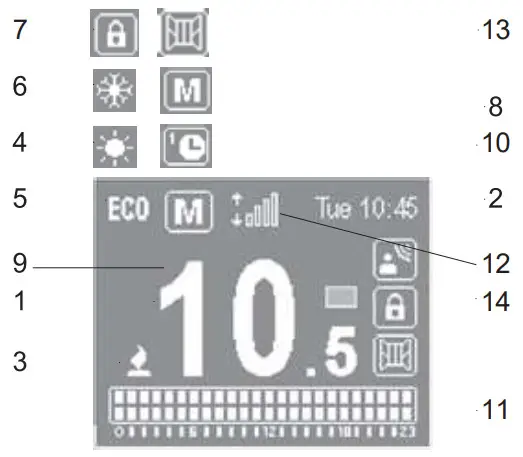
| 1 | Selected temperature |  |
| 2 | Current time and day |  |
| 3 | Heating element on |  |
| 4 | Comfort mode |  |
| 5 | Eco mode |  |
| 6 | Anti-Frost mode |  |
| 7 | Locked keypad |  |
| 8 | Manual mode |  |
| 9 | Automatic mode |  |
| 10 | Pre-program mode |  |
| 11 | Hourly programming |  |
| 12 | Wi-Fi connectionindicator |  |
| 13 | Open Windows indicator |  |
| 14 | Energy consumption indicator |  |
4.3. Turn On and Off
To turn the product on press the button once. To turn off press the button again. When you  turn the product on for the first time, it will ask you to set the date and time. Use the buttons to select the correct time and press the button to confirm. Then use the buttons to select the correct minutes and press . Use the buttons again to select the correct day and press the button to confirm.
4.4. Submenu configuration
Press the  button to access the configuration menu. Then use the buttons to navigate to settings. Press the button to access.
 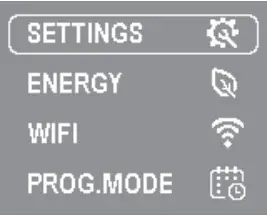 4.4.1. Set the day and time
To set the day or time select the CLOCK option.
Use the buttons to select the correct time and press the button to confirm. Then use the buttons to select the correct minutes and press the button to confirm. Then use the buttons to select the correct day and press the button to confirm. 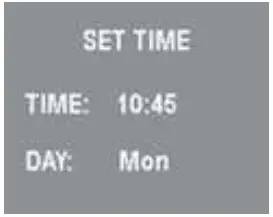 4.4.2. Adjust brightness
This function allows you to adjust the brightness when the product is on or in standby. To adjust the brightness, select BACKLIGHT. With the buttons you can turn the brightness up or down. Press the button to confirm. 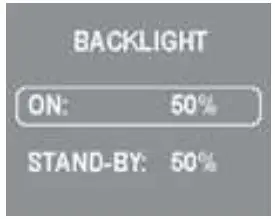 4.4.3. Language
This function allows you to change the language of the product. To change the language, select LANGUAGE. Use the buttons to select the correct one and press. 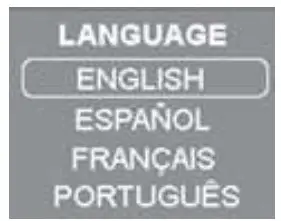 4.4.4. Firmware
This option displays the current software version and the release date. To see this press the FIRMWARE option. 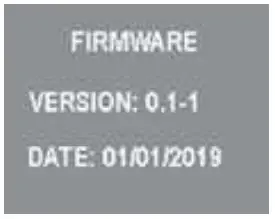 4.5. Locking touchpad
To lock the keypad, press and hold the buttons together for 3 seconds. The symbol will appear to the right of the screen. To unlock the keypad, press and hold th buttons together for 3 seconds. The symbol will disappear from the right of the screen.
4.6. Selecting Manual, Automatic or Pilot Wire* (*Not available on this product)
To select MANUAL, AUTO, PRE-PROGRAMMING or PILOT WIRE, access the programming menu by pressing the button. 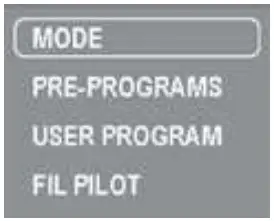 MODE – allows you to select between MANUAL or AUTOMATIC mode.
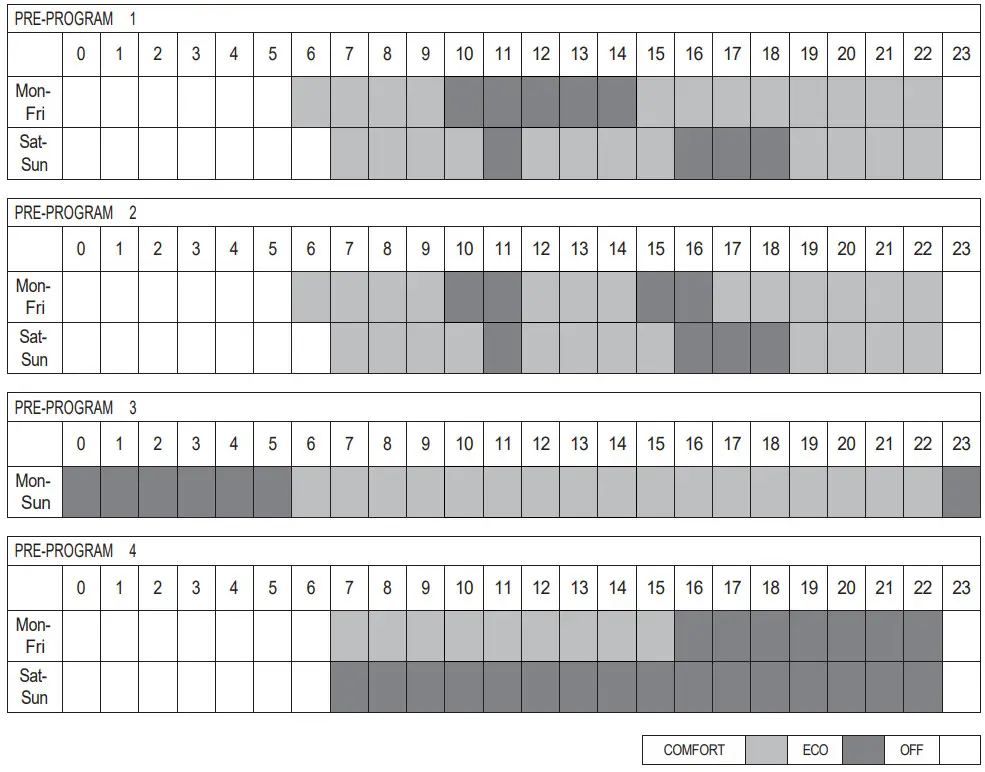
PRE-PROGRAMS – allows you to select one of the 4 default programming schedules.
USER PROGRAM – allows you to edit or create programming.
PILOT WIRE – allow external control of the product via the pilot wire (not available on this product).
4.6.1. MANUAL mode
When Manual mode is selected, the screen will show: the temperature, the manual icon , the comfort/eco/anti-frost icon, consumption indicator and time and day of the week.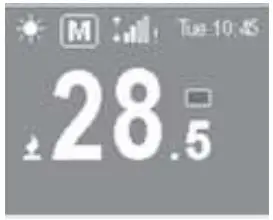 In Manual mode you can choose a temperature and the corresponding icon will be displayed on the screen according to the ranges set in the table below:
| COMFORT | 19 – 30 ºC |
| ECO | 7.5 – 18.5 ºC |
| ANTI-FROST | 7 ºC |
To adjust the temperature, use the buttons to increase or decrease the temperature respectively.
When the room temperature is lower than the temperature marked on the radiator, the product will display a symbol in the upper left of the screen.
4.6.2 AUTOMATIC mode
When automatic mode is selected, the programming already established in the product will be activated.
You can choose between the four pre-installed schedules in your TCP Smart product: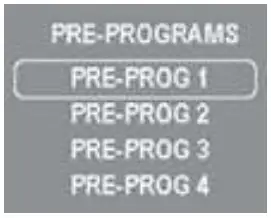
 If you want to create your own programming:
| STEP 1 | |
| 1. Select COMFORT: Temperature between: 19 – 30°C Use the buttons to adjust the temperature.Press to confirm.2. Select ECO: Temperature between: 7.5 – 18.5°C Use the buttons to adjust the temperature.Press to confirm.3. Select ANTIFROST or OFF: Between: 7°C – OFF Use the buttons to adjust the temperature.Press to confirm. | 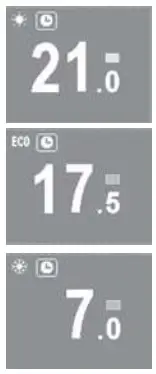 |
STEP 2
1. Select the days:
You can select the days to include in programming by a short press on the button.
The days marked must be highlighted by a box.
Use the buttons to move between the days.
Press after day 7 to go to the next step. 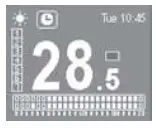 STEP 3
1. Select the programming mode for the hours:
Use the buttons to move between the hours. Select a programming mode (COMFORT / ECO / ANTI-FROST) for each hour using the button. One press will select COMFORT, another press for ECO and a third press selects ANTI-FROST.
a. In the top right it will indicate which hour you are programming.
b. In the left side it will show you the days selected.
c. The programming bar will show.
I. COMFORT mode: 2 filled squares 
II. ECO mode: bottom filled square 
III. ANTI-FROST/OFF mode: 2 empty squares 
Once you have programmed a mode for every hour, press to confirm and save your programming4.7. Advanced features of the TCP Smart radiator
The TCP Smart radiator includes four advanced functions. To activate or deactivate one of the functions
below, press the button to access the settings menu. Use the buttons to scroll through the menu until you find the POWER submenu. Press the button to access the submenu:
- Open Windows
- Balance
- Adaptive mode
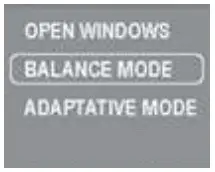 By accessing each of them, you can activate or deactivate its operation. Once selected, press the button and use the buttons to activate or deactivate the function. Press the button once more to confirm the option.
4.7.1. OPEN WINDOWS function
The TCP Smart radiator has the OPEN WINDOWS function activated as a default. This function is activated when the sensor detects that there has been a temperature decrease of 4°C in a period of 30 minutes. The OPEN WINDOWS mode is activated for two hours. When the OPEN WINDOWS mode is active, the radiator will be in ANTI-FROST mode at 7ºC.
4.7.2. BALANCE function
The BALANCE submenu causes the product to work in Manual mode with a constant temperature of 19ºC. Once selected, the product returns to the main screen, with the temperature set at 19ºC and the MANUAL function icon activated.
4.8. Wi-Fi pairing
The Wi-Fi submenu allows you to enable / disable the connection and perform pairing with a device.
Selecting the option “pair the product” will create its own network to which you can connect your device.
The following screen will show the data of the created network (NET) and the password (PIN) for the product you want to pair.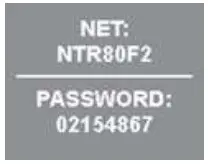 When the device is connected to the radiator network, the following display will appear:
 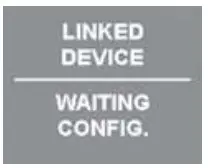 When the product has received the configuration from the mobile device, it will start processing and display the following screen:
  This screen indicates to the user that the product has processed the information received. After displaying this screen for 2 seconds the product will restart.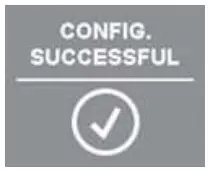
Maintenance & Cleaning
The product does not require any type of maintenance. We recommend that all parts of the product are kept clean (behind, underneath, upper fins, etc.). Do not use any abrasive product on the aluminium. Clean it with a damp cloth and a pH neutral soap, and the control panel with a dry cloth.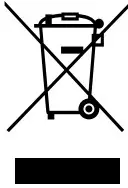 European Directive 2012/19/UE
Under the European Directive 2012/19/UE on waste electrical and electronic equipment (WEEE), the product cannot be disposed in the usual council bins and containers. They must be separated to optimize the recovery and recycling of all of the components and materials and reducing the impact to human health and the environment. The symbol of the container crossed out over a horizontal line is marked on all of TCP Smart products to remind the consumer of the obligation to separate them on disposal. The consumer should contact the local authority or original point of sale to learn more about the correct disposal of this product.
Guarantee
In this section, we hereby describe the guarantee conditions which the buyer acquires on buying a new TCP Smart product. These conditions comply with all the rights construed in the national legislation in force, as well as any additional rights and guarantees which are offered by TCP Smart.
6.1. Any incident that you might detect in your TCP Smart product can be sorted by the product seller or quickly by the manufacturer. Please check https://www.tcpsmart.eu/faq/ for help and technical support. 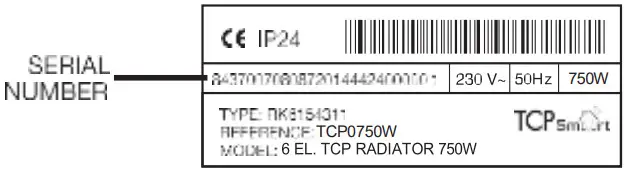 6.2. TCP Smart guarantees that there are no material defects of design or manufacture at the time of original acquisition and guarantees the aluminium for a period of 120 months (10 years) and 24 months (2 years) for any electronic and electrical components.
6.3. If during the guarantee period, the product does not work correctly under normal use, and any design, material or manufacturing defect is found, TCP Smart will repair or substitute the product as it may see fit, in accordance with the terms and conditions as follows:
6.3.1. The guarantee is only applicable if the original guarantee is issued by the seller and when the said guarantee is filled in correctly including product reference, series number (marked on the product’s label indicating technical features), purchase date and the seller’s stamp.
TCP Smart reserves the right to reject the guarantee service when this information has been removed or modified after the original product purchase.
6.3.2. The guarantee only applies to those cases that concern material, design and manufacturing defects, and under no circumstances covers damage to the product for the following reasons:
6.3.2.1 Incorrect use of the product, i.e. used for other purposes that are not construed as its normal use or for not respecting the instructions of use and maintenance given by TCP Smart as well as incorrect installation or use of the product that may not comply with the current technical standards of safety.
Corrosion caused by direct exposure to salt water is excluded from the guarantee. When the product is installed no more than 200m from the coast the guarantee for damages caused by corrosion the period will be reduced by 50%.
6.3.2.2 Any unauthorized repairs carried out by unauthorized technicians or opening of the product by unauthorized people.
6.3.2.3 Any accidents that are deemed outside the control of TCP Smart, such as lightning, fires, floods, public disorders, etc.
6.3.3. Any repairs or substitutions that are included in this guarantee do not allow any additions or new periods of guarantee.
6.3.4. Any repairs or substitutions covered under this guarantee must be parts that are functionally equivalent. The defective parts or parts removed or replaced shall become the property of TCP Smart.
6.4. The technical service of TCP Smart will advise you if you need to buy any parts not covered under the guarantee or out of guarantee.
6.5. This guarantee does not affect the buyer’s legal rights stipulated in the current national legislation, nor affects those rights against the distributor or installer that could come forth in compliance with the purchase contract.
6.6. In the absence of a national legal legislation applicable, this guarantee shall prevail and may be construed as the buyer’s only protection. TCP Smart, its offices, distributors and installers may not be held responsible for any accidental damage that emerges due to infringement of any rules implicitly related to this product.
Information requirements for Erp Directive. Commission Regulation (EU) 2015/1188.
Item | Symbol | Unit | CRI0500RAD | CRI0750RAD | CRI1000RAD | CRI1500RAD |
| HEAT OUTPUT | ||||||
| Nominal heat output | Pnom | kW | 0,5 | 0,7 | 1,0 | 1,5 |
| Minimum heat output (indicative) | Pmin | kW | N.A.* | N.A.* | N.A.* | N.A.* |
| Maximum continuous heat output | Pmax,c | kW | 0,5 | 0,7 | 1,0 | 1,5 |
| AUXILIARY ELECTRICITY CONSUMPTION | ||||||
| At nominal heat output | elMAX | kW | 0,500 | 0,750 | 1,000 | 1,500 |
| At minimum heat output | elMIN | kW | 0,500 | 0,750 | 1,000 | 1,500 |
| In standby mode | elSB | kW | 0,0008 | 0,0008 | 0,0008 | 0,0008 |
| TYPE OF HEAT OUTPUT/ROOM TEMPERATURE CONTROL (SELECT ONE) | ||||||
| Single stage heat output and no room temperature control | – | – | – | – | ||
| Two or more manual stages, no room temperature control | – | – | – | – | ||
| With mechanic thermostat room temperature control | – | – | – | – | ||
| With electronic room temperature control | – | – | – | – | ||
| Electronic room temperature control plus day timer | – | – | – | – | ||
| Electronic room temperature control plus week timer | | | | | ||
| OTHER CONTROL OPTIONS (MULTIPLE SELECTIONS POSSIBLE) | ||||||
| Room temperature control, with presence detection | – | – | – | – | ||
| Room temperature control, with open window detection | | | | | ||
| With distance control option | – | – | – | – | ||
| With adaptive start control | | | | | ||
| With working time limitation | | | | | ||
| With black bulb sensor | – | – | – | – | ||
| SEASONAL SPACE HEATING ENERGY EFFICIENCY | ηs | 39,0% | 39,0% | 39,0% | 39,0% | |
CONTACT DETAILS
Technical Consumer Products Ltd – Unit 1, Exchange Court, Cottingham Road, Corby, Northamptonshire NN17 1TY I [email protected]
* Not applicable
CERTIFICATION CONFORMITY
Hereby, Technical Consumer Products Ltd declares that the radio equipment type TCP Smart Wifi Oil Filled Radiator 500W – White, TCP Smart Wifi Oil Filled Radiator 750W – White, TCP Smart Wifi Oil Filled Radiator 1000W – White, TCP Smart Wifi Oil Filled Radiator 1500W – White is in accordance with Directive 2014/53/EU. The full text of the EU declaration of conformity is available at the following internet address – https://tcpsmart.eu/compliance-data/
REGISTERED OFFICES
TCP UK Ltd, 1 Exchange Court, Cottingham Road, Corby, Northants, NN17 1EW.
TCP France, Quai Gabriel P’ri, 1, Joinville Le Point, France, 94340.
Technical Consumer Products Ltd
Unit 1, Exchange Court,
Cottingham Road, Corby,
Northamptonshire NN17 1TY
https://www.tcpsmart.eu/faq/
[email protected]
TCP Smart cannot accept any responsibility for any errors in catalgoues, brochures and other printed materials. TCP Smart reserves the right to alter its products without notice. This also applies to products already on order provided that such alterations can be made without subsequent changes to specifications already agreed. All trademarks in this material are the property of TCP Spmart. TCP Smart and the TCP Smart logotypes are trademarks of Technical Consumer Products Ltd. All rights reserved.
IMTRWMU-21V2
 FAQ – TCP Smart
 Compliance Data | TCP
 Compliance Data – TCP Smart