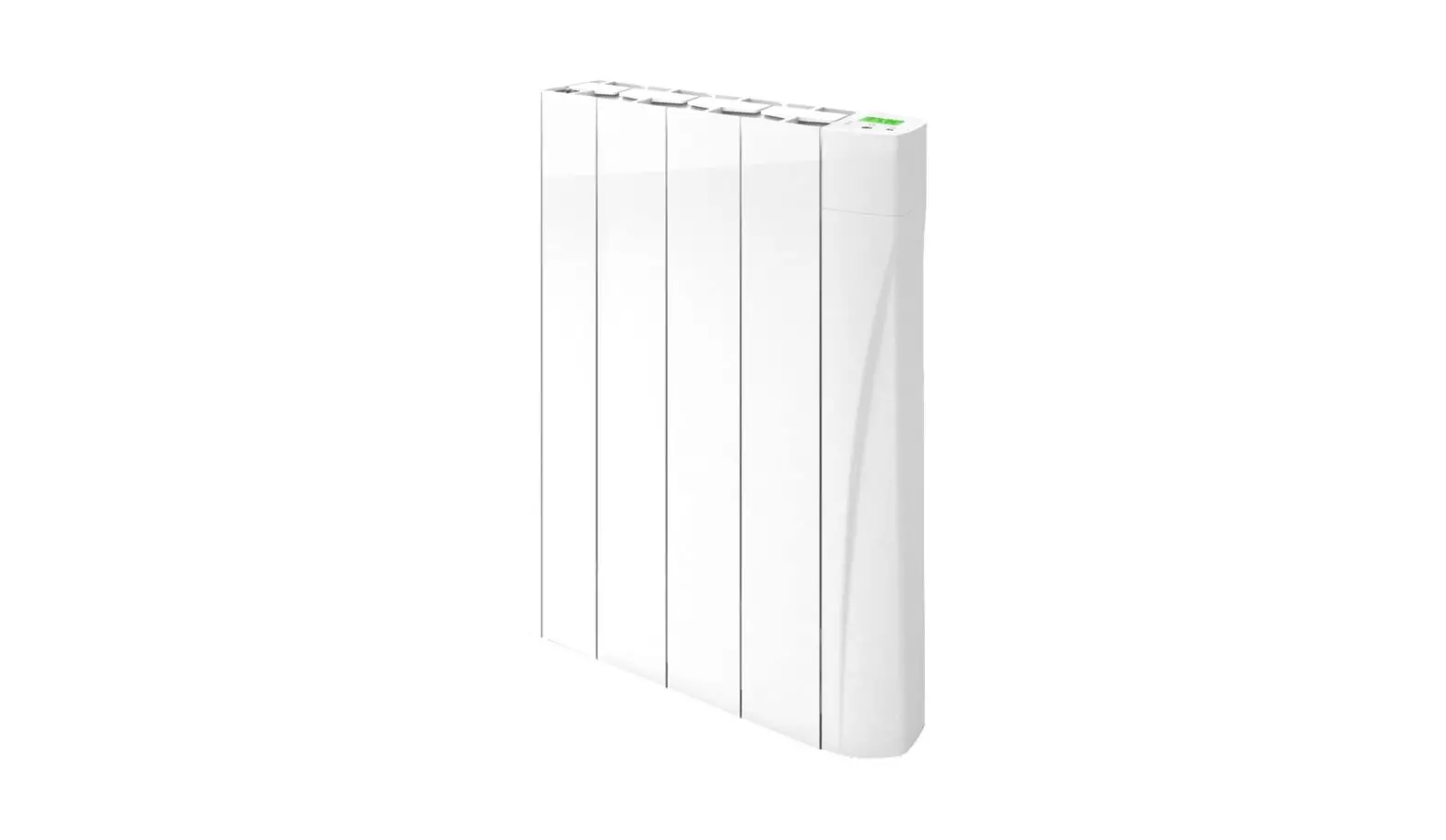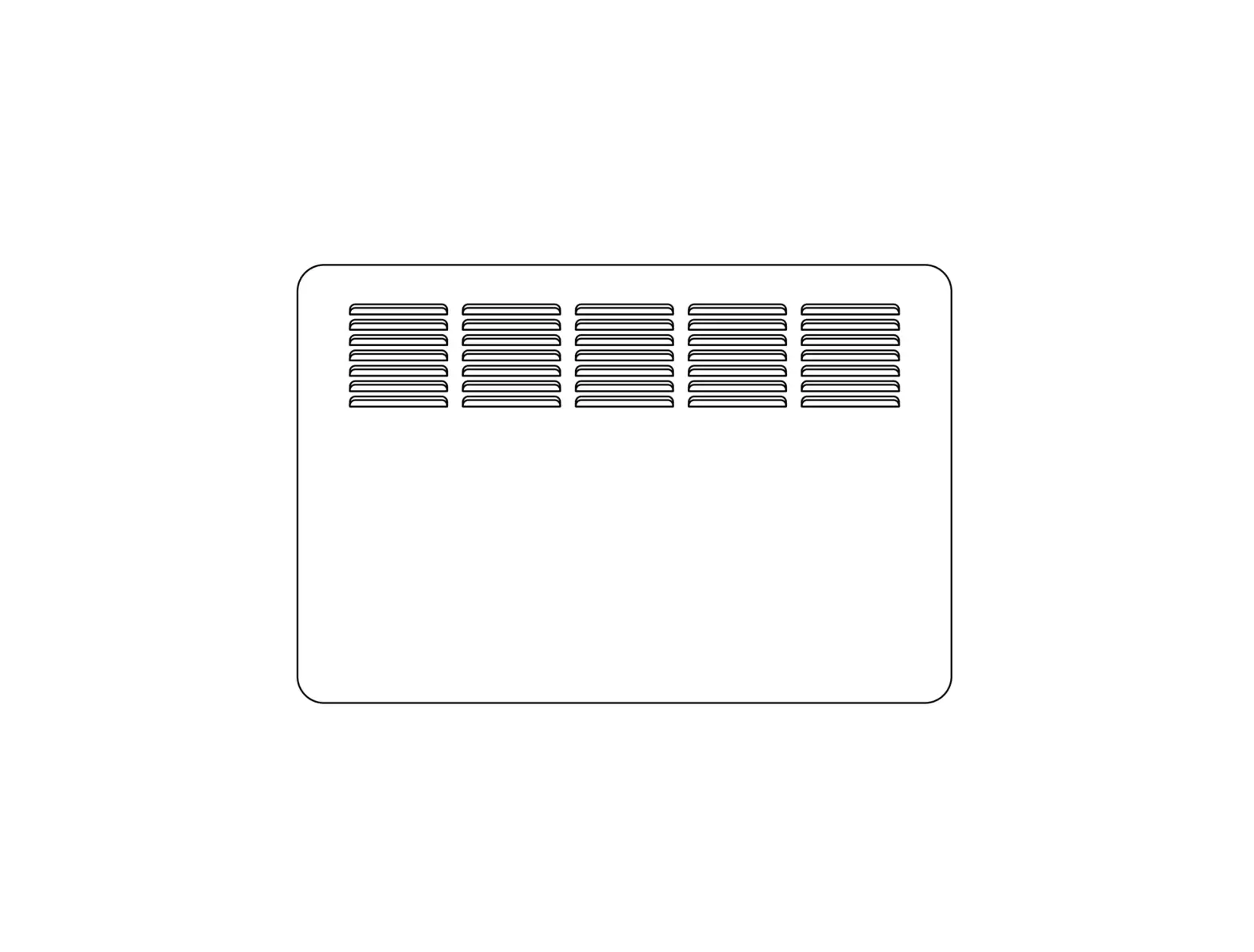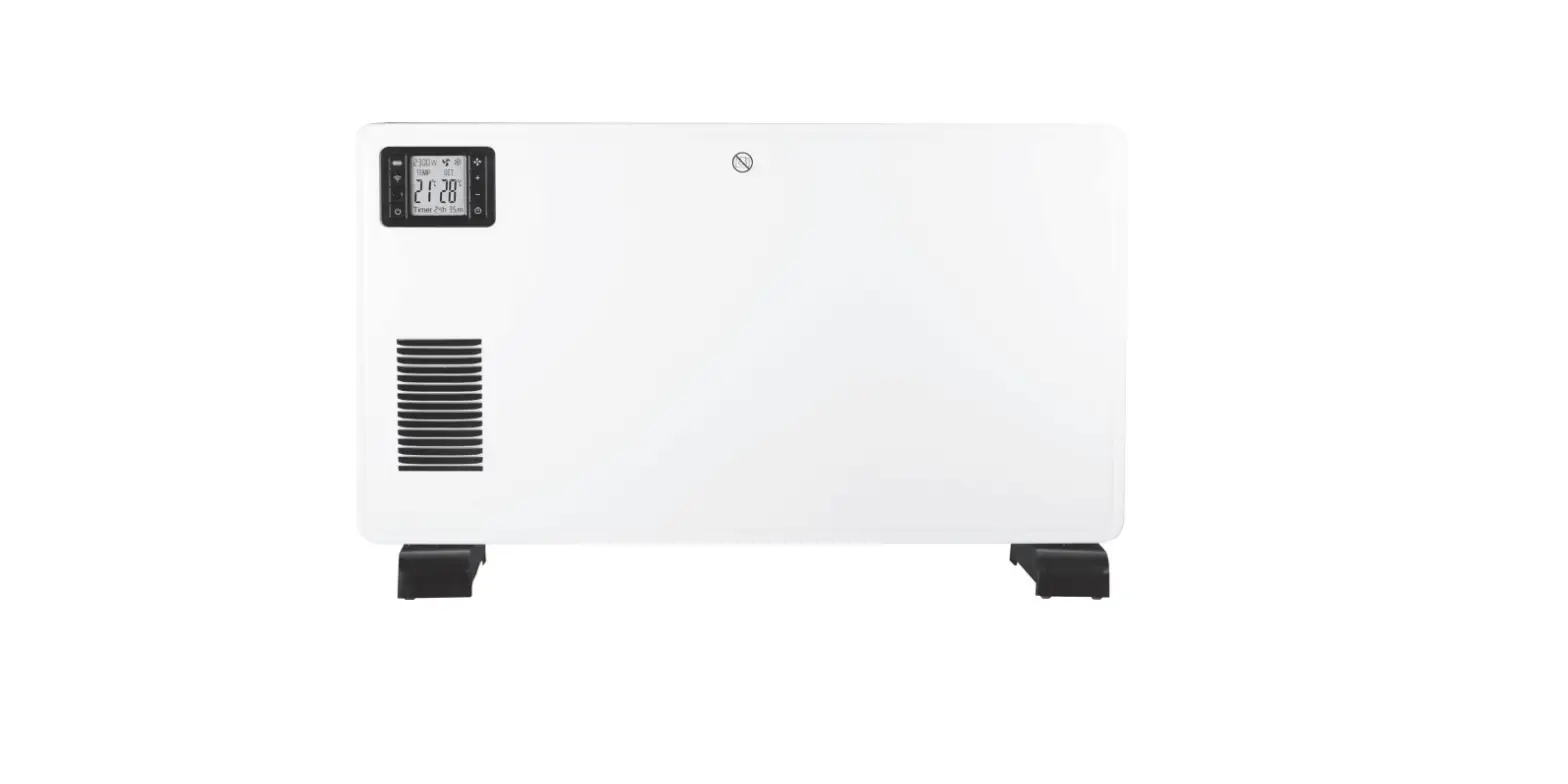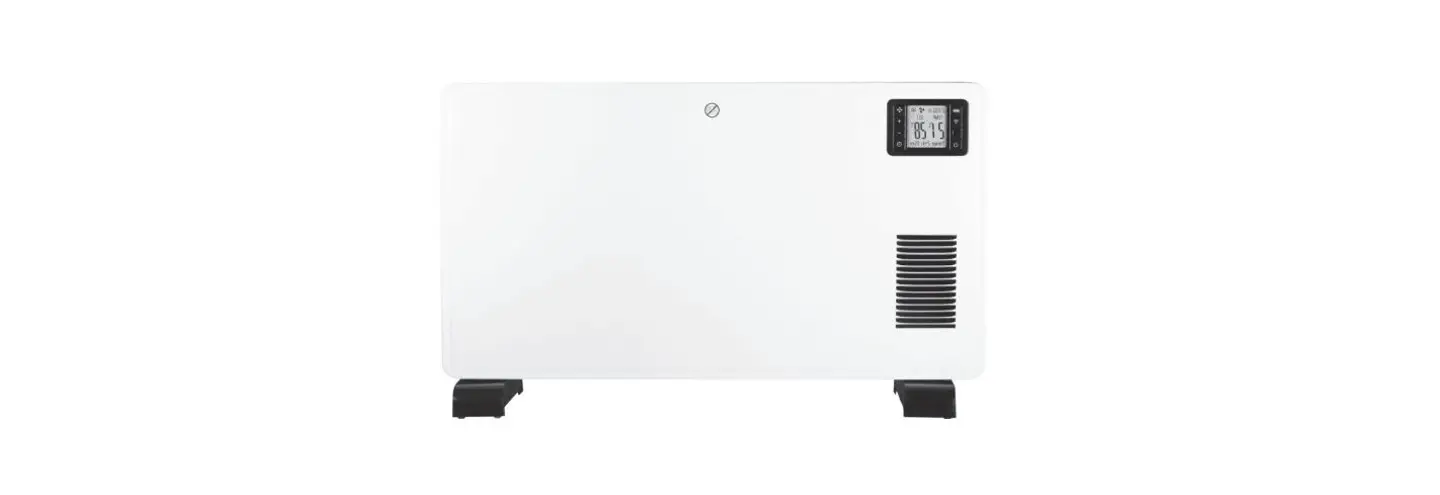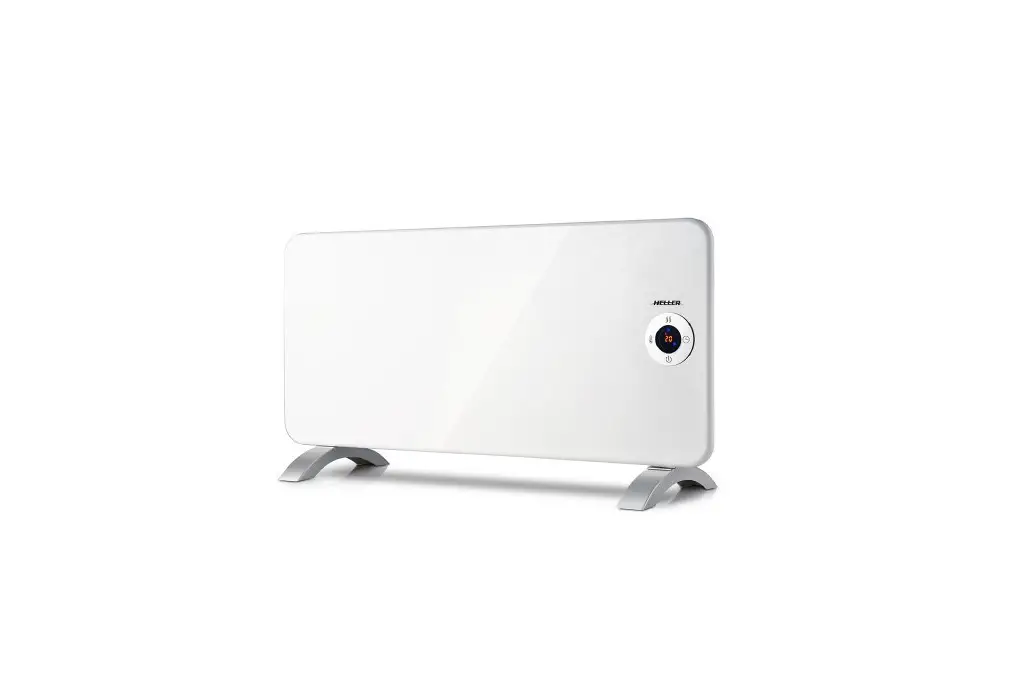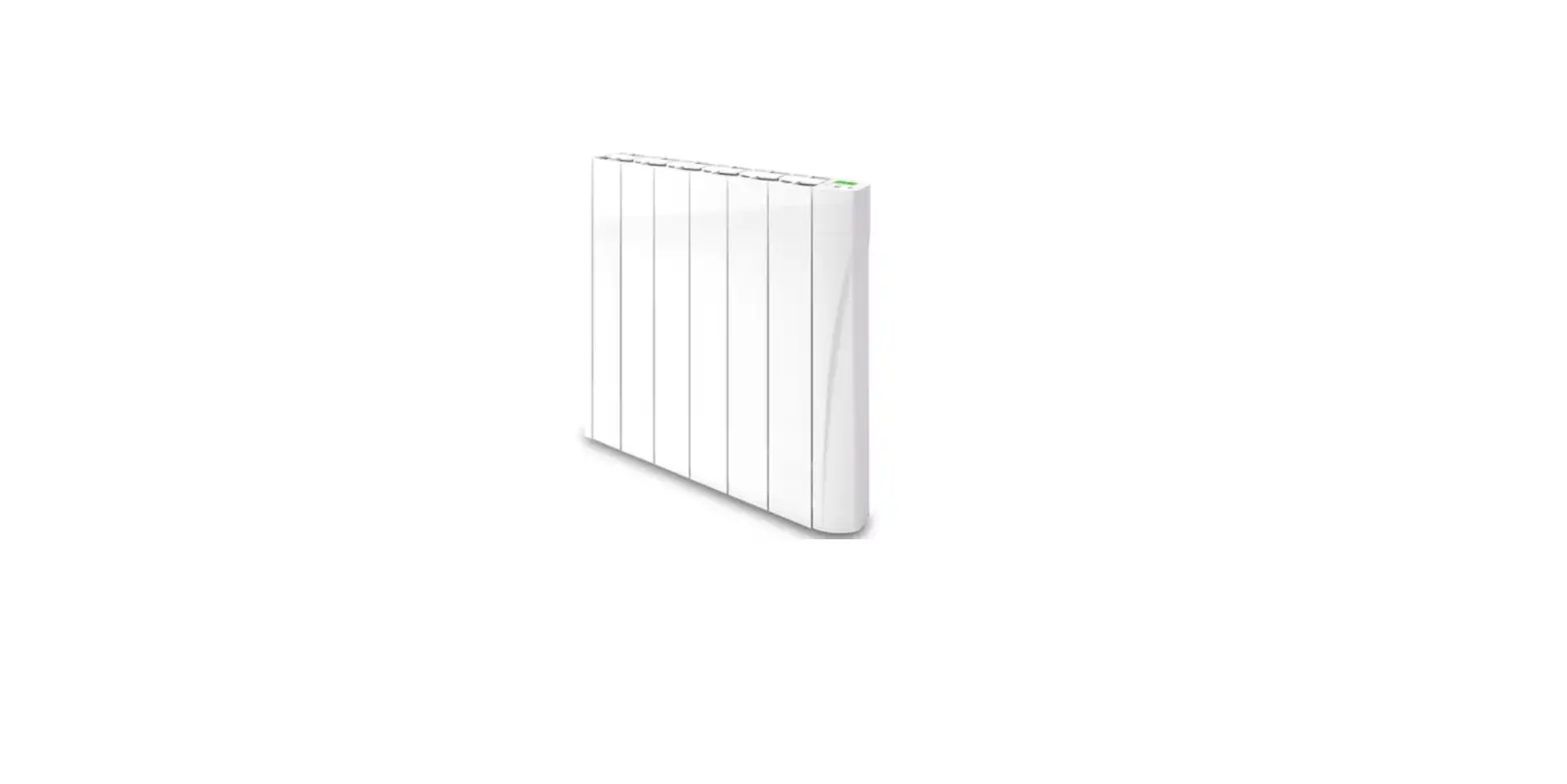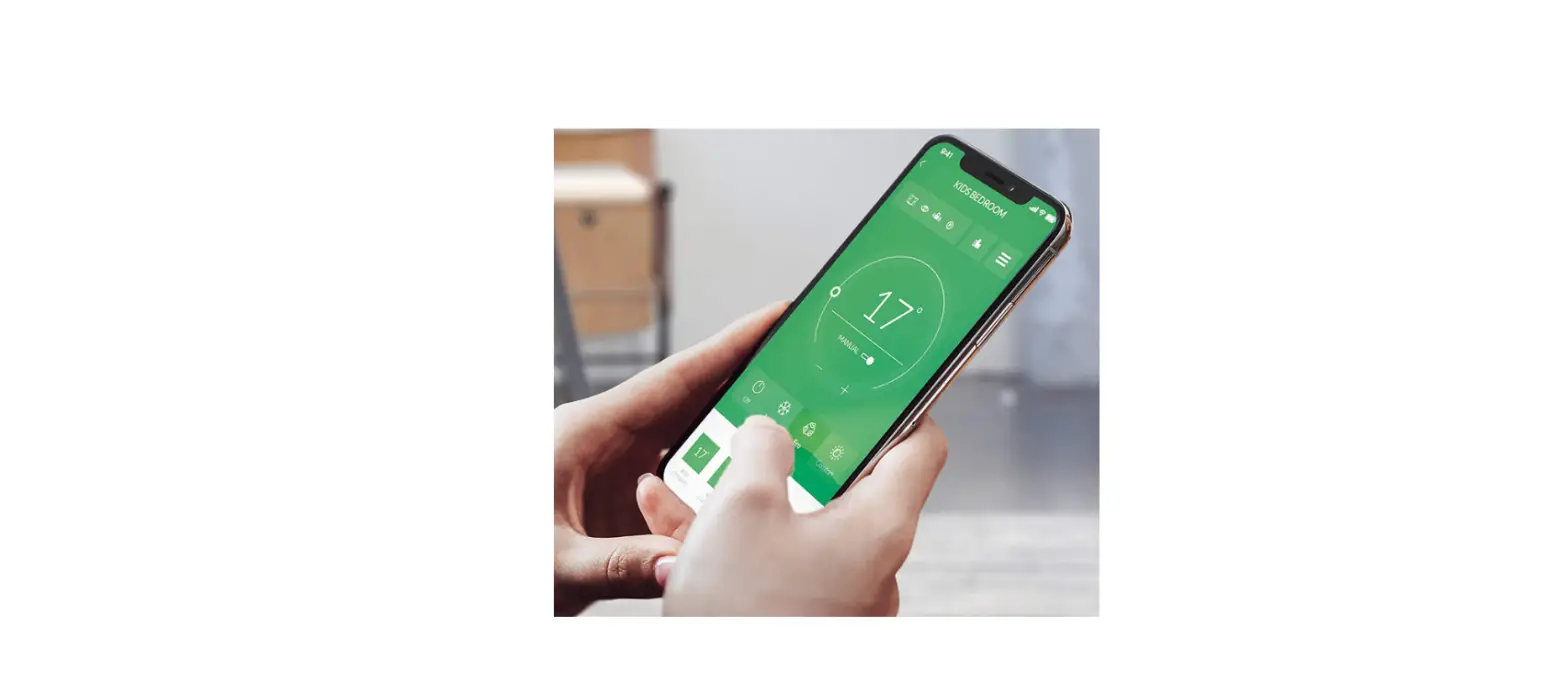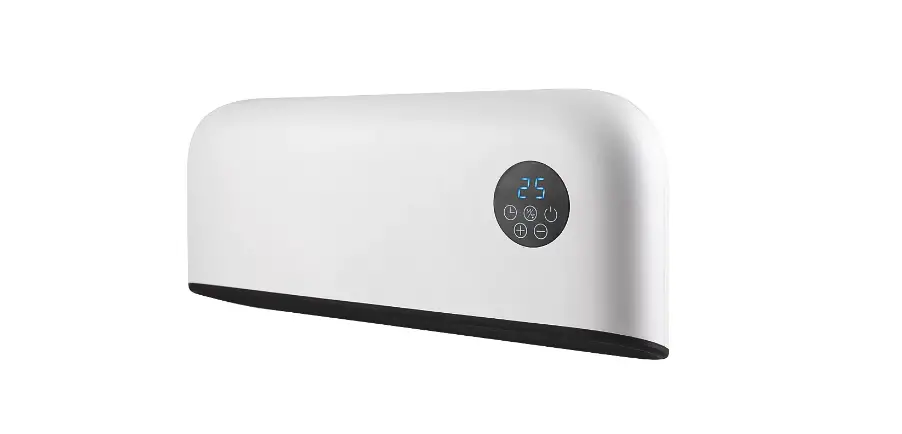
TCP Smart SMAWHHEAT2000WHOR705 Wifi Wall Heater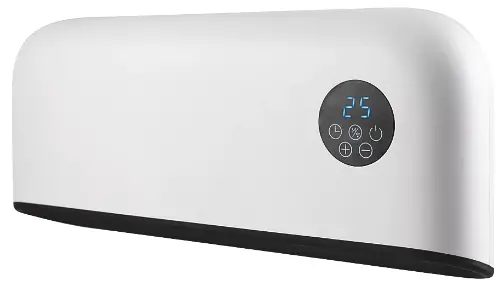
INTRODUCTION
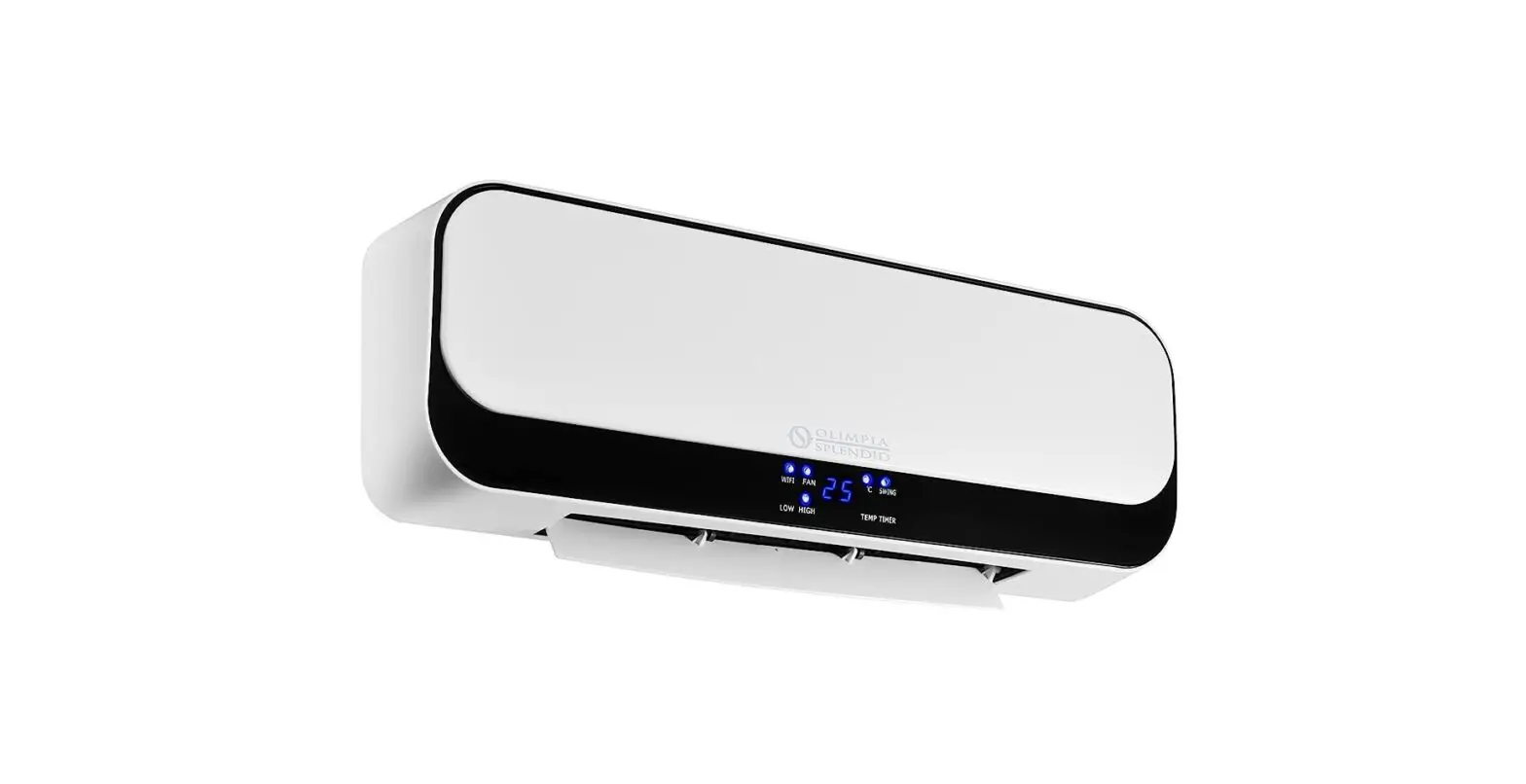
TCP Smart Wifi app-controlled Wall Heater is a perfect for quickly heating your room. Perfect for bathrooms and home office environments. The powerful 2000W ceramic heater is installed directly to the wall and is powered through a 13A socket. Exceptional style and size provides the perfect heating solution. The Smart features allow for full voice via Alexa and Google or direct control via the TCP Smart App. You can set schedules and times and accurately control your desired heating temperature through the electronic thermostat. Provided with a handy remote control especially if installed at a high level. Save money through efficiently heating the room and not the home.
This product is only suitable for well insulated spaces or occasional use.
USER INSTRUCTIONS
Model SMAWHHEAT2000WHOR705
Power AC 230V 0-60Hz 2000W Class II
IMPORTANT: These instructions are for your safety. Please read thoroughly before use and retain for future reference.
If you are in any doubt about installing this product, consult a qualified electrician.
INSTALLATION INSTRUCTIONS
This product is suitable for indoor use only. It is IP rated. Cannot be used underwater. Do not attach to surfaces which are damp, freshly painted or otherwise electrically conductive (eg metallic surfaces).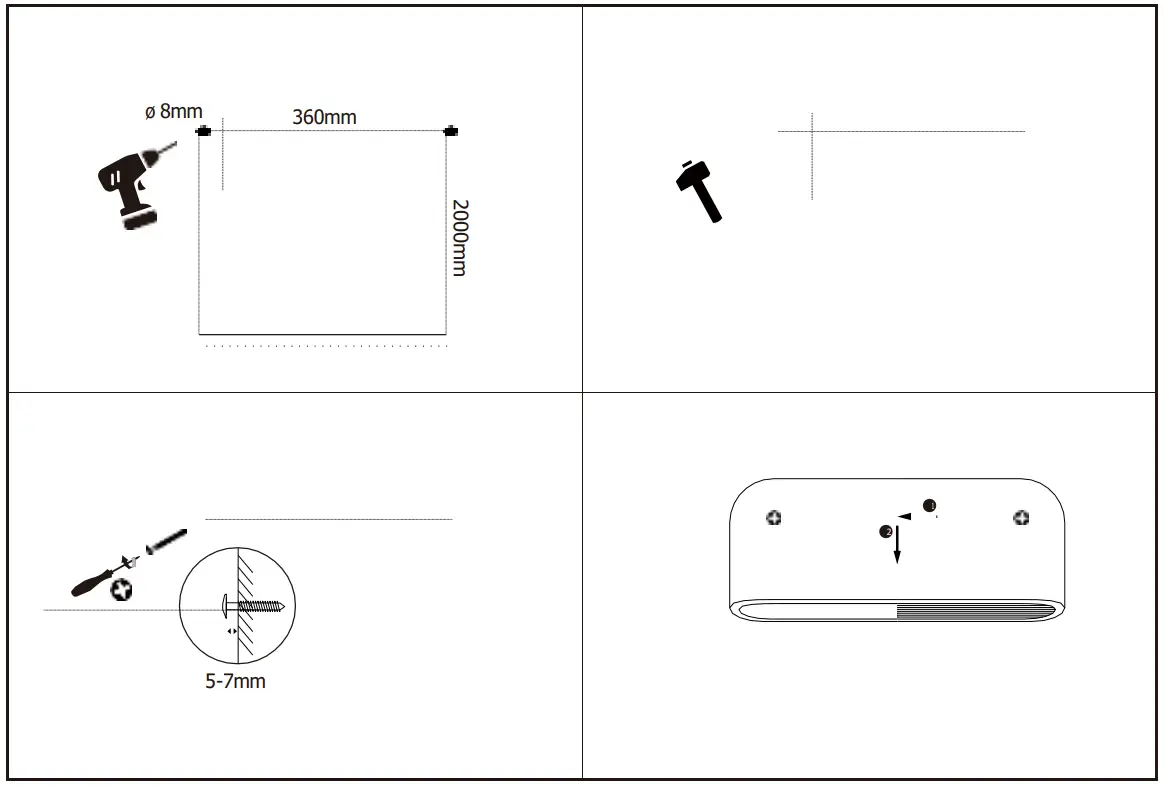
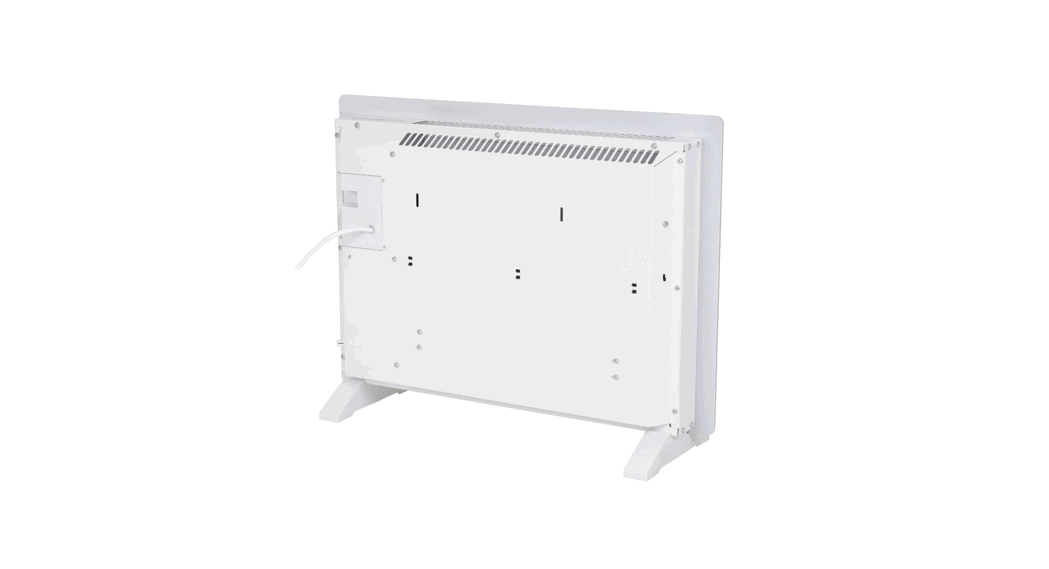
- Drill holes on the wall according to the above instruction.
Warning: Be sure to keep the safety distances as shown on the above drawing. - Fit the plastic wall plugs into the drilled holes and fit the screws.
- Hang the unit on the screws gently,
Warning: Before using the heater, make sure it’s mounted tightly on the wall.
LOCATION OF INSTALLATION
This product can be installed in a bathroom but only in the area designated by the IP rating – Zone 3 – see location information below.
Suitable for indoor only. This product is rated as IP24. If the product is to be installed within a bathroom it can only be located within zone 3.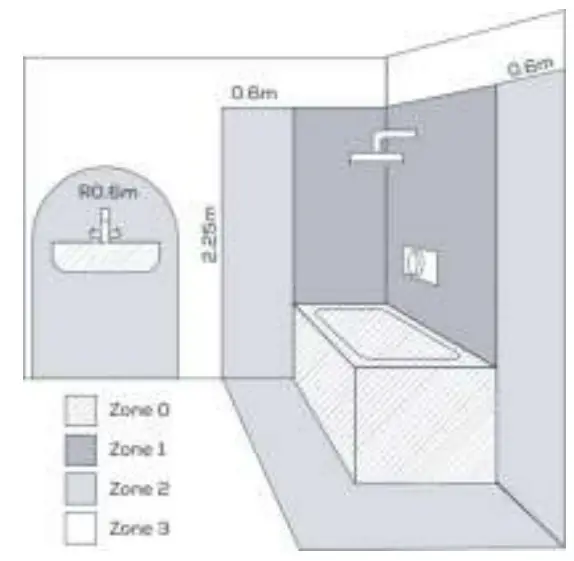
- Zone0
The area inside a bath or inside the shower
This area requires low voltage and an IP67 rating. - Zone 1
The area above the bath to a height of basin. 2.25m (7′ 4″”) from the floor. If the light is 240V then a 30ma residual current device (RCD) must also be used to protect the circuit in this zone. - Zone 2
An area stretching 0.6m (1’ 11””) outside the perimeter of the bath and to a height of 2.25m (7’ 4””) from the floor. In addition, it is good practice to consider the area around a wash basin, within a 60cm (1’ 11””) radius of any tap to be considered as zone 2 - Zone 3
Anywhere outside Zones 0, 1, and 2 and where no water jet is likely to be used. If there is a likelihood of water jets being used for cleaning purposes in zones 1, 2 and 3 a fitting rated a minimum of IP65 must be used.
SAFETY INSTRUCTIONS
(to be read before operating the heater).
- Before using set the power-level switch which is located at the back of the heater t “|”. Please note: there may be a trace of odour during the first few minutes of initial use, or after a period of storage. This is normal and will quickly disappear.
- CAUTION: Some parts of this product can become very hot and cause burns. Particular attention has to be given where children and vulnerable people are present.
- Children 3 years and younger should be continually supervised when in close proximity to the heater.
- Children aged from 3 to 8 years shall only switch on/off the appliance provided that it has been placed or installed in its intended normal operating position and they have been given supervision or instruction concerning use of the appliance in a safe way and understand the hazards involved. Children aged from 3 to 8 year shall not plug in, regulate and clean the appliance or perform user maintenance.
- Keep the power cord away from the hot body of the heater.
- Indoor use only.
- Do not use the heater in areas where flammable liquids are stored or where flammable fumes may be present.
- Do not use this heater if it has been dropped;
- Do not use if there are visible signs of damage to the heater;
- Do not leave the heater switched on when your property is vacant.
WARNINGS
- Always use the heater in an upright position.
- If the supply cord is damaged, it must be replaced by the manufacturer, their service agent or a similarly qualified person in order to avoid a hazard.
- Do not use this heater in the immediate surroundings of a bath, a shower or a swimming pool.
- In order to avoid a hazard due to inadvertent resetting of the thermal cut out, this appliance must not be supplied through an external switching device, such as a timer, or connected to a circuit that is regularly switched on and off by the utility.
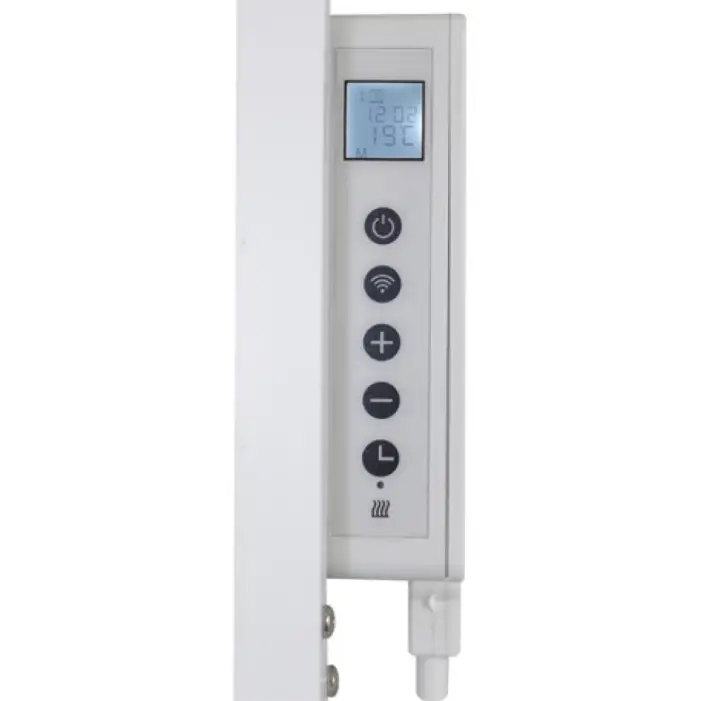
CONTROL PANEL
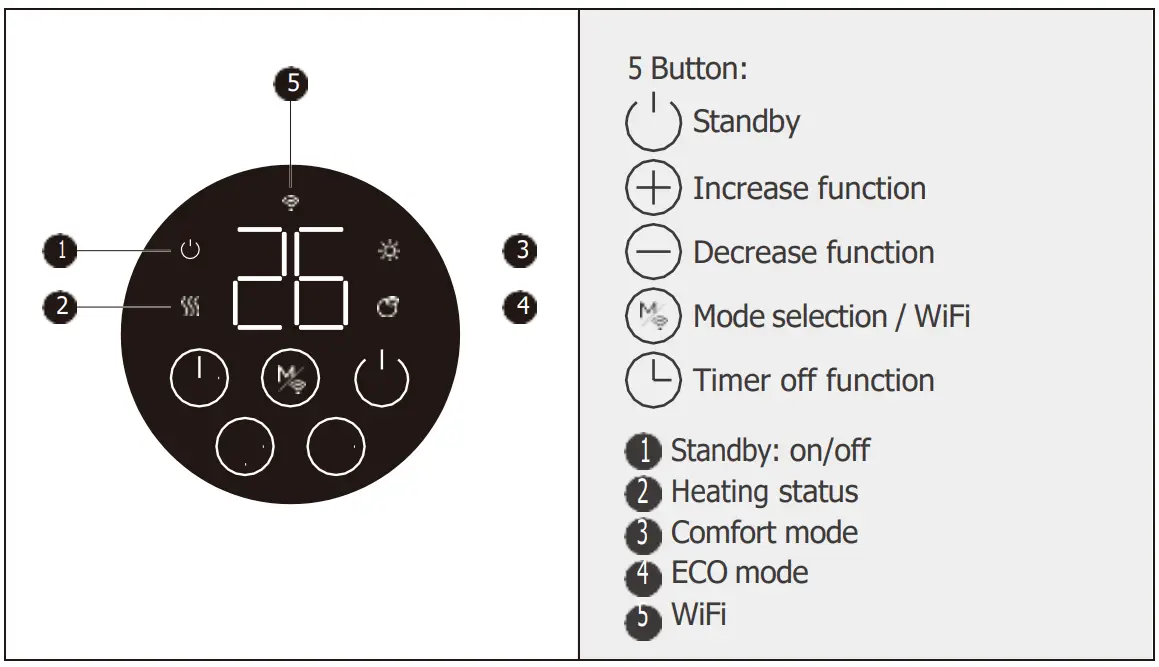
OPERATING THE RADIATOR
Manual Settings using the LED screen
Choose a suitable location for the Heater, taking into account the safety instructions above.
 ON/OFF BUTTON
Press once to turn the device on. Press again to turn the device off.
This feature can be performed using the TCP Smart App.
Please note: The fan will continue to emit heat for 60 seconds before turning off completely.
 MODE SELECTION
Press this button to cycle between the following options: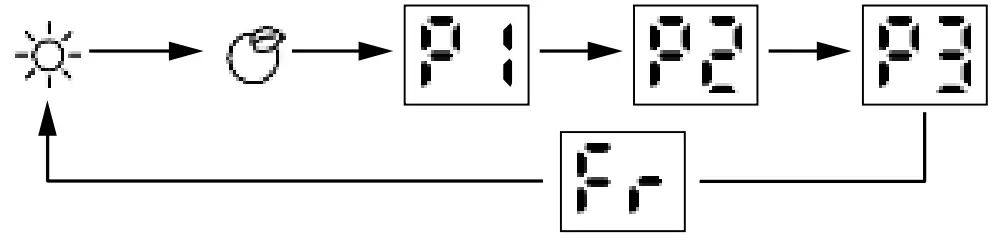
Press to enter mode selection. By pressing , the heating mode runs in a continuous cycle as above:
 Comfort mode: Press
  and
and  to set the temperature from 10-35o C.
 ECO mode: This is pre-set as 4 oC below comfort mode.
 Anti-frost mode. To avoid damage to the product during extreme cold weather use anti-frost mode.
The heater must be turned on and Anti Frost mode selected for this function to work. The screen will display . The target temperature is 7 oC. The temperature cannot be adjusted.
 Pre-programmed scheduling – Select to run the programme as stated below.
 Pre-Programmed scheduling – Select to run the programme as stated below.
 Programmable scheduling – Select to create a programme to suit your own requirements.
This feature can be performed using the TCP Smart App.
P1, P2 and P3 Programmed scheduling –
Note: Clock and day of the week setting must be done for the below scheduling to work.
(Monday-Sunday) Pre-programmed schedule. Please note: this schedule cannot be adjusted.
- 00:00am – 01:00am
 comfort mode,
 - 01:00am – 07:00am
 ECO mode
 - 07:00am – 00:00am comfort mode.
(Monday-Friday) Pre-programmed schedule. Please note: this schedule cannot be adjusted.
- 00:00am – 01:00am comfort mode,
- 01:00am – 05:00am ECO mode
- 05:00am – 09:00am comfort mode,
- 09:00am – 19:00pm ECO mode
- 19:00pm – 00:00am comfort mode
(Saturday-Sunday) Pre-programmed schedule. Please note: this schedule cannot be adjusted.
- 00:00am – 01:00am comfort mode,
- 01:00am – 08:00am ECO mode
- 08:00am – 11:00am comfort mode,
- 11:00am – 13:00pm ECO mode
- 13:00pm – 16:00pm comfort mode,
- 16:00pm – 20:00pm ECO mode
- 20:00pm – 00:00am comfort mode.
(Monday-Friday) Programmable schedule. Please note that this schedule can be adjusted to suit your requirements using the instructions below. The below is for illustration purposes only.
- 00:00am – 01:00am comfort mode,
- 01:00am – 05:00am ECO mode
- 05:00am –09:00am comfort mode,
- 09:00am – 12:00pm ECO mode
- 12:00pm – 16:00pm comfort mode,
- 16:00pm – 18:00pm ECO mode
- 18:00pm – 00:00am comfort mode.
(Saturday-Sunday) Programmable schedule. Please note that this schedule can be adjusted to suit your requirements using the instructions below. The below is for illustration purposes only.
- 00:00am – 01:00am comfort mode,
- 01:00am – 05:00am ECO mode
- 05:00am –00:00am comfort mode
adjustable program setting
- Press
 mode and select P3. Press for 3 secs to enter day setting:
 - The screen will display
 . Press and to set from
  (Monday-Sunday).
1 Monday 2 Tuesday 3 Wednesday 4 Thursday 5 Friday 6 Saturday 7 Sunday Press
to confirm and enter hour setting: - The screen will display
 . Press and to select the hour from 00-23. Press to choose heating mode for every hour. Comfort mode or ECO mode . or anti-frost mode where no symbols will display which means the heater will only operate if the temperature drops to 7 degrees.
 - Repeat the operation until you have completed the schedule of every hour and every day.
Notes: After setting heating mode for hour 23, press to come back to day setting.
When screen displays , press to set
  scheduling.
 . Press
 (Monday-Sunday).
 . Press
  , press
 And BUTTONS
Use these buttons to increase or decrease the temperature, and to increase or decrease time within timer function
This feature can be performed using the TCP Smart App.
TIMER BUTTON
9 Hr Timer Press once, the screen will display “ ” and will keep flashing. Press and to set timer from 0-9 hours. Wait 3 seconds to confirm setting. From the moment the time is set, the timer will then continue to count down. During the countdown, when the target temperature is reached, the heating will turn off. Once the heater detects a fall in actual room temperature it will restart. Once the countdown is ended the heater will turn off completely
Pre-Set Quick Timer Press one time, the screen will display “”, press to select the desired time either 2h , 4h or 8h . From the moment the time is set, the timer will then continue to count down. During the countdown, when the target temperature is reached, the heating will turn off.
Once the heater detects a fall in actual room temperature it will restart. Once the countdown is ended the heater will turn off completely.
This feature can be performed using the TCP Smart App.
Clock and day of the week setting
Press the button for 3 seconds. The screen display will show ”d”. Press and to select the day:
The number displayed will correspond to the day of the week as below:
| 1 | Monday |
| 2 | Tuesday |
| 3 | Wednesday |
| 4 | Thursday |
| 5 | Friday |
| 6 | Saturday |
| 7 | Sunday |
Press to confirm the day and enter the clock hour setting. The screen will display  . Press and to set the HOUR time. Press to confirm the time set and enter minute setting with the screen displaying
 . Press and to set the MINUTE time. Press to confirm.
OPEN WINDOW FUNCTION
When the ambient temperature drops by 4°C within 2 minutes, the heater will register the possibility of an open window in the room. If this happens, it will stop heating and enter standby mode.
To turn on open window function, press Mode and + buttons together and the screen will display , after 3 seconds, the screen will display the set temperature.
To turn off open window function, press Mode and – buttons together and the screen will display , after 3 seconds, the screen will display the set temperature.
CLEANING THE HEATER
Allow heater to cool down before cleaning. Clean the outside of the heater by wiping with a damp cloth and buff with a dry cloth. Do not use any detergents or abrasives.
CORRECT DISPOSAL OF THIS PRODUCT
WARRANTY INFORMATION
The manufacturer provides warranty in accordance with the legislation of the customer’s own country of residence, with a minimum of 2 year, starting from the date on which the appliance is sold to the end user.
The warranty only covers defects in material or workmanship.
The repairs under warranty may only be carried out by an authorized service centre. When making a claim under the warranty, the original bill of purchase (with purchase date) must be submitted. The warranty will not apply in cases of:
- Normal wear and tear
- Incorrect use, e.g. overloading of the appliance, use of non-approved accessories
- Use of force, damage caused by external influences
- Damage caused by non-observance of the user manual, e.g. connection to an unsuitable mains supply or non-compliance with the installation instructions
- Partially or completely dismantled appliances.
CERTIFICATION CONFORMITY
- Hereby, Technical Consumer Products Ltd declares that the radio equipment type TCP Smart Wifi Fan 1500W – White, TCP Smart Wifi Fan 1500W – Black, is in accordance with Directive 2014/53/EU.
- The full text of the EU declaration of conformity is available at the following internet address –
- https://tcpsmart/compliance-data
REGISTERED OFFICES
- TCP UK Ltd, 1 Exchange Court, Cottingham Road, Corby, Northants, NN17 1EW.
- TCP France, Quai Gabriel P’ri, 1, Joinville Le Point, France, 94340.
USING THE REMOTE CONTROL
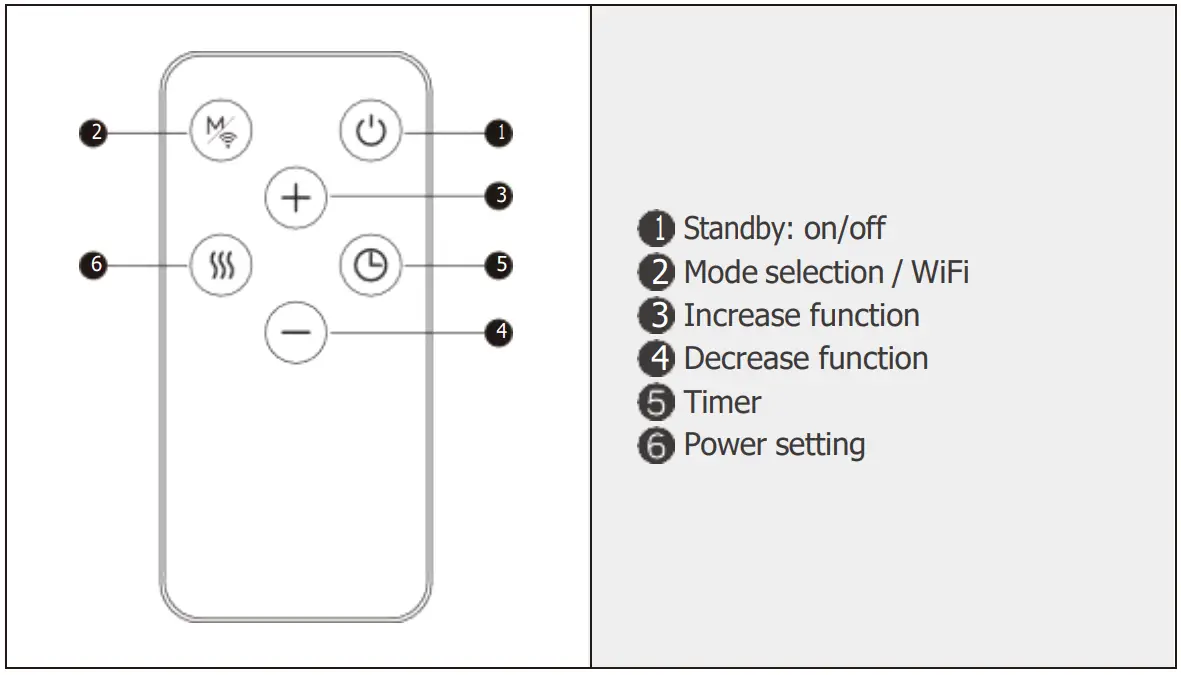
Refer to above instructions on how to operate the various buttons.
Please note: the power setting button on the remote allows for 2 heat settings – low heat and high heat. Press once for low heat and twice for high heat. H0: fan mode. H1: low heat. H2: high heat
CONNECTING THE APPLIANCE TO WI-FI
Use the QR code below to download the TCP Smart App for control of the heater by voice or TCP Smart App.


QR code for both android and iOS
To control the heater using the TCP Smart App the unit must be turned on.
Before you get started you will need the following:
- Smart device such as a mobile phone or tablet
- Access to the Google or Apple App store, log on and passwords
- The name of your Wi-Fi network and password to your Wi-Fi network
- Confirm your home Wi-Fi router is running on 2.4Ghz and not 5Ghz. If you are unsure, please consult your broadband provider for details on how to change the settings.
- Turn off any Wi-Fi extenders during set up
- Check you do not have any limitations on the number of devices with your broadband provider
Please note: Our products do not work on 5Ghz only 2.4Ghz.
For instructions on how to connect to Amazon Alexa or Google Nest please visit https://www.tcpsmart.eu/how-to-alexa-google-nest
With the heater turned on, hold down the Mode button for 3 seconds until it bleeps and the W iFi LED light blinks rapidly, the device is now in paring mode. In the TCP Smart App, enter your WiFi password and follow the instructions in the App to connect.
USING THE APPLIANCE WHE N CONNE CTE D TO WIFI
Main screen showing functions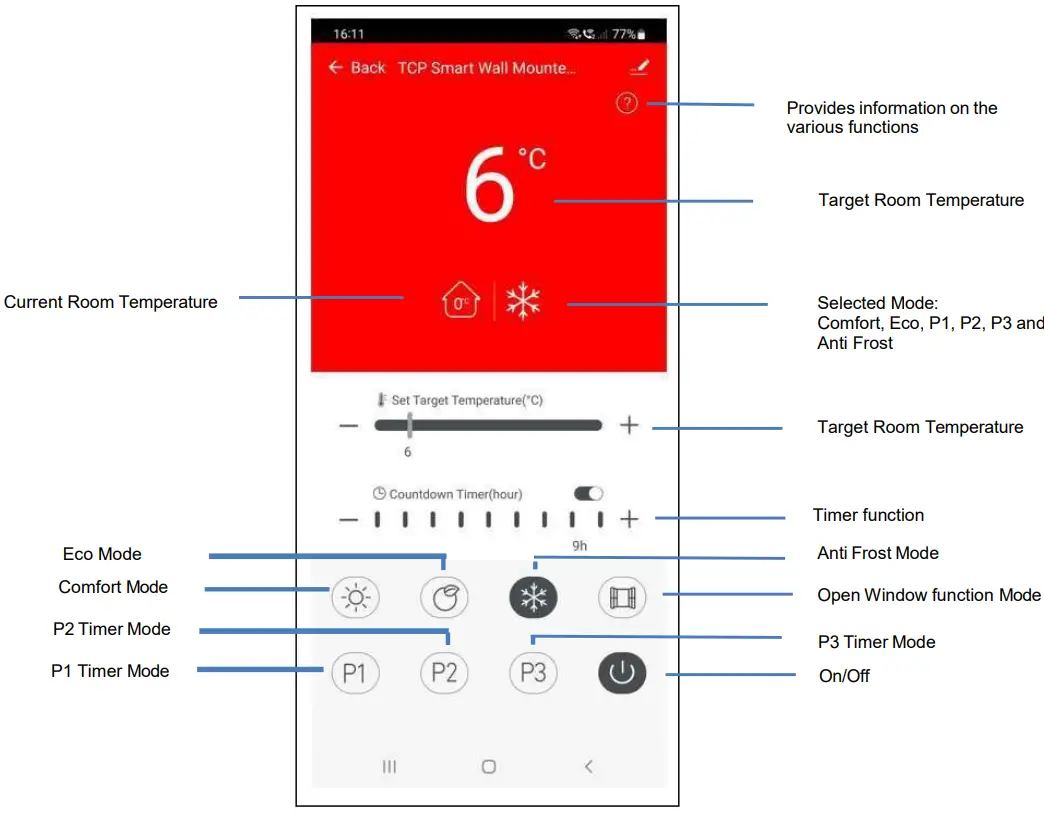
Temperature Setting
Use + and – buttons to set target temperature.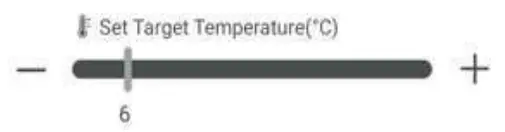
Countdown Timer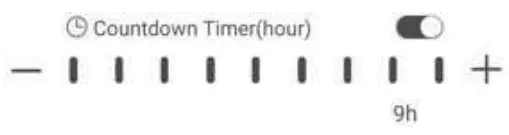
Use the + and – button to set a countdown, from 1 to 9 hours. From the moment the time is set, the timer will then continue to count down. During the countdown, when the target temperature is reached, the heating will turn off. Once the heater detects a fall in actual room temperature it will restart. Once the countdown is ended the heater will turn off completely.
Mode Screens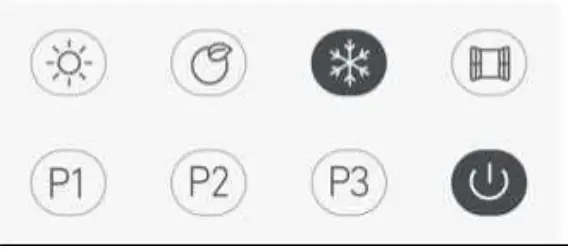
Press to select the required button:
On/Off  – Press once to turn the heater on and again to turn off.
Comfort mode – Set using the temperature scale on the main screen.
Eco mode  – this is a preset temperature which is 4°C below the comfort mode setting.
Preset Programme – see below Preset Programme – see below Adjustable Programme – see below
P1 and P2 are pre-programmed schedules. P3 is a schedule that can be set to your own requirements. Each programme can then be activated by pressing the corresponding P1, P2 or P3 symbol. Press to turn off.
Anti Frost
For this function to work the heater must be turned on. Once the Anti-frost mode is selected the target temperature will be overridden and the heater will stay at 7°C until the anti-frost function is turned off. . Select to turn this function on.
Press to turn off.
Open Window Detection
When the ambient temperature drops by 4℃ within 2mins, the heater will register the possibility of an open window in the room. If this happens, it will stop heating and enter standby mode.
| Table 2 | |||||||
| Information requirements for electric local space heaters | |||||||
| Model identifier(s): SMAWHHEAT2000WHOR705 | |||||||
| Item | Symbol | Value | Unit | Item | Unit | ||
| Heat output | Type of heat input, for electric storage local space heaters only (select one) | ||||||
| Nominal heat output | Pnom | 2.0 | kW | manual heat charge control, with integrated thermostat | No | ||
| Minimum heat output (indicative) | Pmin | 1.0 | kW | manual heat charge control with room and/or outdoor temperature feedback | No | ||
| Maximum continuous heat output | Pmax,c | 2.0 | kW | electronic heat charge control with room and/or outdoor temperature feedback | No | ||
| Auxiliary electricity consumption | fan assisted heat output | No | |||||
| At nominal heat output | elmax | 0 | kW | Type of heat output/room temperature control (select one) | |||
| At minimum heat output | elmin | 0 | kW | single stage heat output, no room temperature control | No | ||
| In standby mode | elSB | 0.001 | kW | two or more manual stages, no room temperature control | No | ||
| with mechanic thermostat room temperature control | No | ||||||
| with electronic room temperature control | No | ||||||
| electronic room temperature control plus day timer | No | ||||||
| electronic room temperature control plus week timer | Yes | ||||||
| Other control options (multiple selections possible) | |||||||
| room temperature control, with presence detection | No | ||||||
| room temperature control, with open window detection | Yes | ||||||
| with distance control option | Yes | ||||||
| with adaptive start control | No | ||||||
| with working time limitation | Yes | ||||||
| with black bulb sensor | No | ||||||
| Contact details | TCP LTD, 1 EXCHANGE COURT, COTTINGHAM ROAD, CORBY, NN17 1EW | ||||||

 FAQ – TCP Smart