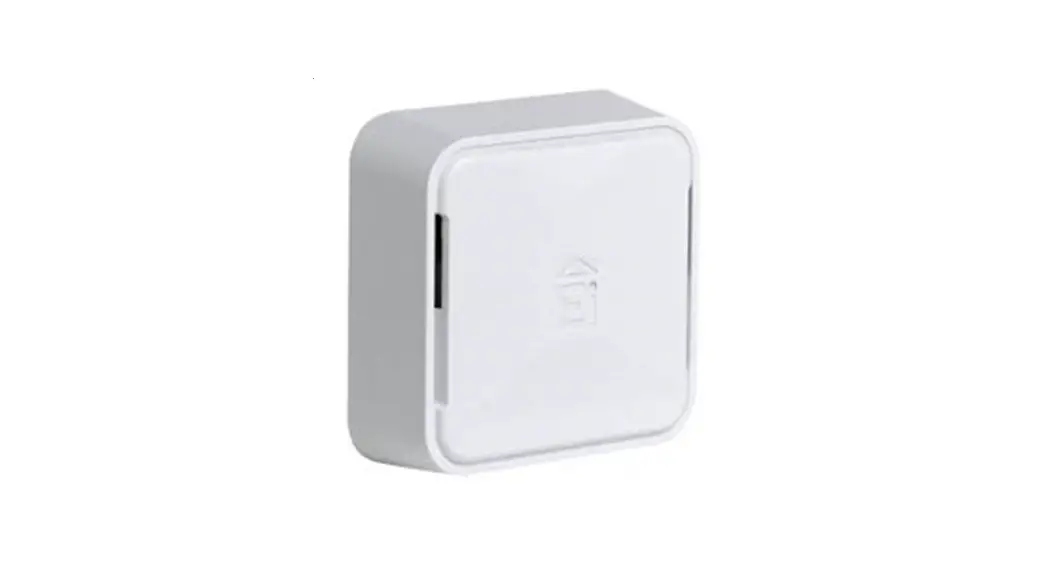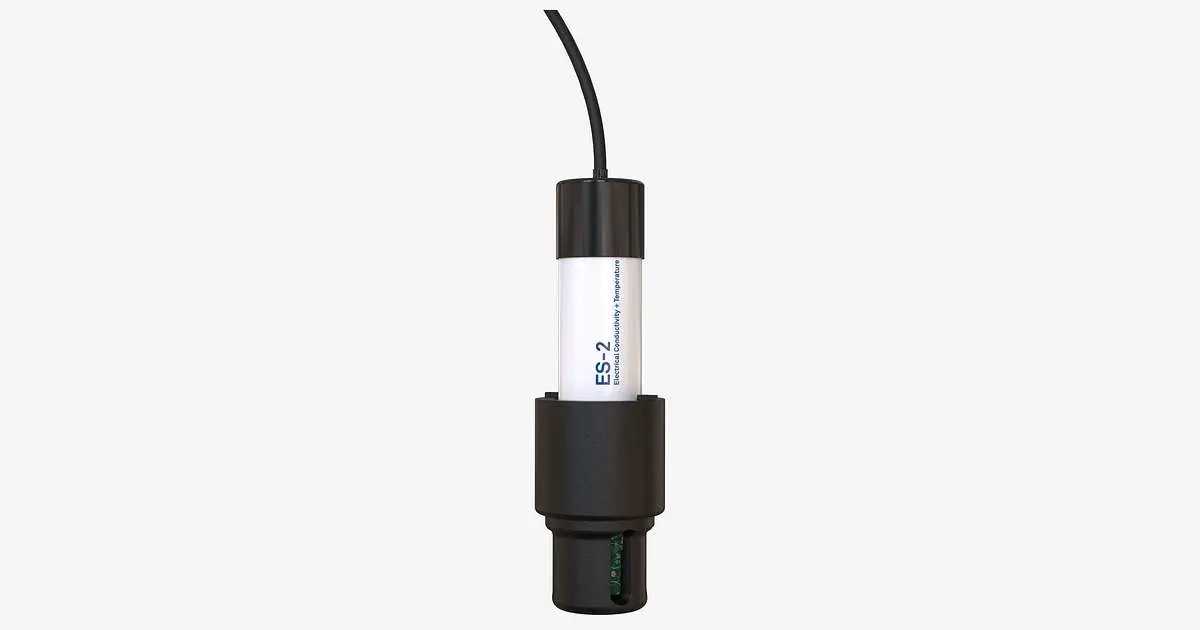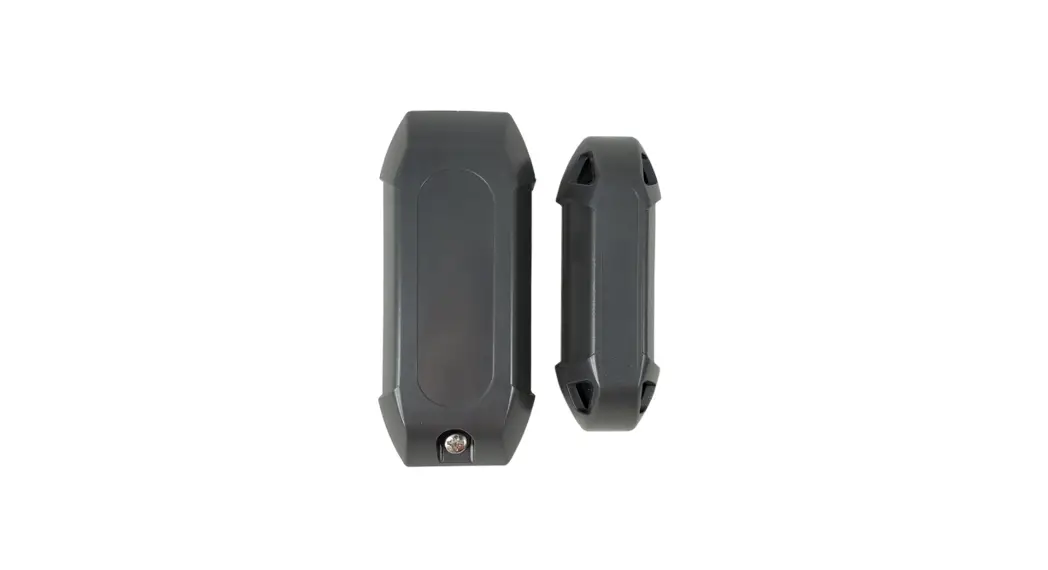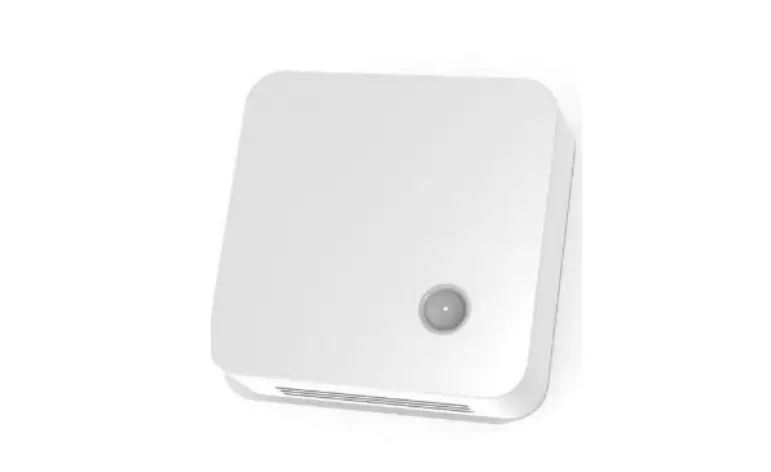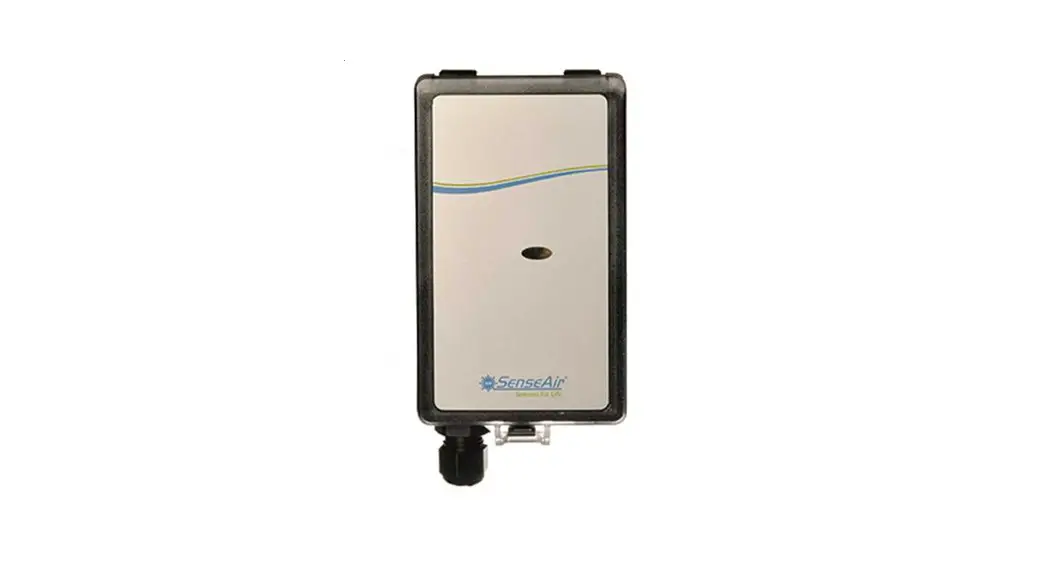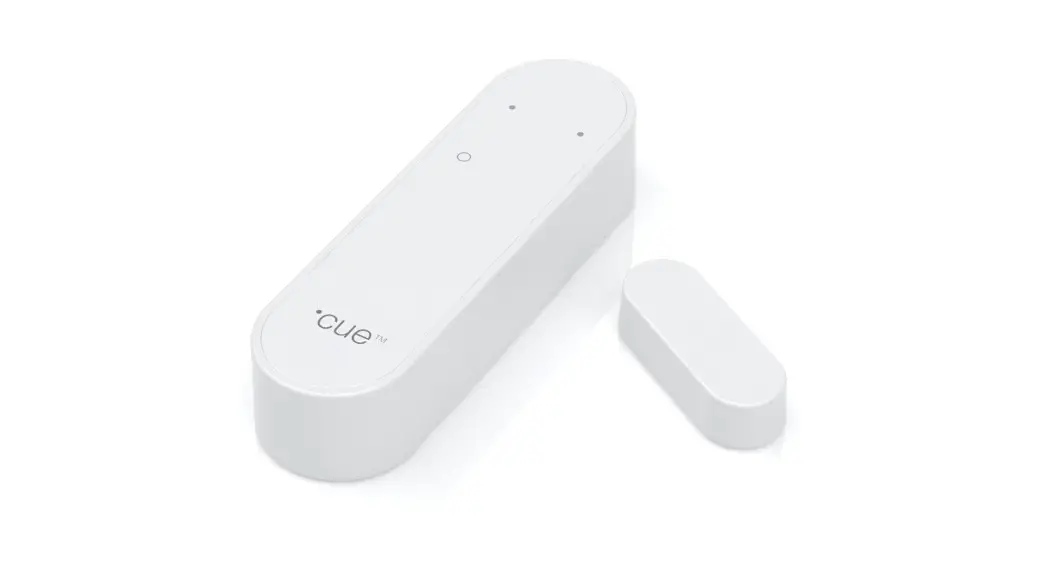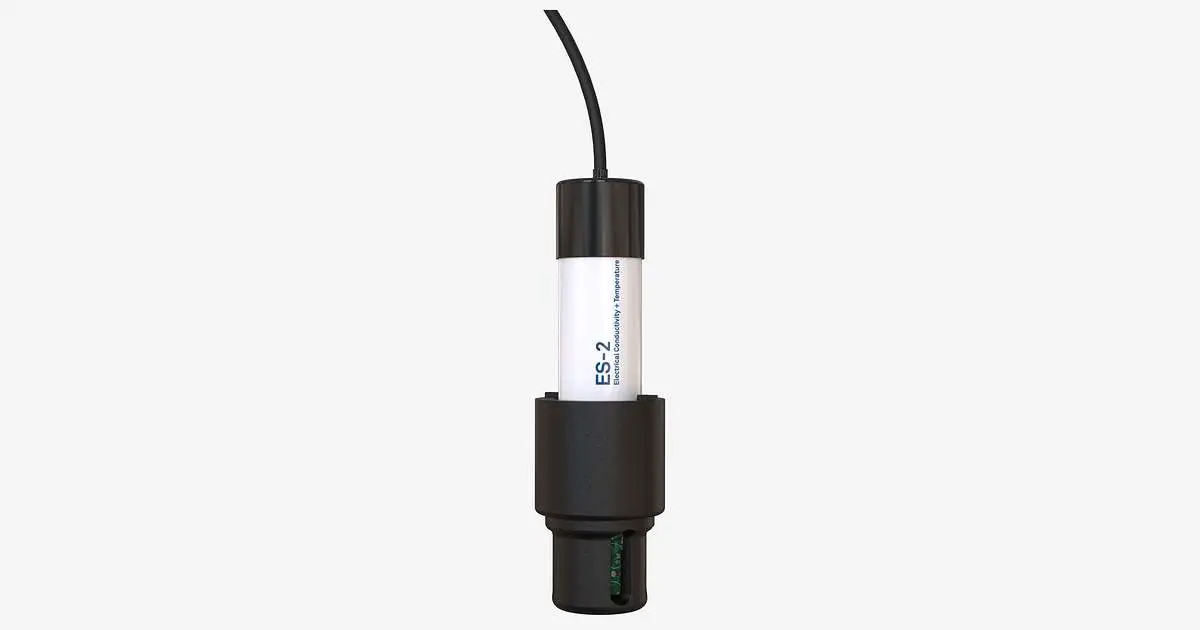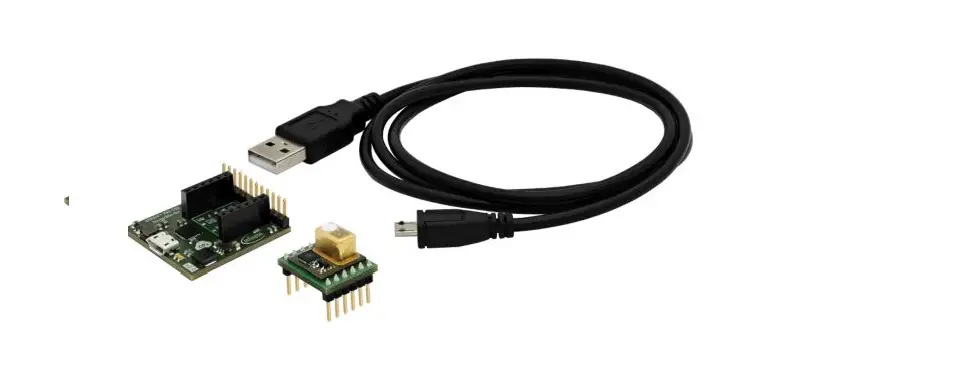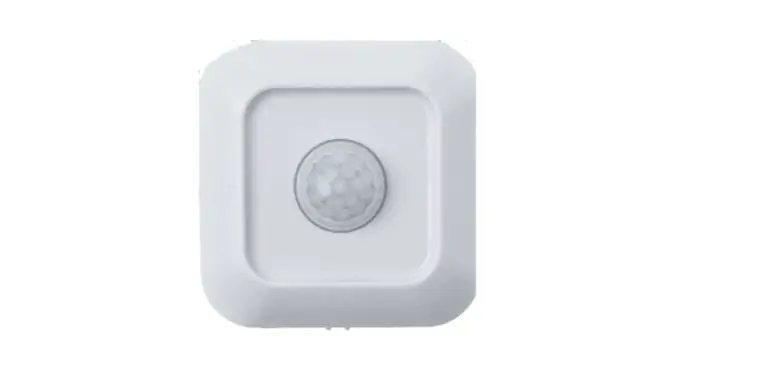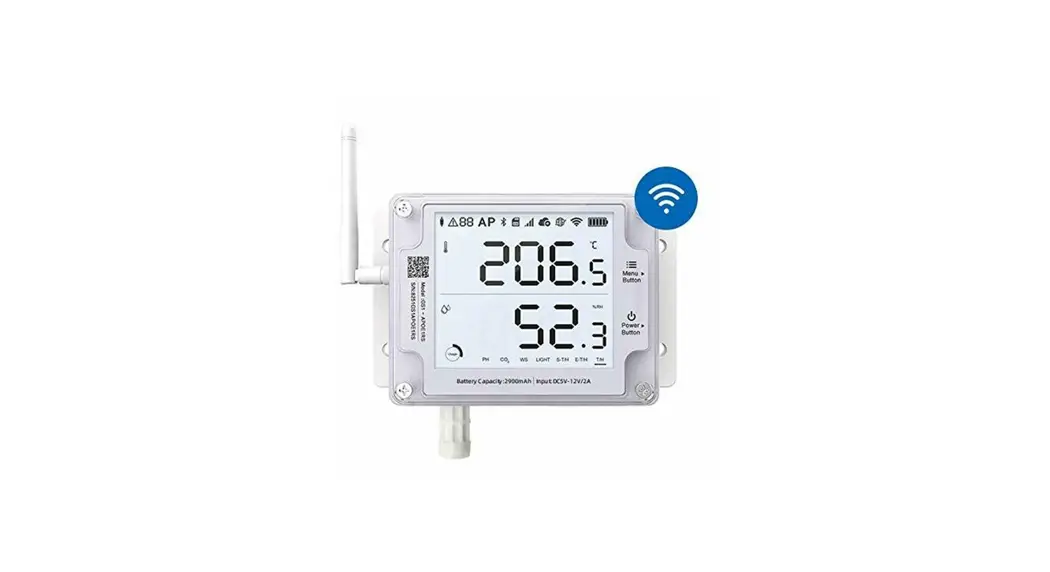

Environmental Sensor (ES-2)
Installation guide
ES-2 Environmental Sensor
 http://gomotive.com/es-install
Scan this code or visit gomotive.com/es-install for additional support, including step-by-step instructions in multiple languages and tips about mounting and cabling.
What’s in the box
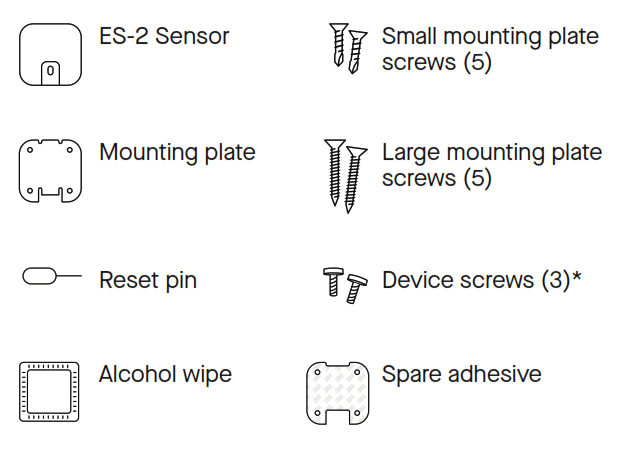 *Use these screws to secure the device to the mounting plate
Installing
using the Fleet App (recommended)
- Install a Motive Asset Gateway using cable power so that it can connect to the Environmental Sensor. For Asset Gateway installation instructions, visit: gomotive.com/ag-install
- Download and log in to the Motive Fleet App from Google Play Store or Apple App Store.
- Go to the Devices tab.
- Follow the in-app instructions to guide you through installing the Environmental Sensor.
Installing using the Fleet Dashboard
- Install a Motive Asset Gateway using cable power so that it can connect to the Environmental Sensor.
For Asset Gateway installation instructions, visit: gomotive.com/ag-install - Log in to the Motive Fleet Dashboard as an admin or installer.
- Go to the Admin section and navigate to “Assets”.
- Visit gomotive.com/es-install to finish installing your sensor.
Mounting
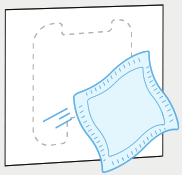
Use the included alcohol wipe to thoroughly clean the area where you want to attach the mounting plate.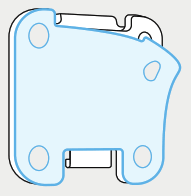
Remove the adhesive backing from the mounting plate and affix the plate to your desired location.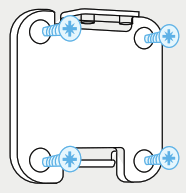
If attaching the plate to a metal surface, use the small mounting plate screws; for wood surfaces, use the large mounting plate screws. 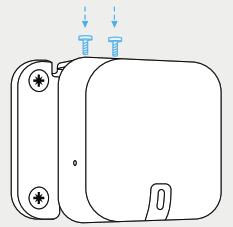
Attach the sensor to the mount and secure it using the device screws.
Activation
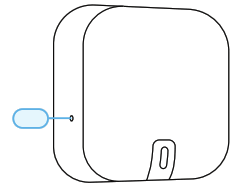
Press the pinhole reset button on the side of the sensor by inserting the reset pin.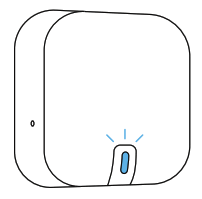
The LED will start blinking blue to indicate that the sensor is beginning the pairing process. please allow up to 10 minutes for the sensor to pair with the Asset Gateway.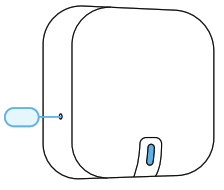
Press the reset button again. The LED will turn solid blue to confirm a connection to the Asset Gateway.
If not, wait a few more minutes and try again. 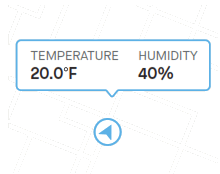
You can now track your asset and sensor telematics in the Motive Fleet Dashboard.
Understanding the LEDs
LED will stay illuminated for a few seconds after the reset button is pressed.
For more information, visit: gomotive.com/es-install
 | Solid blue Device is working properly |
 | Blinking blue Pairing to an Asset Gateway |
 | Blinking blue Pairing to an Asset Gateway |
 | Blinking red Paired Asset Gateway cannot be found |
 | Solid red Low battery |
 | Blinking white Firmware update in progress |
Replacing the battery
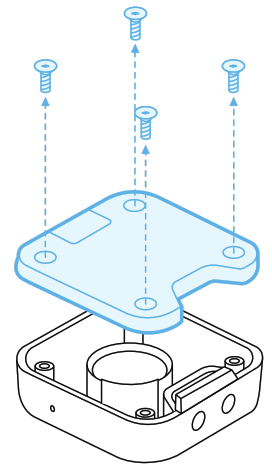 Flip the device over to reveal four screws and use a T5 screwdriver to remove them. The top and bottom parts of the device will easily detach. Set the bottom housing aside.
Use your forefinger and thumb to lightly grab the battery from the battery holder. Pull the battery out being careful not to use too much force and damage the metal springs.
Note
This equipment has been tested and found to comply with the limits for a Class B digital device, pursuant to part 15 of the FCC Rules. These limits are designed to provide reasonable protection against harmful interference in a residential installation. This equipment generates, uses and can radiate radio frequency energy and, if not installed and used in accordance with the instructions, may cause harmful interference to radio communications. However, there is no guarantee that interference will not occur in a particular installation. If this equipment does cause harmful interference to radio or television reception, which can be determined by removing the battery temporarily, then replacing it, the user is encouraged to try to correct the interference by one or more of the following measures:
- Reorient or relocate the radio or television’s receiving antenna.
- Increase the separation between the equipment and receiver.
- Consult the dealer or an experienced radio/TV technician for help.
This equipment complies with FCC RF radiation exposure limits set forth for an uncontrolled environment and RSS 102 RF exposure compliance requirements. This equipment should be installed and operated with a minimum distance of 20 centimeters between the radiator and your body. This Transmitter must not be co-located or operating in conjunction with any other antenna or transmitter. Changes or modifications not expressly approved by Motive could void the user’s authority to operate this equipment.
This device contains license-exempt transmitters / receivers that comply with Part 15 of the FCC Rules and with Innovation, Science and Economic Development Canada’s license-exempt RSS(s). Operation is subject to the following two conditions:
- this device may not cause harmful interference, and
- this device must accept any interference received, including interference that may cause undesired operation.
Troubleshooting
855-434-3564
[email protected]
help.gomotive.com
Resources
 For multilingual
step-by-step instructions,
scan the QR code or visit:
gomotive.com/es-install For Asset Gateway
installation instructions,
scan the QR code or visit:
gomotive.com/ag-install
Download the
Motive Fleet App
 AG-55 Installation Onboarding LP | Motive (formerly KeepTruckin)