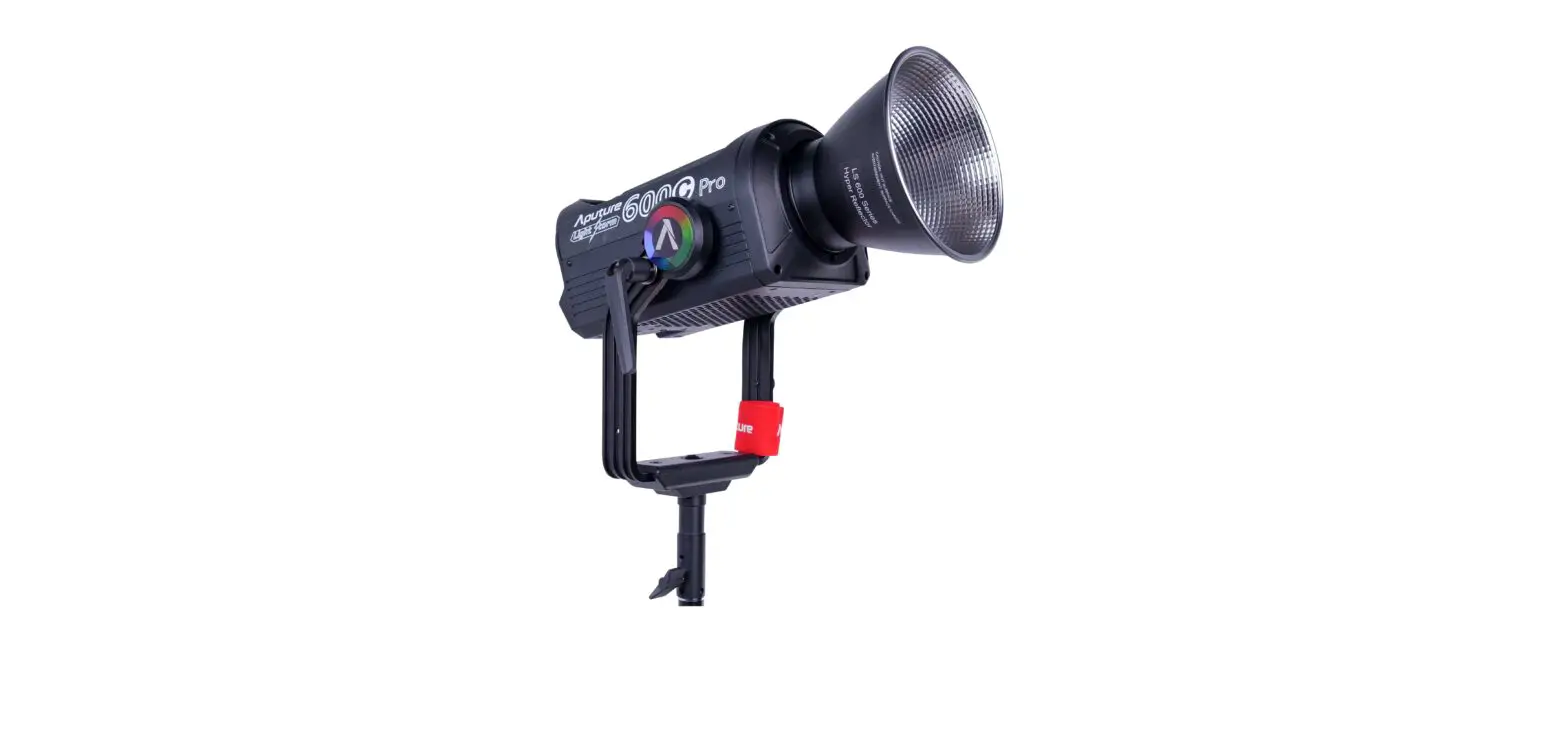
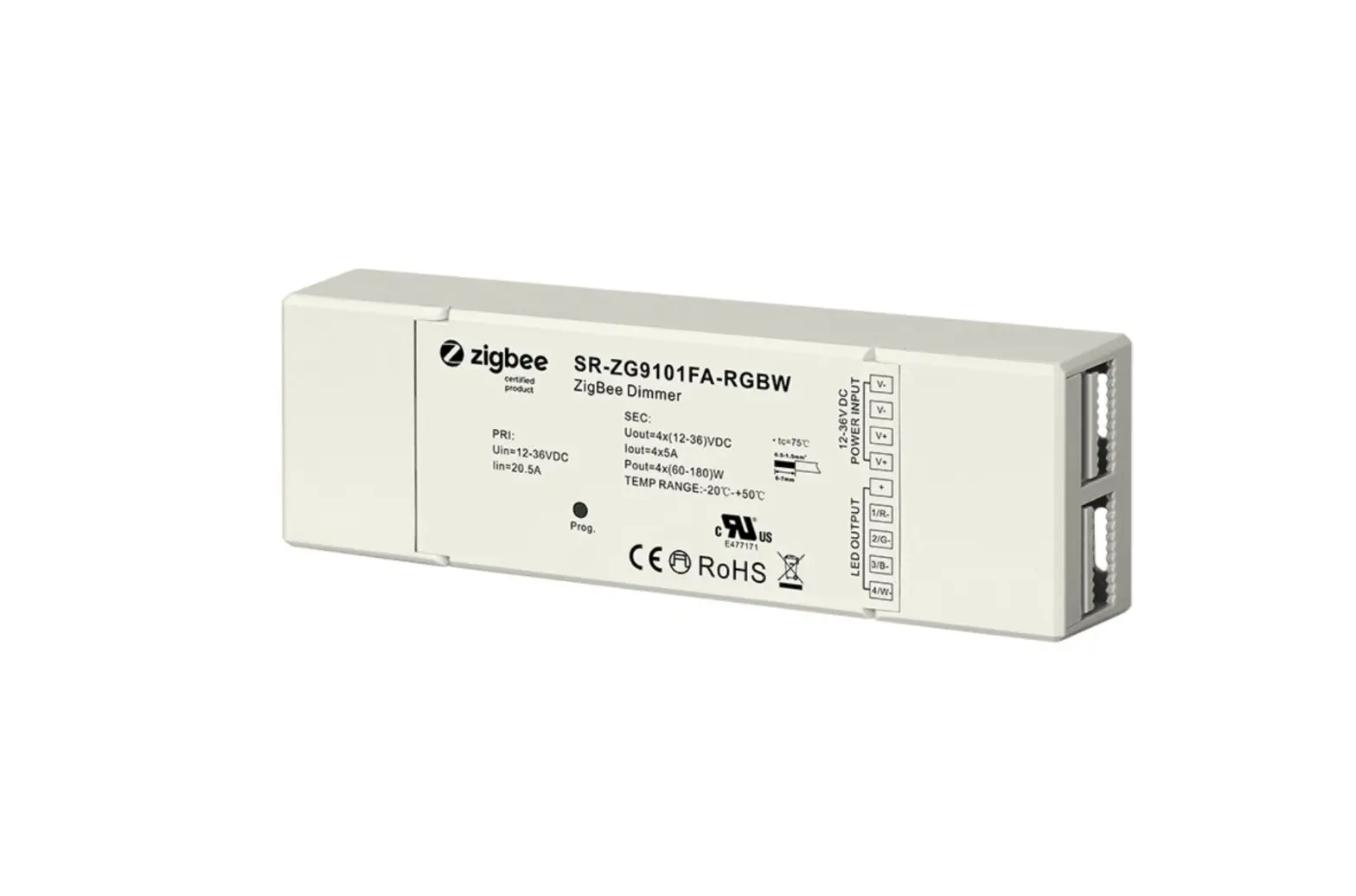
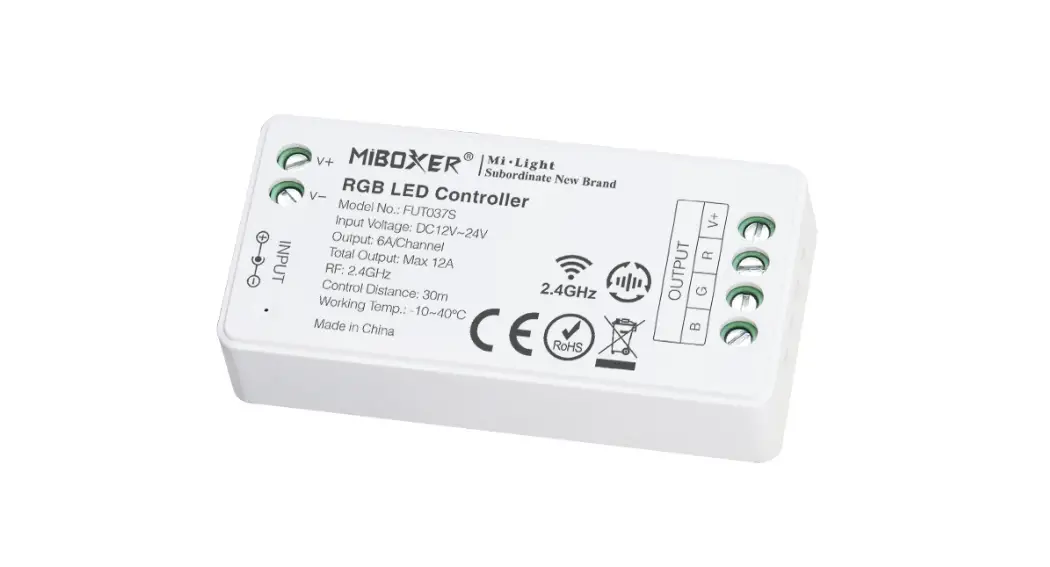
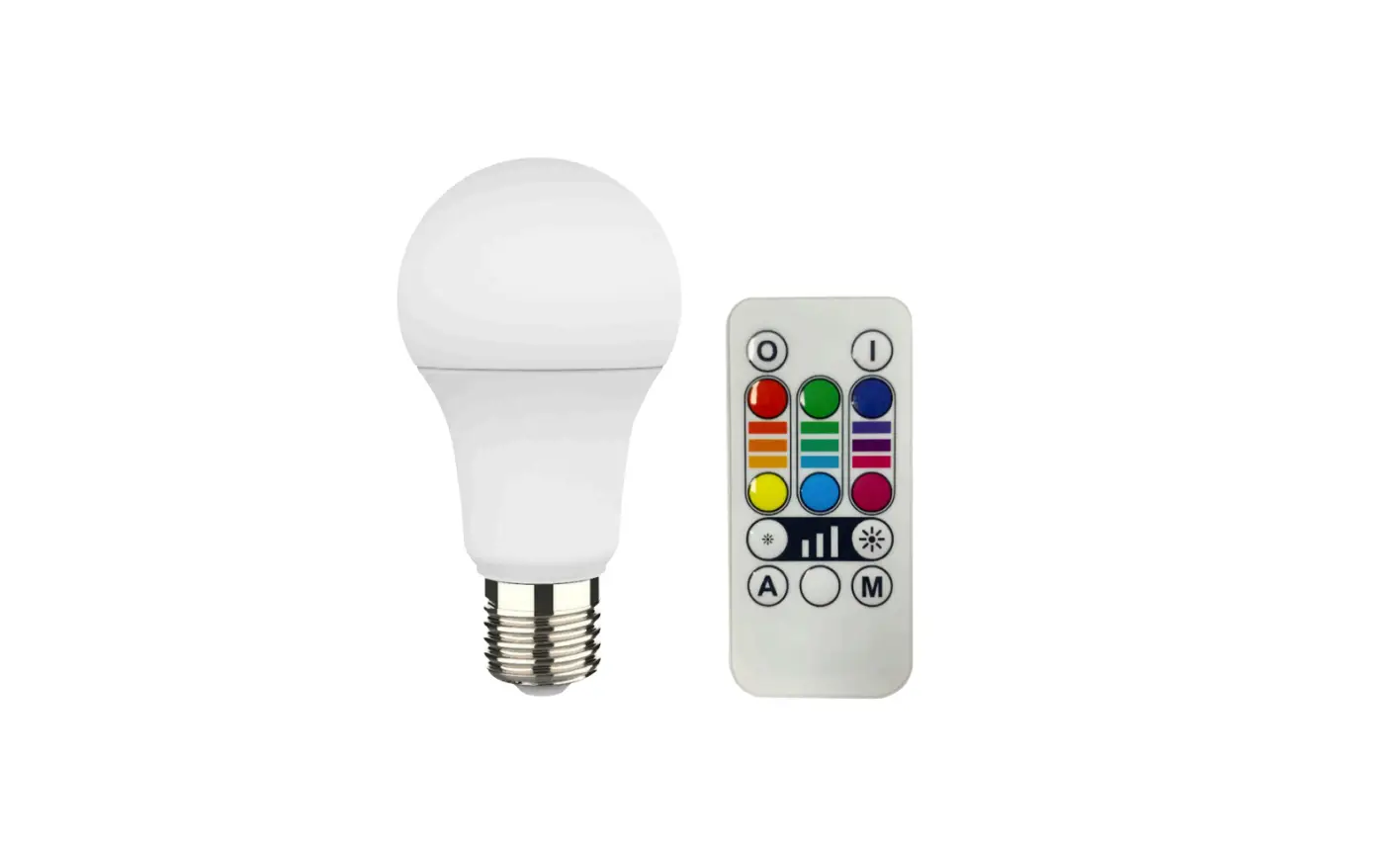
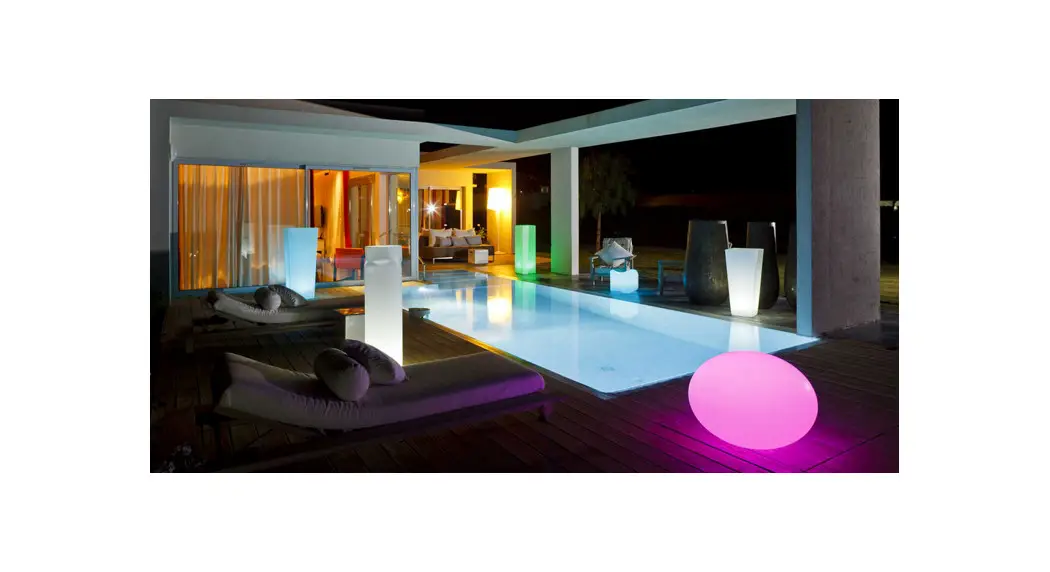
Smart RGB LED Light Controller
Product Information:
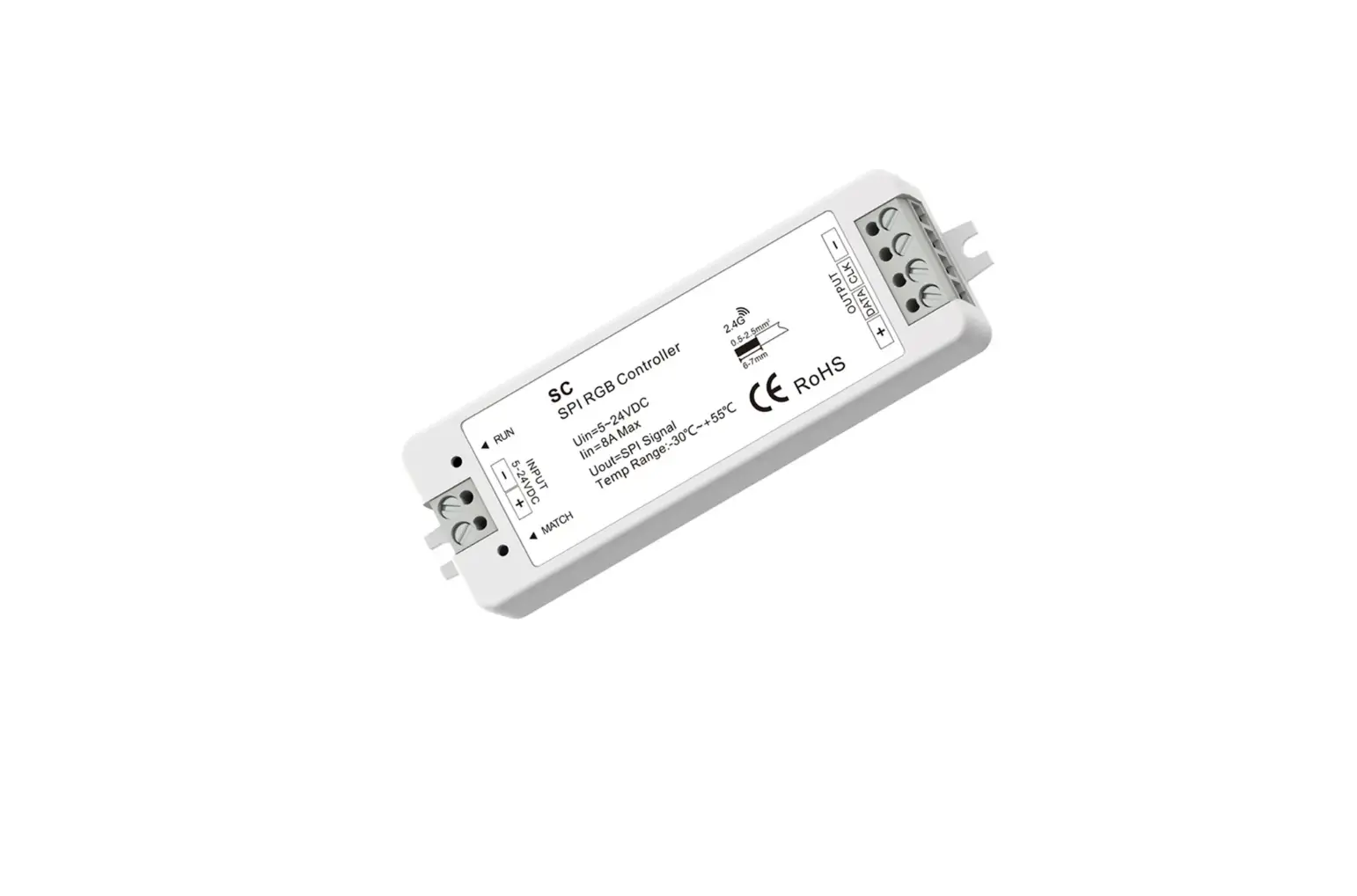
The Smart RGB LED Light Controller is a device that allows you to
control your pool lights using a mobile app. It supports both Wi-Fi
and Bluetooth connections and is compatible with the Smart Life and
Tuya Smart apps. The controller operates on a 2.4 GHz Wi-Fi network
and can be used to control multiple controllers simultaneously. It
also offers the option to create groups of controllers for
synchronized operation. The controller can be switched between APP
control mode and switch control mode using the provided buttons.
Product Usage Instructions:
1. Download the Smart Life or Tuya Smart app from the App Store or
Google Play. 2. Switch the pool light to APP control mode by
pressing the ENTER button on the controller. The indicator sign of
the button will flash for a few seconds. 3. Connect your mobile
device to a 2.4 GHz Wi-Fi network and grant the app Wi-Fi and
Bluetooth permissions. 4. Open the app and click the “+” button to
add a new device. 5. Follow the on-screen instructions to add the
controller successfully. 6. Once added, you can now control the
pool light using the app’s interface. 7. To create a group of
controllers for synchronized operation, follow these steps: – Click
“Done” on the device interface. – Click “Add Device” and select
“Discovering devices”. – Choose the 2.4 GHz Wi-Fi network and enter
the password. – Get into one of the controllers, click “…” and
then click “Create Group”. – Click “+” to add the controllers
needed in one group. – Click “Save” and enter a group name, then
click “Save”. – The group will be created successfully. 8. You can
rename the devices for pool and garden lights by following these
steps: – Get into one of the controllers, click “…” and then
click “Rename”. – Click “Confirm” and enter the desired name. – The
device will be renamed successfully. 9. If you change the Wi-Fi
network or the password, you need to reset the Wi-Fi connection by
pressing and holding the ENTER button for 10 seconds. The indicator
sign of the button will flash for a few seconds. Then, follow step
3.3 to reset the connection. 10. If you want to switch back to
switch control mode, press the Exit button on the controller. You
can now use your switch to control the lights. (The Exit button
acts as a switch.) 11. In case of Wi-Fi or network disconnection,
place your mobile phone close to the controller for Bluetooth
control. Note: Please refer to the complete user manual for more
detailed instructions and troubleshooting information.
Instruction Manual for Smart RGB LED Light Controller Installation Diagram:
IMPORTANT: This manual includes essential information on the safety measures to be implemented for installation and start-up. Therefore, the installer, as well as the user, must read these instructions before installation and start-up. To achieve optimum performance, follow the instructions indicated below: 1. TECHNICAL SPECIFICATION Input Voltage: 12VAC 120V/220V Output Voltage: 12V AC Maximum Power Output at 12V Terminal: 300W Housing Protection: Indoor using only Cable Distance: Within 100 meters 2. INSTALLATION Prior to commencing, make sure there is no electricity passing through the wires and cables to be connected. Mount the controller on a solid and secure wall at a minimum distance of 5 meters from any water source or pipes. Connect the 12V AC input voltage into the terminals clearly marked as ” 12VAC Input “. (If your controller is 120V or 220V input version, please make sure connect 120V or 220V to the input terminal.) Connect the lamps parallel to the terminals clearly marked as ” LAMPS 12VAC “. It is essential to make sure the connections are as tight as possible in order to avoid sparking.
3. SETTINGS 3.1 Download the APP from App Store or Google Play: “Smart Life” or “Tuya Smart”
3.2 Switch to APP Control Mode The initial setting of the pool light is switch control mode, please press “ENTER” button to switch the pool light to APP control mode. The indicator sign of the button will flash for a few seconds, and then you can follow the steps below. 3.3 Wi-Fi & Bluetooth Connection To automatically add devices, the app must be granted Wi-Fi and Bluetooth permissions. Only 2.4 GHz Wi-Fi networks are supported.
4.Click “+” for adding
5.Add successfully,
6.Get into the control
the device
ord
3.4 Create Group
click “Done”
interface
If you have more than 1 set controller and want to connect them together so they are in sync. Then we
can add all the controllers into a group in the Smart Life APP.
Note: Only the same network controllers can be in the same group. Each controller should follow the
steps in 3.3 to finish the setting first, and then follow the below operations.
1.Add Device
2.Discovering devices and click “Add”
3.Select 2.4 GHz Wi-Fi Network and enter password
1.Get into one of the controllers, click “…”
2.Click “Create Group”
3.Click “+” for controllers needed in one group
4.Click “Save”
5.Enter the group name, click “Save”
3.5 Rename Your Device
6.Group created successfully
1.Get into one of the controllers, click “…”
2.Click ” ”
3.Click “Confirm”
4.Rename successfully
5.You can rename the devices for pool and garden.
3.6 Reset Wi-Fi Connection Once you change the Wi-Fi network or the password of Wi-Fi, you have to reset the Wi-Fi connection. Press and hold the “ENTER” button for 10 seconds, the indicator sign of the button will flash for a few seconds, and then you can follow 3.3 to reset it.
3.7 Change to Switch Control Mode If you want to change pool lights from APP control mode to switch control mode, please press “Exit” button and then you can use your switch to control the lights. (The “Exit” button can be used as a switch.)
3.8 Bluetooth Control Option If Wi-Fi or network is disconnected, put your mobile phone close to the controller <10m. Waiting for about 1 minute, the controller will automatically switch to Bluetooth method, then you can continue to use the app to control the lights.
4. SAFETY WARNINGS
The persons who are in charge of installation should have the required qualifications for the work. Avoid making contact with the electric voltage. Comply with the current standards regarding accident prevention. IEC 364-7-702 standards must be observed: WIRING IN BUILDINGS, SPECIAL WIRING, SWIMMING POOLS. Do not handle any electrical components with wet feet.