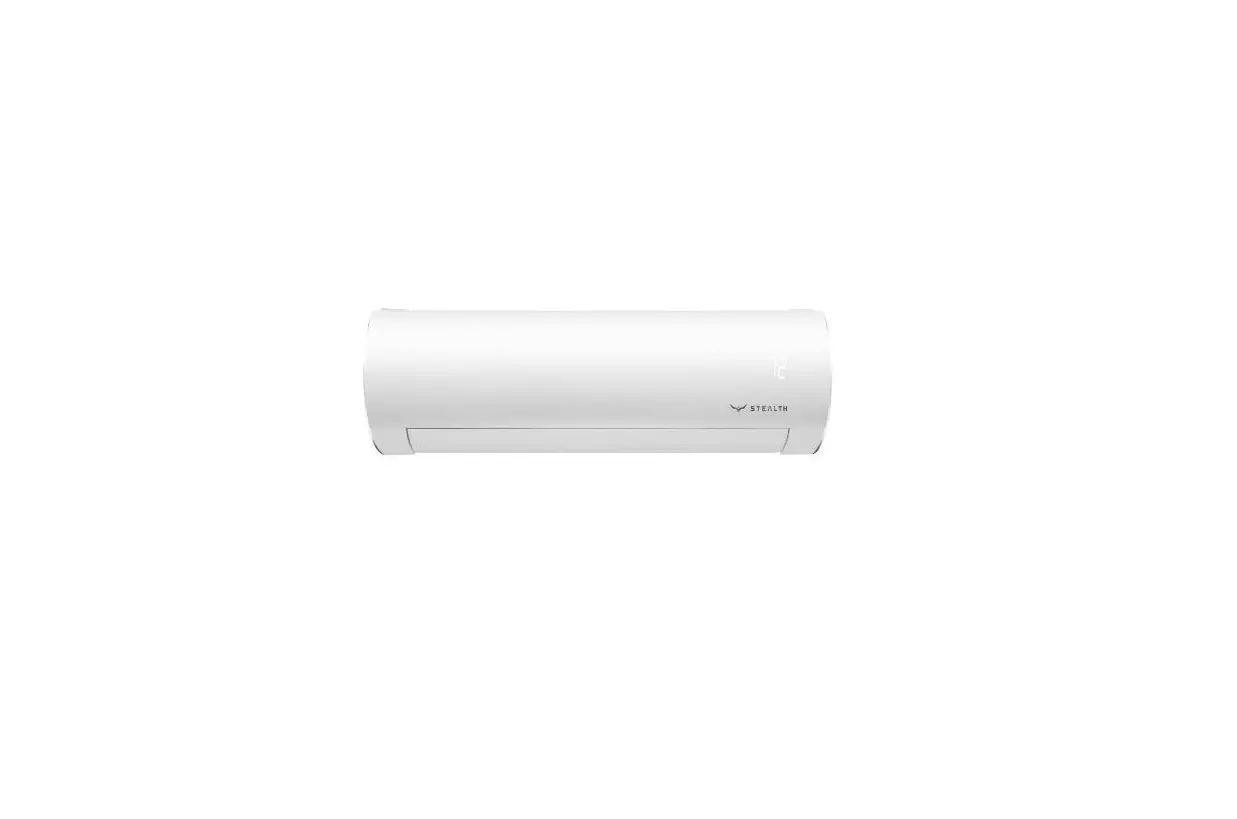
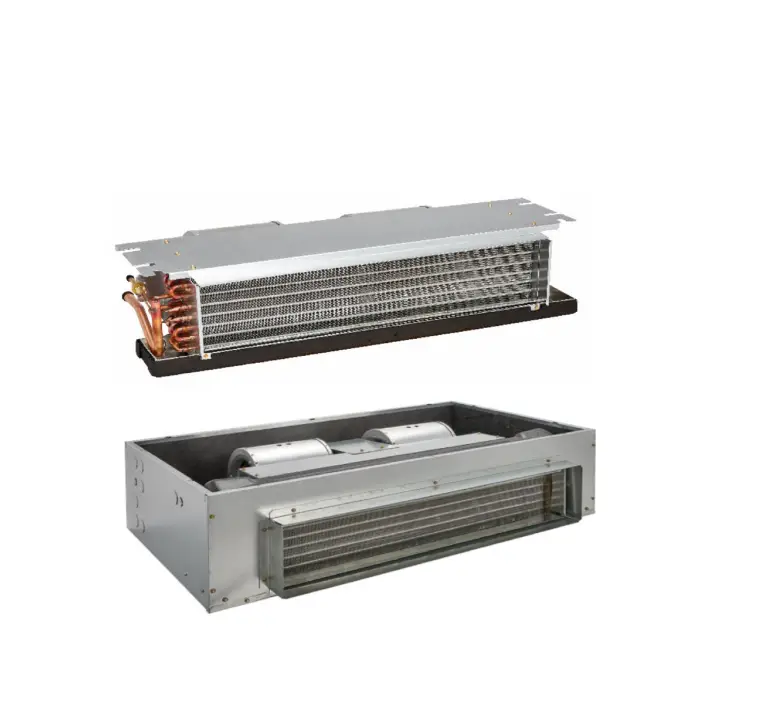
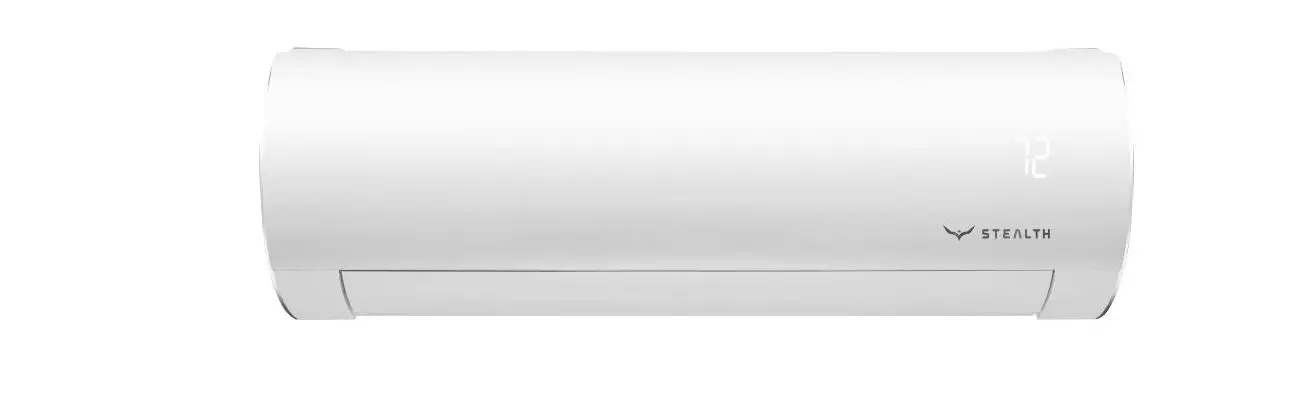
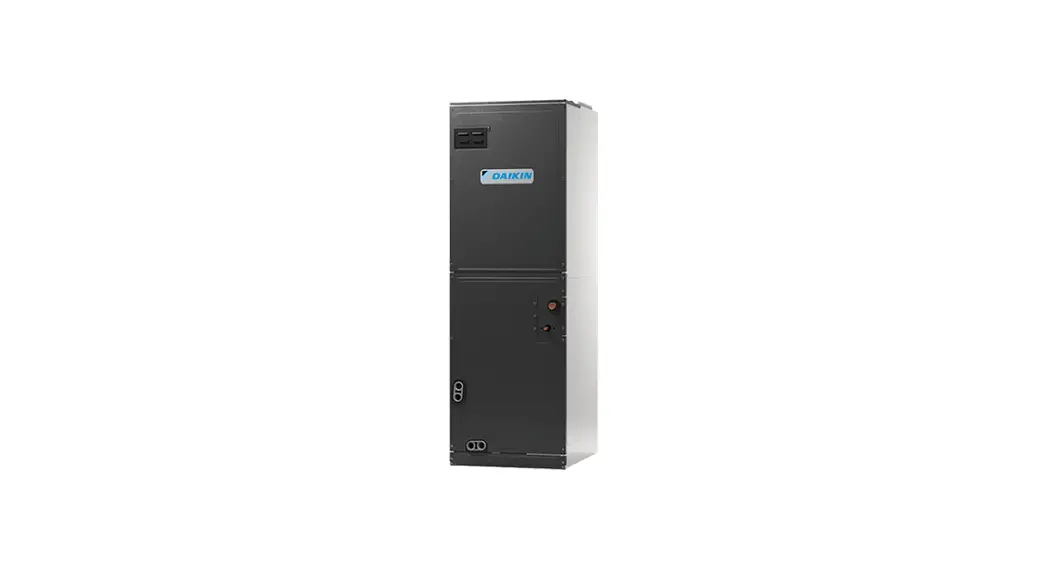
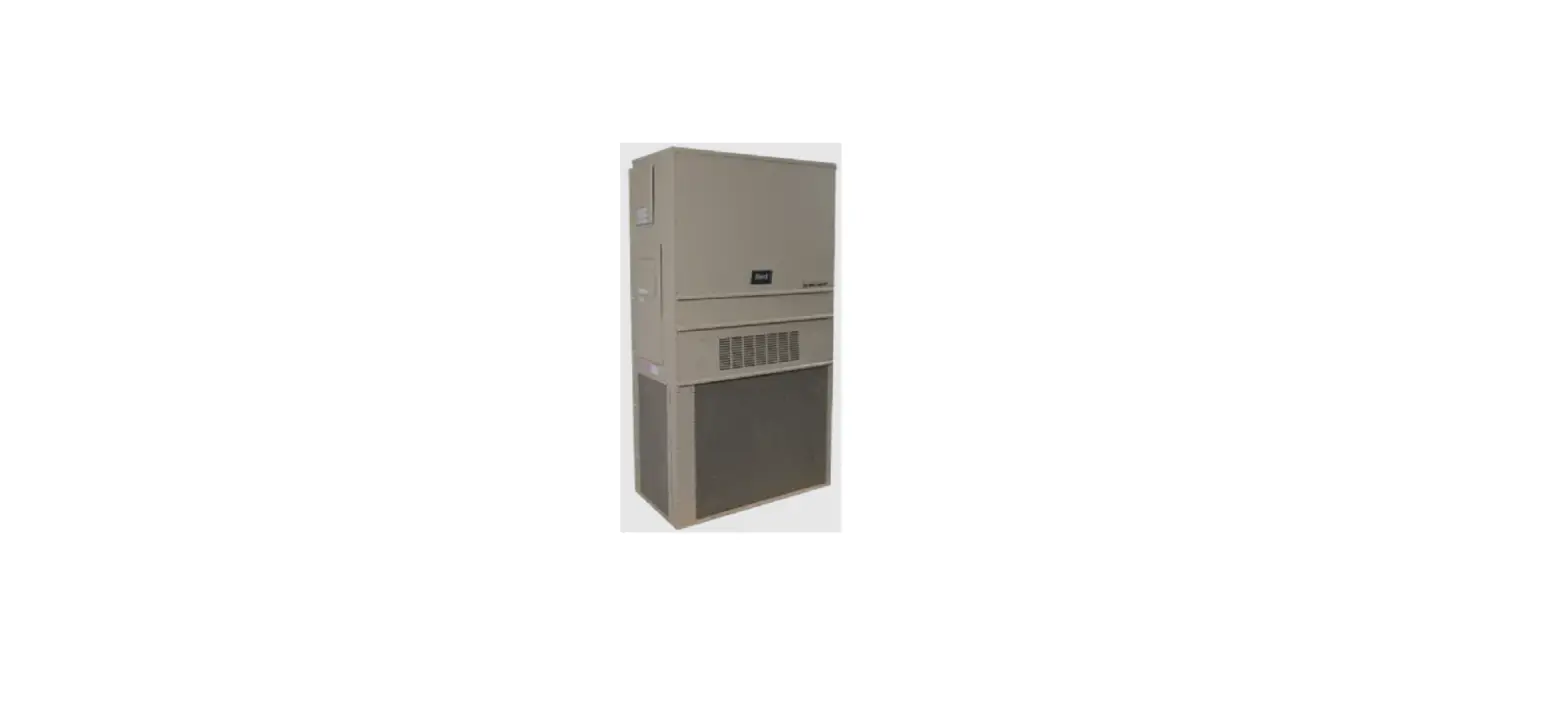
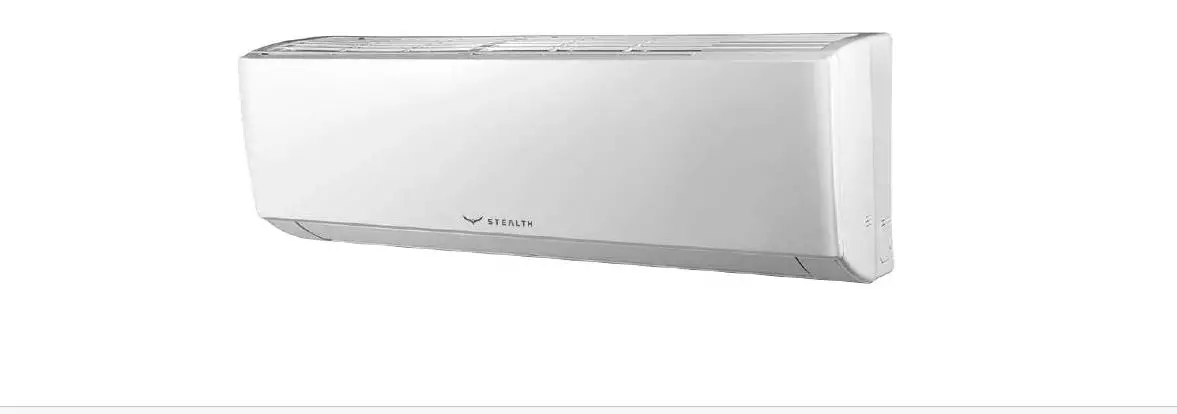
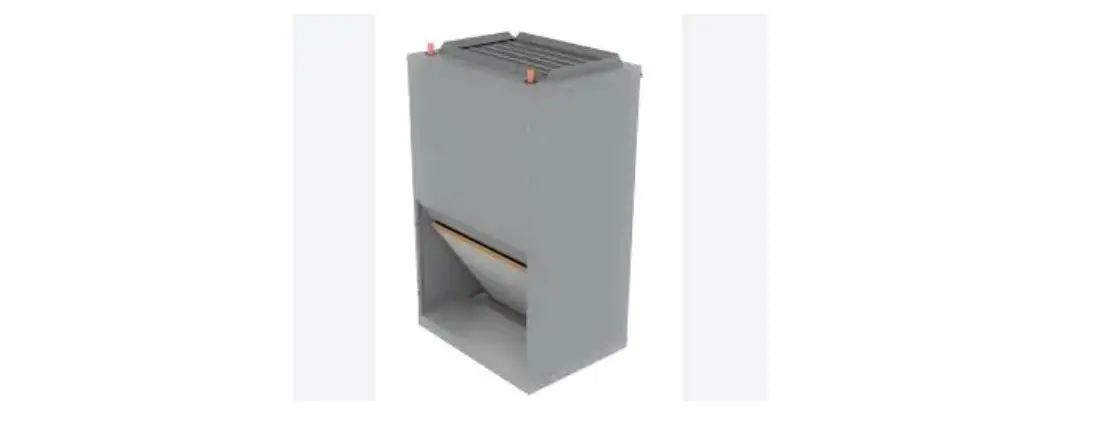
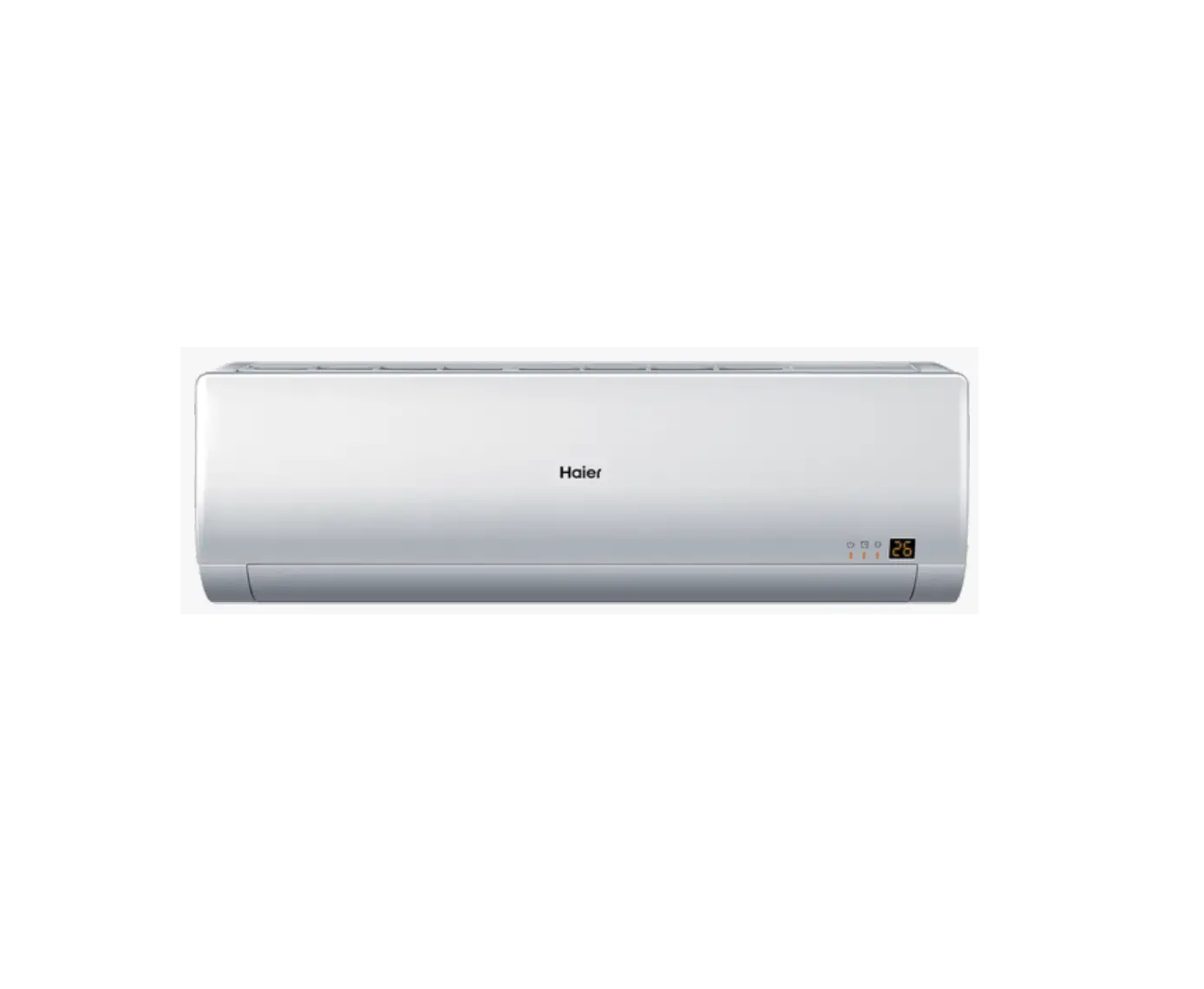
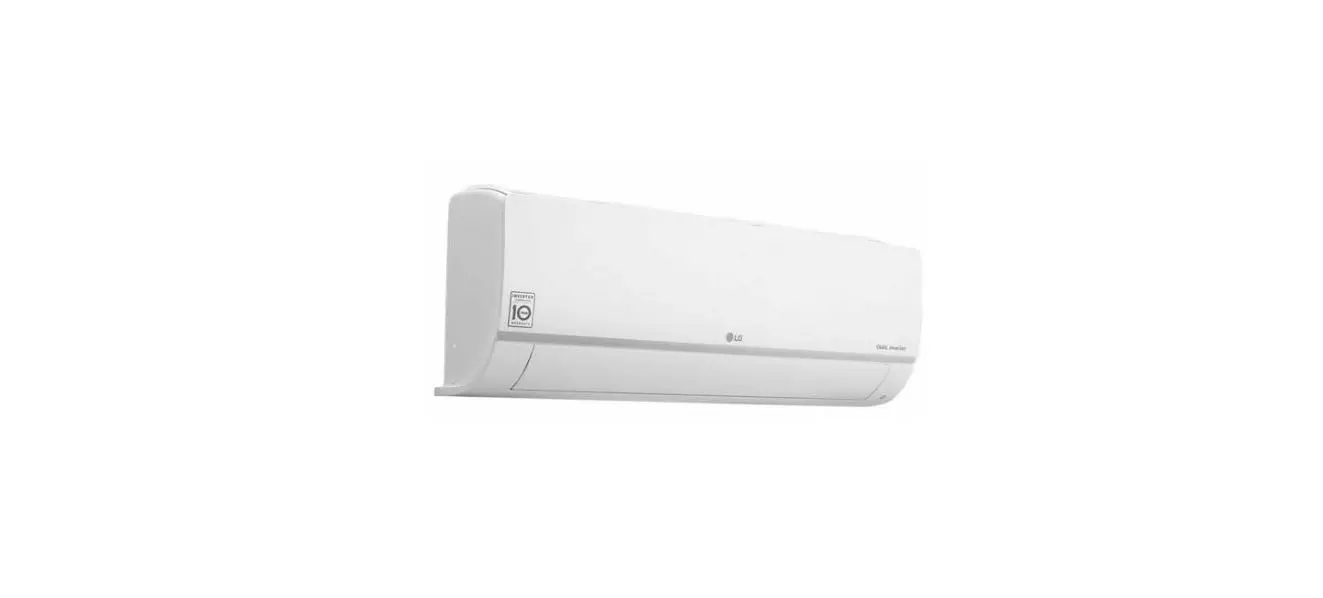
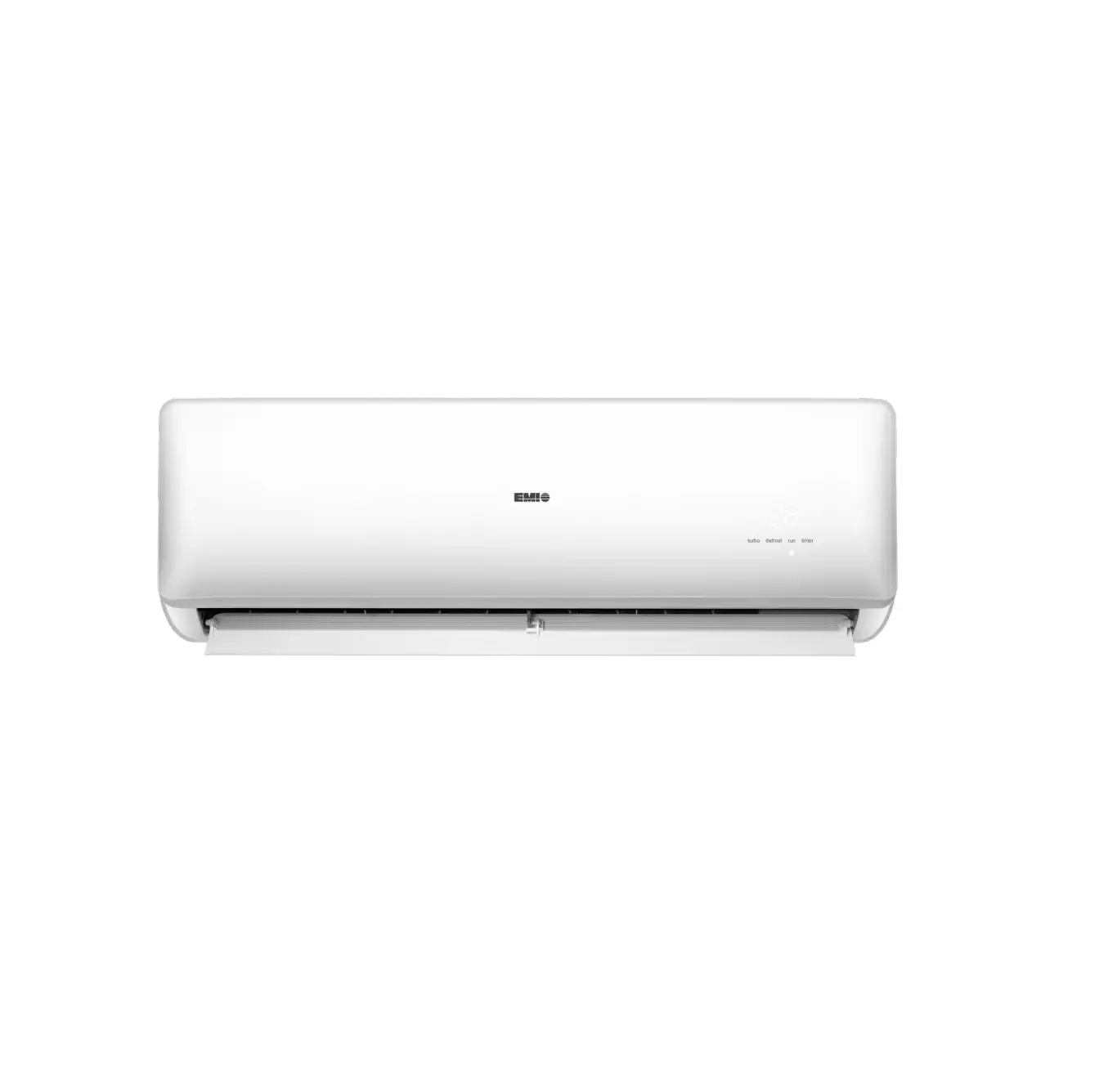
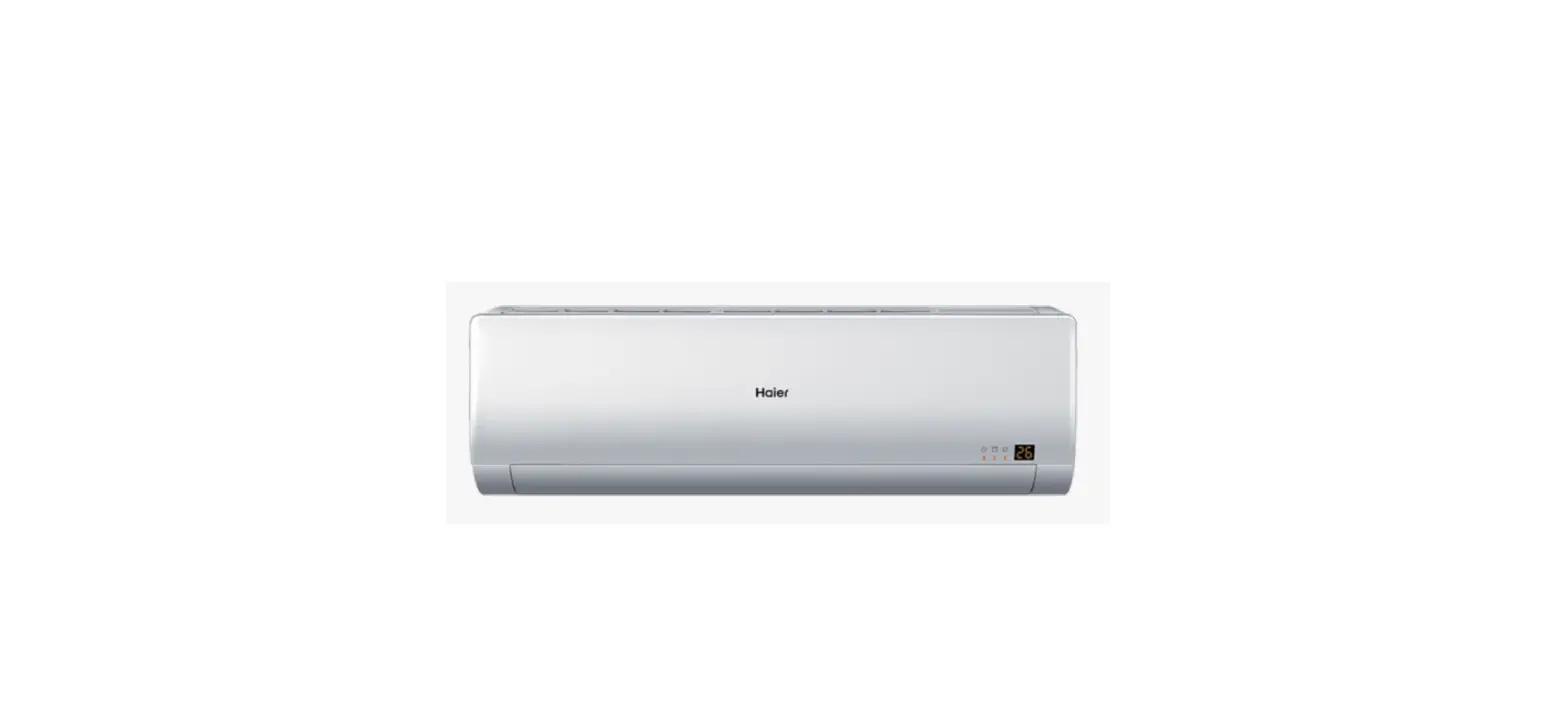
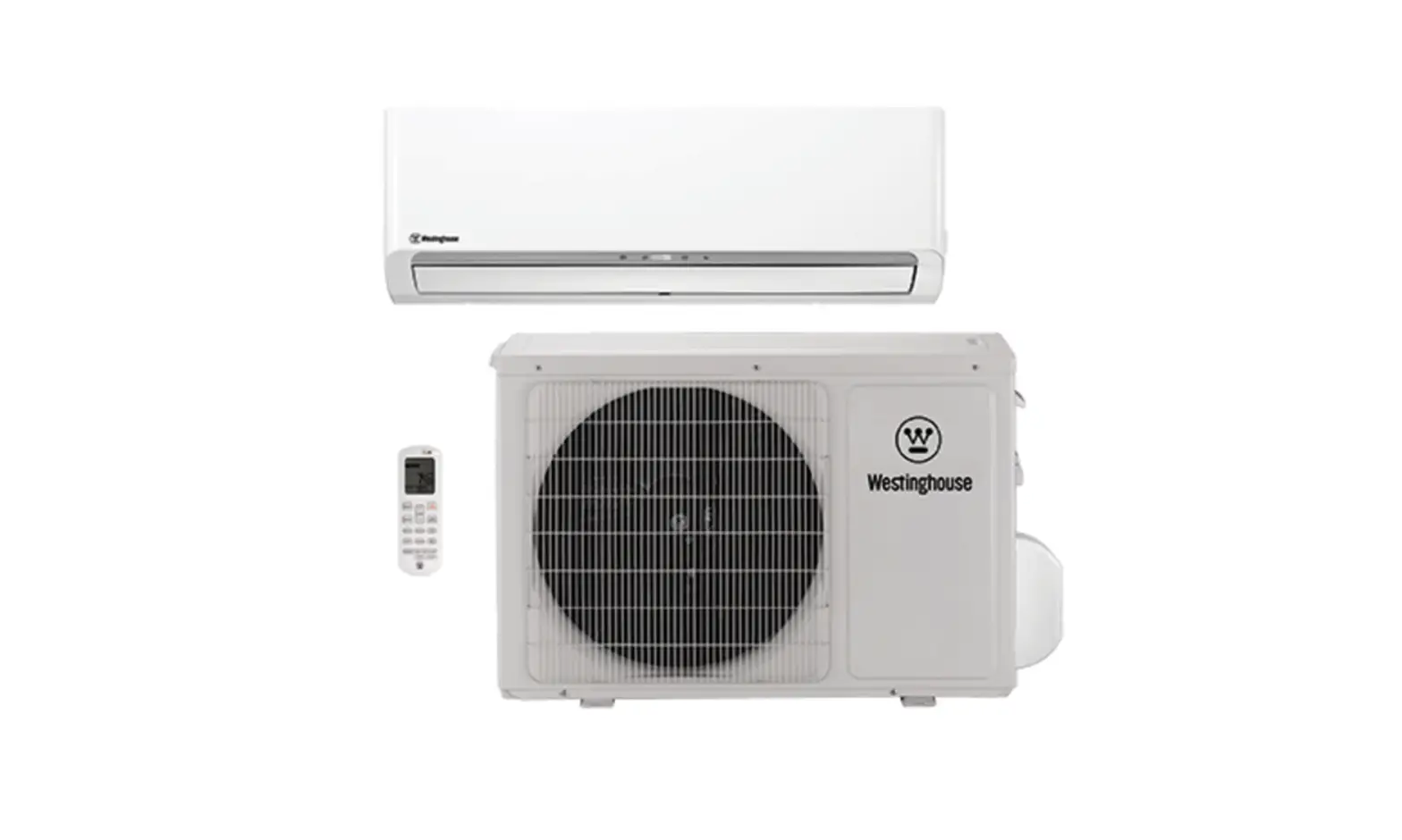
SC-18WGLD-HP230 Wall Mount Single Zone Air Handler
Product Information
The product is a mini split and heat pump system that can be
controlled using the Gree+ app. The app allows users to configure
and control the ACiQ systems remotely. The app can be downloaded
from both the Playstore (for Android devices) and the AppStore (for
iOS devices).
For Android devices, the app can be downloaded from the
Playstore using the following link: https://play.google.com/store/apps/details?id=com.gree.greeplus
For iOS devices, the app can be downloaded from the AppStore
using the following link: https://itunes.apple.com/us/app/gree/id1167857672?mt=8
Product Usage Instructions
- Install the Gree+ app on your mobile device.
- If you are a new user, sign up for an account. If you are
already registered, sign in with your username/email and password.
Alternatively, you can sign in with your Facebook account. - To add your AC unit to the app, click on the “+” button.
- Choose the type of remote controller you have and click on the
corresponding tab. - To manually add the appliance, click on “Add manually”.
- Put your A/C unit on standby mode (OFF). Press the Wifi button
and Mode button simultaneously for 1 second. Alternatively, press
the Turbo button and Mode buttons simultaneously for 10 seconds.
After that, turn off the power supply (double pole switch) for 5
seconds and then turn it back on after 3 seconds. Click
“Next”. - For Android devices, the Wifi MAC address will appear after a
few seconds from the reset of the power supply. Wait until it shows
and then click “Next”. - Choose your home Wifi or other Wifi networks and input the
password. Make sure you stay connected to the same Wifi network
until the configuration is complete. Click “Next”. - For iOS devices, click “Next” and then click on the Wifi Module
MAC Address of the appliance. Input the default password
“12345678”. - When a window pops up, click the tab to return to the app
configuration. - The next step is to select your home Wifi or any network
connection. Input the password and return to the Gree+ app. - The app will search for the appliance. Click “OK” to start the
app. If a window pops up, click “Cancel”. - You can now easily control the settings of your A/C unit with
the Gree+ app, whether you are indoors or outdoors. To access
appliance settings from outdoors, make sure to connect to a
reliable Wifi network or a 3G/4G network and sign in with your
username and password in Gree Cloud.
mini spli ts & Heat pumps
Wifi App Configuration
Gree+ App Configuration for ACiQ Systems
Download App from Playstore or AppStore
Playstore
https://play.google.com/store/apps/details?id=com.gree.greeplus
AppStore
https://itunes.apple.com/us/app/gree/id1167857672?mt=8
Install
1
Sign In / Sing Up
Sign up if New User OR
Sign in with Username/Email & Password if already registered as User
OR Sign in with Facebook Account
2
Add AC
1
+ Click on
2 Click to add AC
3
Reset Remote Controller
Click which type of Remote you have & click on the Tab accordingly
4
Add Appliance Manually
Click on `Add manually’
5
Add Appliance Manually
Please put A/C on Standby Mode (OFF) 1
Press Wifi & Mode button for 1 sec Simultaneously
OR
Press Turbo and Mode buttons for 10 sec Simultaneously
2 After 5 sec turn Off from power supply (double pole switch) & Turn On from after 3 sec
3 Click Next
6
Add Appliance Manually
For Android Devices (find iOS steps in next pages) Wifi MAC address will appear after few sec from Reset of Power Supply (Please wait until it shows) Click Next
7
Add Appliance Manually
Choose Home Wifi or other Wifi Networks and Input Password Note: Make sure you stay connected to the same Wifi Network until configuration is complete
Click Next
8
Add Appliance Manually
For iOS Devices 1
Click Next
2 Click on the Wifi Module MAC Address of Appliance i.e. 1e19ad45 And input password default 12345678
9
Add Appliance Manually
When window pops up please click this tab to Return to App configuration
10
Add Appliance Manually
Next Step is to Select Home Wifi or any Network Connection. Input Password and return to App GREE+
11
Add Appliance Manually
1 App will search for Appliance
2 Click OK to start App
If window pops up click on Cancel
12
Add Appliance Manually
You can now easily control Settings of A/C with GREE+ App
while Indoors or Outdoors
Note: To access appliance settings from Outdoors, please make sure to connect to a reliable Wifi Network or 3G/4G Network & Sign In with User Name & Password in Gree Cloud
 GREE+ on the App Store