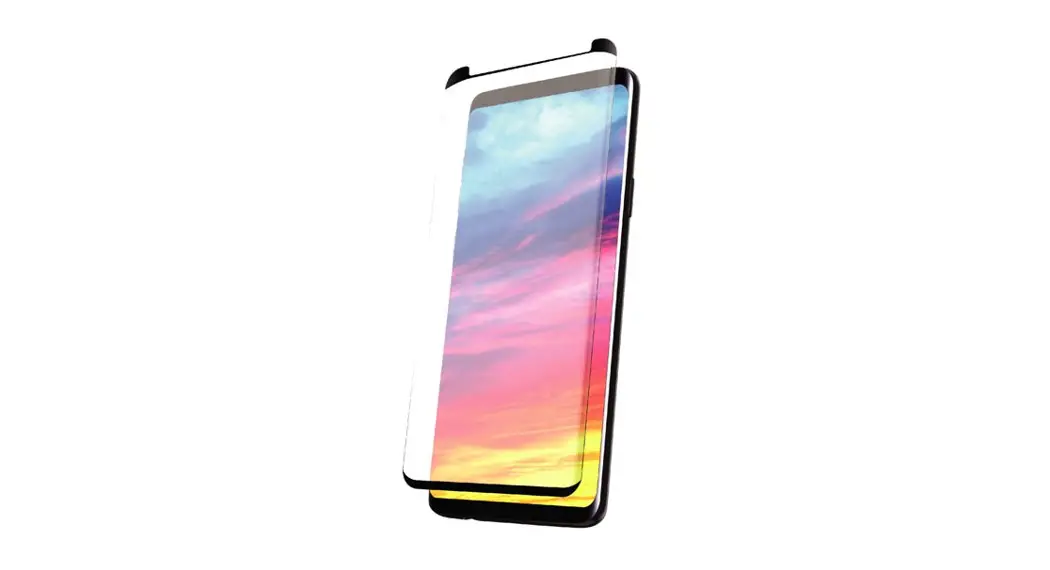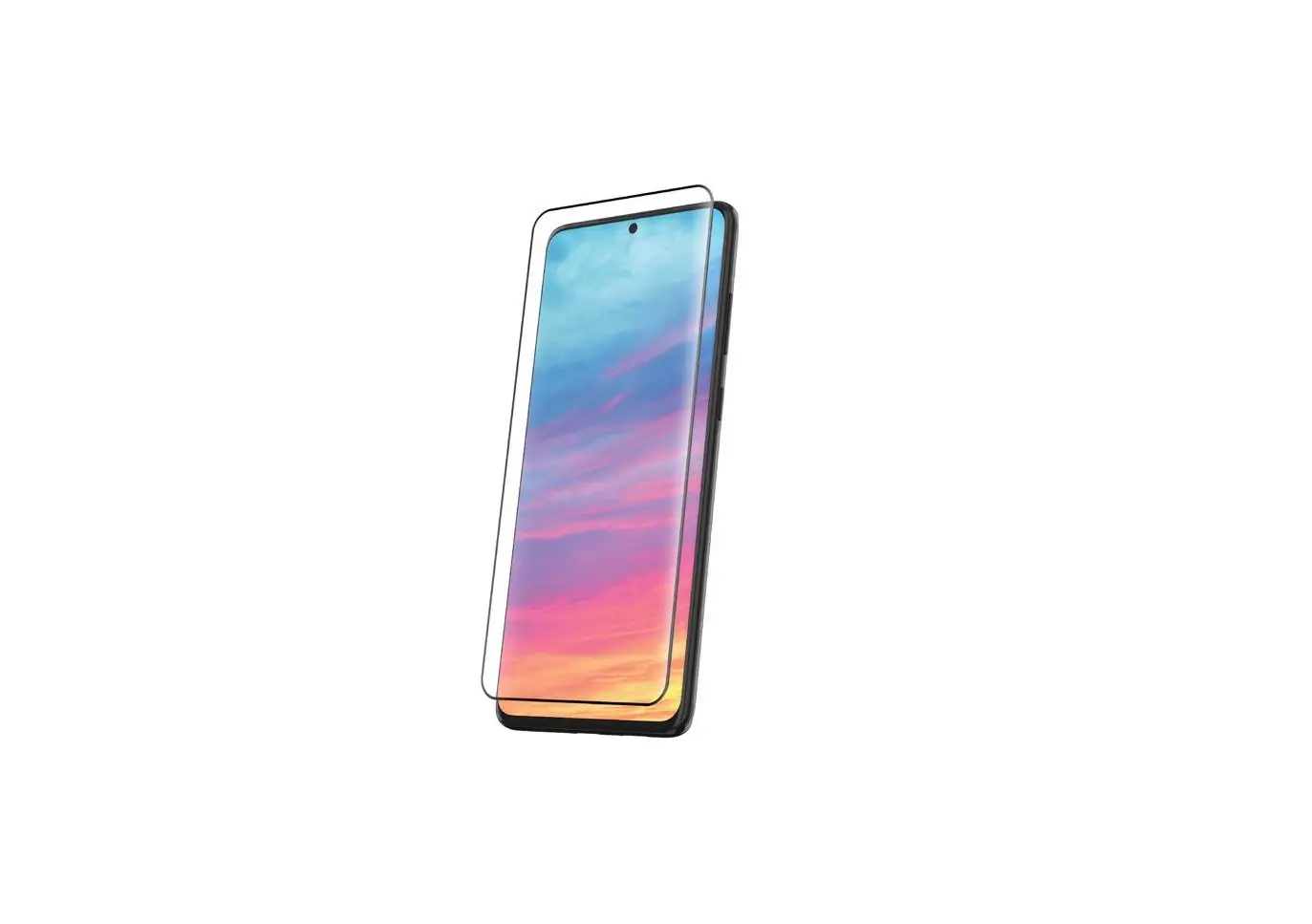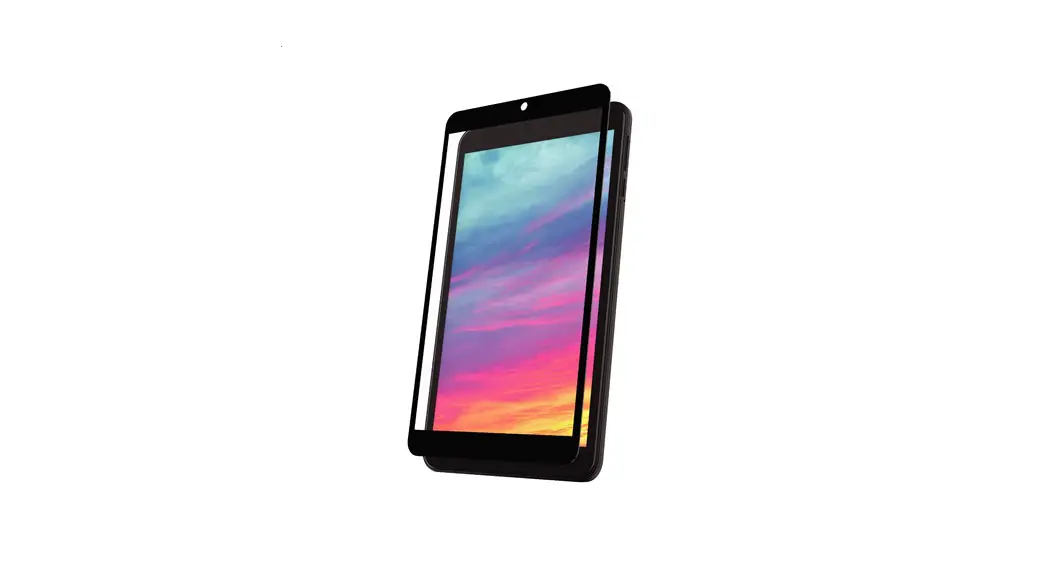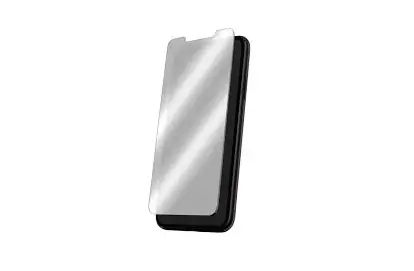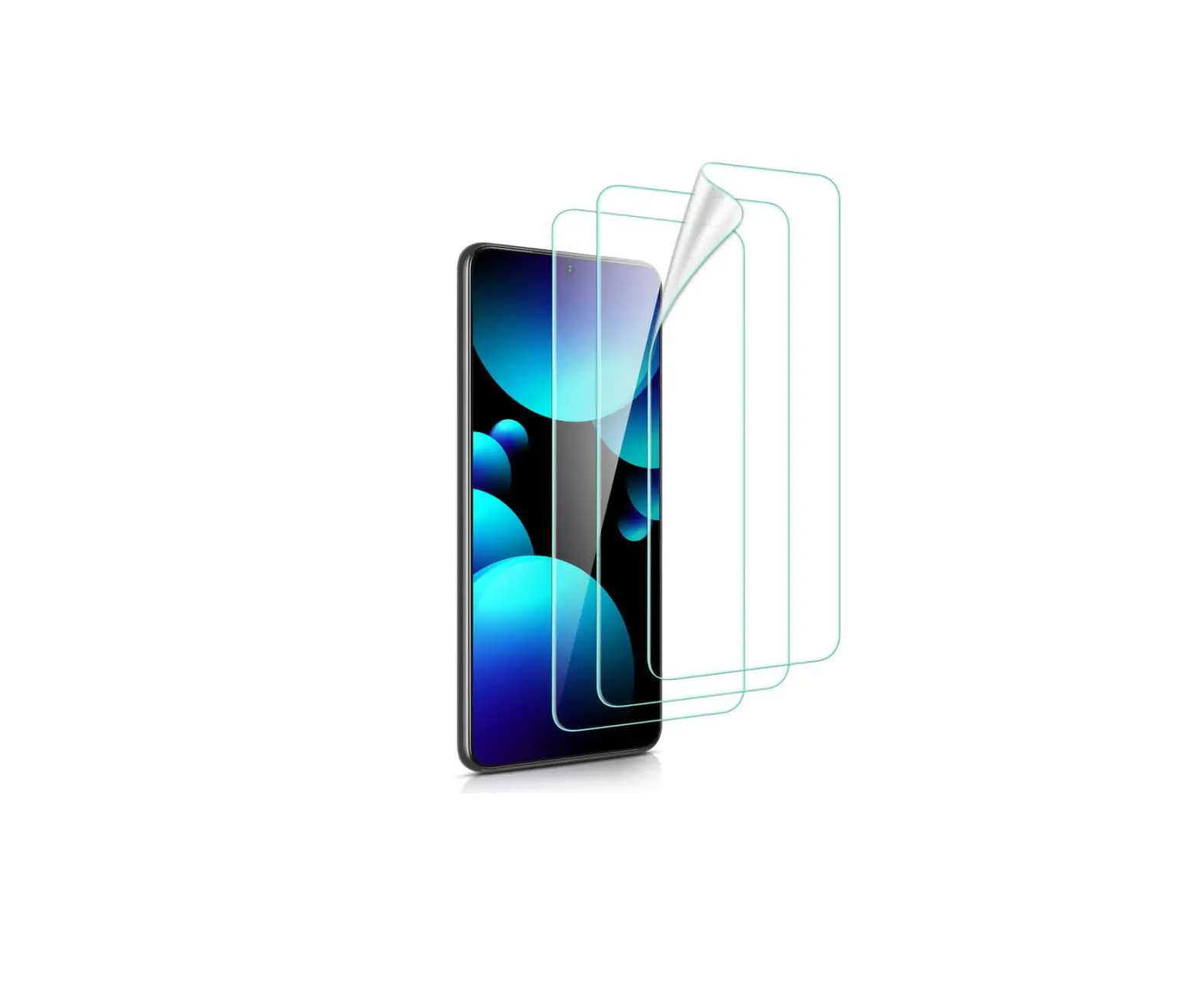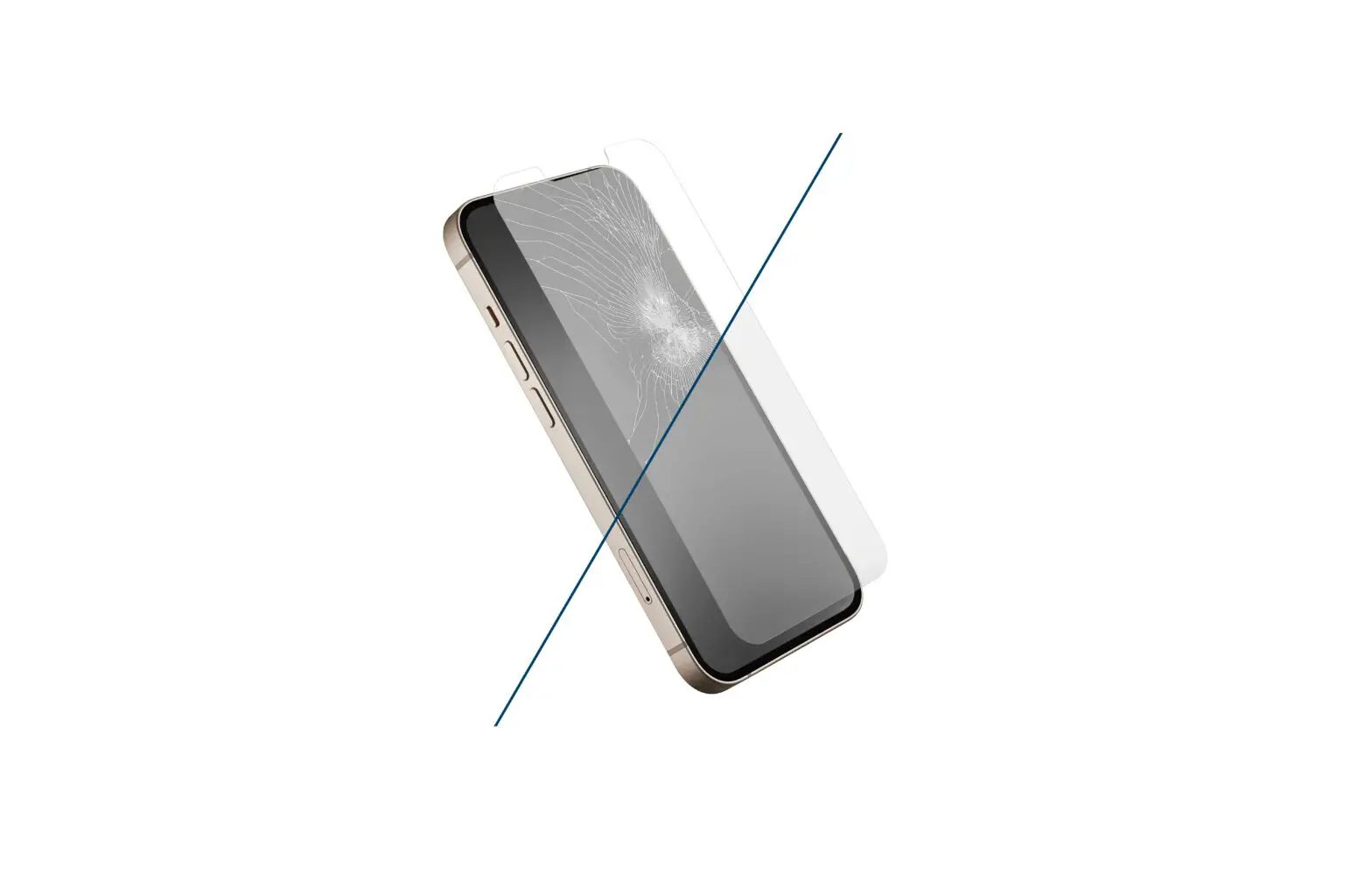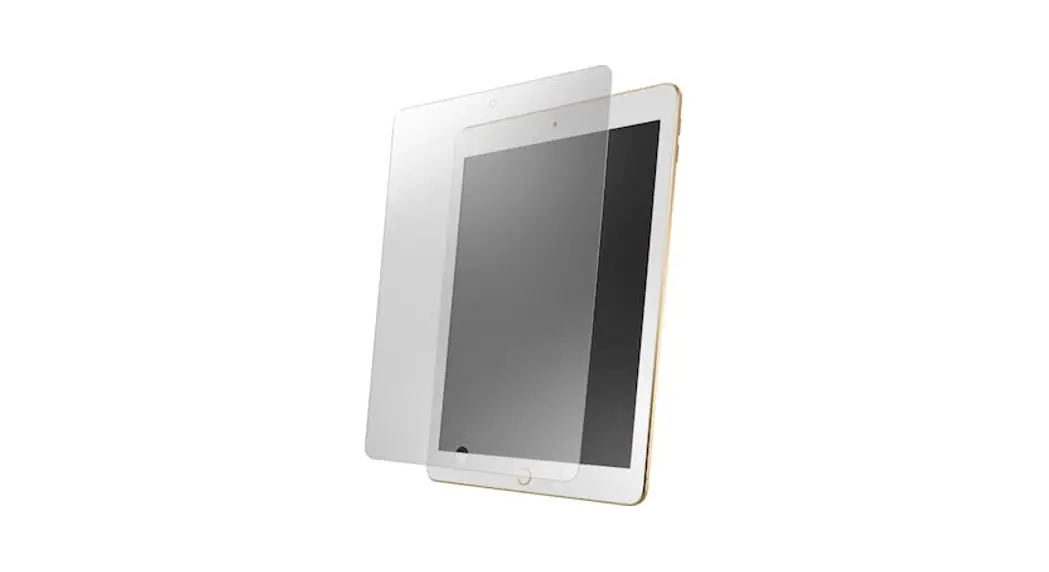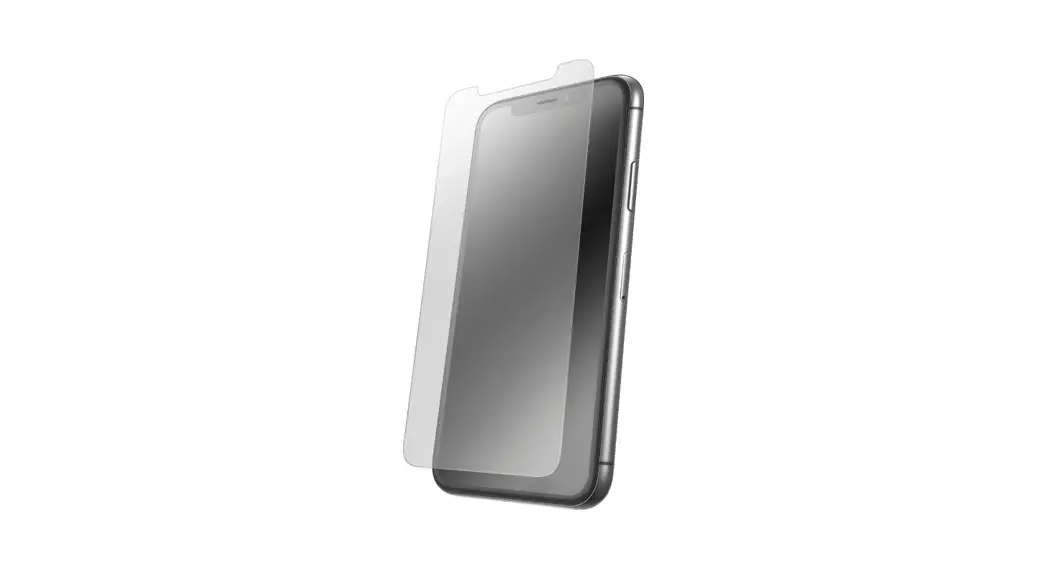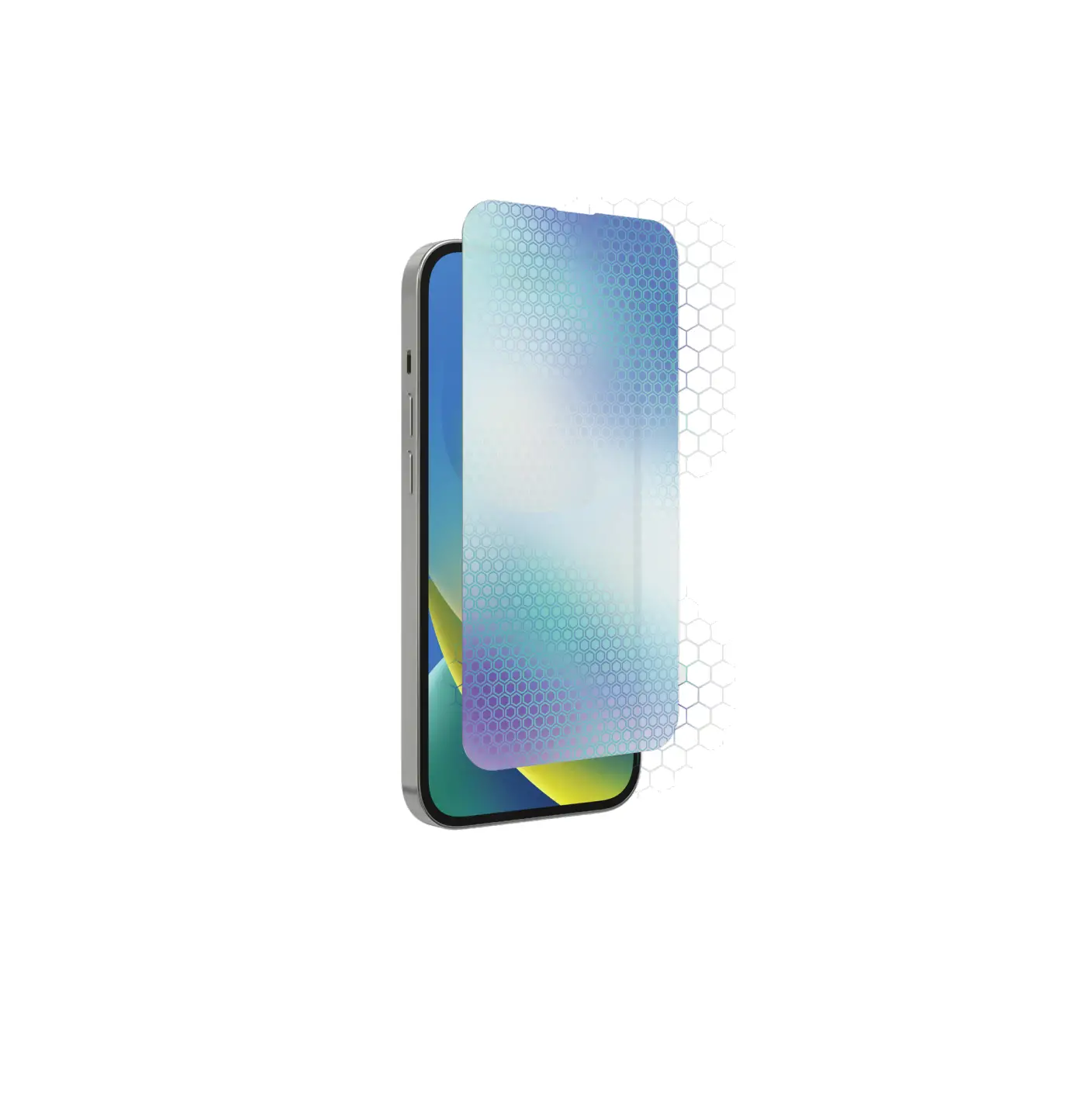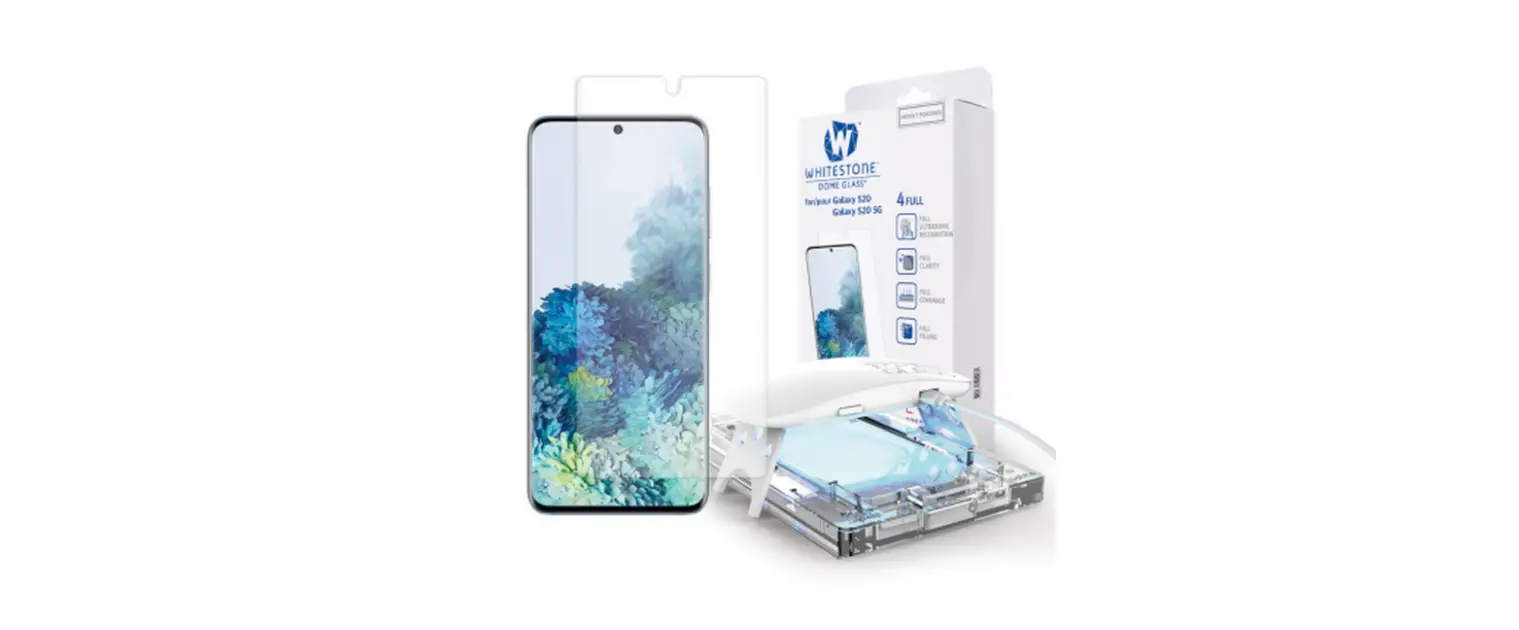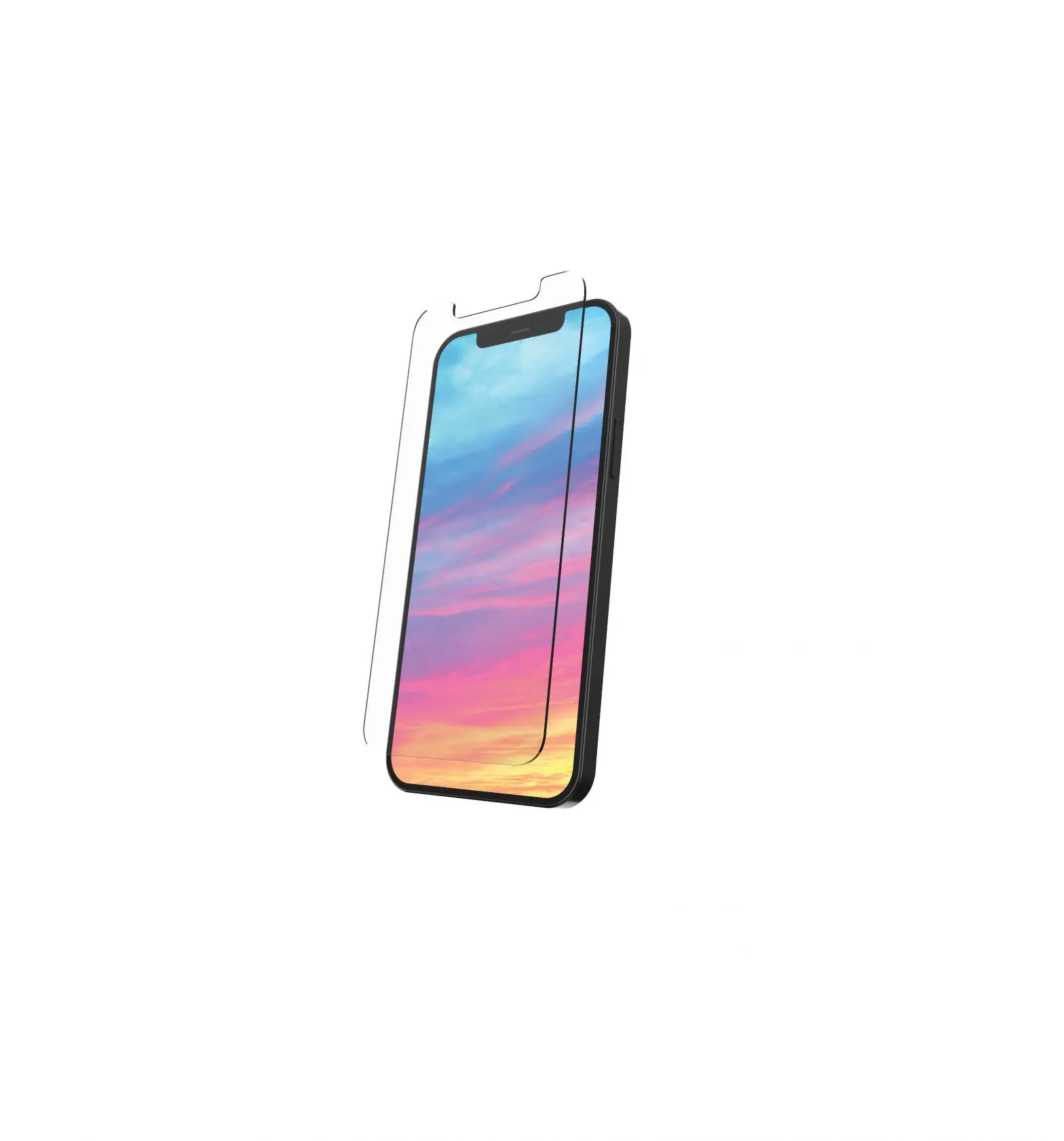
onn Glass Screen Protector
Cleaning
Remove the case from your device to avoid interference with application.
Clean the Screen
Clean the device screen with the wet wipe.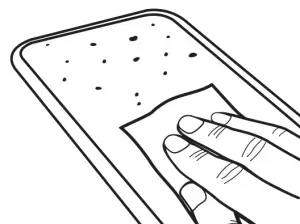
Dry the Screen
Dry with the microfiber cloth. Ensure the screen is completely dry before proceeding.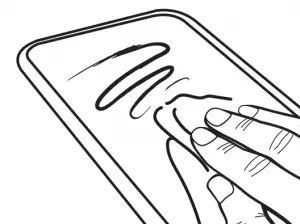
Remove Dust
Use the dust removal sticker to remove any fine particles from the device screen.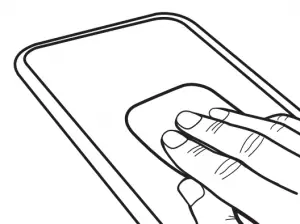
Application Tabs
Apply the Application Tabs
Apply the two application guiding tabs to the front of the screen protector.
Note: Do not apply them to the tab labeled “1-Back”.
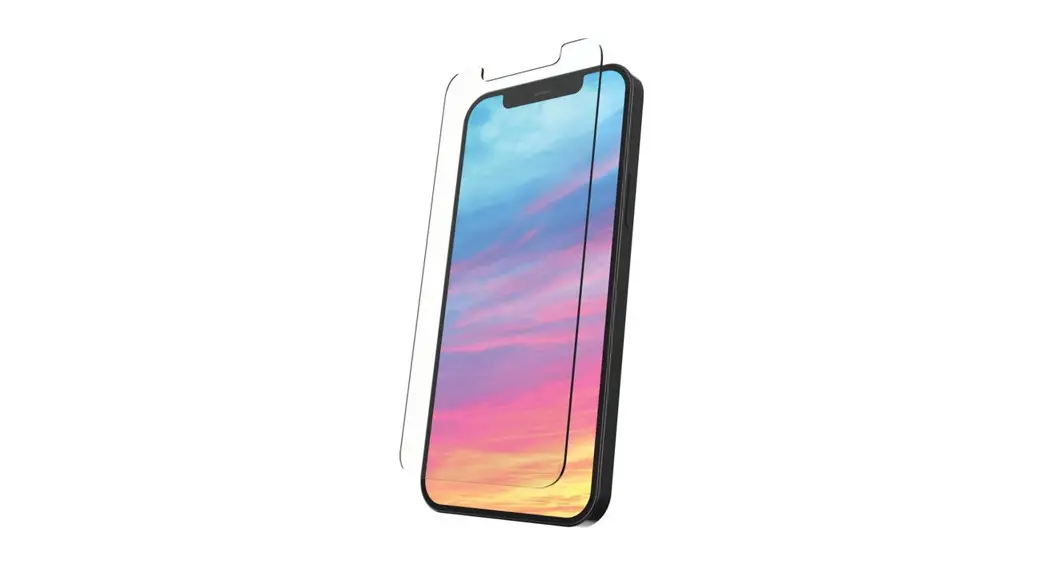
Device without Home Button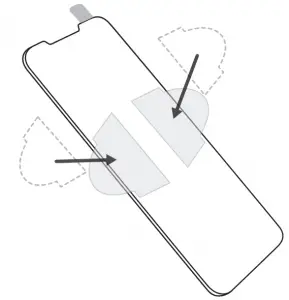
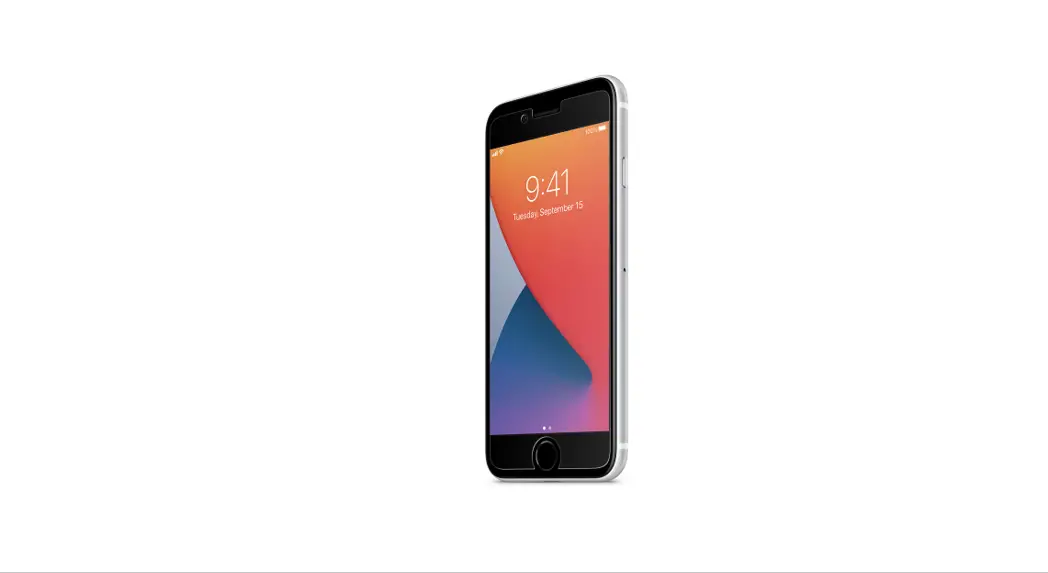
Device with Home Button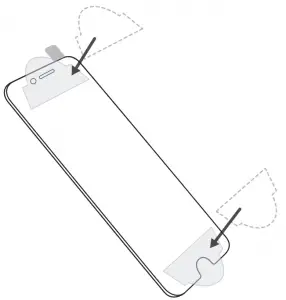
Screen Protector Application
Remove Safety Film
Using the tab labeled “1-Back”, peel away to expose the adhesive, removing completely.
Note: Do not touch adhesive on the glass.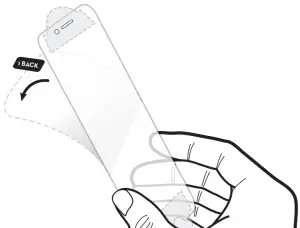
Place the Screen Protector
Hold the application guiding tabs and align over the device screen. Once in position lower onto the device.
Tip: If you need to reposition, gently lift up and reapply.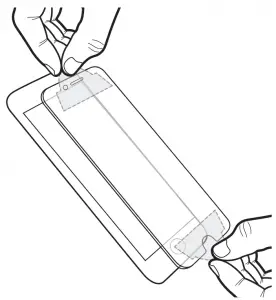
Attach the Screen Protector
Press firmly down along the center to adhere the screen protector.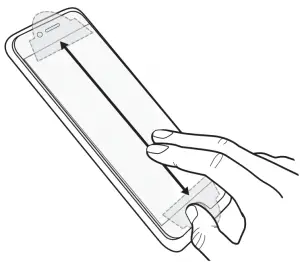
Final Steps
Remove the Application Tabs
Peel off the application tabs.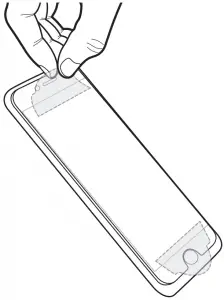
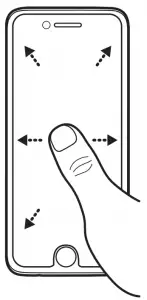
Remove Air Bubbles
If there are any air bubbles, remove them by starting from the center and pushing firmly outward toward the edges.
Note: Small bubbles may dissipate over the next 48 hours.