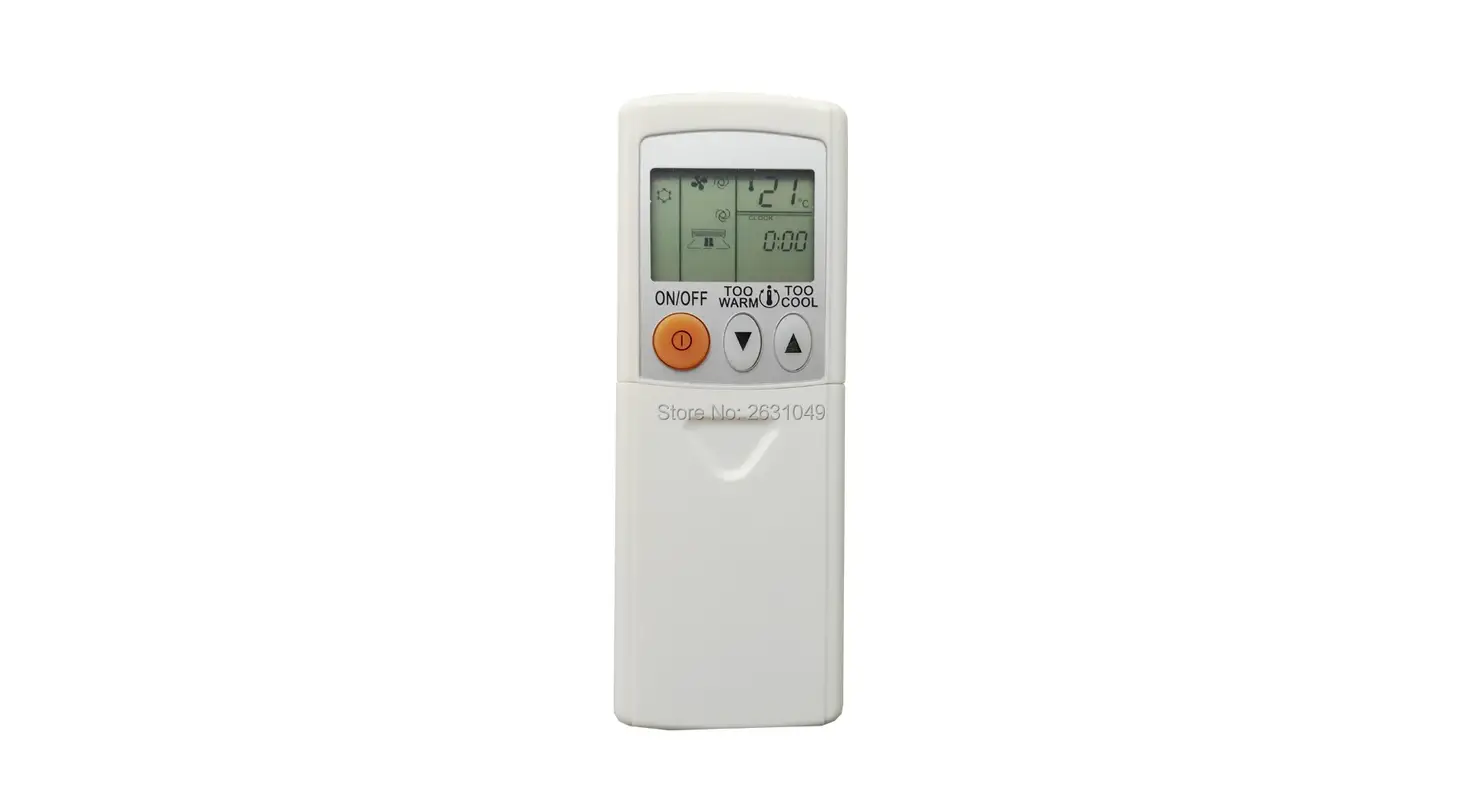
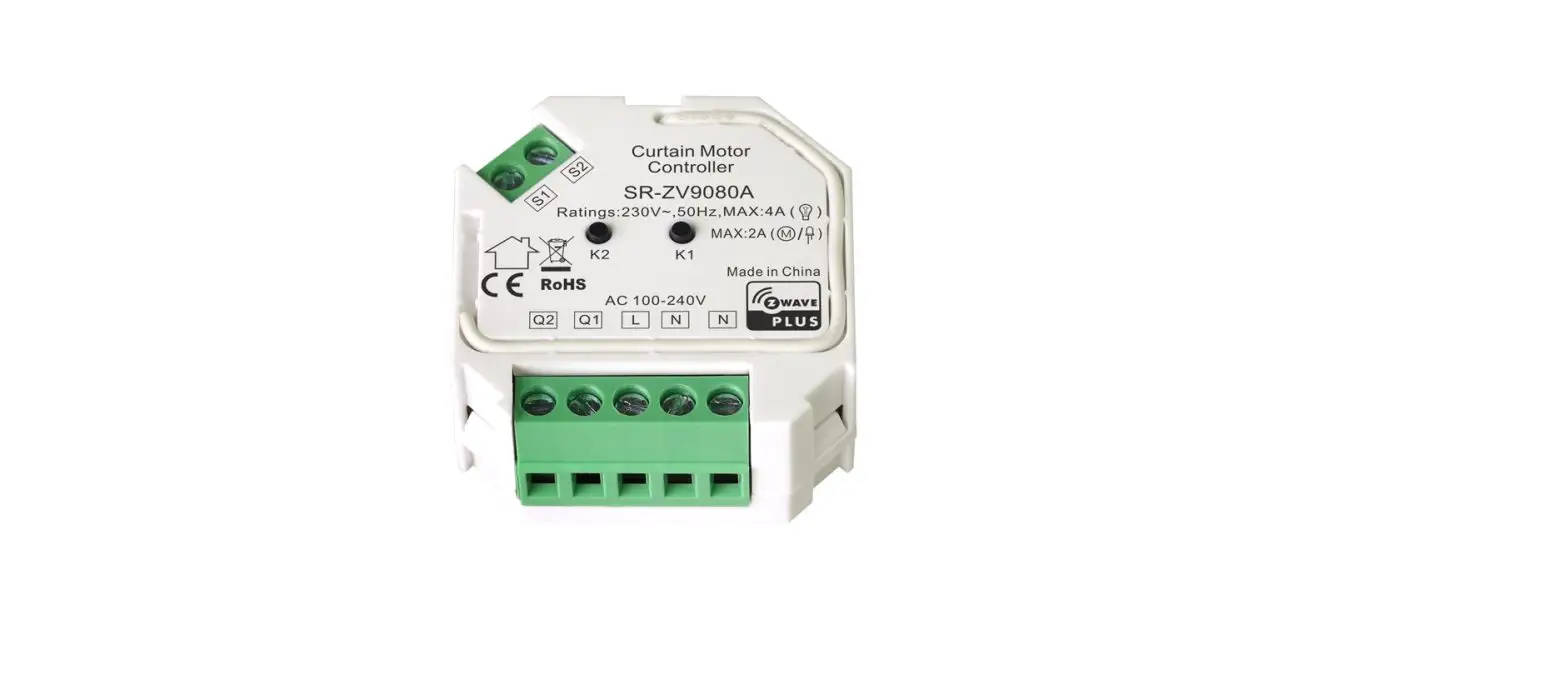
MСR-220V500W ZB+RF Curtain Remote Controller
Product Information: Curtain Remote Controller Myers MRC-RF for
MR-220V500W ZB+RF
The Curtain Remote Controller Myers MRC-RF is a remote control
device used to remotely control the MCR-220V500W ZB+RF Smart
Curtain Controller. It supports connection to 9 such devices on 9
channels numbered from 0 to 8. The remote control uses RF (radio
frequency) to connect to the Smart Curtain Controller and can be
configured using the Reset button on the MR-220V500W ZB+RF
device.
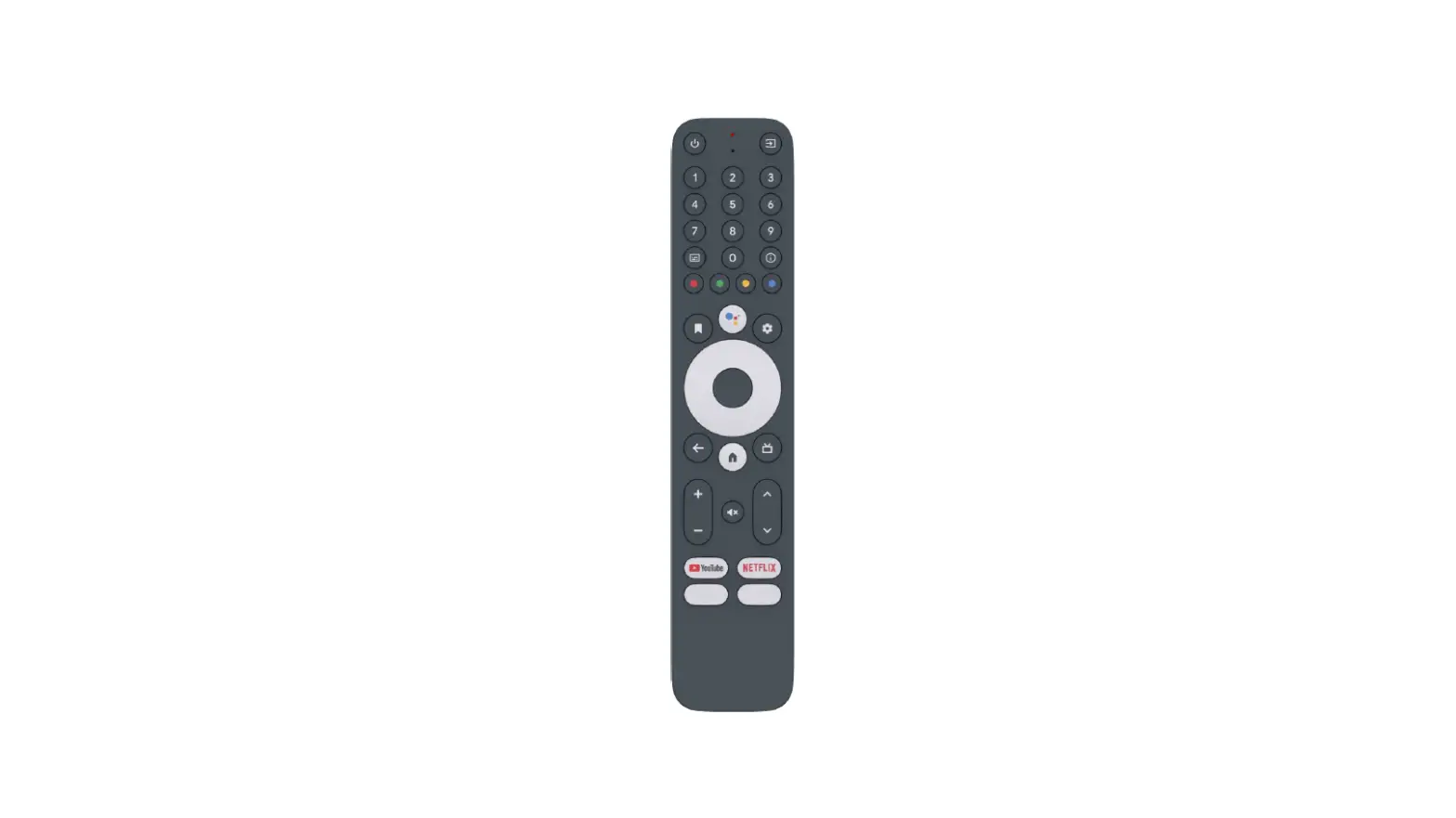
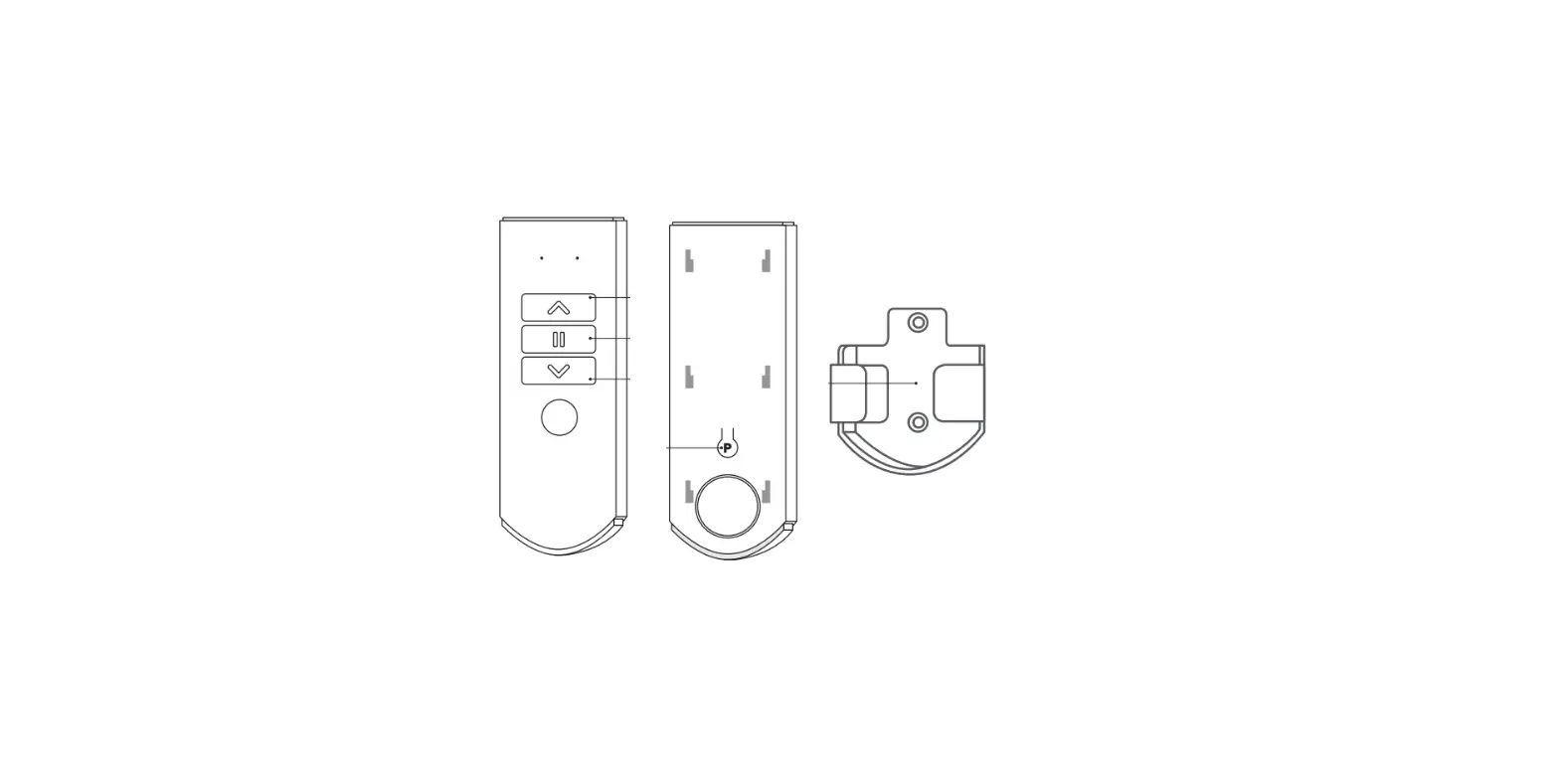
Main Elements of the Device
- Digital display that illuminates the channel (device)
number - Select button/Channel settings (device)
- Open the curtain/Switch device up
- Stop the curtain (pause)
- Close the curtain/Switch the device down
Technical Specification
The technical specification of the Curtain Remote Controller
Myers MRC-RF is not provided in detail in the user manual. For
technical support, customers can reach out to Partizan’s technical
support team via email, Skype, or chat.
Product Usage Instructions
Smart Curtain Controller Setting Up
In order to configure the remote control to work with the Smart
curtain controller Myers MCR-220V500W ZB+RF, follow these
steps:
- Connect ZigBee Hub and add it to the Partizan Cloud
account. - Add Smart curtain controller MR-220V500W ZB+RF to ZigBee
Hub. - To configure each of the buttons, it is necessary to switch the
relay to the appropriate RF connection mode. To do this, you need
to apply the Reset button directly on the MR-220V500W ZB+RF
according to the instructions below:- Use the or buttons or to select the desired channel.
- Press button again.
- Wait for 5 seconds.
- Press button on the remote control again.
- Wait for 5 seconds.
- Press button on the remote control again.
- Wait for 5 seconds.
- Press button on the remote control again.
- After that, the Open, Close, and Pause buttons will be
available to control the MR-220V500W ZB+RF Smart Curtain
Controller. - Remember on which channel a certain curtain is configured.
Using the Curtain Remote Controller Myers MRC-RF
To use the Curtain Remote Controller Myers MRC-RF, follow these
steps:
- Press the Select button to select the necessary channel for
control. The digital display will show the flashing number of the
active channel. - To change the channel number, press or .
- After determining the desired channel, press and proceed to
control of the curtain using the Open, Close, and Pause
buttons.
Curtain Remote Controller Myers MRC-RF for MR-220V500W ZB+RF User manual
PREMIUM SMART HOME SYSTEMS by PARTIZAN
WWW.PARTIZAN.GLOBAL 2022
PREMIUM SMART HOME SYSTEMS by PARTIZAN
1. Main elements of the device ………………………………………………………………………………………………………..3 2. Smart Curtain Controller setting up ……………………………………………………………………………………………….4 3. Technical specification…………………………………………………………………………………………………………………5
2
PREMIUM SMART HOME SYSTEMS by PARTIZAN
1. Main elements of the device
This remote control is used to remotely control the MCR-220V500W ZB+RF Smart Curtain Controller. The remote control supports connection to 9 such devices on 9 channels numbered from 0 to 8.
1
2
SET
3
4
5
1. Digital display that illuminates the channel (device) number 2. Select button/Channel settings (device) 3. Open the curtain/Switch device “up” 4. Stop the curtain (pause) 5. Close the curtain/Switch the device “down”
To select the necessary channel for control, you need to press the button
. The digital display will show
the flashing number of the active channel. To change the channel number, press or . After
determining the desired channel, press and proceed to control of the curtain.
3
PREMIUM SMART HOME SYSTEMS by PARTIZAN
2. Smart Curtain Controller setting up
Connecting the remote control to MR-220V500W ZB+RF and further channel settings are done using RF (radio frequency).
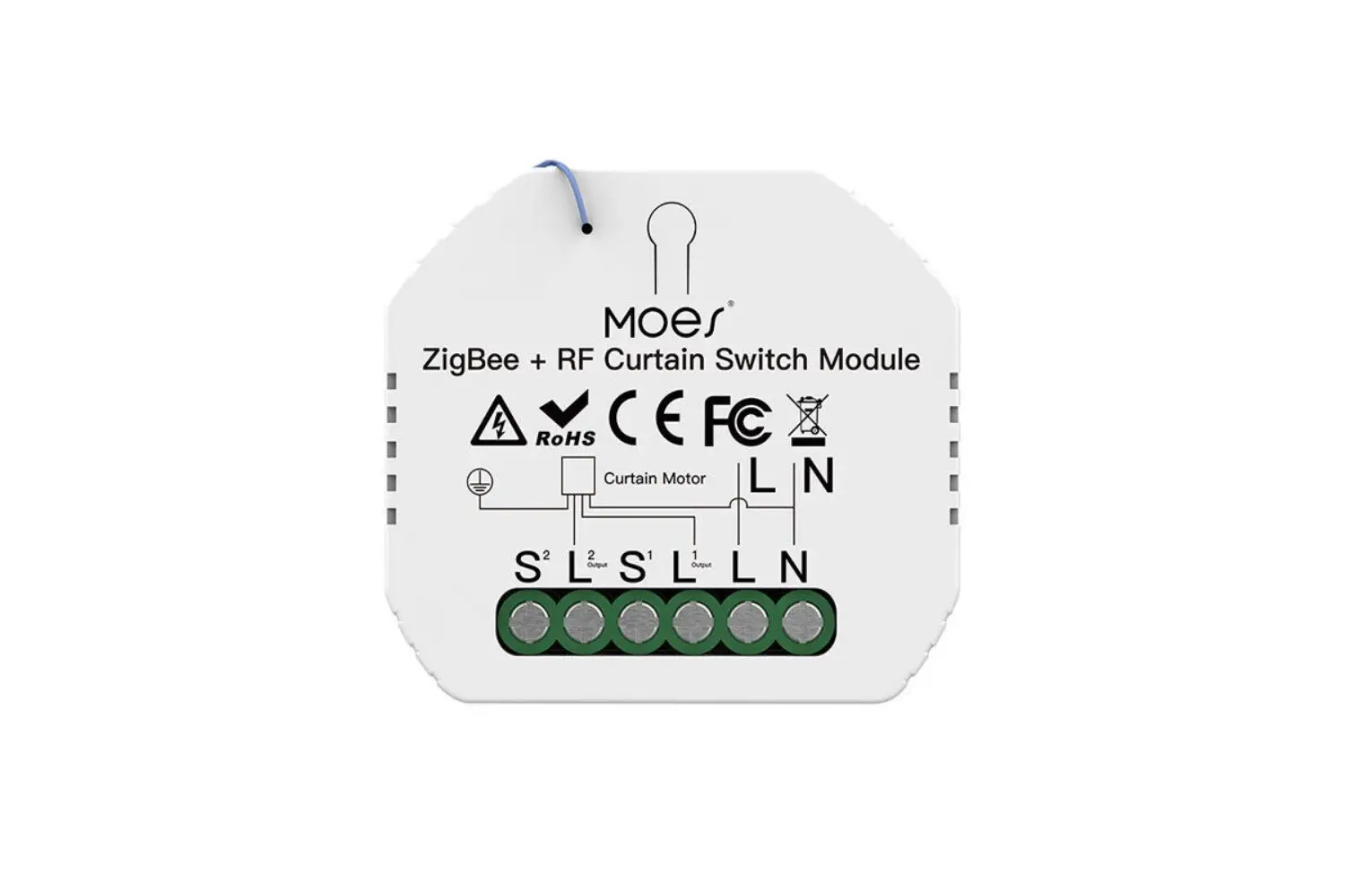
Curtain Motor
LN
S2
L S 2
1
Output
L1 Output
L
N
The outward of MR-220V500W ZB+RF and the Reset button on it.
In order to configure the remote control to work with the Smart curtain controller Myers MCR-220V500W ZB+RF, you must perform the following actions:
1. Connect ZigBee Hub and add it to the Partizan Cloud account. 2. Add Smart curtain controller MR-220V500W ZB+RF to ZigBee Hub. 3. To configure each of the buttons, it is necessary to switch the relay to the appropriate RF connection
mode. To do this, you need to apply the Reset button directly on the MR-220V500W ZB+RF according to the instructions below.
· Select the necessary channel for tuning by pressing button similarly to the actions described in
section #1. Use the or buttons or
to select the desired channel. Press
button again.
· To set the “Open” button , press the Reset button on MR-220V500W ZB+RF 5 times, wait 3
seconds. Press
button on the remote control again.
4
PREMIUM SMART HOME SYSTEMS by PARTIZAN
· To set the “Close” button , press the Reset button on MR-220V500W ZB+RF 6 times, wait 3
seconds. Press
button on the remote control again.
· To set the “Pause” button , press the Reset button on MR-220V500W ZB+RF 7 times, wait 3
seconds. Press
button on the remote control again.
After that, the “Open” , “Close” , “Pause” 220V500W ZB+RF Smart Curtain Controller.
buttons will be available to control the MR-
WARNING! Remember on which channel a certain curtain is configured!
3. Technical specification
· Operating voltage: DC 12V · Operating temperature: -20 °C to +60 °C · Frequency: 433.92 MHz · Operating current: 16 mA · Number of channels: 9
5
PREMIUM SMART HOME SYSTEMS by PARTIZAN
Technical support:
E-mail: [email protected] Skype: partizan-support Chat: +420 777 054 888 (Viber, Telegram, WhatsApp)
Technical support working time: https://partizan.global/support/technical-support Partizan software: https://apps.partizan.global/
6
 Partizan Software
 Technical support