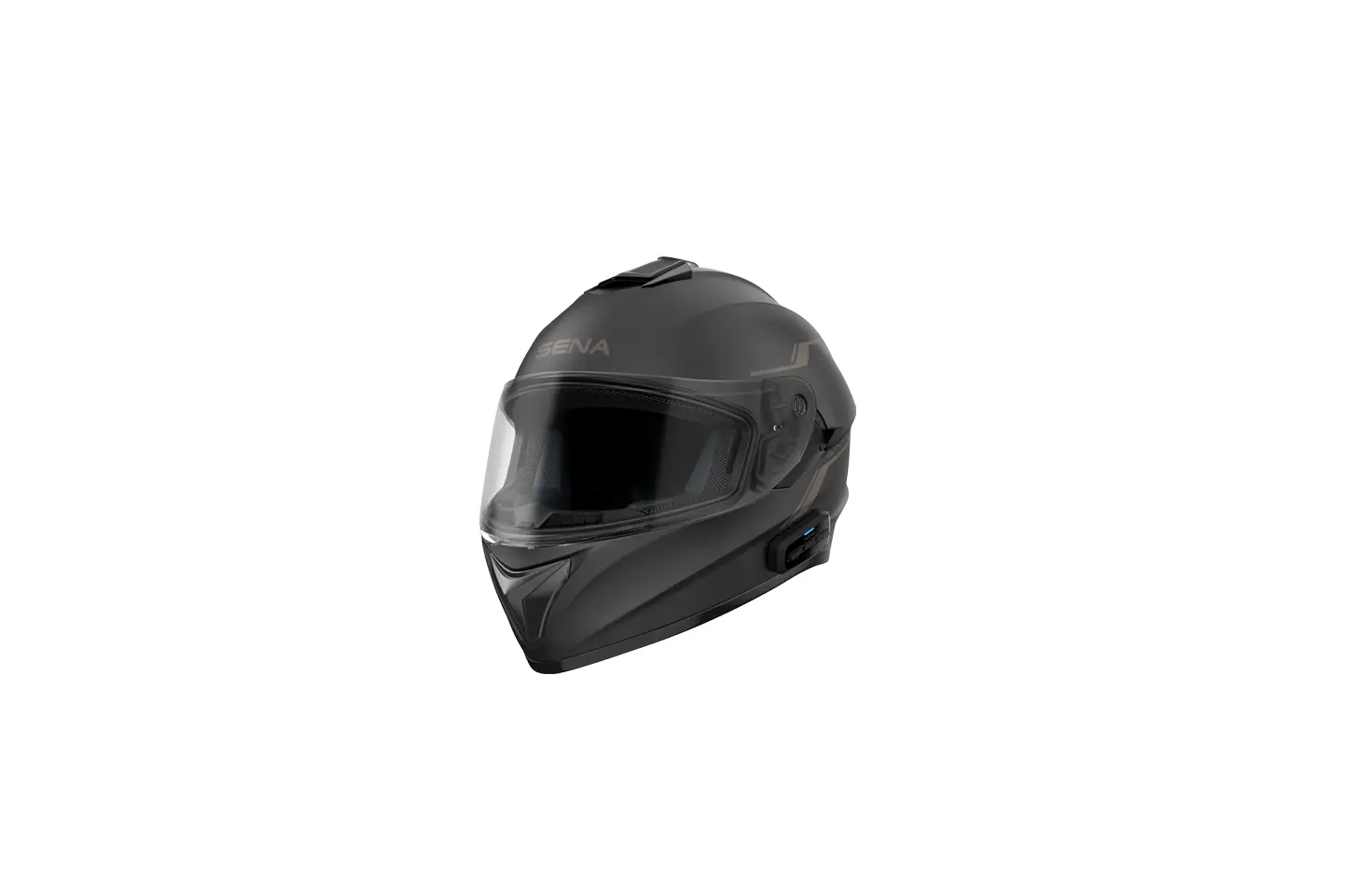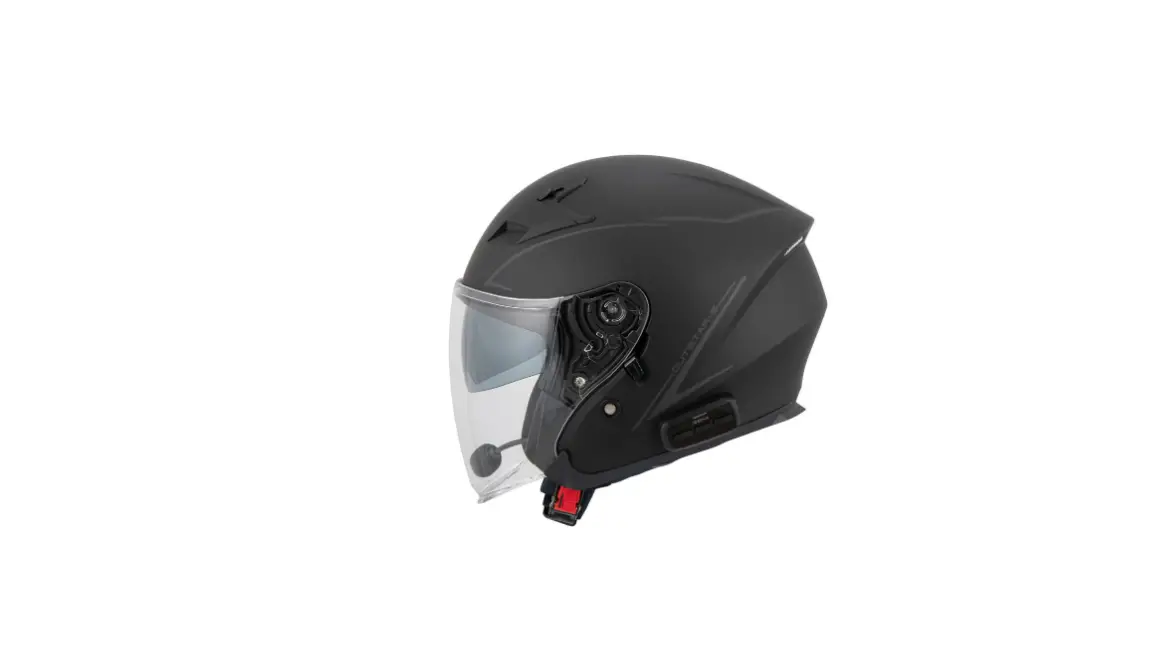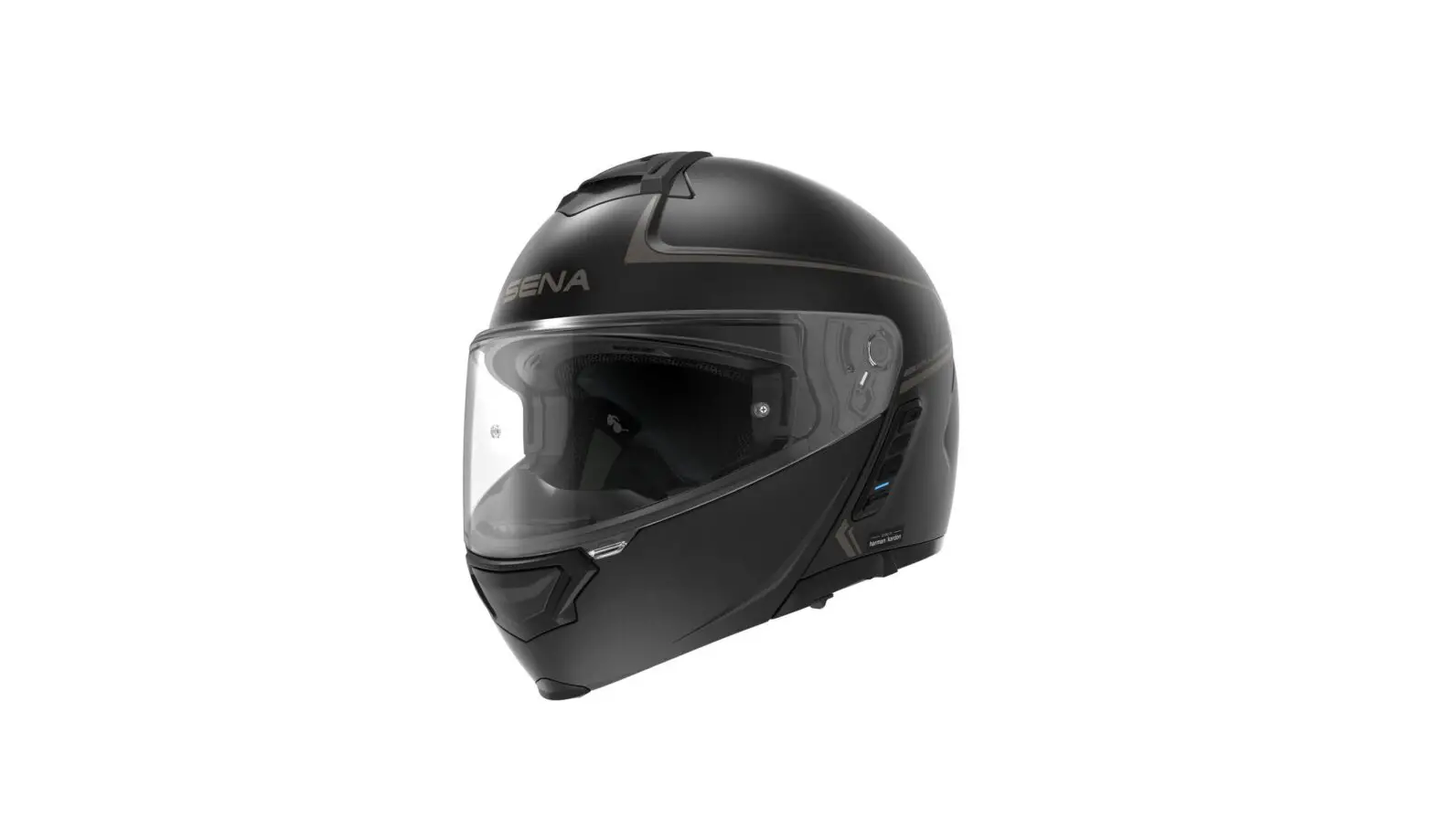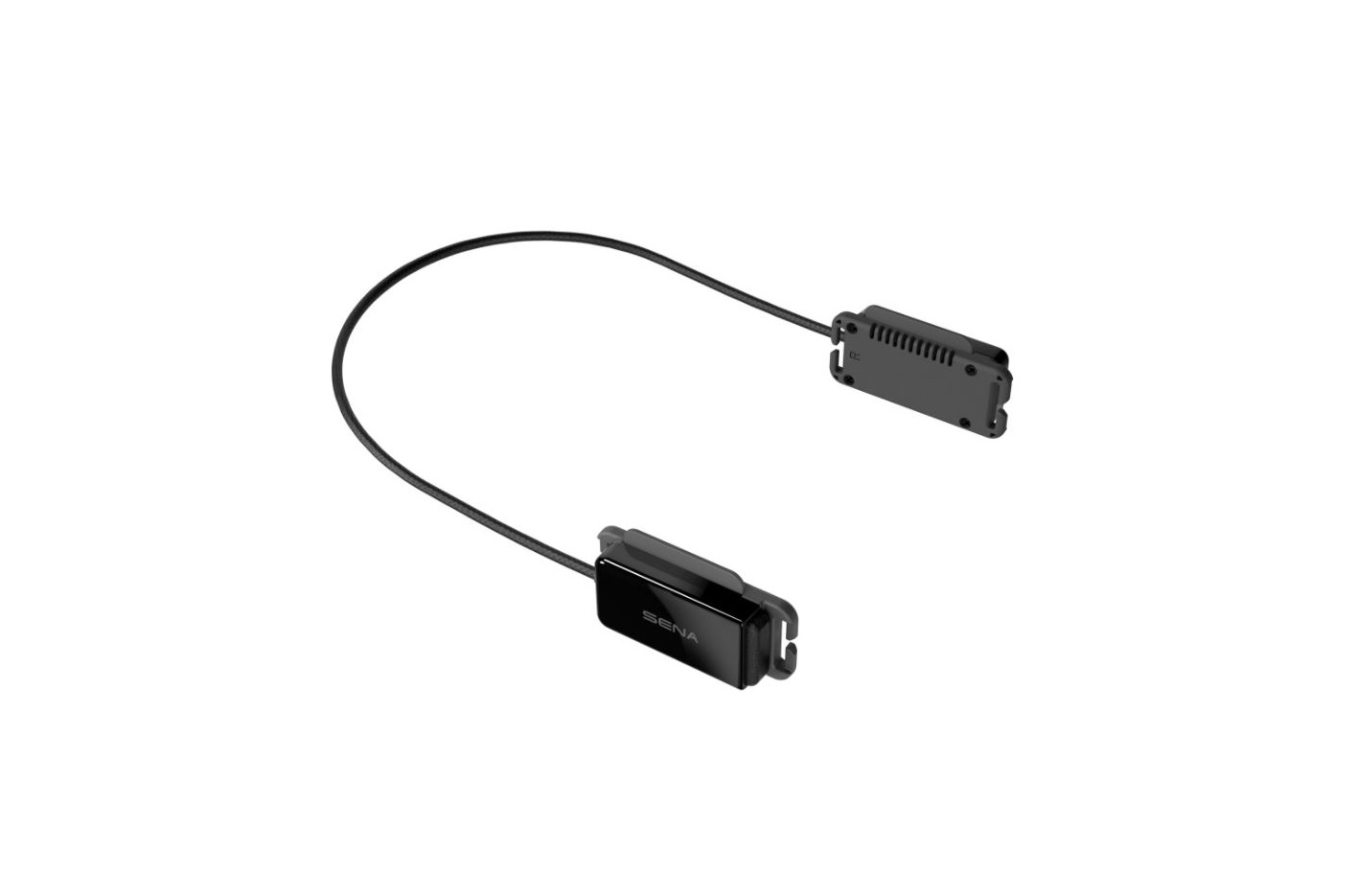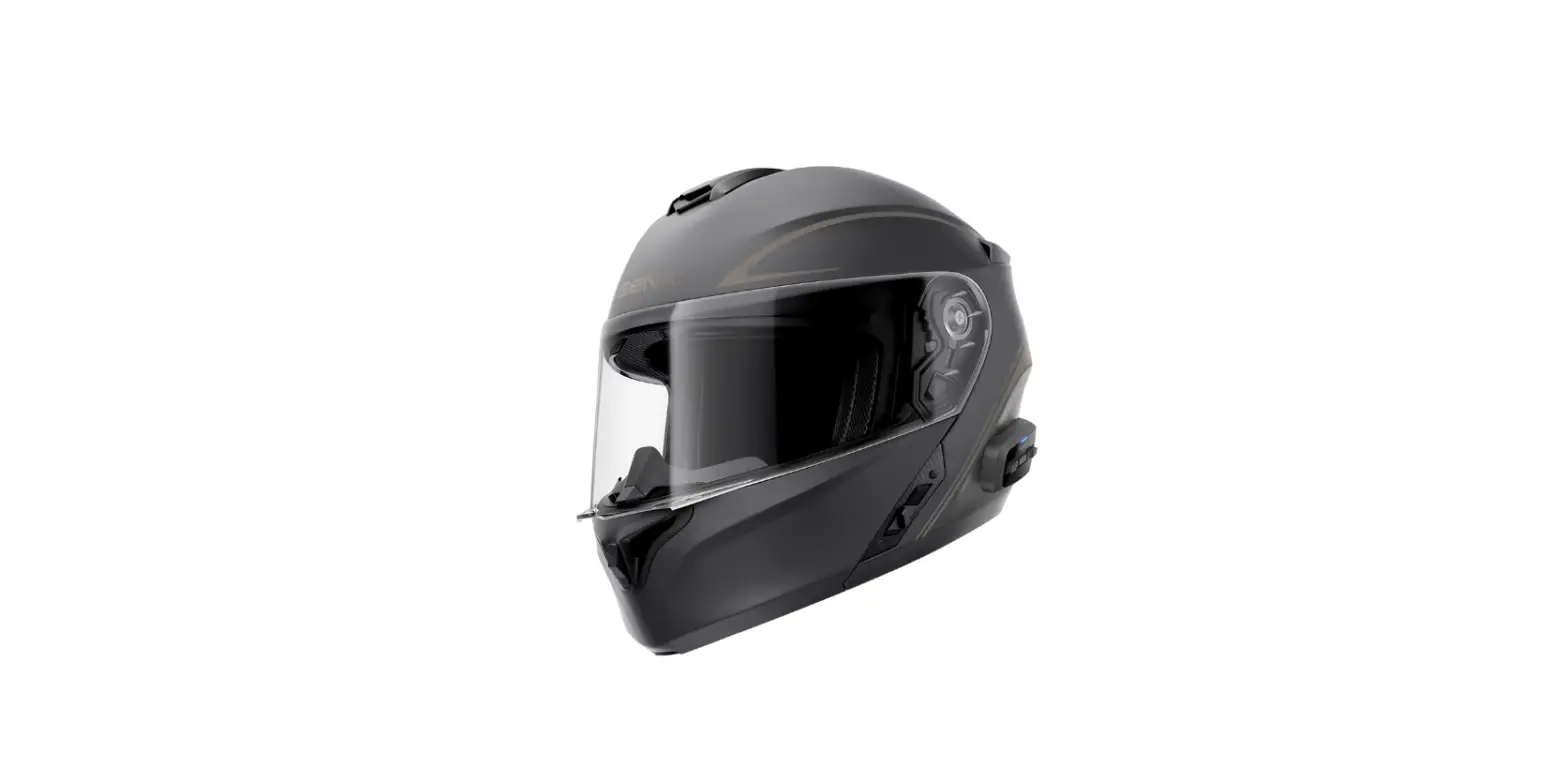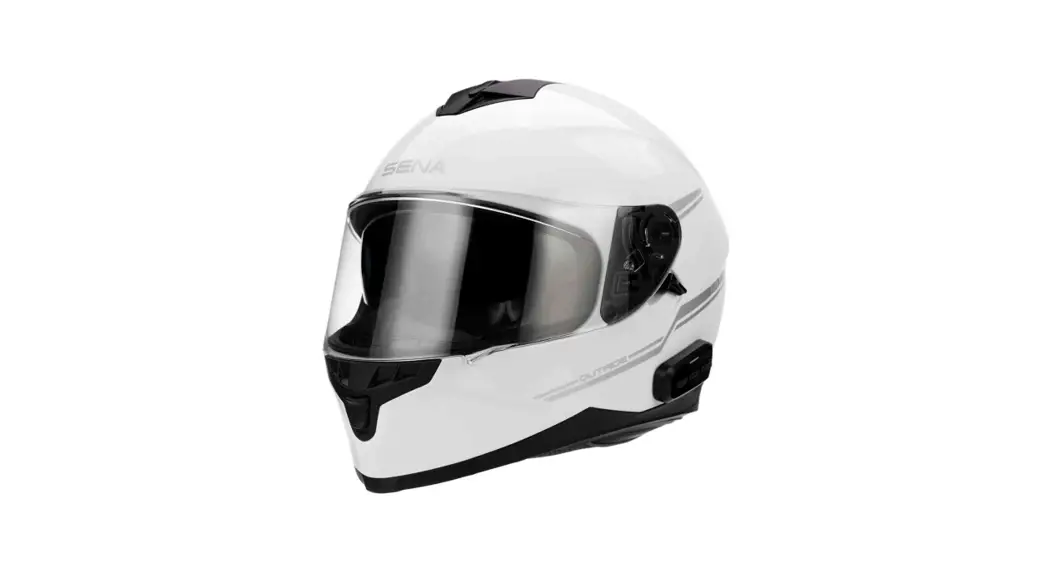
 OUTRIDE
BLUETOOTH® HELMET
QUICK START GUIDE 
Downloadable Sena Software
Download the Sena Motorcycles App at Google Play Store or App Store.
 | Sena Motorcycles |
Download the following items at sena.com.
 | Sena Device Manager • Firmware upgrade • Device configuration setting |
 | Quick Start Guide, User’s Guide |
Follow us on Facebook, YouTube, Twitter, and Instagram to check the latest information and helpful tips.
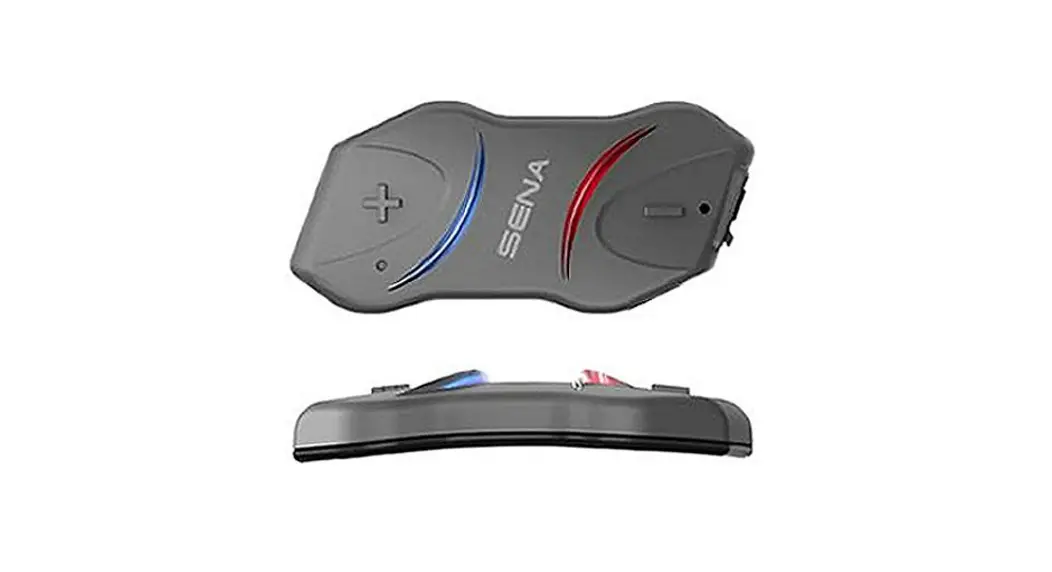
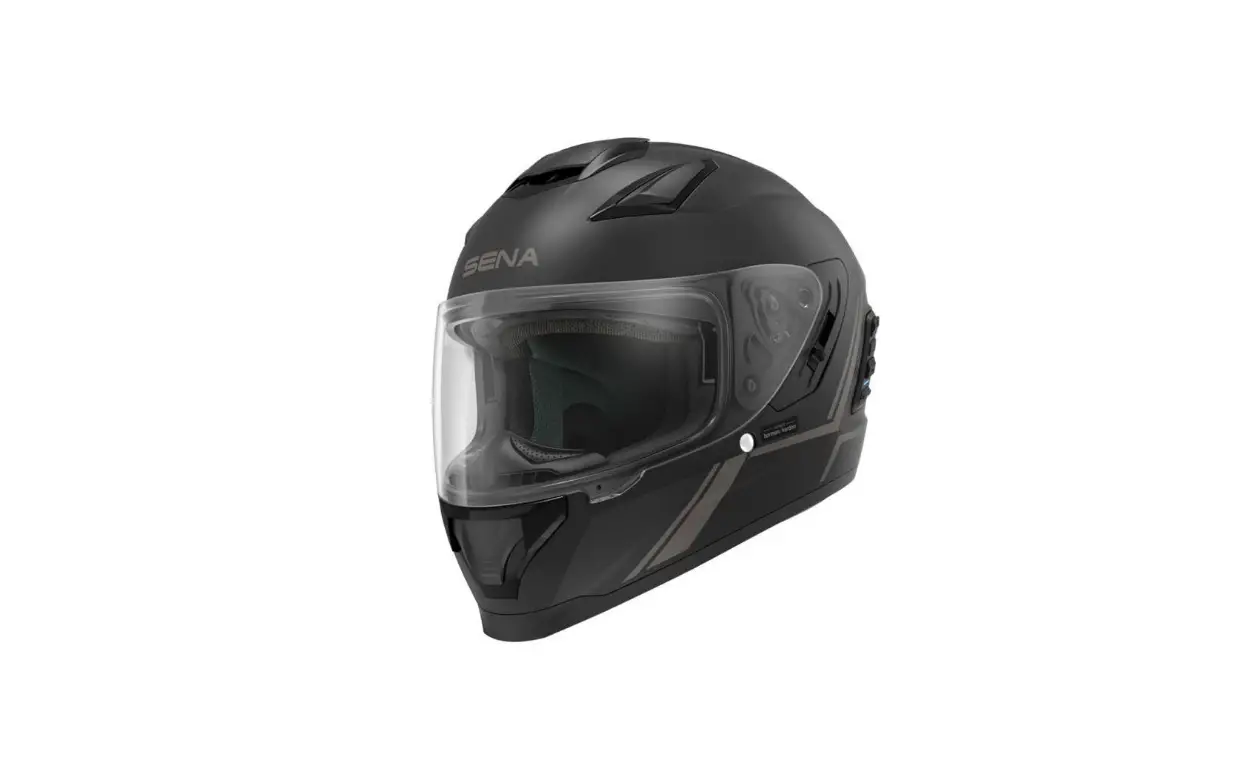
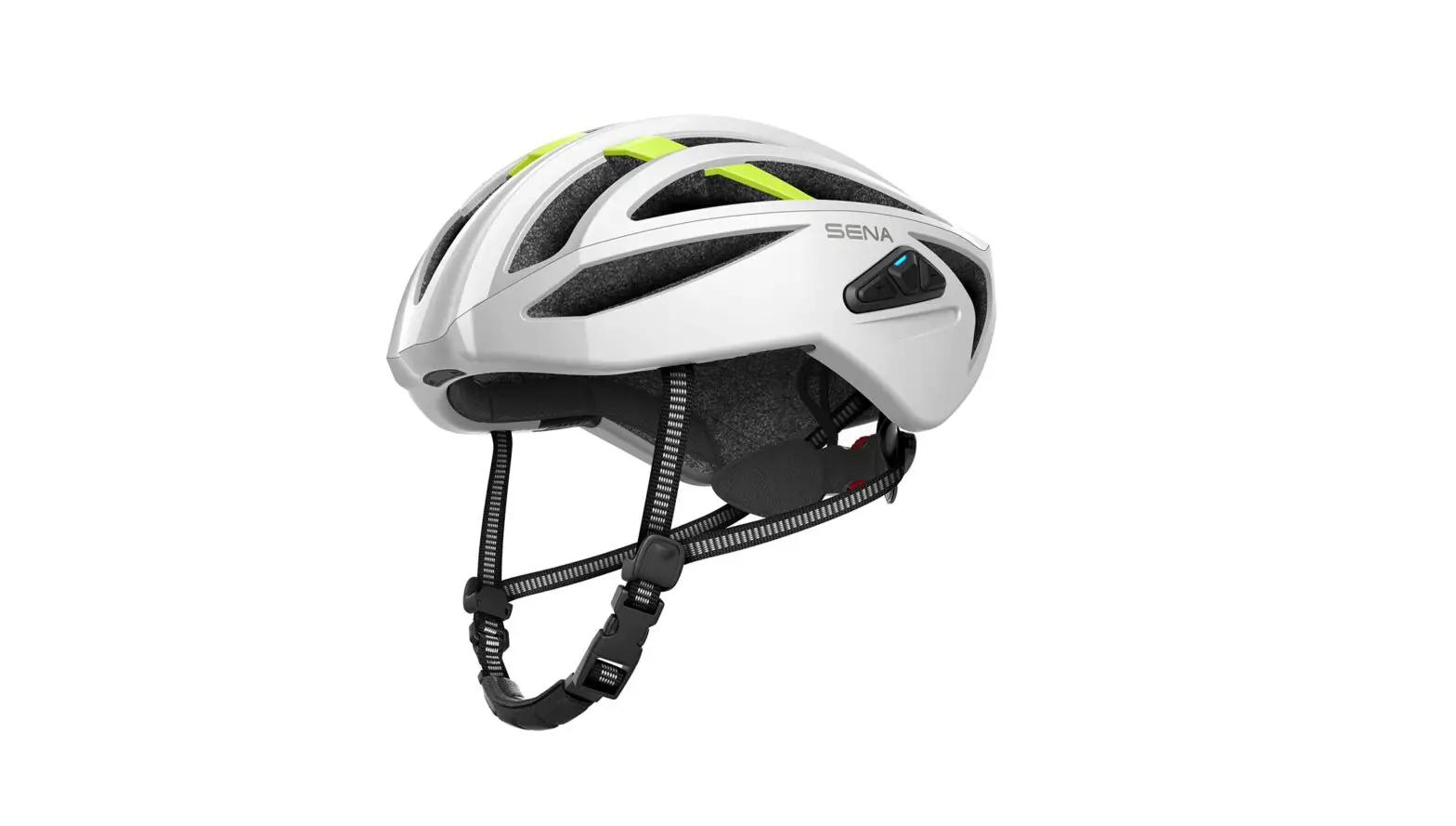
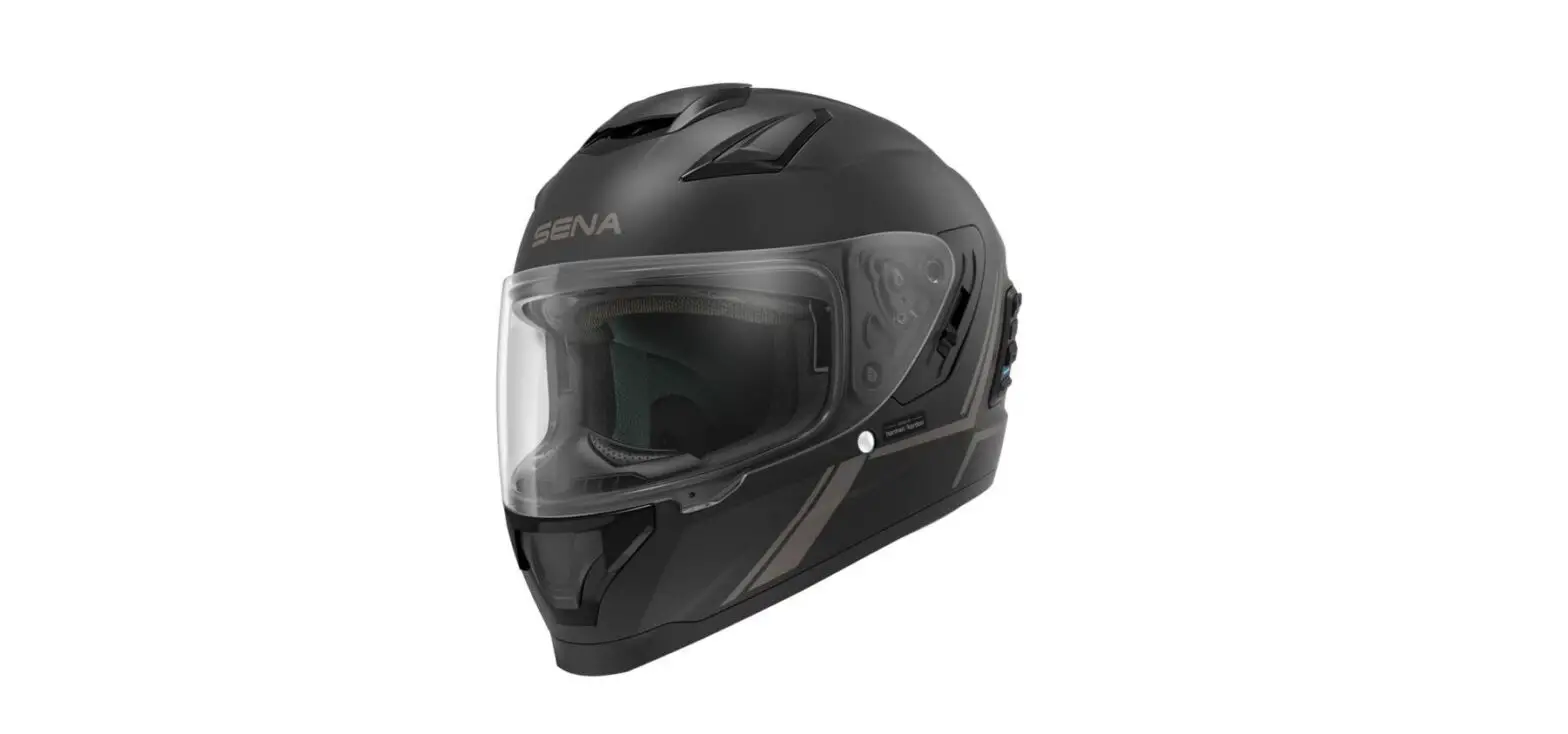
Product Details
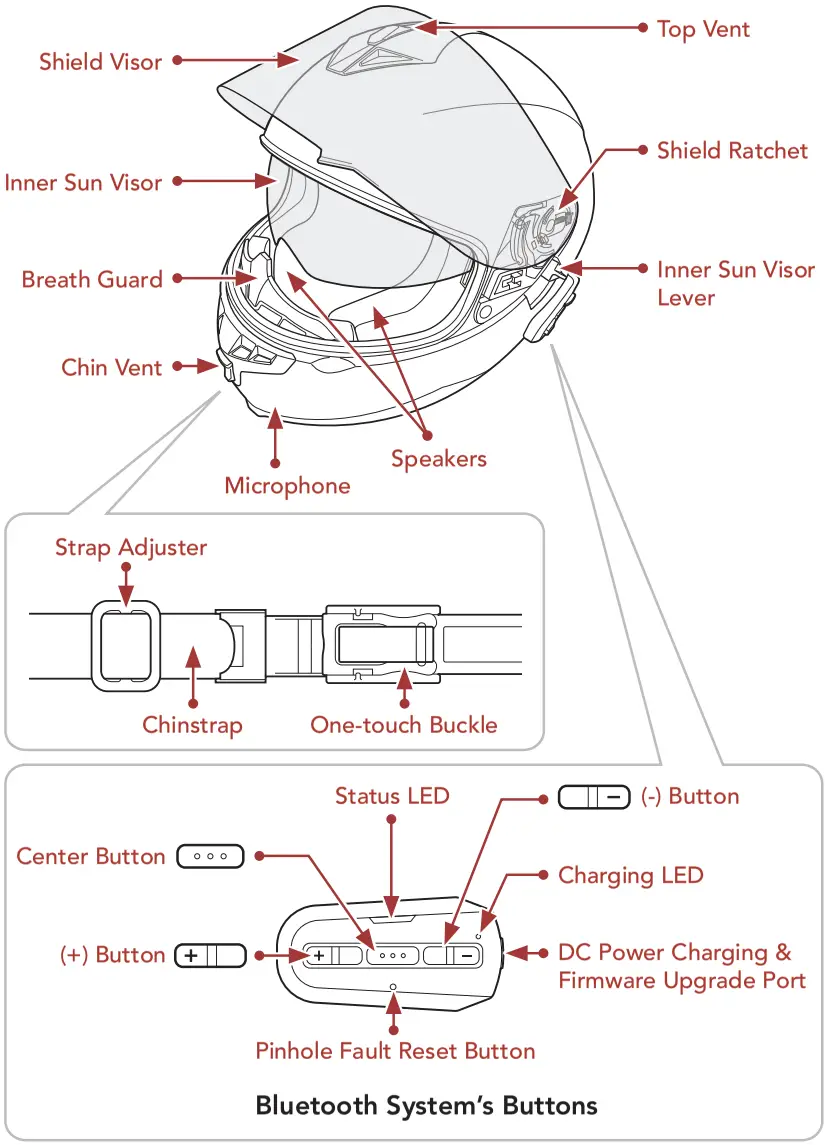
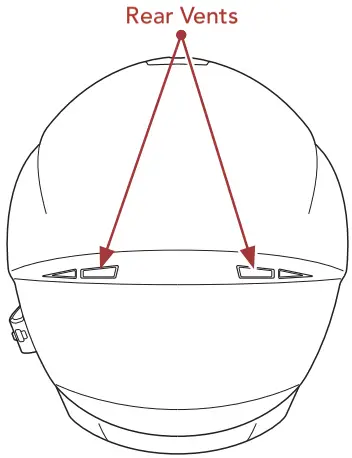
Putting on the Helmet
- Unfasten the chinstrap by using the retention system.
- Expand the helmet opening with your hand, and slide your head into the helmet.
- Fasten the chinstrap as tight as possible without causing you pain.
Icon Legend
 | Tap button the specified number of times |
 | Press and Hold button for the specified amount of time |
 | “Hello” Audible prompt |
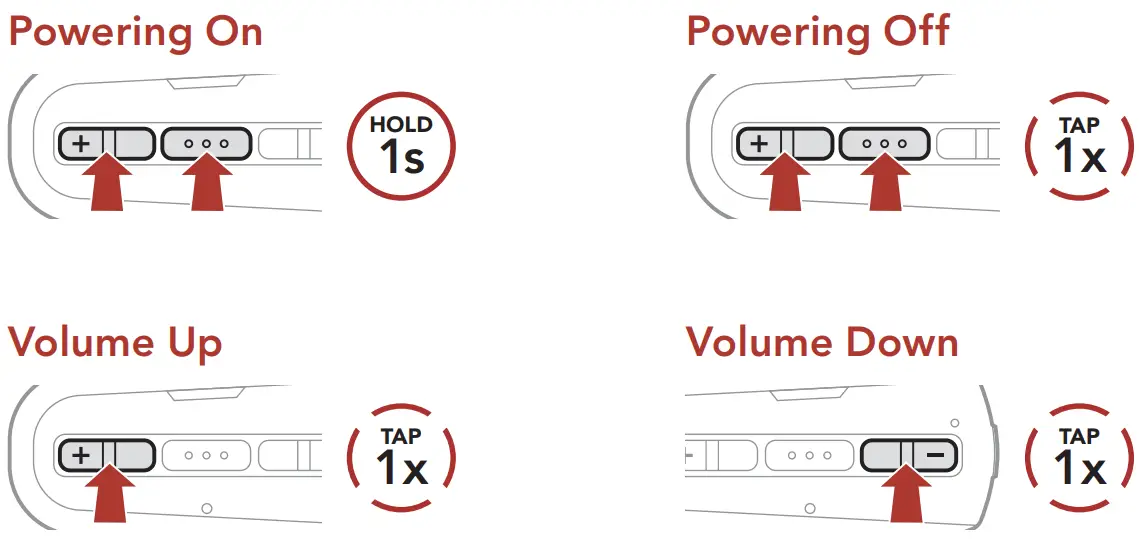
Basic Operations
 Checking the Battery Level
Phone Pairing
 ② Select OUTRIDE in the list of Bluetooth devices detected.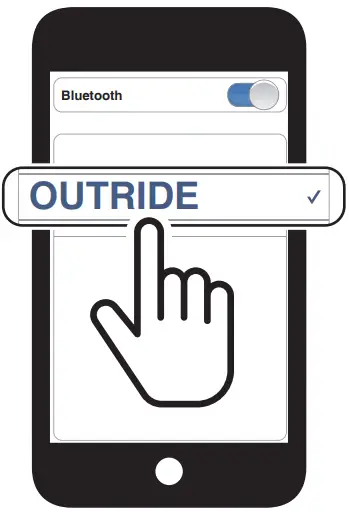
- The Bluetooth system will enter the Phone Pairing mode automatically when you initially turn on the Bluetooth system.
- For more information on phone pairing, refer to the User’s Guide.
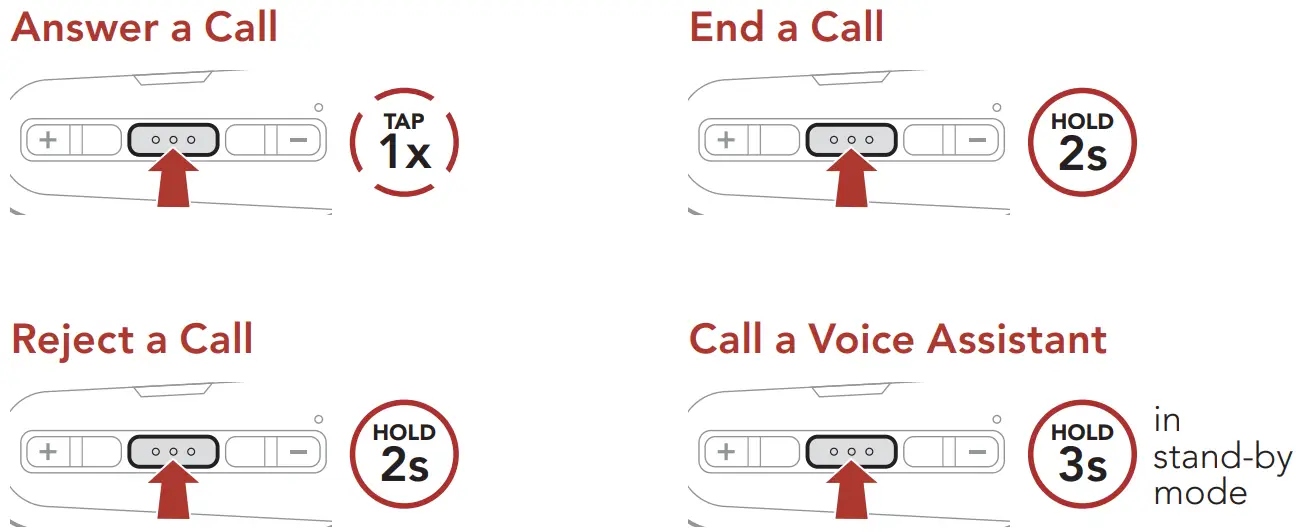
Using the Phone
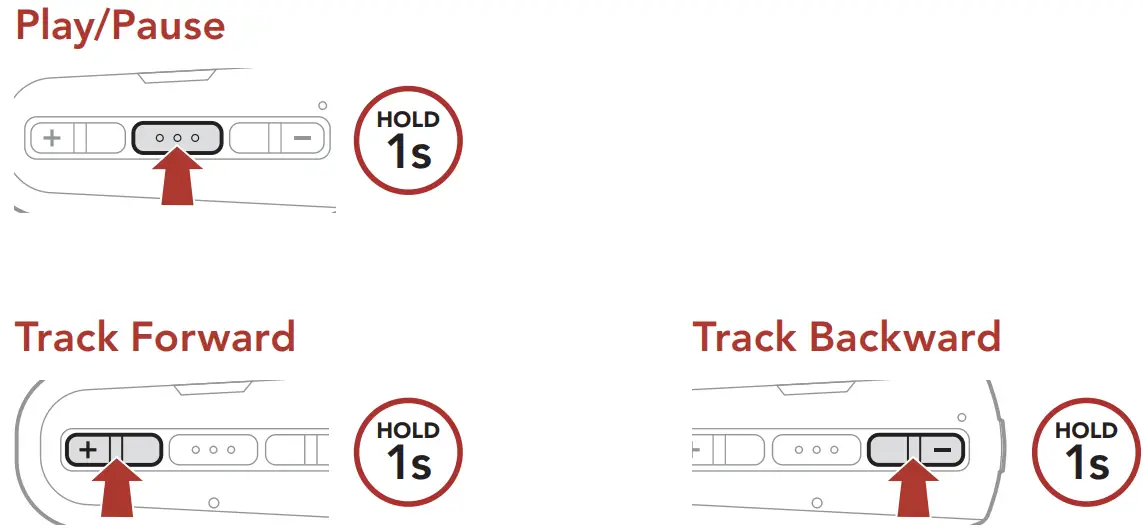
Music Control
Bluetooth Intercom
Up to three other people can be paired with the Bluetooth system for Bluetooth intercom conversations.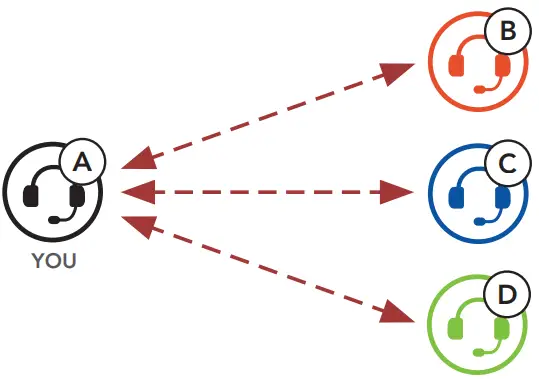 Intercom Pairing
There are two ways to pair the Bluetooth system.
Using the Smart Intercom Pairing (SIP)
SIP allows you to quickly pair with your friends for intercom communication by scanning the QR code on the Sena Motorcycles App without remembering the button operation.
- Pair the mobile phone with the Bluetooth system.
- Open the Sena Motorcycles App and tap
 (Smart Intercom Pairing Menu).
 - Scan the QR code displayed on your friend (B)’s mobile phone.
• Your friend (B) can display the QR code on the mobile phone by tapping> QR code ( ) on the Sena Motorcycles App.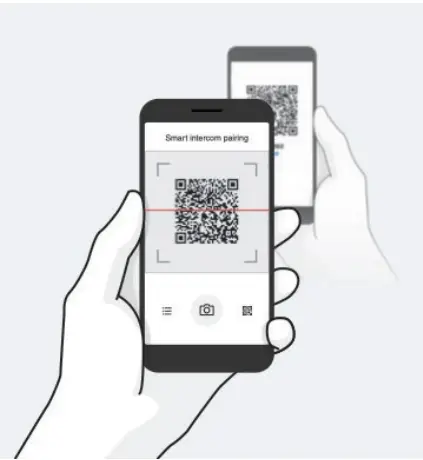
- Tap Save and check that your friend (B) is paired with you (A) correctly.
- Tap Scan (
 ) and repeat steps 3-4 to pair with Intercom Friends (C) and (D).
Note: The Smart Intercom Pairing (SIP) is not compatible with Sena products that use Bluetooth 3.0 or below.
Using the Button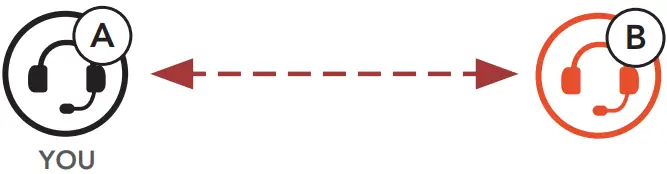
- Users (You, B) enter into Intercom Pairing.

- Tap the Center Button on either Bluetooth system.
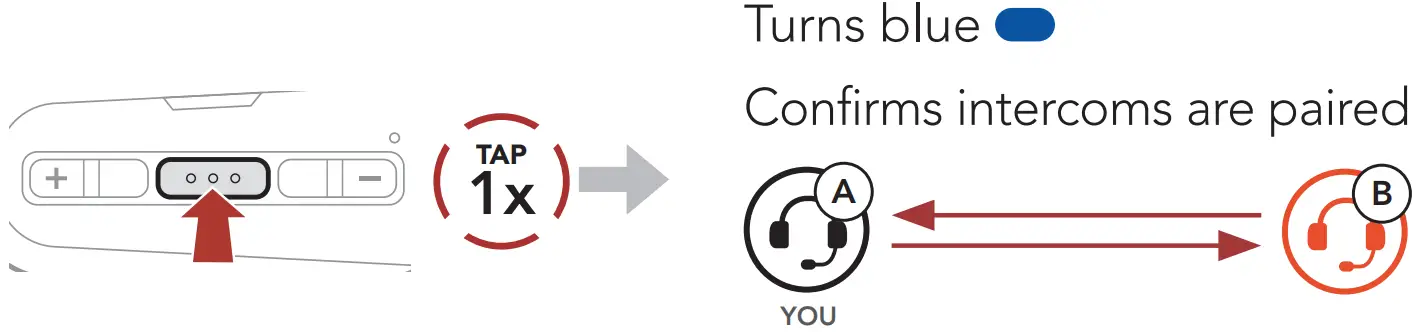
- Repeat the steps above to pair with other Bluetooth systems (C and D).
Last-Come, First-Served
If a Bluetooth system has multiple paired Bluetooth systems for intercom conversations, the last paired Bluetooth system is set as the first intercom friend.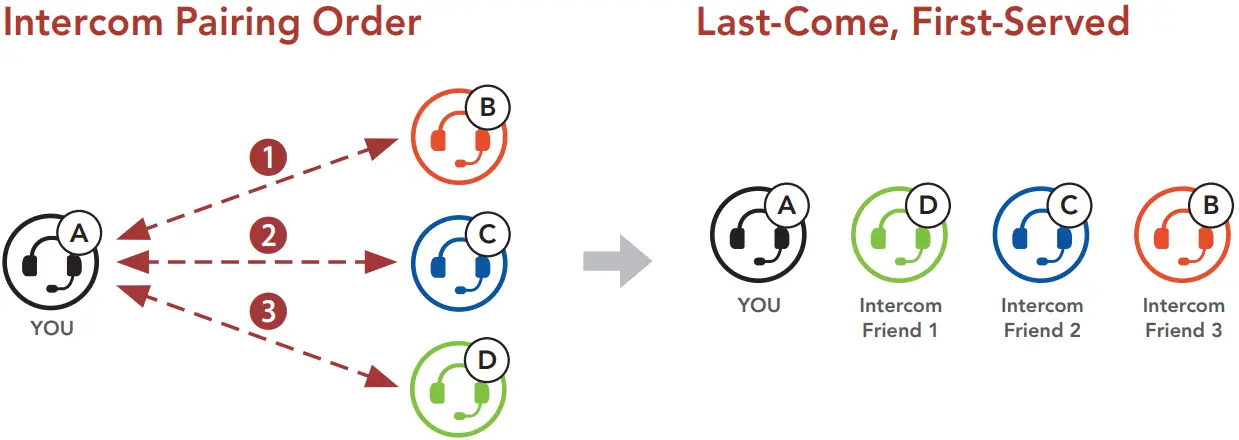
Two-way Intercom
Start/End Conversation with the First Intercom Friend D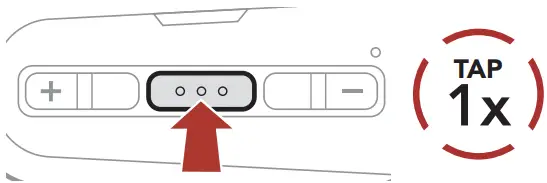 Start/End Conversation with the Second Intercom Friend C
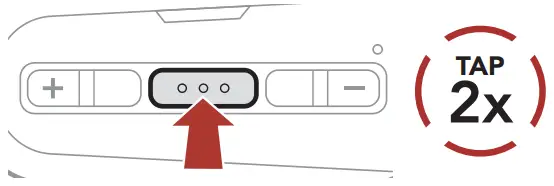 Start/End Conversation with the Third Intercom Friend B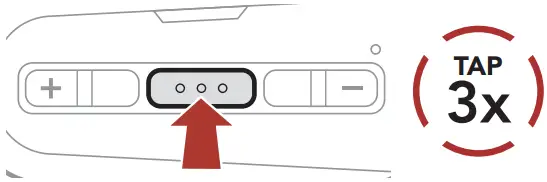
Accessing the Configuration Menu Navigating Between Menu Options
 Execute Menu Options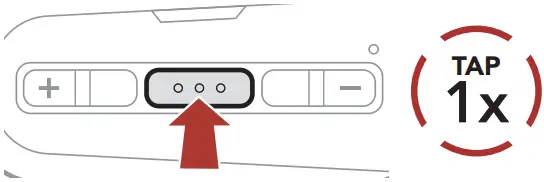
Troubleshooting
Factory Reset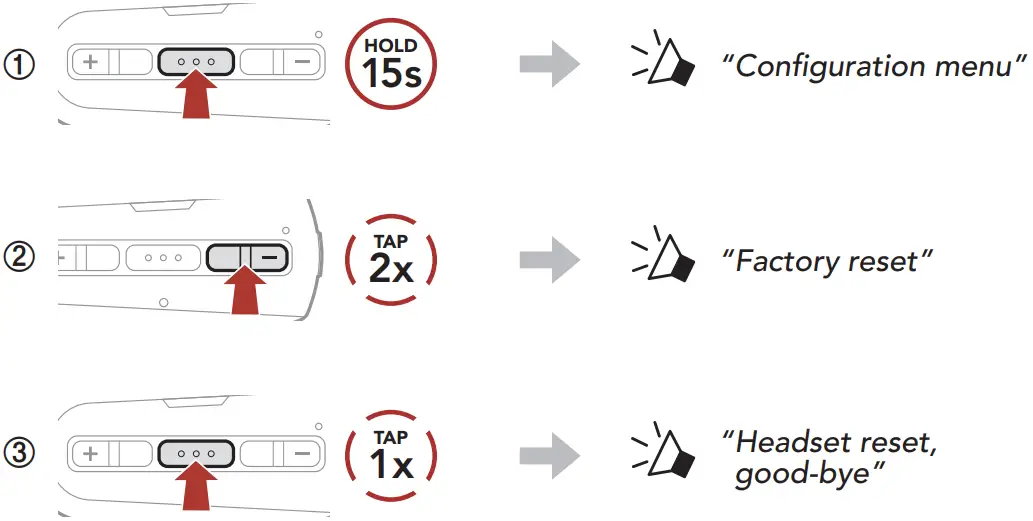 Fault Reset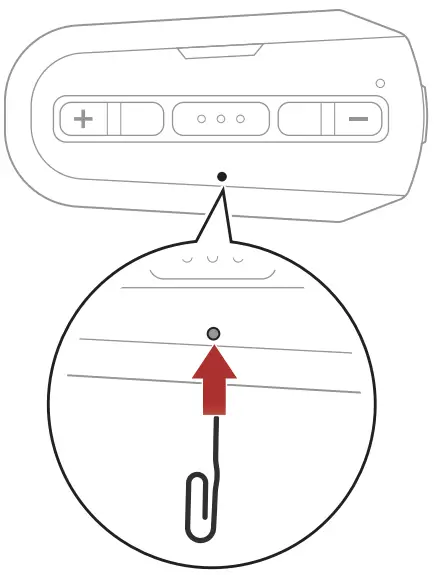
Note:
- The charging LED is not the Pinhole Fault Reset Button.
Do not press it.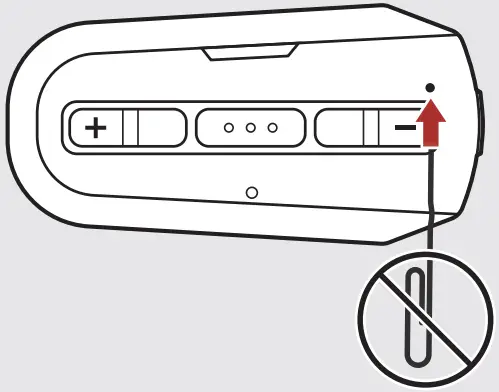
- Fault Reset will not restore the Bluetooth system to the factory default settings.
Quick Reference
| TYPE | OPERATION | BUTTON COMMANDS |
 Basic Operations Basic Operations | Power on | 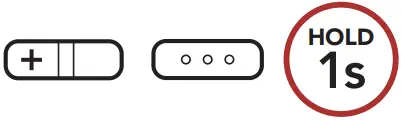 |
| Power off | 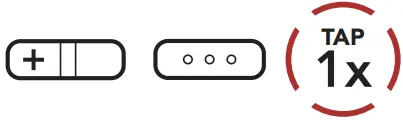 | |
| Volume up/down | 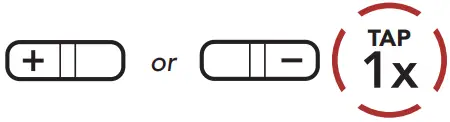 | |
 Mobile Phone Mobile Phone | Answer phone call | 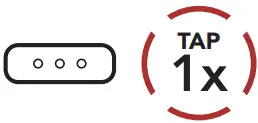 |
| End/reject phone call | 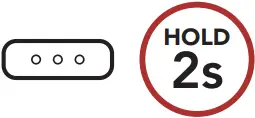 | |
| Call a Voice Assistant | 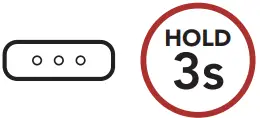 | |
 Music Music | Play/Pause music | 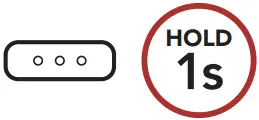 |
| Track forward | 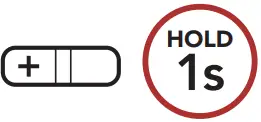 | |
| Track backward | 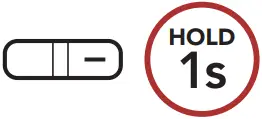 | |
 Intercom Intercom | Intercom pairing | 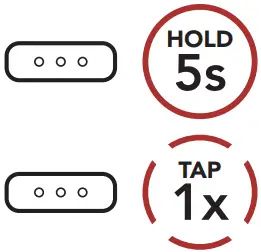 |
| Start/end intercom | 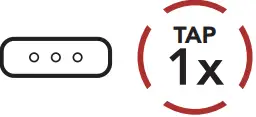 |
 Sena Technologies Co., Ltd.
Customer Support: sena.com
 The Best Motorcycle & Action Sport Bluetooth Devices | Sena