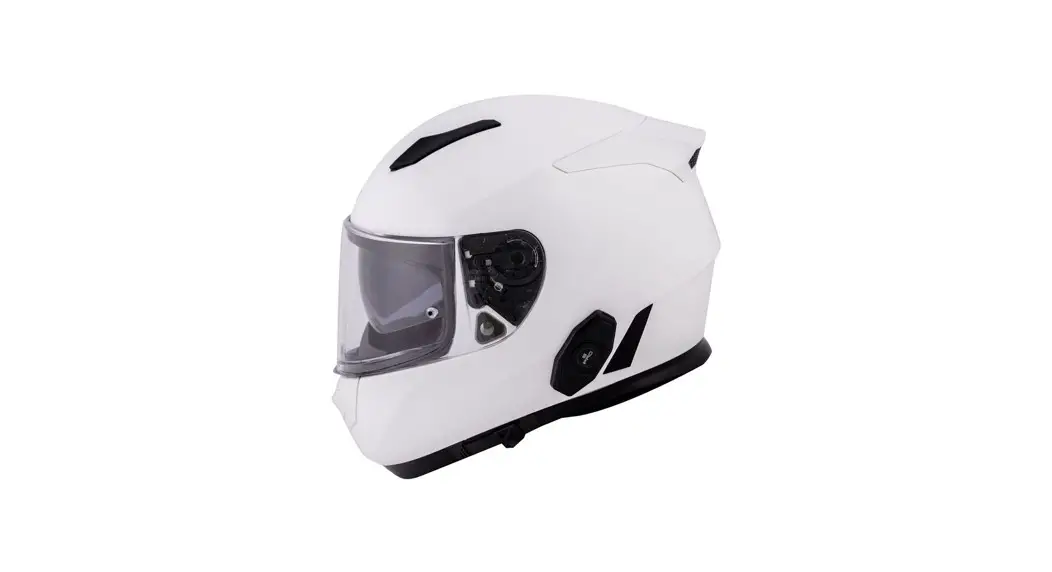
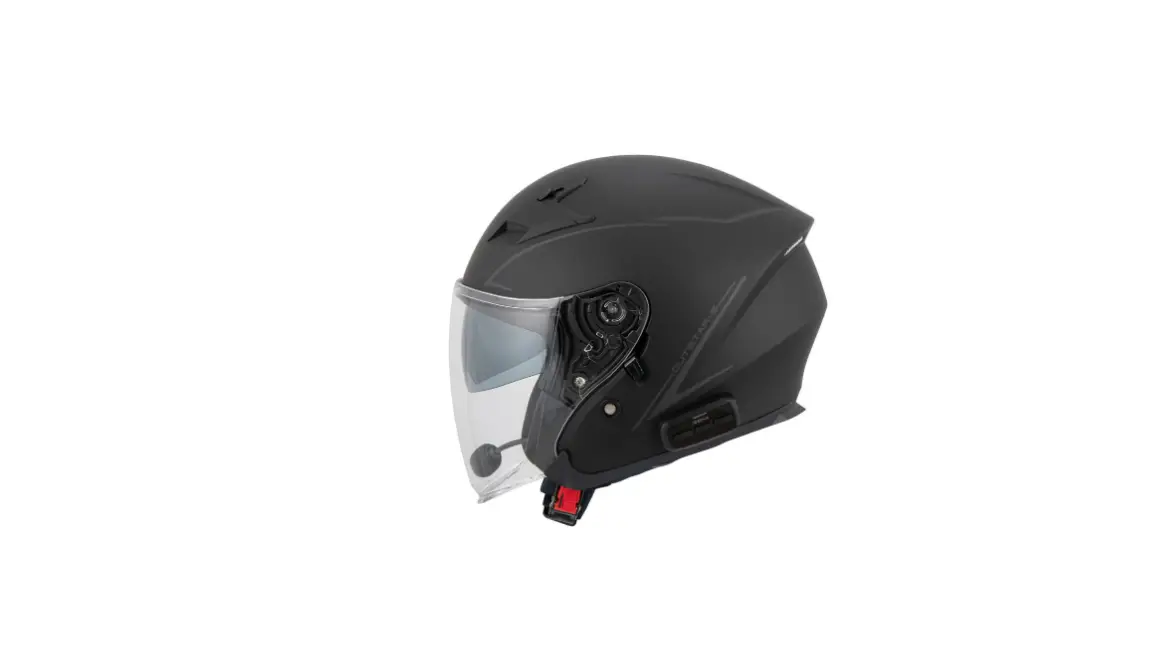
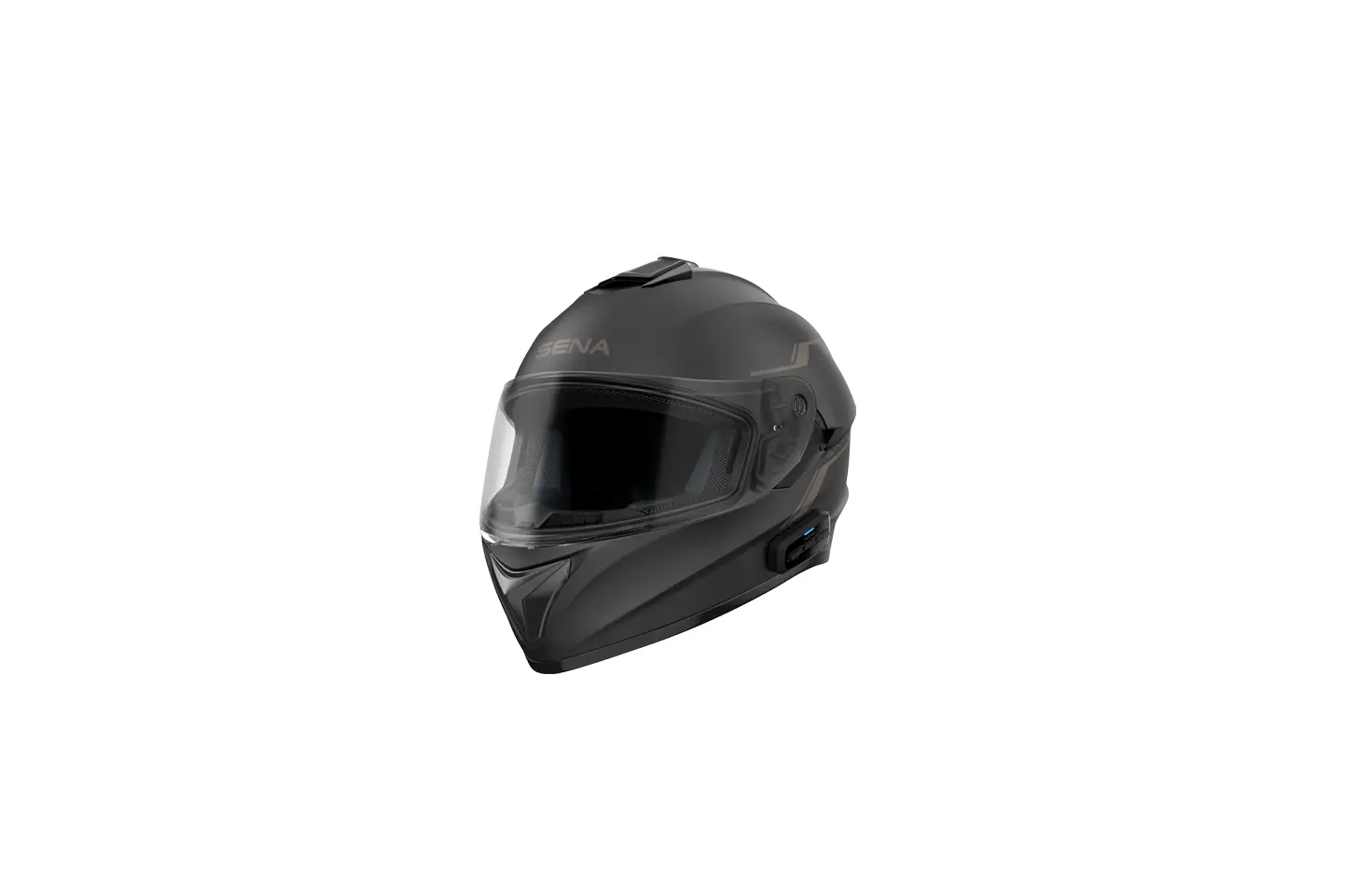
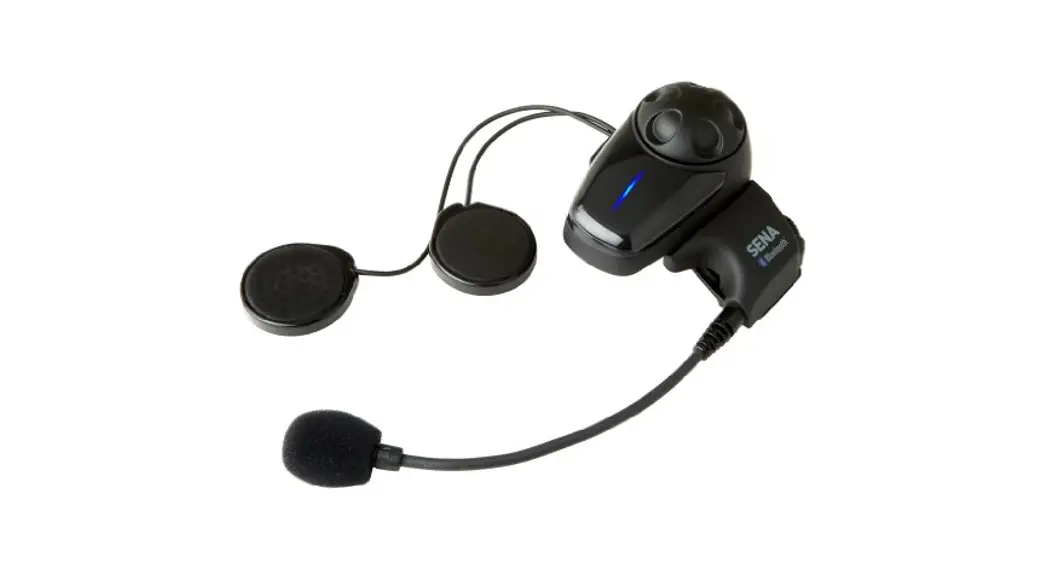
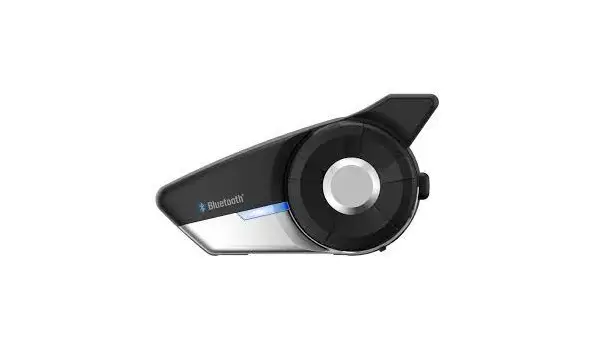
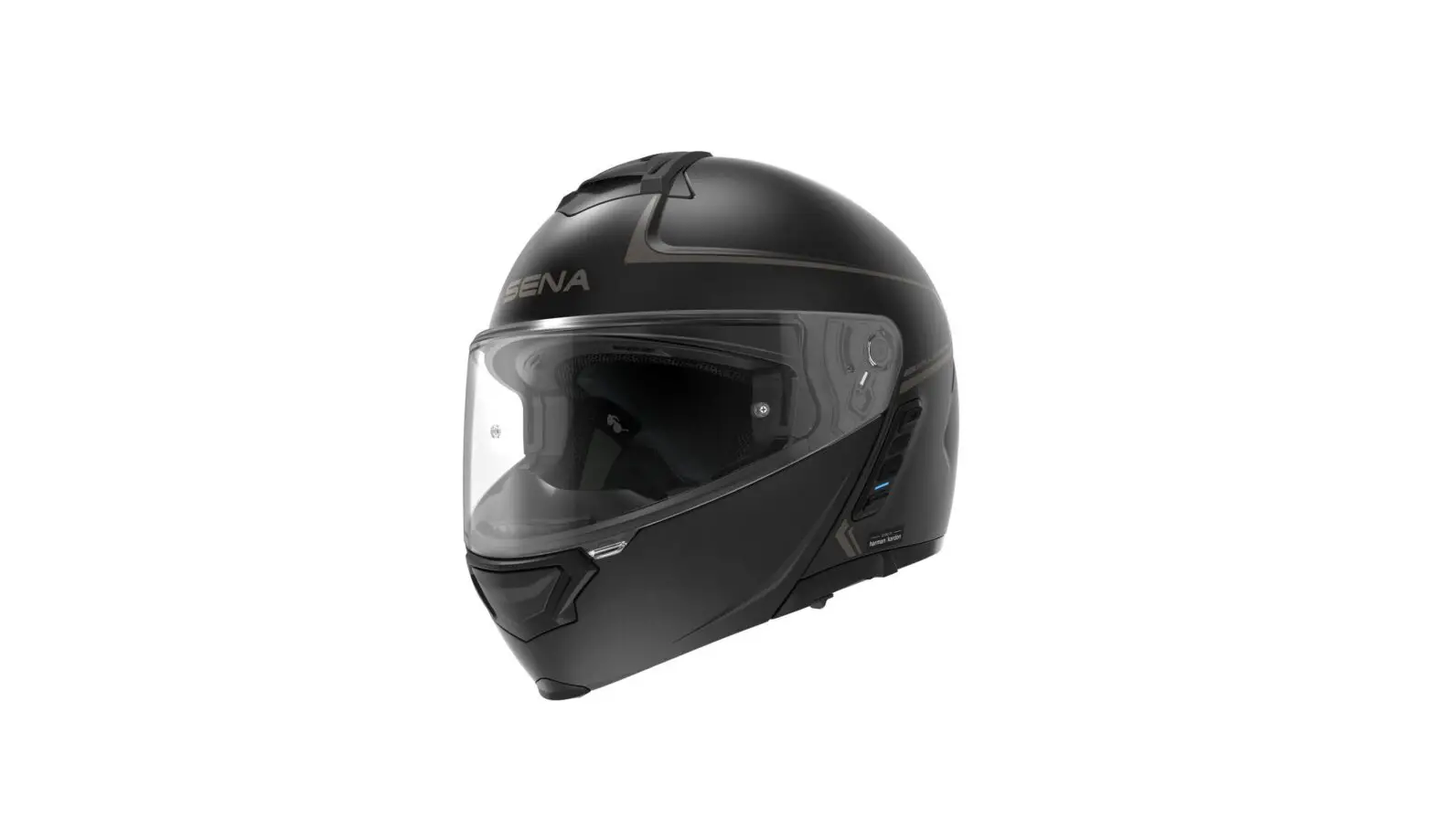
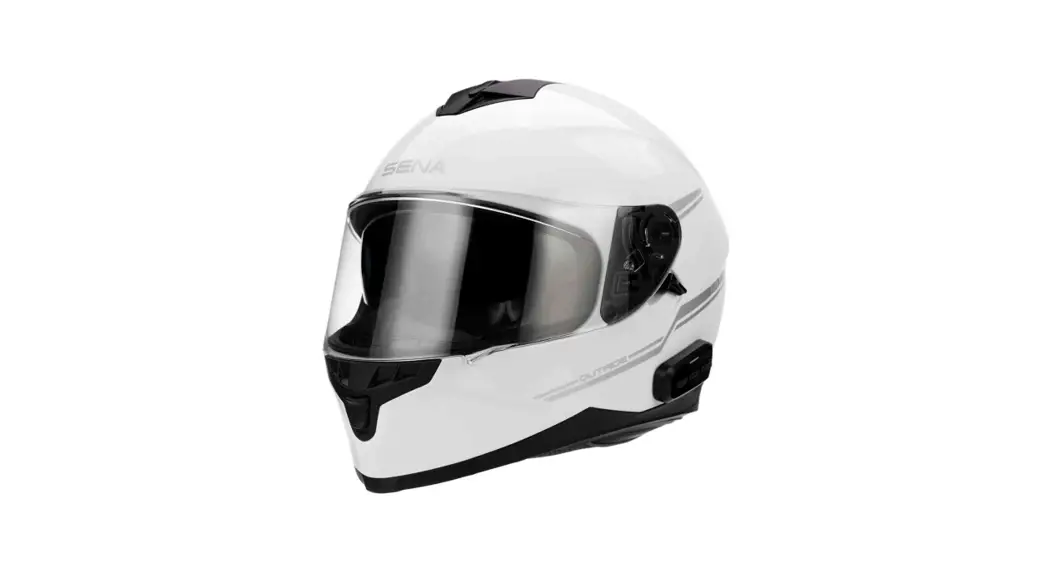
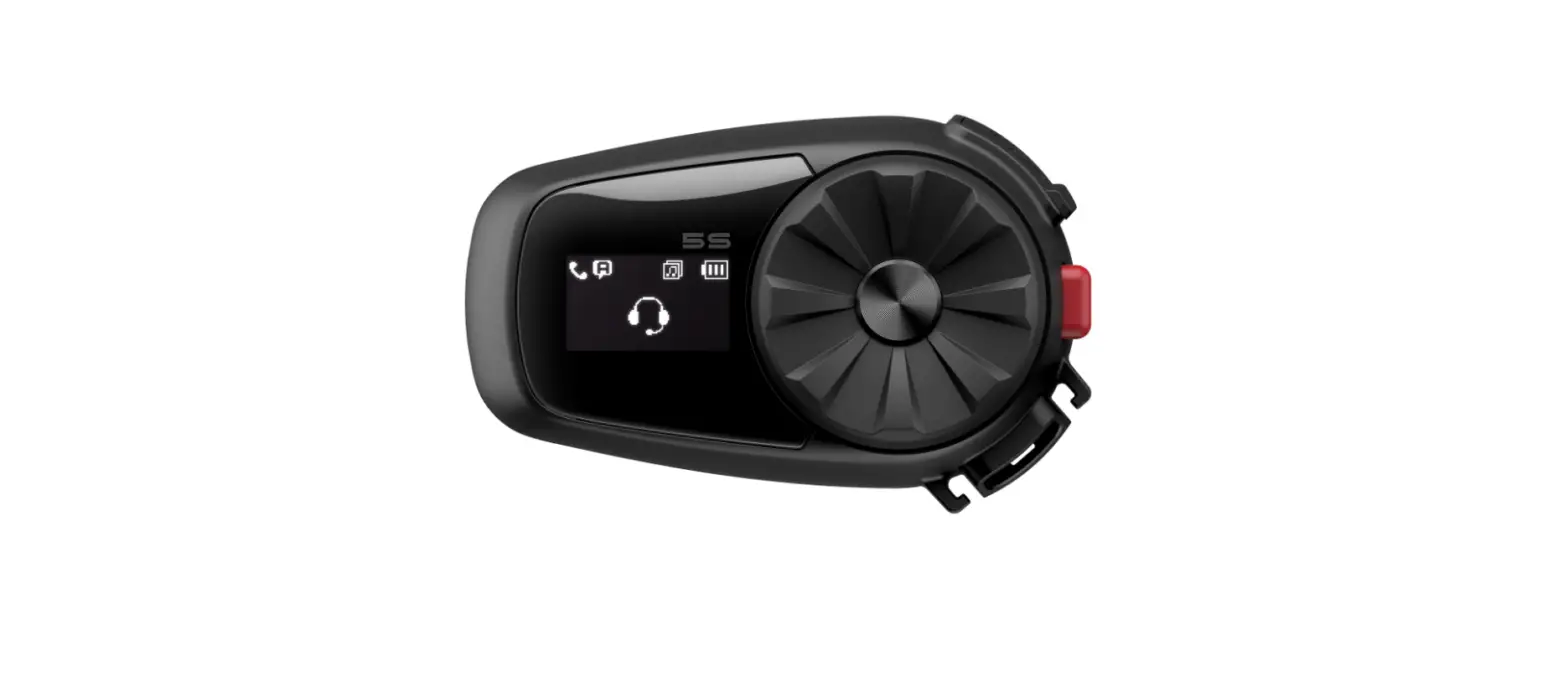
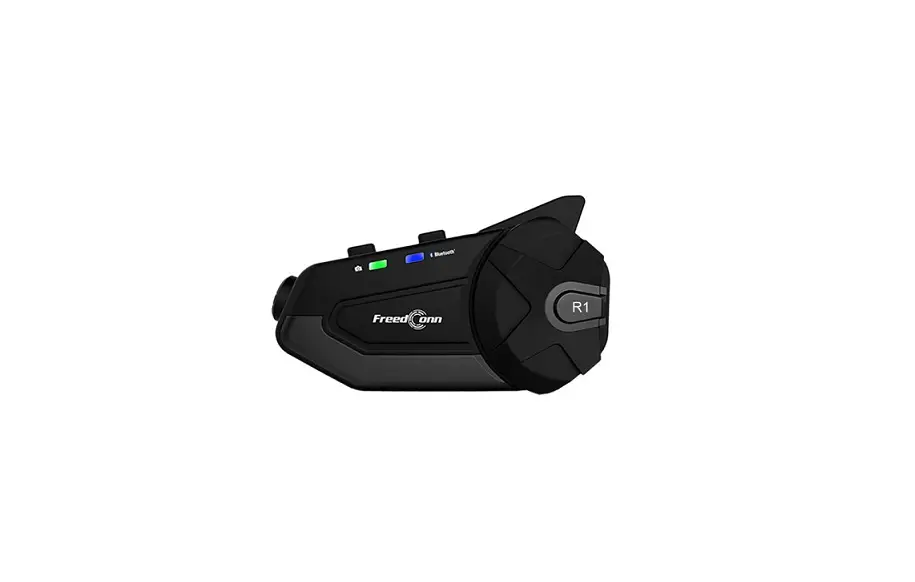
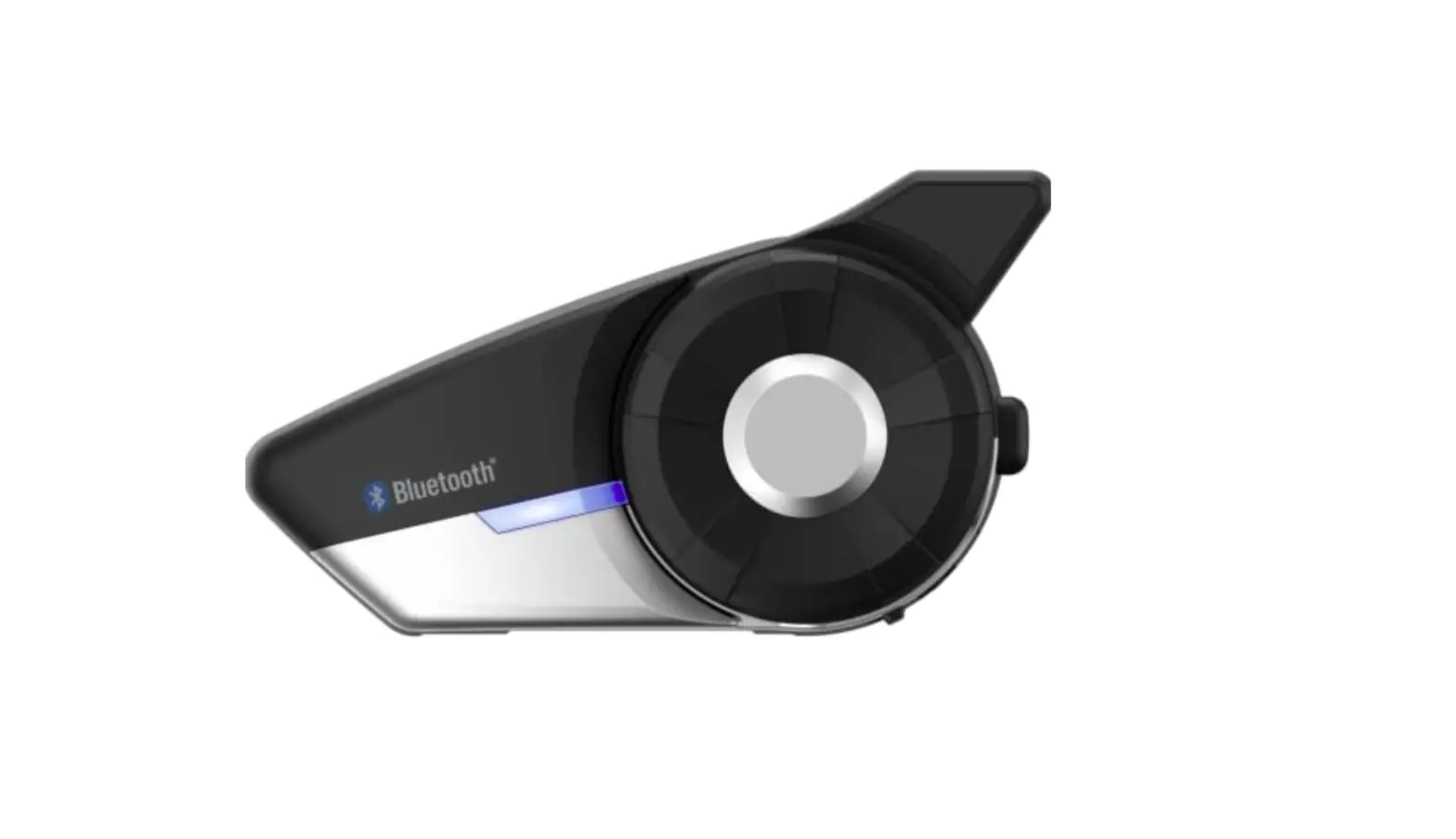
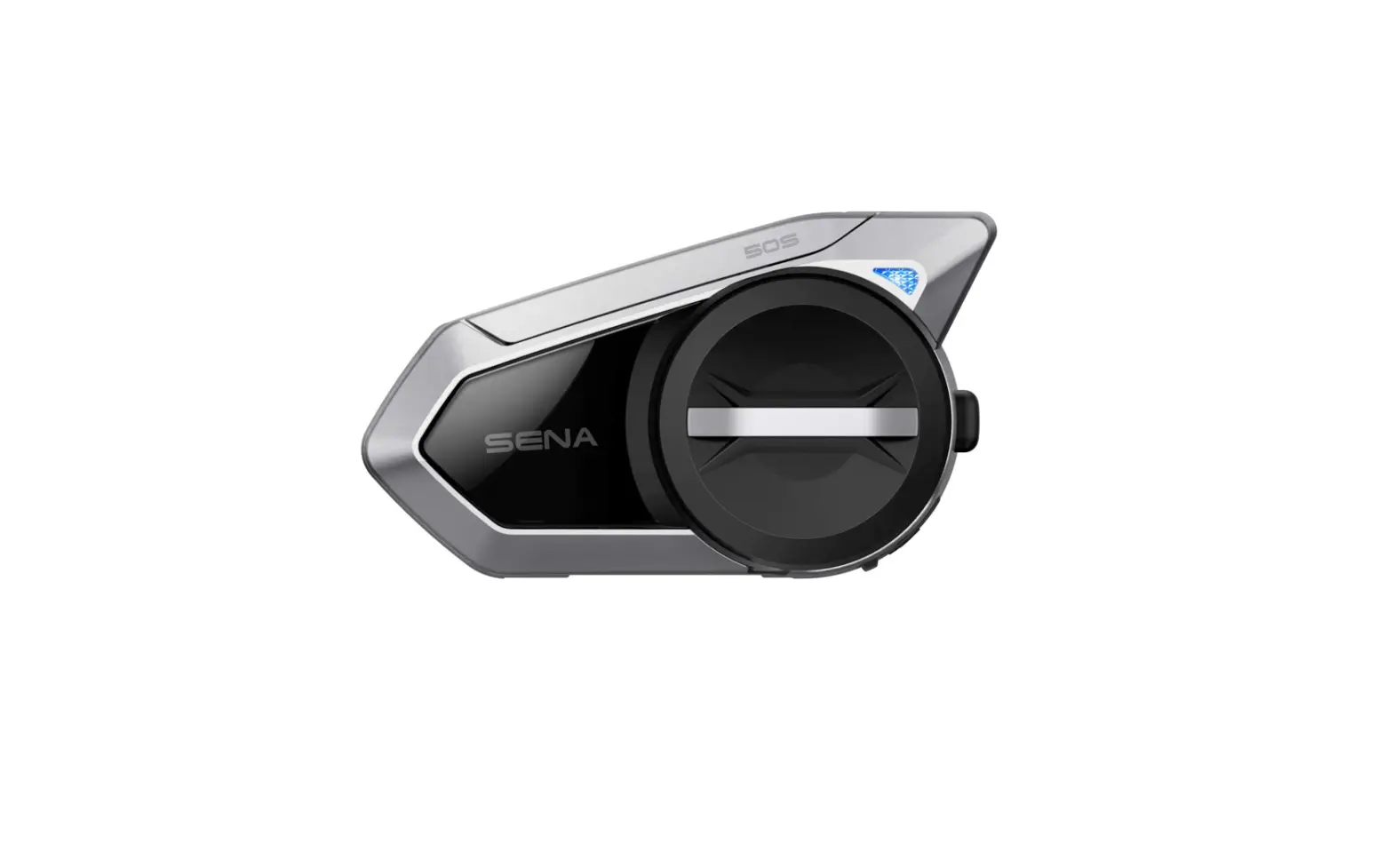
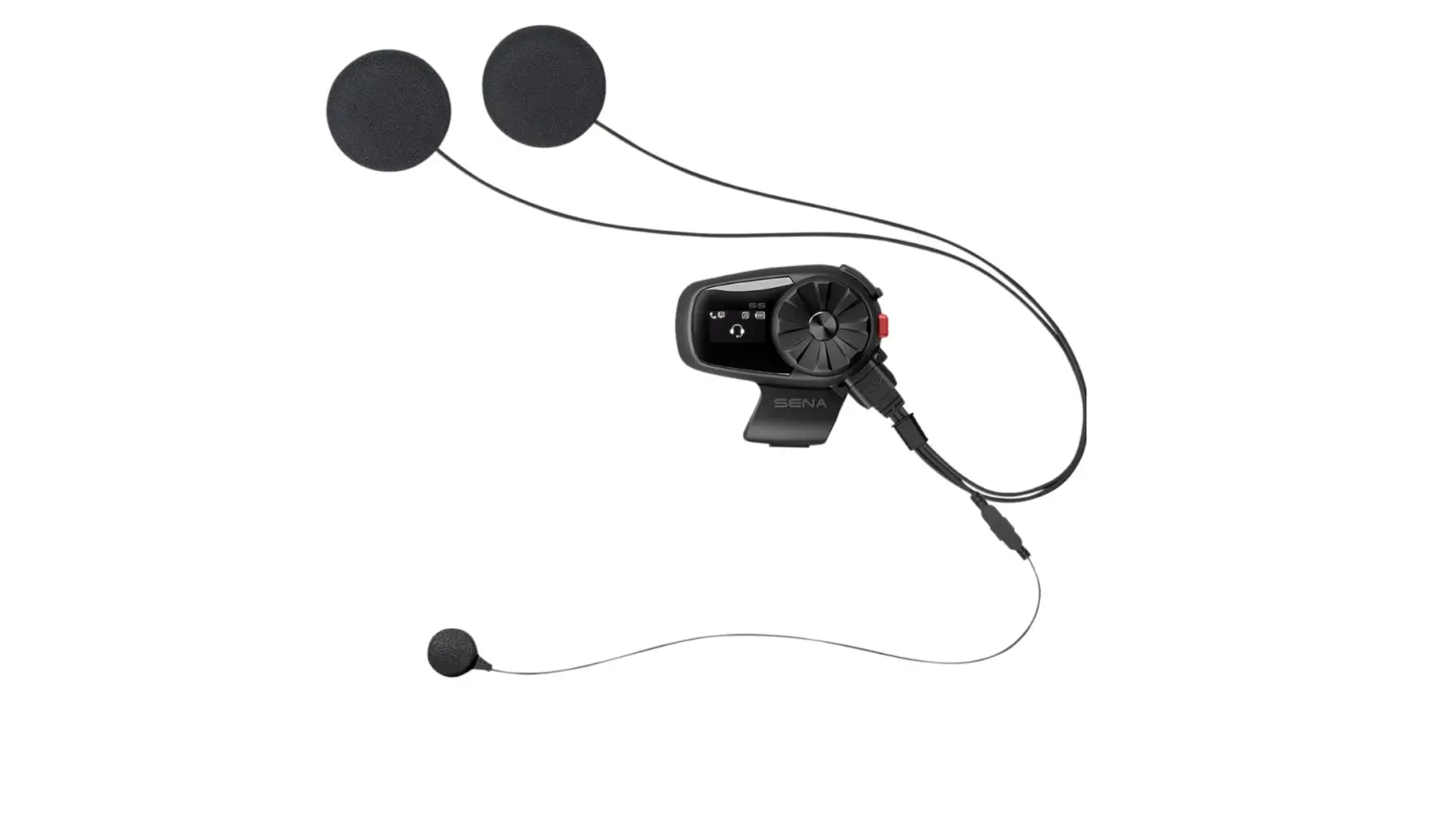
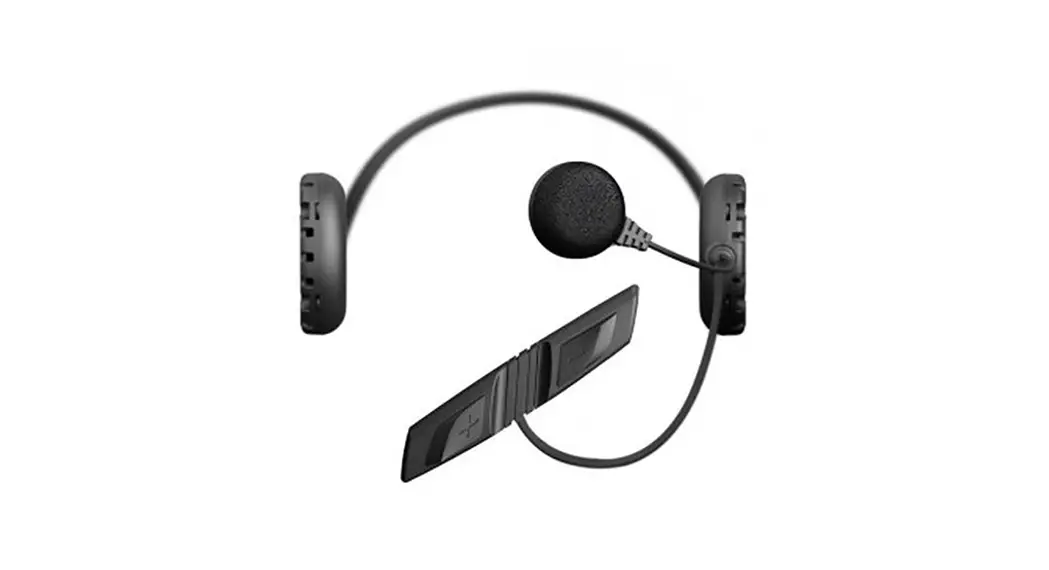
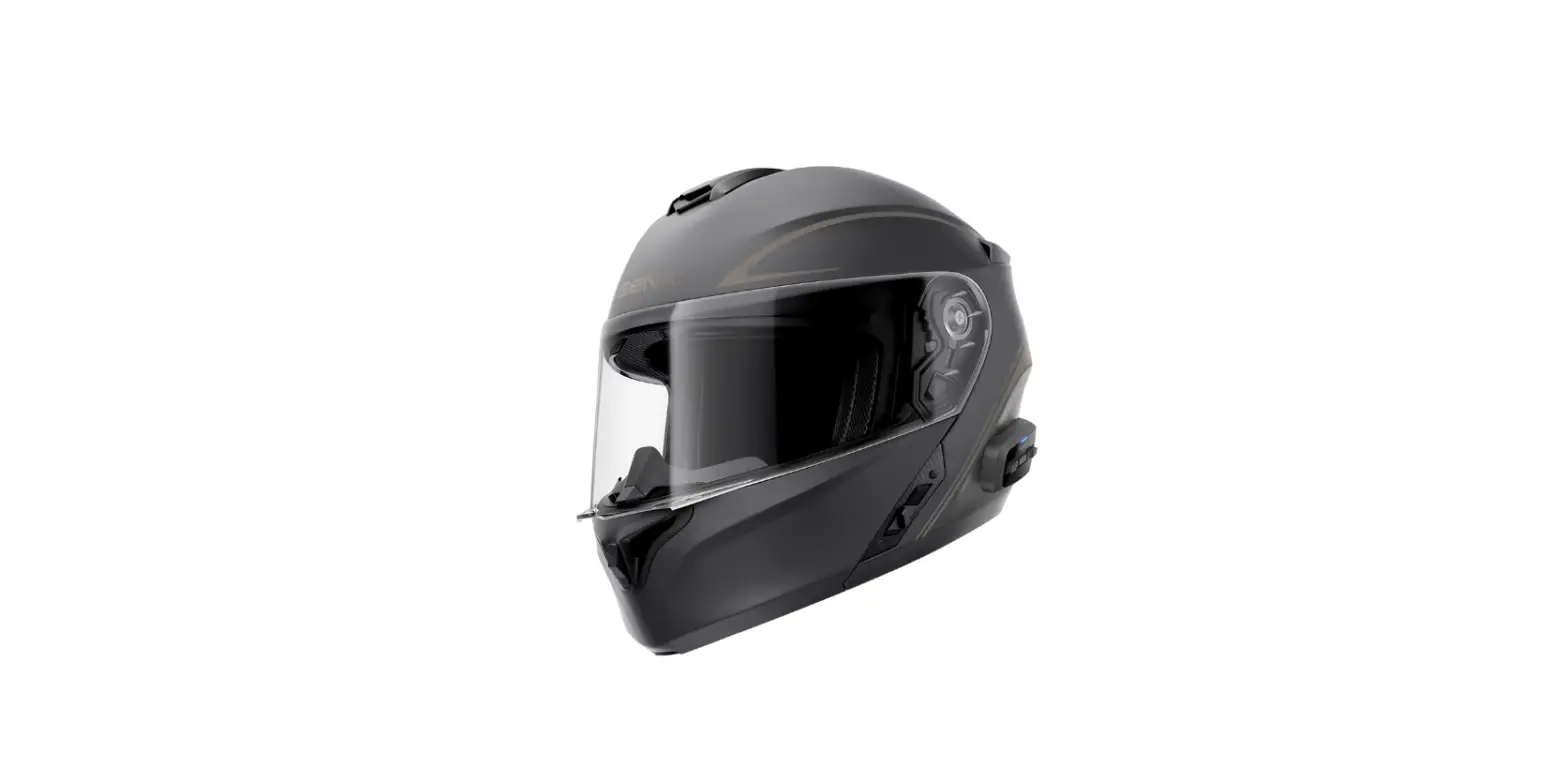
DWO-6 1 Bluetooth Helmet Headset
Product Information
Mobile Phone, GPS
This product features mobile phone and GPS functionality.
Mobile Phone Call Making and Answering
Instructions on how to make and answer phone calls using the
mobile phone feature can be found on page 12 of the user
manual.
Speed Dialing
Instructions on how to use the speed dialing feature can be
found on page 13 of the user manual.
Instructions on how to use the GPS navigation feature can be
found on page 14 of the user manual.
Stereo Music
This product supports stereo music.
Bluetooth Stereo Music
Instructions on how to use the Bluetooth stereo music feature
can be found on page 14 of the user manual.
Music Sharing
Instructions on how to share music can be found on page 15 of
the user manual.
Intercom
This product supports two-way and multi-way intercom
functionality.
Two-way Intercom
Instructions on how to use the two-way intercom feature can be
found on page 15 of the user manual.
Multi-Way Intercom
Instructions on how to use the multi-way intercom feature can be
found on page 16 of the user manual.
Three-Way Conference Phone Call with Intercom Participant
This product supports three-way conference phone calls with
intercom participants. Instructions can be found on page 19 of the
user manual.
Group Intercom
This product supports group intercom functionality. Instructions
can be found on page 20 of the user manual.
Universal Intercom
This product supports universal intercom functionality.
Instructions can be found on page 20 of the user manual.
Function Priority
Instructions on function priority can be found on page 24 of the
user manual.
Configuration Setting
Instructions on headset and software configuration settings can
be found on pages 24 and 26 of the user manual, respectively.
Firmware Upgrade
Instructions on how to upgrade the firmware can be found on page
29 of the user manual.
Troubleshooting
Instructions on how to troubleshoot common issues can be found
on pages 29 and 30 of the user manual.
Product Usage Instructions
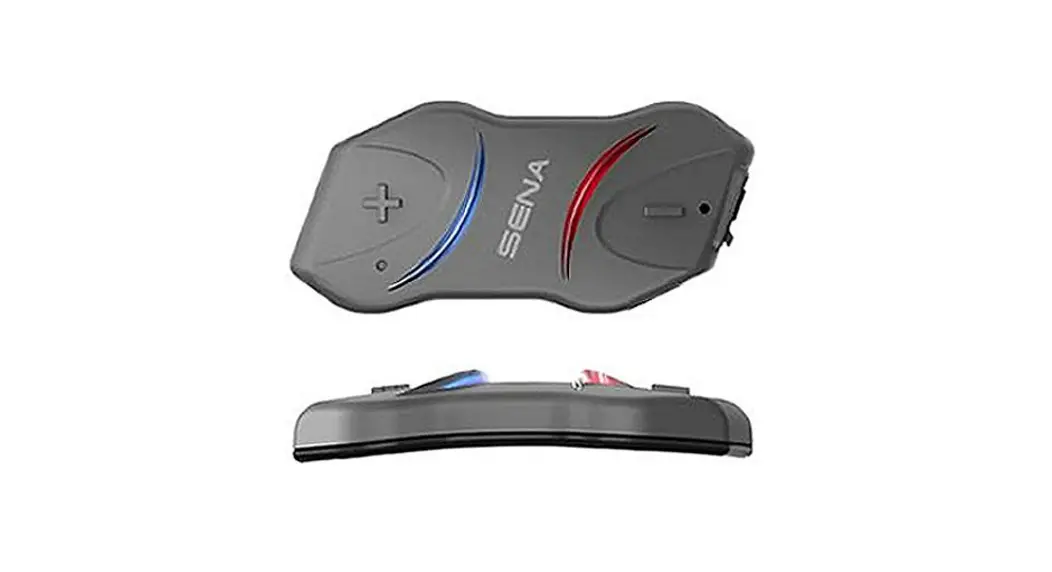
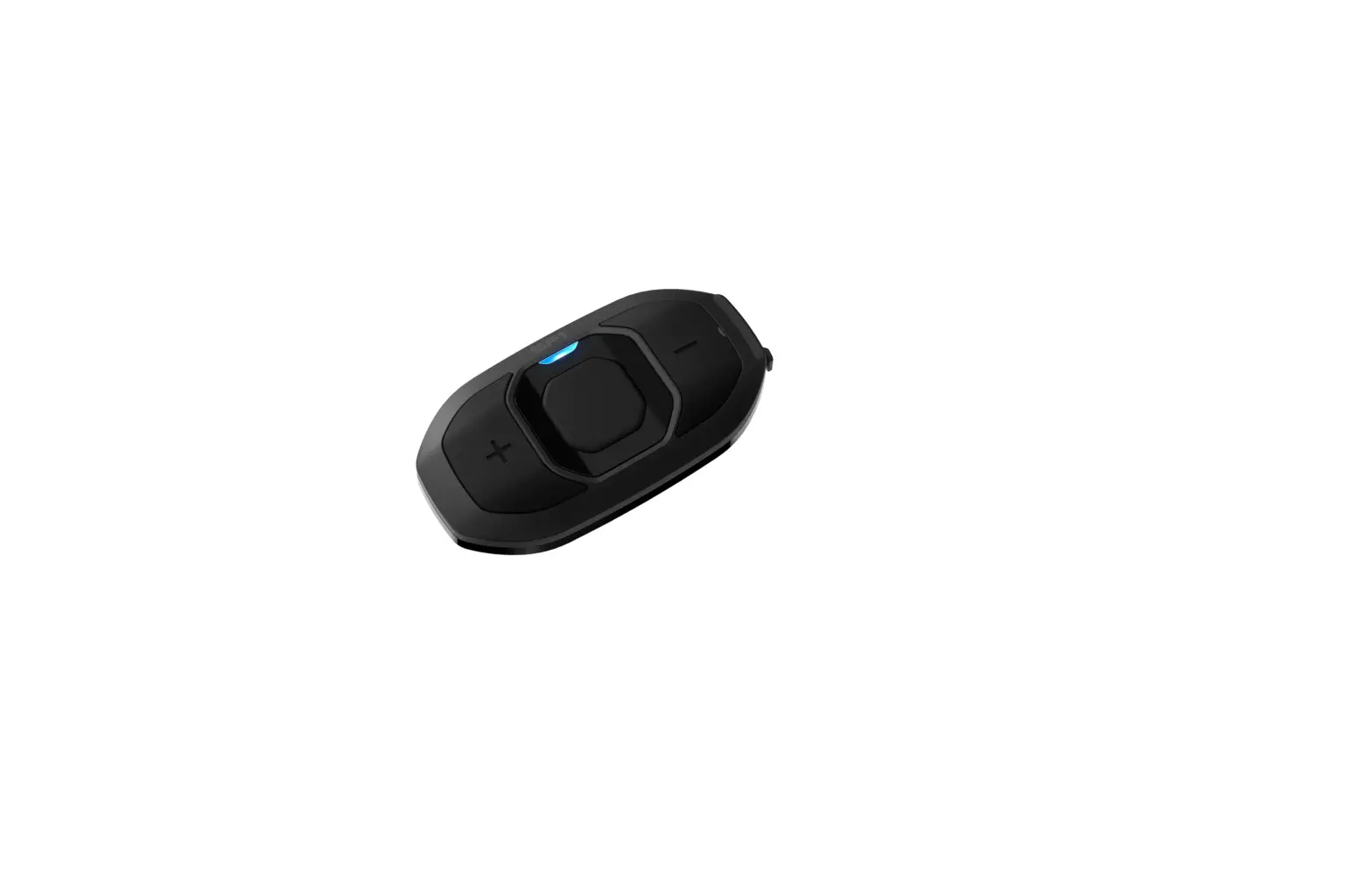
To operate the headset, use the buttons as follows:
- (+) Button: Perform specific functions
- Status LED: Indicates the status of the headset
- Center Button: Perform specific functions
- (-) Button: Perform specific functions
- Fault Reset Button: Reset faults in the headset
Powering On and Off
To power on the headset, press and hold the Center Button and
the (+) Button for 1 second. To power off the headset, tap the
Center Button and the (+) Button.
Charging
The headset can be charged using a USB power & data cable or
an AC adapter. Connect the headset to a power source and the LED
will turn red while charging. When fully charged, the LED will turn
blue. Charging time is approximately 2.5 hours.
Checking the Battery Level
You can check the battery level using the LED indicator or voice
prompt indicator.
LED Indicator
When powering on the headset, the red LED will flash rapidly to
indicate the battery level:
- 4 flashes: High (70-100% battery)
- 3 flashes: Medium (30-70% battery)
- 2 flashes: Low (0-30% battery)
Voice Prompt Indicator
When powering on the headset, press and hold the Center Button
and the (+) Button simultaneously for about 3 seconds until you
hear high tone triple beeps. A voice prompt will then indicate the
battery level as high, medium, or low.
Volume Adjustment
You can adjust the volume by tapping the (+) Button to raise it
or the (-) Button to lower it. The volume is maintained
independently for each audio source and even after rebooting the
headset.
Softwares
To manage the device’s software, use the Cycle Gear Device
Manager. Additional instructions can be found in the user
manual.
CONTENTS
1 GETTING STARTED………………………………………….4 1.1 Button Operation ……………………………………………………. 4 1.2 Powering On and Off………………………………………………. 4 1.3 Charging……………………………………………………………….. 5 1.4 Checking the Battery Level……………………………………… 5 1.5 Volume Adjustment ………………………………………………… 6 1.6 Softwares………………………………………………………………. 6
2 PAIRING THE HEADSET WITH BLUETOOTH DEVICES ………………………………………………………….7 2.1 Mobile Phone Pairing – Mobile Phone, Bluetooth Stereo Device………………………………………….. 7 2.2 Second Mobile Phone Pairing Second Mobile Phone, GPS, and SR10 ……………………. 8 2.3 Advanced Selective Pairing A2DP Stereo or Handsfree………………………………………. 9 2.4 Intercom Pairing …………………………………………………… 11
3 MOBILE PHONE, GPS …………………………………….12 3.1 Mobile Phone Call Making and Answering………………. 12 3.2 Speed Dialing………………………………………………………. 13 3.3 GPS Navigation ……………………………………………………. 14
4 STEREO MUSIC ……………………………………………..14 4.1 Bluetooth Stereo Music …………………………………………. 14 4.2 Music Sharing ……………………………………………………… 15
5 INTERCOM……………………………………………………..15 5.1 Two-way Intercom ………………………………………………… 15 5.2 Multi-Way Intercom……………………………………………….. 16
6 THREE-WAY CONFERENCE PHONE CALL WITH INTERCOM PARTICIPANT……………………..19
7 GROUP INTERCOM ………………………………………..20
8 UNIVERSAL INTERCOM………………………………….20
9 FM RADIO ………………………………………………………22 9.1 FM Radio On/Off ………………………………………………….. 22 9.2 Preset Stations……………………………………………………… 22 9.3 Seek and Save …………………………………………………….. 22 9.4 Scan and Save …………………………………………………….. 23 9.5 Temporary Preset …………………………………………………. 23 9.6 Region Selection ………………………………………………….. 23
10 FUNCTION PRIORITY……………………………………..24
11 CONFIGURATION SETTING ……………………………24 11.1 Headset Configuration Setting……………………………….. 24 11.2 Software Configuration Setting ………………………………. 26
12 FIRMWARE UPGRADE……………………………………29
13 TROUBLESHOOTING ……………………………………..29 13.1 Intercom Failure……………………………………………………. 29 13.2 Intercom Reconnection …………………………………………. 30 13.3 Factory Reset ………………………………………………………. 30 13.4 Fault Reset…………………………………………………………… 30
1 GETTING STARTED
1.1 Button Operation
(+) Button
Status LED Center Button (-) Button
1.2 Powering On and Off
To power on the headset, press and hold the Center Button and the (+) Button for 1 second. To power off the headset, tap the Center Button and the (+) Button.
Fault Reset Button 4
DC Power Charging & Firmware upgrade Port
1.3 Charging The headset can be charged using many common methods via the supplied USB power & data cable. The LED turns red while the headset is charging and turns blue when it is fully charged. Depending upon the charging method, the headset will be fully charged in about 2.5 hours.
or AC Adapter
1.4 Checking the Battery Level
1.4.1 LED Indicator
When the headset is powering on, the red LED flashes rapidly indicating the battery level.
4 flashes = High, 70~100% 3 flashes = Medium, 30~70% 2 flashes = Low, 0~30%
1.4.2 Voice Prompt Indicator
When you power on the headset, keep pressing the Center Button and the (+) Button simultaneously for about 3 seconds until you hear high tone triple beeps. Then you will hear a voice prompt indicating the battery level is high, medium, or low.
5
1.5 Volume Adjustment
You can raise or lower the volume by tapping the (+) Button or the (-) Button. Volume is set and maintained independently at different levels for each audio source, even when the headset is rebooted.
1.6 Softwares
1.6.1 Using the Cycle Gear Device Manager
The Cycle Gear Device Manager allows you to upgrade the firmware and configure the device settings directly from your PC. It is available for both Windows and Mac. For more information on downloading the Device Manager, please visit oem.sena.com/cyclegear.
1.6.2 Using the Sena Motorcycles App
The Sena Motorcycles App allows you to configure device settings and read the User’s Guide and the Quick Start Guide. Download the Sena Motorcycles App for Android phone or iPhone from Google Play or App Store.
6
2 PAIRING THE HEADSET WITH BLUETOOTH DEVICES
You can pair the headset with Bluetooth mobile phones, Bluetooth stereo devices such as MP3, SR10, or GPS, and with other Sena Bluetooth headsets. The pairing operation is required only once for each Bluetooth device. The headset can also be paired with up to three other Sena headsets.
2.1 Mobile Phone Pairing Mobile Phone, Bluetooth Stereo Device
1. To enter the configuration menu, press and hold the Center Button for 10 seconds until you hear the voice prompt, “Configuration menu”.
2. By tapping the (+) Button, you will hear the voice prompt, “Phone pairing”.
3. Search for Bluetooth devices on your mobile phone. Select the BILT DWO-6 in the list of the devices detected on the mobile phone.
4. If your mobile phone asks for a PIN, enter 0000.
7
2.2 Second Mobile Phone Pairing Second Mobile Phone, GPS, and SR10
1. To enter the configuration menu, press and hold the Center Button for 10 seconds until you hear the voice prompt, “Configuration menu”.
2. Tap the (+) Button until you hear a voice prompt, “Second mobile phone pairing”.
3. Search for Bluetooth devices on your mobile phone. Select the BILT DWO-6 in the list of the devices detected on the mobile phone.
4. If your mobile phone asks for a PIN, enter 0000.
Note:
1. If you have two audio (A2DP) devices connected to your headset then the audio from one device will interrupt the audio from the other device. For example, if you are playing music from the primary mobile phone, then it can be interrupted by playing music from the secondary mobile phone and vice versa.
2. You have to use a motorcycle specific GPS, which transmits turn-by-turn voice instructions to the headset by Bluetooth.
3. The Sena SR10 is a Bluetooth two-way radio adapter for group communication, and uses Hands-Free-Profile. The incoming audio from the two-way radio via SR10 is heard in the background while having an intercom conversation or a mobile phone call.
8
4. The GPS navigation or a radar detector could be connected to the SR10 by wire. The GPS voice instruction or the radar detector alarm is also heard in the background via SR10 while having an intercom conversation or a phone call. Please refer to the SR10 User’s Guide for details.
2.3 Advanced Selective Pairing –
A2DP Stereo or Handsfree
Phone Pairing allows the headset to establish two Bluetooth profiles: Hands-Free or A2DP Stereo. Advanced Selective Pairing allows the headset to separate the profiles to enable connection with two devices.
9
2.3.1 A2DP Stereo Music Only
1. To enter the configuration menu, press and hold the Center Button for 10 seconds until you hear the voice prompt, “Configuration menu”.
2. Tap the (+) Button until you hear a voice prompt, “Media selective pairing”.
3. Search for Bluetooth devices on your mobile phone. Select the BILT DWO-6 in the list of the devices detected on the mobile phone.
4. If your mobile phone asks for a PIN, enter 0000.
2.3.2 HFP for Phone Call Only
1. To enter the configuration menu, press and hold the Center Button for 10 seconds until you hear the voice prompt, “Configuration menu”.
2. Tap the (+) Button until you hear a voice prompt, “Phone selective pairing”.
3. Search for Bluetooth devices on your mobile phone. Select the BILT DWO-6 in the list of the devices detected on the mobile phone.
4. If your mobile phone asks for a PIN, enter 0000.
10
2.4 Intercom Pairing
2.4.1 Pairing with Other Headsets for Intercom Conversation
The headset can be paired with up to three other headsets for Bluetooth intercom conversation.
1. Press and hold the Center Button of the headset A and B for 5 seconds until red LEDs of the both units start to flash rapidly.
2. Simply tap the Center Button of any one of the two headsets A and B, and wait until the LEDs of both headsets turn to blue and intercom connection is automatically established.
3. You can make other pairings between headsets A and C, and between headsets A and D by following the same procedure as above.
4. The intercom pairing queue is `LastCome, First-Served ‘. If a headset has multiple paired headsets for intercom conversations, the last paired headset is set as first intercom friend. The previous intercom friend becomes second intercom friend, and third intercom friend.
You (A)
Intercom Friend B
Intercom Friend C
Intercom Friend D
11
3 MOBILE PHONE, GPS
3.1 Mobile Phone Call Making and Answering
1. To answer a call, tap the Center Button to answer the call.
2. You can also answer the incoming call by loudly speaking any word of your choice if VOX Phone is enabled, unless you are connected to intercom.
3. To end a call, press and hold the Center Button for 2 seconds until you hear a midtone single beep.
4. To reject a call, press and hold the Center Button for 2 seconds until you hear a beep while the phone is ringing.
5. To make a call with voice dialer, press and hold the Center Button for 3 seconds in stand-by mode to activate the voice dialer of your mobile phone.
12
3.2 Speed Dialing
1. Press and hold the (+) Button for 3 seconds and you will hear a mid-tone single beep and a voice prompt, “Speed dial”.
2. Tap the (+) Button or the (-) Button to navigate between the menus. You will hear prompts for each menu item.
3. Tap the Center Button to select a voice menu among the followings:
(1) Last number redial (2) Speed dial 1 (3) Speed dial 2 (4) Speed dial 3 (5) Cancel
4. After selecting the last number redial menu, “Last number redial”. Then, to redial the last phone call number, tap the Center Button.
5. To call one of the speed dials, tap the (+) Button or the (-) Button to navigate between the menus until you hear a voice prompt, “Speed dial (#)”. Then, tap the Center Button.
6. If you want to exit the speed dial immediately, tap the (+) Button or the (-) Button until you hear a voice prompt, “Cancel”, and tap the Center Button.
13
3.3 GPS Navigation
3.3.1 GPS Pairing
1. Press and hold the Center Button for 10 seconds until you will hear a voice prompt saying “Configuration menu”.
2. Tap the (+) Button and you will hear the voice prompt saying “GPS pairing”.
3. Search for Bluetooth devices on the GPS navigation. Select the BILT DWO-6 in the list of the devices detected on the GPS.
4. Enter 0000 for the PIN.
3.3.2 GPS Audio Overlay If you pair your GPS device via GPS Pairing, its instructions will not interrupt two-way intercom conversations, phone calls, music, or radio, but will play over them.
4 STEREO MUSIC
4.1 Bluetooth Stereo Music 1. To play or pause music, press and hold the
Center Button for 1 second until you hear a double beep. 2. To adjust the volume, tap the (+) Button or the (-) Button. 3. To track forward or track back, press and hold the (+) Button or the (-) Button for 1 second until you hear a beep.
14
4.2 Music Sharing
You can start sharing music with an intercom friend using Bluetooth stereo music during a two-way intercom conversation. When you terminate music sharing, you can go back to the intercom conversation. To start or terminate sharing music, press and hold the Center Button for 1 second during an intercom conversation until you hear a double beep.
Note: 1. Both you and your intercom friend can
remotely control music playback such as track forward and track back. 2. Music sharing will be paused when you are using your mobile phone or listening to GPS instructions. 3. Music sharing will be terminated if the headset starts a multi-way intercom conference.
5 INTERCOM
5.1 Two-way Intercom
5.1.1 Starting Two-way Intercom You can start an intercom conversation with one of any intercom friends by tapping the Center Button: single tap to intercom with the first intercom friend, double tap to intercom with the second intercom friend, and triple tap to intercom with the third intercom friend.
15
5.1.2 Ending Two-way Intercom
You can end an intercom conversation with one of any intercom friends by tapping the Center Button. Tap the Center Button once to intercom with the first intercom friend, tap the Center Button twice to intercom with the second intercom friend, and tap the Center Button three times to intercom with the third intercom friend.
5.2 Multi-Way Intercom
Multi-way intercom enables conference-callstyle conversations with up to three intercom friends at the same time. While multi-way intercom is in progress, mobile phone connection is temporarily disconnected. However, as soon as multi-way intercom terminates, the mobile phone connection will be reestablished.
16
5.2.1 Starting Three-way Intercom 1. You (A) need to be paired with two other
friends (B & C) for three-way conference intercom.
Pairing You (A) Pairing
Intercom Friend B
Intercom Friend C
2. Start an intercom conversation with one of the two friends in your intercom group.
You (A)
Intercom Friend B
Intercom Friend C
17
3. You (A) can call the second intercom friend (C) by double tapping the Center Button, or the second intercom friend (C) may join the intercom by making an intercom call to you (A).
5.2.2 Starting Four-way Intercom
With three intercom friends connected, a new participant (D) can make it a four-way intercom conference by making an intercom call to either (B) or (C).
You (A)
Intercom Friend B
Intercom Friend C
You
Intercom
(A)
Friend C
Intercom Friend B
Intercom Friend D
18
5.2.3 Ending Multi-Way Intercom
You can completely terminate the conference intercom or just disconnect an intercom connection with one of your active intercom friends.
1. Press and hold the Center Button for 3 seconds until you hear a beep to terminate all intercom connections.
2. Tap the Center Button to disconnect from your first intercom friend. Double tap the Center Button to disconnect from your second intercom friend.
Note: Multiple headsets are connected during multi-way intercom. With various signals interfering each other, the intercom distance of multi-way intercom is relatively shorter than that of two-way intercom.
6 THREE-WAY CONFERENCE PHONE CALL WITH INTERCOM PARTICIPANT
You can have a three-way conference phone call by adding an intercom friend to the mobile phone conversation.
1. During a mobile phone call, tap the Center Button to invite one of your intercom friends to the conversation.
2. To disconnect the intercom during a conference phone call, tap the Center Button.
3. To disconnect the mobile phone call during a conference phone call, press and hold the Center Button for 2 seconds.
19
7 GROUP INTERCOM
Group Intercom allows you to instantly create a multi-way conference intercom with three other most recently paired headsets.
1. Go through intercom pairing with up to three headsets you want to have Group Intercom with.
2. Tap the (+) Button and (-) Button to begin Group Intercom. The LED will flash blue and red simultaneously.
3. To terminate Group Intercom, press and hold the Center Button for 3 seconds during Group Intercom.
8 UNIVERSAL INTERCOM
Universal Intercom allows you to have intercom conversations with users of non-Sena Bluetooth headsets. Non-Sena Bluetooth headsets can be connected to the Sena Bluetooth headset if they support the Bluetooth Hans-Free Profile (HFP). You can pair the headset with only one non-Sena headset at a time. The intercom distance depends on the performance of the Bluetooth headset to which it’s connected. When a non-Sena Bluetooth headset is paired with the headset, if another Bluetooth device is paired via Second Mobile Phone Pairing, it will be disconnected.
Note:
Some non-Sena headsets may not support multi-way Universal Intercom.
20
1. Press and hold the Center Button for 10 seconds to enter the configuration menu. Tap the (+) Button or the (-) Button until you hear a voice prompt, “Universal intercom pairing”. Tap the Center Button to enter into Universal Intercom Pairing mode and you will hear multiple beeps.
2. Put the non-Sena Bluetooth headset in Pairing Mode. The headset will automatically pair with a non-Sena Bluetooth headset.
3. You can have a two-way intercom or multiway intercom communication with up to three intercom friends using non-Sena headset.
You
Non-Sena Headset
Sena Headset
Three-way Universal Intercom
You
Sena
Headset
Non-Sena Headset
Non-Sena Headset
Four-way Universal Intercom
21
9 FM RADIO
9.1 FM Radio On/Off To turn on or off the FM radio, press and hold the (-) Button for 1 second until you hear a midtone double beep sound.
9.2 Preset Stations You can listen to preset stations while listening to the FM radio. Press and hold the Center Button for 1 second to go upward to your next saved preset station.
9.3 Seek and Save
1. Double tap the (+) Button or the (-) Button to search up or down the station dial.
2. To save the current station, press and hold the Center Button for 3 seconds until you hear a voice prompt, “Preset (#)”.
3. Tap the (+) Button or the (-) Button, in order to select which preset number you want for that specific station. (You can save up to 10 preset stations.)
4. To save the current station, press and hold the (+) Button for 1 second. You will then hear a voice prompt, “Save preset (#)”.
5. To delete the saved station in the preset number, press and hold the (-) Button for 1 second. You will then hear a voice prompt, “Delete preset (#)”.
22
9.4 Scan and Save
1. Press and hold the (+) Button for 1 second. 2. The Sena tuner pauses at each station it
finds for 8 seconds before moving to the next. 3. To save a station while scanning frequencies, tap the Center Button at that station. You will hear a voice prompt, “Save preset (#)”. The station will be saved as the next preset number.
9.5 Temporary Preset
The Temporary Station Preset feature automatically finds and saves the nearest 10 radio stations without changing your existing preset stations. 1. Tap the (+) Button 3 times to automatically
scan for 10 temporary preset stations. 2. The temporary preset stations will be
cleared when the headset is powered off.
9.6 Region Selection
You can select the proper FM frequency region from the Cycle Gear Device Manager. With the region setting, you may optimize the seek function to avoid unnecessary frequency ranges.
Region Worldwide Americas
Asia Australia Europe
Japan
Frequency Range 76.0 ~ 108.0 MHz 87.5 ~ 107.9 MHz 87.5 ~ 108.0 MHz 87.5 ~ 107.9 MHz 87.5 ~ 108.0 MHz 76.0 ~ 95.0 MHz
Step ± 100 kHz ± 200 kHz ± 100 kHz ± 200 kHz ± 100 kHz ± 100 kHz
23
10 FUNCTION PRIORITY
The headset operates in the following order of priority:
(highest) Mobile phone Intercom Music sharing by Bluetooth stereo music
(lowest) FM radio
A lower priority function is always interrupted by a higher priority function.
11 CONFIGURATION SETTING
11.1 Headset Configuration Setting
1. To enter configuration menu, press and hold the Center Button for 10 seconds until you will also hear a voice prompt, “Configuration menu”.
2. Tap the (+) Button or the (-) Button to navigate between the menus. You will hear voice prompts for each menu item.
3. You can execute the command by tapping the Center Button.
24
Configuration Menu Phone Pairing
Second Mobile Phone Pairing
GPS Pairing Phone Selective Pairing Media Selective Pairing
Delete All Pairings Remote Control Pairing
Universal Intercom Pairing
Factory Reset Exit Configuration
Tap Center Button None None
None None None Execute Execute Execute
Execute Execute
11.1.1 Remote Control Pairing
You can remotely control the headset using Sena Remote Control devices (sold separately).
1. Turn on the headset and the Remote Control device.
2. Execute Remote Control Pairing.
3. Enter pairing mode in the Remote Control device. The headset will automatically connect with the Remote Control device in pairing mode.
25
11.2 Software Configuration Setting
You can change the settings of the headset through the Cycle Gear Device Manager or the Sena Motorcycles App.
11.2.1 Speed Dial Assign phone numbers for speed dialing to make a phone call quickly.
11.2.2 Audio Boost (Deafult: Disable)
Enabling Audio Boost increases the overall maximum volume. Disabling Audio Boost reduces the overall maximum volume, but delivers more balanced sound.
11.2.3 VOX Phone (Default: Enable)
If this feature is enabled, you can answer incoming calls by voice. When you hear a ringtone for an incoming call, you can answer the phone by saying a word such as “Hello” loudly or by blowing air into the microphone. VOX phone is temporarily disabled if you are connected to intercom. If this feature is disabled, you have to tap the Center Button to answer an incoming call.
26
11.2.4 VOX Intercom (Default: Disable)
If this feature is enabled, you can initiate an intercom conversation with the last connected intercom friend by voice. When you want to start intercom, say a word such as “Hello” loudly or blow air into the microphone. If you start an intercom conversation by voice, the intercom terminates automatically when you and your intercom friend remain silent for 20 seconds. However, if you manually start an intercom conversation by tapping the Center Button, you have to terminate the intercom conversation manually. However, if you start intercom by voice and end it manually by tapping the Center Button, you will not be able to start intercom by voice temporarily. In this case, you have to tap the Center Button to restart the intercom. This is to prevent repeated unintentional intercom connections by strong wind noise. After rebooting the headset, you can start intercom by voice again.
11.2.5 VOX Sensitivity (Default: 3) VOX sensitivity can be adjusted depending on your riding environment. Level 5 is the highest sensitivity setting and 1 is the lowest. 11.2.6 Voice Prompts (Default: Enable) You can disable voice prompts by software configuration settings, but the following voice prompts are always on. Headset configuration settings menu, battery
level indicator, speed dial, FM radio functions
27
11.2.7 RDS AF Setting (Default: Disable) Radio Data System (RDS) Alternative Frequency (AF) Setting allows a receiver to re-tune to the second frequency location when the first signal becomes too weak. With RDS AF enabled on the receiver, a radio station with more than one frequency can be used.
11.2.8 FM Station Guide (Default: Enable)
When FM Station Guide is enabled, FM station frequencies are given by voice prompts as you select preset stations. When FM Station Guide is disabled, the voice prompts on FM station frequencies will not be given as you select preset stations.
11.2.9 Sidetone (Default: Disable)
Sidetone is audible feedback of your own voice. It helps you to naturally speak at the correct level according to varying helmet noise conditions. If this feature is enabled, you can hear what you are speaking during an intercom conversation or a phone call.
11.2.10 Advanced Noise ControlTM (Default: Enable)
When Advanced Noise Control is enabled, the background noise is reduced during an intercom conversation. When it is disabled, the background noise is mixed with your voice during intercom.
28
12 FIRMWARE UPGRADE
The headset supports firmware upgrades. You can update the firmware using the Cycle Gear Device Manager. Please visit the website at oem.sena.com/cyclegear to check the latest software downloads.
13 TROUBLESHOOTING
13.1 Intercom Failure When you try to start an intercom conversation with an intercom friend who is unavailable within range or already having a conference intercom with other riders or a mobile phone call, you will hear a low tone double beep signifying an intercom busy signal. In this case, you have to try again later.
29
13.2 Intercom Reconnection
If your intercom friend goes out of range while having an intercom conversation, you may hear static noise and eventually the intercom will be disconnected. In this case, the headset automatically tries to reconnect the intercom every 8 seconds and you will hear high tone double beeps until the intercom is reestablished. If you do not want to make a reconnection, tap the Center Button to stop the attempt.
13.3 Factory Reset
If you want to restore the headset to factory default settings, use the Factory Reset in the configuration menu. The headset automatically restores the default settings and turns off.
13.4 Fault Reset When the headset is not working properly or is in faulty status for any reason, you may reset by pushing the pin-hole reset button below the (+) Button. Insert a paper clip into the reset pin-hole and press the reset button for a second with light pressure. The headset will be switched off. Restart the system and try again. This will not restore the headset to factory default settings.
Fault Reset Button
30
 CycleGear OEM