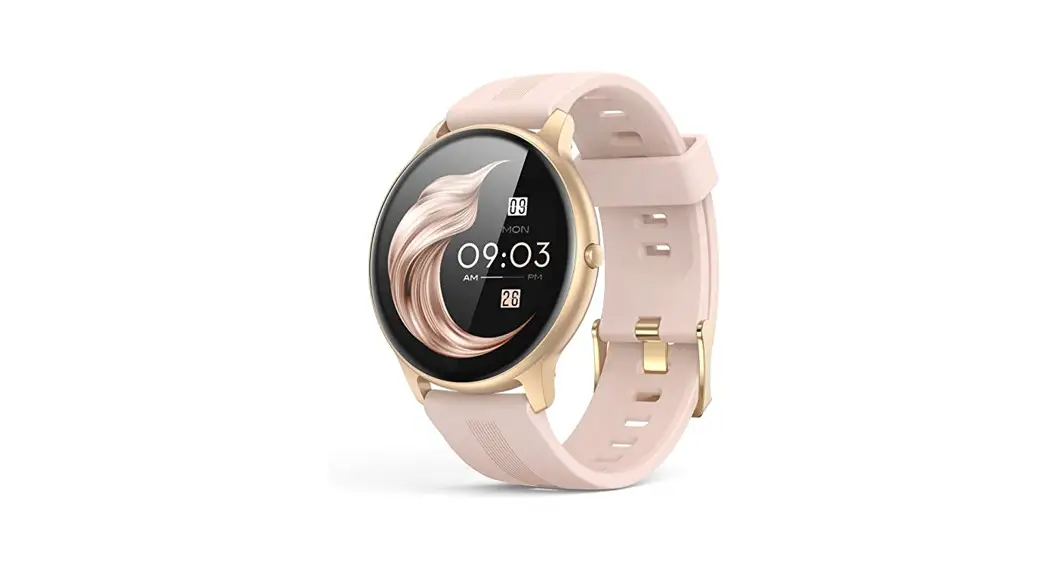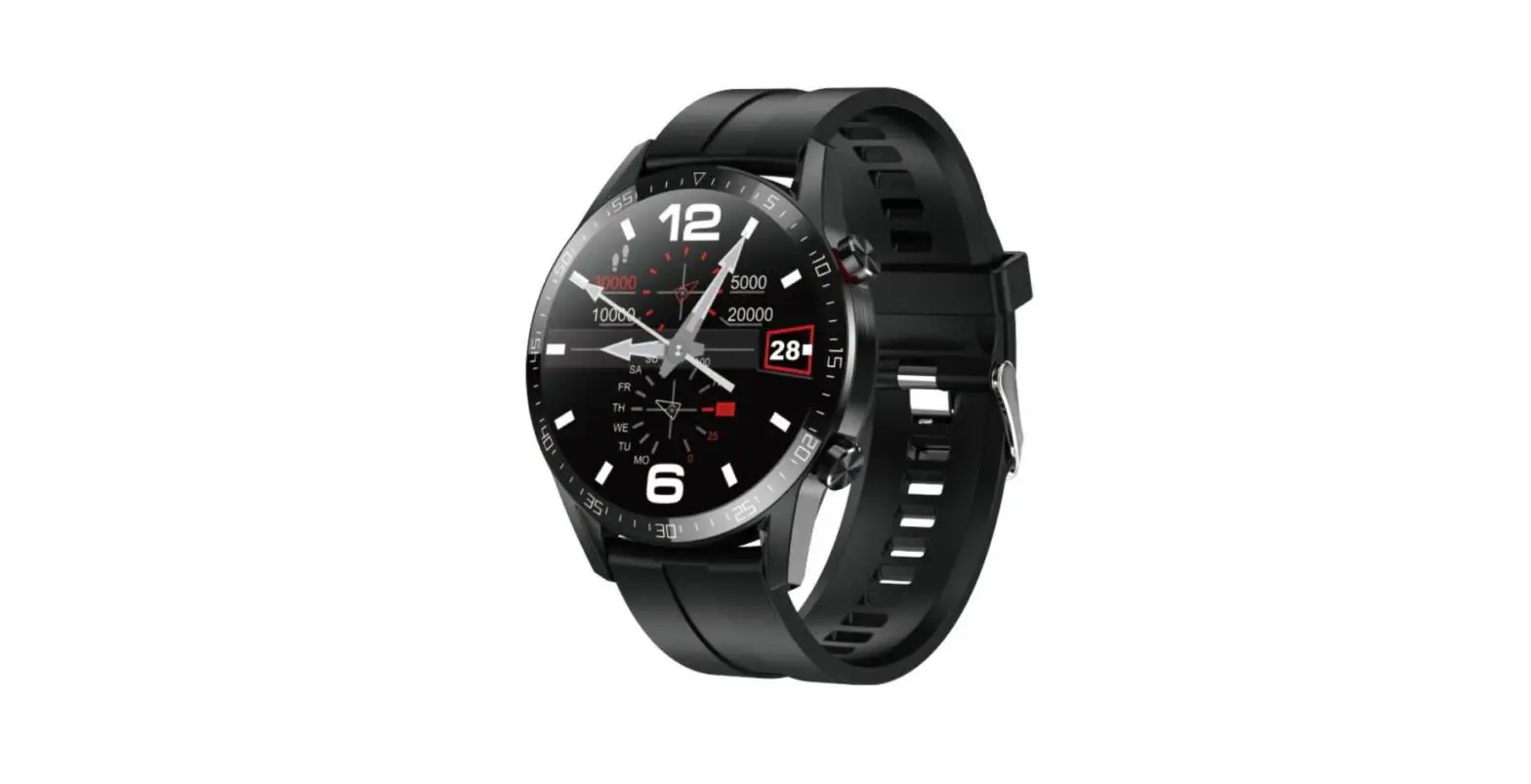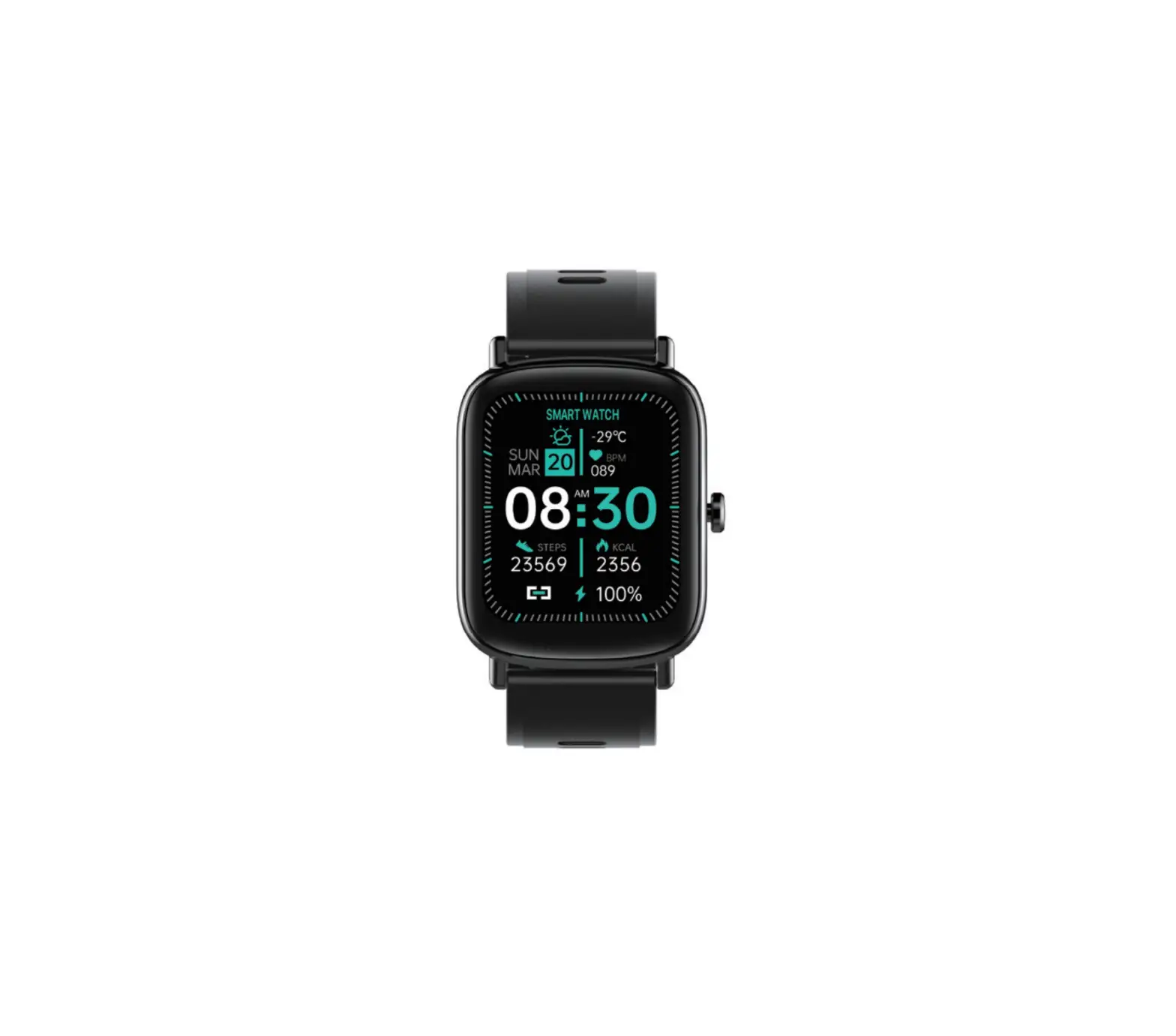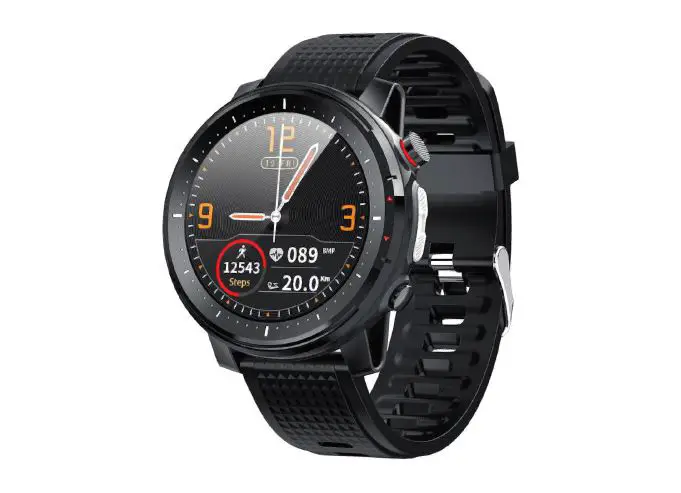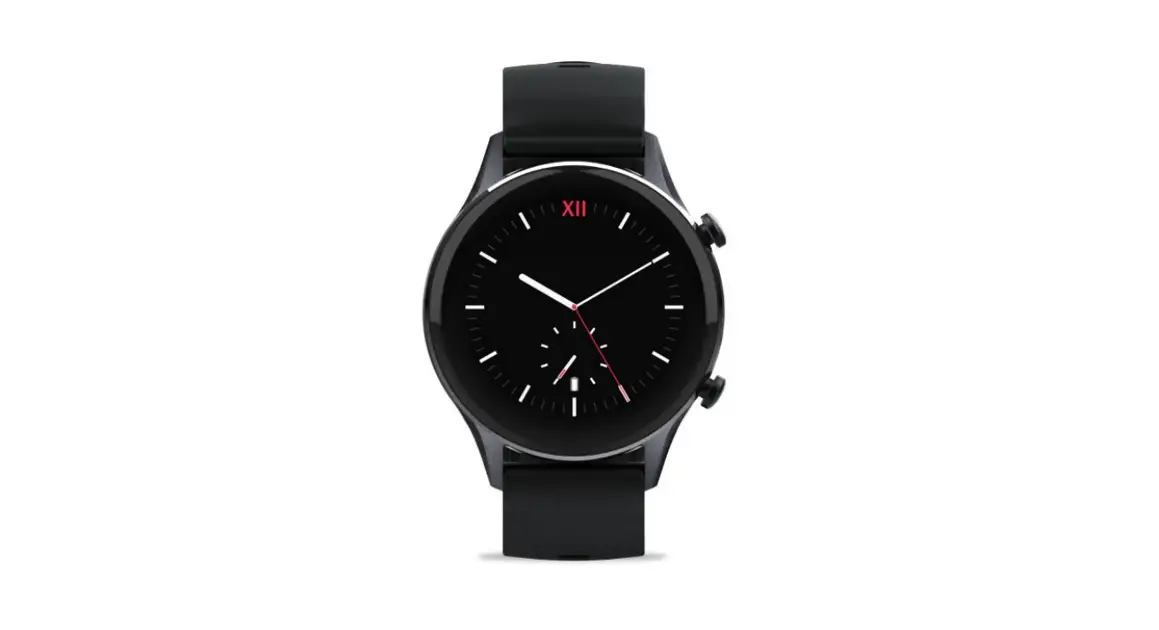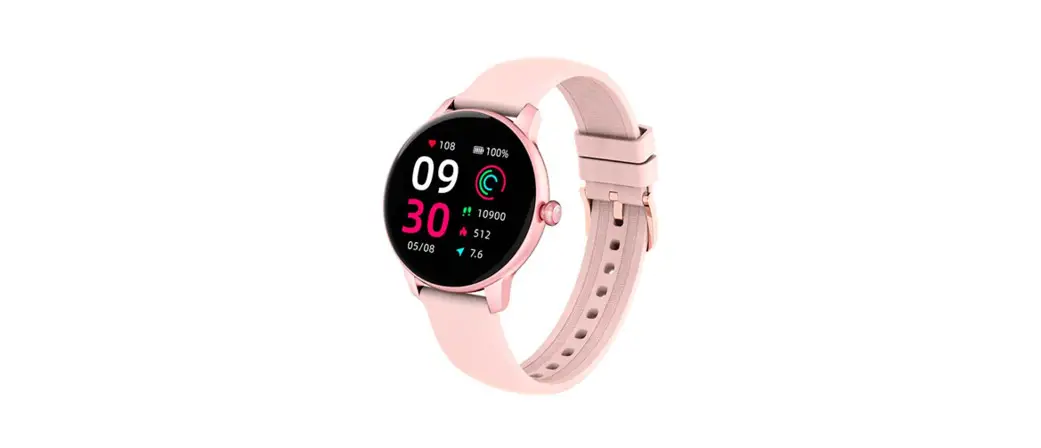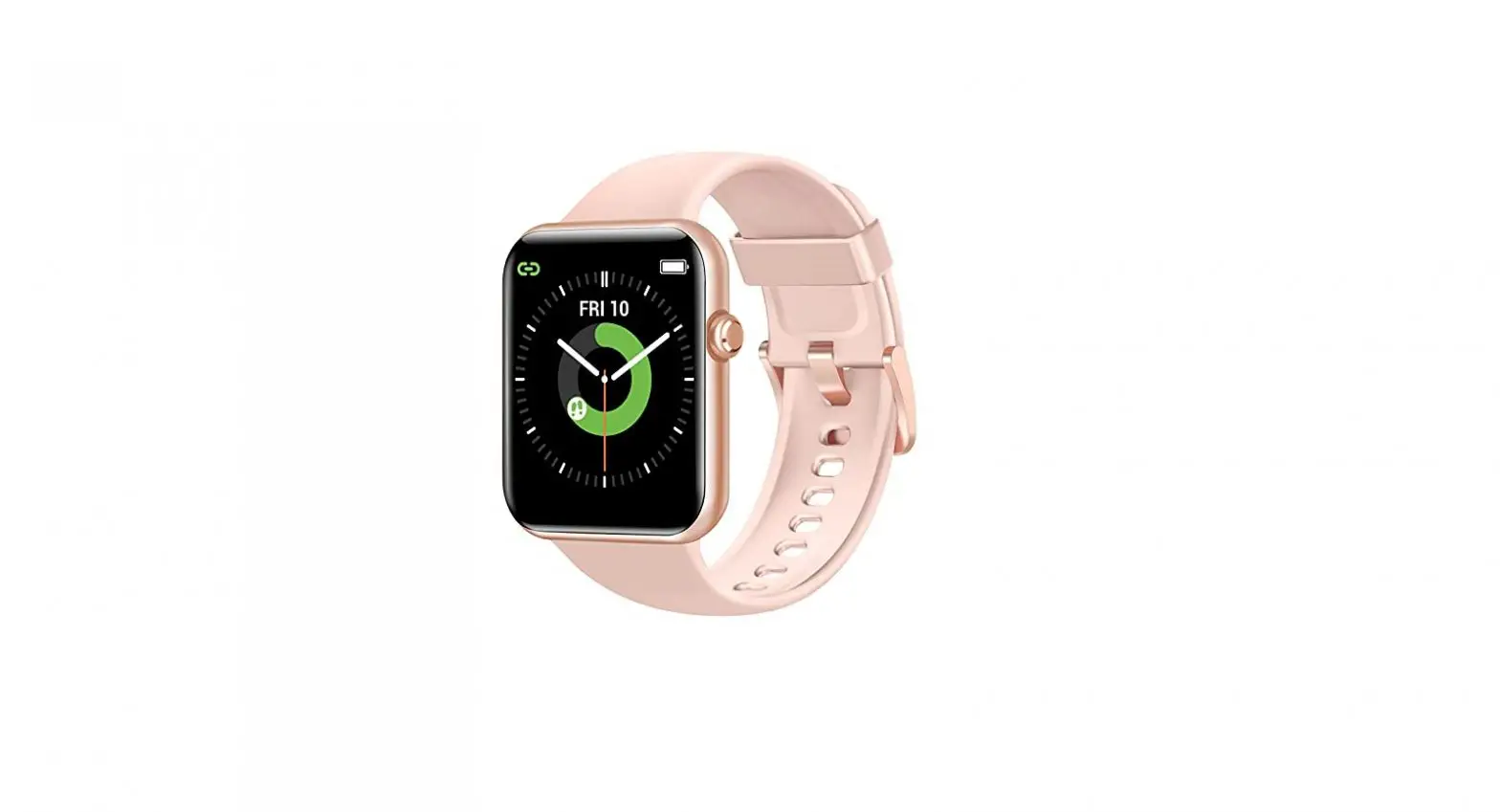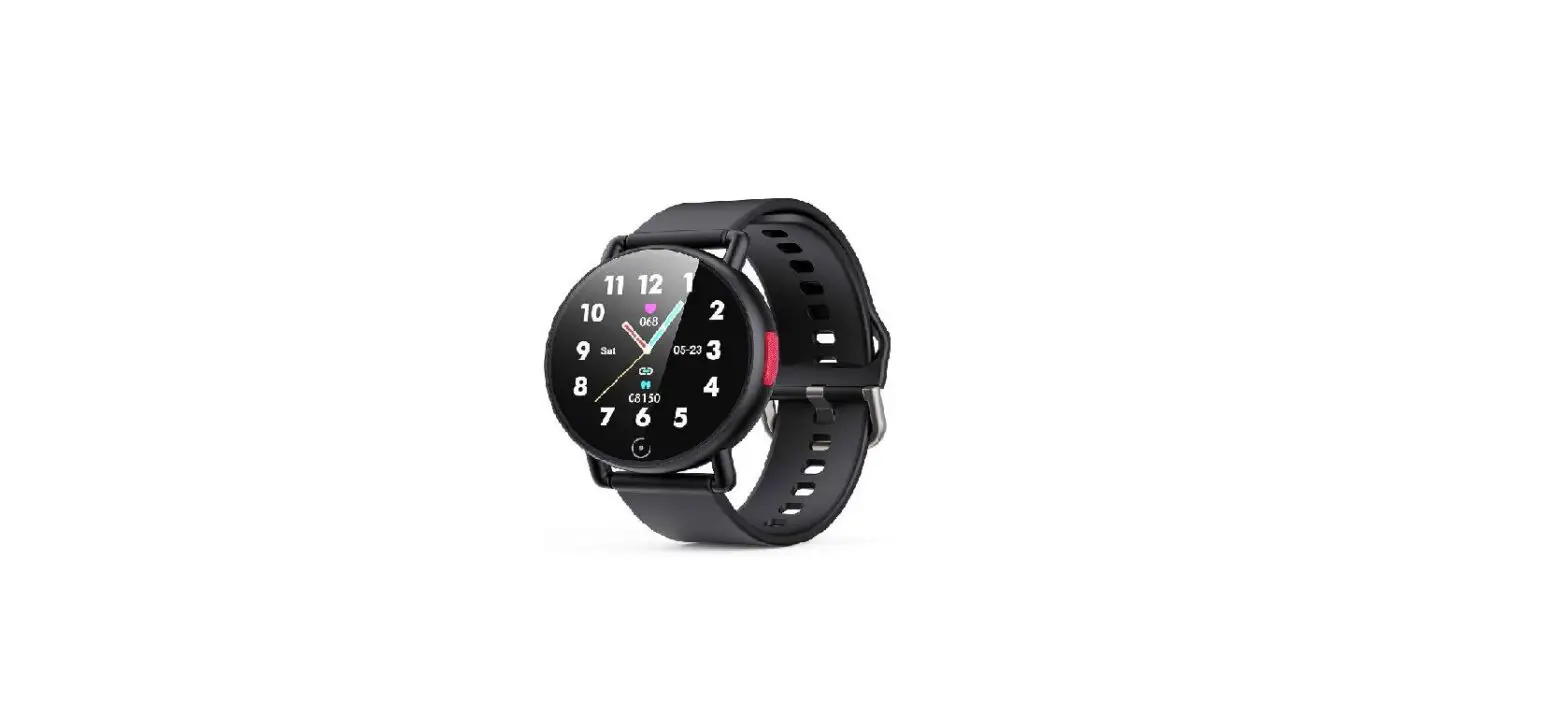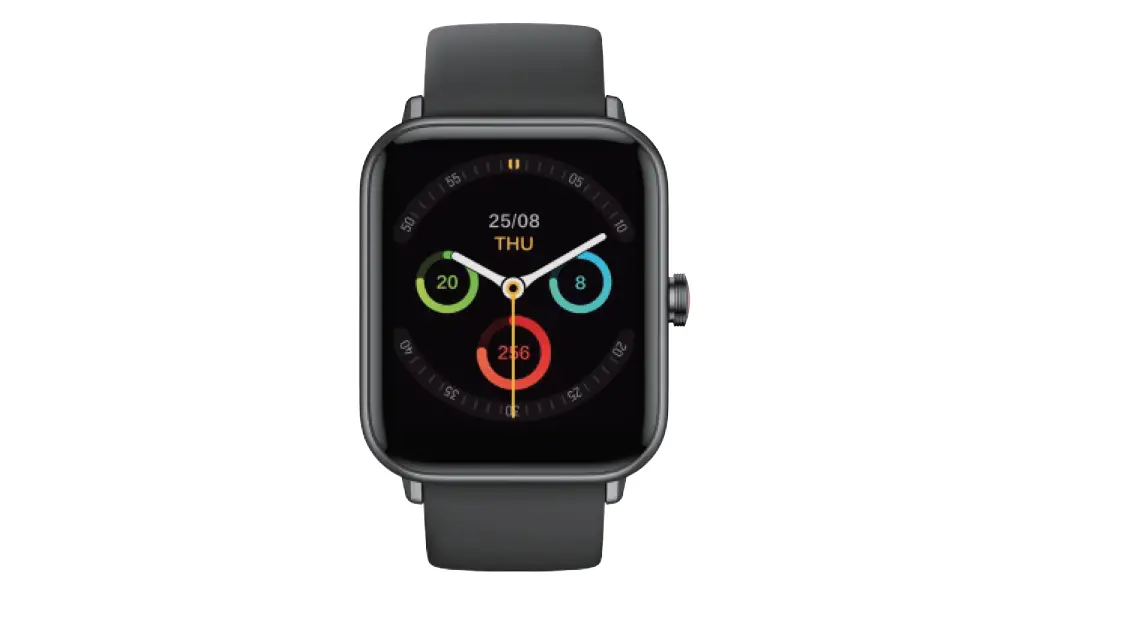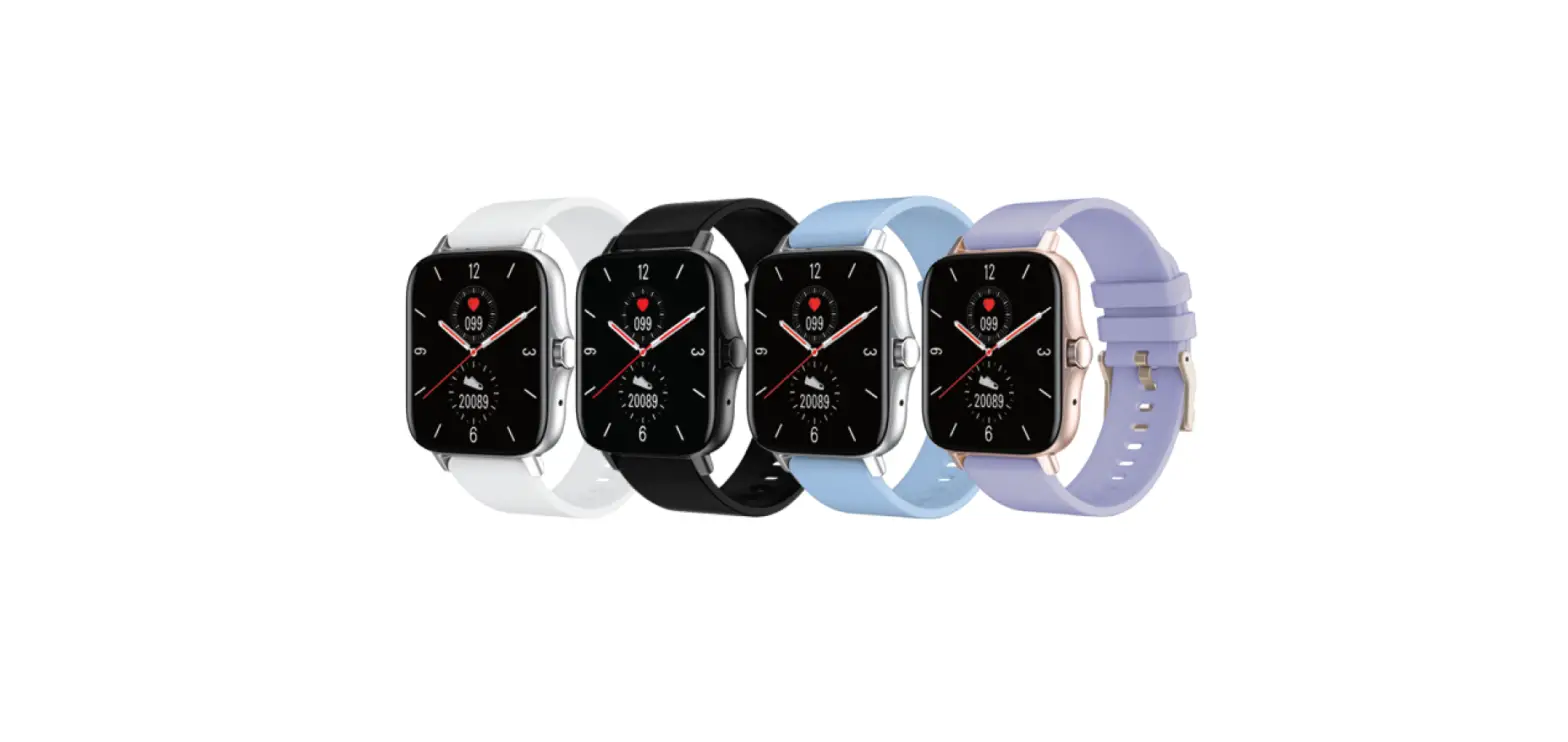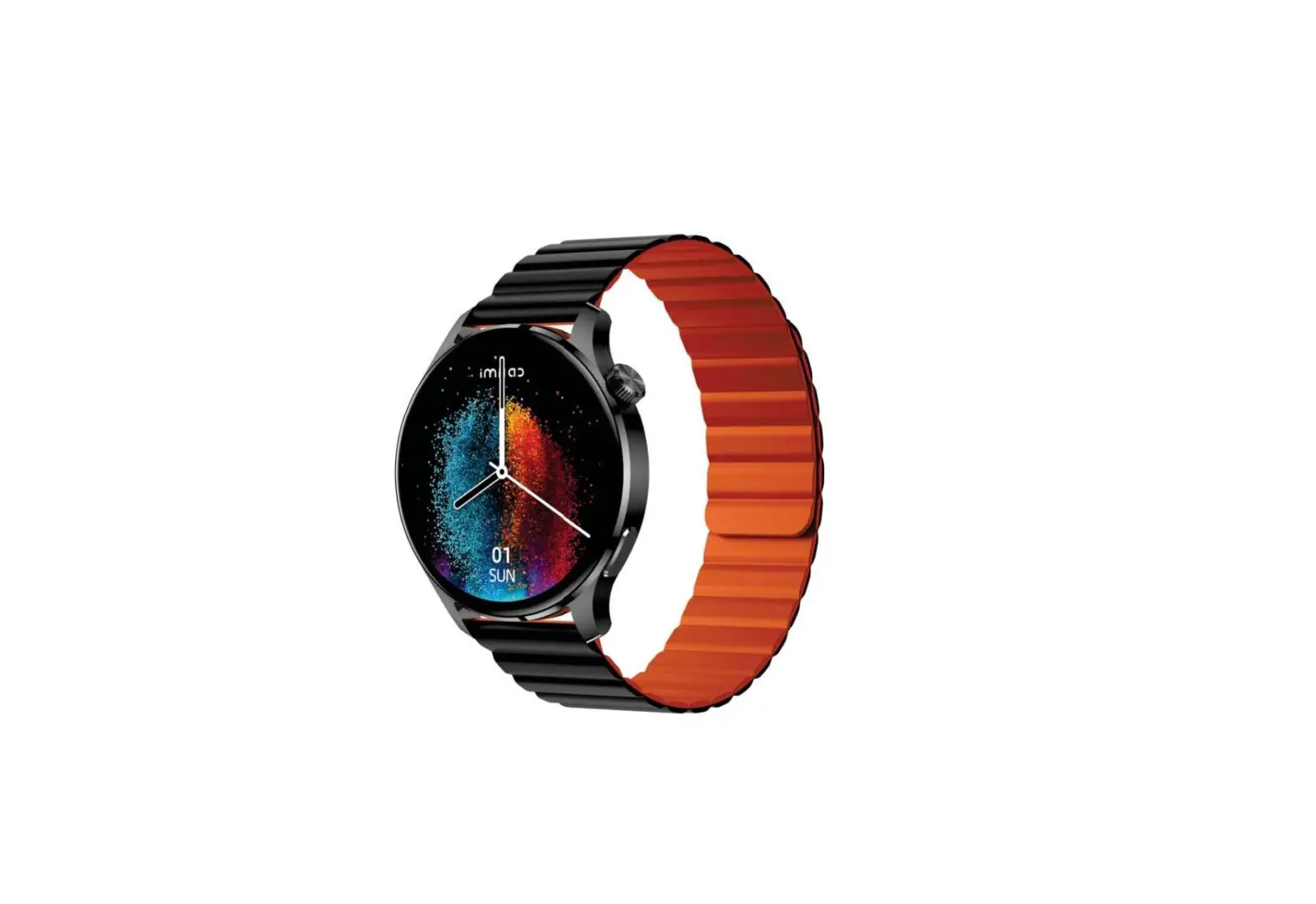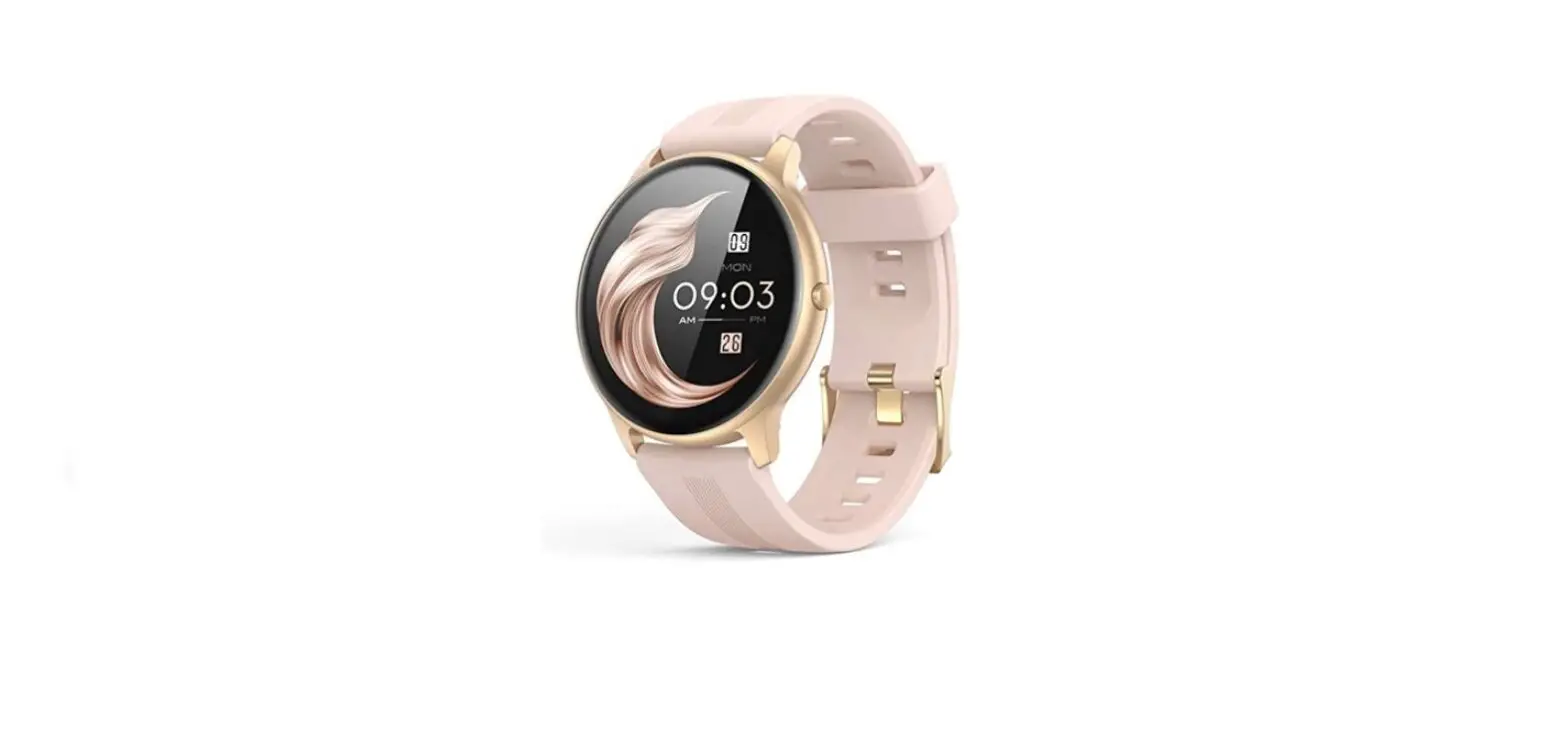

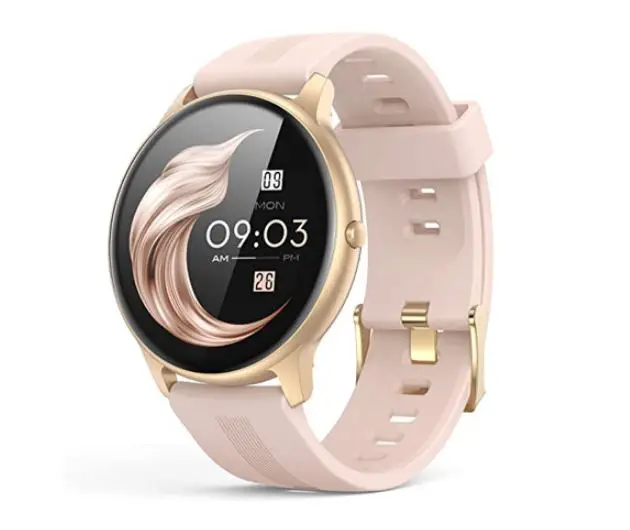
AGPTEK LW11 Smart Watch
Pair with Watch
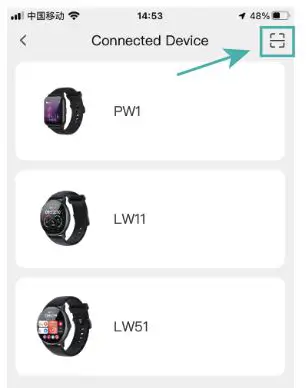
- Open the app, register and log in to your account.
- Click the third small icon “Me” at the bottom of the page Click Connect the device” Click the icon to scan the code in the upper right corner – Scan the QR code on the watch (Settings – QR code) – Select “
 “in the connection request that pops up on the watch – Click “Pairing” in the Bluetooth pairing request that pops up on your phone
to achieve a successful connection (Bluetooth name: LW11-****)
 “in the connection request that pops up on the watch – Click “Pairing” in the Bluetooth pairing request that pops up on your phone
Note:
- Turn on the Bluetooth on the mobile phone.
- Reset the watch when no Bluetooth signal found.
- Need to enter the app to pair the watch, cannot connect to the Bluetooth in the phone settings
- When the Bluetooth is successfully connected, the main interface pulls down and the sign in the upper left corner is
 , if there is no connection, the sign in the upper left corner is
  .
.
 , if there is no connection, the sign in the upper left corner is
  .
.Press and hold the side power button to turn on the watch.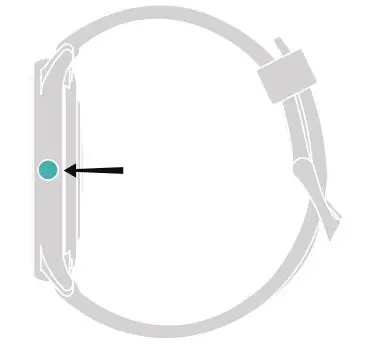 Note: For first use, please charge the watch for 5 minutes, otherwise it cannot be turned on, and it takes about 2 hours to fully charge the watch.
Download app Power on Click to select the language-Scan the QR code of the watch Download the “Fitomo’ app
- For 1OS: Apple App Store
- For Android: Google Play Store
Basic Operation
- Swipe Down to access quick settings.
 Do not disturb mode
 Setting mode
 Find Phone
 system Information, including Bluetooth name, Mac address, firmware version, Ul version
 Brightness adjustment
- Swipe Up to enter messages interface.
- Swipe Right to enter menu interface.
- Swipe Left to enter steps, heart rate, sleep, weather, blood oxygen interface.
- Press and hold the main interface to select the screen watch dial.
- Press and hold the right button for about 3 seconds to shut down.
- Press the side button to enter the main interface.
- Swipe Right on the interface to exit the current function interface.
 Do not disturb mode
 Find Phone
 system Information, including Bluetooth name, Mac address, firmware version, Ul version
 Brightness adjustment
More Functions
 Activity data : Can view steps, calories, distance.
 Sports : To select a sports mode, view sports time, heart rate, calories, steps and distance.
Note: Swipe right on the interface to return/end sports mode. Heart rate: To check the heart rate and view the 24-hour real-time heart rate graph.
Note: If you want to check 24-hour real-time heart rate graph, open the app and find the third small icon “Me” at the bottom of the page Click Heart rate settings” – Open “24 hours real-time monitoring” Sleep: Can view sleep time, swipe up on the interface to see specific information such as deep sleep, light sleep, etc.
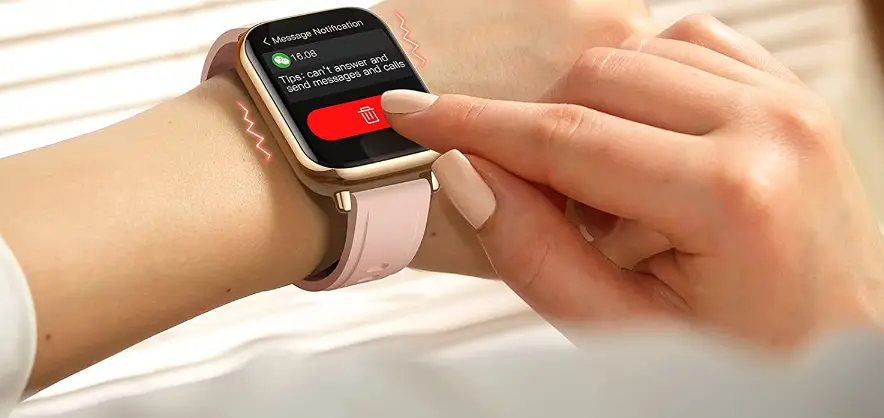
 Messages: Open the app Click the third small icon “Me” at the bottom – Click “Message reminder Open Message reminder type can achieve message reminder function.
Note: The watch cannot reply to text messages. Female Health: Open the app and find the first small icon “Front page” at the bottom of the page – Click “Menstrual cycle” – Click “Women’s health Setting” Click “Menstruation”/’Preparation of pregnancy”/”Pregnancy Period Set the corresponding time – Open “Watch reminders Set “Reminder time Click Saving” to get womens health alerts on your watch
Note: When registering an account, choose female gender. Set account information: Open the app Click the third small icon “Me” at the bottom of the page – Click in the upper right corner to modify the account information.
 Weather : heck the weather conditions.
 Alarm clock : Open the app – Click the third small icon “Me” at the bottom of the page – Click “Reminder settings” – Click Alarm Clock Reminder” – Click “Add alarm clock” and save it.
 Camera: Open the app and find the third small icon Me” at the bottom of the page Click “Watch Photograph – Click on the watch – Shake the watch to take photos
 Activity data : Can view steps, calories, distance.
 Sports : To select a sports mode, view sports time, heart rate, calories, steps and distance.
 Heart rate: To check the heart rate and view the 24-hour real-time heart rate graph.
 Sleep: Can view sleep time, swipe up on the interface to see specific information such as deep sleep, light sleep, etc.
 Messages: Open the app Click the third small icon “Me” at the bottom – Click “Message reminder Open Message reminder type can achieve message reminder function.
 Female Health: Open the app and find the first small icon “Front page” at the bottom of the page – Click “Menstrual cycle” – Click “Women’s health Setting” Click “Menstruation”/’Preparation of pregnancy”/”Pregnancy Period Set the corresponding time – Open “Watch reminders Set “Reminder time Click Saving” to get womens health alerts on your watch
 in the upper right corner to modify the account information.
 Weather : heck the weather conditions.
 Alarm clock : Open the app – Click the third small icon “Me” at the bottom of the page – Click “Reminder settings” – Click Alarm Clock Reminder” – Click “Add alarm clock” and save it.
 Camera: Open the app and find the third small icon Me” at the bottom of the page Click “Watch Photograph – Click
  Setting Mode
 Set the default watch faces.
 There are 3 styles for you to choose.
 Adjust the brightness.
 Set the scree.
 Set the time of “Raise to wake”.
 Choose the language.
- Choose the vibration intensity (Off-Soft-Strong).
 Check the current battery and open the power saving mode.
 Scan the code to connect the watch or download the APP.
 Check system info, including Bluetooth name, Mac address, firmware version, UI version.
 Reset the watch to factory settings.
 Set watch off.
 Set the default watch faces.
 There are 3 styles for you to choose.
 Adjust the brightness.
 Set the scree.
 Set the time of “Raise to wake”.
 Choose the language.
 Choose the vibration intensity (Off-Soft-Strong).
 Check the current battery and open the power saving mode.
 Scan the code to connect the watch or download the APP.
 Check system info, including Bluetooth name, Mac address, firmware version, UI version.
 Reset the watch to factory settings.
 Set watch off.
Charge
For charging, please place the watch flat, and make sure the 2 metal holes on the back are aligned with the metal holes on the back are aligned with the metal tip of the charging head (charging contact spacing: 4.0 mm).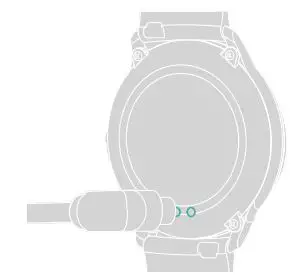
Note
- The rated voltage of the charging head cannot exceed 5V/2A.
- Please do not use the vehicle power supply to charge, to avoid causing the charging cable to age or burn out due to the unstable voltage.
Replace the watchband
Slide the switch of the watchband, and replace the same specification (watchband width: 22mm).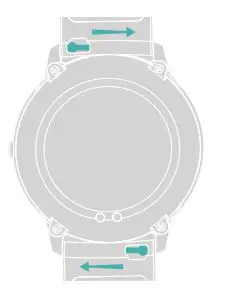
Precautions
- Please dean your watch regularly.
- Please do not wear it too tight to avoid discomfort.
- Please do not press the buttons underwater, and be sure to dry the water on the watch before operation.
Specifications
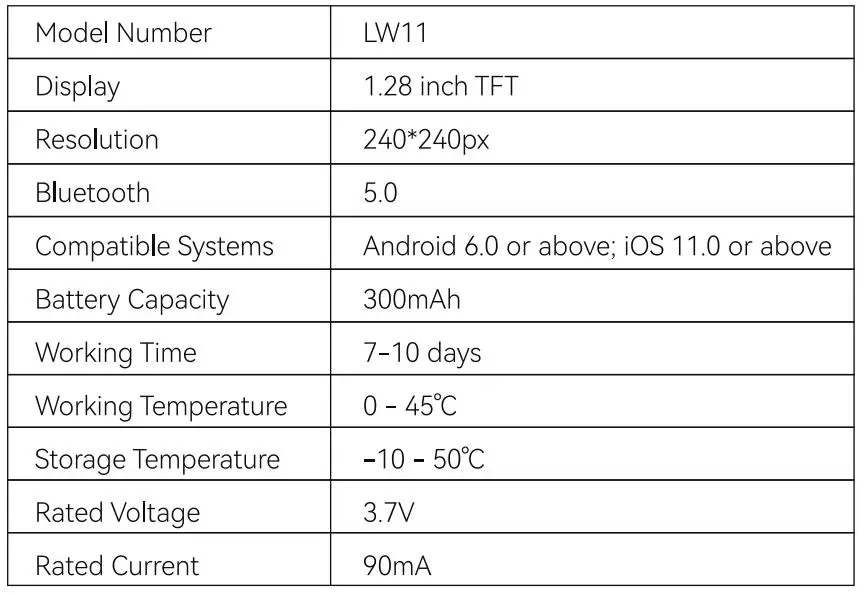
Statement
The pictures and legends in this document are provided for illustrative purposes only and may differ from the actual condition of the product Certain components, functions and features mentioned in this document may only be applicable to certain software versions of the product and are provided for illustration purposes only. In case of doubt, you should check with the seller of the product for confirmation.