
User Manual
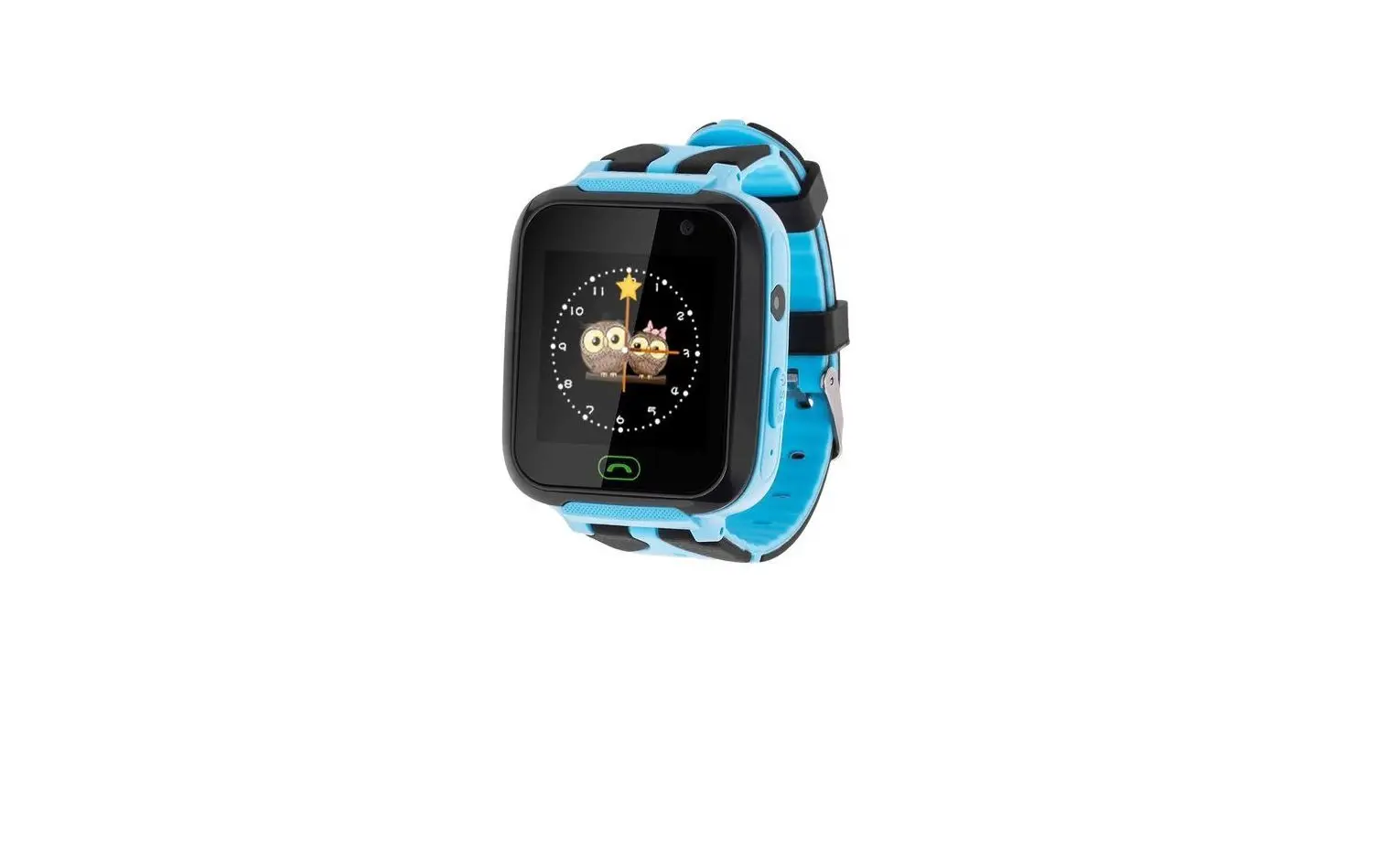
Model: W20
Thank you for purchasing this product. Please read this user manual carefully before use and keep this instruction for future reference. If you have any problem about this product, please feel free to contact us at [email protected]
Package Contents
Watch*1, User Manual*1, USB Cable*1, Transparent Film*1, 8GB Memory Card (Already installed on the watch)
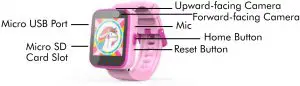
Product Diagram
Charging
Remove the rubber protective cover on the USB charging port, and then connect the Micro-USB end of USB charging cable to the watch and the other end to the USB charger.
* Charging Voltage ≤5V-1A.
* After the charger is plugged to the power socket, the power icon at the top right of the screen will start scrolling, which indicates that it is in charging mode. The power icon will stop scrolling with a full battery icon when fully charged.
* Charging and data transmission options will appear when it is connected to computer for charging. Select the charging option.
Support Micro SD Card
Lift up the rubber cover of the Micro USB interface on the left side of the watch, and you can see that there is a slot for inserting the SD card. The 8GB memory card attached has been installed on the watch before delivery.
Basic Operation
Power on: Long press the home button  to turn on the watch.
Power off: When on Clock Interface, long press the home button to turn off the watch.
Light up screen/Return: Short press the home button
* If the device fails to turn on, this could be caused by low battery. Please try again after recharging the device for 20 minutes.
Full Touch Screen: 1.54 Inch full touch screen, swipe left and right on the interface to turn pages. Tap on the function icon to enter the function. When on Clock Interface, swipe down the screen, tab the trumpet icon, and it will switch to the mute mode.
Bright Screen Time: The bright screen time can be set in Settings, and there are 5 choices: 15s/30s/45s/60s/constant. When there is no operation, the screen will be dark, and press the home button to brighten it.
Clock Display
When the home button is pressed, the clock will be displayed. Tap the center of the screen to switch the clock interfaces between analog and digital. Swipe left or right on the screen to see more clock interfaces. When the watch is on clock interface, press the home button to go to the home menu for selecting different function.

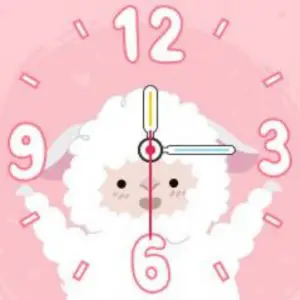
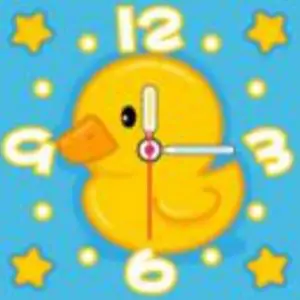
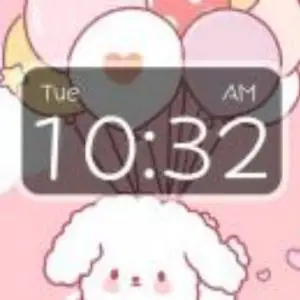
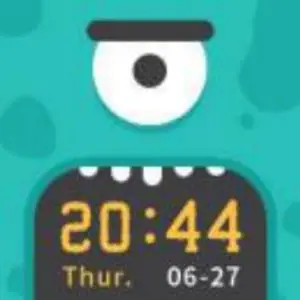
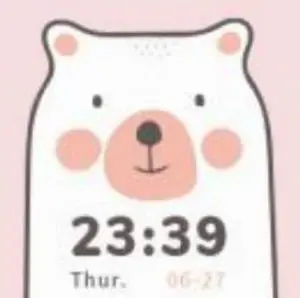
The first three: Analog clock interfaces
The last three: Digital clock interfaces
Function Introduction
1. Camera 
Tap to take a photo.
Tap  to view the photos.
Tap  to switch the upward-facing camera and forward-facing camera.
2. Video Recording 
Tap to begin video recording and tap it again to end video. The video will be automatically saved when completed.
Tap  to view the videos.
Tap to switch the upward-facing camera and forward-facing camera.
3. Pictures
All image files can be viewed here. Tap the arrow icon on the screen to move to the previous or next image. Tap  on the screen to delete.
4. Videos
You can browse all video files here. Tap 
 on the screen to move to the previous or next video. Press and hold to fast reverse or fast forward. Tap
  on the screen to play the video.
5. Voice Recorder 
Tap  to start voice recording.
Tap  to save the recording.
Tap  to play the recording.
Use the arrows 
 to select previous or next recording.
6. Music 
(Kindly Remind: Music Player will be workable after inserting SD card including Music)
To upload music to the watch, copy any MP3 music files to the watch folder “My Music” into the SD Card. Then insert the SD Card into the watch.
Tap to begin playing.
Tap  to stop music.
Tap  to increase the volume.
Tap  to decrease the volume.
Tap 
 to move to the previous or next song. Press and hold to fast reverse or fast forward.
Tap  at the bottom of the screen to return to the menu.
How to operate the music accessory function:
Tap the bottom left icon to enter the music list. “Options”:
1) Play: Start playing music.
2) Details: Check the detailed information of songs stored in the built-in memory card.
3) Refresh List: Playlist update. If not displayed in the music list after importing songs, tap here.
4) Settings:
A – Priority list: Choose watch or memory card.
B – Create list automatically:
On: If you select “Watch” in A item, the songs in the main unit will be automatically played as a list. If you select “Memory card”, the songs in “My Music” are automatically played as a list.
Off: Create your own “My Music” list (If you select OFF, tap “Save” at the bottom left to enter the list management screen. Then tap “Options” to perform the following operations: (1) Play: Start play music. (2) Details: the detailed information of song. (3) Add: add song to list. (4) Remove: Remove this song. (5) Remove All.
C – Repeat. Choose On or Off.
D – Shuffle. Choose On or Off.
E – Background Play. Choose On or Off.
7. Games 
There are 5 built-in games on the smart watch. Swipe the screen to select, then tap one to play.

2048:
Swipe up, down, left or right to move the tiles across the board. The tiles will slide in the swipe direction. Meanwhile, a new tile will emerge randomly in the board. When the tiles with the same number meet, they will merge into one tile.

Bee War:
Tap the screen left or right to move the fighter to shoot. Purple enemies need to be hit twice. Score as many point as you can! You have a total of three opportunities.

Basketball Shoot Master:
Game Instruction: Press the basketball to shoot. When the backboard is going to move to the middle, control to shot.
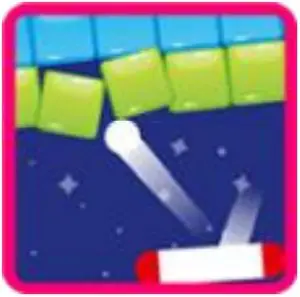
Pinball Hit Bricks:
Game Instruction: Destroy all bricks to progress to the next level. White bricks give a special 3-ball bonus. Blue bricks need to be hit 2 times. Score as many points as you can!

Ultimate Racing:
Game Instruction: Hold the car to move left and right to switch lanes. The car in front may drop gold coins. Eat as many gold coins as possible. To avoid collision, you have only one chance.
8. Alarm 
Select the alarm option from the main menu. Here you can set an alarm.
Tap the clock icon on screen  to change the alarm time.
Tap the tick icon on screen  to turn on/off the alarm.
How to set an alarm?
1) Select the hour and minute by swiping up or down on the hours and minutes.
2) Tap <ok> to confirm the chosen time. Note:lf the battery level is too low, the alarm will need to be set again.
9. Stopwatch 
Tap the play icon to start the stopwatch.
While the stopwatch is running, tap  to pause the timer, tap again to resume.
Tap  to stop the timer and reset the stopwatch to zero.
10. Calculator 
Use the calculator app for basic mathematical calculations. Don’t use this to cheat on tests, though, or you’ll never learn how to work out the answers yourself.
11. Calendar 
Use the calendar to view the date. If the date shown is incorrect, please go to the Settings menu to reset the date and time information.
12. Wallpaper 
You can change the background of the main menu here.
13. Settings 
In settings, swipe left or right on the screen to scroll through different setting submenus. Here you can adjust the following items:
- Volume
- Brightness
- Bright Screen Time
- Date
- Time
- Parental Control:
Set time-limits for how long games can be played per day.
Tap and hold on the screen for three seconds. Then, you will be asked to identify a colour on the screen and tap three times to confirm. Once this has been completed, you will gain access to the parental controls.
Select between a daily limit of 15, 30, 60, 90 minutes, or no limit. You can also choose to disable the games completely. Tap the icon to confirm the selection.
 - Advanced Settings:
• Storage location
• On-screen display language
• Factory reset
Trouble Shooting
| Problem | Solution |
| The watch is not turning on | ● Hold the home button for 3 seconds to turn off, then hold the home button again to turn back on. ● Next to the Home button, there is a small hole for resetting. With adult supervision, insert the end of an unfolded paper clip to press the internal button and manually perform a hard reset. Remove the unfolded paper clip once complete, then hold the home button for 2 seconds to power on. ● If it still doesn’t work, try to recharge the battery and try again (refer to the battery recharging section for details). |
| The watch is not charging | ● Try to charge the watch with a different micro USB cable. ● Check if the computer’s USB port or adapter you are using to charge the device (not supplied) is working with other electronic devices. ● If still not working, perform the hard reset method as described above. |
| Screen display is not abnormal | ● Hold the home button for 3 seconds to turn off, then wait 30 seconds. Hold the home button again to turn back on. |
| Can not connect to computer | ● Check the connections on the Micro USB cable between the watch and the computer. Ensure the cable is securely connected at both ends ● Hold the home button for 3 seconds to turn off, then wait 30 seconds. Hold the home button again to turn back on. ● Unplug from the computer and reconnect. |
Specifications
| Display | 1.54″ IPS touch screen |
| Screen Resolution | 240 x 240 |
| Storage Capacity | 262 KB (Can support Micro SD Card) |
| File Format | Photos: JPEG ; Music: MP3; Video: AVI |
| Connectivity | Micro USB Charging & Data Transfer Cable (Included) |
| Battery | 340 mAh Li-ion Polymer battery (non-replaceable) |
Manufacturer: Shenzhen Cheertone Technology Co., Ltd
Address: 5/F, Building B, Yuxing Science and Technology Park, Nanchang Third Industrial Zone, Nanchang Community, Xixiang Street, Bao’an District, Shenzhen