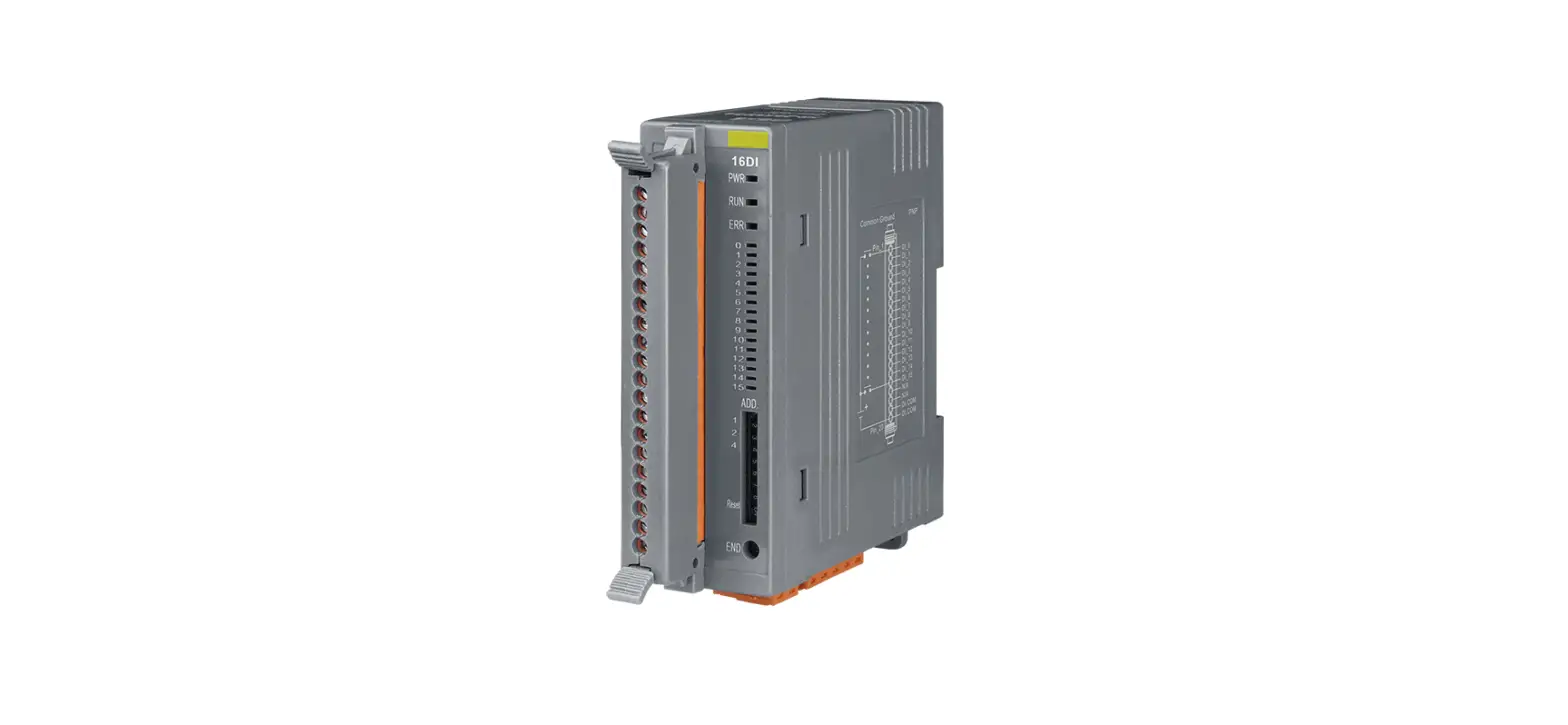
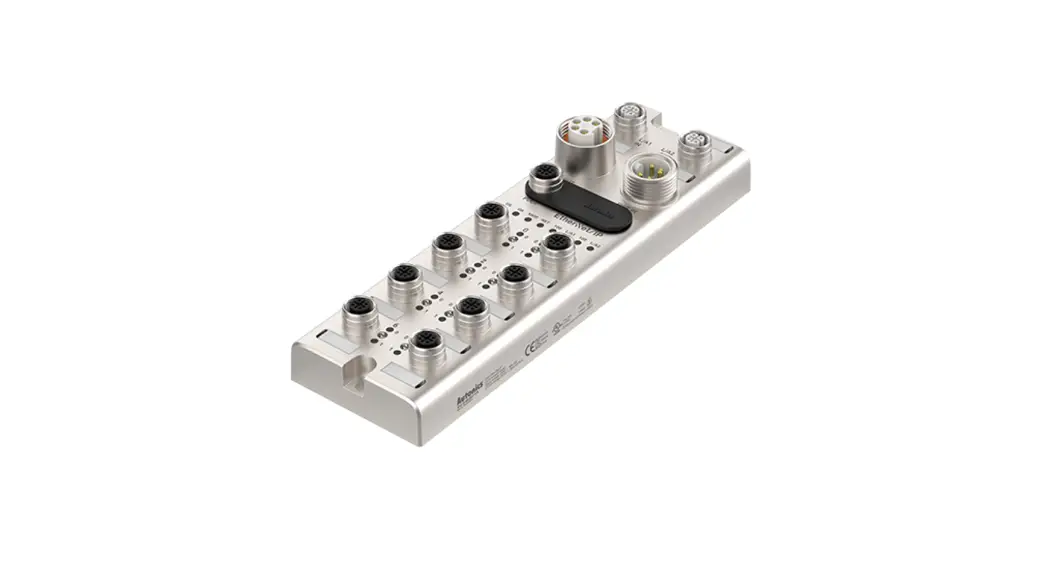
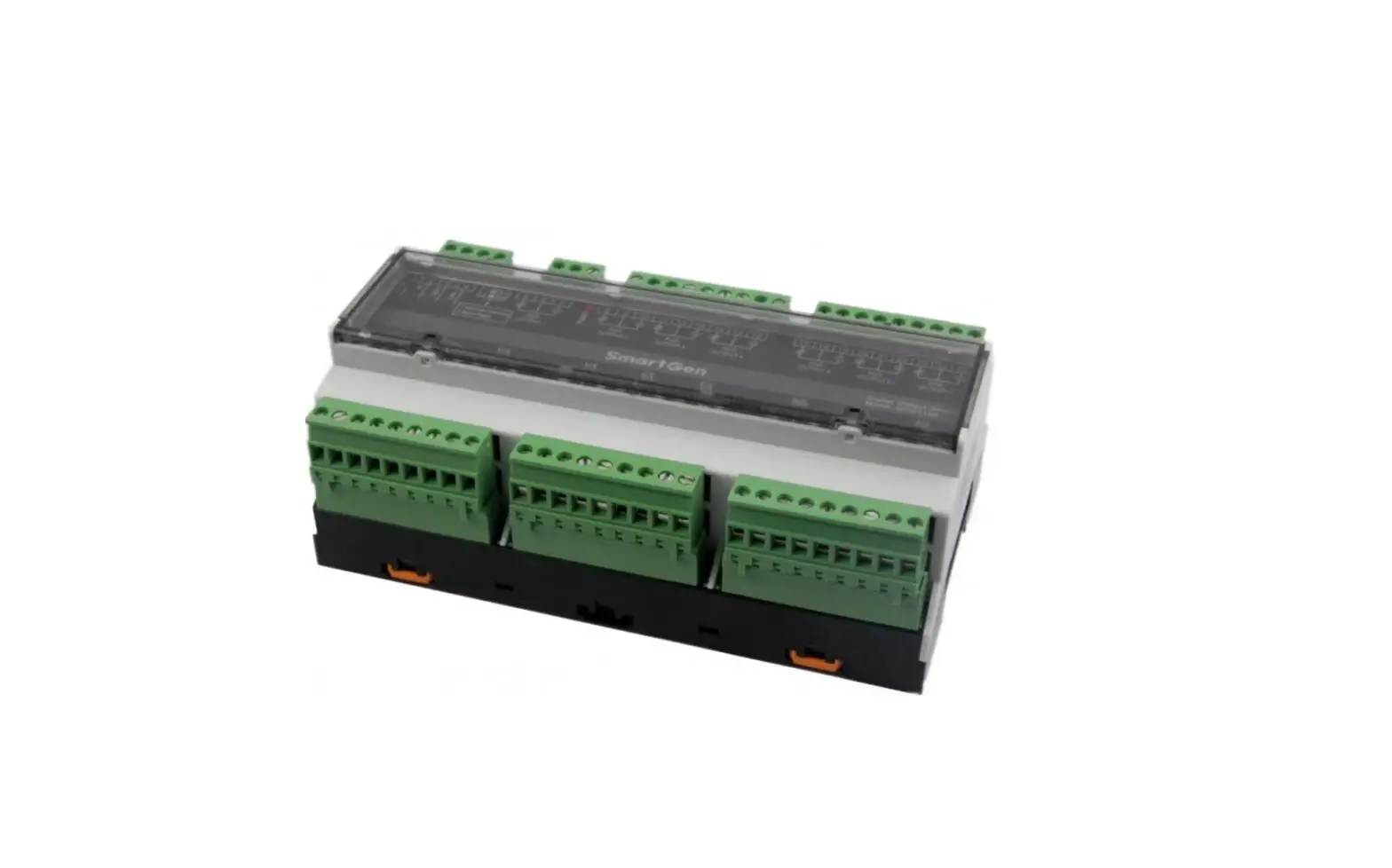
IECS-1116-DI Industrial EtherCAT Slave I-O Module with Isolated 16-ch Digital Input-Output
Product Information
The Industrial EtherCAT Slave I/O Module with Isolated 16-ch
Digital Input/Output, IECS-1116-DI or IECS-1116-DO, is a versatile
module designed for industrial applications. It offers built-in
isolated 16 digital inputs (IECS-1116-DI) or isolated 16 digital
outputs (IECS-1116-DO). The module features a wide input voltage
range of 9 ~ 48 VDC and supports EtherCAT Distributed Clock (DC)
mode and SyncManager mode. It is compliant with EtherCAT
conformance test tool standards.
Product Features
- Built-in isolated 16 digital inputs (IECS-1116-DI)
- Built-in isolated 16 digital outputs (IECS-1116-DO)
- 2 x RJ45 bus interface
- LED indicators for the input status
- Removable terminal block connector
- 9 ~ 48 VDC wide input voltage range
- 700mA/ch high output current (IECS-1116-DO)
- Supports EtherCAT Distributed Clock (DC) mode and SyncManager
mode - EtherCAT conformance test tool verified
Product Specifications
| Model | Digital Input Channels | Digital Output Channels | Input Type | Output Type | Power Input Voltage Range | Power Consumption | Dimensions (W x D x H) | Installation | Environment |
|---|---|---|---|---|---|---|---|---|---|
| IECS-1116-DI | 16 | N/A | Wet (sink/source) / Dry (source) | N/A | 9~48V DC | 4W max. | 32 x 87 x 135 mm | DIN-rail mounting | -40~75 degrees C, 5~95% RH (non-condensing) |
| IECS-1116-DO | N/A | 16 | N/A | Open collector (sink) | 9~48V DC | 4W max. | 32 x 87 x 135 mm | DIN-rail mounting | -40~75 degrees C, 5~95% RH (non-condensing) |
Product Usage Instructions
- Open the box of the Industrial EtherCAT Slave I/O Module and
carefully unpack it. - Check if the following items are included in the package:
- Industrial EtherCAT Slave I/O Module x 1
- User’s Manual x 1
- Wall-mount Kit
If any items are missing or damaged, contact your dealer
immediately. Retain the carton and original packing material for
potential product return or repair. - Refer to the user manual for detailed installation and wiring
instructions. - Connect the Industrial EtherCAT Slave I/O Module to your
industrial system using the provided RJ45 bus interface. - Configure the module according to your specific requirements.
Refer to the user manual for configuration options and
settings. - Use the LED indicators to monitor the input status or output
activity. - Ensure that the power input voltage is within the specified
range of 9~48V DC. - Mount the module securely using the DIN-rail mounting
option. - Operate the Industrial EtherCAT Slave I/O Module within the
recommended temperature and humidity range of -40~75 degrees C and
5~95% RH (non-condensing).
Industrial EtherCAT Slave I/O Module with Isolated 16-ch Digital Input/Output
IECS-1116-DI/IECS-1116-DO User’s Manual
Table of Contents
1. Package Contents……………………………………………………………. 3 2. Product Features …………………………………………………………….. 4 3. Product Specifications ………………………………………………………. 5 4. Hardware Introduction ……………………………………………………… 6
4.1 Three-View Diagram…………………………………………………… 6 4.2 Wiring Digital and Digital Connections ……………………………10 4.3 Wiring the Power Inputs ……………………………………………..11 4.4 Wiring the Connector …………………………………………………12 5. Installation ……………………………………………………………………13 5.1 DIN-rail Mounting Installation ………………………………………13 5.2 Wall-mount Plate Mounting ………………………………………….15 5.3 Side Wall-mount Plate Mounting……………………………………15 6. Getting Started ………………………………………………………………16 6.1 Connecting the Power and the Host PC …………………………..16 6.2 Configuration and Operation ………………………………………..17 Customer Support………………………………………………………………..20
1. Package Contents
Thank you for purchasing PLANET Industrial EtherCAT Slave I/O Module with Isolated 16-ch Digital Input/Output, IECS-1116-DI or IECS1116-DO. In the following sections, the term “Industrial EtherCAT Slave I/O Module” means the IECS-1116-DO or IECS-1116-DO.
Open the box of the Industrial EtherCAT Slave I/O Module and carefully unpack it. The box should contain the following items:
Industrial EtherCAT Slave I/O Module x 1
User’s Manual x 1
Wall-mount Kit
If any of these are missing or damaged, please contact your dealer immediately; if possible, retain the carton including the original packing material, and use them again to repack the product in case there is a need to return it to us for repair.
3
2. Product Features
z Built-in isolated 16 digital inputs (IECS-1116-DI) z Built-in isolated 16 digital outputs (IECS-1116-DO) z 2 x RJ45 bus interface z LED indicators for the input status z Removable terminal block connector z 9 ~ 48 VDC wide input voltage range z 700mA/ch high output current (IECS-1116-DO) z Supports EtherCAT Distributed Clock (DC) mode and SyncManager
mode z EtherCAT conformance test tool verified
4
3. Product Specifications
Model
IECS-1116-DI
IECS-1116-DO
Digital Input
Channels
16
—
Input Type
Wet (sink/source) / Dry (source)
—
Wet
ON Voltage Level 3.5~50V
—
Contact OFF Voltage Level 4V max
—
Dry
ON Voltage Level Close to GND
—
Contact OFF Voltage Level Open
—
Photo Isolation
3750V DC
—
Digital Output
Channels Output Type Load Voltage
—
16
—
Open collector (sink)
—
3.5~50V
Max. Load Current Photo Isolation
—
700mA per channel
—
3750 vrms
Communication Interface
Connector Protocol
2 x RJ45 EtherCAT
Distance between Stations Max. 100m (100BASE-TX)
Data Transfer Medium
Ethernet/EtherCAT cable (min. cat5), shielded
Power Input Voltage Range Power Consumption Mechanical
9~48V DC 4W max.
Dimensions (W x D x H) Installation Case Material
Environment
Operating Temperature Storage Temperature Relative Humidity
32 x 87 x 135 mm DIN-rail mounting IP40 metal
-40~75 degrees C -40~75 degrees C 5~95% (non-condensing)
5
4. Hardware Introduction
4.1 Three-View Diagram
The three-view diagram of the Industrial EtherCAT slave I/O module consists of two 10/100BASE-TX RJ45 ports, one removable 3-pin power terminal block and one removable 16-pin I/O terminal block. The LED indicators are also located on the front panel.
163.00 40.00
28.00
48.80
28.00 18.00
28.00
Unit: mm
Rear View
53.50
53.50
18.00
46.50
48.80
39.70
Bottom View
Top View Side View
V1+ PWR GND
DC Input: 9-48V , 0.5A max.
87.80
9.20 15.20
135.00
GND 1 3 5 7 9 11 13 15 DI COM
97.10 87.80
15.50
32.00
IECS-1116-DI
OUT LNK ACT
0123 4567 8 9 10 11 12 13 14 15 Channel
Status
PWR RUN IN
Front View
GND 0 2 4 6 8
10 12 14 DI COM
Side View
Figure 1: IECS-1116-DI/IECS-1116-DO Three-View Diagram 6
Front View
PWR RUN
IN
PWR RUN IN
OUT
OUT
LNK ACT 0123
4567
8 9 10 11
12 13 14 15 Channel Status
LNK ACT 0123
4567
8 9 10 11
12 13 14 15 Channel Status
GND 0 2 4 6 8
10 12 14 DI COM
GND 1 3 5 7 9 11 13 15 DI COM
IECS-1116-DI
Ext. GND
0 2 4 6 8 10 12 14 Ext. PWR
Ext. GND 1 3 5 7 9 11 13 15 Ext. PWR
IECS-1116-DO
Figure 2: IECS-1116-DI/IECS-1116-DO Front View
LED Definition:
System
LED Color
Function
PWR
Light Green
Off Light
Power is activated. Power is not activated. The device is in the state of operation.
Running Green
Single Flash
Blinking Off
The device is in the state of operation without risk.
The device is ready to be operated. The device is in the initialization mode.
7
Per 10/100TX RJ45 Port (Port Input/Port Output)
LED
LNK/ ACT
Color
Function
Light Indicating that the port is linked up.
Green
Blinking
Indicating that the module is actively sending or receiving data over that port.
Off
Indicating that the port is linked down.
Per Digital Input/Output LED
LED DI
Color
Function
Light
Input voltage is higher than the upper switching threshold voltage.
Green Blinking Indicating network packet delivery.
Off
Input voltage is below the lower switching threshold voltage.
Light Digital output status is “On”.
DO
Green Blinking Indicating network packet delivery.
Off
Digital output status is “Off”.
I/O Pin Assignment: IECS-1116-DI
Terminal
Pin
No.
Assignment
1
GND
3
DI0
5
DI2
7
DI4
9
DI6
11
DI8
13
DI10
15
DI12
17
DI14
19
DI.COM
Pin
Terminal
Assignment
No.
GND
2
DI1
4
DI3
6
DI5
8
DI7
10
DI9
12
DI11
14
DI13
16
DI15
18
DI.COM
20
8
IECS-1116-DO
Terminal
Pin
No.
Assignment
1
Ext. GND
3
DO0
5
DO2
7
DO4
9
DO6
11
DO8
13
DO10
15
DO12
17
DO14
19
Ext. PWR
Top View
Pin
Terminal
Assignment
No.
Ext. GND
2
DO1
4
DO3
6
DO5
8
DO7
10
DO9
12
DO11
14
DO13
16
DO15
18
Ext. PWR
20
V1+ PWR GND
DC Input: 9-48V , 0.5A max.
Figure 3: IECS-1116-DI/IECS-116-DO Top View
9
4.2 Wiring Digital and Digital Connections
Digital Input Wiring
Digital Input/ Counter
Readback as 1
Readback as 0
Close to GND
Open
Dry Contact
Sink
10-50V DC
OPEN or < 4V DC
Source
10-50V DC
OPEN or < 4V DC
Digital Output Wiring
Output Type
ON State Readback as 1
Driver Relay
Resistance Load
OFF State Readback as 0
10
4.3 Wiring the Power Inputs
The 3-contact terminal block connector on the top panel of Industrial EtherCAT slave I/O module is used for one DC power input. Please follow the steps below to insert the power wire.
Note
When performing any of the procedures like inserting the wires or tightening the wire-clamp screws, make sure the power is OFF to prevent from getting an electric shock.
1. Insert positive and negative DC power wires into contacts 1 and 2 for POWER.
V1+ PWR GND
DC Input: 9-48V , 0.5A max.
2. Tighten the wire-clamp screws for preventing the wires from loosening.
123
+
GND
Note
1. The DC power input range is 9-48V DC. 2. The device provides input voltage polarity protection.
11
4.4 Wiring the Connector
A tip for connecting the wire to the I/O connector
2
Insert the wire
Use the blade of a flat-head screwdriver to push the wire
1 clamp and hold it until step 2
is completed.
Insulated Terminals Dimensions
L F
C
Dimensions (Unit: mm)
W
Item No. F L C W
CE007512 12.0 18.0 1.2 2.8
A tip for removing the wire from the I/O connector
2
Remove the wire
12
Use the blade of a flat-head screwdriver to push the wire
1 clamp and hold it until step 2 is
completed.
5. Installation
This section describes the functionalities of the Industrial EtherCAT slave I/O module’s components and guides you to installing it on the DIN rail and wall. Please read this chapter completely before continuing.
Note
In the installation steps below, this manual uses PLANET IGS-801 8-port Industrial Gigabit Switch as an example. The steps for PLANET Industrial Slim-type Switch, Industrial Media/Serial Converter and Industrial PoE devices are similar.
5.1 DIN-rail Mounting Installation
Refer to the following steps to install the Industrial EtherCAT Slave I/O Module on the DIN rail.
Step 1: The DIN-rail bracket is already screwed on the module as shown in the red circle.
13
Step 2: Lightly insert the bottom of the module into the track.
1 2
Step 3: Make sure the bracket is tightly secured on the DIN-rail track.
Step 4: To remove the module from the track, lightly pull out its bottom.
2
1
14
5.2 Wall-mount Plate Mounting
To install the Industrial EtherCAT slave I/O module on the wall, follow the instructions described below. Step 1: Remove the DIN-rail bracket from the Industrial EtherCAT
slave I/O module by loosening the screws. Step 2: Screw one piece of the wall-mount plate on one end of the
rear panel of the Industrial EtherCAT slave I/O module, and the other plate on the other end.
Step 3: And then screw the module on the wall to complete the installation.
Step 4: To remove the module from the wall, reverse the steps.
5.3 Side Wall-mount Plate Mounting
Caution
You must use the screws supplied with the wallmounting brackets. Damage caused to the parts by using incorrect screws would invalidate your warranty.
15
6. Getting Started
This chapter provides a basic overview of how to configure and operate your IECS-1116 series.
6.1 Connecting the Power and the Host PC
Step 1: Connect both the IN port of the IECS-1116 Module and RJ45 Ethernet port of Host PC.
Ensure that the network settings on the Host PC have been correctly configured and are functioning normally. Ensure that the Windows firewall and any anti-virus firewall is properly configured to allow incoming connections; if not, temporarily disable these functions.
Note
Attaching an ESC (EtherCAT Slave Controller) directly to an office network will result in network flooding, since the ESC will reflect any frame especially broadcast frames back into the network (broadcast storm).
Step 2: Apply power to the IECS-1116 module.
Connect the Host device to the IN Port on IECS-1116 module.
IN
PC
GND
9-48V DC
V+
V+
+
Connect the V+ pin to positive terminal on a 9-48V DC power supply, and connect the V- pin to the negative terminal.
16
Step 3: Verify the “PWR”LED indicator on the IECS-1116 module is Green; “IN”LED indicator is Green.
PWR RUN
PWR RUN IN
OUT
LNK ACT 0123 4567 8 9 10 11 12 13 14 15 Channel Status
GND 0 2 4 6 8
10 12 14 DI COM
GND 1 3 5 7 9 11 13 15 DI COM
IECS-1116-DI
6.2 Configuration and Operation
Beckhoff TwinCAT 3.x is the most commonly used EtherCAT Master software to operate the IECS-1116 module.
Click on the link below to download Beckhoff TwinCAT 3.x: https://www.beckhoff.com/english.asp?download/default.htm
17
Inserting into the EtherCAT network
Note
Installation of the latest XML device description (ESI). Make sure to use the latest installation description to install the latest XML device. This can be downloaded from PLANET website (https://www.planet.com.tw/en/support/faq?method=ke yword&keyword=IECS-1116) and check the online FAQs for the installation of the XML device.
Step 1: Automatic Scanning.
z The EtherCAT system must be in the safe, de-energized state before the IECS-1116 module is connected to EtherCAT network.
z Switch on the operating voltage, open the TwinCAT System Managed (Config mode), and scan the devices as shown in the print screen instructions below. Acknowledge all dialogs with “OK”, so that the configuration is in the “FreeRun” mode.
Scanning the configuration (I/O Devices -> right-click -> Scan Devices…)
18
Step 2: Configuration via TwinCAT In the left-hand window of the TwinCAT System Manager, click on the brand of the EtherCAT Box you wish to configure (IECS-1116-DI/IECS1116-DO in this example). Click Dix or Dox to get and configure state.
19
Customer Support
Thank you for purchasing PLANET products. You can browse our online FAQ resource on PLANET web site first to check if it could solve your issue. If you need more support information, please contact PLANET switch support team. PLANET online FAQs: http://www.planet.com.tw/en/support/faq.php Support team mail address: [email protected]
Copyright © PLANET Technology Corp. 2022. Contents are subject to revision without prior notice. PLANET is a registered trademark of PLANET Technology Corp. All other trademarks belong to their respective owners. 20
 FAQ - PLANET Technology