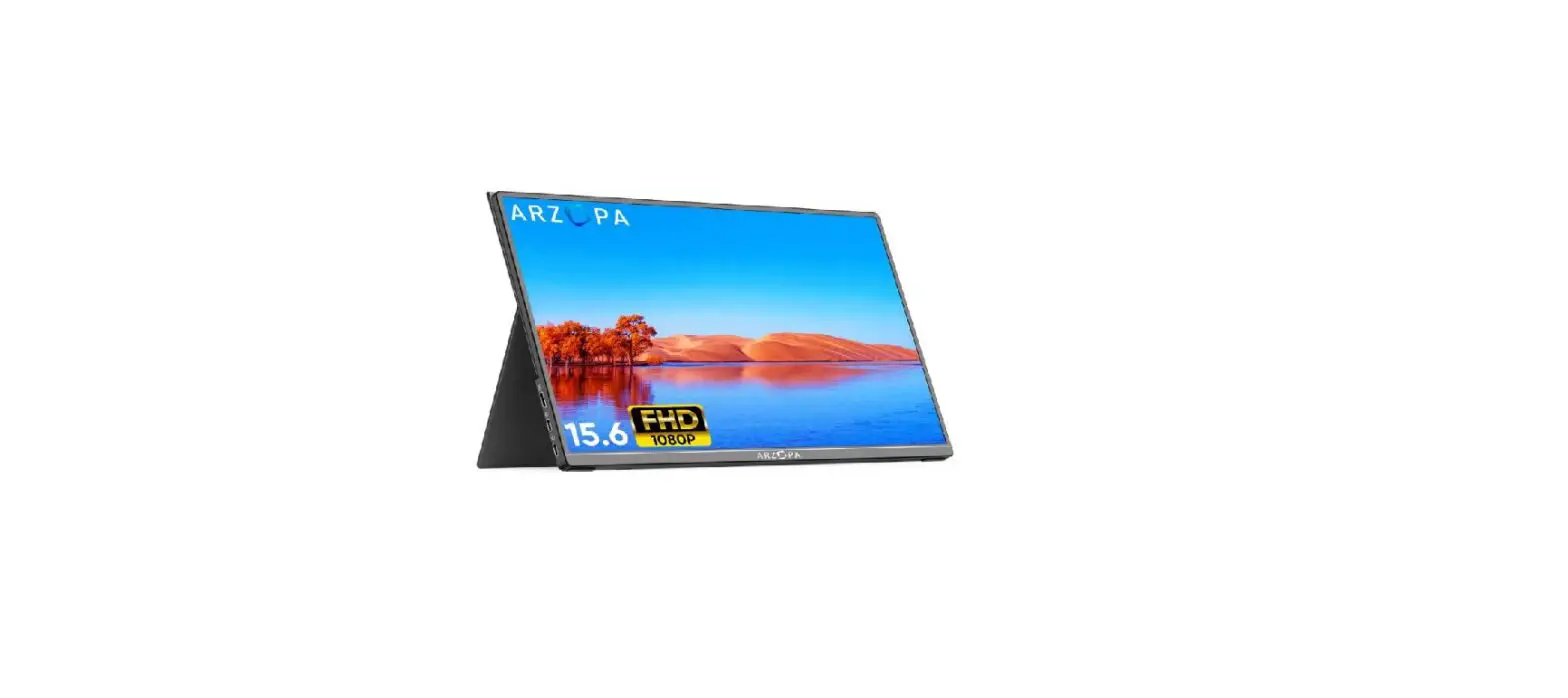
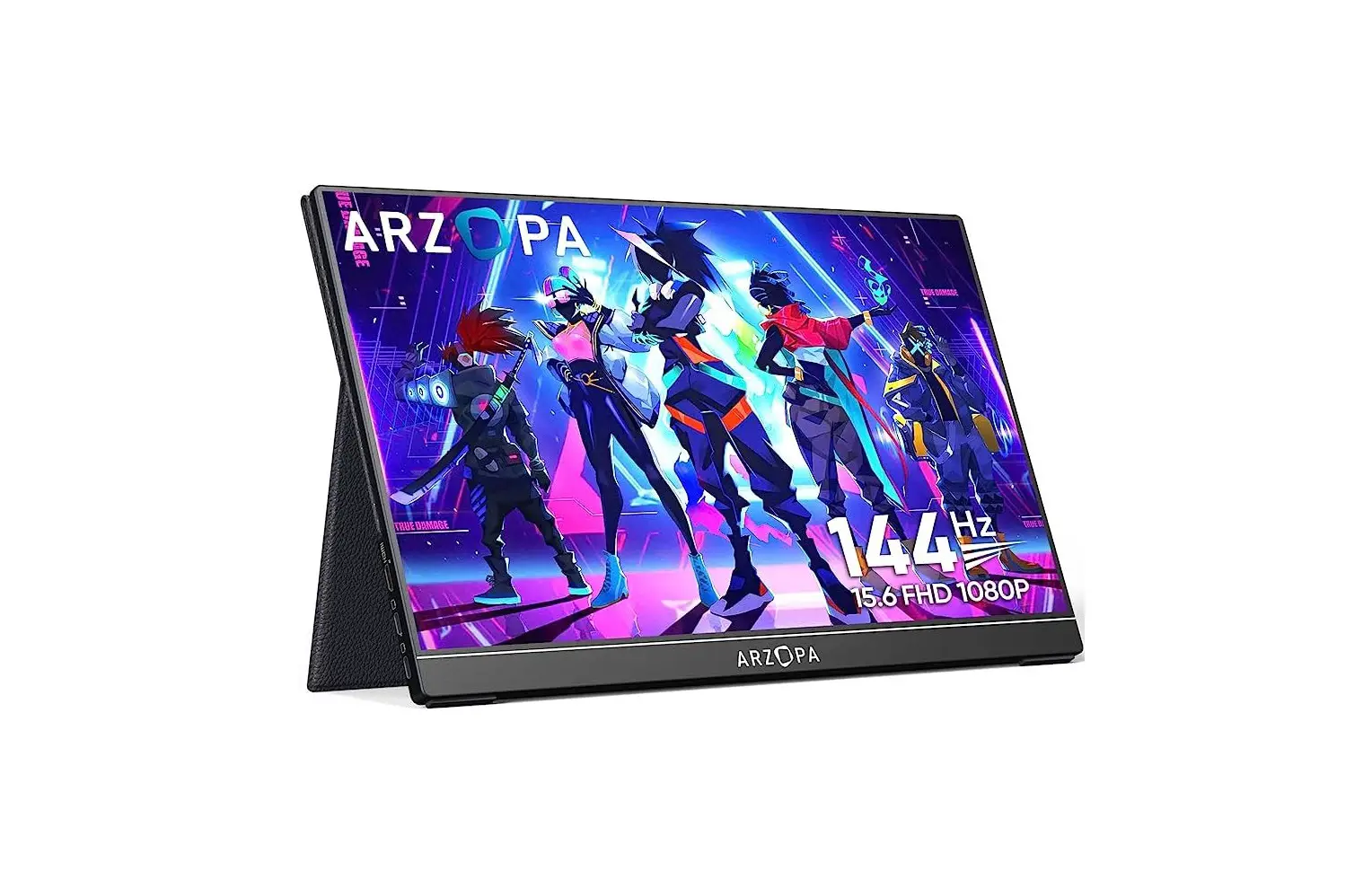
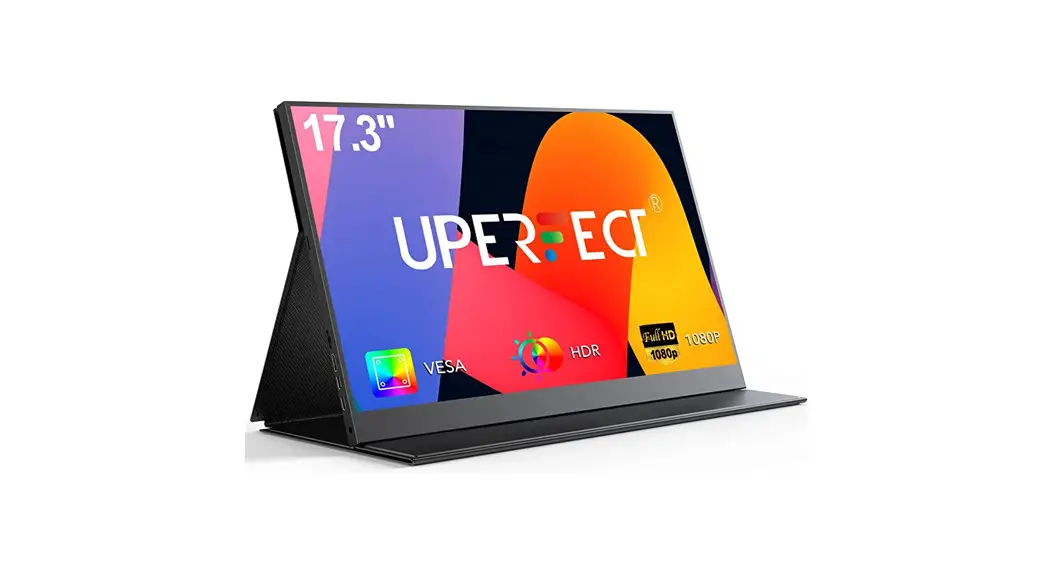
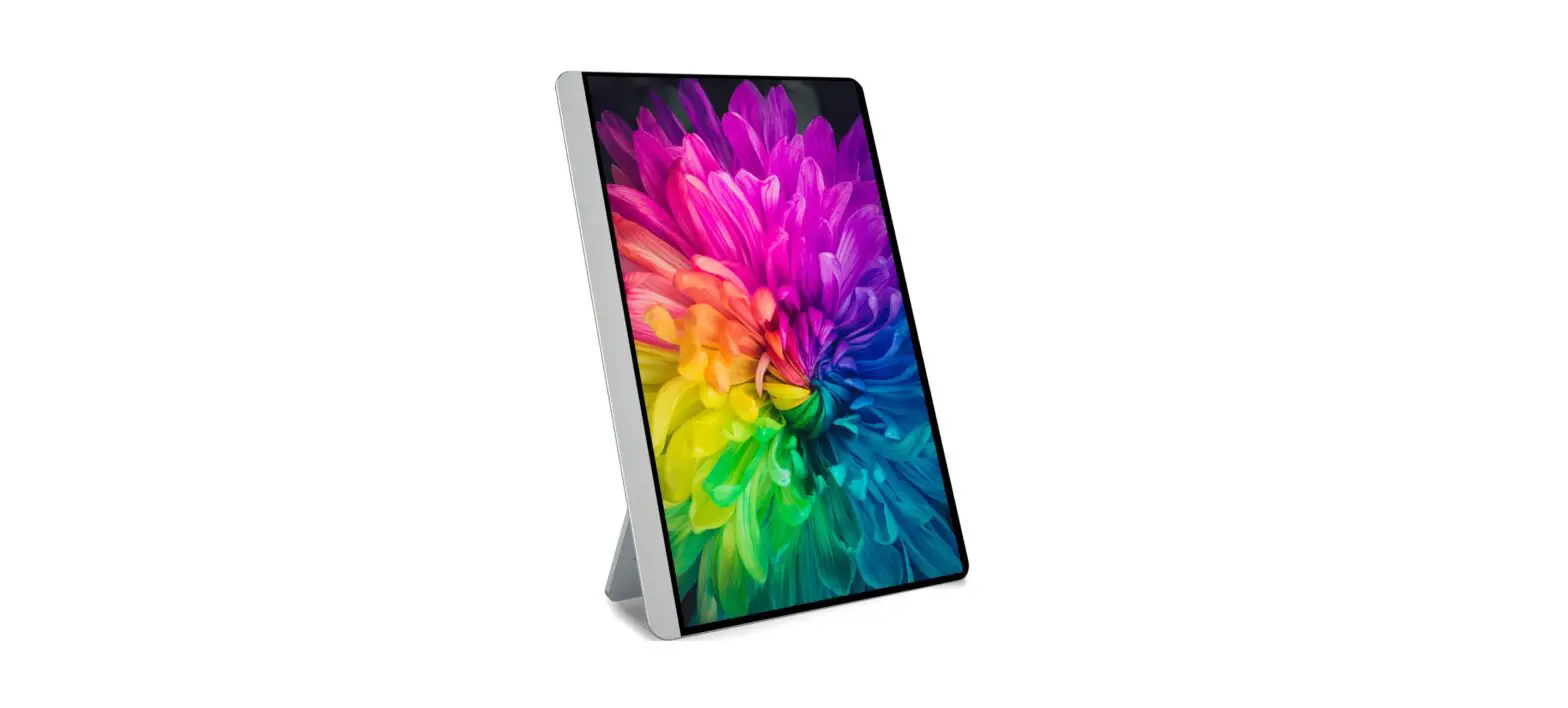
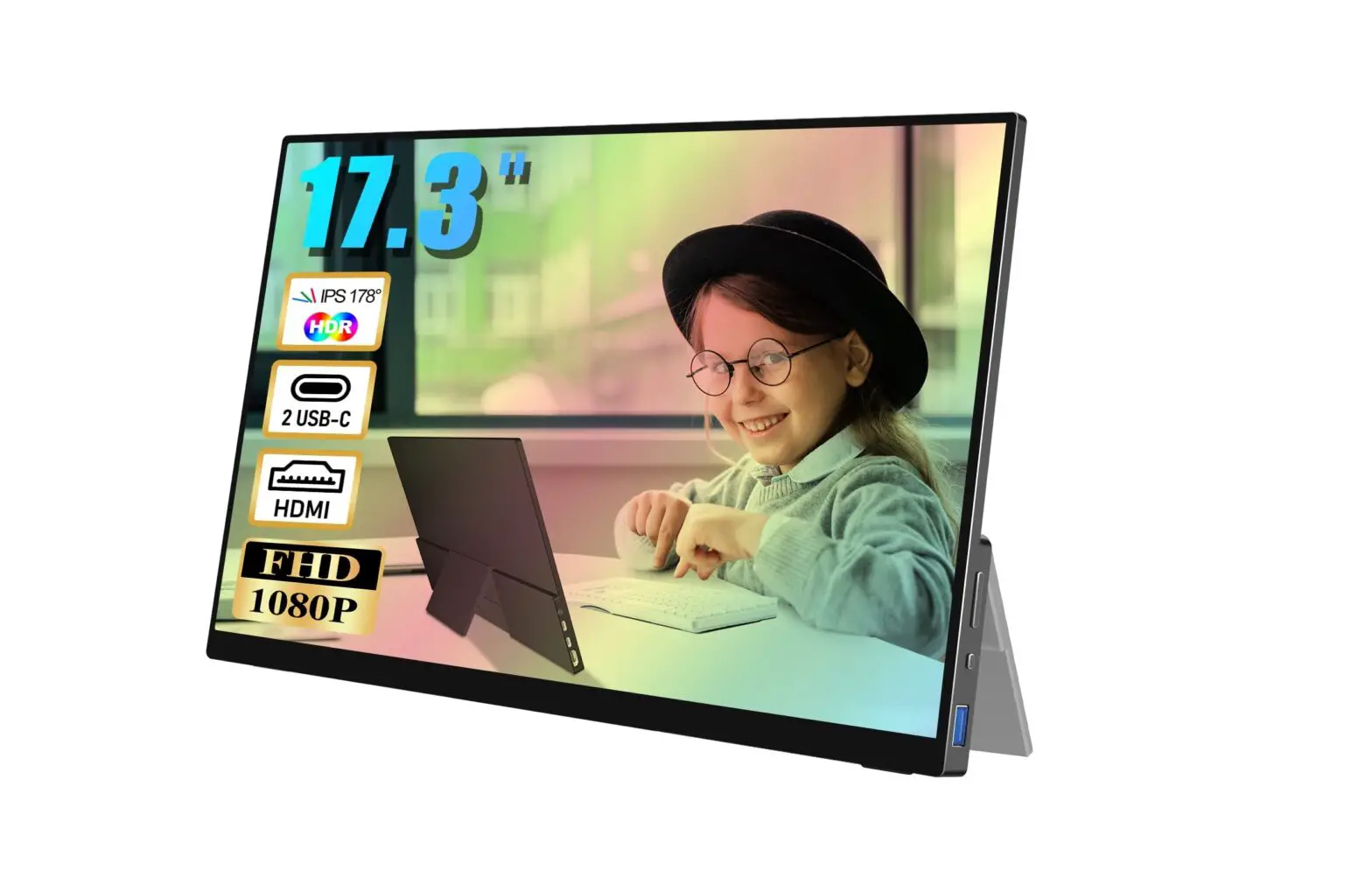
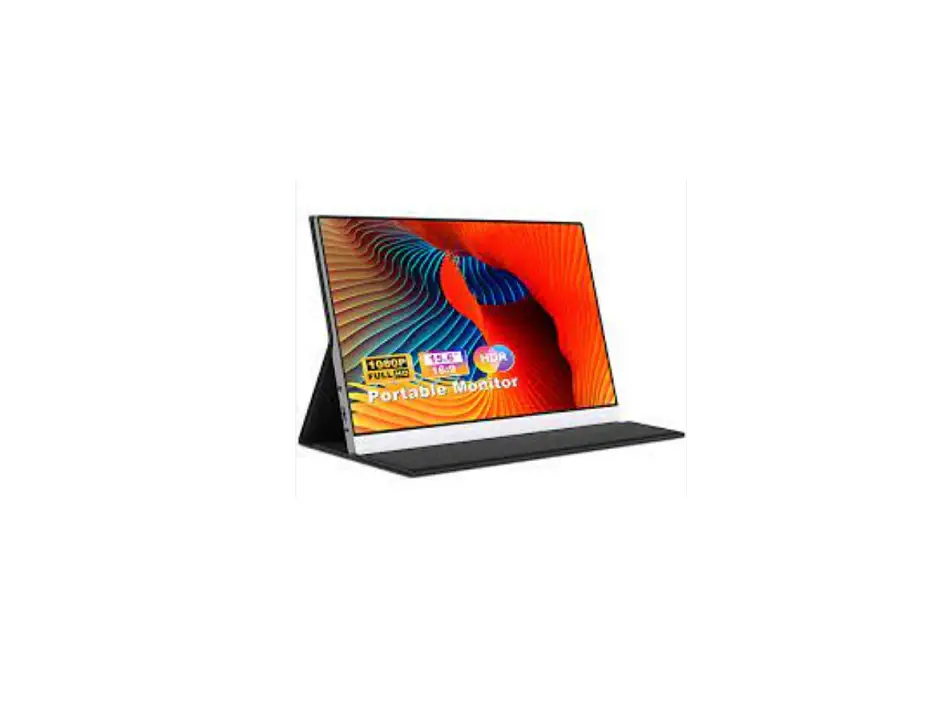
A1 Max 17.3 Inch Portable Monitor
Product Information:
The A1 MAX is a 17.3-inch portable monitor designed for easy
connectivity with various devices. It features a USB Type-C Full
Function Port 2, a Mini HDMI Port, USB Type-C Full Function Port 1,
and a 3.5 mm Audio Out Port. The monitor also includes a Turning
Button for power and menu navigation. It supports USB PD2.0 power
supply and can accept 5V/9V/12V/15V/20V input.
Product Usage Instructions:
Connect Monitor with Devices:
1. Before connecting the monitor, ensure that there is enough
power supply (5V/3A or above).
2. If connecting a laptop with a Type-C port:
- Connect the Type-C to Type-C cable between the laptop and the
monitor. - If you want to adjust the brightness and volume above 80%,
ensure that an external power supply of 5V/3A or above is
connected. - Note: Not all laptops with a Type-C port support audio and
video signal transmission. Please check your laptop’s Type-C port
compatibility.
3. If connecting a PC or laptop with an HDMI port:
- Connect the Mini HDMI to HDMI cable between the PC/laptop and
the monitor. - Connect an external power supply (5V/3A or above) to the
monitor using the Type-C to USB-A cable. - Note: HDMI port does not support power transmission, so an
extra power supply is required when using HDMI connection.
4. If connecting a phone with a Type-C port:
- Connect the Type-C to Type-C cable between the phone and the
monitor. - Ensure an external power supply of 5V/3A or above is
connected. - When there is no external power supply, the phone will supply
power to the monitor in energy-saving mode with adjusted brightness
(15%). - When an external power supply is connected, the phone will be
charged through the external power supply. Use at least a 15W
charger or power bank for sufficient working current. - Note: Direct compatibility with cell phones is only available
through full-featured Type-C ports. For iPhones, a lightning to
HDMI adaptor is required.
5. For connecting other devices, refer to the user manual for
specific instructions.
A1 MAX
17.3″ Portable Monitor
USER GUIDE
www.arzopa.com
Tech Support
If you have any problems with the monitor,please free to contact us for quick response and professional techs support.
www
Official Website www.arzopa.com
Tech Support ([email protected])
24/7 service
Facebook @Arzopatech @arzopa
Contents
Package List
1
Monitor Introduction
2
Connect Monitor with Devices
3
Duplicate & Extend Mode Setting
7
Screen Rotate Setting
8
OSD Function Introduction
9
Set Up The Smart Cover
13
Specifications
14
Supported Devices & Models
15
Common Problems and Solutions
17
Notices
18
Package List
Monitor x 1
Smart Cover x 1
Type-C to USB-A Cable x 1
Type-C to Type-C Cable x 1
Mini HDMl to HDMI Cable x 1
01
Charger x 1
Monitor Introduction
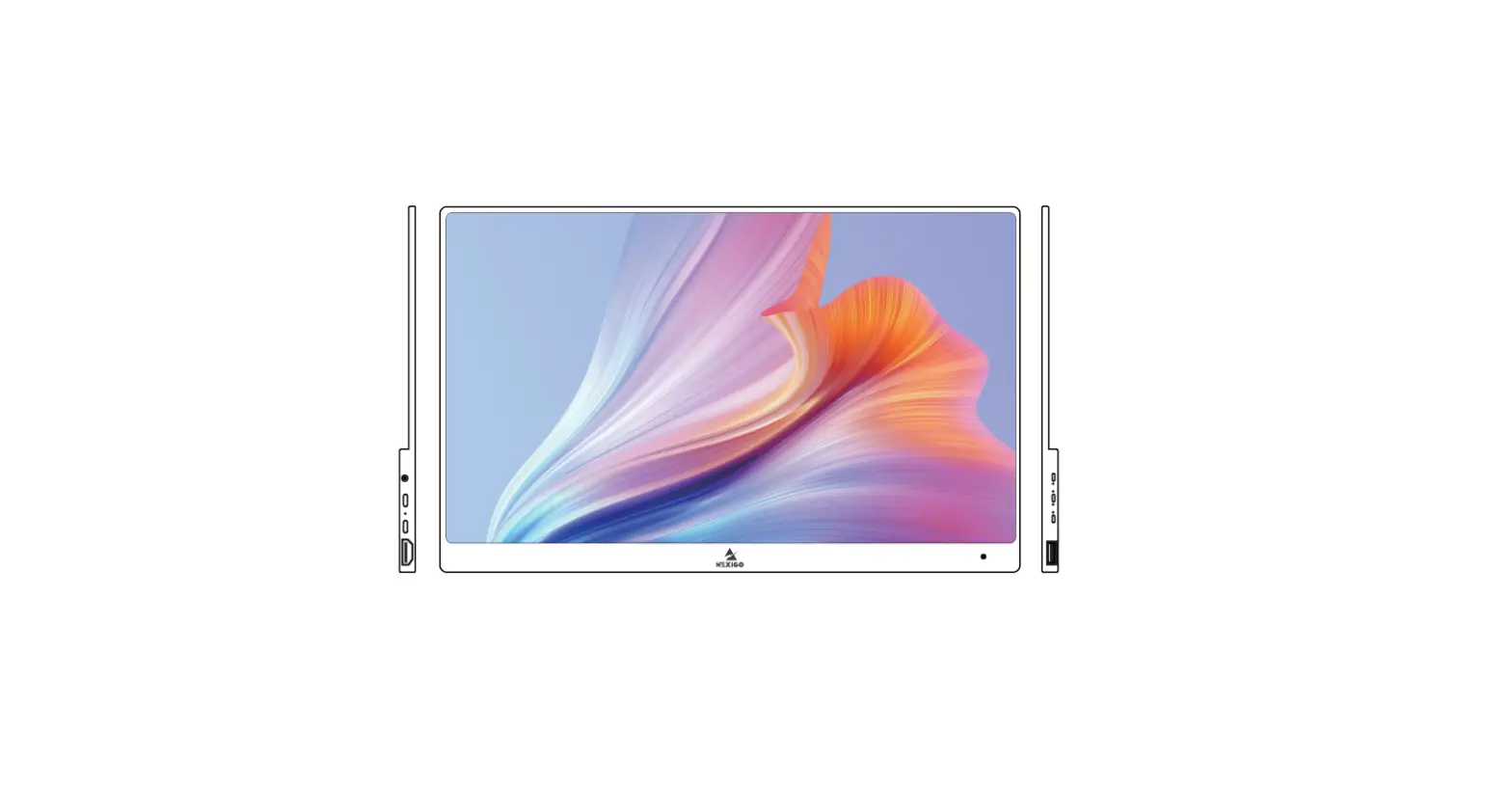
USB Type-C Full Function Port 2
Mini HDMI Port
USB Type-C Full Function Port 1
3.5 mm Audio Out Port
Turning Button
Power / Return Button
Mini HDMI Port : Receive audio/video signals. USB Type-C Function Port1/Port2 : USB C 3.1 support reversible insertion and reverse charging Compatible with USB PD2.0 power supply
supports 5V /9V /12V /15V /20V input .
Power/Return Button : Press and hold ~3 seconds to turn on/off the monitor. Turning Button :
OSD Menu: Press to enter OSD menu. UP/DOWN turning switch: When in a menu, press Turning Button to select menu item. Brightness/Volume Adjustment: When not on a menu, push the Turning Button UP once for the Brightness quick-access. Or push the Turning Button DOWN once for the Volume quick-access.
3.5 mm Audio Out Port : To connect to 3.5 mm-compatible external audio device.
02
Connect Monitor with Devices
1. Connection Condition
This monitor does not have a built-in battery. Before connecting the monitor, Please make sure there is enough power(5V/3A OR ABOVE) input.
2. LAPTOP (With Type-C)
Computer
Type-C to Tpye -C
Monitor
Note: If you want to adjust the brightness and volume above 80%, please make sure the external power supply of 5V/3A or above be connected.
Note: Not all laptops with a Type-C port can work with ARZOPA monitor. Please check the Type-C port of your laptop if t supports audio and video signal transmission.
03
3. PC / Laptop (With HDMI Port)
Computer
OR
Mini HDMI to HDMI Cable
External Power Supply
Type-C to USB-A
Computer
Mini HDMI to HDMI Cable
USB-A to Tpye-C
Monitor Monitor
Note: HDMI port does not support power transmission. So when you use HDMI connection, you must connect extra power supply (5V/3A or above).
04
4. PHONE (With Tpye-C)
Mobile Phone
Type-C to Tpye -C
External Power Supply Of5v/3A Or Above
Type-C to USB-A
Monitor
When there is no external power supply, the cell phone will supply power to the monitor. (Energy-saving mode is activated, brightness will be automatically adjusted to 15% .)
When the external power supply is connected, the cell phone will also be charged through the external power supply.` (To ensure the monitor and the phone can get enough working current, please use at least 15W charger or power bank as the external power supply.)
Note: Only works directly with cell phone through full-featured Type-C port. For iPhone: need a lightning to HDMI adaptor.
05
5. Other Devices
Mini HDMI to HDMI Cable
External Power Supply
Type-C to USB-A
Monitor
Mini HDMI to HDMI Cable
External Power Supply
Type-C to USB-A
Monitor
Note: Please connect the power supply cable first and then Mini HDMI to HDMI Cable to ensure the smooth transmission of signals. When connecting the Nintendo Switch, 30W or above is required for the power adapte.
06
Duplicate & Extend Mode Setting
1. Connect your ARZOPA monitor to a power outlet and an available port on your PC. 2. Right-click the desktop and select either screen resolution(Windows 7/8) or display settings(Windows 10). 3.Click the multiple displays drop-down list, and then select extend these displays, or duplicate these displays, note if you cannot see the additional monitor(s) listed, click detect. If does not work, try restarting your computer and do steps again.
07
Screen Rotate Setting
1. Connect your ARZOPA monitor to a power outlet and an available port on your PC. 2. Right-click the desktop and select either screen resolution (Windows 7/8) or display setting(Windows 10). 3. Click the orientation drop-down list, and then select Landscape or portrait screen. Note: If you cannot see the option of orientation on your laptop/PC, please check if your laptop/PC has this function.
08
OSD Function Introduction
1. Press the turning button to activate the OSD menu. 2. Scroll the turning button up and down to choose your settings. 3. Press turning button to confirm. 4. Press Power Button to return to the previous previous page.
09
Brightness
The adjusting range is from 0 to 100.
Contrast
The adjusting range is from 0 to 100.
ECO Brightness
DCR
Contains seven modes(Standard/ Game/Movie/Text/FPS/RTS/ECM Modes). Select ON or OFF to enable or disable dynamic contrast ratio function.
Sharpness
The adjusting range is from 0 to 100.
Image
Aspect
Adjusts the aspect ratio to 4:3/WIDE.
Color Temp
Color Temp Red
Contains three preset color modes (Standard,Cool, Warm) and User Mode.
The adjusting range is from 0 to 100.
10
Green Color Temp
Blue
Language
OSD H. POS.
The adjusting range is from 0 to 100.
The adjusting range is from 0 to 100. Select OSD language. The selections are: English, French, German, Simplifed Chinese, Italian, Spanish, Portuguese, Turkish, Polish, Nederlands, Japanese, Korean. The adjusting range is from 0 to 100.
OSD Setting OSD V. POS.
The adjusting range is from 0 to 100.
OSD Timer
The adjusting range is from 10 to 60.
Transparency The adjusting range is from 0 to 100.
11
Reset
Reset
Auto powerdown
HDR MODE
Selects RESET to revert all settings to the factory default mode. Select the time for the monitor to turn off automatically. (10/20/30/40/50/60/120/240 min) Select ON or OFF to open HDR mode.
Misc.
Signal Source
Contains two signal sources Type-C and HDMI.
Low Blue Light
The adjusting range is from 0 to 100. (0/25/50/75/100)
Volume
The adjusting range is from 0 to 100.
12
Set Up The Smart Cover
You can stand up the monitor by different positions with the smart cover.
13
Specifications
Product Name: ARZOPA Type-C Portable Monitor Screen Size: 17.3 Inch Panel Type: IPS Aspect Ratio: 16:9 Resolution: 1920*1080 Display Color: 16.7M(8-bit) Color Temperature: 6800K Visual Angle: H178° V178° Contrast Ratio: 1000:1 Brightness: 300cd/m2 Color Gamut: 72% NTSC Input Interface: Mini HD(Video Signal), Type-C Full Function(Video Data, Power Supply ISDN), Output Interface: 3.5mm Headphone Interface Speaker: Built-in Speakers(1W*2) Refresh Rate: 60Hz
*Specifications are subject to change without notice.
14
Supported Devices & Models
1. Phone
Brand
Model
HUAWEI
P20 / P20 RS / P20 Pro / P30 / P30 Pro / Mate 10 / 10 Pro 20 / 20 X / 20 Pro / 30 / 30 Pro / RS
SAMSUNG Razer
S8 / S8+ / S9 / S9+ / S10 / S10+ / S20 / Note 8 Note 9 / Note 10 / Note 10+ (Connecting Samsung need extra power supply)
Razer Phone / Razer Phone 2
OnePlus
OnePlus 7 / OnePlus 7 Pro / OnePlus 7T
Sony
Xperia 1 / Xperia 5 / Xperia XZ3
NOKIA HONOR HTC OPPO More
NOKIA 9 Pure / View. ASUS: ROG / ROG2
Note 10, V20 /30 U Ultra R17 Pro /Reno /Find. LG: G5 /G6 /G7 To be updated
15
2. Laptop
Brand Apple HUAWEI Microsoft ASUS MI Lenovo DELL Google
Model
MacBook 12in /2016 /2017 Pro MacBook Air 2018 iPad Pro 2018-2020
MateBook D / MateBook E / MateBook X MateBook X Pro / MateBook 13/MateBook 14 /MagicBook
SurfaceGo / Surface Book 2
ZenBook 3 / ZenBook 3 Pro / ZenBook X / U4100 U4100UN / AU5100UQ /G3 /G5 /G7 /Inspiron 5000 Inspiron 7000 / XPS13 /XPS15
Mi Air 12.5 / Air 13.3 / Pro 15.6 / Pro 15.6 GTX
Y7000 / Y7000P / Y900K / YOGA 6 PRO ThinkPad X1 / Carbon / MIIX 720 /Yoga 5 Pro
G3 / G5 / G7 / Inspiron 5000 / Inspiron 7000 / XPS13 XPS15 / Latitude 5285 /Latitude 3520
Pixelbook /PielBook Pen
Razer Nvidia More
Blade Stealth / Blade Pro
Geforce RTX 2070 / Geforce RTX 2080 Geforce RTX 2080Ti To be updated. Compatible with most PCs or Laptops.
16
Common Problems and Solutions
Q1: Shows “no signal” after a certain period of time.
1. Check if the wires are loose, re-plug them and make sure they are connected correctly. 2. Replace the cable with a new one and see if the same thing happens. 3. If you have tried all of the above and the problem is not resolved, please contact our after-sales email.
Q2: Why do I have to plug in two cords if I don’ t have a USB-C port on my laptop?
A: The USB-C to USB-C cord is strong enough to communicate power and transmission signal through one cord . If you can’t use the USB-C to USB-C cord, it must to use the HDMI cord along with the USB-A to USB-C cord, one for transmission and one for power.
Q3: My monitor won’t power on.
A: If you are not using a USB-C cord , make sure your monitor is connected to your laptop with both the HDMI cord and the USB-A to USB-C. Then, press and hold the on/off button to power up the monitor.
Q4: The screen flicker black when displaying content.
A: Please check if the connection is loose, if there is no problem with the connection, it may be due to insufficient power supply, please connect the adapter and use it again, or replace the power adapter or data cable with a new one.
17
Notices
Before setting up this Type-C Portable Display, carefully read all the documentation that came with the package. To prevent fire or shock hazard, never expose this Type-C Portable Display to rain or moisture. Never try to open this Type-C Portable Display cabinet. Before using this Type-C Portable Display, make sure all cables are correctly connected and the power cables are not damaged. Avoid dust,humidity,temperature extremes and bumpy places. Never push objects or spill liquid of any kind into the slots on this Type-C Portable Display cabinet. If you encounter technical problems with this Type-C Portable Display, contact our tech support ([email protected])immediately.
18
E-mail: [email protected]
 ARZOPA | Your Best Portable Monitor On-the-Go – Arzopa Store