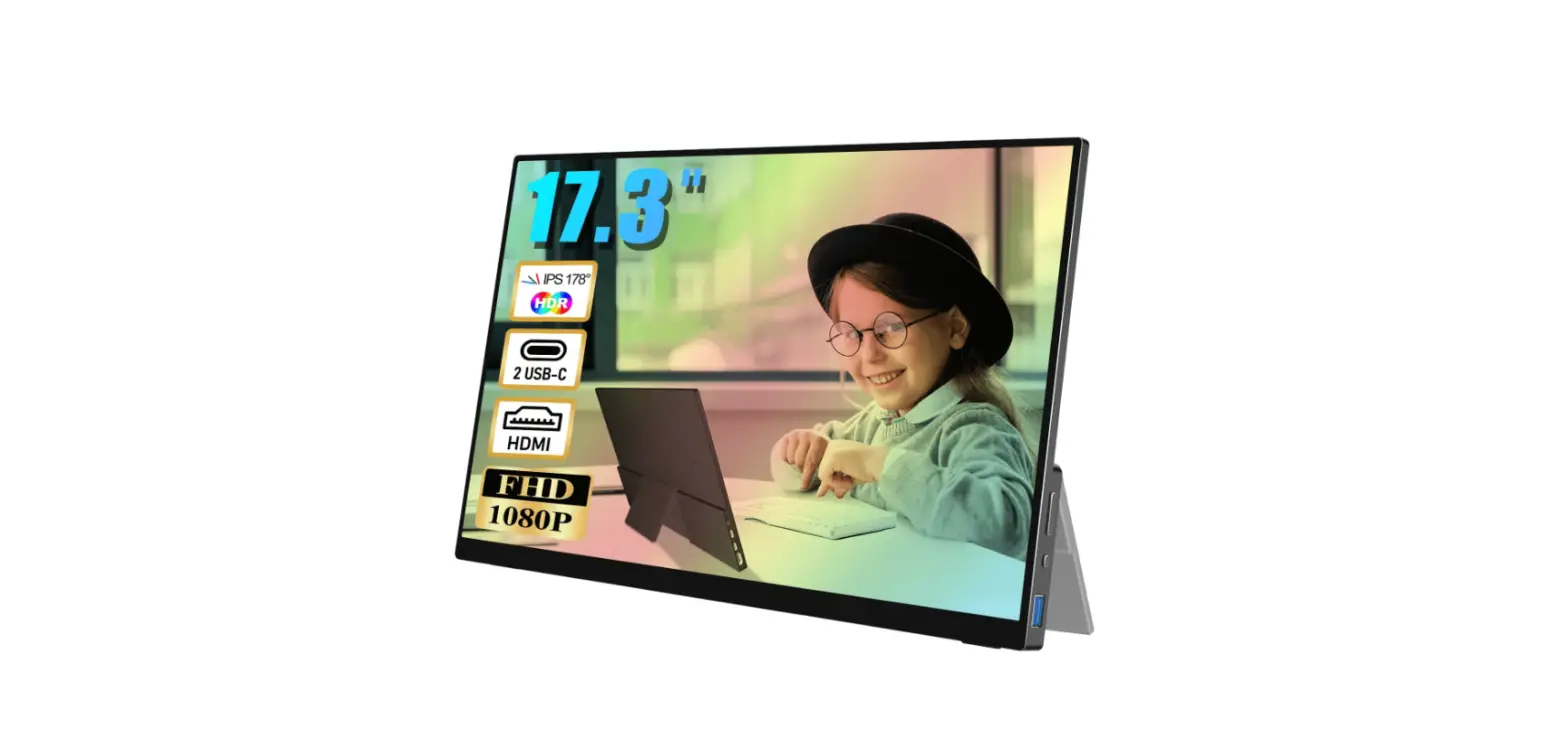
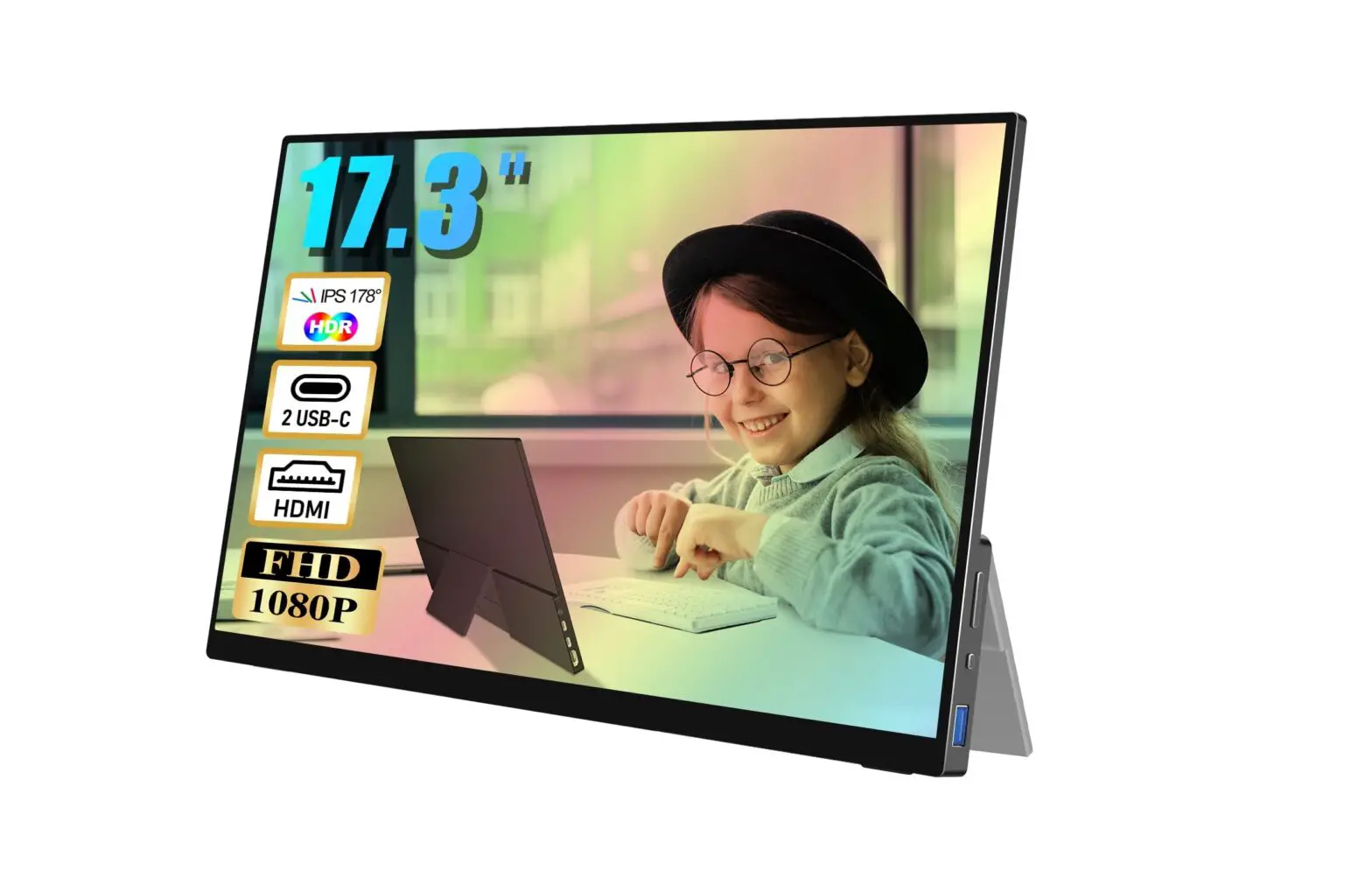
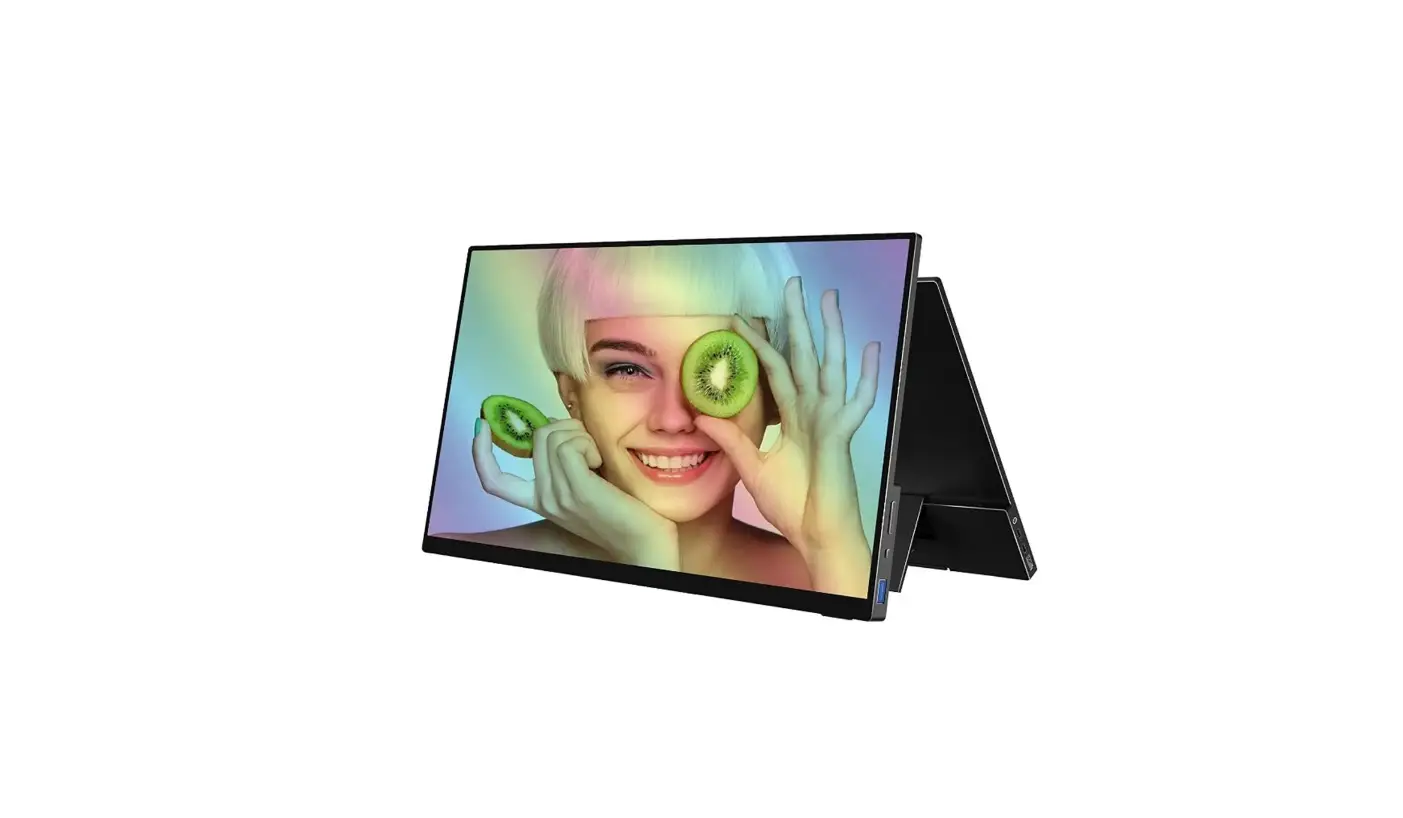
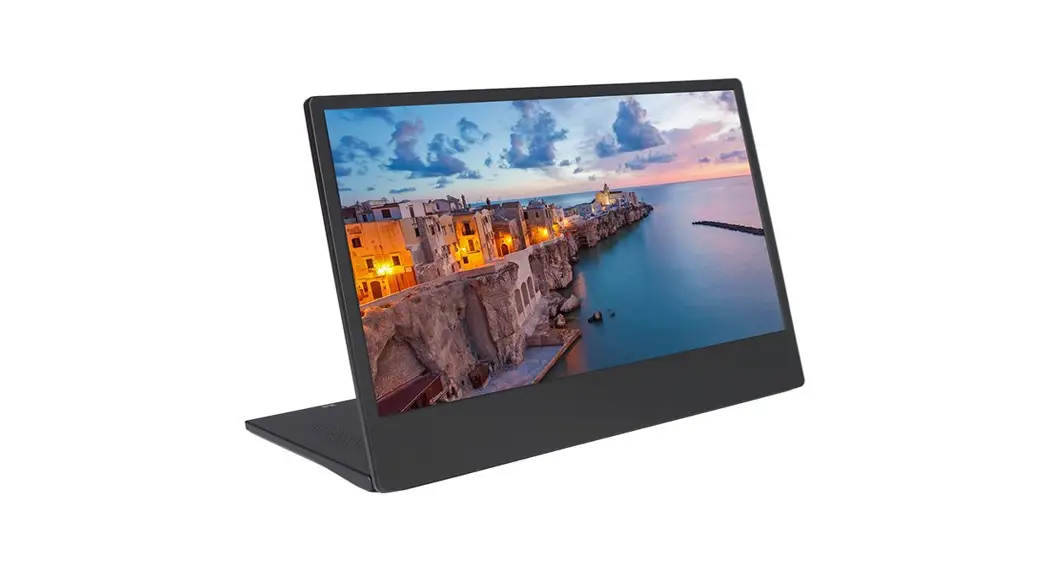
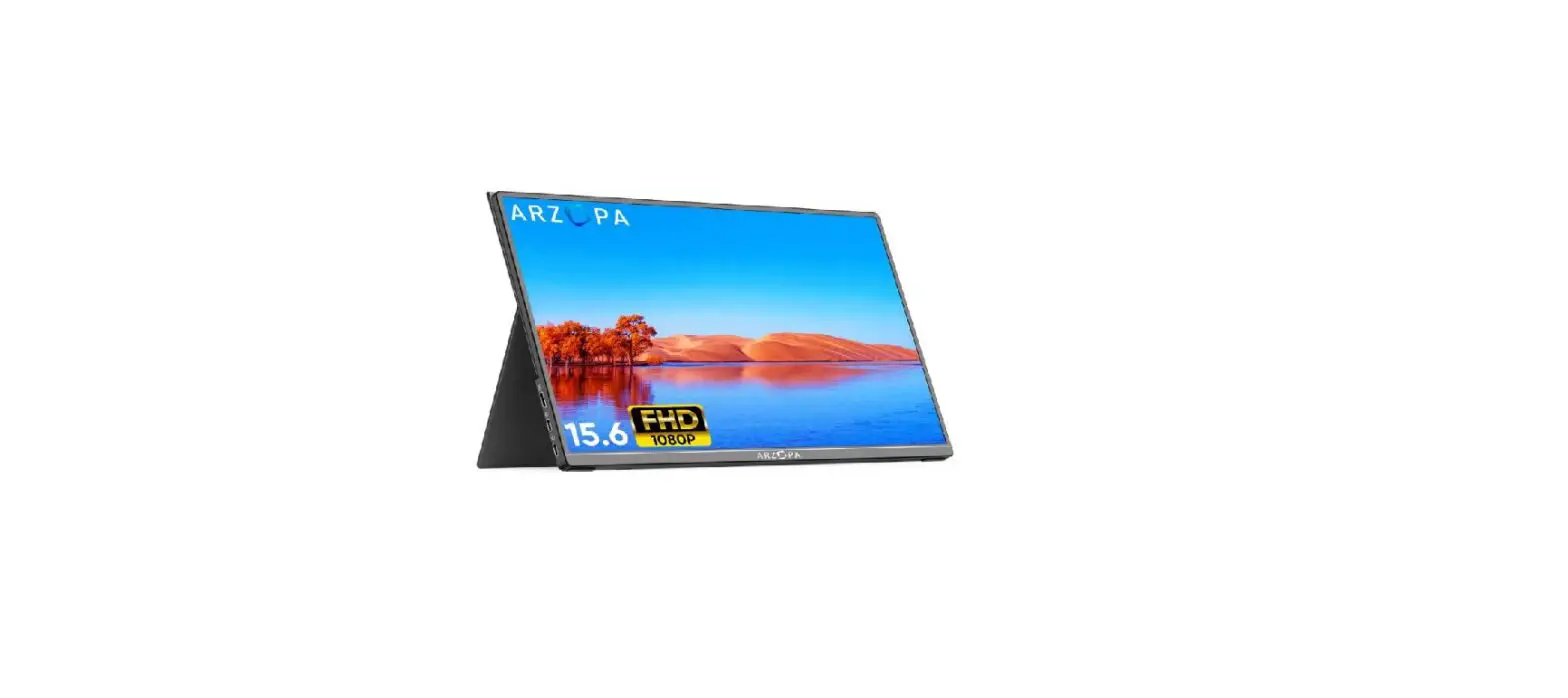
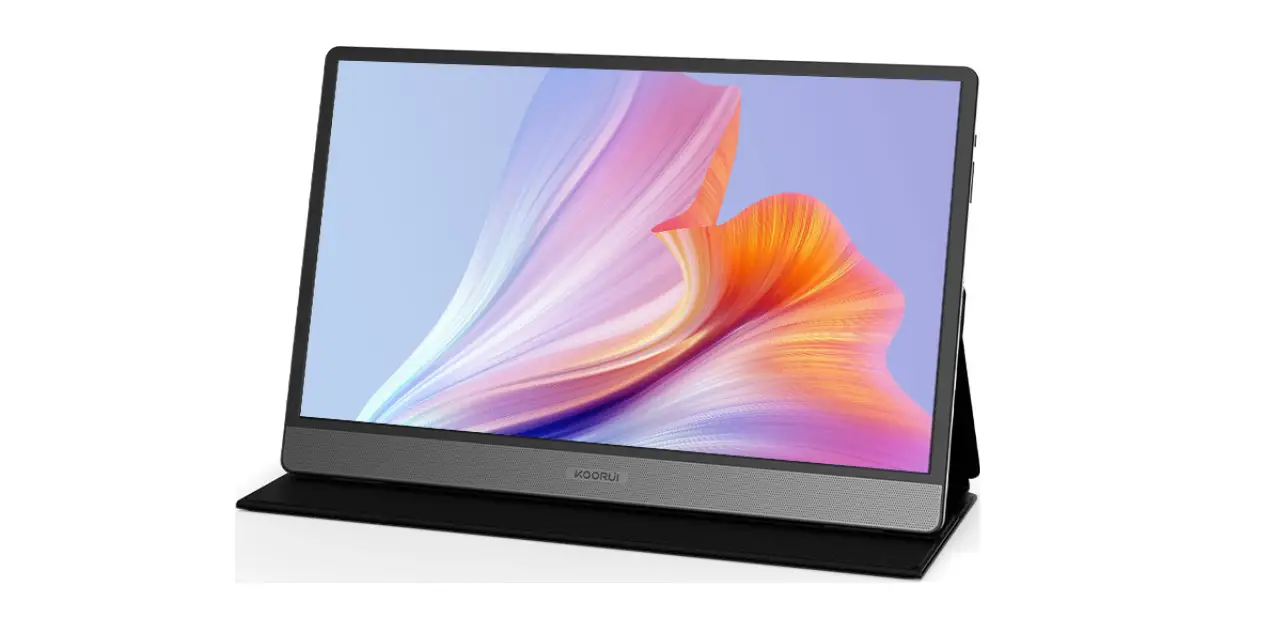
NG17FGQ-S 17.3 Inch 300Hz Portable Display
Product Information
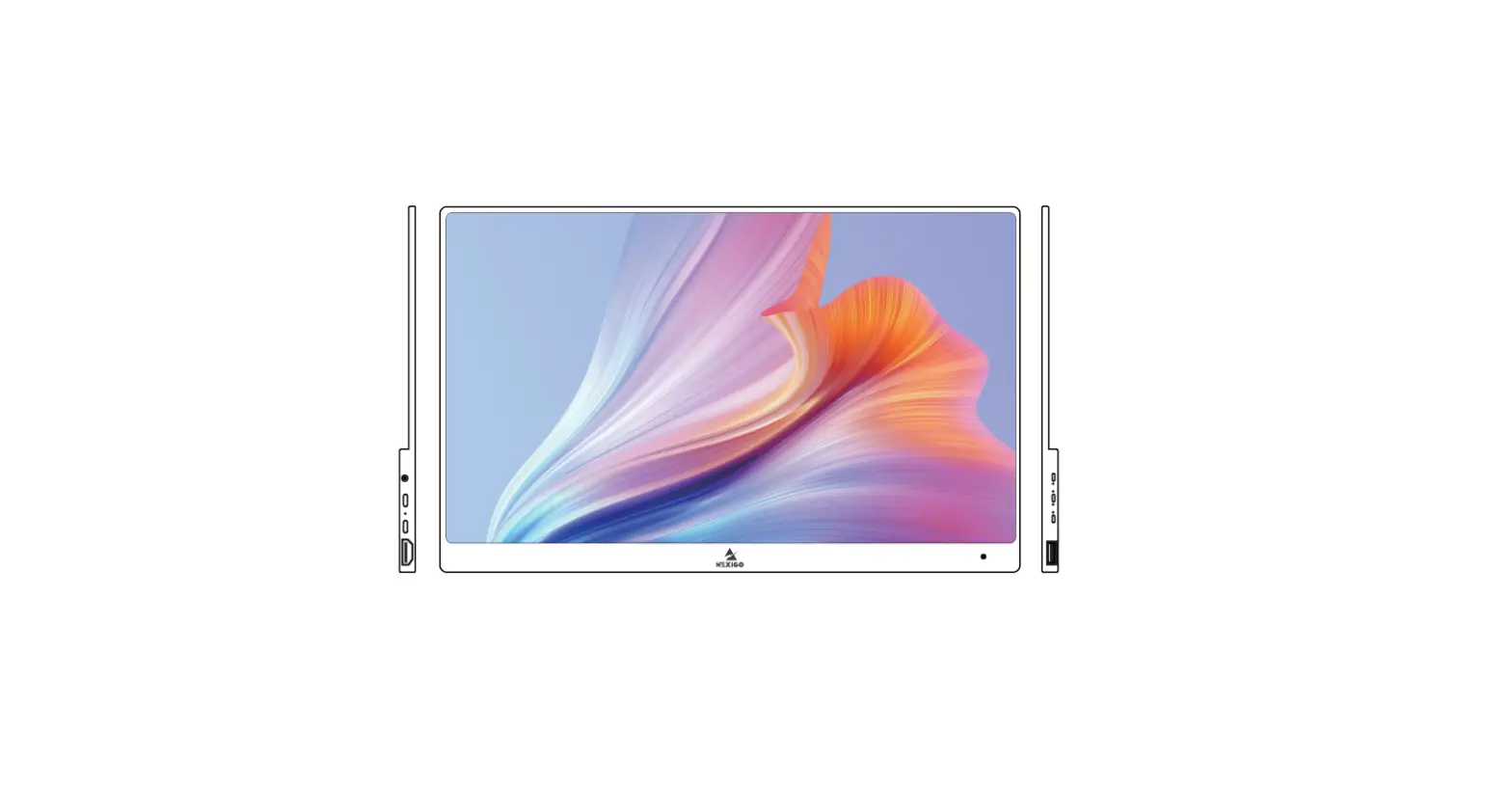
The 17.3 300Hz Portable Display, model NG17FGQ-S, is a
high-performance display manufactured by NexiGo. It features a USB
Type-A interface for OSD menu control and power, along with volume
control and input source selection. It also has HDMI, Full Function
Type-C, and 3.5mm headphone interfaces for device connectivity. The
display comes with a wall charger, foldable stand, protective
sleeve, HDMI to HDMI cord, Type-C to Type-A cord, and Type-C to
Type-C cord.
Product Usage Instructions
Devices Connection Instructions
Connect a Computer using a Full Function USB Type-C Port
To achieve maximum brightness and a 1080P@300Hz display, follow
these steps:
- Use the provided wall charger to power the display.
- Ensure the connected device has a full function Type-C
interface. - Connect the computer to the display using a Type-C to Type-C
cord.
Note: When the device battery drops below 30%, an external power
supply is required for the monitor to function. When the device’s
battery is above 30%, the device will power the display and
activate energy-saving mode on the monitor. Adjust the display
brightness and volume as needed on your device.
Connect a Phone using a Full Function USB Type-C Port
To connect a phone to the monitor using a Type-C cable, follow
these steps:
- Power the monitor first using the provided wall charger.
- Ensure the connected phone has a full function Type-C
interface. - Connect the phone to the display using a Type-C to Type-C
cord.
Note: The refresh rate of HDMI connection is limited to 240Hz.
Ensure the connected device has an HDMI 2.0/DP 1.4 or above
interface.
Connect a Computer using the HDMI Port
To connect a computer to the monitor using an HDMI cable, follow
these steps:
- Power the monitor first using the provided wall charger.
- Connect the computer to the display using an HDMI to HDMI
cord.
Note: The display is compatible with most HD devices using an
HDMI cable.
Connect Other Devices using the HDMI Port
To connect other devices to the monitor using an HDMI cable,
follow these steps:
- Power the monitor first using the provided wall charger.
- Connect the device to the display using an HDMI to HDMI
cord.
Note: For proper functionality with all devices, connect the
unit to external power if needed before connecting the data
cable.
Reverse Charging Function
The portable display can be used to charge compatible devices
via the full function USB Type-C port. Follow these steps:
- Connect your compatible device to the portable display.
- Power the display using the provided wall charger.
Device Compatibility: Mobile Phone, iPad Pro, Laptop with PD
protocol
Input Voltage: 5V~20V
Input Electric Current: 1A~4A
To access and navigate the OSD Menu, follow these steps:
- Press the OSD Menu/Power button to open the OSD Menu.
- Use the Volume +/Volume – buttons to highlight the selected
feature. - Press the OSD Menu/Power button to open the selected menu
section. - Press and hold the Volume-/Input Source button to go back.
17.3″ 300Hz Portable Display
NG17FGQ-S User Manual
Scan the QR code or visit our link to download the latest manual or watch the installation video.
nexigo.com/manuals
WELCOME TO THE NEXIGO FAMILY!
Thank you for choosing the NexiGo Portable Monitor! You are now part of an exclusive club: the NexiGo family! It’s our job to make sure you enjoy your membership. If you have any problems, please contact us any time at [email protected] for further assistance. This product is automatically covered by our industry-leading one year manufacturer’s warranty. Make sure to register your purchase at nexigo.com/warranty within 14 days of the delivery date, and we will extend your warranty coverage another year, for a total of two years!
From all of us here at NexiGo, we want to thank you for your trust in us. We look forward to serving you again in the near future.
Yours Sincerely, The NexiGo Team
CONTACT INFORMATION
Website: www.nexigo.com Manufacturer: Nexight INC Address: 11075 SW 11th St, Beaverton, OR 97005, US
Tel: +1(458) 215-6088 Email: [email protected]
SHAPE AND INTERFACE DISTRIBUTION
USB Type-A OSD Menu/Power
(Press and hold) Volume-/Input Source
(Press and hold) Volume+/Brightness+ (Press and hold)
1
HDMI Full Function Type-C Full Function Type-C 3.5mm Headphone Interface
WHAT’S IN THE BOX
Wall Charger
Portable Display
Foldable Stand
Protective Sleeve
HDMI to HDMI Cord
Type-C to Type-A Cord
Type-C to Type-C Cord
DEVICES CONNECTION INSTRUCTIONS
For maximum brightness and 1080P@300Hz display, please use the provided wall charger to power the display, and make sure the interface of the connected device is full function Type-C. . CONNECT A COMPUTER USING A FULL FUNCTION USB TYPE-C PORT
Type-C to Type-C
1080P display
Note: When the device battery drops below 30%, an external power supply is required for the monitor to function. When the device’s battery is above 30%, the device will power the display and automatically activate the energy saving mode on the monitor.
2
This will set the brightness of the display to low. You may adjust the display brightness and volume as needed on your device.
Wall Charger
Type-C to Type-C
1080P display
The mouse or keyboard is connected to the USB Type-A port to control the screen. . CONNECT A PHONE USING A FULL FUNCTION USB TYPE-C PORT
Wall Charger
Type-C to Type-C
1080P display
When connecting the monitor to a Phone using a Type-C cable, you will need to power the monitor first using the provided wall charger.
The refresh rate of HDMI connection can only reach up to 240Hz, and make sure the interface of the connected device is HDMI 2.0/DP 1.4 or above.
. CONNECT A COMPUTER USING THE HDMI PORT
Wall Charger
HDMI to HDMI
1080P display
The display is compatible with most HD devices using an HDMI cable. When connecting the monitor to a computer using an HDMI cable, you will need to power the monitor first using the provided wall charger.
3
. CONNECT OTHER DEVICES USING THE HDMI PORT
Wall Charger HDMI to HDMI
1080P display
Wall Charger HDMI to HDMI
1080P display
Wall Charger HDMI to HDMI
1080P display
Note: For proper functionality with all devices, please connect the unit to the external power if needed before connecting the data cable.
REVERSE CHARGING FUNCTION
You can use the portable display to charge some devices via the full function USB Type-C port. Simply connect your compatible device to the portable display, and then power the display using the provided wall charger. Device Compatibility: Mobile Phone, iPad Pro, Laptop with PD protocol Input Voltage: 5V~20V Input Electric Current: 1A~4A
4
Wall Charger Type-C to Type-C
1080P display
ON SCREEN DISPLAY (OSD) MENU INTRODUCTION
INSTRUCTIONS 1. Open the OSD Menu by pressing the OSD Menu/Power button 2. Highlight the selected feature by pressing the Volume +/Volume – buttons 3. Open the selected menu section by pressing the OSD Menu/Power button 4. Press and hold the Volume-/Input Source button to back out
PICTURE
COLOR
AUDIO
OTHER
5
INPUT
FAQ
Q1: Does this display require any additional software or drivers? A: The NexiGo portable display does not require any additional software or drivers to use. Simply plug your device into the display using the USB Type-C or HDMI cable, ensure that the display is properly powered (HDMI connections do not supply power, and USB Type-A connection do not either), and you are good to go! Q2: Can I use this display with the Playstation, Switch, or Xbox? A: Yes, this display is compatible with any game console that has an HDMI or USB Type-C output. For all of these systems you will need to connect the monitor to the HDMI output port on the console, in addition to powering the display with one of the USB Type-C ports. Q3: How long does the battery last? A: The NexiGo portable display does not have a built-in battery for additional flexibility when traveling due to FAA regulations concerning batteries. The display instead pulls power directly either from a wall plug, or from the device it is attached to through the USB Type-C connection. As such, it will last as long as your device’s battery lasts. This duration can be extended through the use of a portable charger or an external power supply. Q4: My laptop or cellphone has a Type-C port but is not on the list of supported devices, will this display still work for me? A: The NexiGo portable display has a wide range of compatibility, so many devices are compatible we cannot name them all. As such, to figure out if your device would work with this display just determine if the item has a full featured USB Type-C port, or an HDMI port. If it has one of these ports it will work with the display, though it may require an external power source.
6
Q5: Why does the screen’s image have color defects or seem off? A: Please inspect any cables that are plugged in to make sure that the pins are straight and not bent. If they are bent, this may cause issues with the display. Q6: My device is showing up in “Power supply mode” when connecting to the portable display. Is this normal? A: The monitor only draws a small amount of power from its signal source. This is a normal result and nothing to worry about. Q7: My screen image bounces or there’s a wave pattern in the image, what should I do? A: Please ensure that the signal cable is properly connected between the monitor and the output device. If there is no issue with the cable and the display is still having issues, please contact NexiGo support for assistance.
FCC REQUIREMENT
Any changes or modifications not expressly approved by the party responsible for compliance could void the user’s authority to operate the equipment. This device complies with Part 15 of the FCC Rules. Operation is subject to the following two conditions: (1) this device may not cause harmful interference, and (2) this device must accept any interference received, including interference that may cause undesired operation.
Get in touch with FREE online services. facebook.com/letsnexigo
Register to get EXTRA ONE YEAR warranty. Only valid in registering within 14 days of product delivery. nexigo.com/warranty
7
 NexiGo Manuals | NexiGo
 NexiGo | Taking Your Video Calls to the Next Level