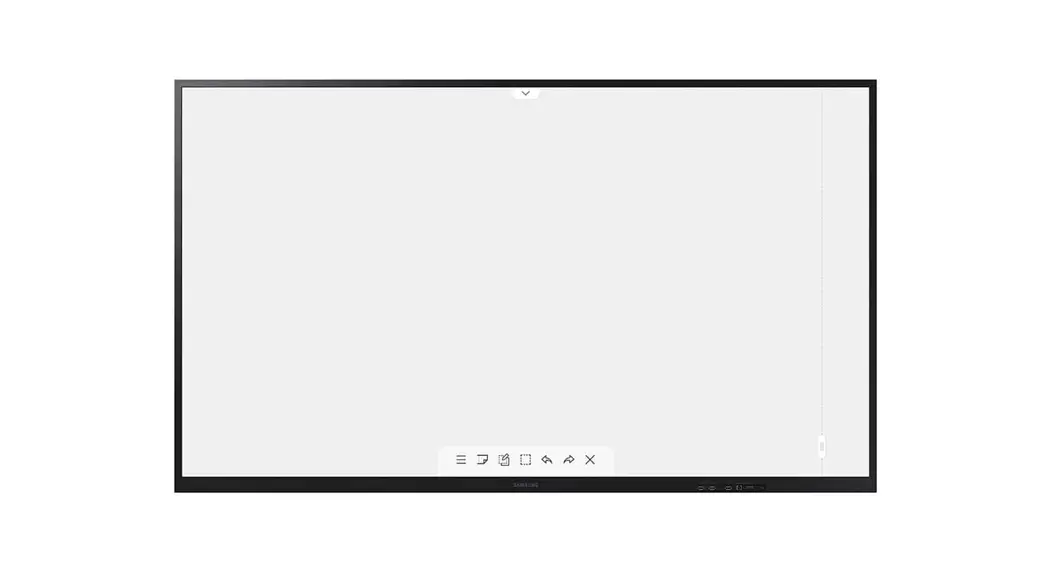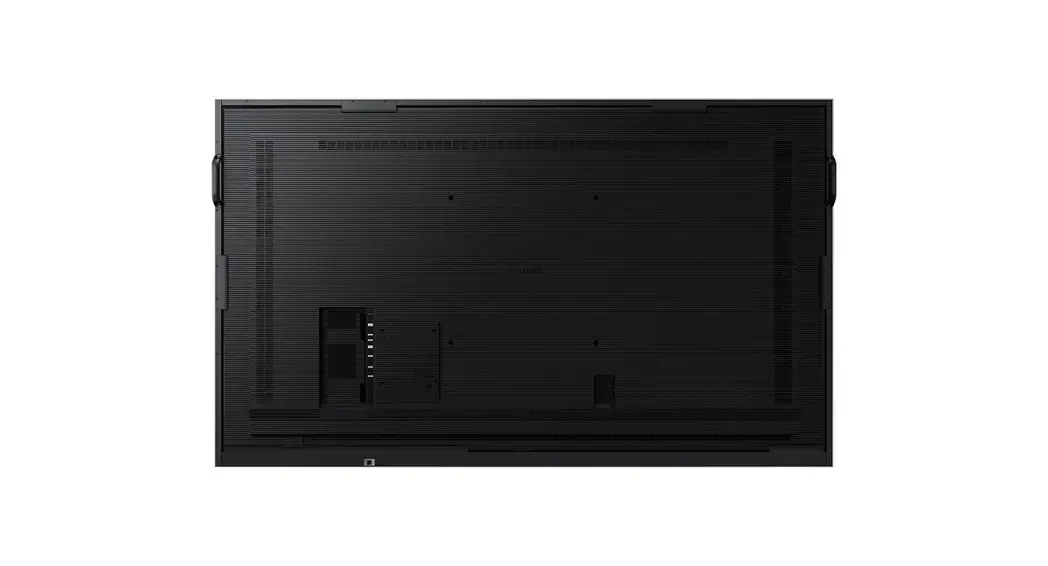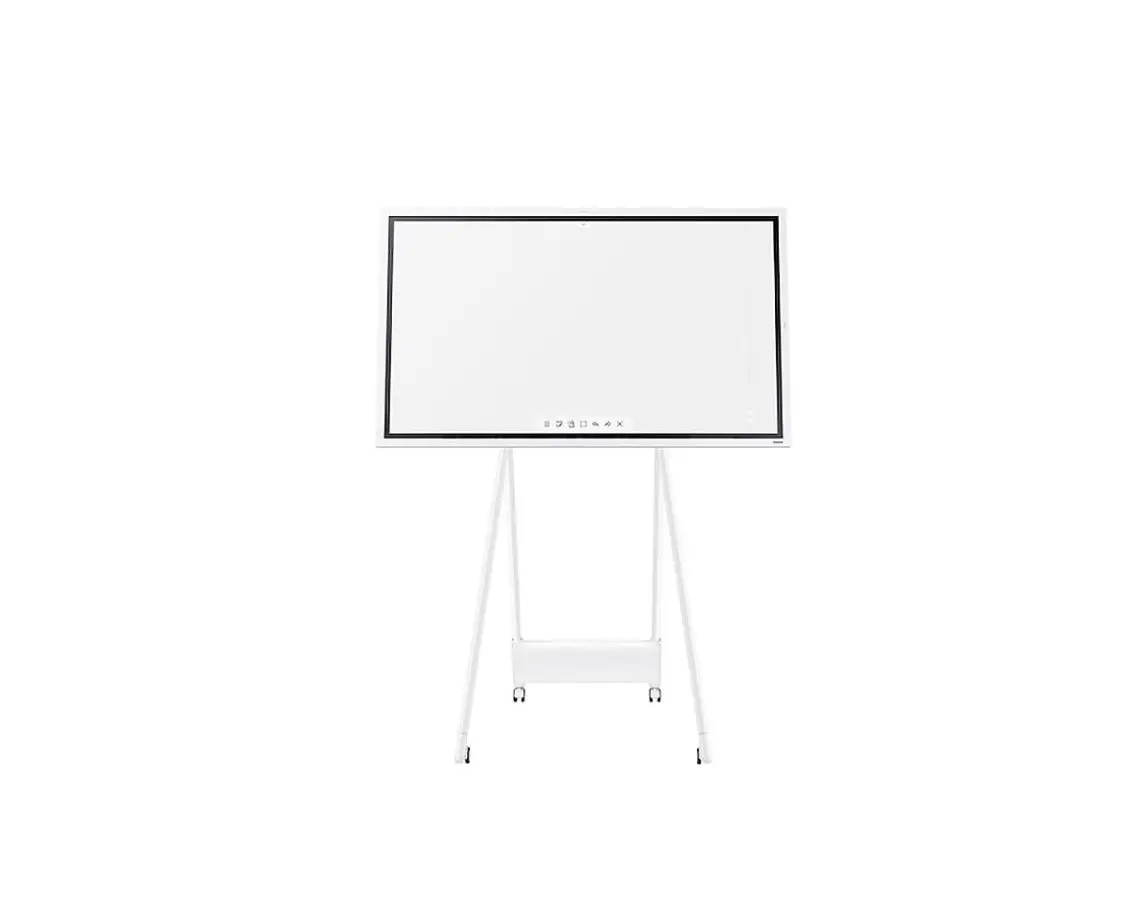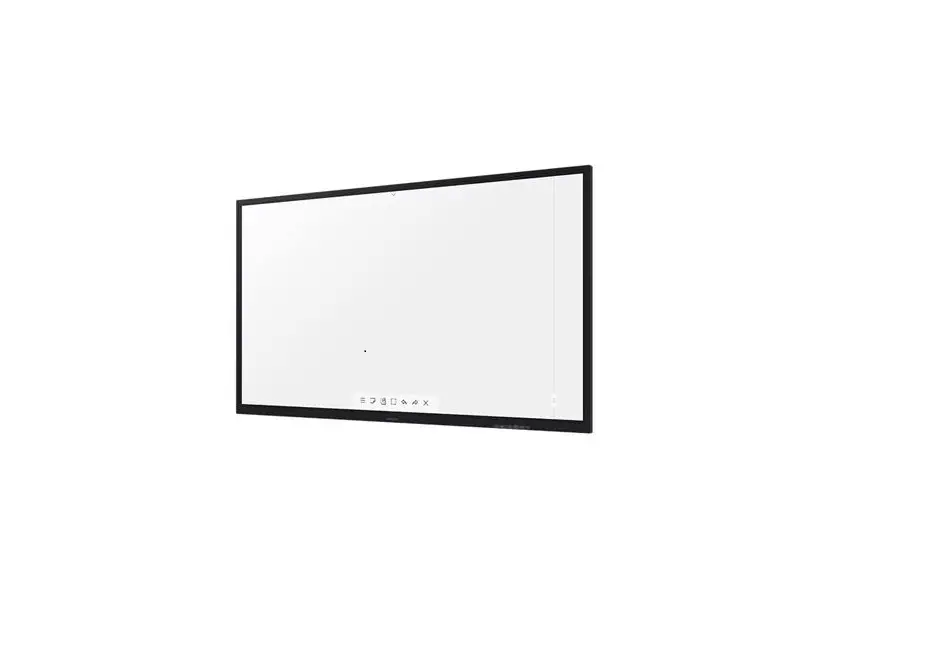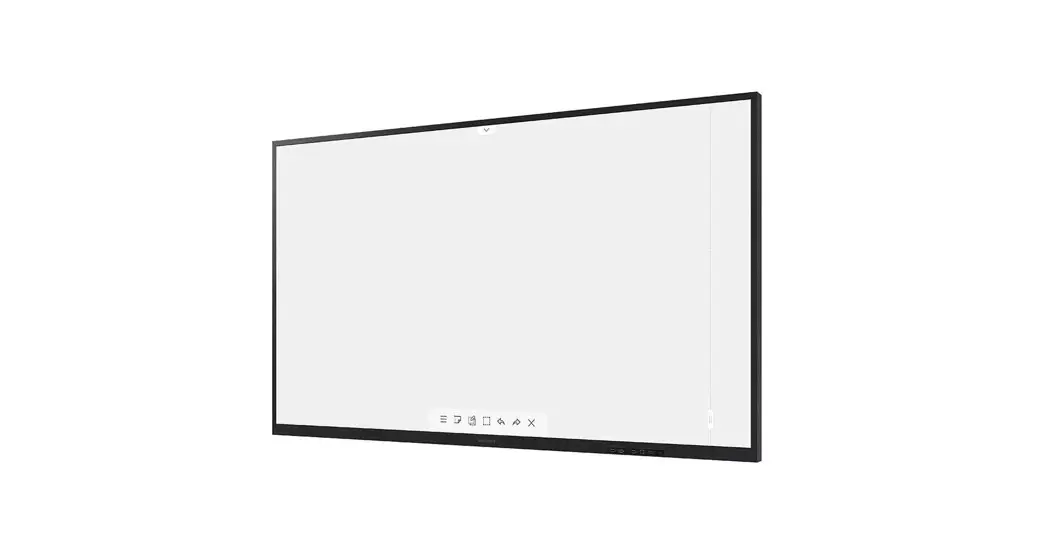
 WM75A Flip Interactive Whiteboard
User Guide
WM75A WM85A
- Recommended hours of use per day of this product is under 16 hours. If the product is used for longer than 16 hours a day, the warranty may be void.
- The color and appearance may differ depending on the product, and the content in the manual is subject to change without prior notice to improve the performance.
- Download the user manual from the following Samsung Website for further details.
http://www.samsung.com/displaysolutions
Parts
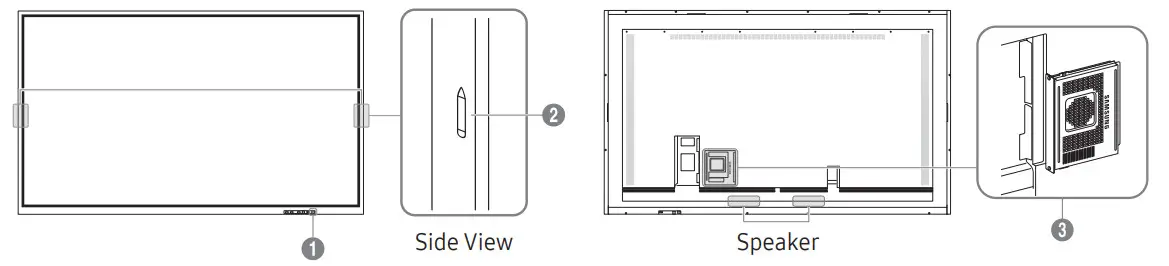
- Power button & indicator
• Press and hold the button to turn off the product.
* The power indicator is on when the product is turned on.
* The power indicator is off when the product is turned off.
• In writing mode, shortly press the Power button to switch to the screen saver mode. - The pen is magnetic. Keep it by attaching it to the marked location.
- Connect the OPS case to the product and insert the standard OPS module into the case. You can purchase the OPS case and module separately.
 : Before inserting the OPS module, make sure to remove the power cable from the product to completely cut off the power supply.
* OPS refers to the Intel Open Pluggable Specification.
* OPS power supply: 19 V/3.7 A
 : Before inserting the OPS module, make sure to remove the power cable from the product to completely cut off the power supply.
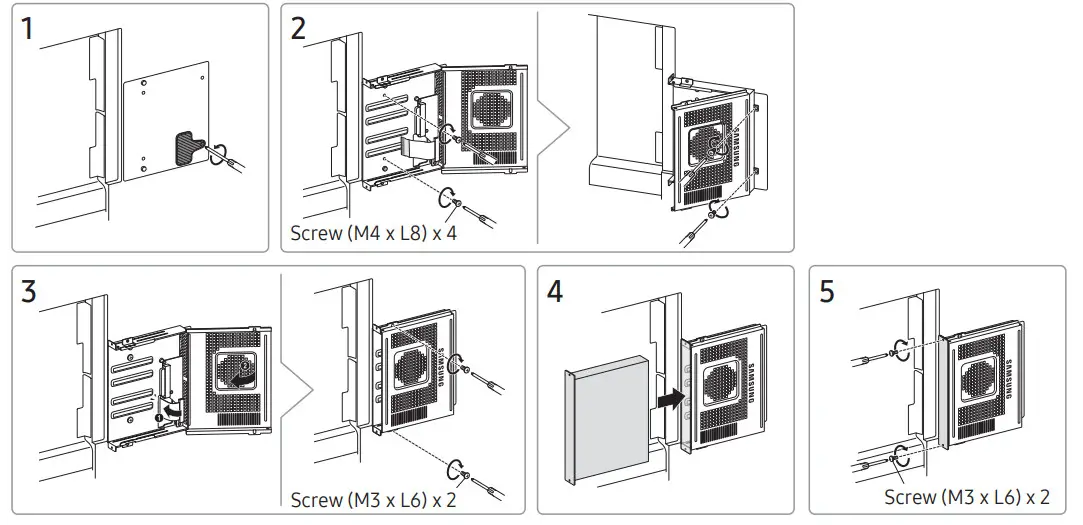
Installing the OPS Case (Sold separately)
- When the OPS case needs to be installed, be sure to install the OPS case first before the product.
- Before installing the OPS Case and OPS module, make sure to remove the power cable from the product to completely cut off the power supply.
- Use the two types of screws correctly.
- Remove the sticker on the connector before proceeding with step 3.
Checking the Components
| 1 Quick Setup Guide | 5 USB cable |
| 2 Warranty cards (Not available in some locations) | 6 Touch Pen x 2 |
| 3 Regulatory guide | 7 Wall Mount Adapter x 4 (WM75A only) |
| 4 Power cord |
Contact the vendor where you purchased the product if any components are missing.
Components may differ in different locations.
Refer to the installation guide for the WMA stand or wall mount (available for optional purchase).

The terms HDMI and HDMI High-Definition Multimedia Interface, and the HDMI Logo are trademarks or registered trademarks of HDMI Licensing Administrator, Inc. in the United States and other countries.
Screen Elements
PEN MODE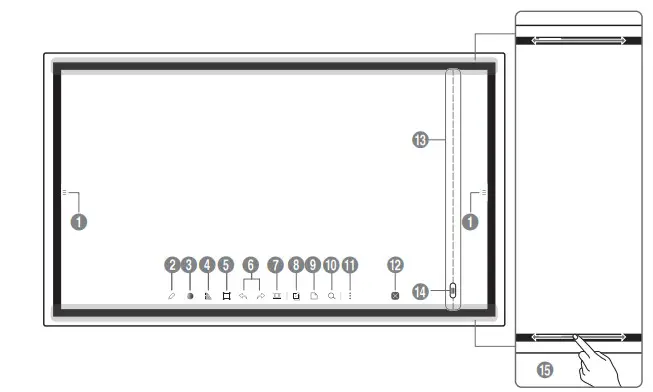
- IMPORT: View the screen of a mobile device or PC connected to the product, or import data such as images from a connected USB or network drive.
EXPORT: Share your creations in various ways. - Tap to select a mode. You can select from PEN MODE or BRUSH MODE.
- Tap to open the Palette. You can select the color and thickness of the pen and the highlighter.
- Use math tools to make geometric constructions and take measurements.
- Select and edit / capture / email / print the pen or brush content.
- Undo or redo the last action.
• If any page editing actions such as page adding, deleting, and moving are found, is reset. - Move or edit the created rolls for each page.
- Create a layer to write or draw on over the screen which can
also be saved the captured image. - Bring out Miniboard to take notes or draw as a separate layer above the viewer or source screen.
- Tap to search the internet.
- Manage and change the rolls and settings.
- Close the current roll and create a new roll.
- See page lines.
- Scroll through pages.
- Scroll the black area to move the pages.
- BRUSH MODE
‐ Changes in the thickness depending on the area touching the screen apply immediately. (max. 5.0 cm)
‐ Brush use is recommended.
‐ BRUSH MODE supports single touch only.
IMPORT
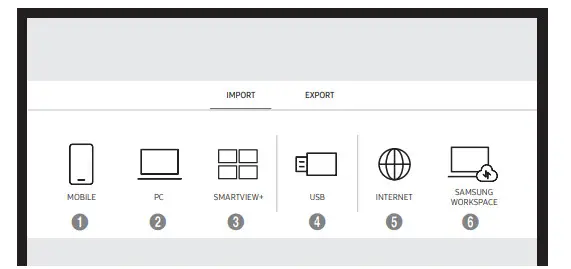
You can view the screen of a mobile device or PC connected to the product, or import data such as images from a connected USB or network drive.
Tap on the left or right side of the screen to open the IMPORT/EXPORT window. Then, tap IMPORT to select the desired device.
- Displays the screen from a mobile device by using Smart View or Screen Mirroring function.
- Displays your PC screen imported using HDMI, DisplayPort, OPS connection or Wireless Display.
- You can display the screen shared from your PC, mobile, or tablet.
- Import videos, images, native FLIP files, or document files from a USB device.
- Connect the network to access the Internet from the product like accessing the Internet from a computer.
- Access to remote PC and your work resources with this function.
* The native FLIP format (.iwb) refers to files that are directly saved from the device and are only supported by FLIP devices.
* Supported video file formats: Avi, Mkv, asf, WMV, .mp4, MOV, 3gp, vro, mpg, mpeg, ts, tp, trp, flv, vob, svi, m2ts, mts, .webm, .rmvb
* Supportable image file formats: JPG, BMP, PNG, MPO
* Supported document file formats: DOC, PPT, PDF, XLS, XLSX
EXPORT
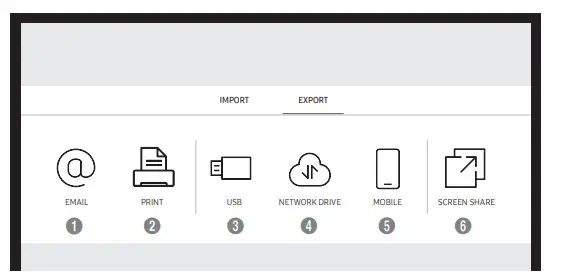
You can export your created rolls in various ways.
Tap on the left or right side of the screen to open the IMPORT/EXPORT window. Then, tap EXPORT to select the desired menu.
- Send your created rolls via email.
- Print your created rolls.
- Export your created rolls to a connected USB device.
- Export your created rolls to a registered and connected network drive.
- Send the roll to a mobile device.
- Share your screen with selected devices.
Troubleshooting Guide
| Issues | Solutions |
| Touching does not work when an HDMI connection is used. | Check whether the TOUCH port on the product is connected to a USB port on the PC using the supplied USB cable. |
Specifications
| Model Name | WM75A | WM85A | |
| Panel | Size | 75 CLASS (74.5 inches /189.3 cm) | 85 CLASS (84.5 inches / 214.7 cm) |
| Display area | 1650.24 mm (H) x 928.26 mm (V) | 1872.0 mm (H) x 1053.0 mm (V) | |
| Power Supply | AC100-240V– 50/60Hz Refer to the label at the back of the product as the standard voltage can vary in different countries. | ||
| Environmental considerations | Operating | Temperature: 0 °C – 40 °C (32 °F -104 °F) Humidity:100/0 – 80%, non-condensing | |
| Storage | Temperature: -20 °C – 45 °C (-4 °F -113 °F) Humidity: 5% – 95%, non-condensing | ||
- This is a class-A product. In a domestic environment, this product may cause radio interference in which case the user may be required to take adequate measures.
- For detailed device specifications, visit the Samsung website.
- Connecting the LAN Cable: Use a Cat7(*STP Type) cable for the connection.(10/100 Mbps)
(*Shielded Twist Pair)
* For EXTERNAL (USB 2.0, USB 3.0), connect a USB terminal that can support under 100 W.
Wall Mount Kit Specifications
| 1 Model Name | 2 VESA screw hole specs (A * B) in millimeters | C (mm) | 3 StandardScrew | 4 Quantity | 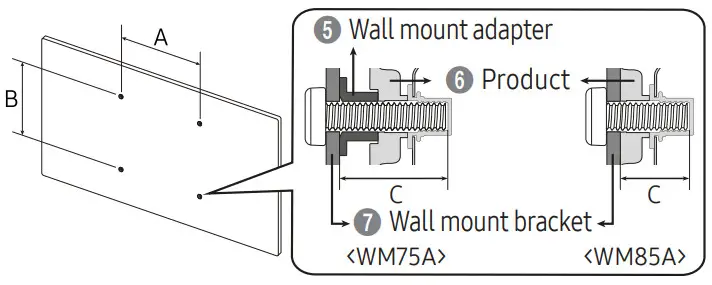 |
| WM75A | 400 x 400 | 43 – 45 | M8 | 4 | |
| WM85A | 600 x 400 | 36 – 38 |
Contact SAMSUNG WORLDWIDE
Web site: http://www.samsung.com
| Country/Area | Customer Care Centre |
| ALBANIA | 45620202 |
| AUSTRIA | 0800 72 67 864 (0800-SAMSUNG) |
| BELGIUM | 02-201-24-18 |
| BOSNIA | 55233999 |
| BULGARIA | 0800 111 31 – 6e3nnaTeH 3a BC114K14 onepaTopii *3000 – LleHa Ha eximH rpaAcKti pa3rosop frimi cnopep. Tapfrgara Ha m06frinHvica onepaTop 09:00 ,go 18:00 – n0HeAeflHIAK AO netbook |
| CROATIA | 72726786 |
| CYPRUS | 8009 4000 only from a landline, toll-free |
| CZECH | 800 – SAMSUNG (800-726786) |
| Samsung Electronics Czech and Slovak, s.r.o. V Parku 2323/14,148 00 – Praha 4 | |
| DENMARK | 70701970 |
| ESTONIA | 800-7267 |
| FINLAND | 030-6227 515 |
| FRANCE | 148630000 |
 Samsung US | Mobile | TV | Home Electronics | Home Appliances | Samsung US