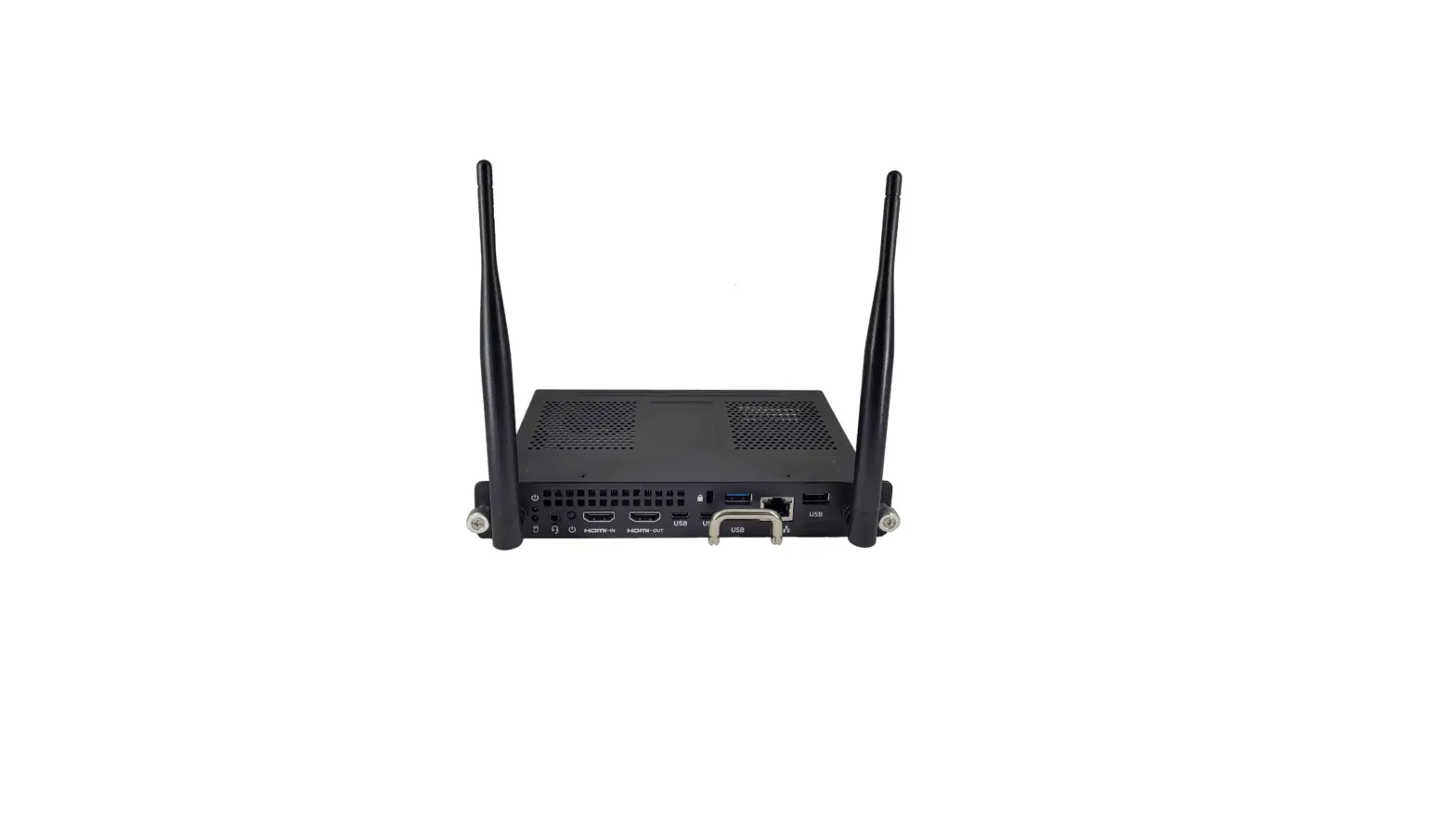
OPS8581 Module OPS Windows
Product Information: Module OPS Windows
The Module OPS Windows is a smart display accessory with a
built-in Windows system that can be installed directly on the back
of an interactive digital display. This improves the function and
performance of the device. The OPS module placement is easy and
simple, requiring only the tightening of screws on one side.
Note:
When inserting or removing the module, the power cord of the
machine must be pulled out. It is not recommended to leave the
module bay uncovered.
Product Usage Instructions
OPS module placement
- Locate the plate with two screws on the right side of the
screen’s back. - Remove the screws to release the OPS module bay.
- Insert the OPS module on one side and tighten the screws.
- Make sure to pull out the power cord of the machine before
inserting or removing the module.
- Locate the plate with two screws on the right side of the
To access the OPS module
- Go to Input options.
- The detected module option will now appear as a PC icon.
- Click on the PC icon to enter Windows mode.
- To return to the Android system, press the Home icon on the
touch panel of the screen.
Module OPS Windows
User guide Module OPS Version 1.0
ZK-OPS (Open Pluggable Specification) is a smart display accessory, with a built-in Windows system. The OPS can be installed directly on the back of the interactive digital display, greatly improving the function and performance of the device.
Note: When inserting or removing the module, the power cord of the machine must be pulled out .
1.1 OPS module placement
1.2 As you can see in the image, we have on the back of our screen, on the right side we will see a plate with two screws, we just have to remove them to release the OPS module bay .
Note: It is not recommended to leave the module bay uncovered. .
Module OPS Windows
1.3 We proceed to introduce the OPS module in an easy and simple way. We only have to tighten the screws of the same module. This installation is very simple and only enters on one side
Note: When inserting or removing the OPS module, the power cord of the machine must be pulled out.
2.1 To access the OPS module
2.2 In the Input options, the detected module option will now appear and you can find it as a PC icon
2.3 Once we make contact with the PC icon, the screen will go to Windows mode. 2.4 To return to the Android system we just have to press the Home icon on the touch panel of the same screen and that’s it.


![Zkteco Elite Series [ti] Instruction Manual](https://static-data1.manualsee.com/1/img/320/5146398/2022/11/fb4f414223137c521cec43028c1d4580.jpg "Zkteco Elite Series [ti] Instruction Manual")