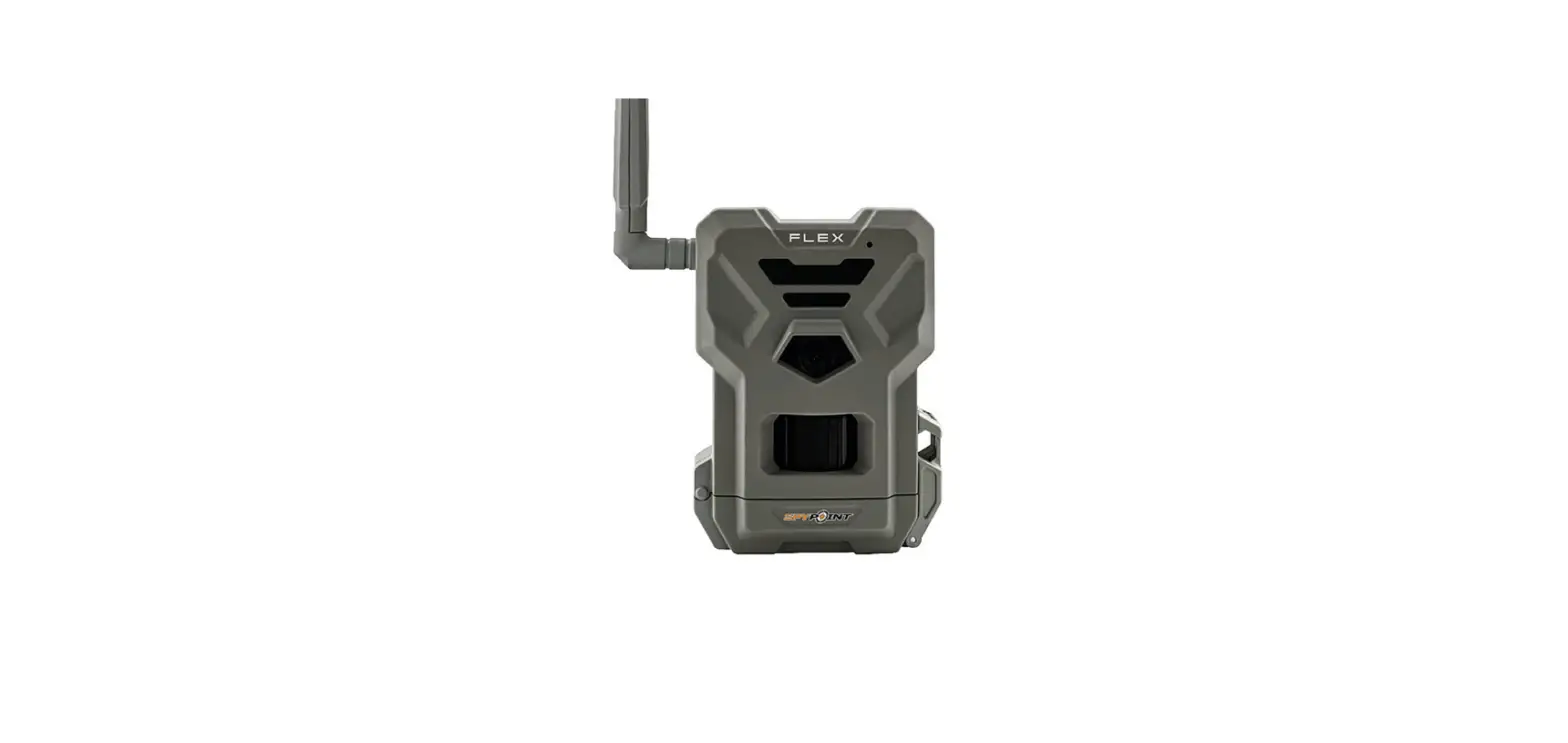
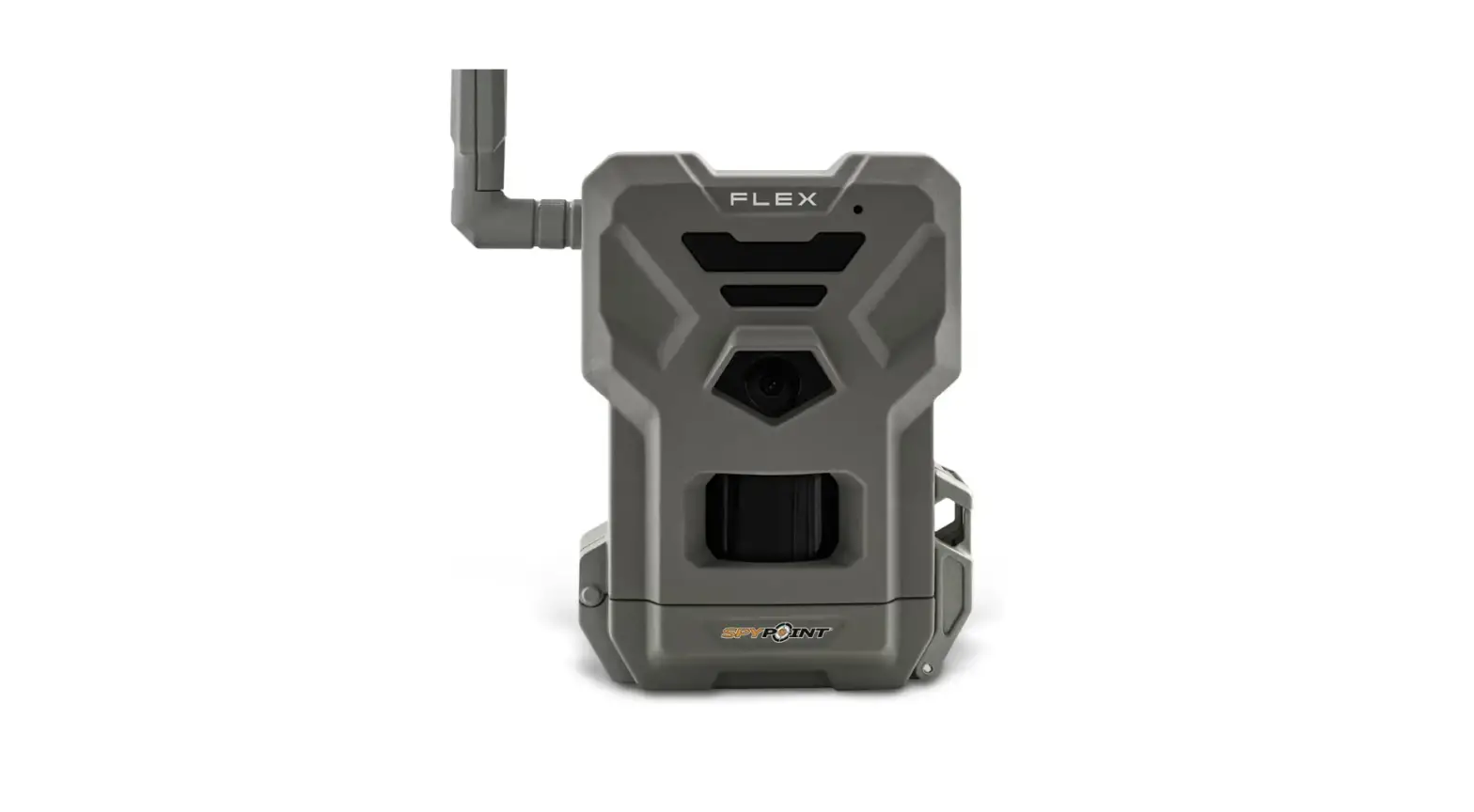
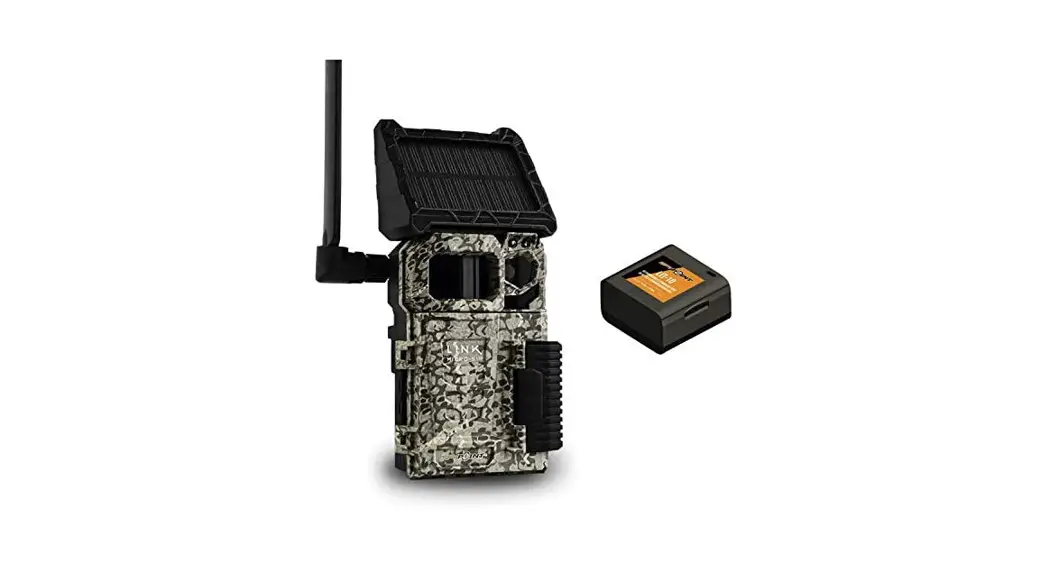
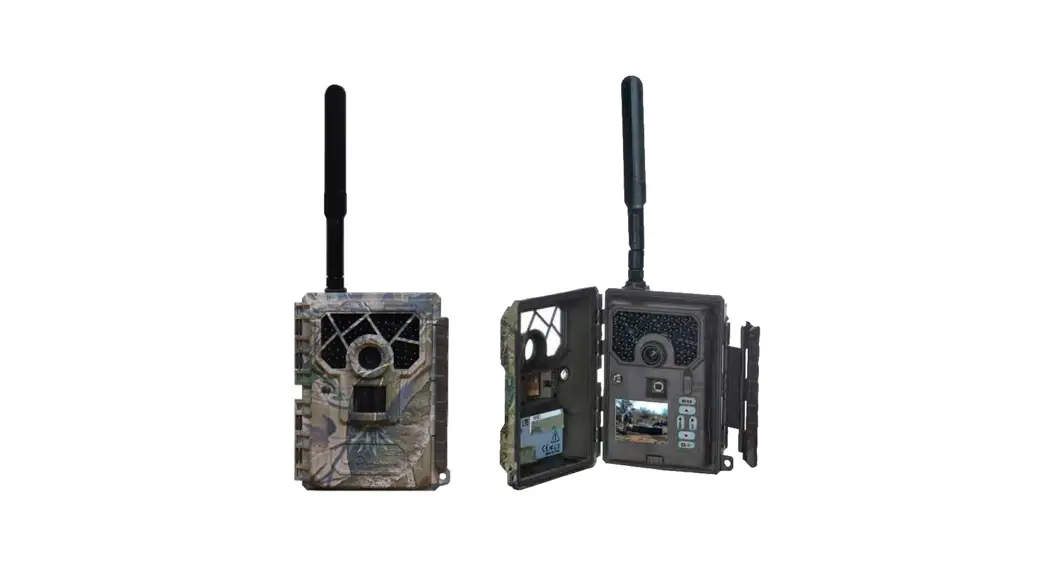
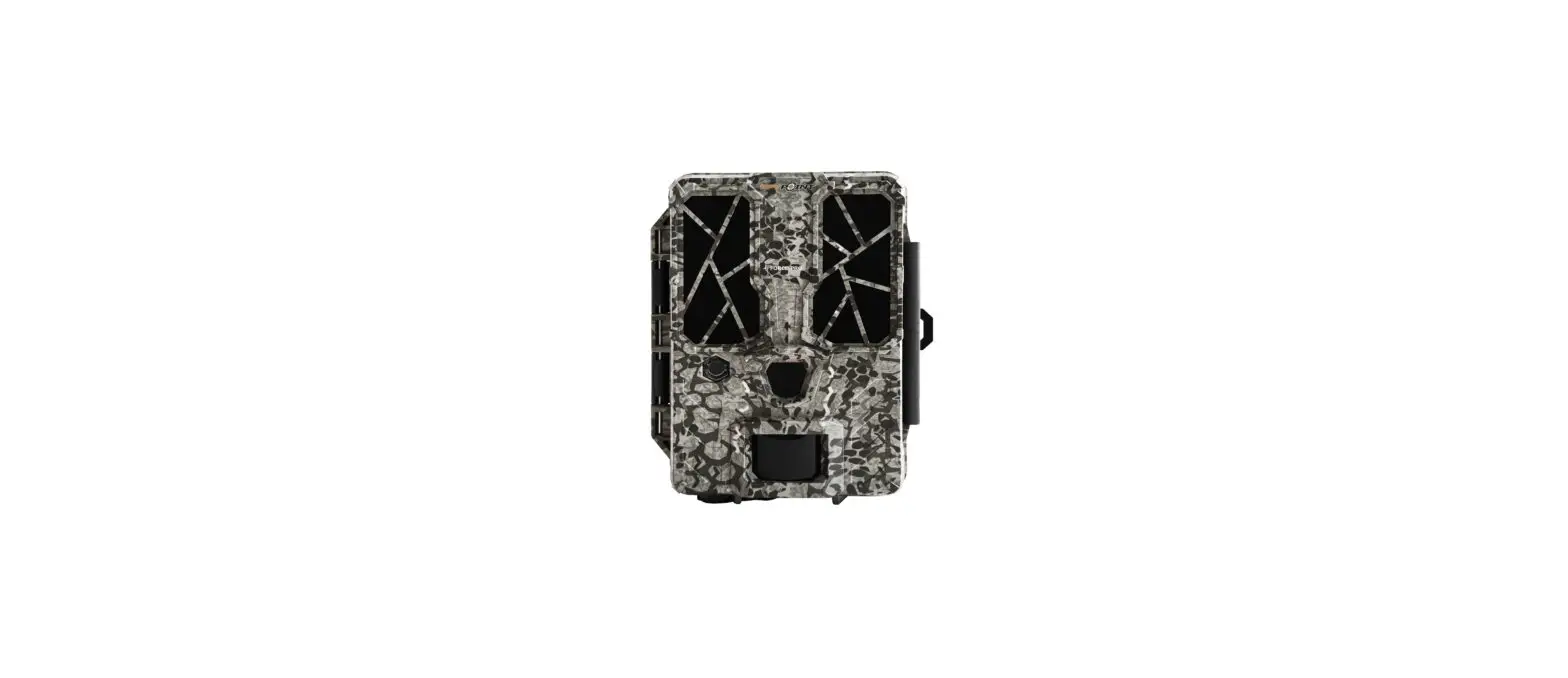
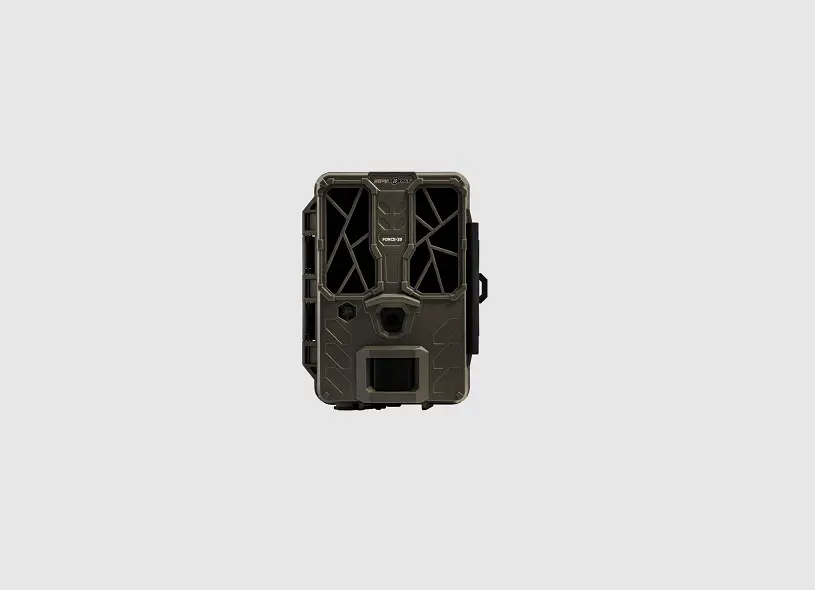
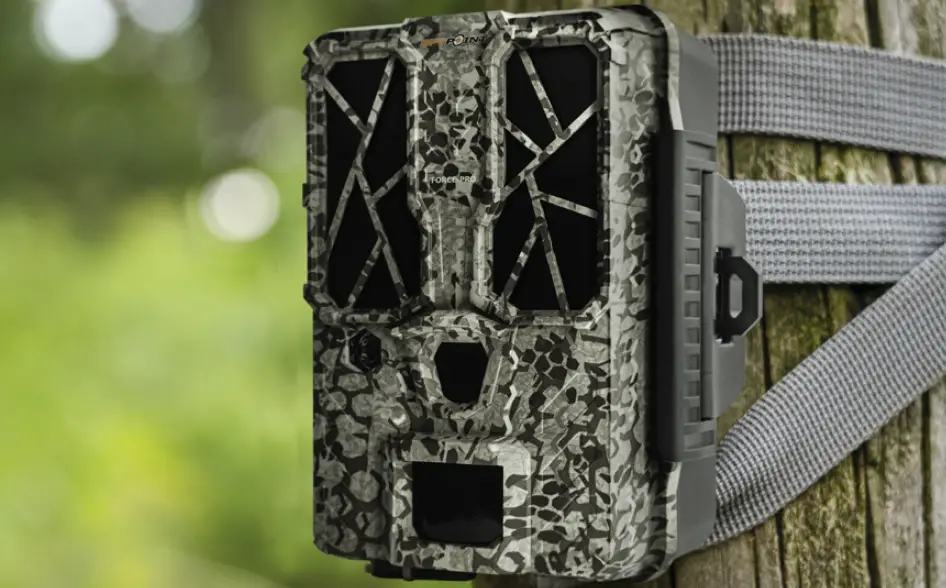
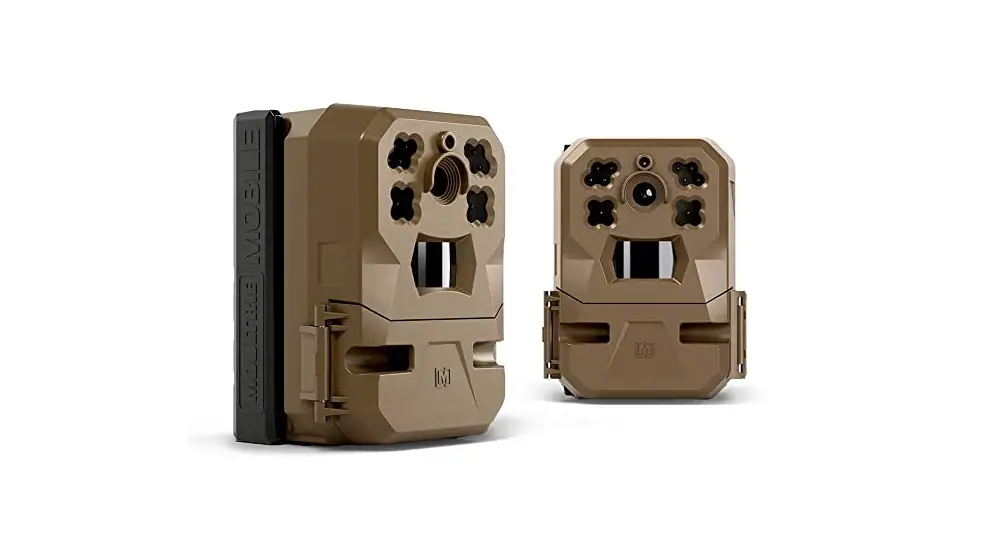
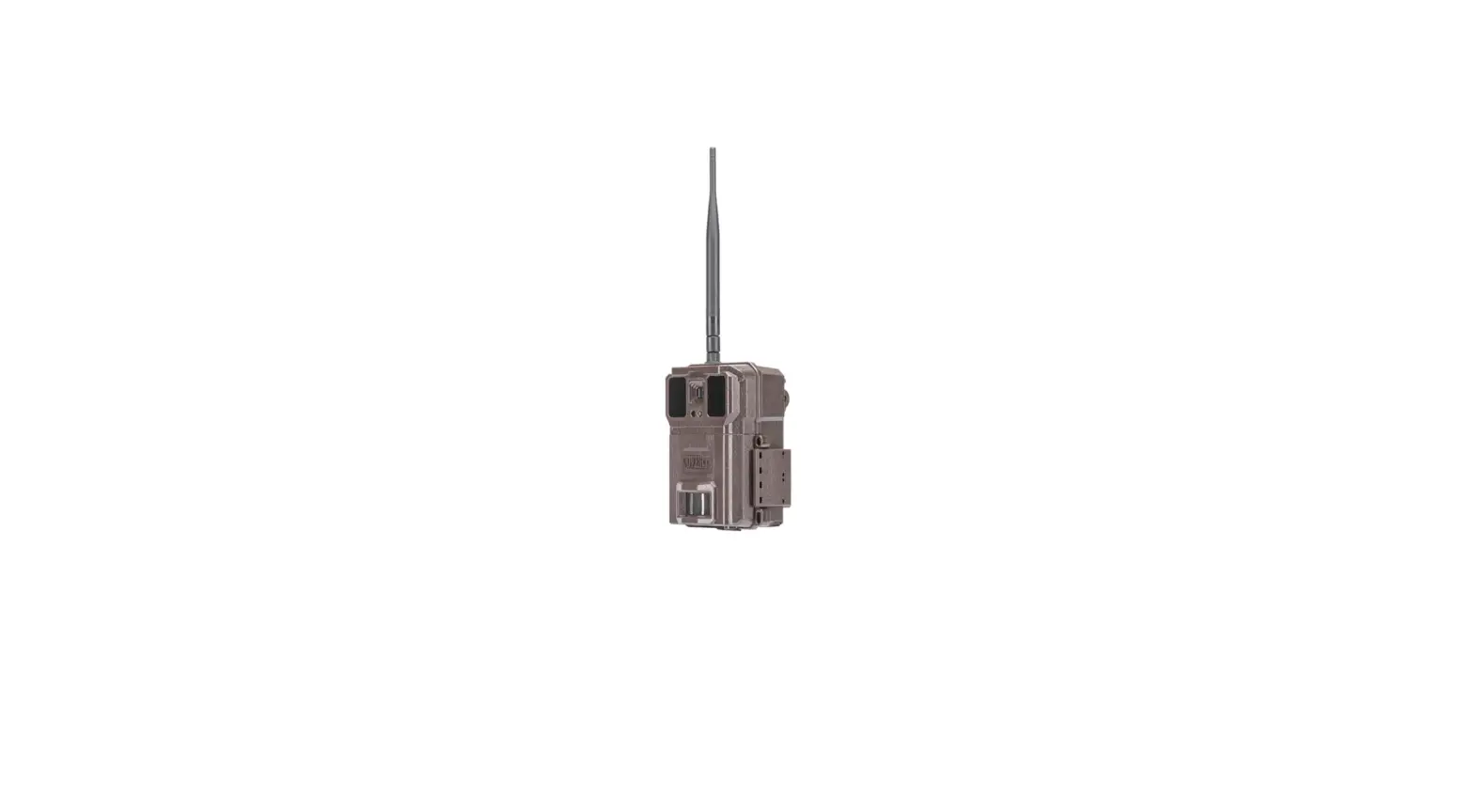
FLEX Outdoors Cellular Trail Camera
Product Information
SPYPOINT FLEX
The SPYPOINT FLEX is a cellular trail camera that offers
innovative design, optimized antenna, straightforward interface,
TEST and FORMAT buttons, and automatic carrier connection
technology. It is one of many trail cameras produced by SPYPOINT, a
leader in cellular trail camera technology.
The FLEX works with the SPYPOINT mobile app to provide features
and performance that are unmatched at its price point. It offers
flexibility and performance that hunters love.
Product Usage Instructions
Components – SPYPOINT FLEX
The SPYPOINT FLEX comes with the following components:
- Microphone
- IR LED – 4 powerful LEDs that illuminate at night for clear
black and white photos and videos - Light sensor – Detects ambient lighting conditions for taking
photos and videos in color during the day and black and white at
night - Delay light – Flashes for 30 seconds during installation to
allow the user to walk away without being captured - Photo lens – Image sensor
- Detection lens – Enlarges the detection area of the camera’s
motion sensor - Battery door – Provides access to the battery compartment,
microSD card slot, STATUS light, and OFF/ON switch - microSD card slot – Space to insert a microSD card (not
included) needed to save photos and videos - Micro SIM card slots – Space to insert two SIM cards. It is
necessary to use SPYPOINT SIM cards (supplied by SPYPOINT) for the
cellular functions to work - Battery tray – Removable device for inserting 8 alkaline or
lithium AA non-rechargeable batteries (not included) - Battery level – Illuminates the number of lights corresponding
to the current battery level during startup
For more information about the SPYPOINT FLEX and its components,
please refer to the user manual.
USER MANUAL
v.1.0
introduction
SPYPOINT FLEX
FLEX PRESENTATION
The FLEX is one many SPYPOINT trail cameras. While SPYPOINT has been a cellular trail camera leader for some time, the FLEX is a major step forward in customer-friendly and innovative design, optimized antenna, straightforward interface, TEST and FORMAT buttons, and automatic carrier connection technology.
The FLEX is a cellular trail camera that works with the SPYPOINT mobile app to:
· Send photos and videos to your smartphone or tablet. · Check camera status. · Manage camera settings and preferences.
The FLEX offers features and performance that are unheard of at its price point. The commitment to user value carries through to the FLEX, even with all the new and innovative features that have been included. Hunters are loving the performance and flexibility the latest camera from SPYPOINT delivers.
THANK YOU FOR CHOOSING A SPYPOINT PRODUCT
This User Manual will introduce you to the features of your new FLEX and will guide you through the acquisition of its functionalities so that you can use it to its full potential.
Our priority is to offer outstanding service to our customers. If you need technical support for your camera, here is how to contact us:
Contact our chat service directly on the SPYPOINT site (in the lower righthand corner of the Support section, by clicking on the “Start Chat” window, www.spypoint.com).
· Monday to Friday — 8:30 a.m. to 8:00 p.m. · Saturday-Sunday — 8:30 a.m. to 5:30 p.m.
Go to www.spypoint.com/en/support for more information about our devices.
ABOUT US
SPYPOINT’s mission is to offer you products that are easy to use, innovative, affordable, and of exceptional quality. Our products are mainly used in the hunting field and residential and commercial safety fields. They are distributed and appreciated on all continents and are continuously growing. Prosperous and respected, SPYPOINT is a company that is constantly developing new technologies and that remains attentive to its customer’s needs to offer cutting-edge products with concrete solutions to improve hunting and outdoor activities.
JOIN THE SPYPOINT COMMUNITY
www.facebook.com/SPYPOINT www.twitter.com/SPYPOINTcamera www.youtube.com/SPYPOINTtrailcam www.instagram.com/spypointcamera
2
Table Of Content
SPYPOINT FLEX
Components ………………………………………………………………………………4 Features ………………………………………………………………………………………6 Power Supply …………………………………………………………………………….7 Memory Card …………………………………………………………………………….8 Preparation…………………………………………………………………………….. 10 Activation ……………………………………………………………………………….. 11 Installation……………………………………………………………………………… 12 Starting Your Camera…………………………………………………………… 13 Configuration…………………………………………………………………………. 14 Verification……………………………………………………………………………… 16 Tool Accessories Options………………………………………………. 18 Transferring Files to a Computer………………………………………. 19 Offered Accessories ……………………………………………………………… 20 Troubleshooting……………………………………………………………………. 21 Warranty and Preparation………………………………………………….. 22 Regulation………………………………………………………………………………. 23 Frequency……………………………………………………………………………….. 24
3
Components
SPYPOINT FLEX
q Microphone IR LED Light sensor Delay light Photo lens Detection lens
Battery door microSD card slot Micro SIM card slots Battery tray Battery level Signal level
STATUS light FORMAT button TEST button OFF/ON switch Antenna 12 V jack
Cable lock hole Locking latch Slots for installation strap Screw-thread for standard
¼”-20 tripod mount
4
Components
MICROPHONE Records sound in video mode.
IR LED 4 powerful LEDs that illuminate at night for clear black and white photos and videos.
LIGHT SENSOR Detects the ambient lighting conditions for taking photos and videos: in colors during the day, black and white at night.
DELAY LIGHT During installation, once the signal is found, this light flashes for 30 seconds to allow the user to walk away without being captured.
PHOTO LENS Image sensor.
DETECTION LENS Enlarges the detection area of the camera’s motion sensor.
BATTERY DOOR Provides access to the battery compartment, microSD card, STATUS light, and OFF/ON switch.
microSD CARD SLOT Space to insert the microSD card (not included) needed to save photos and videos.
MICRO SIM CARD SLOTS Space to insert two SIM cards. It is necessary to activate cellular functions. The SIM cards, pre-installed and preactivated, are included with the camera. It is important to use a SPYPOINT SIM cards (supplied by SPYPOINT), otherwise the cellular functions of the camera will be inoperative.
BATTERY TRAY Removable device in which the 8 alkaline or lithium AA nonrechargeable batteries are inserted (not included with the camera).
BATTERY LEVEL During startup, the camera will illuminate the number of lights corresponding with the current battery level of the camera.
SPYPOINT FLEX
SIGNAL LEVEL During startup, the camera will illuminate the number of lights corresponding with the signal level. 5 bars being excellent and 1 bar being poor.
STATUS LIGHT During installation, it flashes to indicate to the user the strength of the cellular signal. During regular operation, it indicates that the camera is recording or transferring files.
FORMAT BUTTON This button will allow you to format the microSD card during the start up of the device.
TEST BUTTON This button will allow you to send a photo to your app (if you have a transmission plan with remaining photos)
OFF/ON SWITCH Allows the user to turn the camera OFF/ON.
ANTENNA Captures the cellular signal.
12 V JACK Allows you to insert a power cord connected to an external 12 V source.
CABLE LOCK HOLE Allows you to install a #CLM-6FT padlock cable to secure the unit (sold separately).
LOCKING LATCH Allows you to lock, unlock and open the door.
SLOTS FOR INSTALLATION STRAP Allows the camera to be installed using the included installation strap.
SCREW-THREAD FOR STANDARD ¼”-20 TRIPOD MOUNT Allows you to attach a standard tripod from ¼”-20.
5
Features
SPYPOINT FLEX
CELLULAR TRANSMISSION
Network
Transmission plan
Camera configuration
PHOTO RECORDING
Photo resolution Photo file format Time-lapse mode Multi-shot mode
Info bar
Capture mode
VIDEO RECORDING
Video resolution Video file format Video length Capture mode
AUDIO
Audio recording
MEMORY
External memory
LTE Multi-carrier auto connectivity Transmission of your photos and videos to your SPYPOINT application by cellular network. Visit www.spypoint.com/plans to choose a plan that suits you. Fully configurable remotely with the free SPYPOINT app.
33 MP JPG Time-Lapse and Time-lapse+ (Time-lapse with motion detection enabled) Up to 3 photos per detection Date, time, temperature (°C/°F), moon phase, SPYPOINT logo, and camera model Colors by day, black and white by night
1 920 X 1 080 (FHD 1080p) MP4 15 seconds Colors by day, black and white by night
Yes
microSD card up to 512 GB (not included)
VIEWING
On the SPYPOINT app or on the website www.spypoint.com/en/manage
POWER SOURCES
Alkaline or lithium AA non-rechargeable batteries
Lithium battery pack
8 x AA (not included)
Lithium battery pack #LIT-22 (not included)
External 12 V battery
12 V battery
Optional accessories available at SPYPOINT: #KIT6V-12V, #KIT-12V, #BATT-12V
DETECTION SYSTEM
Movement detector
Infrared
Detection angle
50°
Detection range
Up to 30 meters/100 feet
Trigger speed
0.3 seconds
Delay between each detection Adjustable from Instant to 30 minutes
ILLUMINATION OPTIONS
LED
4 powerful LEDs
Night light range Exposure
Up to 30 meters/100 feet
Automatic adjustment of the infrared illumination
PHYSICAL DIMENSIONS
10,67 cm (H) x 13 cm (W) x 7.88 cm (D) 4.2” (H) x 5.14” (W) x 3.1” (D)
RECOMMENDATIONS
Operating temperature
-30 °C to 50 °C (-22 °F to 131 °F)
Storage temperature
-40 °C to 60 °C (-40 °F to 140 °F)
6
Power Supply
SPYPOINT FLEX
CHOOSING A POWER SOURCE
3 options are available to you: · Alkaline or lithium AA batteries · Rechargeable battery 12 V (#KIT-12V sold separately) · Rechargeable battery pack 7,4 V (#LIT-22 sold separately)
NOTE
We suggest using a SPYPOINT #LIT-22 rechargeable lithium battery pack with your camera. It offers a longer battery life than AA batteries, and saves money over the life of the camera.
FOR BEST RESULTS AND NO LEAKAGE
· Use only new alkaline or lithium batteries. · Do not mix new and old batteries. · Do not use rechargeable AA batteries
(their lower voltage will generate operational issues).
HOW TO INSTALL AA BATTERIES PROPERLY
· Unlock the latch and open the FLEX door. · Place the battery holder back into the battery
compartment with arrows facing up (See Photo) · Insert the AA batteries into the battery holder
following polarity (+) and (-) indications. · Place the battery holder back into the battery
compartment.
AN EXTERNAL 12 V BATTERY
· The camera was designed to recognize and use an optional power source other than the 8 AA batteries.
· You can purchase a 12 V cable and battery kit (like the #KIT-12V, sold separately). Simply plug the 12 V cable into the 12 V jack of the camera and connect the other cable end to the 12 V battery.
MANAGING VARIOUS CAMERA POWER SUPPLY
If you choose to plug an external 12 V battery (#KIT-12V, sold separately) into your camera, it becomes your camera’s new primary power source. The AA batteries will only be used once the 12 V battery is depleted.
You can check the battery level on your device or in the mobile application: · In the application: on the home page, you will see the battery charge level
for each of your devices. You can access more details on the status of your battery by going to the STATUS page. When the battery logo turns red, we suggest that you change the batteries before it is completely drained. · Once the device is powered on. There are four green lights within the battery icon indicating the battery level.
7
Memory Card
SPYPOINT FLEX
INSTALLING A MEMORY CARD (NOT INCLUDED)
The use of a memory card is necessary for the operation of the camera. It is used to save photos, videos and other camera status files. Note that photos and videos in their original format are kept on the memory card. The files sent to your application are lighter versions. You can retrieve your photos and videos at any time by removing the card from the camera and transferring the contents to another device (e.g.: computer).
Your camera requires a microSD memory card, with a maximum capacity of 512 GB, sold separately. Here is a table showing the approximate quantity of photos or videos that can be recorded on the card, according to different memory card capacities.
NOTE
The FLEX is equipped with continuous mode. This means that when the memory card is full, the camera continues to save your photos and videos by erasing the first recorded files.
MEMORY PHOTOS (33 MP) VIDEOS (1080P)
4 GB 1,900 684
16 GB 7,600 2,736
32 GB 15,200 5,472
128 GB 60,800 21,888
512 GB 243,200 87,552
INSERTING YOUR MEMORY CARD
· Ensure the camera is turned OFF. · Find the microSD card slot. It is located at the bottom
of the camera (see photo). · Insert a microSD card (up to 512 GB) in the microSD
card slot with the metal contacts facing up. · The card is inserted correctly when a click is heard.
8
Memory Card
REMOVING YOUR MEMORY CARD
· Before removing a memory card, always turn your camera OFF to prevent files on the card from being deleted or damaged.
· To remove the card, push it lightly into the camera until you hear a click. Then take it out of the device.
FORMATTING THE MEMORY CARD
During the start up of the camera, you can use the FORMAT button on the device to quick format the microSD card. This is required if you want to be able to take photos and videos while transmitting. 1. Turn ON the camera. 2. Press and hold the FORMAT button for 5 seconds. 3. The microSD light will blink green while the card is formatting. 4. Once complete, the microSD light will become solid green.
SPYPOINT FLEX
9
Preparation
SPYPOINT FLEX
SCREW IN ANTENNA
The antenna doesn’t come installed. Please insert as shown in the photo.
ACTIVATING YOUR CAMERA
Before you can use your camera, you must activate it. To do so, you will need the activation code.
FINDING THE ACTIVATION CODE
The activation code is located inside the FLEX’s battery compartment.
Activation code
10
Activation
To activate your camera, you have two choices: you can either do it via the SPYPOINT app or via our website www.spypoint.com.
SPYPOINT APP
If you choose to use the SPYPOINT app to activate your device, follow these steps: 1. On Google PlayTM or the App StoreTM, search for “SPYPOINT app”. 2. Download and install the app on your smartphone or tablet. 3. Start the app. Select “ACTIVATE A DEVICE”. Then follow the steps to create an account. 4. When prompted to select a Device Model, select “FLEX” and follow the instructions on the screen. 5. Once completed, a confirmation email with instructions on how
to finalize the creation of your account will be sent to you. 6. Log in to the SPYPOINT app using your email address and password.
SPYPOINT.COM WEBSITE
If you choose to use the SPYPOINT website to activate your device, follow these steps: 1. On the www.spypoint.com, select “MANAGE YOUR ACCOUNT” in the top navigation menu.
On the displayed page, select “CREATE AN ACCOUNT”, fill out the required fields, then log in. 2. Select the + sign on the far right of the page; in the list, select “FLEX” then follow the steps. 3. When complete, a confirmation email with instructions on how to finalize the creation
of your account will be sent to you. 4. On the SPYPOINT website, log in to your account using your email address and password.
CHOOSING A PHOTO TRANSMISSION PLAN FOR YOUR CAMERA
Go to www.spypoint.com/en/spypoint-experience/plans to read the latest offers and choose the plan that suits you.
SPYPOINT FLEX
11
Installation
INSTALLING YOUR CAMERA
1. To install the camera, loop the installation strap through the intended slots. 2. Choose a solid tree that does not move in the wind, as movement will cause
false detections. 3. Make sure the area immediately in front of your camera is free of branches
or twigs that could be blown away by the wind. 4. The camera should be at the same height of the animal’s mid-body. 5. The targeted animal should be at 25 feet (7.5 meters) away from the camera. 6. To produce brighter photos and videos at night, there should be items
reflecting the camera’s flash in the background.
STARTING YOUR CAMERA
IMPORTANT VERIFICATIONS BEFORE STARTING YOUR CAMERA:
M The antenna is installed (antenna support removed). M The 8 AA batteries or LIT-22 are inserted in the camera’s battery compartment. M The microSD card is formatted and inserted in the camera. M The camera is activated. M The camera is securely installed.
1. Turn ON the camera. 2. The green STATUS light will flash, the battery level will be displayed. 3. The signal lights will flash together until signal is found. Once signal
is found number of bars will correspond to the signal strength. 4. The microSD light will be ON. 5. The delay light will blink for 10 seconds,
and the STATUS light will turn solid green. 6. All lights will turn OFF and the camera will go into standby
mode awaiting a trigger.
25 feet (7.5 meters)
12
Starting Your Camera
OPERATIONAL VALIDATION TEST
You can use the following test to make sure everything works as it should:
TEST BUTTON
The TEST button forces the camera to take a single photo and transmits it. It will NOT work if the camera is already busy with another task. (Synchronizing with the server, recording a photo/video or running through the start up sequence of the camera.) This button will only work if the camera is on an active transmission plan with photos remaining. 1. After the camera has started, and passed through the startup light
sequence, the TEST button can be used. Ensure all lights are OFF before proceeding. 2. Press the TEST button for at least 1 second. 3. Battery level will be displayed. 4. Signal lights will blink together every second until the camera receives the signal strength. Then it will display the number of lights corresponding to the signal strength. 5. All Lights will turn OFF.
SPYPOINT FLEX
13
Configuration
SPYPOINT FLEX
MANAGE DEVICE
Use the SPYPOINT app to configure your camera.
EDIT DEVICE NAME
All possible values
Allows you to name the camera for easy identification. This function is very useful for users with more than one camera.
RESTORE FACTORY SETTINGS
Restore
Allows you to reset the camera to its original state.
IMAGE CAPTURE
CAPTURE MODE
Photo; video; time-lapse; time-lapse+
· Photo: The camera will capture photos based on the motion detection. · Video: The camera will capture video clips based on motion detection. · Time-lapse: The camera will capture photos based on a schedule set by the user. · Time-lapse+: The camera will capture photos based on a schedule set by the
user and also capture photos based on the motion detection.
MOTION DELAY
Instant; 10 seconds; 20 seconds; 30 seconds; 40 seconds; 50 seconds; 1 minute; 3 minutes; 5 minutes; 10 minutes; 15 minutes; 20 minutes; 30 minutes; 1 hour
Allows you to choose the period of time to wait before the camera detects again and records the next photo/video. A longer delay minimizes the number of photos and videos taken and therefore maximizes battery life. A shorter delay maximizes surveillance in the area but consumes more power. Shorter delays are recommended when the camera is used for security purposes.
SD PHOTO RESOLUTION
High/optimal
Allows you to determine the quality of the photos saved on your microSD card. Optimal quality: 33 MP or high quality: 2 MP.
MULTI-SHOT
1; 2; 3
Allows you to take 2 or 3 consecutive photos at each detection, with a 5-second delay between each photo.
SENSITIVITY
Low; normal; high
Allows you to choose the detection sensitivity of the device. A higher sensitivity allows you to detect movement in front of the camera more effectively, so the camera will take more pictures.
14
Configuration
SPYPOINT FLEX
CELLULAR
DAILY SYNC TIME
All possible combinations
Allows you to choose the time when the camera makes its first transfer of the day, each day.
Note: The camera transfers are configured by default with 6 times per day, determined from the time you activated your camera. For example, if your camera was activated at 1:42 p.m., this will be the default first transfer time. The next transfer will be at 5:42 p.m.
SYNC FREQUENCY
1; 2; 4; 6; 12; each detection
Allows you to choose the number of transfers the device performs each day.
CELLULAR
Activated/not activated
Allows you to activate or deactivate the cellular mode. Note that this setting will only take effect the next time the camera makes a transfer.
TAKE A PHOTO/VIDEO AT EACH SYNC During the next transfer, the camera will automatically take a photo or a video and communicate it to your application.
Activated/not activated
CAMERA COMMANDS
UPDATE FIRMWARE
Allows you to request a firmware update to your device.
GENERAL
DATE FORMAT
MM/DD/YYYY or DD/MM/YYYY
Allows you to choose the date format displayed.
TIME FORMAT
12 h or 24 h
Allows you to choose the time format displayed.
BATTERY TYPE
Automatic or AA_LIT
Allows the user to select the battery type installed in the camera.
15
Verification
SPYPOINT FLEX
VERIFYING CAMERA STATUS
Different tools are available to help you check the status of your FLEX and to inform you of any problems that may occur during its operation. In this section, we will see 3 tools:
NOTIFICATIONS
The camera was designed to send notifications to your SPYPOINT app. This is to help you stay informed of the status of your camera.
You will receive a notification on your smartphone at the next transfer when a photo/video is received or important notification is sent:
· You forget to insert a microSD card in your camera. · The inserted microSD card is not compatible with your camera. · The battery percentage is too low.
APPLICATION STATUS PAGE
Here are the different indicators of the FLEX status you have access to. They are accessible on your app or on the SPYPOINT website. What appears in this page is a reflection of the camera at the last communication.
SIGNAL
Strength of the cellular signal
BATTERY
Battery percentage remaining
MEMORY CARD
Used space
LAST COMMUNICATION
The date and time of the last device transfer
TEMPERATURE
POSITION
GPS
MODEL
VERSION
Displays the firmware version
LAST INSTALLATION
Last time your camera was turned ON
SIM
Number on your SIM card
ACTIVATION CODE
1 – 5 bars 0 – 100% (AA/LIT-22/12 V) 0 – 100%
Date and time °C or °F GPS coordinates FLEX VX.XX.XX
Date and time
89…… XXXX-XXX-XXXX
16
Verification
STATUS LIGHT EXPLAINED
STATUS LED COLOR
PATTERN
Green
Solid
Blue Blue Orange Red Red
Solid
Blinking each second till the reset is complete
Blinking each second for 30 secondes
Solid (does not go OFF)
Slow blinking (every 2 seconds)
INDICATION
When device gets triggered or is taking a photo or video When photo or video is getting transmitted
Factory reset
Firmware update
No signal detected
SIM issue/Critical hardware failure
SPYPOINT FLEX
17
Tool Accessories Options
SPYPOINT FLEX
SPYPOINT MOBILE APP
The key to a successful hunt is information and that’s what the SPYPOINT app is all about. View and sort all your photos and videos from the field, check hunting conditions, update camera settings, manage stand locations on your property, and more, right from your mobile device. It’s the mobile scouting solution you need to go into the woods confidently.
From the app, you can:
· Manage camera statuses, settings and plans · View and manage photos and videos · Sort photos with advanced AI species filters · Request FULL-HD photos and videos · Maintain custom maps and markers · Monitor weather conditions
To learn more visit www.spypoint.com/app
PHOTO TRANSMISSION PLANS
SPYPOINT makes choosing a photo transmission plan as easy as possible with straightforward photo count thresholds and the option to go month-tomonth to maximize flexibility, or annually to get the most savings. SPYPOINT even offers a free plan, sending 100 photos every month at no charge.
To learn more visit www.spypoint.com/plans
SPYPOINT WEB APP
As well as with the SPYPOINT mobile app, you can manage your device and photos/videos using the web app.
Log in at www.webapp.spypoint.com to manage cameras and view photos and videos online.
18
Transferring Files to a Computer
SPYPOINT FLEX
TRANSFERRING FILES TO A COMPUTER
· Turn the camera OFF. · Remove the microSD card from the camera. · Insert the microSD card in the microSD computer slot,
or use a USB adapter for microSD cards. · The computer will recognize the microSD card. There may be two
different disks recognized, this is normal after use in the FLEX. · If the computer doesn’t detect the microSD card, this means
the memory card is corrupt and needs to be replaced.
ON A PC
On your desktop, click on “My Computer” or “This PC”.
Locate your device under “Removable Disk” and click to access it. Then, click on “DCIM” and “100DSCIM” to find all saved photos and videos. If you do not see the photos or videos in the folder you checked, try again in the other “Removable Disk” folder.
Select the files you want to copy. With some Windows versions, the simplest way is to select them by clicking on the “Home” tab and choosing “Select all” on the right side. With some Windows versions, you can press on “Ctrl” and “A” or click on the “Edit” menu and choose “Select all”.
Click on the “Copy” icon on the left of the ribbon (or hold the “Ctrl” and “C” keys).
Once your photos and videos are transferred, click the “Safely remove hardware and eject media” button located in the task bar, then click “Eject mass media storage device”.
If you do not want to select all photos or videos, hold down the “Ctrl” key and click on the files you want to select before clicking on the “Copy” icon.
Access the folder where you want to save your photos and videos or create a new folder by clicking on the “New folder” button. (You can also click on “Ctrl”, “Shift”, and “N” to create a new folder, or right-click in a blank space in the “Pictures” folder and choose “New”, then, in the following menu, click on “Folder”.)
Enter a name for your new folder, click on “Enter”, then double-click on the folder to open it. In the “Home” tab, choose “Paste” (or click simultaneously on the “Ctrl” and “V” keys). The photos and videos will be copied in the new folder.
ON A MAC
Click on the search tool in the “Toolbar”. Click the “Go” Tab, then select “Computer”.
Locate your device under the “Locations” tab and click to access it. Then click on “DCIM” and “100DSCIM” to find all saved photos and videos.
Click on “Edit” in the toolbar at the top of the screen, then click on “Select all” to highlight all individual files on the device. You can also access the “Select all” option by simultaneously clicking “Cmd” and “A”. If you don’t want to import everything, you can highlight the desired photos or videos individually. Transfer photos and videos by clicking on “Cmd” and on the file name. Click on “Edit again” and then “Copy” (or “Cmd” and “C”) to copy the highlighted files.
Access the folder where you want to save your photos and videos, or create a new folder by right-clicking and pressing “Cmd” at the same time, then select “New folder” from the menu.
Click on “Modify”, then on “Copy” (or “Cmd” and “V”) to copy your chosen files in the selected folder. The photos and videos can take a few minutes to download, depending on the size and the number of the file you are importing.
Once your photos and videos are transferred, click on the “Eject” icon beside the name of your device, than unplug the device from your MAC.
19
Offered Accessories
12 V BATTERY, CHARGER & HOUSING KIT
Compatible with all SPYPOINT devices with a 12 V socket. Case, AC charger, 12 ft (3.6 meters) power cable (#PW-12FT) and strap included. #KIT-12V
RECHARGEABLE LITHIUM BATTERY PACK
Rechargeable lithium battery pack and charging cable included. 7.4 voltage. #LIT-22
FLEX CAMERA STEEL SECURITY BOX
Fits the SPYPOINT FLEX camera. #SB-500
Steel boxes may affect wireless connectivity, especially in low-reception areas.
ADJUSTABLE MOUNTING ARM
Fits any camera with a standard ¼”-20 screw-in tripod mount. #MA-500
SPYPOINT FLEX
L o c k
HIGH SPEED / HAUTE VITESSE
32 GB
adapter / adaptateur
12 V POWER CABLE
12 feet (3.6 meters) cable with alligator clips to connect to a 12 V camera battery. #CB-12FT
LONG RANGE CELLULAR ANTENNA
Boosts the cellular signal. 15 feet (4.57 meters) cable. No external power source necessary. #CA-01
CABLE LOCK
6 feet (4.57 meters) cable lock compatible with all cameras and security boxes from SPYPOINT. #CLM-6FT
32 GB MICROSD CARD
Package including a 32 GB microSD card and an adapter. High speed, class 10. 10-year warranty. #MICRO-SD-32GB
For more information about other available accessories, got to www.spypoint.com.
20
Troubleshooting
SPYPOINT FLEX
ISSUES
MY CAMERA DOES NOT TURN ON MY CAMERA DOESN’T HAVE GOOD SERVICE
POSSIBLE SOLUTIONS
1. Check to ensure the camera has good batteries. 2. Slide the power switch to the off position and then back to the on position.
1. Ensure the antenna is properly attached to the camera. 2. Move the camera to a different location.
21
Warranty and Preparation
SPYPOINT FLEX
LIMITED WARRANTY
This SPYPOINT product is covered by a 2-year warranty that also covers parts and workmanship from the purchase date. The electronic cash register receipt is a proof of purchase and must be presented to confirm that the warranty is applicable. This warranty will be honored in the country of the original purchase only.
THIS SPYPOINT WARRANTY DOESN’T APPLY TO:
· Consumable parts, including but not limited to batteries, the performance of which are known to decrease over time.
· Damages caused by improper use of the device, use of the device with another product, negligence, accidents, contact with liquid, fires, earthquakes, or any other type of external causes.
· SPYPOINT products bought online from an unauthorized retailer. · Products that were modified or altered. · Aesthetic damages, including but not limited to scratches or plastic
breakage. · Damages caused by the usage of a product outside of the SPYPOINT
recommendations.
INSTRUCTIONS FOR REPAIR SERVICES
SPYPOINT will repair the product, free of charge, or replace it at its discretion by an equivalent product, if it has a manufacturing defect covered by the warranty described above. Shipping costs to send us a product will have to be assumed by the costumer at all times. SPYPOINT will assume shipping costs only for the return of products under warranty.
Breakage or defect repairs not covered by the warranty will be charged at a reasonable cost. The customer will be responsible for all shipping costs.
IMPORTANT In no circumstances will SPYPOINT accept returns without an RMA number (return merchandise authorization). It is essential to contact the SPYPOINT support team before making a return.
1. Before sending a product for repairs, you can get help in many ways. Most problems can be solved over the phone or online:
· Contact our chat service directly on the SPYPOINT site (in the lower right-hand corner of the Support section, by clicking on the “Start Chat” window, www.spypoint.com).
h Monday to Friday — 8:30 a.m. to 8:00 p.m. h Saturday-Sunday — 8:30 a.m. to 5:30 p.m.
· Contact us by email at the following address: [email protected]
· Go to www.spypoint.com/en/support for more information about your devices.
2. If a product has to be returned, you will be assigned an RMA number to authorize the return of the product. Please keep this number with you.
3. The original receipt or a copy of the receipt has to be included in the package prepared for SPYPOINT.
4. The RMA number should be written on the outside of the package and it should be sent to:
CANADA
SPYPOINT 330 Jacques-Cartier Street Victoriaville, QC, G6T 1Y3
UNITED STATES
DISTRIBUTION CENTER 3000 Gannett Avenue Des Moines, Iowa, 50321
The customer is held responsible for any loss or damage that may occur to the product during transport to SPYPOINT. It is recommended to use a shipping method that offers a tracking number. This will help protect your shipment.
22
Regulation
SPYPOINT FLEX
FCC REGULATION
Article 15 of the FCC regulation
This equipment has been tested and found to comply with the limits for a class B digital device, in accordance with article 15 of the Federal Communications Commission (FCC). These limits were designed to offer a reasonable protection against harmful interference to a residential installation. This device generates, uses, and can emit radio frequencies and, if not installed according to the instructions, may cause damage to radio communications. However, there is no guarantee that interference will not occur in a particular installation. If this device causes harmful interference to TV or radio reception, which you can determine by turning your device off, we invite you to try one of the following corrective measures:
1. Reorient the receiving antenna.
2. Move the device away from the component receiving waves.
3. Plug the device into an AC outlet different from the one the component receiving waves is plugged in.
4. If necessary, consult your local electronics store or radio/television service technician for additional suggestions.
All modifications or changes made to this device without the approval of the parties responsible for certification may void the user’s authority to use the device. This device complies with article 15 of the FCC regulations. There are two conditions under which this device may be used:
1. This device must not cause harmful interference.
2. This device must accept any interference received, including interference that may cause undesired operation.
DISPOSAL
ONLY USE ORIGINAL SPARE PARTS AND ACCESSORIES.
If, one day, your camera has been used so intensively that it has to be replaced, or if you no longer have any use for it, you are obliged to dispose of it at a recycling center.
Information on return points for your electrical appliance can be obtained from your local waste disposal company or from your local administrative offices.
Electrical appliances not only contain valuable recyclable raw materials, but also substances which, if disposed of improperly, can affect public health and the environment. Help ensure that valuable raw materials are recycled by returning your old appliance to a central collection point.
The WEEE (Waste Electrical and Electronic Equipment Directive) symbol represents the obligation for the labeled camera to be sent to a separate center for the proper recycling of electrical and electronic equipment.
23
Frequency
FREQUENCY
FREQUENCY RANGE:
800/850/900/1900/2100 MHz
MAXIMUM TRANSMISSION POWER:
FREQUENCY
GSM850 EGSM900 DCS1800 PCS1900 GSM850 (8-PSK) EGSM900 (8-PSK) DCS1800 (8-PSK) PCS1900 (8-PSK) UMTS 2100 UMTS 1900 UMTS 900 UMTS 850 UMTS 800
MAX.
33 DBM ± 2 DB 33 DBM ± 2 DB 30 DBM ± 2 DB 30 DBM ± 2 DB 27 DBM ± 3 DB 27 DBM ± 3 DB 26 DBM ± 3 DB 26 DBM ± 3 DB 24 DBM + 1,7/-3,7 DB 24 DBM + 1,7/-3,7 DB 24 DBM + 1,7/-3,7 DB 24 DBM + 1,7/-3,7 DB 24 DBM + 1,7/-3,7 DB
SPYPOINT FLEX
24
 SPYPOINT
 Login • Instagram
 SPYPOINT