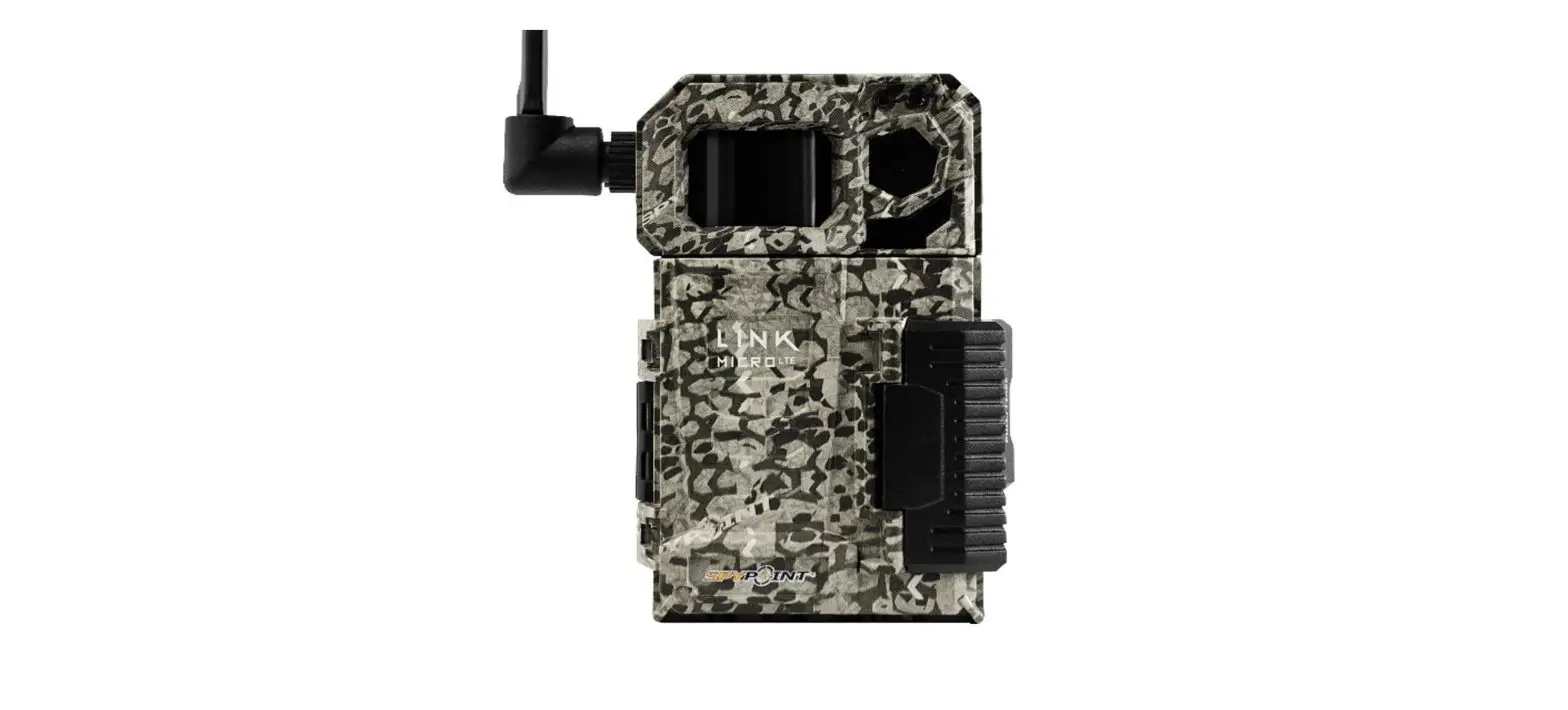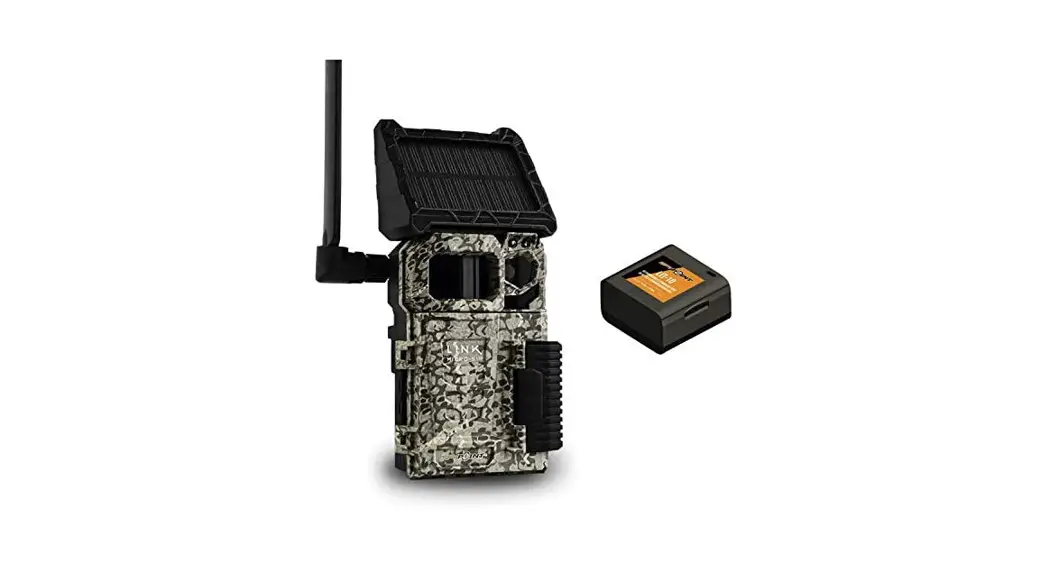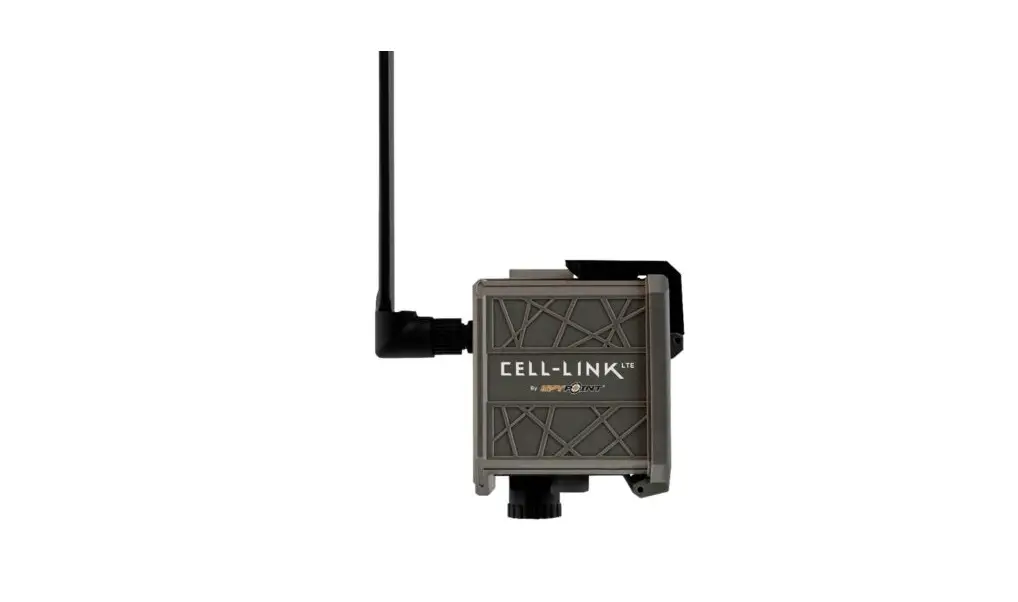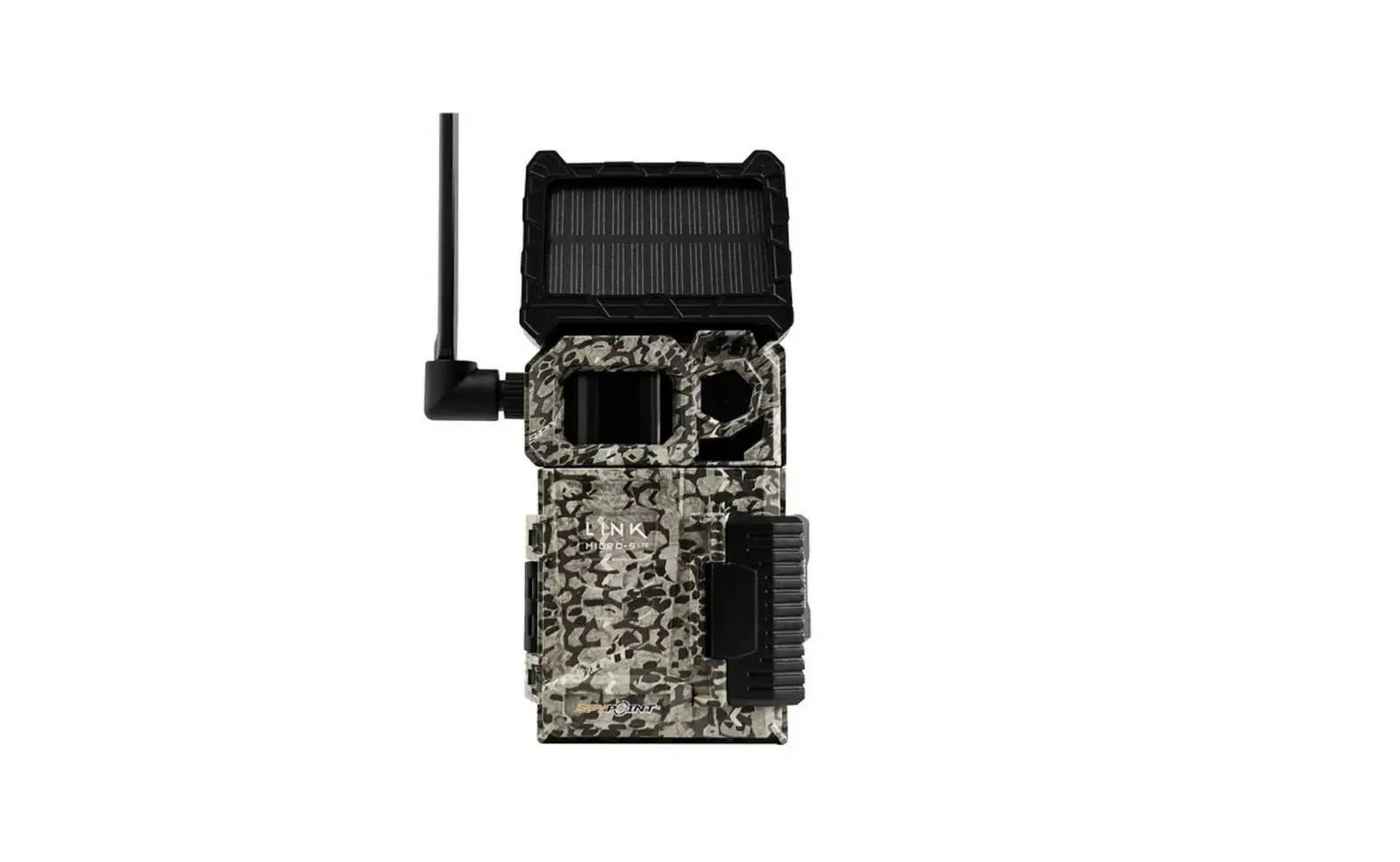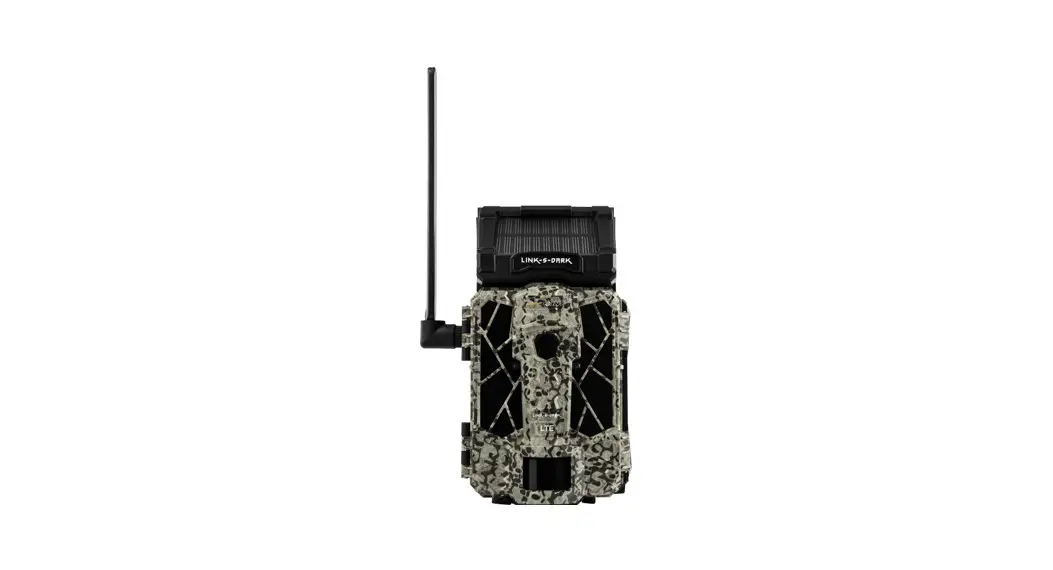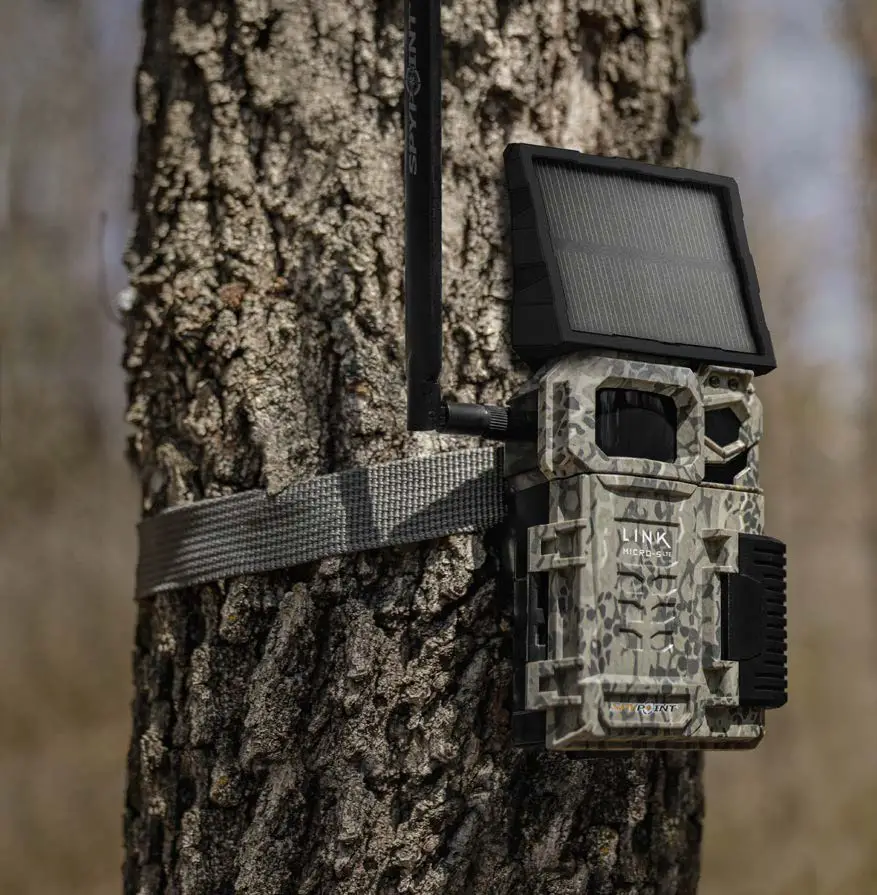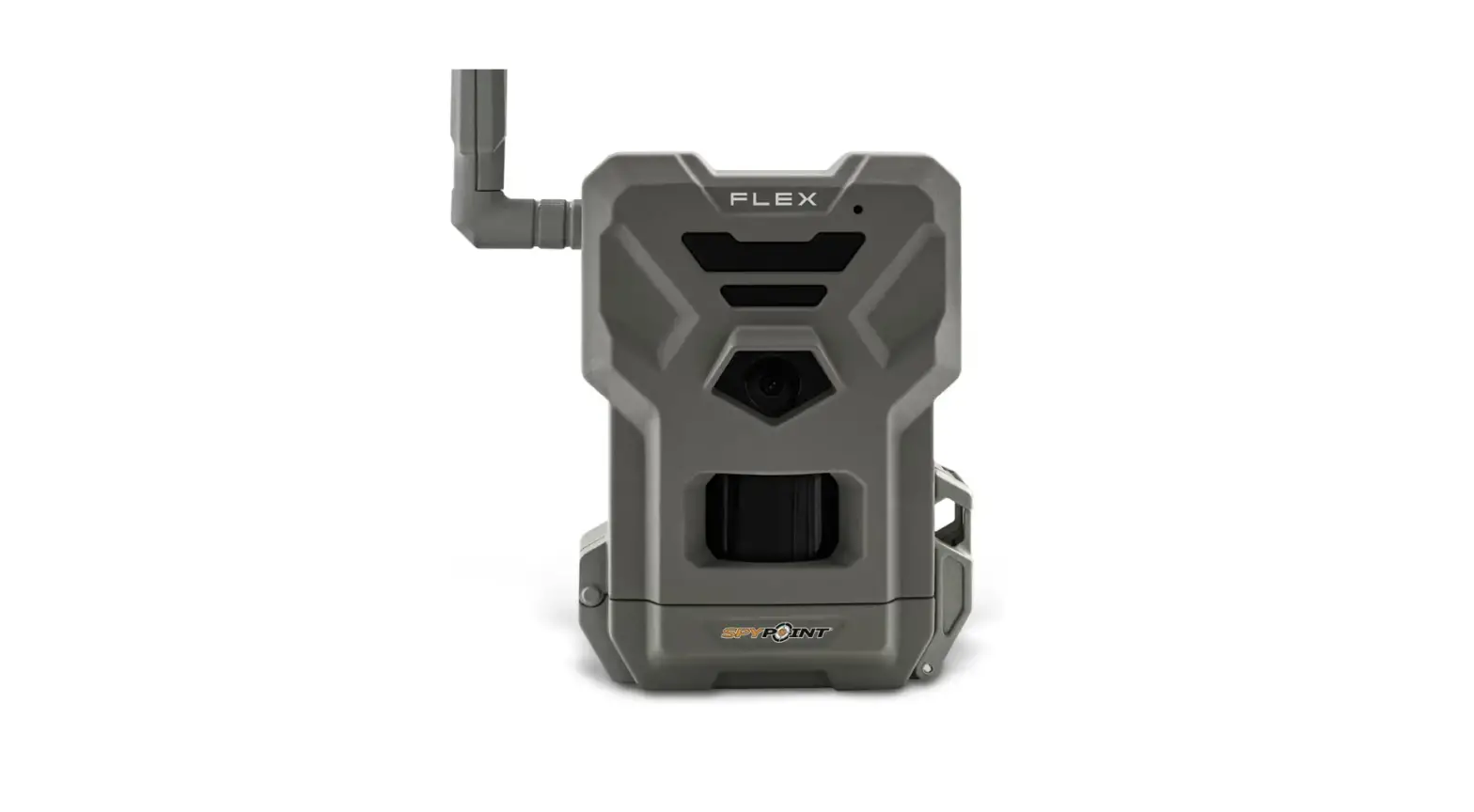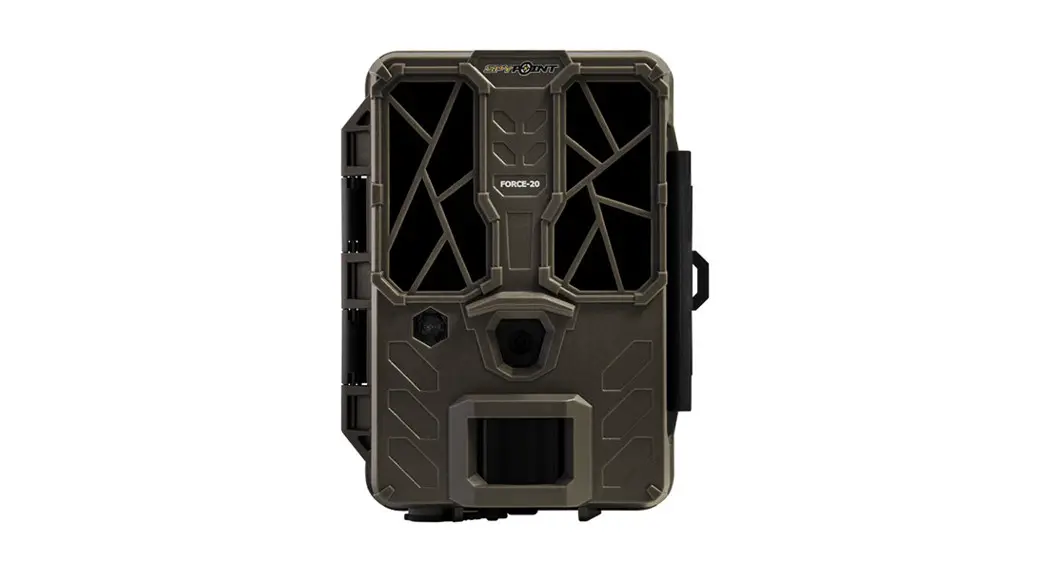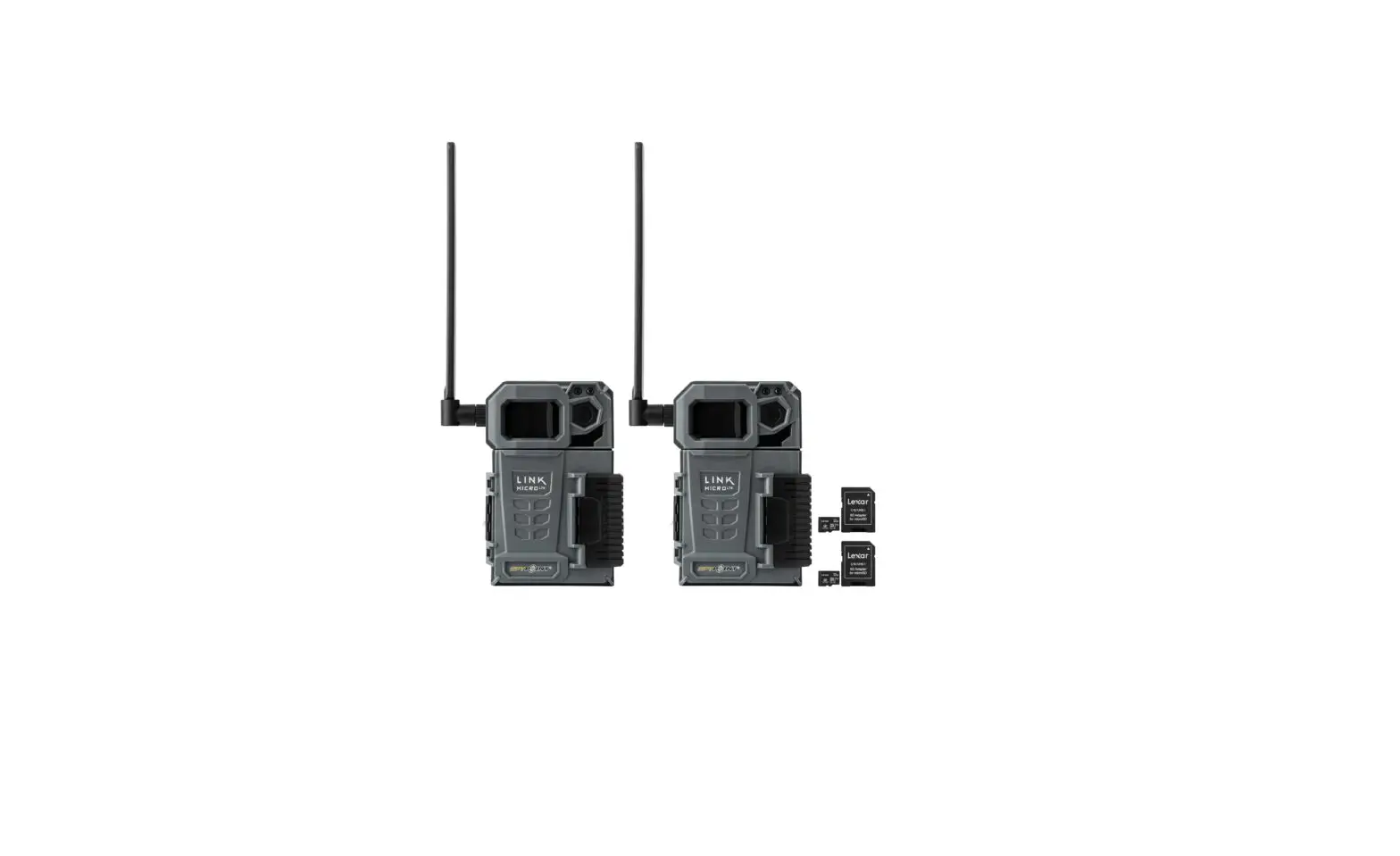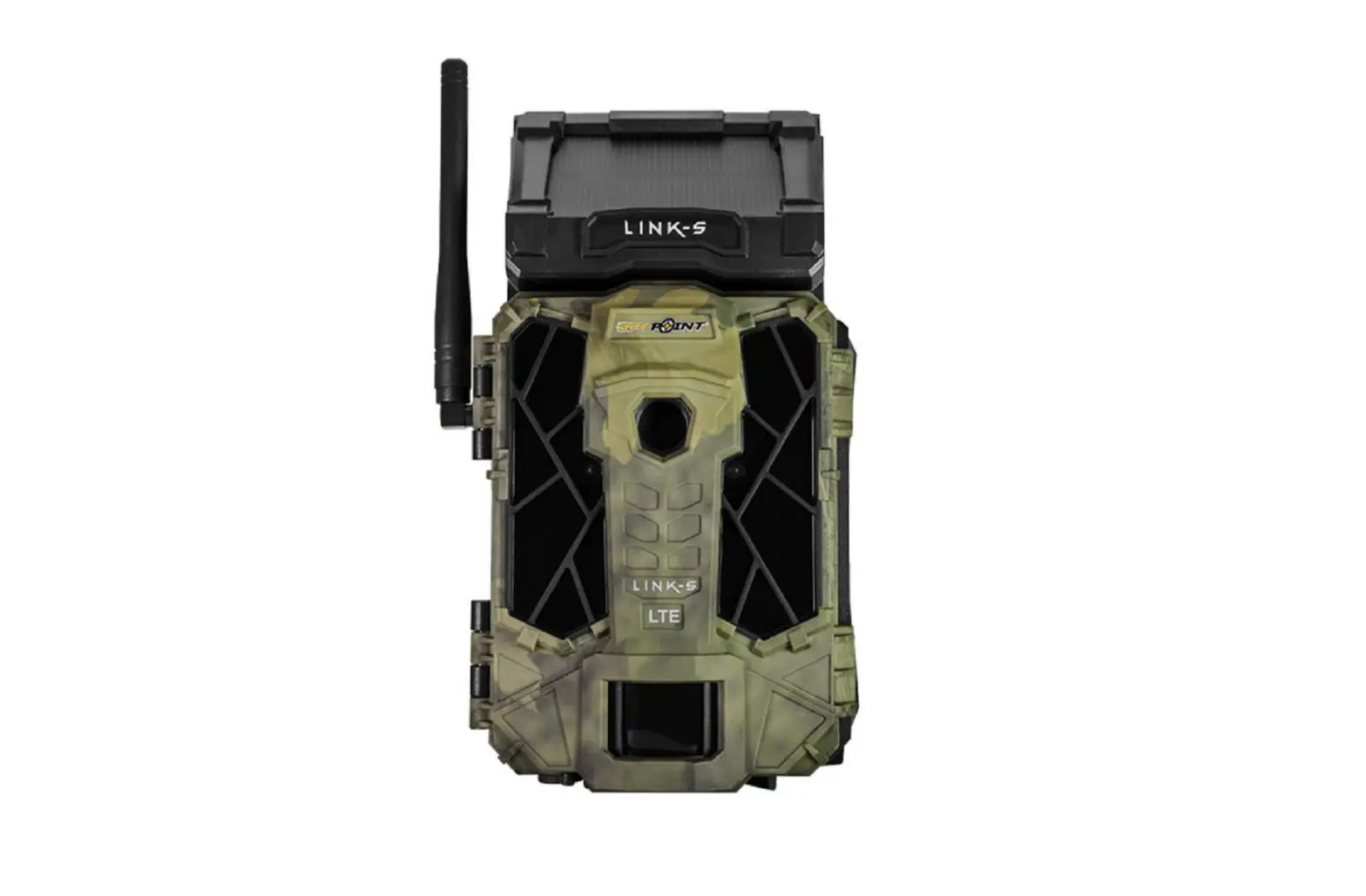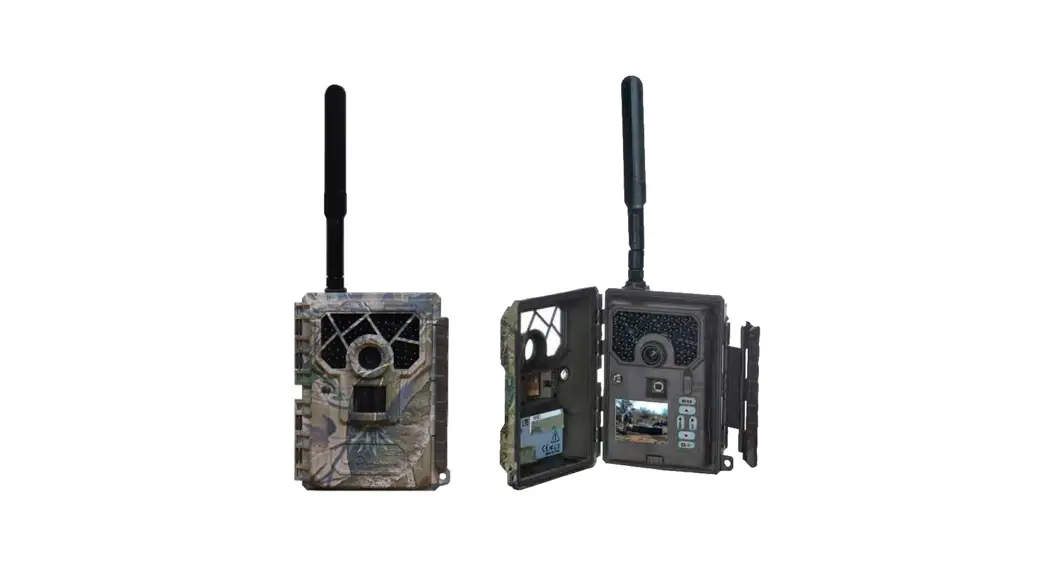

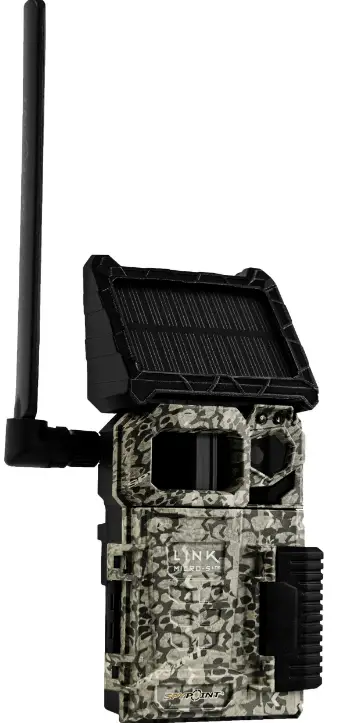
spypoint Link-Micro cellular trail camera
THANK YOU FOR CHOOSING A SPYPOINT PRODUCT.
This manual is designed to guide you through all the great features of your SPYPOINT device so you can optimize its use, all while making the most of your time in the field. We strive to provide our customers with a positive experience and outstanding service. If you require product support, here’s how to contact us:
Through the web chat service offered on our website, from Monday to Friday, between 8:30 a.m. and 4:30 p.m. (Simply click on the orange ”Need help?” button found on the bottom right corner of your screen.) www.spypoint.com
By e-mail at: [email protected]
On our website at support.spypoint.com for more information on your cameras, or by phone at 1-888-779-7646, for customer service assistance.
ONLINE CAMERA AND PHOTO MANAGER
Create your account for FREE!
Available for all SPYPOINT trail camera models, this incredible tool allows you to manage all your cameras and photos with ease.
ABOUT US
GG Télécom is dedicated to providing you with products that are easy-to-use, innovative, affordable, and of exceptional quality. SPYPOINT products are mainly used for hunting or residential and commercial security. Our products are distributed and sought-after on all continents, and their popularity continues to grow. As a successful and respected company, GG Télécom is constantly on the look-out for new technologies while being attentive to our customers and their needs. This allows us to provide cutting-edge products and practical solutions that enhance our customers’ hunting and outdoor activities.
JOIN THE SPYPOINT COMMUNITY
AUTOMATICALLY SORT ALL OF YOUR PHOTOS
- Drag and drop your photos to sort them by date.
ACCESS YOUR PHOTOS
- From anywhere, and never worry about backups or storage space.
SHARE YOUR PHOTOS
- With your hunting partners, friends, and family.
GEOLOCATE YOUR TRAIL CAMERAS
- Find your cameras faster and never lose them in the woods again.
TAKE CONTROL OF YOUR CELLULAR CAMERAS
- Change settings and get status updates, notifications, and GPS location. (compatible models only)
BUCK TRACKER
- Image recognition technology analyzes your photos and sorts them according to their content so you don’t have to. (May vary depending on service plans and models.)
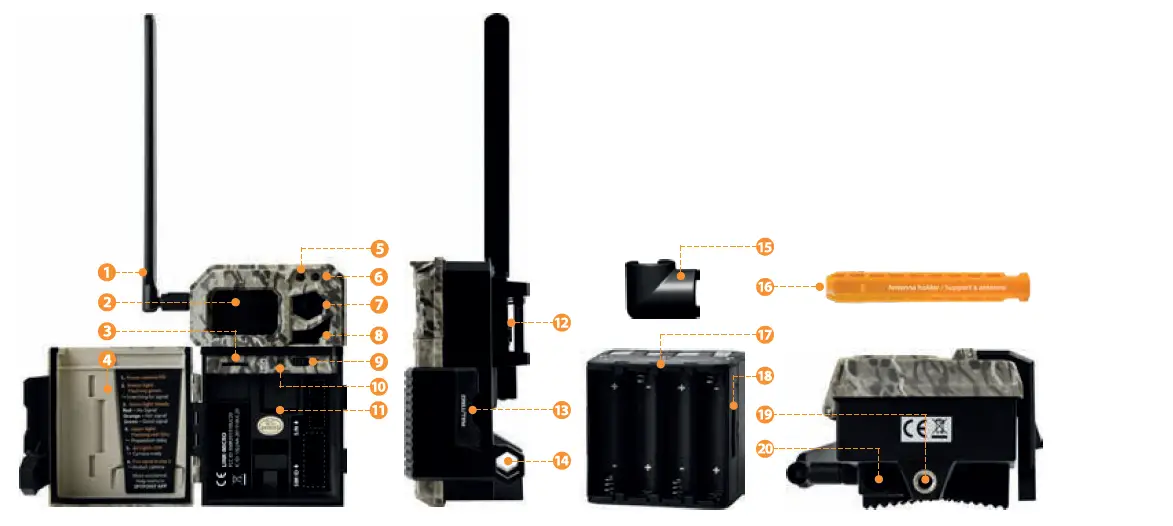
components
- Antenna
- Detection lens
- MicroSD card slot
- Door
- Light sensor
- Delay light
- Photo lens
- LEDs
- OFF/ON switch button
- “STATUS” light
- SIM card slot
- Slot for installation strap
- Lockable door latch
- Lock hole
- Antenna support
- Antenna holder
- Battery holder
- Battery holder grip
- Tripod mount
- 12V jack
- ANTENNA
- Amplifies the capture of the cellular signals.
- DETECTION LENS
- Expands the detection area of the camera’s motion sensor.
- MICROSD CARD SLOT
- Opening in which to insert the MicroSD card required to store your photos.
- DOOR
- Provides access to battery holder, OFF/ON button, “STATUS” light, and MicroSD card.
- LIGHT SENSOR
- Detects ambient lighting conditions for taking photographs. Photos will be shot in color during the day and black and white during the night.
- DELAY LIGHT
- Once the camera is installed and a signal is found, the delay light will flash for 30 seconds, allowing you to leave the site without being photographed.
- PHOTO LENS
- Captures the image.
- LEDS
- Night lighting to obtain black-and-white photos.
- OFF/ON BUTTON
- Allows the user to turn the camera on and off.
- ”STATUS” LIGHT
- During installation, the status light allows the user to measure the strength of the cellular signal and indicates when the camera is saving or transferring files.
- SIM CARD SLOT
- Narrow opening in which to insert the required SIM card, which is needed for cellular functionality (included, pre-installed and pre-activated). It is important to use a SPYPOINT branded SIM card (provided by SPYPOINT), otherwise, the camera’s cellular functions will not work properly.
- SLOT FOR THE MOUNTING STRAP
- Allows the camera to be secured to a tree or object via the included strap.
- LOCKABLE DOOR LATCH
- Locks or opens the door to access the MicroSD card slot, the “STATUS” light, the OFF/ON button, the battery holder, and the SIM card slot located underneath the battery holder.
- LOCK HOLE
- Permits the installation of a CLM-6FT cable lock, sold separately.
- ANTENNA SUPPORT
- Secures the antenna in place to prevent it from moving.
- ANTENNA HOLDER
- Secures the antenna in a downward position to protect it when transporting the camera.
- BATTERY HOLDER
- Removable AA-battery holder.
- BATTERY HOLDER GRIP
- Allows better grip when removing the battery holder.
- TRIPOD MOUNT
- Standard ¼”-20 tripod attachment.
- 12V JACK
- The camera can be powered by an alternative power source such as an external 12V battery.
specifications
| cellular transmission | |
| Network | 4G |
| Photo transmission | Wireless photo transmission via the SPYPOINT app with a SPYPOINT plan. For more information, please visit the link below
|
| Camera configuration | Access and modify the camera’s configuration remotely via the FREE SPYPOINT app |
| photo | |
| Photo resolution | 10 MP |
| File format | JPG |
| Time-lapse mode | No |
| Multishot mode | Up to 2 photos per detection |
| Displayed information (displayed on the photos only) | Date, time, temperature (°C/°F), moon phase, SPYPOINT logo, and camera model |
| Capture mode | Color during day, black and white during the night |
| video | |
| Video mode | N/A |
| Audio | |
| Audio recording | N/A |
| memory | |
| Internal memory | None |
| External memory | MicroSD card up to 32 GB (not included) |
| Viewing | |
| Available via the SPYPOINT app only | |
| power sources | |
| Alkaline or lithium batteries | 8 x AA (not included) |
| Lithium battery pack | N/A |
| External 12V battery | 12V battery (KIT6V-12V, KIT-12V, BATT-12V) |
| detection system | |
| Motion sensor | Infrared sensor |
| Detection angle | 42° |
| Detection range | Up to 24 m/80 ft |
| Trigger speed | 0.05 sec |
| Delay between each detection | Adjustable from instant to 30 min |
| Nighttime illumination system | |
| LED | 4 powerful LEDs |
| Illumination range | Up to 24 m/80 ft |
| Exposure | Automatically adjusts the power of the infrared lighting |
| physical Dimensions | |
| 11 cm H x 8.9 cm L x 5.08 cm D | 4.33” H x 3.5” L x 2.0” D |
| recommendations | |
| Operating temperature | (-30 °C to + 50 °C) (-22 °F to +122 °F) |
| Storage temperature | (-40 °C to + 60 °C) (-40 °F to +140 °F) |
power
To check the power level of your camera’s battery, open your SPYPOINT app. The homepage of the app will display all of your cameras and their respective power levels. You can view more detailed information about each of your cameras by accessing the STATUS page. When the battery icon is red, we recommend changing out the AA batteries before they are completely drained of power.
power sources
AA BATTERIES
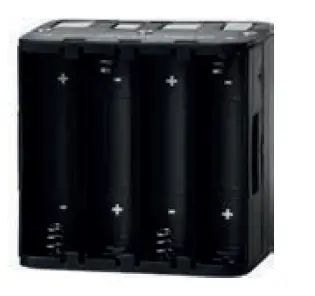
The camera requires 8 AA batteries (1.5V). The use of alkaline- or lithium-based batteries is highly recommended. Polarity of the batteries must be respected. For maximum performance and prevention of battery leakage, we recommend using new batteries. Do not use a variety of battery types. This means only alkaline or only lithium batteries must be used. Rechargeable AA batteries are not recommended as the lower voltage they generate can cause operational issues. Follow the instructions indicated directly on the battery holder in order to insert the battery holder properly.
Be sure to respect the polarity indications (+) and (-) when inserting the batteries.
12V EXTERNAL BATTERY
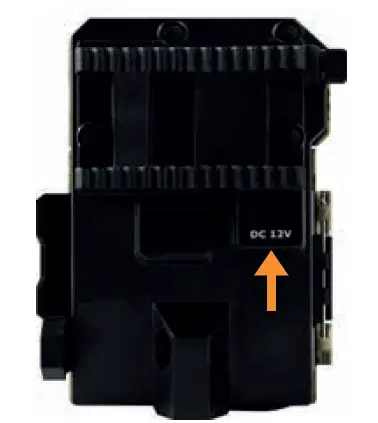
For the best results and maximum battery life, we recommend using an external 12V power source such as an external battery (KIT-12V, BATT-12V or KIT6V/12V) sold separately by SPYPOINT. Plug the cable into the 12V jack found on the back of the device.
memory card and ”status” light
memory card
- A memory card is required to save photos. The camera is only compatible with MicroSD memory cards that have a maximum capacity of 32 GB (sold separately).
- This table indicates the approximate number of photos that can be stored on various memory card capacities.
| memory | 4 GB | 8 GB | 16 GB | 32 GB |
| Number of 10 MP photos | 1,900 | 3,800 | 7,600 | 15,200 |
Note: This SPYPOINT camera automatically saves files continuously. When the memory card is full, the camera will continue taking photos by deleting the oldest saved files.
Inserting the memory card
- Before inserting or removing a memory card, always turn the camera off to prevent any loss or damage to photos already saved on the memory card.
- Insert a MicroSD memory card (up to 32 GB capacity) in the MicroSD slot with the label facing up. The card is inserted correctly when an audible click is heard.
removing the memory card
Gently press down on the exposed edge of the memory card once to eject the card from the slot.
“status” light
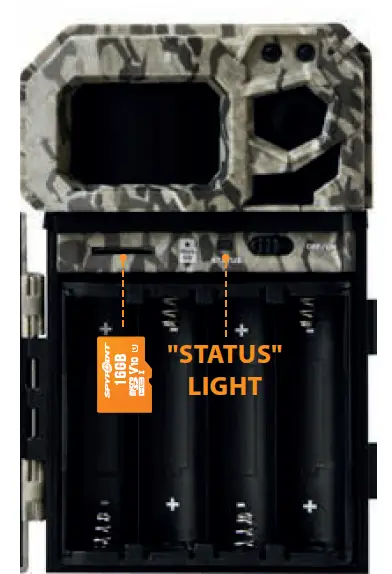
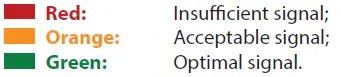
The “STATUS” light is located on the front of the camera. It allows the user to measure the strength of the cellular signal during installation. During regular use, the “STATUS” light will also indicate when files are being saved or transferred. When the “STATUS” flashes in green, the camera is searching for a signal. Searching for a signal may take several minutes. The “STATUS” light will continuously be lit and will appear in one of the following three colors:

- Red: Insufficient signal;
- Orange: Acceptable signal;
- Green: Optimal signal.
Warning
- It is recommended to reformat your MicroSD card if it has been previously used on another electronic device.
- This will ensure maximal usage of the memory card.
- Quick formatting is NOT recommended for this task as it will leave traces of previously deleted files, using up valuable space on your card.
configuration
setting up the camera
We recommend formatting your MicroSD card, especially if it was previously used in another electronic device.
- TURN THE CAMERA ON (OFF/ON BUTTON)
- Use the OFF/ON switch to turn the camera on.
- THE CAMERA WILL SEARCH FOR A SIGNAL AND THE “STATUS LIGHT WILL FLASH GREEN
- The search for a valid signal may take a few minutes.
- THE “STATUS” LIGHT WILL CONTINUOUSLY BE LIT AND WILL APPEAR IN ONE OF THE FOLLOWING THREE COLORS:

- WHEN THE LIGHT FOUND ON THE TOP RIGHT OF THE CAMERA IS FLASHING RED
- This signals a 30-second countdown before photo mode is activated.
- WHEN ALL THE LIGHTS ON THE CAMERA TURN OFF
- The camera is ready to use.
- IF THE “STATUS” LIGHT IS RED AFTER STEP 3, WE RECOMMEND TRYING THE FOLLOWING OPTIONS TO IMPROVE THE SIGNAL:
- Turn off your camera and turn it on again;
- Try positioning the antenna at a different angle;
- Move your camera.
Warning: Using a long-range cellular antenna (#CA-01, not included) may improve signal reception.
locating the sim id
The SIM ID number is found inside the camera, behind the battery holder. Simply open the door of the camera and remove the battery holder to access it. You will need this number in order to activate your camera and connect it to the application.
configuration: Use the SPYPOINT app to configure your camera.
| camera name | Allows you to easily name the camera using the on-screen keyboard. This option is particularly useful for users with more than one camera. |
| PLAN | Subscribe to a service plan found in the app to fully benefit from the SPYPOINT EXPERIENCE. |
Basic settings: Configure the camera’s basic settings using the SPYPOINT app.
| MODE | Allows the user to start the device in Photo mode. Video mode and Time-lapse mode are not available for this camera model. |
| Delay (Instant/10s/1m/3m/5m/10m/15m/30m) | Allows the user to choose the time interval between each detection before the camera saves the next photo. A longer delay minimizes the number of photos taken and maximizes battery life. A shorter delay maximizes the number of photos taken but requires more battery power. A shorter delay interval is recommended when the camera is used for security purposes. |
| MULTIshot (1 or 2 consecutive photos) | Takes up to 2 consecutive shots at each detection, with a 5-second delay between each. |
| SENSItivity (Low/Medium/High) | Allows the user to select the camera’s detection sensitivity level. Greater sensitivity allows for more photos to be taken. Make sure the front of the camera is free from any obstructions. The installation area should be clear of branches or bushes as well. |
cellular options: Configure cellular options using the SPYPOINT app.
| first transfer time | Allows the user to choose the time of day when the camera will make its first transfer. |
| transfer frequency (Each detection/1/2/6/12) | Allows the user to choose the number of daily transfers. |
advanced options
| date format (MM/DD/YYYY and DD/MM/YYYY) | Allows the user to set the date format to Month/Day/Year or Day/Month/Year. |
| time format (12 h or 24 h) | Allows the user to set the time format to 12 h or 24 h. |
| temperature units (°C/°F) | Allows the user to choose the format of the temperature displayed. |
|
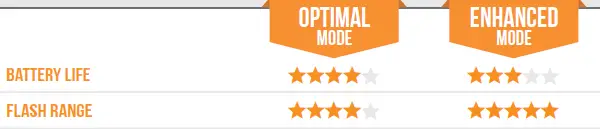
night mode | Allows the user to choose the best option for night photos.
|
|
Schedule | Allows the user to set the period of operation of the camera for each day of the week. The scheduled start and stop times determine the hours when the camera is active in detection mode and can take photos. For a 24-hour active detection mode, the start and stop times must be 00:00 or 12:00 A.M.
NOTE: Hours can be set over a 12- or 24-hour period. Refer to the “Time format” option. |
| quality (Normal/High) | Allows determining photo quality. |
| battery type (AA/12V) | Allows the user to select the type of battery used for a more accurate reading of the battery charge level. |
other options
| Default settings | Restores the camera to its original settings. This function is only available through the app. |
|
the information displayed on the photos | Photos will display the date, time, temperature, moon phase, SPYPOINT logo, and camera model.
|
| Report stolen | Signals that the camera was stolen. |

Recommended configuration
The camera can be configured for trail use. In this context, there are usually lower levels of activity, fast-moving subjects, and fewer photos. This configuration increases the likelihood of detecting animals that come one after the another. The camera can also be configured for use at bait sites. In this context, there are usually high levels of activity, slow-moving subjects, and more photos. This configuration reduces the number of photos taken while capturing all activity at the bait site.
This table shows the suggested configuration for these two contexts
trail/bait
| Delay | Instant | 5 min |
| multishot | 1 | 2 |
Warning: Battery life may be affected if the suggested configurations are not suitable for the context.
installation and updates
camera software updates
Go to https://support.spypoint.com/EN for instructions on how to perform camera software updates.
installation
Recommended installation height
The camera should be installed at the same height as the animal’s mid-body.
Ideal installation for quality images
The targeted animal should be 7.5 m (25 ft.) away from the camera for a better field of view. To achieve brighter pictures at night, there should be elements in the background that can reflect the camera’s infrared light. Take note that the camera should not be placed facing directly toward the sun as this may create backlighting and trigger false detections.
Make sure the front of the camera is free of any obstructions. The installation area must be clear of branches or bushes as they could trigger false detections when combined with heat, reflections, and/or wind. If the camera’s sensitivity is set to high, this could also trigger false detections.
INSTALLATION with the supplied strap
The dimensions of the included strap are 2.5 cm (1’’) X 152 cm (60’’).
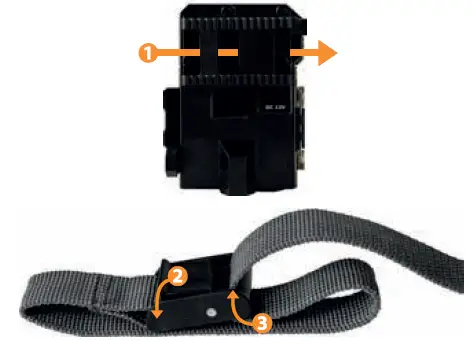
- Thread the strap through the strap slot found on the back of the camera.
- Wrap the strap around the tree then press and hold down the latch.
- Thread the strap through the latch from behind, as shown below.
IMPORTANT: Before your FREE 30-day trial period ends
Subscribe to a service plan in the app to take advantage of the SPYPOINT EXPERIENCE. Please note that if you choose not to subscribe to a plan, you will still be able to receive up to 100 photos per month, along with a photo history of the last 7 days, thanks to our FREE monthly plan. www.spypoint.com/plans
TRANSFERRING FILES TO A COMPUTER
TRANSFERRING FILES TO A COMPUTER
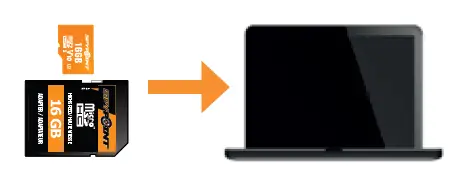
- Turn OFF the camera.
- Remove the MicroSD card from the camera.
- Insert the MicroSD card into the alotted slot on your computer, or use a MicroSD card USB adaptor.
- The computer will dectect the MicroSD card.
on a pc
- Click “My Computer” or “This PC” on your desktop.
- Locate your device under “Removable Disk” then click to access it. Next, click on the “DCIM” folder, then on “100DSCIM” to find all saved photos.
- Select the photos you want to copy. The easiest way to select them all is by clicking on the “Home” tab found in the menu bar (situated at the top of the window), then “Select
- All” on the right-hand side of the toolbar. Alternatively, you can also use the “Ctrl+A” command on your keyboard, or click the “Edit” tab (found in the menu bar) and choose “Select All” in some versions of Windows.
- Click the “Copy” icon on the left-hand side of the menu bar or use the “Ctrl+C” command to copy the files.
- NOTE: If you do not want to select all photos, press and hold down the “Ctrl” key and click on the photos you wish to select before clicking the “Copy” icon.
- Navigate to the folder where you would like to store your images, or create a new folder by clicking the “New Folder” button in the menu bar. Alternatively, you can also use the “Ctrl+Shift+N” command to create a new folder, or right-click on an empty space in the “Images” folder and choose “New,” then “Folder” in the shortcut menu that appears.
- Type in a name for your new folder, press “Enter,” then double-click on the folder to open it.
- In the “Home” tab, select “Paste” or use the “Ctrl+V” command. The photos will be copied to the new folder.
on a mac
- Click the “Finder” icon in the “Dock”.
- Locate your device under the Devices tab, then click to access it. Next, click on the “DCIM” folder, then on “100DSCIM” to find all the saved photos.
- Click “Edit” in the menu bar (situated at the top of the window), then press “Select All” to select all the images on the card. You can also “Select All” by pressing the ⌘ and A keys simultaneously on your keyboard.
- Alternatively, if you do not wish to import all the files, you can individually select the images you would like to transfer by holding ⌘ and clicking the filename of each image.
- Click “Edit” once again, then “Copy” or use the ⌘ and C command to copy the selected images.
- Navigate to the folder in which you would like to store your images, or create a new folder by simultaneously right-clicking and pressing Ctrl, then select New Folder from the shortcut menu that appears.
- Click Edit then Paste or use the ⌘ and V command to copy your chosen images from your device to the selected folder.
- Images may take several minutes to transfer depending on the file size and the number of images you are importing.
- Once your images have been transferred, click the Eject icon found beside the name of your device, then unplug the device from your Mac.
available accessories
12V rechargeable Battery, Charger, and housing kit
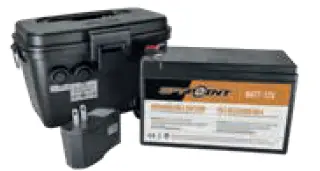
#KIT-12V – 12-volt 7.0 Ah rechargeable battery with a water-resistant ABS plastic case, AC charger, 3.6 m (12 ft.) power cable (#PW- 12 ft) and strap included. Compatible with all SPYPOINT products that have a 12 V outlet.
Cable lock
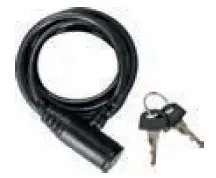
#CLM-6FT – 1.85 m (6 ft.) lock cable fits all SPYPOINT cameras and security boxes.
12V power cable
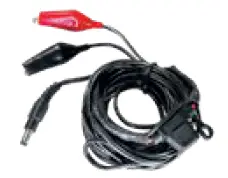
#CB-12FT – 3.6 m (12 ft.) power cable with alligator clips to connect a 12V battery to a camera.
long-range cellular antenna
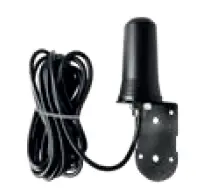
#CA-01 – Enhances the cellular signal (effective in low coverage areas).
steel security box for 4 leds spypoint cameras
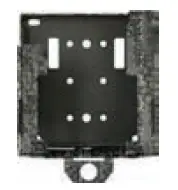
#SB-300 – Secures the camera from potential theft and protects it from breakage caused by bears or other animals.
Warning: Metal security boxes may reduce the wireless functionalities of the product.
adjustable mounting arm
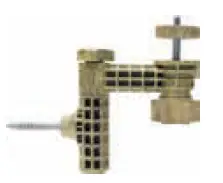
#MA-360 – Adjustable mounting arm, fits all cameras that have a standard ¼”-20 tripod mount. Pivots 360° and tilts +/- 90°.
spare power cable
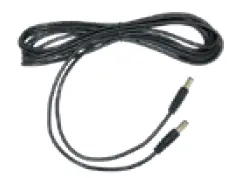
- #PW-12FT – 3.6 m (12 ft.) spare power cable to connect the camera to KIT-12V.
MicroSD 16 GB memory card
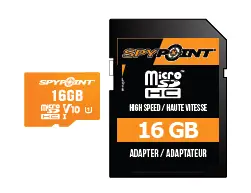
- #MICRO-SD-16GB – Includes a MicroSD 16 GB card and a high-speed Class 10 adaptor.
troubleshooting
Problem/possible solutions
| Turning on the camera is impossible |
|
| the camera is not responding |
|
| The camera is unable to take photos |
|
| red light on the front of the camera is flashing |
|
| The camera is taking black photos |
|
| Photos are dark during nighttime |
|
| no person or animal appearing in the photos |
|
warranty and repairs
limited warranty
This SPYPOINT product, designed by GG Télécom, is covered by a two (2) year limited warranty on material and workmanship starting from the original date of purchase. The electronic receipt is the client’s proof of purchase and must be presented to confirm that the warranty is applicable if service is needed. This warranty will be honored in the country of purchase only.
This GG Télécom warranty does not apply to the following
- Consumable parts, including but not limited to the batteries; of which performance is designed to decrease over the course of time;
- Damage caused by misuse, use with another product, neglect, accidents, liquid contact, fire, earthquakes, or any other external causes;
- GG Télécom products that have been purchased online from an unauthorized dealer;
- Products that have been modified or tampered with;
- Cosmetic damage, including but not limited to scratches and broken plastic;
- Damage caused by use of the product outside of GG Télécom’s recommendations.
repair service instructions
GG Télécom will repair the product or replace it at its discretion with an equivalent product without charge if covered by the warranty described previously. The shipping fees for a sent item will be assumed by the customer. GG Télécom will then pay for the return of the product covered by the warranty. For a product not covered by the warranty, the repair will be subject to a reasonable charge and the customer will also assume all shipping costs.
IMPORTANT: Under no circumstances will GG Télécom accept returned products without an RMA (Return Material Authorization) number. It is essential to contact GG Télécom before making a return.
Before sending us a product for repair, you can get help in several different ways. Most issues can be resolved over the phone or online
- Contact our web chat service offered directly on our website, from Monday to Friday, between 8:30 a.m. and 4:30 p.m. (simply click on the orange ”Need help?” button found on the bottom right corner of your screen);
- Contact us by e-mail at [email protected];
- Go to support.spypoint.com for more information on your cameras or contact our SPYPOINT customer service assistance by calling 1-888-779-7646.
- If a product needs to be returned, an RMA number will be issued to authorize the return of the product and be used for future reference. Please keep this number.
- The original receipt or copy must be included with the package sent to GG Télécom.
- The RMA number must be written on the outside of the package sent to:
Canada
- GG Télécom
- 330 de la Jacques-Cartier Victoriaville, QC G6T 1Y3
United States
- GG Télécom
- 3000 Gannett Avenue Des Moines, Iowa 50321
The customer is liable for any losses of damages to the product during transportation to GG Télécom. We recommend using a mailing service which requires a tracking number to ensure the product’s protection.
Regulations
fcc regulations
Article 15 of the FCC regulations
This equipment has been tested and found to comply with the limits for a Class-B digital device, pursuant to Part 15 of the Federal Communications Commission (FCC) rules. These limits are designed to provide reasonable protection against harmful interference in a residential installation. This equipment generates, uses, and can emit radio frequencies. And, if not installed and used in accordance with the instructions, may cause harmful interference to radio communications. However, there is no guarantee that interference will not occur in a particular installation. If this equipment does cause harmful interference to radio or television reception, which can be determined by turning the equipment off and on again, the user is encouraged to try to correct the interference by one or more of the following actions:
- Reorient the receiving antenna;
- Increase the distance between the equipment and receiver;
- Connect the equipment and receiver into separate AC outlets;
- Consult your dealer or an experienced radio/TV technician for help.
Changes or modifications to this equipment not expressly approved by the party responsible for compliance could void the user’s authority to operate the equipment. This device complies with Part 15 of the FCC rules. This device must only be used under the following conditions:
- The device must not cause harmful interference;
- The device must tolerate any interference received, including interference that may interrupt its proper function.
www.spypoint.com
[email protected]
support.spypoint.com