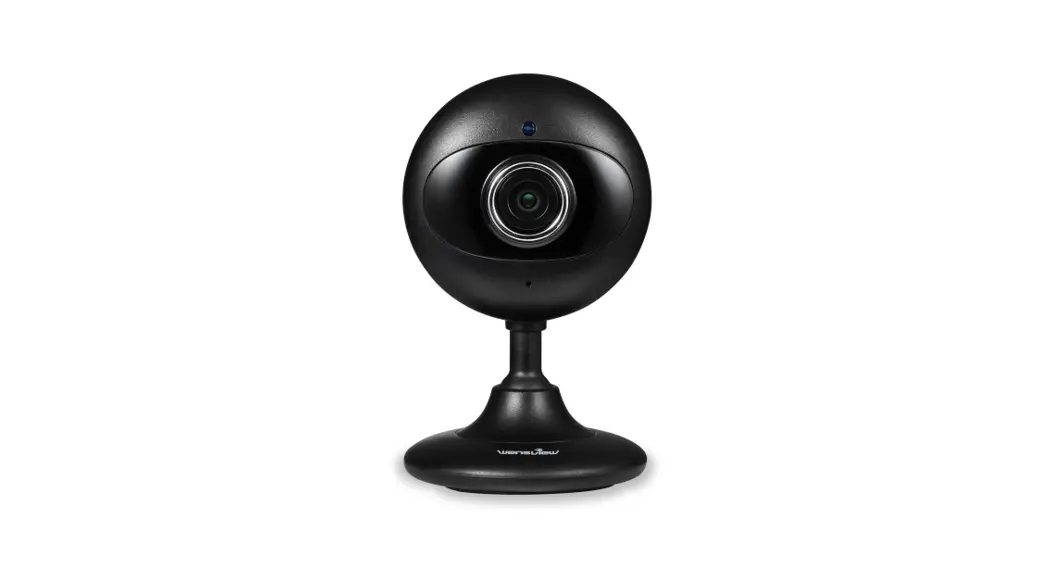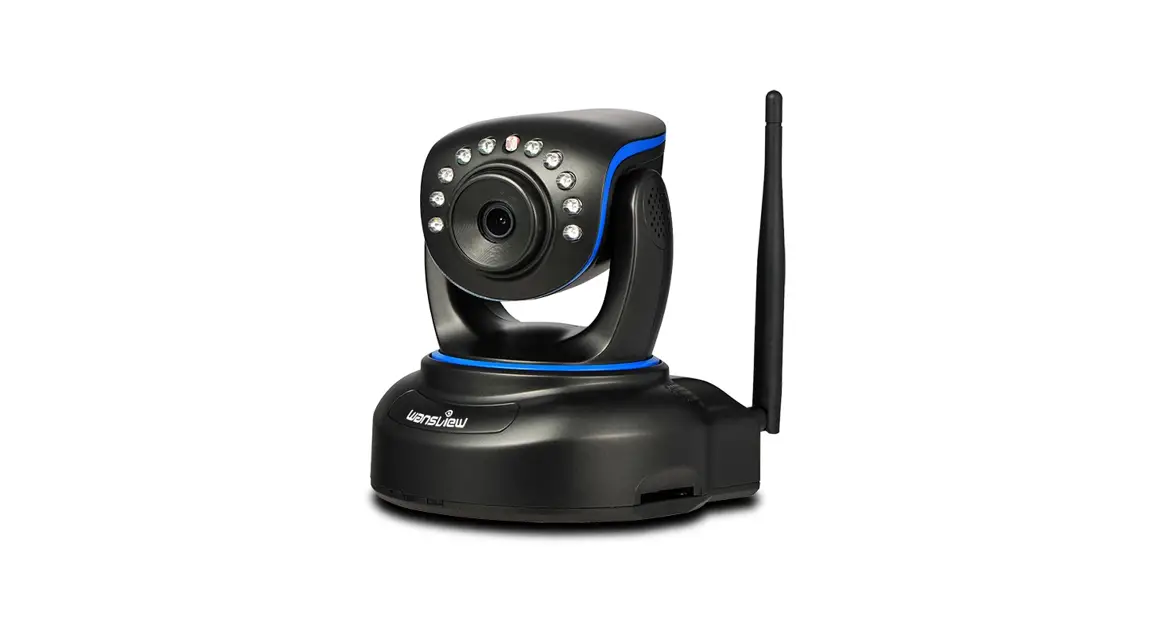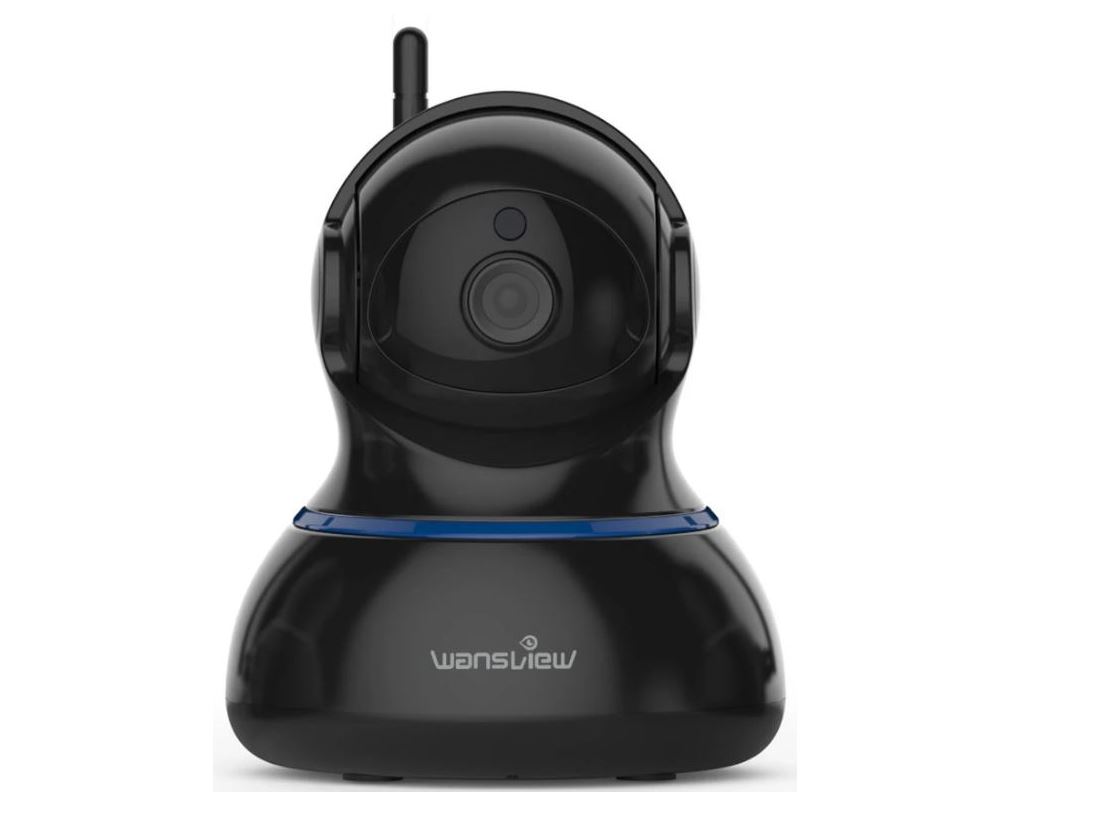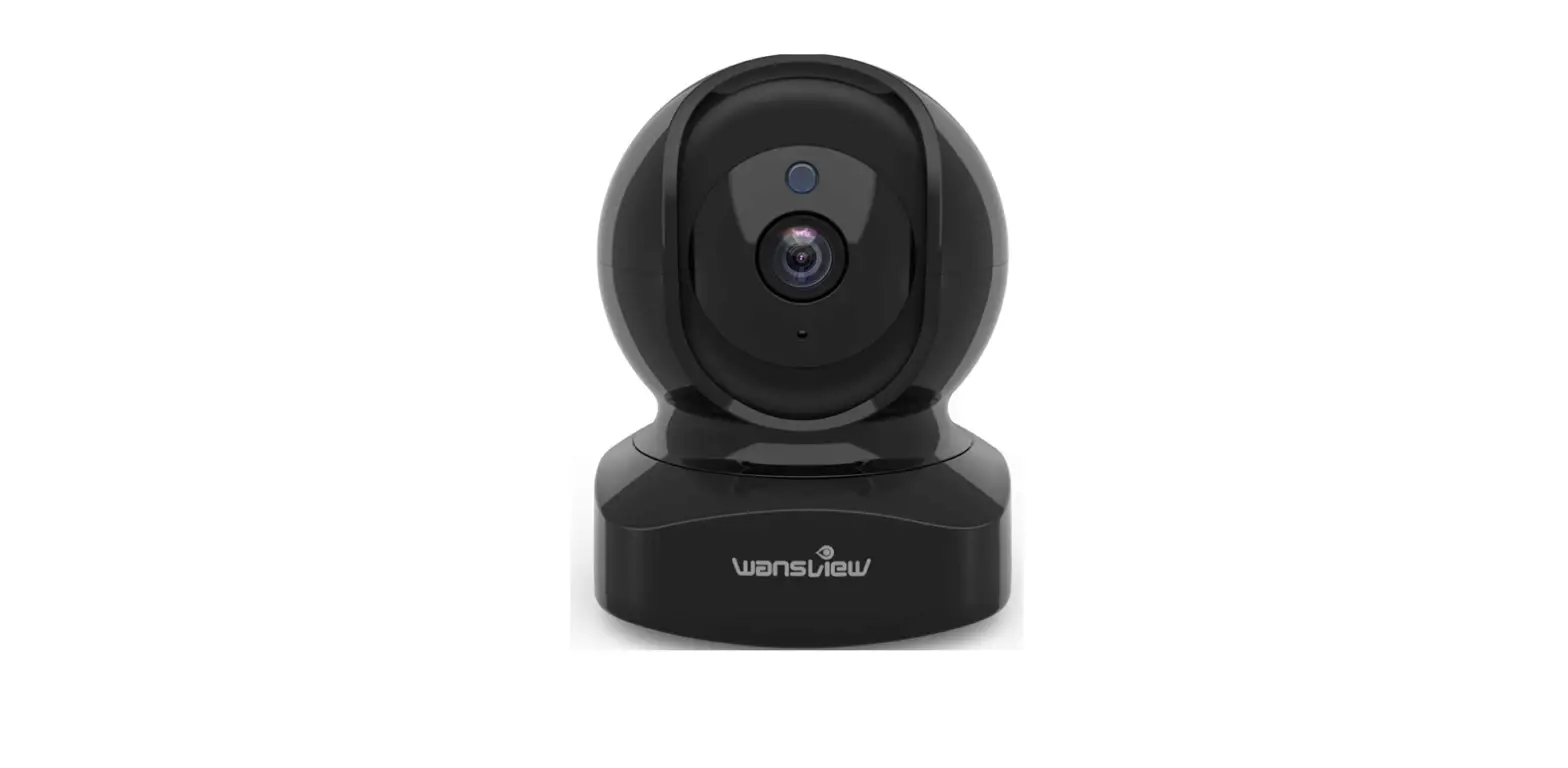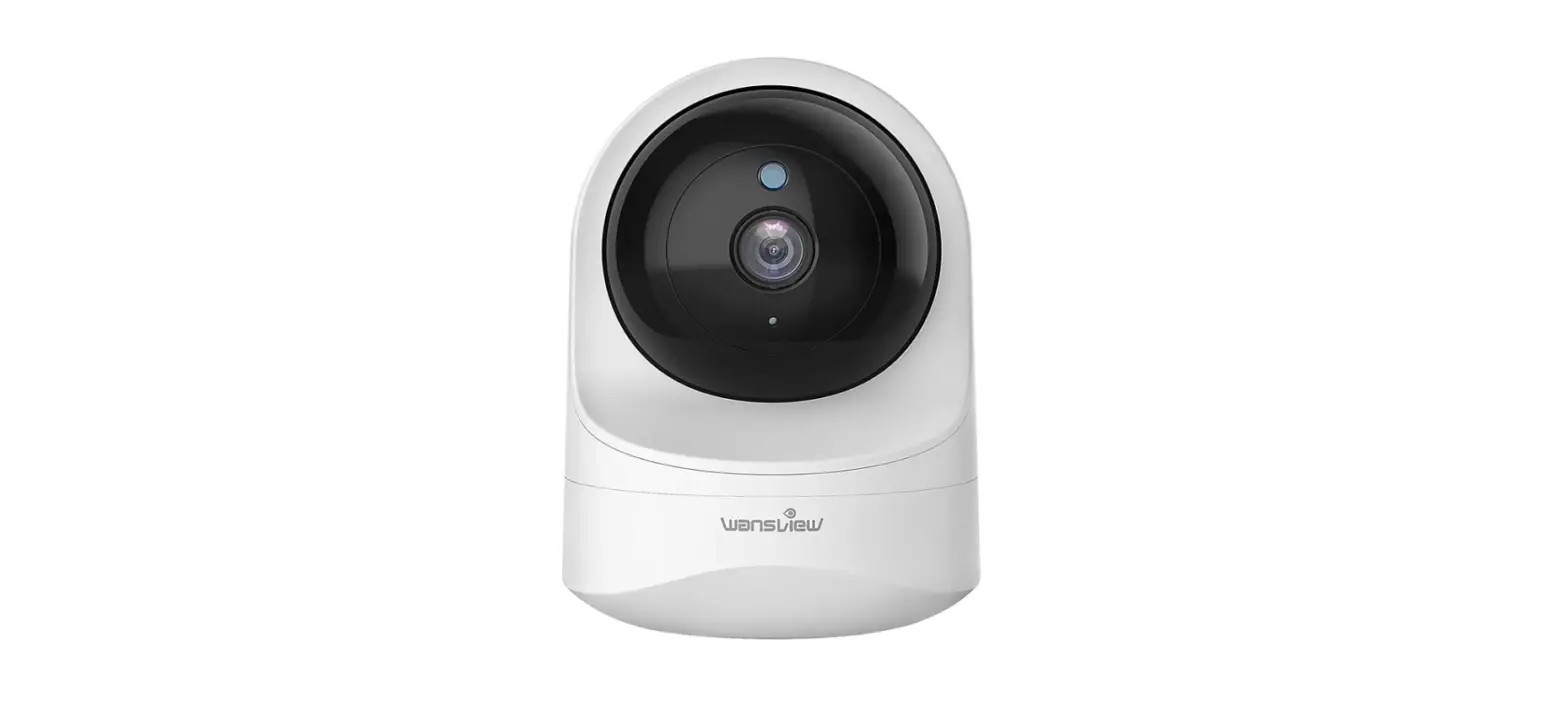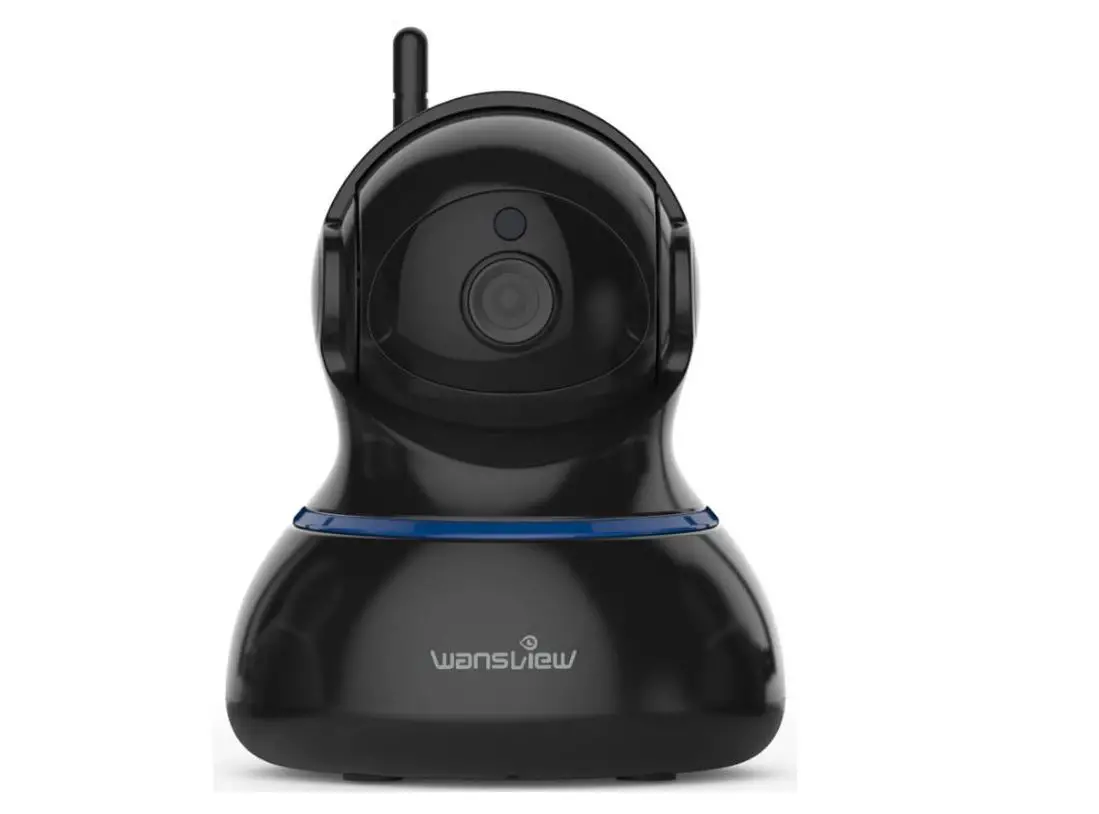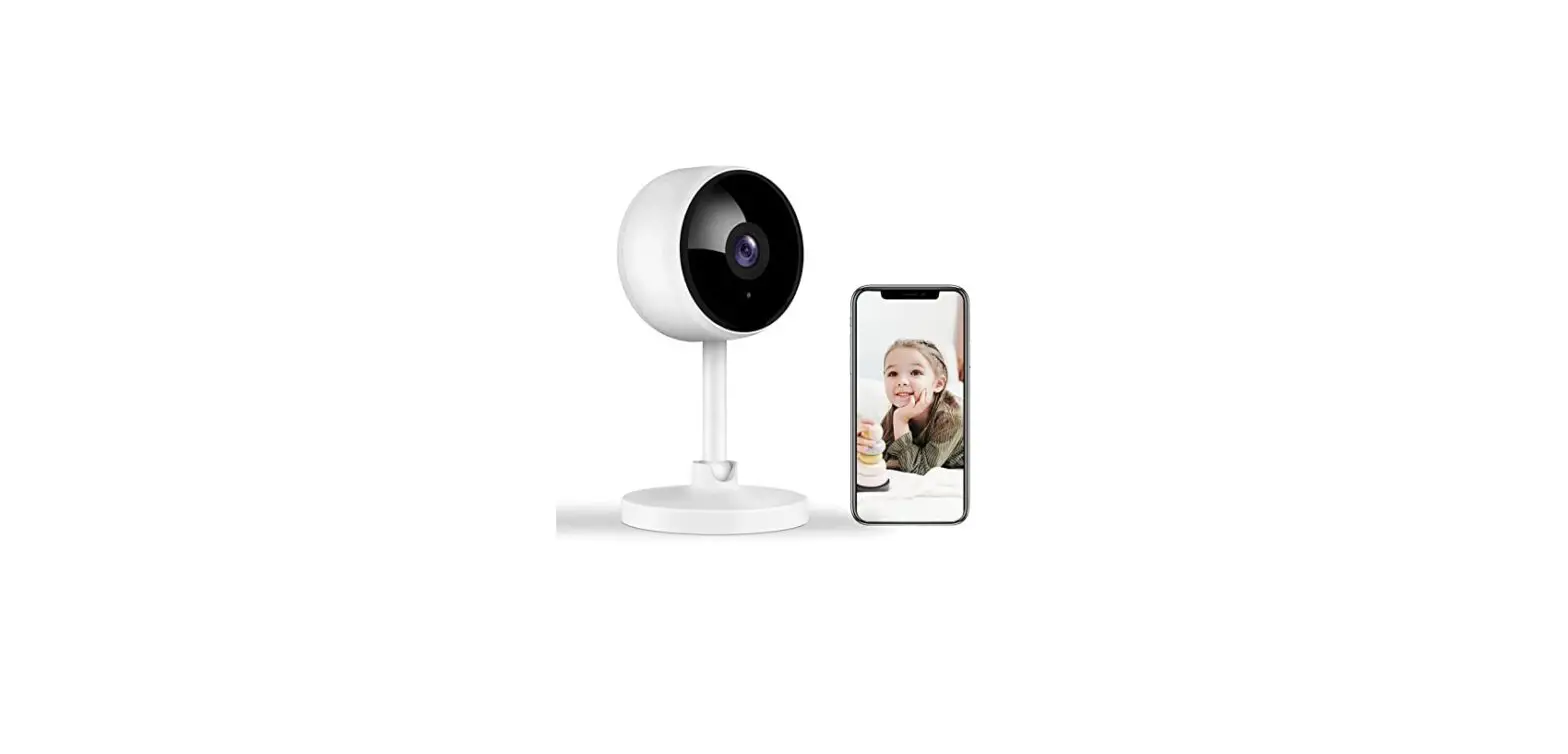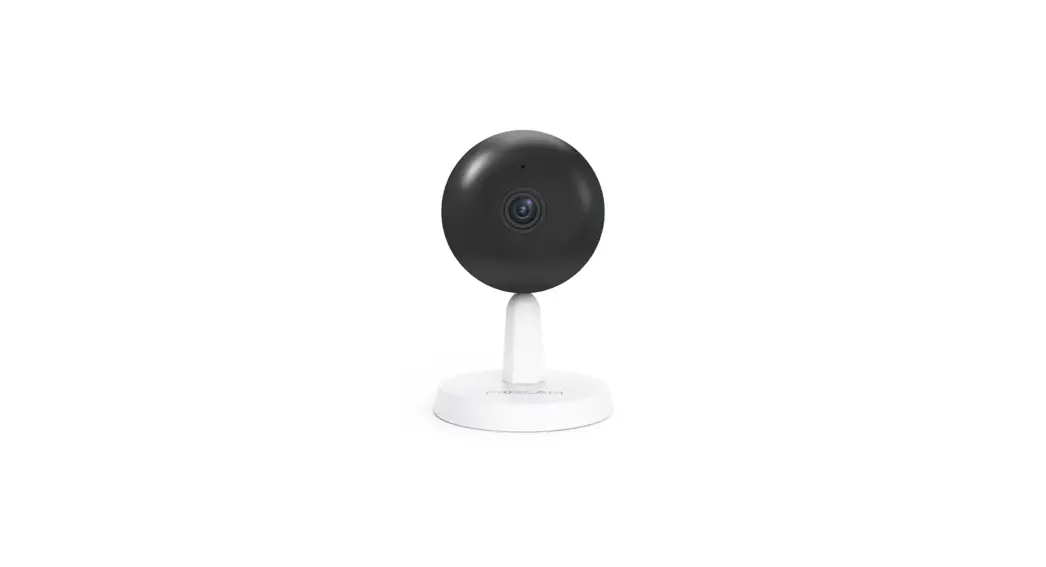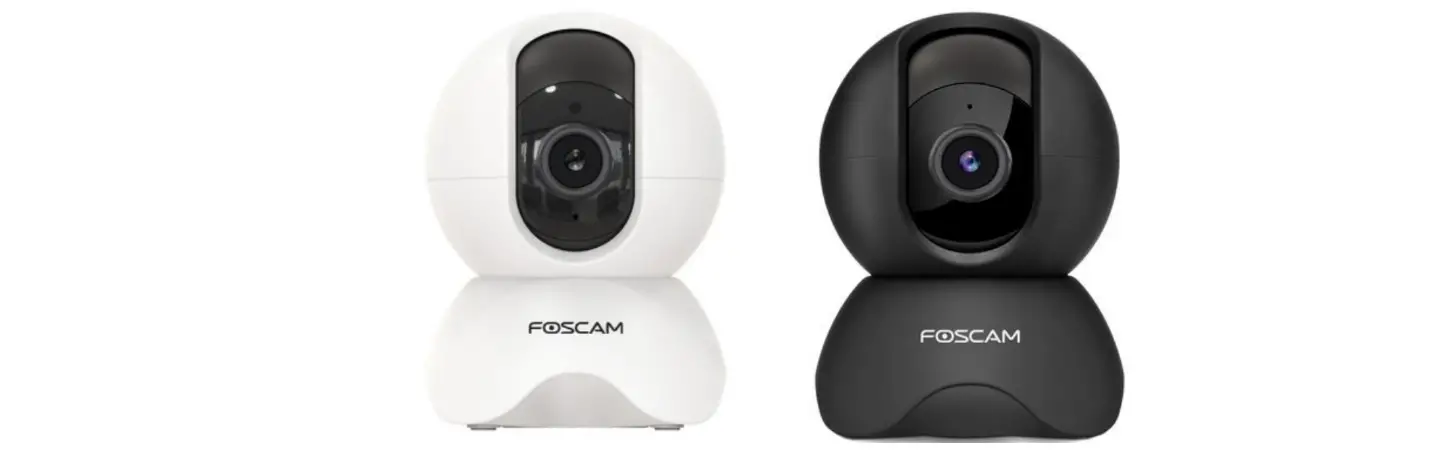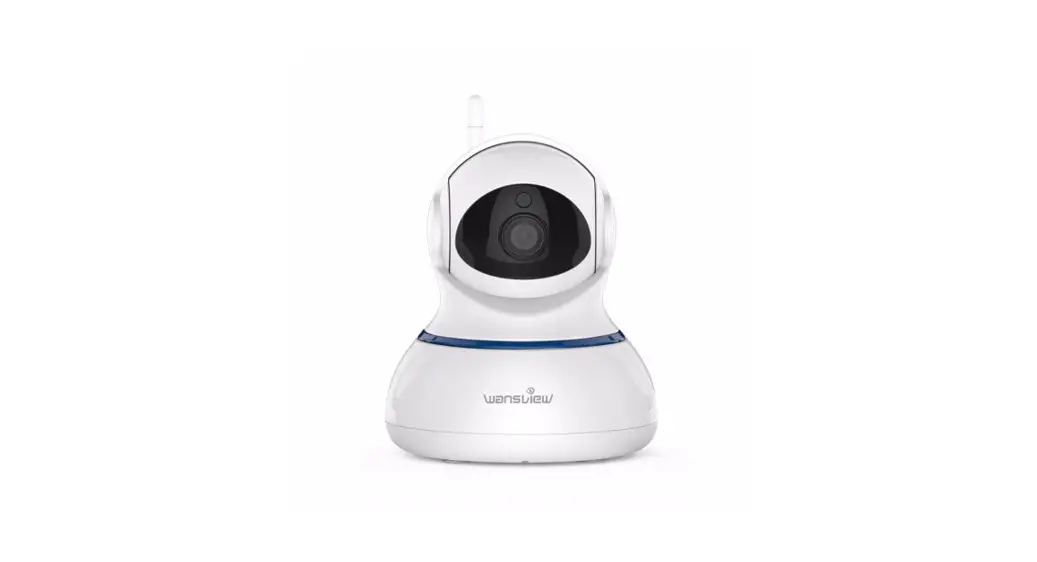

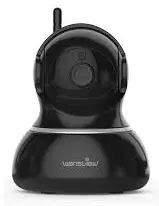
HD Wireless IP Camera
Q3S(1080P)/Q3(720P)
User Manual
We keep improving the app, if the app interface is not in accordance with the instructions, please go to the want view website: http://www.wansview.com for the latest instructions. www.wansview.com
Download the App (Android and i0S)
Go to the App Store or Google Play to search and download the “Wansview” APP to your supported device Or scan the QR code below to get the app.

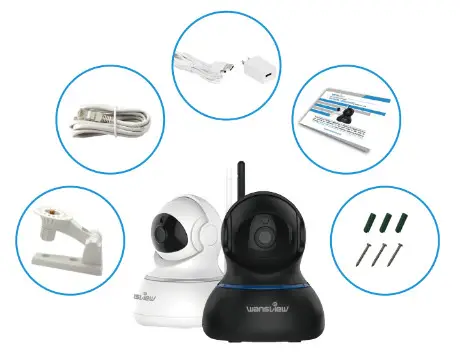
What’s in the box?
- A Camera(including Antenna)
- An Installation Guide
- A Power Adapter
- Mounting Accessories
- A Network Cable
Connections
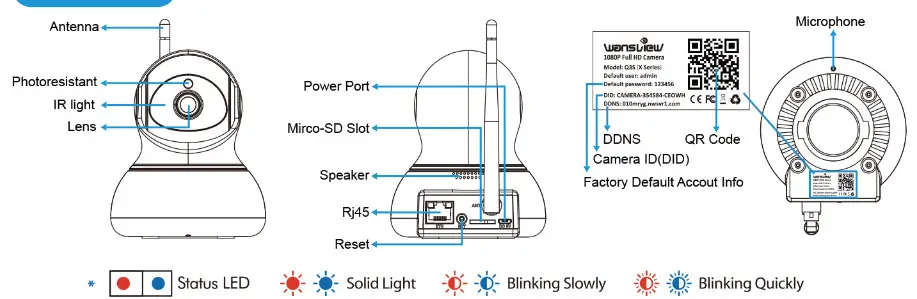
| Indicator Light Status | Device Status |
 Red light is blinking slowly Red light is blinking slowly | Power up and activating |
 Red and blue lights are blinking slowly Red and blue lights are blinking slowly | The device is ready to connect |
 Blue light is blinking quickly Blue light is blinking quickly | The device is receiving the will signal or connecting to the will |
| Blue and red lights are solid and steady | The device is connected to the will |
 Red light is blinking quickly Red light is blinking quickly | The device is restored to factory default |
 The blue light goes off The blue light goes off | The device failed to connect to the will |
Power on Camera
Please make sure the camera is in the same room, close to the router, before performing the setup. Then, using the included power supply, connect to Power.
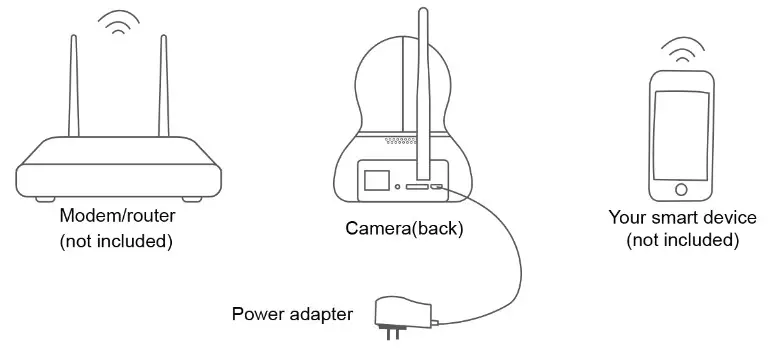
Tips: You can relocate it to where you want after it is all set up. You just unplug it and move it to the new location and plug it in, the camera will connect to your WiFi automatically, no need to set it up again. But please make sure the new location will not be far from your router.
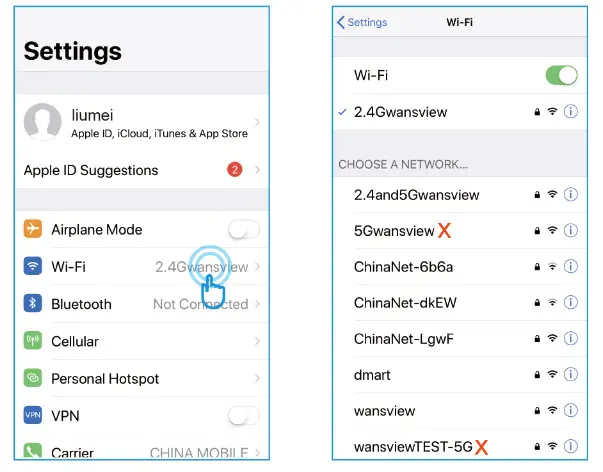
Connect Phone with 2.4G WiFi
Connect your mobile phone with 2.4G WiFi. (5G is not supported for the camera)lf you are using a dual-band router, make sure your 2.4G WiFi name is different from your 5G one.
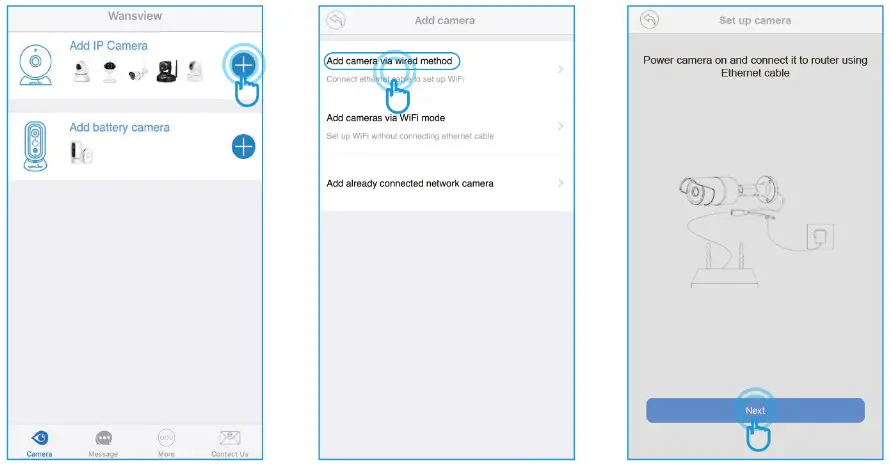
Method 1: Add camera via WiFi mode
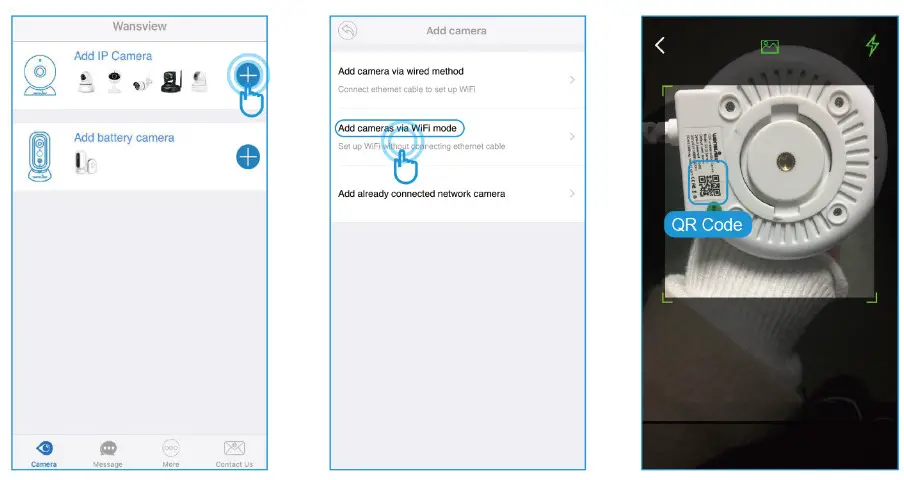
- Select [Add IP Camera], and tap
 to add camera
 - Select [Add cameras via WiFi mode]
- Scan the QR code on the back of the camera

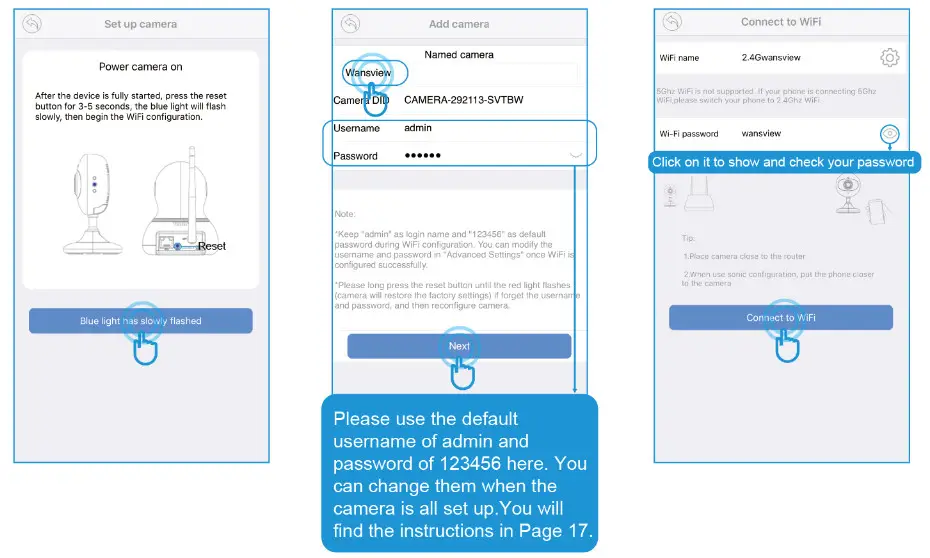
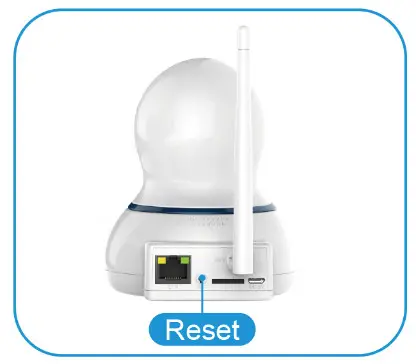
- Hold the “Reset” button for about 3-5 seconds until you see the blue light is on
- Name the camera, then [Next]
- Input your WiFi password and click on[Connect to WiFi]

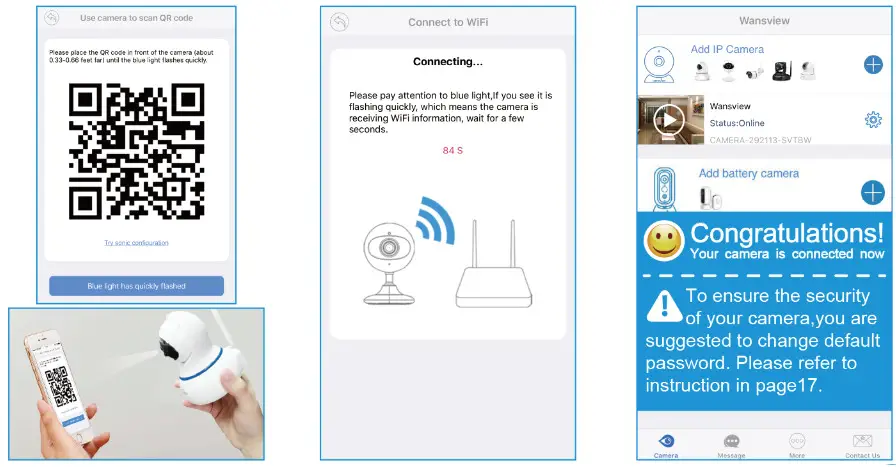
- Use the camera to Scan the QR Code, Click on [Blue light has quickly flashed] when the blue light flashes quickly.
- When the camera receives a WiFi signal, it will sound 2 beeps.
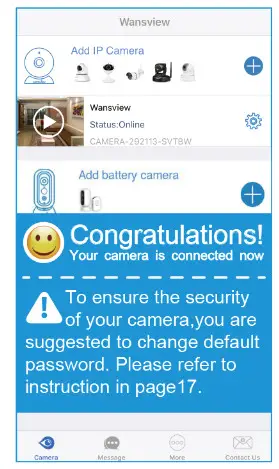
- You should see it says online. Congratulations! Your camera is all set up. Click on the image to enjoy viewing and controlling it now.
Method 2: Add camera Via Wired Method
- Select[Add IP Camera] and tap to add camera
- Select[Add Cameras via wired method]
- Tap [Next] if the camera is connected with a power supply and ethernet cable.

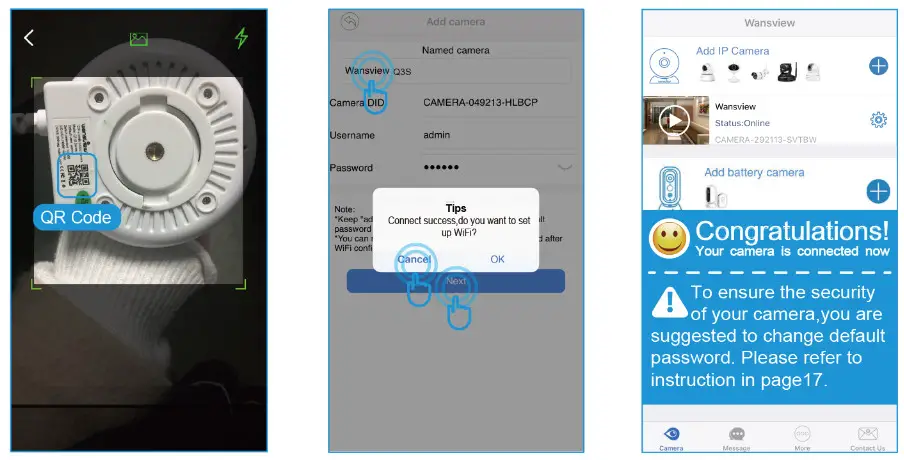
- Scan the QR code on the bottom of the camera.
- Name the camera, then [Next], Connect Success will appear, you could tap [Cancel] if for wired connection. For WiFi Setting, please refer to P12
- You should see it says online. Congratulations! Your camera is all set up. Click on the image to enjoy viewing and controlling it now.
 WiFi Setting
 - To Set up WiFi, Please Tap [OK].
- Select your home 2.4G
- Input WiFi password WiFi. correctly, then [Next]

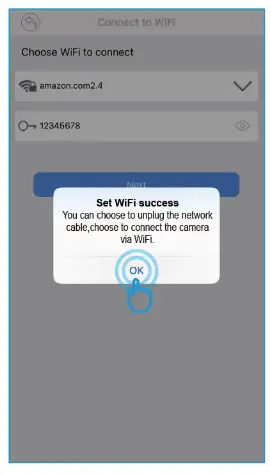
- Set WiFi success to appear, please tap [OK]. And you could unplug the network cable.

- You should see it says online. Congratulations! Your camera is all set up. Click on the image to enjoy viewing and controlling it now.
 WiFi Setting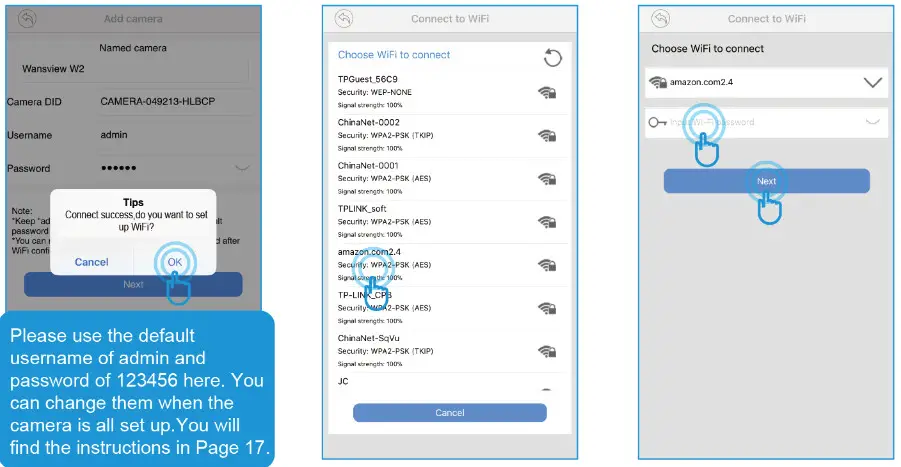
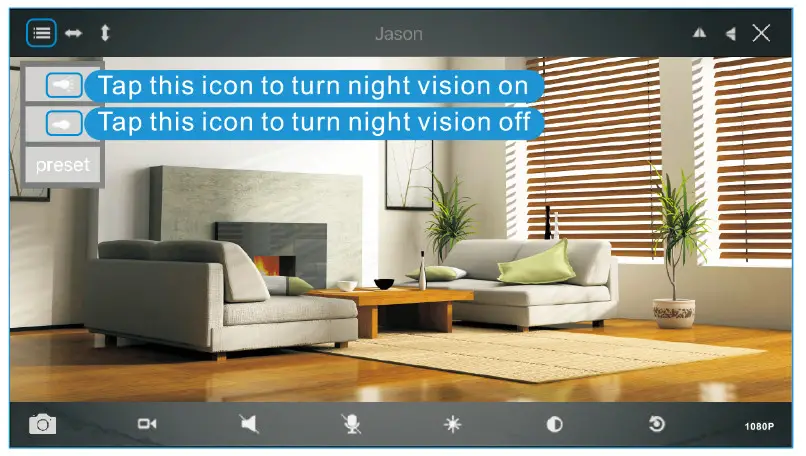
Live Video Interface
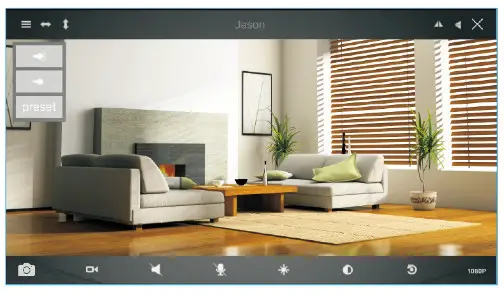
 | Menu IR ON IR OFF Horizontal |  | Vertical Mirror Flip Exit |  | Snapshot to phone Record video to phone Listen on/off Talk on/off |  | Contrast Brightness Restore to default 1080P/480P |
How to connect the camera to the second Phone?
Wansview camera supports 4 devices to view the same camera at the same time. After you use one phone to get your camera connected to your WiFi and you can view the live video from your first phone. If you would like to add your camera to the second phone. please follow the below steps:
1: Download the Wansview App to the second phone
2: Launch the Wansview app, tap “ -and select “Add already connected network camera”.
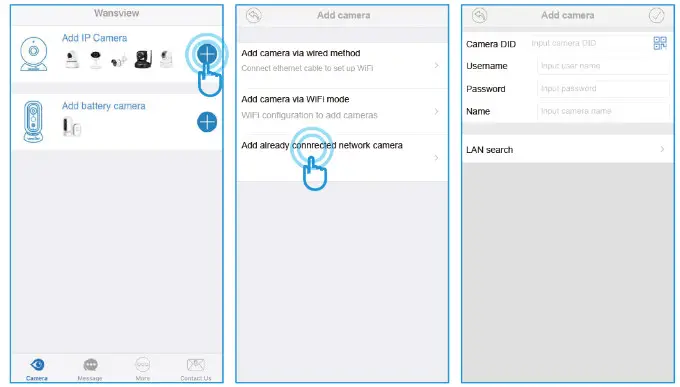 Users can use the below ways to add the camera:
1) Lan Search
If the mobile device and the camera are in the same WiFi network, the user can use “Lan Search” to search the connected camera.
2) Scan QR code
If the camera is in your hand, you can tap to scan the Camera’s QR code to get the camera information.
3) Manually input camera information
The camera’s DID can be found from the camera’s sticker 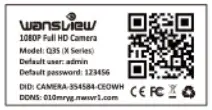 or Wansview app,
  the default Username/Password is admin/123456; the Name can be any information. Attention: Please remember to give your camera a name, and input your Password. Click on
  go back to home to start to view & control.
Change password and add another user
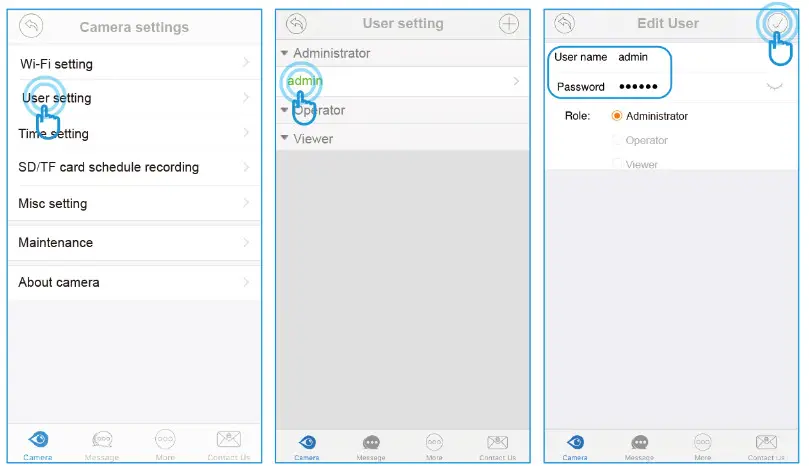
When the camera is “online”, click on  to access “Advanced Setting”, Under the User Setting/Management, the user can change the default username(admin) and password (123456), or create another user account with certain access rights, such as an Operator or Viewer account for another person to view the camera.
Change Username and password
Tap User Setting, and choose AdministratorAdmin, user can change the user name and password, then tap
 Add another user account
On User Setting, tap  to add user, manually add the user name and password, then choose the Role(Operator or Viewer). Administrator: Full access rights
Operator: Can operate on the camera live video screen, but not access to other settings like Alarm setting, Advanced Setting, etc. Viewer: only can view camera, no more operations on the camera video screen.
Note: Password shall be no longer than 20 characters.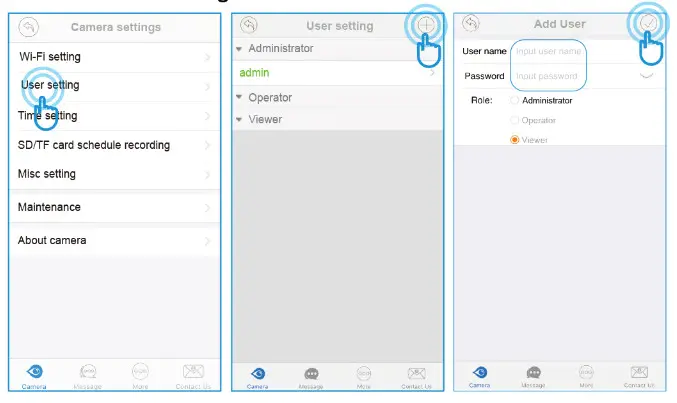
Trouble Shooting Frequently Asked Questions
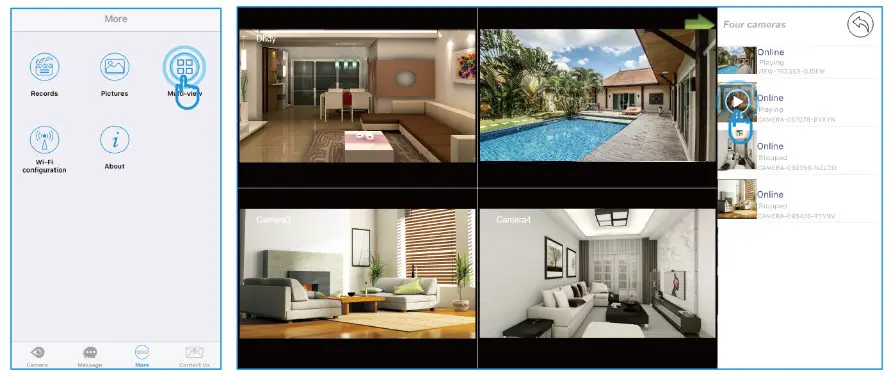
- If you have several cameras, please follow the below steps to use the Multi-view function.
Tap More on the Menu. then choose Multi-View
- How do I change my video stream resolution?
Click on icon 480P to change the resolution. - Night vision doesn’t work
If the night vision stops working, please turn on the IR light as below
- How to restore to factory default Push down the “Reset” button around 15-20 seconds until the red light flashes quickly and you will hear a beep, then the camera will be back to factory default. After restoring, please set up the camera using the default user name (admin) and password(123456).

- I want to add the camera to another software/app, which URL should I use?
RTSP Stream: rtsp://IP:rtspport /live/ch0 (default RTSP pod: 554)
MJEPG Stream: http://ip.port/mjpeg/stream.cgi?chn=0
Snapshot: ip:port/mjpeg/snap.cgi?chn=0 - Why can’t I access the camera remotely with Wansview App when I am outside?
If your phone is using cellular data, please check if Wansiew App has permission of cellular data usage on your phone or not.
If your phone is on another available WiFi network, you still can’t access the camera remotely, the problem might be the firewall of your home router which blocks outside network to access the camera. Please follow the below instruction to turn the router’s firewall off to allow an outside network to access the camera:
Connect your phone to home WiFi—go to Wireless setting of your phone, you can know router’s IP address—input the IP address to the browser on your phone—input router’s username and password then you can log in your router—find option “Firewall”—you can turn it off. Or you can access your home router on your computer, the link for your reference: https://www.wikihow.com/Access-a-Router