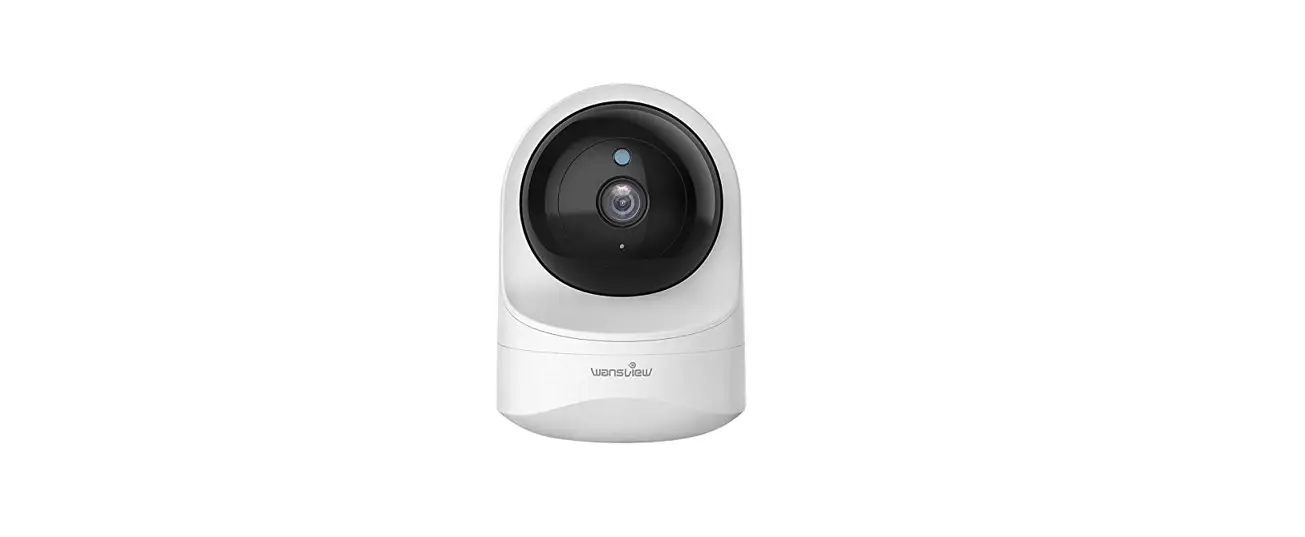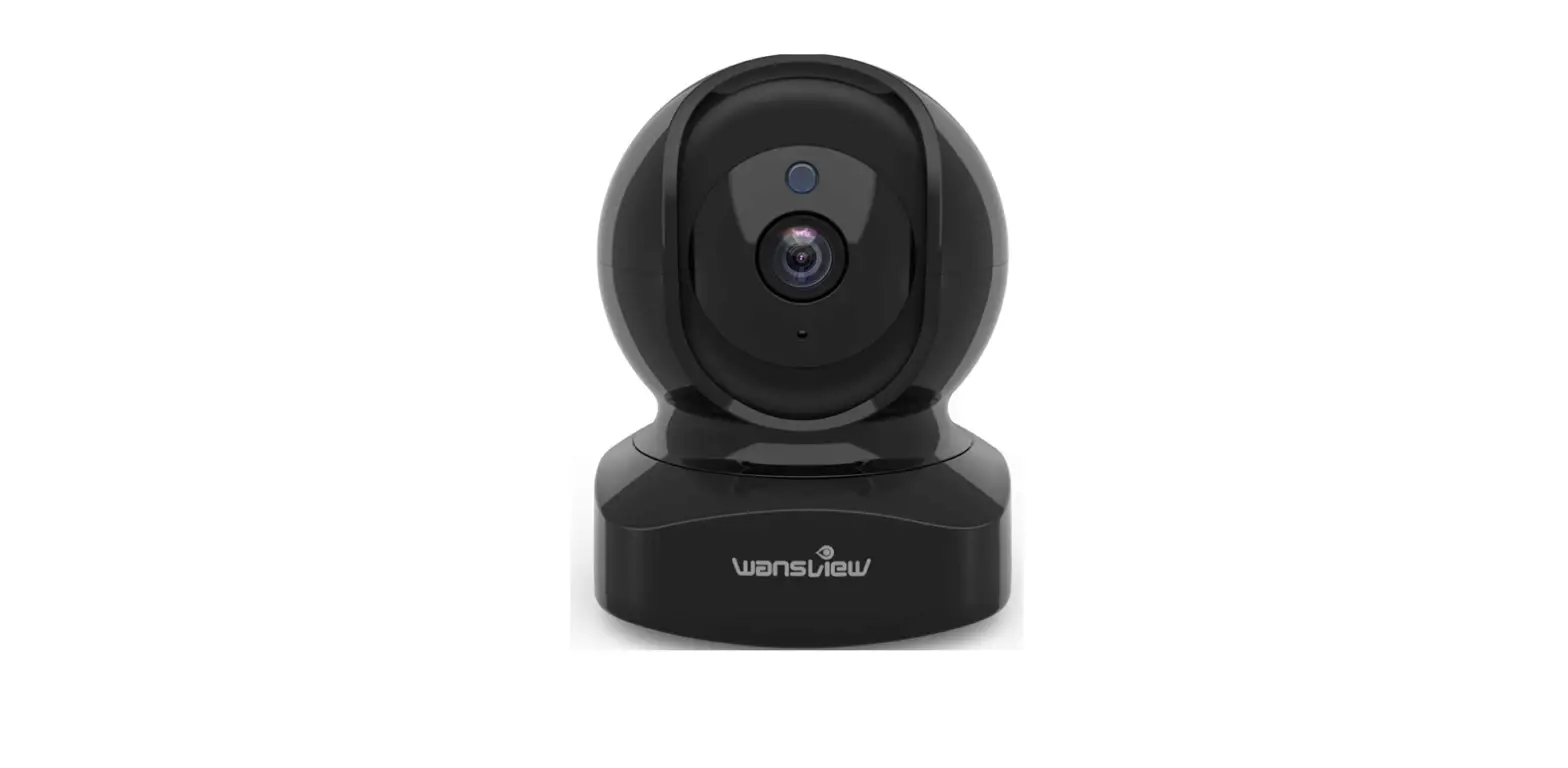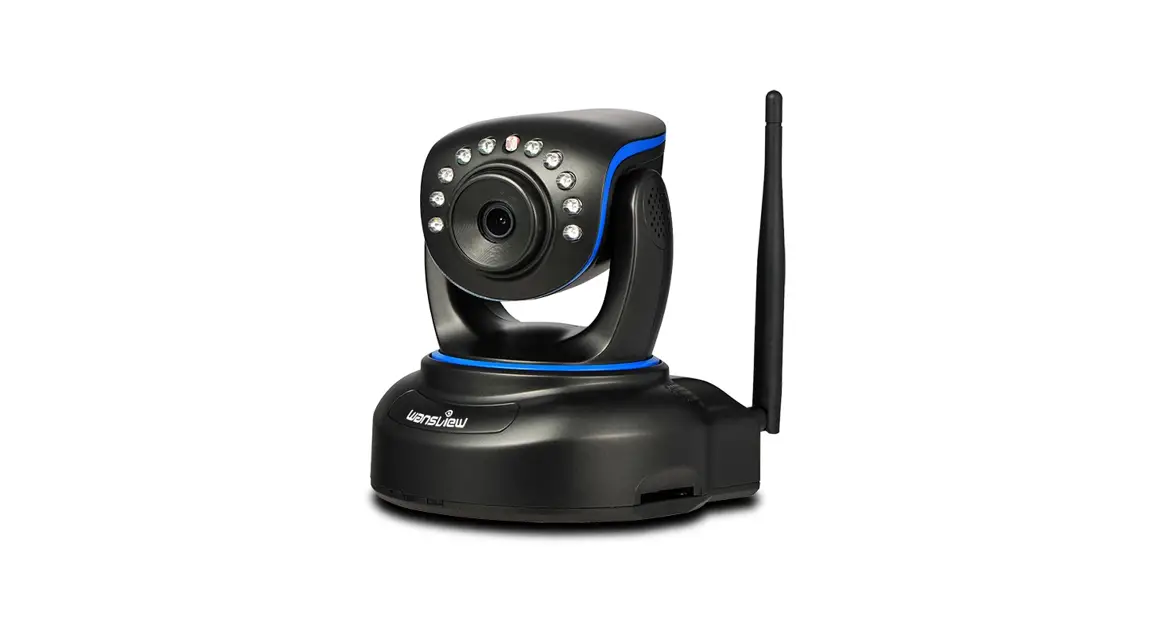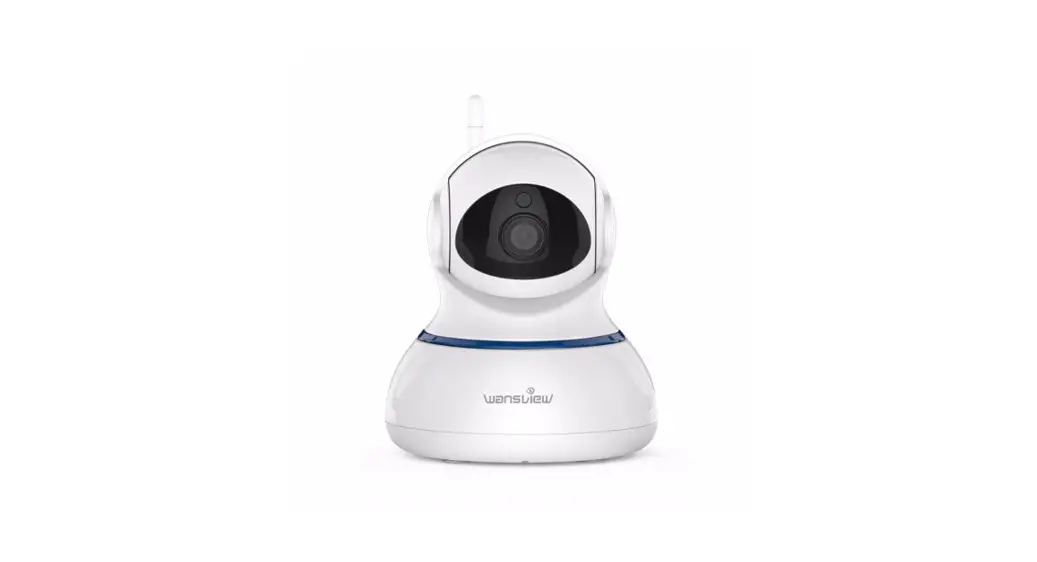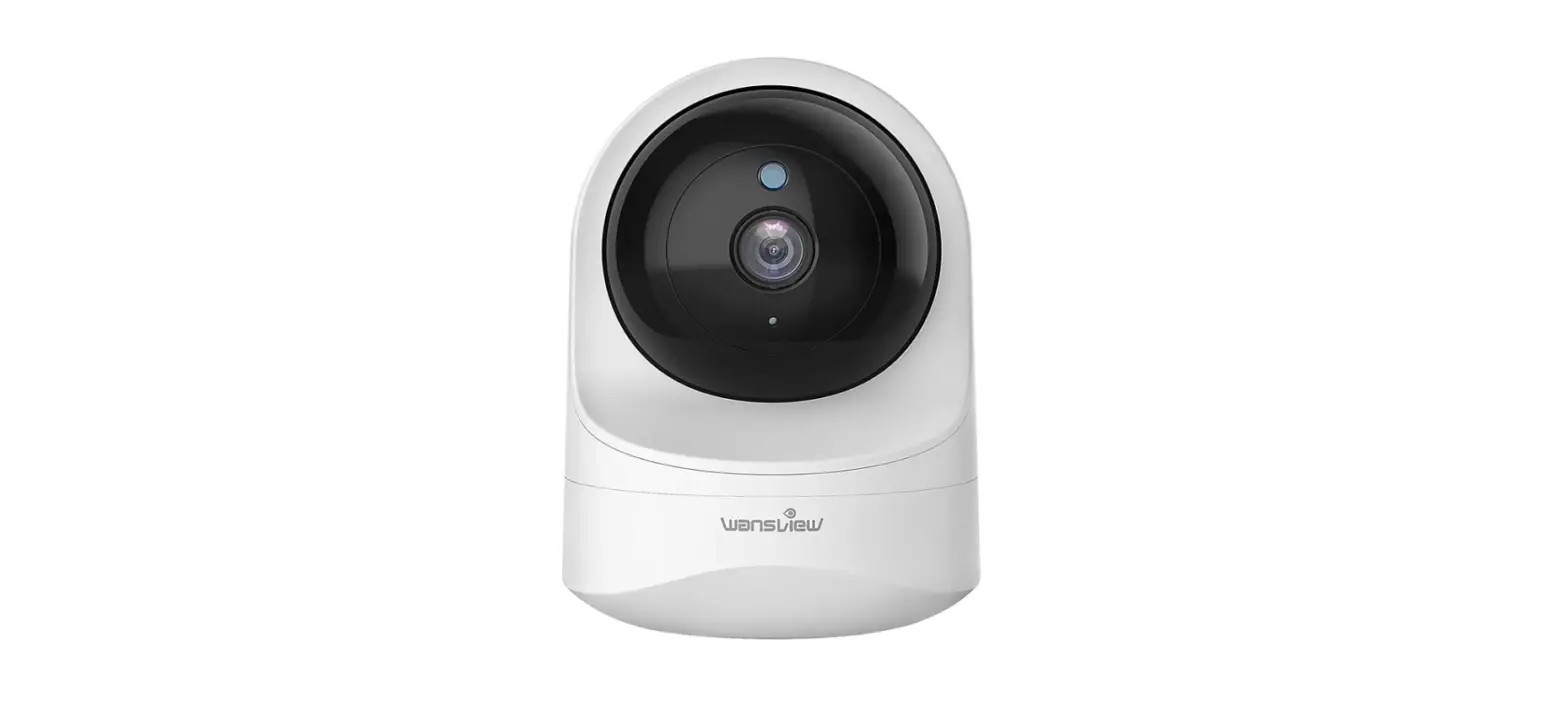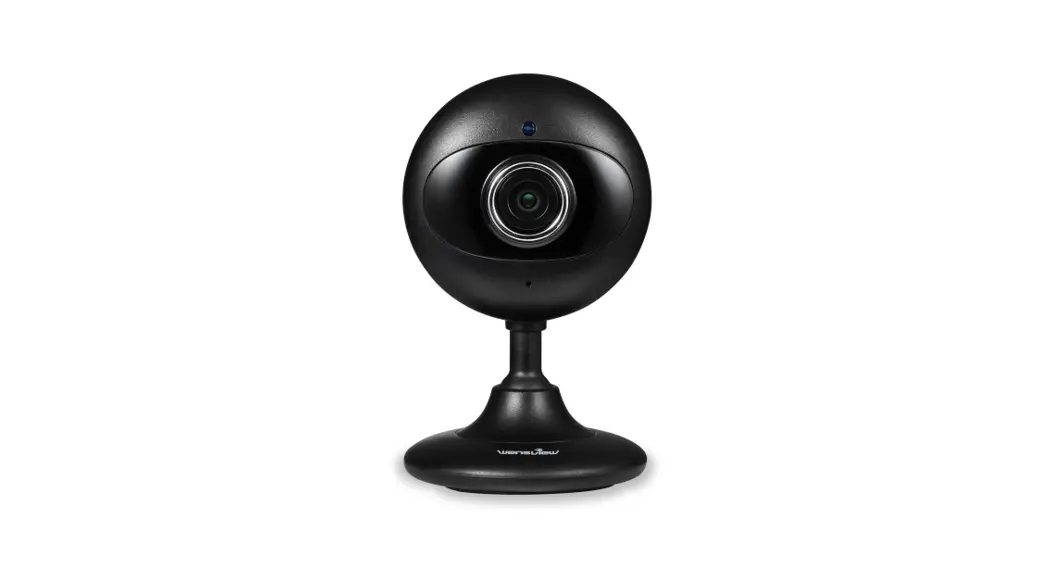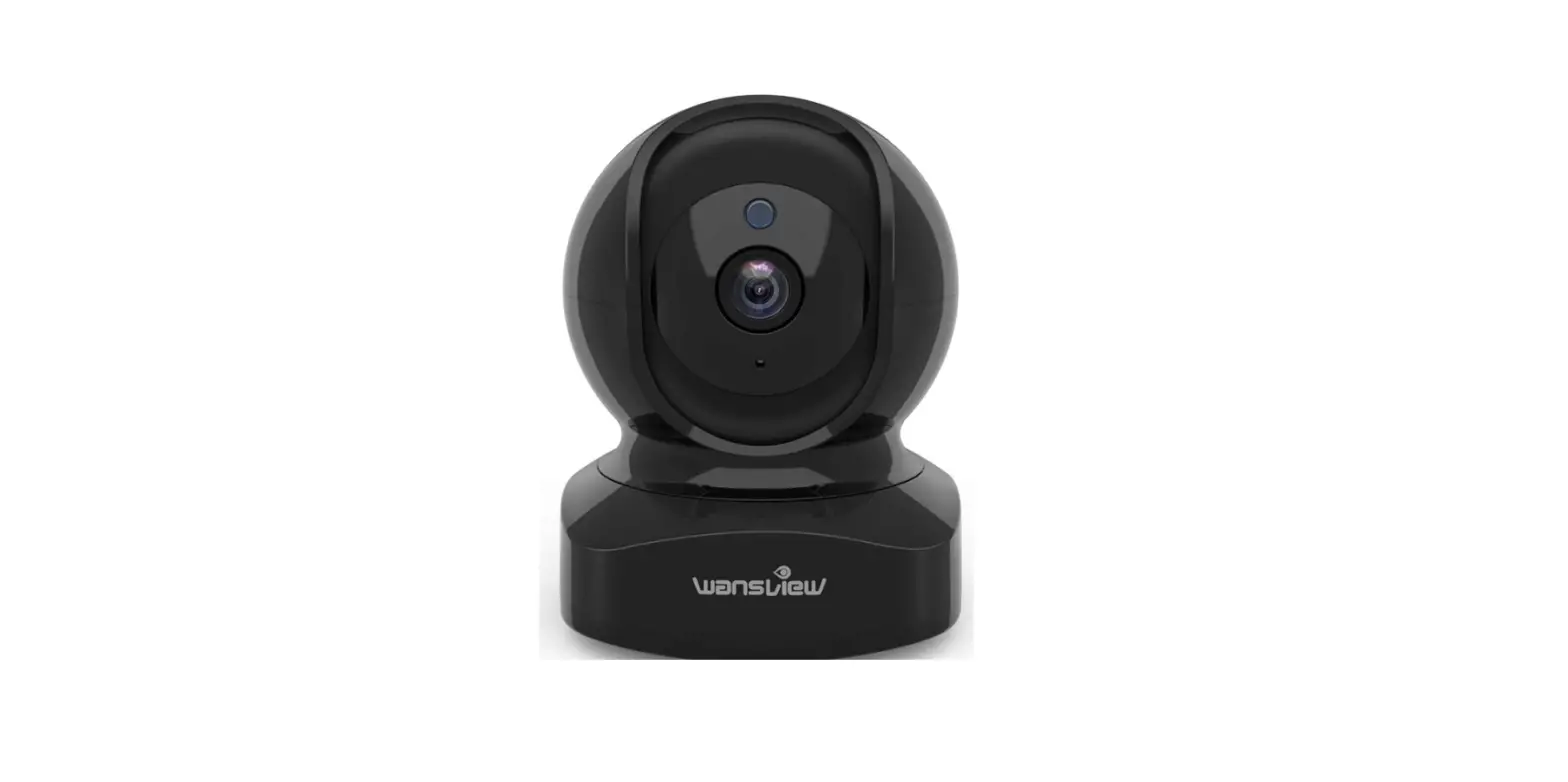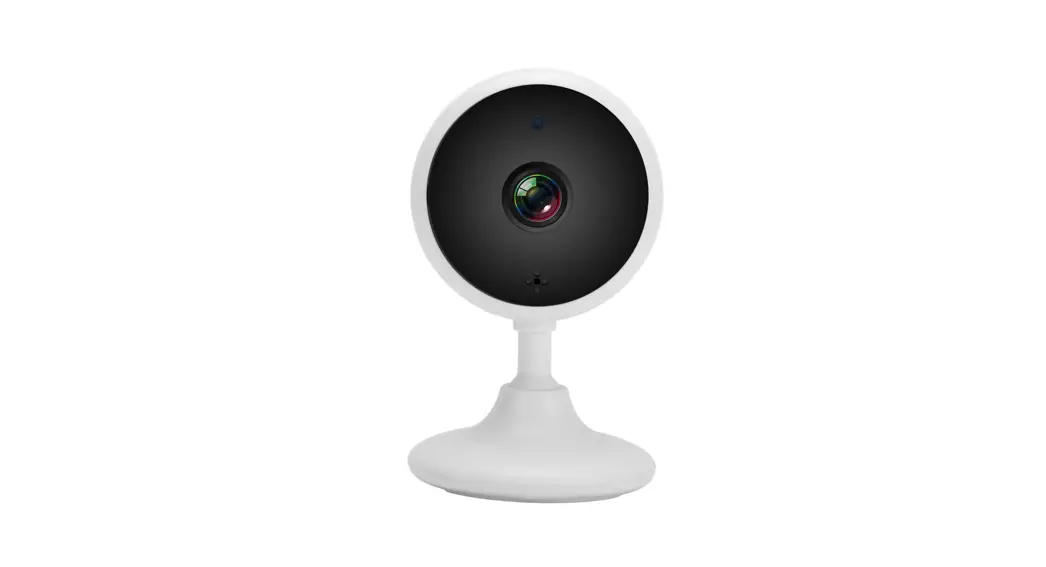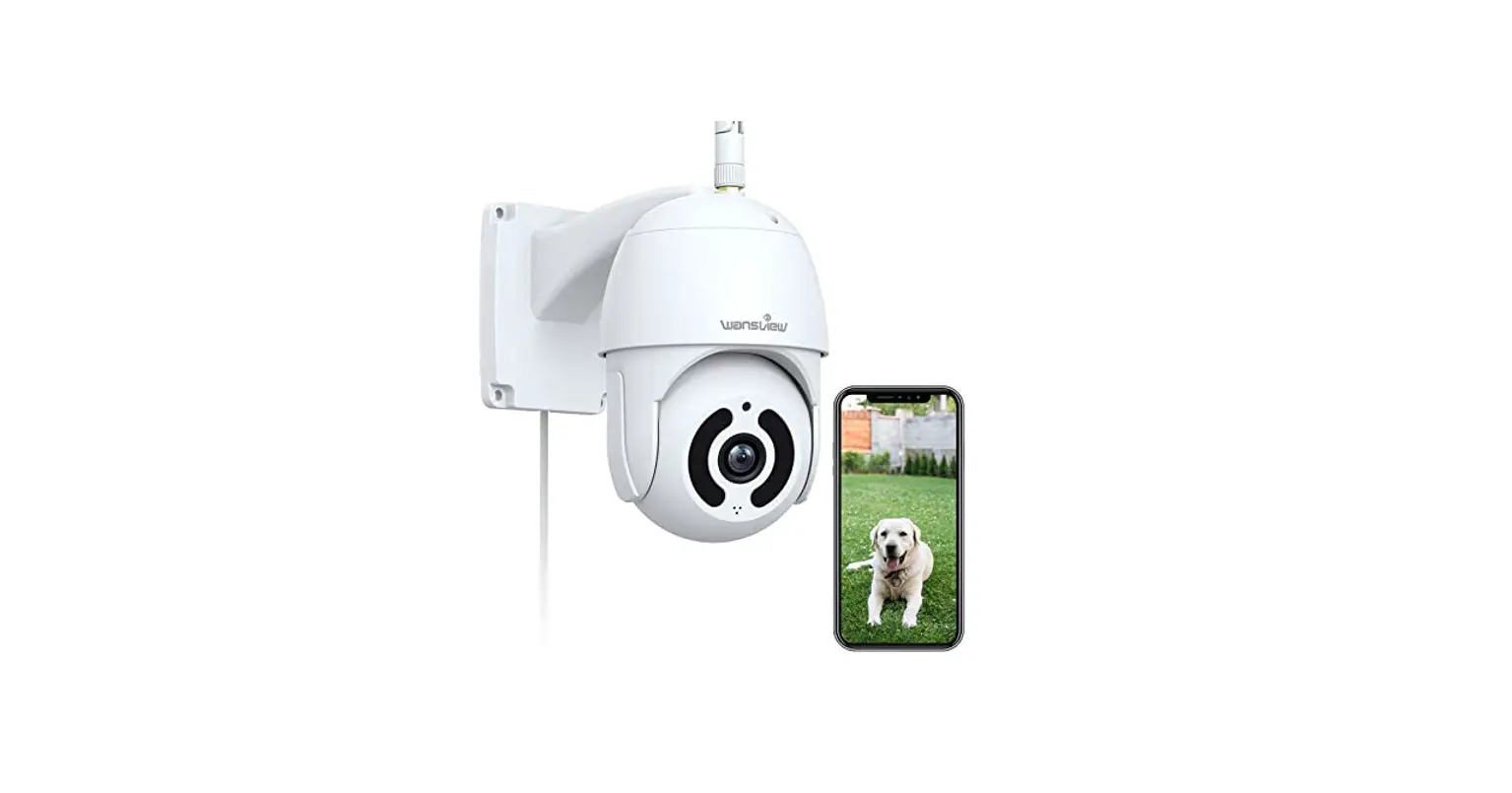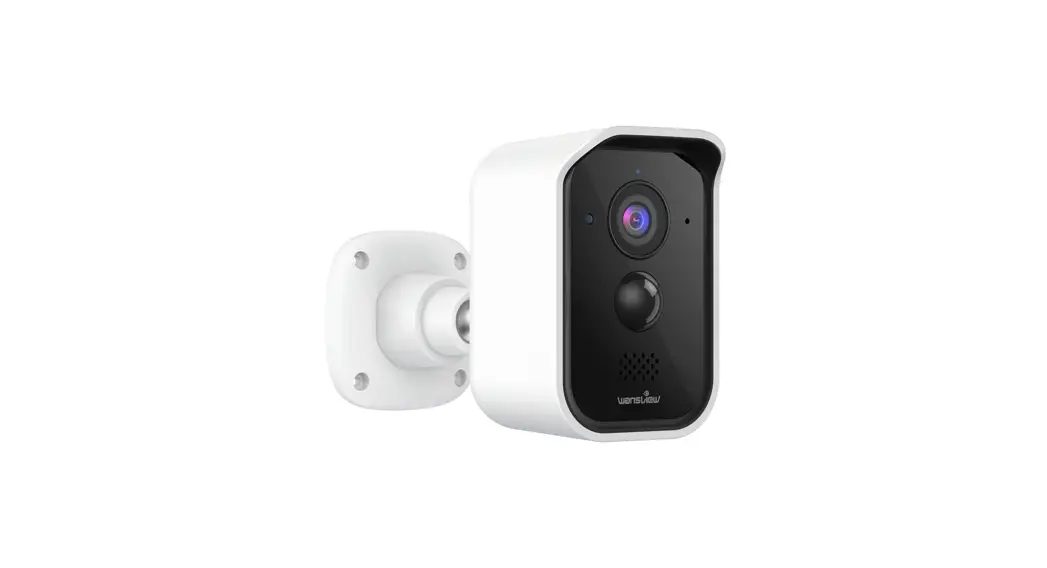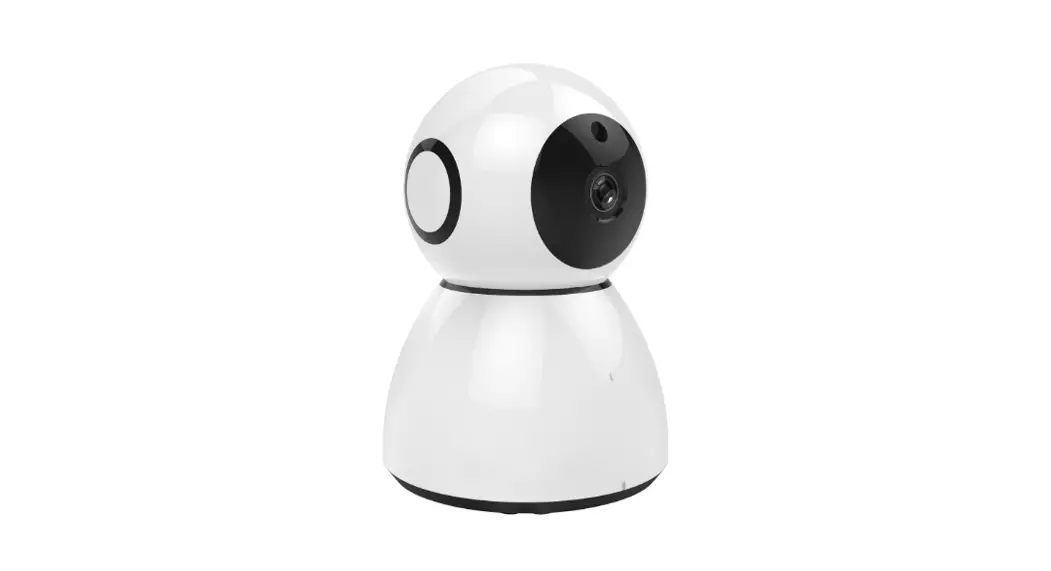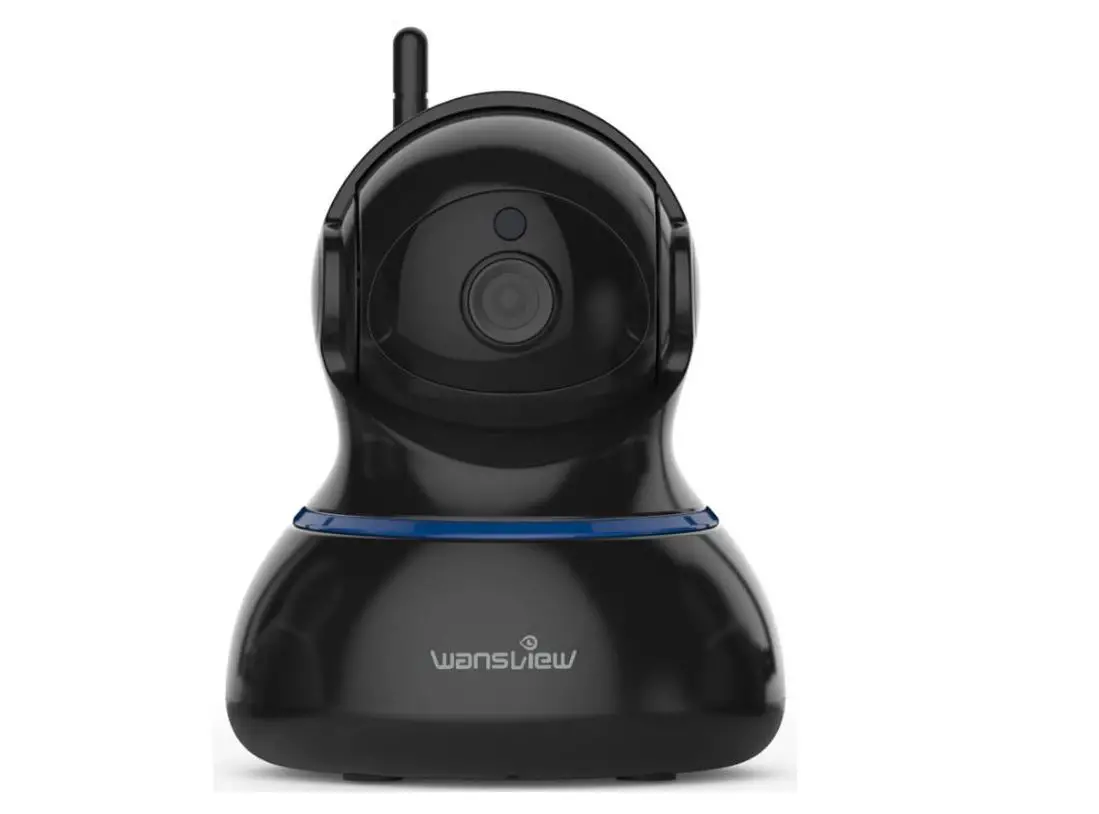

want view Q5 1080P HD Wireless Cloud IP Camera

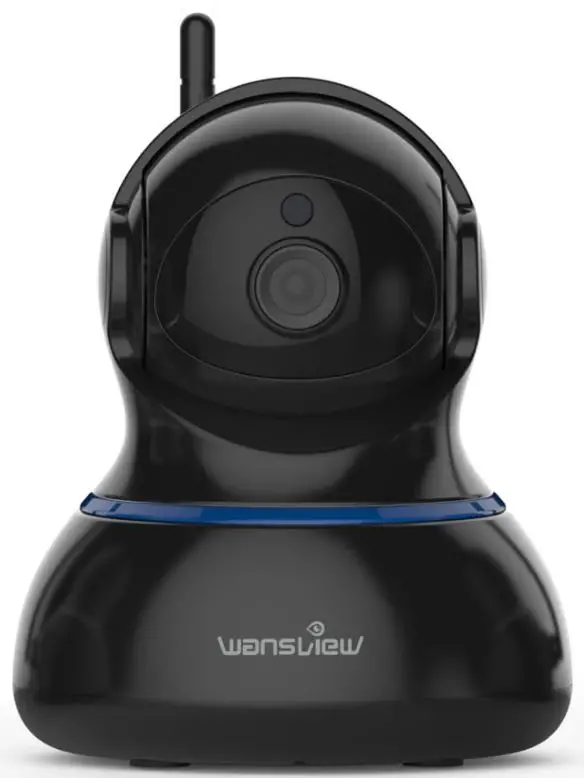
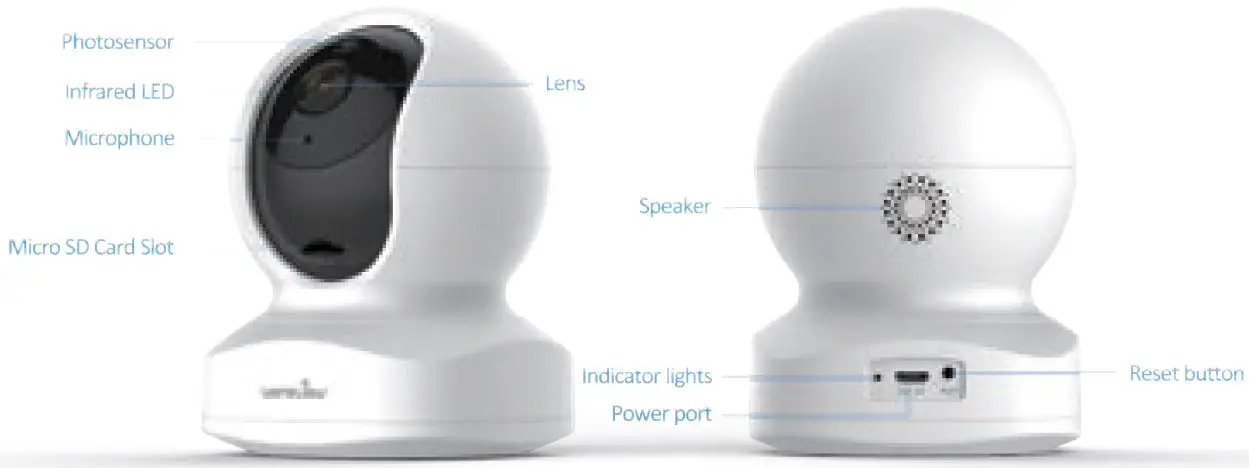
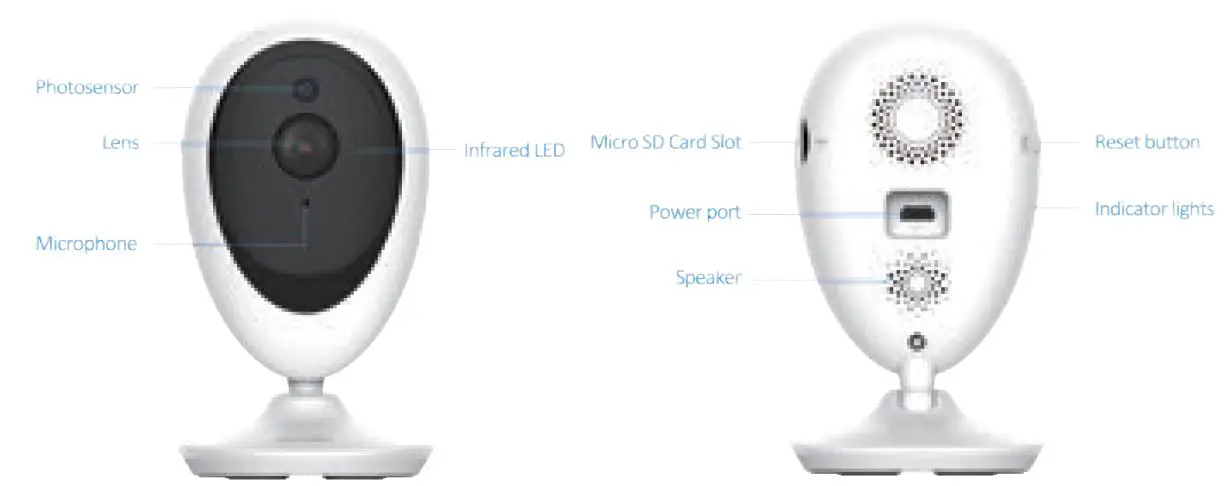
OverView
- quick installation guide 1 camera
- power adapter Mounting accessories
- Model Q5


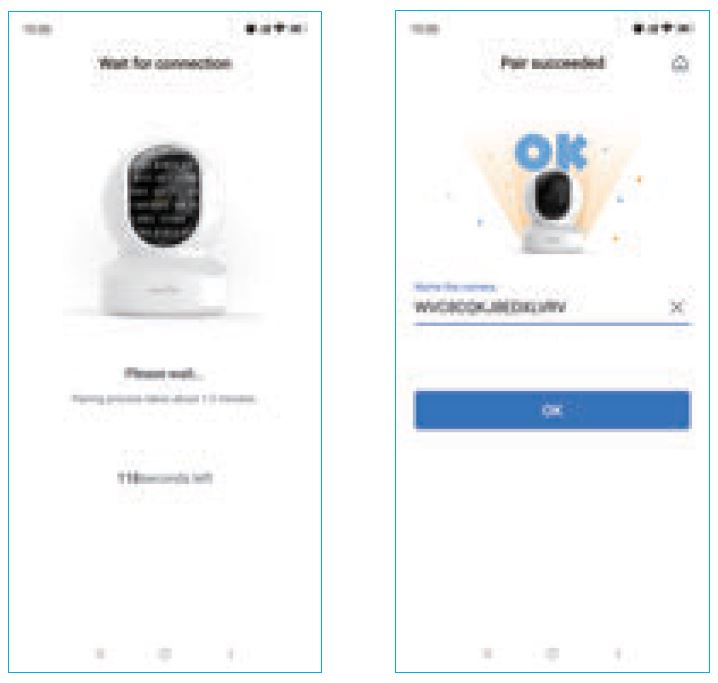
 If you see the flashing blue and red light on the back of the camera, please tap [Flashing]. If there is no blue light, please check the FAQ.
- You’ll see your Wi-Fi name, input the correct Wi-Fi password, and tap [Next]. The app will show a QR code, please put the phone in front of the camera about 3-8 inches, then please tap [Next] if you hear “QR code scanning is successful”.

 If you see the flashing blue and red light on the back of the camera, please tap [Flashing]. If there is no blue light, please check the FAQ.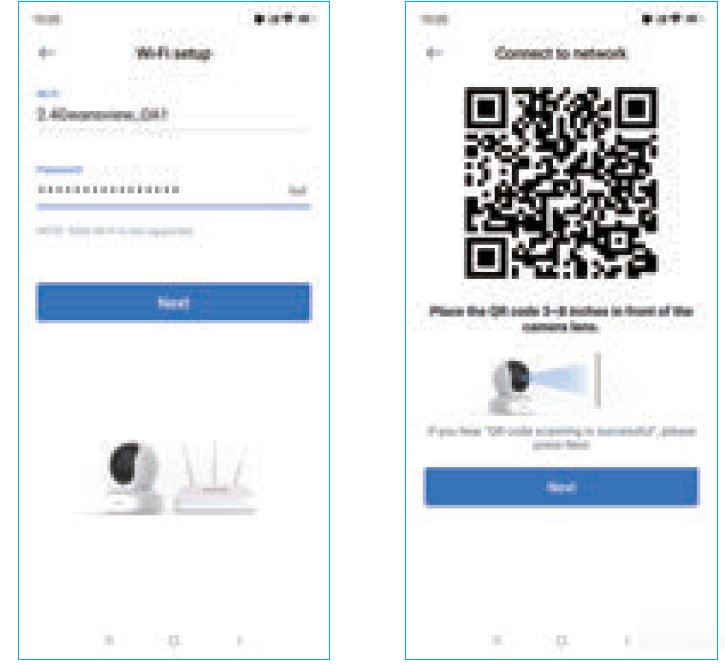
Indicator Lights Status
| Light Status | Camera Status |
| Red light on | The camera is powered on |
| Red and blue light alternately flashing | Wairng to connect now |
| Blue light flashing | The camera is connected to Wi-Fi |
| Blue light solid | Succeeded to connect Wi-Fi |
| Red light quickly flashing | 1. Reset camera to factory setting |
| 2. Camera is upgrading firmware |
Warm note: Please make sure your router is connected to the Internet.
Easy Set-Up
- Step 1 Download
- Go to the App Store or Google Play to search and download the “Wansview Cloud” APP to your supported devices.

- Or please scan below QR code to download Wansview Cloud to your Android or Apple device
- Go to the App Store or Google Play to search and download the “Wansview Cloud” APP to your supported devices.
- FAQ: The camera can not connect to Wi-Fi? Please press the reset button camera for 5 seconds until the red light flashes quickly and the camera says “reset is successful”. Please wait for about one minute, then the camera will flash blue and red light alternately and you can reconnect it now.

- Step 2 Account Register
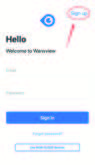
- Open Wansview Cloud App, then select Sign up

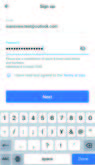
- Enter your email
- Create a password at least 8 characters long. Your password must include three of the following:
- At least one uppercase letter.
- At least one lowercase letter.
- At least one number.

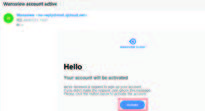
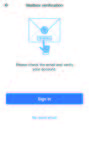
- You will receive an email with your Activation Link. Open the link to activate your account.

- Go back to log in to your account after the actvaion is successful.

- Open Wansview Cloud App, then select Sign up
- Step 3 Power on the camera
- Power on the camera with the supplied power cord and put the camera near to the router.

- Power on the camera with the supplied power cord and put the camera near to the router.
- Step 4 Connect to a network
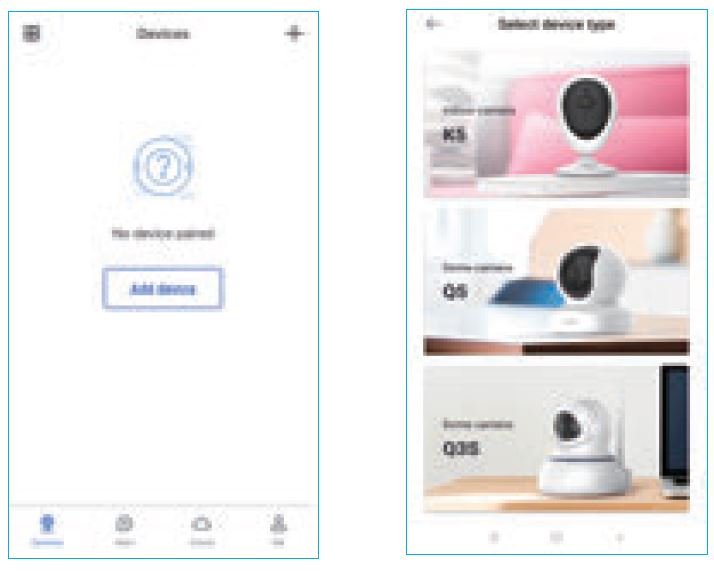
- (Wi-Fi connection process for Q5S/K5 is the same. Here we take the Q5S camera as an example.) Connect your phone to 2.4G Wi-Fi (5G is not supported). Open the Wansview Cloud app. Please tap [Add a device], and choose your camera model(Q5S/K5).


LET US KNOW WHAT YOU THINK
Thank you so much for your order and trust in Wansview.Please feel free to contact us if you have any questions about the product application. As a young and growing company, it would mean the world to us if you could leave an honest review about our product and services.
- US/CA: [email protected] UK: [email protected]
- TEL: +13236863288 Available time: 6 pm – 3 am (PST Time) from Monday to Friday
- Online chat: Chat on Wansview Cloud app: Me-Contact Us-Online Customer Service
- Facebook: https://www.facebook.com/WansviewOfficial
- Youtube: https://www.youtube.com/WansviewOfficial