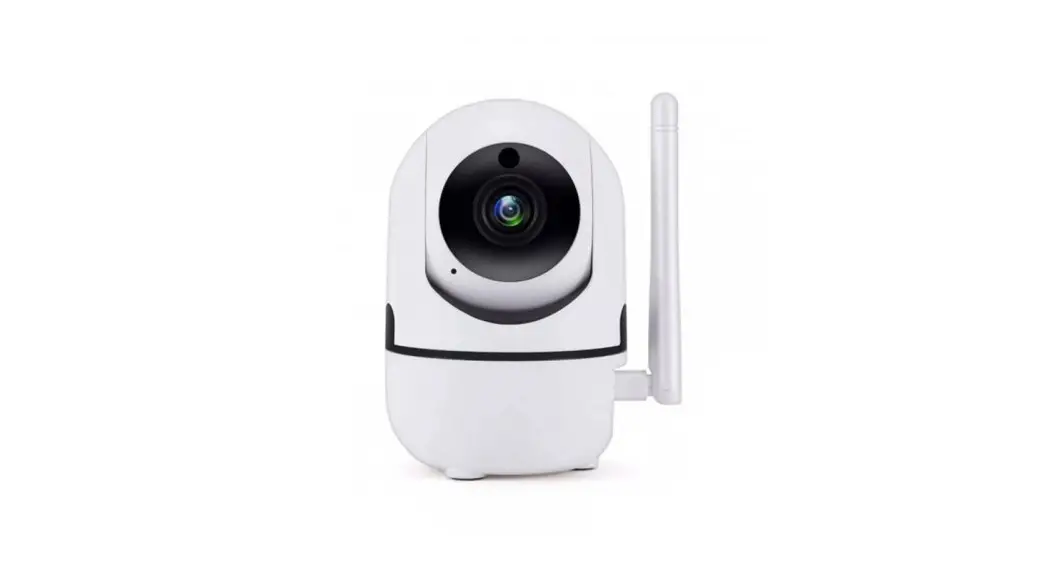
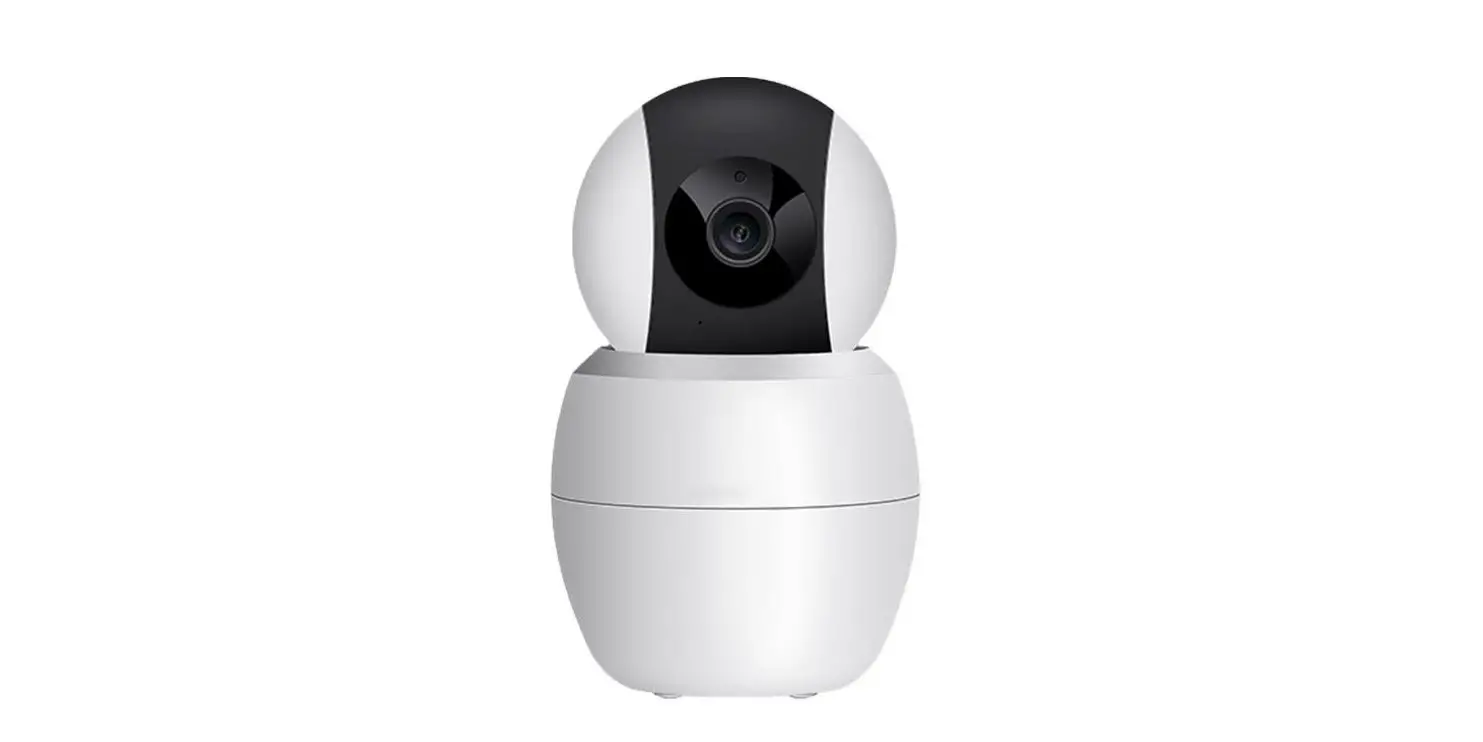
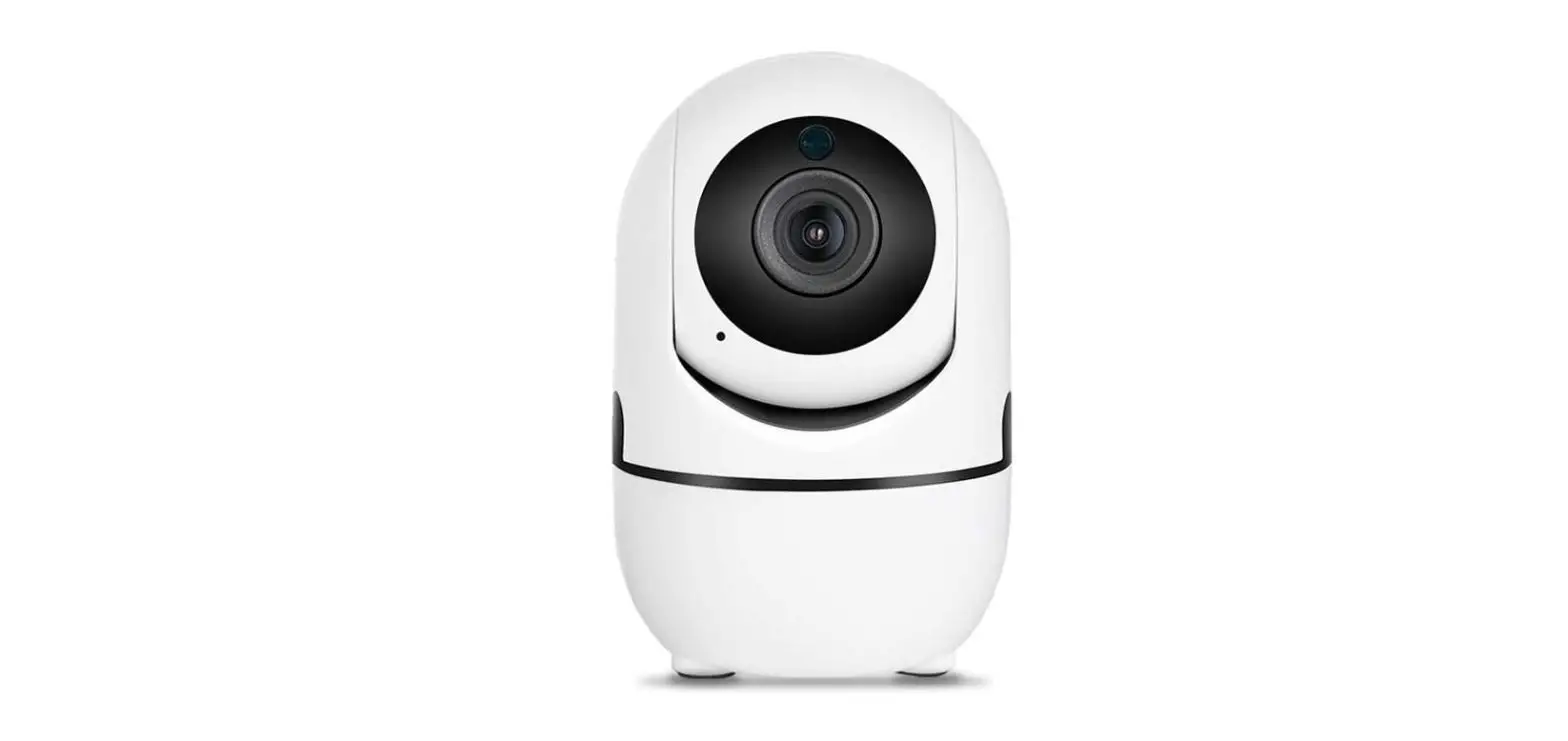
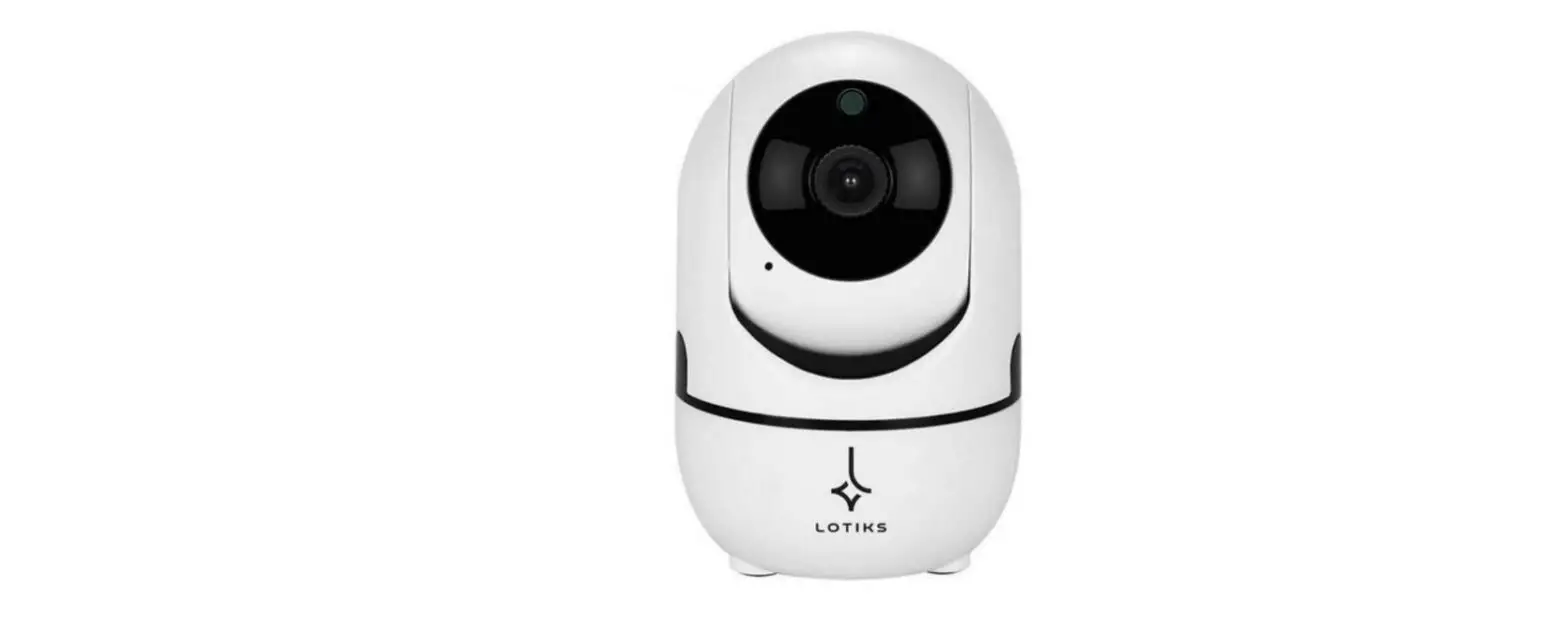
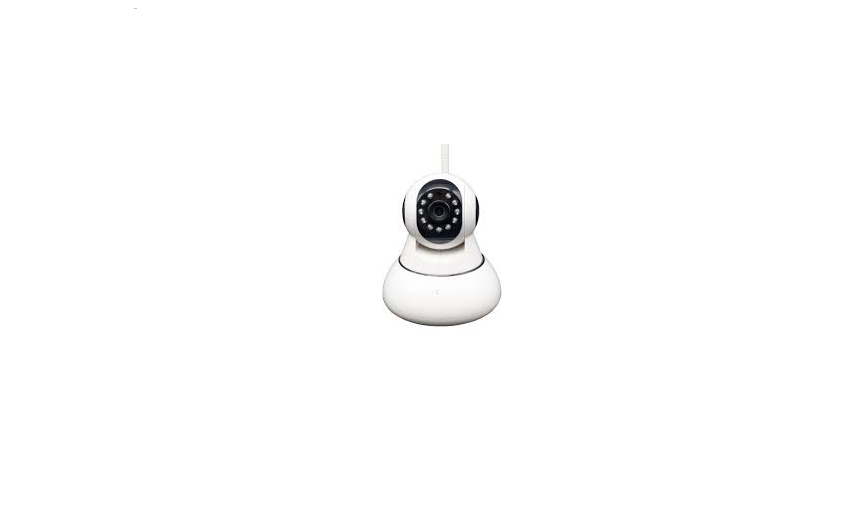
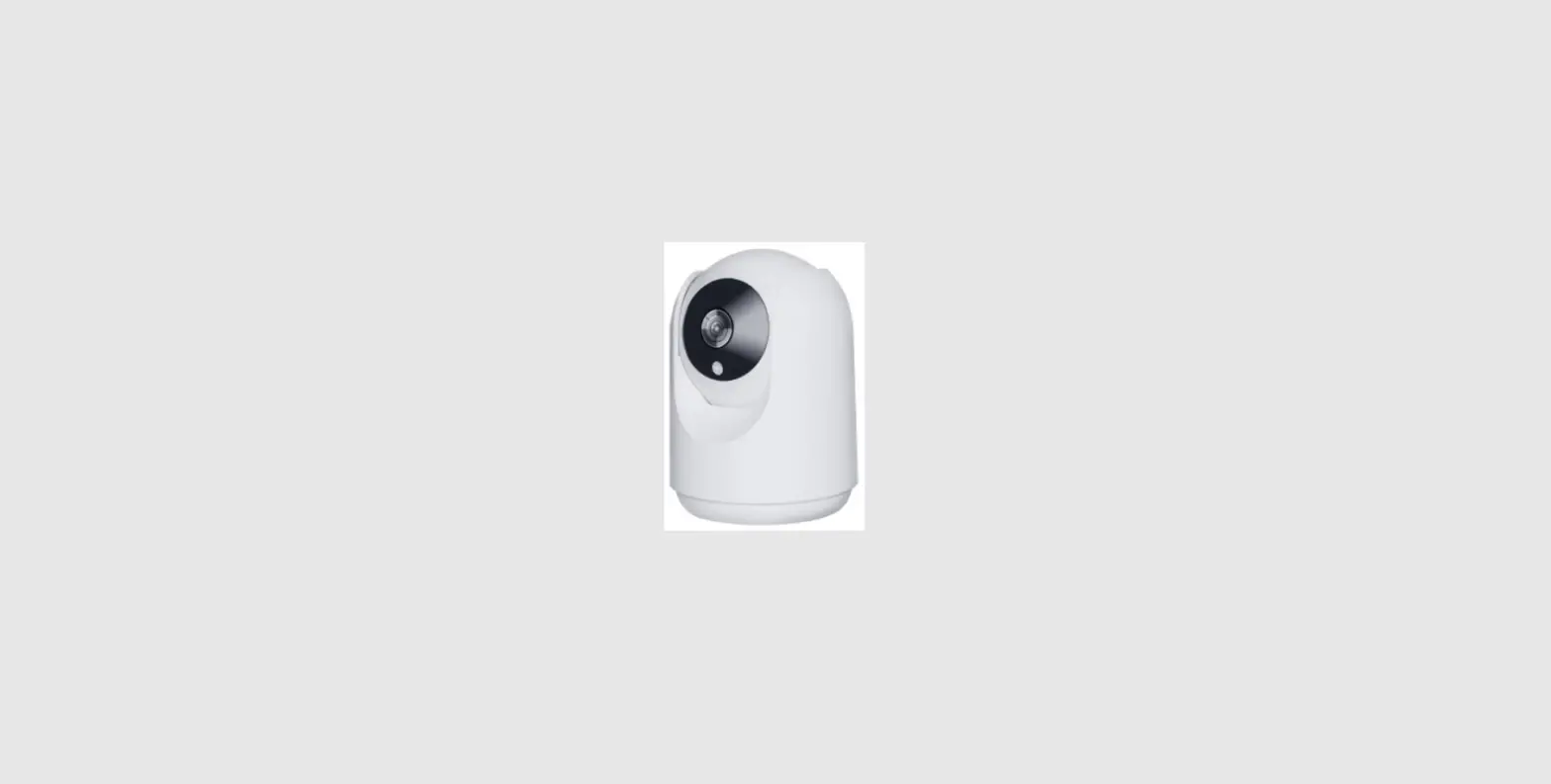
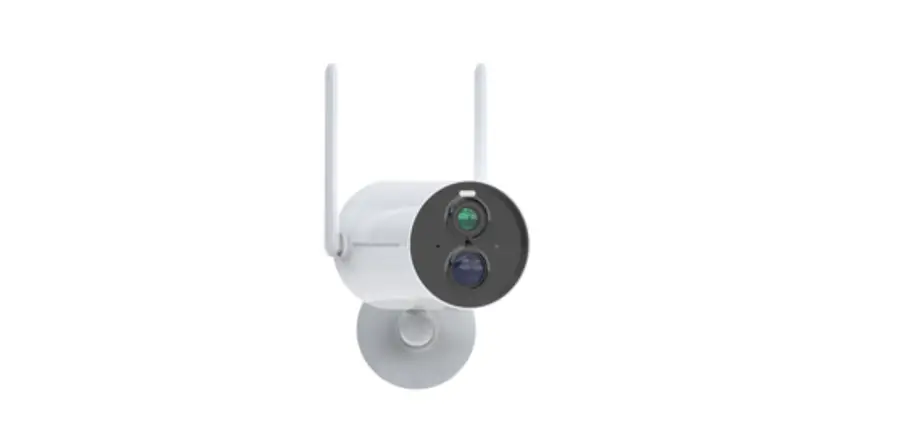
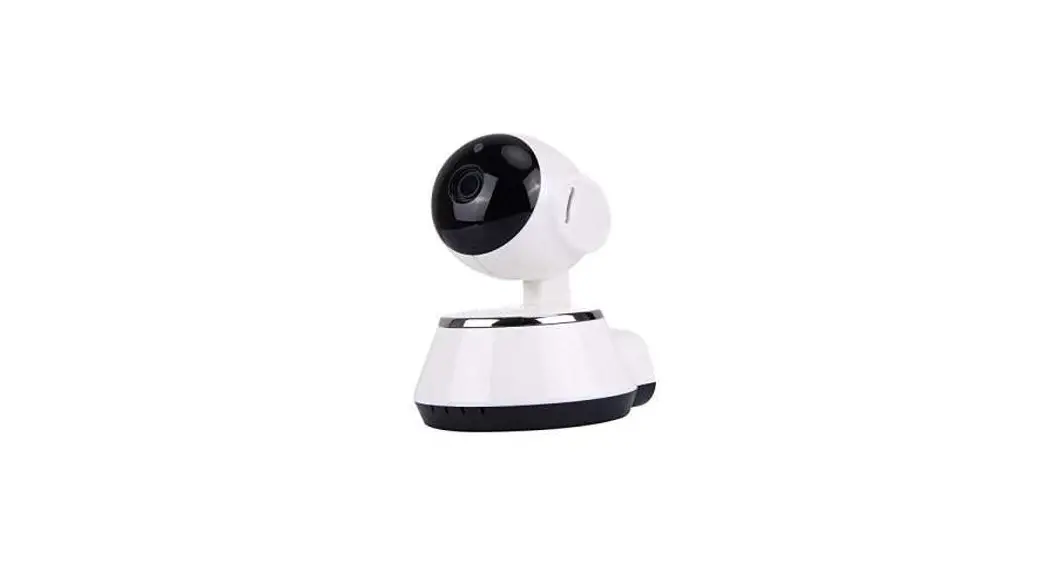
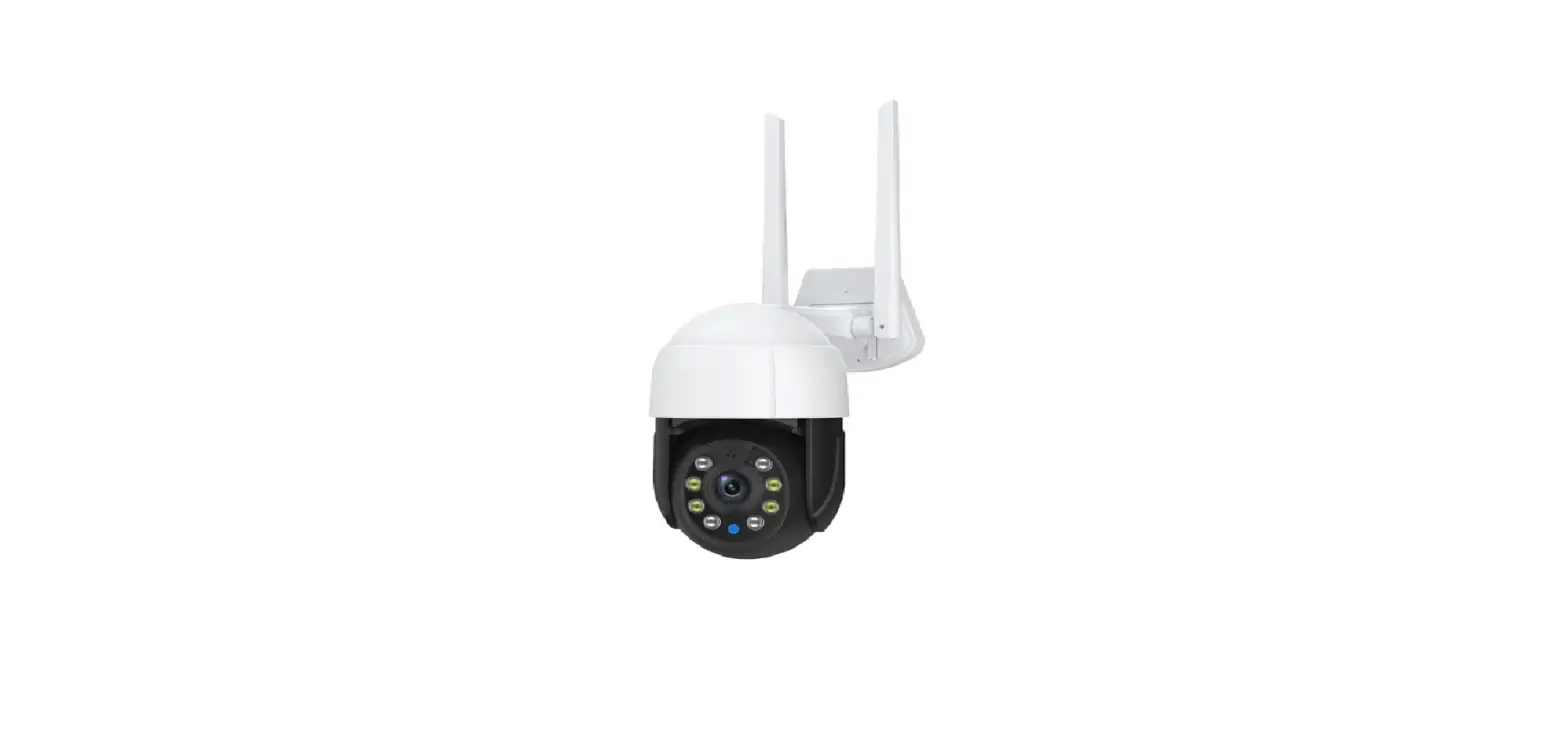
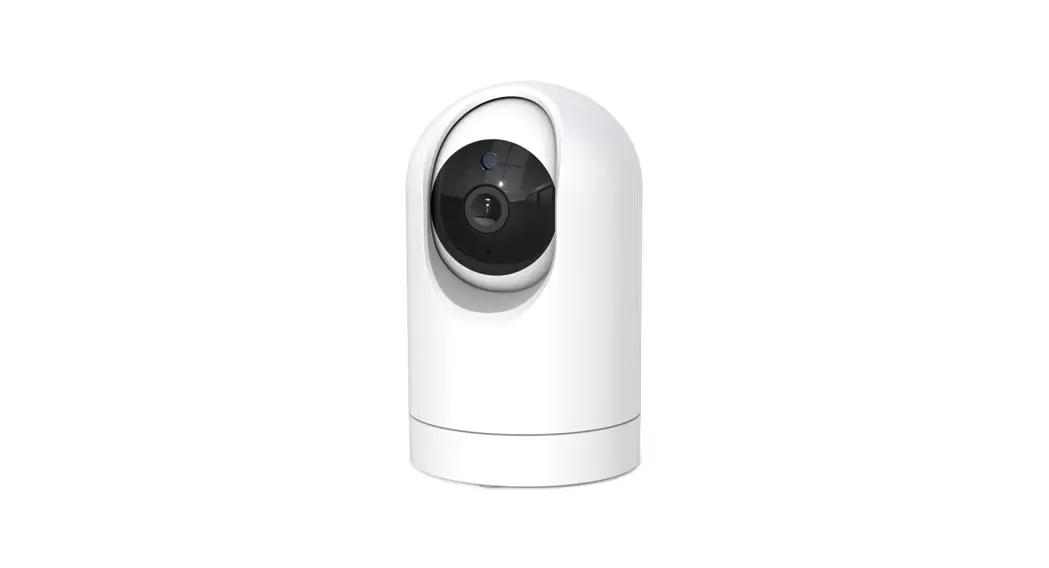
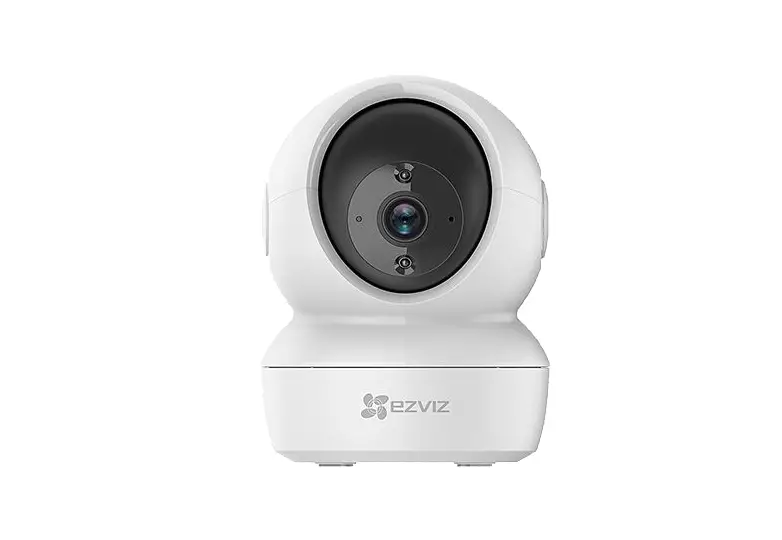
Y103 WiFi IP Camera
WIFI IPCamera M/N:Y103
User Manual
The WIFI IPCamera M/N:Y103 is a wireless security camera that
allows you to monitor your home or office remotely. It comes with
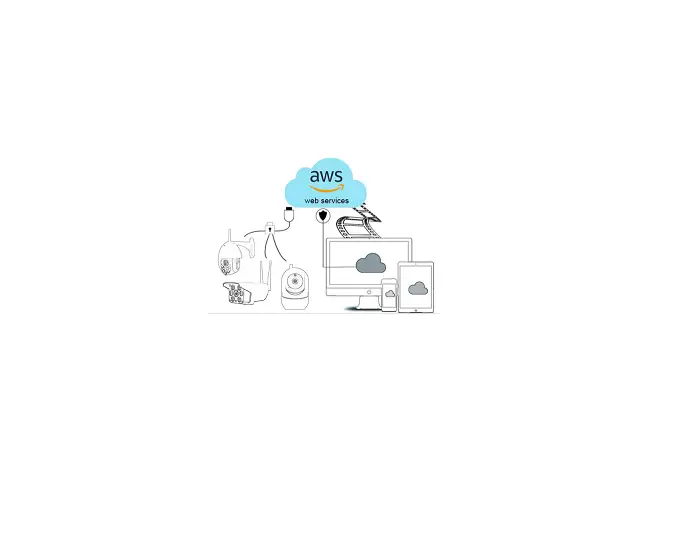
cloud storage service that enables you to store recorded videos and
access them from anywhere, anytime.
Product Usage Instructions
- To purchase cloud storage service, click on the icon to enter
the cloud storage purchase interface. - Click the video interface and select the package type, which is
mainly divided into 7 day and 30 day cycle video recording. - Then select the annual or monthly package and read the service
terms. - Agree to the terms and continue to pay.
Frequently Asked Questions
Q: Camera not compatible with network or offline
status
- Check if the power supply and home network broadband are
normal. - Restart the device and listen to the prompt tone for
judgment. - Press and hold the reset button for 6 seconds to reconfigure
the network. - WiFi passwords should not contain Chinese or complex symbols,
and should be combined with letters and numbers as much as
possible.
Q: How the camera stores videos
Videos can be separately opened with cloud storage service, and
the cycle recording can be automatically overwritten according to
the number of days of cloud storage package.
Important Clause
Please understand that the manual may contain technical
descriptions that do not match the product functionality and
printing errors. Please refer to our company’s final explanation.
The APP version and product firmware will be updated periodically.
If there are any updates, please upgrade online without further
notice.
Please do not easily disclose your username and password while
using this product to prevent unauthorized users from infringing
personal privacy. Our company does not assume any legal
responsibility. Please do not install this product in damp, dust,
high temperature, flammable, explosive, or out of reach of
children.
Radiation Exposure Statement To comply with FCC
RF exposure compliance requirements, this grant is applicable to
only mobile configurations. The antennas used for this transmitter
must be installed to provide a separation distance of at least 20
cm from all persons and must not be co-located or operating in
conjunction with any other antenna or transmitter.
WIFI IPCamera M/N:Y103
User Manual
Download and install the app Method 1: Scan the QR code to quickly download and install it An Xinkan Method 2: Search for “Anxinkan” in the mobile app store to download and install it Register login account New users need to register an account, click on “Register Account” to enter the registration process interface Select your country, enter your account name (phone number or email), and follow the prompts to register with a verification code Existing accounts can be logged in by directly entering the account name and password Add Camera register The camera is powered on, and during the startup process, the pan head will rotate for self inspection. After the startup is completed, there will be a prompt sound. (If there is no prompt sound, reset and redo the operation) Click “Add Device” or click “+” in the upper right corner to enter the interface for selecting the method of adding devices The selection of adding methods based on device type is mainly divided into “WiFi connection” and “hotspot connection” Main page function description Set Parameter Menu Cloud storage Image quality switching Monitor camera sound Save the current video to your phone and call the camera Capture the current west side and save it to your phone Landscape full screen Call up the video playback in the high-definition image area Enable automatic humanoid tracking Alarm record information Use of cloud storage Cloud storage is an online storage method to prevent the storage card and camera from being stolen and damaged, and cloud storage and TF card can simultaneously backup the recording of important video recordings (It is recommended to open cloud storage)
Click the icon to enter the cloud storage purchase interface, click the video interface, select the package type, which is mainly divided into 7 day and 30 day cycle video recording, then select the annual or monthly package, read the service terms, agree, continue and pay
Frequently Asked Questions
Q: Camera not compatible with network or offline status
1. Check if the power supply and home network broadband are normal
2. Restart the device and listen to the prompt tone for judgment
3. Press and hold the reset button for 6 seconds to reconfigure the network
4. WiFi passwords should not contain Chinese or complex symbols, and should be combined with letters and numbers as much as possible
Q: How the camera stores videos can be separately opened with cloud storage service, and the cycle recording can be automatically overwritten according to the number of days of cloud storage package
important clause
The product is based on the actual product, and the manual is for reference only
Please understand that the manual may contain technical descriptions that do not match the product functionality and printing errors. Please refer to our company’s final explanation. The APP version and product firmware will be updated periodically. If there are any updates, please upgrade online without further notice
Please do not easily disclose your username and password while using this product to prevent unauthorized users from infringing personal privacy. Our company does not assume any legal responsibility. Please do not install this product in damp, dust, high temperature, flammable, explosive, or out of reach of children
FCC Statement This device complies with part 15 of the FCC rules. Operation is subject to the following two conditions: (1) this device may not cause harmful interference, and (2) this device must accept any interference receiv ed,including interference that may cause undesired operation. Caution: Changes or modifications not expressly approved by the party responsible for Compliance could void the user’s authority to operate the equipment. NOTE: This equipment has been tested and found to comply with the limits for a Class B digital device, p ursuant to part 15 of the FCC Rules. These limits are designed to provide reasonable protection against h armful interference in a residential installation. This equipment generates uses and can radiate radio freq uency energy and, if not installed and used in accordance with the instructions, may cause harmful interfe rence to radio communications. However, there is no guarantee that interference will not occur in a partic ular installation. If this equipment does cause harmful interference to radio or television reception, which c an be determined by turning the equipment off and on, the user is encouraged to try to correct the interfer ence by one or more of the following measures: – Reorient or relocate the receiving antenna. – Increase the separation between the equipment and receiver. – Connect the equipment into an outlet on a circuit different from that to which the receiver is connected. -Consult the dealer or an experienced radio/TV technician for help important announcement .
Radiation Exposure Statement To comply with FCC RF exposure compliance requirements, this grant is applicable to only mobile configurations. The antennas used for this transmitter must be installed to provide a separation distance of at least 20 cm from all persons and must not be co-located or operating in conjunction with any other antenna or transmitter.
 百度翻译-200种语言互译、沟通全世界!