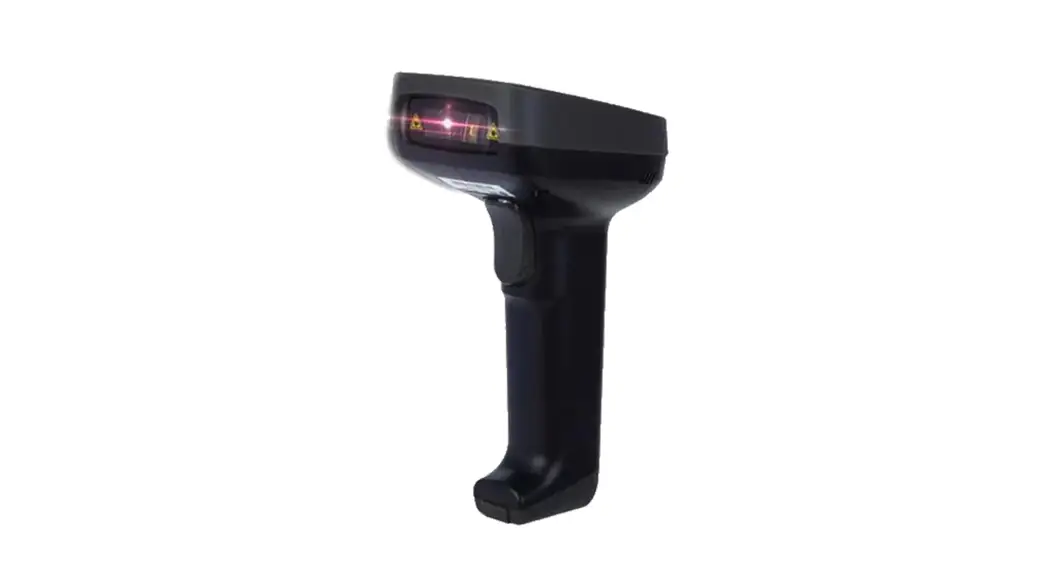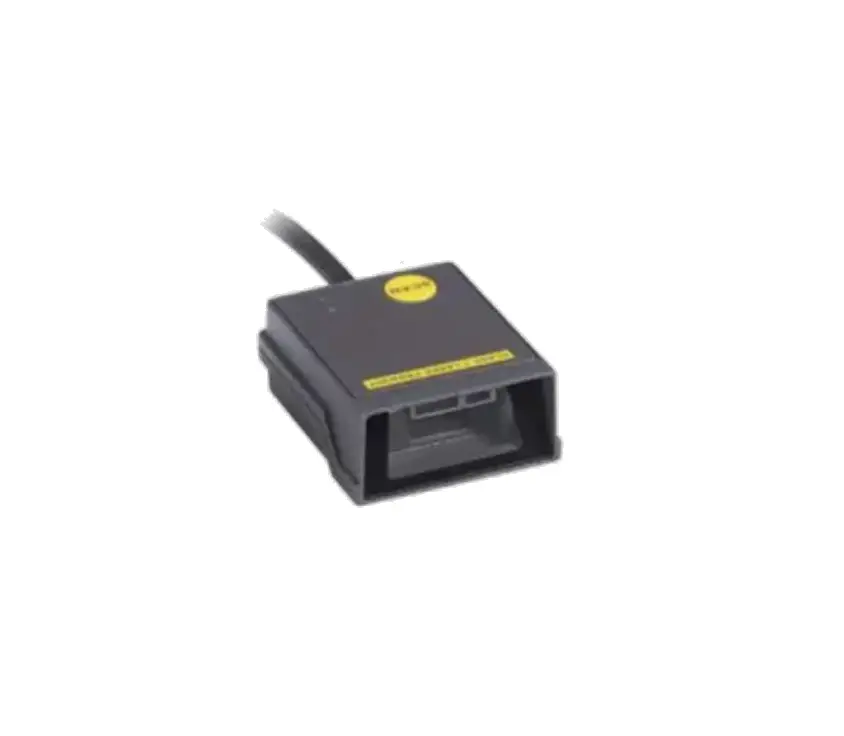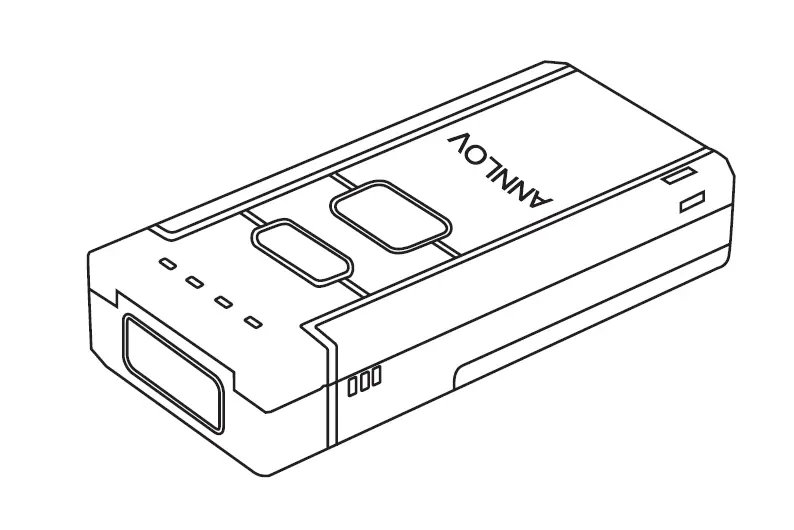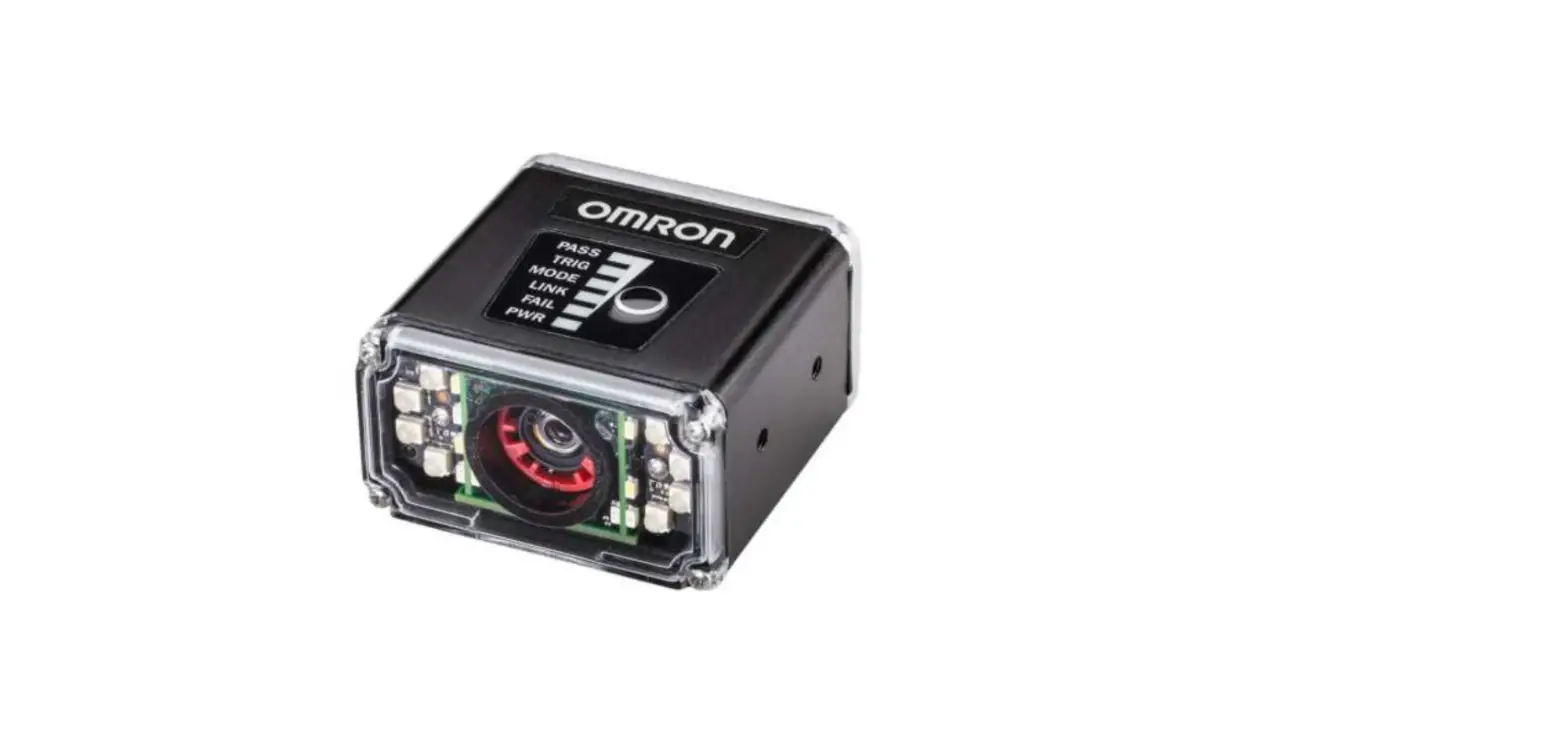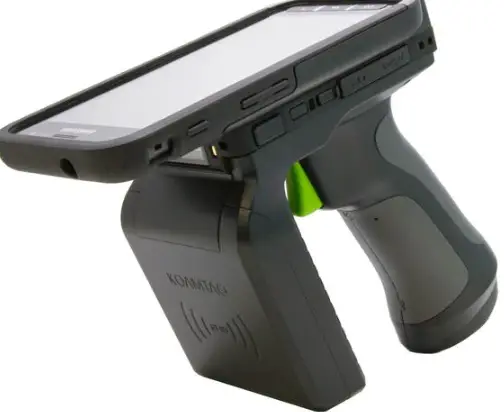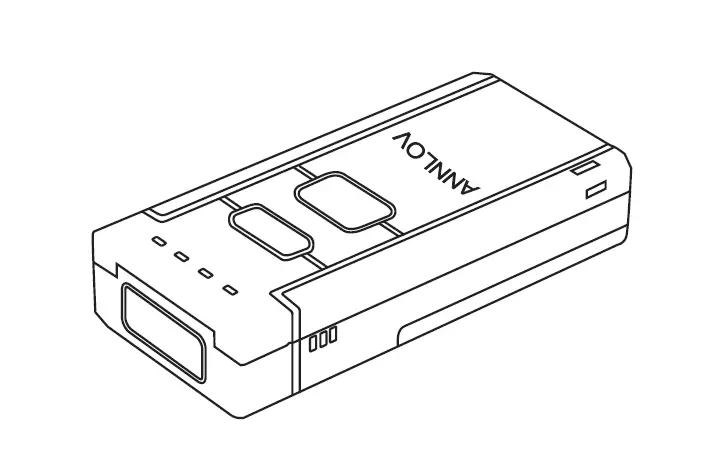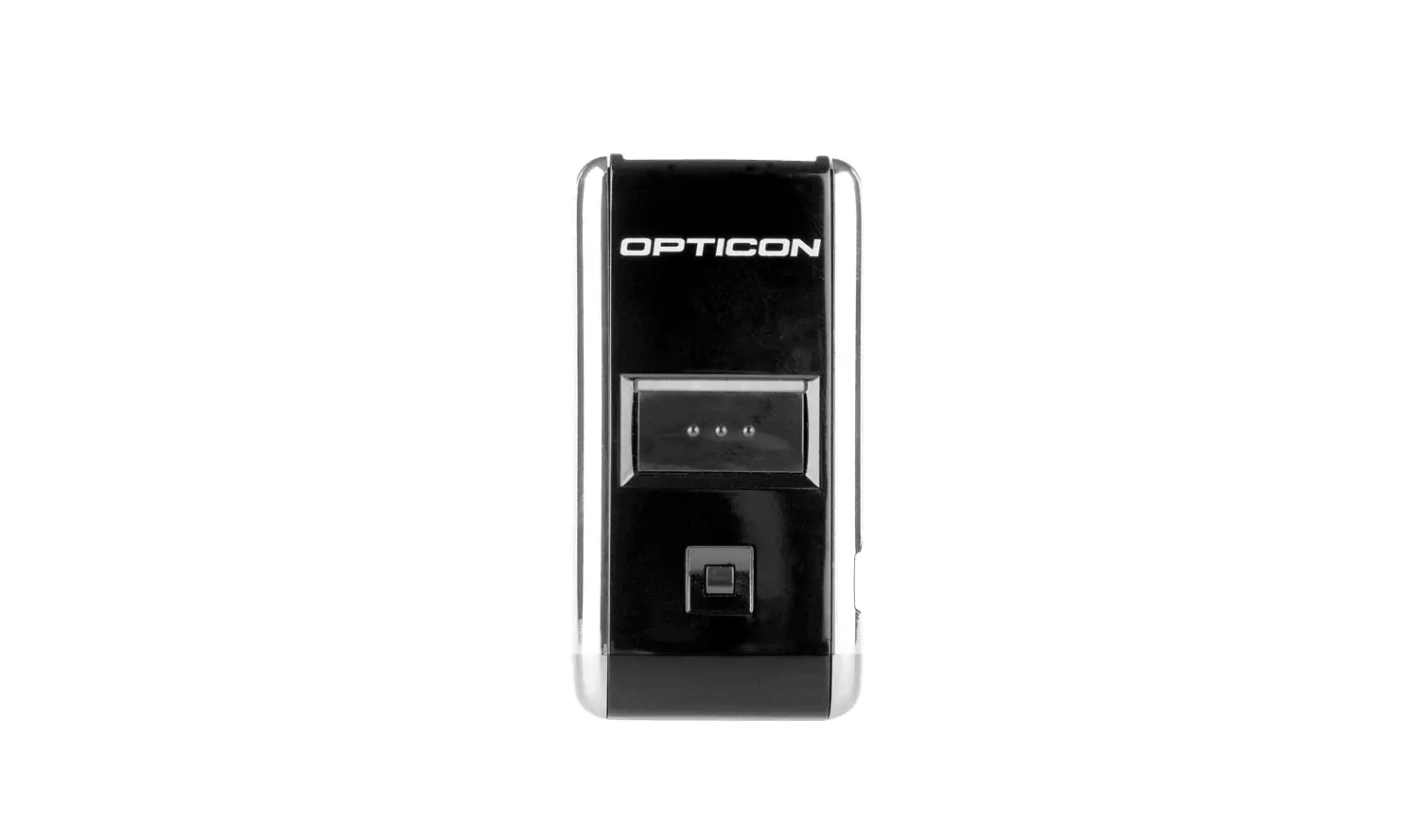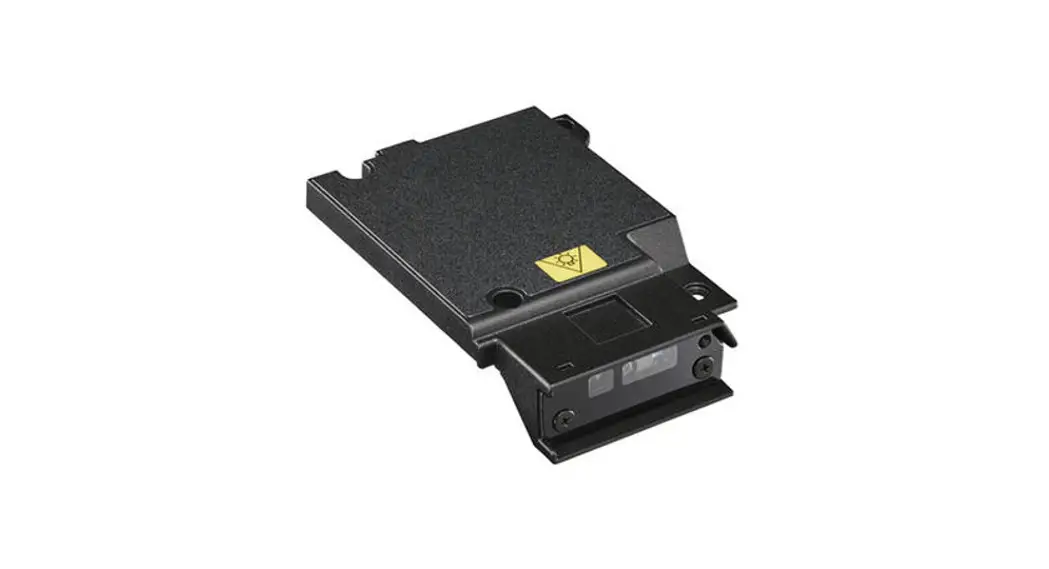
 FZ-VBRG211 Barcode Reader
Instruction Manual
Top Expansion Bay
You can select from the following options.
| FZ-VBRG211 | FZ-VUBG211 | FZ-VLNG211 | FZ-VSRG211 | FZ-VTSG211 |
| Barcode Reader | USBPort | LAN Port | Serial Port | Thermal Imaging Camera |
Inserting an option to the top expansion bay
- Turn off the computer and disconnect the AC adaptor.
IMPORTANT
• We recommend that you turn off the computer completely the following.
1. Click (Start) –
  (Settings) – [Update & Security] – [Recovery].
2. Click [Restart now] under “Advanced startup”.
3. Click [Turn off your PC]. - <For tablet> Turn your computer over.
Make sure no foreign objectsare under the computer. - Remove the battery pack. (
 Replacing the BatteryPack)
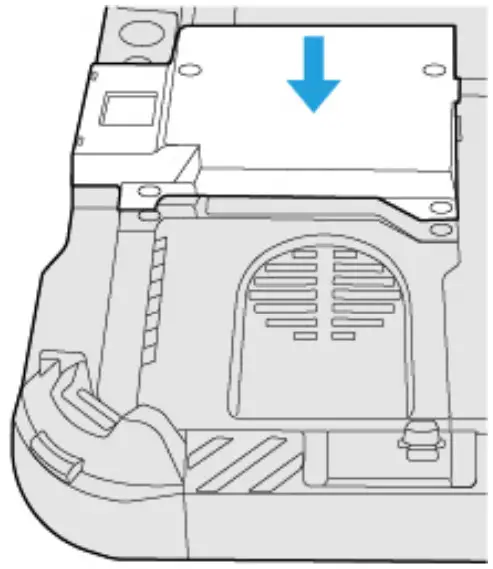
 - Insert an option to the top expansion bay.
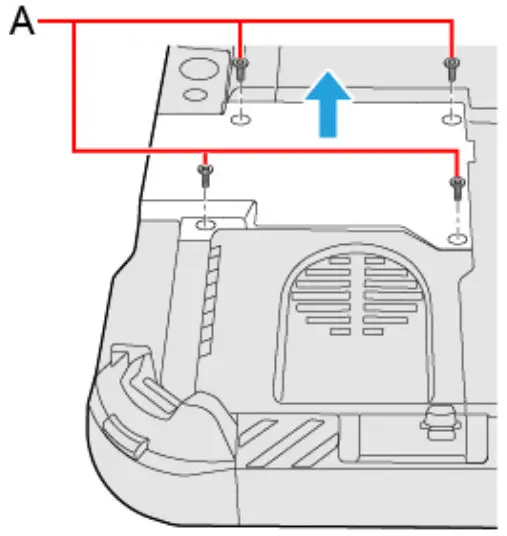
1. If the dummy cover is inserted, remove it.
Remove the screws (A) and the dummy cover. 2. Insert an option.
 3. Tighten the screws (B) firmly.
Use the PH 1 (PH #1) screwdriver.
Use 4 screws (Silver). Recommended tightening torque
0.45 N•m± 0.05 N•m (4.5 kgf•cm± 0.5 kgf•cm) - Insert the battery pack.
 (Start) –
  (Settings) – [Update & Security] – [Recovery].
 2. Insert an option.
 3. Tighten the screws (B) firmly.
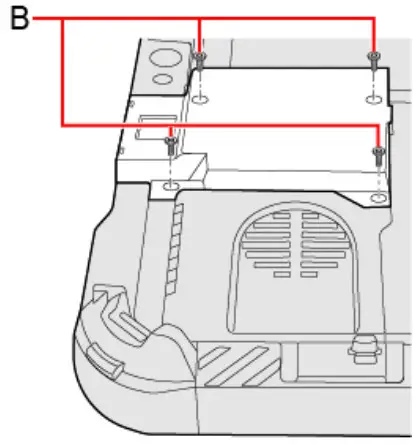 Recommended tightening torque
NOTE
<Only for model with Barcode Reader>
• Change the setting of [A1 Button], [A2 Button], [A3 Button] or [Rotation Lock Button] to [Barcode Reader Trigger] with Setup Utility. (  Tablet Button Configuration)