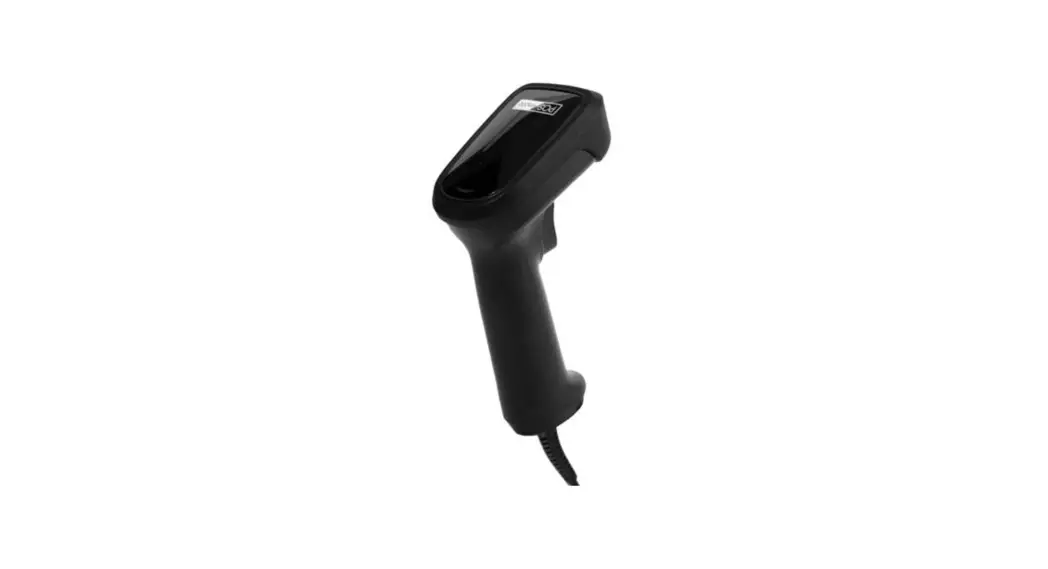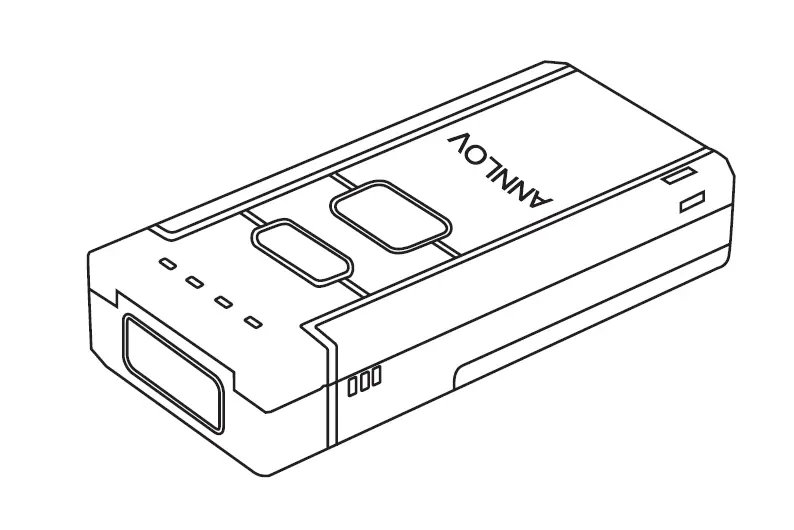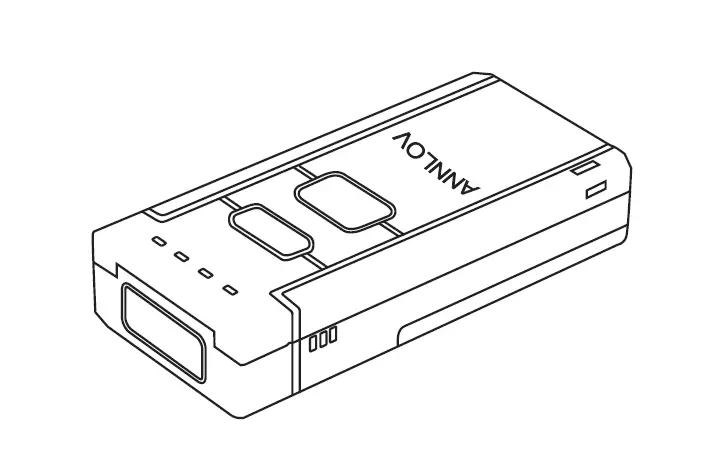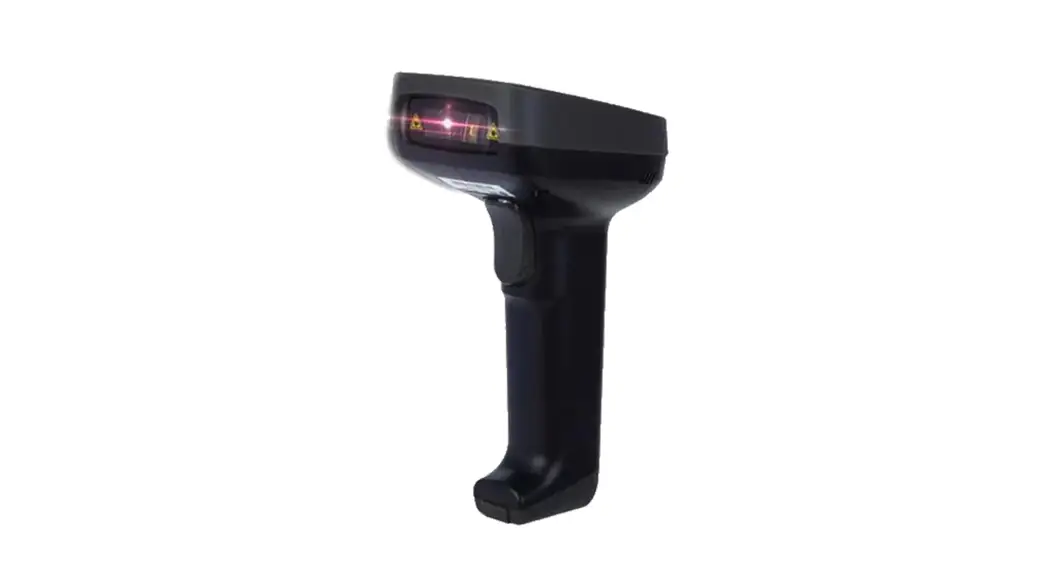

POS-mate PM-BCPRO-B PRO Barcode Scanner
Warranty
POS-mate reserves the right to make changes to any product to improve reliability, function, or design. POS-mate does not assume any product liability arising out of, or in connection with, the application or use of any product, circuit, or application described herein. No license is granted, either expressly or by implication, estoppel, or otherwise under any patent right or patent, covering or relating to any combination, system, apparatus, machine, material, method, or process in which POS-mate products might be used. An implied license exists only for equipment, circuits, and subsystems contained in POS-mate products.
For the complete hardware product warranty statement, go to: http://www.pos-mate.com/warranty
For Australia Only
This warranty is given by PICA Australia Pty. Ltd (ABN 70 113 812 721) of 8 Translink Drive, Keilor Park, Vic. 3042 Australia, as the owner of the brand referred to as POS-mate. POS-mate products are subject to rigorous testing and assessment as to their quality and suitability for purpose. Our goods come with guarantees that cannot be excluded under Australian Consumer Law. You are entitled to a replacement or refund for a major failure and compensation for any other reasonably foreseeable loss or damage. You are also entitled to have the goods repaired or replaced if the goods fail to be of acceptable quality and the failure does not amount to a major failure. POS-mate’s Australian limited warranty above is in addition to any rights and remedies you may have under Australian Consumer Law. If you have any queries, please call POS-mate on +61393367336.
PRO Barcode Scanner
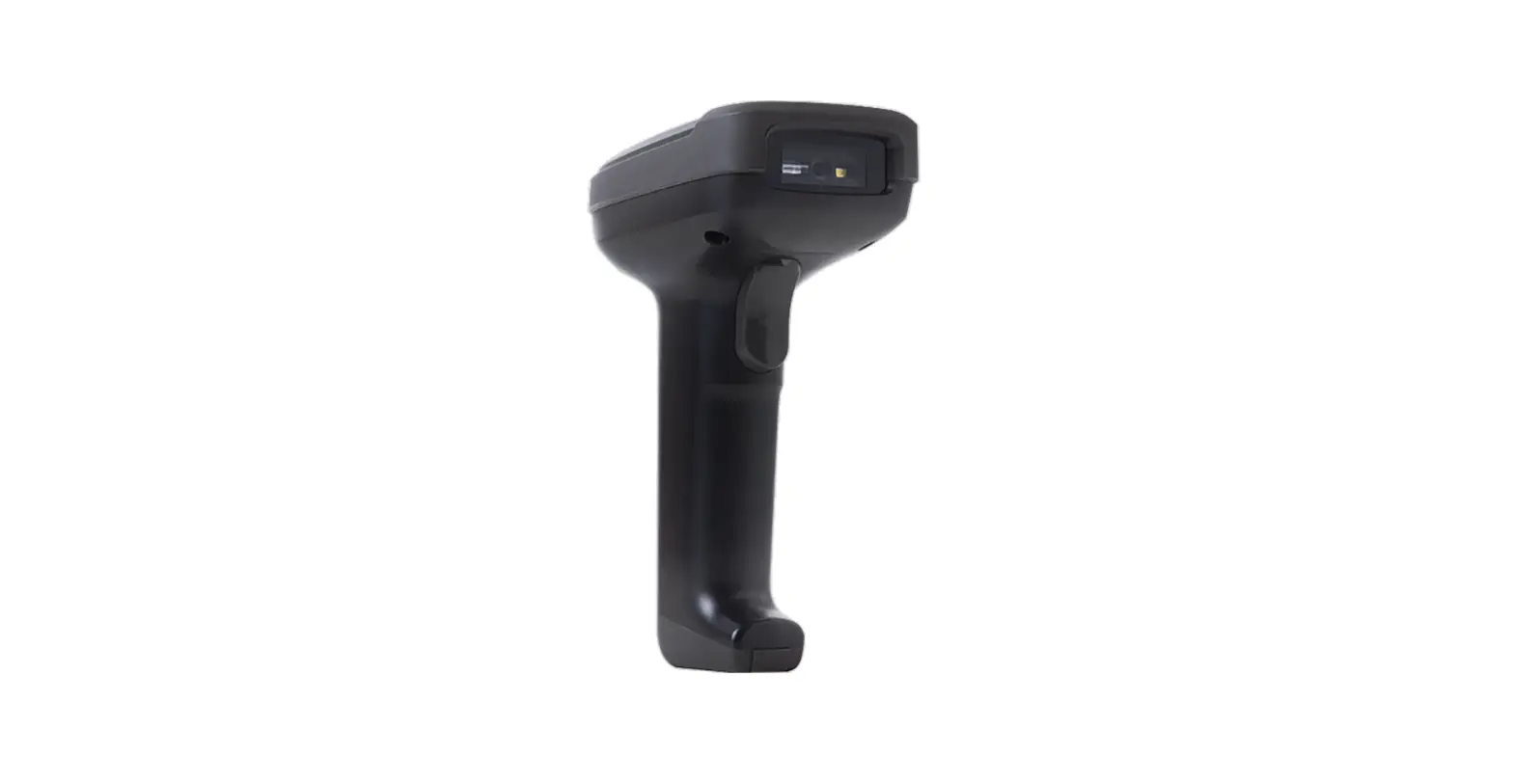
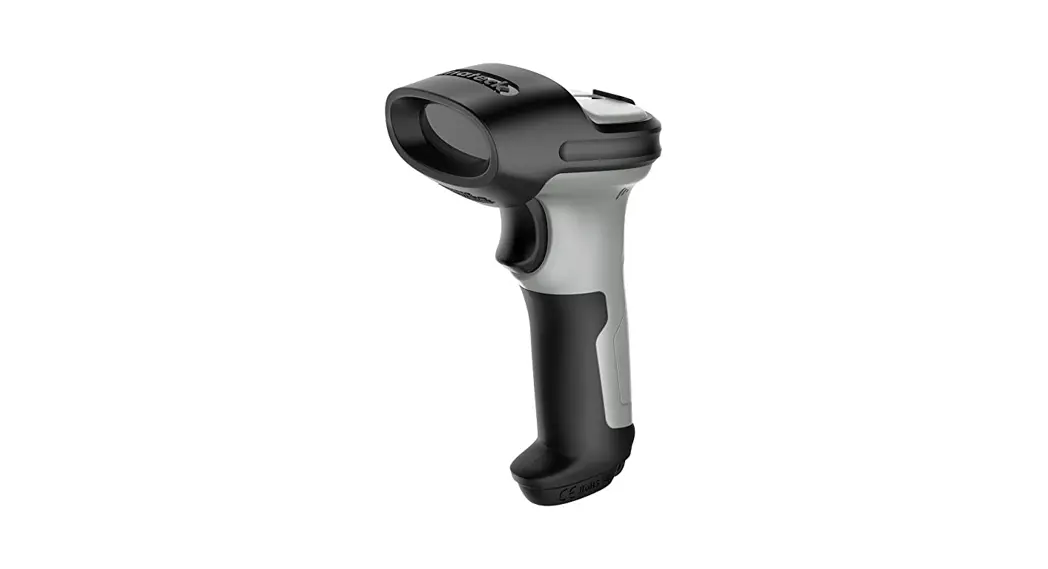
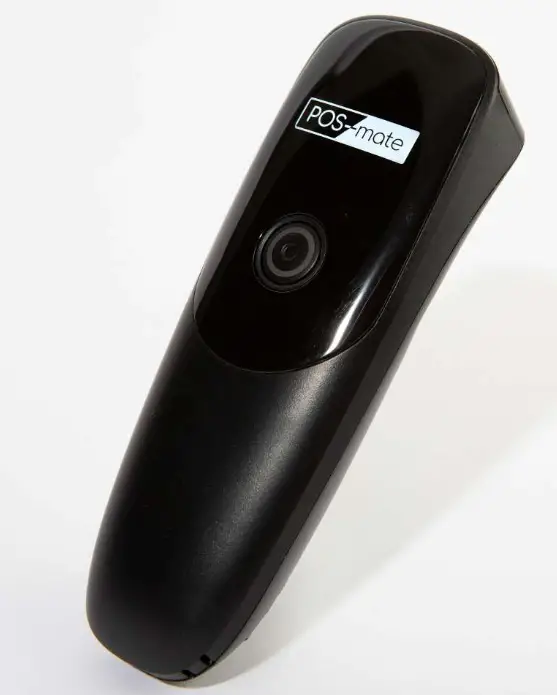
The PRO Barcode Scanner, available in black (PM-BCPRO-B) and white (PM-BCPRO-W), is a wireless scanner used for scanning barcodes and transferring data. It comes with LED and beep indicators, vibration and volume settings, and various pairing and scanning modes.
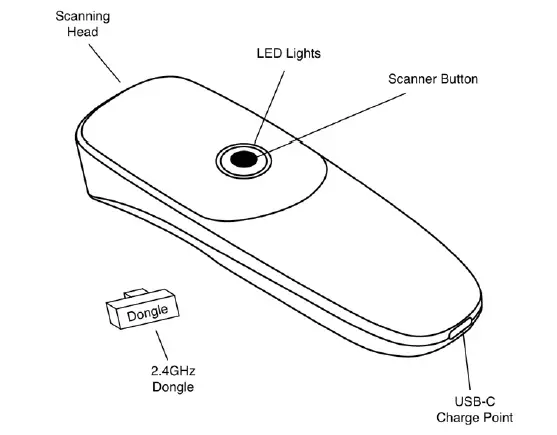
Get To Know Your PRO Barcode Scanner
LED Indicators
| LED Sequence | Description |
|---|---|
| Blue – on | Connected |
| Blue – flash | Scan success |
| Red – on | Charging |
| Red and Blue – on | Connected and charging |
| BLE pairing mode flashing | |
| Blue only – flashing | 2.4G pairing mode |
| Blue only – flashing | SPP pairing mode |
| No LED | Not connected, not charging |
Beep Indicators
| Description | Beep Sequence |
|---|---|
| Power ON/OFF | 1 long beep |
| Scan or pairing success | 1 short beep |
| Wireless disconnection (out of range) | 2 short beeps |
| Scanner memory full | 3 short beeps |
| Recharge scanner | 5 short beeps |
Setting Up Your PRO Barcode Scanner
- Remove your POS-mate PRO Barcode Scanner from its packaging and place it on your countertop.
- Insert one end of the cable supplied into the Charging Dock’s USB Power Inlet, the other end into a USB power supply, i.e. PC or wall socket.
- Insert a USB cable into the Dock’s USB Power Outlet to charge your smartphone or tablet.
- Place your POS-mate PRO Barcode Scanner into the Charging Dock. It will fully charge within 3 hours.
- Pair to your device.
Connecting to Square App for iOS/iPadOS
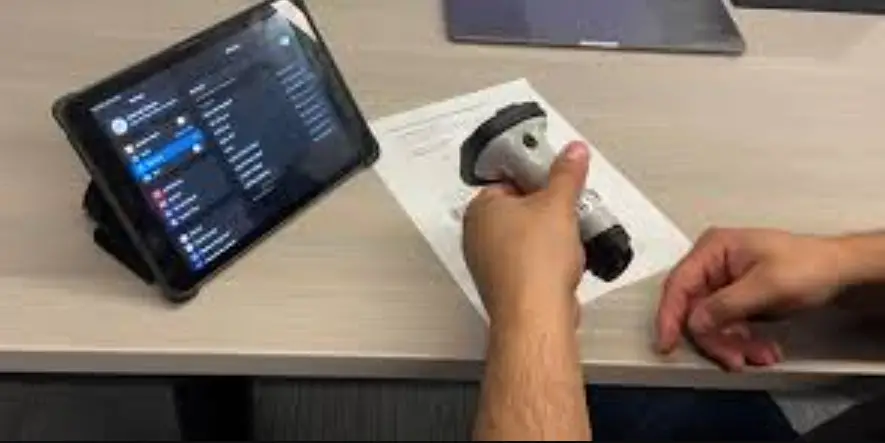
To connect your POS-mate PRO Barcode Scanner to Square App for iOS, iPadOS or Square Stand, follow the setup instructions at http://square.com/help/article/5143 or use your scanner to scan the QR code into your browser. Note that the POS-mate PRO Barcode Scanner is not compatible with Square App for Android or Square Terminal.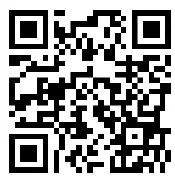
Automatic Pairing
Automatic Bluetooth Pairing
To automatically pair your scanner via Bluetooth, press and hold the scanner button for 8 seconds. The blue LED lights will flash alternatively. Turn on Bluetooth on your device and search for “P-mPRO-“. Pair your device with the scanner and it will give a short beep, with the blue LED remaining solid to indicate successful connection. To disable automatic pairing, scan the “Disable Auto Paring” barcode. You can re-enable automatic pairing anytime by scanning the “Enable Automatic Pairing” barcode.
Disabling Automatic Pairing
Automatic Pairing is a default feature of your POS-mate PRO Barcode Scanner. After pairing with your device, you may choose to disable this feature. To disable automatic paring, scan the Disable Auto Paring barcode. You can re-enable Automatic Pairing at any time by scanning the Enable Automatic Pairing barcode.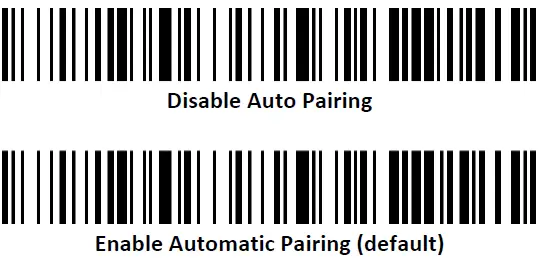
iOS / iPadOS Virtual Keyboard Control
To show or hide your keyboard from your scanner, simply double click the scanner button to show the keyboard, and double click again to hide. You may disable this feature by scanning the “Disable Show/Hide Keyboard” barcode. You can re-enable iOS / iPadOS Virtual Keyboard at any time by scanning the “Enable Show/Hide Keyboard” barcode.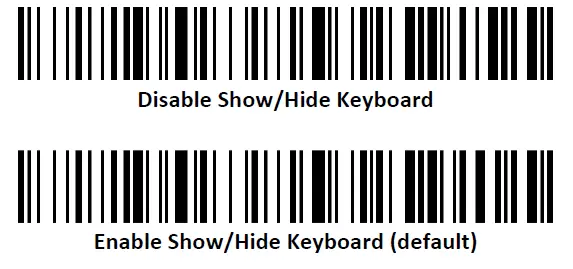
Vibration Settings
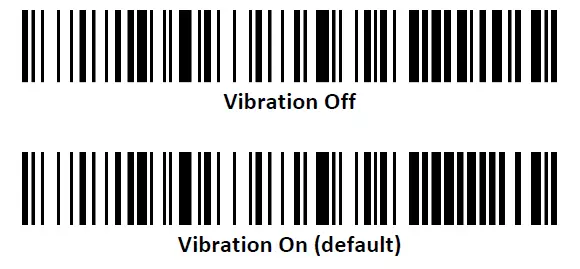
Your POS-mate PRO Barcode Scanner will vibrate each time the scanner button is pressed. You can turn off or on the vibration setting by scanning the desired barcode below.
 Volume Settings
Your POS-mate PRO Barcode Scanner will beep each time the scanner button is pressed. Adjust the volume of the scanning beep on your POS-mate PRO Barcode Scanner to mute, low volume or high volume by scanning the desired barcode below.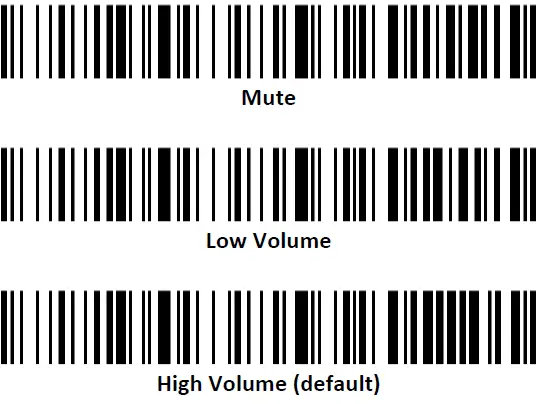
Manual Pairing
Manual Bluetooth HID Mode Pairing
Manually pair your POS-mate PRO Barcode Scanner by scanning the Bluetooth HID Mode and Pair barcodes. The blue LED lights on the scanner will start alternatively flashing. Turn on Bluetooth on your smartphone, tablet, Mac or PC, search for “POS-mate Scanner” and pair. Your POS-mate PRO Barcode Scanner will give a short beep, the blue LED will remain solid and is connected.


Wireless 2.4G Pairing
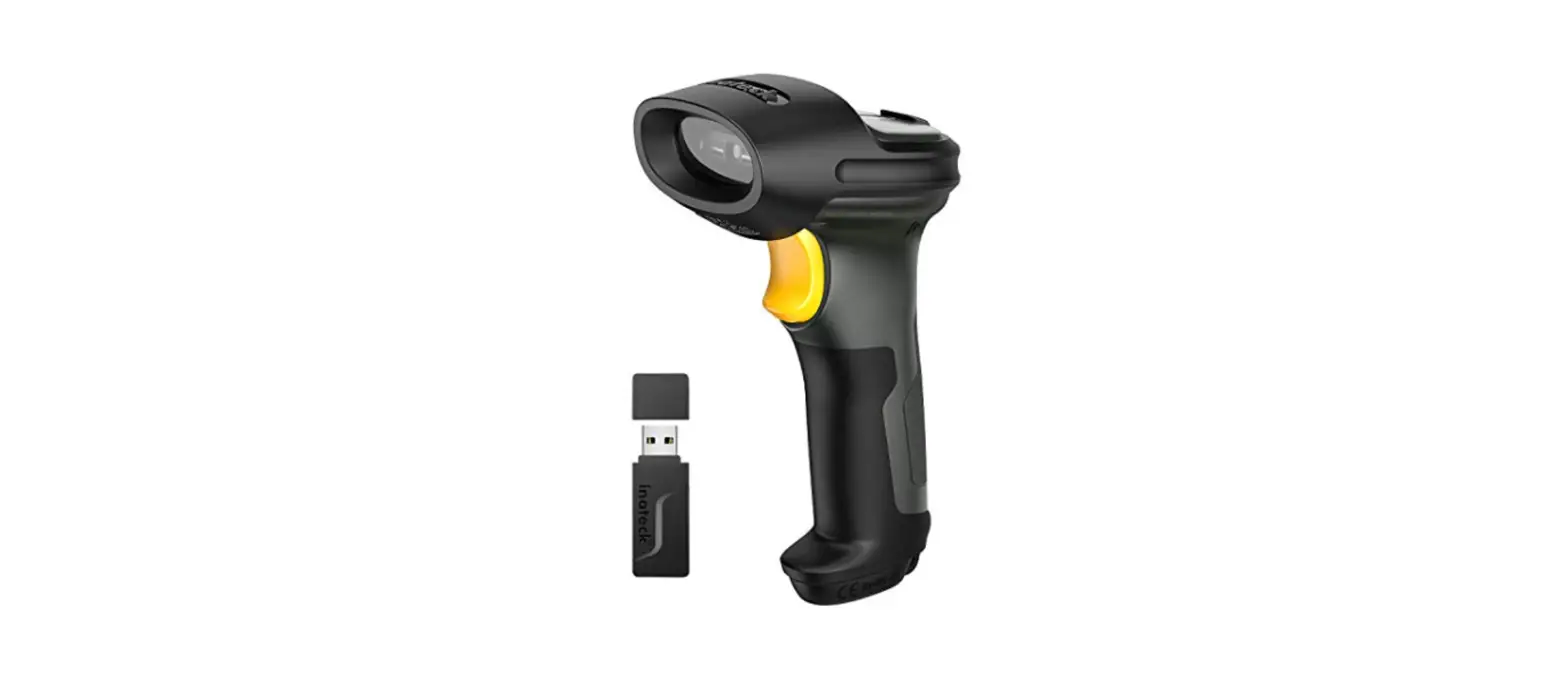
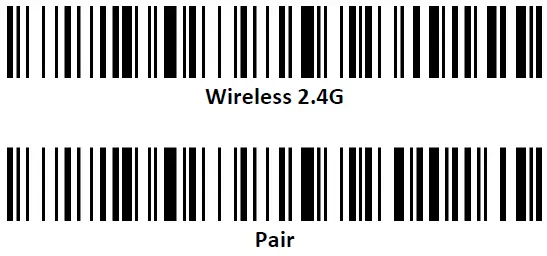
Wireless 2.4G Mode supports PC systems that do not have built in Bluetooth connectivity. Scan the Wireless 2.4G and Pair barcodes. The blue LED light on the scanner will flash, remove the USB “Dongle” from the dock and plug it into your PC within 60 seconds. Your POS-mate PRO Barcode Scanner will give a short beep, the blue LED will remain solid and is connected.
Sleep Settings
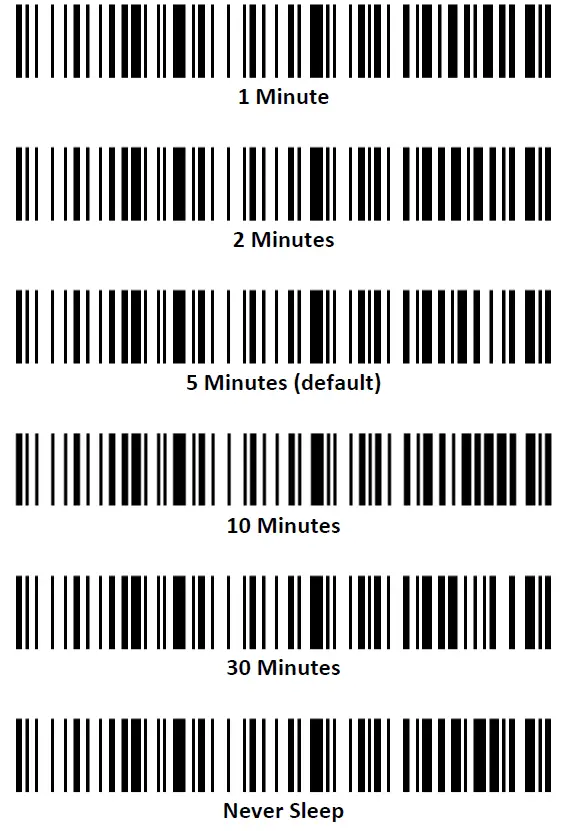
Your POS-mate PRO Barcode Scanner will go to sleep after 5 minutes of no use. Press the scanner button to wake your scanner, it will connect to your device in a few seconds. To adjust the duration before your scanner sleeps, scan the desired barcode.


Automatic Scanning Mode
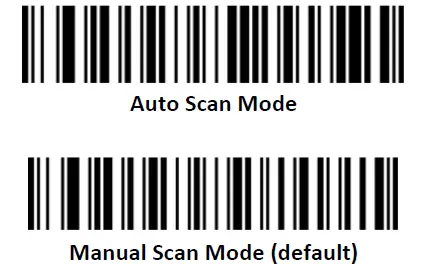
Your POS-mate PRO Barcode Scanner can be programmed to automatically scan when movement is detected without the need for the scanner button to be pressed. Scan the Auto Scan Mode barcode to enable this feature, you can disable this feature at any time by scanning the Manual Scan Mode barcode.
Barcode Type Settings
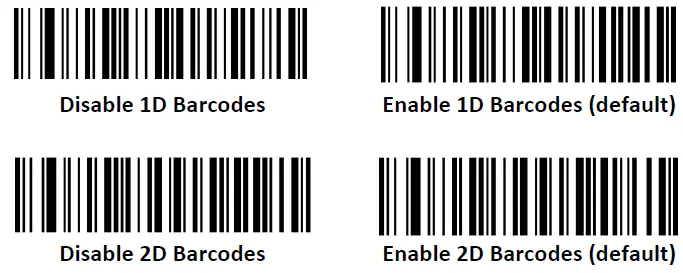
Your POS-mate PRO Barcode Scanner will scan both standard barcodes (1D / linear) or QR barcodes (2D / matrix). You can disable the scanner from reading either type of barcode by scanning the desired barcode below. Scan either or both enable barcodes for the desired setting.
Data Transfer Settings
Data Transfer Mode
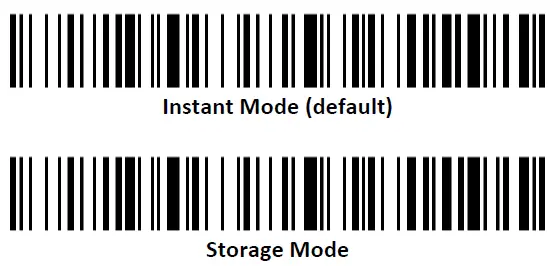
Your POS-mate PRO Barcode Scanner will transfer the data scanned instantly to the connected device. Should the scanner need to be used at a distance to the connected device, the scanner can be configured to store the data and transfer it at a later time by scanning the Storage Mode barcode. This can be changed at any time by scanning the Instant Mode barcode. Typically, the maximum distance for Bluetooth is 30 meters and for 2.4G is 150 meters, these measurements may change due to electrical and/or environmental factors.
Data Transfer Control
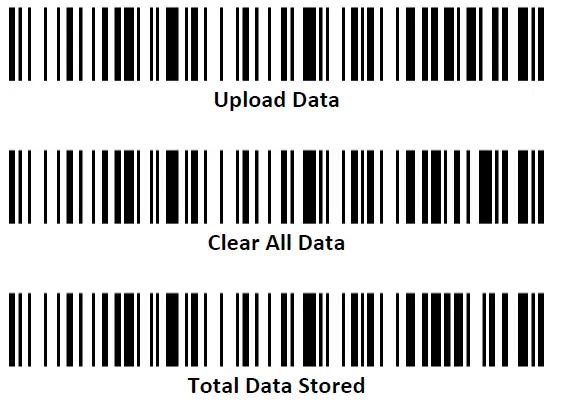
If your POS-mate PRO Barcode Scanner is set to Storage Mode, you will need to transfer the data manually when within signal range of your connected device. When in range, scan the Upload Data barcode to upload all the stored barcodes. Once the data is transferred, the data can be cleared by scanning the Clear All Data barcode. Checking the number of barcodes held in the scanner memory can be done by scanning the Total Data Stored barcode.
Data Transfer Rate
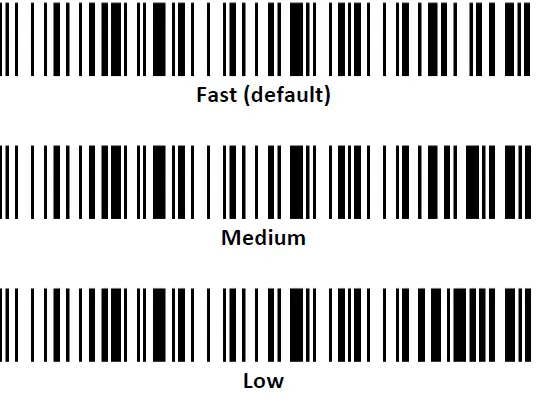
Your POS-mate PRO Barcode Scanner has multiple data transfer rates for Bluetooth HID/SPP/BLE. Depending on your environment (electrical interference) you may need to slow down your transfer rate to ensure all data is transferred correctly. Scan the required scan rate barcodes to adjust.

Suffix Settings
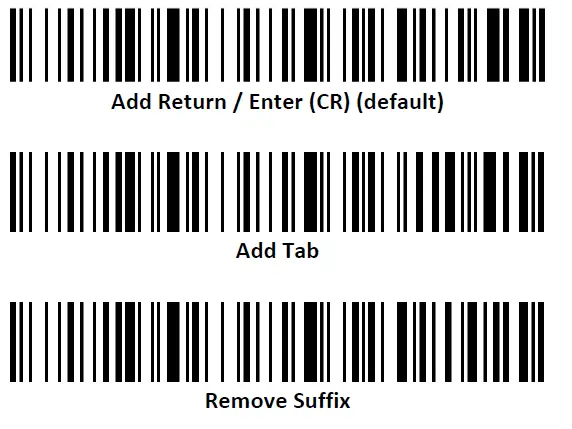
Your POS-mate PRO Barcode Scanner will simulate pushing the Return or Enter key on your keyboard at the end of each scan, also known as Carriage Return (CR). Your scanner can be programmed to simulate a Tab on your keyboard or simulate nothing after each scan. Scan the required barcode for the desired setting.
Letter Conversion Settings
Your POS-mate PRO Barcode Scanner can be set to change the letter case on scanned barcodes, by scanning the ALL CAPITAL LETTERS or all lowercase letters barcodes below. eg.; Barcode data is ABC123abc, ALL CAPITAL LETTERS will scan as ABC123ABC all lowercase letters with scan as abc123abc You can cancel letter conversions at any time by scanning the Cancel Letter Conversion barcode.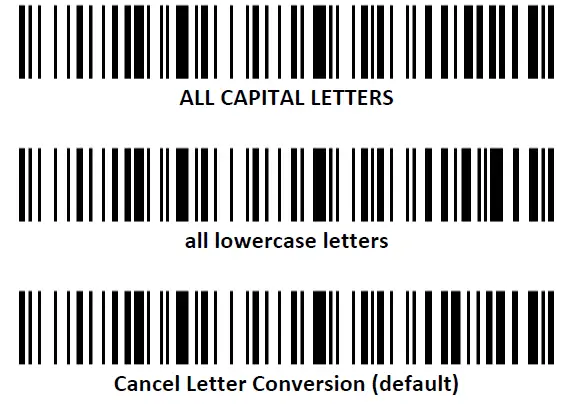
Hide Character Settings
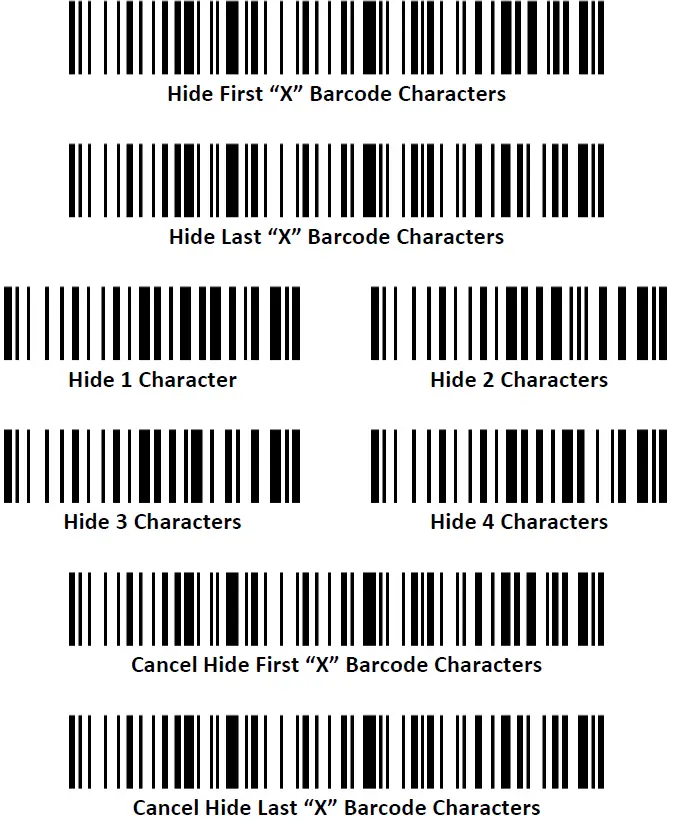
Your POS-mate PRO Barcode Scanner can hide 1, 2, 3 or 4 characters at the start or the end of a barcode. Simply scan the Hide First “X” Barcode Characters and the Hide 1,2,3 or 4 Character barcodes to hide the first characters. To cancel scan the Hide First “X” Barcode Characters barcode. Similarly scan Hide Last “X” Barcode Characters and the Hide 1,2,3 or 4 Character barcodes to hide the last characters. To cancel scan the Hide Last “X” Barcode Characters barcode.
Keyboard Language Settings
The POS-mate PRO Barcode Scanner default keyboard language is American English. You can adjust your keyboard language setting by scanning the desired language barcode.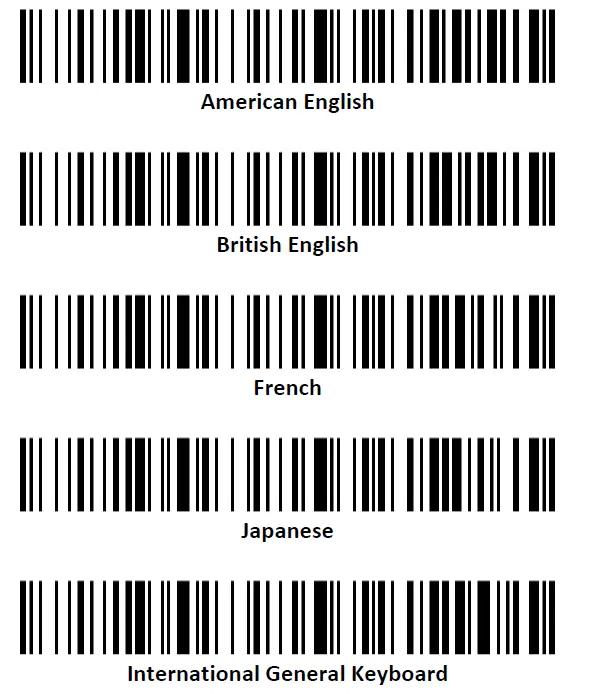
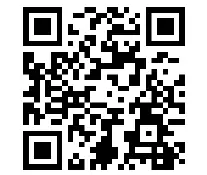
Other languages can be found at www.pos-mate.com/support or use your scanner to scan the QR code into your browser.
Restore Factory Settings
Your POS-mate PRO Barcode Scanner can be restored to its factory setting by scanning the barcode.
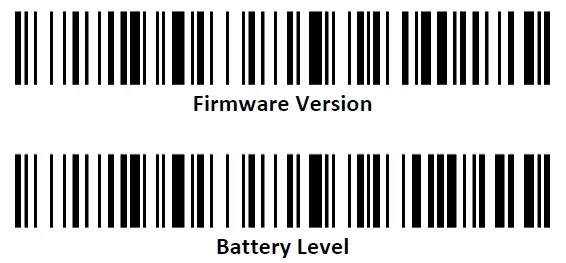
System Information
SPP and BLE Pairing
SPP and BLE Pairing requires additional software.
Bluetooth SPP Mode Pairing
Bluetooth SPP mode supports additional software connected to Windows, MacOS, iOS, iPadOS, Android and other systems. Scan the SPP Mode and Pair barcodes. The blue LED light on the scanner will start flashing, search for “POS-mate Scanner” and pair. Your POS-mate PRO Barcode Scanner will give a short beep, the blue LED will remain solid and is connected.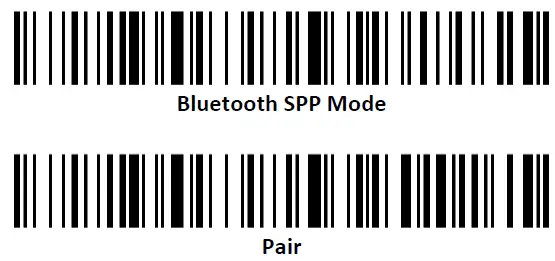
Bluetooth BLE Mode Pairing
Bluetooth BLE mode supports additional software connected to Windows, MacOS, iOS, iPadOS, Android and other systems. Scan the BLE Mode and Pair barcodes. The blue LED lights on the scanner will start simultaneously flashing. Turn on Bluetooth on your smartphone, tablet, Mac or PC, search for “POS-mate Scanner” and pair. Your POS-mate PRO Barcode Scanner will give a short beep, the blue LED will remain solid and is connected.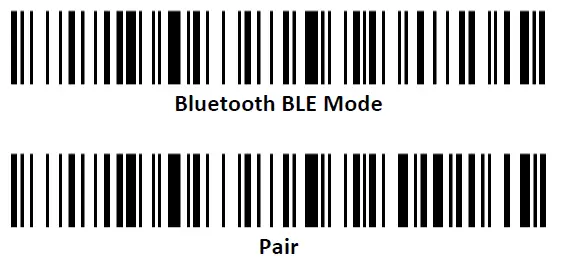
Technical Information
| Product name | POS-mate PRO Barcode Scanner |
| Product code | PM-BCPRO-B PM-BCPRO-W |
| UPC | 746935310332 – Black 746935310349 – White |
| Scanner type | CMOS |
| Light source | White Led + Red LED |
| CPU | 32bit |
| Resolution | 640 x 480 |
| Motion tolerance | 25cm/s |
| Depth of field | 3cm – 50cm |
| Scan mode | Manual (default) Autosensing |
| Scan Angle | Roll: ±360° Pitch: ±60° Skew: ±30° |
| Print contrast | z25% |
| Wireless communication mode | Bluetooth (HID/SPP/BLE) 2.4GHz |
| Wireless communication range | Bluetooth < 30m 2.4GHz < 150m |
| Storage | 16Mb |
| Battery capacity | 1200mAh |
| Charge time | = 3 hours |
| Operating time | = 16 hours |
| Power requirements | DC 5v@200mA |
| Operating temperature | -20°C to 55C |
| Storage temperature | -20°C to 60C |
| Humidity | 5% to 95% (non-condensing) |
| Certificates | FCC, RoHS, CE, RCM |
Troubleshooting
| Scanner not working | |
| Scanner not paired | Pair scanner |
| No battery power | Charge scanner battery |
| Scanner does not decode barcode | |
| Barcode is unreadable | Ensure barcode is complete, try another barcode |
| Some barcodes disabled | Review Barcode Type Settings |
| Distance between scanner and barcode is incorrect | Move barcode scanner to between 3cm and 50cm from barcode. |
| Scanner decodes barcode but does not transmit data | |
| Scanner is too far from connected device | Move closer to connected device or change to Storage Mode |
| Scanner is in Storage Mode | Upload data manually or change to Instant Mode |
 Connect Barcode Scanners to Square Point of Sale | Square Support Center - US
 POS-mate