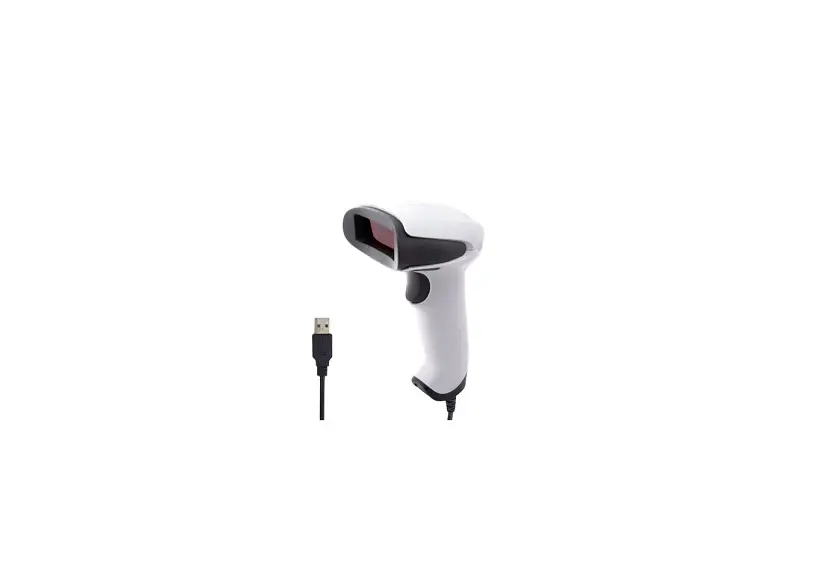
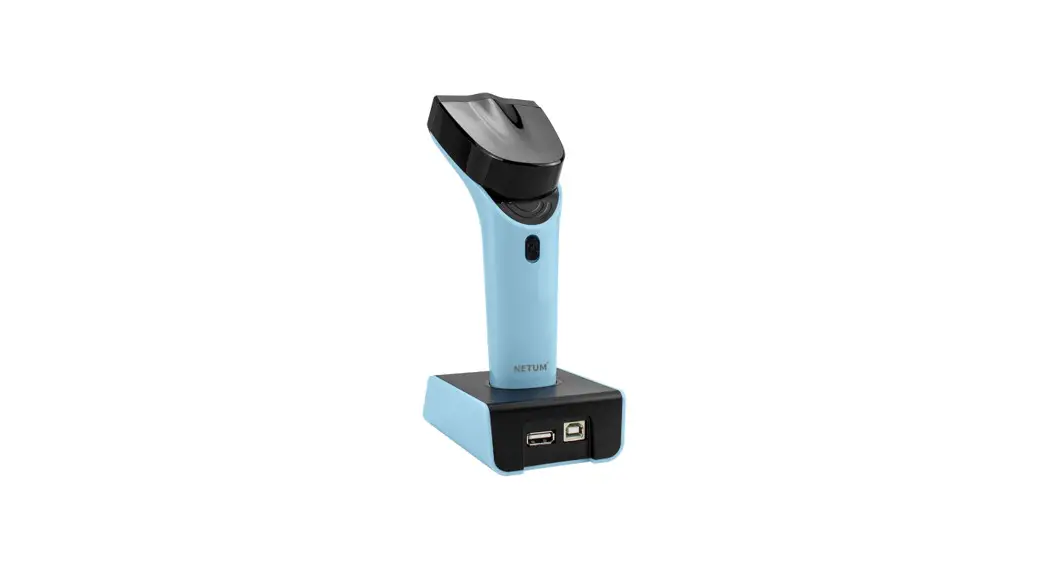
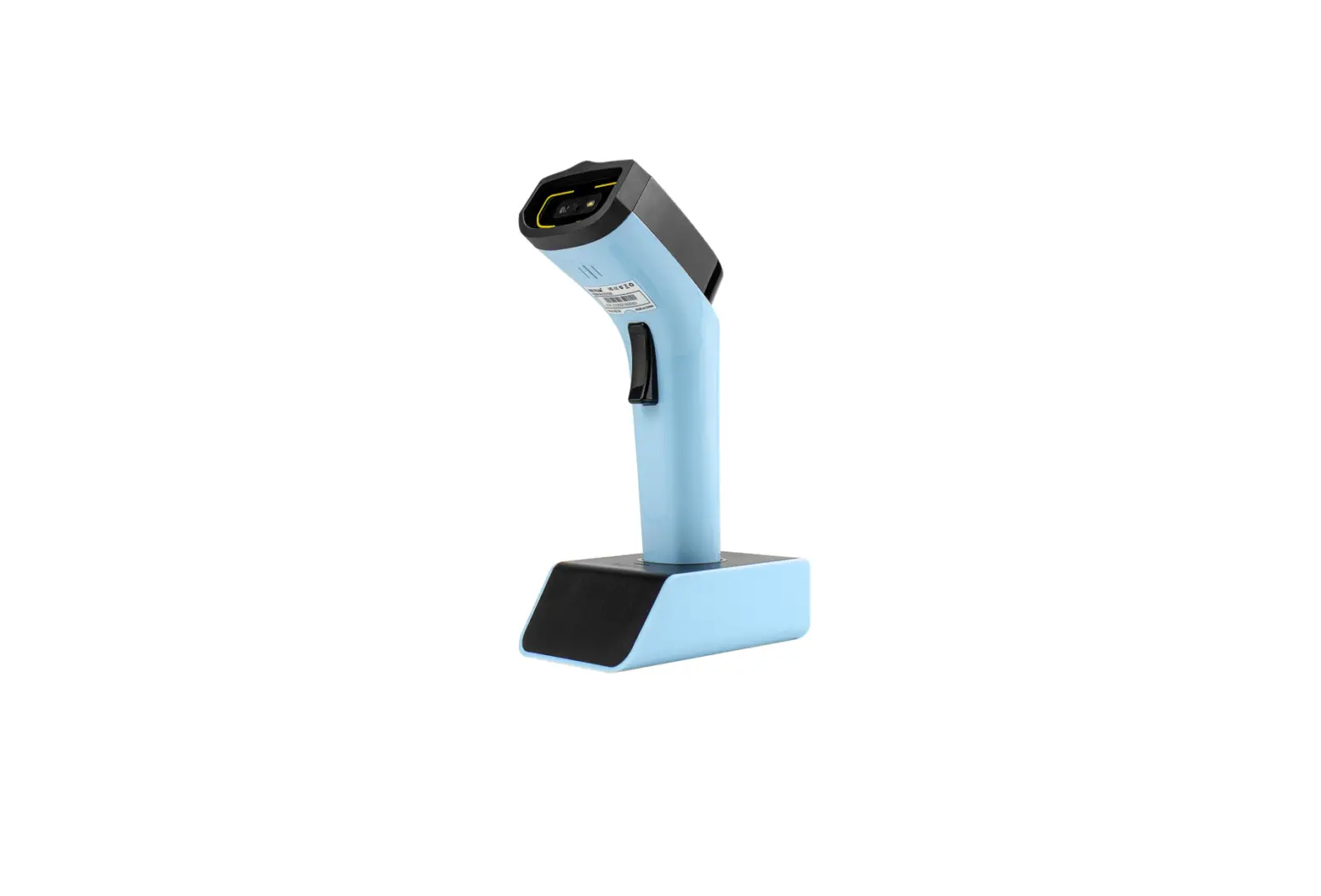
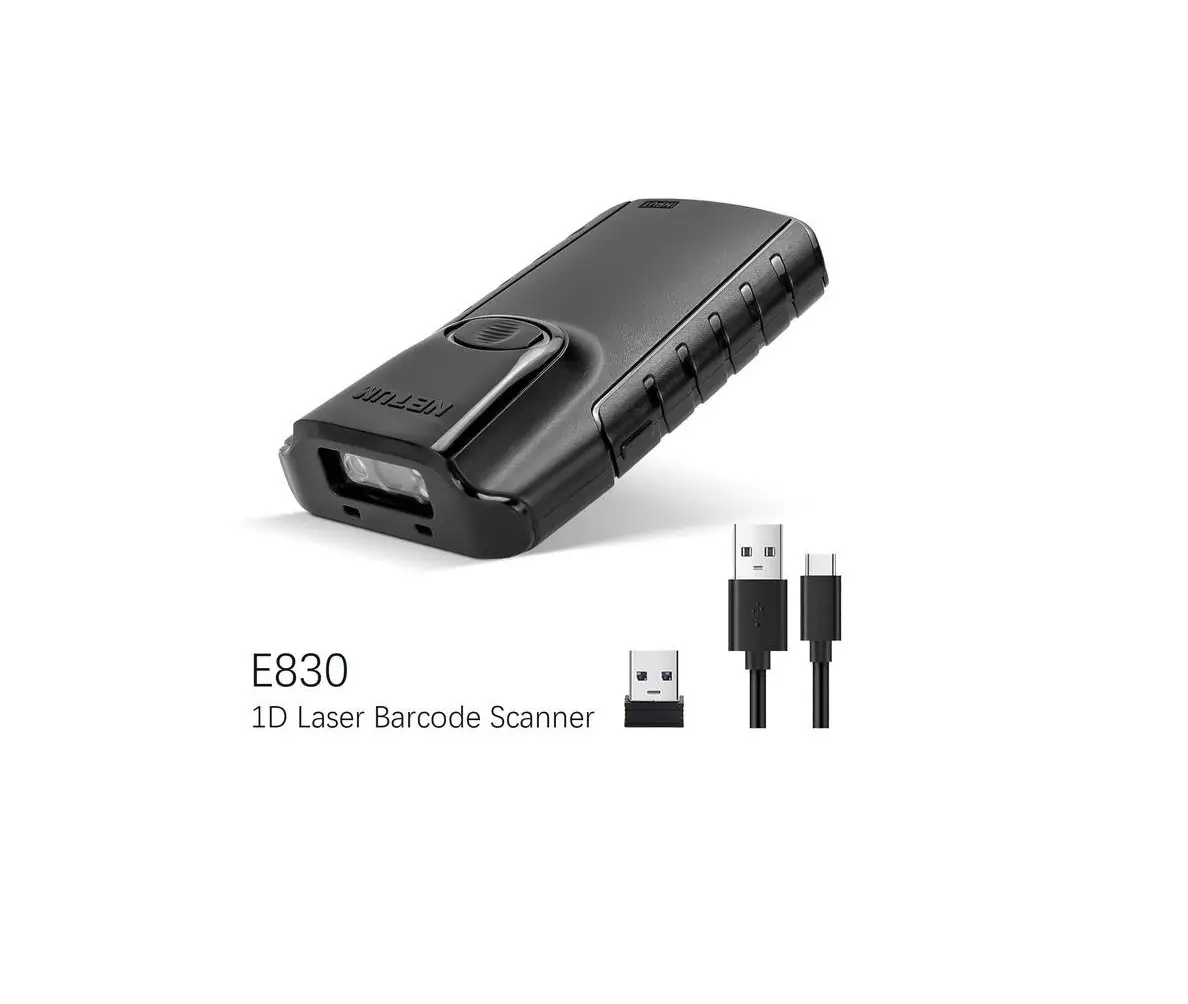
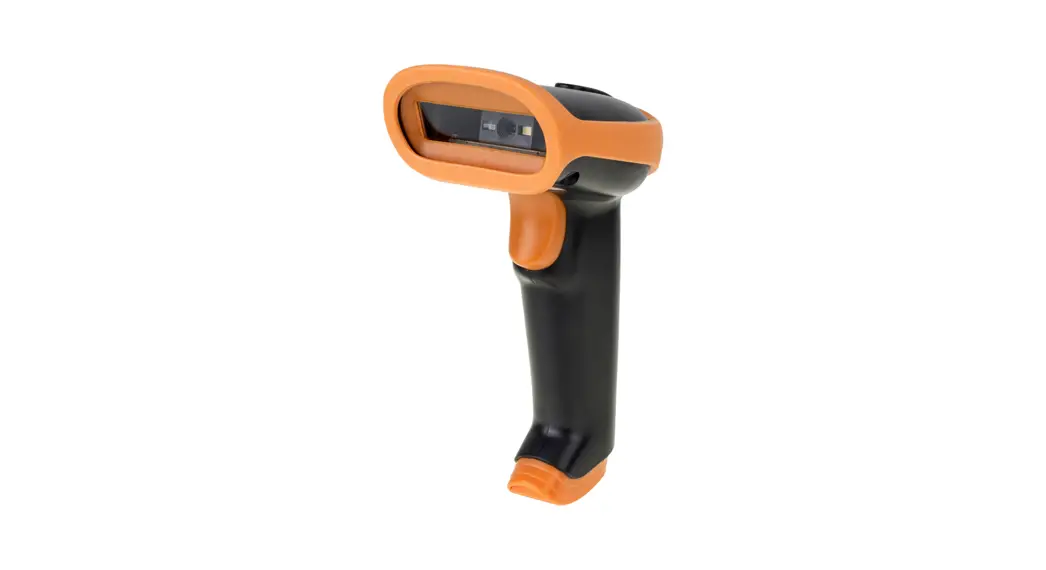
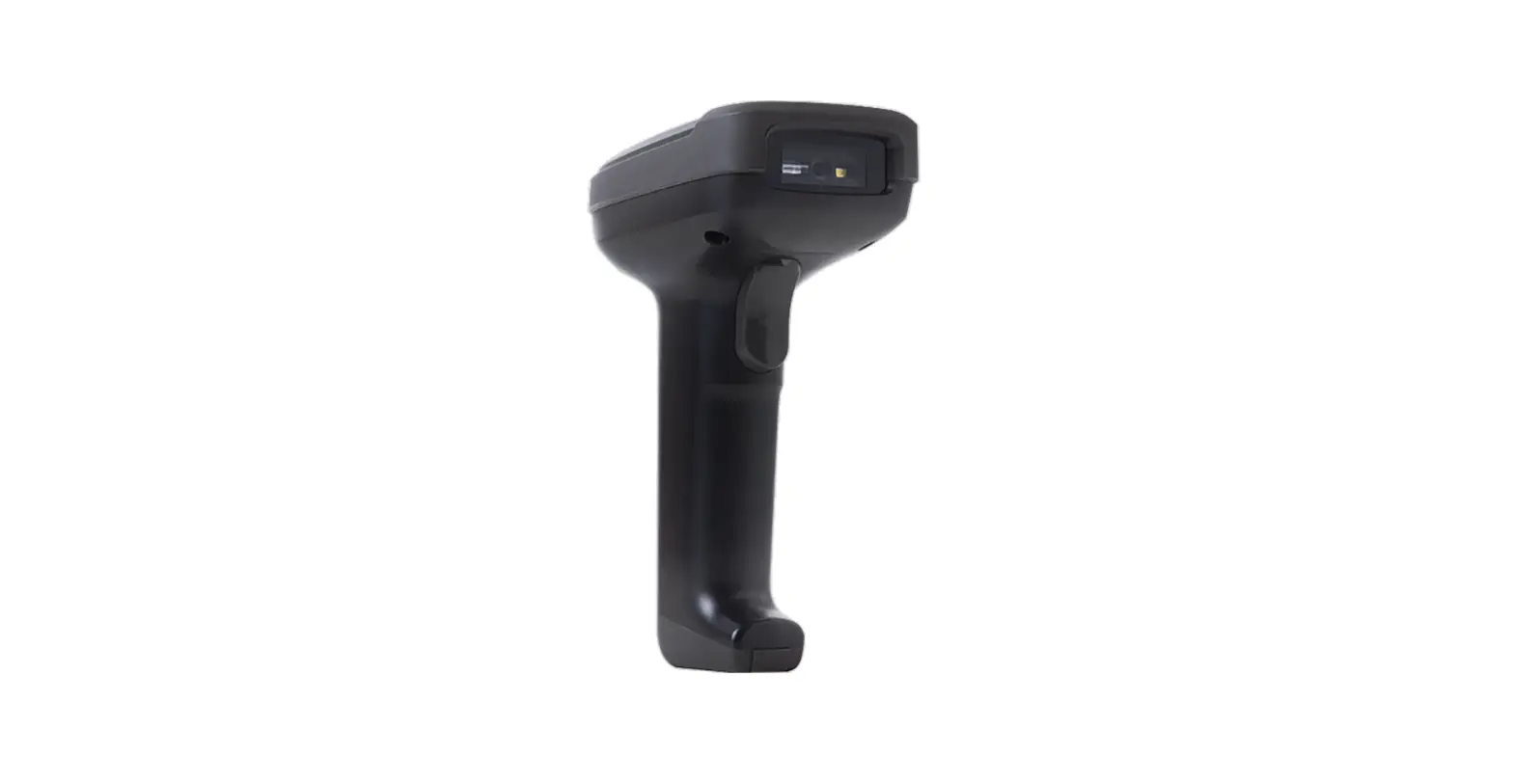
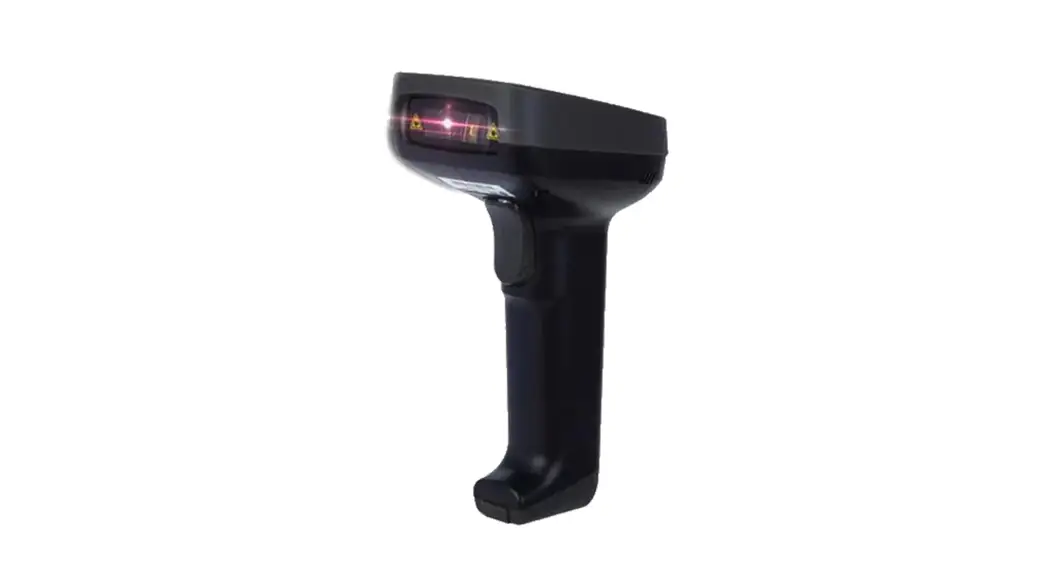
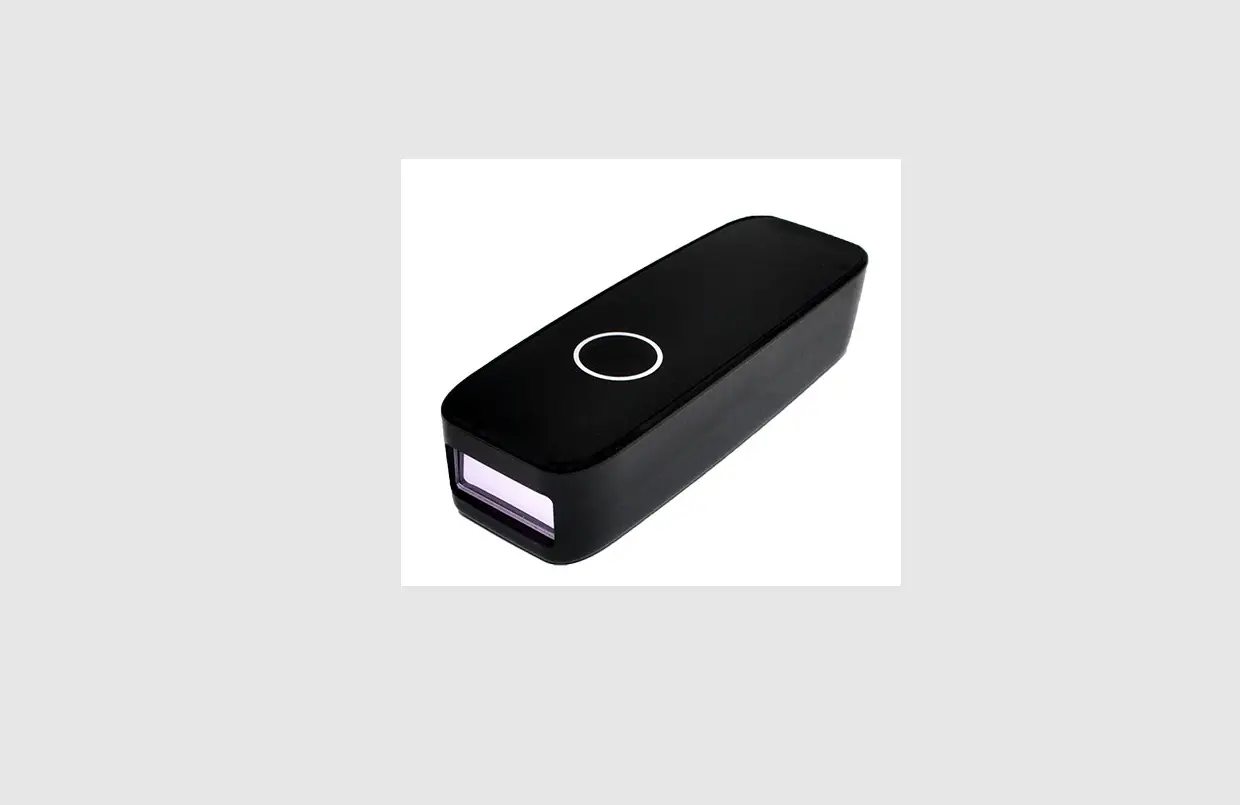
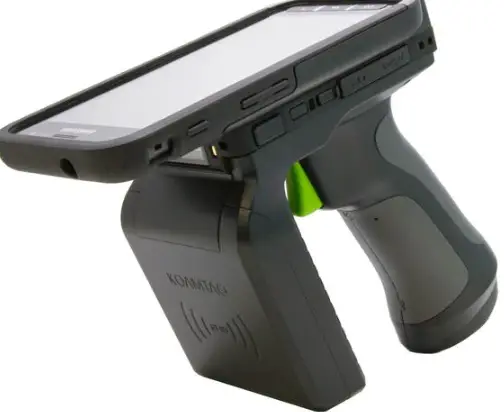
NT-5090 Barcode Scanner
NT-5090 Manual
Catalog
Operation Setting
The factory default settings of the QR code scanning box can
meet the needs of users for direct use in most cases. You can also
set parameters through the setting code according to actual
needs.
1.1 Use the setup code
Read the Turn on setting code to configure the device function
(setting code function). After the function is turned on, you can
read one or more Set the code to modify the parameters of the
device. After reading the Turn off setting code, the device will
exit the setting state.
- Turn on setting code: Set code content output
enable and disable. - Turn off setting code: Enable output set code
content / disable output set code content.
Note: The option marked with (*) in the setting code indicates
the default function or parameter.
1.2 Restore to factory default
After reading this setting code, the current parameter setting
will be lost, and the factory default value will be restored. Refer
to Appendix C for factory default parameters and functions.
- Restore to factory default
1.3 User default settings
Save the current settings as user defaults / Restore to user
default settings.
2.1 USB-HID interface configuration
2.1.1 Selection of HID devices
When the device is a HID class device, it can be 2 different
devices. Users can configure by reading the following setting
codes.
- HID-KBW
2.1.2 CapsLock Status Setting
- * CapsLock-Off
- HID-POS CapsLock-On
3.1 Sensing Mode
- * Sensing mode
3.2 Continuous mode
- Continuous mode
3.3 Command trigger mode
- Command trigger mode
4.1 Fill light
There is a group of LEDs on the device that are specially
equipped for shooting and reading, providing auxiliary
supplementary light, irradiating the beam on the reading target,
improving the reading performance and the adaptability to weak
ambient light. You can set according to actual usage
conditions:
- Fill light-on when taking pictures: the fill
light is on when shooting, and off at other times. - Fill light-steady on: The fill light will
continue to glow after the device is turned on. - Fill light-off: The fill light will not be on
under any circumstances.
- * Fill light – light up when taking
pictures - Fill light – always on
- Fill light – normally off
5.1 Volume adjustment
5.1.1 Mute master switch
Read the following setting codes to turn on/off all prompt
sounds. (beep and voice prompt tone)
- Mute
- * unmute
5.1.2 Voice Volume Adjustment
Read the following setting codes to adjust the volume
configuration.
- Volume –
- Volume +
The volume is divided into 4 gears, and the user can also
configure the voice volume by reading the following setting
codes.
- Level 1 volume (minimum)
- Level 2 volume
- Level 3 volume (default)
- Level 4 volume
5.2 Setting the prompt tone
5.2.1 Set beep prompt tone
Read the following setting codes to turn on/off the beep prompt
for the setting codes.
- *Set beep prompt tone_turn on
- Set beep prompt tone_turn off
5.2.2 Setting Voice Prompt
Read the following setting codes to turn on/off the voice
prompts for the setting codes.
- *Setting Voice Prompt_turn on
- Setting Voice Prompt_turn off
5.3 Power-on prompt sound
5.3.1 Power-on beep prompt tone
When the device is powered on and started successfully, you can
turn on or turn off the beep prompt sound according to the setting
requirements.
NT-5090 Manual
Catalog
Operation Setting ……………………………………………………………………………………………………………… 2 1.1 Use the setup code……………………………………………………………………………………………………….. 2 1.2 Restore to factory default ……………………………………………………………………………………………… 3 1.3 User default settings …………………………………………………………………………………………………….. 3 2.1 USB-HID interface configuration ………………………………………………………………………………….. 4 3.1 Sensing Mode………………………………………………………………………………………………………………5 3.2 Continuous mode ………………………………………………………………………………………………………… 5 3.3 Command trigger mode ………………………………………………………………………………………………..6 4.1 Fill light………………………………………………………………………………………………………………………6 5.1 Volume adjustment ………………………………………………………………………………………………………7 5.1.1 Mute master switch …………………………………………………………………………………………………… 7 5.1.2 Voice Volume Adjustment………………………………………………………………………………………….7 5.2 Setting the prompt tone …………………………………………………………………………………………………8 5.2.1 Set beep prompt tone………………………………………………………………………………………………….8 5.2.2 Setting Voice Prompt ………………………………………………………………………………………………… 8 5.3 Power-on prompt sound ……………………………………………………………………………………………….. 8 5.3.1 Power-on beep prompt tone ……………………………………………………………………………………….. 8 5.3.2 Power-on voice prompt tone ………………………………………………………………………………………. 9 5.4 Payment code output settings…………………………………………………………………………………………9 5.4.1 Scan code output result configuration ………………………………………………………………………….. 9 5.4.2 Shielded reading configuration …………………………………………………………………………………. 10 5.3 Keyboard language setting ………………………………………………………………………………………….. 10 5.4 Virtual keyboard ……………………………………………………………………………………………………….. 11 5.5 Image mirror mode…………………………………………………………………………………………………….. 12 5.6 Reverse phase read mode ……………………………………………………………………………………………. 12 5.7 Read device version information ………………………………………………………………………………….12 6.1 Terminator…………………………………………………………………………………………………………………13 6.2 URL code reading ……………………………………………………………………………………………………… 13 7.1 Global shortcut operation…………………………………………………………………………………………….14 7.1.1 Global operations ……………………………………………………………………………………………………. 14 7.1.2 Enable barcode check digit output …………………………………………………………………………….. 14 7.1.3 Enhanced reading capabilities……………………………………………………………………………………14 8.1 Prefix………………………………………………………………………………………………………………………..15 8.2 Suffix………………………………………………………………………………………………………………………..15 Appendix A:data code………………………………………………………………………………………………..16 – 18 Appendix B:Example of Parameter Setting…………………………………………………………………..18 – 19 Appendix F: ASCII code table ……………………………………………………………………………………20 – 24
Operation Setting
The factory default settings of the QR code scanning box can meet the needs of users for direct use in most cases. You can also set parameters through the setting code according to actual needs.
1.1 Use the setup code
Read the “Turn on setting code” to configure the device function (setting code function). After the function is turned on, you can read one or more Set the code to modify the parameters of the device. After reading the “Turn off setting code”, the device will exit the setting state.
*Turn on setting code Set code content output enable and disable.
Turn off setting code
Enable output set code content
disable output set code content
Note: The option marked with (*) in the setting code indicates the default function or parameter.
1.2 Restore to factory default
After reading this setting code, the current parameter setting will be lost, and the factory default value will be restored. Refer to Appendix C for factory default parameters and functions.
Restore to factory default
1.3 User default settings
In addition to restoring factory settings, users can save common settings as user default settings. By reading “Save current settings as user default”, you can save the current device configuration as user default information for quick setting when needed. By reading “Save current settings as user default settings”, you can save the current device configuration as user default information for quick setting when needed. By reading “Restore User Defaults”, you can restore the default settings saved by the user.
Save the current settings as user defaults
Restore to user default settings
2.1 USB-HID interface configuration
2.1.1 Selection of HID devices
When the device is a HID class device, it can be 2 different devices. Users can configure by reading the following setting codes.
*HID-KBW
2.1.2 CapsLock Status Setting
* CapsLock-Off
HID-POS CapsLock-On
3.1 Sensing Mode
Induction mode is the default reading mode. Sensing mode refers to a period in which the device enters into a reading mode by sensing changes in the brightness of the surrounding environment. a working mode. When the scene changes, the device starts to read. After the reading is successfully output or the time for a single code reading times out, The device needs a certain interval of time (can be set) before it can re-enter the monitoring state. If the following conditions do not occur, the device will follow the The above method works cyclically: if the barcode is not scanned within a single code reading time, the device will automatically suspend the code reading and enter the monitoring state.
* Sensing mode
3.2 Continuous mode
Continuous mode is a working mode in which the device continuously and cyclically performs shooting, reading and outputting information. In this mode, by default, a reading interval of 1000ms will be entered after the reading is successful. In the continuous mode, you can use the trigger level control to pause or continue continuous reading. In continuous reading, it is necessary to maintain the trigger level for more than 50ms before canceling, and the reading will be suspended; in the state of suspending reading, it is also required to maintain the trigger level for more than 50ms before canceling, and the reading will continue.
Continuous mode
3.3 Command trigger mode
In the command trigger mode, the device receives the trigger signal command sent by the host (that is, the bit0 of the flag bit 0x0002 is written to “1”) start shooting and reading; within the limited time range of “single code reading time”, if the reading is successful, the device will pass the communication interface Output the reading content and stop the reading. If you need to start a new reading, you need to resend the trigger command. If the reading exceeds a single reading When the time elapses, the reading will be suspended.
Command trigger mode
4.1 Fill light
There is a group of LEDs on the device that are specially equipped for shooting and reading, providing auxiliary supplementary light, irradiating the beam on the reading target, improving the reading performance and the adaptability to weak ambient light. You can set according to actual usage conditions:
Fill light-on when taking pictures: the fill light is on when shooting, and off at other times. Fill light-steady on: The fill light will continue to glow after the device is turned on. Fill light-off: The fill light will not be on under any circumstances.
* Fill light – light up when taking pictures
Fill light – always on
Fill light – normally off
5.1 Volume adjustment
5.1.1 Mute master switch
Read the following setting codes to turn on/off all prompt sounds. (beep and voice prompt tone)
Mute
* unmute
5.1.2 Voice Volume Adjustment
Read the following setting codes to adjust the volume configuration.
Volume –
Volume +
The volume is divided into 4 gears, and the user can also configure the voice volume by reading the following setting codes.
Level 1 volume (minimum)
Level 2 volime
Level 3 volume (default)
Level 4 volume
5.2 Setting the prompt tone
5.2.1 Set beep prompt tone
Read the following setting codes to turn on/off the beep prompt for the setting codes.
*Set beep prompt tone_turn on
Set beep prompt tone_turn off
5.2.2 Setting Voice Prompt
Read the following setting codes to turn on/off the voice prompts for the setting codes.
*Setting Voice Prompt_turn on
Setting Voice Prompt_turn off
5.3 Power-on prompt sound
5.3.1 Power-on beep prompt tone
When the device is powered on and started successfully, you can turn on or turn off the beep prompt sound according to the setting requirements.
*Power on beep prompt tone-on
Power on beep prompt tone-off
5.3.2 Power-on voice prompt tone
When the device is powered on and started successfully, the startup voice prompt can be turned on or off according to the setting requirements.
Power-on voice prompt tone-on
*Power-on voice prompt tone-off
5.4 Payment code output settings
After scanning the code successfully, after the beep sound prompts, the result will be output according to the specific code system that has been read, and voice and light prompts will be given.
5.4.1 Scan code output result configuration
Read the following setting codes to configure the output results.
*Enable output scan code result (default)
disable output scan code result
5.4.2 Shielded reading configuration
Read the following setting codes to configure the shielding reading.
*Do not shield reading
5.3 Keyboard language setting
shield reading
USA FRANCE HUNGARY
CZECH GERMANY
ITALY
JAPAN
SPAIN
Türkiye Q
Türkiye F
5.4 Virtual keyboard
MEXICO
*Standard keyboard
virtual keyboard
5.5 Image mirror mode
When the image is mirror-flipped, you can enter the mirror-flip mode by reading the following setting code at the same time.
Image Mirror Flip – On
Image Mirror Flip – Off
Note: In the mirror image flip mode, only the mirror image flip barcode can be recognized. If you need to recognize the normal barcode or setting code, please exit the mirror image first. Flip mode.
5.6 Reverse phase read mode
In some special application scenarios, it is necessary to read special black and white reversed barcodes. Users can read the following setting codes to enable /Disable the reading function of inverted barcode.
Disable Reverse
5.7 Read device version information
*Enable Reverse
Read device version information
Read all device version information
6.1 Terminator
NONE
CR
TAB
CRLF
6.2 URL code reading
*enable read URL
disable read URL
7.1 Global shortcut operation
7.1.1 Global operations
Allows to read all types
Disable reading of all types
*Default reading type
7.1.2 Enable barcode check digit output
The user can enable/disable the output of the product barcode check digit by reading the following setting codes (commodity barcodes include: EAN13/EAN8/UPC-A/UPC-E0/UPC-E1).
* Allow barcode check digit output
7.1.3 Enhanced reading capabilities
Disable barcode check digit output
*Disable enhanced reading capabilities
enable enhanced reading capabilities
8.1 Prefix
The prefix is a string defined by the user before the decoded data. Users can add and modify prefixes by reading the following setting codes.
Allow to add prefix
*Do not add prefix
Read the following setting codes, and cooperate with the “data code” command code and “save” command code, the user can modify the content of the prefix.
modify prefix Note: Up to 15 characters are allowed for the prefix, and two hexadecimal values are used for each prefix character. Refer to Appendix F for the hexadecimal conversion table of character values.
8.2 Suffix
The suffix is a string defined by the user after the decoded data. Users can add and modify suffixes by reading the following setting codes.
Allow to add suffix
*Do not add suffix
Read the following setting codes, and cooperate with the “data code” setting code and the “save” setting code, the user can modify the content of the suffix.
modify suffix
Note: The suffix allows up to 15 characters, and for each suffix character, use two
hexadecimal values to represent. Refer to Appendix F for the hexadecimal conversion table of
character values.
Appendix A:data code 0 ~ 9
0
1
2
3
4
5
6
7
8
9
A~F
A
B
C
D
E
F
Appendix B: Example of Parameter Setting
Example 1: Modify the prefix to customize to DATA
1. Query the character table to obtain the hexadecimal value corresponding to the four characters of “DATA”: “44”, “41”, “54”, “41” 2. Read the “Enable Setup Code”; (if it has already been enabled, you can skip this step) 3. Read the “Modify Prefix” setting code 4. Read the data code “4” “4” “4” “1” “5” “4” “4” “1” in sequence 5. Read the “Save” setting code
Example 2: Modify the suffix custom to DATA
1. Query the character table to obtain the hexadecimal value corresponding to the four characters of “DATA”: “44”, “41”, “54”, “41” 2. Read the “Enable Setup Code”; (if it has already been enabled, you can skip this step) 3. Read the “modify suffix” setting code 4. Read the data code “4” “4” “4” “1” “5” “4” “4” “1” in sequence 5. Read the “Save” setting code
Example 3: [Only transmit the Start segment] When the decoded information is “1234567890ABC”, output the first 10 bytes “1234567890”
1. Query the character table to obtain the hexadecimal value corresponding to the “10” character: “0A” 2. Read the “Enable Setup Code”; (if it has already been enabled, you can skip this step) 3. Read the setting code of “modify the length of Start section” 4. Read the data codes “0” and “A” in sequence 5. Read the “Save” setting code 6. Read the setting code of “Transmit only Start section”
Example 4:[Only transmit the Center segment] When the decoded information is “1234567890ABC1234567890”, output the middle 3 bytes “ABC”
1. Query the character table to obtain the hexadecimal value corresponding to the “10” character: “0A” 2. Read the “Enable Setup Code”; (if it has already been enabled, you can skip this step) 3. Read the “modify the length of the End section” setting code 4. Read the data codes “0” and “A” in sequence 5. Read the “Save” setting code 6. Read the setting code of “modify the length of Start section” 7. Read the data codes “0” and “A” sequentially 8. Read the “Save” setting code 9. Read the setting code of “only transmit Center segment”
Appendix F: ASCII code table
Hex
decimal
00
0
01
1
02
2
03
3
04
4
05
5
06
6
07
7
08
8
09
9
0a
10
0b
11
0c
12
0d
13
0e
14
0f
15
10
16
11
17
12
18
13
19
14
20
15
21
16
22
17
23
18
24
character NUL (Null char.)
SOH (Start of Header)
STX (Start of Text)
ETX (End of Text)
EOT (End of Transmission)
ENQ (Enquiry)
ACK
( Acknowledgment)
BEL (Bell)
BS (Backspace)
HT (Horizontal Tab)
LF (Line Feed)
VT (Vertical Tab)
FF (Form Feed)
CR (Carriage Return)
SO (Shift Out)
SI (Shift In)
DLE (Data Link Escape)
DC1 (XON) (Device Control 1)
DC2 (Device Control 2)
DC3 (XOFF) (Device Control 3)
DC4 (Device Control 4)
NAK
( Negative Acknowledgment)
SYN (Synchronous Idle)
ETB (End of Trans. Block)
CAN (Cancel)
19
25
EM
(End of Medium)
1a
26
SUB (Substitute)
1b
27
ESC (Escape)
1c
28
FS
(File Separator)
1d
29
GS
(Group Separator)
1e
30
RS (Request to Send)
1f
31
US (Unit Separator)
20
32
SP (Space)
21
33
! (Exclamation Mark)
22
34
” (Double Quote)
23
35
# (Number Sign)
24
36
$ (Dollar Sign)
25
37
% (Percent)
26
38
& (Ampersand)
27
39
` (Single Quote)
28
40
( (Right / Closing Parenthesis)
29
41
) (Right / Closing Parenthesis)
2a
42
* (Asterisk)
2b
43
+
(Plus)
2c
44
, (Comma)
2d
45
– (Minus / Dash)
2e
46
.
(Dot)
2f
47
/
(Forward Slash)
30
48
0
31
49
1
32
50
2
33
51
3
34
52
4
35
53
5
36
54
6
37
55
7
38
56
8
39
57
9
3a
58
: (Colon)
3b
59
; (Semi-colon)
3c
60
< (Less Than)
3d
61
= (Equal Sign)
3e
62
> (Greater Than)
3f
63
?
(Question Mark)
40
64
@
(AT Symbol)
41
65
A
42
66
B
43
67
C
44
68
D
45
69
E
46
70
F
47
71
G
48
72
H
49
73
I
4a
74
J
4b
75
K
4c
76
L
4d
77
M
4e
78
N
4f
79
O
50
80
P
51
81
Q
52
82
R
53
83
S
54
84
T
55
85
U
56
86
V
57
87
W
58
88
X
59
89
Y
5a
90
Z
5b
91
[ (Left / Opening Bracket)5c
92
(Back Slash)
5d
93
]
(Right / Closing Bracket)
5e
94
^
(Caret / Circumflex)
5f
95
_
(Underscore)
60
96
‘
(Grave Accent)
61
97
a
62
98
b
63
99
c
64
100
d
65
101
e
66
102
f
67
103
g
68
104
h
69
105
i
6a
106
j
6b
107
k
6c
108
l
6d
109
m
6e
110
n
6f
111
o
70
112
p
71
113
q
72
114
r
73
115
s
74
116
t
75
117
u
76
118
v
77
119
w
78
120
x
79
121
y
7a
122
z
7b
123
{
(Left/ Opening Brace)
7c
124
|
(Vertical Bar)
7d
125
}
(Right/Closing Brace)
7e
126
~
(Tilde)
7f
127
DEL (Delete)