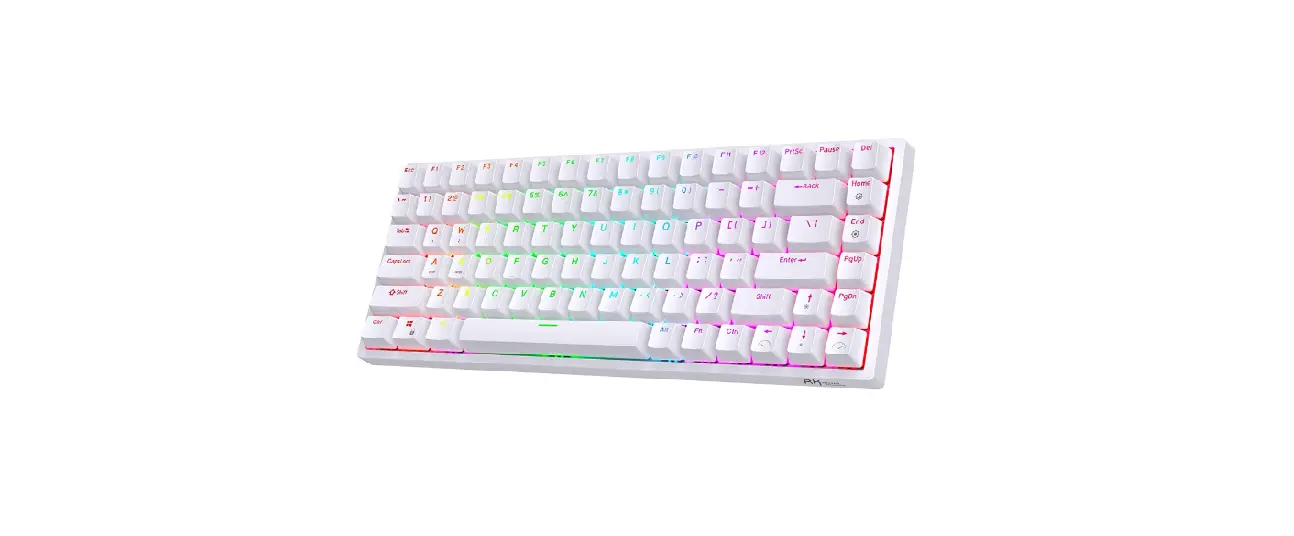
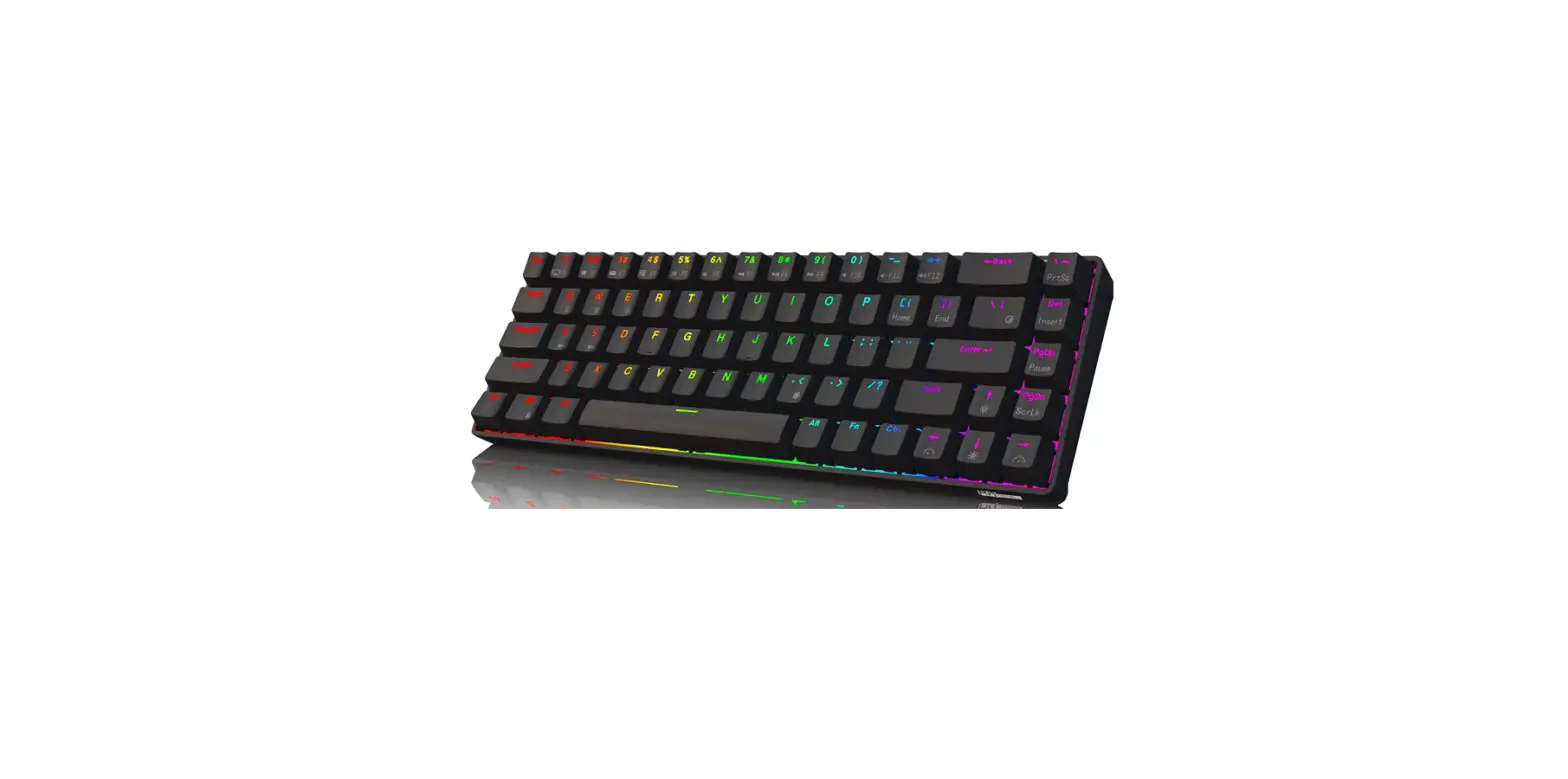
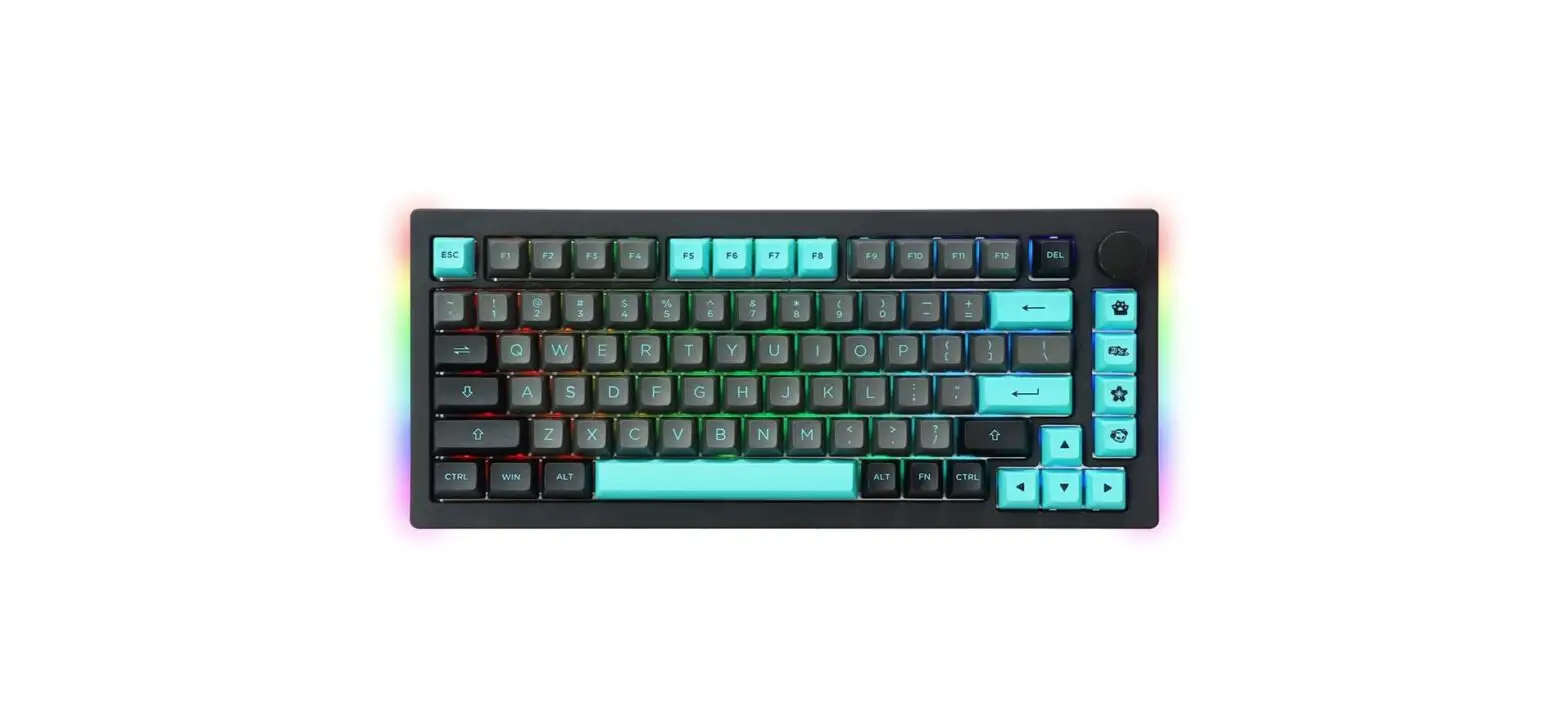
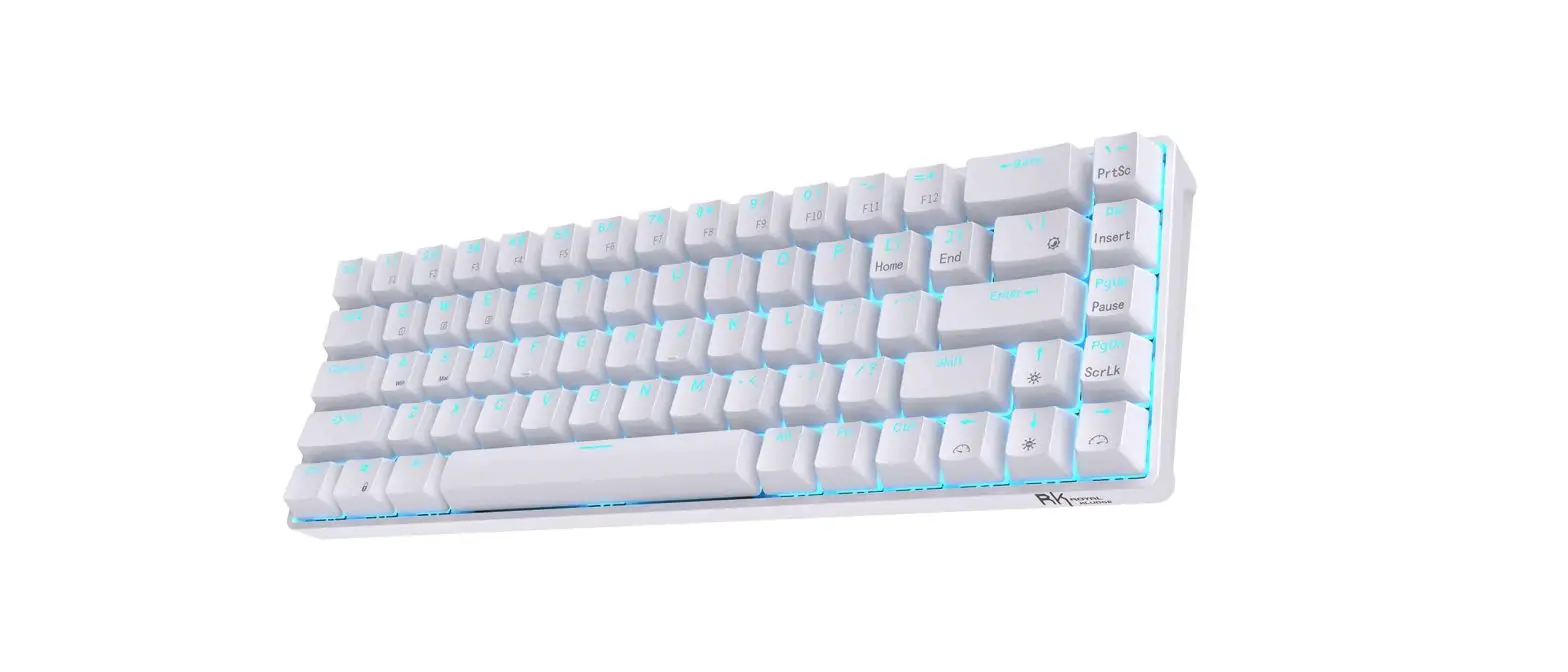
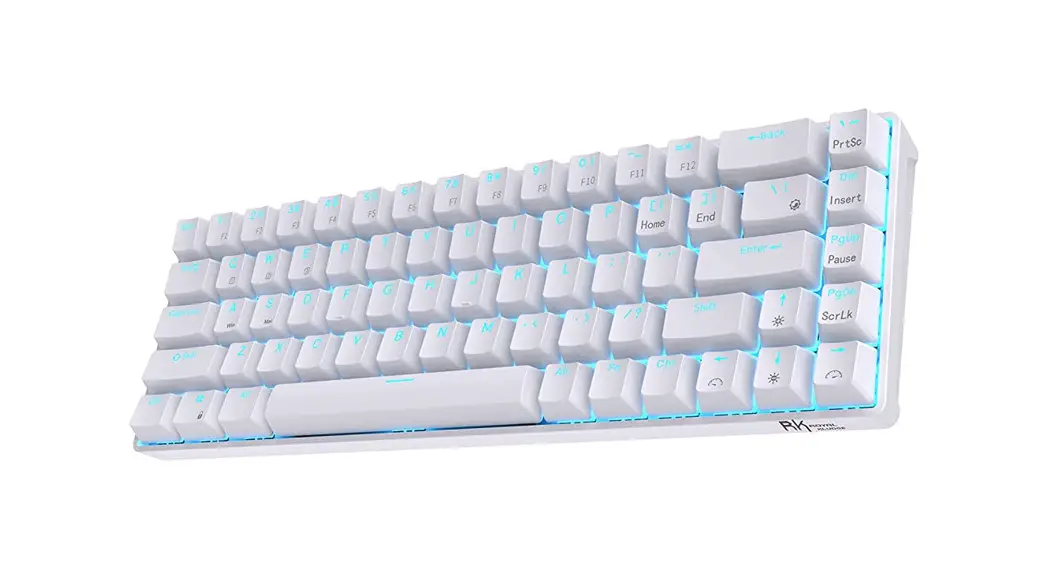
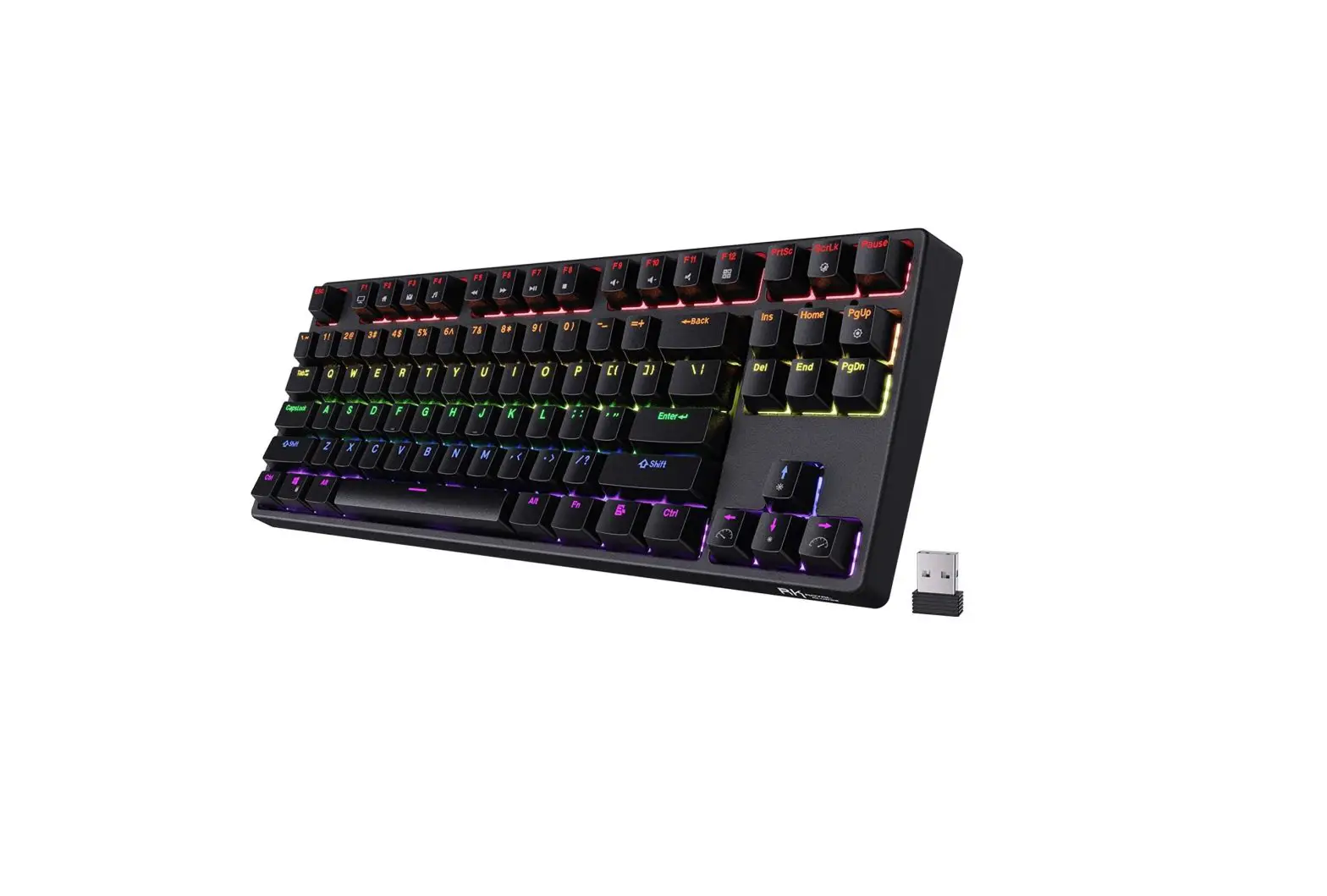
RK68 RK855 Wired Mechanical Gaming Keyboard
Product Information
The 837/855(RKG68.RK68) 3Mode RGB Maunal is a keyboard that
comes with standard 68 keys and various function control keys. It
supports both wired and wireless modes via 2.4G and Bluetooth
connectivity. The keyboard has a backlight feature that allows
users to change the brightness, speed, and color of the
backlight.
Key Functions
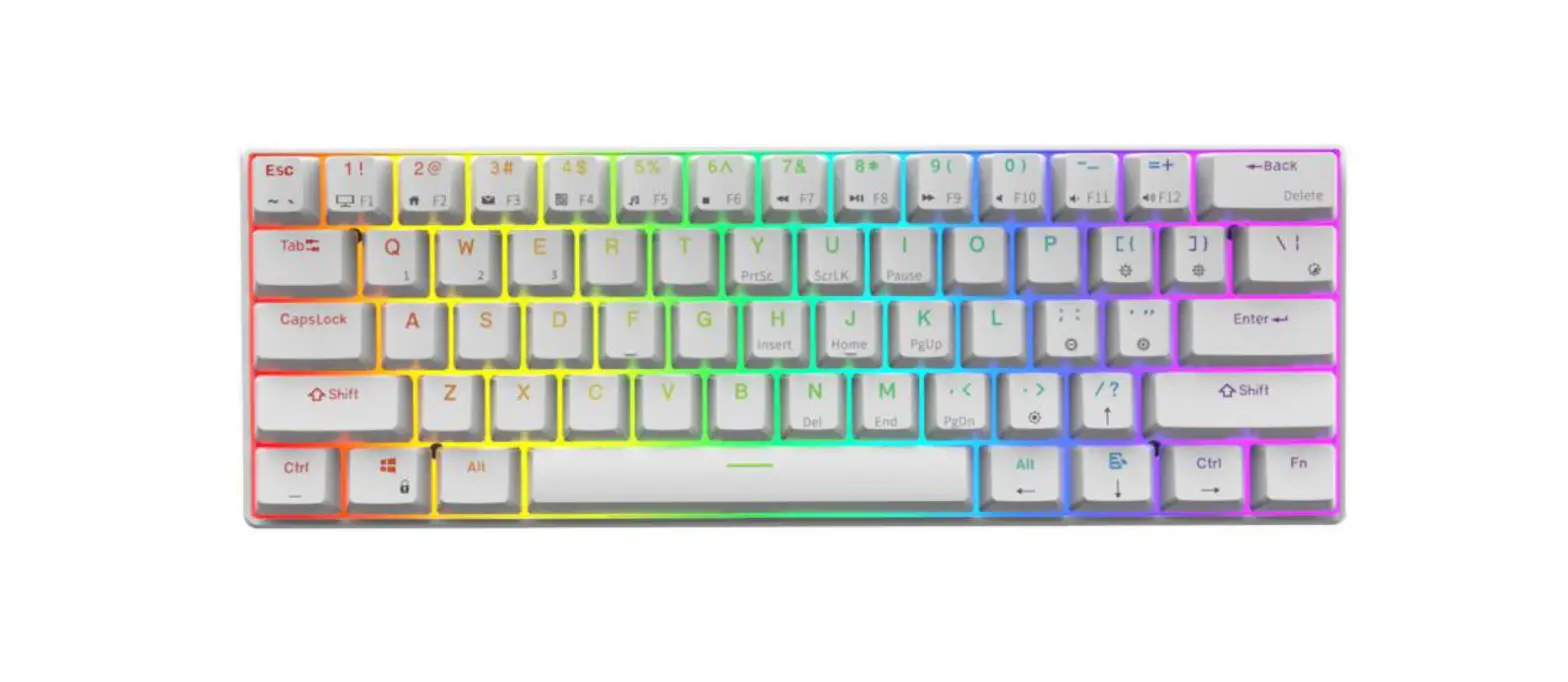
- Standard 68 keys
- WIN lock key
- FN combination function control keys
- Wired supports full keys without conflict
- 2.4G/Bluetooth supports six keys without conflict
Reset
To reset the keyboard, press and hold the Fn key along with the
Space key for 3 seconds. This will switch between Windows and IOS
mode.
Windows Mode Functions
- Fn+F1: Computer
- Fn+F2: Browser
- Fn+F3: Mailbox
- Fn+F4: Calculator
- Fn+F5: Player
- Fn+F6: Stop
- Fn+F7: Previous song
- Fn+F8: Play/Pause
- Fn+F9: Next song
- Fn+F10: Mute
- Fn+F11: Volume-
- Fn+F12: Volume+
Mac Mode Functions
- Fn+F1: Next song
- Fn+F2: Browser
- Fn+F3: Mailbox
- Fn+F4: Calculator
- Fn+F5: Player
- Fn+F6: Stop
- Fn+F7: Previous song
- Fn+F8: Play/Pause
- Fn+F9: Next song
- Fn+F10: Mute
- Fn+F11: Volume-
- Fn+F12: Volume+
Backlight Functions
- Fn+: Backlight brightness/speed setting
- FN+, : Multiple backlight mode switching
- Fn+. : Backlight monochrome color switching
- Fn+: Backlight brightness increase
- Fn+: Backlight brightness decrease
- Fn+< : Dynamic change speed is reduced
- Fn+> : Increase in dynamic conversion speed
Three-mode (Bluetooth/2.4G/wired) switching/pairing method
Wired Mode:
To use the keyboard in wired mode, connect the USB to the device
and switch the power switch to OFF.
2.4G Mode:
To use the keyboard in 2.4G mode, switch 1 to ON and switch 2 to
G. To pair the keyboard, press and hold Fn+P until the P key
flashes. Insert the receiver, and the P key will stop flashing,
indicating successful code pairing. (Note: The receiver has already
been paired before leaving the factory, so this step is not
necessary unless 2.4G can’t connect).
Bluetooth Mode:
To use the keyboard in Bluetooth mode, switch 1 to ON and switch
2 to B.
Product Usage Instructions
- Connect the keyboard to the device via USB or Bluetooth/2.4G
connectivity. - Switch to the desired mode using the switches on the back of
the keyboard. - Use the various function control keys to perform actions such
as controlling volume, media playback, and launching
applications. - Use the backlight function keys to change the brightness,
speed, and color of the backlight. - Reset the keyboard by pressing and holding the Fn key along
with the Space key for 3 seconds.
837/855(RKG68.RK68) 3Mode RGB Maunal
Key function: It is mainly composed of standard 68keys, WIN lock key, and FN combination function control keys. Wired supports full keys without conflict, 2.4G/Bluetooth supports six keys without conflict
Reset: Fn+Space Long Press 3 Secs Windows/IOS switch
Fn+ASwitch to windows Midea Function
Fn+Win :Off/On Win Fucntion
s Fn+ Switch to Mac
Windows Mode
Fn+F1: Computer Fn+F5: Player Fn+F9: Next song Fn+F2: Browser Fn+F6: Stop Fn+F10: Mute Fn+F3: mailbox Fn+F7: previous song Fn+F11: volumeFn+F4: Calculator Fn+F8: Play/Pause Fn+F12: Volume+ Mac mode
Fn+F1 Fn+F5 Fn+F9 Next song Fn+F2 Fn+F6 Fn+F10 Mute Fn+F3 Fn+F7 Previous song Fn+F11 VolumeFn+F4 Fn+F8 Play/Pause Fn+F12 Volume+ Second combination function :key
Backlight brightness/speed setting Fn+| Multiple backlight mode switching FN+, “Backlight monochrome color switching Fn+ Backlight brightness increase Fn+ The brightness of the backlight decreases Fn+ The dynamic change speed is reduced Fn+ Increase in dynamic conversion speed Three-mode (Bluetooth/2.4G/wired) switching/pairing method: Wired mode: Connect the USB to the device, Switch power switch to OFF for wired mode
2.4G mode: as shown below, there are two switches on the back of the keyboard, switch 1 to ON , and switch 2 to G.
2.4G pairing method: switch 1 to the ON , and switch 2 to the G. Long press FN+P to pair the code, the P key flashes to insert the receiver, the P key
stops flashing, the code pairing is successful. (Note: The receiver has been paired before leaving the factory, so you
don’t need to pair 2.4G again by yourself; the second method is only to use when 2.4G can’t connect, just set it for the first time, no need to set it every time)
Bluetooth mode: as shown below, there are two switches on the back of the keyboard, switch 1 to the ON , and switch 2 to the B
Bluetooth pairing method: 1. Switch 1 to the ON state, switch 2 to the B state, 2. FN+Q/W/E. Long press for any group of pairing codes, such as Fn+Q, at this time, the Q button keeps flashing, indicating that it has entered the pairing state 3. Turn on the computer/mobile Bluetooth, search for and connect to the device, search for the displayed name: BT3.0Keyboard (connect to the PC terminal Windows 7 or lower system), BT5.0Keyboard_Por (connect to the Windows 8 or higher system version, mobile devices, etc.) 4. Complete the connection And so on: Repeat the above steps, Q/W/E/ can store 3 sets of Bluetooth devices, short press Fn+Q/W/E when using switching, you can switch between different Bluetooth devices (Reminder: Use Switch Before, please pair 3 sets of Bluetooth)