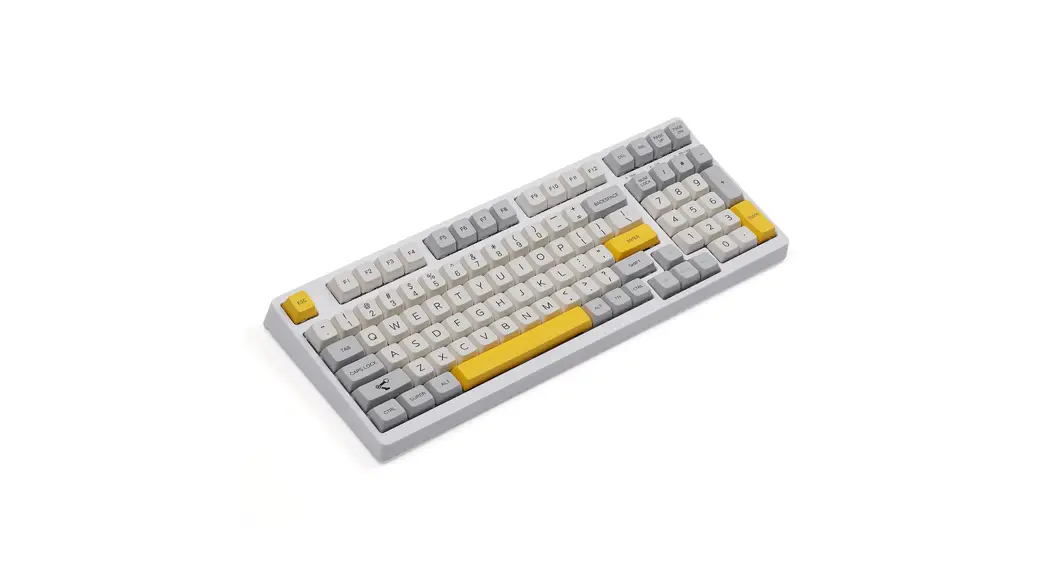
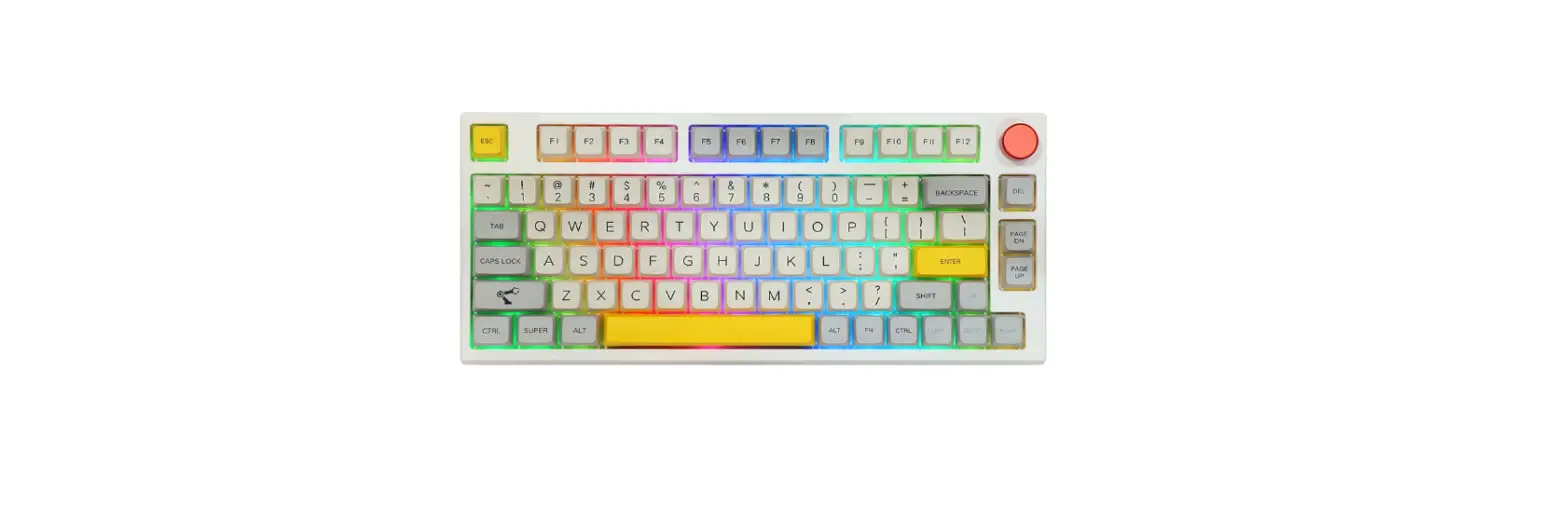
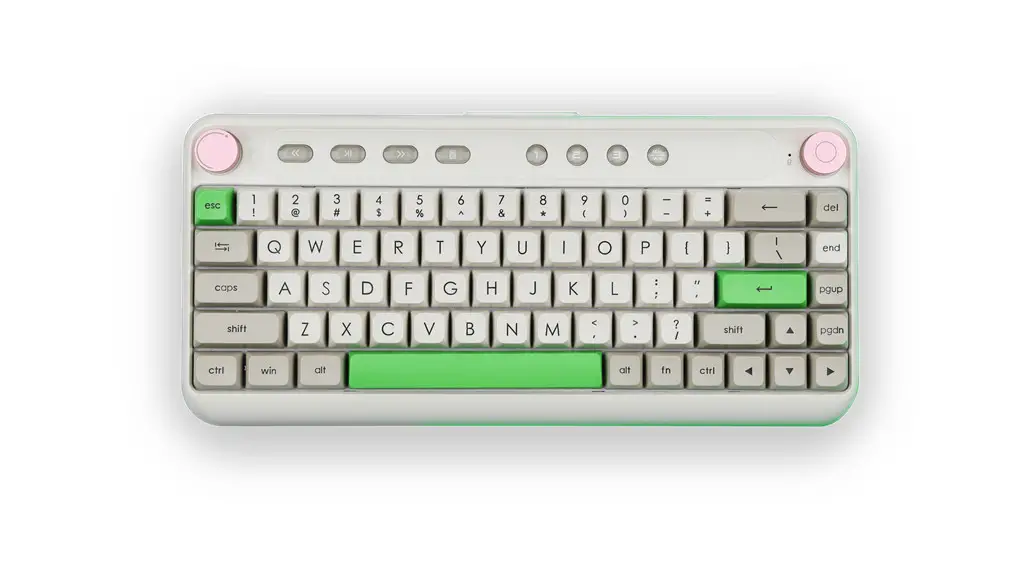
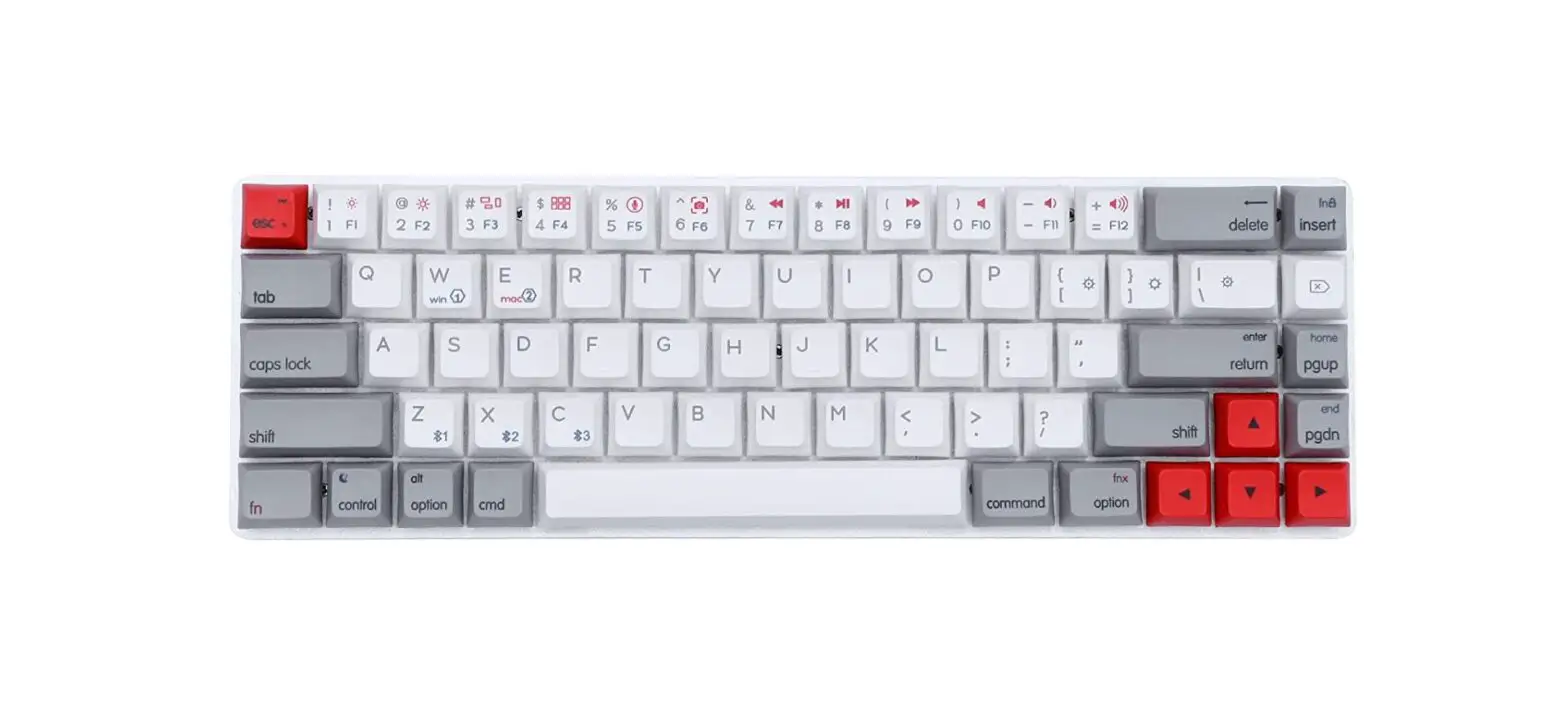
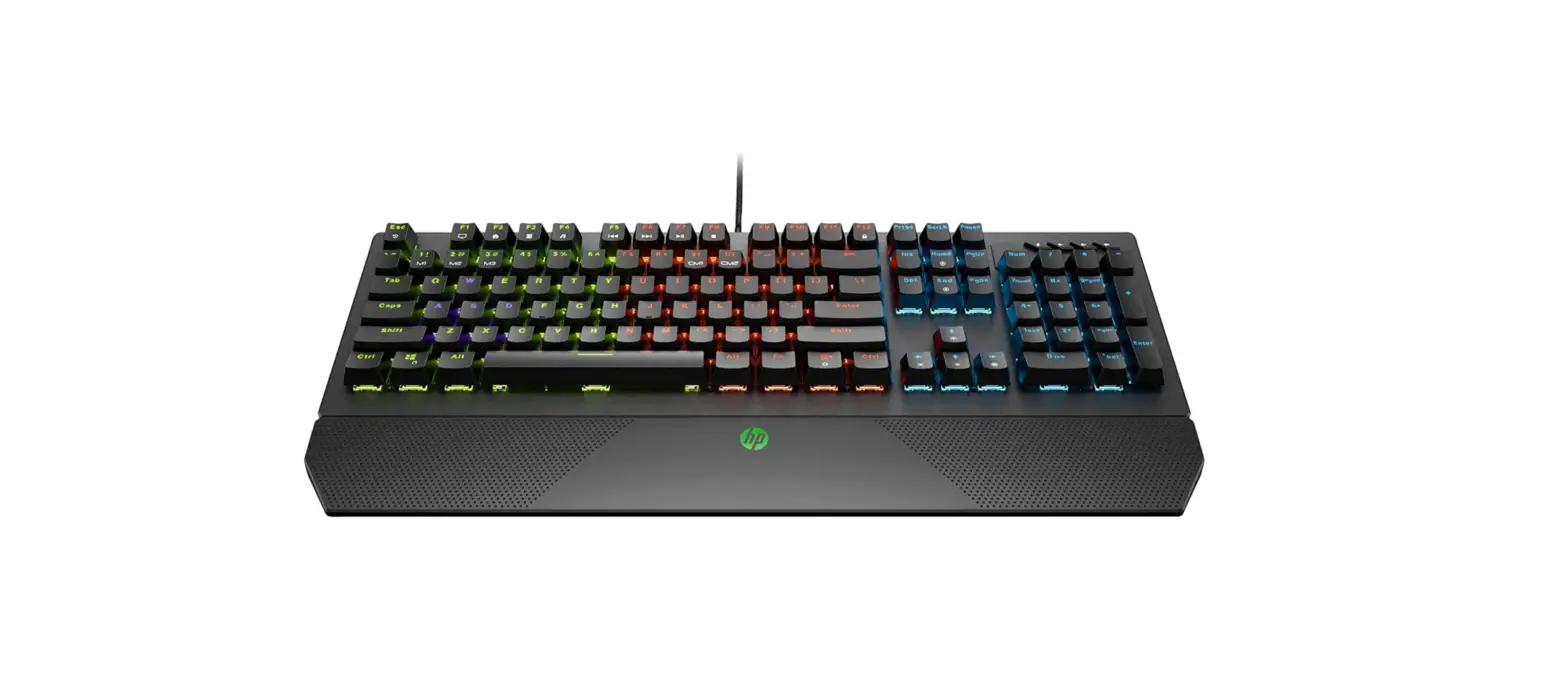
TH68 Pro 5.0 Wired Mechanical Gaming Keyboard
Product Information
Product Name: EPOMAKER TH68 Pro
Keyboard Type: 65% Hot Swappable RGB Mechanical
Gaming Keyboard
Connectivity: 2.4GHz Wireless, Bluetooth 5.0,
Wired (Type-C)
Compatibility: Windows, Mac
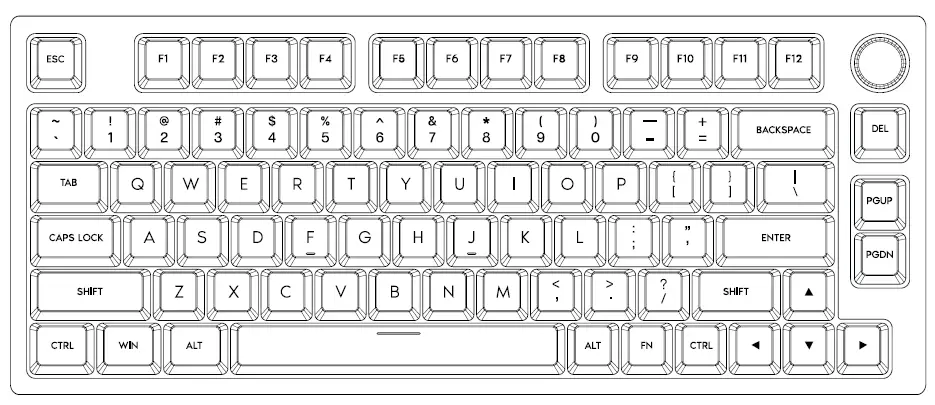
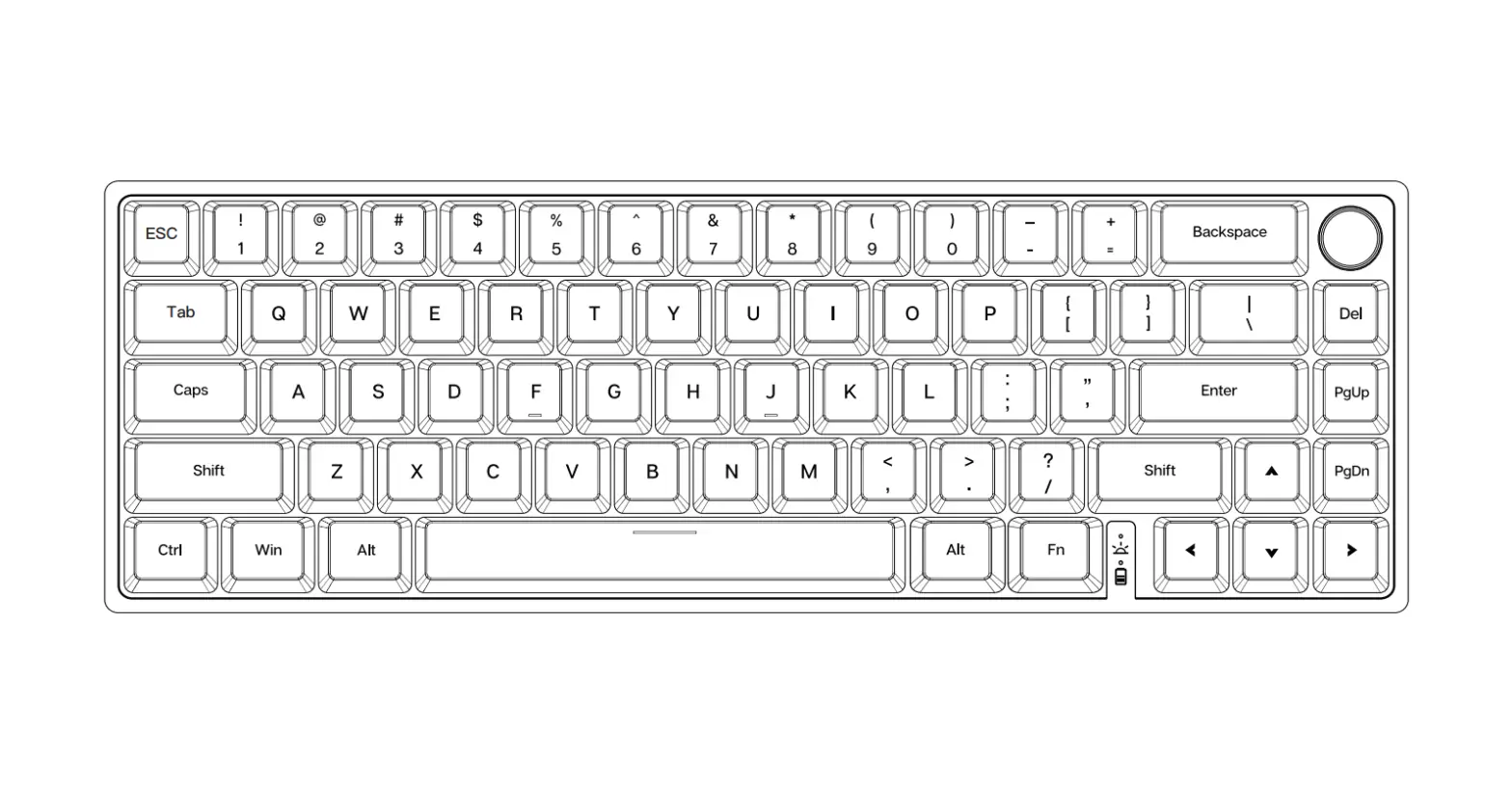
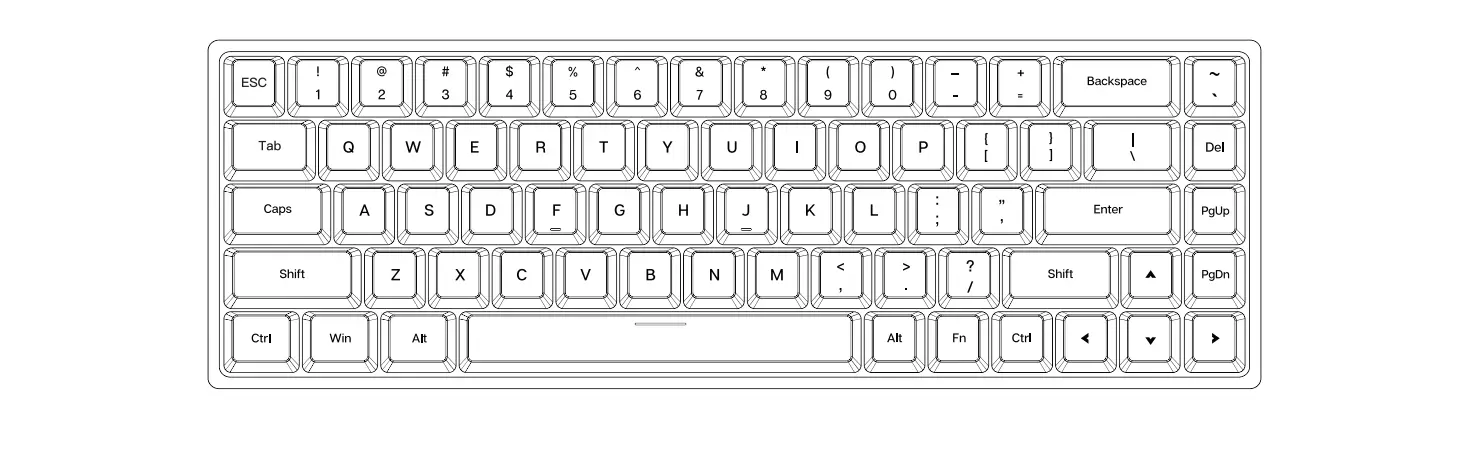
Keys: 67 keys
Stabilizer Type: Plate-mounted
PCB Type: 3/5-pin Hotswap PCB
Battery Capacity: 2400mAh
Anti-Ghost Key: NKRO in all modes
Polling Rate: 1000hz in Type-C Wired & 2.4G
modes
Dimension: 330 x 120 x 35 mm
Weight: Around 0.98kg
Product Usage Instructions
Windows/Mac Function Key Combinations
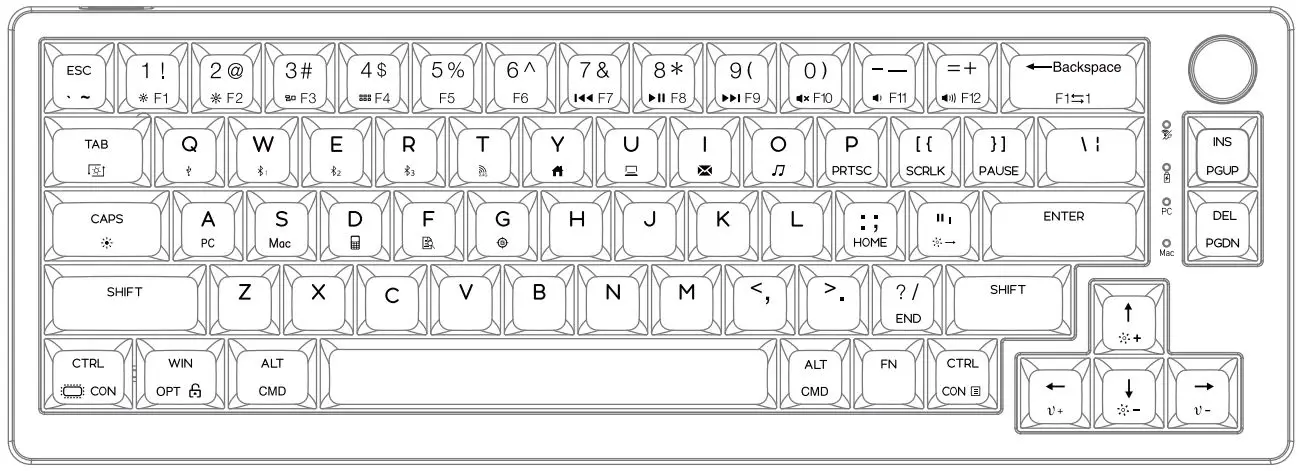
- FN + 1: F1
- FN + 2: F2
- FN + 3: F3
- FN + 4: F4
- FN + 5: F5
- FN + 6: F6
- FN + 7: F7
- FN + 8: F8
- FN + 9: F9
- FN + 0: F10
- FN + -: F11
- FN + =: F12
- FN + J: Insert
- FN + K: Home
- FN + ,<: End
- FN + U: PrtSc
- FN + I: Scroll Lock
- FN + O: Pause
- FN + WIN: Lock/Unlock Win Key
- FN + B: Battery Check
- FN + SPACEBAR (Hold): Check Layer & Mode
- FN + Z/X/C/V: Switch among the Layers 1/2/3/4
- FN + Q (Short Press): Switch to BT1
- FN + Q (Long Press): Pair Devices for BT1
- FN + W (Short Press): Switch to BT2
- FN + W (Long Press): Pair Devices for BT2
- FN + E (Short Press): Switch to BT3
- FN + E (Long Press): Pair Devices for BT3
- FN + R (Short Press): Switch to 2.4G Mode
- FN + R (Long Press): Pair Devices for 2.4G Mode
- FN + ESC (Hold 3S): Reset the Keyboard
- FN + ESC (Short Press): ` ~
- FN + SHIFT + ESC: Reset the Keyboard
- FN + BACKSPACE: Turn On/Off Backlights
- FN + DEL (Short Press): Toggle RGB Effects
- FN + DEL (Hold 5S): Record RGB
- FN + PGDN: Toggle RGB Colors
- FN + PGUP: Toggle Side Lights
- FN + -: Decrease Backlights Brightness
- FN + +: Increase Backlights Brightness
- FN + : Decrease Backlights Speed
- FN + : Increase Backlights Speed
Pairing Bluetooth
To pair the keyboard via Bluetooth, follow these steps:
- Toggle the switch in the back to wireless mode.
- Hold FN + Q/W/E for 3-5 seconds until the indicators
flash fast in blue. - Turn on your Bluetooth device and find “TH68 PRO BT5.0” or
“TH68 PRO BT3.0” to connect. - Once connected, the light on the Q/W/E key will stop flashing,
indicating a successful connection. - Press FN + Q/W/E to toggle between connected
Bluetooth devices 1/2/3.
Pairing Wireless 2.4GHz
To pair the keyboard via wireless 2.4GHz, follow these
steps:
- Toggle the switch in the back to wireless mode.
- Hold FN + R for 3-5 seconds until the light flashes
fast in green. - Insert the 2.4G dongle into your device.
- Once connected, the R key will stop flashing green, indicating
a successful connection.
Check Battery
To check the battery percentage, hold FN + B. The
keys from 1! to 0) will light up to indicate the battery life. For
example, if the keys from 1! to 6^ light up, the battery life is
currently at 60%.
Check Layer and Mode
To check the current layer and mode of the keyboard, hold
FN + SPACEBAR. The indicators of Z/X/C/V, Q/W/E/R, and
W/M will light up to show the layer and mode. For example, if the
keys of X, E, and M light up, it means that the keyboard is in
layer 2 in Mac mode and connected to BT3 device.
EPOMAKER TH68 PRO
65% Hot Swappable RGB 2.4Ghz/Bluetooth 5.0/Wired Mechanical Gaming Keyboard
Should you require more assistance please email us at [email protected]
WINDOWS
MAC
FN + 1 F1 FN + 2 F2 FN + 3 F3 FN + 4 F4 FN + 5 F5 FN + 6 F6 FN + 7 F7 FN + 8 F8 FN + 9 F9 FN + 0 F10 FN + – F11 FN + = F12
FN + J Insert
FN + 1
FN + K Home
FN + 2
FN + ,< End
FN + 3
FN + U PrtSc
FN + 4
FN + I
Scroll Lock FN + 5
FN + O Pause FN + WIN Lock/Unlock
Win Key
FN + 6 FN + 7 FN + 8
FN + 9
FN + 0
FN + –
FN + =
Screen Brightness Screen Brightness + Task Siri
Previous Track Play/Pause Next Track Mute Volume Volume +
FUNCTION KEY COMBINATIONS
FN + ESC
(HOLD 3S)
FN + ESC
(SHORT PRESS)
FN+SHIFT+ESC
Reset the Keyboard ` ~
FN + B
Battery Check
FN+SPACEBAR Check Layer & Mode
(HOLD)
FN + Z/X/C/V
Switch among the Layers 1/2/3/4
FN + Q
Short Press to Switch to BT1; Long Press to Pair Devices
FN + W
Short Press to Switch to BT2; Long Press to Pair Devices
FN + E
Short Press to Switch to BT2; Long Press to Pair Devices
FN + R
Short Press to Switch to 2.4G Mode; Long Press to Pair Devices
LIGHT EFFECTS
FN + BACKSPACE Turn On/Off Backlights
FN + DEL
(SHORT PRESS)
FN + DEL
(HOLD 5S)
FN + PGDN
Toggle RGB Effects Record RGB Toggle RGB Colors
FN + PGUP Toggle Side Lights
FN +
Backlights Brightness –
FN +
Backlights Brightness +
FN +
Backlights Speed –
FN +
Backlights Speed +
EN
PAIRING BLUETOOTH Toggle the switch in the back to make sure that the keyboard is under the wireless mode: 1. Hold Fn+Q/W/E for 3-5 seconds till the indicators flashes fast in blue, the keyboard is ready to pair. 2. Turn on your Bluetooth device and find “TH68 PRO BT5.0” or “TH68 PRO BT3.0”, then connect. When the keyboard is connected to the Bluetooth device, the light on the Q/W/E key stops flashing and the connection is done. 3. Press Fn+Q/W/E to toggle between the Bluetooth devices 1/2/3.
PAIRING WIRELESS 2.4GHz Toggle the switch in the back to make sure that the keyboard is under the wireless mode: 1. Hold Fn+R for for 3-5 seconds till the light flashes fast in green, the keyboard is ready to pair. 2. Insert the 2.4G dongle to your device, the R key stops flashing green and the connection is done.
CH ECK BATTERY Hold Fn+B, the keys from 1! to 0) lights up to show the battery percentage; for example, if the keys from 1! to 6^ light up when holding Fn+B, it means that the battery life is currently 60%; if keys of 1!-0) light up, battery life is 100%.
CH ECK L AYER AN D MOD E Hold Fn+Spacebar, the indicators of Z/X/C/V, Q/W/E/R and W/M light up to show at which layer and which mode the keyboard is; for example, if the keys of X, E and M light up when holding Fn+Spacebar, it means that the keyboard is in layer 2 in the Mac mode and connected to BT3 device.
SPECS MODEL: KEYS AMOUNT: STABILIZER TYPE: PCB TYPE: BATTERY CAPACITY: CONNECTIVITY: ANTI-GHOST KEY: POLLING RATE: COMPATIBILITY: DIMENSION: WEIGHT:
EPOMAKER TH68 Pro 67 Keys Plate-mounted 3/5-pin Hotswap PCB 2400mAh Type-C Wired, 2.4 & Bluetooth Wireless NKRO in all modes 1000hz in Type-C Wired & 2.4G modes WINDOWS/MAC 330 x 120 x 35 mm Around 0.98kg
EPOMAKER
EPOMAKER TH68 PRO
65% Hot Swappable RGB 2.4Ghz/Bluetooth 5.0/Kabelgebunden Mechanische Gaming-Tastatur
If you need further assistance, please email us at [email protected].
WINDOWS
MAC
FN + 1 F1 FN + 2 F2 FN + 3 F3 FN + 4 F4 FN + 5 F5 FN + 6 F6 FN + 7 F7 FN + 8 F8 FN + 9 F9 FN + 0 F10 FN + – F11 FN + = F12
FN + J Insert
FN + 1
FN + K Home
FN + 2
FN + ,< End
FN + 3
FN + U PrtSc
FN + 4
FN + I
Scroll Lock FN + 5
FN + O Pause FN + WIN Lock/Unlock
Win Key
FN + 6 FN + 7 FN + 8
FN + 9
FN + 0
FN + –
FN + =
Bildschirmhelligkeit Bildschirmhelligkeit + Aufgabe Siri
Vorheriger Titel Wiedergabe/Pause Nächster Track Stummschalten Band Band +
FUNKTIONSTASTEN KOMBINATIONEN
LICHTEFFEKTE
FN + ESC
(3S HALTEN)
FN + ESC
(KURZPRESSE)
FN+SHIFT+ESC
Zurücksetzen der Tastatur `
~
FN + B FN+SPACEBAR
(HALTEN SIE)
FN + Z/X/C/V
Batteriekontrolle
Ebene und Modus prüfen
Zwischen den Ebenen wechseln 1/2/3/4
FN + Q
Kurz drücken, um zu BT1 zu wechseln; Lang drücken, um Geräte zu koppeln
FN + W
Kurz drücken, um zu BT2 zu wechseln; Lang drücken, um Geräte zu koppeln
FN + E
Kurz drücken, um zu BT3 zu wechseln; Lang drücken, um Geräte zu koppeln
FN + R
Kurz drücken, um in den 2.4G-Modus zu wechseln; Lang drücken, um Geräte zu koppeln
FN + BACKSPACE Hintergrundbeleuchtung ein-/ausschalten
FN + DEL
(KURZPRESSE)
RGB-Effekte umschalten
FN + DEL
(5S HALTEN)
RGB aufzeichnen
FN + PGDN RGB-Farben umschalten
FN + PGUP Seitenlichter umschalten
FN + FN + FN + FN +
Hintergrundbeleuchtung Helligkeit –
Hintergrundbeleuchtung Helligkeit +
Hintergrundbeleuchtung Speed –
Hintergrundbeleuchtung Speed +
B L U E T O O T H – KO P P L U N G
DE
Schalten Sie den Schalter auf der Rückseite um, um sicherzustellen, dass sich die Tastatur im den drahtlosen Modus:
1. Halten Sie Fn+Q/W/E 3 bis 5 Sekunden lang gedrückt, bis die Anzeigen schnell blau blinken und die Tastatur zum Pairing bereit ist. 2. Schalten Sie Ihr Bluetooth-Gerät ein und suchen Sie “TH68 PRO BT5.0” oder “TH68 PRO BT3.0”, dann verbinden Sie es. Wenn die Tastatur mit dem Bluetooth-Gerät verbunden ist, hört das Licht an der Q/W/E-Taste auf zu blinken und die Verbindung ist hergestellt. 3. Drücken Sie Fn+Q/W/E, um zwischen den Bluetooth-Geräten 1/2/3 umzuschalten.
PAIRING WIRELESS 2.4GHz
Schalten Sie den Schalter auf der Rückseite um, um sicherzustellen, dass sich die Tastatur im drahtlosen Modus befindet:
1. Halten Sie Fn+R für 3-5 Sekunden gedrückt, bis die Leuchte schnell grün blinkt, die Tastatur ist bereit für die Kopplung. 2. Stecken Sie den 2.4G-Dongle in Ihr Gerät, die Taste R hört auf, grün zu blinken und die Verbindung ist hergestellt.
BATTERI E PRÜFEN
Wenn Sie Fn+B gedrückt halten, leuchten die Tasten von 1! bis 0) auf, um den Akkustand in Prozent anzuzeigen; wenn beispielsweise die Tasten von 1! bis 6^ aufleuchten, wenn Sie Fn+B gedrückt halten, bedeutet dies, dass der Akkustand derzeit 60% beträgt; wenn die Tasten von 1!-0) aufleuchten, beträgt der Akkustand 100%.
EBENE UND MODUS PRÜFEN
Wenn Sie Fn+Leertaste gedrückt halten, leuchten die Anzeigen für Z/X/C/V, Q/W/E/R und W/M auf, um anzuzeigen, auf welcher Ebene und in welchem Modus sich die Tastatur befindet; wenn beispielsweise die Tasten X, E und M aufleuchten, wenn Sie Fn+Leertaste gedrückt halten, bedeutet dies, dass sich die Tastatur im Mac-Modus auf Ebene 2 befindet und mit einem BT3-Gerät verbunden ist.
SPEZIALIEN
MODELL: SCHLÜSSEL AMOUNT: STABILISATOR-TYP: PCB-TYP: BATTERIEKAPAZITÄT: VERBINDLICHKEIT: ANTI-GHOST-SCHLÜSSEL: WÄHLRATE: KOMPATIBILITÄT: ABMESSUNG: GEWICHT:
EPOMAKER TH68 Pro 67 keys Plattenmontiert 3/5-Pin Hotswap PCB 2400mAh Type-C Wired, 2.4 & Bluetooth Wireless NKRO in allen Modi 1000hz in Type-C Wired & 2.4G modes WINDOWS/MAC 330 x 120 x 35 mm Etwa 0,98 kg
EPOMAKER
EPOMAKER TH68 PRO
65% Hot Swappable RGB 2.4Ghz/Bluetooth 5.0/Cableado Teclado mecánico para juegos
Si necesita más ayuda, envíenos un correo electrónico a [email protected].
WINDOWS
MAC
FN + 1 F1 FN + 2 F2 FN + 3 F3 FN + 4 F4 FN + 5 F5 FN + 6 F6 FN + 7 F7 FN + 8 F8 FN + 9 F9 FN + 0 F10 FN + – F11 FN + = F12
FN + J Insert
FN + 1
FN + K Home
FN + 2
FN + ,< End
FN + 3
FN + U PrtSc
FN + 4
FN + I
Scroll Lock FN + 5
FN + O Pause FN + WIN Lock/Unlock
Win Key
FN + 6 FN + 7 FN + 8
FN + 9
FN + 0
FN + –
FN + =
Brillo de la pantalla Brillo de la pantalla + Tarea Siri
Pista anterior Reproducir/Pausa Siguiente pista Silenciar Volumen Volumen +
COMBINACIONES DE TECLAS DE FUNCIÓN
EFECTOS DE LUZ
FN + ESC
(HOLD 3S)
FN + ESC
(PRENSA CORTA)
FN+SHIFT+ESC
Reiniciar el teclado ` ~
FN + B
FN+SPACEBAR
(HOLD)
Comprobación de la batería
Comprobar capa y modo
FN + Z/X/C/V
Cambiar entre las capas 1/2/3/4
FN + Q
Pulsación corta para cambiar a BT1; Pulsación larga para emparejar dispositivos
FN + W
Pulsación corta para cambiar a BT2; Pulsación larga para emparejar dispositivos
FN + E
Pulsación corta para cambiar a BT3; Pulsación larga para emparejar dispositivos
FN + R
Pulsación corta para cambiar al modo 2.4G; Pulsación larga para emparejar dispositivos
FN + BACKSPACE Encender y apagar la retroiluminación
FN + DEL
(PRENSA CORTA)
Alternar efectos RGB
FN + DEL
(HOLD 5S)
Grabar RGB
FN + PGDN Alternar colores RGB
FN + PGUP Alternar luces laterales
FN +
Retroiluminación Brillo –
FN +
Retroiluminación Brillo +
FN +
Retroiluminación Velocidad –
FN +
Retroiluminación Velocidad +
EMPAREJAMIENTO BLUETOOTH
ES
Conmute el interruptor de la parte posterior para asegurarse de que el teclado está en el modo inalámbrico:
1. Mantenga pulsado Fn+Q/W/E durante 3-5 segundos hasta que los indicadores parpadeen rápidamente en azul, el teclado está listo para emparejarse. 2. 2. Encienda el dispositivo Bluetooth y busque “TH68 PRO BT5.0” o “TH68 PRO BT3.0”; a continuación, conéctelo. Cuando el teclado esté conectado al dispositivo Bluetooth, la luz de la tecla Q/W/E dejará de parpadear y la conexión se habrá realizado. 3. Pulse Fn+Q/W/E para alternar entre los dispositivos Bluetooth 1/2/3.
PAREO INALÁMBRICO 2,4 GHz
Activa el interruptor de la parte posterior para asegurarte de que el teclado está en modo inalámbrico: 1. Mantenga pulsado Fn+R durante 3-5 segundos hasta que la luz parpadee rápidamente en verde, el teclado está listo para emparejarse. 2. 2. Inserta el dongle 2.4G en tu dispositivo, la tecla R dejará de parpadear en verde y la conexión se habrá realizado.
COM PROBAR BATERÍA Mantenga pulsado Fn+B, las teclas de 1! a 0) se iluminan para mostrar el porcentaje de batería; por ejemplo, si las teclas de 1! a 6^ se iluminan al mantener pulsado Fn+B, significa que la duración de la batería es actualmente del 60%; si las teclas de 1!-0) se iluminan, la duración de la batería es del 100%.
COMPROBAR CAPA Y MODO
Mantenga pulsado Fn+Barra espaciadora, los indicadores de Z/X/C/V, Q/W/E/R y W/M se iluminan para mostrar en qué capa y en qué modo se encuentra el teclado; por ejemplo, si las teclas de X, E y M se iluminan al mantener pulsado Fn+Barra espaciadora, significa que el teclado está en la capa 2 en el modo Mac y conectado al dispositivo BT3.
ESPECIFICACIONES MODELO: CANTIDAD DE LLAVES: TIPO DE ESTABILIZADOR: TIPO PCB: CAPACIDAD DE LA BATERÍA: CONECTIVIDAD: LLAVE ANTIFANTASMA: TASA DE ENCUESTA: COMPATIBILIDAD: DIMENSIONES: PESO:
EPOMAKER TH68 Pro 67 Keys Montaje en placa Placa de circuito impreso Hotswap de 3/5 patillas 2400mAh Type-C Wired, 2.4 & Bluetooth Wireless NKRO en todos los modos 1000hz in Type-C Wired & 2.4G modes WINDOWS/MAC 330 x 120 x 35 mm Alrededor de 0,98 kg
EPOMAKER
EPOMAKER TH68 PRO
65% interchangeable à chaud RGB 2.4Ghz/Bluetooth 5.0/filaire Clavier de jeu mécanique
Si vous avez besoin d’aide, veuillez nous envoyer un courriel à [email protected].
WINDOWS
MAC
FN + 1 F1 FN + 2 F2 FN + 3 F3 FN + 4 F4 FN + 5 F5 FN + 6 F6 FN + 7 F7 FN + 8 F8 FN + 9 F9 FN + 0 F10 FN + – F11 FN + = F12
FN + J Insert
FN + 1
FN + K Home
FN + 2
FN + ,< End
FN + 3
FN + U PrtSc
FN + 4
FN + I
Scroll Lock FN + 5
FN + O Pause FN + WIN Lock/Unlock
Win Key
FN + 6 FN + 7 FN + 8
FN + 9
FN + 0
FN + –
FN + =
Luminosité de l’écran Luminosité de l’écran + Tâche Siri
Piste précédente Lecture/Pause Piste suivante Mute Volume Volume +
COMBINAISONS DE TOUCHES DE FONCTION
EFFETS DE LUMIÈRE
FN + ESC
(TENIR 3S)
FN + ESC
(PRESSE COURTE)
FN+SHIFT+ESC
FN + B
FN+SPACEBAR
(TENIR)
FN + Z/X/C/V
Réinitialiser le clavier
FN + BACKSPACE Allumer/éteindre les rétro-éclairages
`
FN + DEL
(PRESSE COURTE)
Basculer les effets RGB
~
FN + DEL
Vérification de
(TENIR 5S)
la batterie Vérifier le calque et
FN + PGDN
le mode
Passer d’une couche à l’autre FN + PGUP
Enregistrement RGB Basculer les couleurs RGB Feux latéraux à bascule
1/2/3/4
FN + Q
Appuyez brièvement pour passer au BT1 ; Appui long pour coupler les appareils
FN +
Rétro-éclairage Luminosité –
FN + W
Appuyez brièvement pour passer au BT2 ; Appui long pour coupler les appareils
FN +
Rétro-éclairage Luminosité +
FN + E FN + R
Appuyez brièvement pour passer au BT3 ; Appui long pour coupler les appareils
Appuyez brièvement pour passer en mode 2.4G ; Appui long pour coupler les appareils
FN + FN +
Vitesse des rétro-éclairages Vitesse des rétro-éclairages +
COUPLAGE BLUETOOTH
Basculez l’interrupteur à l’arrière pour vous assurer que le clavier est en le mode sans fil :
FR
1. Maintenez Fn+Q/W/E pendant 3 à 5 secondes jusqu’à ce que les indicateurs clignotent rapidement en bleu, le clavier est prêt à être couplé. 2. Allumez votre appareil Bluetooth et trouvez “TH68 PRO BT5.0” ou “TH68 PRO BT3.0”, puis connectez-vous. Lorsque le clavier est connecté au dispositif Bluetooth, le voyant de la touche Q/W/E cesse de clignoter et la connexion est terminée. 3. Appuyez sur Fn+Q/W/E pour basculer entre les périphériques Bluetooth 1/2/3.
PAIRING WIRELESS 2.4GHz
Basculez l’interrupteur à l’arrière pour vous assurer que le clavier est en mode sans fil :
1. Maintenez Fn+R pendant 3 à 5 secondes jusqu’à ce que le voyant clignote rapidement en vert, le clavier est prêt à être apparié. 2. Insérez le dongle 2.4G dans votre appareil, la touche R cesse de clignoter en vert et la connexion est établie.
VÉRI F I ER L A BATTERI E En maintenant Fn+B, les touches de 1 ! à 0) s’allument pour indiquer le pourcentage de la batterie ; par exemple, si les touches de 1 ! à 6^ s’allument en maintenant Fn+B, cela signifie que l’autonomie de la batterie est actuellement de 60% ; si les touches de 1!-0) s’allument, l’autonomie de la batterie est de 100%.
VÉRIFIEZ LE CALQUE ET LE MODE
Maintenez la touche Fn+Barre d’espacement enfoncée, les indicateurs Z/X/C/V, Q/W/E/R et W/M s’allument pour indiquer à quelle couche et à quel mode se trouve le clavier. Par exemple, si les touches X, E et M s’allument lorsque vous maintenez la touche Fn+Barre d’espacement enfoncée, cela signifie que le clavier se trouve à la couche 2 en mode Mac et qu’il est connecté au périphérique BT3.
SPECS
MODÈLE : KEYS AMOUNT : TYPE DE STABILISATEUR : PCB TYPE : CAPACITÉ DE LA BATTERIE : CONNECTIVITÉ : CLÉ ANTI-FANTÔMES : TAUX DE SONDAGE : COMPATIBILITÉ : DIMENSION : POIDS :
EPOMAKER TH68 Pro 67 Keys Monté sur plaque PCB 3/5 broches Hotswap 2400mAh Type-C Wired, 2.4 & Bluetooth Wireless NKRO dans tous les modes 1000hz in Type-C Wired & 2.4G modes WINDOWS/MAC 330 x 120 x 35 mm Environ 0,98 kg
EPOMAKER
JP
EPOMAKER TH68 PRO
65%RGB 2.4Ghz / Bluetooth 5.0 /
[email protected]
WINDOWS
MAC
FN + 1 F1 FN + 2 F2 FN + 3 F3 FN + 4 F4 FN + 5 F5 FN + 6 F6 FN + 7 F7 FN + 8 F8 FN + 9 F9 FN + 0 F10 FN + – F11 FN + = F12
FN + J Insert
FN + 1
FN + K Home
FN + 2
FN + ,< End
FN + 3
FN + U PrtSc
FN + 4
FN + I
Scroll Lock FN + 5
FN + O Pause FN + WIN Lock/Unlock
Win Key
FN + 6 FN + 7 FN + 8
FN + 9
FN + 0
FN + –
FN + =
+ Siri
+
FN + ESC
(HOLD 3S)
FN + ESC
(SHORT PRESS)
FN+SHIFT+ESC
` ~
FN + B
FN+SPACEBAR
(HOLD)
FN + Z/X/C/V
1/2/3/4
FN + Q
BT1
FN + W
BT2
FN + E
BT3
FN + R
2.4G
FN + BACKSPACE /
FN + DEL
(SHORT PRESS)
FN + DEL
(HOLD 5S)
RGB RGB
FN + PGDN RGB
FN + PGUP
FN + FN +
+
FN +
–
FN +
+
JP
1.Fn+Q/W/E3 5 2.BluetoothTH68 PRO BT5.0TH68 PRO BT3.0 BluetoothQ/W/E 3.Fn+Q/W/EBluetooth1/2/3
2 .4 GHz
1.Fn+R35 2.2.4GR
F1 -F1 2
Fn+L_CtrlFn+1Fn+=F1F12 Fn+1=-F1F12 Fn+L_CtrlFFn+1F1
Fn+B10 Fn+B16^601-0 100
Fn+Z/X/C/VQ/W/E/RW/M Fn+XEM Mac2BT3
PCB : :
EPOMAKER TH68 Pro 67 Keys Plate-mounted 3/5-pin Hotswap PCB 2400mAh Type-C2.4Bluetooth NKRO 1000hz Type-C & 2.4G WINDOWS/MAC 330 x 120 x 35 mm 0.98kg
EPOMAKER
JP
EPOMAKER TH68 PRO
Epomaker TH68 Pro 65% 2.4Ghz / 5.0 / RGB
,: [email protected]
WINDOWS
MAC
FN + 1 F1 FN + 2 F2 FN + 3 F3 FN + 4 F4 FN + 5 F5 FN + 6 F6 FN + 7 F7 FN + 8 F8 FN + 9 F9 FN + 0 F10 FN + – F11 FN + = F12
FN + J Insert
FN + 1
FN + K Home
FN + 2
FN + ,< End
FN + 3
FN + U PrtSc
FN + 4
FN + I
Scroll Lock FN + 5
FN + O Pause
FN + 6
FN + WIN / Win FN + 7
FN + 8
FN + 9
FN + 0
FN + –
FN + =
+ ctrl+ Siri
/ +
FN + ESC
( 3S)
FN + ESC
()
FN+SHIFT+ESC
FN + B
FN+SPACEBAR
()
FN + Z/X/C/V
` ~
/ 1/2/3/4
FN + Q
11
FN + W FN + E
22 33
FN + R
2.4G2.4G
FN + BACKSPACE /
FN + DEL
()
FN + DEL
(5S)
FN + PGDN
FN + PGUP
FN +
–
FN +
+
FN +
–
FN +
+
CN
Fn+Q/W/E 3-5 “TH68 PRO BT5.0″”TH68 PRO BT3.0” Q/W/E2 Fn+Q/W/E 1/2/3
2.4GHz Fn+R 3-5 R2
Fn+B10 110%1 2 20%
Fn+Z/X/C/VQ/W/E/RW/M X EM , 2Mac3.
: PCB: : :
EPOMAKER TH68 Pro 671 3/5PCB 2400mAh Type-C , 2.4 & Type-C2.4G1000hz WINDOWS/MAC 330 x 120 x 35 mm 0.98kg
EPOMAKER