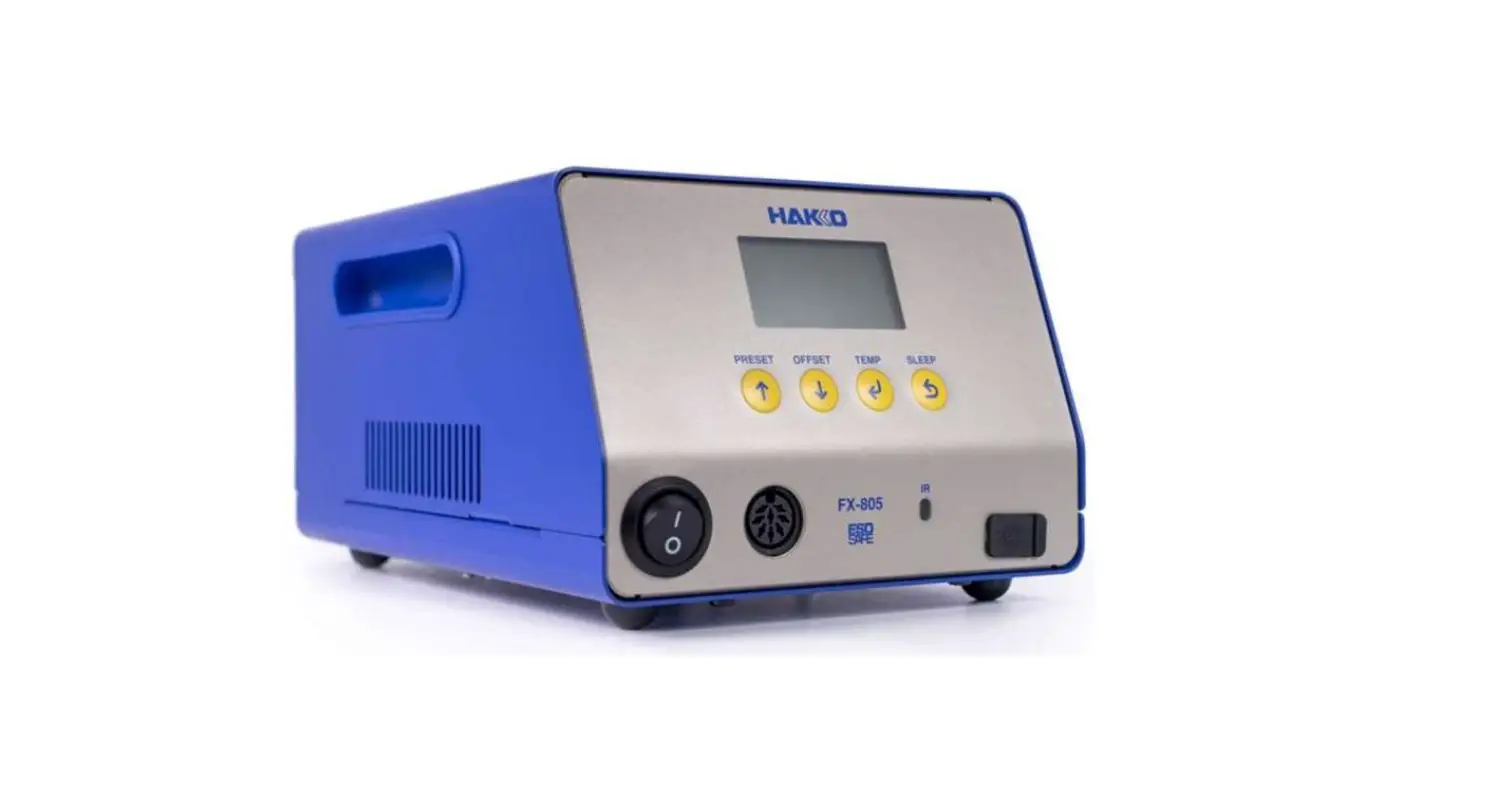
FX-805 Control Software
Product Information
The product is a control software for HAKKO FX-805, a soldering
station. The software is subject to change without notice due to
improvements. The company retains all property rights, ownership
rights, intellectual property rights, etc. related to this
software. The product comes with an included USB cable.
Product Usage Instructions
- Double-click the CD-ROM or the downloaded software. File name:
HAKKOControlSoftwareSetup X.X.X.X.exe - Select the language and click [OK].
- After checking the License Agreement, select [I accept the
agreement] and click [Next]. - Connect the product to a PC with the included USB cable.
- Place the handpiece on the iron holder.
- Connect the station and the handpiece.
- Turn the station power switch ON.
- Launch the software. If [- – -] appears on the display even
after the PC is connected, turn OFF the station power switch and
then turn it ON again. Do not use a USB cable that is more than two
meters long. - To download software updates, go to [Customer Support >
support and services > login and new user registration] on the
HAKKO website. Log in or create an account. Click [My page (Product
registration from here)] to register the product. Product must be
registered to download software. Click [Download of Product Data] under the menu.
Installing the software
1 Software
The contents of this manual are subject to change without notice. The specifications of this software are subject to change without notice
due to improvements. Reproducing or copying this document, in whole or in part, is prohibited.
2 Trademarks
System names, product names, and service names on this document are generally registered trademarks or trademarks of their respective developers. This document does not include TM, (R) marks.
3 Disclaimers
We will assume that, by downloading and installing this software, the customer has agreed to the following disclaimers. We will bear no responsibility for any claims for losses, lost earnings, or
claims by third parties due to operation of this software. We will bear no responsibility for any problems that result through
download and installation of this software. The company retains all property rights, ownership rights, intellectual
property rights, etc. related to this software.
4 Installing the Software
(1) Double-click the CD-ROM or the downloaded software. File name: HAKKOControlSoftwareSetup X.X.X.X.exe
(2) Select the language and click [OK].
(3) After checking the License Agreement, select [I accept the agreement]
and click [Next].
Figure 1-1
Figure 1-2
5 Connecting to a PC
(1) Connect the product to a PC with the included USB cable.
(2) Place the handpiece on the iron holder. (3) Connect the station and the handpiece. (4) Turn the station power switch ON.
HAKKO FX-805 Control Software File Setting Management Help
ID TIP TYPE
SET TEMP
0
STATUS NO CONNECTION
OUTPUT MODE
OFFSET
0
(5) Launch the software.
If [- – -] appears on the display even after the PC is
NOTE connected as shown in the right figure, turn OFF 1 2 3 4 5
the station power switch and then turn it ON again. 0 0 0 0 0
NOTE Do not use a USB cable that is more than two meters long.
HAKKO FX-805 Control Software
Main Unit
FX-805
Included USB cable
HAKKO FX-805 Control Software File Setting Management Help
ID TIP TYPE
FX-805_001 T37
3 350 PRESET
STATUS
RUNNING
OUTPUT MODE Power
OFFSET
0
12345
250 300 350 400 450
HAKKO FX-805 Control Software
Tip temperature [°C]
500
450
400
350
300
250
200
150
100
50
0
95
100
105
110
115
120
Time [seconds]
Auto save
Start record
Stop record
6 Software Updates
Follow the instructions below to download the latest software. (1) Go to [Customer Support > support and services > login and new user
registration] on the HAKKO website.
https://www.hakko.com/doc_support-e
(4) From here, follow the instructions on the screen. (5) The software will automatically launch when the installation is
completed. (Figure 1-3) (6) Click [Exit] to exit the software. (Figure 1-4/1-5)
Figure1-3
HAKKO Control Software
Copyright © 2022 HAKKO Corporation
Figure 1-4
Notification Searching port
Abort
Figure 1-5
Notification
Unit not connected. Please select an application.
FX-805
Start
Exit
(2) Log in, or create an account. (3) Click [My page (Product registration from here)] to register the product. NOTE Product must be registered to download software.
(4) Click [Download of Product Data] under the menu.
Menu
About HAKKO Location Contact us
JP EN
Information
Download of Product Data
Login/Sign up
(5) Select [Software] under the various resource search options. (6) Input the product name as the keyword. (7) Select the language and click [Search with these conditions]. (8) Click [Download] in the search results.
HEAD OFFICE
4-5, Shiokusa 2-chome, Naniwa-ku, Osaka 556-0024 JAPAN TEL: +81-6-6561-3225 FAX: +81-6-6561-8466 https://www.hakko.com E-mail: [email protected]
OVERSEAS AFFILIATES
U.S.A.: AMERICAN HAKKO PRODUCTS, INC. TEL: (661) 294-0090 FAX: (661) 294-0096 Toll Free (800) 88-HAKKO
4 2 5 5 6
https: // www.HakkoUSA.com E-mail: [email protected]
HONG KONG: HAKKO DEVELOPMENT CO., LTD. TEL: 2811-5588 FAX: 2590-0217 https: // www.hakko.com.cn E-mail: [email protected]
SINGAPORE: HAKKO PRODUCTS PTE., LTD. TEL: 6748-2277 FAX: 6744-0033 https: // www.hakko.com.sg E-mail: [email protected]
Please access the code for overseas distributors. https: //www.hakko.com/doc_network
© 2022 HAKKO Corporation. All Rights Reserved. Company and product names are trademarks or registered trademarks of their respective companies.
2022.06 96.0005-002
Operation guide FX-805 Control Software
1. Menu
File
Port selection Used to manually select Port Number.
Port search Used to autodetect port/reconnect station.
Exit Used when exiting software.
Setting
Language: Japanese/English/Chinese Select one of these languages.
Display temperature unit: ºC/ºF Select the unit for temperature.
Management
File storage location: Parameter setting file/ Automatic calibration result file/ Tip sensor temperature monitor file
Select where files are saved. NOTE By default, files are saved in the same
location as software folder.
Tip sensor temperature monitor auto save: ON/OFF
When set to [ON], the Tip sensor temperature will be recorded constantly and saved as CSV file. NOTE Default is OFF.
Tip sensor temperature monitor file split interval (minutes): 1 to 120
Segments CSV files into multiple files based on minutes. NOTE Default is 5 min.
Help
Connection station version information Shows the station firmware version.
Version information
2. Initial Screen
See “1. Menu”
1
HAKKO FX-805 Control Software
File Setting Management Help
ID
FX-805_001
2
TIP TYPE
T37
3
3 350 PRESET
5
67
STATUS
RUNNING
OUTPUT MODE Power
OFFSET
0
See “3. Operation Buttons”
Temperature Change
Tip Temperature Correction (Offset)
4
Parameter Setting
12345
250 300 350 400 450
Tip sensor temperature [°C]
8
500 450 400 350 300 250 200 150 100
50 0
9
95
100
105
110
115
120
Time [seconds]
Automatic Calibration and Recorder
Auto save
Start record
Stop record
HAKKO FX-805 Control Software
Turn ON/OFF
Disabled during Auto save
Station name is displayed. 1 The station can be named in the Parameter Setting
section [Station ID].
button under the
2
The tip type in use is displayed.
The tip type will update automatically based on the tip.
The Setting Temp status is displayed.
Manual inputing temperature displays
Preset temperature displays [PRESET] and
[SET TEMP]the preset number.
SET TEMP
350
3 350 PRESET
3
Preset number
The operating status of the station is displayed.
RUNNING Operating normally
SLEEP Sleep state
SHUT OFF Time specified in the ShutOff Menu has elapsed
SENSOR ERROR Tip heating element/sensor not detected
Station display This can be done through the Temperature Change button.
Station display
You can change the Setting Temp manually or by selecting one of the preset temperature buttons.
The temperature registered for each preset number is displayed.
The preset temperatures can be changed in the Parameter Setting
button under [Temp Set Menu].
Factory default setting temperatures:
Preset number
3
4
5
No.1: 250ºC (600ºF) No.2: 300ºC (700ºF)
4
Registered temperature
350 400 450
No.3: 350ºC (750ºF) No.4: 400ºC (800ºF)
Selected Selectable Unselectable
No.5: 450ºC (850ºF)
The preset temperature selection status is shown by the button color.
Why are some buttons unselectable?
[Preset 5 ON/OFF] is set to [OFF] under the [Temp Set Menu] of the
button.
GRIP ERROR
5 Inapplicable handpiece connected or the handpiece is disconnected
NO CONNECTION Station is turned OFF or the station is not connected to the PC
HEATERSHORT ERROR Inapplicable tip inserted
ZEROCROSS ERROR Power supply abnormality or the main unit is damaged
TIP DETECTION ERROR Inapplicable tip detected
The selected output mode is displayed. 6 The mode can be changed in the Parameter Setting
[Output mode setting].
button under
The correction value (offset value) is displayed. 7 The offset can be changed using the Tip Temperature Correction
button or the Automatic Calibration and Recorder
button.
Displayed when the parameter setting change is locked.
8 This can be locked/unlocked in the Parameter Setting
button under
[Lock Menu].The tip sensor temperature can be displayed on a graph.
The graph data can be manually or automatically saved
Manually record: Pressing [Start record], pressing [Stop record] ends the recording Recording with Auto save: files will be saved depending on the value inputed in [Tip sensor
temperature monitor file split interval (minutes)]. Saved file name
During manual saving: FX-805TEMP_M_220101_093358.csv During automatic saving: FX-805TEMP_220101_093358.csv
Date stamp of recording: January 1, 2022, 9:33:58 The graph “Time axis” and “Temperature axis” settings can be changed
Click button to display the Setting screen.
9
Time axis setting
Length of time displayed: 30
300
30 sec
Scale interval: 5
60
5 sec
Confirm
Close
Temperature axis setting Maximum Temperature Displayed: 200
Minimum Temperature Displayed: 0
Scale interval: 10
Confirm
Close
500 500
400 0
100 50
See [Management] in “1. Menu” for the storage location and the auto save timing.
Time axis default
Length of time displayed 30 seconds
Time Scale Interval
5 seconds
Temperature axis default
Maximum Temperature Displayed 500ºC/950ºF
Minimum Temperature Displayed 0ºC/0ºF
Temperature Scale Interval
50ºC/50ºF
Operation guide FX-805 Control Software
3. Operation Buttons
Temperature Change
Temp change
Change the set temperature If the temperature is changed
NOTE here, the preset temperature selection is automatically
350
canceled.
50
500
Confirm
Close
Tip Temperature Correction (Offset)
(See “4-3. Operation” in the Instruction Manual)
The tip temperature can be corrected with the following two methods.
NOTE This will not function when the station is in offset mode.
Manual input
Using the HAKKO thermometer with the Temperature Sending Function
Offset change
10
-50
50
Input directly or send from tip thermometer.
(1) Measure the tip temperature
(1) Measure the tip temperature
(2) Input the offset value (3) Click the [Confirm] button (4) Click the [Close] button
(2) Send the measured temperature
(3) Click the [Confirm] button (4) Click the [Close] button
Confirm
Close
Parameter Setting
(See “Quick Parameter Settings” in the Instruction Manual)
The current settings are highlighted in blue A and can be changed in the column to the right B . By click the [Confirm] button the buzzer will sound, and [Sys] or [Set] will display on the station to show the settings have been updated.
The settings can be saved or loaded as CSV files. Click the [Save] button to store the settings from B . Default file name: FX-805-Parameter.csv
Click the [Load] button and select CSV file to input the settings, and then click [Confirm] to apply the settings. * The file name is displayed in the upper left corner.
If the selected file name has an ” * “…
When the B values are changed after loading, ” * ” mark will be
added at the end of the file name. Example: FX-805-Parameter.csv*
Sleep Menu ON/OFF Activation Time Sleep Temp ShutOff Menu ON/OFF Activation Time Alarm Menu Error Alarm Ready Alarm Low Temp Alarm
Parameter No. correspondence table
Lock Menu
Parameter No. Parameter No.
Temp Set Menu
Parameter No.
Parameter No.
Preset Temp
Parameter No.
Preset ON/OFF
Parameter No.
Parameter No. Parameter No.
Output Mode Setting Parameter No.
Parameter No. Parameter No. Parameter No.
Display the file name
A
B
selected during loading
Parameter setting Sleep Menu ON/OFF
Activation Time
ON 6 min
Sleep Temp
200
ShutOff Menu ON/OFF Activation Time
ON 30 min
Alarm Menu Error Alarm Ready Alarm Low Temp Alarm
ON ON 300
Lock Menu Password Lock Password Offset Preset Select Temp Set Output mode setting Output mode
Unlock AAA
Unlock Unlock Unlock
Power
OFF 1
200
ON 29 min
6 min 300
200 °C
Temp Set Menu Temp Set Item Setting Temp Offset Temp Preset 1 Temp
OFF 30
ON 60 min
30 min
Preset 2 Temp Preset 3 Temp
Preset 3 350
0 250
300
350
OFF OFF 30
ON ON
300 300 °C
Unlock AAA
Unlock
Lock
Unlock
Lock
Unlock
Lock
Normal
Power
Preset 4 Temp
400
Preset 5 Temp
450
Preset 1 ON/OFF
ON
Preset 2 ON/OFF
ON
Preset 3 ON/OFF
ON
Preset 4 ON/OFF
ON
Preset 5 ON/OFF
ON
Station ID FX-805_001
Preset 3
350
0
50
500
250 °C
50
500
300 °C
50
500
350 °C
50
500
400 °C
50
500
450 °C
OFF
ON
OFF
ON
OFF
ON
OFF
ON
OFF
ON
FX-805_001
Confirm
Load
Save
Close
Confirm the changed values
Load File
Save File
Automatic Calibration and Recorder
What is Automatic Calibration? It is an operation to automate tip temperature management, and to save the proper calibration results.
Automatically saves the calibration results when the calibration is completed
Compiles one month of saved calibration results in one CSV file File name: FX-805CAL_2022_01.csv
Product Name Calibration year and month
File Home Insert Page Layout Formulas Data Review
FX-805CAL_2022_01.csv-Excel View Acrobat
O14
A
B
C
D
E
F
G
H
I
J
K
L
M
N
1 Station ID Tip Type Date&Time Result Set Temp Temp Lim BeforeTemp After Temp Before Offset Afetr Offset Leak Volt Earth Res Tip Change
2 FX-805-001 T37 2022/1/2613:58 PASS 0350C +10/-10 346C
—
006C
—
1.5
1.8 OFF
3 FX-805-001 T37 2022/1/2713:41 PASS 0350C +10/-10 343C
—
006C
—
1.5
1.8 OFF
4 FX-805-001 T37 2022/1/2813:50 PASS 0350C +10/-10 342C
—
006C
—
1.5
1.8 ON
5 FX-805-001 T37 2022/1/3113:52 PASS 0350C +10/-10 342C
—
6
006C
—
1.5
1.8 OFF
7
8
If a calibration was within the same month,
9
10
it is sequentially saved to the same file.
11
FX-805CAL_2022_01
Calibration procedure
Automatic calibration DATE
RESULT
Set conditions if required and start.
TEMP
OFFSET
C
mV
V
START
OHM
Check this box if the tip was replaced. This will allow you to know
when the tip was replaced when viewing the calibration result
data or a graph.
START
STOP
CLOSE
(1) Set the conditions during Automatic calibration with the button.
Condition setting
Temperature calibration range (plus)
1
Temperature calibration range (minus) -10
Number of retries Leak voltage measurement setting Tip to ground resistance measurement
3 OFF OFF
10 10
-1 -10
ON ON
Confirm
Close
(2) Click the START button and follow message C to calibrate.
Set the conditions during
Calibration results You may select one of the following search conditions. Date Search …………….Specify the date for the period that you wish to check Number of histories …..Specify the recent histories that you wish to check
Procedure to display the calibration results
Automatic calibration DATE
RESULT
Set conditions if required and start.
TEMP
The following is an example for “History
OFFSET
Search”
mV
NOTE The calibration results can be displayed
V
START
even if the station is turned OFF.
OHM
START
STOP
CLOSE
(1) Click the [Calibration results] button to display the screen to input the search conditions. (2) Input [10] in the [Number of histories] bar.
Calibration result
Date 2022/01/25 15 2022/01/25 15
Station ID
Number of histories 10
Tip type Calibration date
Station ID
Tip type
Calibration date
Calibration result
Setting Temp
Temperature calibration range
MbeefoarseurceadlibteramtipoenraturCealibration result
Date search example
Click the check box and specify the date. You can also search across months as follows.
Setting Temp
Temperature calibration range
Measured temperature before calibration
Date 2022/01/25 15 2022/01/25 15
Measured temperature after calibration
Offset before calibration
Number of histories 10
Offset after calibration
There is no need to erase the Number of histories.
Leak voltage Tip to ground resistance
Tip replacement flag setting
Search
Graph
Close
(3) Click the [Search] button. (4) The search results (latest 10 entries) are displayed.
Calibration result
Select an item name to sort
Date 2022/01/25 15 2022/01/25 15 Number of histories 10
Station ID Tip type Calibration date
Station ID
Tip type
Calibration date
Calibration result
Setting Temp
Temperature calibration range
MbeefoarseurceadlibteramtipoenratuCrealibration result
FX-805-001 T37 FX-805-001 T37 FX-805-001 T37 FX-805-001 T37 FX-805-001 T37 FX-805-001 T37 FX-805-001 T37 FX-805-001 T37 FX-805-001 T37 FX-805-001 T37
2022/01/26 13:58 2022/01/27 13:41 2022/01/28 13:50 2022/01/31 13:52 2022/02/01 13:50 2022/02/02 13:51 2022/02/03 13:51 2022/02/04 13:51 2022/02/07 13:52 2022/02/08 13:52
PASS PASS PASS PASS PASS PASS FAIL PASS PASS PASS
350 350 350 350 350 350 350 350 350 350
+10/-10 +10/-10 +10/-10 +10/-10 +10/-10 +10/-10 +10/-10 +10/-10 +10/-10 +10/-10
346 343 342 342 338 341 250 350 349 350
Setting Temp
Temperature calibration range Measured temperature before calibration Measured temperature after calibration
Offset before calibration
Offset after calibration
Select one row to display all of the values as a list
Leak voltage Tip to ground resistance
Tip replacement flag setting
FX-805-001 T37 2022/02/04 13:51 PASS 350 +10/-10
350 —
12 –1.5 mV 1.8 ON
Slide to the right
Search
Graph
Close
(5) Click [Graph]. (6) The 10 search results are graphed.
Calibration result graph
Measured temperature Offset temperature
500 450 400 350 300 250 200 150 100
50 0 1
60
Measured temperature 50 Offset temperature
40
30
20
10
0
-10
-20
You can check when the tip
-30
was replaced with the blue
-40
vertical line.
-50
-60
2
3
4
5
6
7
8
9
10
Number of histories
Close
References
 VisionXE
-
LTD.TEL
 HAKKO Corporation - We respond to soldering needs throughout the world.
-
hakko.com.cn
 American Hakko Products, Inc. Home of superior quality soldering, desoldering, rework, BGA, and fume extraction systems and hand tools for the electronics manufacturing industry.
-
HAKKO Corporation - We respond to soldering needs throughout the world.
-
Login/Signup |HAKKO | HAKKO Corporation
 VisionXE
 LTD.TEL
 HAKKO Corporation - We respond to soldering needs throughout the world.
 hakko.com.cn
 American Hakko Products, Inc. Home of superior quality soldering, desoldering, rework, BGA, and fume extraction systems and hand tools for the electronics manufacturing industry.