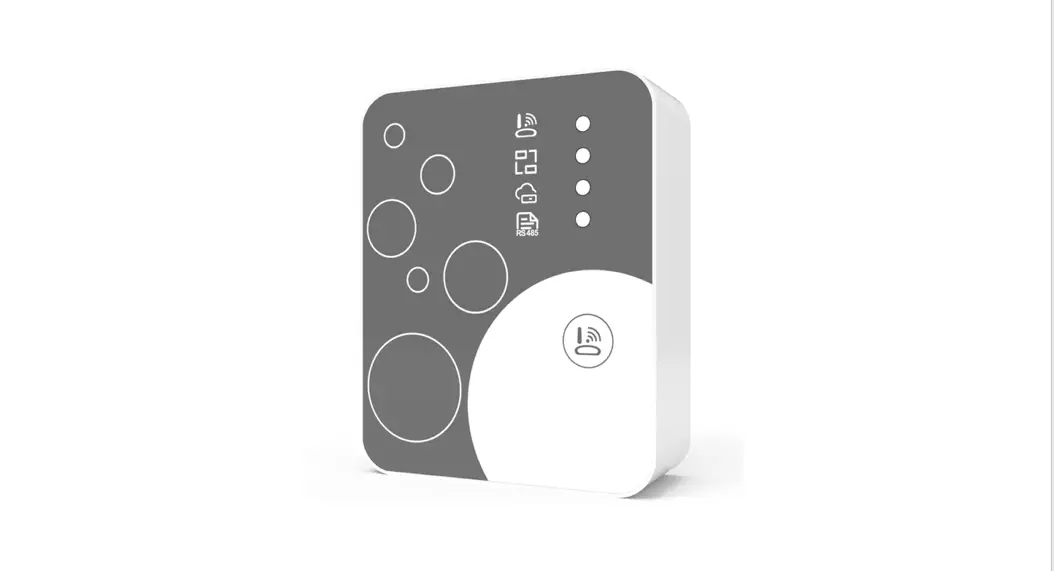

Wifi Module User’s Manual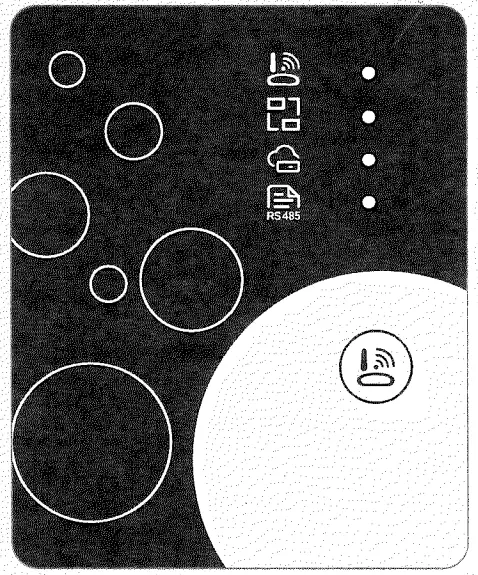
Please read this user% manual carefully before use Please keep lotus user’s manual properly
User Privacy Instructions
We take your privacy very seriously and we promise to inform you how we use the data. Users’ private data, such as mailboxes, address, before uploading to the cloud, we will get your permission, and we will work hard to protect your data security.
Description
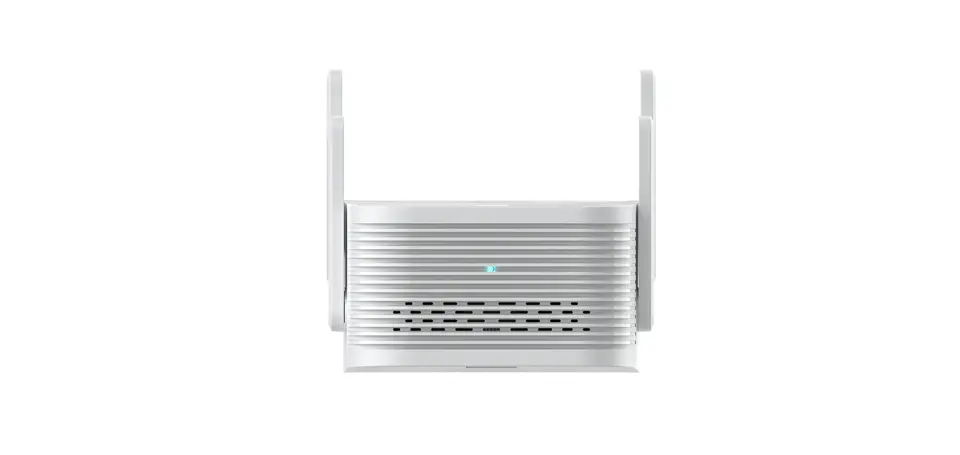
- Receive data signal from the cloud server and transmit to the main device;
- Receive data signal from the main device and transmit to the cloud server;
- To achieve remote upgrade the WIFI module baseplate MCU by cloud server;
- To achieve the remote upgrade of the main device by WIFI module baseplate MCU.
Technical Parameters
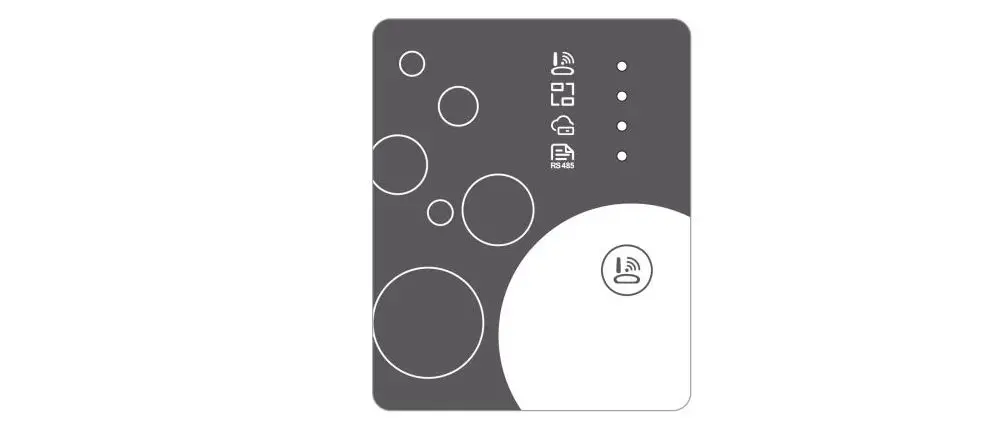
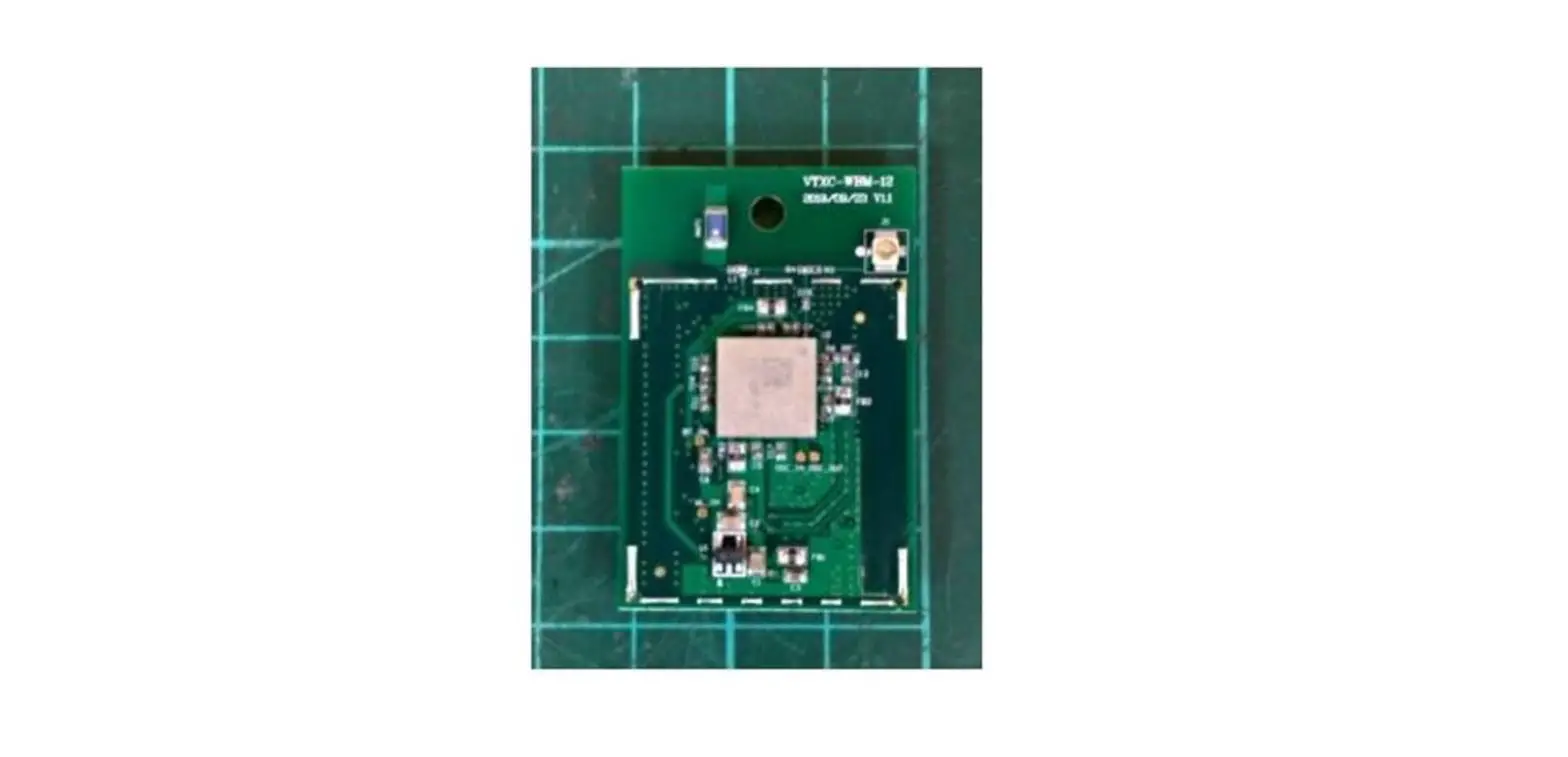
OPERATING VOLTAGE: DC8V-12V (Recommended value 12V) OPERATING CURRENT: Max. recurrent peak 1A, average standby current 50mA TEMP. RANGE: Operating Temp.: -30 C -4.70 C; Storage Temp.: -40 C -+85 LED INDICATOR LIGHT: 4 lights, Network configuration indicator, router connection indicator, cloud server connection indicator, 485 communication indicator; DIMENSION(LxWxH): 78mmx63mmx24mm
Installation
- There is a magnet on the back of the WIFI module. it can be installed indoors or outdoors, and avoid direct sunlight;
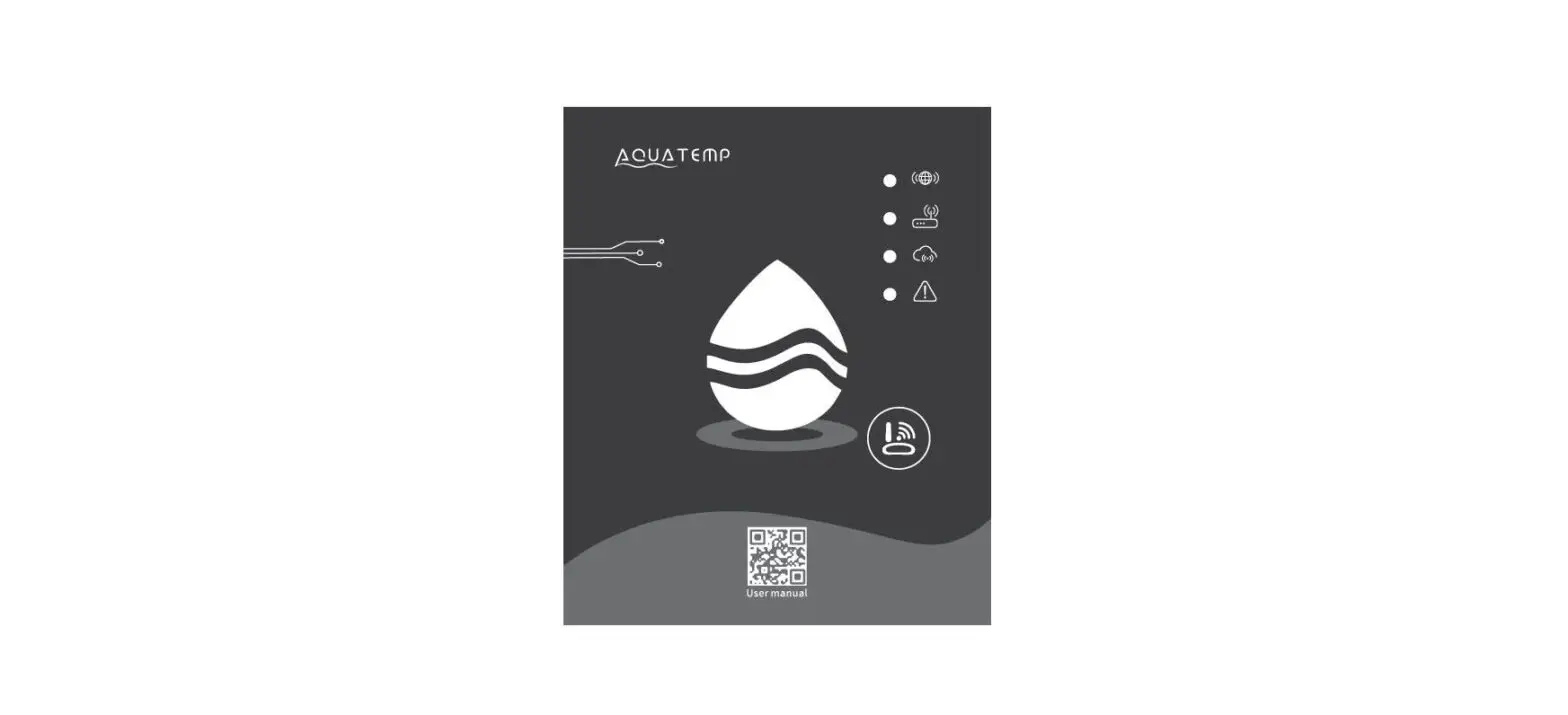
- Please scan the following OR code to download APP;

http://cloud.linked-go.com:84/PiscinaTemp
Functional Description
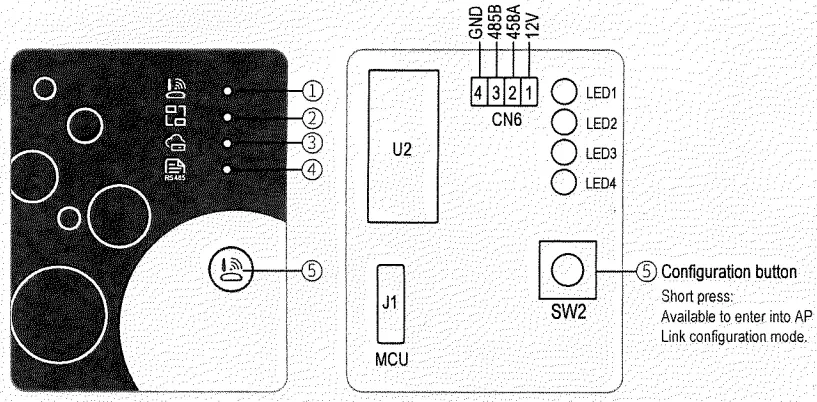
| ITEM | NAME | LONG LIGHT | SLOW FLASH | EXTINGUISH |
| 1 | Network configuration indicator | Configuring Network | SmarILInk configuring | Done |
| 2 | Router connection indicator | Normal | Abnormal | |
| 3 | Cloud server connection radiator | |||
| 4 | 485 communication indir.mor |
Account Login
Use the email address and password to register, login, or reset the password.
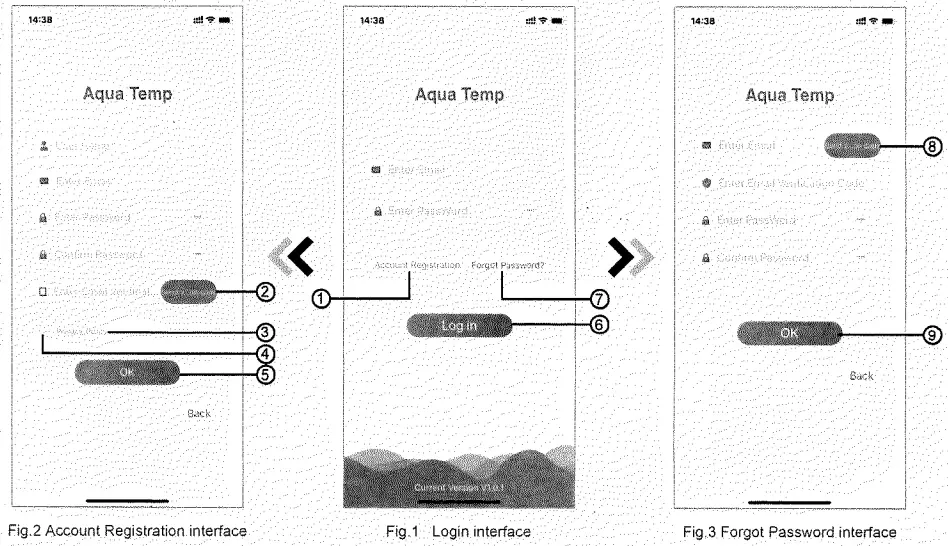
- Account Registration: To register an account, click 1 (Fig.1) to jump to the Account Registration interface, fill in the relevant information, and click 2 to receive the verification code, while completing the application information, click 3 to read the details of the Privacy Policy, then dick 4 to agree, and click 5 registration is done. Please note, the valid time of one verification code is 15min, please fill in the verification code within 15min, otherwise, you need to ask for a new one.
- Login: Follow the instructions on the page(Fig.1 ), enter your registered email address and password, dick 6, and jump to devise list;
- Forgot Password: While forgetting your password. click 7 (Fig.1 ). jump to the Forgot Password interface (Fig.3 ). Follow the instructions on the page. fill in the relevant information, click 8 to receive verification code from your mailbox, click 9 to confirm, and password reset is done.
Add Device
After logging in, displays the My Device interface (Fig. 4). follow the instruction to add WIFI or DTU.
 WIF1 Configure Network
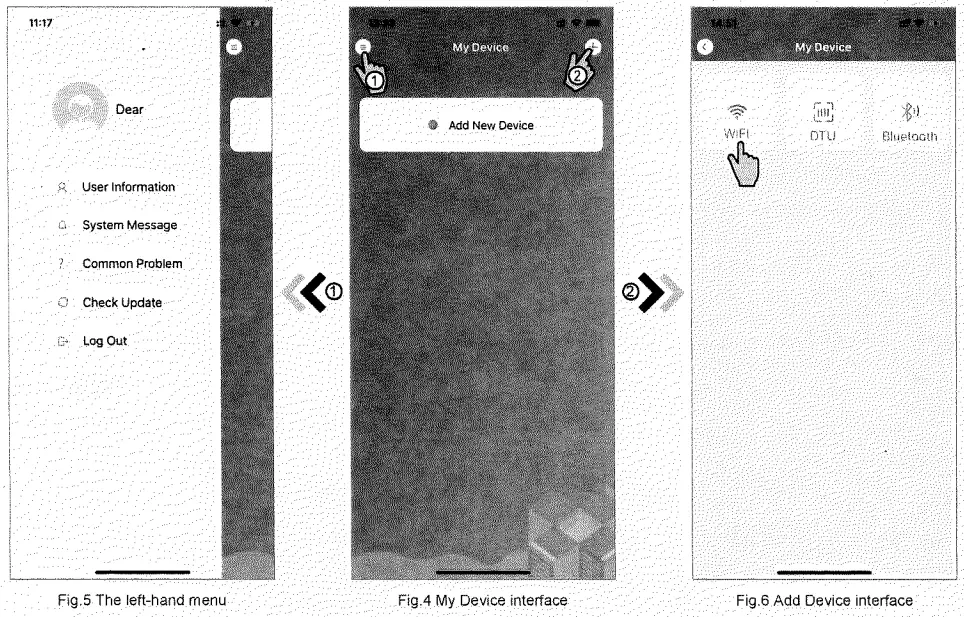 WIF1 Configure Network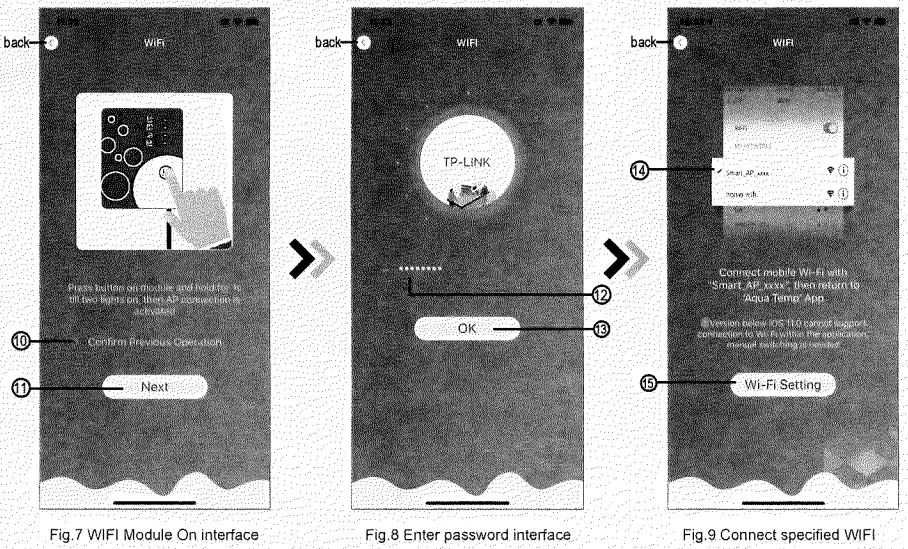
- Follow the instructions on the page (Fig.7), press the button on the module, and hold for ls till two lights are on. then AP connection is activated. click 10 to confirm, click to turn the page;
- Click 12 to enter the WIFI password for the current connection, click 13 to confirm;
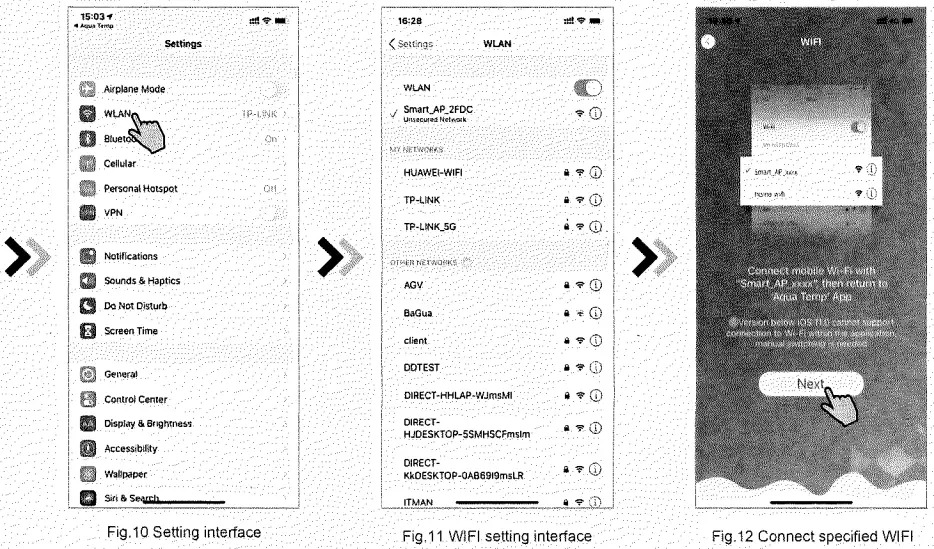
- Jump to system settings, connect specified ‘WIFI, click 14 to select the “Smart_AP_xxx”, click 15 to popup window(Fig.10), follow the instruction and then jump to WIFI setting interface(Fig.11);


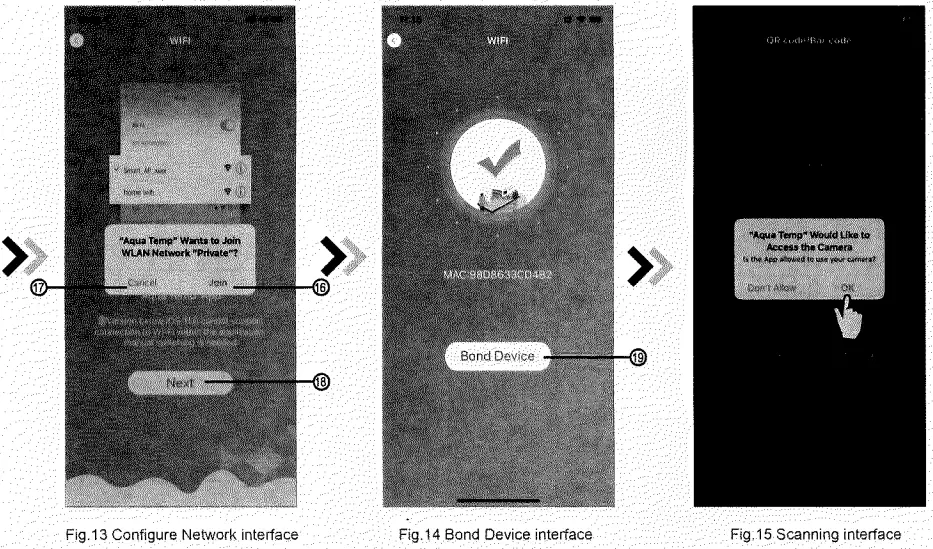
- Slide the page back to configure network interface (Fig. 12), click 16 to join WLAN Network, click 17 to cancel, dick 18 to turn next page(Fig. 13); click 19 to bond device (Fig. 14);
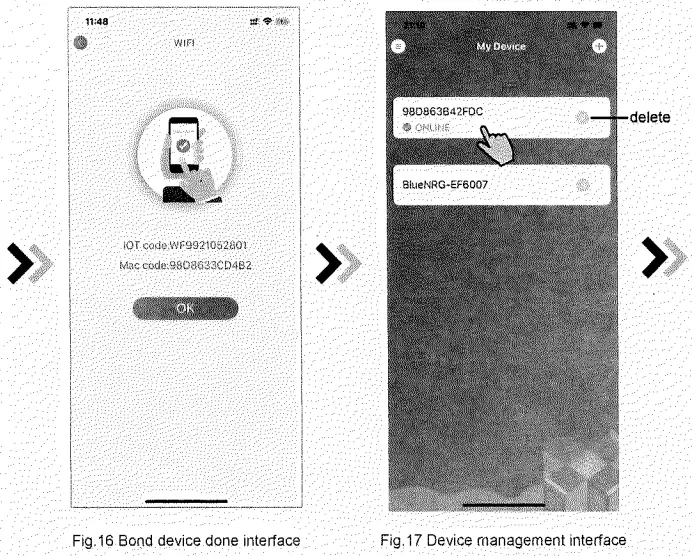
- Click “OK to allow this APP to use the camera for scanning the barcode on the heat pump unit (Fig.15): click ‘OK”, device bond is done (Fig.16);
- After WIFI and DTU bonding is done, jump back to My Device(Fig. 17).

Device Management
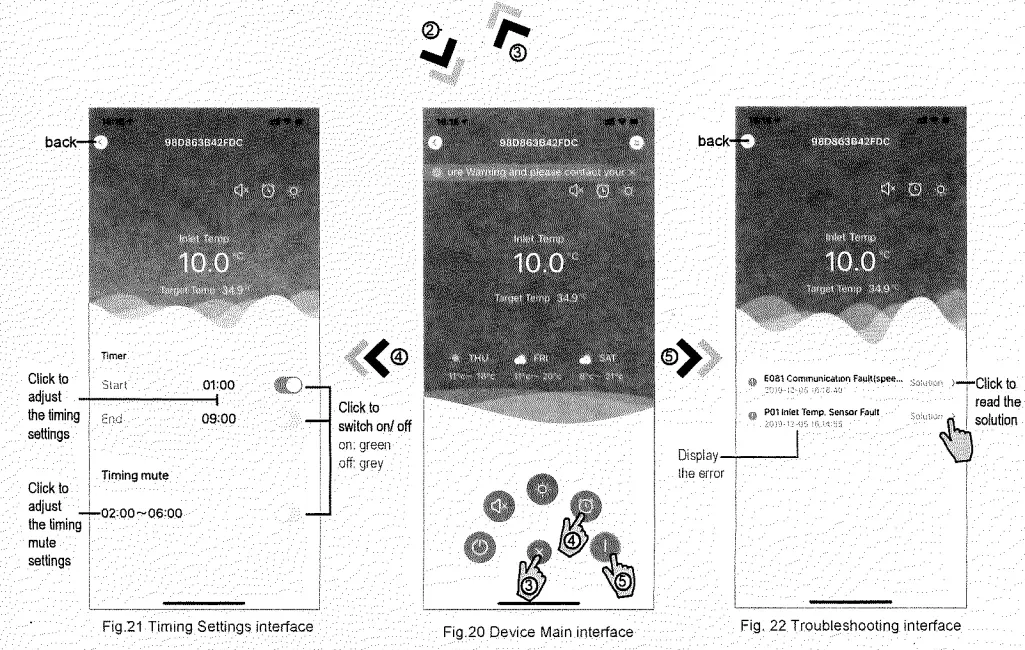
Device management operations are as below :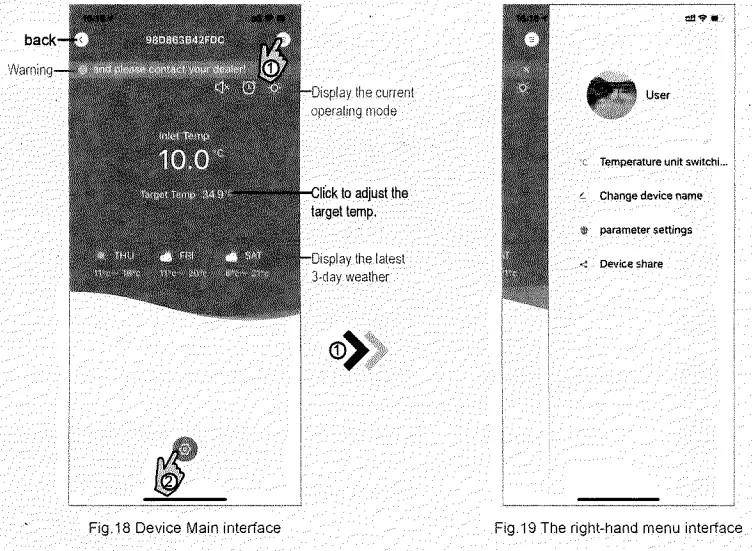
| ICON | NAME | FUNCTIONS |
 | ON/ OFF | Click it to turn on/ off the unit |
 | Silent Mode Off | Display silent mode off, click it to activate the silent mode |
 | Silent Mode On | Display silent mode on, click it to turn off the silent mode |
| Mode shift | Mode changing: Cooling—Heating–Auto | |
 | Cooling | Display Cooling mode. Click it to change the operating mode |
 | Heating | Display Heating mode. Click it to change the operating mode |
A | Auto | Display Auto mode. Click it to change the operating mode |
 | Timing settings | Click it to jump to the timer on/ off and mute timer setting interface |
 | Troubleshooting | Click it to jump to the troubleshooting interface |
 | Menu | Click to unfold or collapse the menu |