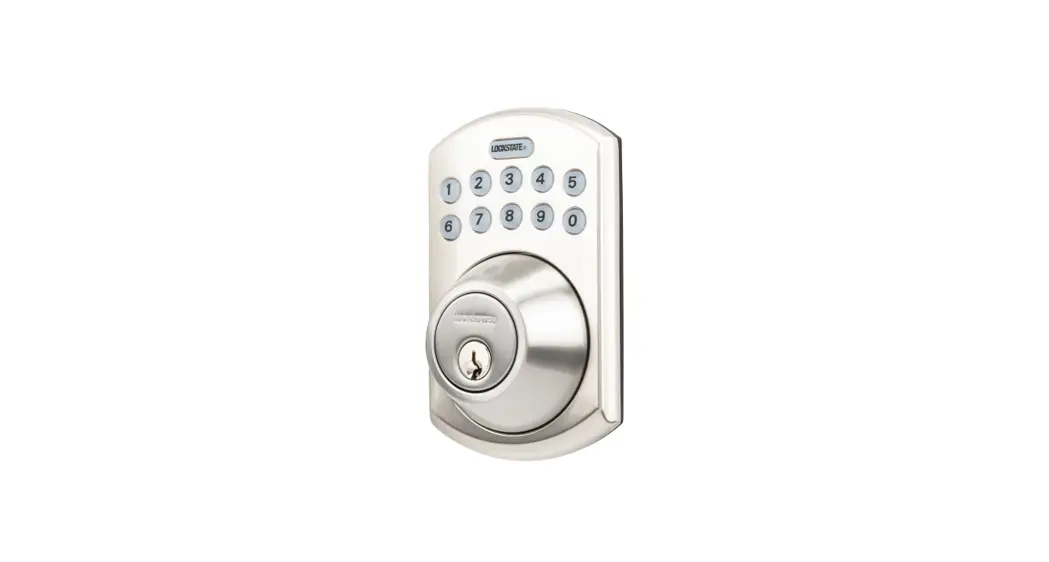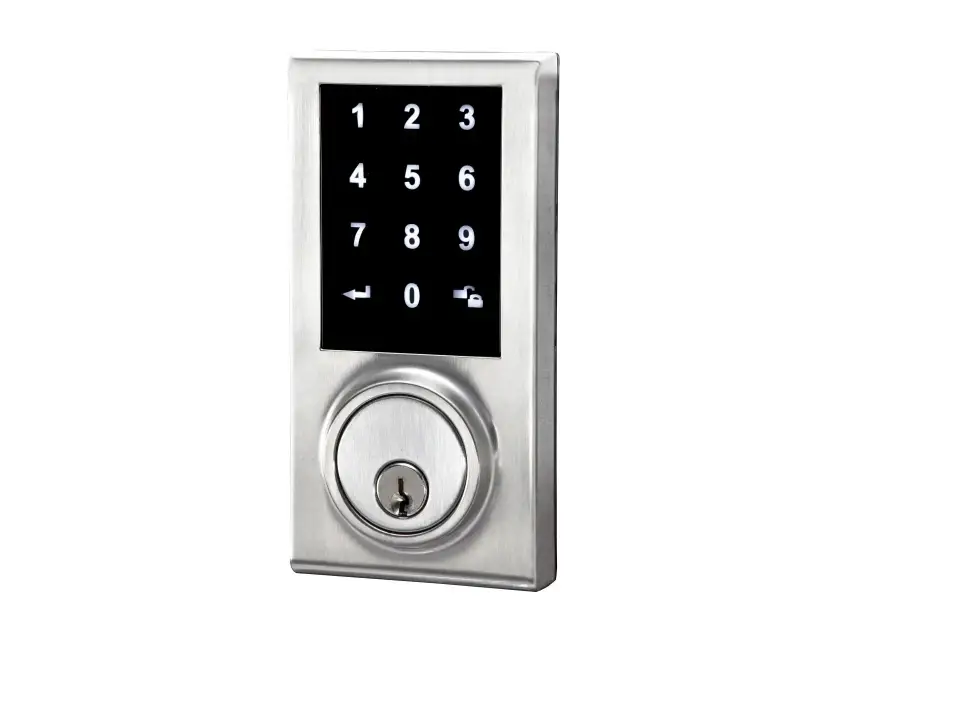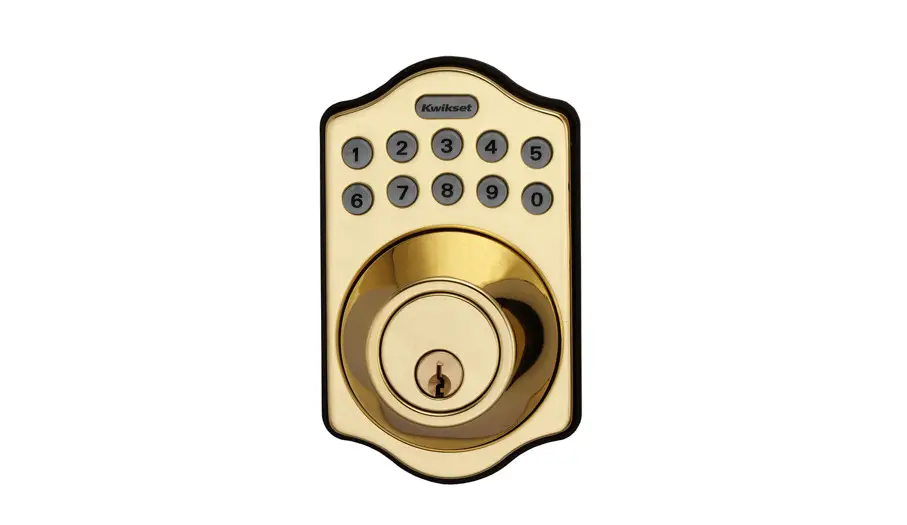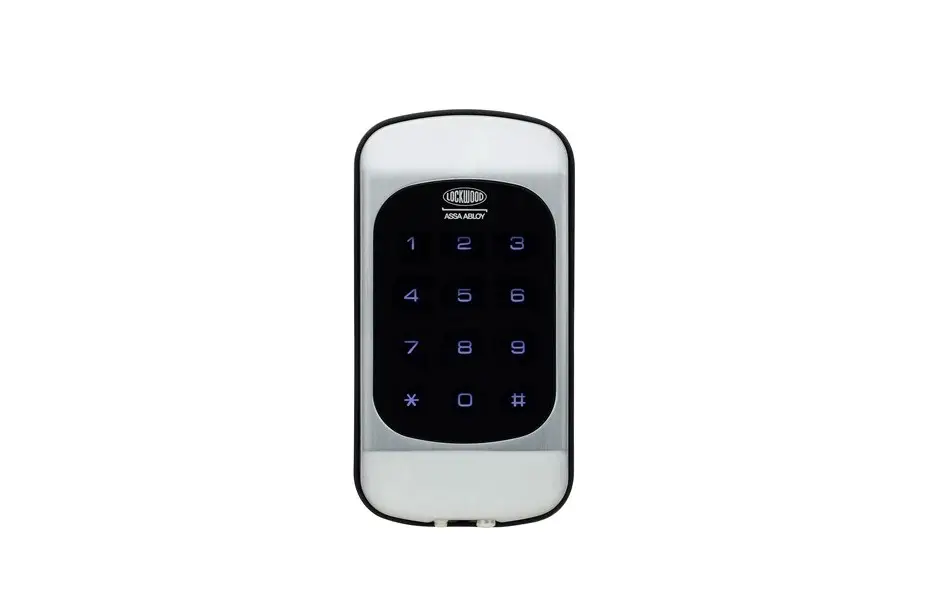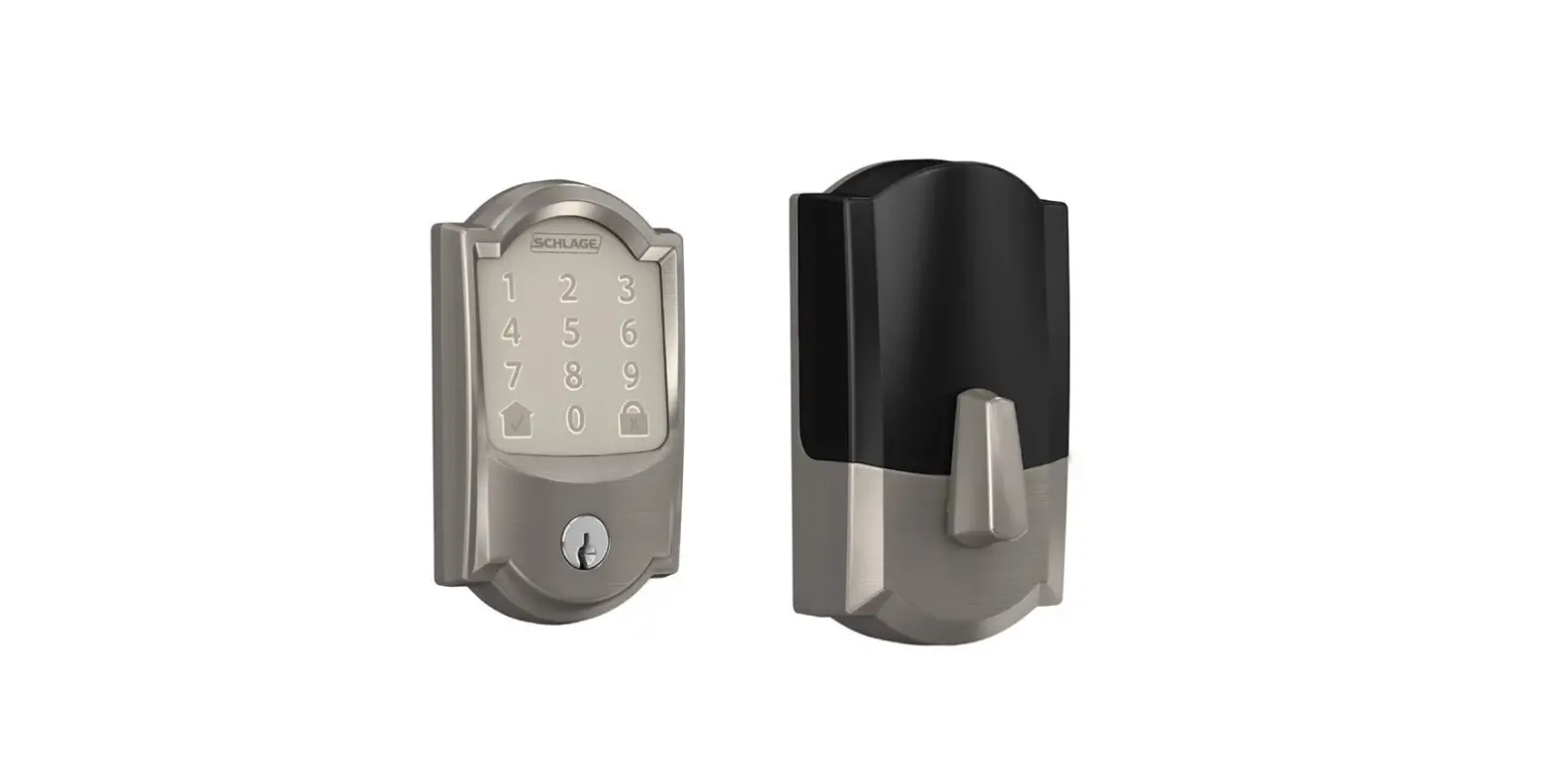
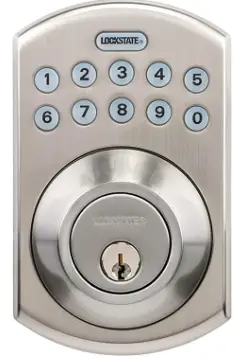
LockState OE-550DB-626 WiFi Deadbolt Satin Nickel
INSTALLATIONS INSTRUCTIONS
CONFIGURE LATCH BACKSET
The BACKSET is the distance between the center of cross bore and edge bore of the door. Adjustable latch fits both BACKSET of 2-3/8” (60mm) and 2-3/4” (70mm). Please follow the steps shown below for BACKSET adjustment.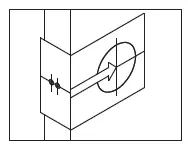
DEADBOLT BACKSET Rotate the latch case as diagram on the right for backset 2-3/4” (70mm) or reverse direction for 2-3/8” (60mm).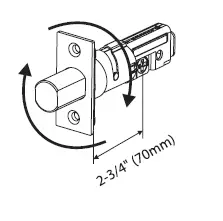
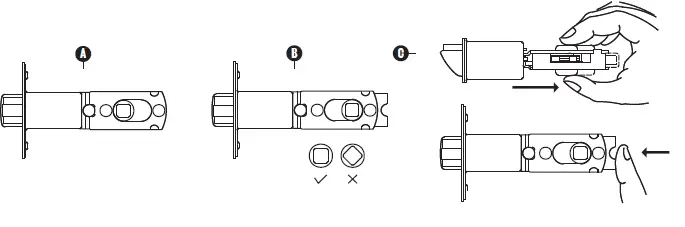
LEVER BACKSET
- The backset shown on the left is 60mm (2-3/8”).
- Pull the cam toward right to extend the backset to 70mm (2-3/4”).
- The backset shown in figure C is 70mm (2-3/4”). Pull the cam back to left will return the backset to 60mm (2-3/8”).

IDENTIFY DOOR HANDING
Face the door from outside, the door is left-handed if the hinge is on the left-hand side of the door, whereas the door is right-handed if the hinge is on the right-hand side of the door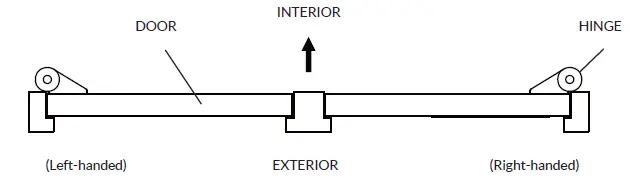
INSTALL LATCH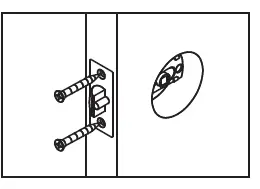
INSTALL STRIKE
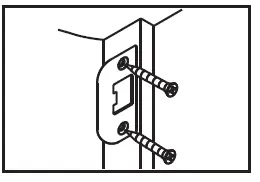
INSTALL KEYPAD ASSEMBLY
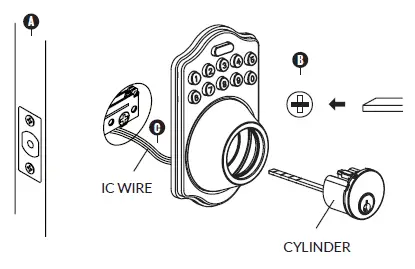
DEADBOLT KEYPAD ASSEMBLY
- Ensure the latch bolt is retracted.
- Please refer to diagram B for cylinder installation.
- Place deadbolt against keypad with tailpiece in horizontal position inserted through hub of the latch.
- Pass the IC wire under the latch to the interior side of the door.

LEVER KEYPAD ASSEMBLY
- Place the levers against the keypad with the tailpiece in vertical position inserted through cam of the latch.
- Pass the IC wire over the latch to the interior side of door

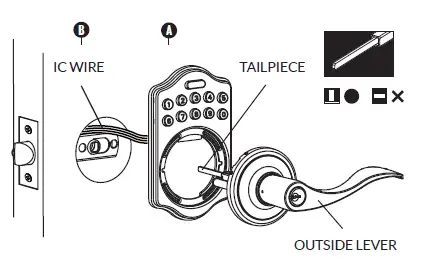
INSTALL INSIDE MOUNTING PLATE
Pass the IC wire through the wire hole on the mounting plate and affix the mounting plate with screws. If outside lock assembly is lopsided, please loosen the screws to adjust it’s position and tighten the screws again.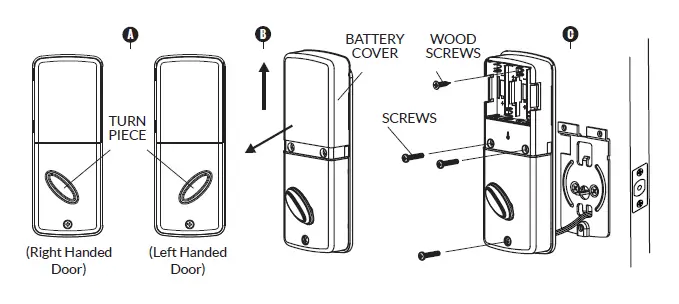
INSTALL RECEIVER MODULE
- Adjust turn piece as shown in diagram A.
- Remove the battery cover (push it up and pull it out).
- Connect the IC wire then attach receiver module to the door with screws. It’s optional to use the included wood screw (wood screw only for wood doors

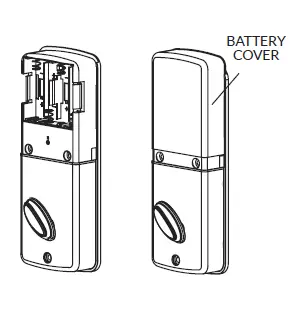
LEVER RECEIVER INSTALL
- Remove the battery cover (push it up and pull it out).
- Connect the IC wire then attach reciever module to the door with screws. It’s optional to use the included wood screw (wood screw only for wood doors).
INSTALL BATTERIES
Insert 4 AA Alkaline or Lithium batteries and put the battery cover back on the receiver module. Do not use rechargeable (NiCD, NiHM, LiPo, etc.) batteries or batteries with a voltage rating of under/over 1.5v * Please Note: Deadbolt model will not function until door handing is programmed on the lock (pg.8)
CHANGE LEVER HANDING
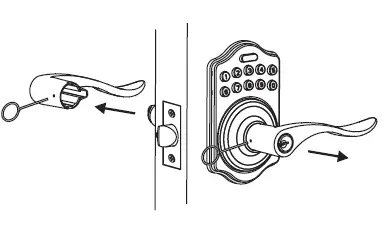
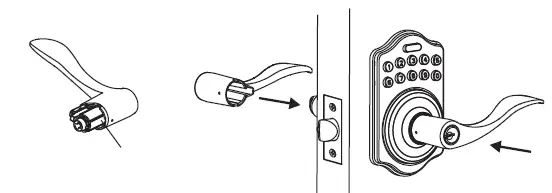
- Be sure the levers are unlocked. Insert the provided pin wrench into the small hole on the neck of lever and apply pressure to depress the catch and pull out the lever from the stem. Follow the same steps to remove interior lever and exchange the position of inside and outside levers.

- Remove the cylinder from lever and insert it into opposite lever. Then install the levers and make sure the small hole on the neck of lever aligns over the catch perfectly. Rotate the levers to see if it operates well.

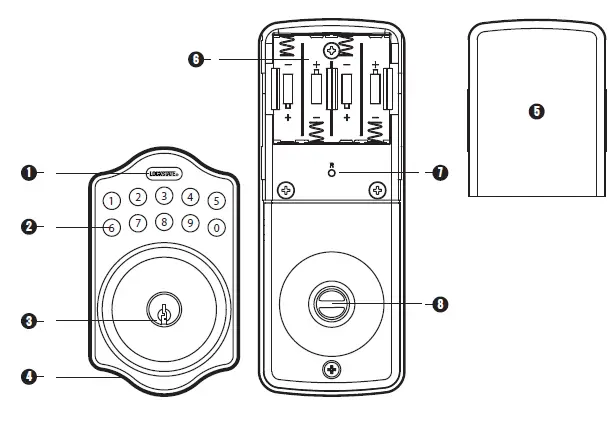
LOCK OVERVIEW
- LOCKSTATE BUTTON
- The LockState Button is utilized for entering codes and setting functions. It’s also a lock button.
- NUMBER BUTTONS
- Input buttons for codes and function programming.
- CYLINDER
- Lock/Unlock the lockset from exterior.
- GASKET
- Prevent water permeating into lockset.
- BATTERY LID
- Slide the lid to change the batteries.
- BATTERY HOLDER
- Four AA (1.5v) Alkaline or Lithium batteries only.
- R BUTTON (RESET)
- Restores default settings.
- TURN-BUTTON
- Lock/Unlock the lockset from interior.
SPECIFICATIONS/FUNCTIONS
- Power: 6v, four AA (1.5V) Alkaline or Lithium batteries only. Low battery warnings at 4.25V and 3.75V
- Programming Code (PC): The preset programming code is 123456. Please change it to a new code for security. Programming code length is 4-10 digits.
- Local Codes: Codes that are programed using the programming code at the lock. There is a limit of 10 in memory and the code 1234 is programmed by default. Local code lengths are 4-10 digits.
- User Codes: Codes that are programed using the web portal and can be configured to follow an access schedule. User code lengths are 4-10 digits.
- Auto-Lock / Storehouse Mode: The lock will automatically relock itself after the specified delay following an unlock. Default delay is 5 seconds. Enabled by default on all lever models.
- Passage Mode: The lock will remain unlocked after a code is entered. Enabled by default on all deadbolt models..
Audio Indications
- beep indicates successful operation or button press
- beeps indicates successful programming
- beeps indicates operational or programming error
- beeps indicates 4.25V low battery warning
- beeps indicates 3.75V low battery warning
Illuminated Indications
- green flash indicates successful operation or button press
- green flashes indicates successful programming
- red flashes indicates operational or programming error
- red flashes indicates 4.25V low battery warning
- red flashes indicates 3.75V low battery warning
- Orange flashes indicates lock is in the middle of a programming sequence
Restore Factory Defaults
Preset factory settings can be restored by pressing and holding the “R” button on the battery pack within 10 seconds of power cycling the lock (removing and reinserting a single battery).
Deadbolt Door Handing
Directional instructions for the deadbolt to correctly set locked/unlocked positions. Required programming during initial setup or after a factory reset for deadbolt models only.
Unlocking the door
The lockset will become unlocked by key, by entering a user/local code followed by LockState on the keypad, or by interior turn knob.
Locking the door
The lockset will become locked by key, by pressing the LockState button twice, or by interior turn knob
FUNCTION PROGRAMMING
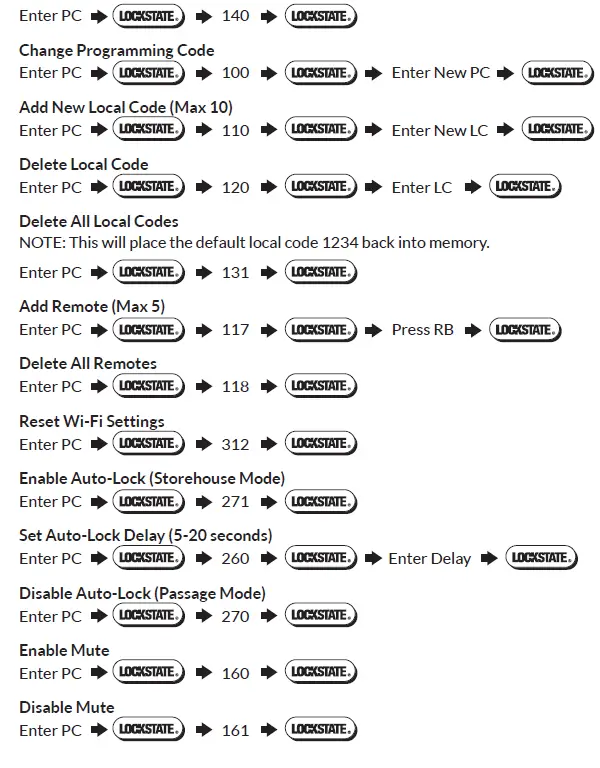
ELECTRONIC DEADBOLT & LEVER LOCK
 INSTALL LOCK
Refer to pages 1-4 for installation
SET DOOR HANDING (DEADBOLT LOCK ONLY)
NOTE: Place deadbolt in the “unlocked” position for this step. Lock may not operate until this setting has been programmed during initial setup or after factory reset. Default Programming Code is 123456.
WI-FI PROVISIONING
Refer to the separate Provisioning Guide for instructions on setting up the lock to connect to your Wi-Fi network for internet access.
OPERATING THE LOCK
Unlocking the door
The lockset will become unlocked by entering a user/local code on the keypad followed by LockState, by key, or by interior turn knob.
Locking the door
The lockset will become locked by pressing the LockState button twice, by key, or by interior turn knob.
FAQS
How do you program a Lockstate deadbolt?
Enter your PROGRAMMING CODE followed by the LOCKSTATE button, 110 followed by LOCKSTATE, and then enter your desired LOCAL USER CODE followed by LOCKSTATE
How do you use a Lockstate lock?
Insert the key and turn counter-clockwise 3 to 5 full rotations until the outside door handle engages the latch
How do you reset an automatic deadbolt?
Slide up the cover to open the back of your lock, exposing the buttons beneath. Push and hold the reset button for 10 seconds, until the lock beeps.
How do you activate the auto lock feature?
Tap the Settings Gear Icon in the lower right-hand corner on the lock circle screen. Select the lock from the devices shown
Why is my deadbolt not working?
Door lock problems are often caused by a malfunctioning lock mechanism or latch assembly, but there are several common reasons why locks stop working
Why is my automatic lock not working?
This is one of the most common reasons why your car door lock is not working
Your Smart Lock automatically locks your door for you
Press the Unlock button, then press Lock again. The horn will beep once to tell you that Auto Lock was deactivated. It will beep twice if you’re reactivating the system.
Yes! Almost any car model can be outfitted with a walk-away lock system!
it automatically locks the doors of your Honda when you walk away from your vehicle with the key fob
The holes are already drilled, so replacing a deadbolt yourself is easy. Just buy a new deadbolt and put it in according to the manufacturer’s instructions.
A physical key is any key that physically holds the code needed to open the lock. Tokens, such as keycards are not physical keys. Digital locks that do not use physical keys can still be manipulated
you will only need a lock, screwdriver and lubricant for an easy process.