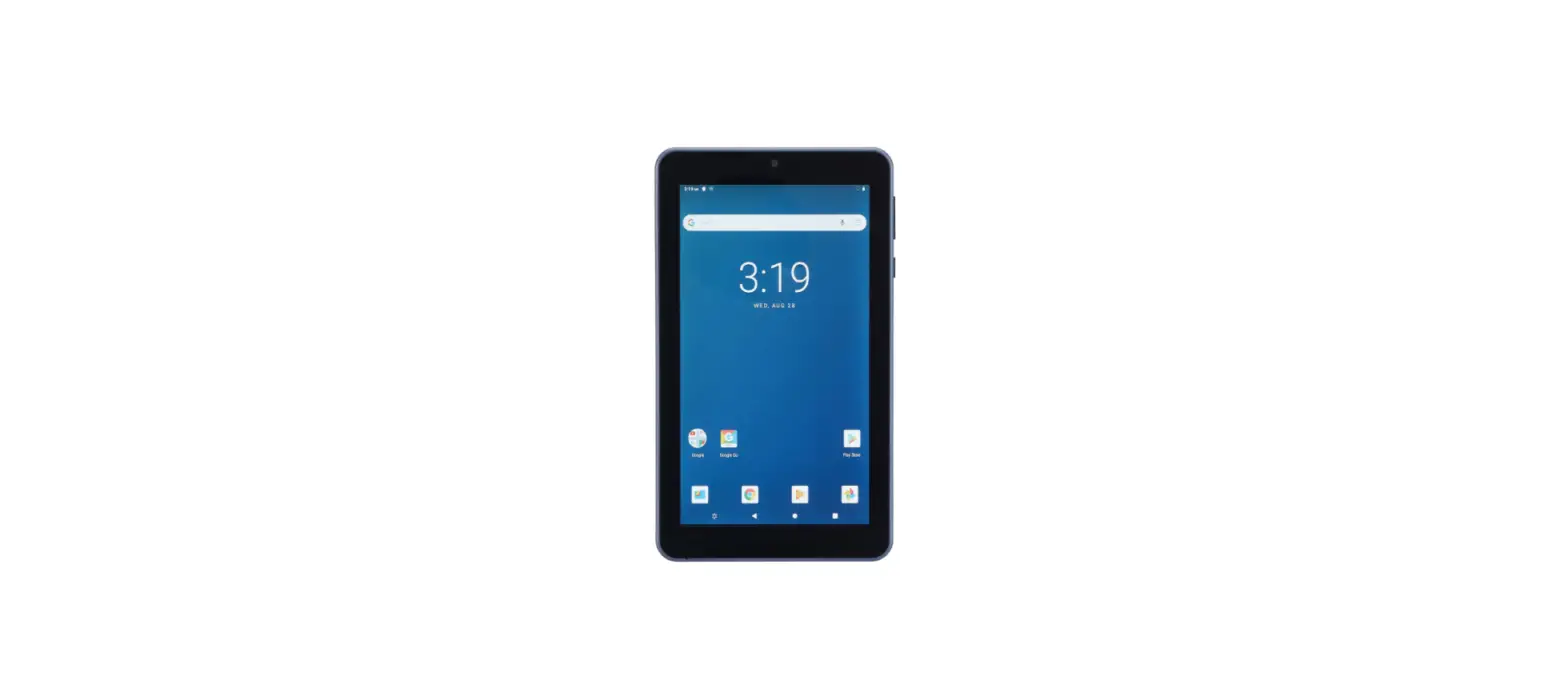
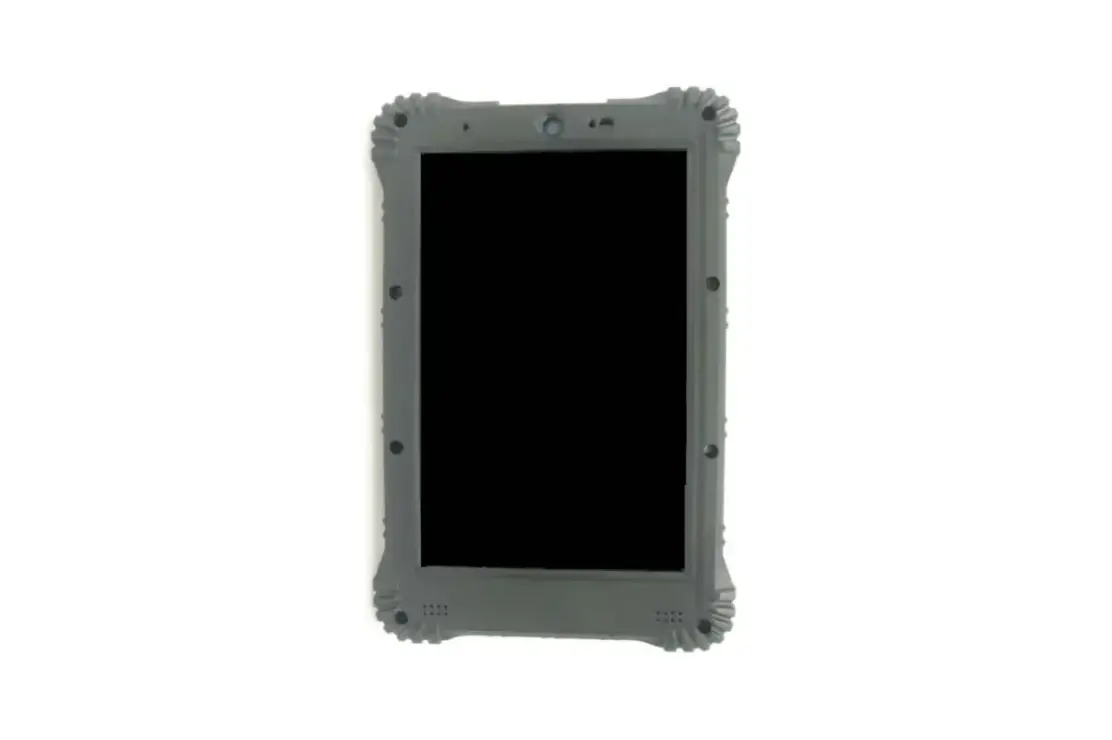
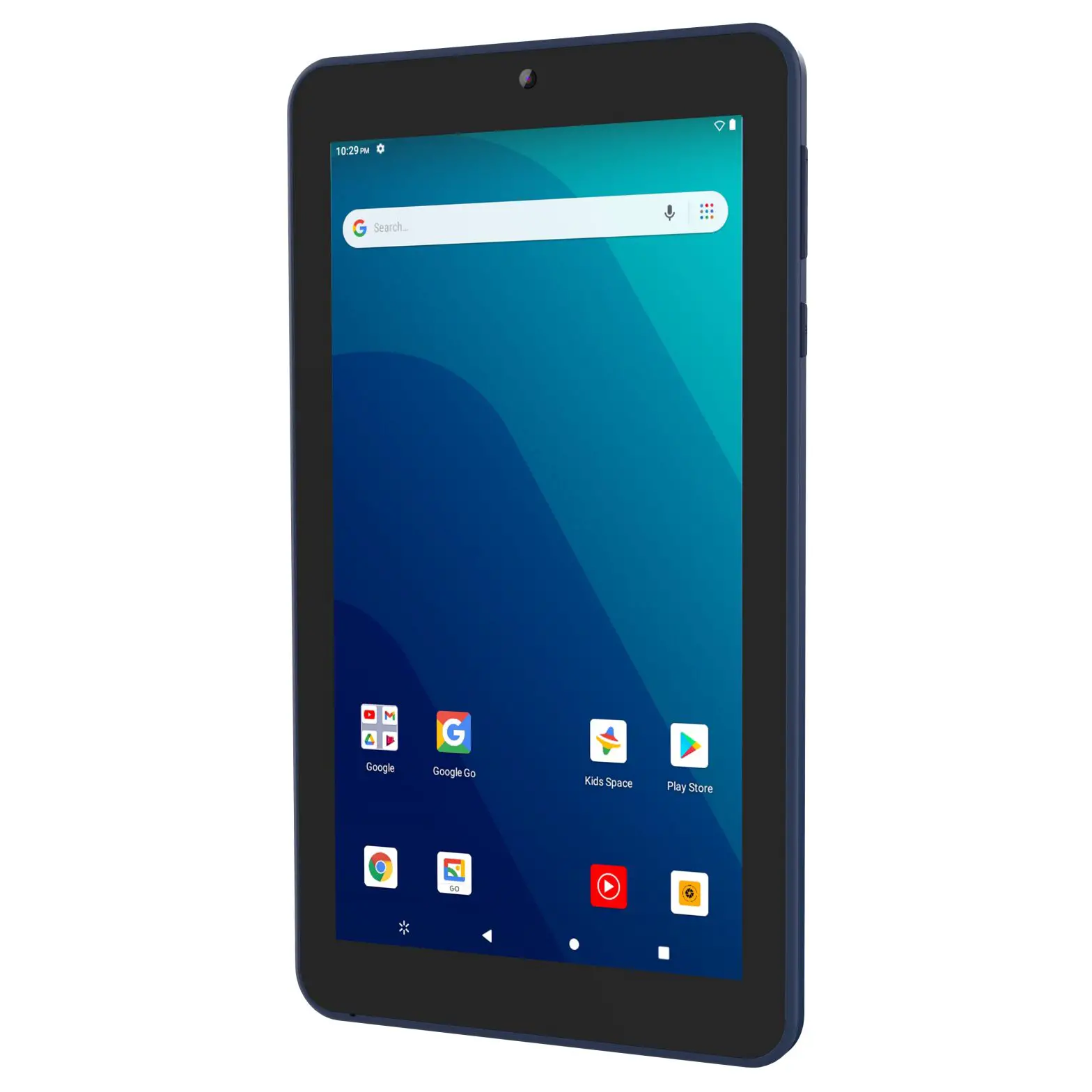
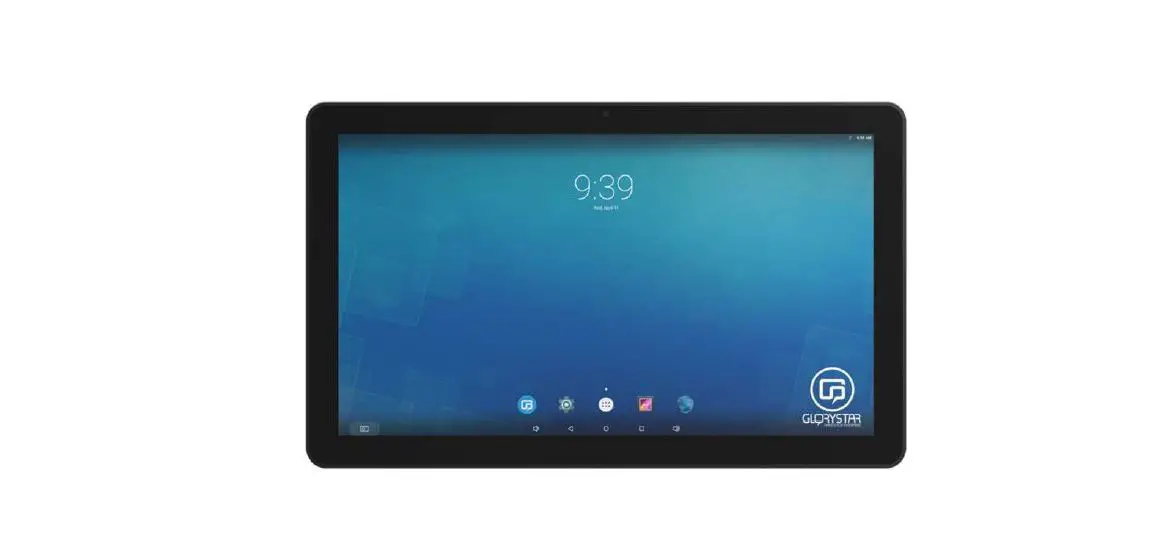
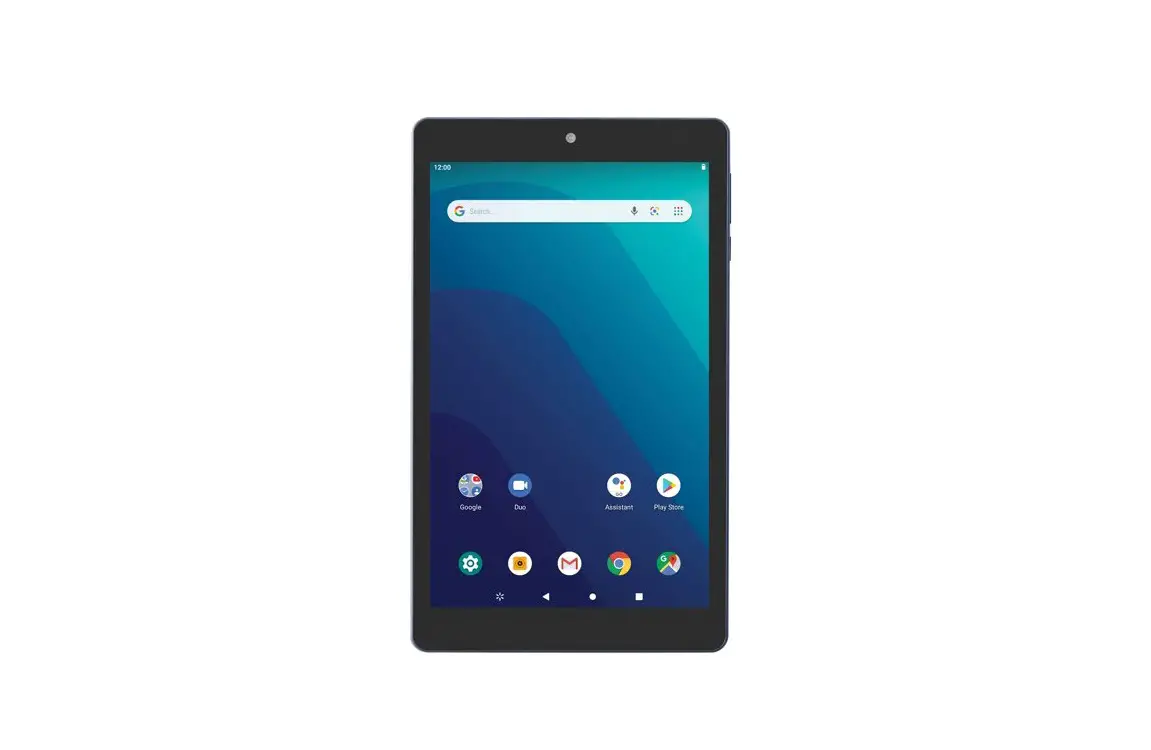
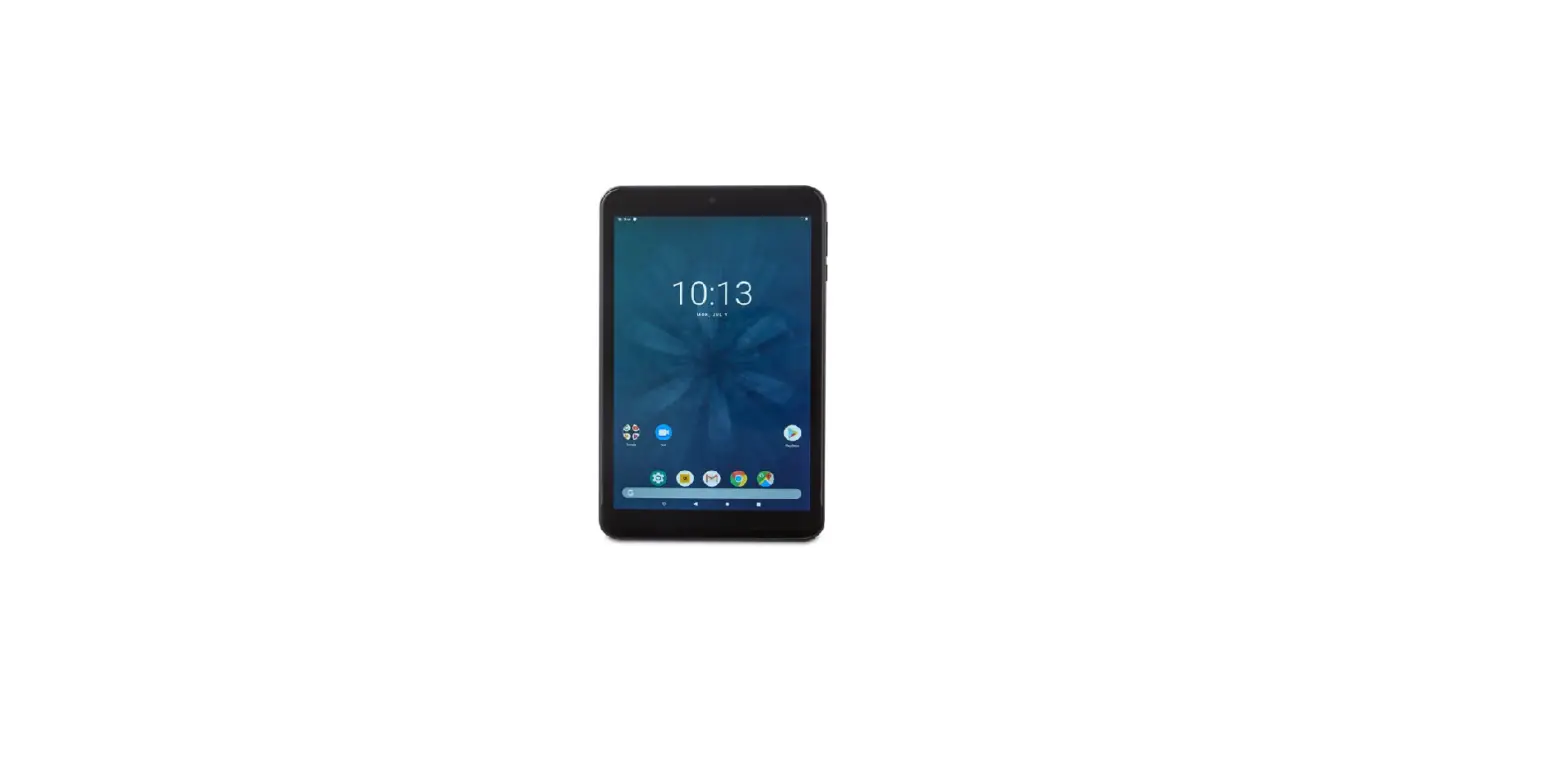
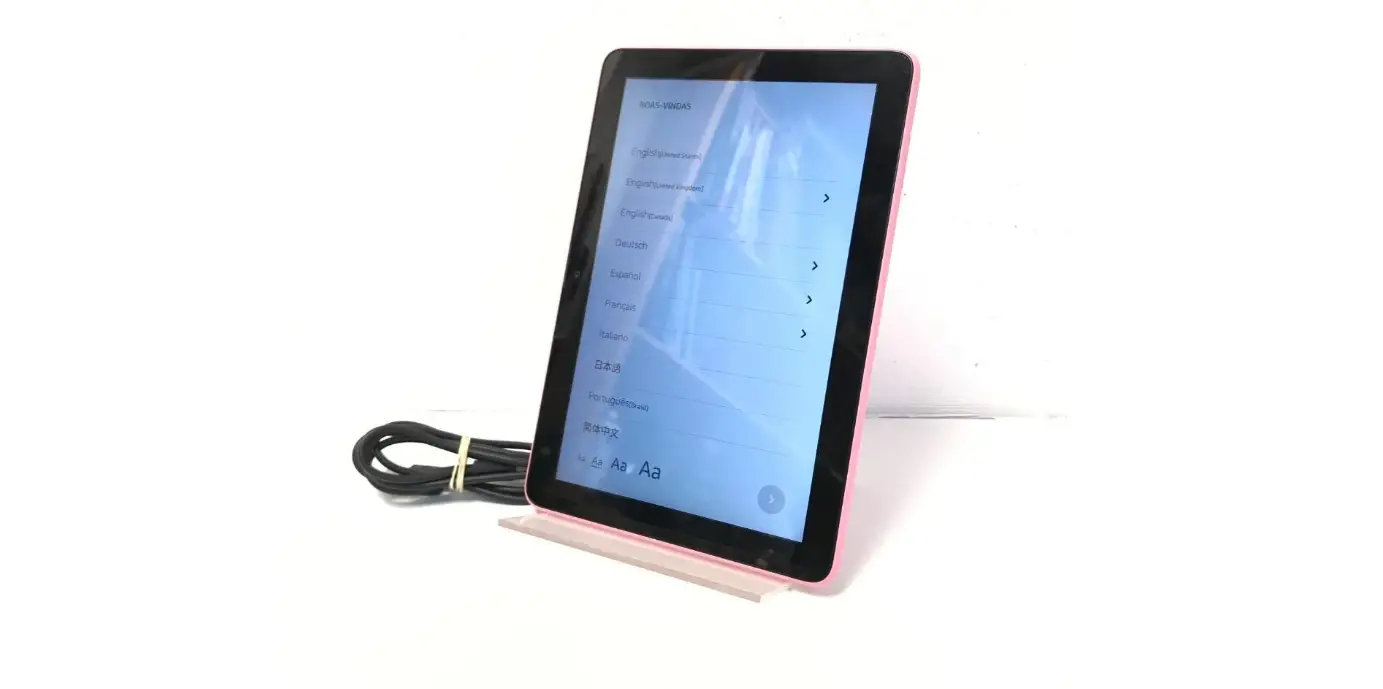
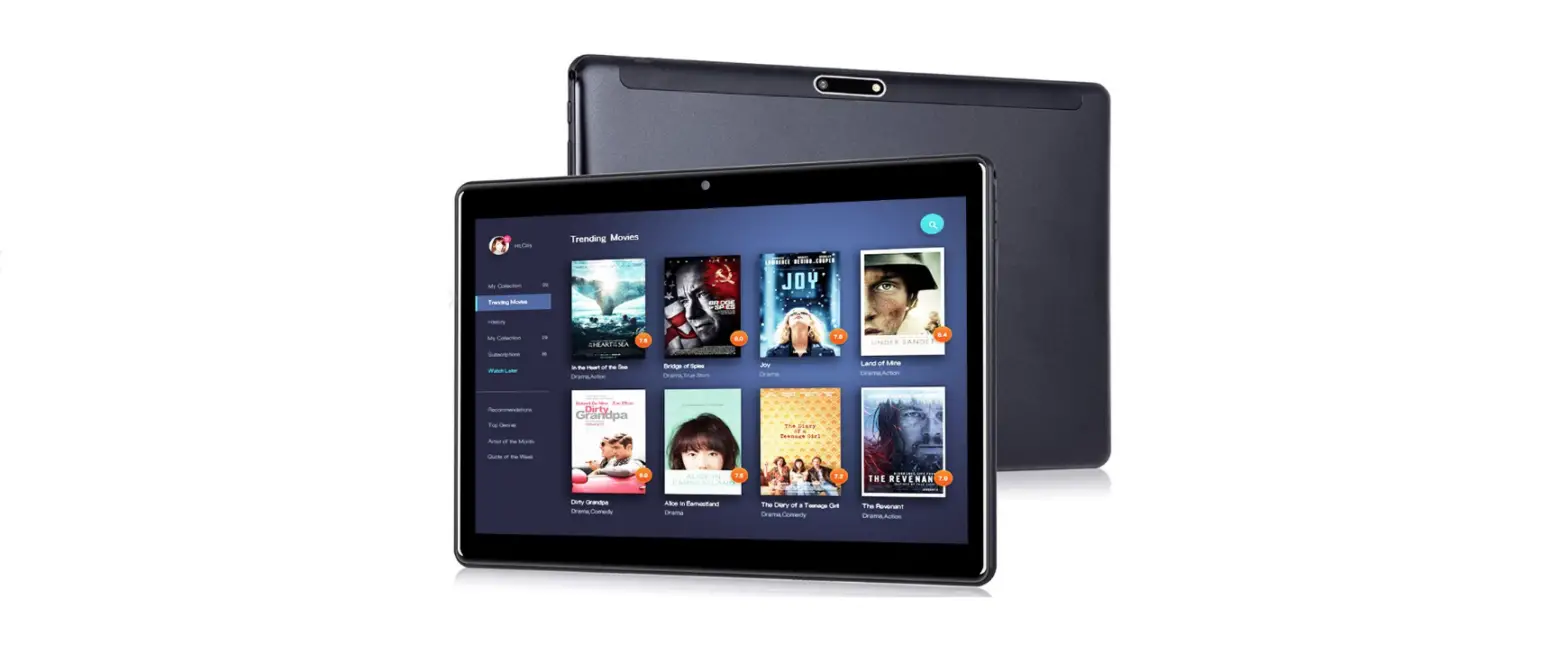
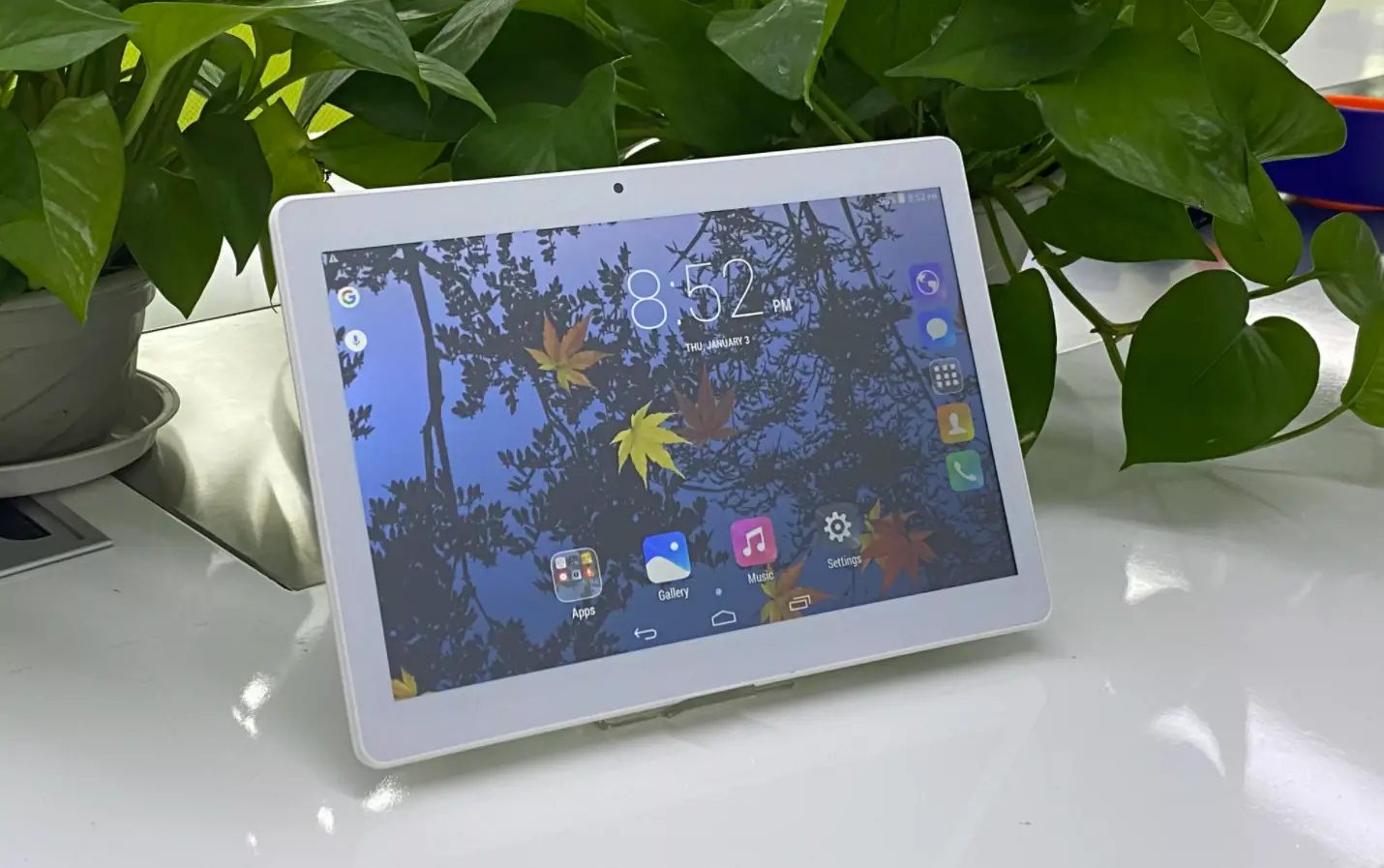
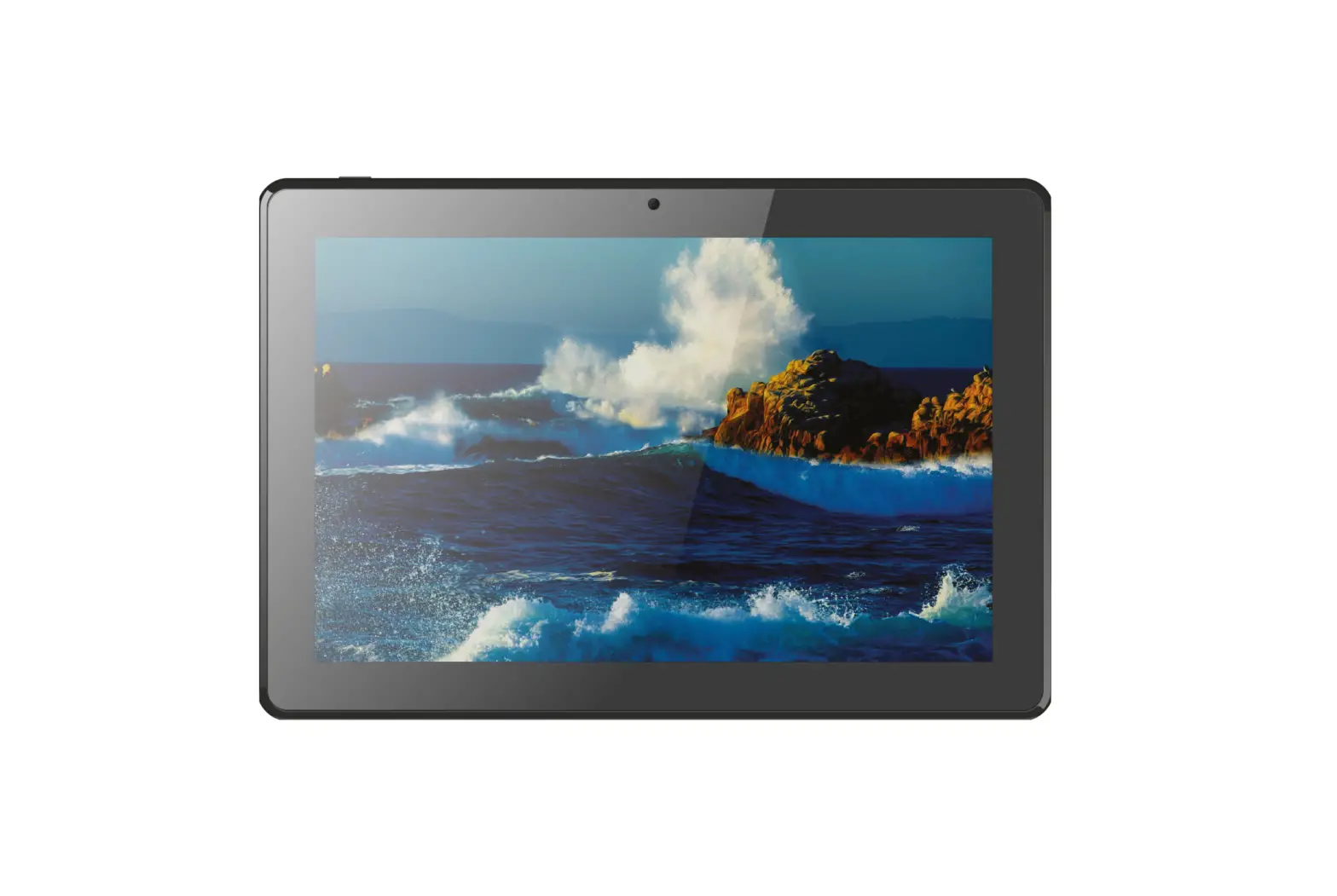
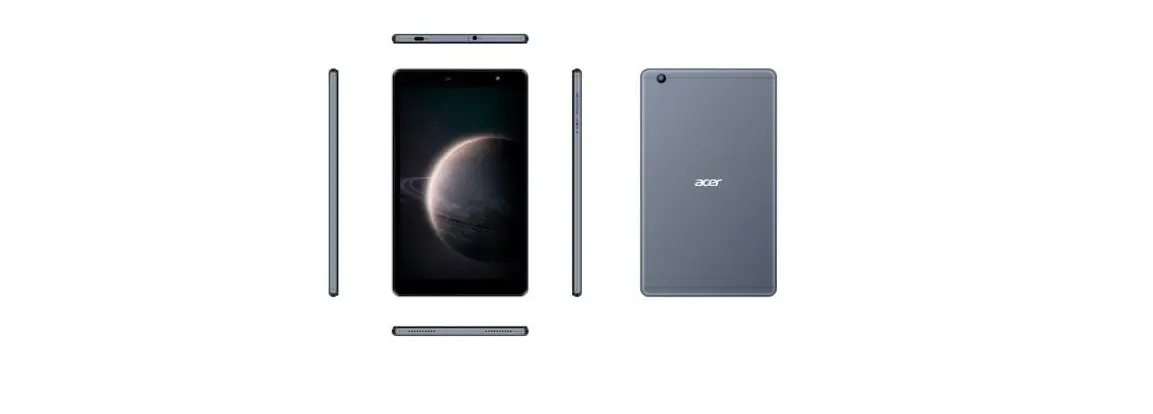
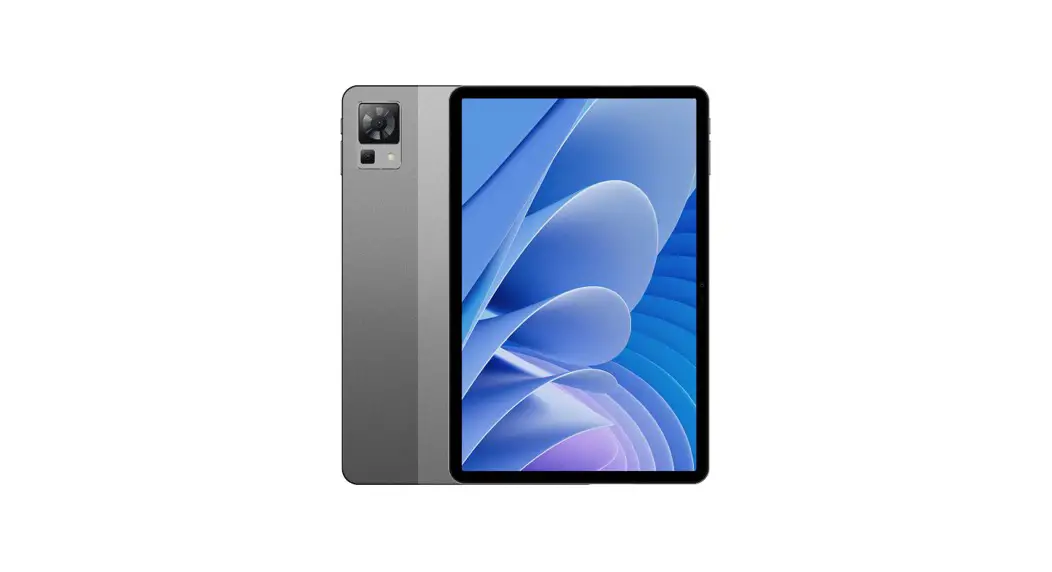
N08 8 Inch Tablet
Product Information
| Manufacturer | DONGGUAN HUIMINGXIN ELECTRONIC TECHNOLOGY CO.,LTD |
|---|---|
| Model | N08 |
| Product Name | Smart life |
Function Overview
| Number | Function |
|---|---|
| 1 | Power On/Off |
| 2 | Volume Buttons |
| 3 | USB port |
| 4 | Micro SD card slot |
| 5 | Front camera |
| 6 | Speakers |
| 7 | Earphone Jack |
| 8 | Rear camera |
| 9 | Flashlight |
Product Usage Instructions
Getting Started
1. Power On/Off
Press and hold the power button for 2-3s to turn on your tablet.
Select your language and set up your tablet following the start
guide.
Press and hold the power button for 2s, then release it. It will
show Power off / restart and screenshot on the screen.
Click Power off to turn off the tablet.
Press and hold the power button for 10s to force reboot when
it’s frozen.
2. Battery
A rechargeable Li-ion battery is installed in the tablet.
DO NOT attempt to replace the tablet battery by yourself because
you may damage the battery, which might cause overheating, fire, or
injury.
DO NOT dispose of the tablet in a fire.
DO NOT expose the tablet battery to any heat source, direct
sunlight, or high temperature.
Please use a 5V 2A power adapter to charge your tablet. Good
charging habits could prolong battery life.
We suggest you charge the battery completely once a month if you
only use your tablet occasionally.
The Li-ion battery in your tablet should be serviced or recycled
by an authorized service provider, and must be recycled or disposed
of separately from household waste.
Dispose of the battery according to your local environment laws
and regulations.
3. Sleep Mode
Simply press the power button once to switch the tablet to Sleep
Mode when the tablet is ON; press again to wake it up.
Tips: Go to Settings — Display — Sleep to set the time of
entering Sleep Mode.
4. Screenshot
Press the Volume – button and the Power On/Off button for 2
seconds to capture a picture.
Press and hold the power button for 2s, then release it. It will
show Power off, Restart, and Screenshot on the screen.
Tap Screenshot to capture.
Home Settings, Widgets, and Wallpapers
Tap and hold a blank part of the home screen to display the home
screen settings and wallpaper.
1. Homepage Setting:
- Add icons to the home screen: Allow new applications installed
from the Google Play to be displayed on the home screen - Main screen loop: Allow continuous main screen sliding
- Pull – down action: Select an action when swiping down on the
main screen
2. Wallpaper:
Click on the wallpaper to change the current wallpaper from the
default wallpapers
Setting Basics
1. Quick Settings
Swipe down from the top of the screen to access Quick
Settings.
- WIFI: Tap to connect/disconnect to a wireless network.
- Bluetooth: Enable/disable the Bluetooth of the tablet.
- Do not disturb: Mute sound and stop vibration after enabling
this function. - Turn on/off the Auto-rotate of the screen. Tap to choose the
power setting you prefer to save the battery time. - Airplane mode: Turn on/off all the network connectivity.
- Screen Recor. When this option is enabled, the screen will
start recording video of interface operation. - Location: Enable/disable location access.
- Flashlight: It can be used for lighting.
Tap the icon to change the options in the Quick Settings. Long
press each icon to enter the interface of its detailed
settings.
DONGGUAN HUIMINGXIN ELECTRONIC TECHNOLOGY CO.,LTD
USER MANUAL
N08
Smart life
FUNCTION OVERVIEW
DONGGUAN HUIMINGXIN ELECTRONIC TECHNOLOGY CO.,LTD
1. Power On/Off 3. USB port 5. Front camera 7. Earphone Jack 9. Flashlight
2. Volume Buttons 4. Micro SD card slot 6. Speakers 8. Rear camera
1
DONGGUAN HUIMINGXIN ELECTRONIC TECHNOLOGY CO.,LTD
GETTING STARTED
1. Power On/Off
Press and hold the power button for 2-3s to turn on your tablet. Select your language and set up your tablet following the start guide. Press and hold the power button for 2s, then release it. It will show “Power off / restart
and screenshot on the screen. Click Power off to turn off the tablet. Press and hold the power button for 10s to force reboot when it frozen.
2. Battery
A rechargeable Li-ion battery was installed in the tablet. DO NOT attempt to replace the tablet battery by yourself because you may damage the
battery, which might cause overheating, fire or injury. DO NOT dispose of tablet in a fire. DO NOT expose the tablet battery to any heat source, direct sunlight or high
temperature. Please use a 5V 2A power adapter to charge your tablet, good charging habit could
prolong battery life. We suggest you charge the battery completely once a month if only use your tablet
occasionally. The Li-ion battery in your tablet should be serviced or recycled by an authorized service
provider, and must be recycled or disposed separately from household waste. Dispose the battery according to your local environment laws and regulations.
3. Sleep Mode
Simply press the power button once to switch the tablet to the Sleep Mode when the tablet is ON; press again to wake it up.
Tips: Go to Settings — Display — Sleep to set the time of entering the Sleep Mode.
4. Screenshot
Press the Volume – button and the Power On/Off button for 2 seconds to capture a picture. Press and hold the power button for 2s, then release it. It will show Power off, Restart and Screenshot on the screen. Tap Screenshot to capture.
HOME SETTINGS, WIDGETS AND WALLPAPERS
2
DONGGUAN HUIMINGXIN ELECTRONIC TECHNOLOGY CO.,LTD
Tap and hold a blank part of the home screen to display the home screen settings and wallpaper. 1. Click on the homepage setting to start customizing your home screen Add icons to the home screen: Allow new applications installed from the Google Play to
be displayed on the home screen Main screen loop: to allow continuous main screen sliding Pull – down action: Select an action when swiping down on the main screen. 2. Click on the wallpaper to change the current wallpaper from the default wallpapers
SETTING BASICS
1. Quick Settings
Swipe down from the top of the screen to access Quick Settings.
WIFI: Tap to connect/disconnect to a wireless network.
Bluetooth: Enable/disable the Bluetooth of the tablet.
Do not disturb: Mute sound and stop vibration after enabling this function.
Turn on/off the Auto-routate of the screen. Tap to choose the power setting you prefer to save the battery time. Airplane mode: Turn on/off all the network connectivity. Screen Recor. When this option is enabled, the screen will start recording video of interface operation Location: Enable/disable location access. Flashlight: It can be used for lighting Tap the icon to change the options in the Quick Settings. Long press each icon to enter the interface of its detailed settings.
3
DONGGUAN HUIMINGXIN ELECTRONIC TECHNOLOGY CO.,LTD
2. More Settings
Go to Quick Settings, then tap the icon to enter the detailed setting interface, or tap Settings App on the home screen to enter.
3. Network & internet
Connect to any working 2.4G WIFI Monitor the data usage Enable / disable the Airplane Mode Add VPN connections
4. Connected devices
Pair with Bluetooth devices and check the paired devices Turn on/off Bluetooth Add and check printers Check the received files from other devices via bluetooth connection And more
5. Apps & notifications
Check the Apps recently opened Check all the Apps on the tablet Check the screen time for Apps Adjust App notification settings Set the App permissions Uninstall the third – party Apps Clear the cache of the Apps andd more
4
DONGGUAN HUIMINGXIN ELECTRONIC TECHNOLOGY CO.,LTD
6. Battery
Display the remaining battery power as a percentage Enable/ disable Battery percentage and Battery Manager Set Power saving optimization Manage the battery optimization for Apps Check the detailed battery settings for Apps
7. Display
Adjust the screen brightness Adjust the font size and display size Set a screen saver Change the wallpaper Adjust the time of entering the Sleep Mode and more
8. Scheduled power on/off
Set the time and days of the week for the tablet to automatically turn on/off
9. Audio profiles
Select audio profiles from General, Silent and Outdoor Set the volumes for ring, notification, media and alarm
10. Storage
View and manage your storage space
11. Security & location
Set screen lock pattern, e.g. Password, PIN, Swipe etc. Set the Lock screen preferences Turn on/off the location services for specific Apps Set to show / hide the password when input a password And more
12. Accounts
Add and manage the user accounts on your tablet
13. Accessibility
For vision and hearing impaired users, manage settings for Screen readers, Display, and more
14. Digital Wellbeing & parental controls
Check your app usage based on Screen time, Notifications received, or Times opened from Dashboard
Set a schedule for Wind Down and switch on the setting you prefer Manage the related notification settings to reduce interruptions Set up Parental controls to help your kids balance their screen time
15. Google
Set the preferences for Google related services
16. System
5
DONGGUAN HUIMINGXIN ELECTRONIC TECHNOLOGY CO.,LTD
Check the detailed information about the tablet Set language Tap Languages & input — Languages — +Add a language to add your language.
After adding, hold and slide the to the top to change the language Turn on/off the quick access to the camera Set the date and time Turn on/off the Back up to Google Drive Restore factory setting Tap Advanced — Reset options — Erase all data (factory reset) to restore the
factory setting
NET WORK CONNECTION
Launch the App Settings or long press the WIFI/Bluetooth icon in Quick Settings.
WIFI Connection
Please turn on the WIFI on the tablet first, then long press WIFI symbol. It will get into WIFI catalog
Or you can click Settings APP, then tap Network & internet to turn on the WIFI
Bluetooth Pairing Please turn on the Bluetooth on your Bluetooth device firstly. Go to Connected devices — Connection preference — Bluetooth to turn on the
bluetooth on your tablet. Tap “+Pair new device” to enter the scanning interface. Devices available will be
displayed after a few seconds. Tap the desired device to get a pairing code and click PAIR on both devices. The
automatic connection is applied to some devices.
6
DONGGUAN HUIMINGXIN ELECTRONIC TECHNOLOGY CO.,LTD
APP MANAGEMENT APP Download and Installation
Tap and open Play Store on the Home Screen Log into your google account, then search and downloadd the App you need
APP Management
Move the APP Tap and hold the App, then slide it to a desired screen Remove the App from the Home Screen Touch and hold the App, then slide to X Remove to remove it from your Home Screen Uninstall the App Touch and hold the App, then slide it to the Uninstall the App Clear the Cathe of the App 1) Go to Settings — Apps & notifications 2) Select an App — Storage — Clear Cache to clear the cache
INTERNET MAVIGATION
Please make sure the tablet was connected to a working WIFI before navigating the Internet You may use the pre-installed Chrome browser or other browser downloaded on the Google Play
MULTIMEDIA Connecting to a Computer
1 Connect your tablet to the computer with a USB cable 2 Media device (MTP) is the default setting. Go to your computer and find your tablet N08 to transfer files between your tablet and computer
Tips: Go to Quick Settings, tap Android System— USB file transfer turned on — Tap for more options — USB computer connection to select the option preferred.
3 Select Charge Only to charge your tablet 4 Select Camera (PTP) to transfer photos between the devices 5 Select MIDI to play MIDI instruments on the tablet
7
DONGGUAN HUIMINGXIN ELECTRONIC TECHNOLOGY CO.,LTD
CONNECTING TO AN EXTERNAL DEVICE
Install a memory card with the capacity up to 512GB and go to Quick Settings Tap SET UP
8
DONGGUAN HUIMINGXIN ELECTRONIC TECHNOLOGY CO.,LTD 9
SPECIFICATION
DONGGUAN HUIMINGXIN ELECTRONIC TECHNOLOGY CO.,LTD
Size
Chipset Display / Resolution Front Camera
Rear Camera
Battery
Operating System
8 inch SC7731E IPS 800*1280
0.3MP 2MP 4000mAh Android 12
Connection CPU
RAM / Storage Network
Power Supply Touch Ports
WIFI, 802.11 b/g/n
Quad core 1.3GHz
3GB / 32GB WIFI2.4G, Bluetooth
4.2 DC 5V/2A
Multi-touch
DC 5V 2A, Type-C
TROUBLE SHOOTING
Q1. The tablet doesn’t power on. Reboot your tablet after charging for more than 30 minutes. Press the power button to check if the tablet is in the Sleep Mode. Press and hold the power button for 10s to reboot it. Press the Reset button with a pin to reboot the tablet.
Q2. The tablet doesn’t charge. Make sure the USB cable is properly plugged into the charging port. Try another compatible USB cable and adapter.
Q3. Error message occurs during the operation. Uninstall the App with the error message, then download and install it again. Press the Reset button with a pin to power off the tablet.
Q4. The tablet cannot be detected by the computer. Make sure the tablet is powered on. Try another USB cable. Try another USB port on the computer. Instead of Charge only, choose Media device (MTP) or Camera (PTP) when
connecting the tablet to the computer.
Q5. The tablet cannot connect to the WIFI. Make sure the WIFI in your tablet is ON. Make sure you input the correct password when connecting the WIFI. Restart the router. Make sure there is no filter setting or device connection limitation in the setting of the
router. Forget the current WIFI, reset the router and connect the WIFI again.
10
DONGGUAN HUIMINGXIN ELECTRONIC TECHNOLOGY CO.,LTD
Q6. The storage space of the tablet is not enough. Delete the Apps you don’t use Clear the cache of the Apps regularly Install a memory card to expand the storage Q7. The screen is unresponsive Check if the screen is dusty or greasy. If yes, please gently wipe the screen with a cloth
to clean it. Q8. The font size is too small to read Please go to Settings — Display — Advanced — Font Size to adjust the text size Q9. Can the tablet support OTG function? Yes, but an extra OTG cable is required. You can connect the mouse or a USB driver
through the cable then.
CAUTION
RISK OF EXPLOSION IF BATTERY IS REPLACED BY AN INCORRECT TYPE. DISPOSE OF USED BATTERIES ACCORDING TO THE INSTRUCTIONS.
The symbol indicates DC VOLTAGE
RECYCLE This product bears the selective sorting symbol for Waste electrical and electronic equipment(WEEE). This means that this product must be handled pursuant to European directive 2012/19/EU in order to be recycled or dismantled to minimize its impact on the environment. This product can be used across EU member states.
Thanks for choosing our tablet, we appreciate your TRUST Please read this User Manual carefully before using this tablet and keep it for future reference Google,Android,Google Play,YouTube and other marks are trademarks of Google LLC
—————————————————————
If you have any more question, please contact us on time: DongGuan HuiMingXin Electronic Technology Co.,Ltd Web: Email:
11
FCC Statement Changes or modifications not expressly approved by the party responsible for compliance could void the user’s authority to operate the equipment. This equipment has been tested and found to comply with the limits for a Class B digital device, pursuant to Part 15 of the FCC Rules. These limits are designed to provide reasonable protection against harmful interference in a residential installation. This equipment generates uses and can radiate radio frequency energy and, if not installed and used in accordance with the instructions, may cause harmful interference to radio communications. However, there is no guarantee that interference will not occur in a particular installation. If this equipment does cause harmful interference to radio or television reception, which can be determined by turning the equipment off and on, the user is encouraged to try to correct the interference by one or more of the following measures: — Reorient or relocate the receiving antenna. — Increase the separation between the equipment and receiver. — Connect the equipment into an outlet on a circuit different from that to which the receiver is connected. — Consult the dealer or an experienced radio/TV technician for help This device complies with part 15 of the FCC rules. Operation is subject to the following two conditions (1)this device may not cause harmful interference, and (2) this device must accept any interference received, including interference that may cause undesired operation. This equipment complies with FCC radiation exposure limits set forth for an uncontrolled environment.