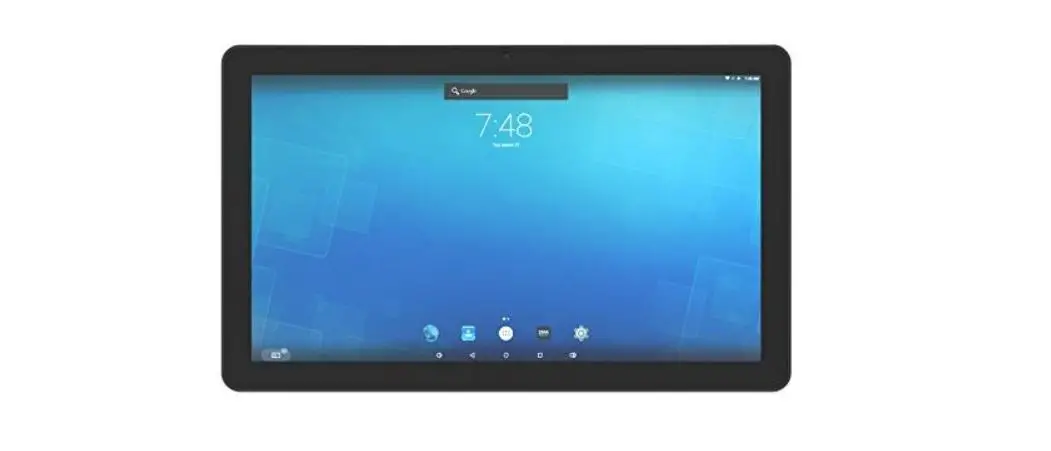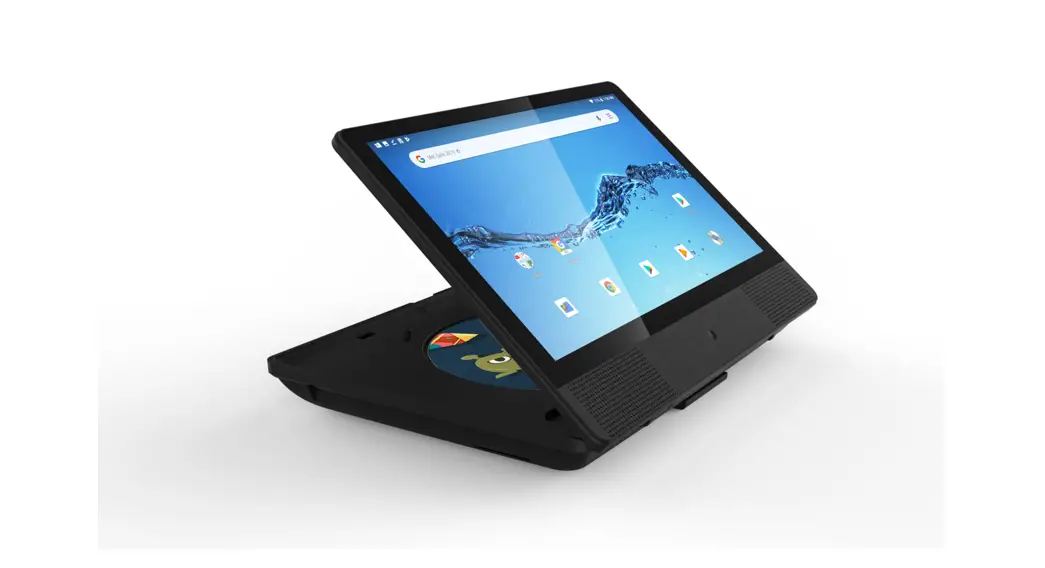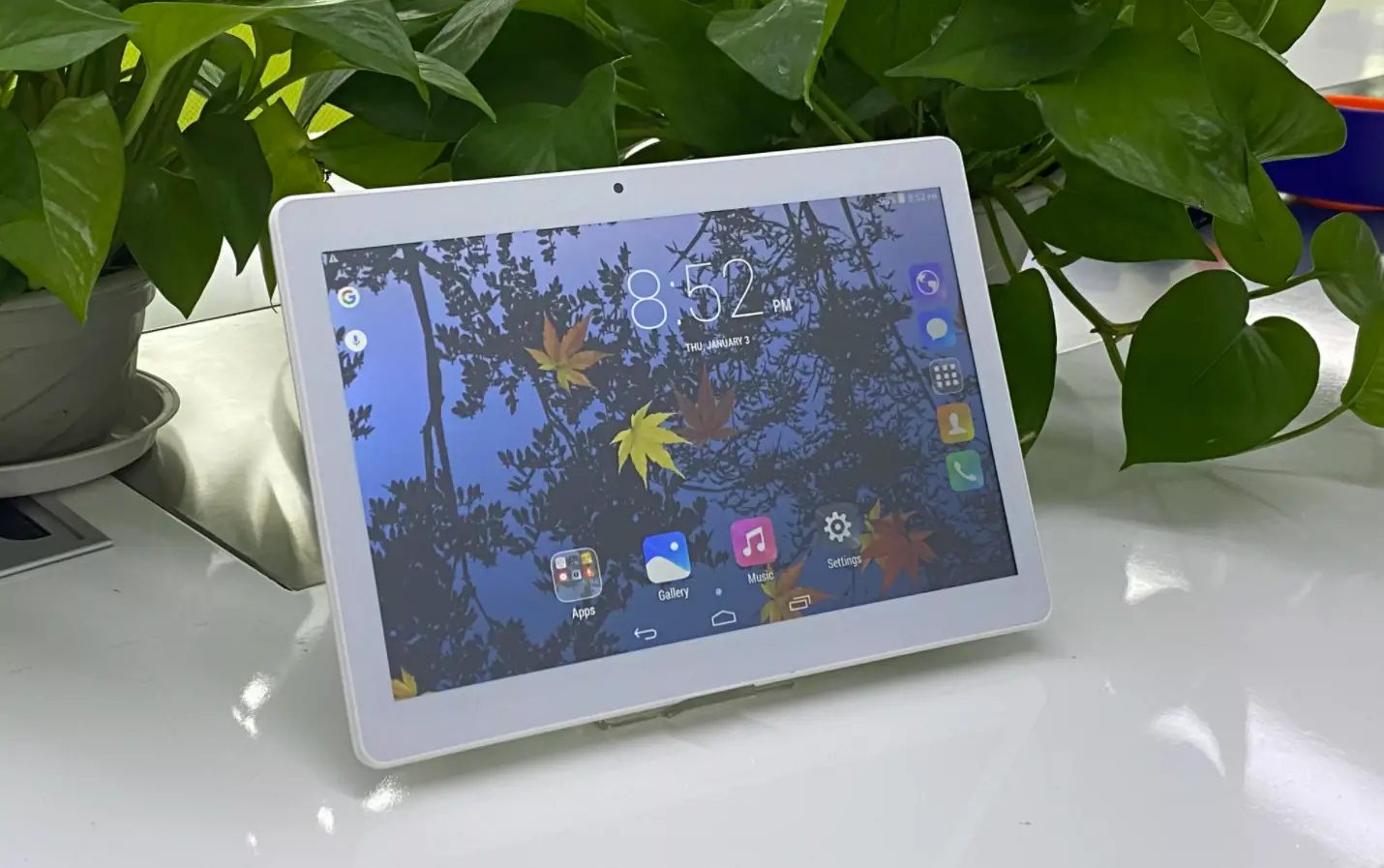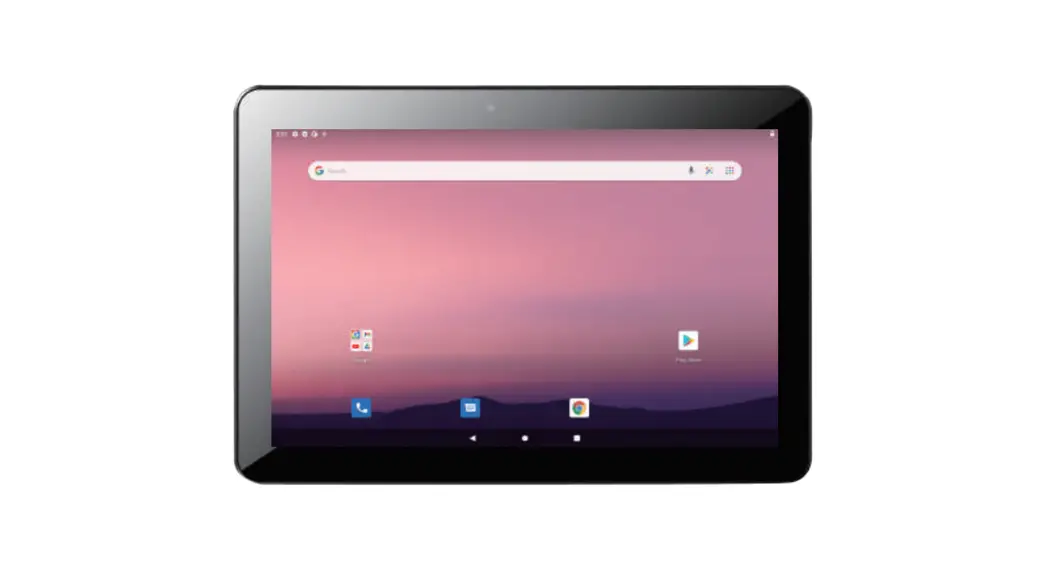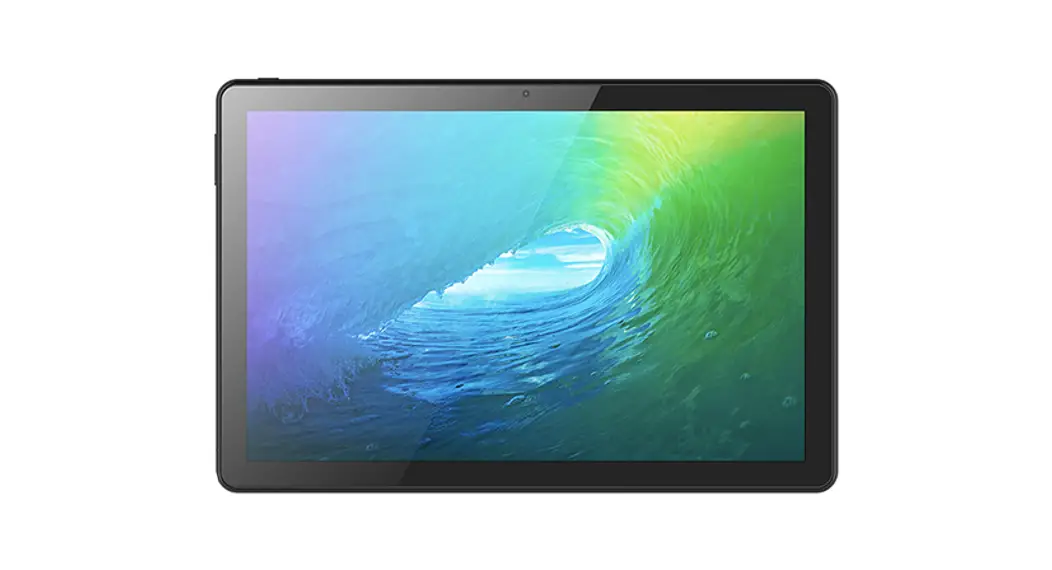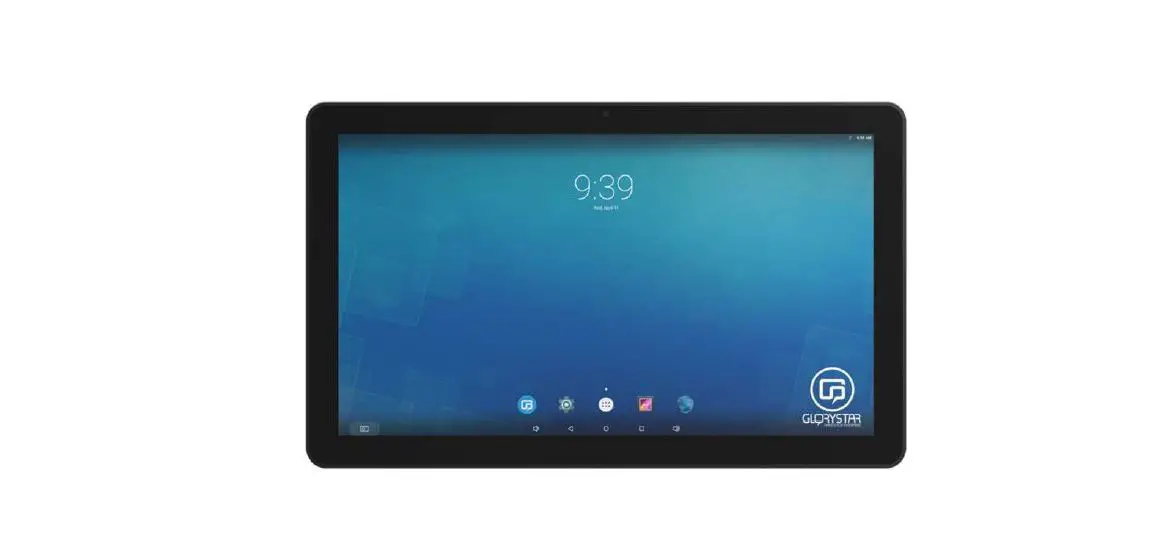

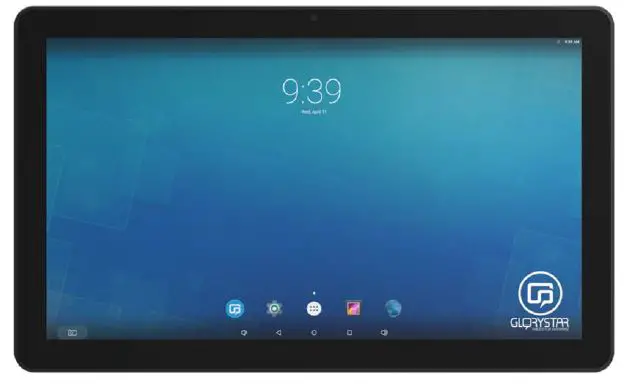
GLORYSTAR NEB156 15.6 Inch Tablet 
Safety and warning information
- Please read this manual carefully before using the device.
- Please keep this manual for easy reference.
- Please fix this product in a safe and stable location to avoid falling harming others
- Appropriate use of this product temperature at about 0 C to 40 C, relative humidity 20%~80%, please avoid placing it on hot or moist location.
- Avoid Collision against harden objects, may cause scratching on the surface and damaging internal parts.
- Should avoid liquid flow inside the device that may cause internal damage to the machine.
- Do not attempt to repair this product yourself, always use a qualified service agent to perform adjustments or repairs.
- Do not overload electrical outlets, avoid electric shock or cause fire.
- If you are not sure of the voltage, please consult with your local power company before plug-in PS: Main power Supply: This equipment is designed to operate from a 100-240 Volt, 50/60 Hz AC main supply. The use of other power sources may damage this machine.
- Check that the voltage marked on the rating plate located at the rear of the power adaptor states 100-240V. The manufacturer will not accept responsibility for damage or injury caused by connecting to the wrong voltage.
Package contents
The package contains the following items: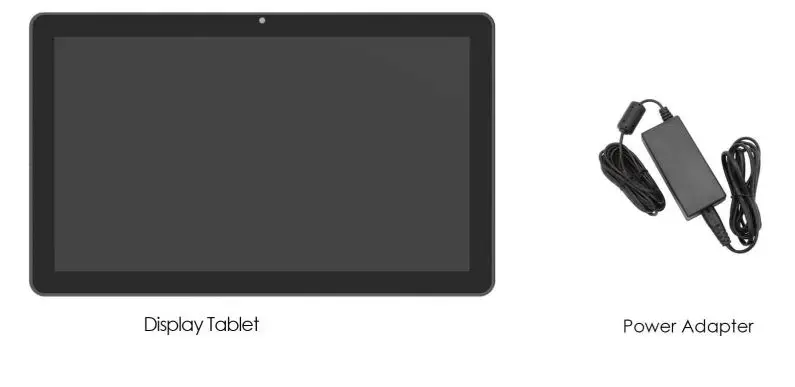
I/O description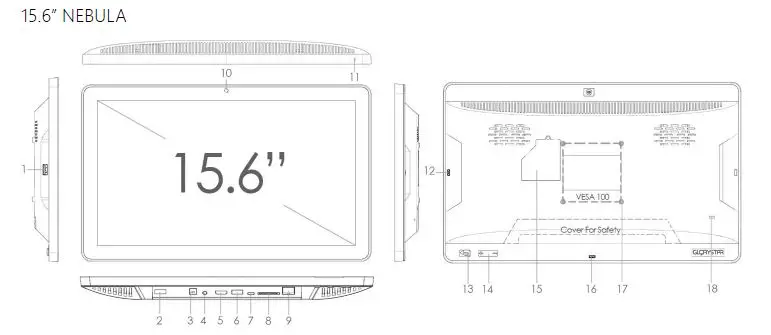
| No. | Description | Remark |
| 1 | USB host port | For servicing – such as USB copy / mouse / movie or file updated |
| 2 | USB host port | For external USB plug (length less than 30 mm) |
| 3 | Power jack | Power jack (diameter 3.5mm) / 12V/5A |
| 4 | 3.5mm audio jack | Non-amplified audio signal, for use with headphones, amplified stereo systems, etc… |
| 5 | HDMI port | Optional for HDMI |
| 6 | USB host port | For payment module / printer / bar code / NFC..etc |
| 7 | Micro USB OTG | For data transfer to PC |
| 8 | SD card slot | For extra memory storage |
| 9 | RJ45 Ethernet jack | LAN cable |
| 10 | Camera (optional) | For Skype / face detection |
| 11 | LED light | Power on signal |
| 12 | Micro USB Host | Optional accessories for “Glory Star” accessories – RFID / bar code / NFC / MSR …etc. |
| 13 | Power button (optional) | Default disable |
| 14 | Volume up / down | Volume +/- |
| 15 | SIM card (optional) | Please check with the label in the inside cover |
| 16 | Micro USB OTG | For Glory Star accessories – bar code |
| 17 | VESA 100 | M4 x 4 mm |
| 18 | Kensington key | For security on shelf |
21.5” NEBULA 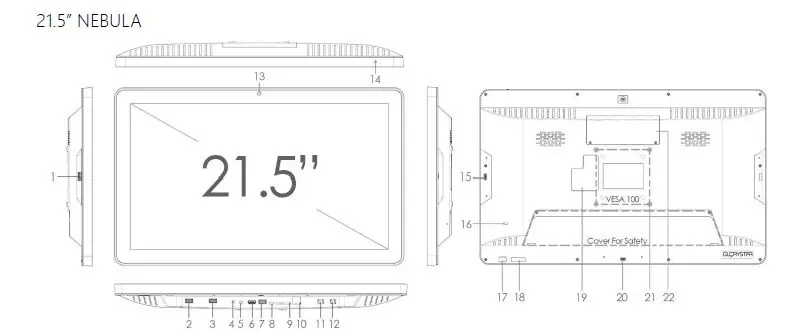
| No. | Description | Remark |
| 1 | USB host port | For servicing – such as USB copy / mouse / movie or file updated |
| 2 | USB host port | For external USB plug (length less than 30 mm) |
| 3 | USB host port | For payment module / printer / bar code / NFC..etc |
| 4 | Power jack | Power jack (diameter 3.5mm) / 12V/5A |
| 5 | 3.5mm audio jack | Non-amplified audio signal, for use with headphones, amplified stereo systems, etc… |
| 6 | HDMI port | Optional for HDMI |
| 7 | USB host port | For payment module / printer / bar code / NFC..etc |
| 8 | Micro USB OTG | For data transfer to PC |
| 9 | SD card slot | For extra memory storage |
| 10 | RJ45 Ethernet jack | LAN cable |
| 11 | RJ11 Ethernet jack optional | RS 232 (For TTL / mechanism connection) |
| 12 | RJ11 Ethernet jack optional | RS 232 (For TTL / mechanism connection) |
| 13 | Camera (optional) | For Skype / face detection |
| 14 | LED light | Power on signal |
| 15 | Micro USB host | Optional accessories for “Glory Star” accessories – RFID / bar code / NFC / MSR …etc. |
| 16 | Kensington key | For security on shelf |
| 17 | ON / OFF button | Default disable |
| 18 | Power button (optional) | Volume +/- |
| 19 | SIM card (optional) | Please check with the label in the inside cover |
| 20 | Micro USB OTG | For Glory Star accessories – bar code |
| 21 | VESA 100 | M4 x 8 mm |
| 22 | Dongle | For 3G / 4G USB dongle |
| NEB156 / NEB 21.5 | |
| OS | Android 7.1 |
| Internal memory | 128 GB |
| SD card memory | 32 GB (Max) |
| RAM | 2 GB DDR3 |
| Panel | 1920 x 1080 |
Quick start user guide
This section describes how to set up and use NEBULA for the first time. The tablet runs Glory Star Group Limited’s STAROS software by default, which runs on an Android operating system installed in the player to play the desired contact.
How to run WI-FI / LAN / Bluetooth?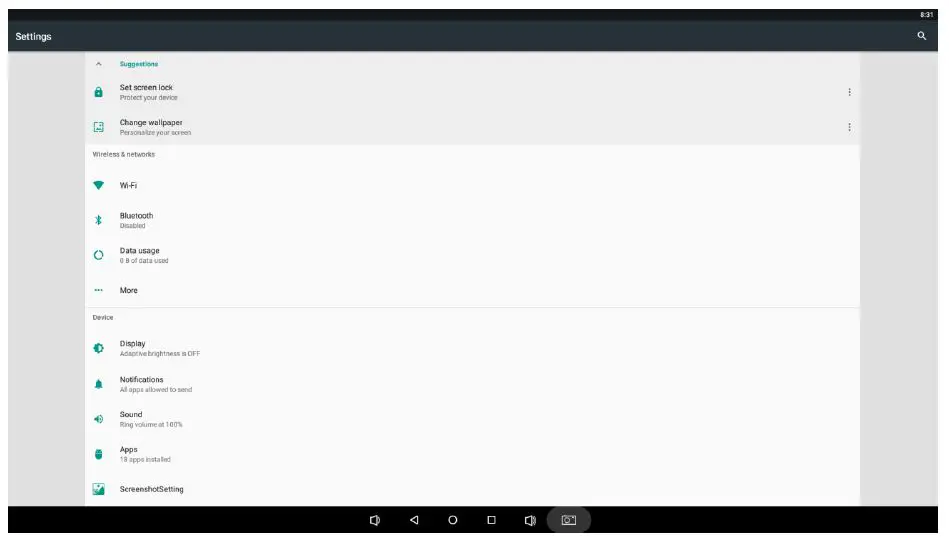
WI-FI System
- Go to home
- Select Wi-Fi and turn it on
- Select your network
LAN System
Plugin your LAN cable
Bluetooth System
- Go to setting
- Go to more
- Go to tethering & portable hotspot
How to install APK / HTML / Media files to a tablet?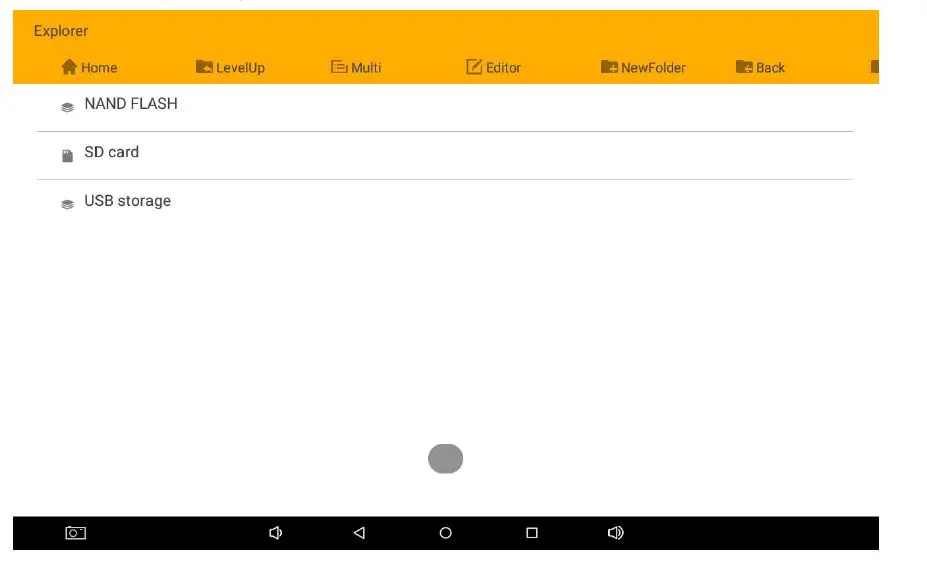
- Insert APK / HTML / media file to USB or SD card (ensure that the USB or SD card is empty)
- Go to “Explorer”
- Go to “USB / SD card storage” (where you place the file)
- Go to “Multi”. Select the file you want to copy
- Select “Editor” and select copy
- Go to ”NAND FLASH” or the destination storage to paste
- Select “Editor” and select paste
- The APK should appear on startup page
How to unlock STARS?
- Please tap on the lower right corner 10 times until it pops up instructions for passwords
- Put “0000” to unlock
- You can change the password going to “Security” and “Set Password”
How to remotely control tablets?
Please contact [email protected] to purchase a STAR CONTROL license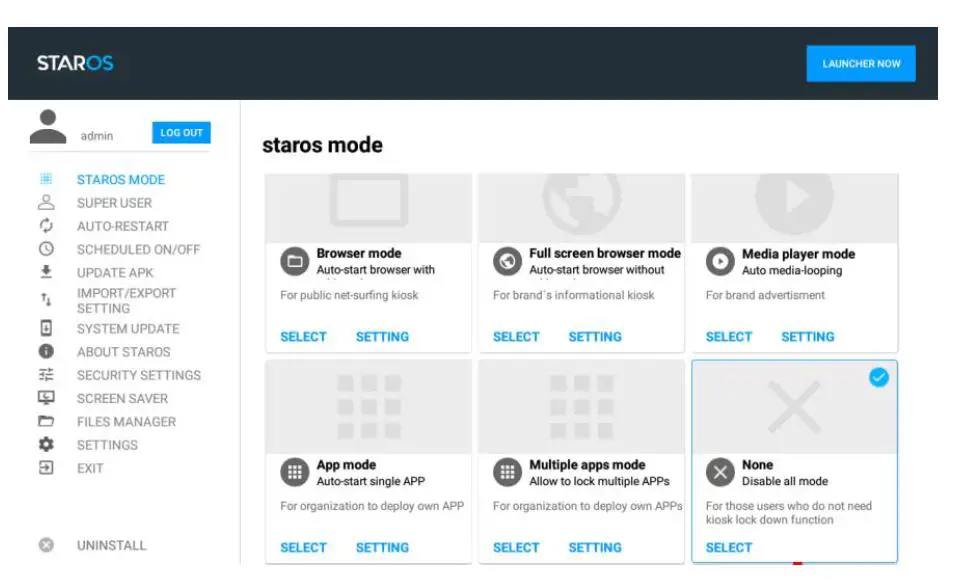
How to auto-run APK / Media / Website?
- Tap on “STARS 8.1.X” as pre-installed in NEBULA
- Select “Application” and select “Android App”
- Select the APK that you would like to auto-start
- Select “Start STAROS”
What if I uninstalled STAROS?
Please send email to [email protected] with serial number and customer name to retrieve STAROS APP
FAQ & Solution
Where is the license code?
- Please contact [email protected] with your serial number to retrieve your license code
What is the largest APK size supported?
APK file size cannot be large than 1 GB
How to set the tablet to factory default ?
Beware that all storage information will be erased.
- Go to “Android Settings”
- Go to “Personal”
- Go to “Backup & reset”
- Go to “Factory data reset”
- Select “Reset Device”
- Select “Erase Everything”
If the bottom bar is hidden, how do I go back to “STARS settings”?
- Go to “Security”
- Select “Disable Bottom Bar”
- Uncheck the box to unhide the bottom bar
Note:
The USB plug is not for charging If the problem cannot be solved, please contact our maintenance staff through [email protected]
Fcc Statement
This device has been tested and found to comply with the limits for a Class B digital device, pursuant to Part 15 of the FCC Rules. These limits are designed to provide reasonable protection against harmful interference in a residential installation. This device generates, uses and can radiate radio frequency energy and, if not installed and used in accordance with the instructions, may cause harmful interference to radio communications. However, there is no guarantee that interference will not occur in a particular installation. If this device does cause harmful interference to radio or television reception, which can be determined by turning the device off and on, the user is encouraged to try to correct the interference by one or more of the following measures:
- Reorient or relocate the receiving antenna.
- Increase the separation between the device and receiver.
- Connect the device into an outlet on a circuit different from that to which the receiver is connected. –Consult the dealer or an experienced radio/TV technician for help Changes or modifications not expressly approved by the party responsible for compliance could void the user’s authority to operate the equipment FCC Radiation Exposure Statement The antennas used for this transmitter must be installed to pro vide a separation distance of at least 20 cm from all persons and must
not be co-located for operating in conjunction with any other antenna or transmitter. Thank you for purchasing a Glory Star Group Limited product. We recommend reading this user guide carefully in order to achieve the optimal performance and to maximize the service life of this product. The technical data provided in this manual come with adjustments from the actual product, it should be treated as a reference only.We encourage you to visit our website at www.glorystargroup.com
Product video: https://www.youtube.com/watch?v=GGVAPiKBXhY&t=4s
Basic description
Nebula is designed as an all-in-one self-service kiosk. The tablet embodies an option for attachments in magnetic card swipe, RFID readers and barcodes that enables applications in system terminals, retail, employee, restaurant, hotels etc. self-service kiosk. An integrated STARS- the kiosk lockdown app and STAR CONTROL- remotely managed tablets software (optional) reinvents the tablet to an all in one solution for
growing enterprises to streamline productivity.
Copyright information
Copyright © 2017 Glory Star Group Limited. All rights reserved. All intellectual property rights in this publication are owned by Glory Star Group Limited and protected by applicable copyright laws and international treaty provisions. Glory Star Group Limited retains all rights not expressly granted. No part of this publication may be reproduced in any form whatsoever or used to make any derivative work without prior written approval by Glory Star Group Limited. Glory Star Group Limited reserves the right to revise this publication, and/or make improvements or changes in the product(s) and/or the program(s) described in this documentation at any time without prior notice. The information in this document is provided in good faith, but without any representation or warranty whatsoever, whether it is accurate, or complete or otherwise, and on express understanding that Glory Star Group Limited shall have no liability whatsoever to other parties in any way arising from or relating to the information or its use. All other trademarks are the property of their respective owners. Other company and brand products and service names are trademarks or registered trademarks of their respective holders.
This device complies with CE and FCC regulations.
 Commercial Android Tablets and All in One Computer Touch Screen Solutions | United States | Glory Star
 Kiosk Tablet Nebula - YouTube