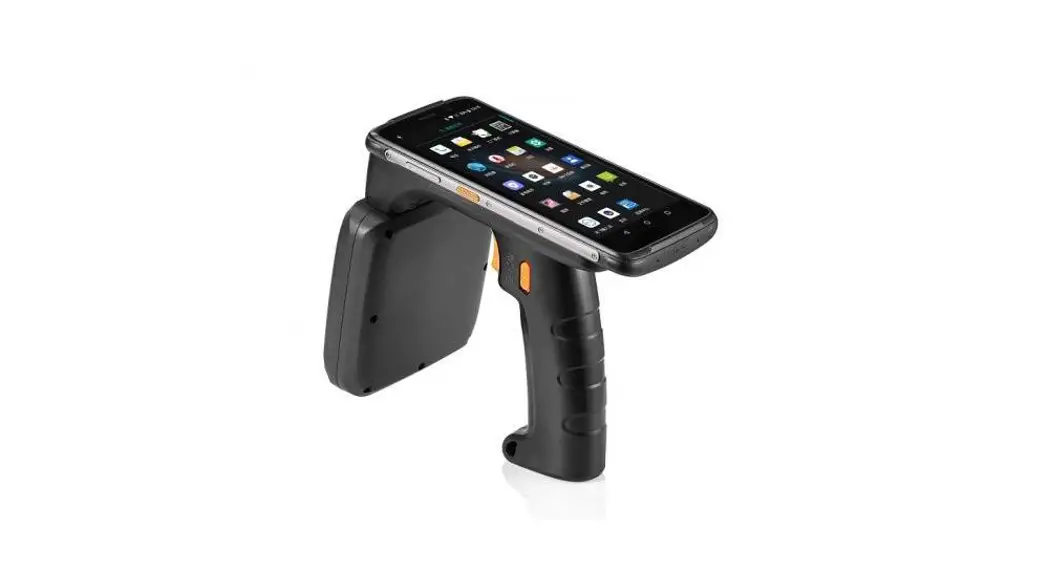
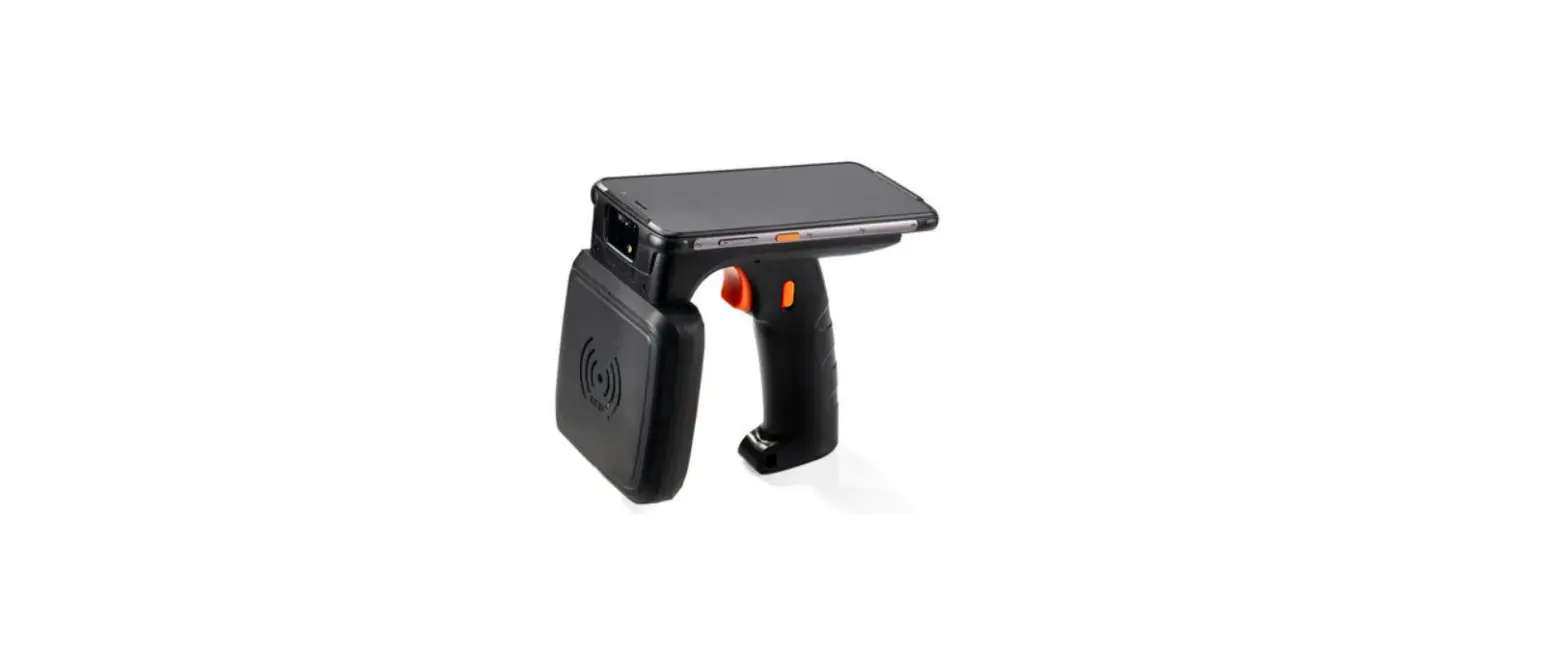
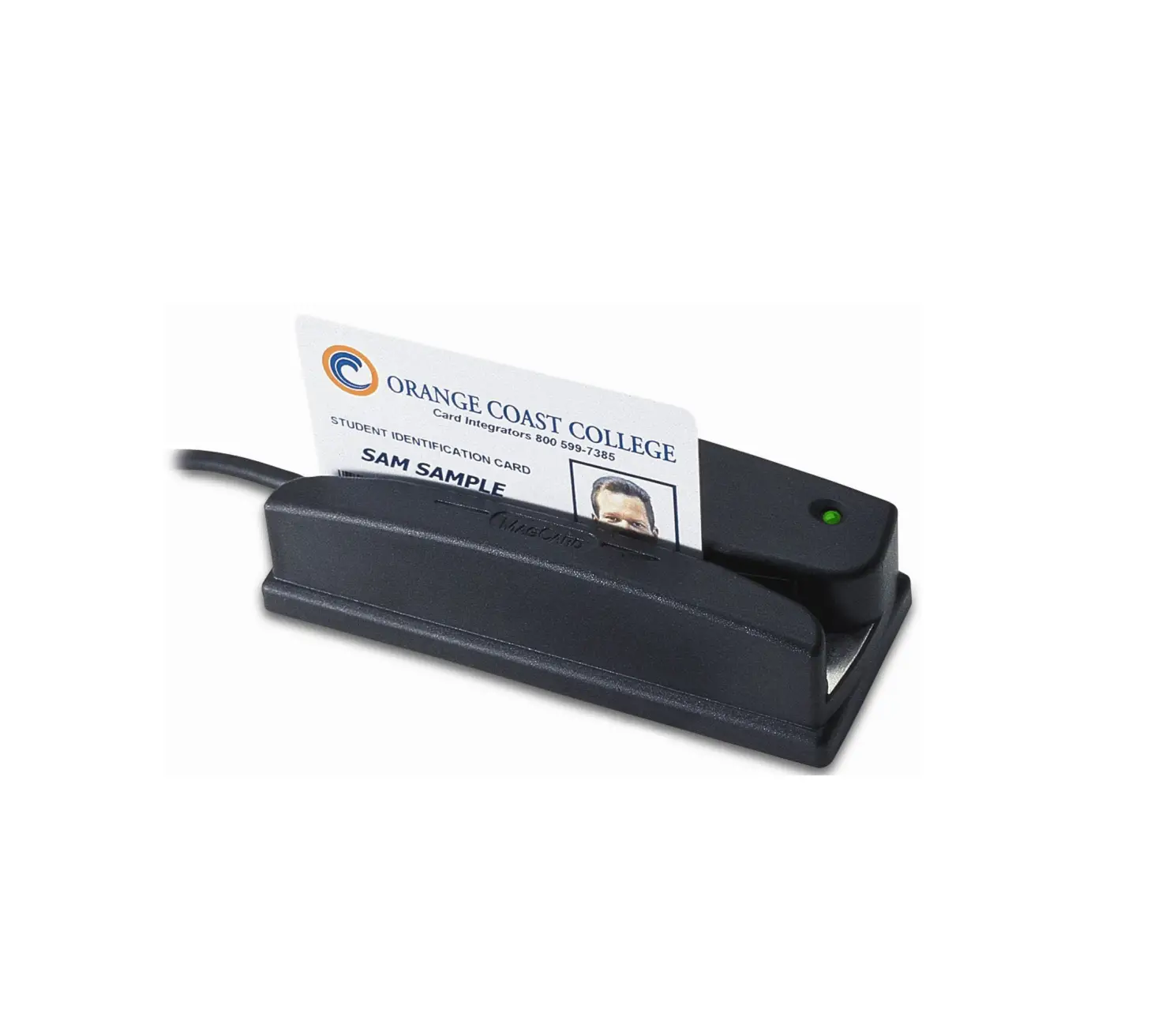
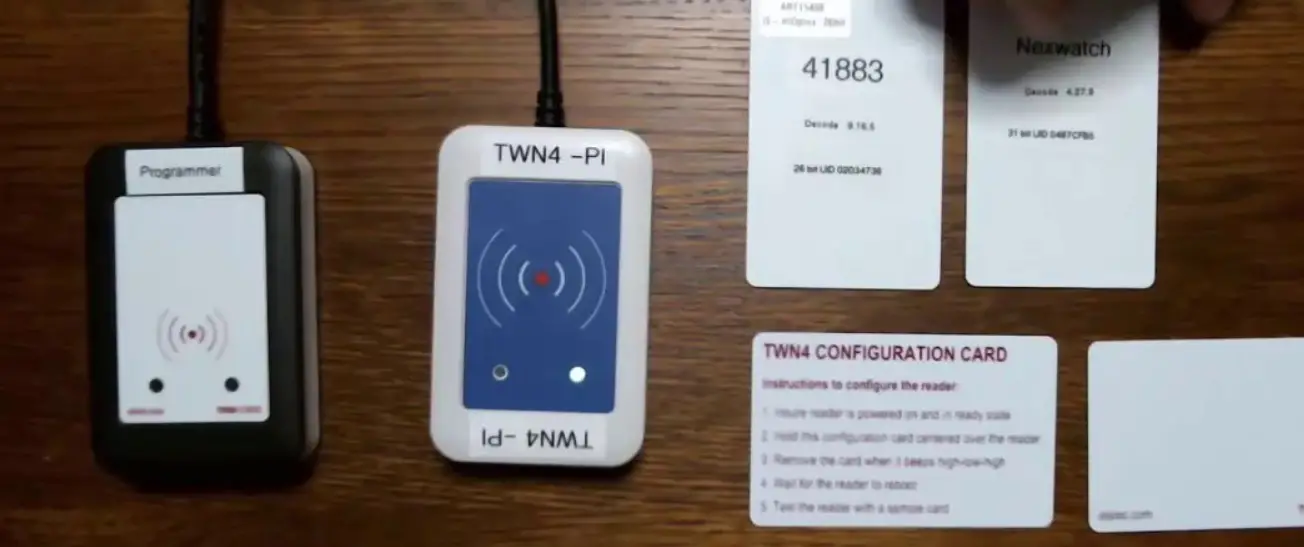
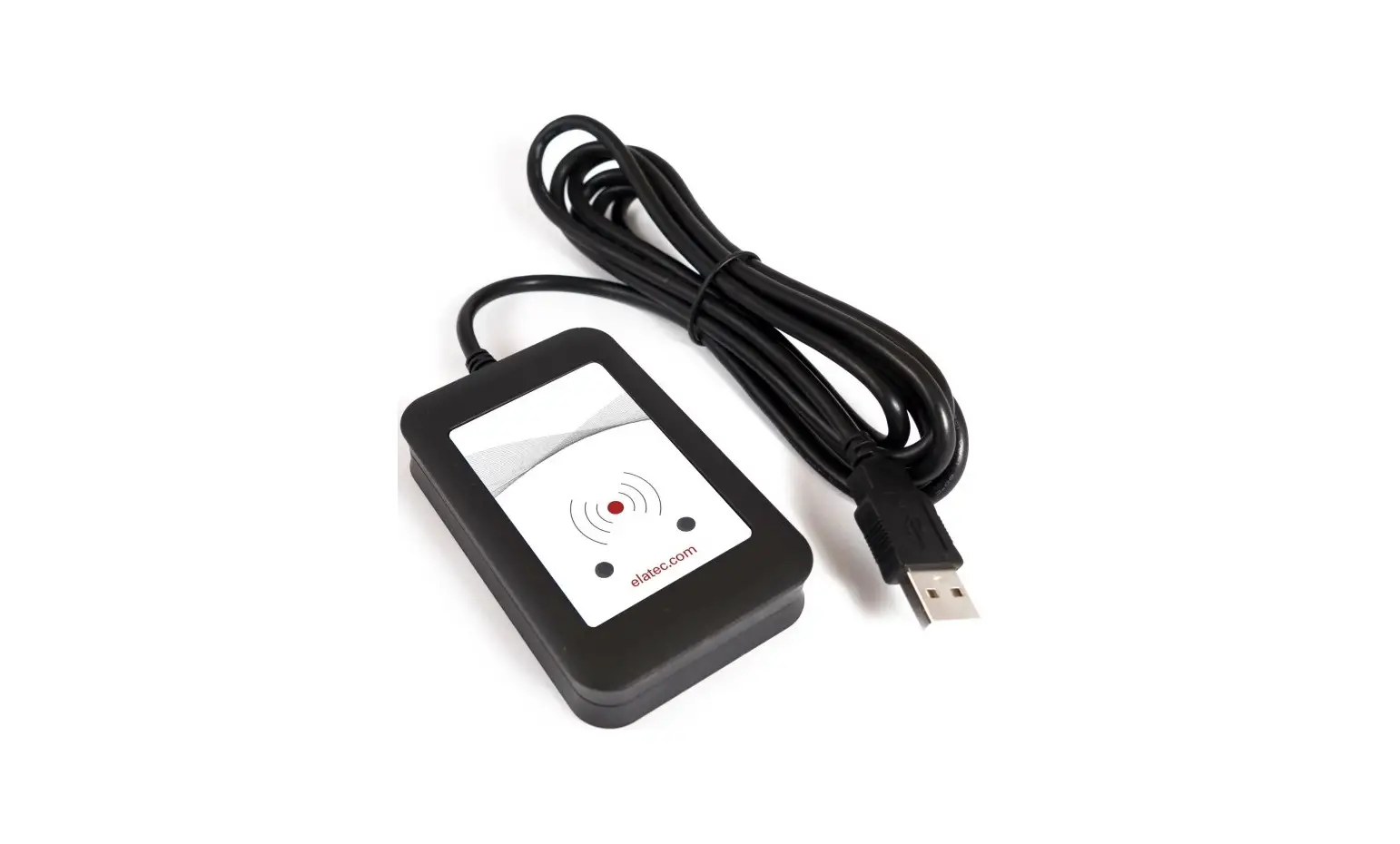
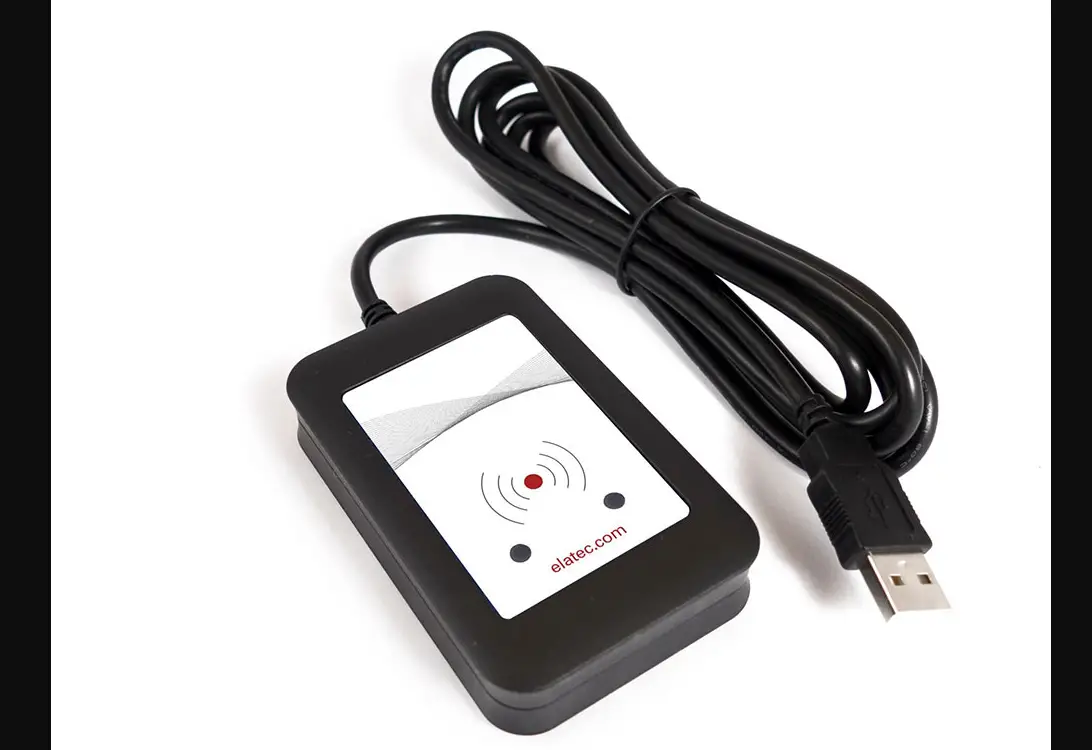
MFR0111 Combo Reader
Product Information
The LIF Combo Reader MFR0111 is a versatile device manufactured
by Shenzhen Long Island Forever Technology Co., Ltd. It combines
four functions into one device, including a magnetic card reader,
IBUTTON reader, RFID reader, and fingerprint reader.
Magnetic Card Reader Part
- Complies with iso7811 standard
- Compatible with protocols and standards such as IBM, ANSI,
JS2 - Card swipe speed: 10-120cm/s
- Head life: 50000 times
- Readable magnetic strip coercive force range: 300-4000 Oe
- Magnetic strip density:
- First rail: 210bpi
- Second rail: 75/210bpi
- Third rail: 210bpi
- Programmable start character, separator, terminator, track
order - Optional configurations: 1 rail or 2 rail or 3 rail; 1,2 rail;
2,3 rail; 1,2,3 rail - Includes magnetic card setting software to set the magnetic
card data format
Fingerprint Part
- Fingerprint comparison time speed: 1:n < 1s (n=200)
- Storage capacity: 96 fingerprint data (standard)
- Sensor type: Capacitive touch sensor
- Resolution: 508dpi
- Pixel: 160×160
- FRR (False Rejection Rate):
Product Usage Instructions
To use the LIF Combo Reader MFR0111, follow these
instructions:
- Connect the device to a compatible power source using the
provided cables. - Ensure that the magnetic card reader, IBUTTON reader, RFID
reader, and fingerprint reader are properly connected and
recognized by the device. - For magnetic card reading:
- Swipe the magnetic card through the card reader at a speed of
10-120cm/s. - Ensure that the magnetic strip on the card is within the
readable coercive force range of 300-4000 Oe. - The device supports different magnetic strip densities for each
rail. Check the manual for the appropriate density based on the
rail used. - Program the desired start character, separator, terminator, and
track order using the provided magnetic card setting software.
- Swipe the magnetic card through the card reader at a speed of
- For fingerprint reading:
- Place your finger on the capacitive touch sensor.
- The device will compare your fingerprint with the stored
fingerprint data. - If a match is found, the device will grant access or perform
the configured action.
Refer to the user manual for more detailed instructions on
configuring and using each function of the LIF Combo Reader
MFR0111.
Shenzhen Long Island Forever Technology Co., Ltd.
User Manual Combo Reader
Web: www.lifpos.com
-1-
Tel: +86 (755) 83107873
Shenzhen Long Island Forever Technology Co., Ltd.
1.Overview
LIF Combo Reader MFR0111 includes four functions of magnetic card reader, IBUTTON, RFID and fingerprint.
1.2.1 Magnetic Card Reader Part
1. Comply with iso7811 standard, compatible with protocols and standards such as ibm, ansi, js2;
2. Card swipe speed: 10-120cm / s; 3. The head life is 50000 times; 4. Readable magnetic strip coercive force range: 300-4000 Oe; 5. Magnetic strip density: first rail 210bpi; second rail 75/210bpi; third
rail 210bpi; 6. Start character, separator, terminator, track order are all
programmable; 7. Optional configuration: 1 rail or 2 rail or 3 rail; 1, 2 rail; 2, 3 rail; 1, 2,
3 rail; 8. Provide magnetic card setting software to set the magnetic card data
format;
1.2.2 Finger Print Part
1. Fingerprint comparison time speed: 1:n < 1s (n200) 2. Storage capacity: 96 fingerprint data standard 3. Sensor type: capacitive touch sensor 4. Resolution: 508dpi 5. Pixel: 160*160 6. FRR<1% 7. FAR<0.001% 8. 8-bit grayscale 9. Service life: one million times
1.2.3 RFID Part
1. Support Mifare One S50, S70 and its compatible TYPE A, B card
Web: www.lifpos.com
-2-
Tel: +86 (755) 83107873
Shenzhen Long Island Forever Technology Co., Ltd.
2. Antenna and circuit board integration 3. The farthest read and write distance is more than 5cm 4. Module series can be verified by UnionPay qpboc 5. Support cpu card, smart card
2. Software Operation
<Figure 1> Setup / Test Tool Launch Interface
Web: www.lifpos.com
-3-
Tel: +86 (755) 83107873
Shenzhen Long Island Forever Technology Co., Ltd.
Steps: 1. Connecting equipment; 2. Open the setup/test tool, select “MSR Device”, and click “OK”. If the device is
connected properly, go directly to the following settings interface; if the device is not connected properly, it will prompt “Can not find MSR Device”;
<Figure 2> Connecting the device to the normal interface
Web: www.lifpos.com
-4-
Tel: +86 (755) 83107873
Shenzhen Long Island Forever Technology Co., Ltd.
3. “ISO” setting tab: <Figure 3:>
<Figure 3> iso setting interface
Emoticons: : Corresponding to one, two, three track data read or not switches. : Corresponds to the ss<starter> setting of one, two, and three
magnetic cards. : Corresponds to the es<terminator> setting of one, two, and three
magnetic cards. : Corresponding to whether the one, two or three track data is
followed by the return setting. : The data header returned when reading the iso format magnetic
card.<Definition method see Appendix> : When reading the iso format magnetic card, the data between the
returned tracks is separated.<Definition method see Appendix> : The end of the data returned when reading the iso format magnetic
card.<Definition method see Appendix> : “Enable Beep” corresponds to whether the buzzer sounds when
reading the card. Does the “Support IBM Card” support IBM format magnetic cards. Whether the “Output Data For Any Valid Track” verifies the track
data format. “Reading Sequence” track order selection.
: Language selection.
Web: www.lifpos.com
-5-
Tel: +86 (755) 83107873
Shenzhen Long Island Forever Technology Co., Ltd.
4. “iButton” settings tab: <Figure 2:>
<Figure 4> ibutton setting interface
Emoticons: : Corresponds to the SS<starter> setting of the iButton. : Corresponds to the ES<starter> setting of the iButton. : How to send data in the “Attach” and “Remove” states of iButton. : The header of the returned data in the “Attach” state of
iButton.<Definition method see Appendix> : The end of the data returned in the “Attach” state of
iButton.<Definition method see Appendix> : The “Attach” status of iButton: The “Extract Form” starting offset. The length of the data returned by “Length”. The “Enable Beep” buzzer sounds or not. : The header of the returned data in the “Remove” state of
iButton.<Definition method see Appendix> : The end of the data returned in the “Remove” state of
iButton.<Definition method see Appendix> : The “Remove” status of iButton: The “Extract Form” starting offset. The length of the data returned by “Length”. The “Enable Beep” buzzer sounds or not.
Web: www.lifpos.com
-6-
Tel: +86 (755) 83107873
Shenzhen Long Island Forever Technology Co., Ltd.
5. Function buttons, as well as function buttons for the main menu: <Figure 3:>
<Figure 5> msr function button interface
Emoticons: : “Load” button: Read settings from MSR to DEMO. : “Normal Mode” button: Puts the MSR into test mode.<only valid for ISO format> : “Test Mode” button: Puts the MSR into test mode.<only valid for ISO format> : “Save” button: Save the DEMO settings to the MSR. : “Set Default” button: Set the MSR as the default parameter. : “Test Msr” button: Magnetic card swipe test. : Exit the demo.
Web: www.lifpos.com
-7-
Tel: +86 (755) 83107873
Shenzhen Long Island Forever Technology Co., Ltd.
6. Help function menu: <Figure 4:>
Emoticons:
<Figure 6> msr version query button
: “Version” menu, get the current version number of MSR.
: “About” menu for obtaining DEMO related information.
Web: www.lifpos.com
-8-
Tel: +86 (755) 83107873
Shenzhen Long Island Forever Technology Co., Ltd.
Appendix I:
Ascii way definition method When the user define “Header”, “Separator”, “Suffix” and “Prefix”, the ASCII mode will be selected to enter the following interface.<Figure 5:>
Emoticons:
<Figure 7> ascii value entry interface
1: The user enter the character directly in the edit box, and then clicks the “ok” button
to define it successfully.
2: The definition of special function characters.
Special characters Enter key Esc Tab key key
Definition method n or N e or E t or T \
3: The current version of the ascii string definition, the maximum length is 20.
Web: www.lifpos.com
-9-
Tel: +86 (755) 83107873
Shenzhen Long Island Forever Technology Co., Ltd.
Appendix II:
Code method definition method
When the user defines “Header”, “Separator”, “Suffix” and “Prefix”, the CODE mode
will be selected to enter the following interface.<Figure 6:>
Emoticons:
<Figure 8> Key Code value entry interface
1 Click the button in the keyboard picture in the picture or directly enter it with
the keyboard.
2 The current version of the code is defined by a maximum length of 20.
Web: www.lifpos.com
– 10 –
Tel: +86 (755) 83107873
Shenzhen Long Island Forever Technology Co., Ltd.
Steps: 1. Connecting equipment; 2. Open the test tool, such as “RFID Device” in the “Test Tool Startup Interface”
diagram, click “OK” button, if the device is connected normally, it will enter the test interface directly; if the device is not connected properly, it will prompt “Can not find Rfid Device” “;
<Figure 9> rfid test interface
3. Place the test card near the antenna area, Click the open button, then click the searchCard button,the information window prints the ID number of the test card, and the information window prompts “Search Card Successful”;
Web: www.lifpos.com
– 11 –
Tel: +86 (755) 83107873
Shenzhen Long Island Forever Technology Co., Ltd.
<Figure 10> Test card id number
4. RFID read and write function of MifareOne card;
<Figure 11> rfid read and write function module
This module is mainly used to read and write the MifareOne card and modify the key:
Example: Web: www.lifpos.com
– 12 –
Tel: +86 (755) 83107873
Shenzhen Long Island Forever Technology Co., Ltd.
Reading card: For example: read the second block in the 8th sector
1 Select the 8th sector from the “1” of the “rfid read/write module” picture, and select the 2nd block in the “2” in the figure;
2 Select a key from the “3” of the “rfid read/write module” picture; 3 Enter “ffffffffffff” 12 f in the “4” of the “rfid read/write module” picture. For all
new cards, the default key is 12 f. 4 Click the “Read Card” button in the “RFID Read/Write Module” picture to read
the card. Note: The third block of each sector, 16 bytes are divided into 3 parts, the first 6 bytes are “a key”, and the middle 4 bytes are The 6 bytes following the “key control word” are “b key”.
Write card: For example, write 16 bytes “0123456789abcdeffedcba9876543210” to the second block in the 8th sector. 1 Select the 8th sector from the “1” of the “rfid read/write module” picture,
and select the 2nd block in the “2” in the figure; 2 Select a key from the “3” of the “rfid read/write module” picture; 3 Enter “ffffffffffff” 12 f in the “4” of the “rfid read/write module” picture. For all
new cards, the default key is 12 f. 4 Enter “0123456789abcdeffedcba9876543210” in the third edit box of “5” in
the “rfid read/write module” picture. 5 Click the “Write Card” button in the “RFID Read/Write Module” picture to
read the card. Note: It is important to note that the third block of each sector is written. The third block holds the key for each sector. Once the block is written, the sector key will be modified.
Web: www.lifpos.com
– 13 –
Tel: +86 (755) 83107873
Shenzhen Long Island Forever Technology Co., Ltd.
Modify the key: For example: change the key of the 8th sector from the original “ffffffffffff” to “888888888888” 1 Select the 8th sector from the “1” of the “rfid read/write module” picture,
and select the 3rd block in the “2” in the figure; 2 Select a key from the “3” of the “rfid read/write module” picture; 3 Enter “ffffffffffff” 12 f in “4” of the “rfid read/write module” picture. 4 Click the “Read Card” button in the “RFID Read/Write Module” picture to read
the card. If the card is successfully read, “000000000000FF078069FFFFFFFFFFFF” will be displayed in the fourth edit box of “5” in the “RFID Read/Write Module” diagram. “000000000000 ff078069 ffffffffffff” (the first 6 bytes a key is displayed as 12 “0”, but actually 12 internal “f”, it is displayed as 0 for confidentiality, and the next 6 bytes b key is displayed. Show 12 “f”, because the default b key in the factory card is not used for authentication, so it can be read). 5 Change the first 6 bytes of “000000000000” in the fourth edit box to “888888888888”. 6 Click the “Write Card” button in the “RFID Read/Write Module” picture to read the card.After the prompt is successful, the key of the 8th sector of the card is modified to 12 “8” or “888888888888” Note: Pay special attention when changing the password. First, remember the new password. Second, do not change the control word easily.Otherwise, the sector card may not be read or written.
5.MifareOne card wallet
Web: www.lifpos.com
– 14 –
Tel: +86 (755) 83107873
Shenzhen Long Island Forever Technology Co., Ltd. <Figure 12> rfid wallet function
This module is mainly used to use a piece of MifareOne card as an electronic wallet. For example: use the 0th block of the 1st sector of the MifareOne card as an electronic wallet, and perform the following operations on the wallet: initializing, refilling, debiting, and checking the balance operation.
1 Select the first sector from the “1” of the “rfid wallet function” picture, and select the 0th block in the “2” in the figure;
2 Select a key from “3” in the “rfid wallet function” picture; 3 In the “4” of the “rfid wallet function” picture, enter “ffffffffffff” 12 f, for all
new cards, the default key is 12 f. 4 Enter the amount in the “5” of the “rfid’s wallet function” picture. At this
time, the value of the amount entered in “5” will be automatically displayed in the “6” in the figure. 5 Initialize the wallet of the 0th block of the 1st sector to 88 yuan: Enter 88 in the “5” of the “RFID Wallet Function” picture, and then click the “Initialize” button. 6 Recharge 12 dollars into the wallet: Enter 12 in the “5” of the “RFID Wallet Function” picture, and then click the “Increase” button. 7 Deduct 2 yuan from the wallet: Enter 2 in the “5” of the “RFID wallet
Web: www.lifpos.com
– 15 –
Tel: +86 (755) 83107873
Shenzhen Long Island Forever Technology Co., Ltd.
function” picture, and then click the “Decrease” button. 8 Check the balance: Click the “Balance” button, and 98 will be displayed in
“5” of the “RFID Wallet Function” picture.
Steps: 1. Connecting device 2. Open the test tool, such as “Fingerprint Device” in the “Test Tool Launch Interface” diagram, click the “OK” button to enter the fingerprint interface interface test interface.
<Figure 13> Fingerprint test interface
Web: www.lifpos.com
– 16 –
Tel: +86 (755) 83107873
Shenzhen Long Island Forever Technology Co., Ltd.
3. Turn the fingerprint device on and off:
Emoticons:
<Figure 14> The fingerprint reader is turned on, off, and exited.
1: Click on the “Open device” button in the figure, you will try to open the
fingerprint device. If it is successfully opened, it will prompt”Open the device
successfully”.
2: Click the “Close device” button in the figure to turn off the fingerprint device.
3: Click the “Quit” button in the figure to exit the fingerprint test interface.
Web: www.lifpos.com
– 17 –
Tel: +86 (755) 83107873
Shenzhen Long Island Forever Technology Co., Ltd.
4. Enter and verify fingerprint functions:
<Figure 15> Fingerprint input fingerprint and verification fingerprint function
Emoticons: 1: Click the “Enroll fingerprint” button and the fingerprint will start to be
entered. Note that the value entered in the edit box below the “Enter the ID of enroll finger” is <0 to 95>. If you enter the fingerprint, you need to put the finger 4 times. If you enter the fingerprint, To exit the entry, click on the “Cancel operation” button.
2: Click the “Verify fingerprint” button to verify the user’s fingerprint.Compare the current fingerprint of the user with the fingerprint in the fingerprint database. If successful, it will return the ID number in the fingerprint database where the current fingerprint is located.
Web: www.lifpos.com
– 18 –
Tel: +86 (755) 83107873
Shenzhen Long Island Forever Technology Co., Ltd.
5. Fingerprint library related operations:
<Figure 16> Fingerprint instrument input fingerprint library related operations
Emoticons: 1: Click the “Refresh user ID table” button, the fingerprint ID number that
already exists will be read from the fingerprint database of the fingerprint reader and saved in the fingerprint library list on the left.
2: In the fingerprint library list on the left, select any ID and click the “Delete specified ID” button to delete the corresponding ID from the fingerprint library.
3: Click the “Clear all IDs” button to clear the fingerprint library in the fingerprint reader.
Web: www.lifpos.com
– 19 –
Tel: +86 (755) 83107873
This device complies with Part 15 of the FCC Rules. Operation is subject to the following two conditions: (1) this device may not cause harmful interference, and (2) this device must accept any interference received, including interference that may cause undesired operation
NOTE: This equipment has been tested and found to comply with the limits for a Class B digital device, pursuant to Part 15 of the FCC Rules. These limits are designed to provide reasonable protection against harmful interference in a residential installation. This equipment generates, uses and can radiate radio frequency energy and, if not installed and used in accordance with the instructions, may cause harmful interference to radio communications. However, there is no guarantee that interference will not occur in a particular installation. If this equipment does cause harmful interference to radio or television reception, which can be determined by turning the equipment off and on, the user is encouraged to try to correct the interference by one or more of the following measures: — Reorient or relocate the receiving antenna. — Increase the separation between the equipment and receiver. — Connect the equipment into an outlet on a circuit different from that to which the receiver is connected. — Consult the dealer or an experienced radio/TV technician for help.
Warning: changes or modifications not expressly approved by the party responsible for compliance could void the user’s authority to operate the equipment
The devices has been evaluated to meet general RF exposure requirement the device can be used in portable exposure condition without restriction
 Shen Zhen Long Island Forever Tech – One-Stop Solution POS Hardware Supplier Since 2007