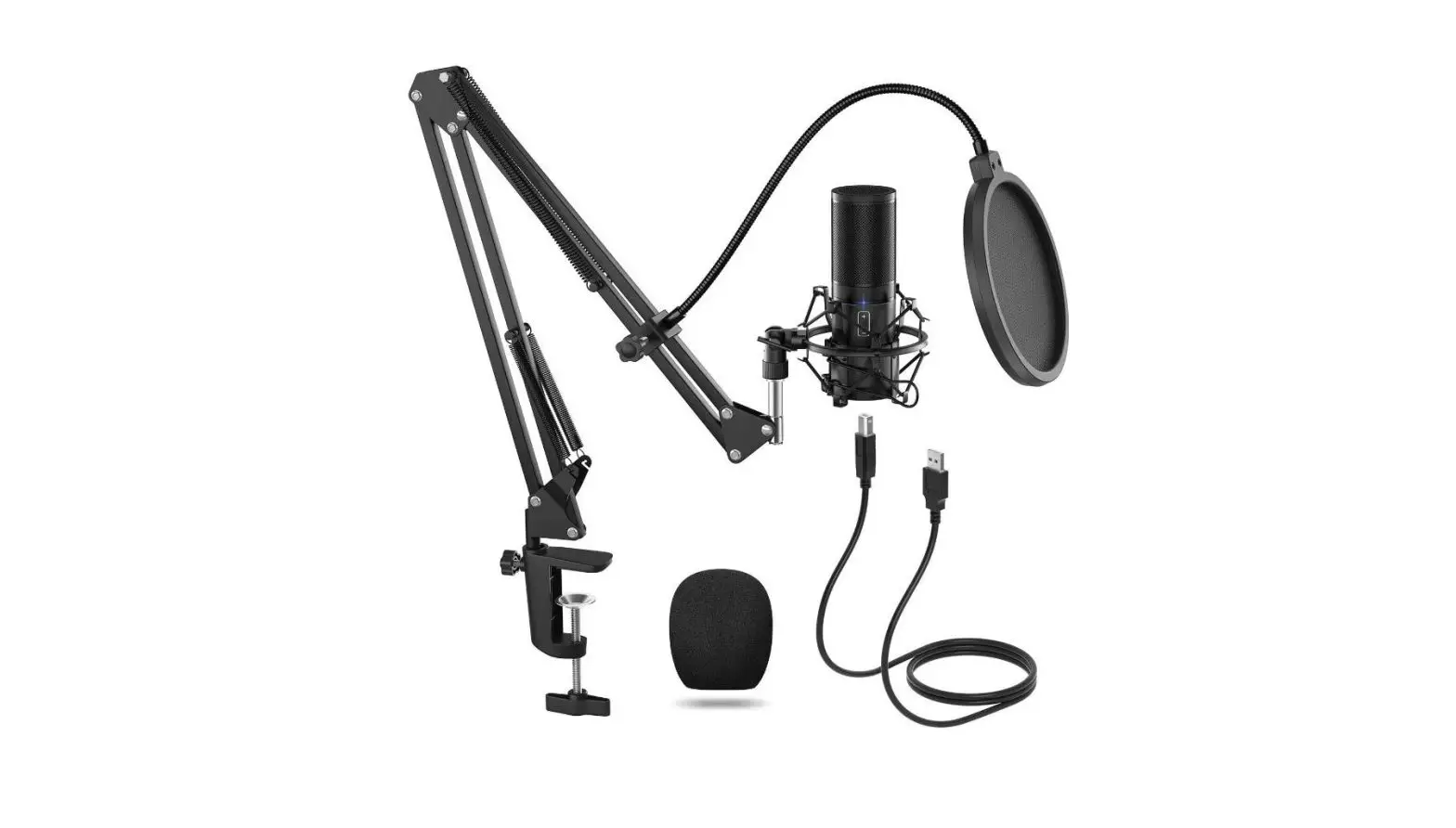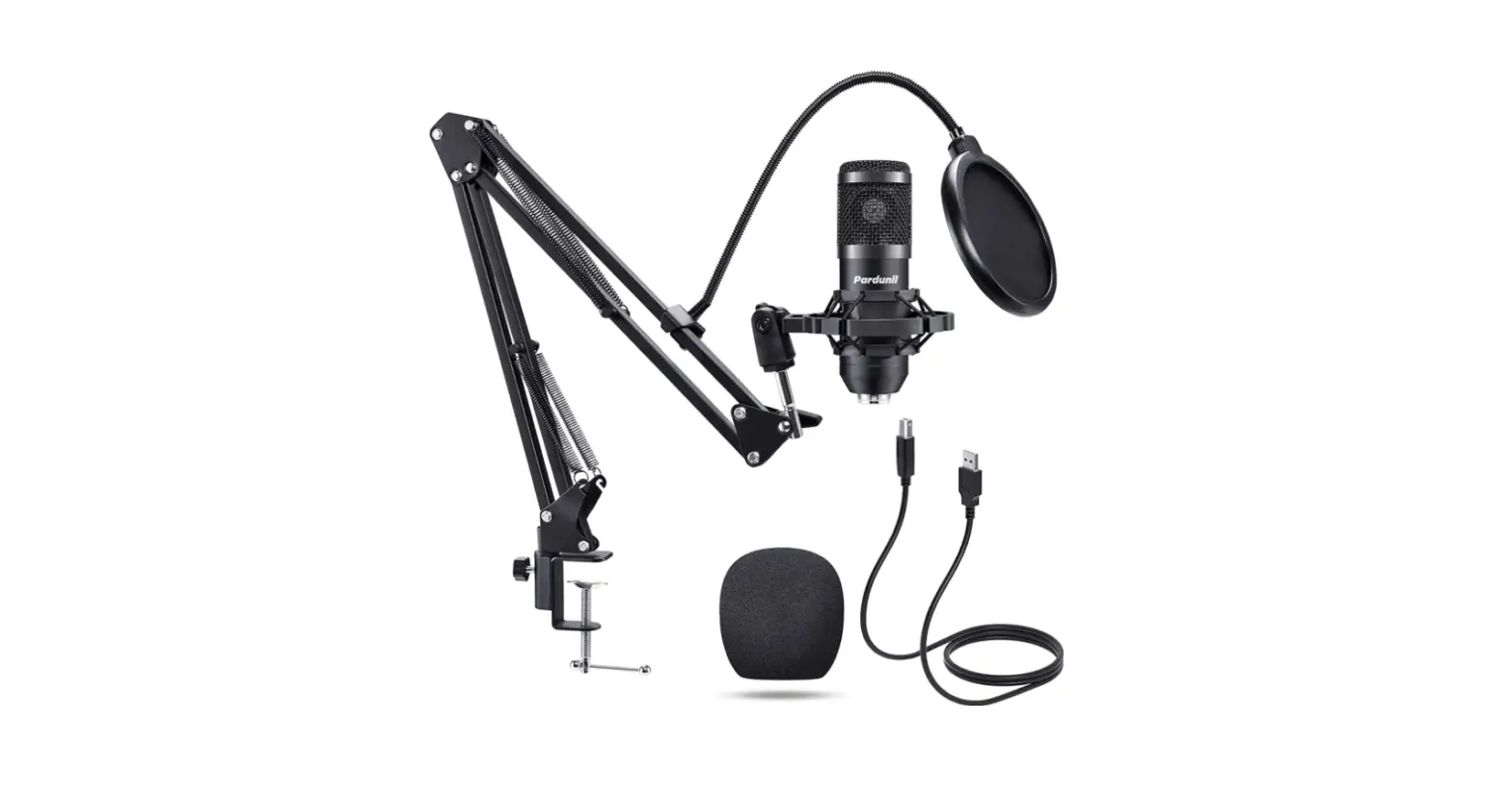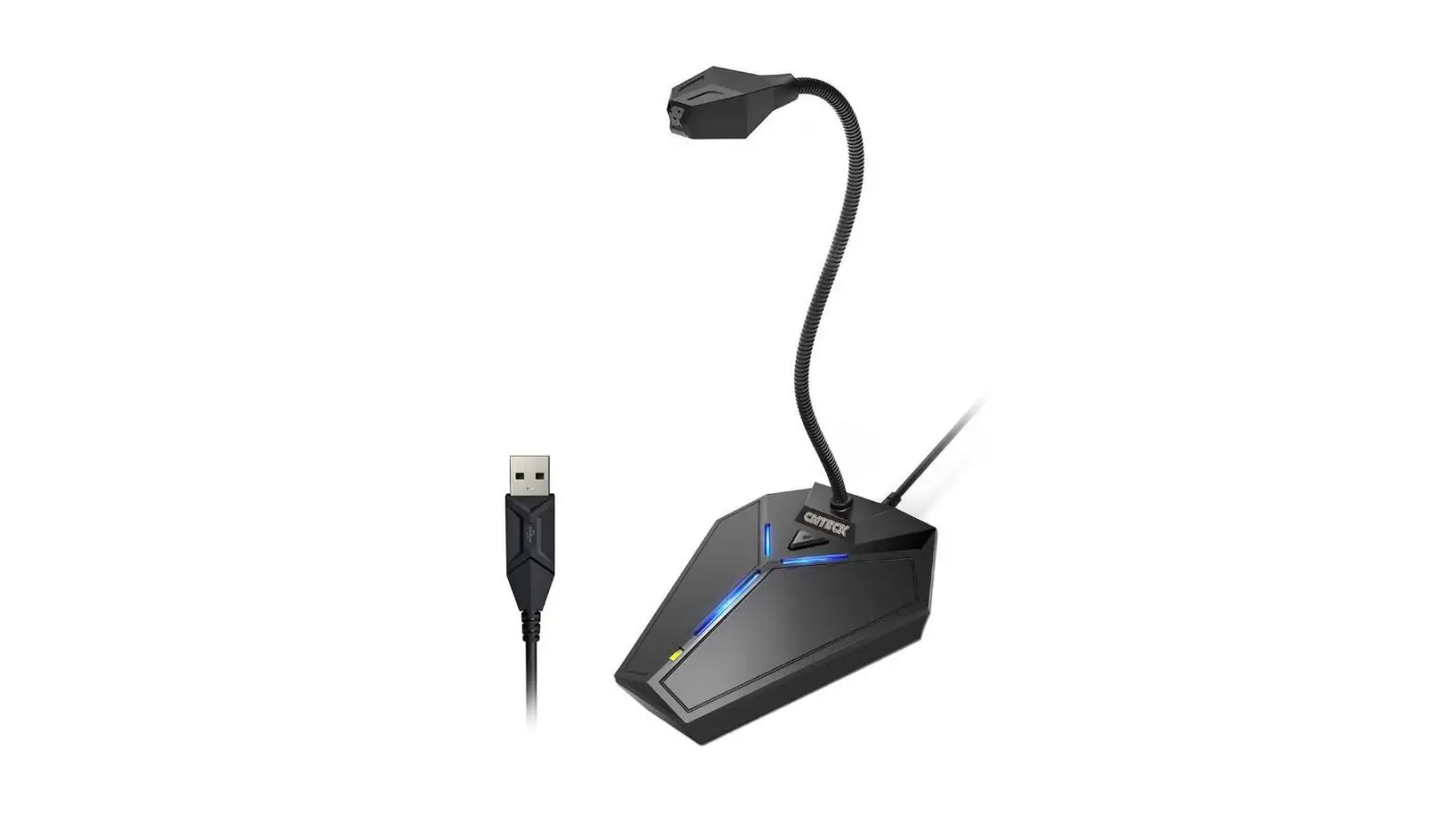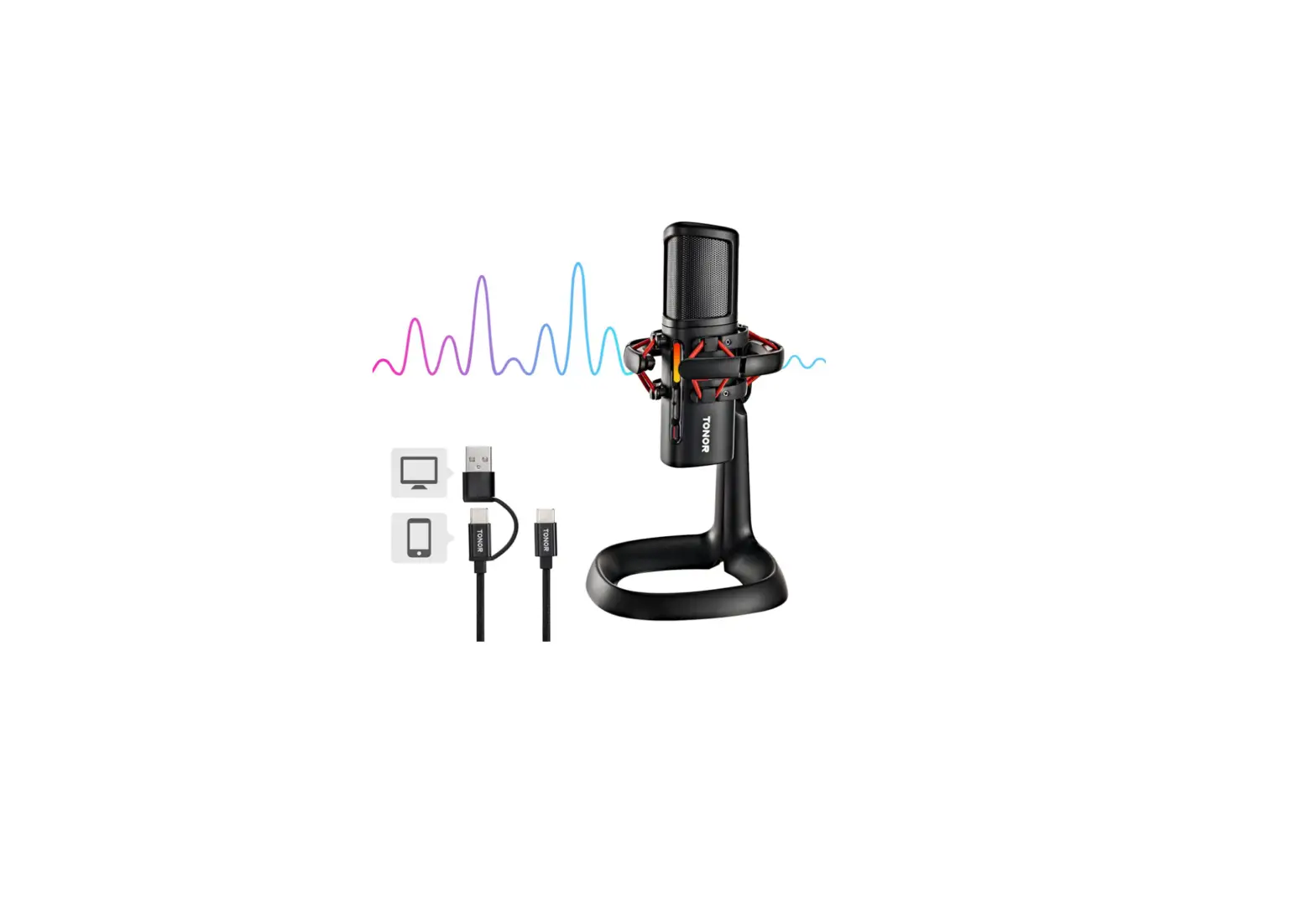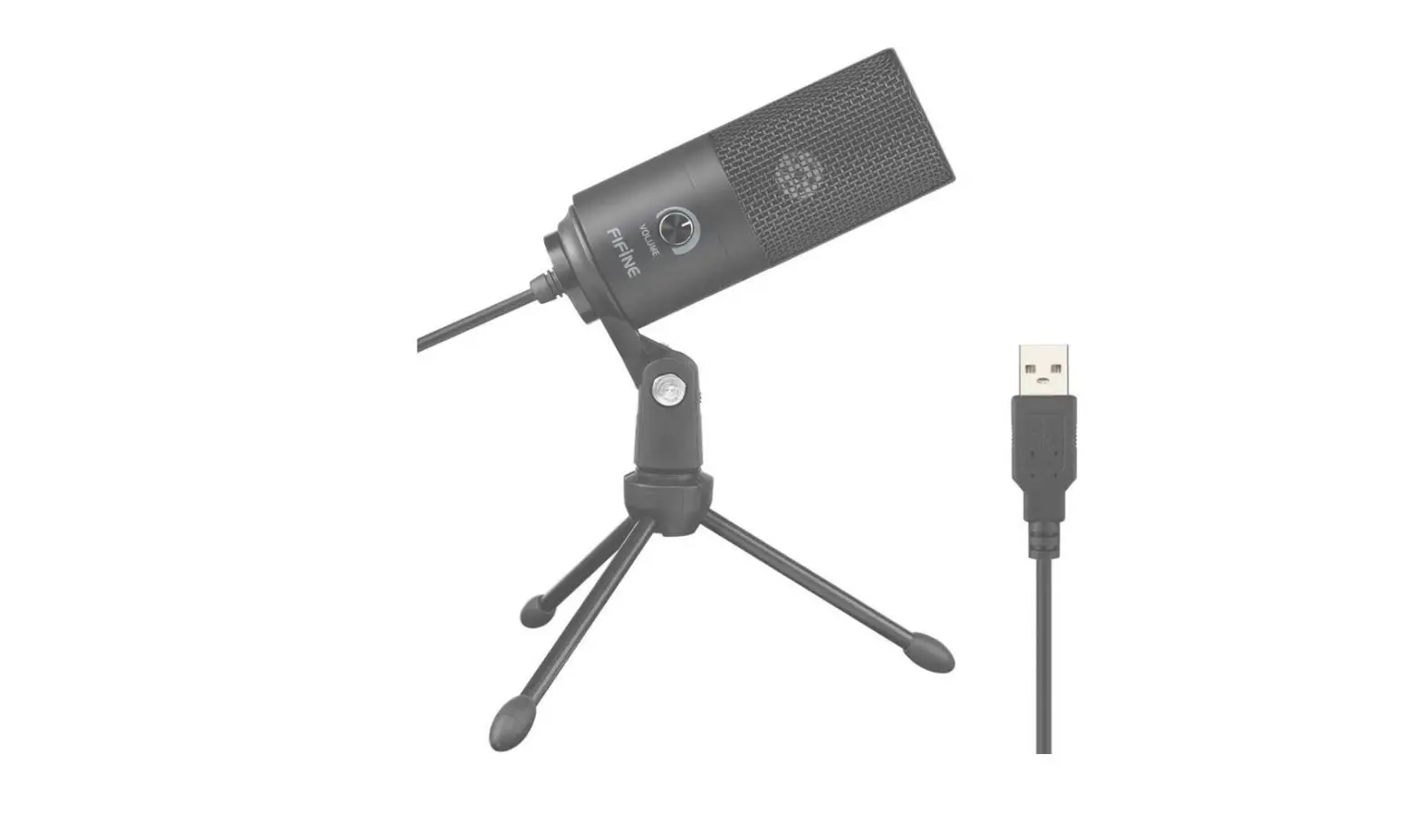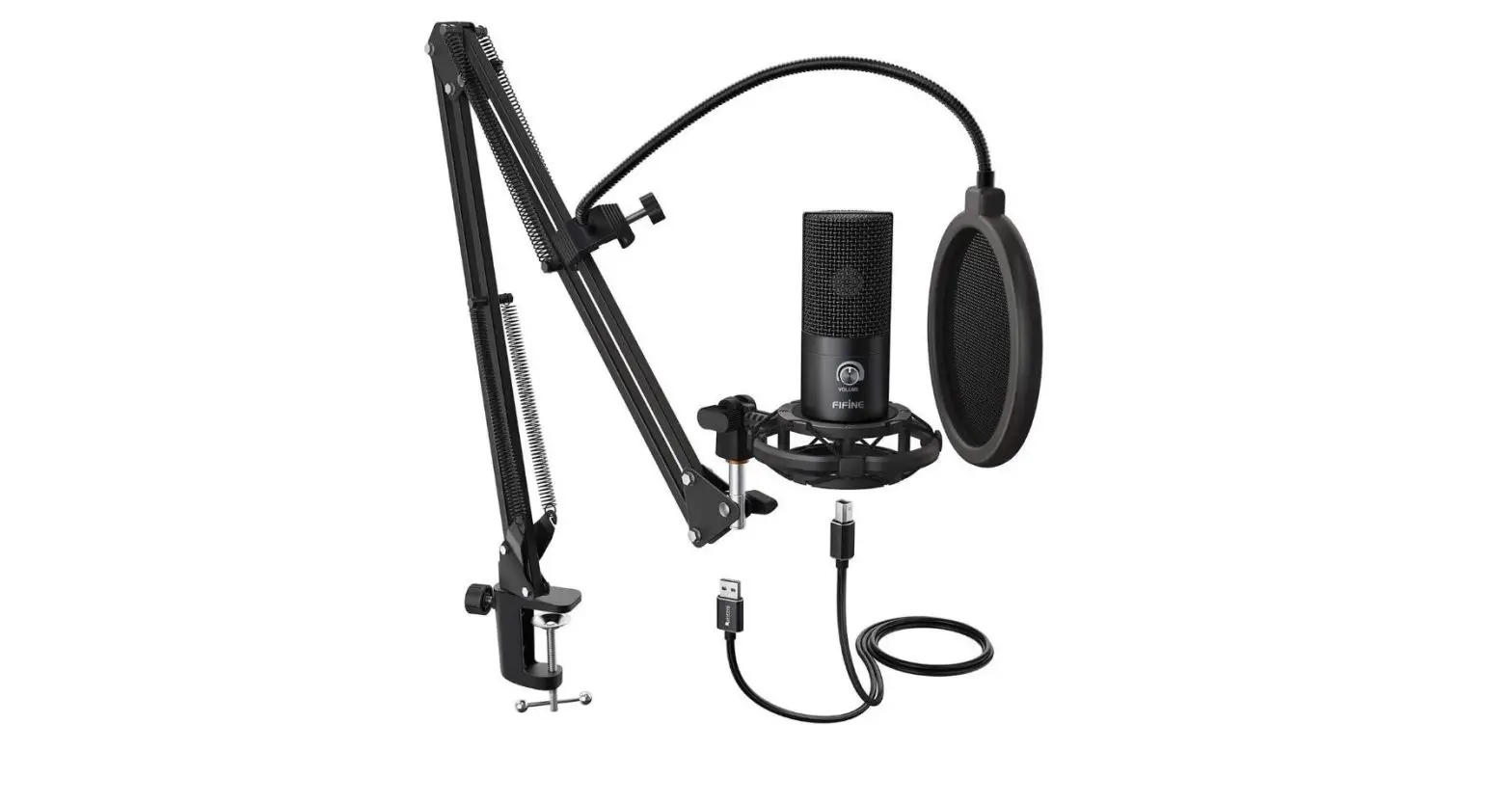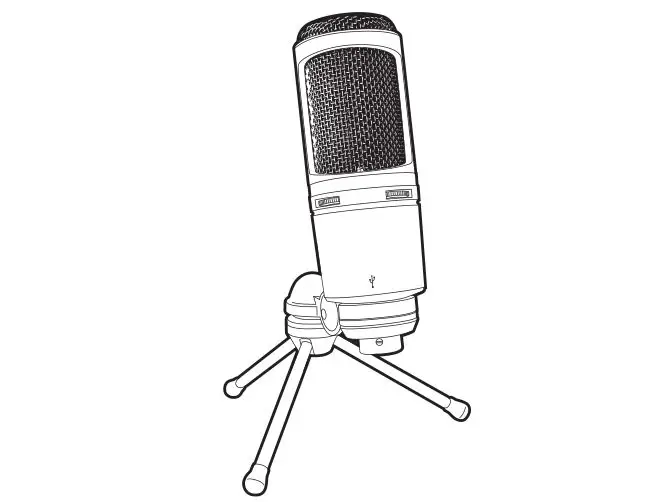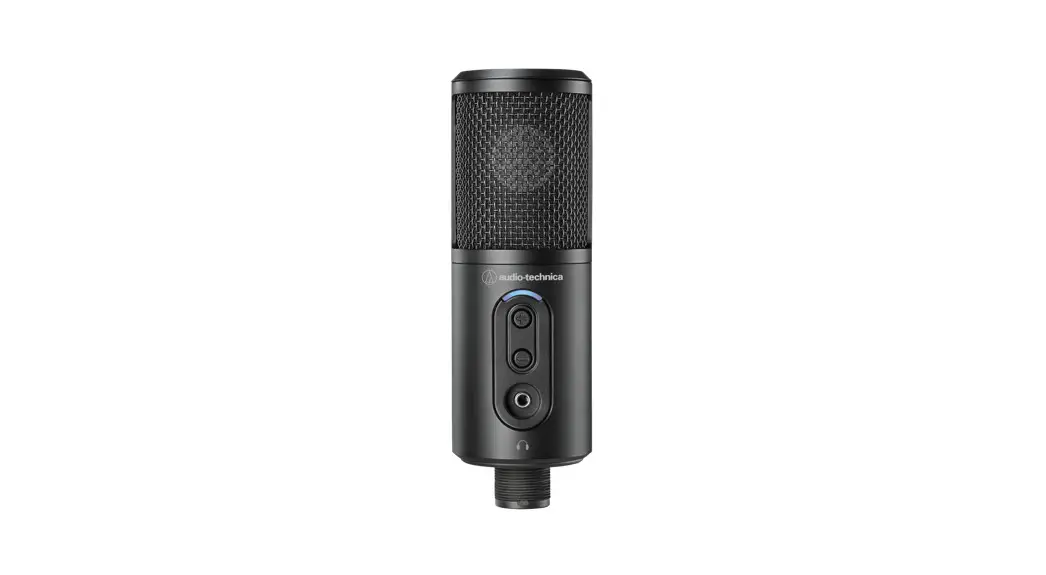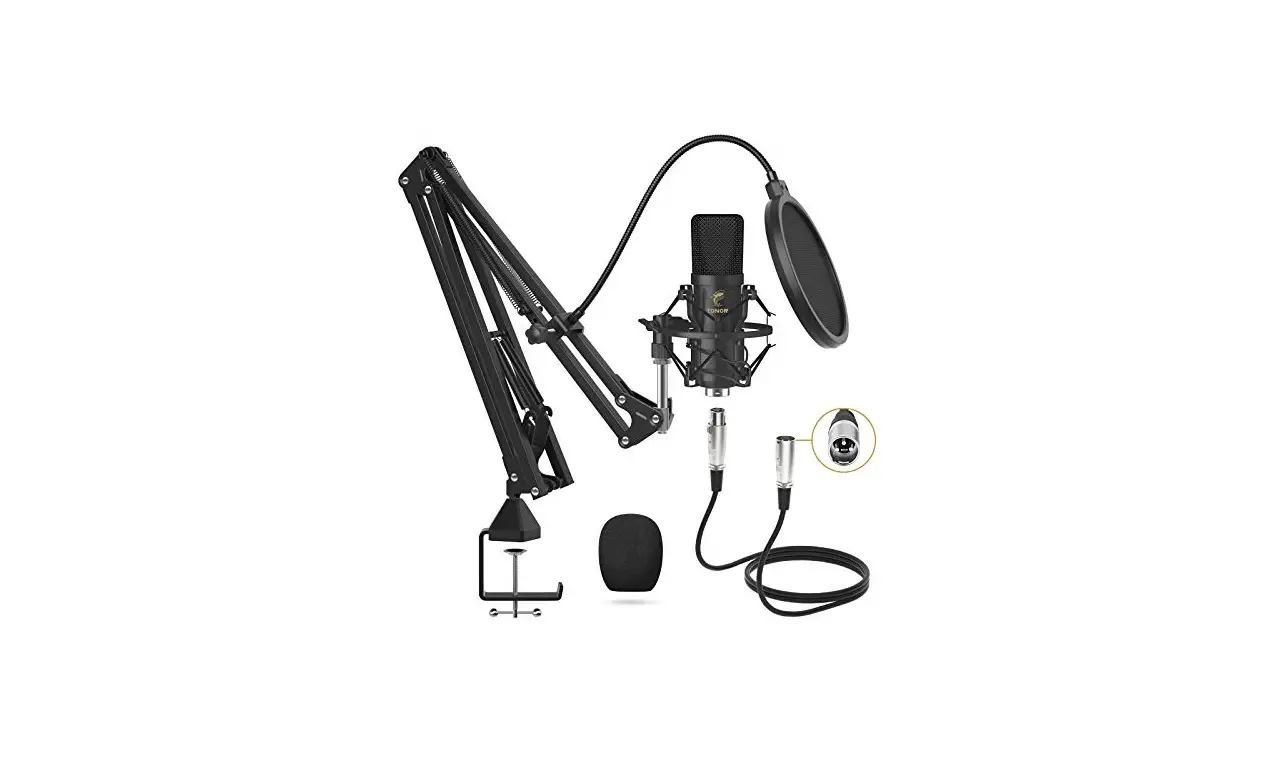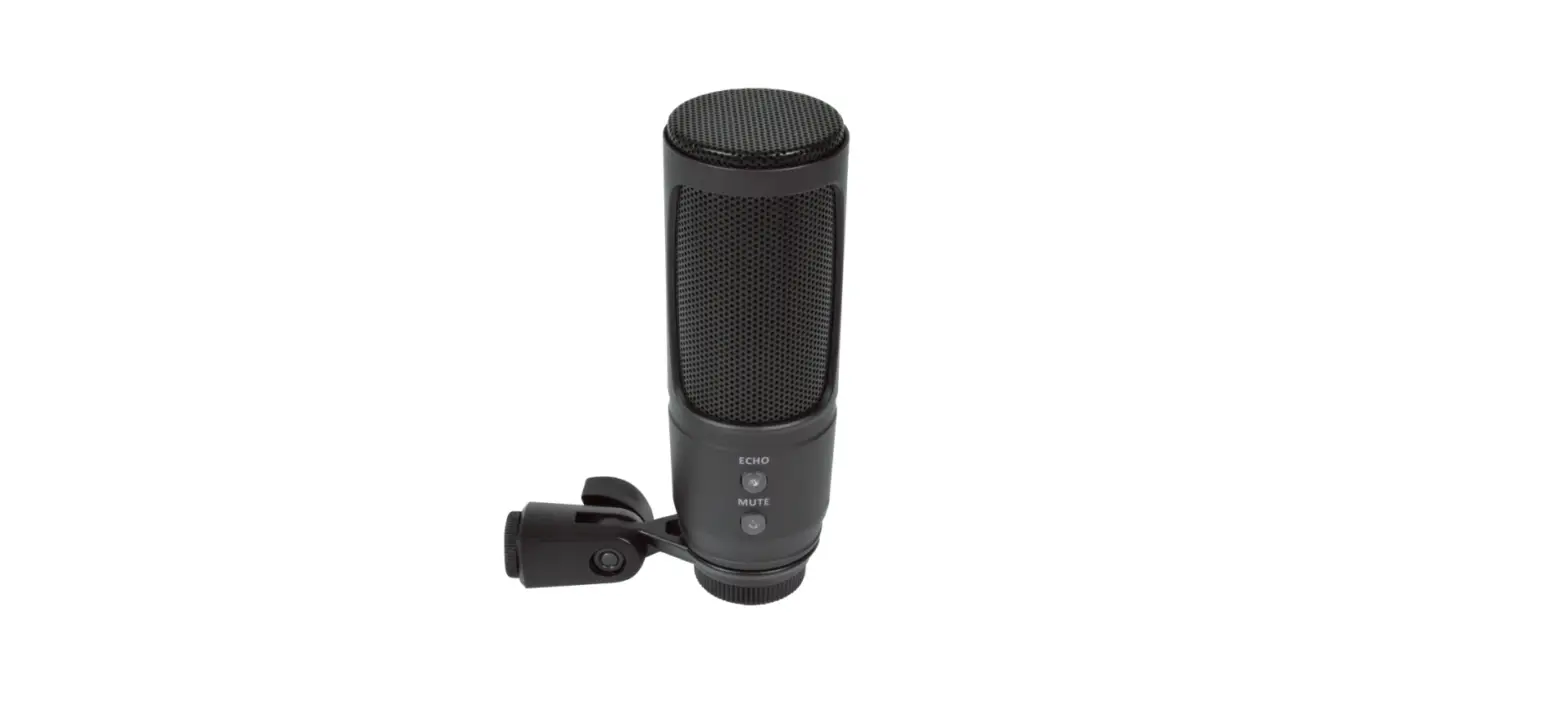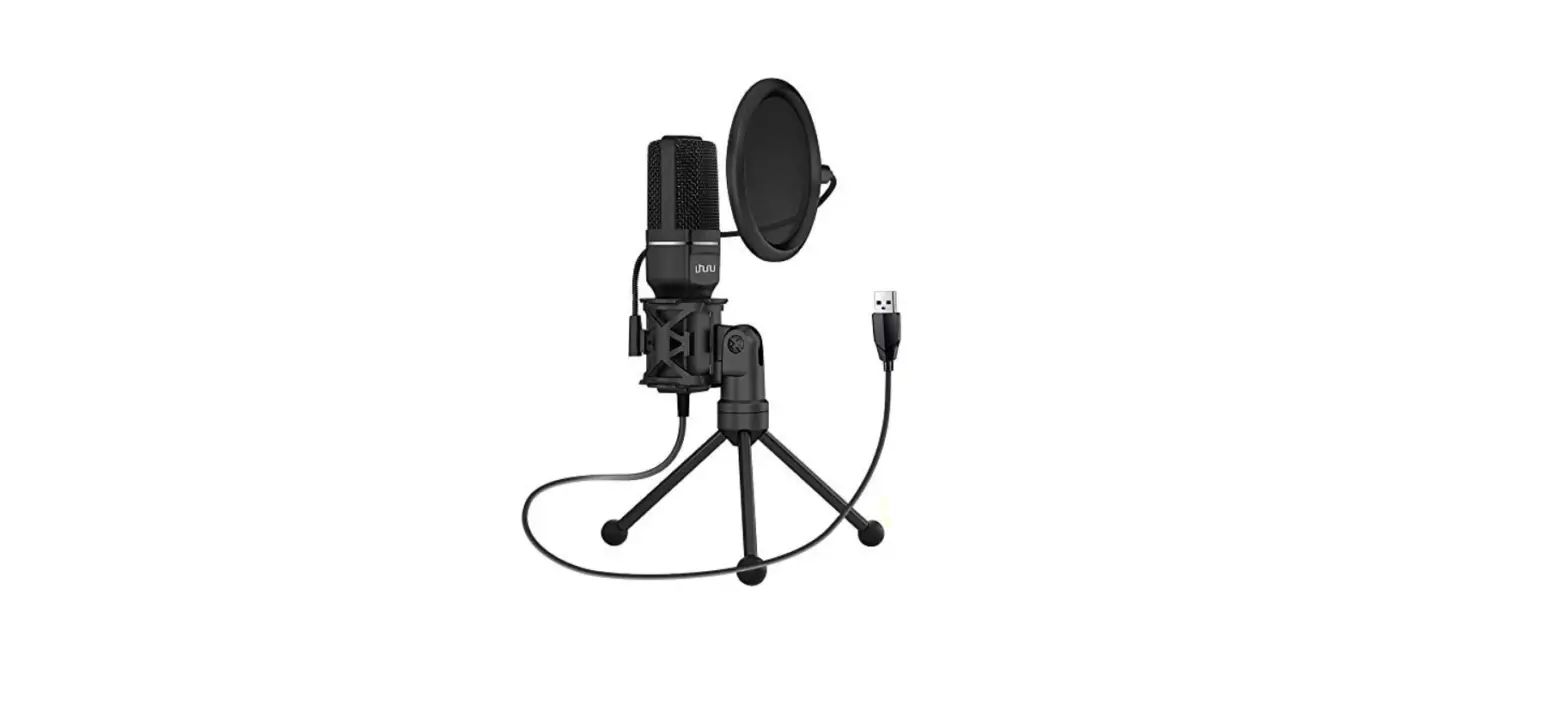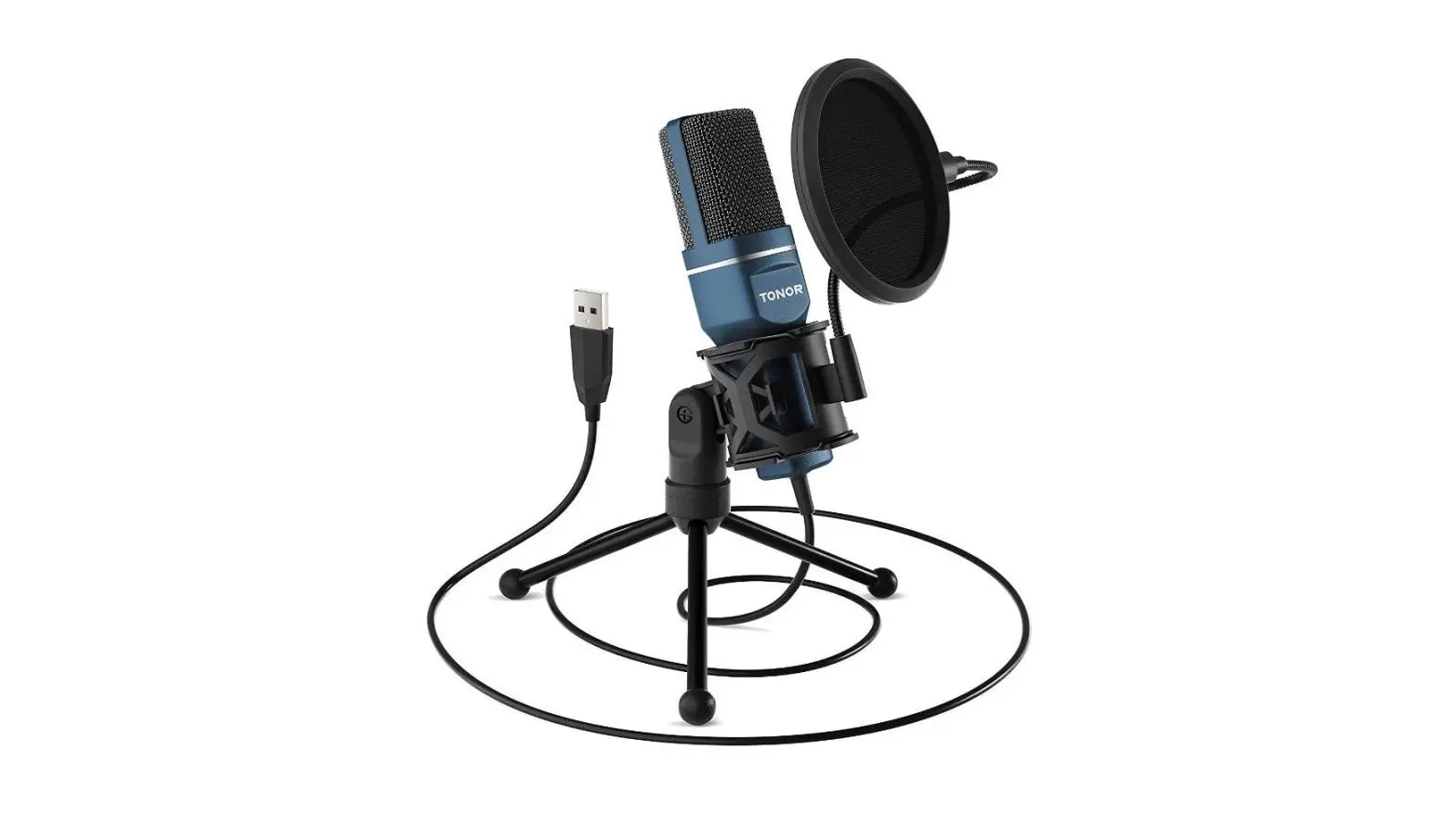

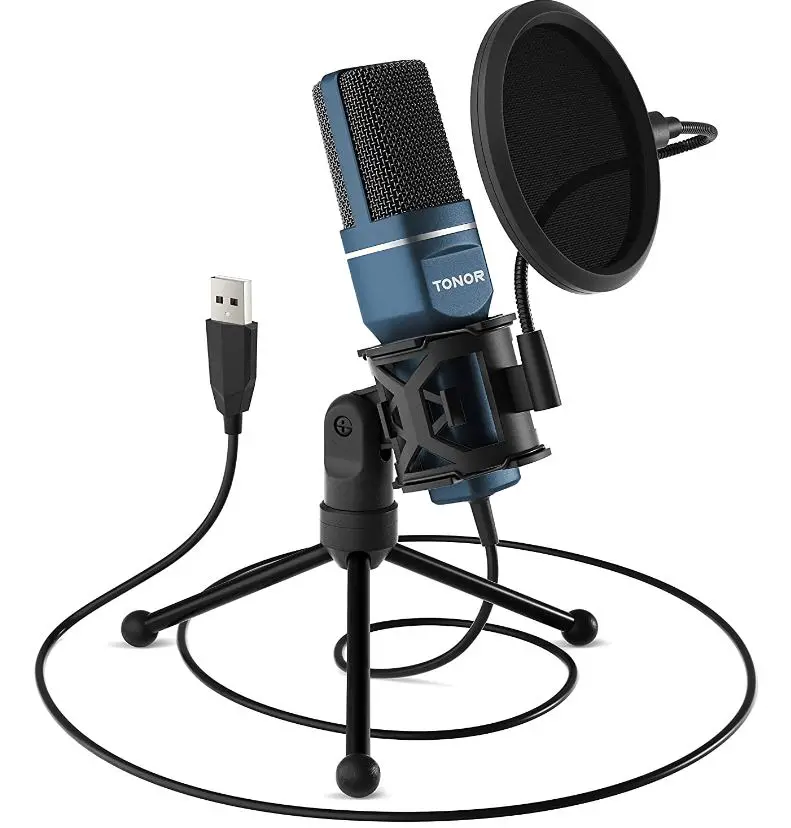
USB Microphone, TONOR Computer Cardioid Condenser PC Gaming Mic with Tripod Stand
Specifications
- DIMENSIONS: 8.94 x 5.16 x 2.91 inches,
- WEIGHT: 12.2 ounces,
- USB CABLE LENGTH: 1.5m,
- FREQUENCY RESPONSE: 100Hz-16kHz,
- OUTPUT IMPEDANCE: 680ohm,
- S/N Ratio: 56dB,
- MANUFACTURER: Tonor
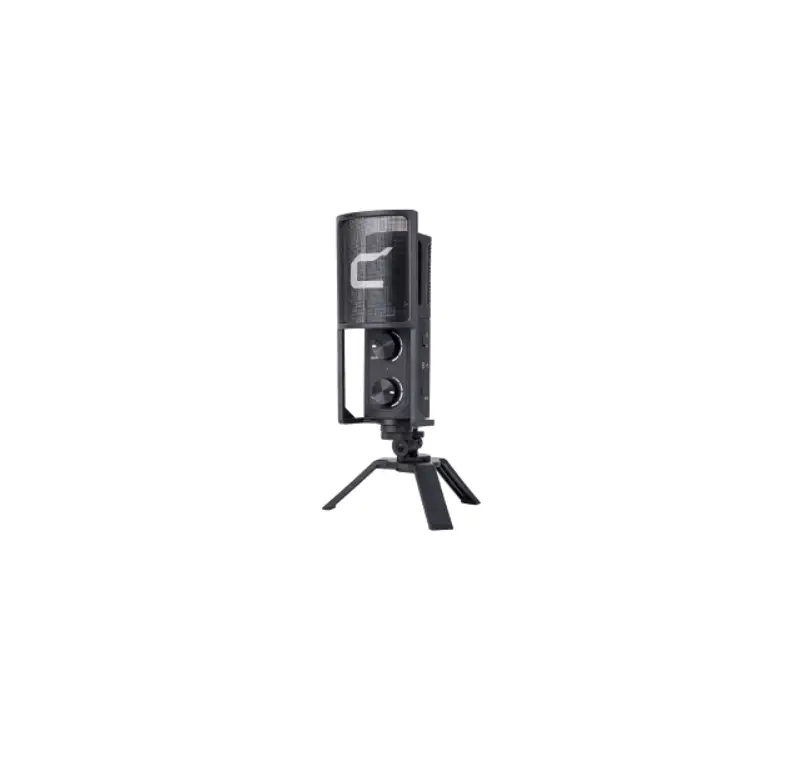
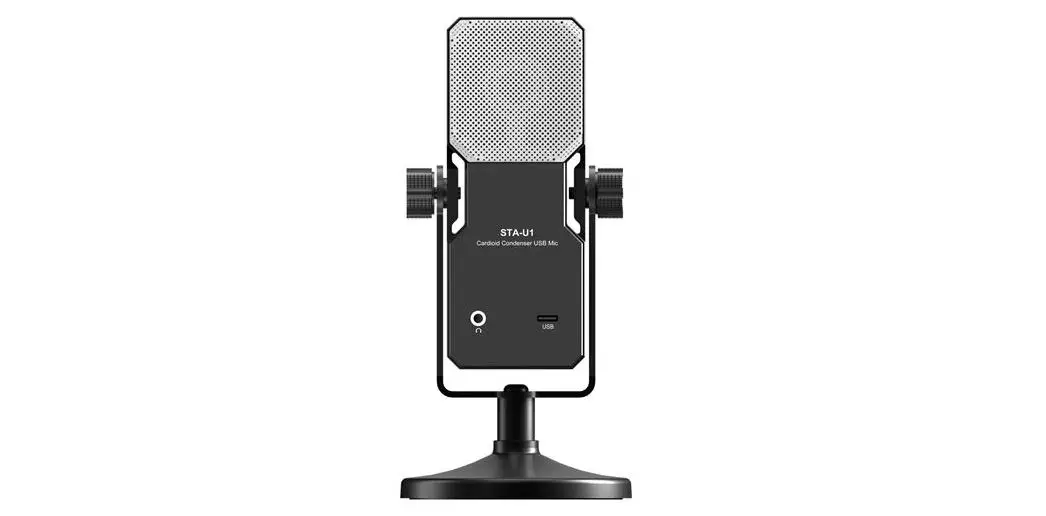
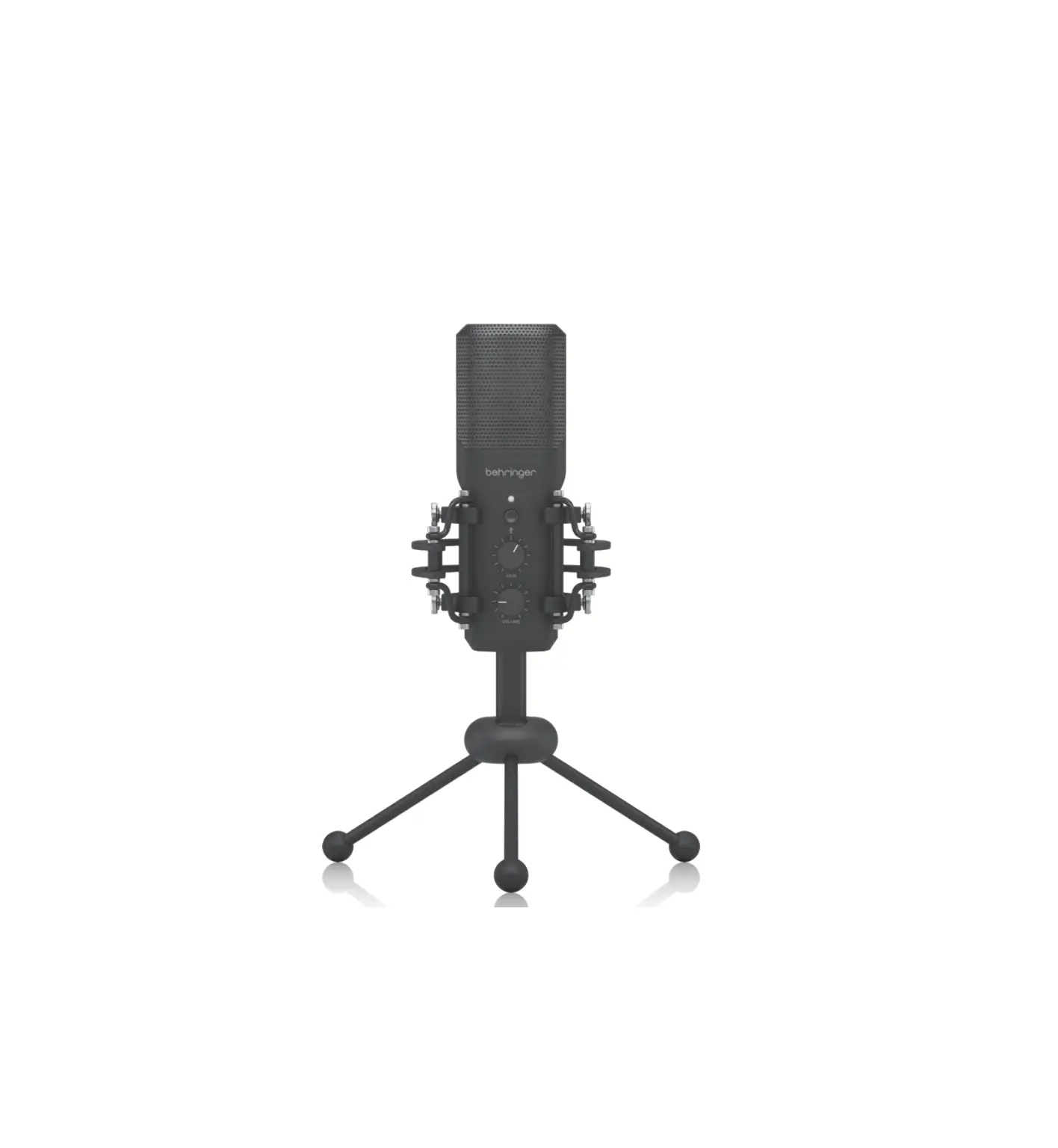
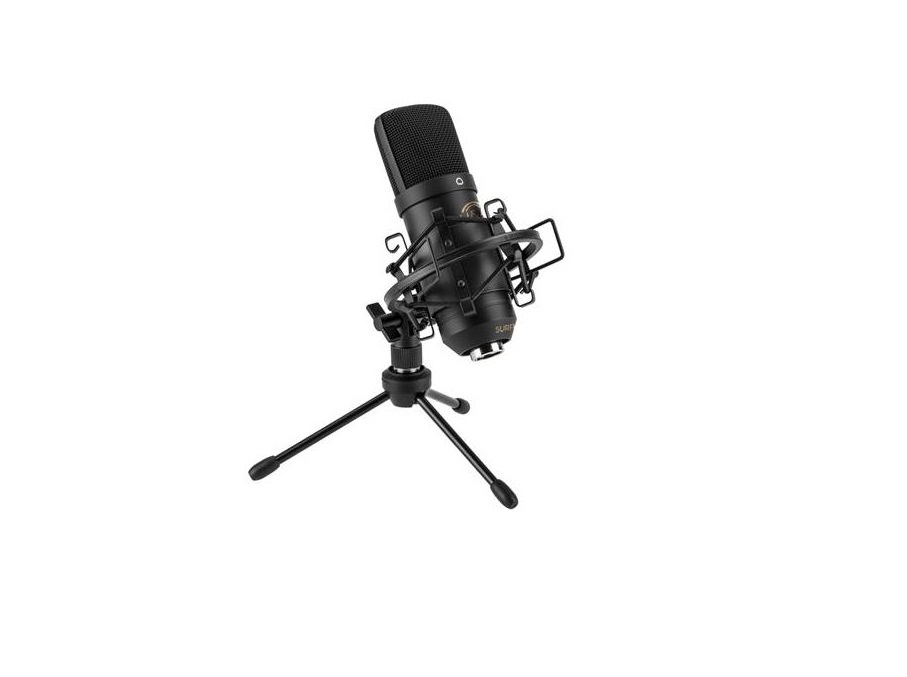
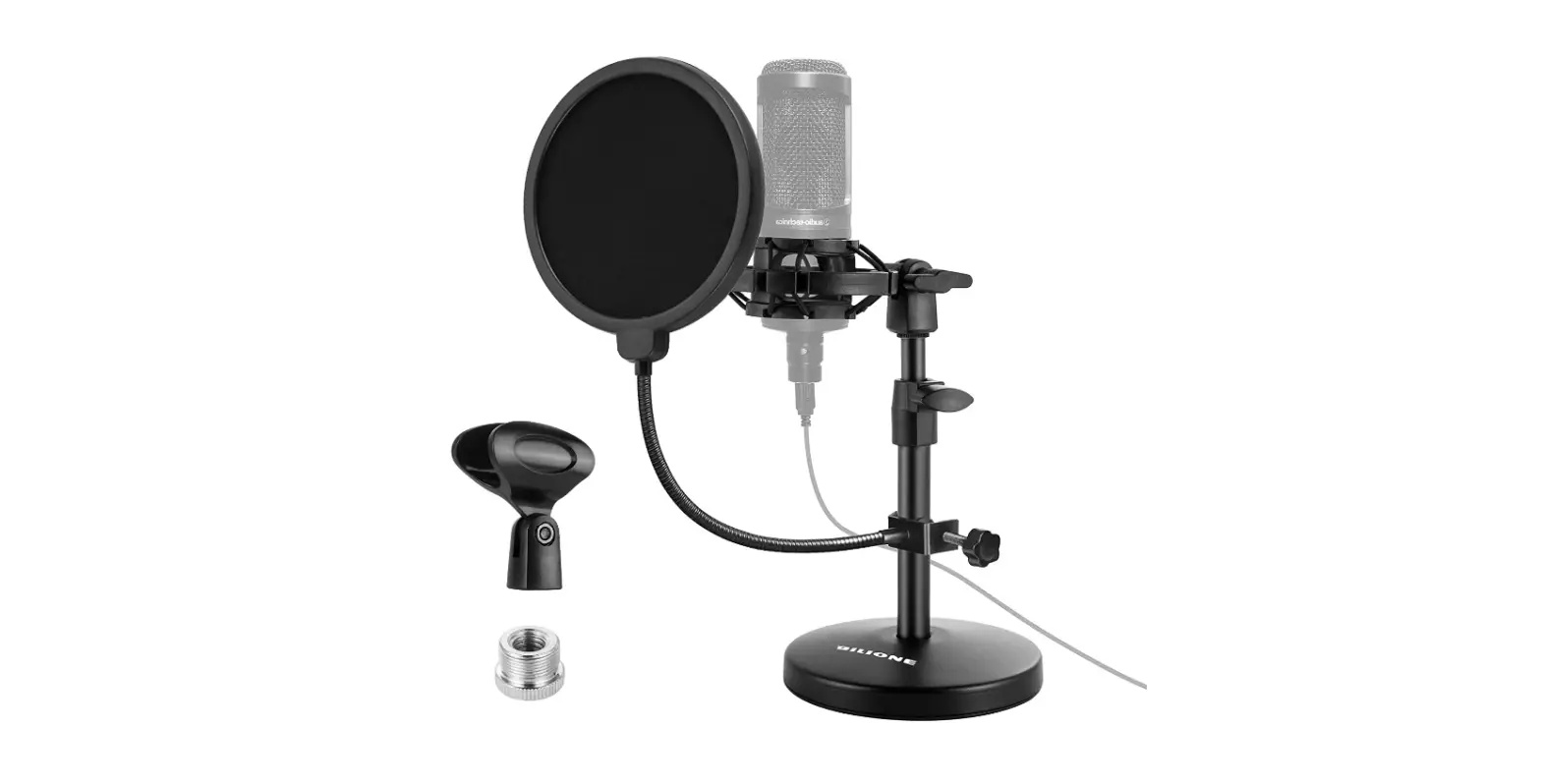
Tonor TC-777 is one of the companions of quarantine. It is a small plastic and light weight microphone. It comes with stand legs and pop filter arm which makes it perfect audio source for recording videos. Tonor is famous for its good quality sound products, and the TC-777 follows the norm. It delivers clear audio when used with a variety of software such as Teams, Discord and playing games. It also comes with mechanisms in order to reduce the surrounding noise.
What’s in the Box?
- Tonor TC-777 Microphone x 1
- Tripod Stand x 1
- Mini Shock Mount x 1
- Pop Filter x 1
- Rubber Band x 1
- User Manual x 1
- Service Card x 1
Computer Setup of the TC-777 Microphone
Apple macOS
- Plug the TC-777 mic into your computer, indicating the mic is receiving power. The computer will automatically recognize the USB device and install a driver.
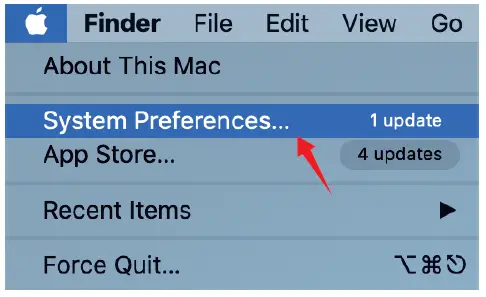
- First, select ”TONOR TC-777 Audio Device” as your audio input, open your “System Preferences”.

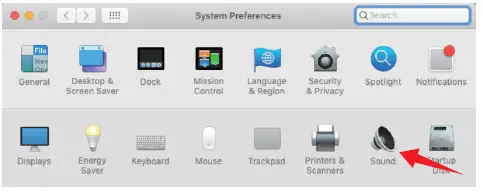
- Next, click “Sound” to display the Sound preference pane.

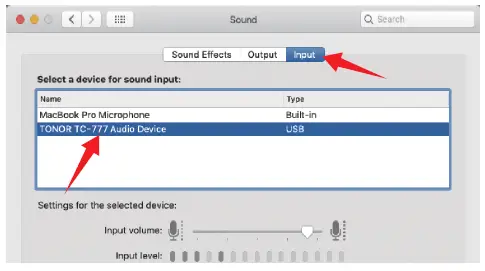
- Click the Input tab and select the ”TONOR TC-777 Audio Device” as the device for sound input.
NOTICE:
If you want to monitor your voice when using the macOS operating system, please turn on any recording software first (for example, GarageBand), and make sure to click “Monitoring”. Then click the “Record” to begin, otherwise you cannot hear any sound when you speak into the mic. If the computer is not able to identify this USB device, please restart your computer and replug the mic into other USB port.
WINDOWS
Please wait for a few seconds when using the first time, since the driver of the TONOR TC-777 microphone need to take time to install automatically. There may be no pop-up window or message though. (If plugging the USB plug in a different USB port, the driver will install again).
After installation, you can test the mic by speaking to it. If the mic picks up no sound, please follow the procedure below.
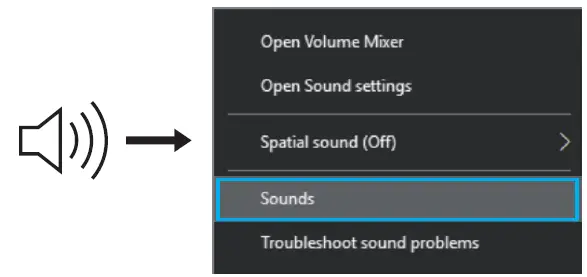
- Right-click the speaker icon at the bottom right of the screen. Click “Sounds”.

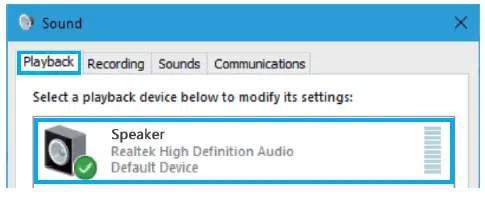
- Confirm the loudspeaker is turned on.

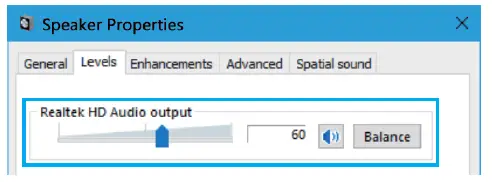
Click the loudspeaker you are using – “Properties”- “Levels”, and drag the progress bar to adjust the output volume.
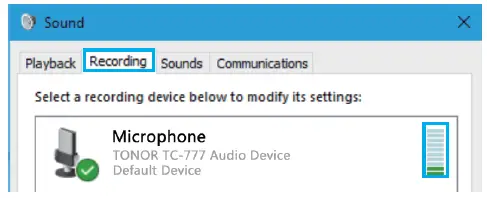
- Select the “Recording” tab, and choose “TONOR TC-777 Audio Device” as the default device. When you speak to the mic, the bar-type icon will turn green and bounce.

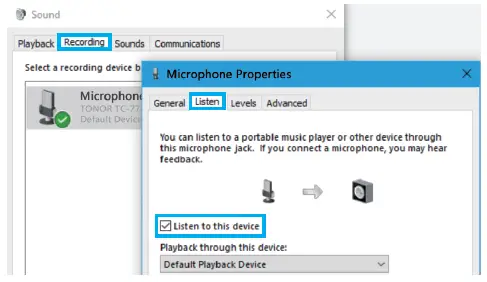
If it is still unchanged, please reset your computer and replug the mic into other USB port. If there’s still no “TONOR TC-777 Audio Device”, please contact TONOR After-sales Team. ([email protected]) If you want to monitor your recording, click Microphone “Realtek High Definition Audio”: “Properties”- “Listen”- click “Listen to this device”- “Apply”. NOTE: Click “Listen to this device” when you are using any recording software.
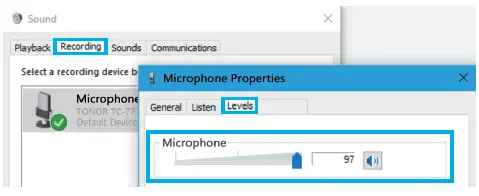
- Double click on the “TONOR TC-777 Audio Device” icon to open the Microphone Properties window. Then select the Level tab to adjust the microphone loudness level.
IMPORTANT NOTICE
- Selecting software
You may have many choices in recording software. Here we recommend the Audacity, (available for free online at http://audacity.sourceforge.net/) is a basic and widely used recording software.
Note: The microphone must be plugged in first and then turn on the recording software.
- Positioning the microphone
No matter how you adjust the angle or position of the mic, make sure the mic capsule is pointing at your mouth in order to achieve the best pickup effect.
- Protecting your microphone Avoid leaving your microphone in the open air or in areas where temperatures exceed 110° F (43° C) for extended periods. Extremely high humidity should also be avoided.
- Recording Software Settings
- Make sure you have the correct input/output selected.
Notice: log out of AUDACITY (or other recording software) if you find the USB microphone is unavailable. Plugin the mic first, then log in software again. - Make sure to click off “listen to this device” in your computer system when you are streaming. Or you will hear dual of yourself just like too much echo.
- Make sure you have the correct input/output selected.
VERDICT
TC-777 microphone is a good choice for gamers as well as people who spent most of their time in online meetings. It produces good quality sound and comes at a very good price. If you are a YouTuber, Gamer or someone who attends a lot of meetings and is looking for a noise-canceling mic, this is a very good and budget-friendly option for you.
FREQUENTLY ASKED QUESTIONS
- If the computer cannot identify USB devices?
- Replug the microphone into other USB port.
- Restart the computer.
- Replug the microphone into another computer’s USB port
If the microphone still cannot be identified, please contact us by email. [email protected]
- If the mic is recognized but no sound comes out?
APPLE macOS System
Please check whether “System Sound” is mute and whether you have turned the volume control on the microphone to a minimum.
Windows System
Please go to settings>privacy>microphone and click the Allow apps to access the microphone to ON then restart. - If buzz or electric sound is found?
Unplug it, and then plugin again. Make sure all interfaces are plugged tightly;
Restart your computer, or insert the microphone into another USB jack;
Record an audio sample to check if it is caused by the surrounding environment or the interference of electronic devices;
Keep the microphone away from mobile phones and iPad, don’t place these electronic devices around it;
The microphone volume should not be too high. It is recommended to set the microphone volume at 50-80%;
Use recording software to realize noise reduction. - As a gamer, how to set this microphone to a best effect?
In order to get the best effects from this microphone as a gamer, first of all set the input and output level of the microphone on your device (computer) to around 60%-80%. The pickup distance should be kept at 3 to 5 inches. - What is the length of the cable?
The length of the cable is about 3 ft. - Does it work with PS4?
Yes, it works with PS4. - Is it compatible with Xbox?
No, it is not compatible with Xbox.
Can we record music using the mic?
Yes, this microphone can be used to record audio.