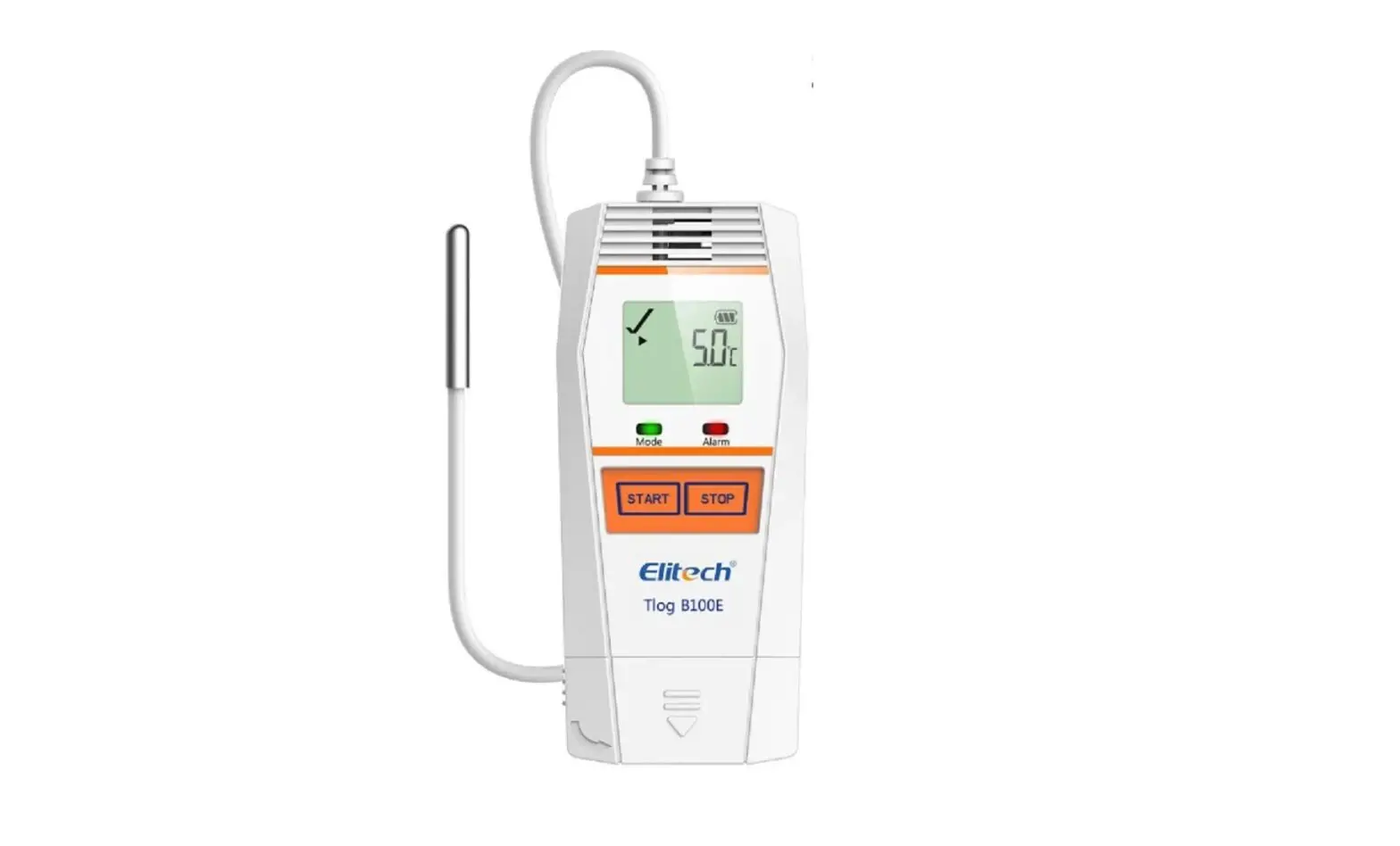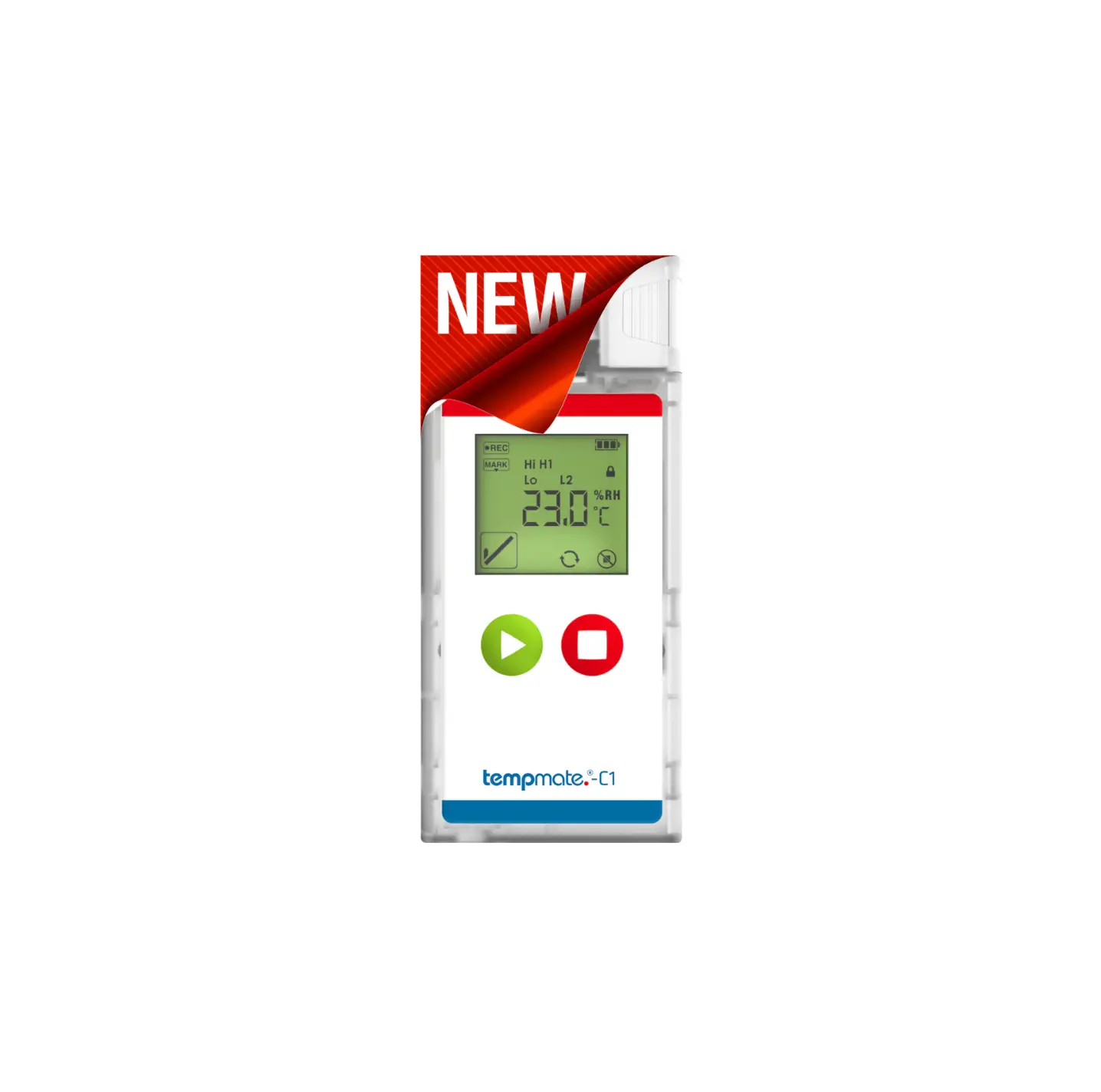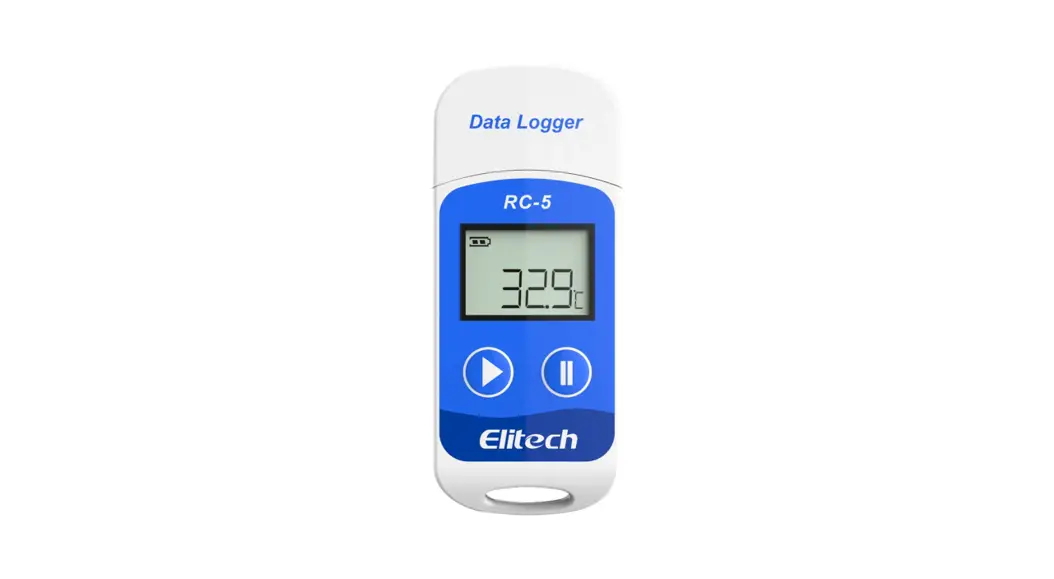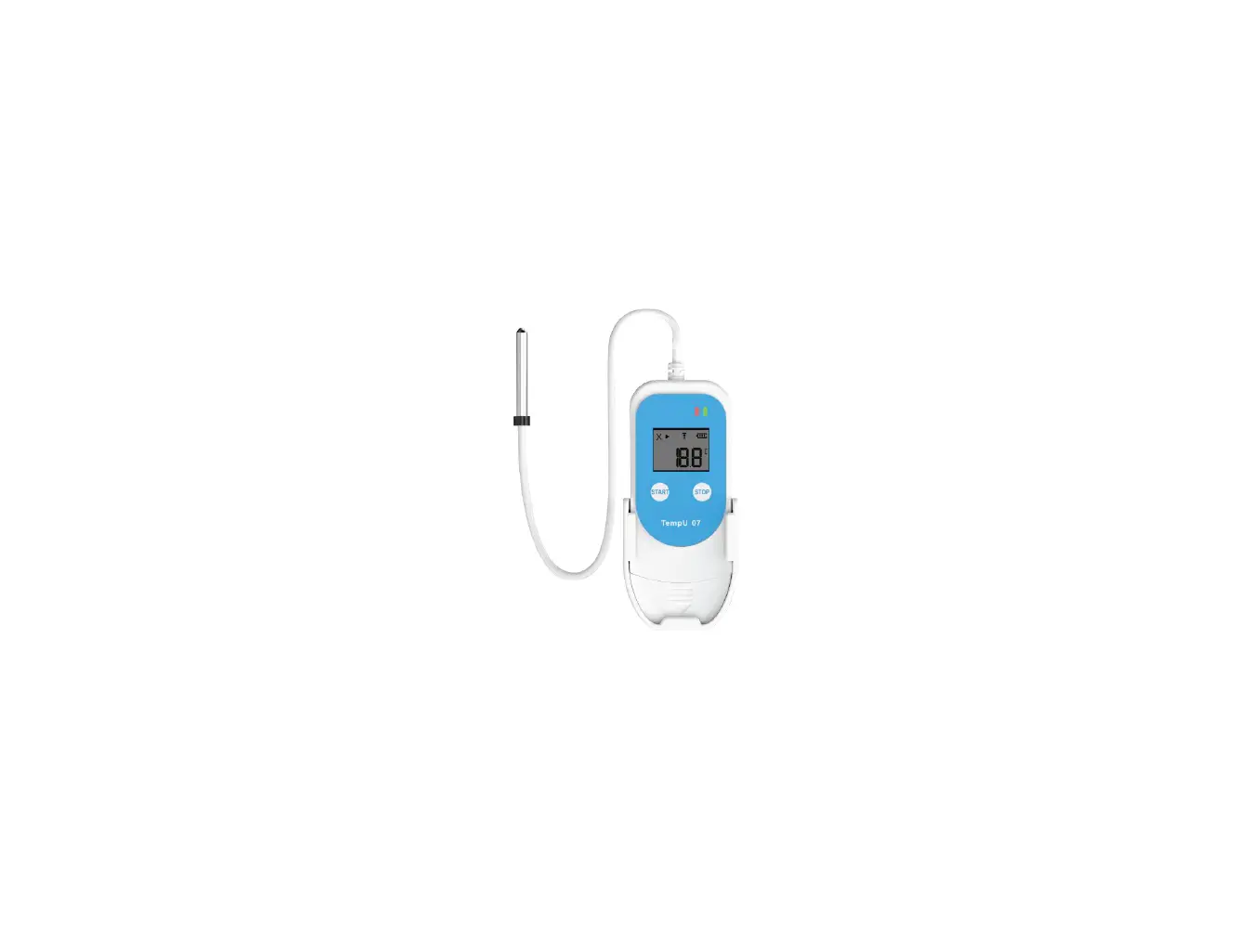

global sources TempU07B Temp and RH Data Logger
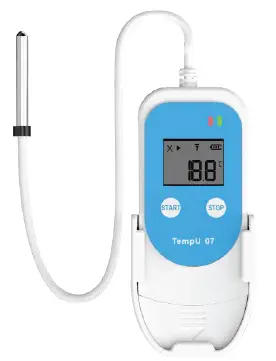
Product introduction
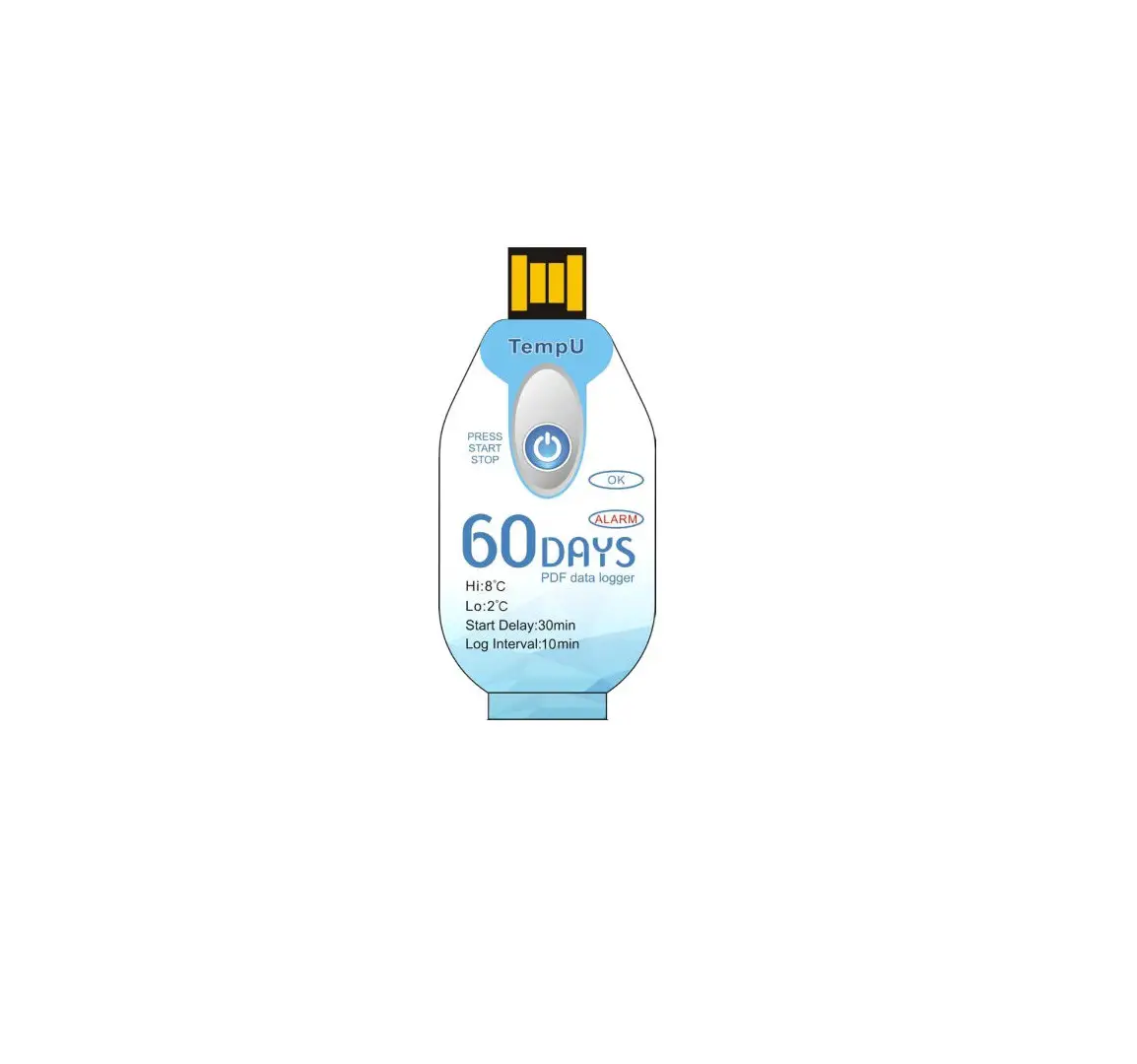
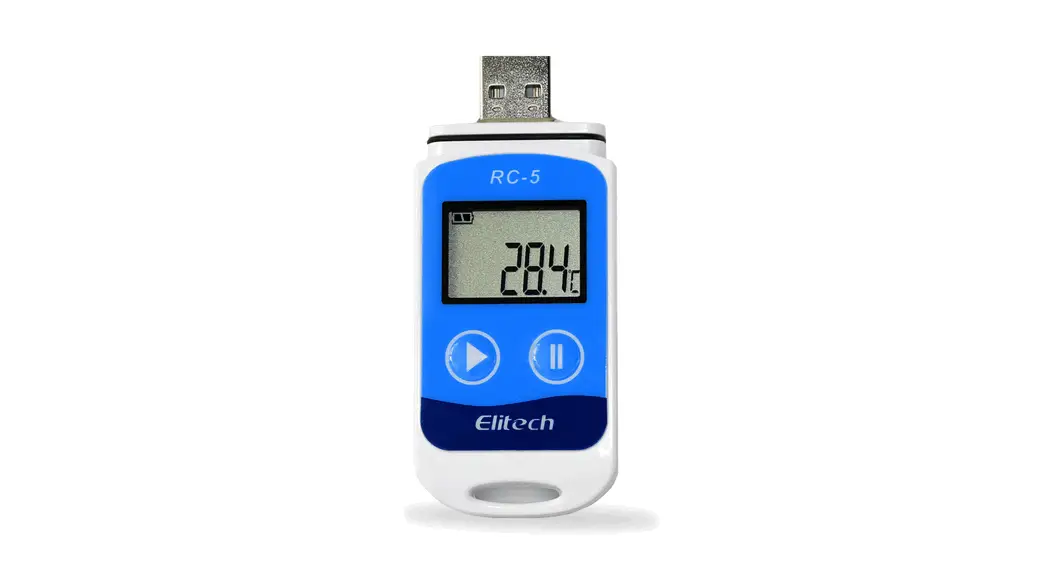
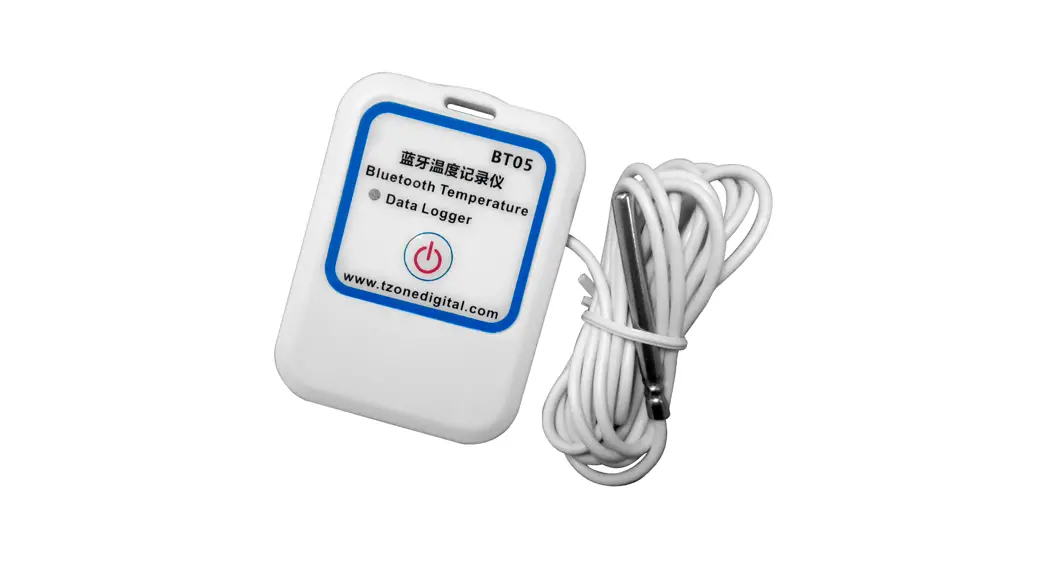
TempU07B is a simple and portable LCD screen temperature and humidity data logger. This product is mainly used to monitor and record the temperature and humidity data during transportation and storage. It’s are widely used in all aspects of the warehousing and logistics cold chain, such as refrigerated containers, refrigerated trucks, refrigerated distribution boxes, and cold storage laboratories. Data reading and parameter configuration can be realized through the USB interface, and the report can be easily and automatically generated after insertion, and there is no need to install any drivers when it’s inserted into the computer.
Technical parameters
| Project | Parameter |
| Probe Measuring Range | Humidity 0%~100%RH, Temp -40℃ ~85℃ |
| Accuracy | ±3%(10%~90%), ±5%(other); ±0.3℃(0~60℃), ±0.6℃(other) |
| Resolution | 0.1%RH typically, 0.1℃ |
| Data Capacity | 34560 |
| Usage | Multiple times |
| Start Mode | Button Start or Timed Start |
| Recording Interval | User configurable (10 seconds to 99 hours) |
| Start Delay | User configurable (0~ 72 hours) |
| Alarm Range | User configurable |
| Alarm Type | Single type, Cumulative type |
| Alarm Delay | User configurable (10 seconds to 99 hours) |
| Form of Report | PDF and CSV format data report |
| Interface | USB2.0 Interface |
| Protection Level | IP65 |
| Product Size | 100mm*43mm*12mm |
| Product Weight | 85g |
| Battery Lifetime | More than 2 years (Normal temperature 25℃) |
| PDF and CSV report generation time | Less than 4 minutes |
Factory default parameters of device
| Project | Project |
| Temperature Unit | ℃ |
| Temperature Alarm Limit | <2℃ or >8℃ |
| Humidity Alarm Limit | <40%RH or >80%RH |
| Alarm Delay | 10 minutes |
| Recording Interval | 10 minutes |
| Start Delay | 30 minutes |
| Device Time | UTC time |
| LCD Display Time | 1 minute |
| Start Mode | Press button to start |
Operating instructions
- Start recording
Long press the start button for more than 3s until the screen“►”or the “WAIT” symbol is on,indicating that the device has successfully started recording. - Marking
When the device is in the recording state, long press the start button for more than 3s, and the screen will jump to “MARK” interface, mark number plus one, indicating successful marking. - Stop recording
Long press the stop button for more than 3s until the “■” symbol on the screen lights up, indicating that the device stops recording.
LCD display description
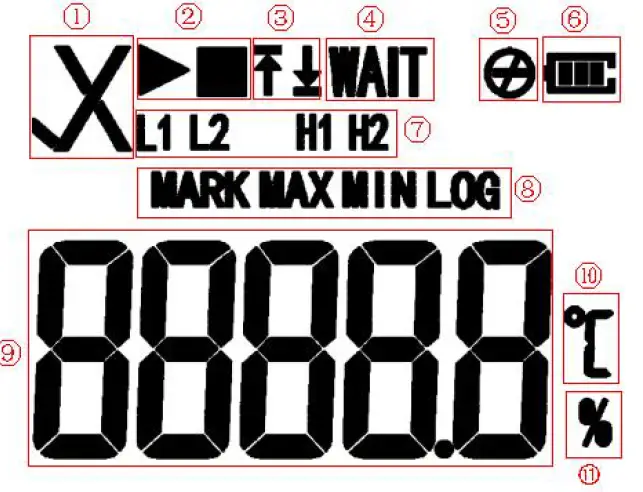
| 1 | √ Normal × Alarm | 6 | Battery Power |
| 2 | ▶In recording status ■ Stop recording status | 8 | Interface indication |
| 3 and 7 | Alarm area: ↑ H1 H2 (high temperature&humidity alarm) ↓ L1 L2 (low temperature&humidity alarm) | 9 | Temperature value Humidity value |
| 4 | Start delay status | 10 | Temperature unit |
| 5 | Button Stop Mode invalid | 11 | Humidity unit |
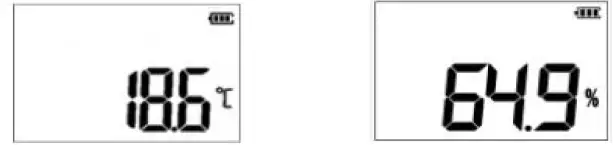
Short press the start button to switch the display interface in turn
Real time temperature interface → Real time humidity interface → Log interface → Mark
number interface → Temperature maximum interface→ Temperature minimum interface →
Humidity maximum interface → Humidity minimum interface.
- Real time temperature interface (initialization state)

- Real time humidity interface (initialization state)
- Log interface (record state)

- Mark number interface (record state)
- Temperature max interface (record state)

- Temperature minimum interface (record state)
- Humidity max interface (record state)

- Humidity minimum interface (record state)
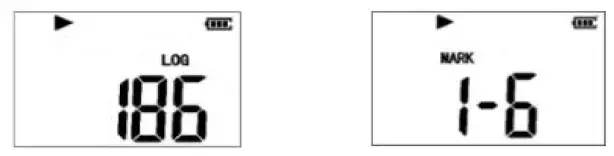
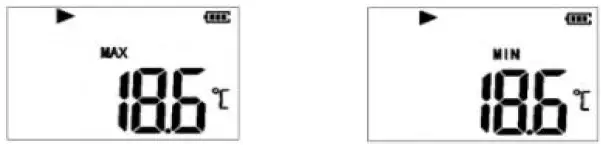
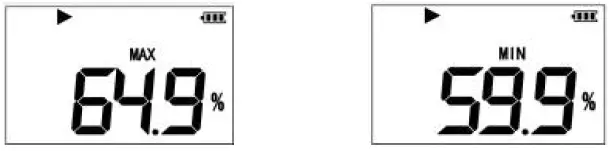
Description of battery status display
| Power Display | Capacity |
 | 40%~100% |
 | 15%~40% |
 | 5%~15% |
 | <5% |
Notice:
The battery indication status can not accurately represent the battery power in different low temperature&humidity environment.
Computer operation
Insert the device into the computer and wait until the PDF and CSV reports are generated. The computer will display the U disk of the device and click to view the report.
Management software download
Download address of the management software for parameters configuration:
http://www.tzonedigital.com/d/TM.exe or http://d.tzonedigital.com
 d.tzonedigital.com
 tzonedigital.com/d/TM.exe