
User Manual
RC-5/RC-5+/RC-5+TE
Innovation Preceding All
Overview
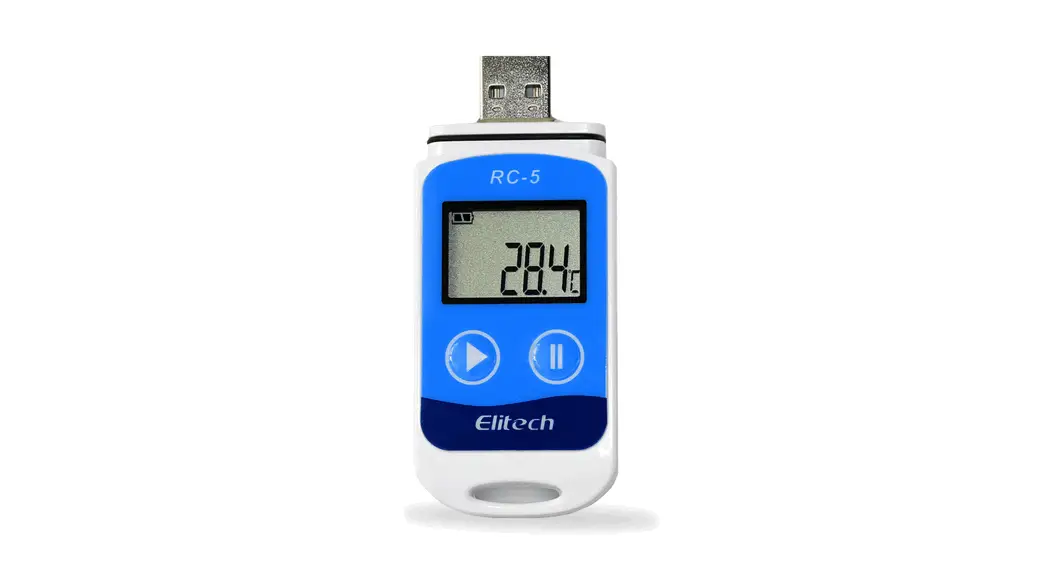
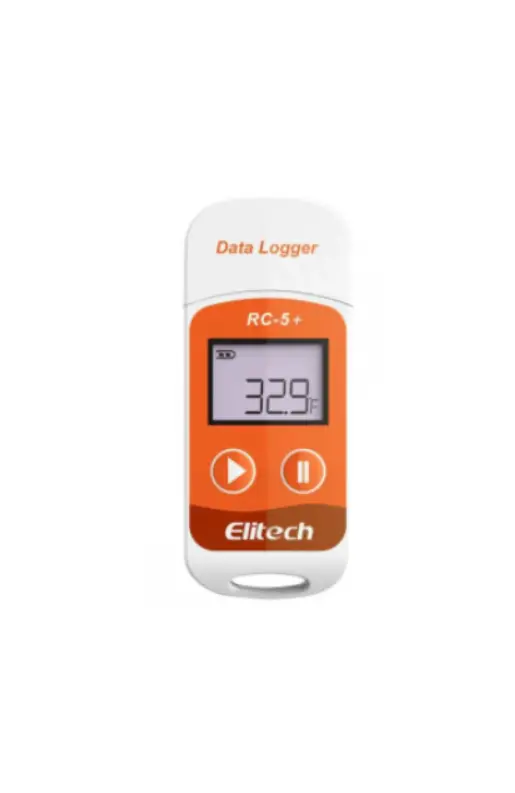
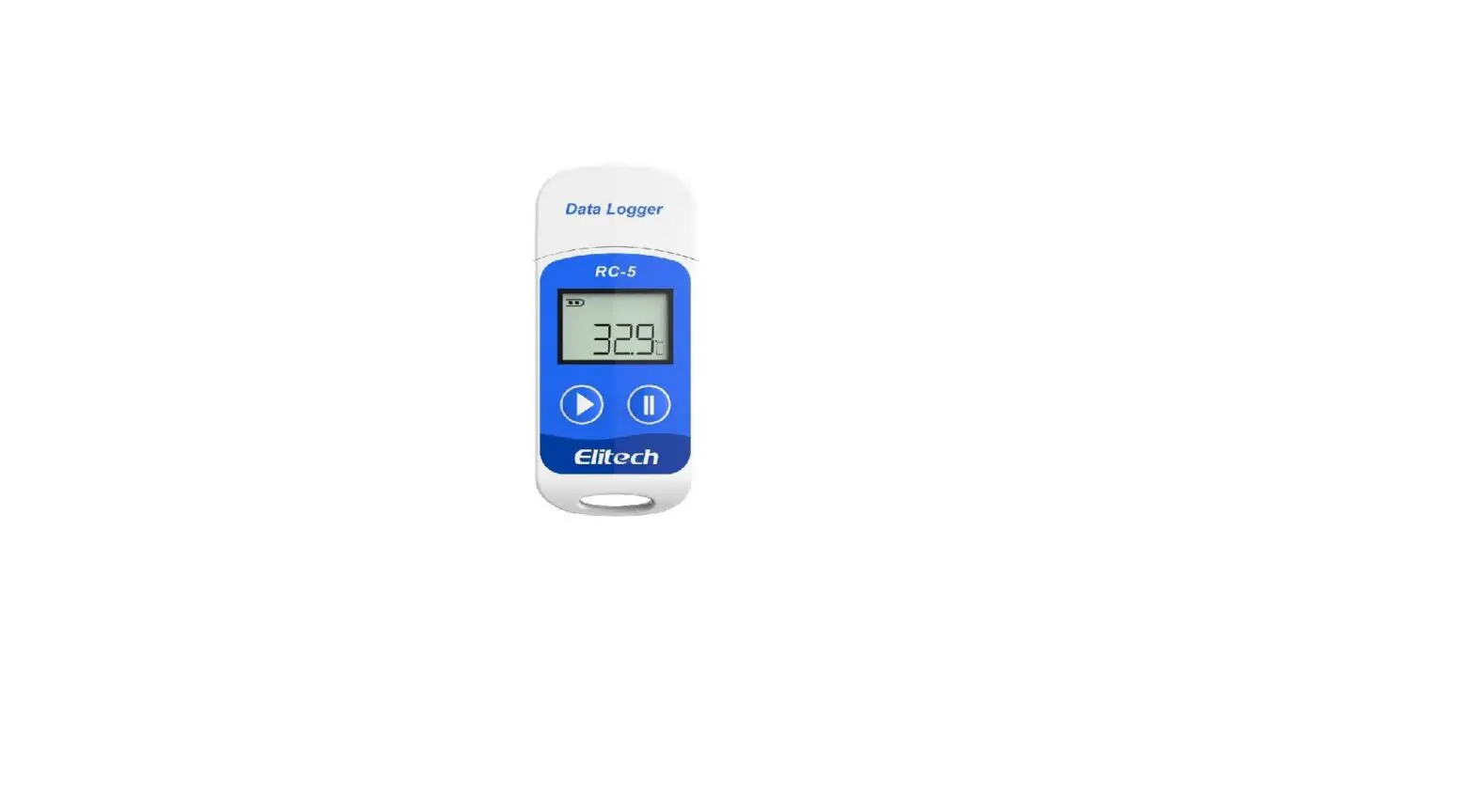
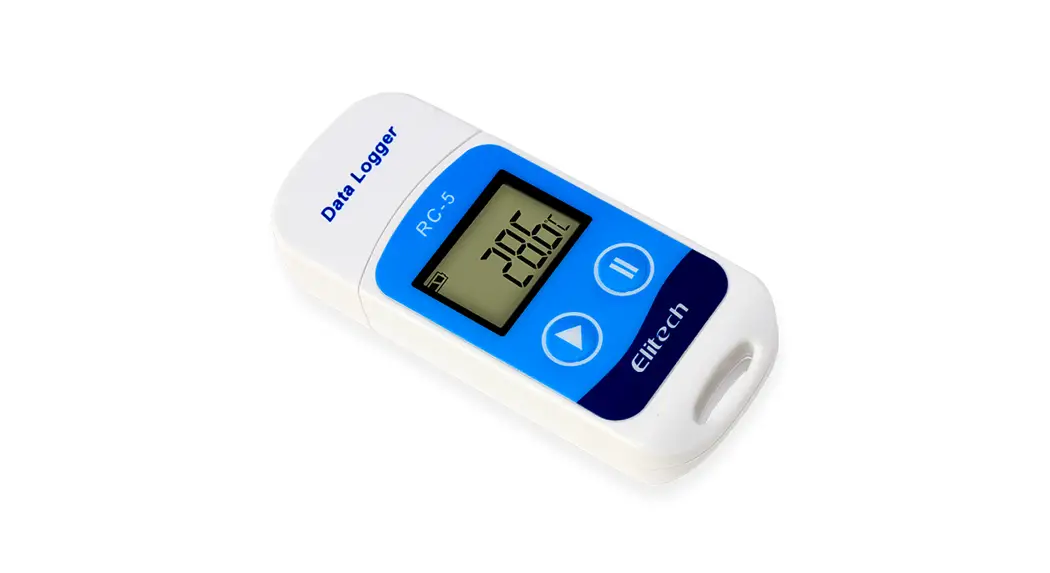
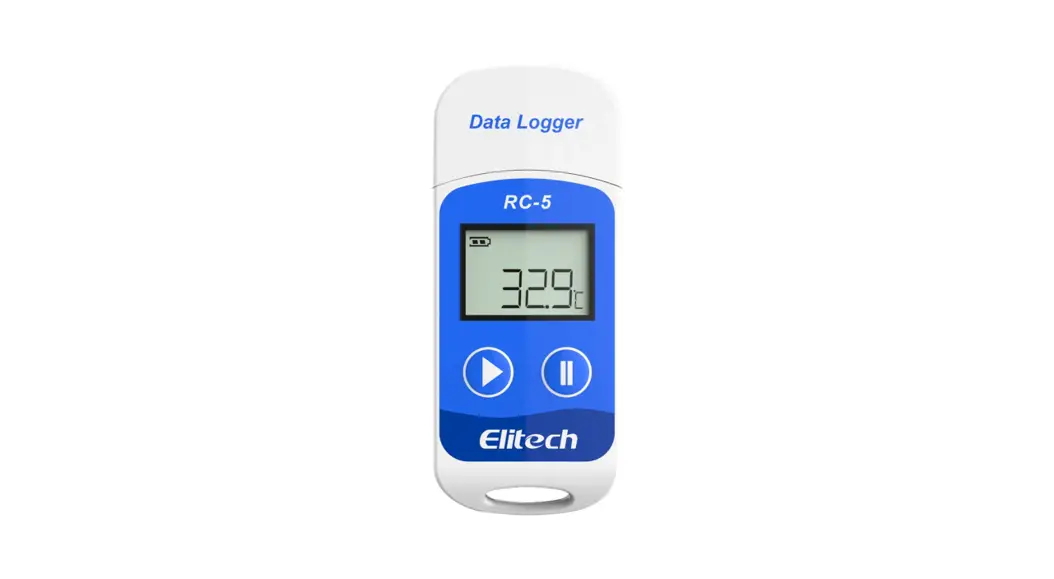
The RE-5 series are used to record the temperature/humidity of foods, medicines and other goods during storage, transportation and in each stage of the cold chain including cooler bags, cooling cabinets, medicine cabinets, refrigerators, laboratories, reefer containers and trucks. RE-5 is a classic USB temperature data logger used in a wide range of applications around the world. RC-5+ is an upgraded version that adds the functions, including automatic PDF reports generation, repeat start without configuration, etc. 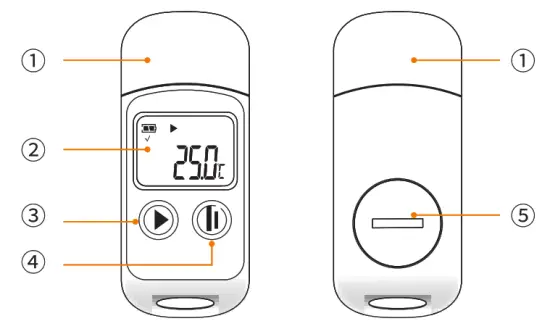
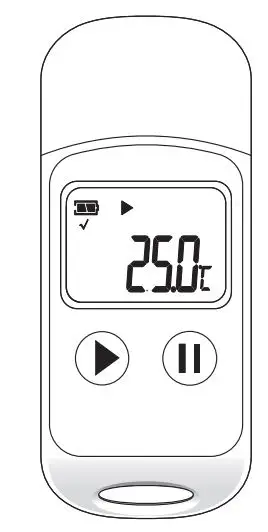
- USB Port
- LCD Screen
- Left Button
- Right Button
- Battery Cover
Specifications
| Model | RC-5/RC-5+ | RC-5+TE |
| Temperature Measurement Range | -30°C-+70°C (-22°F-158°F)* | -40°C-1-85°C (-40°F-185°F)* |
| Temperature Accuracy | ±0.5°C/±0.9°F (-20°C-‘+40°C); ±1°C/±1.8°F (others) | |
| Resolution | 0.1°C/°F | |
| Memory | Maximum 32.000 points | |
| Logging Interval | 10 seconds to 24 hours | 10 seconds to 12 hours |
| Data Interface | USB | |
| Start Mode | Press the button; Use the software | Press the button; Auto start; Use software |
| Stop Mode | Press the button; Auto-stop; Use software | |
| Software | ElitechLog, for macOS & Windows system | |
| Report Format | PDF/EXCEL/TXT** by ElitechLog software | Auto PDF report; PDF/EXCEL/TXT** by ElitechLog software |
| Shelf Life | 1 year | |
| Certification | EN12830, CE, RoHS | |
| Protection Level | IP67 | |
| Dimensions | 80 x 33.5 x 14 mm | |
| Weight | 20g | |
* At ultralow temperature, the LCD is slow but does not affect normal logging. It will be bock to normal after the temperature rises. TXT for Windows ONLY
Operation
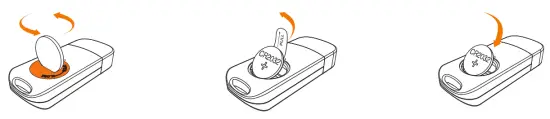
1, Battery Activation
- Turn the battery cover counterclockwise to open it.
- Gently press the battery to hold it In position, then pull out the battery Insulator strip.
- Turn the battery cover clockwise and tighten it.

2. Install bortware
Please download and Install the free ElltechLog software (macOS and Windows) from Elitech US: www.elitechustore.com/pages/dovvnload or Elitech UK: www.elitechonline.co.uk/software or Elitech BR: www.elitechbrasil.com.br.
3, Configure Parameters
First, connect the data logger to the computer via USB cable, wait until the  icon shows on the LCD; then configure via
ElitechLog Software:
– If you do not need to change the default parameters (in Appendix): please click Quick Resat under the Summary menu to synchronize local time before usage; – If you need to change the parameters, please click the Parameter menu, enter your preferred values, and click the Save Parameter button to complete the configuration.
Warning! For first-time users or after battery replacement:
To avoid time or time zone errors. please make sure you click Quick Reset or Save Parameter before usage to sync and configure your local time into the logger.
4. Start Logging
Press Button: Press and hold the button for 5 seconds until the ► icon shows on the LCD, indicating the logger starts logging. Auto Start (RC-S«/TE only): Immediate Start: The logger starts logging after being removed from the computer. Timed Start: The logger starts counting after being removed from the computer; It will start logging automatically after the set date/time.
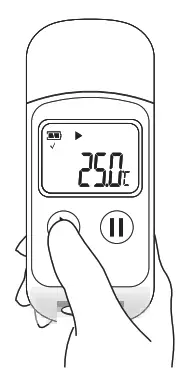 Note: If the ►icon keeps flashing, it means the logger configured with start delay; it will start logging after the set delay time elapses.
5. Mark Events (RC-5+/TE only)
Double click the right button to mark the current temperature and time, up to 10 groups of data. After marked, it will be indicated by Log X on the LCD screen (X means the marked group).
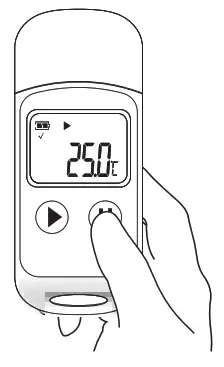 6. Stop Logging
Press Button•: Press and hold the button for 5 seconds until the icon ■ shows on the LCD, indicating the logger stops logging. Auto Stop: When the logging points reach the maximum memory points, the logger will stop automatically. Use Software: Open ElitechLog software, click the Summary menu, and the Stop Logging button.
Note: “Default stop is via Press Button if set as disabled. the button stop function will be invalid; please open the ElitechLog software and click the Stop Logging button to stop it.
7. Download Data
Connect the data logger to your computer via USB cable, wait until the icon g shows on the LCD; then download via: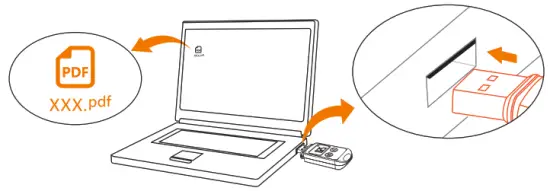 – ElitechLog Software: The logger will auto-upload data to ElitechLog, then please click Export to select your desired file format to export. If data failed for auto-upload, please manually click Download and then follow the export operation.
– Without ElitechLog Software (RC-5+/TE only): Simply find and open the removable storage device ElitechLog, save the auto-generated PDF report to your computer for viewing.
8. Reuse the Logger
To reuse a logger, please stopped it first; then connect it to your computer and use ElitechLog software to save or export the data. Next, reconfigure the logger by repeating the operations in 3. Configure Parameters*. After finished, follow 4. Start Logging to restart the logger for new logging.
Warning! * To make space for new loggings, oil previous logging data inside the logger will be deleted after re-configuration. if you forgot to save/export data, please try to locate the logger in the History menu of ElitechLog software.
9. Repeat Start (RC-5+/TE only)
To restart the stopped logger, you may press and hold the left button to start logging quickly without reconfiguration. Please backup data before restarting by repeating 7. Download Data – Download via ElitechLog Software.
Status Indication
1. Buttons
| Operations | Function |
| Press and hold the left button for 5 seconds | Start logging |
| Press and hold the right button for 5 seconds | Stop logging |
| Press and release the left button | Check/Switch interfaces |
| Press and release the right button | Back to the main menu |
| Double click the right button | Mark events (RC-54-/TE only) |
2. LCD Screen
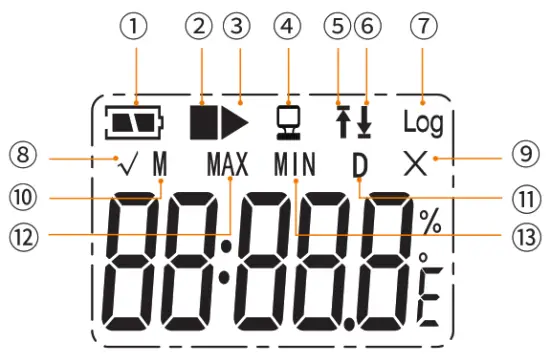
- Battery Level
- Stopped
- Logging
- Not started
- Connected to PC
- High-Temperature Alarm
- Low-Temperature Alarm
- Logging Points
- No Alarm/Mark Success
- Alarmed/Marl< Failure
- Month
- Day
- Maximum Value
- Minimum Value
3. LCD Interface
| Temperature | 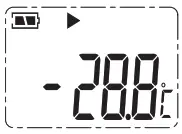 |
| Logging Points | 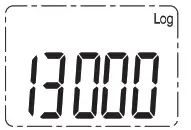 |
| Current Time | 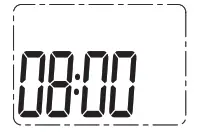 |
| Current Date: M-D | 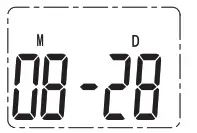 |
| Maximum Temperature: | 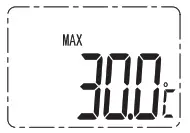 |
| Minimum Temperature: | 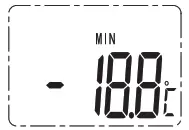 |
Battery Replacement
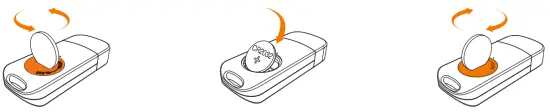
- Turn the battery cover counterclockwise to open it.
- Install a new and wide-temperature CR2032 button battery into the battery compartment, with its + side facing upward.
- Turn the battery cover clockwise and tighten it.
What’s Included
- Data Logger x1
- User Manual x1
- Calibration Certificate x1
- Button Battery x1
 Warning
- Please store your logger at room temperature.
- Please pull out the battery insulator strip in the battery compartment before using it.
- For first-time users: please use ElitechLog software to synchronize and configure the system time.
- Do not remove the battery from the logger while it’s recording. O The LCD will be auto-off after 15 seconds of inactivity (by default). Press the button again to turn on the screen.
- Any parameter configuration on ElitechLog software will delete all logged data inside the logger. Please save data before you apply any new configurations.
- Do not use the logger for long-distance transport if the battery icon is less than half as pa, .
Appendix
Default parameters
| Model | RC-5 | RC-5+ | RC-5+TE |
| Logging Interval | 15 minutes | 2 minutes | 2 minutes |
| Start Mode | Press Button | Press Button | Press Button |
| Start Delay | 0 | 0 | 0 |
| Stop Mode | Use Software | Press Button | Press Button |
| Repeat Start | Enable | Enable | |
| Circular Logging | Disable | Disable | Disable |
| Time Zone | UTC+00:00 | UTC+00:00 | |
| Temperature Unit | °C | °C | °C |
| High-Temperature Limit | 60°C | / | / |
| Low-Temperature Limit | -30°C | / | / |
| Calibration Temperature | 0°C | 0°C | 0°C |
| Temporary PDF | Enable | Enable | |
| PDF Language | Chinese/English | Chinese/English | |
| Sensor Type | Internal | Internal | External |
Elitech Technology, Inc.
1551 McCarthy Blvd, Suite 112, Milpitas, CA 95035 USA Tel: +1 408-898-2866
Sales: [email protected]
Support: [email protected]
Website: www.elitechus.com
Elitech (UK) Limited
Unit 13 Greenwich Centre Business Park 53 Norman Road, London, SE10 9QF Tel: +44 (0) 208-858-1888
Sales: [email protected]
Support: [email protected]
Website: www.elitech.uk.com
Elitech Brasil Ltda
R. Dona Rosalina, 90 – Igara, Canoas – RS, 92410-695, Brazil Tel: +55 (51)-3939-8634
Sales: [email protected]
Support: [email protected]
Website: www.elitechbrasil.com.br