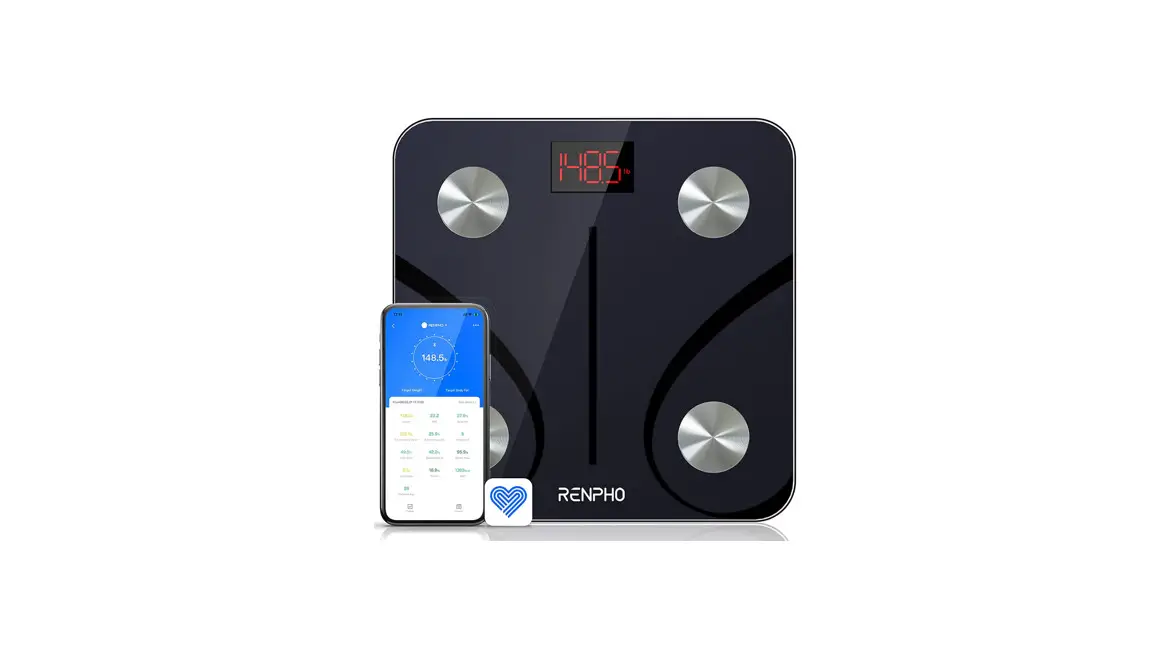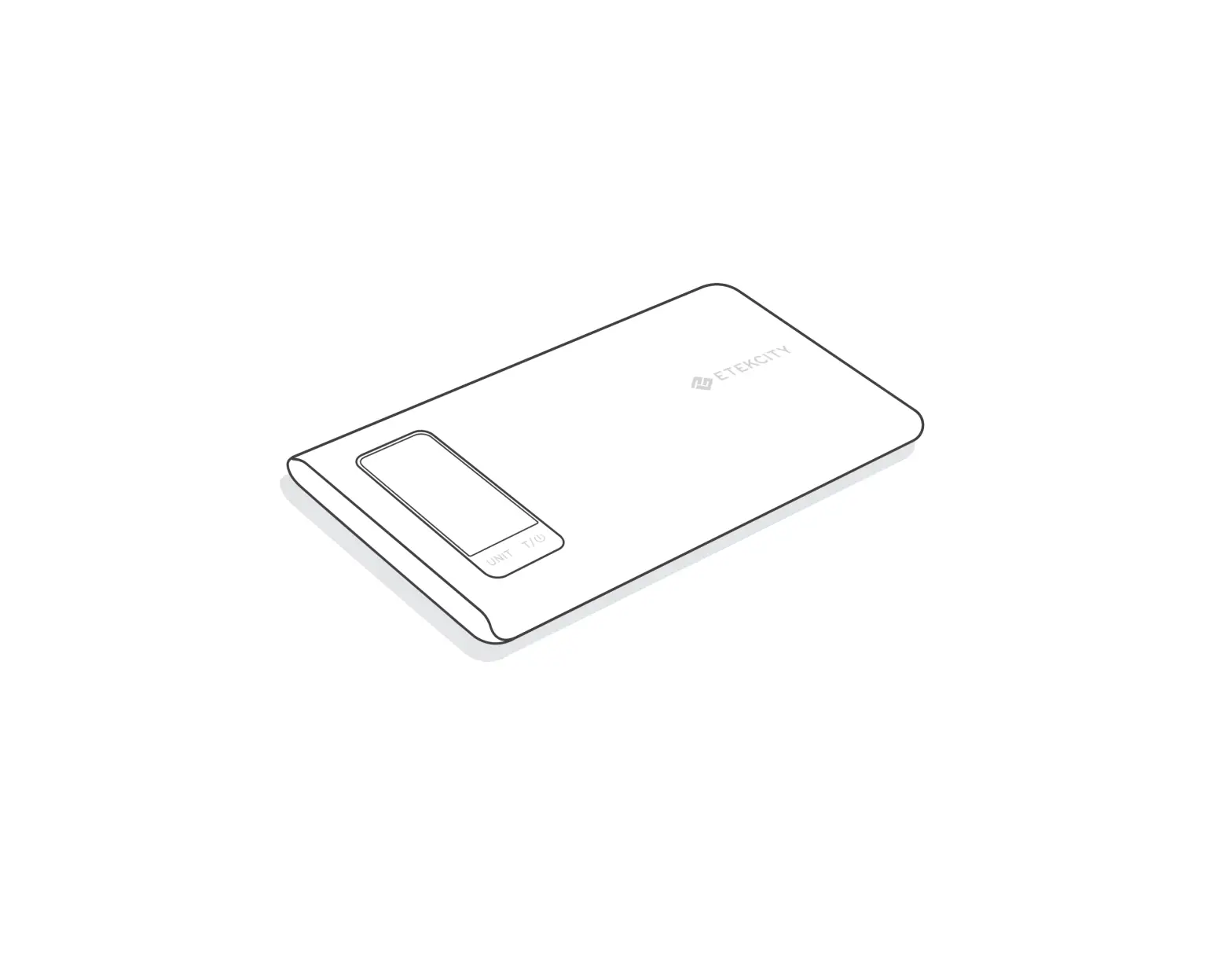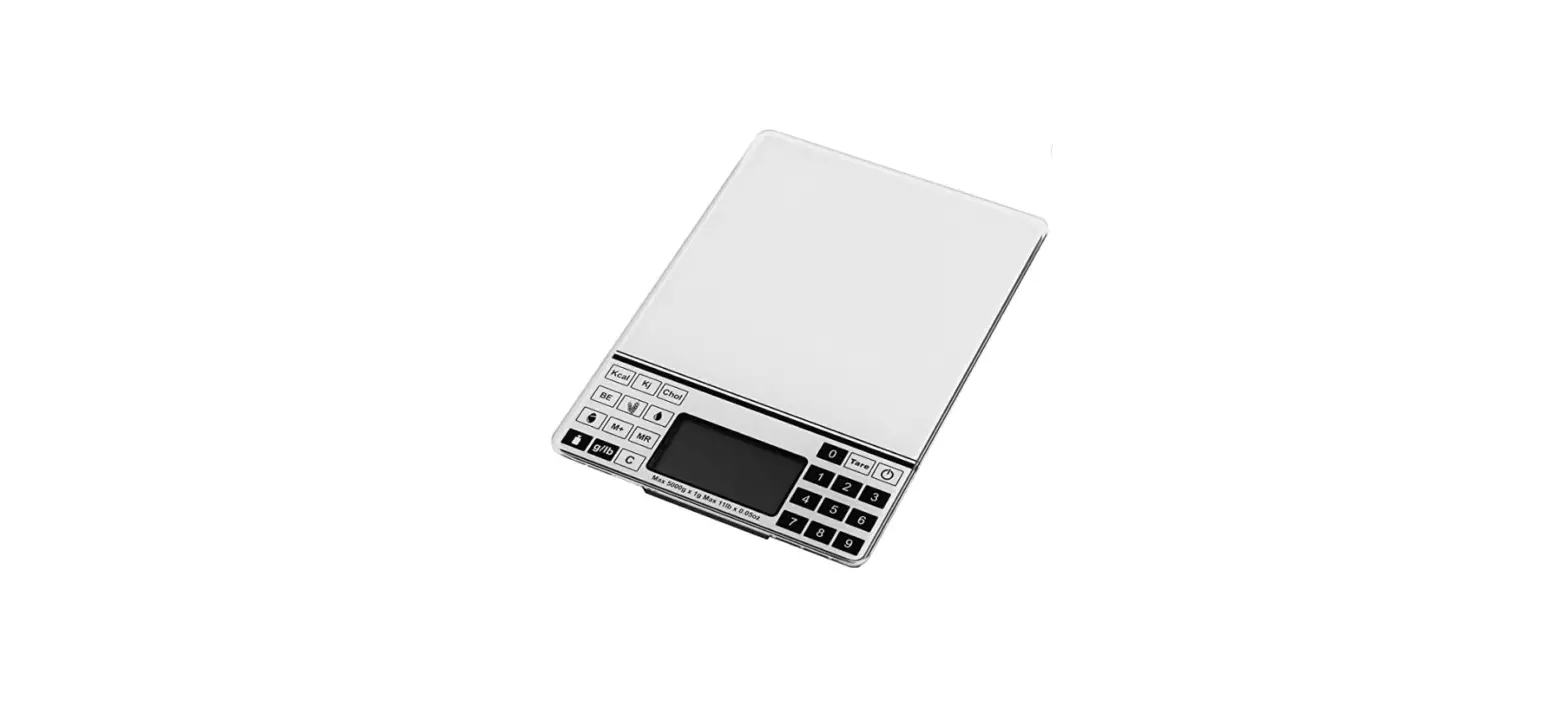
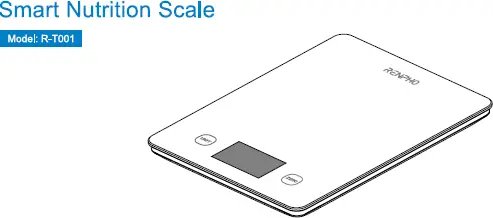
R-T001 Smart Nutrition Scale
REHNO
SMART HEALTHY LIVING
RENPHO
SMART HEALTHY LIVING Digital Scale Specialist
RENPHO Smart Nutrition Scale User Manual
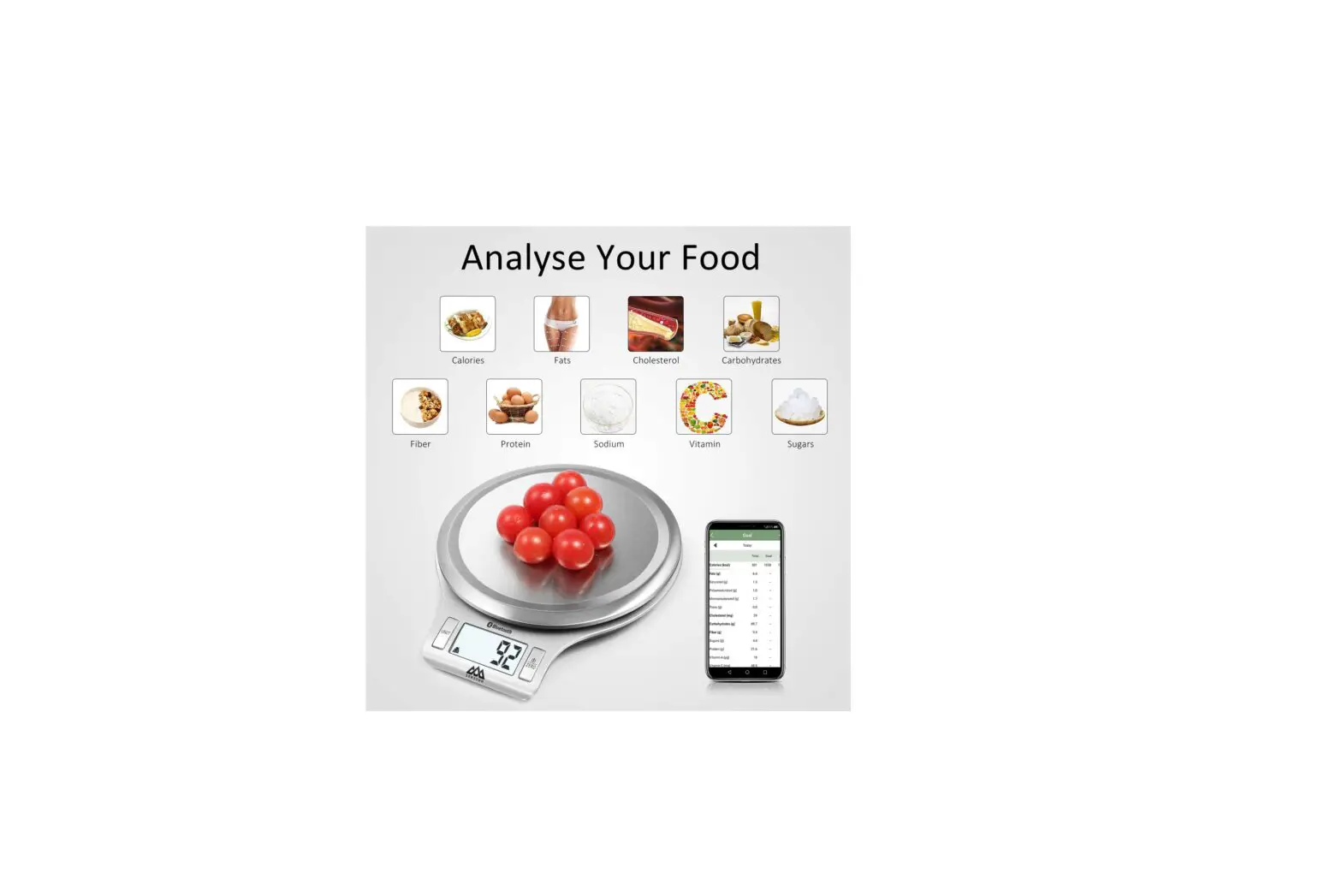
Thank you for choosing RENPHO! This scale is a great companion for healthy meal prep. It works with the Gennec App and helps accurately calculate the amount of the calories in your food. You can easily keep an up-to-date nutrition log of all your meals, track your daily nutrition, and improve your diet for better health!
Changes or modifications not expressly approved by the party responsible for compliance could void the user’s authority to operate the equipment.
Important Notice
- DO NOT exceed the 22lbs (10kg) weight capacity, otherwise the sensor may be damaged. An overload indicator will appear on the display if the limit is exceeded.
- Always use the scale on a solid, flat surface, keep the scale unmoved when weighing.
- DO NOT immerse the scale in water or any liquid. If the liquid is spilled on the digital display, immediately wipe the scale clean with a soft cloth to avoid internal damage.
- Clean the scale with a soft damp cloth; do not use chemicals or harsh abrasives.
- This product is a high precision device, please handle with care; Do not strike, shake or drop the scale.
- Do not put heavy things on the scale when not in use.
- This scale has been designed for household use only and is not intended for medical or commercial use.
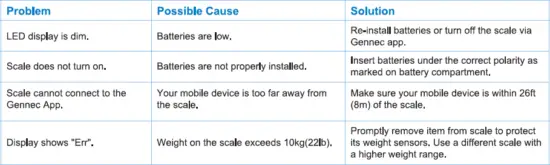
- If the scale failed to turn on, please check whether batteries are installed properly or battery power is low.
About Batteries
- DO NOT mix new and used batteries
- To insert or replace the batteries, open the battery compartment located underneath the unit. When inserting the batteries, always observe the correct polarity. Please put the 3xAAA batteries into the battery compartment with the correct anode and cathode.
- If the low battery indicator appears on the display, replace the batteries.
- If the scale is not in use for an extended period of time, remove the batteries to conserve battery life and extend the life of the scale.
About the Scale
1. Specification
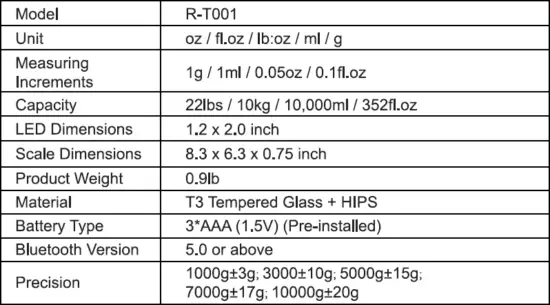
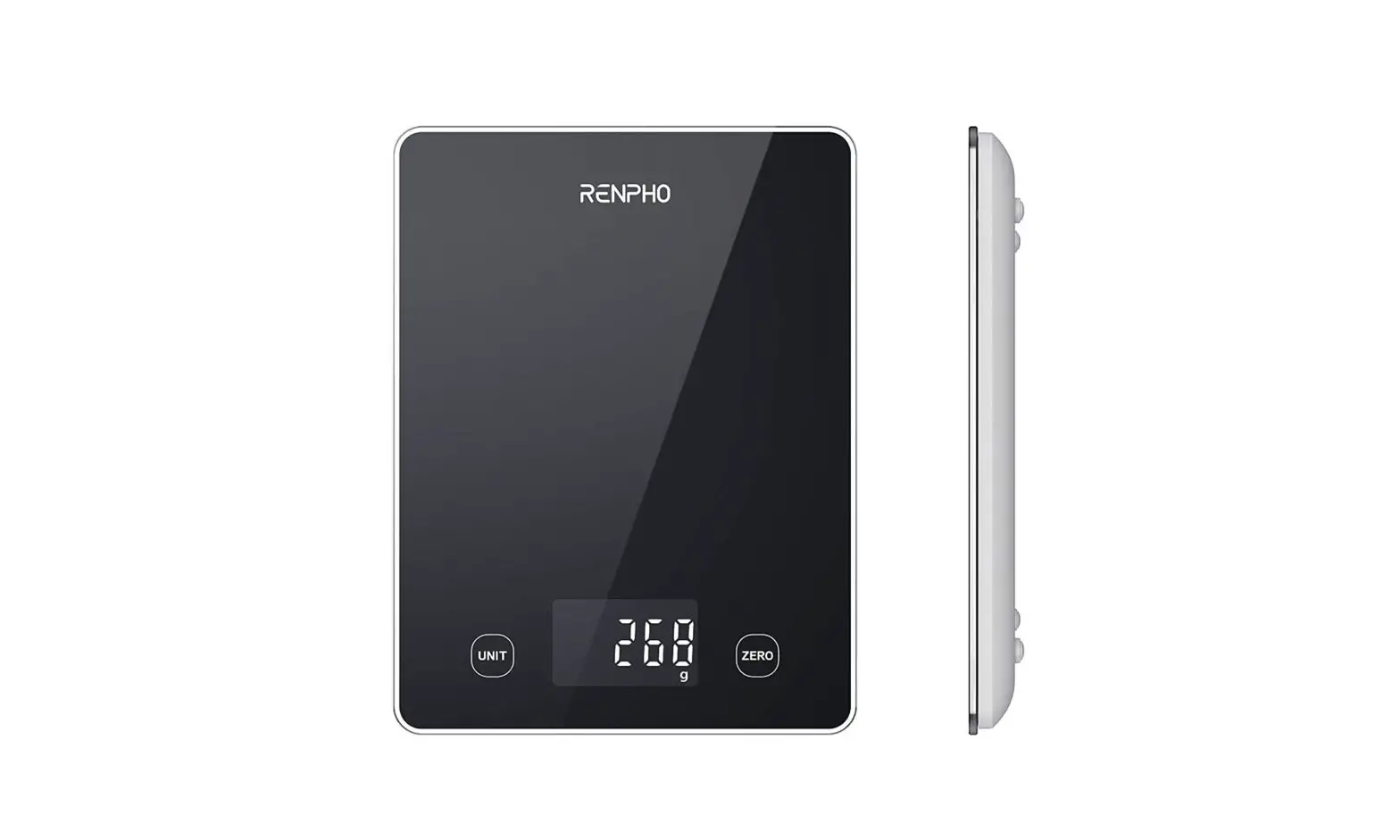
2. Product Introduction
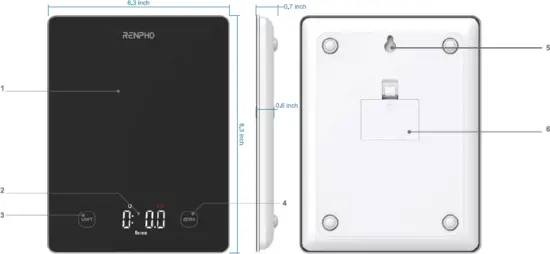
- Weighing Platform
- LED Display
- Unit Button
- Zero Button
- Hole for Hanging Up
- Battery Compartment
3. What’s Included
RENPHO Nutrition Scale package includes:
- RENPHO Nutrition Scale
- Batteries: 3 * AAA (1.5V) (Pre-installed)
- User Manual
- Warranty Card
Icons indication
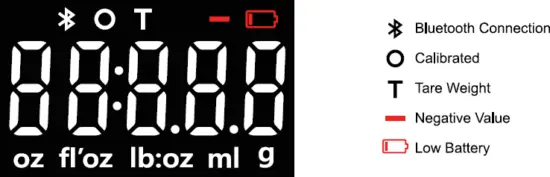
Ero “Er” symbol on the display indicates that the scale is overloaded (221b/10kg).
If this symbol flashes, it indicates that the battery power is low.
Operation
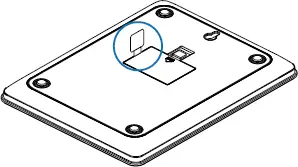 1. Before use
Open the battery cover, remove isolation strip before use.
2. Weighting
There is no power button. (Auto on / Auto off)
- Place the scale on a solid and flat surface, press the scale platform for one second or place an object over 200 grams to turn on the scale.
- The default measuring unit is “oz”. Press UNIT to select your desired measuring unit, which will display at the bottom of the screen. a. Weight weighting: Choose between ounces (“oz”), both pounds and ounces (“ib: oz”), or grams (“g”). b. Volume weighting: Choose between milliliters (“ml”) or fluid Ounce(“fl.oz”)
Optional: If you’re using a container to hold the items or liquid you’re measuring, first place the empty container on the scale. Press ZERO to tare the container’s weight. - Gently place your item on the scale. The screen will display the weight or volume.
- Turn off the scale on Gennec app or wait 30 seconds to turn off automatically.
3. Calibration & Tare Function
Calibration: Press ZERO button when weight under 200 grams. Tare Function: * This function only work for weighing over 200 grams. Whenever you measure liquid, powder or other items inside a container, you can use the tare function to remove the container’s weight from the final measurement.
Note: The container plus the object’s weight cannot exceed 10kg.
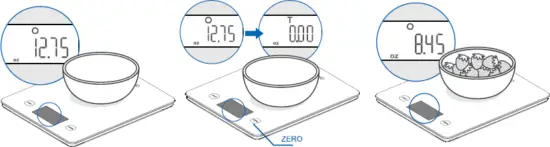
- Place an empty container on the scale. The screen will display the container’s weight.
- Press ZERO, the screen will now display “O” again.
- Place liquid or items in the container. The scale will now measure the liquid or items, without the weight of the container.
- When you’re done, reset the scale by removing all weight and pressing ZERO.
App Installation & Registration
Note: Due to continuing updates and improvements, the “Gennec” App may appear slightly different.
Download App
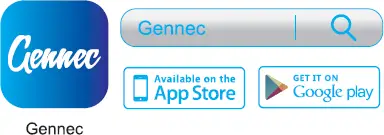
1. Search and download “Gennec” App from Apple App Store / Google Play.
2. Open the “Gennec” App. To create a new account, tap Register. If you already have an account, tap Login.
Note: For iPad download, please choose filters-support-iPhone only.
Note: With a “Gennec” account, you can also allow your family and friends to use your nutrition scale.
Registration Process
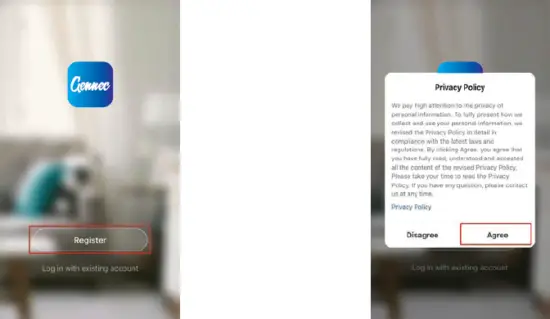
1. Open the “Gennec” App, select “Register”, read the “Privacy Policy”, and select “Agree”.
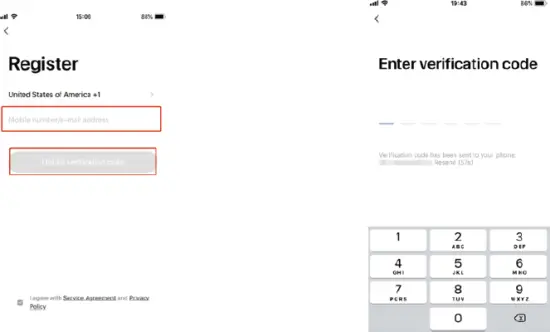
2. Input a valid mobile number or email address and select “Continue”. Input Verification Code, then login.
Configuration
1) Open the Gennec App.
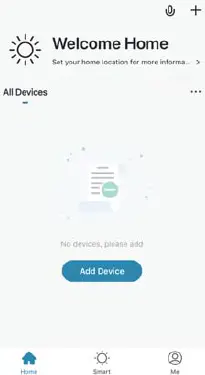
2) Enable Bluetooth in your phone’s settings. Make sure your phone is connected to the mobile network / WLAN.
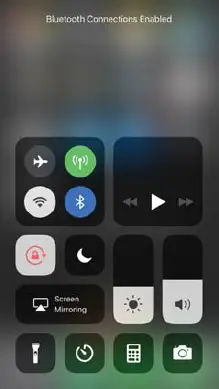
Note: For iOS 13 software version, please allow ‘Gennec‘ to access Bluetooth in phone settings.
3) Press the scale platform for over 200 grams to turn on the scale.
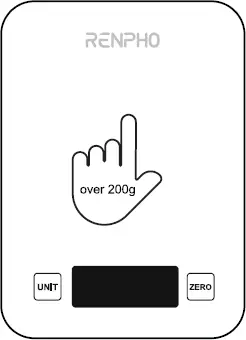
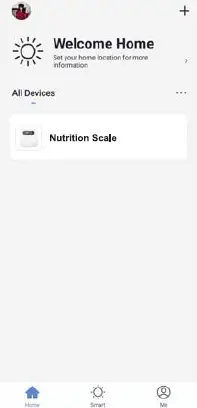
4) Keep the phone close to the scale and wait 3–5 seconds, scale will automatically connect. Select Nutrition Scale.
App Operation
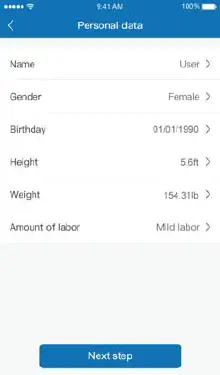
Complete your basic information and edit your nutrition goals.
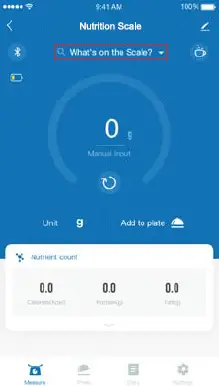
Search Food and Weight Measurement
1) Tap / select “What’s on the scale?” for food information or to add new food.
2) Enter the name of the food in the search. (for example: “Strawberries”).
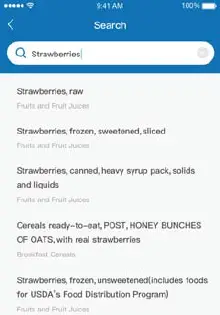 Note: The App also supports adding custom food.
3) View the nutrition facts of the food selected and Tap / select “V “.
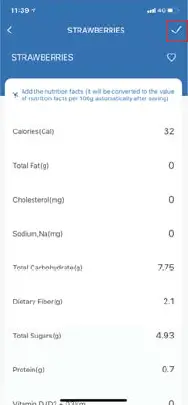
4) Once you weigh your food, you can see the nutrition information of the corresponding weight. Tap/select “Add to plate” to confirm.
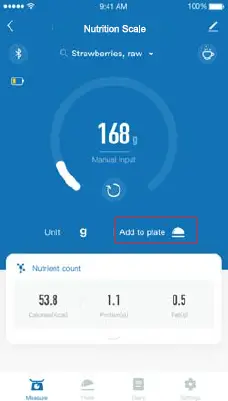
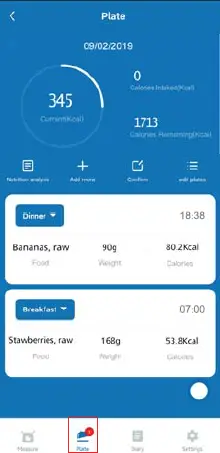
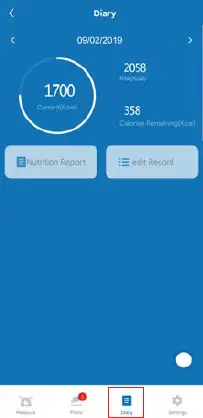
Plate and Diary
1) View today’s calorie intake, nutrition analysis, add more food, record and confirm meals.
2 ) View your historical nutrition records and nutrition report and recommendations.
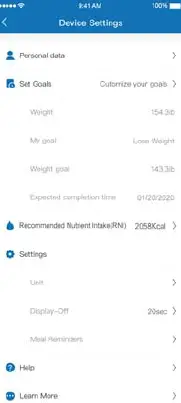
Device Settings
Customize your device settings. You can change your basic information, edit your goals and Recommended Nutrient Intake (RNI), change the Unit, Display Auto-Off, and set Meal Reminders.
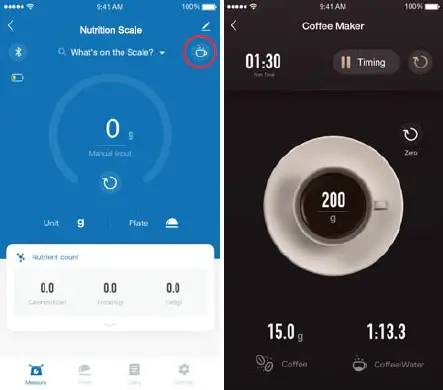
Coffee Maker
Select the “coffee” symbol on Home page for the coffee maker function including tracking the brewing time, the ratio of coffee to water, ect.
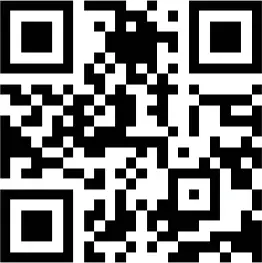
How to sync with Apple Health?
Scan the QR code or check out our website of detailed instruction. https://renpho.com/pages/108
Maintenance
- Use a slightly damp cloth to clean the surface of the scale, use a dry, soft cloth to wipe away the remaining moisture.
- DO NOT wash the scale or immerse it in water or any other liquid.
- Keep the scale in a cool, dry environment. Avoid exposing the scale to damp environments or extreme temperatures.
- All plastics parts should be cleaned immediately after contact with, spices, vinegar and strongly flavored / colored foods. (Avoid contact with acids citrus juice.)
Troubleshooting
FCC Statement
FCC ID: 2APXU-R-T001
1. This device complies with Part 15 of the FCC Rules.
Operation is subject to the following three conditions: (1) This device may not cause harmful interference, and (2) this device must accept any interference received, including interference that may cause undesired operation. (3) This device has been evaluated to meet general RF exposure requirement. The device can be used in portable exposure condition without restriction.
FCC Statement NOTE: This equipment has been tested and found to comply with the limits for a Class B digital device, pursuant to Part 15 of the FCC Rules. These limits are designed to provide reasonable protection against harmful interference in a residential installation. This equipment generates, uses, and can radiate radio frequency energy and, if not installed and used in accordance with the instructions, may cause harmful interference to radio communications. However, there is no guarantee that interference will not occur in a particular installation. If this equipment does cause harmful interference to radio or television reception, which can be determined by turning the equipment off and on, the user is encouraged to try to correct the interference by one or more of the following measures:
- Reorient or relocate the receiving antenna.
- Increase the separation between the equipment and receiver.
- Connect the equipment into an outlet on a circuit different from that to which the receiver is connected.
Consult the dealer or an experienced radio / TV technician for help with the supplied fastener. DO
NOT hang the unit by the power cord.
JOICOM CORPORATION
5984 Archibald Avenue, Building 1, Unit 1, Eastvale, San Bernardino, CA 92880
Email: support@renpho.com
Tel: 1–844–417–0149 Web: www.renpho.com
Support Hours Monday – Friday: 9:00 a.m. – 4:30 p.m. PST
Shenzhen Runfeng Digital Technology Co., LTD Chuanghui Building, Intersection of Banxuegang Boulevard and Yongxiang Road, Bantian Subdistrict, Longgang District,
Shenzhen, Guangdong, China
Made in China