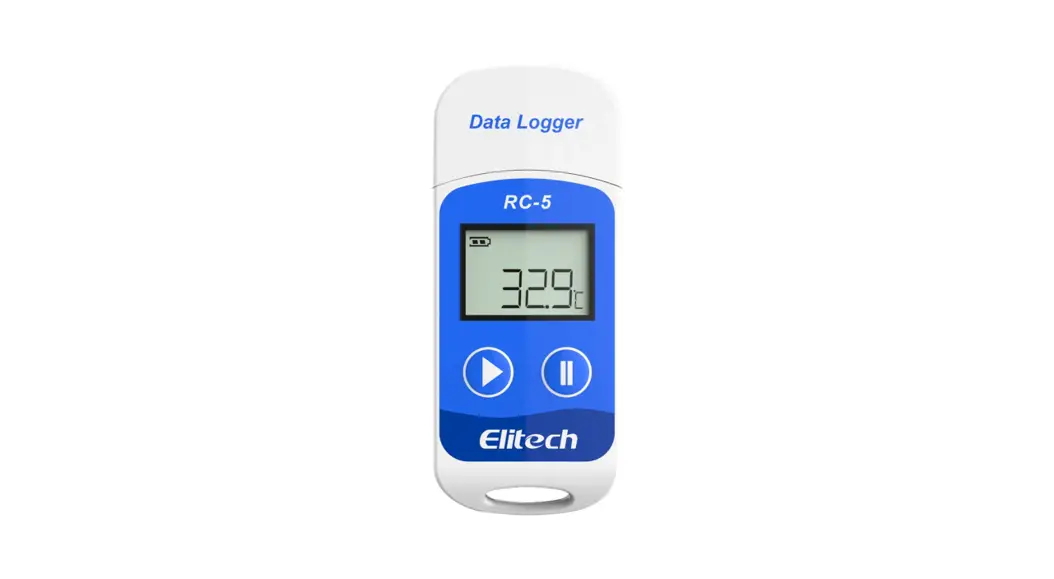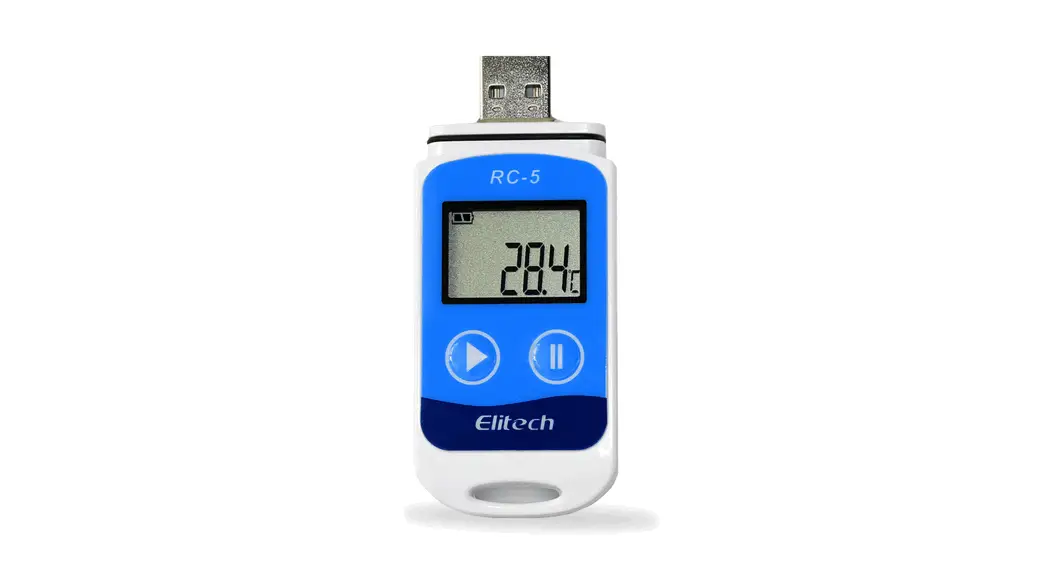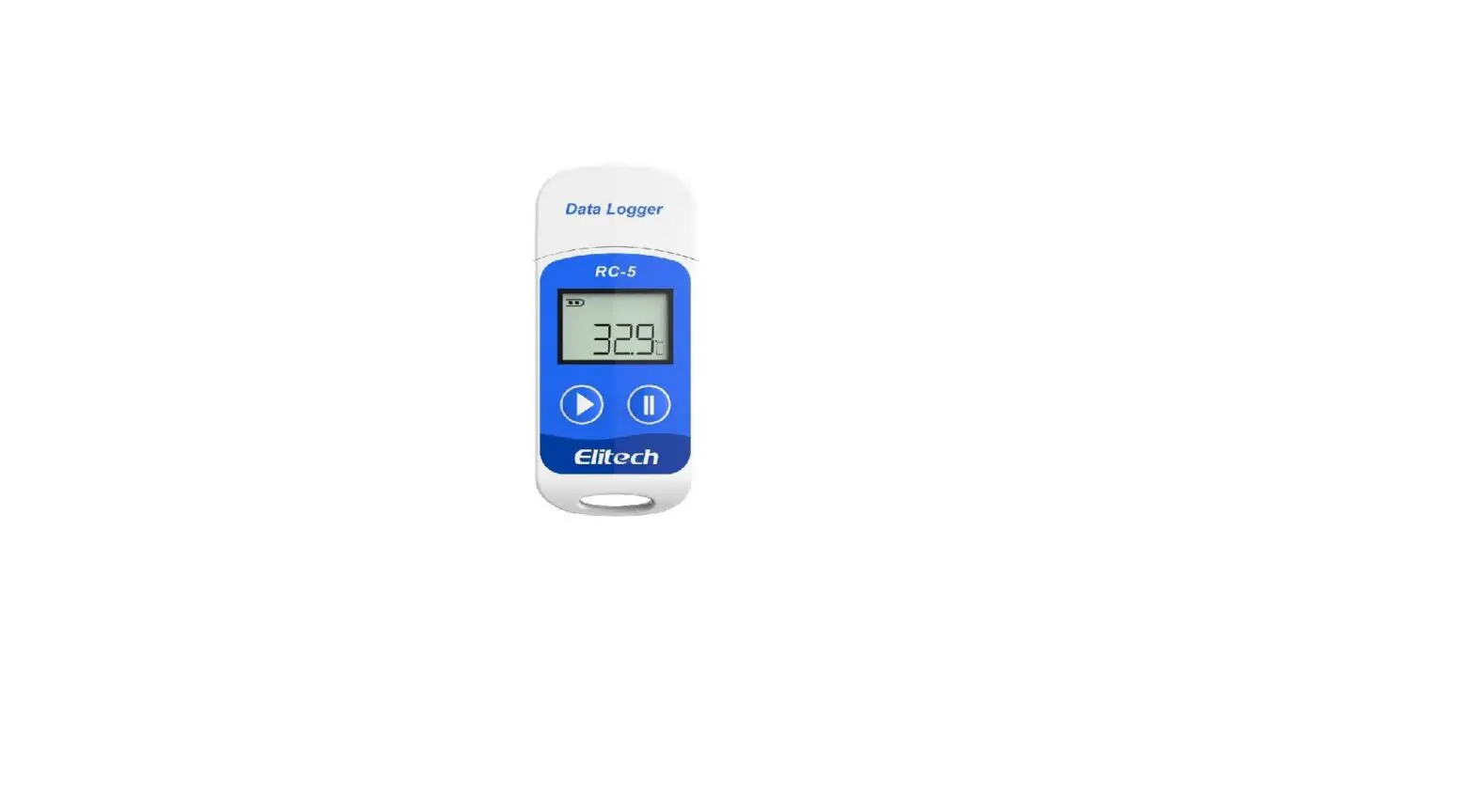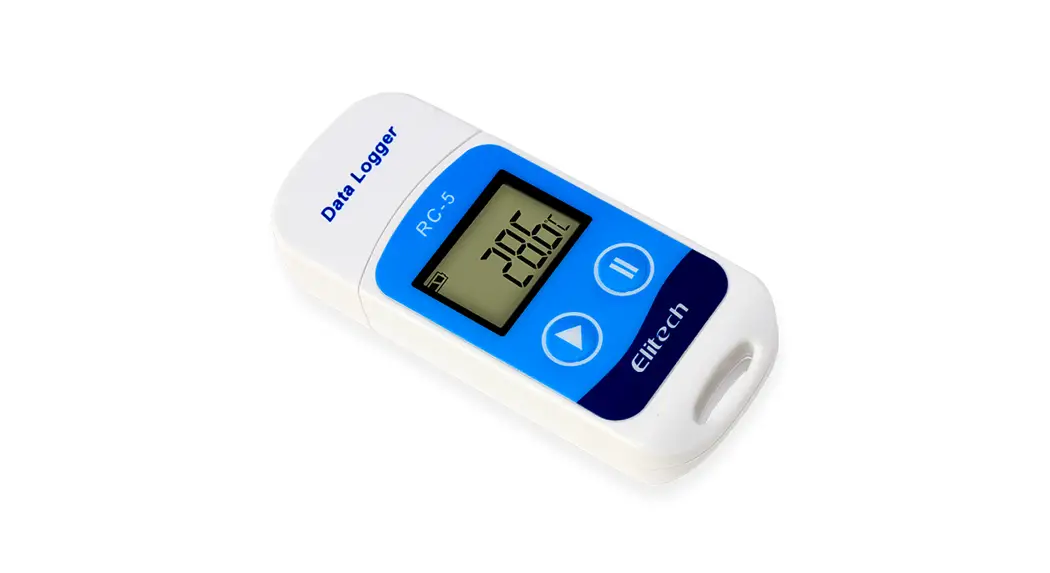

RC-5
Quick Start Guide
software download: www.elitechlog.com/softwares
Install Battery
- Use a proper tool (such as a coin) to loosen the battery cover.

- Install the battery with “+” side upward and keep it under the metal connector.

- Put the cover back and tighten the cover.

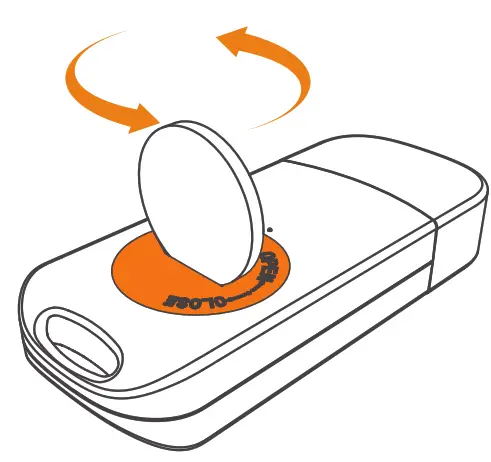
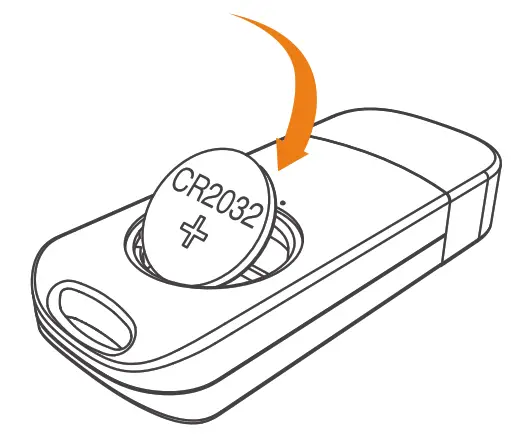
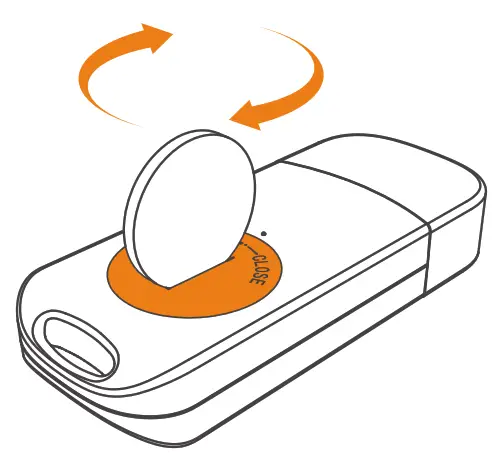
Note: Do not remove the battery when the logger is running. Please change it when necessary.
Install Software
- Please visit www.elitechlog.com/softwares. Select and download the software.
- Double click to open the zip file. Follow the prompts to install it.
- When the installation is completed, the ElitechLog software will be ready to use. Please disable the firewall or close the antivirus software if necessary.
Start/Stop Logger
- Connect the logger to a computer to sync the logger time or configure parameters as needed.
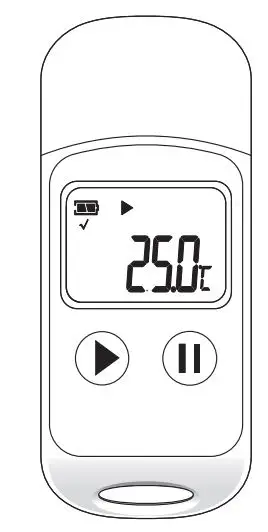
- Press and hold
 to start the logger until shows. The logger starts logging.
 - Press and release to shift between display interfaces.
- Press and hold to stop the logger until shows. The logger stops logging.
Please note all the recorded data cannot be changed for security reasons. Important!
- Please store the logger in an indoor environment.
- Do not use the logger in corrosive liquid or excessive heat environments.
- If this is the first time you use the logger, it is suggested to connect the logger to a computer to sync the time.
- Please dispose or handle the waste logger properly by local legislation.
Elitech Technology, Inc.
www.elitechlog.com
1551 McCarthy Blvd, Suite 112
Milpitas, CA 95035 USA
Configure Software
- Download Data: ElitechLog software will automatically access the logger and download the recorded data to the local computer if it finds the logger is connected. If not, manually click “Download Data” to download the data.
- Filter Data: Click “Filter Data” under the Graph tab to select and view your desired time range of the data.
- Export data: Click “Export Data” to save Excel/PDF format files to the local computer.
- Configure options: Set logger time, log interval, start delay, high/low limit, date/time format, email, etc. (Check User Manual for default parameters)
Note: New configuration will initialize previously recorded data. Please make sure to back up all necessary data before you apply new configurations.
Refer to “Help” for more advanced functions. More product information is available on the company website www.elitechlog.com.
Troubleshooting
| If… | Please… |
| only a few data was logged. | check whether the battery is installed, or check if it was installed correctly. |
| the logger does not log after startup | check whether start delay is enabled in the software configuration. |
| the logger cannot stop logging by pressing the button C). | check parameter settings to see if button customization is enabled (default configuration is disabled.) |
Technical Specifications
| Recording Options | Multi-Use |
| Temperature Range | -30°C to 70°C |
| Temperature Accuracy | ±0.5(-20°C/1410°C);±1.0(other range) |
| Temperature Resolution | 0.1°C |
| Data Storage Capacity | 32,000 readings |
| Shelf Life/Battery | Six months’/CR2032 button cell |
| Recording Interval | 10C24hour adjustable |
| Startup Mode | Button |
| Stop Mode | Button, software or stop when full |
| Protection Class | IP67 |
| Weight | 35g |
| Certifications | EN12830, CE, RoHS |
| Validation Certificate | Hardcopy |
| Software | ElitechLog Win or Mac (latest version) |
| Report Generation | PDF /Word/Excel/Txt report |
| Password Protection | Optional on request |
| Connection Interface | USB 2.0, A-Type |
| Alarm Configuration | Optional, 2 points |
| Reprogrammable | With free Elitech Win or MAC software |
| Dernenslons | mx33mmx14mm(LxWxH) |
| 1. Depending on optimal storage conditions (t15°C to +23°C/45% to 75% RH) | |