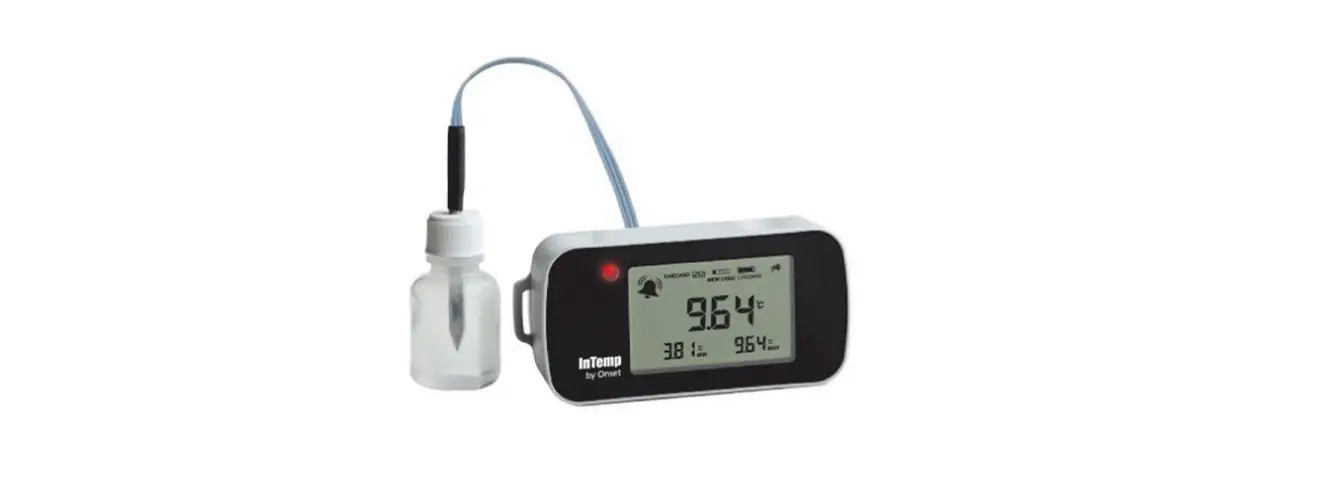
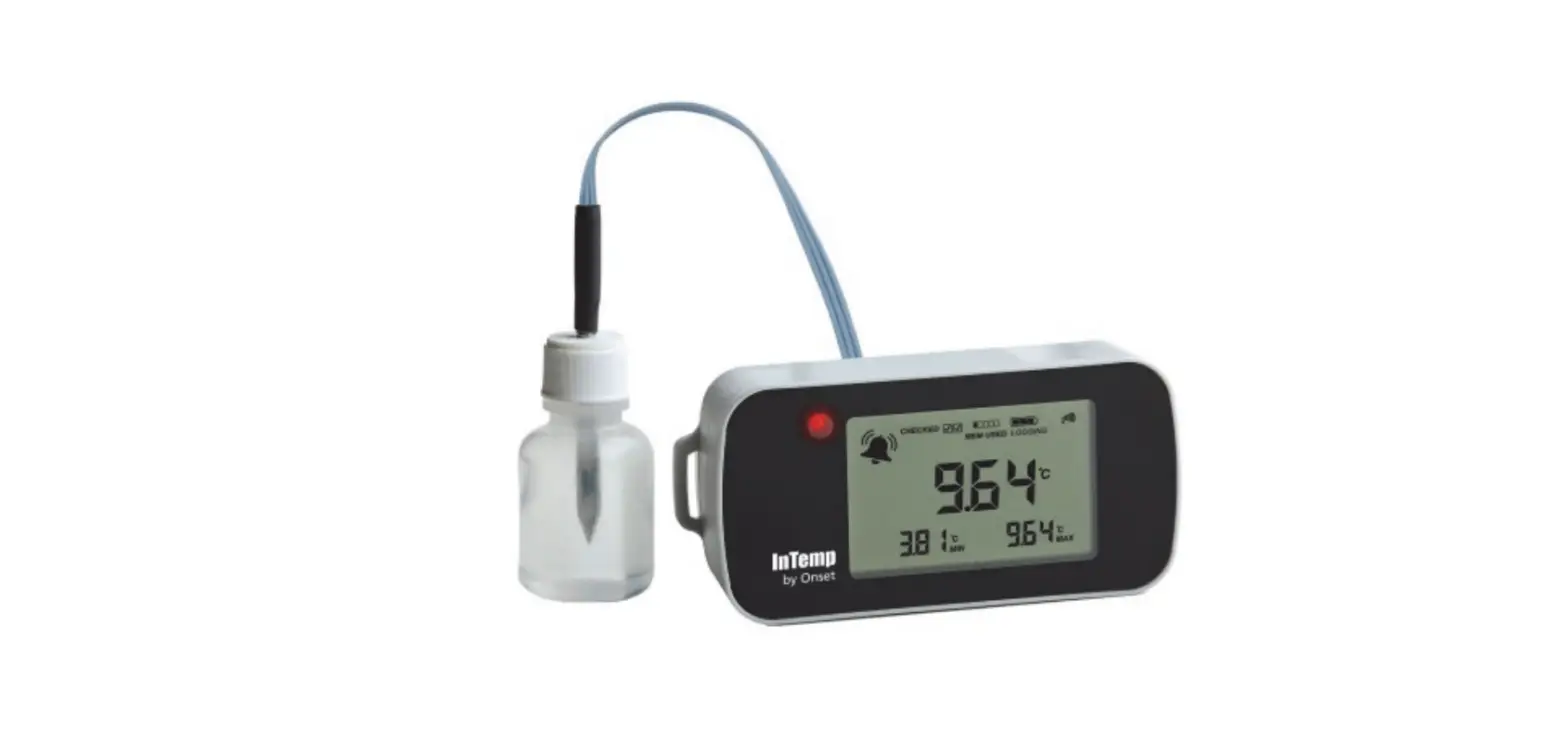
Seguro-150 Temperature Data Logger
Product Information:
The Seguro 150 Temperature Data Logger is a device that allows
users to monitor and record temperature data. It is compatible with
the Seguro app, which can be downloaded for free from the Google
Play Store or the Apple App Store.
The device is FCC compliant and its FCC ID is 2A3LI-PM06. The
full FCC compliance statement can be found in the Regulatory
section of the Seguro app.
Product Usage Instructions:
Getting the App:
To download the Seguro app, follow these steps:
- Go to the Google Play Store or the Apple App Store.
- Search for “Seguro” and install the app.
You can also scan the barcode provided with your phone to
directly access the app in the respective app store.
Setting Up an Account:
To set up an account, follow these steps:
- Open the Seguro app and tap on the “Cloud Account” button on
the home screen. - A browser window will open with the Seguro authentication site.
Tap on the “Sign up” link. - On the signup page, choose to log in using your Google or Apple
ID or create a sensified.io account with a new email and
password. - Note that a cloud account is not necessary to use the Seguro
150 temperature data logger.
Connecting to the Device:
To connect to a Seguro device, follow these steps:
- Make sure your phone is Bluetooth enabled and open the Seguro
app. - Tap on the device you want to connect to from the list of
available devices.
Starting a Recording:
To start a recording using the Seguro 150 temperature data
logger, follow these steps:
- Make sure you are connected to a Seguro device.
- Tap on the “Start Recording” button in the app.
- On the “Start Recording” screen, adjust the high and low
thresholds, start delay, and sampling interval if desired. - Cloud account users can add a photo of the item being
monitored, and premium users can add shipment tracking
information. - Once all options are selected, tap the “Start” button to start
the recording.
Ending a Recording:
To stop a recording that is already in progress, follow these
steps:
- Ensure you are connected to the device that is currently
recording. - Tap on the “Stop Recording” button in the app.
- On the “Stop Recording” screen, cloud account users can add a
photo to the recording, and premium cloud account holders can add
tracking information if needed. - Tap the “Stop” button to stop the recording.
Reviewing Your Recordings:
To review your past recordings, follow these steps:
- Open the Seguro app and tap on the “Recent Recordings” button
on the home screen. - A list of recordings will appear, with the most recent ones
displayed first. - Completed recordings are color-coded (green for in-range, red
for too high, and blue for too low), while incomplete recordings
are gray. - Tap on an individual recording to view its details, including a
chart of the recorded data, statistics, and datapoints. - If available, you can also view the start and stop location on
a map by tapping on the address. Additionally, photos and detailed
tracking information can be displayed if allowed by your
account.
Extras – Location:
The process for setting the location differs slightly between
Android and Apple devices:
- For Apple devices, the Seguro app will request location
permission the first time a recording is started or stopped. - For Android devices, the app requires location permission to
connect to a Seguro device. It will also ask to attach location
information to the recording the first time a recording is started
or stopped.
Getting the App
The Seguro app is available free of charge in the Google Play Store and the Apple App Store. Scan the barcode with your phone to start:
Seguro 150
Temperature Data Logger
Quick Start Guide
For more detailed information on using the app, go to:
sensified.io/150qs
This device complies with Part 15 of the FCC Rules (FCC ID: 2A3LI-PM06). The full FCC compliance statement can be found under “Regulatory” in the Seguro app.
Setting Up an Account
1. Tap the “Cloud Account” button on the home screen, which will display a browser window with the Seguro authentication site.
2. Tap the “Sign up” link (under the Continue button).
3. On the signup page, you can choose between using your Google or Apple ID to log in, or creating a sensified.io account with a new email and password. If you choose to use a third-party identity provider (Apple or Google), only your basic profile information (name, email, language preference and picture) are used.
Note: A cloud account is not needed to use the Seguro 150 temperature data logger.
Connecting to the Device
For Android Devices: Once the Seguro app is installed, simply touch the Seguro device to the back of the phone (usually near the top of the phone) and the app will open automatically, then the device screen will open. For Apple (iOS) Devices: Open the Seguro app, and tap the Connect to Device button on the home screen. A “Ready to Scan” window will appear at the bottom of the screen. Hold the Seguro device next to the back of the phone until the phone beeps and/or vibrates. The exact location of the NFC reader in the phone may vary somewhat, but it is usually near the top of the phone. Once the app recognizes the device, the Device screen will open.
Starting a Recording
Once you have connected to a Seguro device, you can start a recording by tapping the Start Recording button.
The Start Recording screen is displayed, and you can adjust the high and low thresholds, start delay, and sampling interval before starting the recording. Cloud account users can also add a photo of the item being monitored, and Premium users can add shipment tracking information.
When all of the options have been selected, tap the Start button to start the recording.
5
Ending a Recording
Stopping a recording that is already in progress is straightforward. After connecting to the device, the current recording will be displayed on the device screen. Tap the Stop Recording button, and the Stop Recording screen will appear. Users who have a cloud account will have the option to add a photo to the recording, and premium cloud account holders will have the option to add tracking information, if it isn’t already attached.
Tap the Stop button to stop the recording, and the device screen will reappear, with a summary of the recording. If you are not the person who started the recording, that person will get a notification on their mobile device that the recording is complete.
6
Reviewing Your Recordings
To review your past recordings, tap the Recent Recordings button on the home screen. A list of recordings will appear, most recent first. Completed recordings are colored green, red, or blue (for in-range, too high, or too low, respectively) and incomplete recordings are gray.
Tapping on an individual recording displays the recording detail screen, which includes a chart of the trip as well as various statistics and datapoints. If the start or stop location is provided, you can see a detailed map of the location by tapping on the address. Also, if your account allows, you can display any photos included, as well as the detailed tracking information.
7
Extras
Location
The mechanism for setting the location is also slightly different between Android and Apple. For Apple devices, the Seguro app will request location permission the first time a recording is started or stopped on a device. For Android devices, the app requires location permission just to connect to a Seguro device, but will also ask to attach location information to the recording the first time a recording is started or stopped.
Photos
You can add photos for both the start and end of a recording. The Seguro app requires Camera permission to add photos to a recording.
Shipping Information
For Premium account users, tracking information for popular carriers can be added when a recording is started or stopped. The app can scan the barcode on a waybill, or the user can type in the tracking number manually. The app requires Camera permission to scan barcodes.
8
 sensified.io - Cold Chain Temperature Monitoring