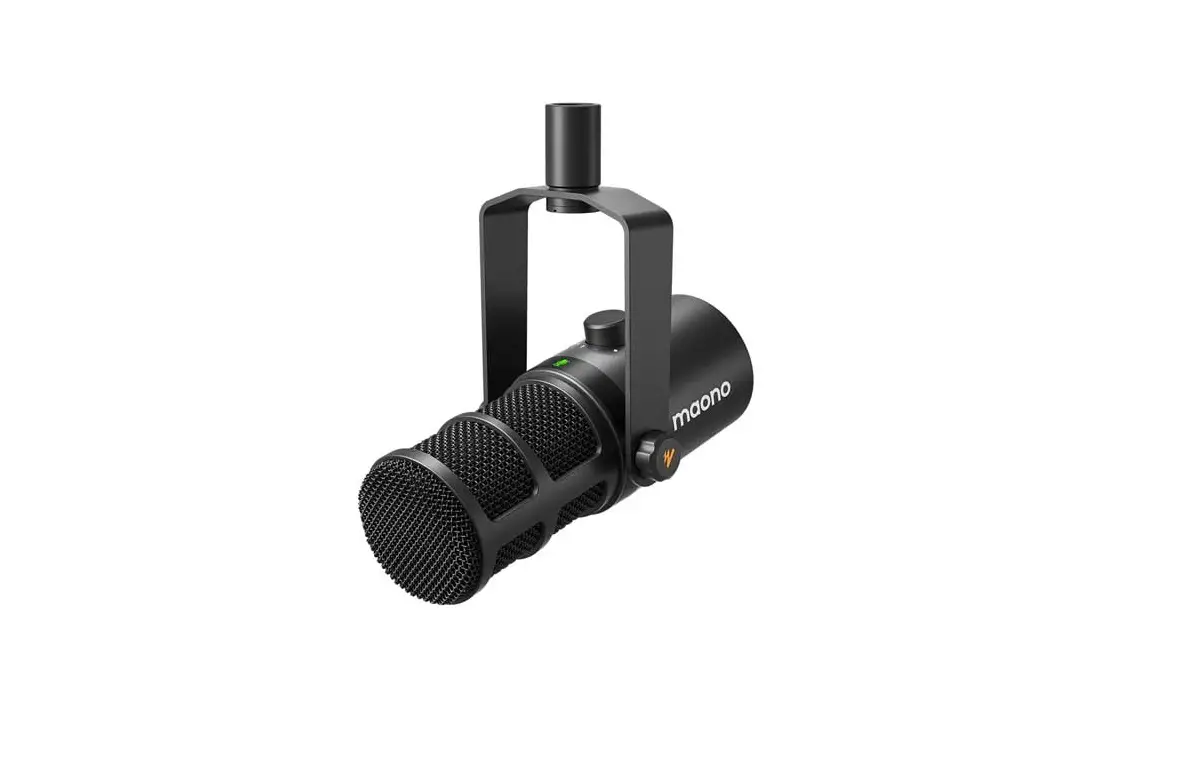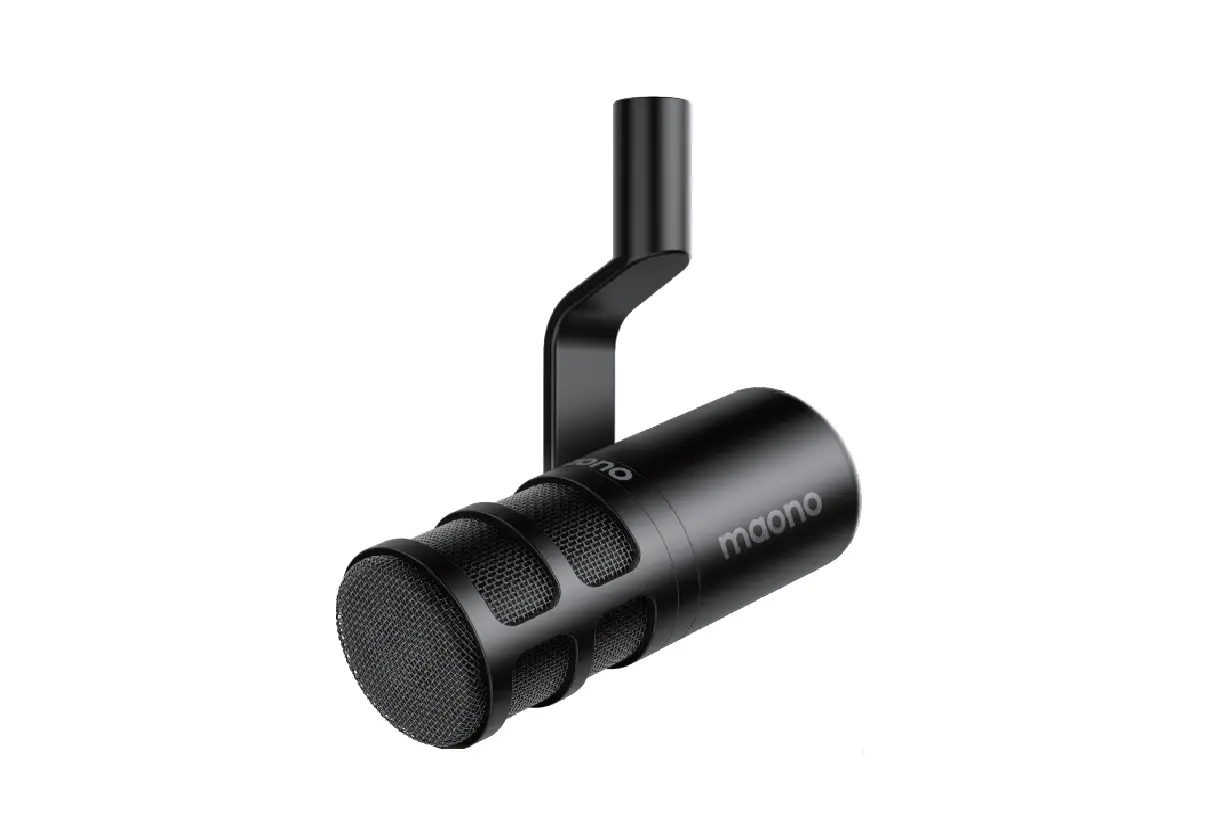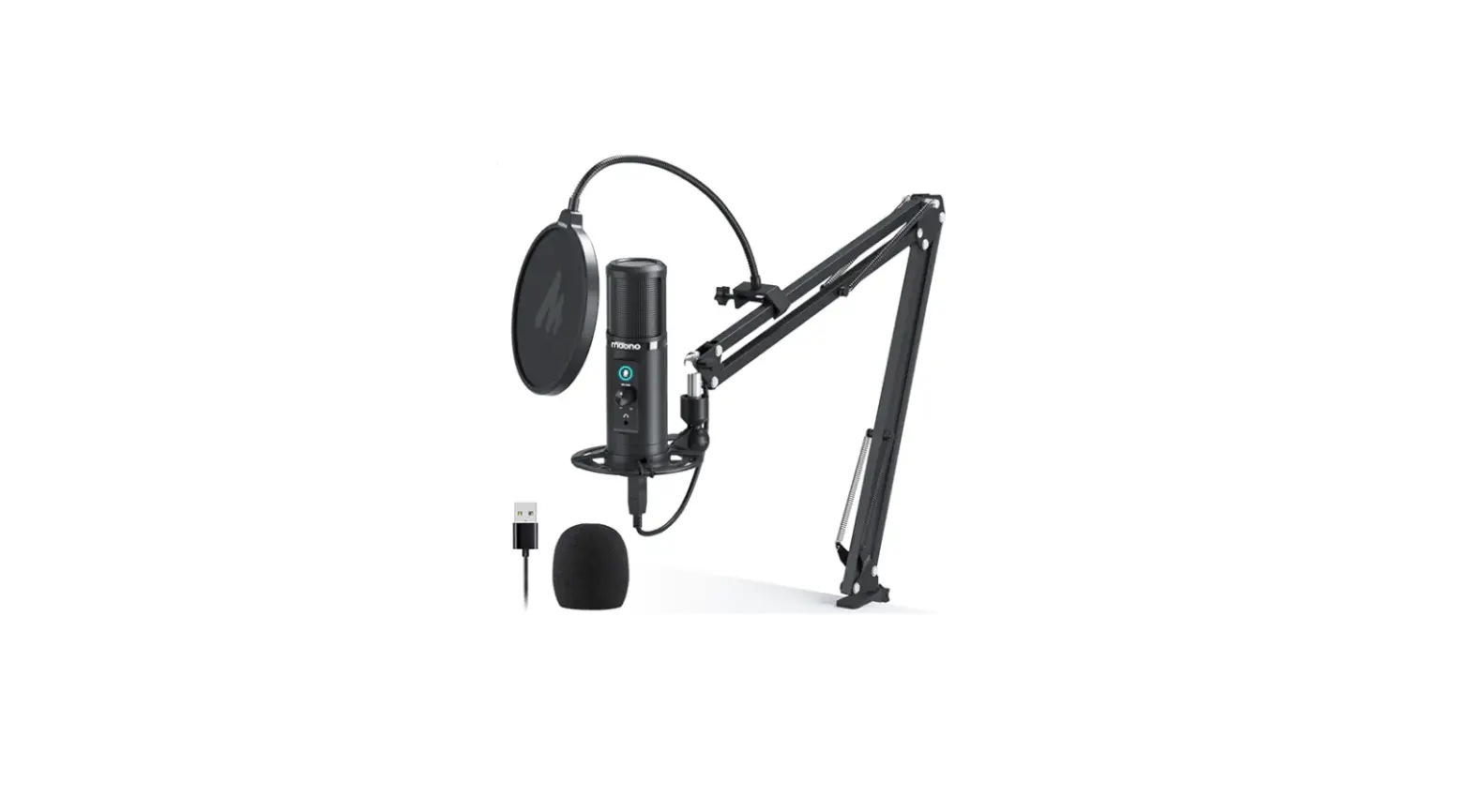
maono HD300T USB-XLR Dynamic Desktop Microphone User Manual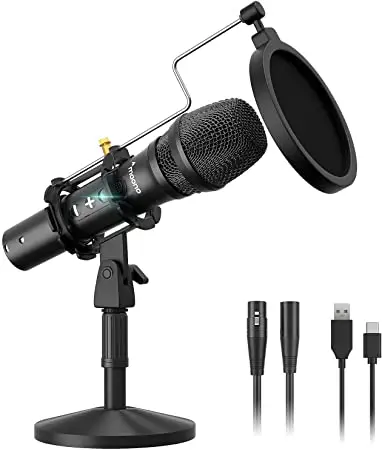
Features
- USB/ XLR dual-mode output
- Built-in premium audio processor
- Zero-latency monitoring under USB mode
- USB audio playback by 3.5mm headphone jack
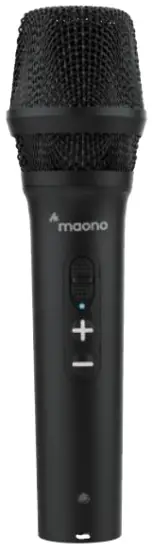
- Volume rocker buttons on the microphone
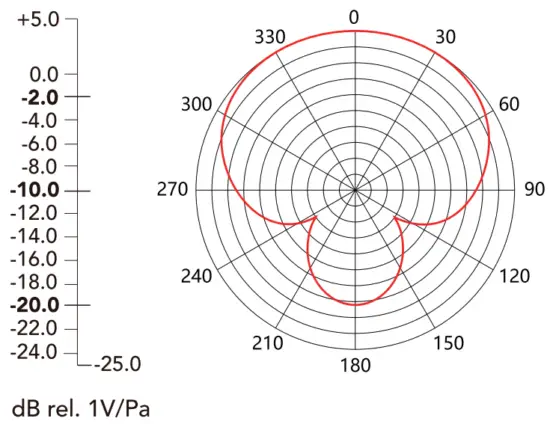
- Dynamic mic capsule with cardioid polar pattern
- Rugged design with full metal casing
- Desktop stand included
Parameter
| Element type | Dynamic |
| Polar Pattern | Cardioid |
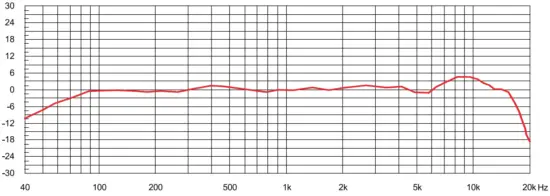
| Frequency Response | 40Hz-17,000Hz |
| Bit Depth | 16 bit |
| Sample Rate | 44.1/48 kHz |
| Controls | On/ off switch |
| Headphone Volume control | Available on USB mode |
| Monitor | Available on USB mode |
| Headphone Jack | 1 /8′(3.5mm) TRS Stereo |
| Headphone Output power | 30mW ; 32 0 |
| LED Indicator | Available on USB mode |
| Power Requirements | USB-DC 5V |
| Output connector | USB-C / XLR |
| Weight | 318g |
| Accessories | USB A to C cable xl ; XLR cable xl Desktop stand xl |
| System Requirements | Mac OS X; USB 2.0 Windows 7/8/10; USB 2.0 |
Specification
Frequency Response
Polar Pattern
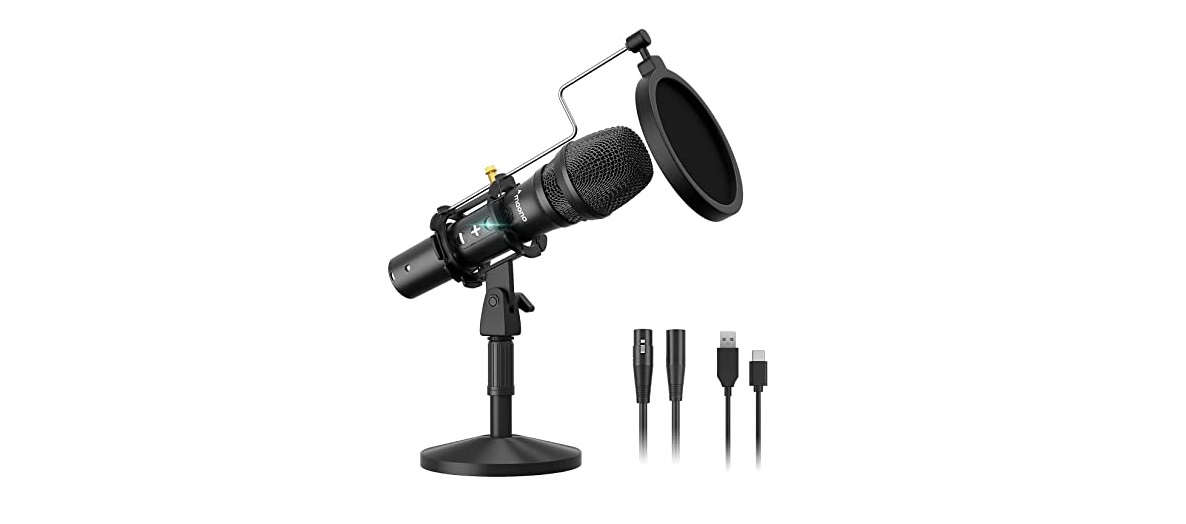
Introduction
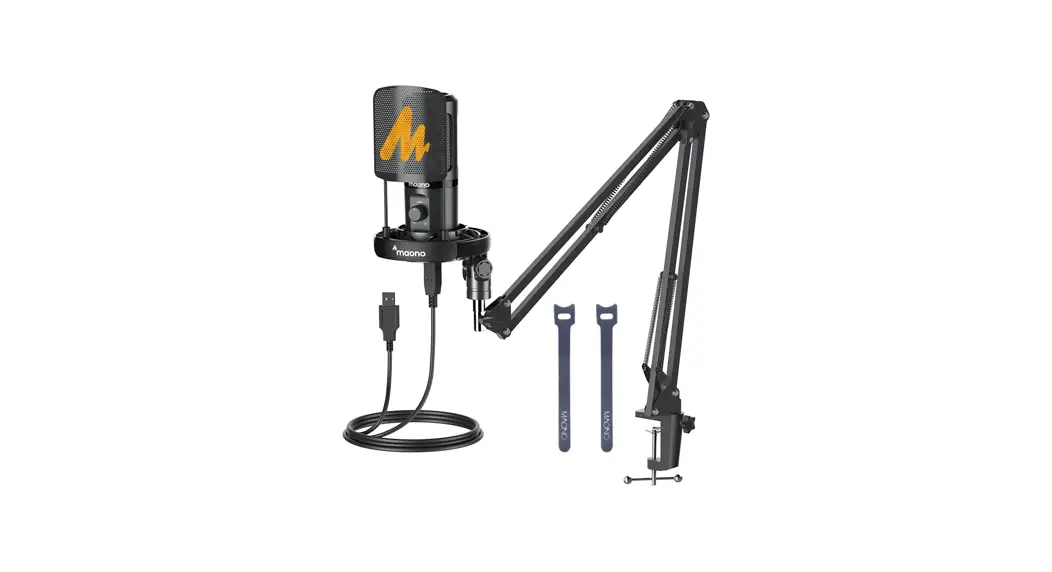
- Microphone

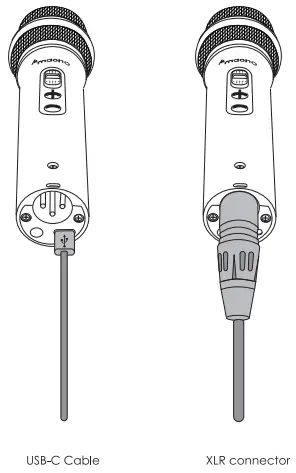
- XLR connector

- Shock mount

- Adjustable stick

- Pop Filter Stick

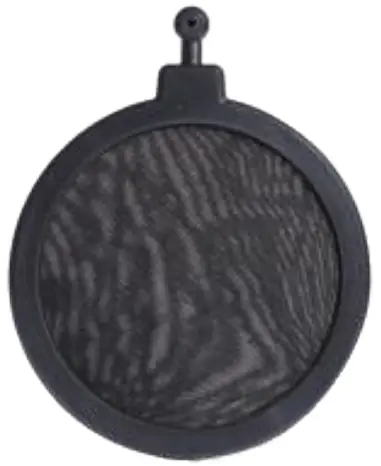
- Pop filter

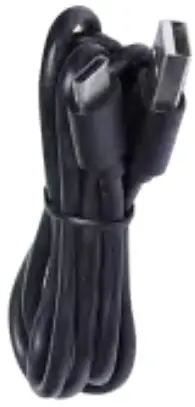
- USB-C Cable

- Base

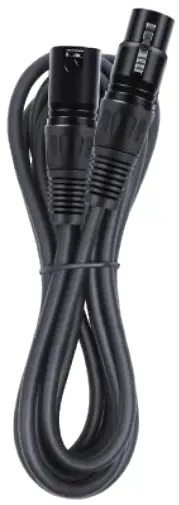
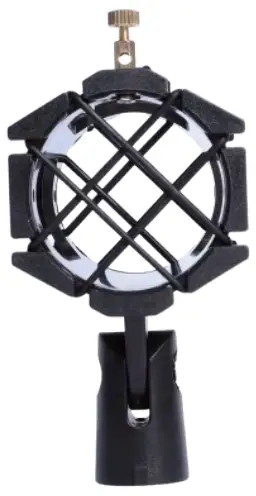
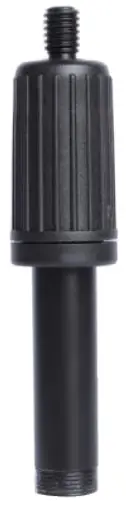
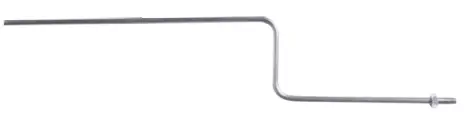
Introduction
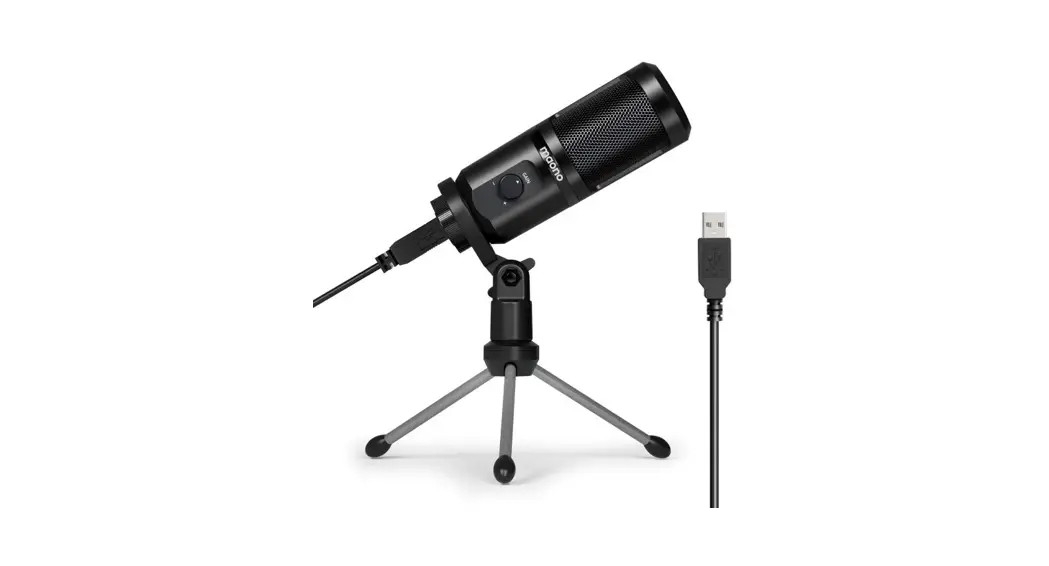
AU-HD300T dual-mode dynamic microphones is an all-new microphone product that offers both USB and XLR connectivity. With the high sampling rate of USB digital connection, users can easily connect to a PC or Mac, which is ideal for podcasting, streaming, interviewing, and other digital recordings. XLR connection allows the microphone to be connected to amplifiers and mixers to meet profess -ional needs like music recording and sound production. Both outputs can be used simultaneously for more versatility.
AU-HD300T offers monitoring headphone output that supports real-time monitoring and audio playback under USB mode. There are volume rockers on the microphone that can easily adjust the system volume of Windows and mac OS.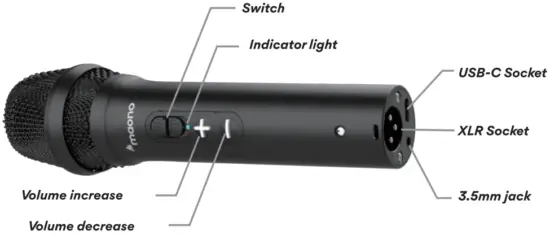
Connect the product console
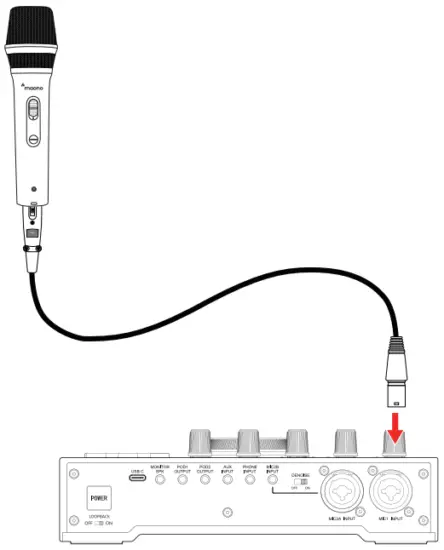
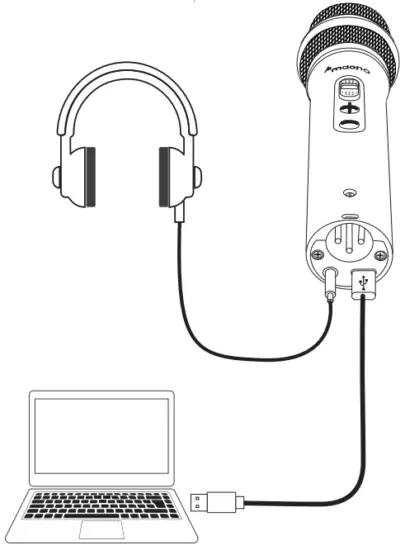
Connect to the computer
Tips
The real monitoring function of the microphone headphone jack is only available in the USB connection mode.
Notes
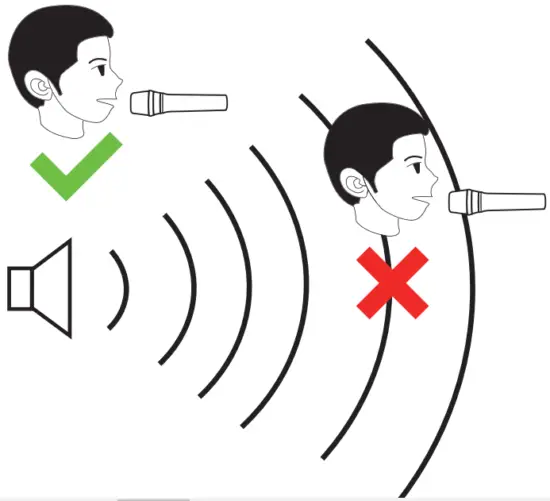
If the microphone head is covered by hand or the microphone is approached to the speaker a howling sound may be generated. this phenomenon of howl -ing is caused by the microphone pick up the sound output from the speaker. To prevent this problem, first decrease the volume of speaker, do not place the microphone pointed to the speaker and keep a suffice distance between the microphone and speaker.
- The microphone is a sensitive equipment, do not drop, hit is or apply shock to it.
- Do not store the microphone in a place with high temperature or humidity.

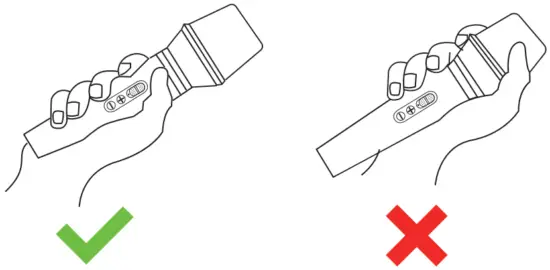
Hold microphone handle not grille
Avoid feedback howling
Installation
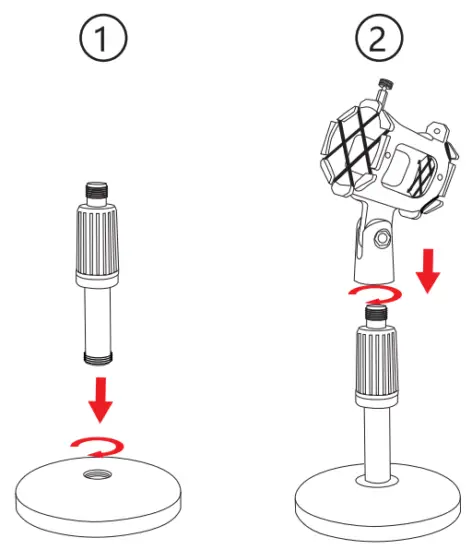
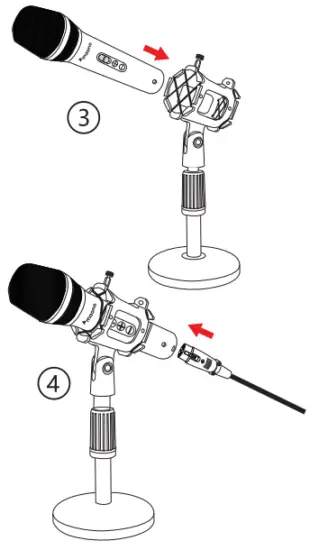
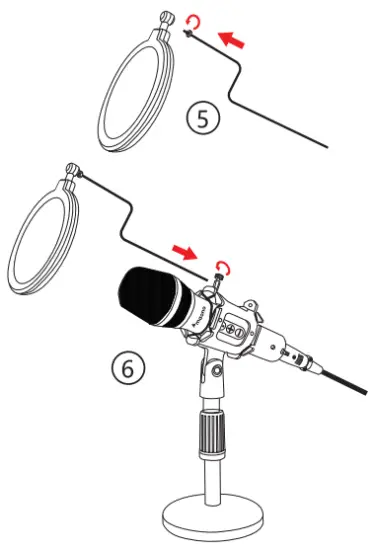
Connect to microphone
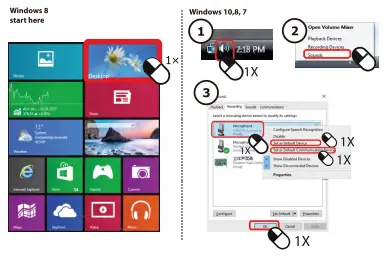
How to setting on computer
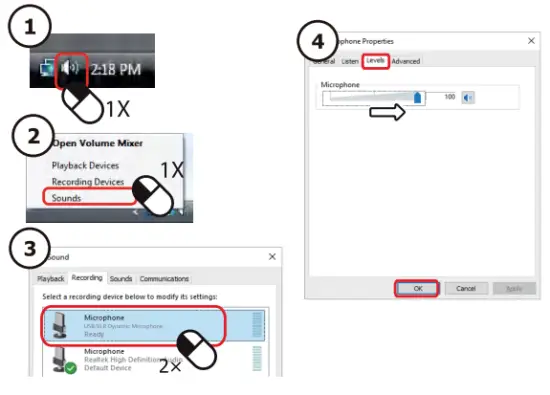
Setting microphone level
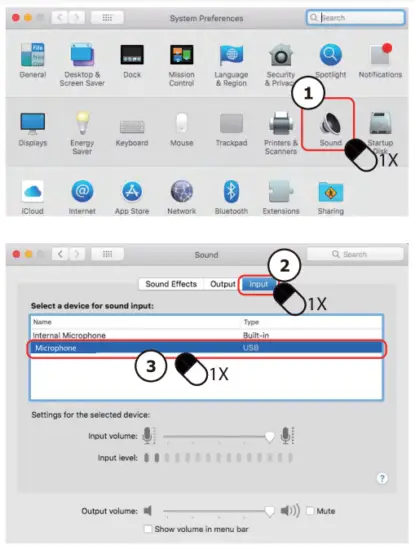
How setting on Apple Mac
Contact Us
Technical Support:
[email protected]

Company: CET PRODUCT SERVICE LTD.
Address: Chase Business Centre, 39-41 Chase Side, London N14 5BP United Kingdom
Email: [email protected]
TEL: +447419325266
Company: Qing UG (haftungsbeschrankt)
Address: Undinestr. 7,12203 Berlin Germany
Tell: 004917662179550
E-mail: [email protected]