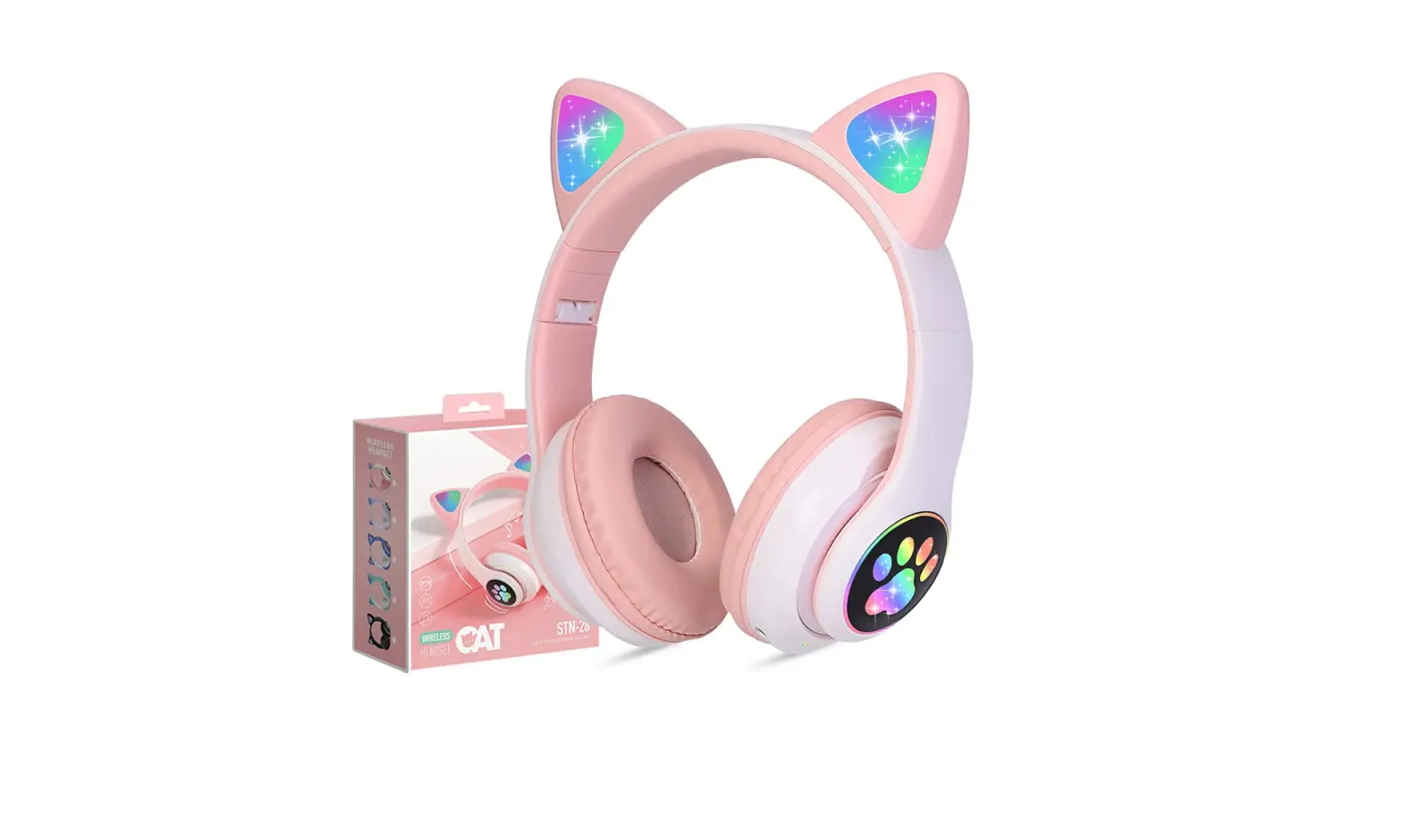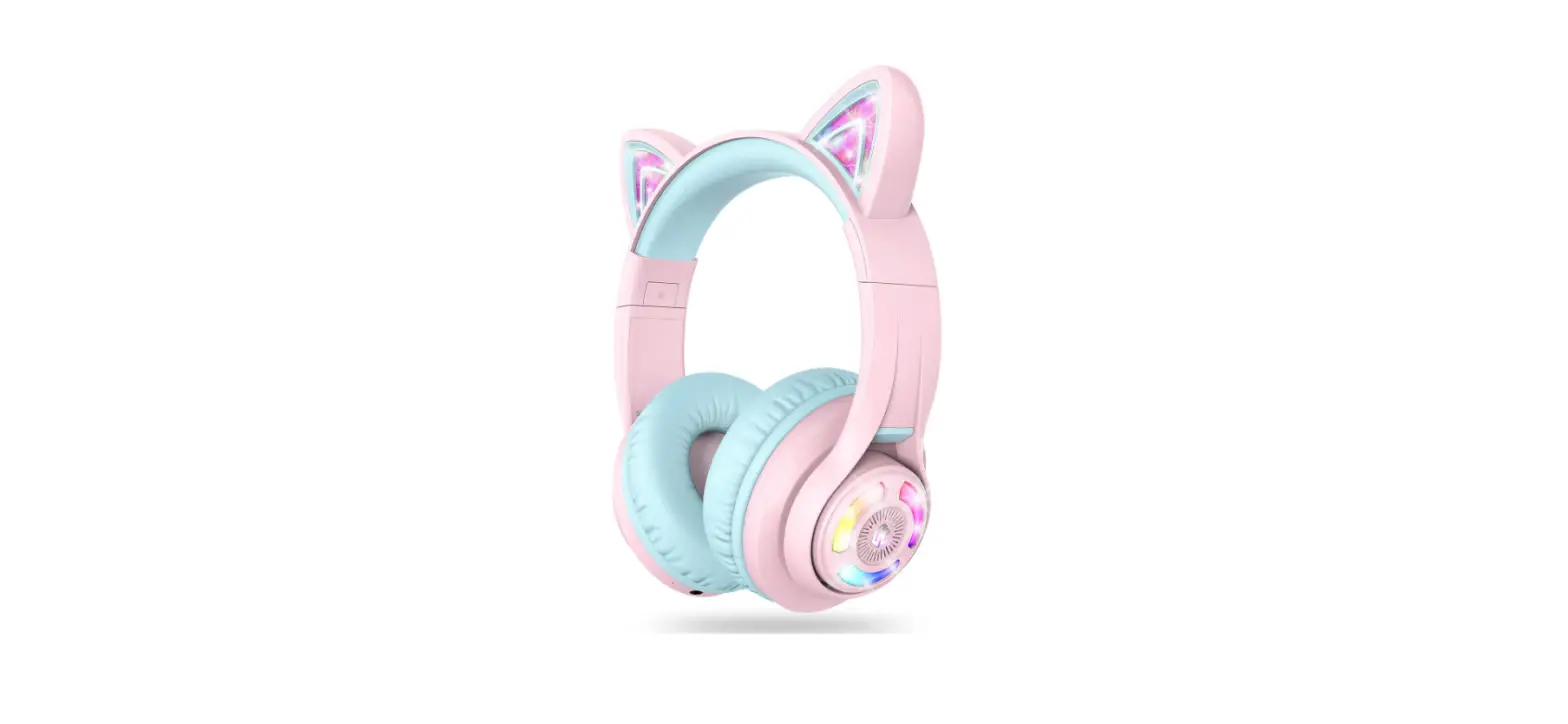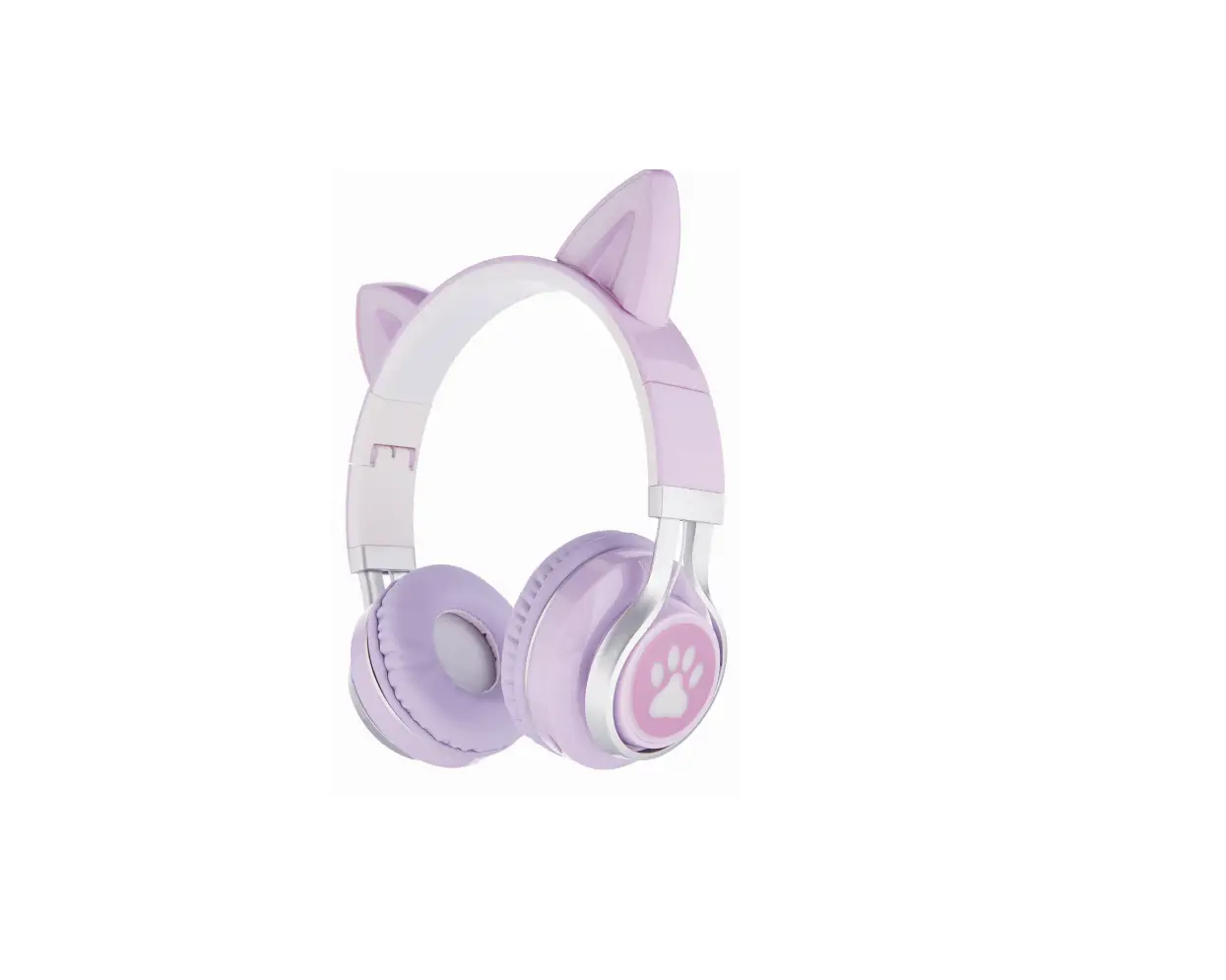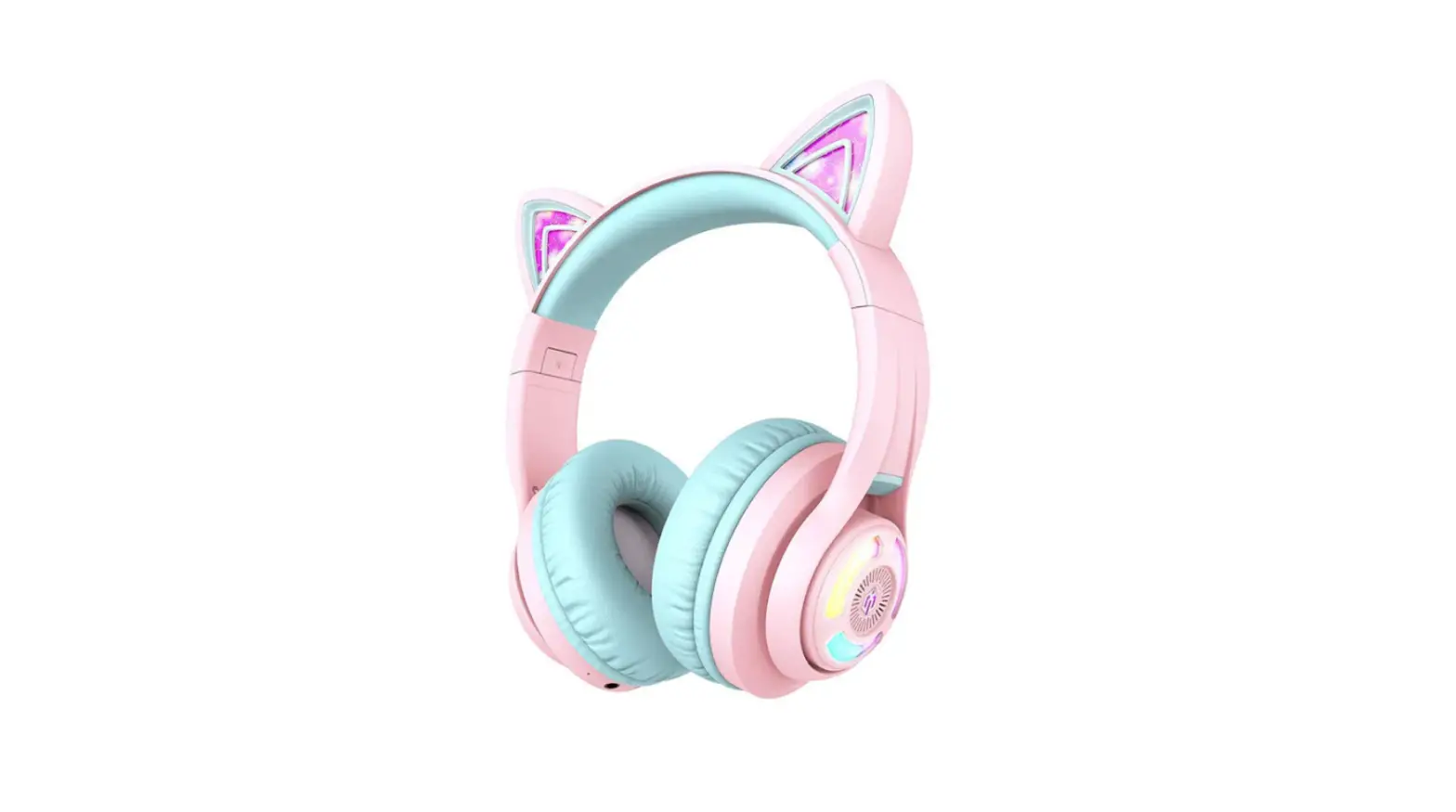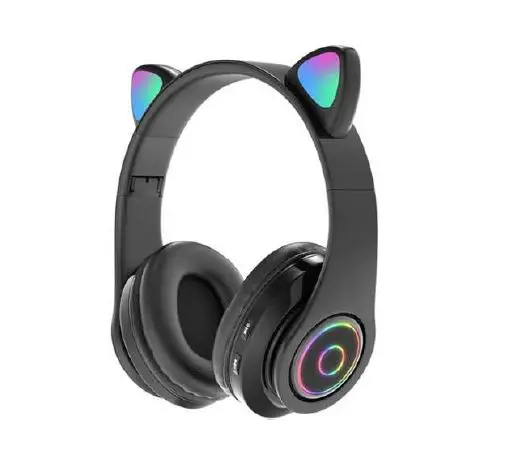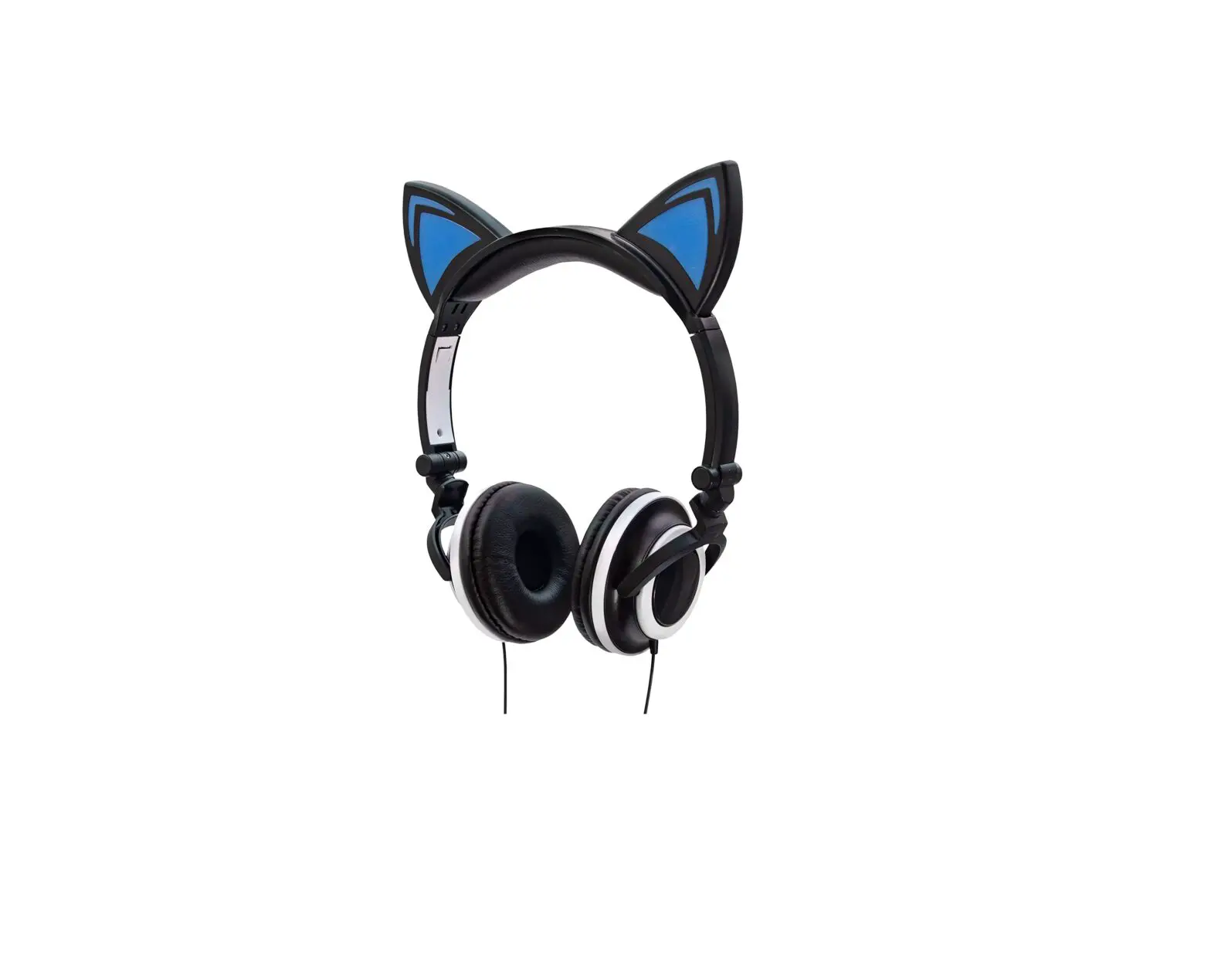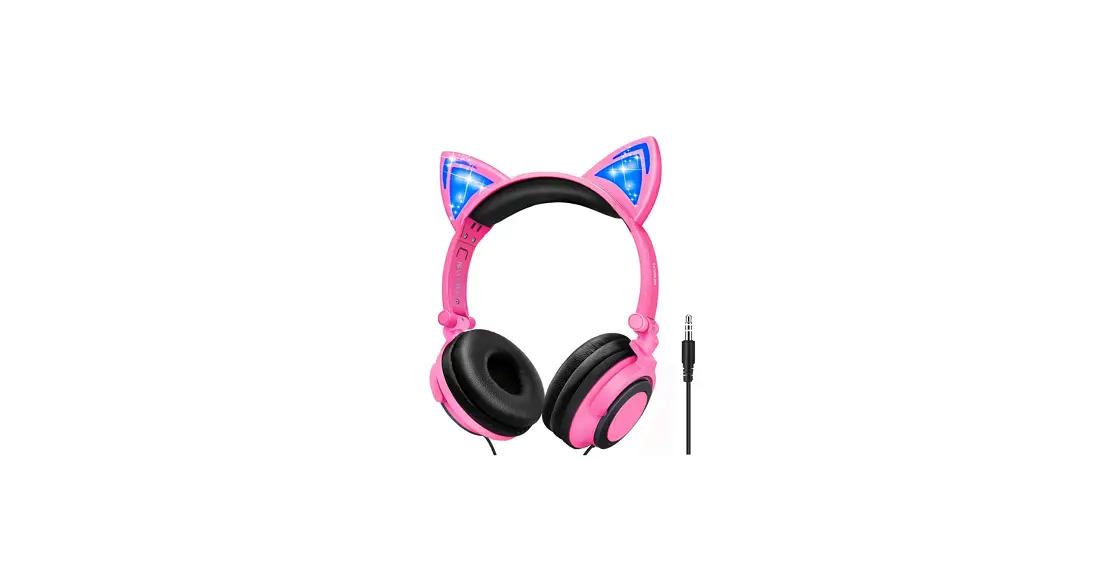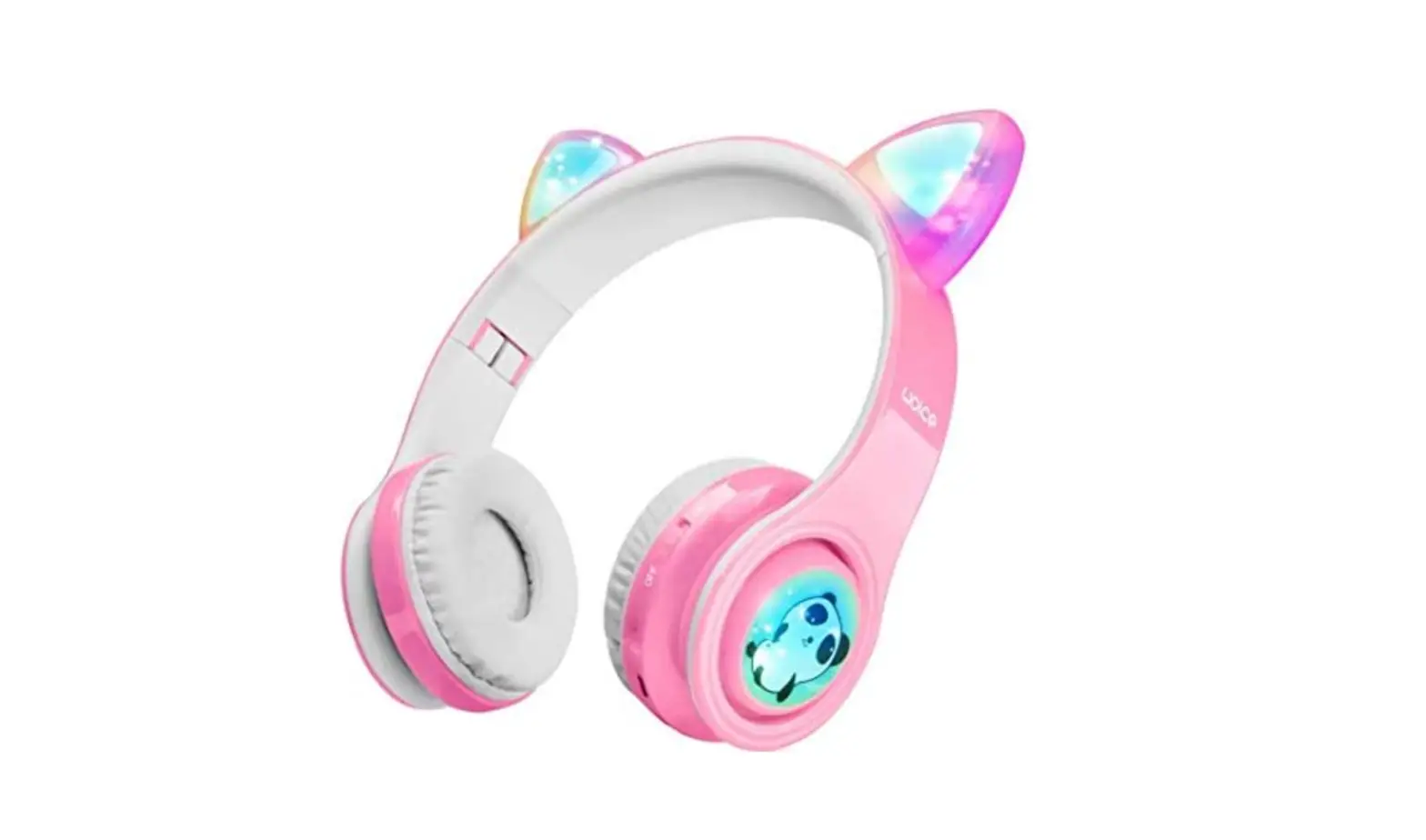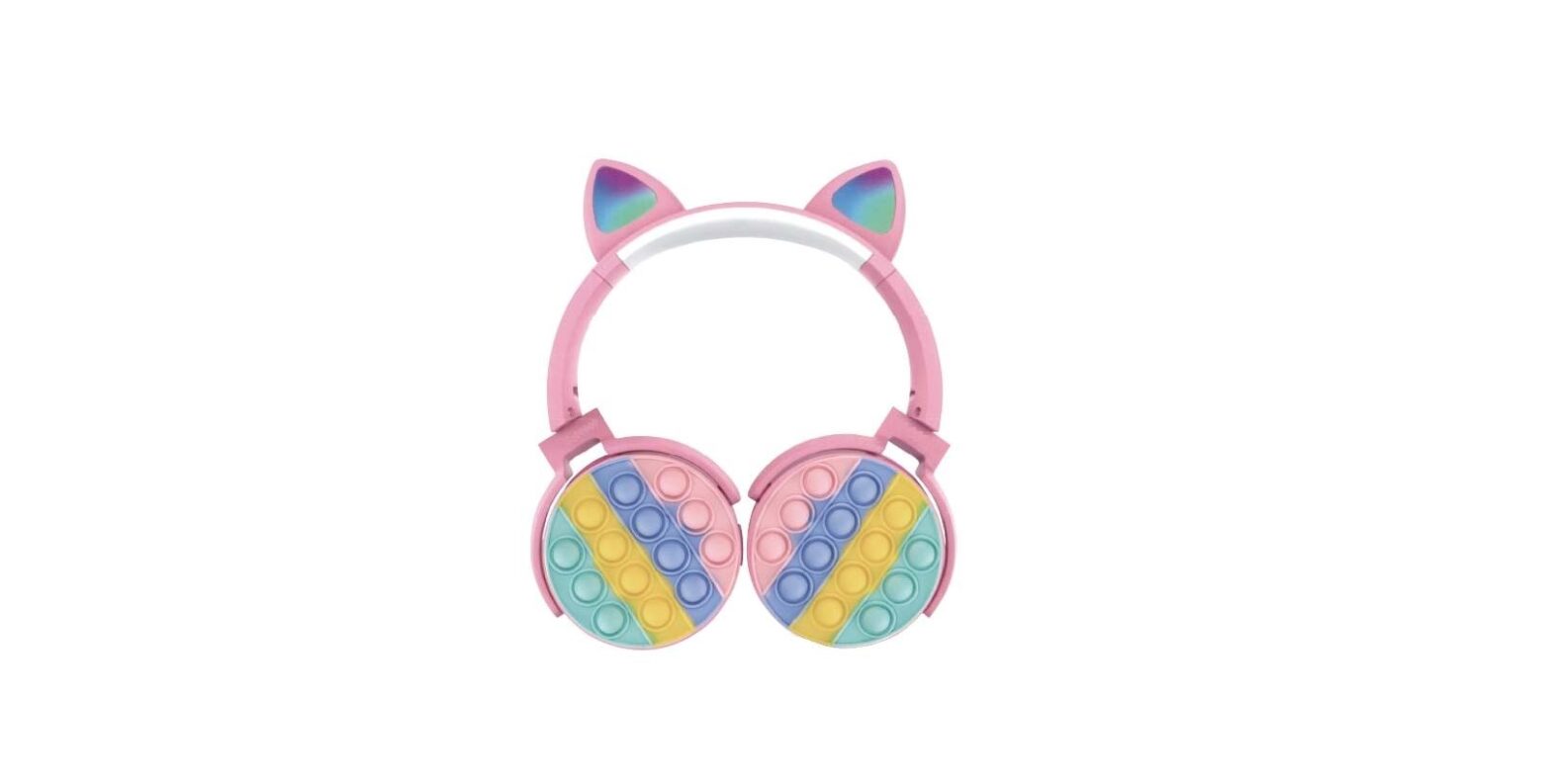

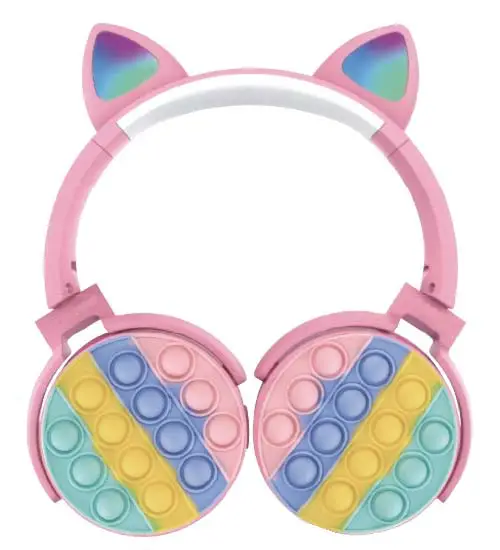
Youngstar Electronic 34641 Bluetooth LED Cat Ears Wireless Headphones with Fidget Popping Fun
Getting started
- Remove the product from the packaging.
- Please retain all packaging after you have checked and counted all the parts and the contents against the list.
Package Contents
- Bluetooth Headphones
- USB charging cable
- 3.5mm auxiliary cable
- Instruction Manual
Key Features
- Rainbow Fidget Bluetooth Cat Headphones
- Connect & stream wireless music
- Built‐in LED flashing lights on ears
- Built‐in mic for hands‐free calls
- Stereo & dynamic sound output
- Adjustable headband
- Foldable design
- Rechargeable battery
- Auxiliary back up, if battery runs out
Safety Instructions
Keep the unit away from heat sources, direct sunlight, humidity, water and any other liquids. Do not operate the unit if it has been exposed to water, moisture or any other liquids to prevent against electric shock, explosion and/or injury to yourself and damage to the unit. Do not use the unit if it has been dropped or damaged in any way.
Repairs to electrical equipment should only be performed by a qualified electrician. Improper repairs may place the user at serious risk.
Do not use the unit with wet hands.
Do not put objects into any of the openings.
Keep the unit free from dust, lint, etc.
Do not use this unit for anything other than its intended use.
Keep the unit out of reach of children.
This product is not a toy.
Do not use the handset at excessive volume levels, as damage to hearing may occur.+
Description of Parts: 
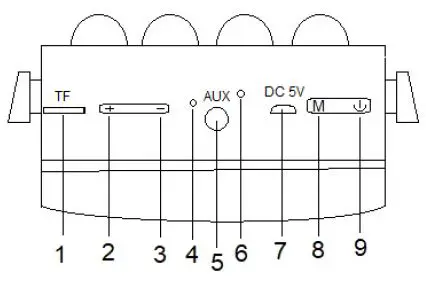
| 1 | Micro SD (TF) Card Slot |
| 2 | Next Track / Volume Increase + |
| 3 | Previous Track / Volume Decrease ‐ |
| 4 | Indicator Light |
| 5 | Auxiliary Input |
| 6 | Built‐In Microphone |
| 7 | Charging Port |
| 8 | Mode Button |
| 9 | MF (Multi‐Function) / Phone Button |
INSTRUCTIONS FOR USE
Charging Instructions
- The Bluetooth Headphones come with a built‐in rechargeable battery. Before using it for the first time we recommend you charge the battery fully. Only use the supplied USB Cord to charge the Bluetooth Headphones. Please charge for 1‐2 hours.
- Connect the USB charging cable to a computer USB port and the Micro USB plug to the charging port of the device. The Indicator Light turns Red while the device is charging. It takes 1‐2 hours for the headphones to charge fully. Indicator Light turns to Blue, when the battery is fully charged.
Turning on/off the device
Press and hold the MF button for 2 seconds to turn ON the device, and press and hold the MF button for 4 seconds to turn OFF.
Pairing the device with Bluetooth devices (phone or music device)
- Press and hold the MF button for 2 seconds to turn on the headphones. An indication tone would be heard, and the indicator light will flash red and blue alternatively. LED lights on Ears will also turn on. Place the Bluetooth Headphones and Bluetooth source device (phone or music device) so that they are no more than 3 feet apart.
- Activate the Bluetooth function on your Bluetooth device (phone or music device). Please refer to the manufacturer’s instructions for instructions on enabling Bluetooth on your device.
- Once you have activated Bluetooth on your device, select the “Feline Fidget” from the list of available Bluetooth devices.
- if required, enter the password ‘0000’ to confirm pairing.
- Once paired successfully, another indication tone would be heard and the indicator light will flash in blue, slowly.
- You’re now ready to stream wireless music to your headphones.
- If pairing is unsuccessful, turn off the device first and then re‐pair following the above steps.
- Once you have paired the Bluetooth Headphones with a device, the Headphones will remember this device and will pair automatically when the device’s Bluetooth is activated and in range. You do not need to re‐pair any previously connected devices.
- The Bluetooth Headphones will attempt to automatically connect to the last device it was paired with when switched on. If you want to pair it with a new device, please follow the steps outlined above.
- Once the Bluetooth Headphones is paired with your device the music will transmit through the Bluetooth Headphones. Please refer to your device’s user manual for further information.
Function Summary Listening to Music
- Once the Headphones is paired with your device you can stream music wirelessly through the Bluetooth Headphones. Should you encounter any problems while streaming please refer your device’s user manual for further information.
Control Function
| Function | Operation | Button |
| Increase Volume | Playing music | Long press the + button to increase the volume |
| Decrease Volume | Playing music | Long press the ‐ button to decrease the volume |
| Pause | Playing music | Short press the MF button to pause the music |
| Play | Pausing | Short press the MF button to restart the music |
| Previous track | Playing music | Short press on the Previous Track button to return to the previous track |
| Next track | Playing music | Short press on the Next Track button to skip to the next track |
(Note: An indication tone will alert you when the volume is adjusted to the maximum level.)
Making a call with the Bluetooth Headphones in Bluetooth mode Basic operation
| Function | Operation | Button |
| Answer a call | Incoming Call | Press the Phone button once to answer an incoming call |
| Reject a call | Incoming Call | Press and hold the Phone button for 2 seconds |
| End a call | Incoming Call | After your phone conversation, short press the Phone button. |
| Increase Volume | During a call | A long press on the + button once will increase the volume |
| Decrease Volume | During a call | A long press on the ‐ button once will decrease the volume |
| Redial last number | Standby mode and connected to a device | Short press the Phone button twice |
Please Note
- Not all mobile phones support all the functions listed above. Please refer to your mobile phone’s user’s manual for further information.
- Certain functions and indication tones may vary depending on your mobile phone.
FM RADIO
Turn on the Headphones
Press and hold the MF button for 2 seconds to turn ON the Headphones.
Auto‐scan Stations & Play FM Radio
- Press the Mode button once, it will enter FM mode with sound from a radio station.
- To AUTO‐SCAN the stations, short press MF button once.
- It will take few minutes to search all the stations. Once all the stations are scanned, they get registered in memory, automatically.
- Press ‐ or + to skip selected stations.
- Long press the + or ‐ button to increase or decrease the volume.
Listening to Music using Micro SD (TF) card slot
- Turn on the Headphones.
- Insert Micro SD (TF) card into the card slot, and music would be automatically streamed.
- Press + or ‐ to move forward or backward on your playlist.
- Press MF button to Play or Pause a track.
- Long press the + or ‐ button to increase or decrease the volume.
Note: While using Bluetooth, if you insert Micro SD (TF) card, Headphones would disconnect the Bluetooth connection and switch to Micro SD (TF) card function. You can press Mode button again and again, to select the Bluetooth mode.
Tips!!
- Press the Mode button to switch different functions of the Headphones. The functions are – Bluetooth / Micro SD (TF) card / FM.
- When the headphones is not in use, turn it OFF to save the battery power.
Listening to Music using AUX‐In Mode
- Insert the 3.5mm auxiliary cable (included) to the Aux input of the Headphones. And, the other end of the cable connects to the audio device (such as computer / tablet, etc.).
- Select your favorite song at the source device and play.
(Note: Using this Aux‐in mode, you do not need to turn on the Headphones, and you need to control the volume increase/decrease, play/pause, next/previous track through your source device only.)
LED Lights on Ears
- Turn on the Headphones.
- Short press the MF button thrice to turn on/off the LED lights.
Do’s and Don’ts
Do not play music at excessive levels. Damage to hearing and/or equipment may result.
Do not use outdoors in wet or in damp surroundings.
Care and Maintenance
Read the following recommendations before using the Bluetooth Headphones. Following these you will be able to enjoy the product for many years.
- Do not expose the Bluetooth Headphones to liquid, moisture, or humidity to avoid the product’s internal circuit being affected.
- Don’t use abrasive cleaning solvents to clean the device.
- Do not expose the device to extremely high or low temperatures as this will shorten the life of electronic devices, destroy the battery or distort certain plastic parts.
- Don’t dispose of the device in a fire as it will result in an explosion.
- Don’t expose the device to contact with sharp objects as this will cause scratches and damage.
- Don’t let the device fall on the floor. The internal circuit might get damaged.
- Don’t attempt to disassemble the headphones as it may cause permanent damage to it.
Specifications
| Bluetooth version | 5.0 |
| Operating distance | 33 Feet |
| Charging input voltage | DC 5V |
| Charging time | 1‐2 hours |
| Working time | 4‐5 hours (max. volume) |
| FM radio frequency | 87.5‐108MHz |
| Built‐In Battery | 200mAh |
(Note: Battery life & charging time may vary based on usage & types of devices used.)
FCC Instructions
Caution: Changes or modifications not expressly approved by the party responsible for compliance could void the user’s authority to operate the product.
NOTE: This product has been tested and found to comply with the limits for a Class B digital device, pursuant to Part 15 of the FCC Rules. These limits are designed to provide reasonable protection against harmful interference in a residential installation. This product generates, uses and can radiate radio frequency energy and, if not installed and used in accordance with the instructions, may cause harmful interference to radio communications. However, there is no guarantee that interference will not occur in a particular installation. If the product does cause harmful interference to radio or television reception, which can be determined by turning the equipment off and on, the user is encouraged to try to correct the interference by one or more of the following measures:
- Reorient or relocate the receiving antenna.
- Increase the separation between the product and receiver.
- Connect the product into an outlet on a circuit different from that to which the receiver is connected.
- Consult the dealer or an experienced radio/TV technician for help.
The device complies with Part 15 of the FCC Rules. Operation is subject to the following two conditions:
- this device may not cause harmful interference, and
- this device must accept any interference received, including interference that may cause undesired operation.
The device has been evaluated to meet general RF exposure requirements.