Raspberry Pi Pico Servo Driver Board
Raspberry Pi Pico Servo Driver Board
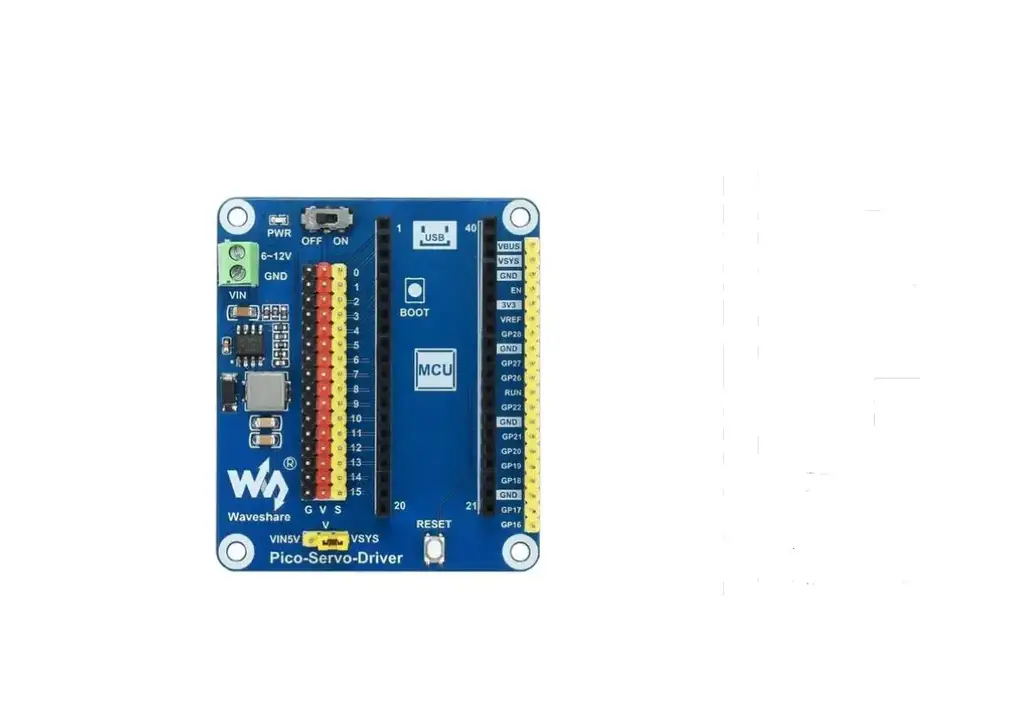
The Raspberry Pi Pico Servo Driver Board is a module that allows
you to control servos using the Raspberry Pi Pico microcontroller.
It provides convenient connections for servo motors and can be
easily programmed using the Raspberry Pi terminal.
Product Usage Instructions:
1. Wire up
Make sure not to connect the Raspberry Pi Pico reversely.
Observe the end with silk prints on the module and match it with
the end of the USB port to determine the correct connection
direction. You can also depend on signals of pins and pins of Pico
to determine the connection direction.
2. Programming download
To download the necessary code for the servo driver board, open
the Raspberry Pi terminal and follow these steps:
- Run the command:
sudo apt-get install
p7zip-full - Navigate to the home directory:
cd ~ - Download the code package:
wget
https://www.waveshare.net/w/upload/3/31/Pico_Servo_Driver_Code.7z - Extract the code package:
7z x Pico_Servo_Driver_Code.7z
-o./Pico_Servo_Driver_Code - Navigate to the extracted code directory:
cd
~/Pico_Servo_Driver_Code
3. Use C via Raspberry Pi
If you prefer to use C programming language, follow these
steps:
- Navigate to the C directory:
cd
~/Pico_Servo_Driver_Code/c/ - Create and enter the build directory:
mkdir build
&& cd build - Add the SDK path:
export
PICO_SDK_PATH=../../pico-sdk - Generate Makefile files using cmake:
cmake .. - Compile the code:
make -j9 - After compiling, a uf2 file will be generated. Connect the Pico
board to the Raspberry Pi via a USB cable and press a key on the
Pico board. The Raspberry Pi will recognize a drive (RPI-RP2). Copy
the generated uf2 file to the drive.
4. Use Python
If you prefer to use Python programming language, follow these
steps:
- Update the firmware of MicroPython by copying the
pico_micropython_xxxxx.uf2 file to the Pico board. - Open Thonny IDE on the Raspberry Pi (click Raspberry Pi ->
Programming -> Thonny Python IDE). Make sure the IDE contains
Pico support package. Check version information by going to Help
-> About Thonny. Select MicroPython (Raspberry Pi Pico) and the
ttyACM0 port. - If Thonny doesn’t have the Pico support package, update Thonny
IDE by running the command:sudo apt upgrade
thonny - Click File -> Open… and navigate to
python/Pico_Servo_Driver_Code/python/servo.py. Program
your script in the IDE.
5. Use Windows
If you are using Windows, follow these steps:
- Open the C folder in the downloaded code package.
- Open it with the Visual Studio Code and select the appropriate
compiling tool. - Click compile to compile the code.
6. Pico Disk Mode
To enter the Pico disk mode for running the corresponding
program, follow these steps:
- Press the Reset button on the Pico-Eval-Board to reset the
Pico. - First, press the BOOTSEL button, then press the RUN button, and
release the Reset button. The Pico will enter the disk mode
directly. - Drag the UF2 file from the build folder and drop it onto the
RPI-RP2 drive letter.
7. Code Explanation
The servo driver board utilizes various hardware interfaces. For
detailed information about hardware interfaces and their
definitions, refer to the corresponding directories and
DEV_Config.c(.h) files under the directory: …clibConfig
8. Data Types
The following data types are defined:
#define UBYTE uint8_t#define UWORD uint16_t#define UDOUBLE uint32_t
9. Module Initialization and Exit
The module provides the following functions for initialization
and exit:
void DEV_Module_Init(void);void DEV_Module_Exit(void);
10. PWM Initialization
To initialize the PWM, use the following function:
void PWM_initialization();
11. Interrupt Handler Function
The servo driver board uses the following interrupt handler
function:
void on_pwm_wrap();
12. Channel Definition
The channel used by the servo driver board is defined as
follows:
#define CHANNE_N 0xFFFF(means all channels are
closed)
Raspberry Pi Pico Servo Driver Board
Description It is a servo control expansion board for Raspberry Pi Pico Features On-board Raspberry Pi Pico interface for Raspberry Pi Pico series boards supports up to 16-channel servo or PWM outputs. And each channel support 16-bit resolution On-board 5V voltage regulator chip. The output current is up to 3A. It can be connected to on-board servo on the battery power supply board through the VIN terminal, and interface with common servos such as SG90, MG90S, MG996R for Pico for easy expansion. A complete supporting information manual is provided(example programs such as Raspberry Pi Pico C/C++ and MicroPython)
1
Product parameters Working voltage 5V(Pico) or 6~12V(VIN terminal) Servo voltage 5V Logic voltage 3.3V Control interface GPIO Via diameter 3.0mm Product size 65 × 56mm Pins
2
Wire up Don’t connect the Pico reversely Observe an end with silk prints on the module and an end of USB port to determine connection direction. You can also depend on signals of pins and pins of Pico to determine connection direction.
Programming download Download via Raspberry Pi, open the Raspberry Pi terminal: And sudo apt-get install p7zip-full cd ~ sudo https://www.waveshare.net/w/upload/3/31/Pico_Servo_Driver_Code.7z 7z Pico_Servo_Driver_Code.7z -o./Pico_Servo_Driver_Code.7z cd ~/Pico_Servo_Driver_Code
wget
Click the example program to download directly
3
Use C via Raspberry Pi
We use the Raspberry Pi. Because cnmake has multiple platforms and can be moved, you can compile on the PC.
Compile under the C directory cd ~/Pico_Servo_Driver_Code/c/
Create and enter build directory in the folder and add SDK. ../../pico-sdk is the directory of the SDK.
The example program has build, jsut enter it. cd build export PICO_SDK_PATH=../../pico-sdk (Notewrite the correct pass of your own SDK) Implement cmake and generate into Makefile files
cmake .. Implement make and generate implement filesthe first compile will take a while. make -j9
After compiling, the uf2 file will be generated. Press a key of the Pico boardconnect the pico board to the Raspberry Pi via a
4
USB cable and release the key. Then Raspberry Pi will recognize a drive( RPI-RP2), copy the main.uf2 from the build folder to the drive(RPI-RP2).
cp main.uf2 /media/pi/RPI-RP2/ Python 1. Update the firmware of Micropythoncopy the pico_micropython_xxxxx.uf2 file to the pico.
2. Open Thonny IDE on the Raspberry Pi(click Raspberry Pi-> Programming -> Thonny Python IDE), you can check the version information: Help->About Thonny
Make sure this version contain Pico support package, and click Tools -> Options… -> Interpreter, then select MicroPython(Raspberry Pi Pico and the ttyACM0 port As shown below;
5
Pico-lcd-0.96-img-config2.png If the Thonny doesn’t have the pico support package, enter the following comender to update Thonny IDE sudo apt upgrade thonny
Click File->Open…->python/Pico_Servo_Driver_Code/python/servo.py then program the script
The servo will rotate from 0° to 180°when connected, repeat three times.
Windows
6
Open C folder
Open with the Vs coed and select the compiling tool,
7
Click compile
1. Press the Reset button on the Pico-Eval-Board to reset the Pico, first press the BOOTSEL button then press the RUN button and release the Reset button. The
8
Pico will enter the disk mode directly. 2. Drag the UF2 file under the build file and drop to the RPI-RP2 drive letter
3. Pico starts running the corresponding program Code explanation Hardware interfaces Since hardware platforms and inner structure are different, you can check in the corresponding directories You can check definitions in DEV_Config.c(.h), under the directory: …clibConfig
Date type
9
#define UBYTE uint8_t #define UWORD uint16_t #define UDOUBLE uint32_t module initialization and exit void DEV_Module_Init(void); void DEV_Module_Exit(void); PWM initialization void PWM_initialization() interrupt handler function void on_pwm_wrap() Define the channel used #define CHANNE_N 0xFFFF means all channels are closed
// 0x0001 means 0 channel is open, 0x0000
Angles of rotation #define ROTATE_0 #define ROTATE_45 #define ROTATE_90 #define ROTATE_135 #define ROTATE_180
1700 3300 4940 6600 8250
//rotate to 0° //rotate to 45° //rotate to 90° //rotate to 135° //rotate to 180°
1
python Windows environment Press and hold the BOOTSET button on the Pico board, connect the pico to the USB port of the computer through the Micro USB cable, and release the button after the computer recognizes a removable hard disk (RPI-RP2). Download the pico_micropython_xxxxx.uf2, then copy it to the drive(RPI-RP2). Open Thonny IDE(note: use the latest Thonny, otherwise, the Pico support package is not included. The latest version under Windows is v3.3.3 Click tool->setting->interpreter, then select the corresponding port of Pico
1
Click file->open->servo.py and click run The following picture indicates that the program has run. The experiment result is as same as the program C
1