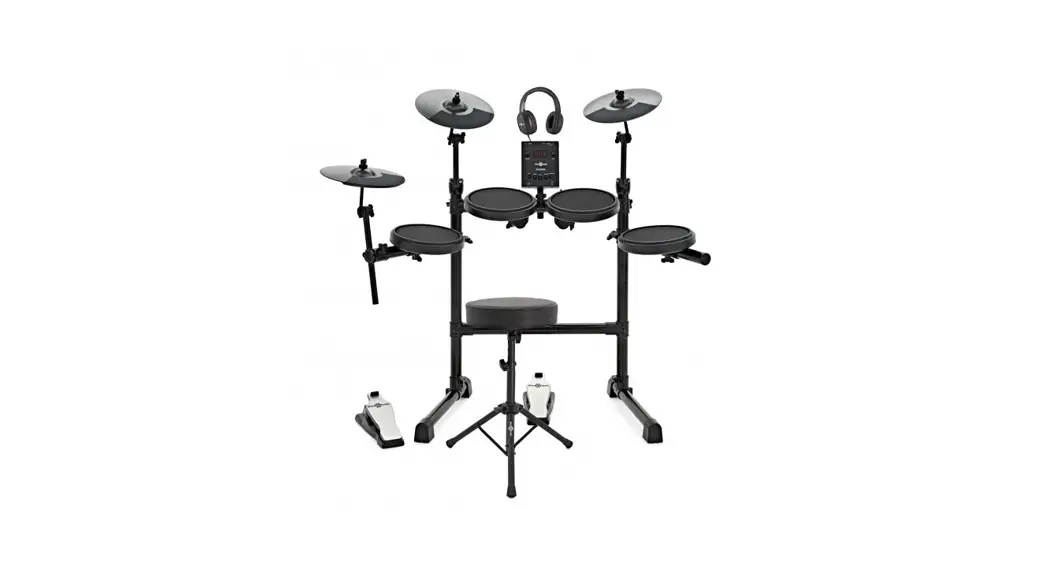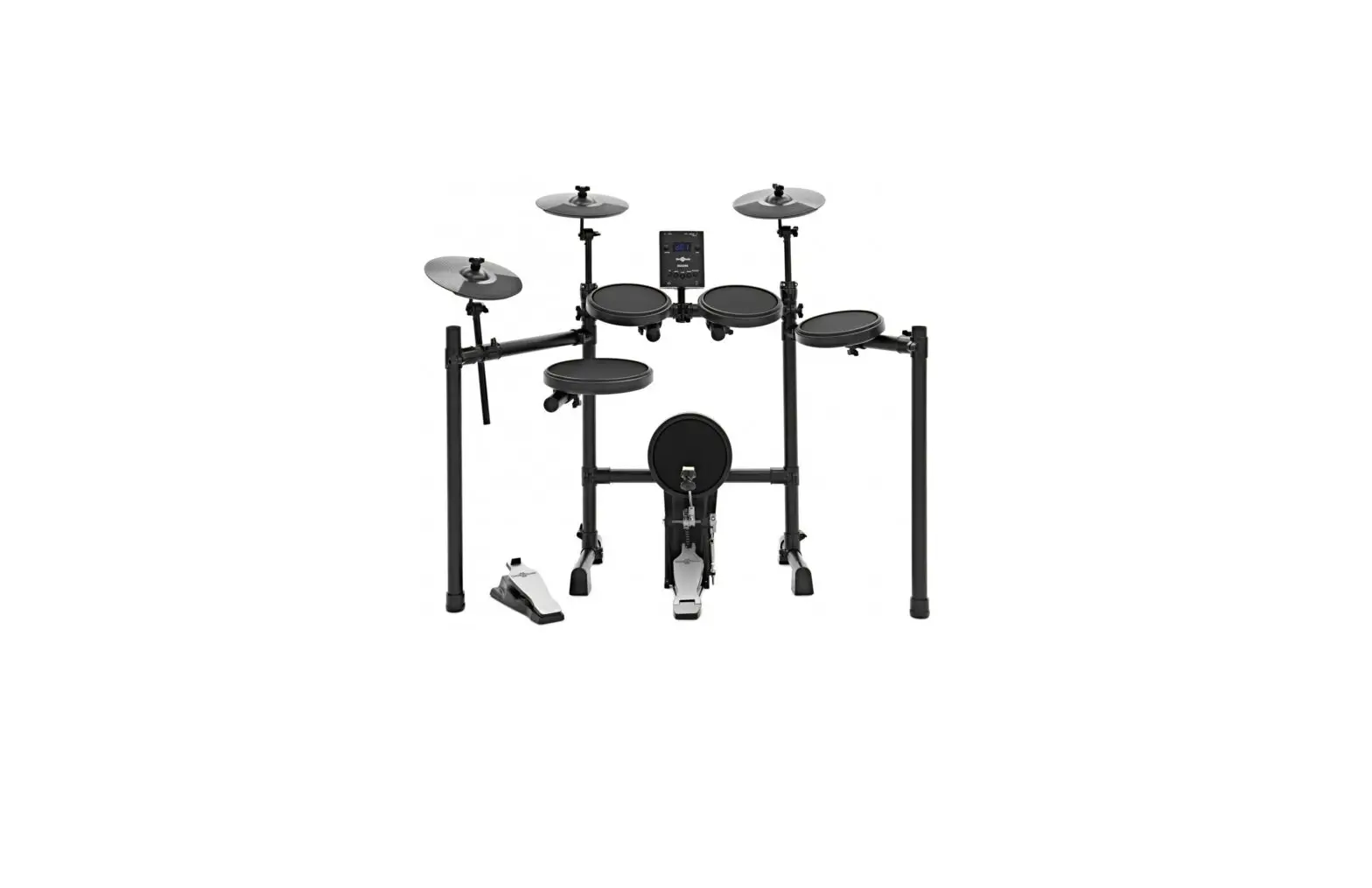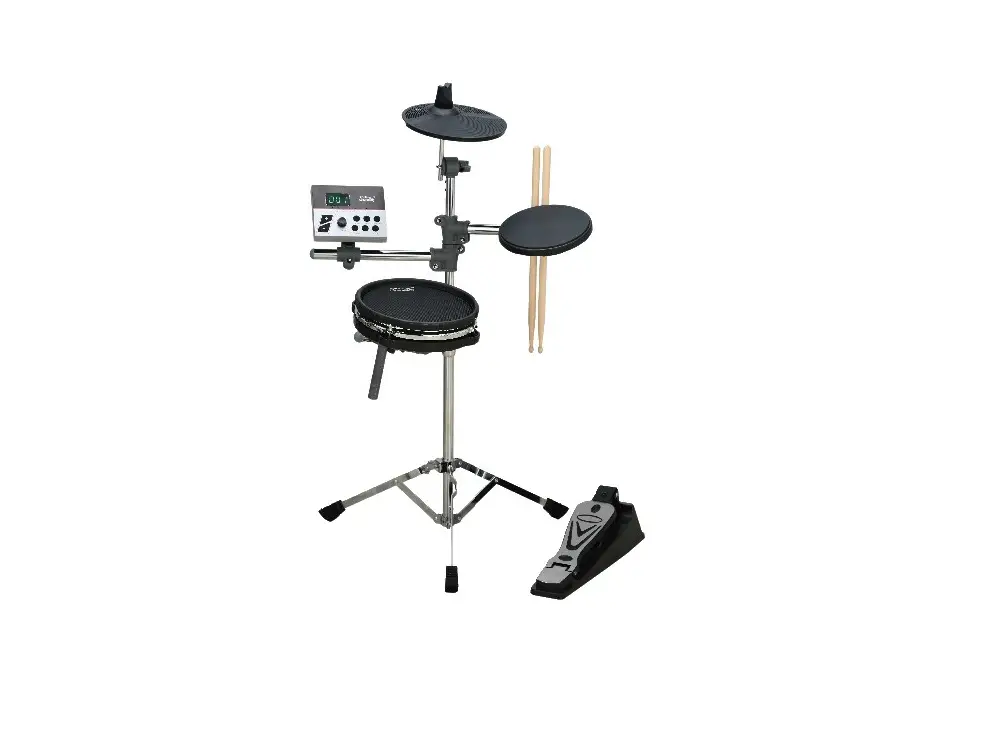


DD-8 Professional Electric Drum
Instruction Manual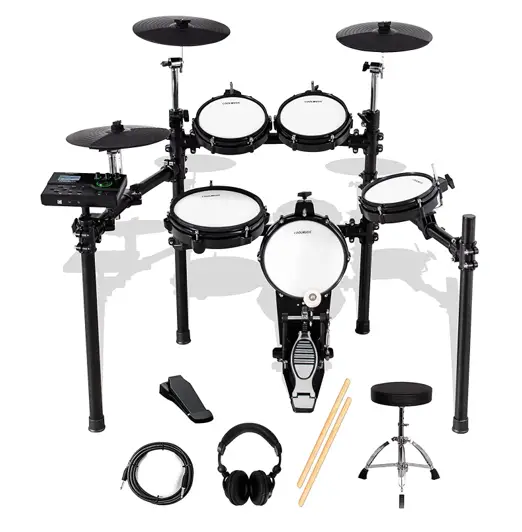
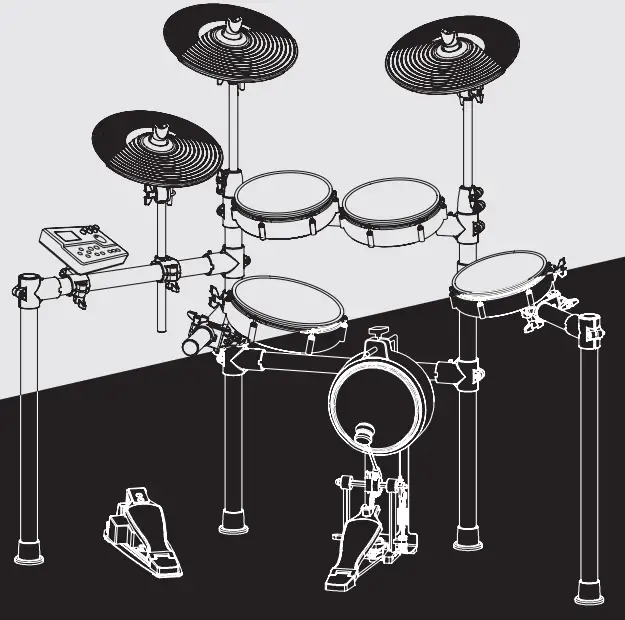
Professional Electronic Drum
PERSONAL MONITOR FOR E-DRUM
 Warning
- Please read the instruction manual carefully;
- Please use the original adapter when using, if you want to replace it, please contact the product dealer;
- Please do not use or store this product in a humid place;
- When you don’t want to use this product, please shut down or power off this product to avoid reducing the service life of the machine;
- This product should be kept away from heating appliances;
- If the machine breaks down, please send the machine back to our company for repair by our professional maintenance personnel;
Introduction
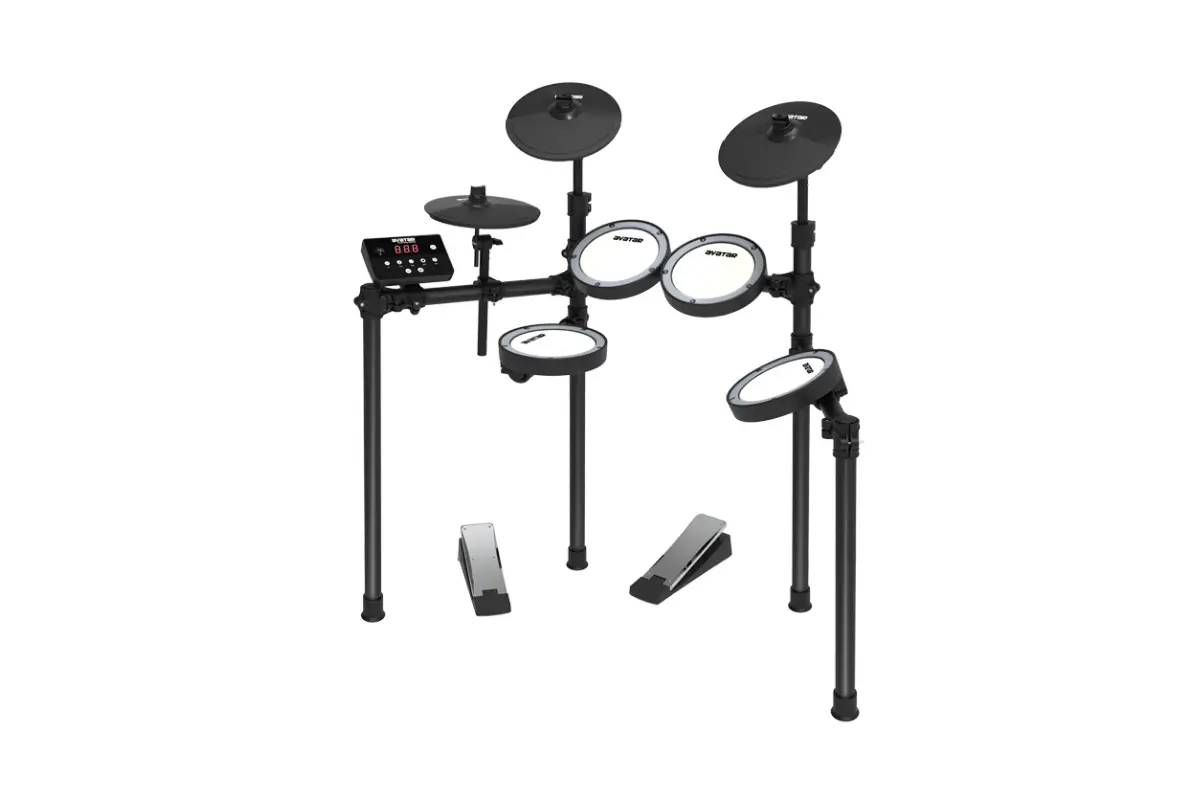
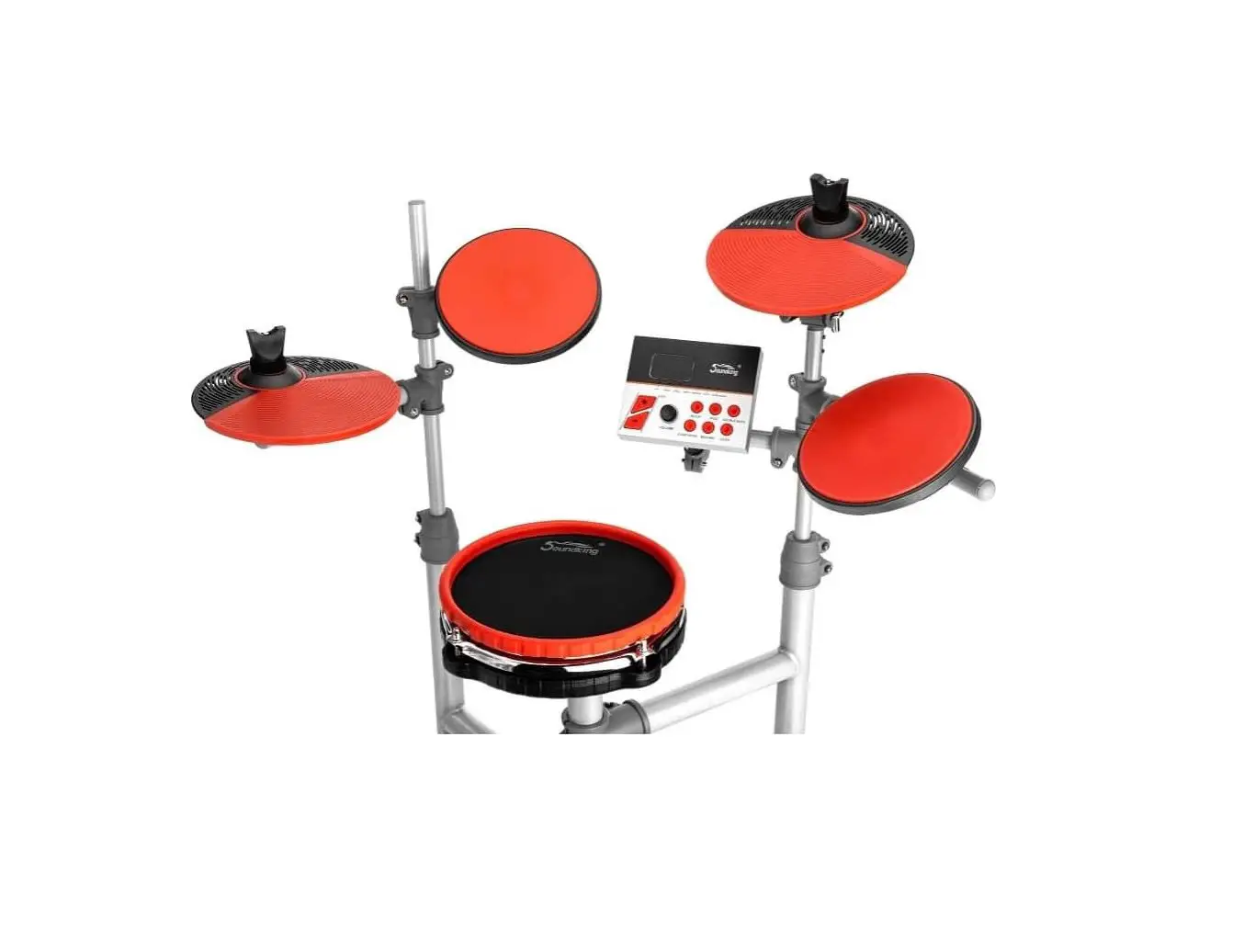
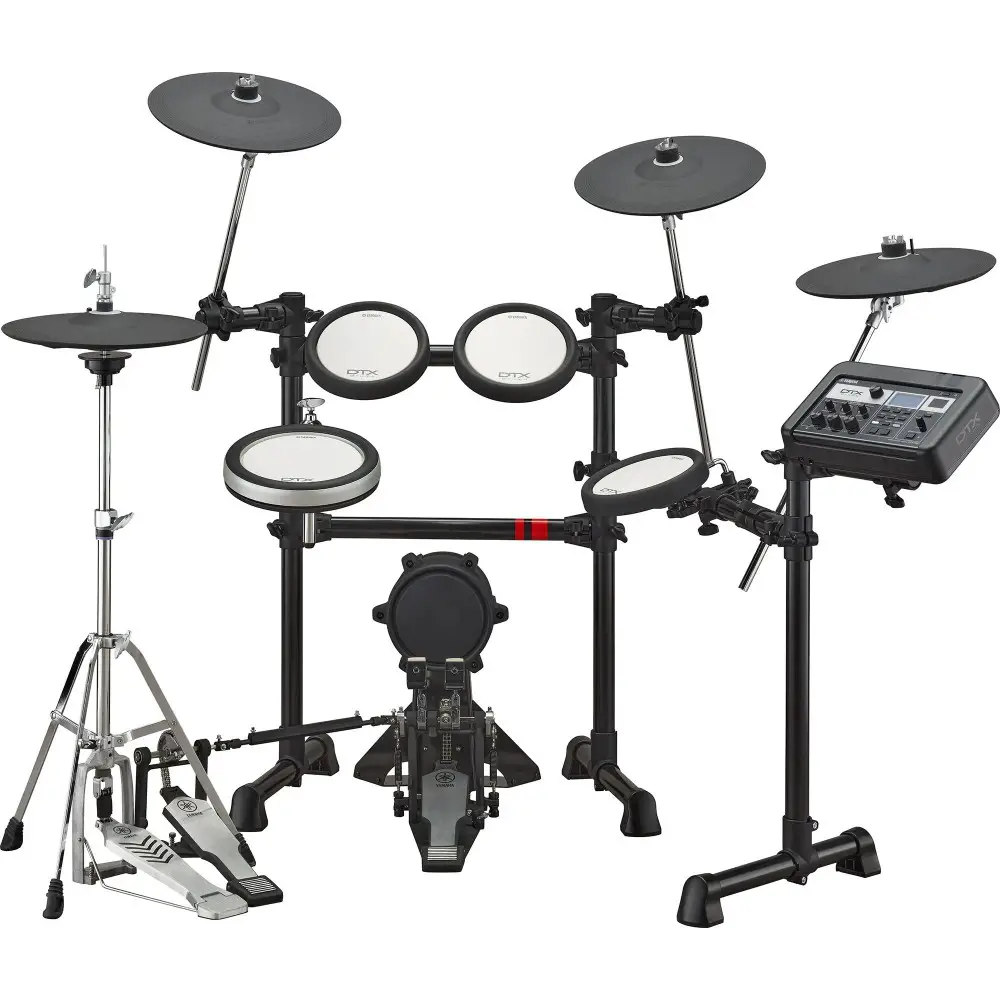
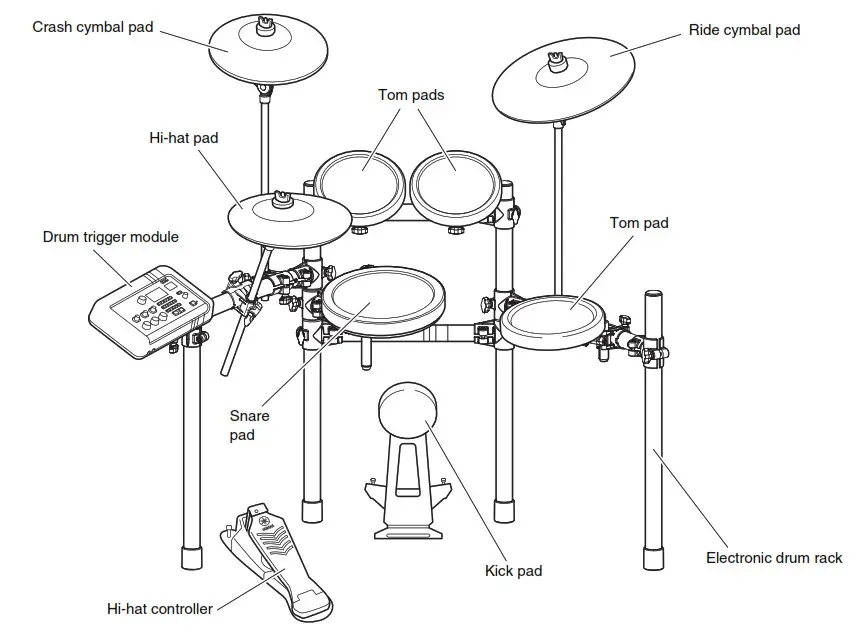
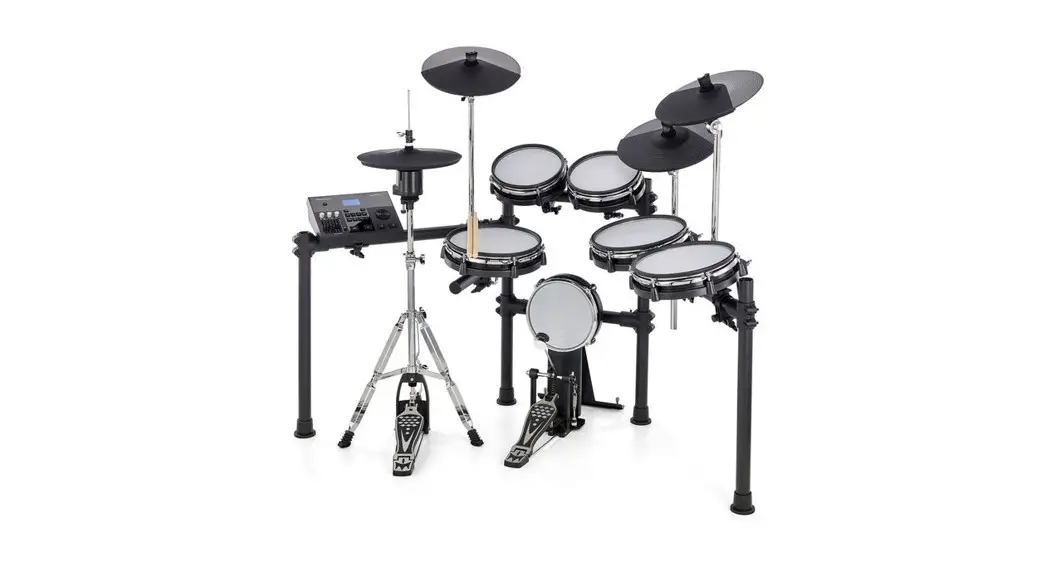
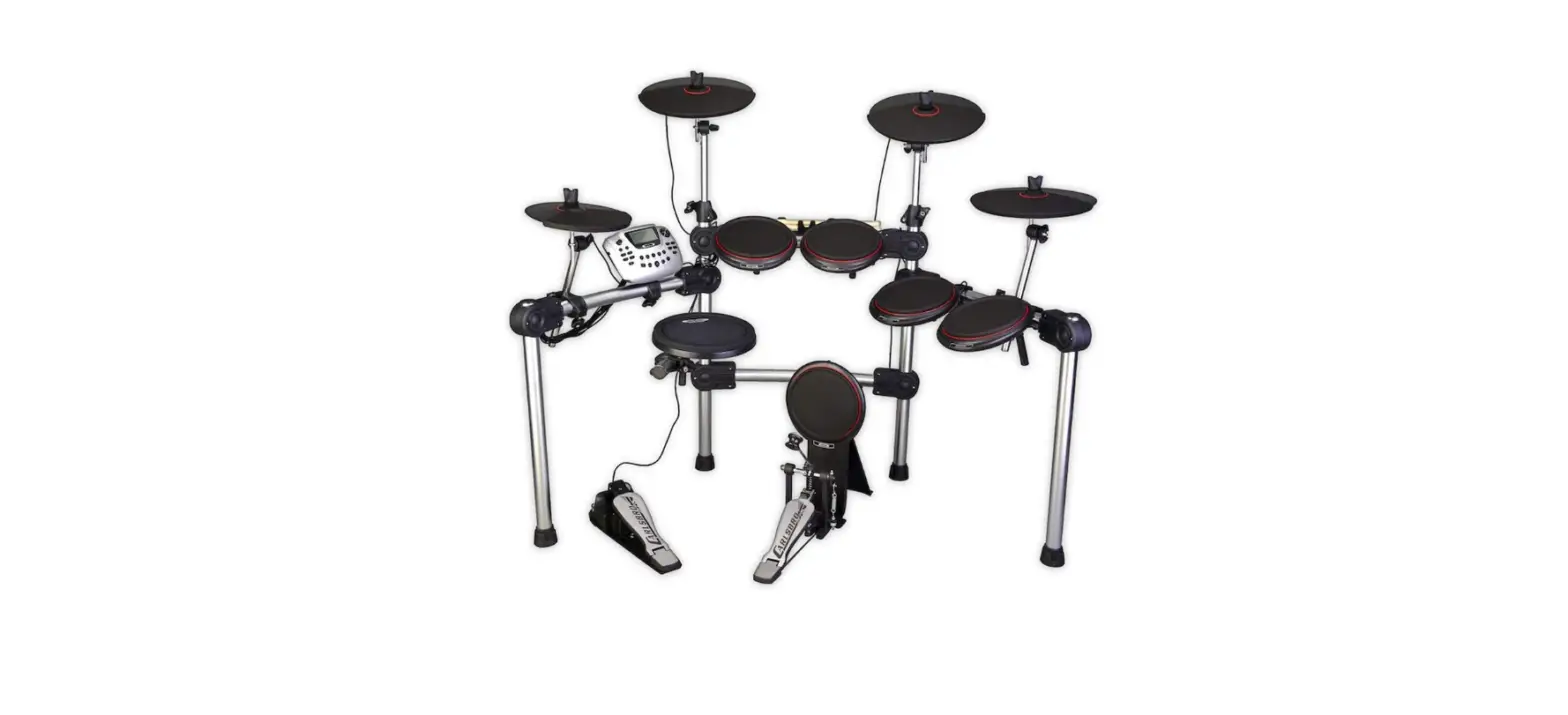
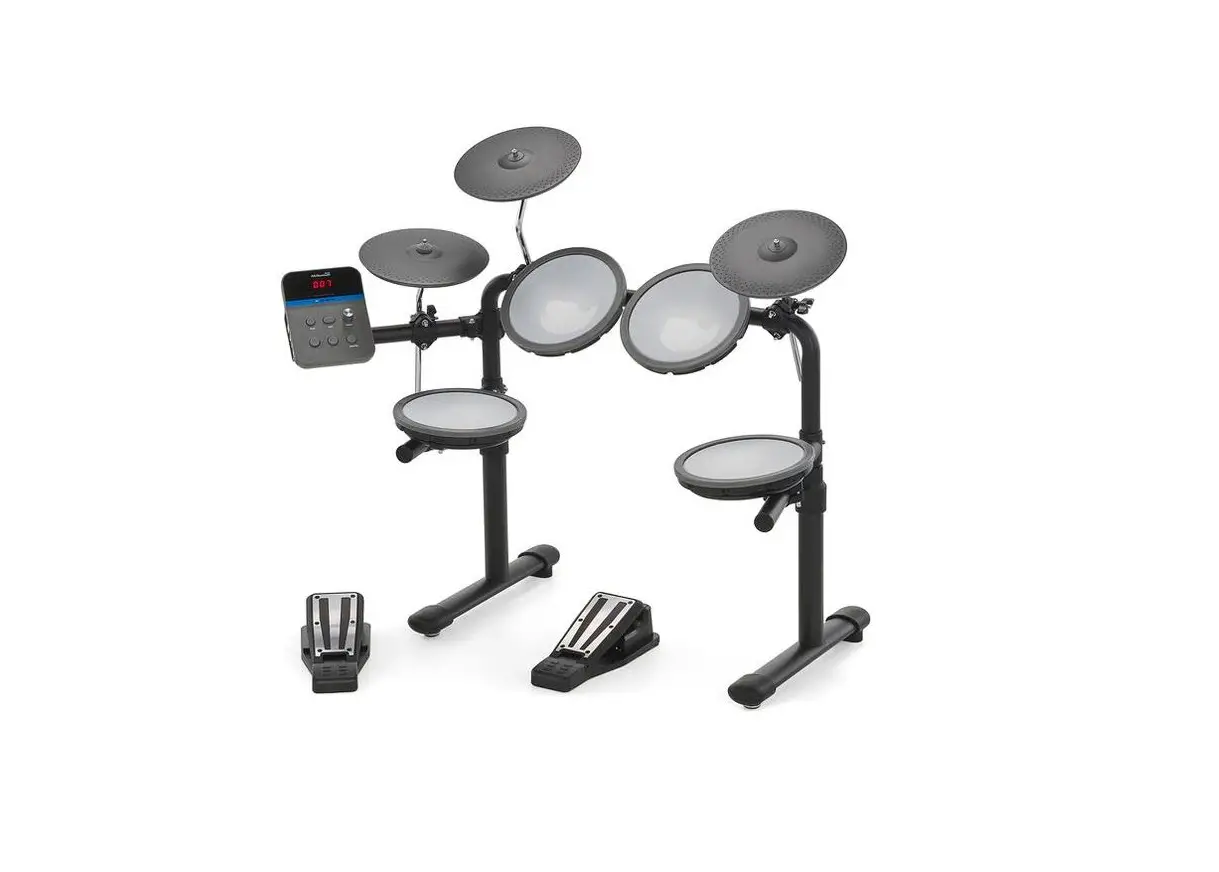
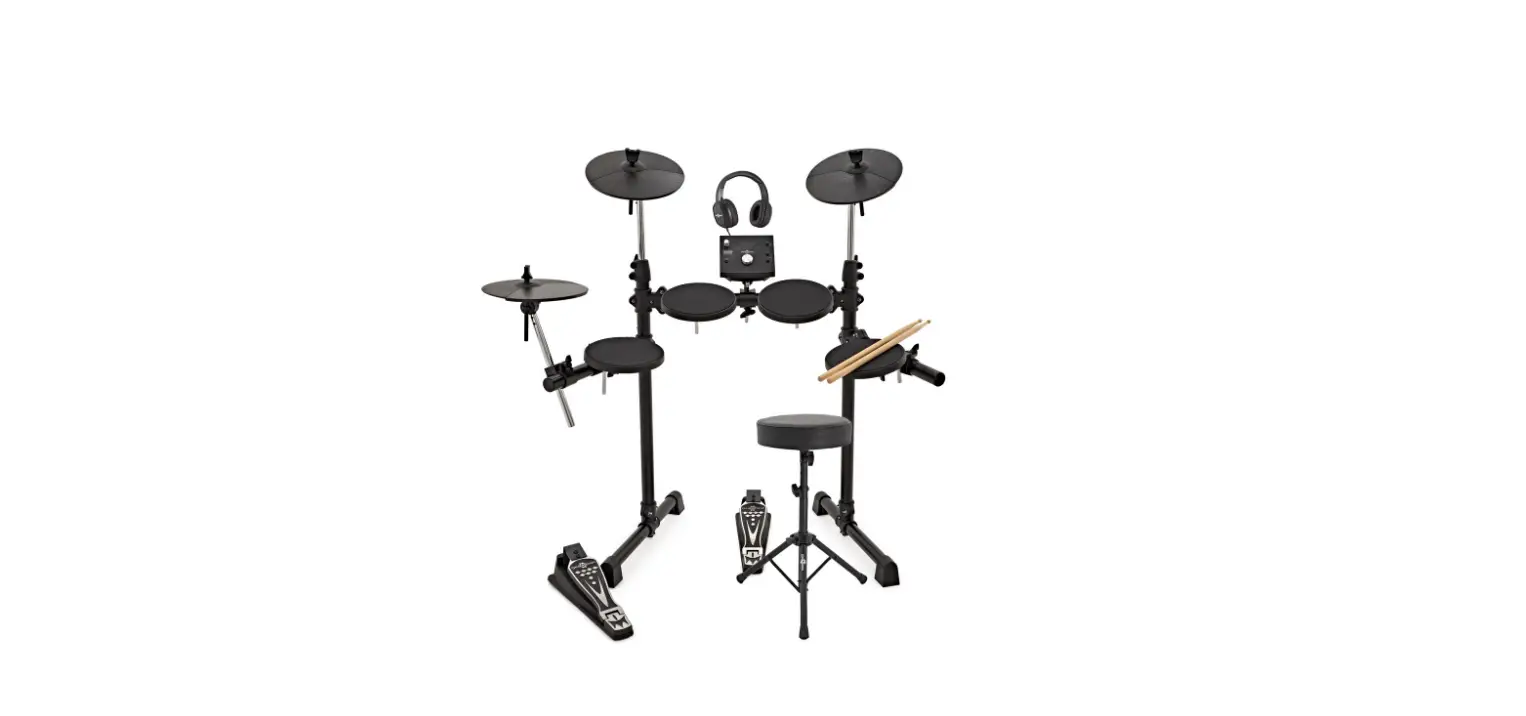
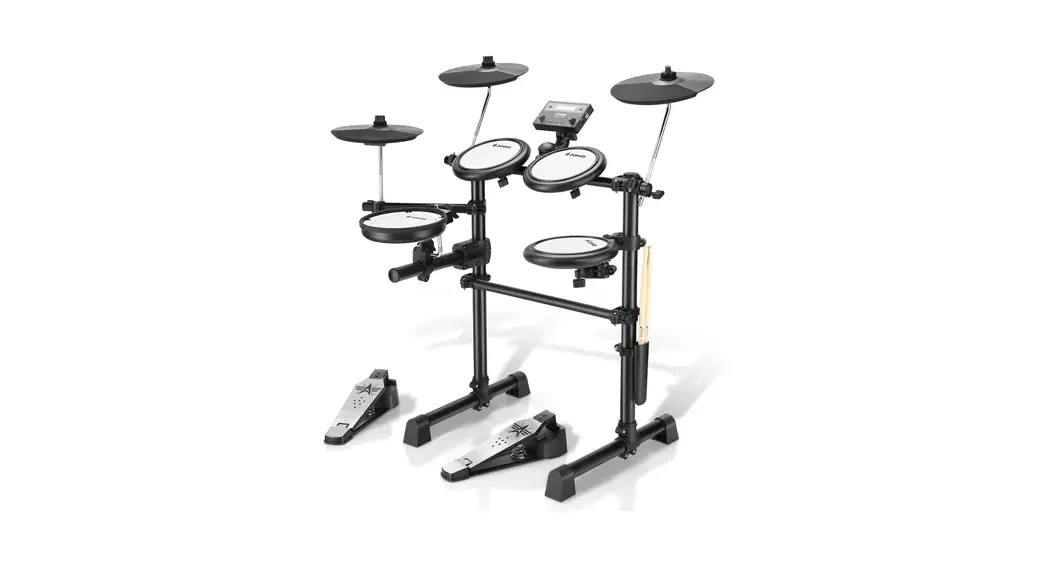
| Kit | 3*8″ tom drums, 1*10″ snare drum, 1*rubber-faced bass drum (DD7), 1*mesh bass drum (DD8), 1*hi-hat, 3*10-inch cymbals |
| Drum kit | 8 system built-in kits, 5 user-defined kits |
| Display screen | 2.5″ LCD |
| Panel | REVERB、VOLUME、AUX、KIT、OK、Setup、Record、 Voice、Demo、Metronome、Play/Mute、Tempo |
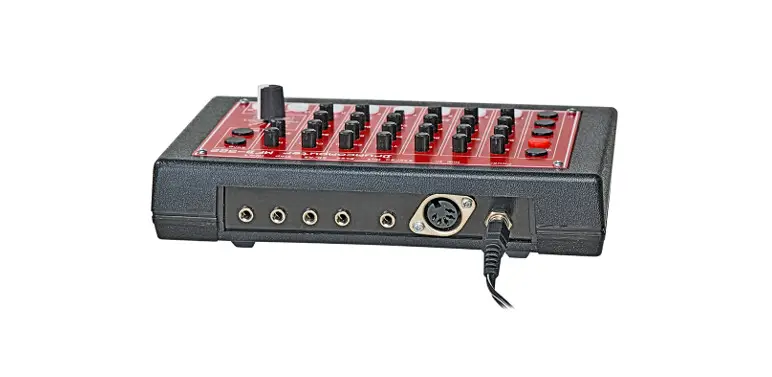
| Interface | DC-INDrum cable interfaceMIDI L/MONORUSBAUX INPHONES |
| Power | 12V DC power supply |
| Output | 5.4 V (MAX) |
| Signal to noise ratio | 102 dB |
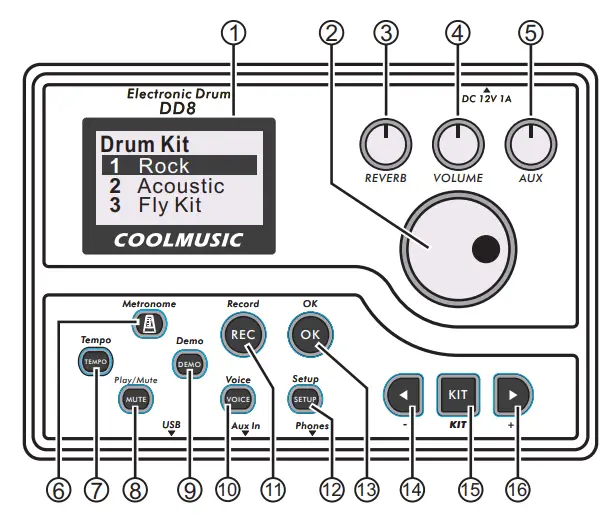
- Display screen;
- Move/OK’ : Rotate: cursor scroll, Press: select or cancel;
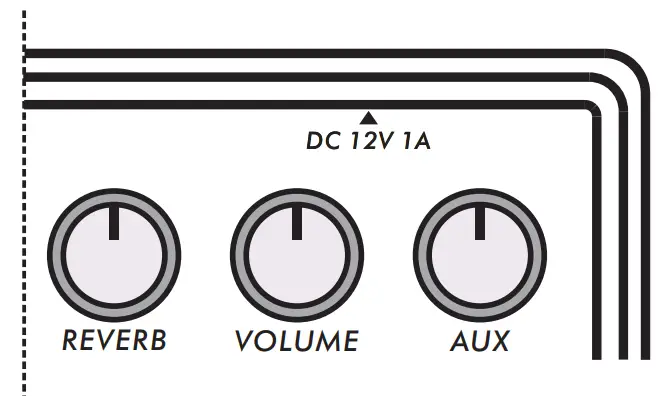
- Reverb: The reverb effect of the output signal;
- Volume: output volume;
- AUX: AUX input volume;
- Metronome: Turn on/off the metronome;
- Tempo: Metronome parameters;
- Play/Mute: 1.Recording mode: realize ecording playback function; 2.Song playback mode:’drum and cymbal accompaniment’;
- Demo: Play music;
- Voice: Voice/Volume;
- Record: recording;
- Setup: Sensitivity;
- OK: select or cancel;
- : The cursor moves up;
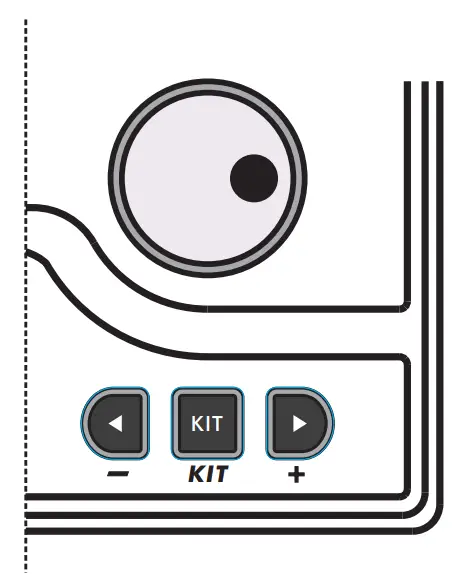
- KIT: return to the initial interface;
- +: Move the cursor down;
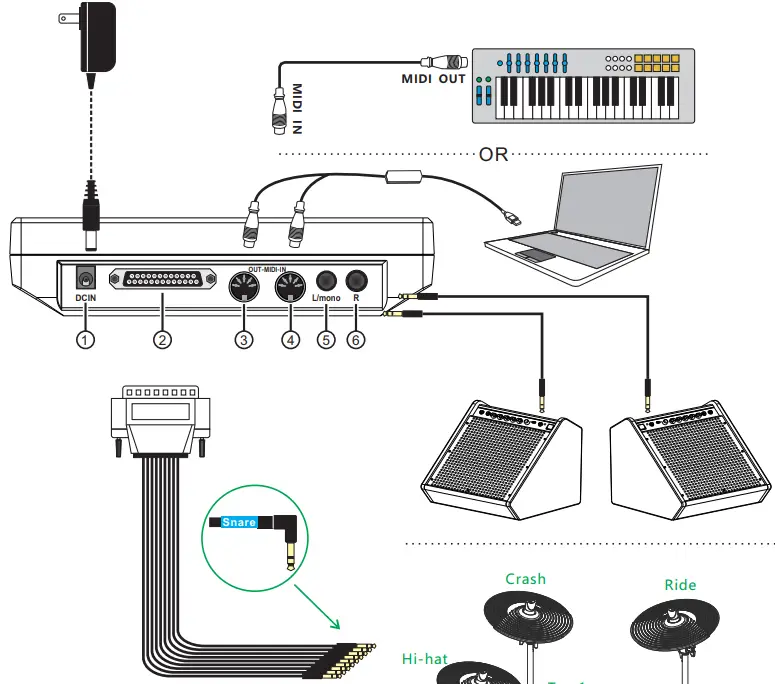
* There is a name at the end of the cable, which can be connected to the corresponding component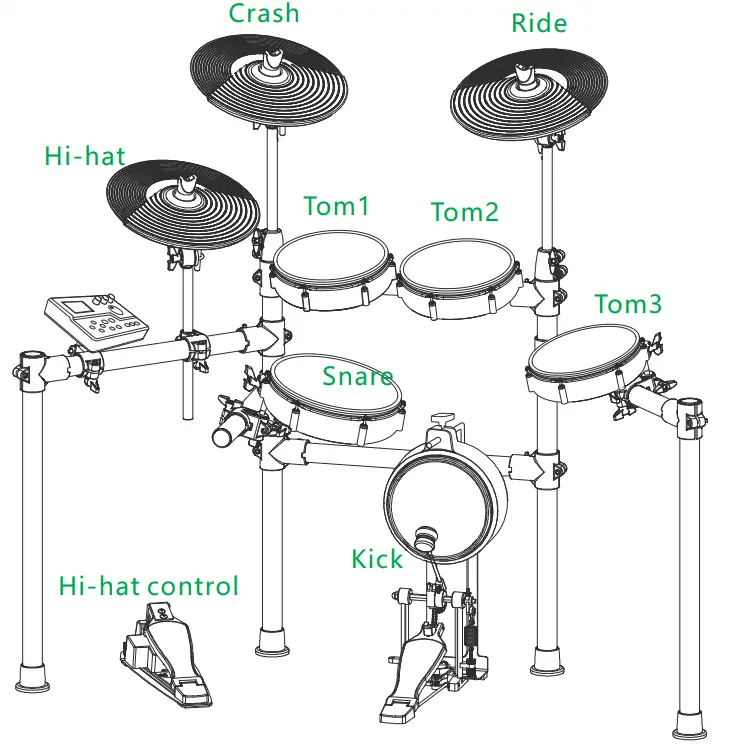
- Power supply interface;
- Cable interface;
- MIDI output interface;
- MIDI input interface;
- Left channel output interface;
- Right channel output interface;
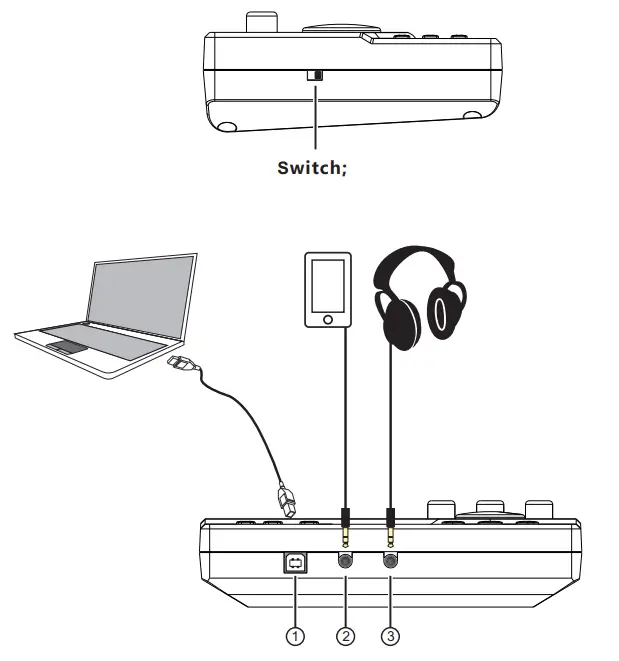
- USB: used to connect to computers and other equipment to realize signal transmission function;
- AUX IN: Connect audio devices such as mobile phones to provide audio for electronic drums;
- Phones: Headphone jack, connect headphones to monitor electric drum;
Boot & use
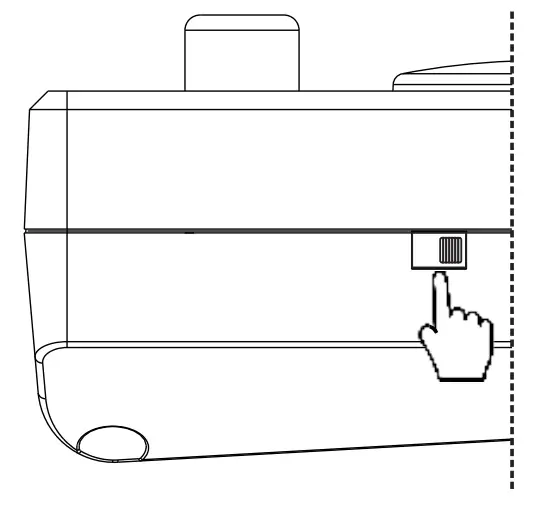
- After assembling the electronic drum and connecting all the cables to the electronic drum sound source, turn on the sound source switch.

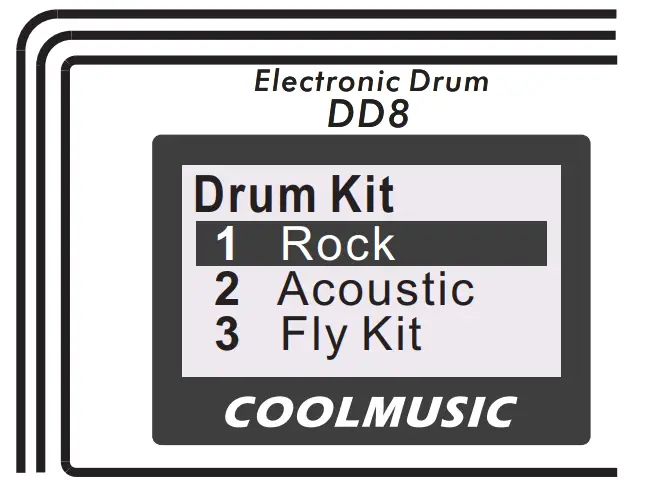
- After power is on, the screen will show the main page (as shown on the right).

- Then hit the drums and cymbals of the electronic drum to see if all the drum kits can sound normally, and combine the right knob to adjust the electronic drum tone.
Select kit
- Provide 13 drum kits for users to choose. When the display shows the drum kit page (main page), turn the big knob to switch between different drum kits, or press “+” “-” to switch drum kits.

- KIT is the drum kit interface button. When you want to switch drum kits, you can use this button to return to the drum kit interface (main page).
Record & playback
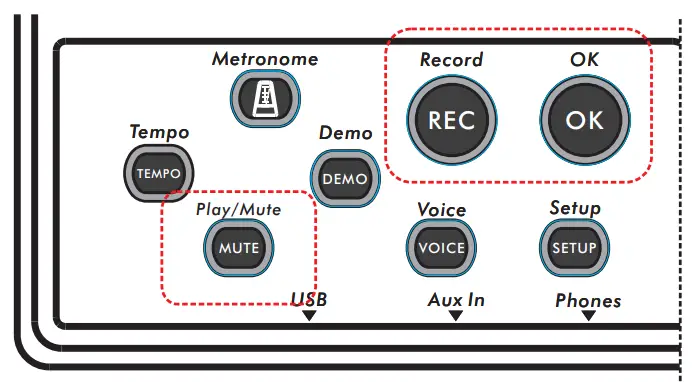
- Press the “REC” button to enter the ‘recording mode’.

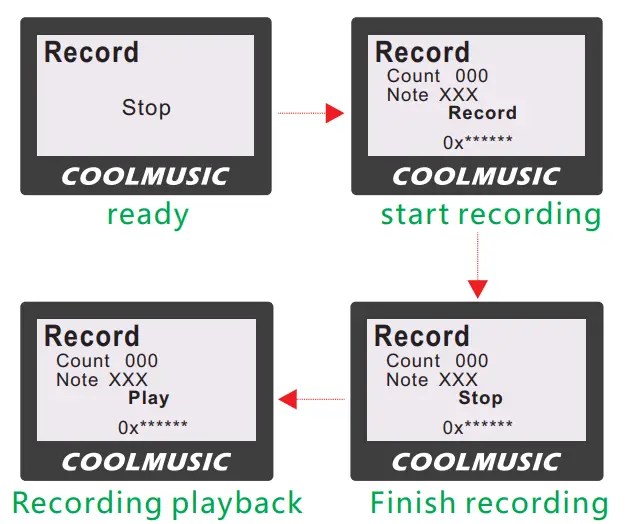
- When you press the “REC” button, the screen will display “Stop”, press the “OK” button and the sound source will start to prepare for recording. Count: indicates the number of hits recorded; Note: indicates the number of the drum kit .

- After the recording starts, press the ‘OK’ button to stop recording, at this time the recording has been completed; press play/MUTE’ to play the recorded music.
Built-in songs
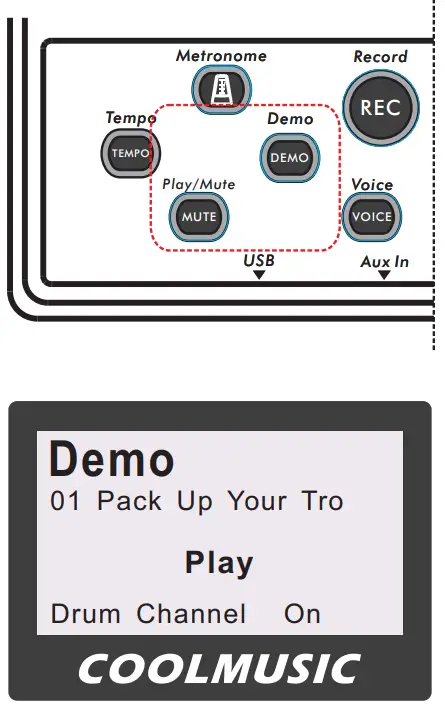
- Press “Demo” to start the song practice mode; then the display will show the demo interface: show the song name and whether to open drum and cymbal accompaniment.

- Use the large knob or the’+”-‘ button to switch songs, or use the mute button to control the switch of the drum and cymbal accompaniment.
Metronome
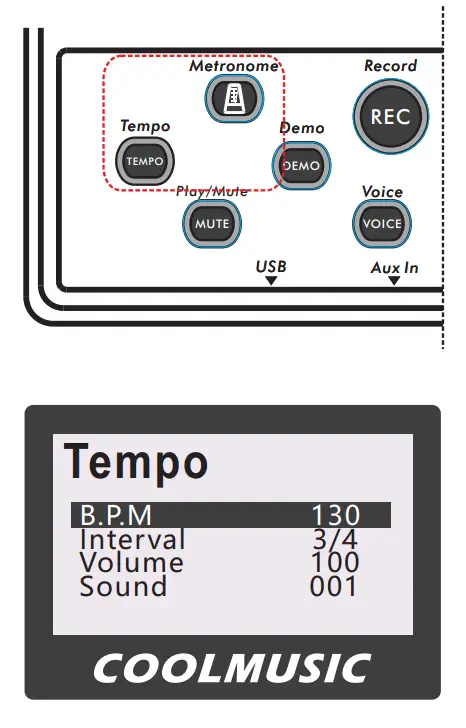
- Press’Metronome’ to turn on the metronome, then press tempo to set the parameters of the metronome, and then press’Metronome’ to turn off the metronome;

- Parameter setting interface: B.P.M: Metronome speed;
Interval: Set the number of beats;
Volume: Metronome volume;
Sound: Metronome type, you can set different beat sounds.
Sensitivity
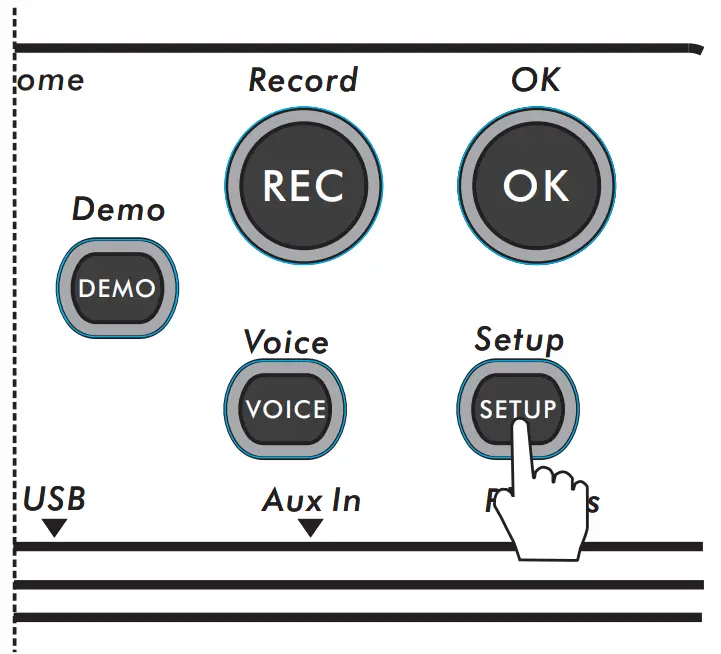
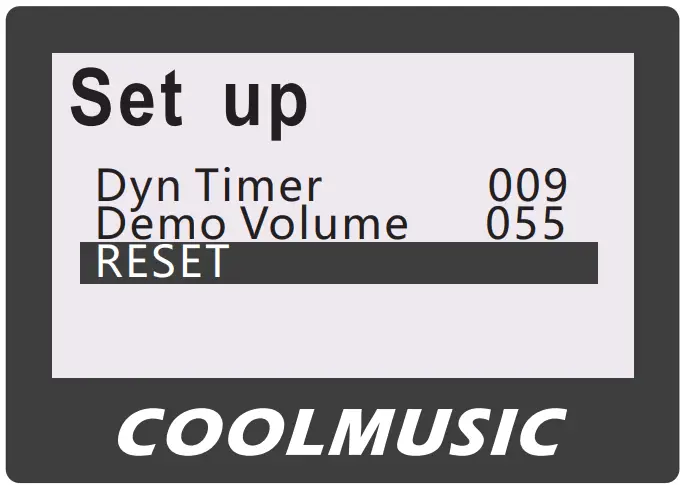
- The default sensitivity is the highest, the sensitivity can be adjusted through the setup button (applicable to all drum kits);

- When setting the sensitivity, you can also set the accompaniment volume. You adjust the accompaniment volume by adjusting’Demo Volume’;

- The sensitivity of the drum kit can be restored to the default setting via the reset
Voice/Volume
- You can adjust the tone or volume through the voice button;

- Rotate the big knob to select the tone/volume’ to be set, and press OK’ to start adjusting the tone/ volume’.
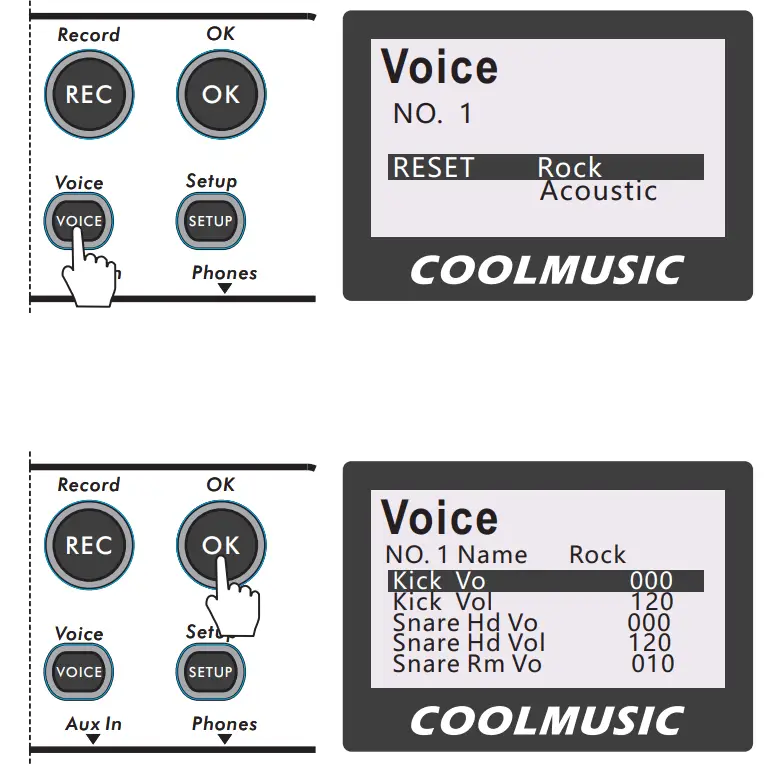
Customize
- Reserve 5 custom “timbre/volume” drum kits, namely “USER 1, USER 2, USER 3, USER 4, USER 5” to meet the diverse needs of users for drum kits. (Do not shut down immediately after modification, so as not to save your modifications)
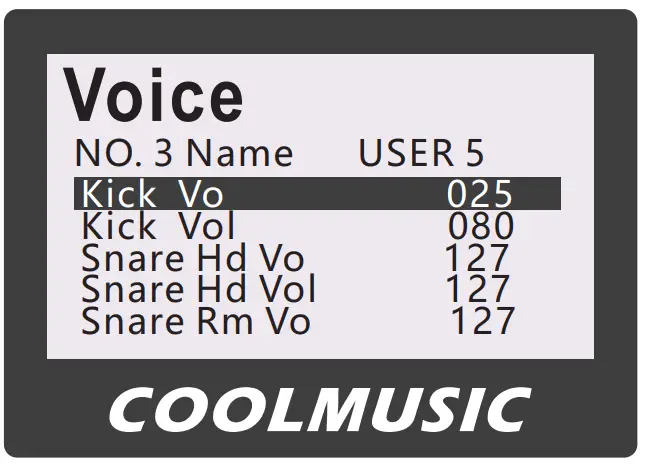
*Please refer to the “Tone/Volume Meter” in the appendix before modifying the tone/volume
| Name | Name | Value |
| Bass drum sound Bass drum volume Snare drum surface sound Snare drum head volume Snare drum rim sound Snare drum rim volume Tomb 1 tone Tom 1 volume Tomb 2 Tone Tom 2 volume Tom 3 tone Tom 3 volume Tinkling cymbal tone Cymbal volume Ding-ding cymbal sidetone Sidetone volume Forte cymbal tone Strong cymbal volume Forte cymbal sidetone Forte cymbal side volume Hi-hat (open-hat) tone Hi-hat (open-hat) volume Hi-Hat (Closed-Hat) Tone Hi-hat (closed-hat) volume Hi-hat pedal tone Hi-hat pedal volume | Kick Vo Kick Vol Snare Hd Vo Snare Hd Vol Snare Rm Vo Snare Rm Vol Tom1 Hd Vo Tom1 Hd Vol Tom2 Hd Vo Tom2 Hd Vol Tom3 Hd Vo Tom3 Hd Vol Ride Vo Ride Vol Ride Ed Vo Ride Ed Vol Crash Vo Crash Vol Crash Ed Vo Crash Ed Vol HH Open Vo HH Open Vol HH Close Vo HH Close Vol HH Chick Vo HH Chick Vol | 000 — 040 000 — 127 000 — 055 000 — 127 000 — 055 000 — 127 000 — 075 000 — 127 000 — 075 000 — 127 000 — 075 000 — 127 000 — 025 000 — 127 000 — 025 000 — 127 000 — 019 000 — 127 000 — 019 000 — 127 000 — 032 000 — 127 000 — 032 000 — 127 000 — 032 000 — 127 |
Built-in kit
| NO. | Name |
| 1 | Rock |
| 2 | Acoustic |
| 3 | Fly Kit |
| 4 | Jazz |
| 5 | Pop |
| 6 | Metal |
| 7 | Electronic |
| 8 | Brush |
| 9 | USER 1 |
| 10 | USER 2 |
| 11 | USER 3 |
| 12 | USER 4 |
| 13 | USER 5 |
Sensitivity
| Name | Value |
| Tom 1 sens Tom 3 sens Kick sens Crash sens DynTrigger DynTimer RESET Tom 2 sens Snare sens Ride sens Hi-Hat sens DynThreshoid Demo Volume | 000-010 000-010 000-010 000-010 000-010 000-010 000-127 000-010 000-010 000-010 000-010 000-010 000-010 |
Built-in songs
| NO | Name |
| i 3 | Pack Up Your Tro Spanish Flea School Days Put on Your Old Hello My Baby Till We Meet Again Love Me Do P.S. I Love You House Of The Ris That s All right |
FOR E-DRUM
Thank you for choosing and using the electronic drum designed and manufactured by Shenzhen Cool Technology Co., Ltd. When the company was founded, it mainly focused on the design and manufacture of electronic drum speakers. After more than ten years of development, the company’s design engineers have learned about the timbre and sound characteristics of electronic drums.
The research is very thorough, so when you use this electronic drum, you can use it with our company’s speakers, which will make your performance more excellent and beautiful.
| MODEL | Description |
DM 20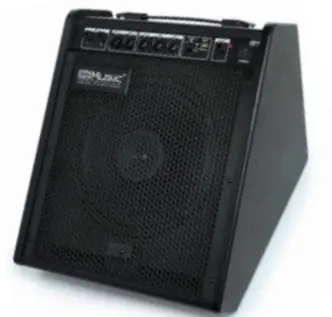 | 20W Output Power; One electric drum audio input; EQ balance adjustment; Bluetooth/USB music playback. |
DM 30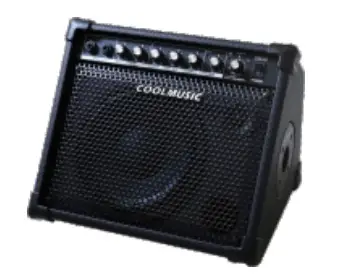 | 30W output power; Two electric drum audio inputs; EQ balance adjustment; Bluetooth/AUX input for playback. |
DM 35S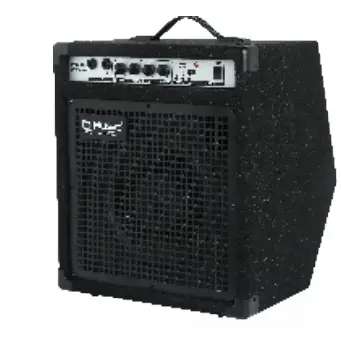 | 50W output power; Two electric drum audio inputs; EQ balance adjustment; Bluetooth/USB music playback. |
| DM 100 | 100W output power; Two electric drum audio inputs; EQ balance adjustment; Bluetooth/USB music playback. |
DK 200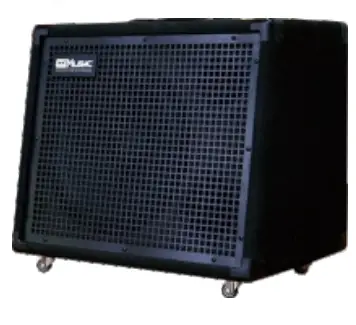 | 200W output power; 8 instrument inputs; Reverb, chorus and delay effects; Bluetooth / USB music playback; Compatible with electric drums, guitars, bass, electric pianos, microphones and other musical instruments; Power lithium battery and power display. |
Play Coolmusic Be Coolplayer