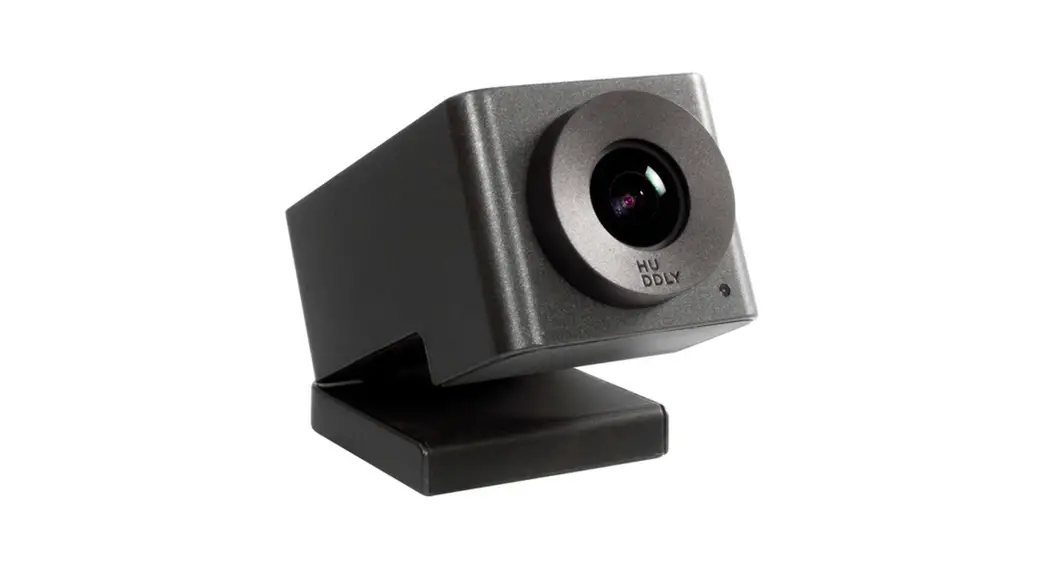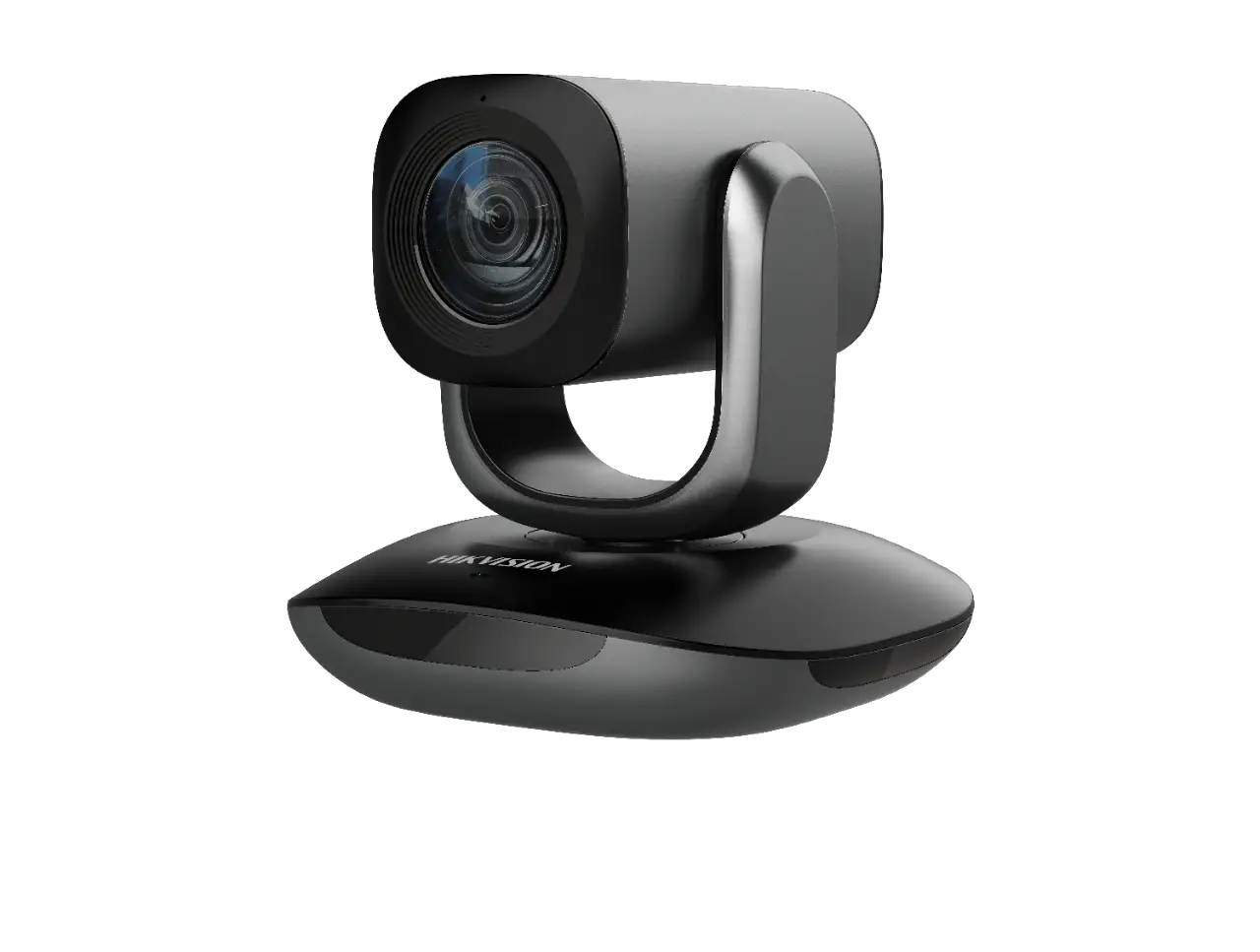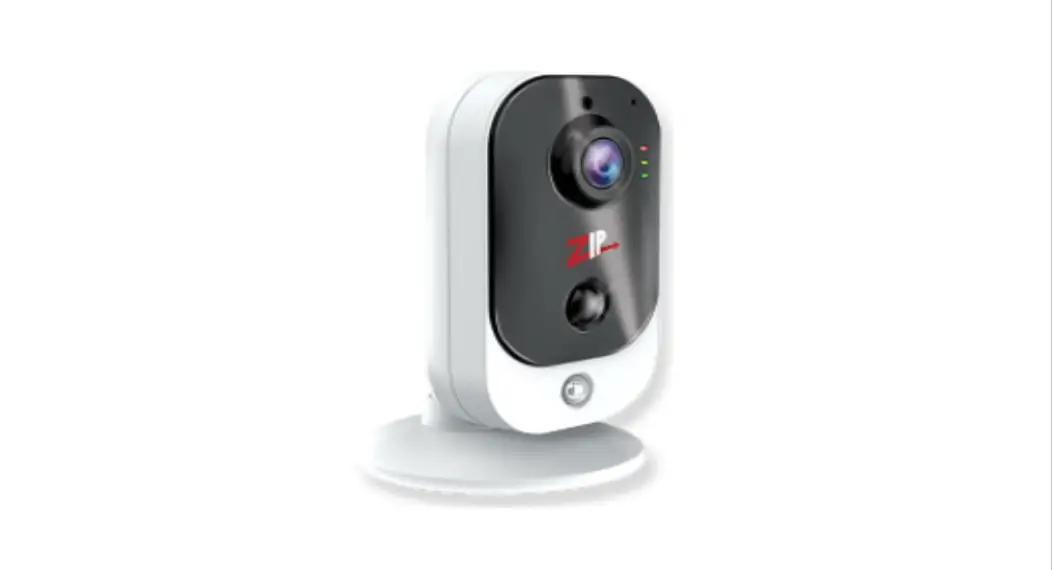

SEE040 RoomWatch Camera 2 Way Audio and PIR
User Guide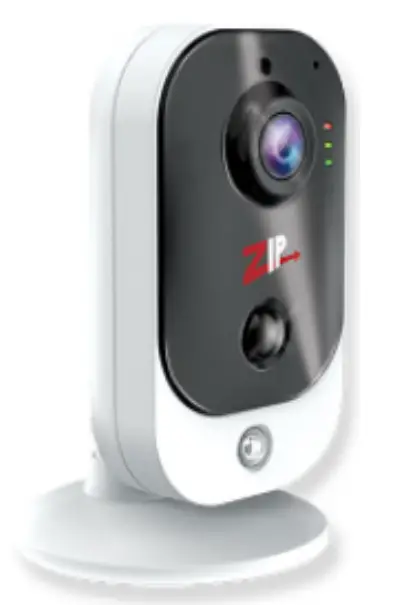
RoomWatch Camera – 2 Way Audio & PIR Zip is a registered trademark of System Q Ltd
www.systemq.com/PDF/manual/xSEE040.pdf
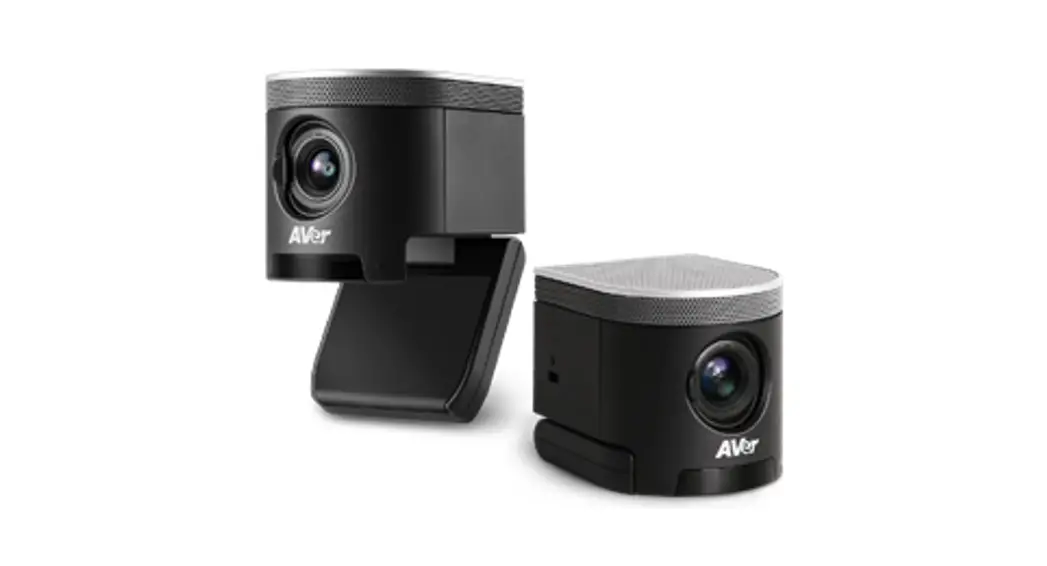
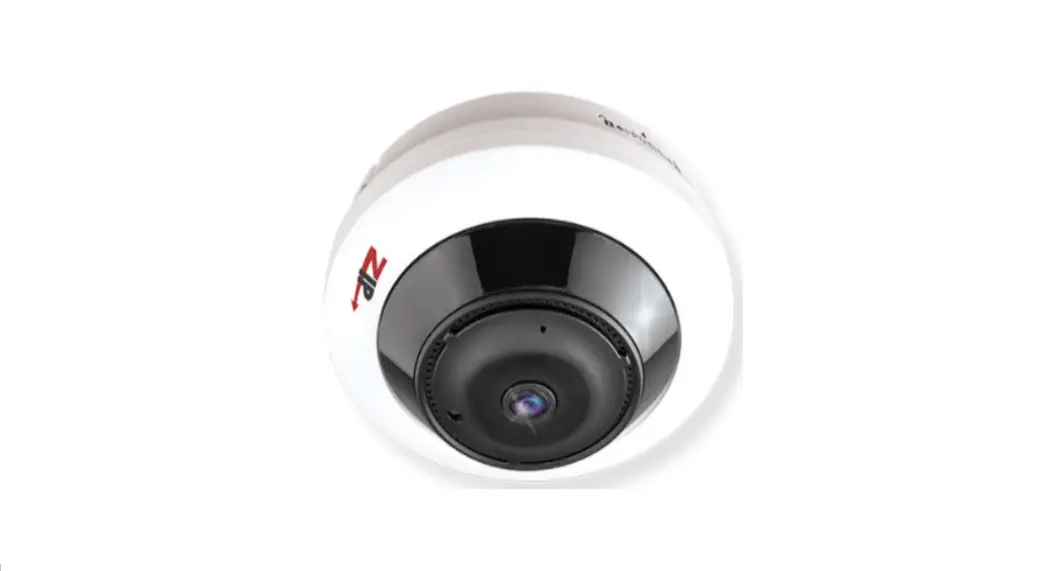
The SEE040 RoomWatch camera can be used standalone with the ZipVision Pro app, ZipVision Windows Client Software, or with a ZIP NVR or DVR. With built-in audio and PIR, plus PoE, H265, and H264 codec.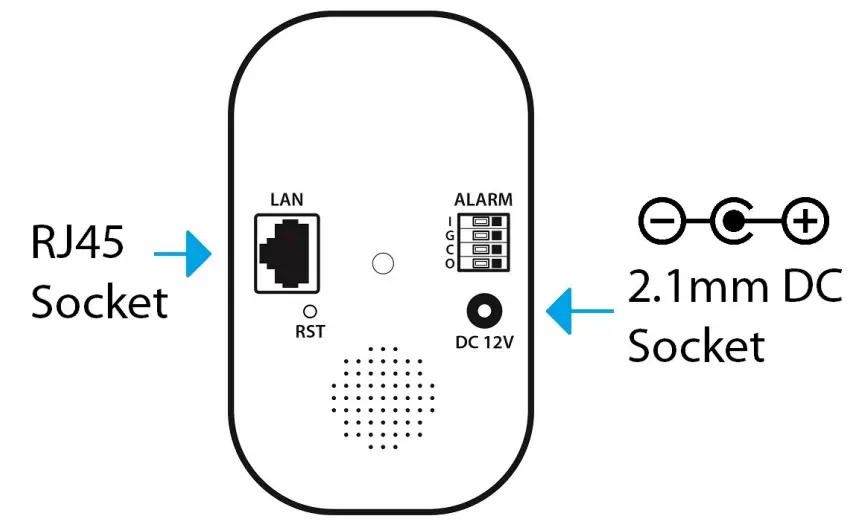
Powering the camera
Powering the camera takes approximately 2 minutes to boot.
Option 1 – Power the camera from 12V DC (via the 2.1mm DC Socket), the current consumption is 300mA.
The camera is polarity sensitive so connections must be made correctly.
Option 2 – Power the camera using a PoE 48V RJ45 Socket. When connecting to a ZIP PoE NVR plug the camera directly into the NVRs built-in PoE switch.
http://www.systemq.com/PDF/manual/xZipAPP.pdf
http://www.systemq.com/PDF/manual/xZipAPP.pdf

https://apps.apple.com/us/app/id1495571434
Default login details are:-
| Default IP | 192.168.10.1 |
| User Name | admin |
| Password | 777777 |
Wireless to Router
- Go to the ZipVision Pro App > Menu > Device List > Add > RoomWatch
- Scan the QR Code on the Base of the RoomWatch
- The camera should already have power connected, if not then connect power now (the camera takes approximately 2 minutes to boot)
- Enter the Wi-Fi connection details
- Select the RoomWatch camera that you wish to add to your network
- Enter Default login details for the camera – User Name
- Wait for the WiFi connection to the camera
- Enter a new password for security
- Once complete, “connected” will show in Device Manager
Adding to a ZIP NVR / DVR
If adding the camera to a ZIP NVR /DVR using a separate PoE switch or via WiFi, the camera needs to be manually added, scan the QR code below for the “how to guide”
www.zipdvr.com/howto/TIP459-How-To-Add-IP-Cameras.html
Resetting to Default
The camera has a default button on the back (recessed in). Press and hold for 10 seconds to default.
Searching via Windows PC
Use the ZipFinder tool to search for ZIP IP cameras on a network via a Windows PC.
www.softcctv.com/store/Item/Zip-Finder-IP-CCTV-Security-Camera-Discovery-Tool
| Image Sensor | 1/ 2.7″ Progressive CMOS |
| Viewing Angle | 103 Degrees |
| Resolution | HD 1080P, 1.3MP (960H) & 720P @ 25fps |
| Lens Type | 2.8mm Fixed Lens |
| Shutter | 1/5 — 1/20000s |
| Video Compression | H265 / H264 |
| Onvif | 3. |
| WiFi Frequency | 2.4GHz |
| WiFi Range | 10m |
| Bit Rate 1 | 8K — 8Mbps |
| Audio | 2-Way Built-in |
| Memory Card Slot | Micro SD (128GB Max) |
| Day/Night Function | Mechanical (True Day/Night) |
| Backlight Control | BLC / DWDR |
| Voltage | 12V DC or PoE (PSU Required) |
| Current Consumption | 280mA (IR On) / 150mA (IR Off) |
| Power Connection | 2.1mm DC Socket (12V) or RJ45 (PoE ) |
| Operating Temperature | From -10 to 45 deg C |
| Use | Internal |
| Bracket | Supplied |
| Dimensions | (H)106mm x (W)63mm x (D)34mm |
All specifications are approximate. System Q Ltd reserves the right to change product specifications or features without notice. Whilst every effort is made to ensure that these instructions are complete and accurate, System Q Ltd cannot be held responsible for any losses, no matter how they arise, from errors or omissions in these instructions, or the performance or non-performance of the equipment referred to. This symbol indicates that equipment must not be mixed with general household waste. For treatment, recovery, and recycling please return to your local designated
WEE/CG0783SS collection point as defined by your local council.
 Zip Finder - IP Camera Discovery Tool - SoftCCTV.com
 ZipVision Pro - Apps on Google Play