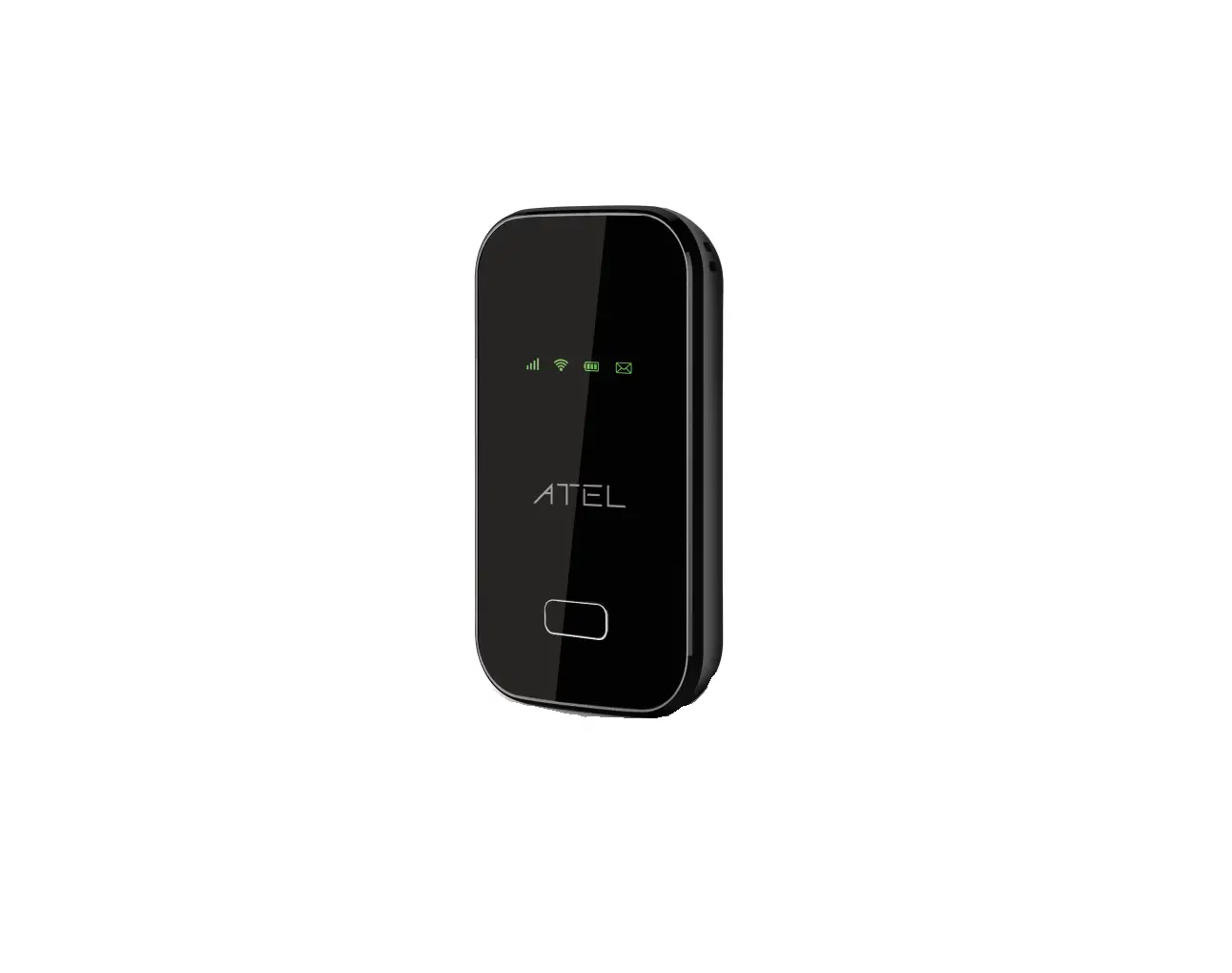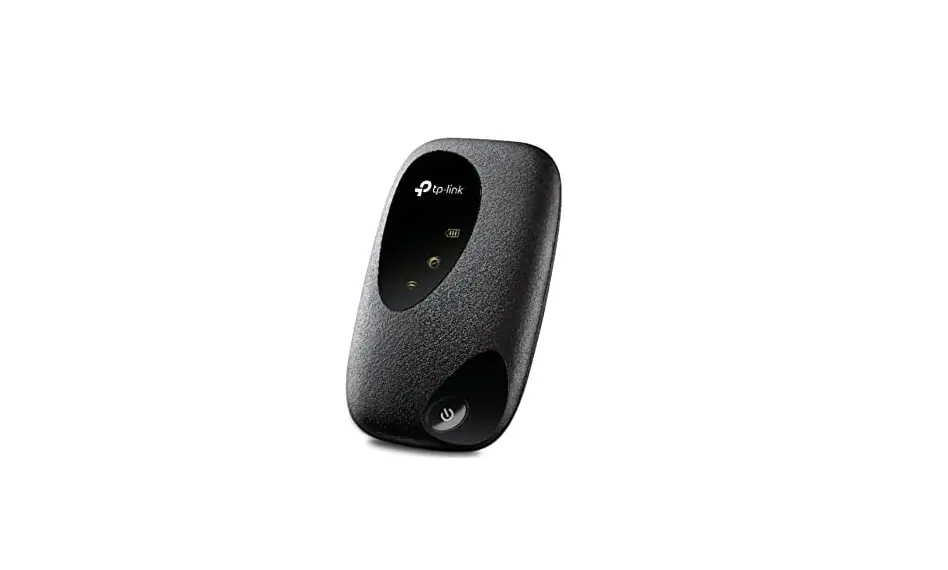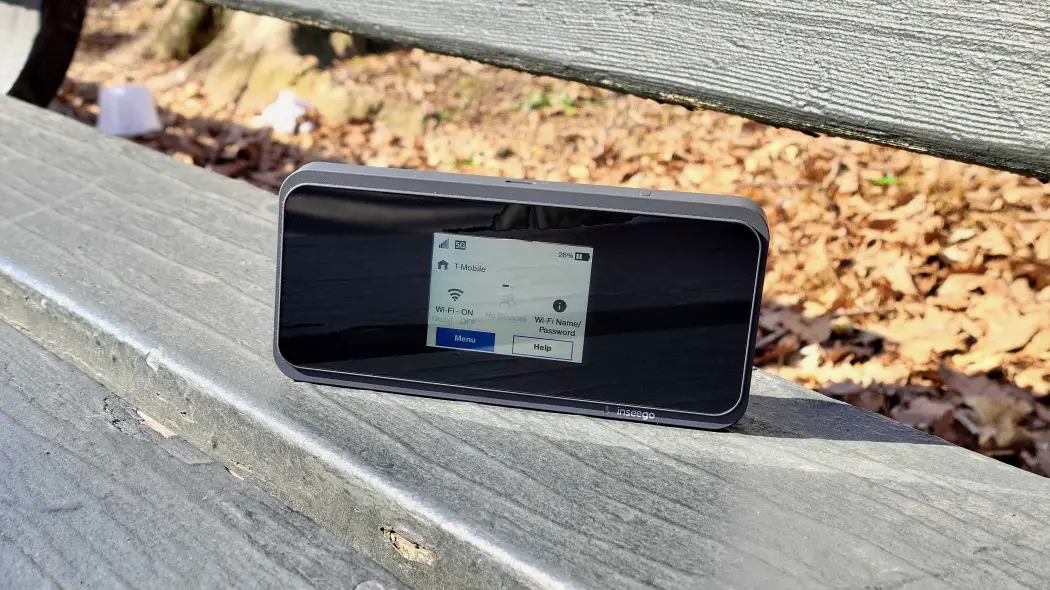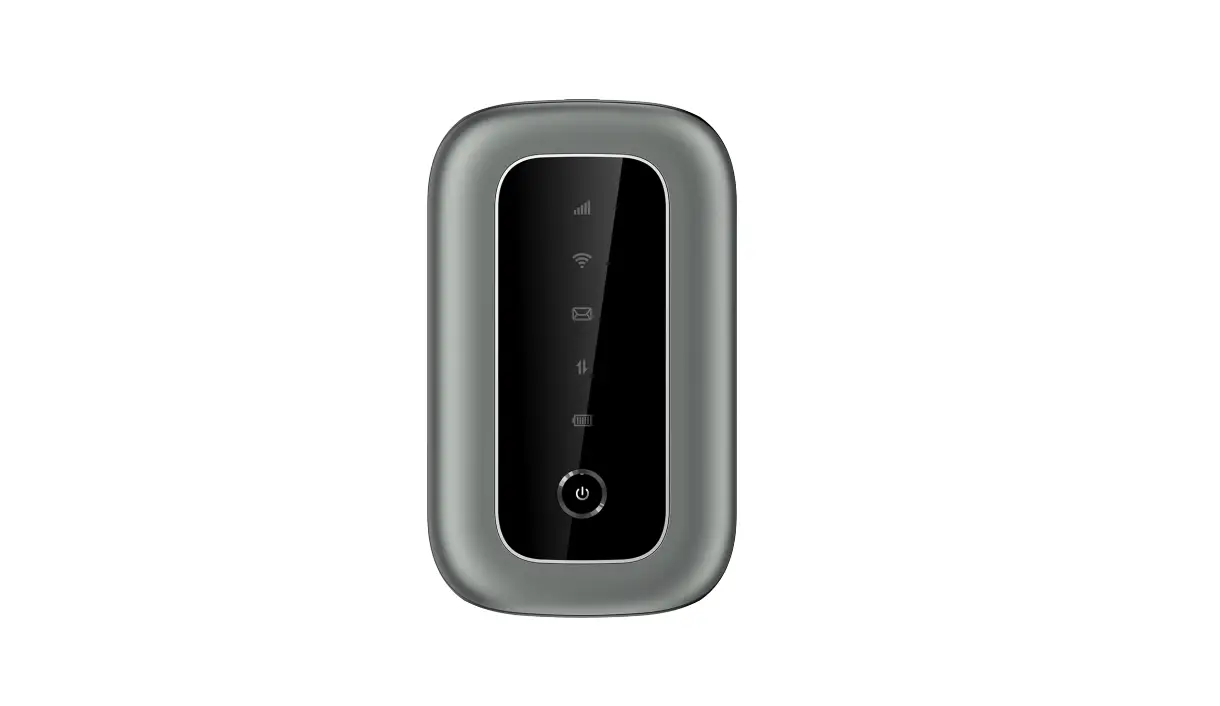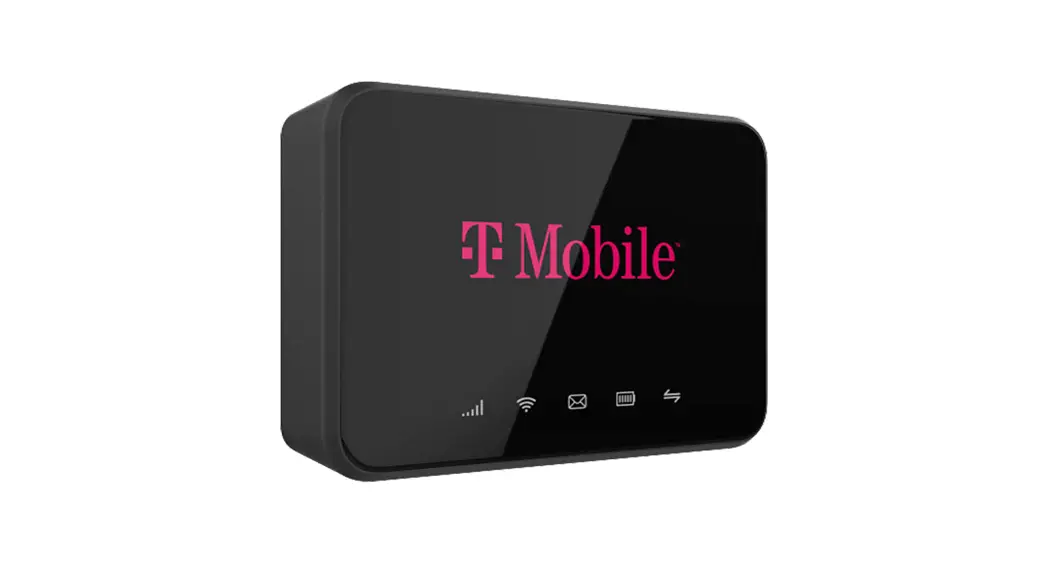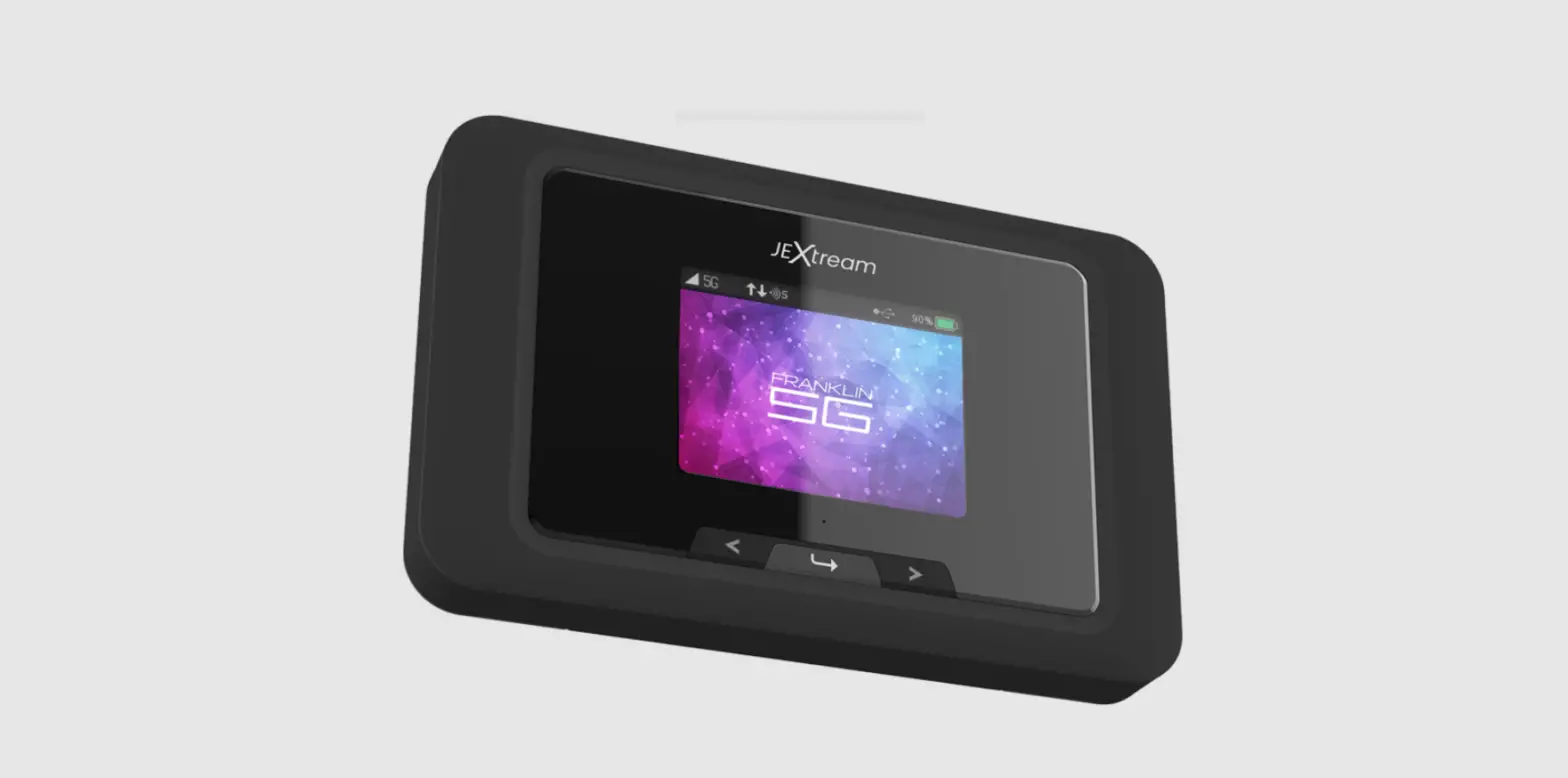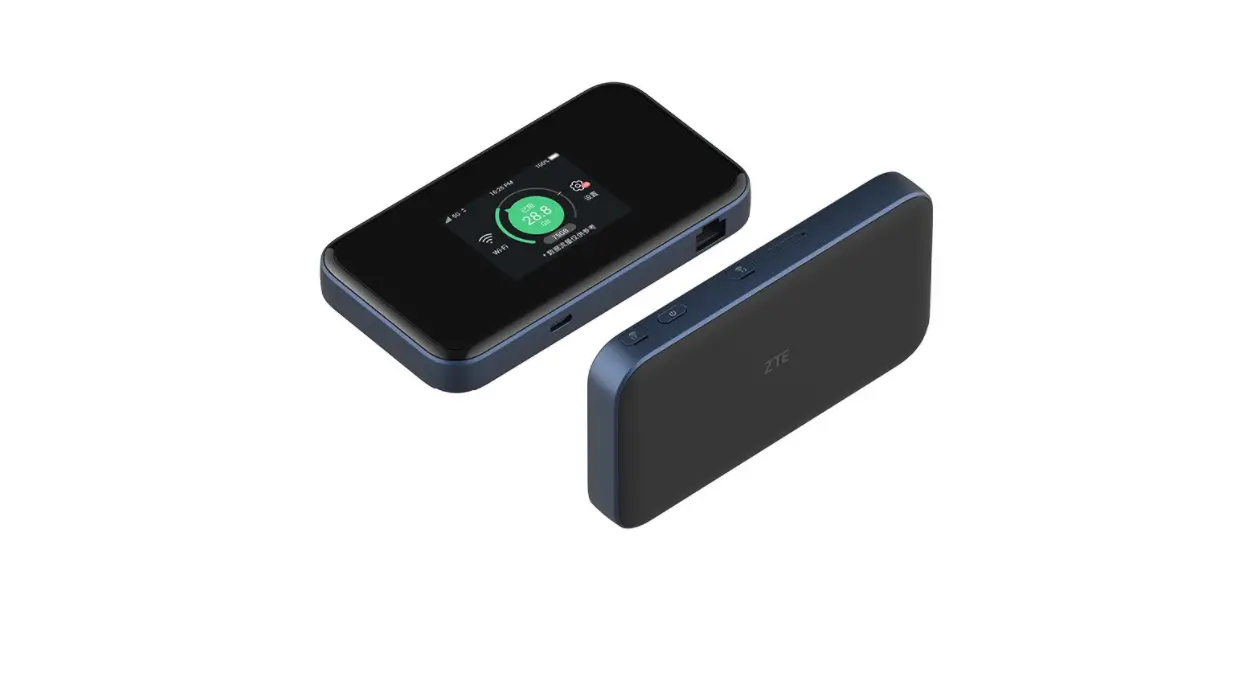
SMC Series
Quick Start Guide
Welcome to the SMC Series
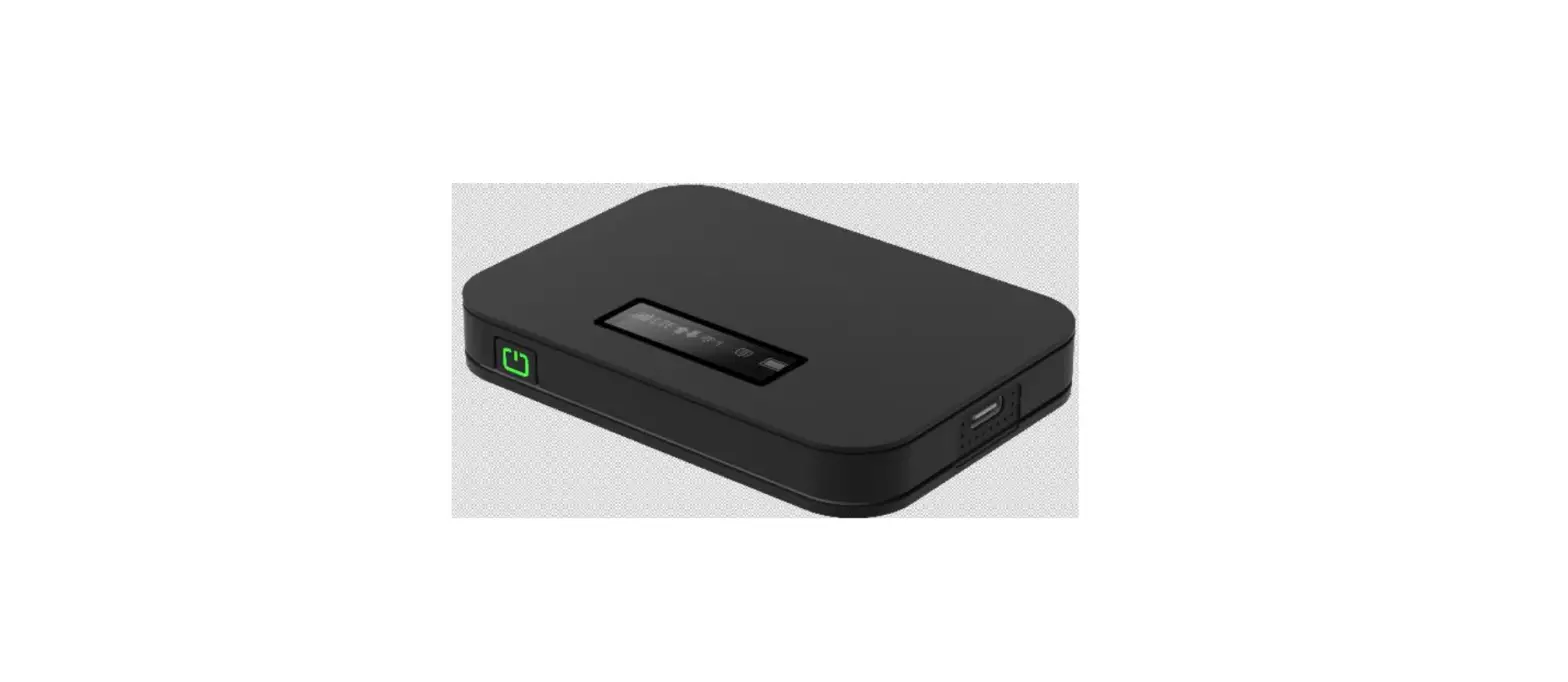
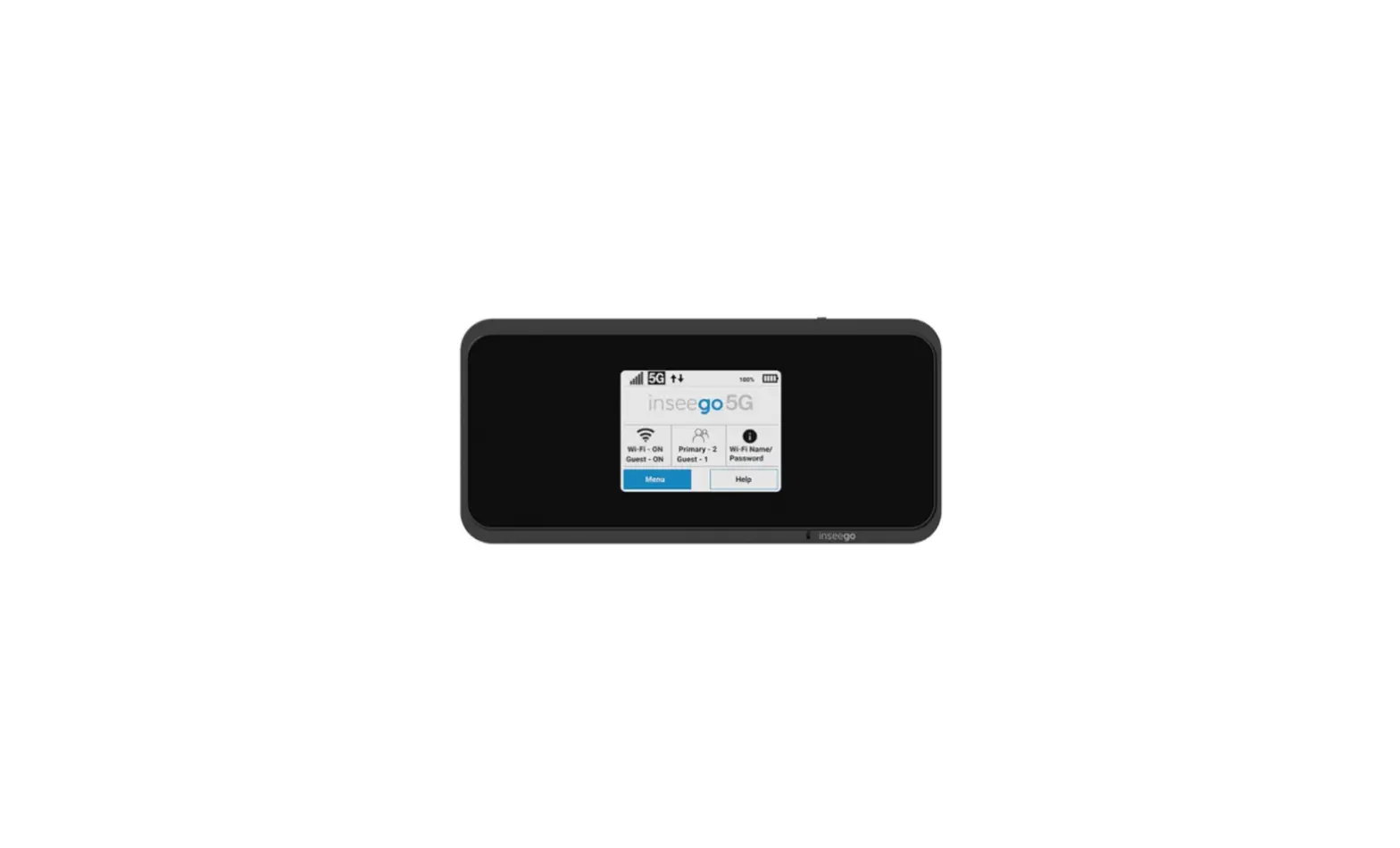
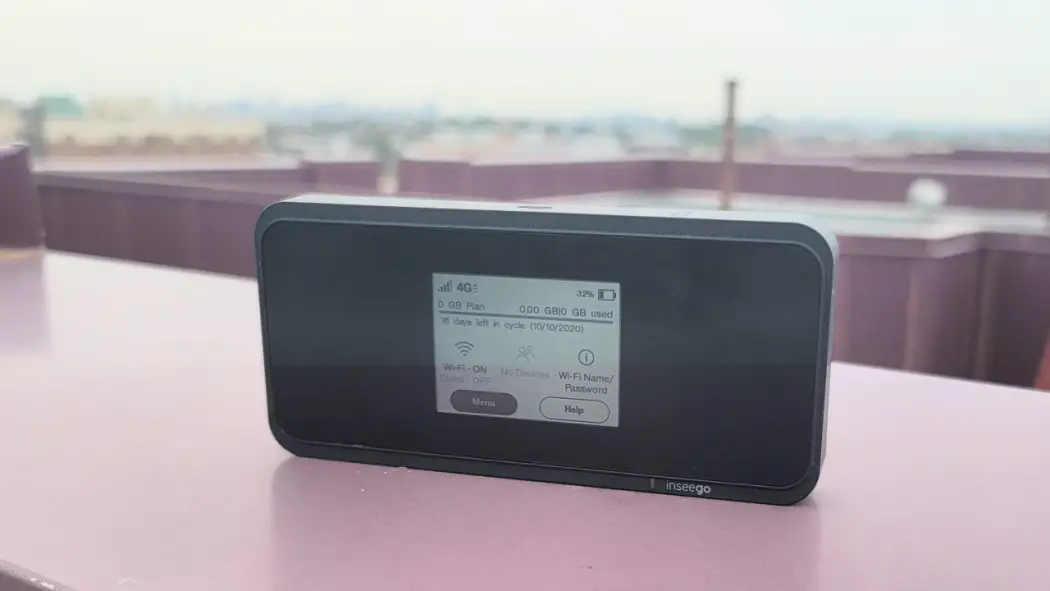
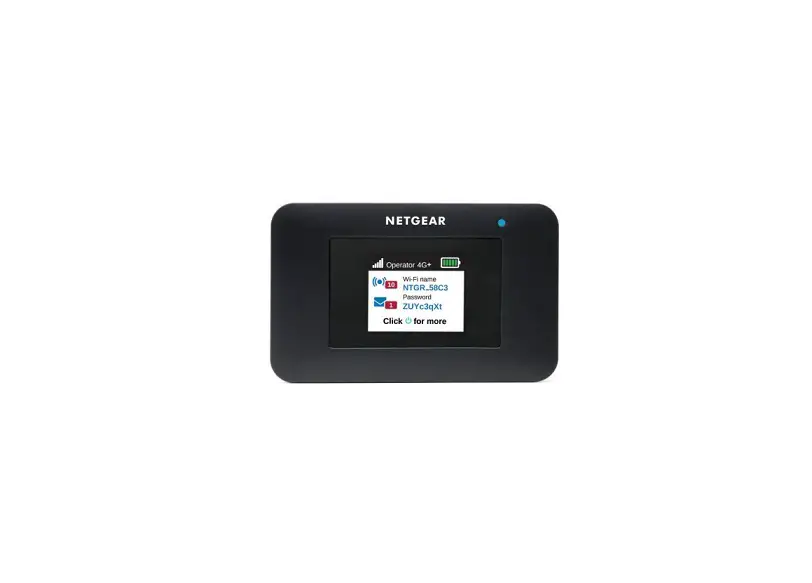
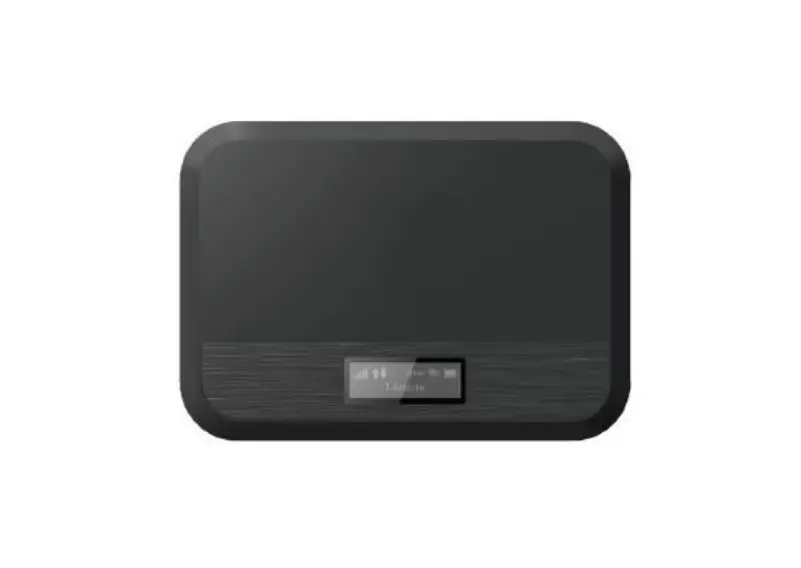
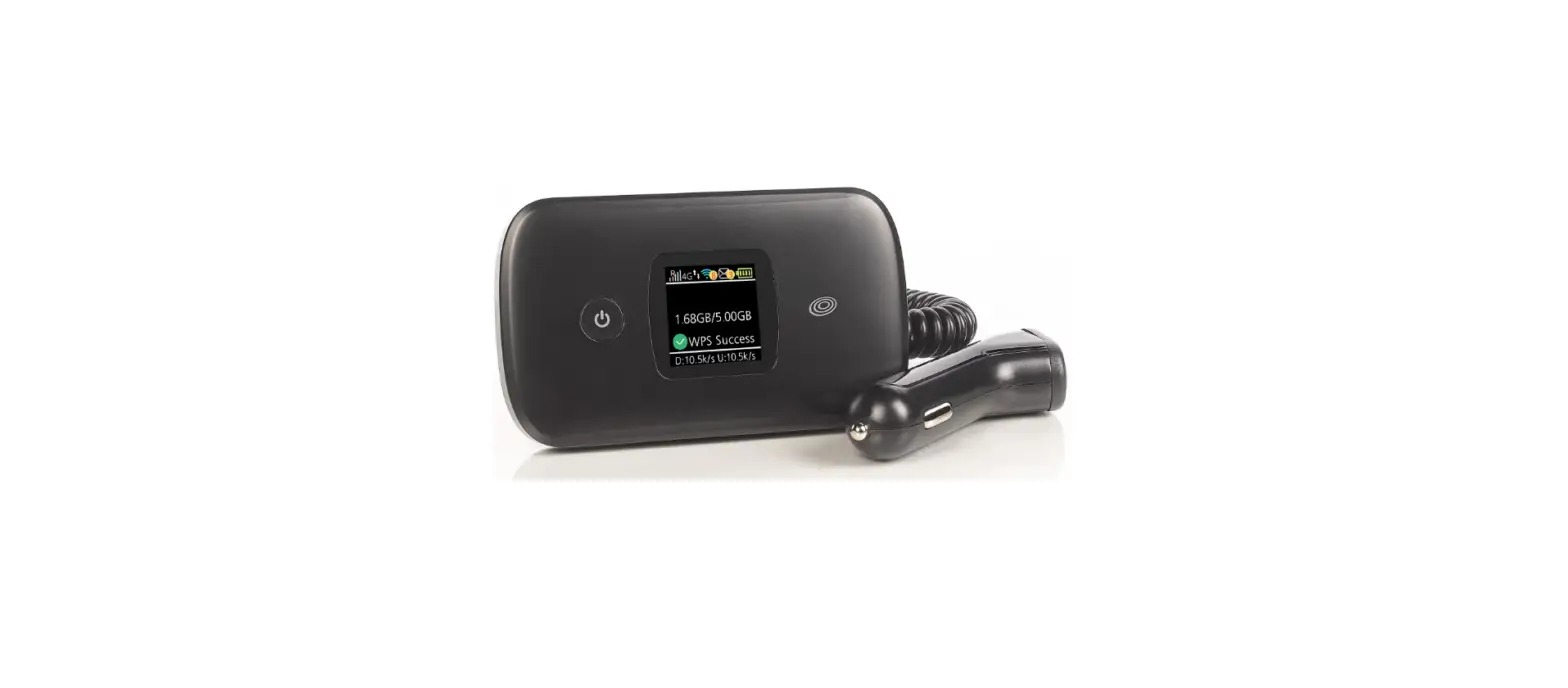
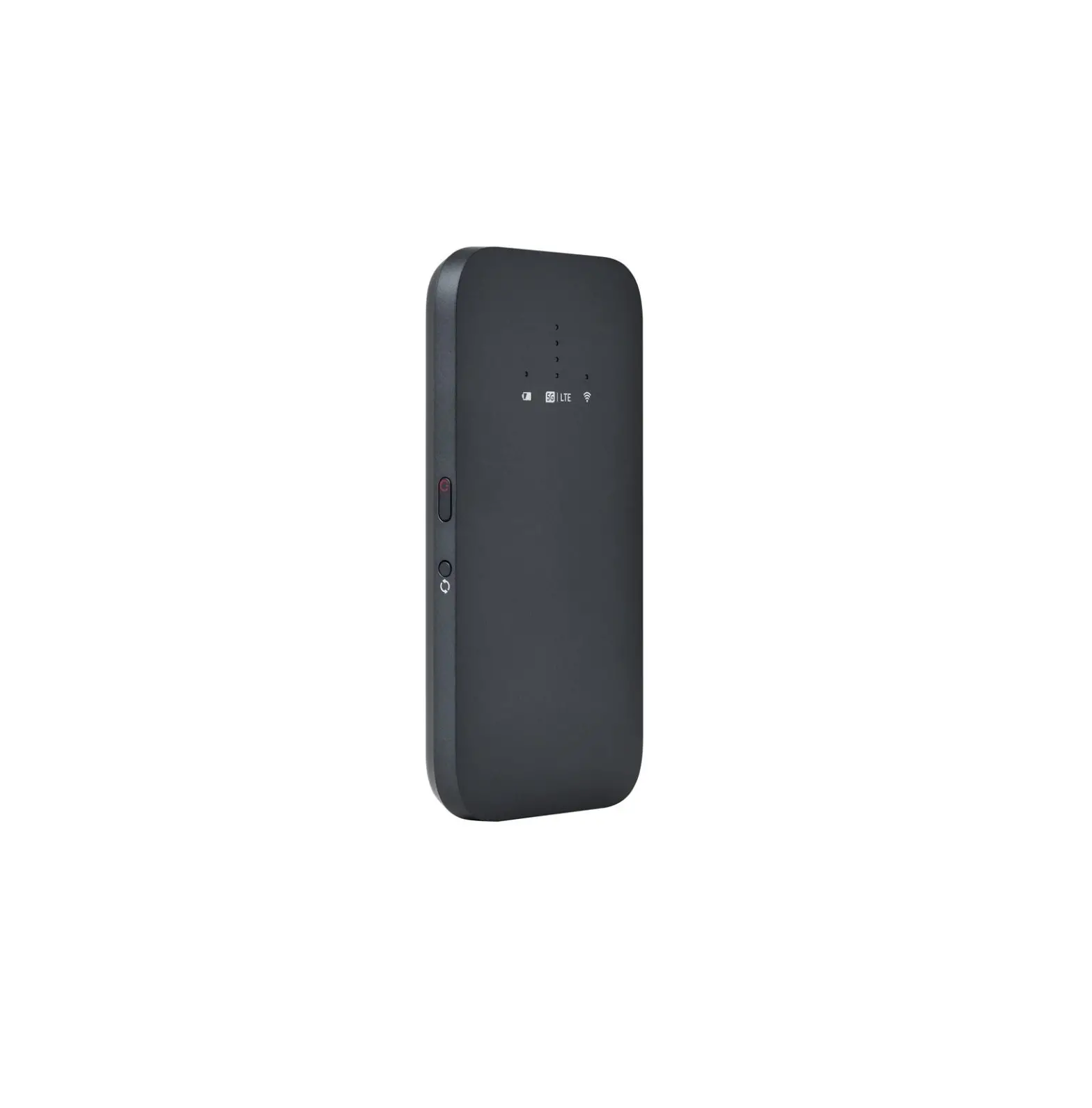
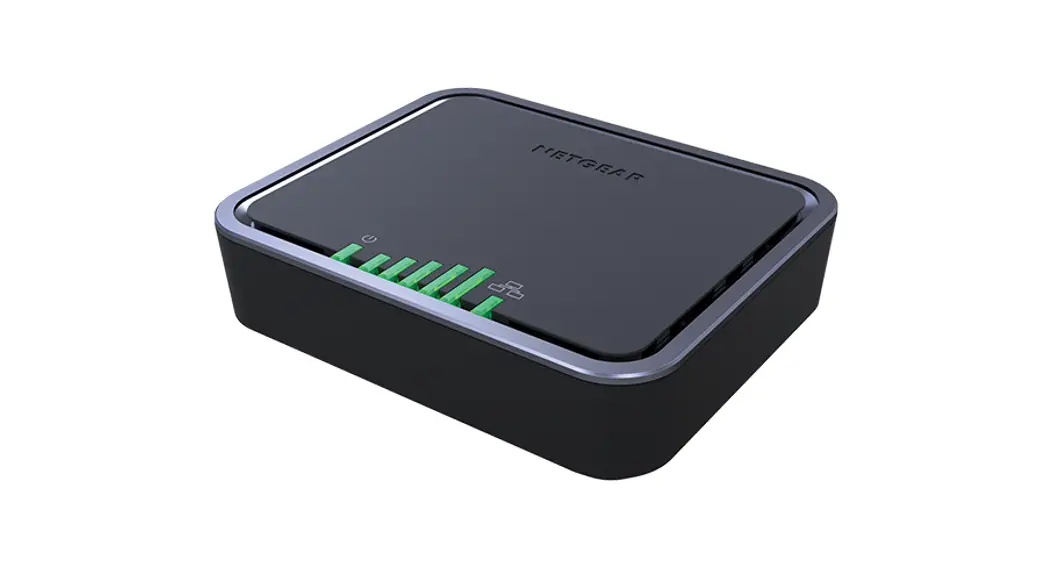
SMC Series LTE-A hotspot provides consistent access to LTE networks, including most operators and Private LTE spectrums. It allows multiple end users and mobile devices to share 4G mobile broadband Internet connection from anywhere.
Packing List
 |  |
SMC Series | USB Cable |
Device Architecture
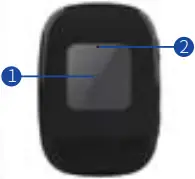
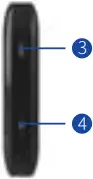
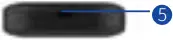
- LCD Screen
- LED Light
- Menu Button
- Power Button
- USB
Working Environment
| Operating Temperature | -10°C ~ 45°C |
| Storage Temperature | -20°C ~ 70°C |
| Humidity | 5% ~ 95% |
| Power Consumption | <2.5W |
| Charging Specification | 5V/2A |
Icon Definition
Icon | Status | Description |
Signal |  | Good Signal |
 | Weak Signal | |
 | No Service | |
Battery |  | Full Power |
 | Low Power | |
 | The icon changes from low to high repeatedly to indicate that the battery is charging | |
WIFI |  | The number of clients connect to WIFI |
Next |  | Press menu button to select next |
OK |  | Press power button to confirm |
Hardware Configuration
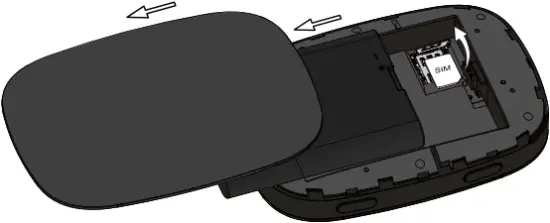
Install SIM Card
Step1 Remove the cover of unit and the battery
Step2 Push the SIM card cover back and open it upposition.
Step3 Place the SIM card in the correct direction.
Step4 Close the SIM card cover and push forward to make sure that the SIM is firmly fixed.
Step5 Place the battery then close the cover.
Instructions
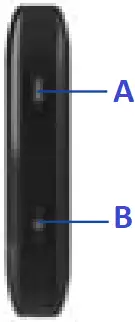
A
- Enter menu setting
- Select next menu
B
- Press power button 3s to power on MIFI, or 5s to power off MIFI
- Confirm selection
Connect to the Network
It takes several seconds to connect to LTE network. The screen will show different status as follow.
- It will show SIM not ready if MIFI does not detect the SIM
- The screen will show No service when does not connect to network.
- The screen will show connected when LTE network connect successfully.
Software Configuration
Login to the Web Management Page
Step1 Login to the web management page via USB cable or wirelessly
Step2 Launch the web browser, enter http://192.168.1.1 in the address bar, and press Enter.

Step3 Enter the username and password, and click Login.
The default username and password can be both referred to printed label from the packing box.

Step3 After the password is verified, you can login to the web management page.
LTE Settings
Step1 Choose Advanced Settings > Network>APN Settings.
Step2 On APN Settings page, you can set the configuration of the LTE network.
Step3 Click Submit to save the settings.

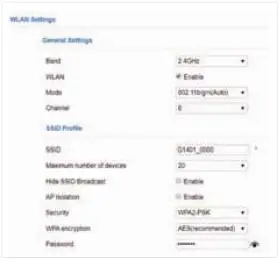
WLAN Settings
Step1 Choose Advanced Settings → Wi-Fi → WLAN Settings.
Step2 In the General Settings list, set Wi-Fi Enable or Disable.
Step3 In the SSID Profile list, change the SSID, such as “LTE-My MIFI”.
Step4 To ensure data security, it is recommended that you change the Wi-Fi password.
Step5 Click Submit to save the settings.
FAQs
MIFI is not powered
- Please make sure it is full battery.
- Please press the power button more than 3s.
- If the problem persists, please contact the authorized local service suppliers.
Unable to connect to network
- Please make sure the SIM is insert successfully.
- Please check if the unit is placed in an open area.
- If the problem persists, please contact the authorized local service suppliers.
Unable to connect to WIFI
- Please check if the WIFI is enable.
- Please check if the WIFI password correct
- If the problem persists, please contact the authorized local service suppliers.
Fails to login the web management page
- Please make sure MIFI is powered on
- Please make sure the login password is correct
- Please check if PC get IP successfully.
- If the problem persists, please contact the authorized local service suppliers.
 Considering RF effect, we would recommend you to keep it away from 20 cm when using our SMC series.
FCC Regulations:
§ 15.19 (a)(3)
This mobile MIFI complies with part 15 of the FCC Rules. Operation is subject to the following two conditions: (1) This device may not cause harmful interference, and (2) this device must accept any interference received, including interference that may cause undesired operation
§ 15.21
Changes or modifications not expressly approved by the party responsible for compliance could void the user’s authority to operate the equipment.
§ 15.105 (b)
This mobile phone has been tested and found to comply with the limits for a Class B digital device, pursuant to Part 15 of the FCC Rules. These limits are designed to provide reasonable protection against harmful interference in a residential installation. This equipment generates, uses and can radiated radio frequency energy and, if not installed and used in accordance with the instructions, may cause harmful interference to radio communications. However, there is no guarantee that interference will not occur in a particular installation If this equipment does cause harmful interference to radio or television reception, which can be determined by turning the equipment off and on, the user is encouraged to try to correct the interference by one or more of the following measures:
–Reorient or relocate the receiving antenna.
–Increase the separation between the equipment and receiver.
–Connect the equipment into an outlet on a circuit different from that to which the receiver is connected.
–Consult the dealer or an experienced radio/TV technician for help.
FCC RF Radiation Exposure Statement
This equipment complies with FCC radiation exposure limits set forth for an uncontrolled environment.
The device has been tested for use against the body with 5mm separation in Specific Absorption Rate (SAR) testing.
User must follow the specific operating instructions for satisfying RF exposure compliance.
This transmitter must not be co-located or operating in conjunction with any other antenna or transmitter.