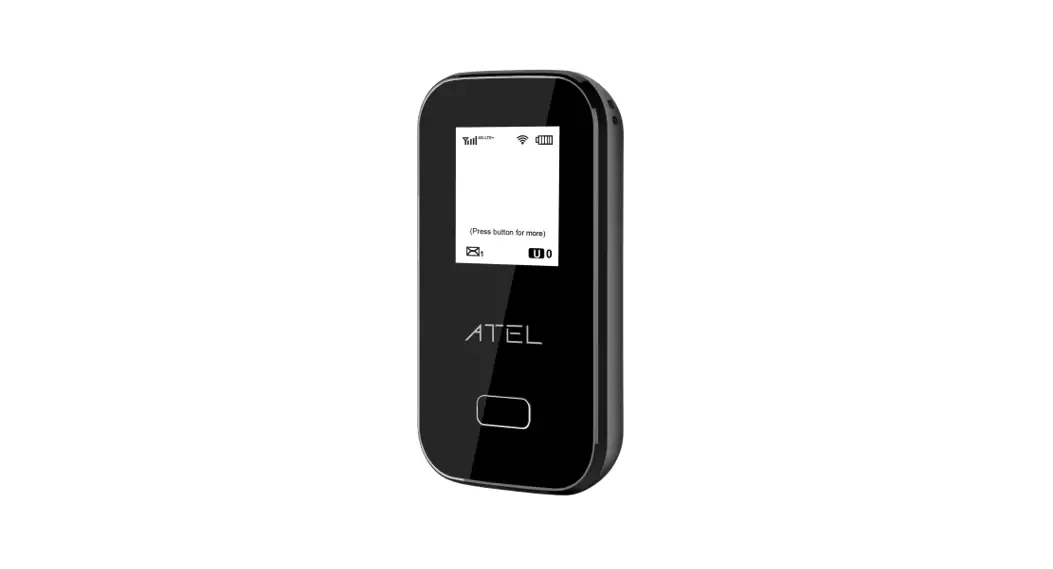
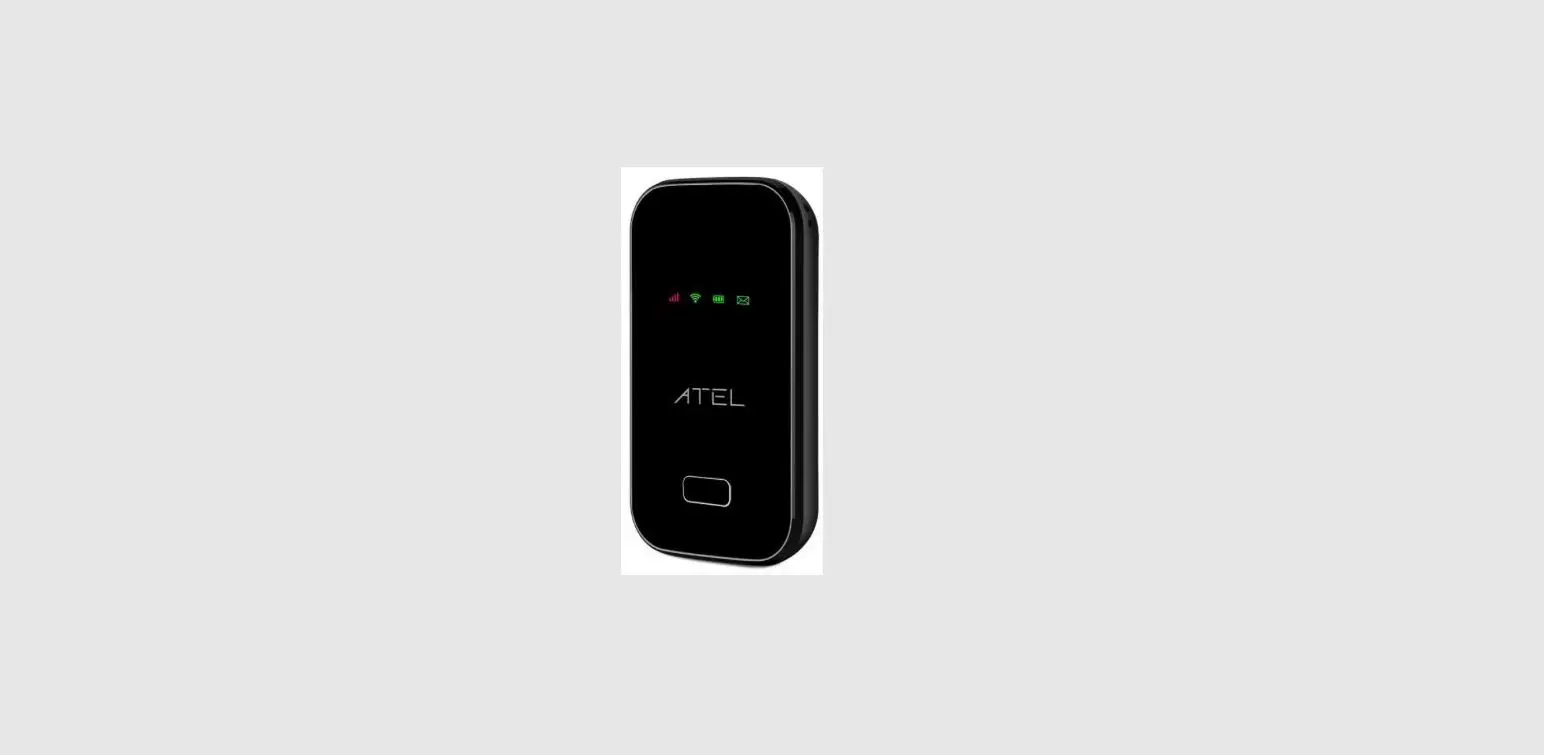
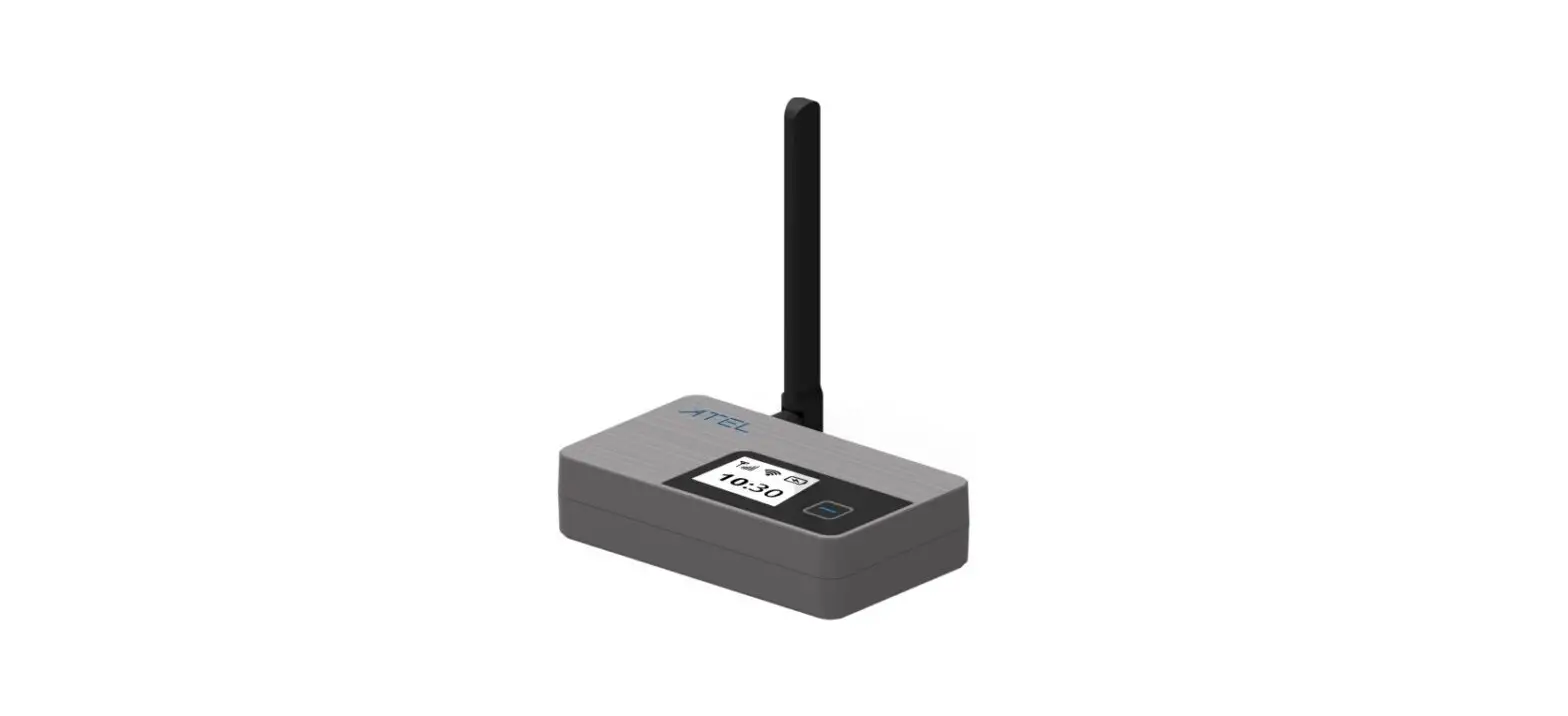
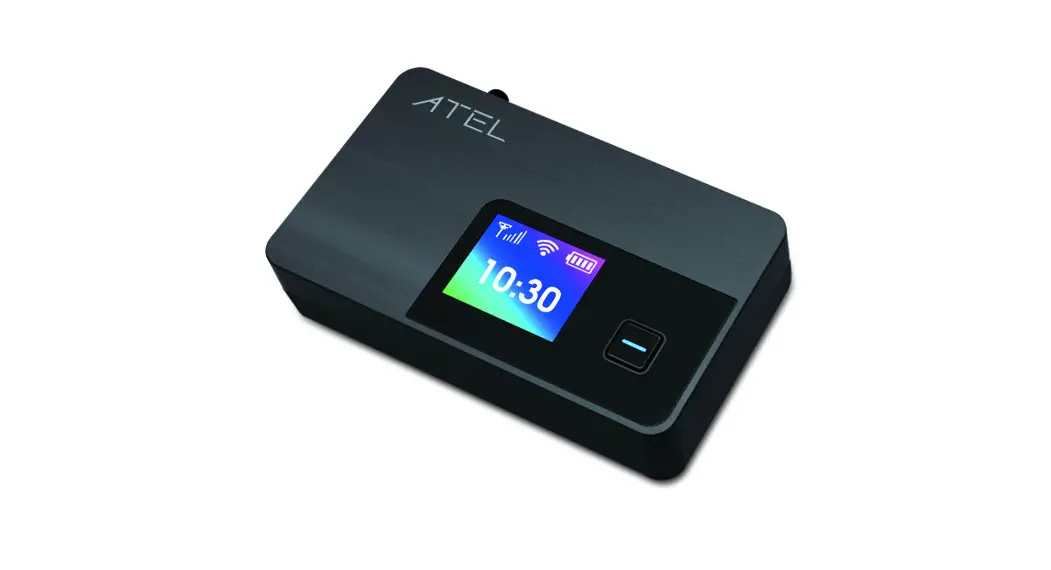
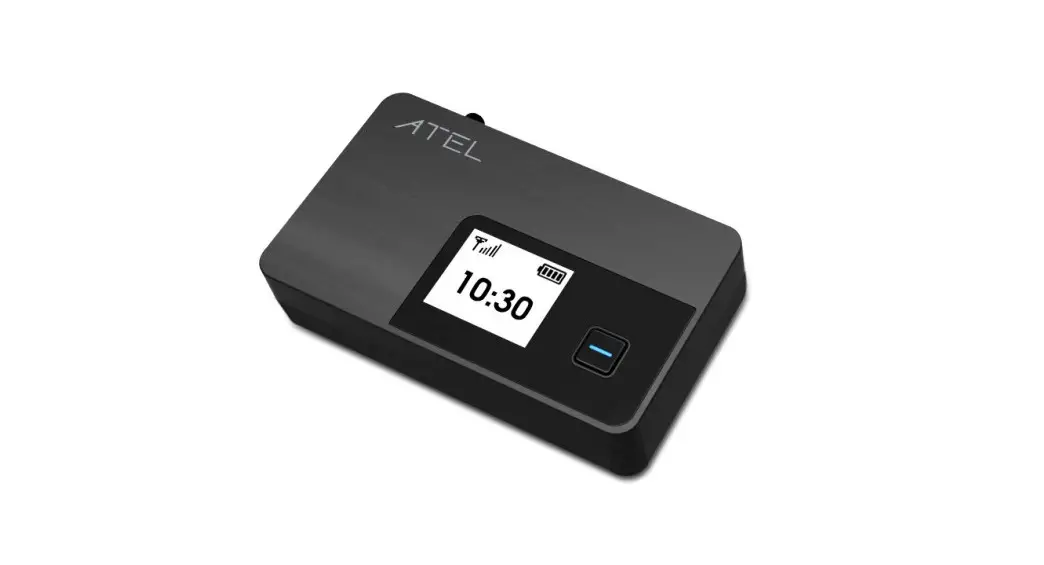
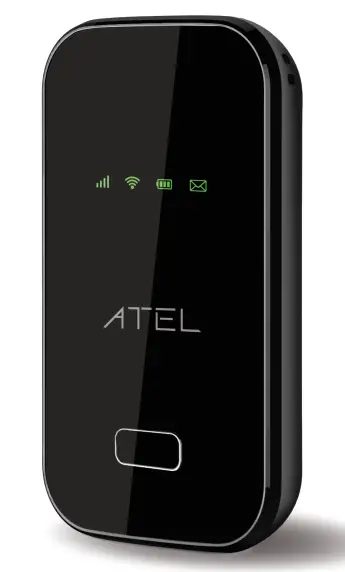
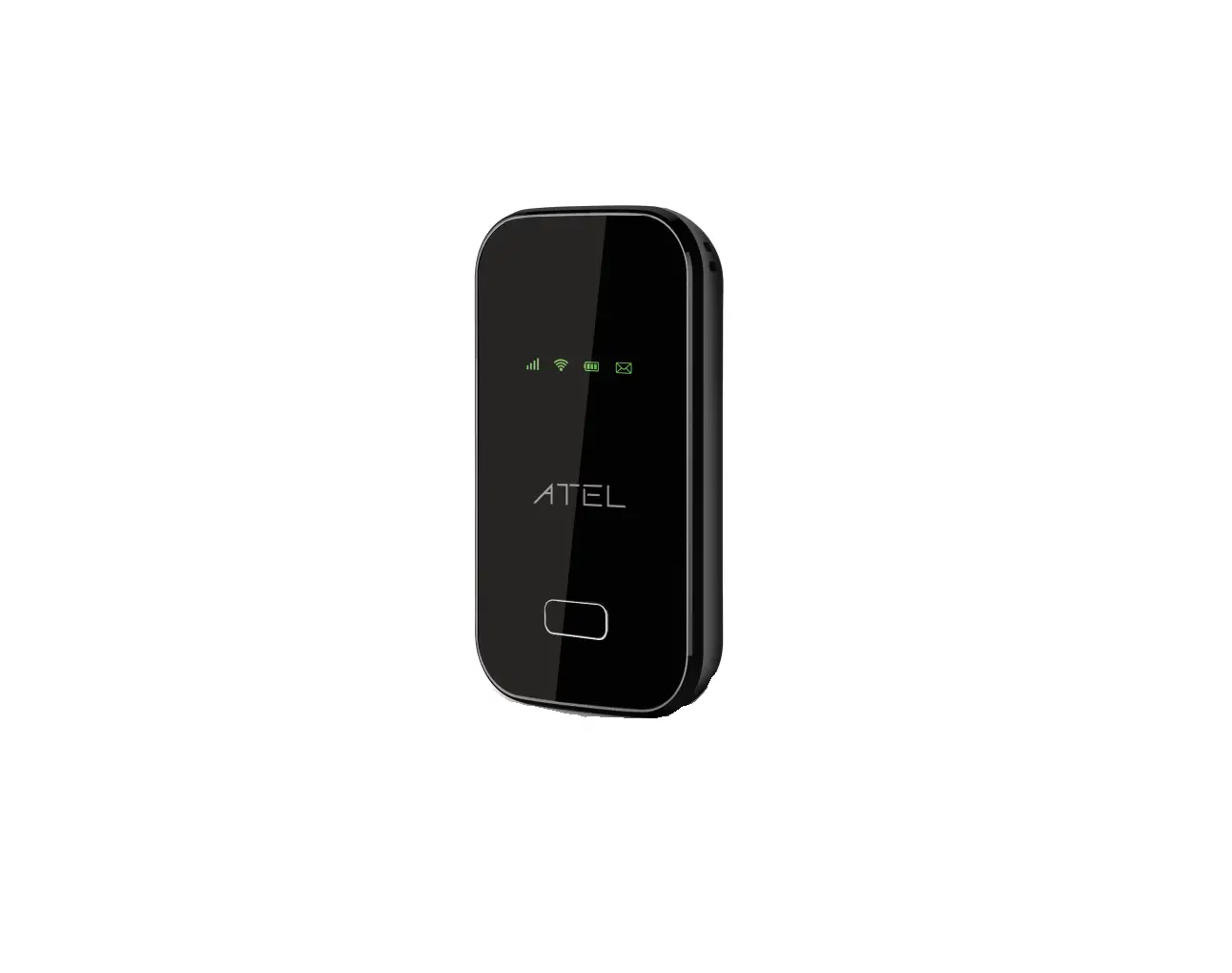
Home » Blog » Atel W01 Arch 4g Lte Mobile Hotspot User Guide Atel W01 Arch 4g Lte Mobile Hotspot User Guide ATEL W01 Arch 4G LTE Mobile Hotspot Contents hide1 Device Display2 Key2.1 Power Button2.2 Type C Charging Port2.3 Battery2.4 Reset2.5 SIM Card3 Setting up your W01 Arch3.1 Wi-FI Network Name (SSID) / Password3.2 Turning your W01 On/Off3.3 Charging your W01 Arch4 System Requirements5 Device Settings6 Managing Wi-Fi networks and Connections7 Connecting to the Internet8 Factory reset your W01 Arch9 Connection LED Indicator10 Customer Support11 Documents / Resources11.1 References12 Related PostsDevice DisplayWARNING! Please only use an approved charger to charge your W01. Improper handling of the charging port, as well as the use of an incompatible charger, may cause damage to your device and void the warranty.KeyPower ButtonPower on/Arch for the W01 . Quick press the power key two times, start WPS.Type C Charging Port The USB charger connects here.BatteryInsert the battery to align with the battery contacts.ResetTo perform a reset of your device, use a unfolded paper clip to insert to the RST pin hole, and push down for 3 seconds, then release.SIM CardRemove the battery cover from the back of your W01 and remove the battery. Slide open the SIM door and insert your SIM as the image shows below. Make sure the SIM is placed properly before sliding the door back up to close the SIM door.Setting up your W01 ArchWi-FI Network Name (SSID) / PasswordYou can locate the SSID and password on the device label in the battery compartment. Use the SSID/password to establish your internet connection.http://www.atel-usa.com/Turning your W01 On/OffFirst, insert a compatible SIM card into your W01 Arch. Then insert the battery and close the battery cover. To turn your W01 Arch on, press and hold the Power button. To turn it off, press and hold the Power Button until you see all of the LED lights go up and off.Charging your W01 ArchTo charge your device, insert the USB Type C cable into the charging port and plug into the charger.The power/battery LED indicator will start blinking which indicates the device is charging.System RequirementsYour W01 Arch is compatible with any device with Wi-Fi capability and an Internet browser. It is compatible with all major operating systems and the latest versions of browsers.Device SettingsYou can access your Mobile Hotspot (W01 Arch ) Online Device Management Portal (Online portal) to view and edit your settings.Connect your Wi-Fi capable device (e.g. laptop) to your W01 Wi-FinetworkOpen a browser (e.g. Chrome) and enter http://192.168.0.1 in the URL address bar.For T-Mobile and all other users, enter “admin” for both username and password. For Verizon users, enter “admin” for username. For password, please check your device label for the unique Online Portal password.You can change the Admin password from the hotspot Online Portal under SETTINGS > Device Settings. Once changed, you must use the new password to login to the Online Portal.While different browsers may have different security settings for HTTPS, additional steps may be needed if you access the Hotspot Online Portal using https://192.168.0.1. For example, for Microsoft Edge browser, you will need to click “Advanced > Continue to 192.168.0.1 (unsafe)” in order to access the interface.Managing Wi-Fi networks and ConnectionsFrom the Online Device Management Portal, you can change your Wi-Fi Settings. For example, the maximum Wi-Fi connection is defaulted to 15 and you can set it to any value between 1 and 15. The Wi-Fi band is defaulted to 2.4 GHz and you can change it to 5GHz.Connecting to the InternetOpen the Wi-Fi settings of your devices that you want to connect to the W01 Arch.Select the SSID of your W01 from the available network list.When prompted, enter your W01Arch password (located on the device label in the battery compartment).Factory reset your W01 ArchYou can reset your W01 Arch to factory settings with the W01 Arch reset pin hole or via the Online PortalNOTE: Resetting your W01 will disconnect all devices connected to your W01Arch . All device settings including network name and password will be reset back to factory defaults.To reset from the Online Portal, lick About->Backup and Restore->Restore to Factory Defaults.To reset using the reset pin hole on W01:Make sure your W01 is on.Remove the battery cover from the back of your W01 Arch.Insert an unfolded paper clip into the Reset pin hole and press until the W01 Arch LED lights are out. Connection LED Indicator LEDColorActionFunction DescriptionLTE/3G OnRepresents 5-bar signalOnRepresents 4-bar signalOnRepresents 3-bar signalOnRepresents 2-bar signalOnRepresents 1-bar signalBlinkingError, no SIM or nointernet OffNo SignalCustomer SupportOur Website: www.atel-usa.comContact us at: [email protected]For Warranty information, please see our website under the Support tab.© 2020 Asiatelco Technologies, Inc. All Rights Reserved PN YS0344T005References USA Location information - USA.com ATEL-USA Documents / Resouces Download manual Here you can download full pdf version of manual, it may contain additional safety instructions, warranty information, FCC rules, etc. To access the pdf donwload links, solve the captcha. Related Manuals Atel Alm-w02 Arch+ 4g Lte Mobile Hotspot Owner's Manual Atel Arch Plus 4g Lte Mobile User Guide Atel W01 Arch Lte Wifi Router User Manual Netgear Aircard 797 4g Lte Mobile Hotspot User Guide Atel Aol-j912 4g Lte Outdoor Cpe User Guide Inseego Mifi_8000 4g Lte Mobile Hotspot User Guide Inseego M2100 5g Uw Mobile Hotspot User Guide Tcl Linkzone Mw42l 4g Lte Cat4 Mobile Hotspot User Manual Atel V810a 4g Lte Cat-4 Fixed Wireless Access Router User Guide Inseego M2000 5g Mifi Mobile Hotspot User Guide Harman Hsa-15ua-br Spark 4g Lte Mobile Hotspot User Guide Smawave Technology Smc411-a Lte-a Hotspot User Guide Atel V810 4g Lte Phone Hub User Guide NETGEAR LB1120 Mobile Hotspot User Guide Atel V810t 4g Lte Phone Hub User Guide Jextream Rg2100 5g Mobile Hotspot User Guide Konnectone K873 Hsvl Moxee 5g Mobile Hotspot User Guide Netgear Aircard 797 Mobile Hotspot User Guide Vodafone Mu5001 5g Mobile Hotspot User Guide Atel V810a Axis 4g Lte Internet Gateway User Guide

 USA Location information - USA.com
 ATEL-USA