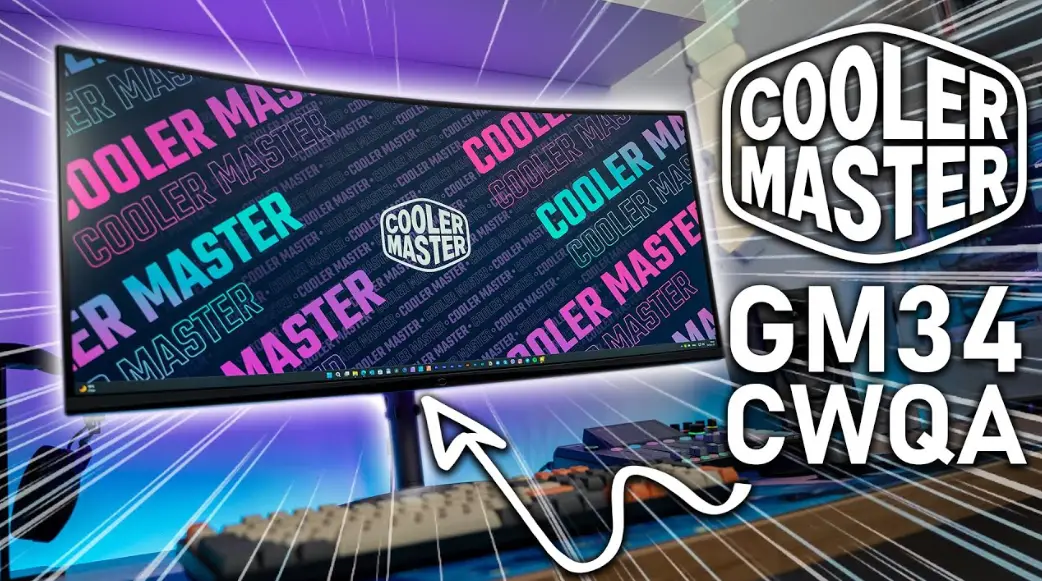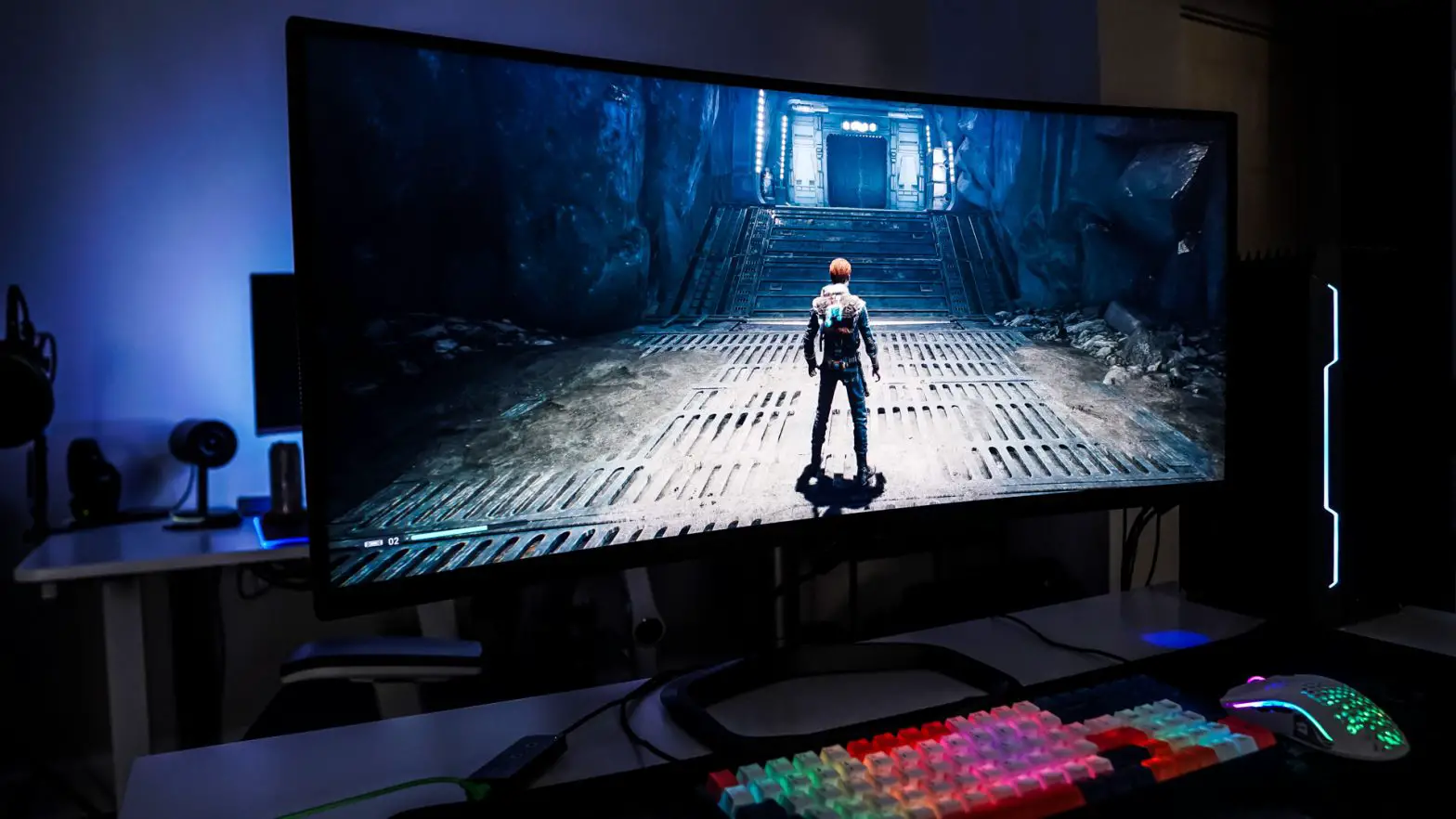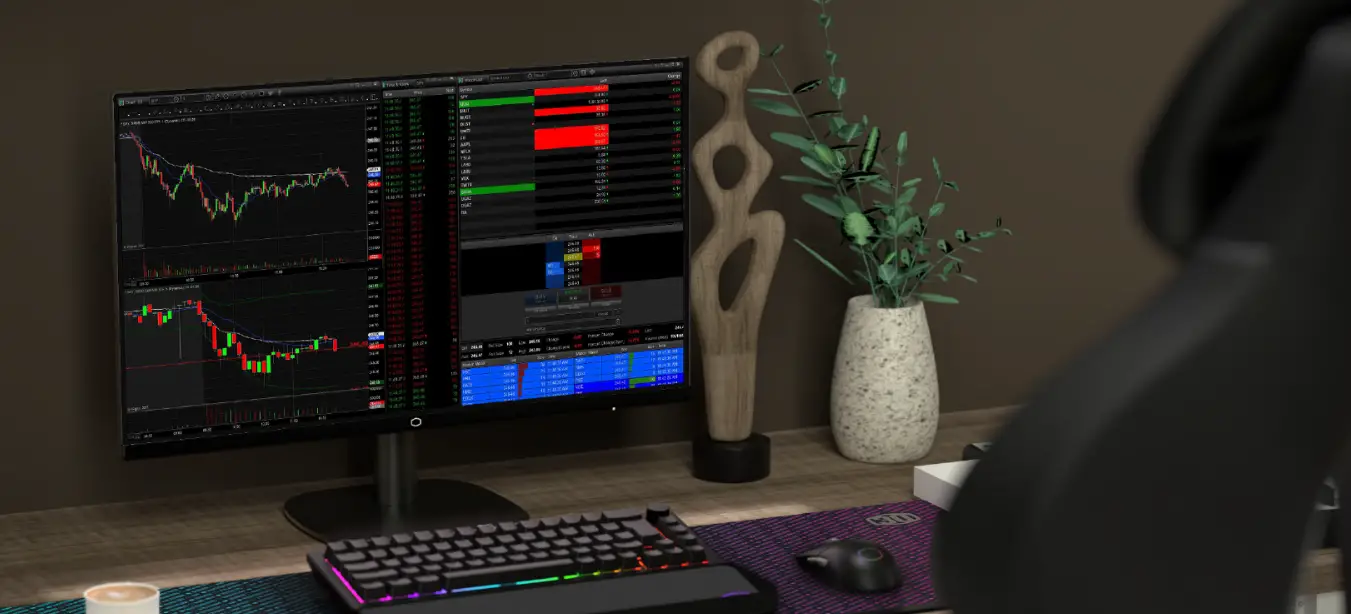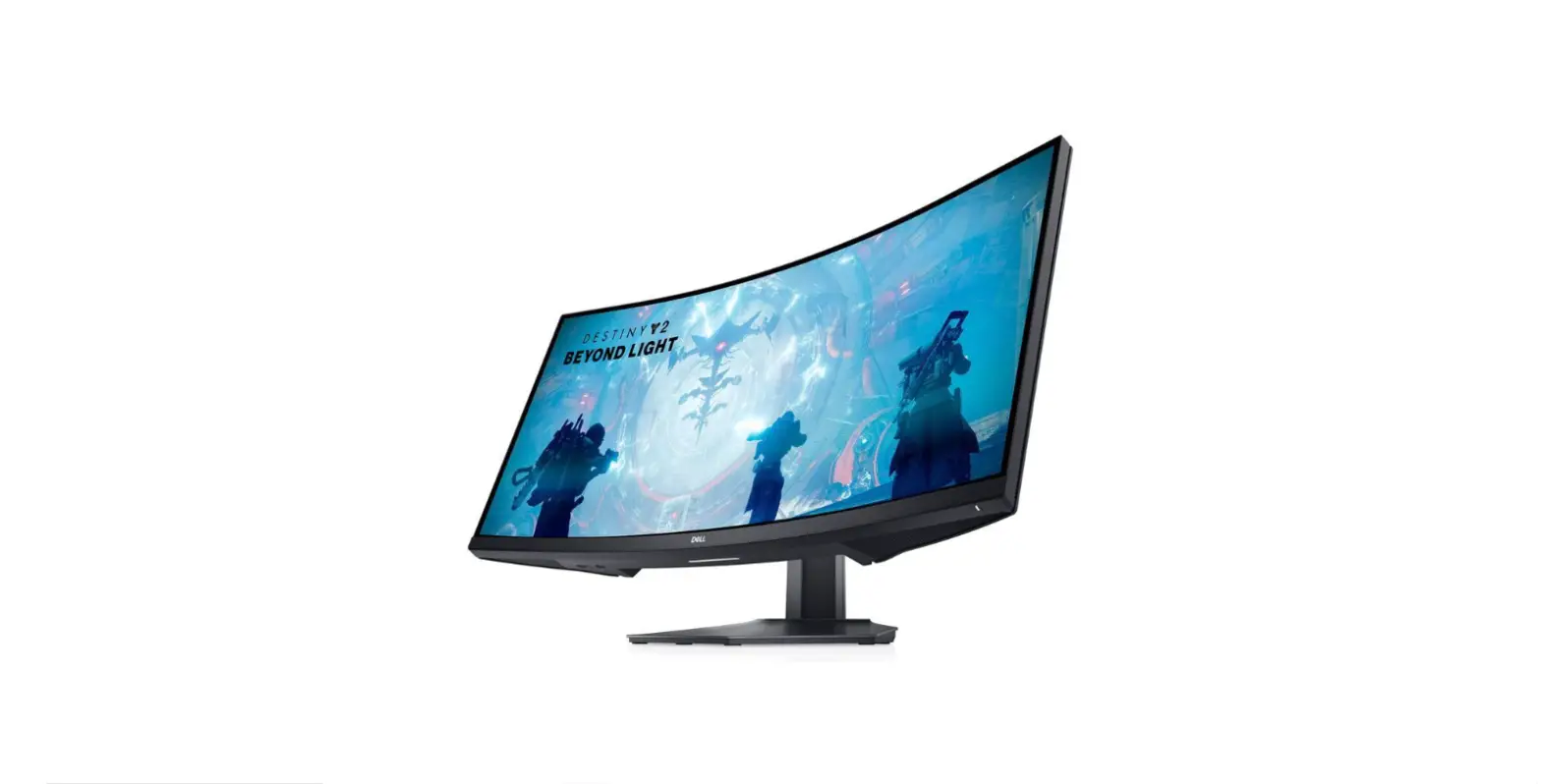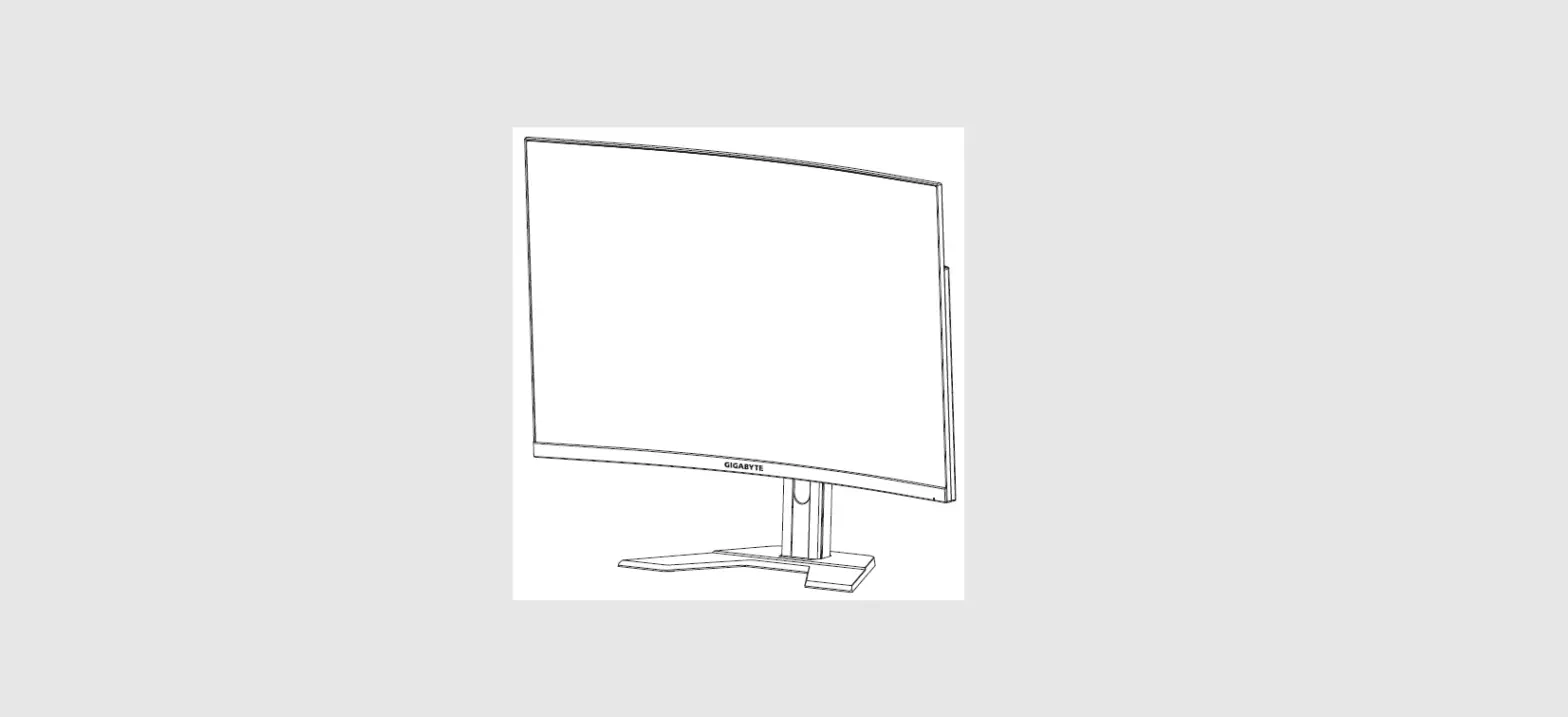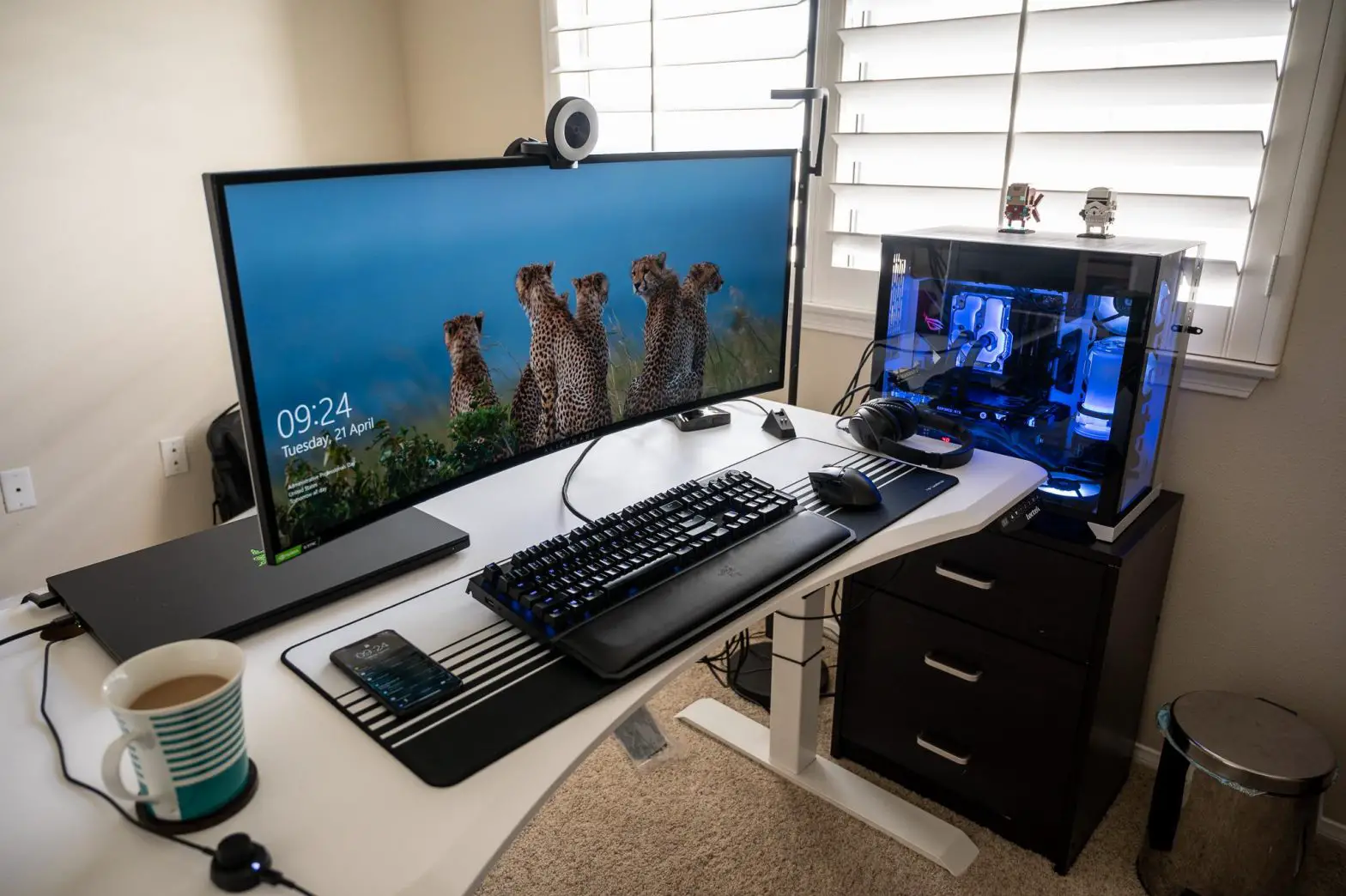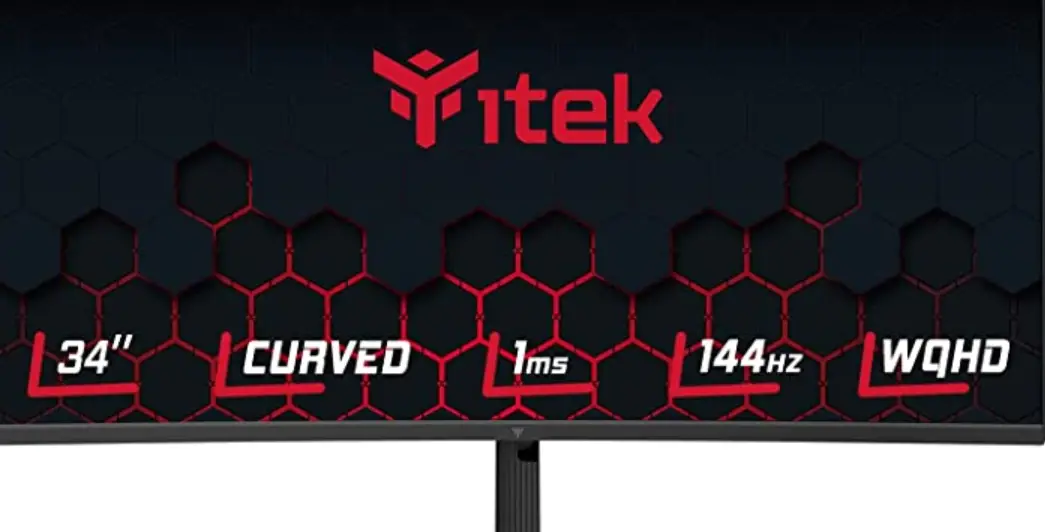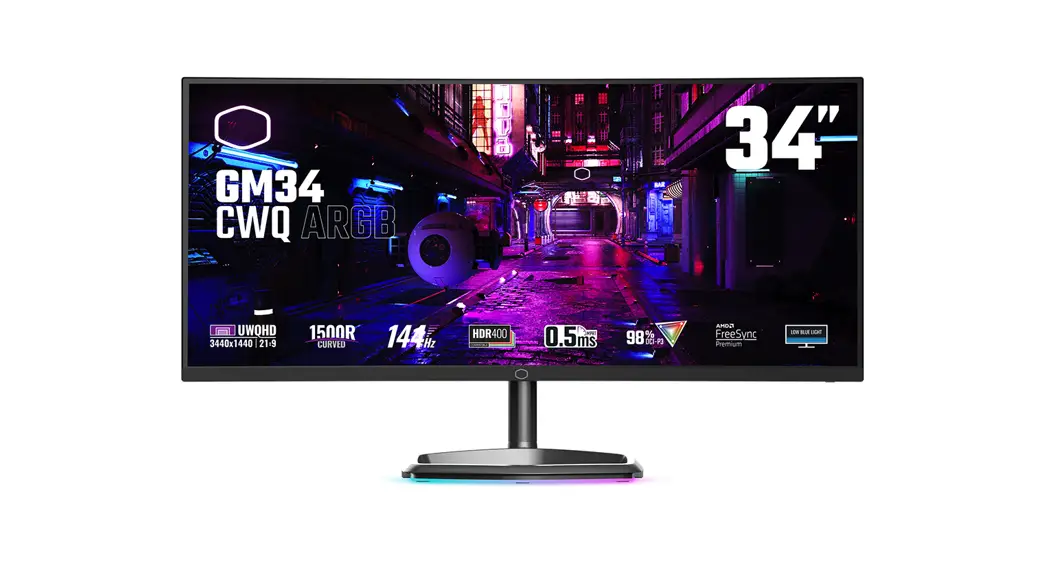

Cooler Master 34-Inch Gaming Monitor
User Manual
Important Safety Instructions
Please read the following instructions carefully.
- To clean the LCD monitor screen: Turn off the LCD monitor and unplug the power cord. Spray a non-solvent cleaning solution onto a rag and clean the screen gently.
- Do not place the LCD monitor near a window. Exposing the monitor to rain, moisture or sunlight can severely damage it.
- Do not apply pressure to the LCD screen. Excessive pressure may cause permanent damage to the display.
- Do not remove the cover or attempt to service this unit yourself. An authorized technician should perform servicing of any nature
- Store the LCD monitor in a room with a temperature of -20° to 60° C (- 4° to 140° F). Storing the LCD monitor outside this range may result in permanent damage.
- Immediately unplug your monitor and call an authorized technician if any of the following circumstances occur:
•Monitor to PC signal cable is frayed or damaged.
• Liquid spills onto the LCD monitor or the monitor is exposed to rain.
• The LCD monitor or case is damaged.
Package Contents
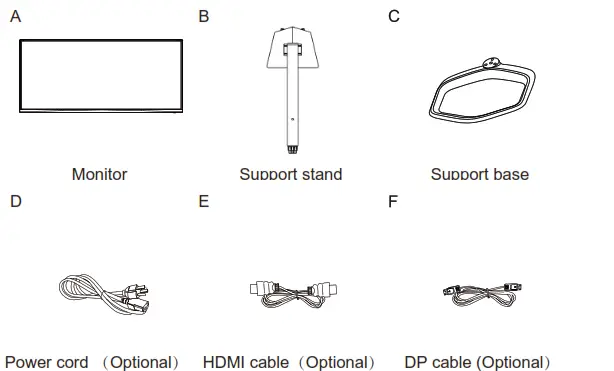
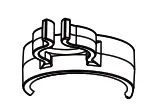 Cable clip Cable clip(Used for cable fixed in the back of the support stand) | 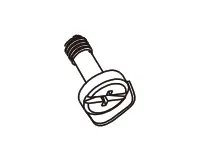 Base screws Base screws(Used for installation of the support base and support stand) |
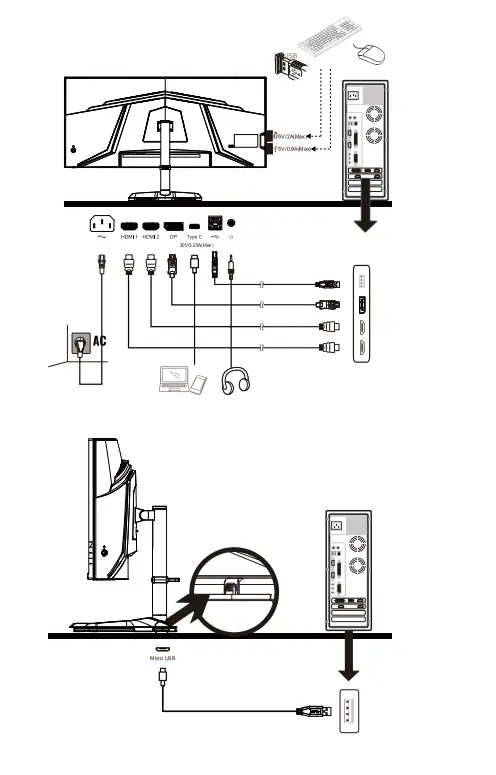
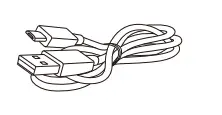 Micro USB to USB Micro USB to USBType A cable (Optional (Used to light up ARGB stand) | 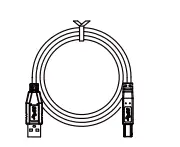 USB Type-A to B cable USB Type-A to B cable(Optional (PC and Monitor data transmission) |
Installing the Monitor Arm/Base
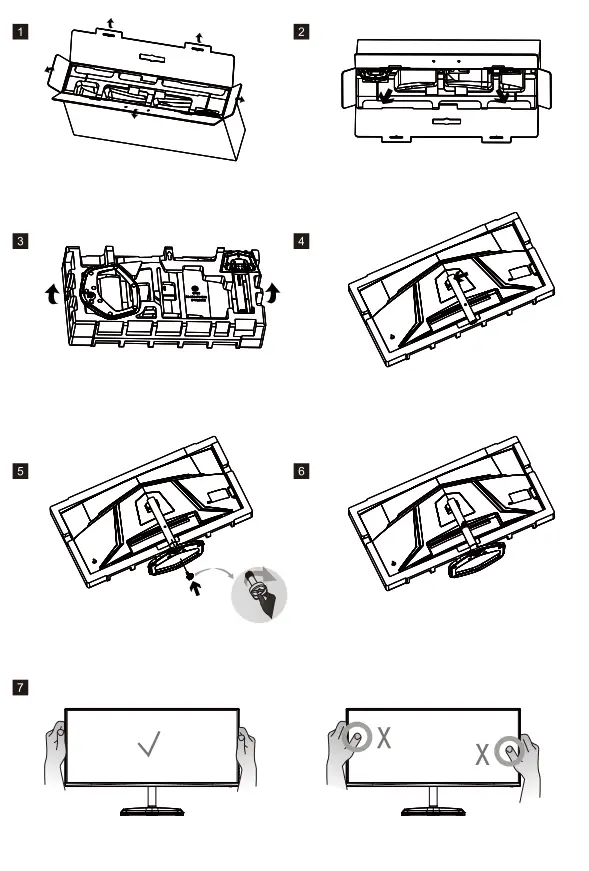 |  |
MASTERPLUS+
Using the MasterPlus+ app, you can fully customize the ARGB lighting built into the Halo stand. *Please visit https://masterplus.coolermaster.com/ for more details.
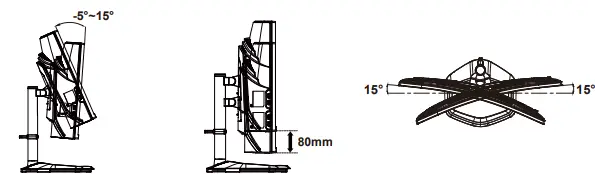
Adjusting the Monitor
- For the best results, it is recommended to look directly at the front of the monitor and make any adjusts as necessary.
- Ensure that the monitor is mounted upright on the stand base.
- When adjusting the monitor viewing angles, avoid touching the screen and hold the stand in order to prevent it from falling over.
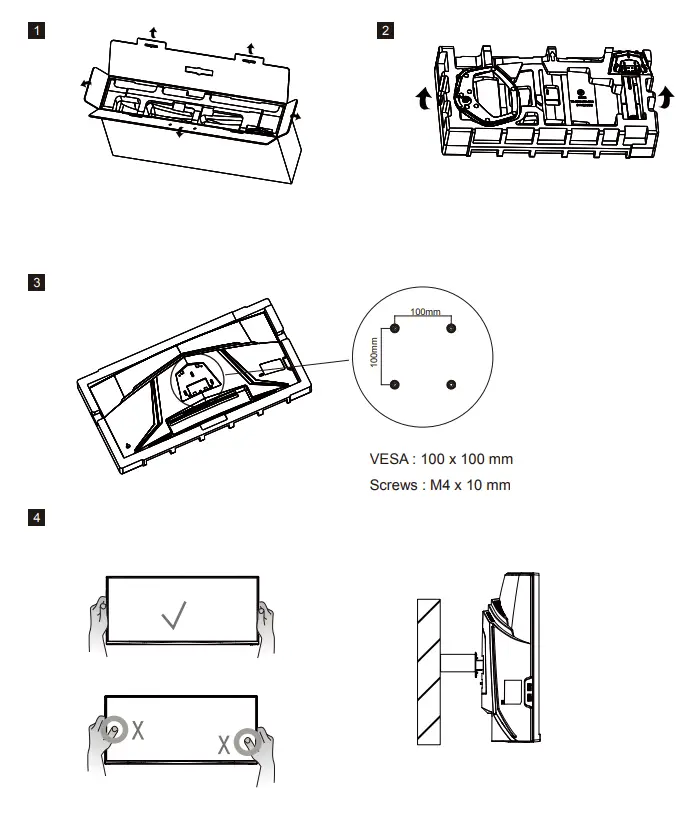
Wall Mount Installation Instructions
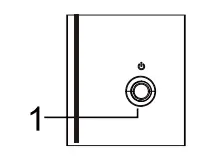
- Menu/Navi/OK button
Short press to turn on the monitor and Long press to turn off.
When the OSD menu is activated,pull up/down/left/right the button to adjust the settings you need.When finished, you can pull the Button Back to return to the previous level r use the Button Exit to close the OSD menu.
NOTE: Power light;
Blue = ON;
Orange = Power Saving.
The OSD Menu and OSD Quick-Menu Symbol explanations and their functional uses are stated below.
NOTE: The following content is for general reference only. Actual product specifications may vary.
 Select: Enters the highlighted submenu or edits the selected menu entry.
× Exit: Closes the OSD menu. Back: Goes back to the previous menu or exits editing an entry.
 Up: Move the highlight up.
 Down: Move the highlight down.
 Left: Moves the highlight to the left.
 Right: Moves the highlight to the right.
+ Increase: Increase OSD setting.- Decrease: Decrease OSD setting.
Input
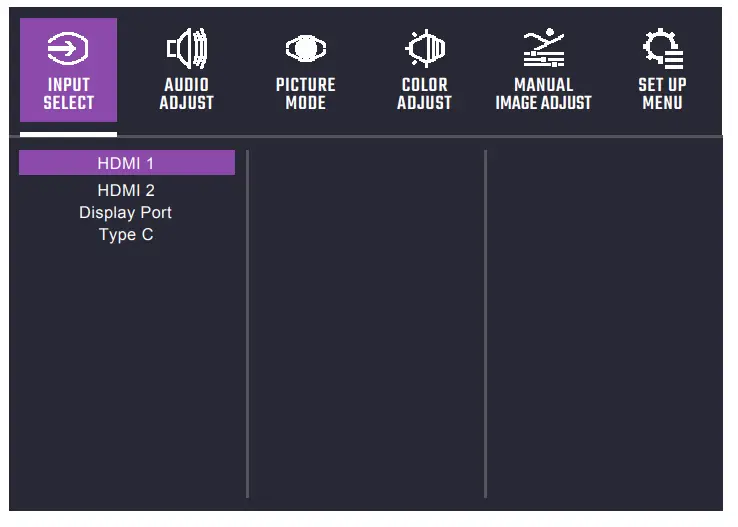
- Enter the input menu to switch the input signal.
- HDMI: 100Hz (MAX) and Adaptive-Sync supported under 3440X1440
- DP : 144Hz (MAX) and FreeSync Premium supported under 3440X1440
- Type C: 144Hz (MAX) under 3440X1440(If Type C 3.0 mode off) 60Hz (MAX) under 3440X1440(If Type C 3.0 mode on)
Audio Adjust
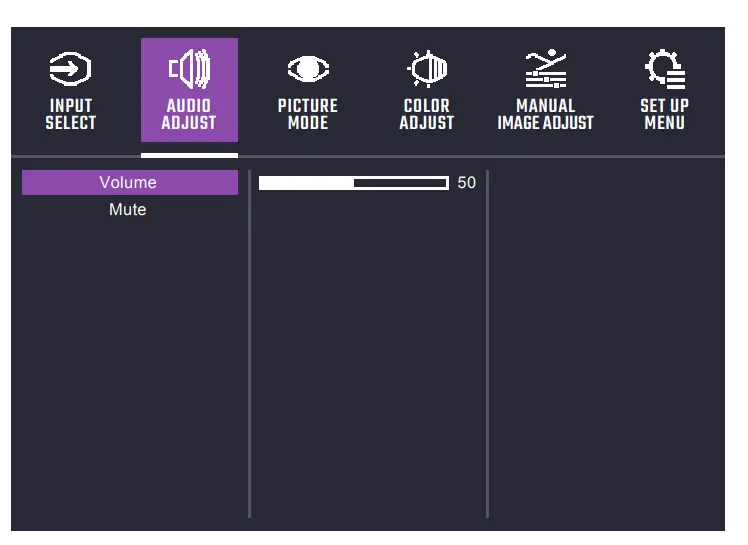
- Enter the Audio Adjust menu to adjust functions including Mute and Volume functions etc.
- Volume: Adjust the volume value between 0 and 100.
- Mute: Enable or disable the mute function.
*Adjust volume value level properly to avoid damaging hearing.
Picture Mode
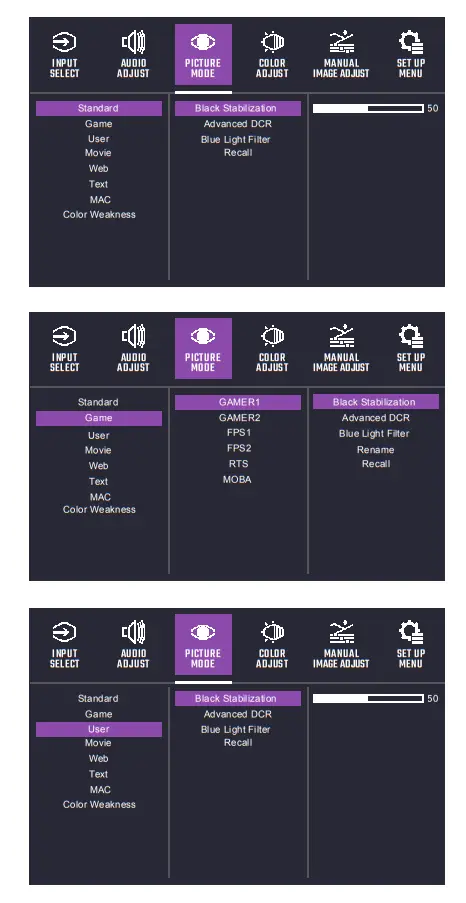
- Enter the Picture Mode menu to adjust different picture modes.
Standard:
a. Black Stabilization: Aim to brighten dark areas without overexposing the brighter areas.
The setting value is between 0 and 100.
b. Advanced DCR: Detect automatically the brightness of the input signal, and the backlight module to improve the performance of the picture. The setting value is between 0, 25, 50, 75 and 100.
c. Blue Light Filter: Reduce the emission of harmful low-blue lights on a display in order to protect your eye using low blue light technology. Adjust the Blue light filter setting value between 0 and 100.
d. Recall: Restore the Settings back to default values. - Game: Provide the best option for gaming experience.
a. GAMER1/GAMER2: Provide customized gaming option including Black Stabilization Advanced DCR, Blue light filter, Rename and Recall function.
b. FPS1: Provide the optimized setting for FPS(First Person Shooting) games to increase the visibility in dark scenes.
c. FPS2: Provide the optimized setting for FPS(First Person Shooting) games for normal scenes.
d. RTS: Provide the optimized setting for RTS(Real-Time Strategy) games.
e. MOBA: Provide the optimized setting for MOBA(Multiplayer Online Battle Arena) games. - User: Provide customized option for user experience.
- Movie: Provide the optimized setting for movie watching experience.
- Web: Provide the optimized setting for website browsing experience.
- Text: Provide the optimized setting for reading(Native color space: sRGB).
- MAC: Provide the optimized setting for MAC use.
- Color Weakness: Provide customized setting including adjusting functions like Red Filter and Green Filter functions for people who suffer from color vision deficiency.
Color Adjust
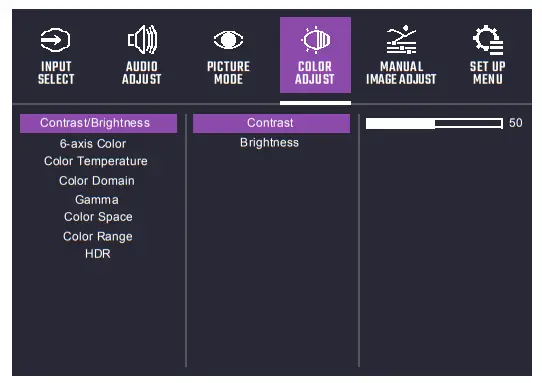
- Enter the Color Adjust menu to adjust the ideal color mode.
- Contrast: Adjust the Contrast level between 0 and 100.
- Brightness: Adjust the backlight brightness level between 0 and 100.
- 6-axis Color: Adjust Hue and Saturation functions.
a. Hue: Adjust the tone of one specific color.
b. Saturation: Adjust the intensity and colorfulness of one specific color. - Color Temperature: Adjust between Bluish, Cool, Native, Warm and User Color settings which can adjust Red, Green and Blue value from 0 to 100.
- Color Domain: Adjust between Auto, RGB Mode and YUV Mode.
- Gamma: Adjust gamma curve between 1.8, 2.0, 2.2, 2.4 and 2.6.
- Color Space: Convert the color space between Auto, sRGB, Adobe RGB, DCI-P3 and BT.2020.
- Color Range: Adjust the HDMI color range between Auto, Full Range(RGB 0-255) and Limited Range(RGB 16-235).
- HDR: Adjust between Game, Movie and Standard. Users can adjust Red, Green, Blue, Lightness and Contrast value from 0 to 100 in Standard mode.
Manual Image Adjust
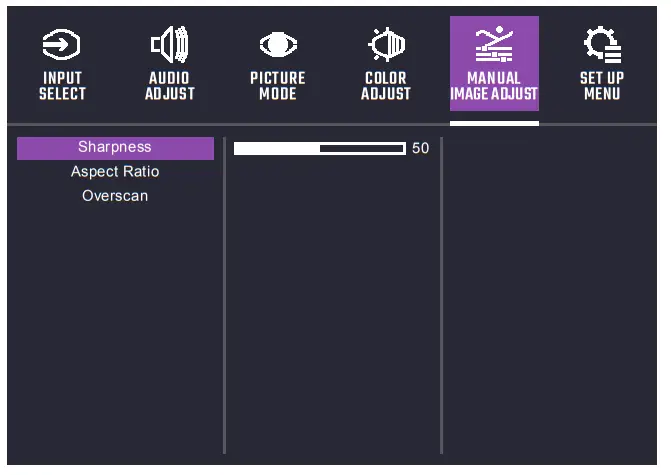
- Enter the Manual Image Adjust menu to configure image setting.
- Sharpness: Adjust the sharpness between 0 and 100.
- Aspect Ratio: Fill Aspect Ratio and Full Screen mode can be selected.
- Overscan: Turn the Overscan function On or Off.
Setup Menu
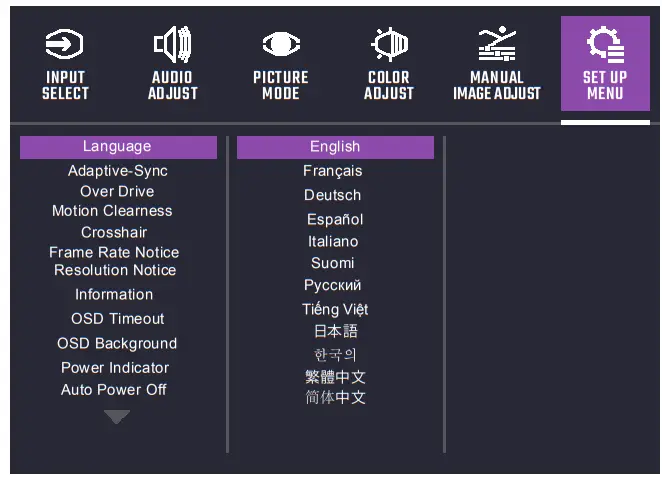
- Language: English, French, German, Spanish, Italian, Finnish, Russian, Vietnamese, Japanese, Korean, Traditional Chinese, Simplified Chinese are available options.
- AdaptiveSync/FreeSync Premium: Turn the AdaptiveSync/FreeSync Premium function On or Off.
*Enabling AdaptiveSync/FreeSync Premium may cause side effects like flicker due to the fluctuation of the output frequency from graphics cards. - Over Drive: Off, Normal, Advanced, UltraFast, Dynamic modes are available options for speeding up the response time.
- Motion Clearness : MPRT setting with: High, Medium, Low, or Off as available options.
- Crosshair:
a. H./V. Position: Adjust H./V. Position from 0 to 100.
b. Pixel Color: Adjust R, G and B value from 0 to 100.
c. Style: 5 modes options are available. - Frame Rate Notice: Show frame rate information live on the screen. Adjust functions including Upper Right, Upper Left, Bottom Right, Bottom Left and Off.
- Resolution Notice: Turn the Resolution Notice function On or Off.
- Information: View the basic information of the model including Resolution, HDR, Adaptive-Sync, H./V. Frequency and Pixel Clock setting.
- OSD Timeout: Adjust the OSD Timeout setting value between 5, 15, 30 and 60.
- OSD Background: Turn the OSD Background function On or Off.
- Power Indicator: Turn the Power Indicator function On or Off.
- Auto Power off: Turn the Auto Power Off function On or Off.
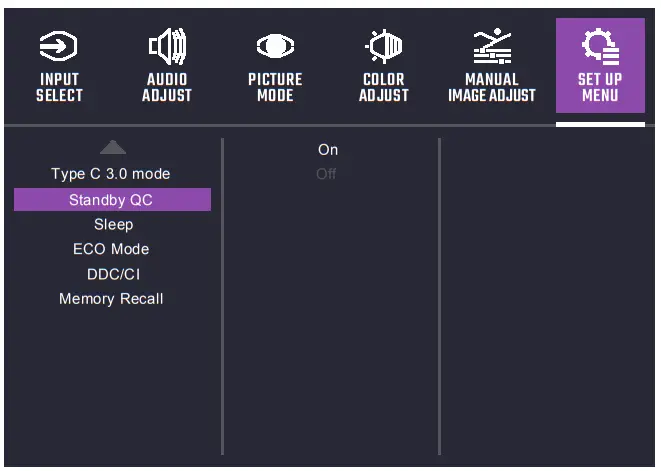
- Type C 3.0 mode: Turn the Type C 3.0 mode function On or Off.
- Standby QC: Turn the Standby QC function On or Off.
- Sleep: 30 Minutes, 45 Minutes, 60 Minutes, 120 Minutes and Off are available options.
- ECO Mode: Standard, Optimize and Conserve are available options of ECO Mode.
- DDC/CI: Turn the DDC/CI function On or Off.
- Memory Recall: Restore the Settings back to default values.
Specifications
| LCD panel | Size | 34” |
| Pixel pitch | 0.232(H) x 0.232(V)mm | |
| Brightness | 400nits(Typ.) | |
| Contrast | 4000:1(Typ.) | |
| Viewing angle | 178°(Horizontal)178°(Vertical) | |
| Response time | 0.5ms MPRT ( motion clearness on )** | |
| Display colors | 16.7 million colors | |
| Max. display frequency (Resolution H*V/Fv) | 3440*1440 @ 144 Hz(DP & Type C) 3440*1440 @ 100 Hz(HDMI) | |
| Power consumption | Power On | 31W (Typ.)*** |
| Standby | ≤0.5W | |
| Power off | ≤0.3W | |
| Input/output connector | HDMI x2 DP x1 TYPE-Cx1 (PD 20V/3.32A(Max)) USB-Bx1 Earphone jackx1 USB-Ax2 | |
| Input video signal | DP signal (DP models only); HDMI signal (HDMI models only); TYPE C signal (TYPE C models only); | |
| Speakers | 5Wx2 | |
| Audio effect | Audio output (only for audio output model) | |
| Power supply | 100-240V~ 50/60Hz | |
| Environmental conditions | Operating temperature:0ºC~40ºC; Storage temperature:-20ºC~60ºC; Operating humidity:10~85%RH | |
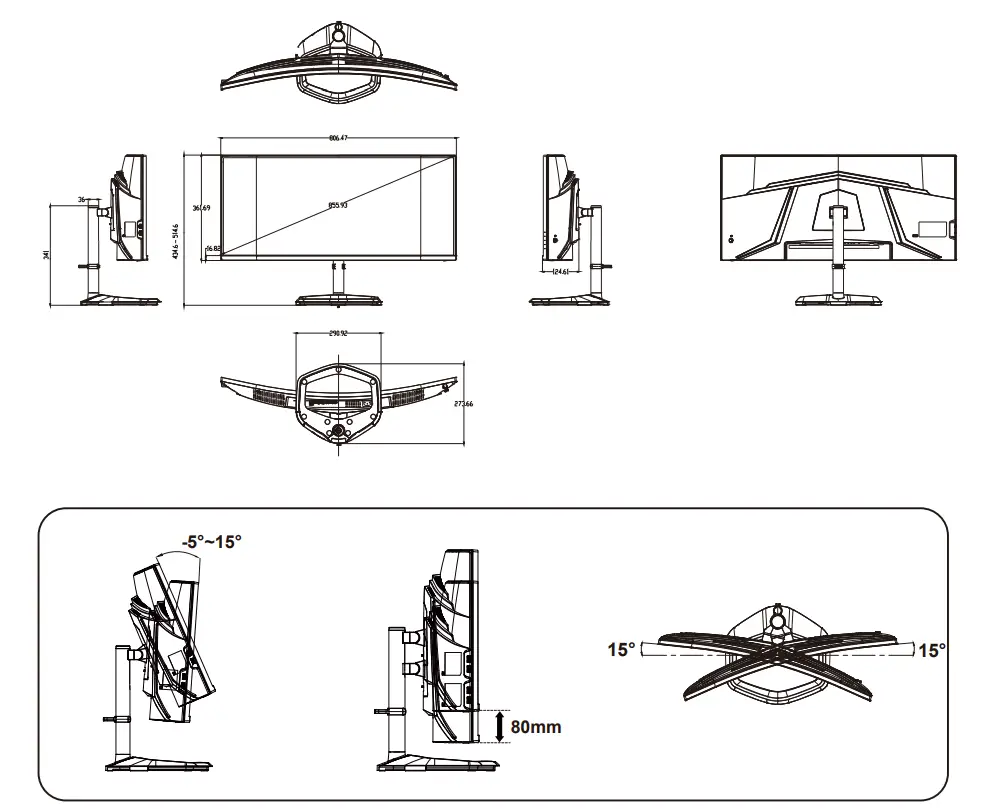
| Machine size(L x Wx H) | 806.5X273.7X(434.6-514.6)mm(with arm/base) 806.5X124.6X361.7mm(without arm/base) | |
| Box dimension(L x Wx H) | 890X191X465mm | |
| Weight (Net) | 7.6 kg/Unit (with arm/base) 5.9 kg/Unit (without arm/base) | |
| Machine specifications | Tilt: -5° to 15°; Swivel: -15° to 15°; Height: 0 to 80mm ; | |
| Compliance
| ||
 The terms HDMI and HDMI High-Defini on Mul media Interface, and the HDMI Logo are trademarks or registered trademarks of HDMI Licensing Administrator, Inc. in the United States and other countries.
*Specifications are subject to change without notice.
**The screen may flicker and other uncomfortable phenomena when the Motion Clearness function is enabled.
***Measure a screen brightness of 200 nits without audio/USB/Card reader connection.
If you have any questions regarding use of the monitor, please visit: https://www.coolermaster.com/warranty
Supported Timing
PC Timing
| Mode | Resolution | Horizontal Frequency (KHz) | Vertical Frequency (Hz) | Pixel Clock (MHz) | Port | ||
| HDMI IN | DP IN | Type C | |||||
| VGA | 640×480@60Hz | 31.469 | 59.940 | 25.175 | o | o | o |
| 640×480@72Hz | 37.861 | 72.809 | 31.500 | o | o | o | |
| 640×480@75Hz | 37.500 | 75.000 | 31.500 | o | o | o | |
| MAC | 640×[email protected] | 35.000 | 66.667 | 30.240 | o | o | o |
| VESA | 720×400@70Hz | 31.469 | 70.087 | 28.322 | o | o | o |
| SVGA | 800×600@56Hz | 35.156 | 56.250 | 36.000 | o | o | o |
| 800×600@60Hz | 37.879 | 60.317 | 40.000 | o | o | o | |
| 800×600@72Hz | 48.077 | 72.188 | 50.000 | o | o | o | |
| 800×600@75Hz | 46.875 | 75.000 | 49.500 | o | o | o | |
| MAC | 832×[email protected] | 49.722 | 74.550 | 57.280 | o | o | o |
| XGA | 1024×768@60Hz | 48.363 | 60.004 | 65.000 | o | o | o |
| 1024×768@70Hz | 56.476 | 70.069 | 75.000 | o | o | o | |
| 1024×768@75Hz | 60.023 | 75.029 | 78.750 | o | o | o | |
| MAC | 1152×870@75Hz | 68.681 | 75.062 | 100.000 | o | o | o |
| VESA | 1152×864@75Hz | 67.500 | 75.000 | 108.000 | o | o | o |
| 1280×960@60Hz | 60.000 | 60.000 | 108.000 | o | o | o | |
| SXGA | 1280×1024@60Hz | 63.981 | 60.020 | 108.000 | o | o | o |
| 1280×1024@75Hz | 79.976 | 75.025 | 135.000 | o | o | o | |
| VESA | 1280×720@60Hz | 45.000 | 60.000 | 74.250 | o | o | o |
| WXGA | 1280×800@60Hz | 49.702 | 59.810 | 83.500 | o | o | o |
| WXGA+ | 1440×900@60Hz | 55.935 | 59.887 | 106.500 | o | o | o |
| WSXGA+ | 1680×1050@60Hz | 65.290 | 59.954 | 146.250 | o | o | o |
| FHD | 1920×1080@60Hz | 67.500 | 60.000 | 148.500 | o | o | o |
| 1920×1080@144Hz | 166.587 | 143.981 | 346.500 | × | o | o | |
| UWFHD | 2560×1080@60Hz | 67.080 | 60.000 | 230.755 | o | o | o |
| 2560×1440@120Hz | 183.000 | 120.100 | 497.750 | o | × | × | |
| UWQHD | 3440×1440@60Hz | 88.900 | 60.000 | 319.800 | o | o | o |
| 3440×1440@100Hz | 150.900 | 100.000 | 539.300 | o | o | o(off) | |
| 3440×1440@120Hz | 180.200 | 120.100 | 647.200 | × | o | o(off) | |
| 3440×1440@144Hz | 216.100 | 144.100 | 776.700 | × | o | o(off) | |
*The timing can be supported while Type C 3.0 mode off.
Video Timing
| Video ID code | Formats | Aspect Ratio | Field Rate (Hz) | Horizontal (kHz) | Vertical (Hz) | Pixel Clock (MHz) | H-Total | V-Total |
| 1 | 640x480p | 4:3 | 59.94 | 31.469 | 59.94 | 25.175 | 800 | 525 |
| 60 | 31.500 | 60.00 | 25.200 | 800 | 525 | |||
| 3 | 720x480p | 16:9 | 59.94 | 31.469 | 59.94 | 27.000 | 858 | 525 |
| 60 | 31.500 | 60.00 | 27.027 | 858 | 525 | |||
| 4 | 1280x720p | 16:9 | 59.94 | 44.955 | 59.94 | 74.176 | 1650 | 750 |
| 60 | 45.000 | 60.00 | 74.250 | 1650 | 750 | |||
| 16 | 1920x1080p | 16:9 | 59.94 | 67.433 | 59.94 | 148.352 | 2200 | 1125 |
| 60 | 67.500 | 60.00 | 148.500 | 2200 | 1125 | |||
| 18 | 720x576p | 16:9 | 50 | 31.250 | 50.00 | 27.000 | 864.000 | 625 |
| 19 | 1280x720p | 16:9 | 50 | 37.500 | 50.00 | 74.250 | 1980.000 | 750 |
| 31 | 1920x1080p | 16:9 | 50 | 56.250 | 50.00 | 148.500 | 2640.000 | 1125 |
| 63 | 1920x1080o | 16:9 | 120 | 135 | 119.88/120 | 297 | 2200 | 1125 |
| 97 | 3840x2160p | 16:9 | 60 | 135 | 60 | 594 | 4400.000 | 2250 |
Product Outline Dimensions
Requirements and Safety Notice
FCC Safety Notice
This product has been tested and determined to be meeting the limits for a Class B digital device and in compliance with Part 15 of the FCC Regulations. These requirements are set to reasonably protect the home installation environment from hazardous interference. This product will generate, use and emit radio frequency energy. Failure to install and use it as instructed may cause hazardous interference to radio communication. However, we cannot guarantee zero interference for certain installation methods. If this product has caused hazardous interference to radio or TV reception (turn on or turn off this product to for confirmation), the user may try to make adjustments with the following methods:
- Re-adjust the angle and position of the reception antenna.
- Increase the distance between the device and receiver.
- Do not use the power sockets of the device and receiver together.
- If assistance is needed, contact the distributor or a professional radio/TV technician
CE Compliance Statement
Cooler Master Technology Inc. hereby declares that the monitor conforms to the following key standards and other related provisions:
EMC Directive 2014/30/EU, Low Voltage Directive 2014/35/EU, RoHS Directive 2011/65/EU and Directive 2009/125/EC establishing a framework for the setting of eco-design requirements for energy-related products.
Note: To prevent damage of the monitor, do not lift the monitor from the support base.
Note: Shielded cable To comply with the EMC requirements, a shielded cable must be used for connection between this product and any other computer device.
Note: The monitor is exclusively used in the video and image display of information acquired from electronic devices.
Note: Peripherals Only a peripheral device (I/O device, terminal, printer, etc.) that has been certified and met the Class B limits can be sold together with this product. If this product is used together with any other uncertified peripheral device, it may cause interference to radio and TV reception.
Warning Any change or modification not approved by the original manufacturer may lead to the user losing the right to operate this product. Such authorization is given by the Federal Communications Commission.
Requirements for Use
This product meets the limits under Part 15 of the FCC Regulations. When operating this product, please meet the following two requirements: (1) This product may not generate hazardous interference; and (2) This product must accept any interference signal received, including interference that is likely to lead to unexpected operation.
The following local Manufacturer/Importer is responsible for this declaration.
Product Name: LCD Monitor
Model No: GM34-CWQ ARGB
Company Name: North America – CMI USA, Inc.
Address:1 N Indian Hill Blvd Suite 200, Claremont, CA 91711, USA
Contact Person: Cooler Master Representative
Phone No:+1-888-624-5099
Note: Canadian users
This Class B digital device complies with Canadian ICES-003 specifications.
Disposal of Waste Equipment by Home Users in the EU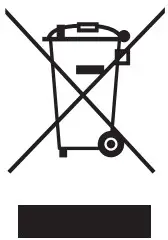 If this symbol appears on a product and its package, it indicates that the product cannot be disposed of together with other household waste. You have to deliver the waste equipment to a designated recycling center for recycling of waste electrical and electronic equipment. Proper sorting and recycling of resources during the disposal of waste equipment is helpful for protecting natural resources and ensuring that resource recycling can protect human health and the environment. For detailed information about recycling centers where waste equipment is disposed of, contact the local municipal office, cleaning service or the store where the purchased product is found.
 MasterPlus+ | Cooler Master