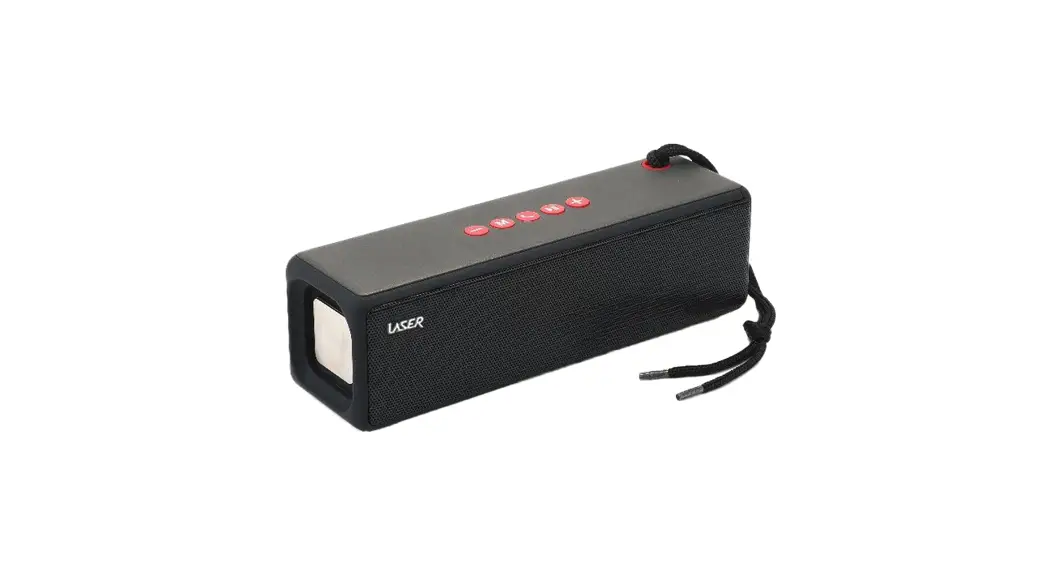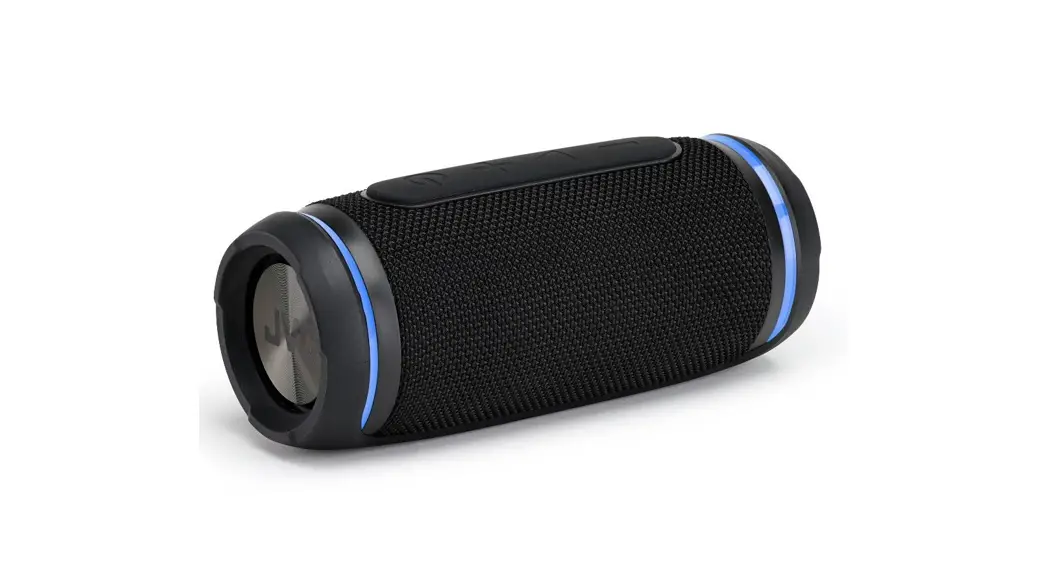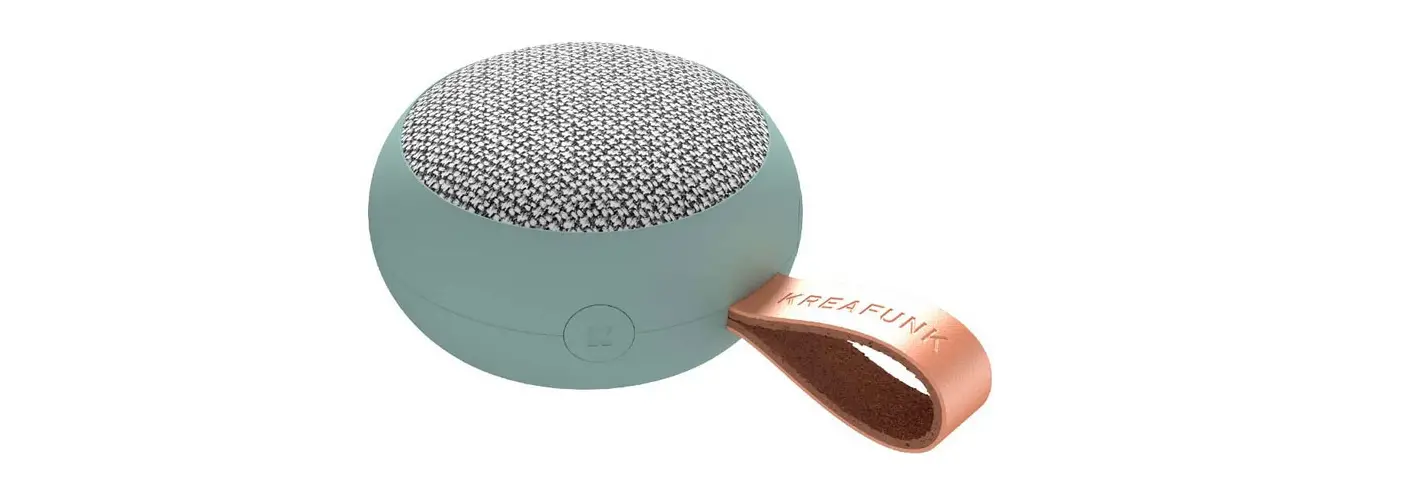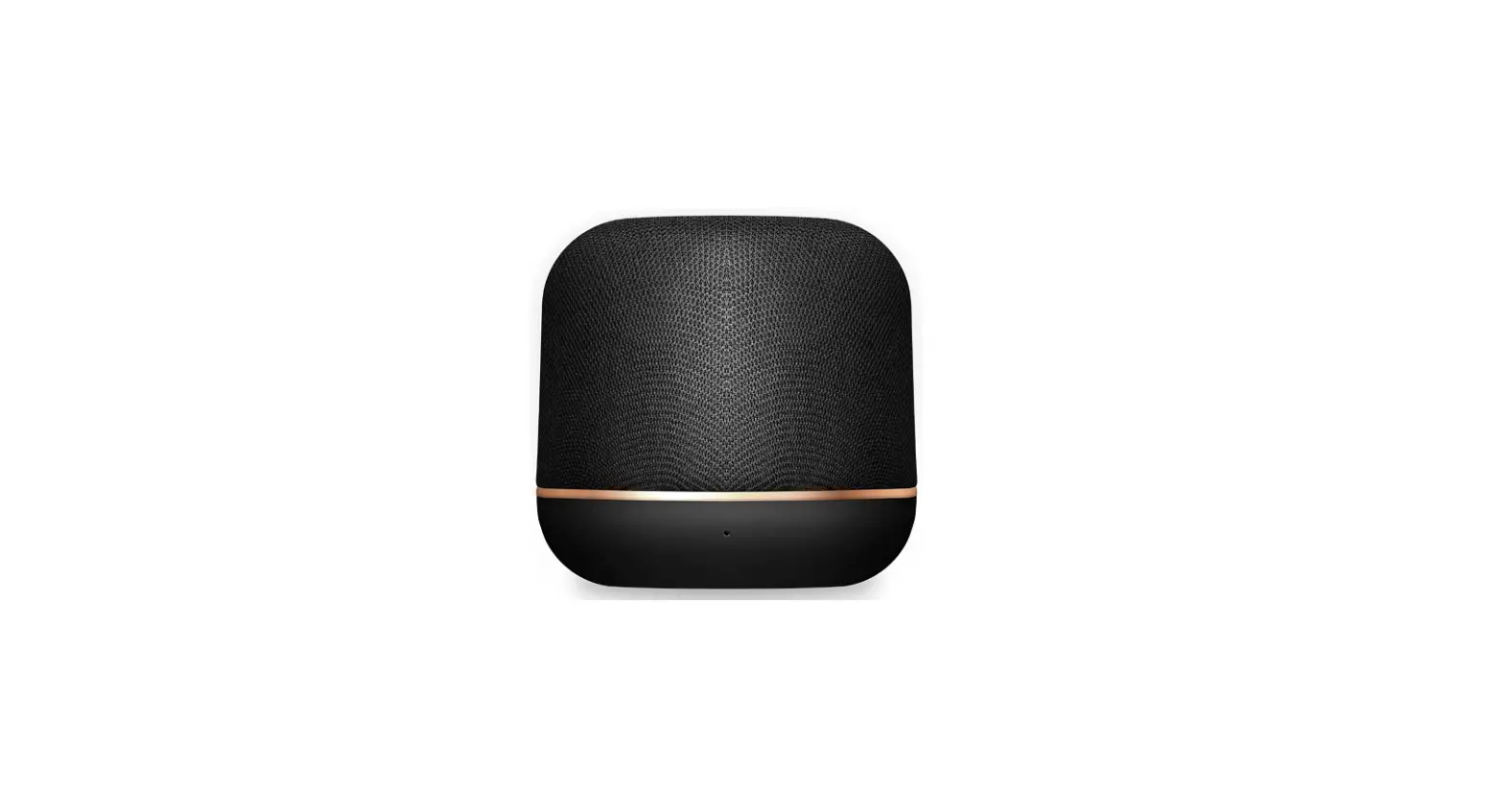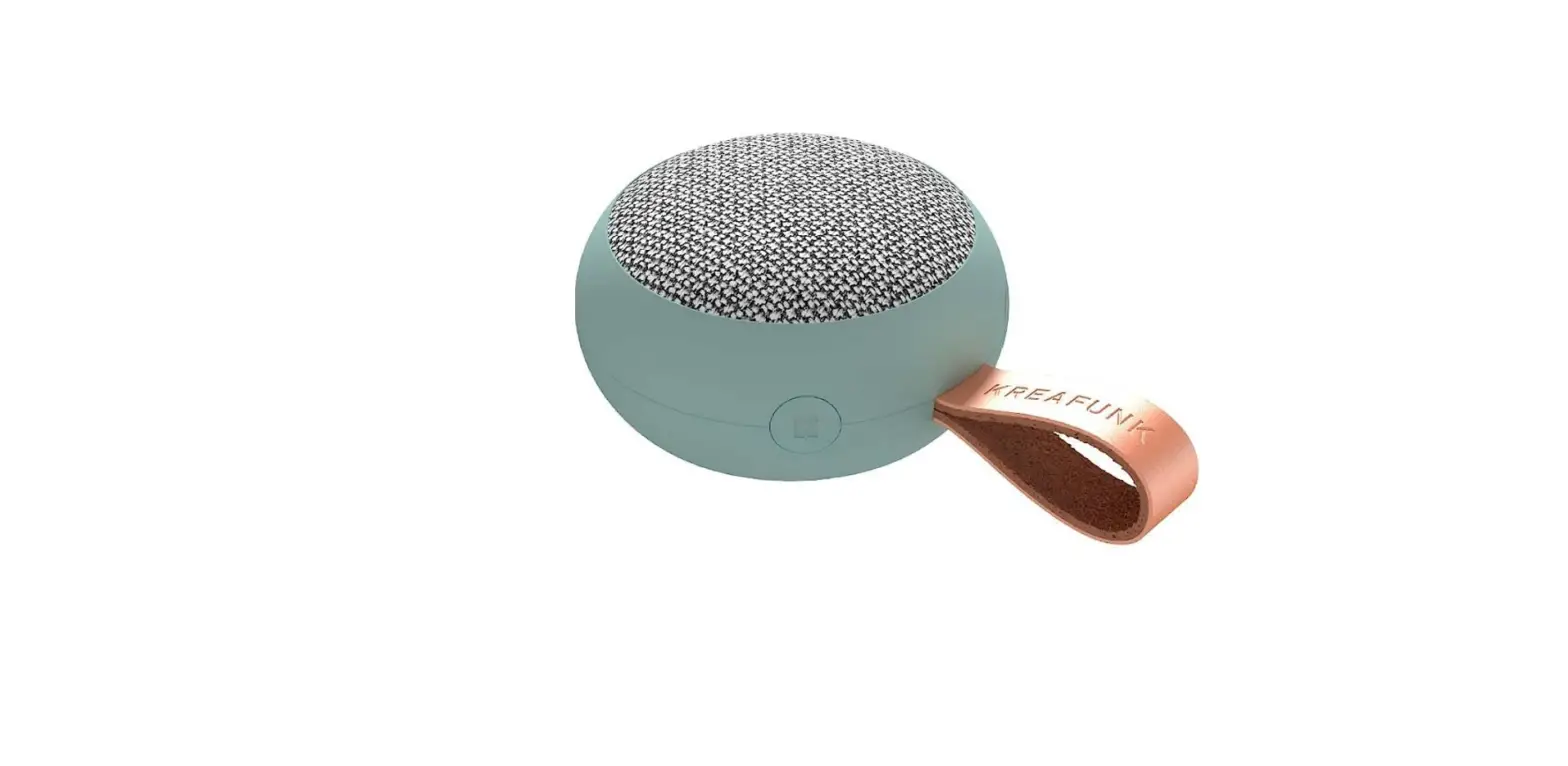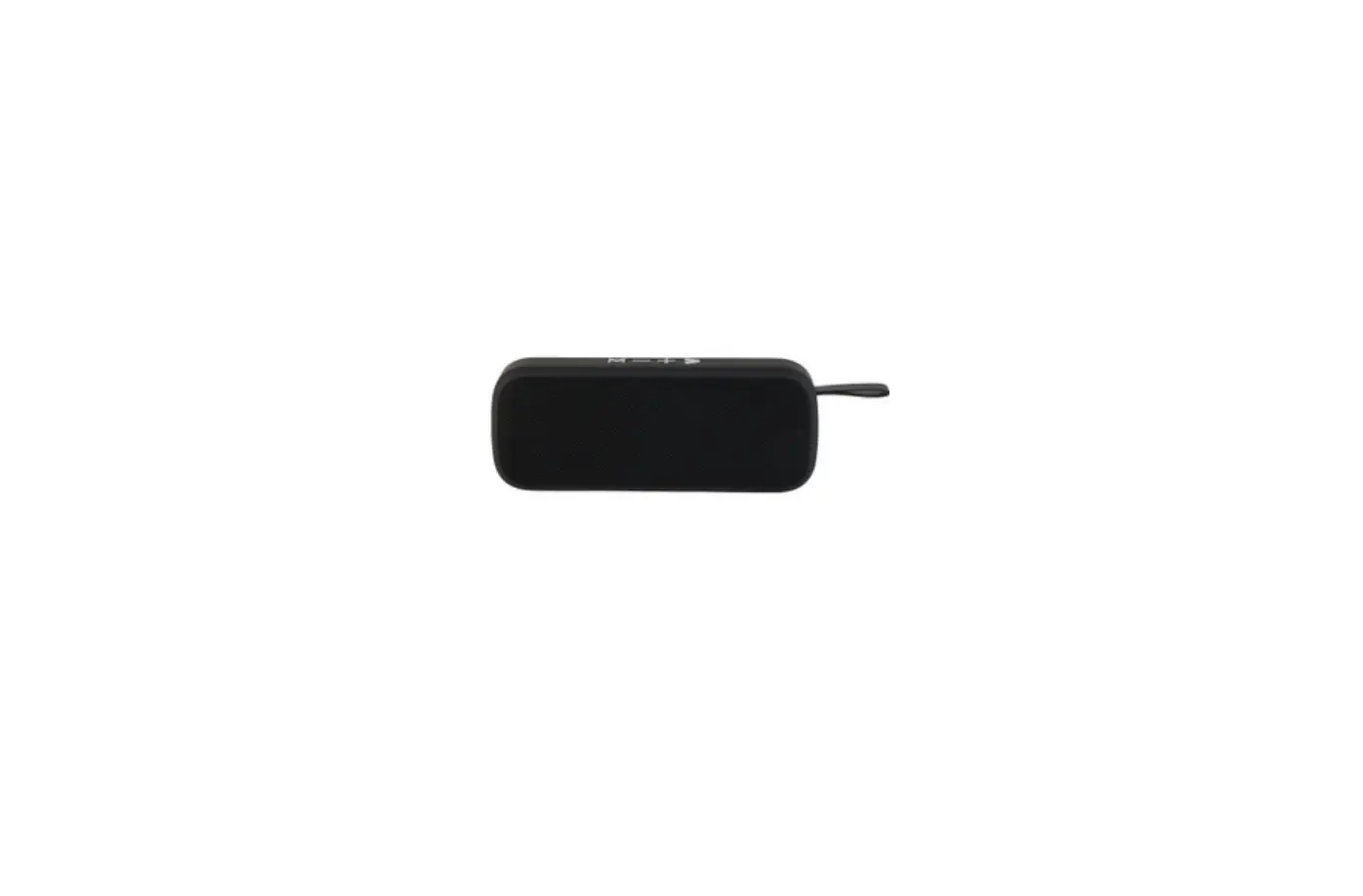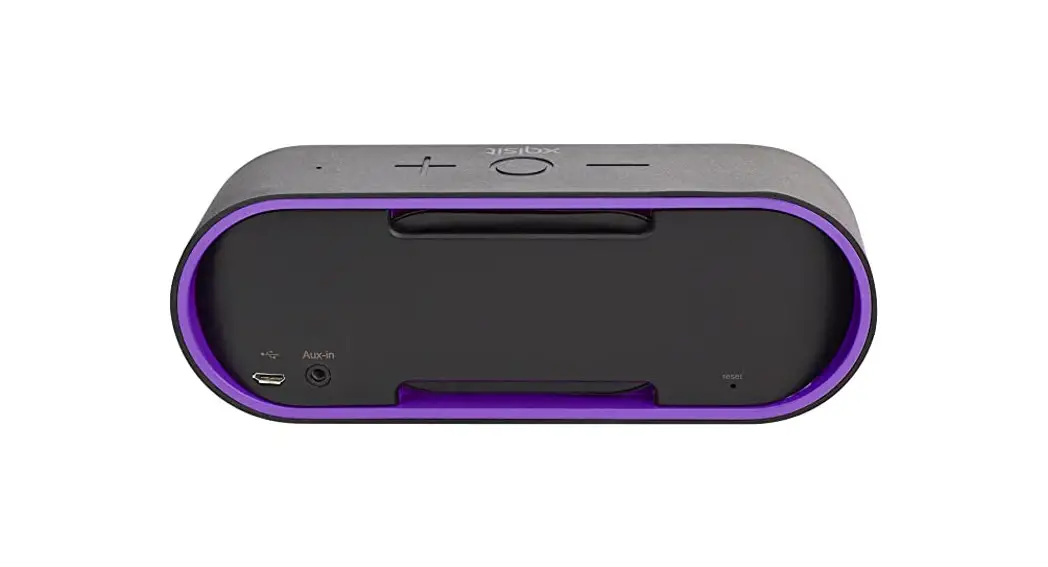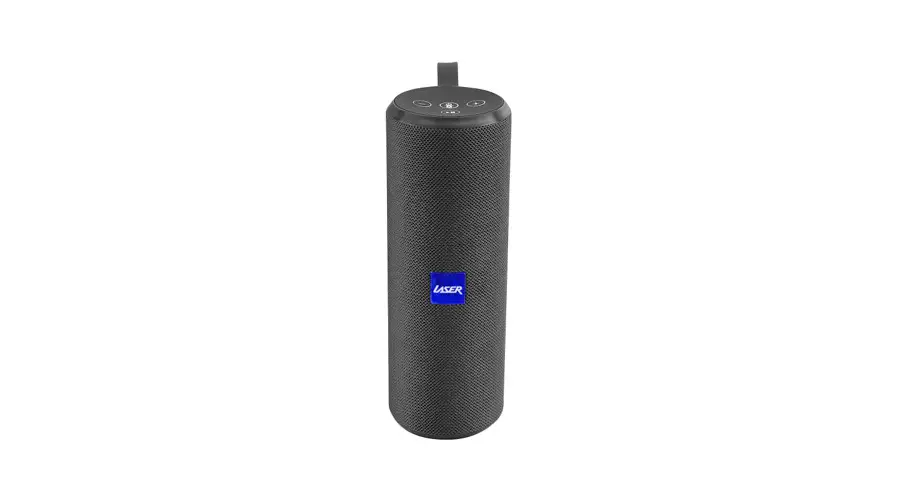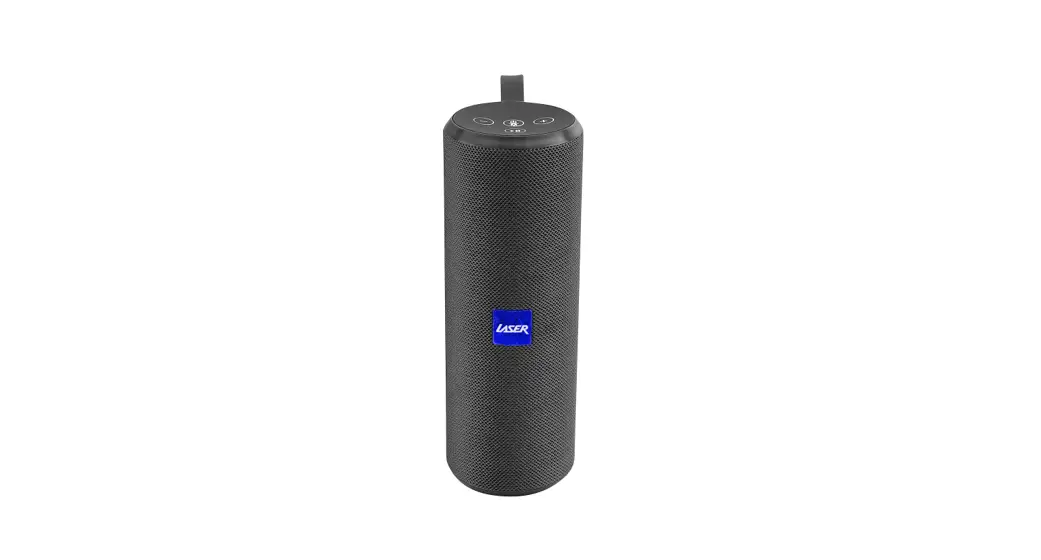
SPK-FB10-149 Fabric Speaker

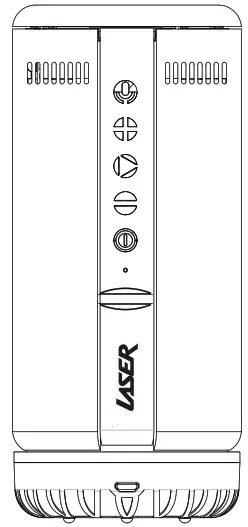
USER MANUAL
Laser Fabric Speaker
SPK-FB10-149
THANK YOU FOR YOUR PURCHASE!
Laser Corporation is 100% Australian-owned & operated. To get the most out of your product please read the user manual carefully and keep it for future use.
For specific information relating to your product such as Spare Parts, FAQs, Warranty claims, and more, please scan the following OR code: https://www.laserco.com.au/support
WHAT’S IN THE BOX
- SPK-FB10-149 Speaker
- USB-C Charge Cable
- User Manual
SPECIFICATIONS
| Bluetooth Version: | 4.0 + EDR |
| Bluetooth Range: | 10 meters |
| Bluetooth Name: | SPK-FB10-149 |
| Signal to Noise Ratio: | 80dB |
| Frequency Response: | 65Hz – 18kHz |
| Product Dimensions: | 80 x 80 x 165mm |
| Speaker Size: | 1.75″ x 2 |
| Speaker Power: | 2 x 7W |
| Battery: | 7.4V 2200mAh |
| Weight: | Without base = 876g With base = 987q |
| Charging: | DC 5V/2A |
| Charging Time: | USB = 3 hours Base = 5 hours |
FEATURES
- Bluetooth wireless connectivity.
- Charging dock.
- Rechargeable battery.
- Built-in microphone for hands-free calls.
- Pair two identical speakers using TWS
CONTROLS
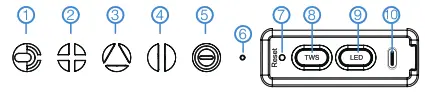 | |
 | • Tap to answer/reject/hang-up calls. |
 | • Tap to increase volume. The volume level is indicated by the light ring on the bottom of the speaker (when lights are enabled). Press and hold to skip forwards between tracks. |
 | • Tap to play/pause tracks. |
 | • Tap to decrease volume. The volume level is indicated by the light ring on the bottom of the speaker (when lights are enabled). Press and hold to skip back between tracks. |
 | • Press and hold to turn the speaker on/off. |
 | • LED indicator |
 | • Insert a small pin and press the internal • button to reset the speaker. |
 | • Tap to connect/disconnect the TWS function. |
 | • Tap to turn speaker lights on/off. |
 | • Charing input DC 5V/2A |
BLUETOOTH PAIRING
- Turn on the speaker and it will automatically go into Bluetooth pairing (if no device is already connected).
- Search for “SPK-FB10-149” under the Bluetooth settings of the device you are connecting to e.g. smartphone or tablet.
TIP: If a password is requested enter “0000”
HANDS-FREE CALLS
- Turn the speaker on and connect to a smartphone using Bluetooth (see Bluetootle. Pairing instructions).
- When there is an incoming call you can tap the
 button to answer the call.
 - You can use the built-in microphone on the speaker to talk.
HANDS-FREE CALLS continued …
• Tap the  button to end the call.
• To reject an incoming call press and hold the button.
INDICATOR LIGHT
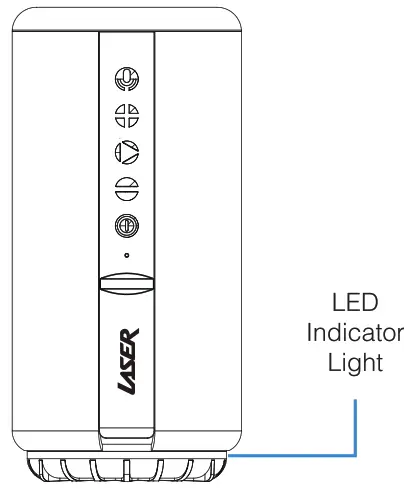
 | Bluetooth mode |
 | Low battery/Charging |
TWS PAIRING
- Turn on two identical speakers into their Bluetooth pairing modes. Make sure neither speaker is connected to any other device via Bluetooth.
- tap the
 button on two speakers
 - A voice prompt will be heard if successfully connected via TWS.
TWS PAIRING continued …
- Next, connect one of the speakers to a Bluetooth input source. Search for and select “SPK-FB10-149” under the Bluetooth settings of a device you are connecting to e.g., smartphone or tablet.
- Once paired to a smart device any audio played will come out of both speakers in true wireless stereo.
- To disconnect TWS pairing, tap *Ii* on one of the speakers.
TROUBLESHOOTING
No Power:
- Check battery level and charge if required.
- Try turning on the speaker while connected to a power source.
- Try charging the speaker with a USB Wall Adapter (like a smartphone charger) instead of a laptop/computer.
- Try charging the speaker with/without a dock.
TROUBLESHOOTING continued …
Problems Connecting to Bluetooth:
- Make sure the speaker is powered on.
- Place the speaker next to the smart device you are pairing to e.g., Smartphone.
- If the Bluetooth name “SPK-FB10-149” does not appear on the list of available devices, then try refreshing the list or searching again.
TROUBLESHOOTING
CONTINUED
If the speaker is already connected to another smart device, it will need to be unpaired from that device first or it will need to be out of the Bluetooth connection range of that device before it can be connected to another. You can unpair quickly from another device by pressing and holding the  button for approx. 3 seconds.
WARRANTY AGAINST DEFECTS
Laser warrants your new product to be free from defects in materials and workmanship for 12 months, from the date of purchase, provided that the product is used in accordance with accompanying recommendations or instructions where provided. The benefit of this warranty is in addition to your rights under the Australian Consumer Law and to other rights and remedies of the consumer under a law in relation to the goods or services to which the warranty relates.
Through a network of retailers and resellers, Laser will provide you with your choice of a refund, repair, or exchange (where possible) for this product if it becomes defective within the warranty period. This warranty will no longer apply where the defect is a result of alteration, accident, misuse, abuse, normal wear and tear, neglect, or improper storage. Please retain your receipt as proof of purchase
How to make a product warranty claim:
- Find your receipt with the date of purchase. If this is not available, Laser will make an assessment based on the date of manufacture, condition of the product, and type of defect.
- Please contact your original place of purchase. They will assess the nature of the fault and refund or replace the product as per their store refund or warranty policy.
- If your original place of purchase cannot be contacted, please contact Laser with a description of the fault. To assist our team in providing you with a quick resolution, please include any photos and/or a short video demonstrating the fault with your product.
• Phone: (02) 9870 3388
• Email: [email protected]
• Online: www.laserco.net/supporttwarranty and follow the website instructions
• Business Address: U1 6-8 Byfield Street, Macquarie Park, 2113, NSW, Australia - The laser will review your claim and in the first instance, attempt to troubleshoot and resolve the issue for you without the need to return the product.
- If it is determined via troubleshooting that your product may be faulty our team will provide instructions to have the product returned for assessment. If the product does need to be returned within the warranty period, Laser will arrange return shipping at no cost to you.
- Once we receive the product, our experienced technicians will assess it and determine how best to resolve the issue.
Our goods come with guarantees that cannot be excluded under the Australian Consumer Law. You are entitled to a replacement or refund for a major failure and compensation for any other reasonably foreseeable loss or damage. You are also entitled to have the goods repaired or replaced if the goods fail to be of acceptable quality and the failure does not amount to a major failure.
For more helpful guides visit us at
LASER
www.youtube.com/LasercoAu
www.laserco.com.au