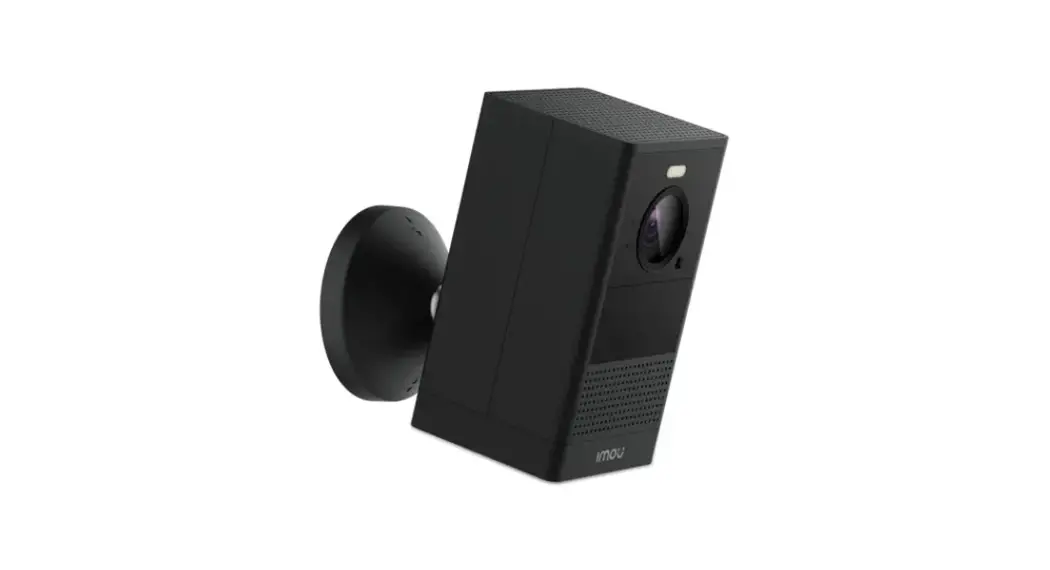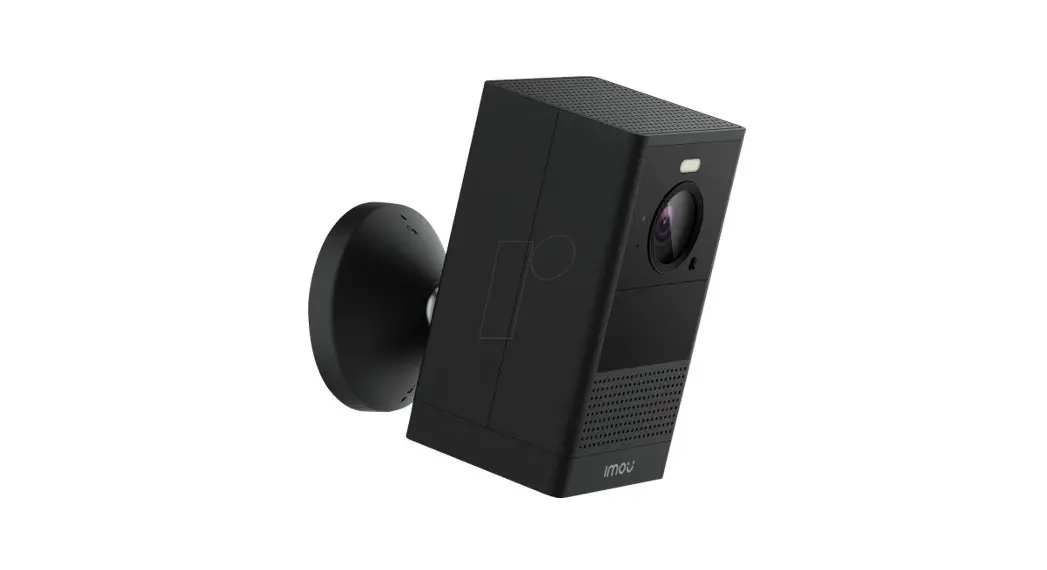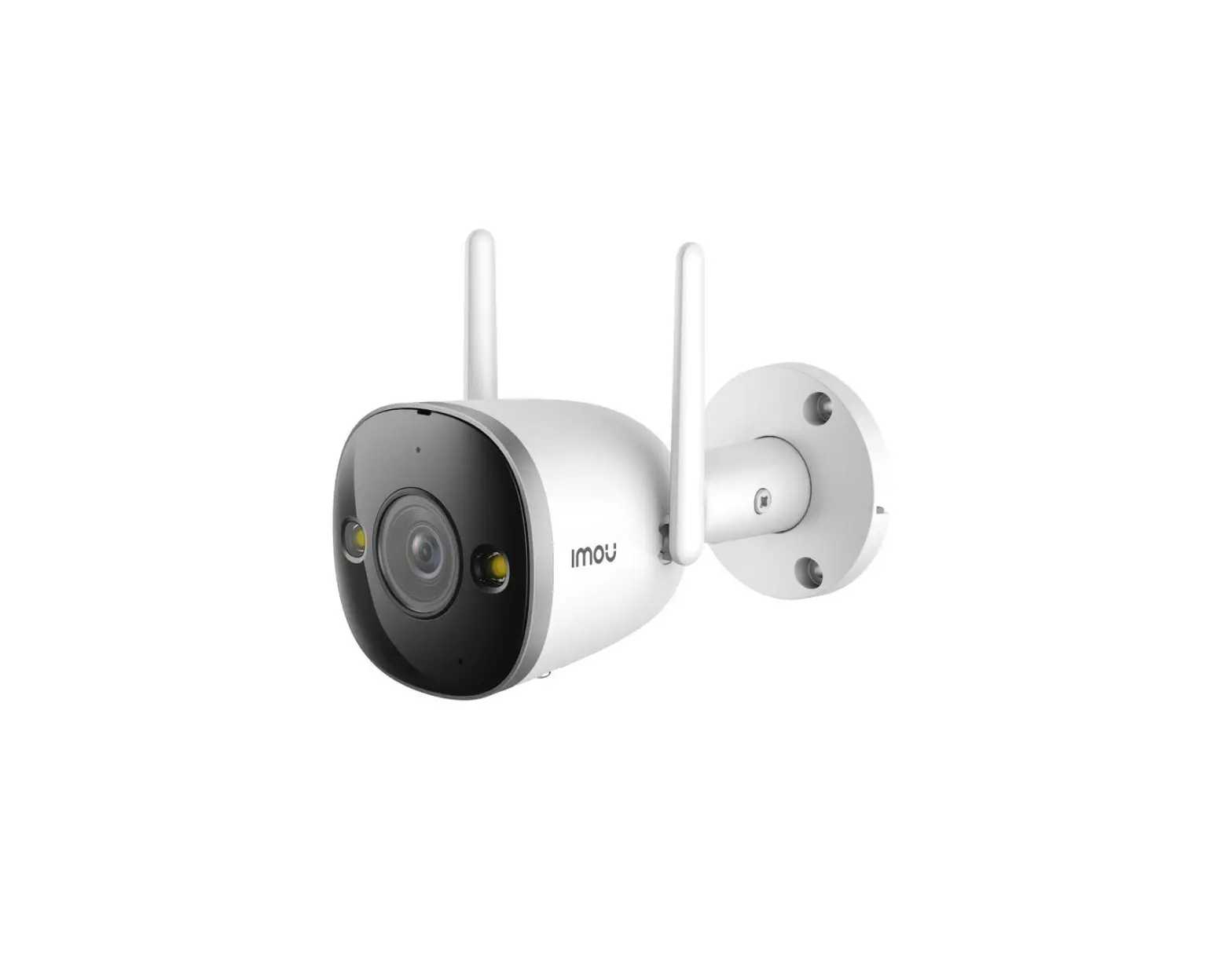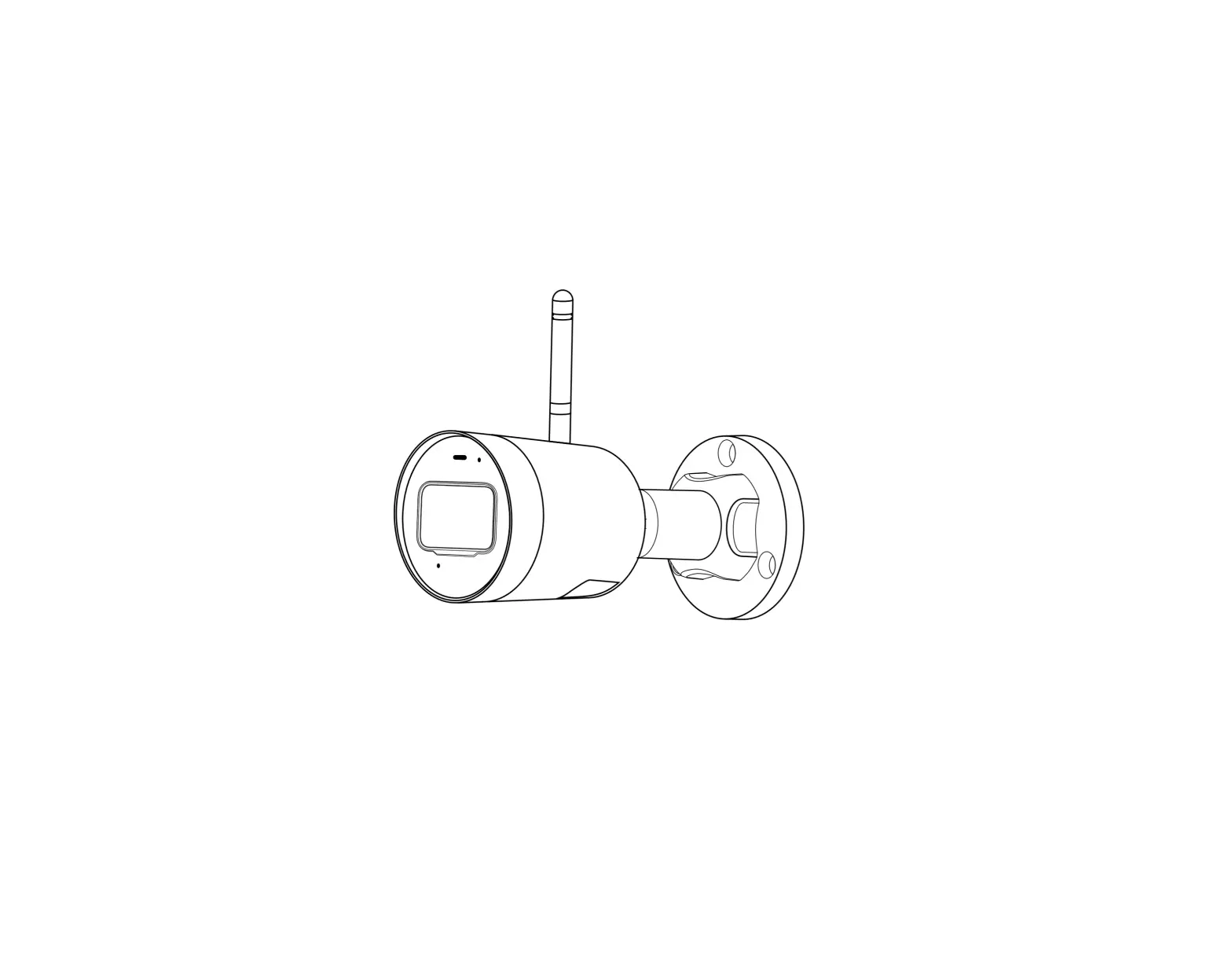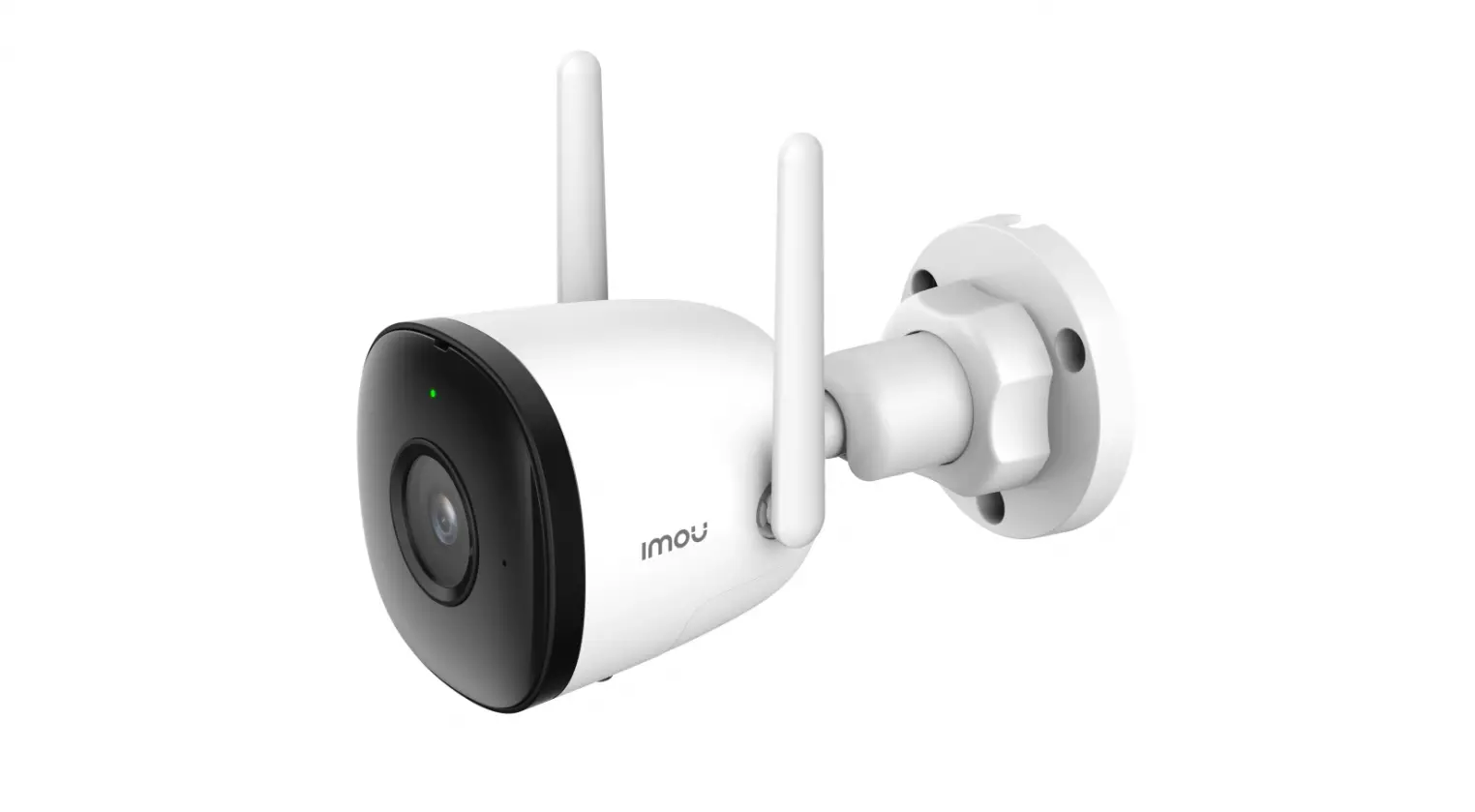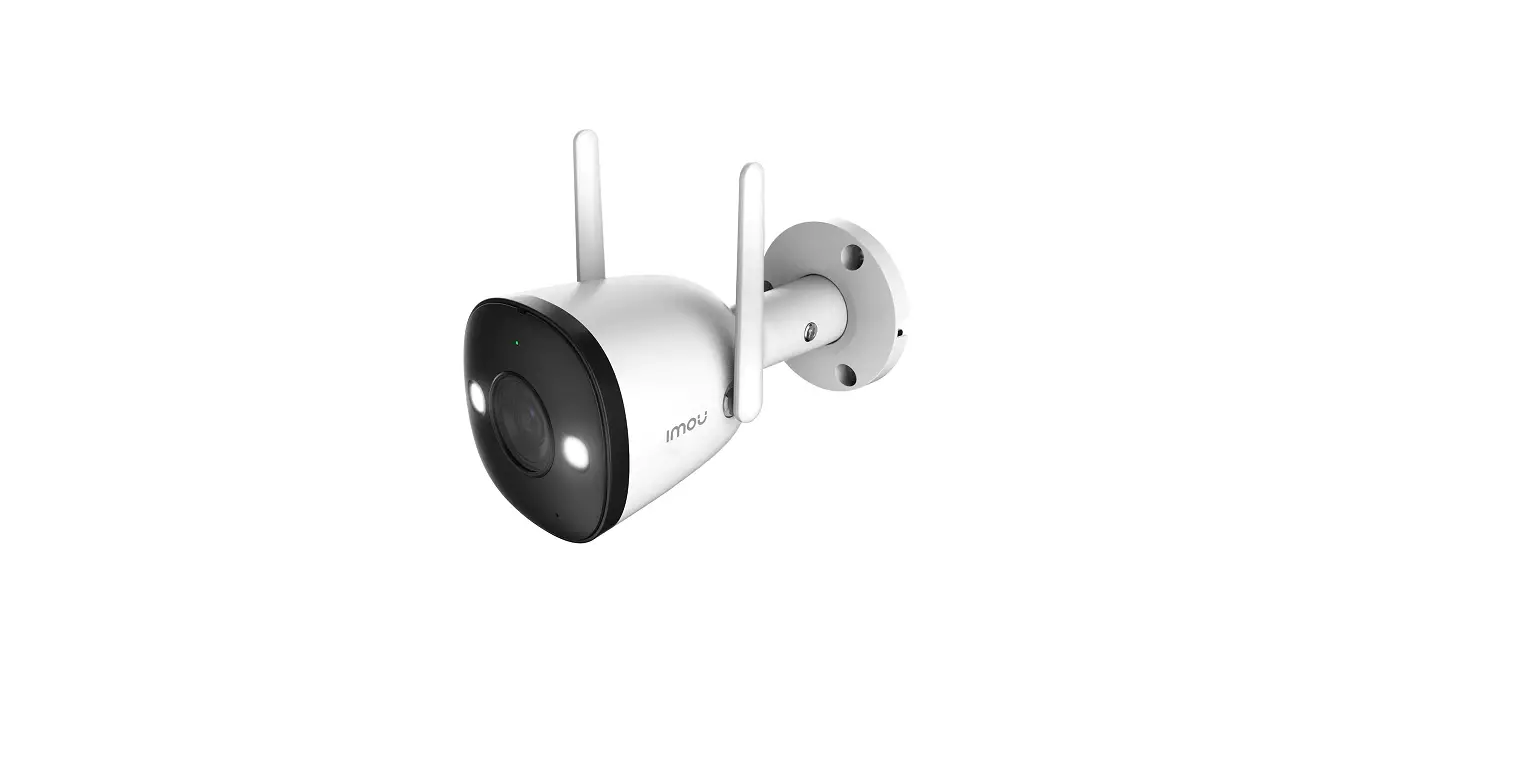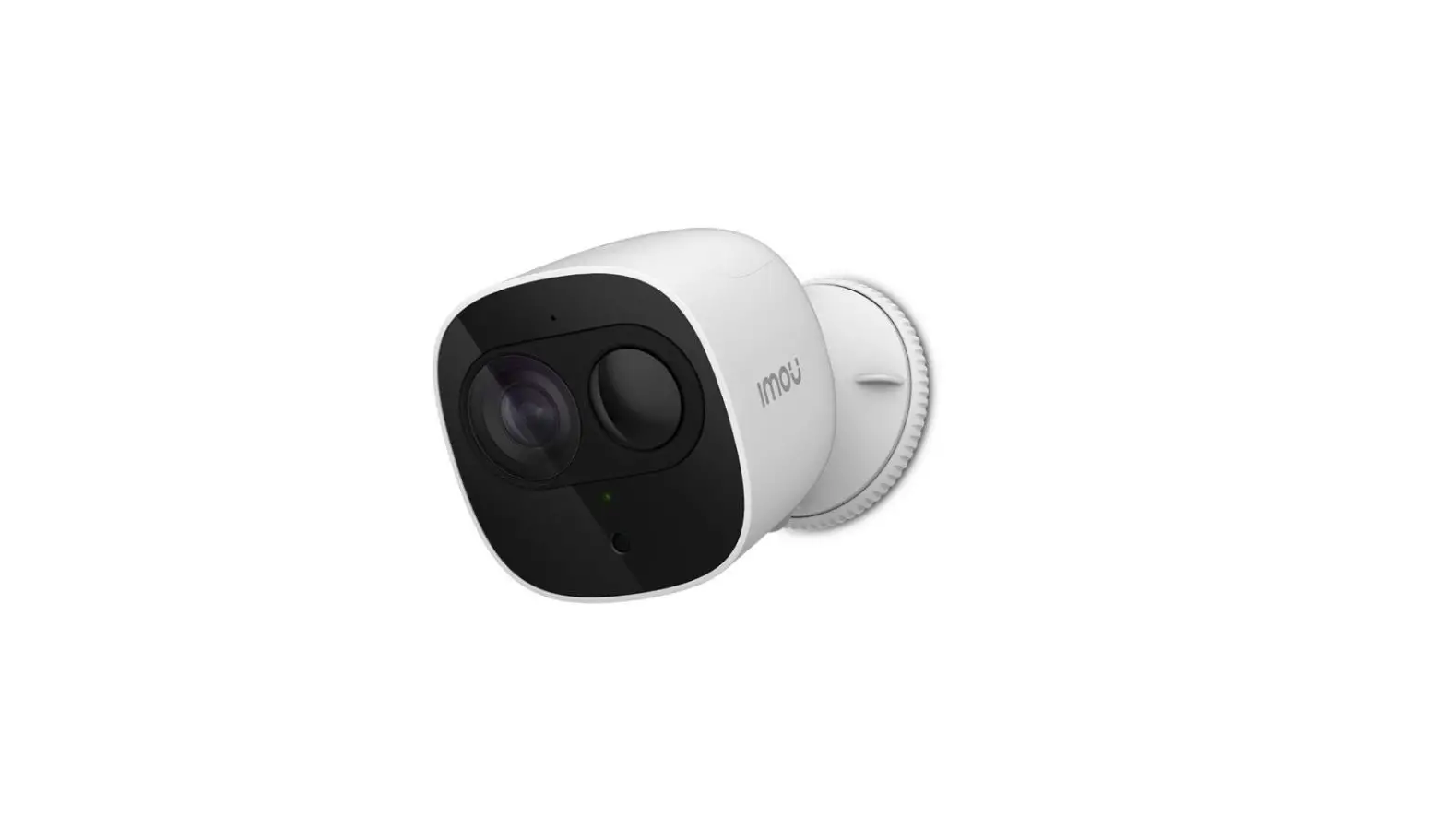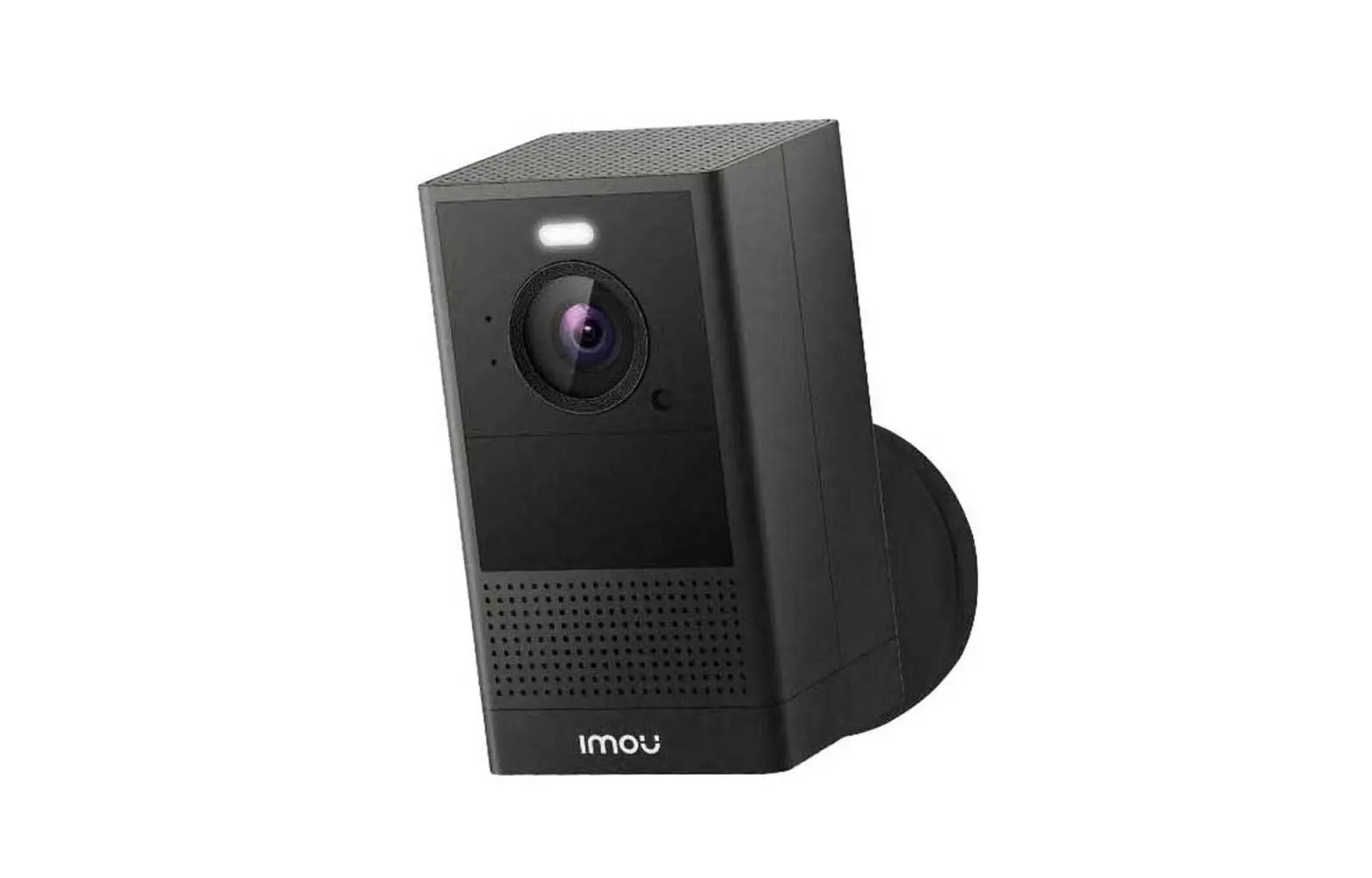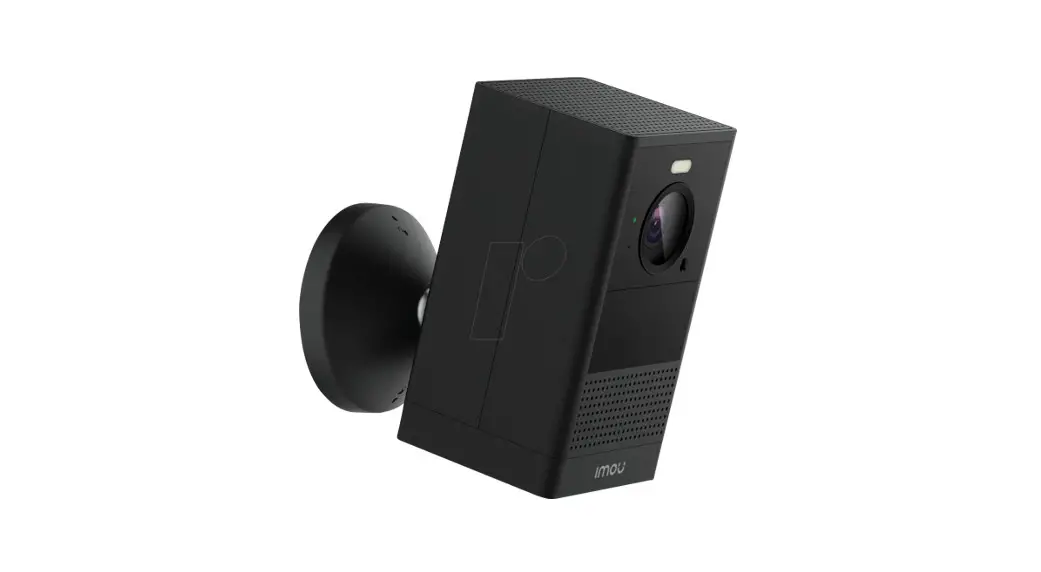
Quick Start Guide-Imou Cell 2

Download the Imou Life App
Option 1: Search “Imoulife” App from the App Store or Google Play
Option 2: Scan the QR code on the below picture to install Imou Life App
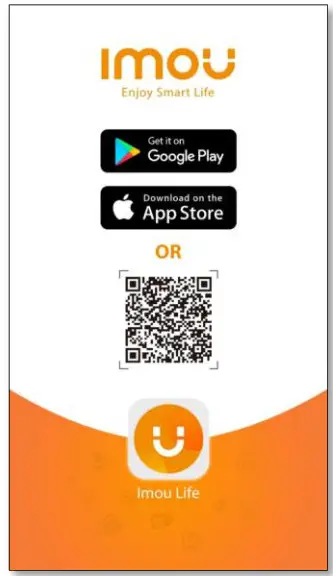
- For iOS, the system version should be 9.0 or above.
- For Android, the system version should be 5.0 or above.
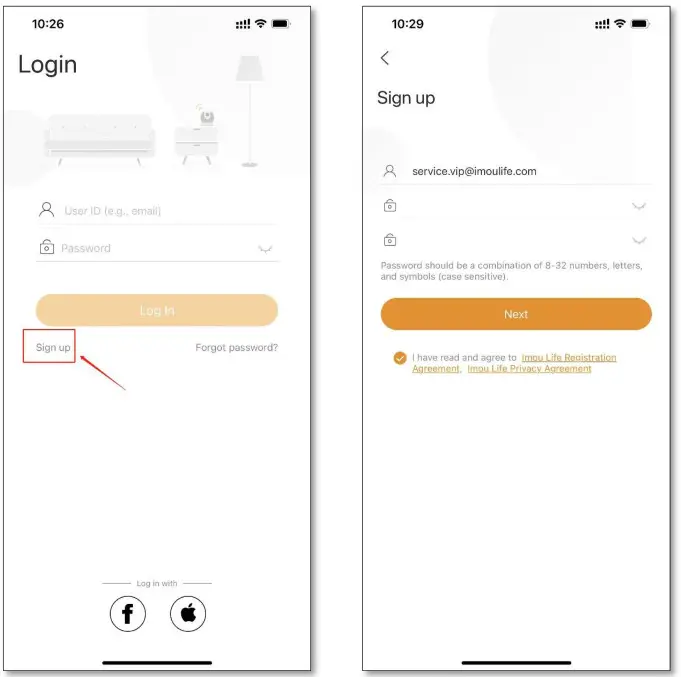
Create an ImouLife account
2.1 Click “sign up”
2.2 Select the region where you are from
2.3 Enter your email address and set a password
2.4 Enter the verification code found in the email sent from Imou
*Kindly be noted that the email verification code might get blocked. If you didn’t receive it, please check your trash box.
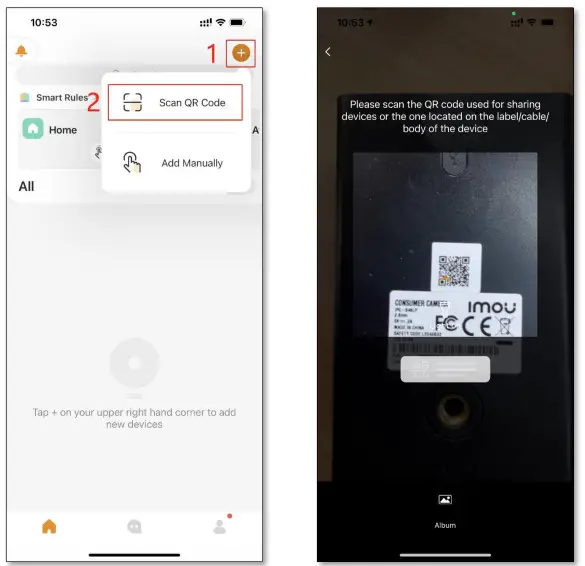
Add the camera into your Imou account
Option 1: Scan the QR code located on the back of the camera
Option 2: Add the camera manually by inputting the serial number
*Warm notes:
- Please place your smartphone, camera within 30 cm of the router.
- Please keep your smartphone 10-15 cm from the camera when scanning the QR code
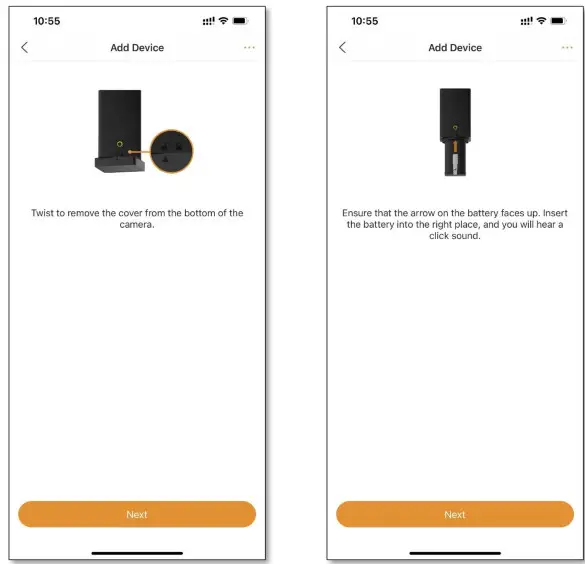
Remove the cover and insert the battery
4.1 Twist to remove the cover from the bottom of the camera.
4.2 Ensure that the arrow on the battery faces up. Insert the battery into the right place, and you will hear a click sound.
Power on the camera
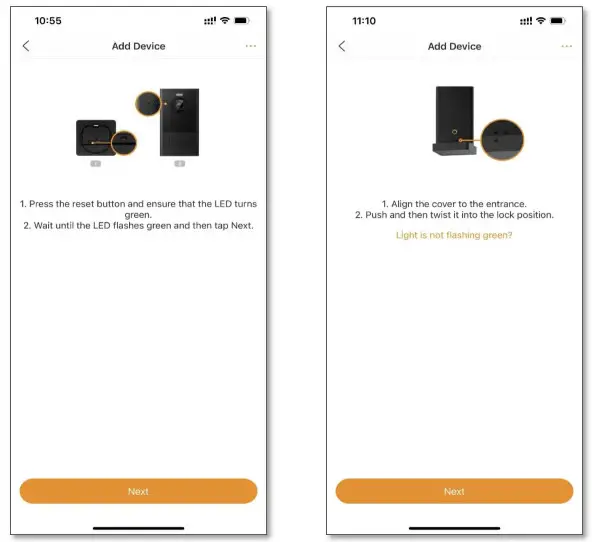
5. 1 Press the reset button for 2-3 seconds and ensure that the LED turns green.
5.2 Wait until the LED flashes green and then tap next
5.3 Align the cover to the entrance
5.4 Push and then twist it into the lock position
Connect to the device DAP hotspot
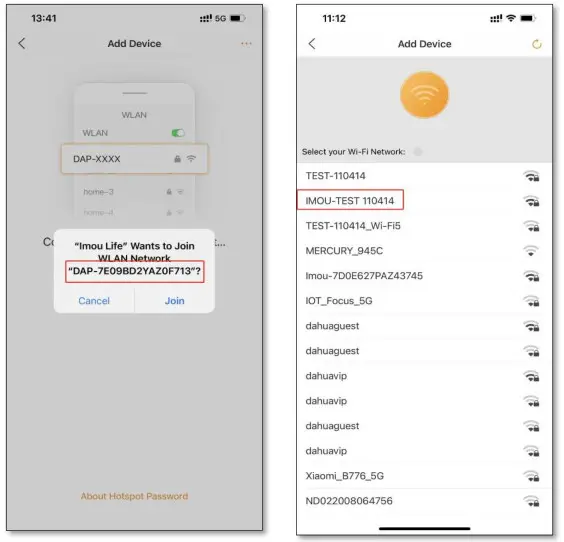
6.1 Connect your mobile phone to the device DAP hotspot
6.2 Once connected, select your home Wi-Fi network on the next page.
What if you fail to connect to DAP hotspot?
Go to the WLAN setting of your mobile phone, and then connect to the device DAP hotspot manually. The password is an 8-bit safety code located on the back of the camera. Once connected, return to this page.
*Kindly be noted the DAP hotspot does not have an internet connection. It is just a necessary step for device configuration.
Connect to Imou cloud server
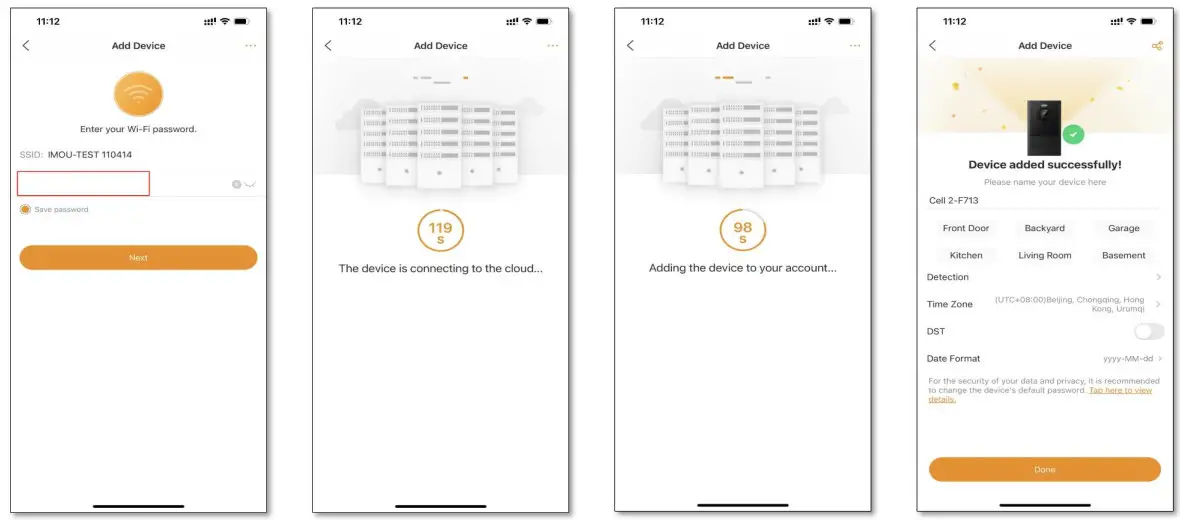
7.1 Enter your home Wi-Fi password correctly and tap “next”, then the camera will connect to Imou cloud server automatically.
Thant You
Please reach out to [email protected] in case of connection failure.
 📧
📧