INVUE SKG063A Network Store Operations Kit Instructions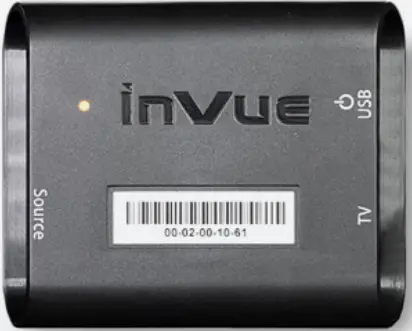
Gateway Setup
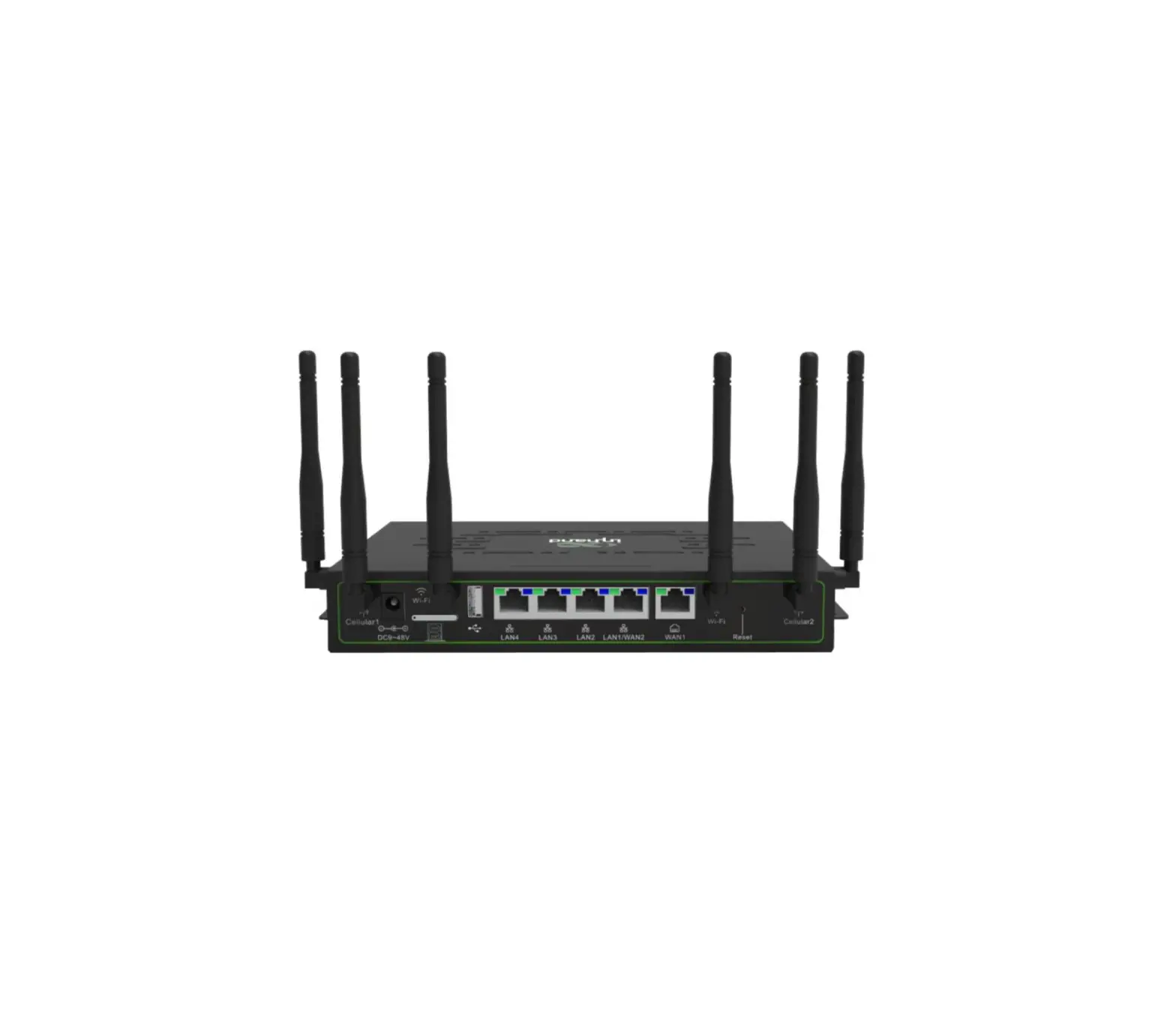
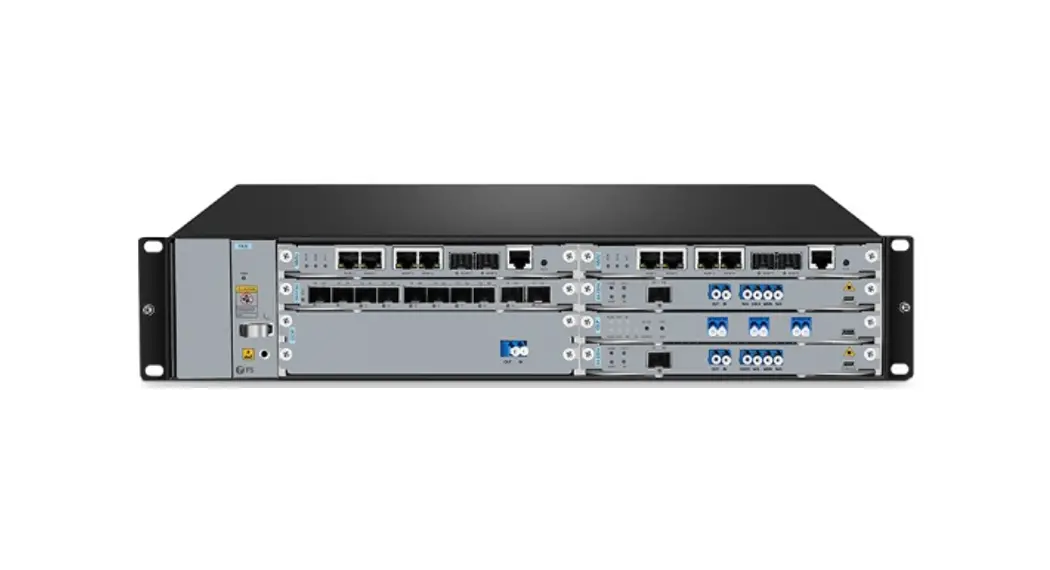
- Screw the antenna onto the Gateway.
Antenna is located above the Gateway inside the Sales Kit.
(Do not over tighten the antenna) - Plug in the power supply for the Gateway.
- For best connection:
Plug Ethernet network cable into the Gateway.
(ETH Port)
NOTE: If there is no Ethernet network available, place the Gateway in a location with a strong LTE signal for mobile connection.
Login
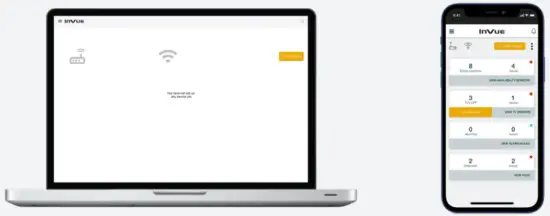
- On a Smartphone or Tablet Use a web browser, go to:
https://demo.invue.live
- Use the username for your region:
Americas: demo-kit-na
EMEA: demo-kit-eu
APAC: demo-kit-as
Password:
12345 - Select specific sales kit (store):
Label on back of sales kit gateway indicates specific store name
(Example: NA02)
Home page shows active sensors assigned to the specific store

Webapp Icon: On Android + Chrome, a webapp icon may be created by navigating to the login screen and then selecting the More menu (top right) and pressing “Add to Home Screen”. This will give closest app experience for the demo.
Add A Sensor
- Press:
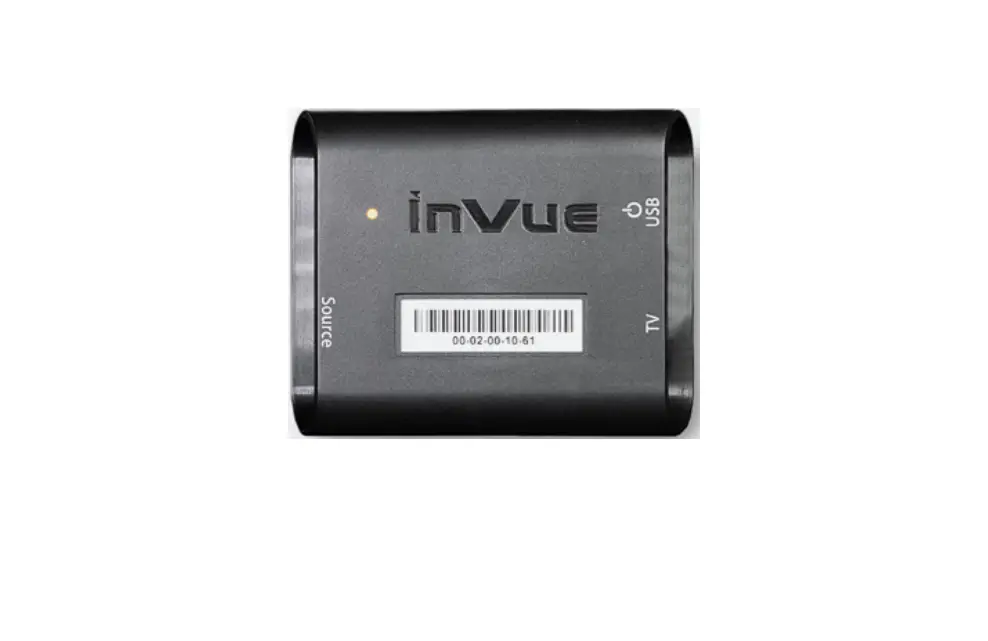
Scan Device
Scan InVue sensor barcode or enter code manually. (OSA Sensor or TV Manager) - Assign merchandise to the sensor:
Enter SKU of desired merchandise from the list - Assign a position for the sensor:
Select a position from the list - Review the details:
Press Save
Review the details:
Press Save
Sample Merchandise
| PRODUCT | BRAND | NAME | MODEL | SKU | UPC |
| OSA Sensor | Healfood | Demo Merchandise 1 | ME01 | 0000000001 | |
| OSA Sensor | Healfood | Demo Merchandise 2 | ME02 | 0000000002 | |
| OSA Sensor | Contery | Demo Merchandise 3 | ME03 | 0000000003 | |
| OSA Sensor | Contery | Demo Merchandise 4 | ME04 | 0000000004 | |
| TV Manager | Fruitore | 50” TV Name1 1080P | TVS1 | TV01 | 0000000005 |
| TV Manager | Fruitore | 50” TV Name2 4K | TVS2 | TV02 | 0000000006 |
| TV Manager | Ltronix | 50” TV Name3 4k | TVL1 | TV03 | 0000000007 |
| TV Manager | Vident | 50” TV Name4 8k | TVV1 | TV04 | 0000000008 |
| S3100V | Digitics | 4.7” Smartphone 3GB | PHA1 | PH01 | 0000000009 |
| S3100V | Digitics | 5.8” Smartphone 4GB | PHA2 | PH02 | 0000000010 |
| S3100V | Fruitore | 6.7” Smartphone 8GB | PHS1 | PH03 | 0000000011 |
| S3100V | Teczera | 6.8” Smartphone 8GB | PHH1 | PH04 | 0000000012 |
| S3100V | Digitics | 10.2” Tablet 32GB | TAA1 | TA01 | 0000000013 |
| S3100V | Digitics | 10.9” Tablet 64GB | TAA2 | TA02 | 0000000014 |
| S3100V | Miscal | 10.5” Tablet 64GB | TAM1 | TA03 | 0000000015 |
| S3100V | Fruitore | 10.4” Tablet 32GB | TAS1 | TA04 | 0000000016 |
| PRODUCT | NAME | DEPARTMENT | DEPTH |
| OSA Sensor | End Cap A1 | Grocery | 450 |
| OSA Sensor | End Cap B2 | Grocery | 450 |
| OSA Sensor | Row 1 Column 2 | HBA | 300 |
| OSA Sensor | Row 3 Column 4 | HBA | 300 |
| TV Manager | Brand Wall | TV | |
| TV Manager | Aisle 23 | TV | |
| TV Manager | Aisle 24 | TV | |
| S3100V | Front table Pos 1 | Electronics | |
| S3100V | Front Table Pos 2 | Electronics | |
| S3100V | Front Table Pos 3 | Electronics | |
| S3100V | Front Table Pos 4 | Electronics | |
| S3100V | Front Table Pos 5 | Electronics | |
| S3100V | Front Table Pos 6 | Electronics | |
| S3100V | Front Table Pos 7 | Electronics | |
| S3100V | Front Table Pos 8 | Electronics |
 LIVE
LIVE